service AUDI Q7 2018 Owner´s Manual
[x] Cancel search | Manufacturer: AUDI, Model Year: 2018, Model line: Q7, Model: AUDI Q7 2018Pages: 398, PDF Size: 185.58 MB
Page 164 of 398
Multifunction steering wheel
Telephone
Applies to: vehicles w ith multifunct ion steering wheel and
telephone
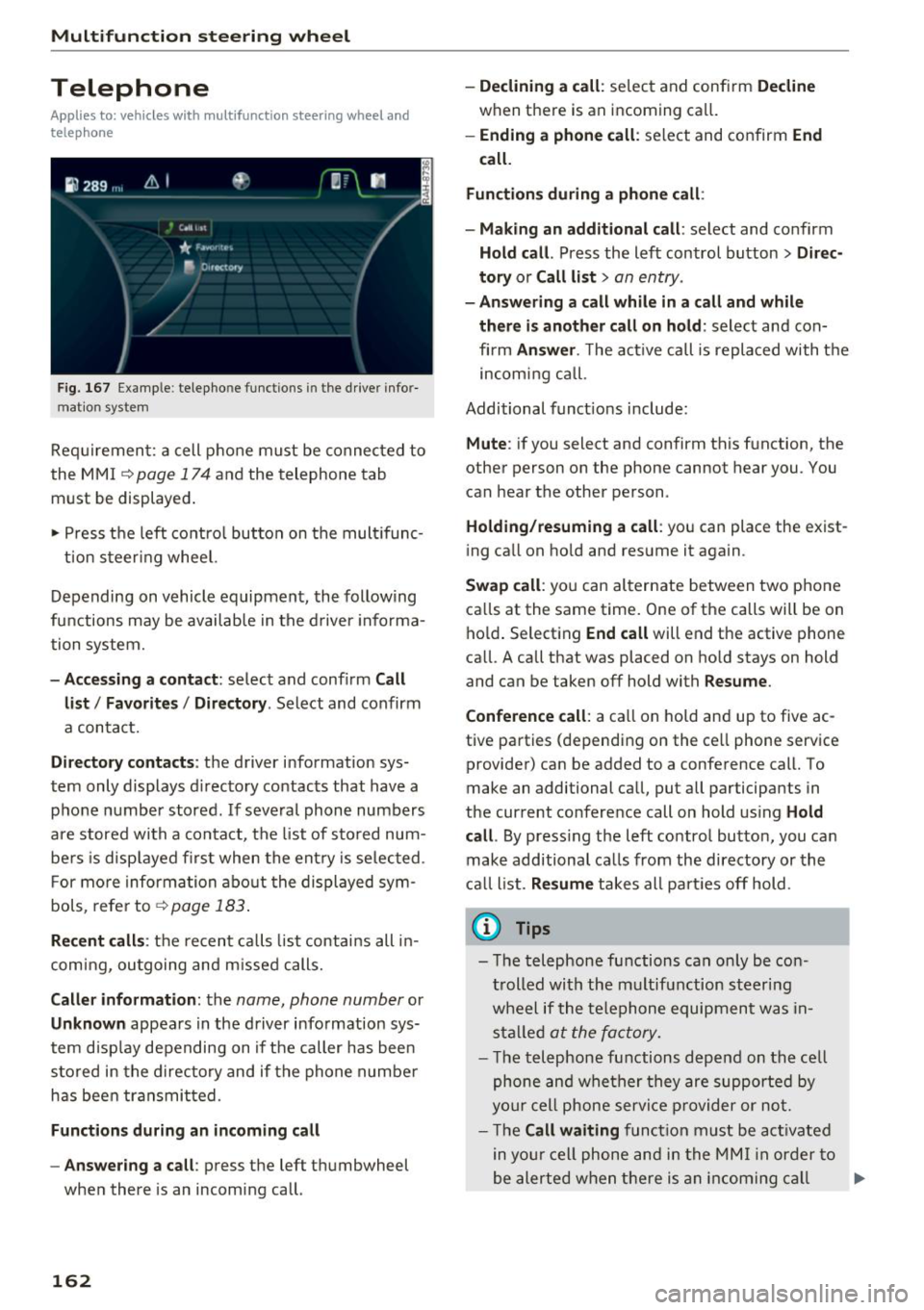
Fig. 167 Example : telepho ne functions in the driver info r
mat ion system
Requirement: a cell phone must be connected to
the MMI
¢ page 174 and the telephone tab
must be displayed.
• Press the left control button on the multifunc-
tion steering wheel.
Depending on vehicle equipment, the following
functions may be available in the driver informa
tion system.
-Accessing a contact: select and confirm Call
list/ Favorites/ Directory .
Select and confirm
a contact.
Directory contacts : the driver information sys
tem only displays directory contacts that have a
phone number stored.
If several phone numbers
are stored with a contact, the list of stored num
bers is displayed first when the entry is selected .
For more information about the displayed sym
bols , refer to
¢page 183.
Recent calls : the recent calls list contains all in
coming, outgoing and missed calls.
Caller information: the name, phone number or
Unknown appears in the driver information sys
tem display depending on if the caller has been
stored in the directory and if the phone number
has been transmitted.
Functions during an incoming call
- Answering a call :
press the left thumbwheel
when there is an incoming call .
162
-Declining a call: select and confirm Decline
when there is an incoming call.
-Ending a phone call : select and confirm End
call.
Functions during a phone call :
- Making an additional call :
select and confirm
Hold call. Press the left control button > Direc
tory
or Call list > an entry.
- Answering a call while in a call and while
there is another call on hold:
select and con
firm
Answer . The active call is replaced with the
incoming call .
Additional functions include:
Mute : if you select and confirm this function, the
other person on the phone cannot hear you. You
can hear the other person.
Holding/resuming a call : you can place the exist
ing call on hold and resume it again .
Swap call: you can alternate between two phone
calls at the same time. One of the calls will be on
hold. Selecting
End call will end the active phone
ca ll. A call that was placed on hold stays on hold
and can be taken off hold with
Resume.
Conference call:
a call on hold and up to five ac
tive parties (depending on the cell phone service
provider) can be added to a conference call. To
make an additional call, put all participants in
the current conference call on hold using
Hold
call .
By pressing the left control button, you can
make additional calls from the directory or the
call list.
Resume takes all parties off hold .
(D Tips
-The telephone functions can only be con
trolled with the multifunction steering
wheel if the telephone equipment was in
stalled
at the factory .
-The telephone functions depend on the cell
phone and whether they are supported by
your cell phone service provider or not.
- The
Call waiting function must be activated
in your cell phone and in the MMI in order to
be alerted when there is an incoming call .,.
Page 165 of 398
during an active ca ll. The call options de
pend on the cell phone and se rvice provide r.
You can obta in more information from your
ce ll phone service prov ider.
Navigation
Operation in the driver information system
Applies to: vehicles with multifunction steering wheel and
navigat ion system
Requirement: a destination must be entered
c::> pag e 204, rou te g uidance must be starte d and
the navigat ion tab mus t be d is pl ayed.
.,. Press t he left cont rol button on the mult ifunc -
t io n st eer ing whee l
c::>page 13.
Depending on vehicle equipment, the following
functions may be availab le in the driver in forma
tion syste m.
-Displaying nav igat ion during active route
guidance :
select and c onfirm Map or Street
view *
(analog instrument cluster).
- Showing the map when route guidance is not
active :
select and co nfirm Map .
- Access ing last destinations :
select and confirm
Last destinations > the desired destination .
-Access ing favorites : select and confirm Favor
ites >
the desired destination.
-Starting route guidance to the stored home
address :
select and confi rm Cancel route guid ·
ance
if necessary and then Home address .
If yo u have not starte d ro ute gui dance, a com
pass (in the analo g instr ument cluster) or a map
(Aud i virt ua l coc kp it)* will be disp layed.
- Canceling active route guidance : on the m ulti
function steering wheel, select: r ight control
button
> Cancel route guidance.
Additional settings
- Se lec t: rig ht c ontro l bu tton > desired entry .
Depending on t he f unction selected, the follow
in g addi tional sett ings may be poss ible:
a -Map display c::> page 214 co
~ -Map co lors c::> page 214 r--.
~ - Map orie ntation c::> page 21 4 0
~ -Au tom atic z oom c::> page 215
'
Nav igation view with route guidance
started
Applies to: vehicles with navigation system and Audi virtual
cockpit
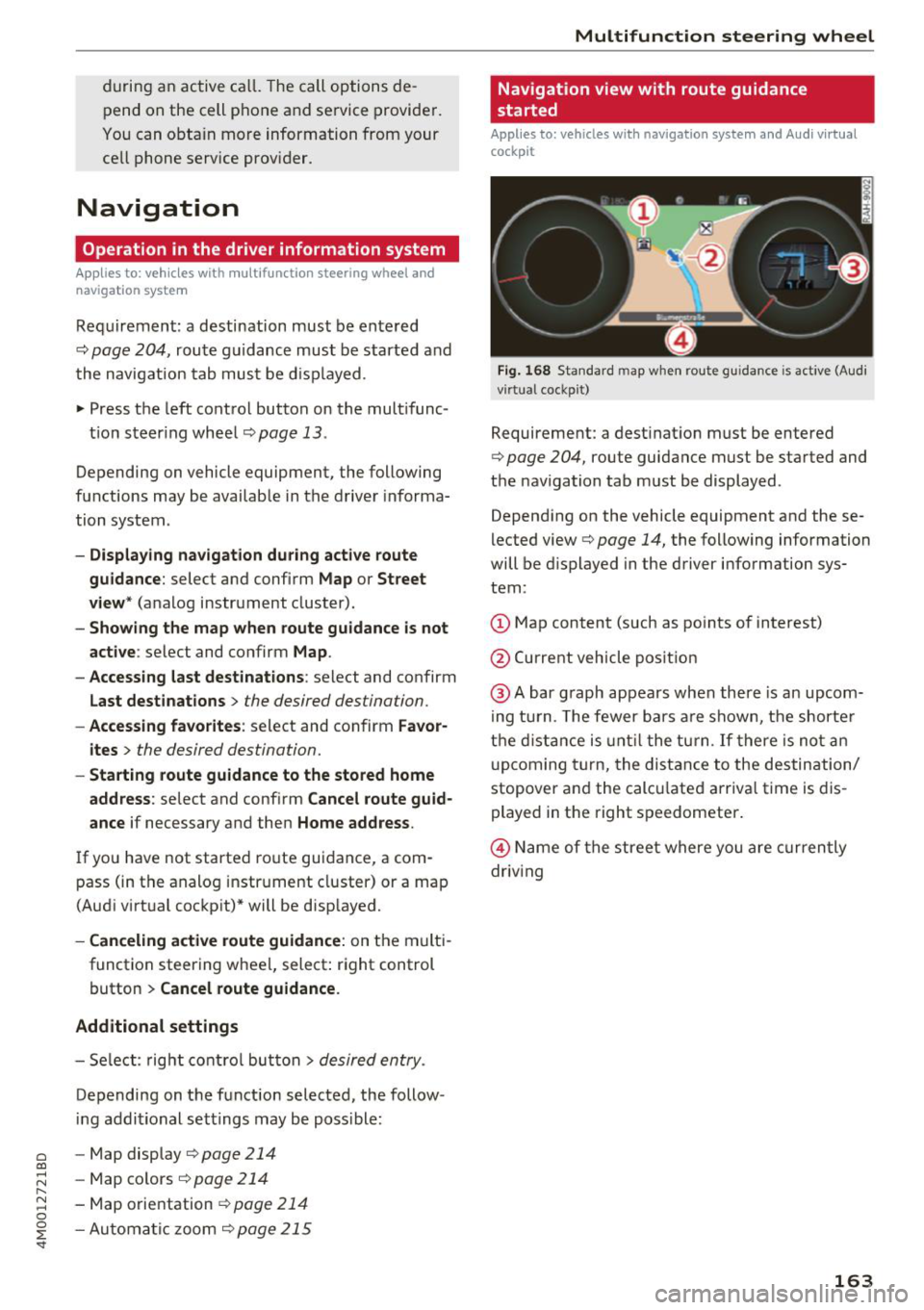
Fig. 168 Sta nda rd m ap whe n route gu idance is active (Audi
v ir tual coc kp it)
Requirement: a dest inat ion must be entered
c::> poge 204, route guidance must be sta rted and
the navigation tab m ust be displayed .
Depend ing on the vehicle equipment and these
l ected view
c::> page 14, the following information
will be d isplayed in the driver information sys
tem:
(D Map content (such as po ints of interest)
@ Current vehicle pos it ion
@ Abar g raph appears when ther e is an upcom
i ng tur n. T he fewer b ars a re s how n, th e shor te r
t h e di sta nce is until t he t urn.
If there is no t an
upc oming turn, the dis ta nce to the des tin ation/
stopover and the calc ulate d arriva l t ime is dis
played in t he right s peedometer .
@ Name of the street where you are curren tly
driv ing
163
Page 171 of 398
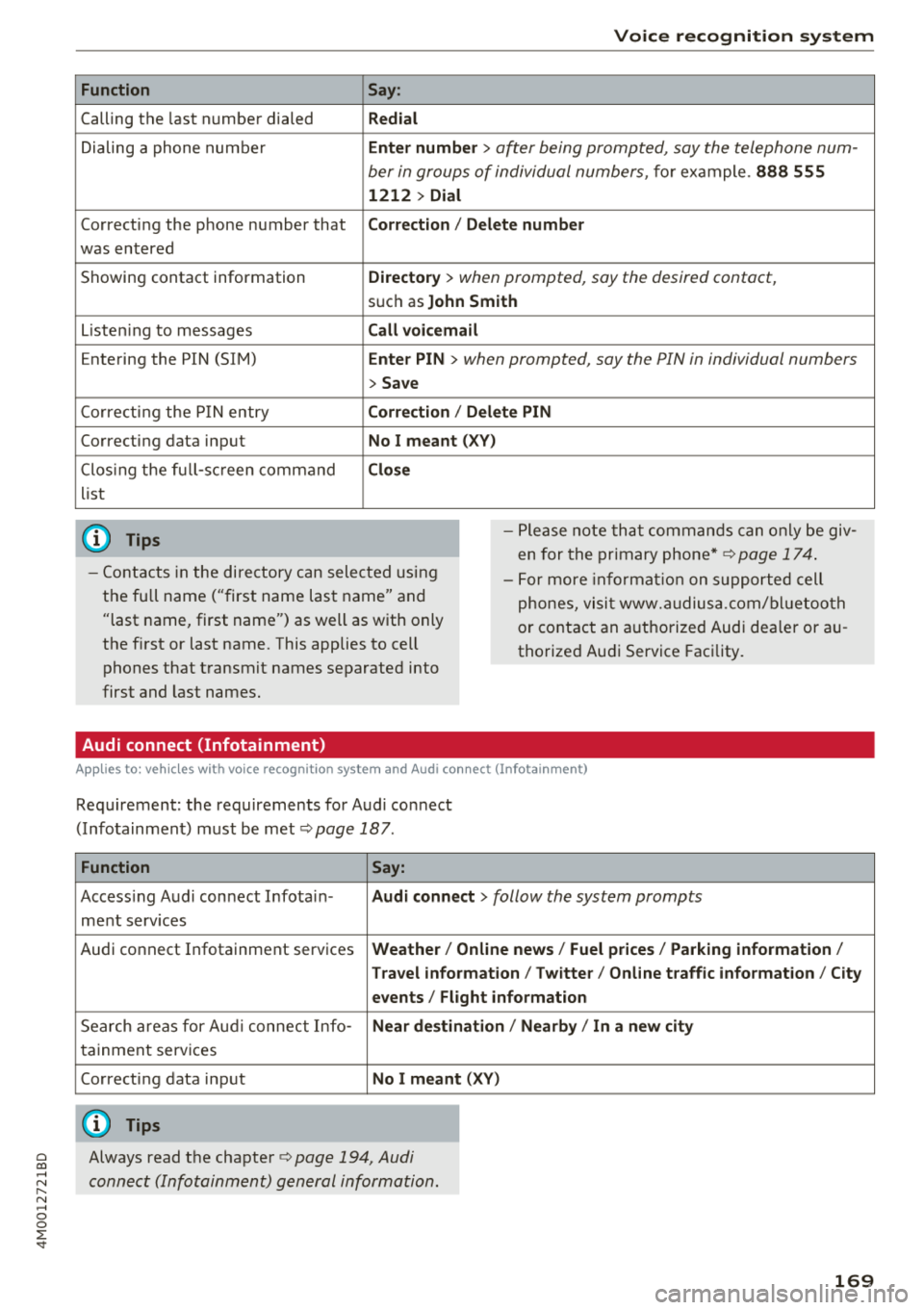
Function
Calling the last number dialed
Dialing a phone num ber
Correcti ng the p hone number that
was entered
Showing contact information
L isten ing to messages
Entering the PIN (SIM)
C orre ct in g the P IN entry
Correcting data input
C los ing the f ull -s cr een command
list
(D Tips
Voice recognition system
Say:
Redial
Enter number
> after being prompted, say the telephone num-
ber in group s of individual numbers,
fo r example. 888 555
1212 > Dial
Correction / Delete number
Directory
> when prompted, say the desired contact,
s u ch as John Smith
Call voicemail
Enter PIN
> when prompted, say the PIN in individual numbers
> Save
Correction / Delete PIN
No I meant ( XV)
Close
- P lease note th at comm an d s can o nly be giv
en for the primary phone*¢
page 1 74.
- Cont acts in the dire ctory can sele cted using
the fu ll name ("first name las t name" and
"last name, first name") as well as with only
the f irst or last nam e. This applies to cell
phones that t ransmit names separate d into
first and last names . -
For more informat io n on s uppo rted cell
phone s, vi sit www.audius a.c om/ blu etoo th
or cont act an a uthorized Audi dea ler or au
thorized Audi Service Fac ility.
Audi connect (Infotainment)
A pp lies to: ve hicles with vo ice recognition syste m and Audi co nnect (Infotainment)
Req uirement: the requirements fo r A udi co nnect
(Info tainmen t) must be met
¢ page 187.
Function Say:
Accessing A udi con nect I nfota in-Audi connect > follow the system prompts
me nt serv ices
Audi co nnect Infotainment services
Weather / Online news / Fuel prices / Parking information /
T ravel infor mation / Twitter / Online traffic information / City
events / Flight information
Search areas for Au di connec t Info -Near destination / Nearby / In a new city
ta inment serv ices
Correcting data inp ut
No I meant (XV)
(D Tips
~ Always read t he cha pte r¢ page 194, Audi
;::j connect (Infotainm ent) g en eral information .
" N ,-1 0
0
::r '
Page 173 of 398
Cl a:, ...... N
" N ...... 0
0
::r '
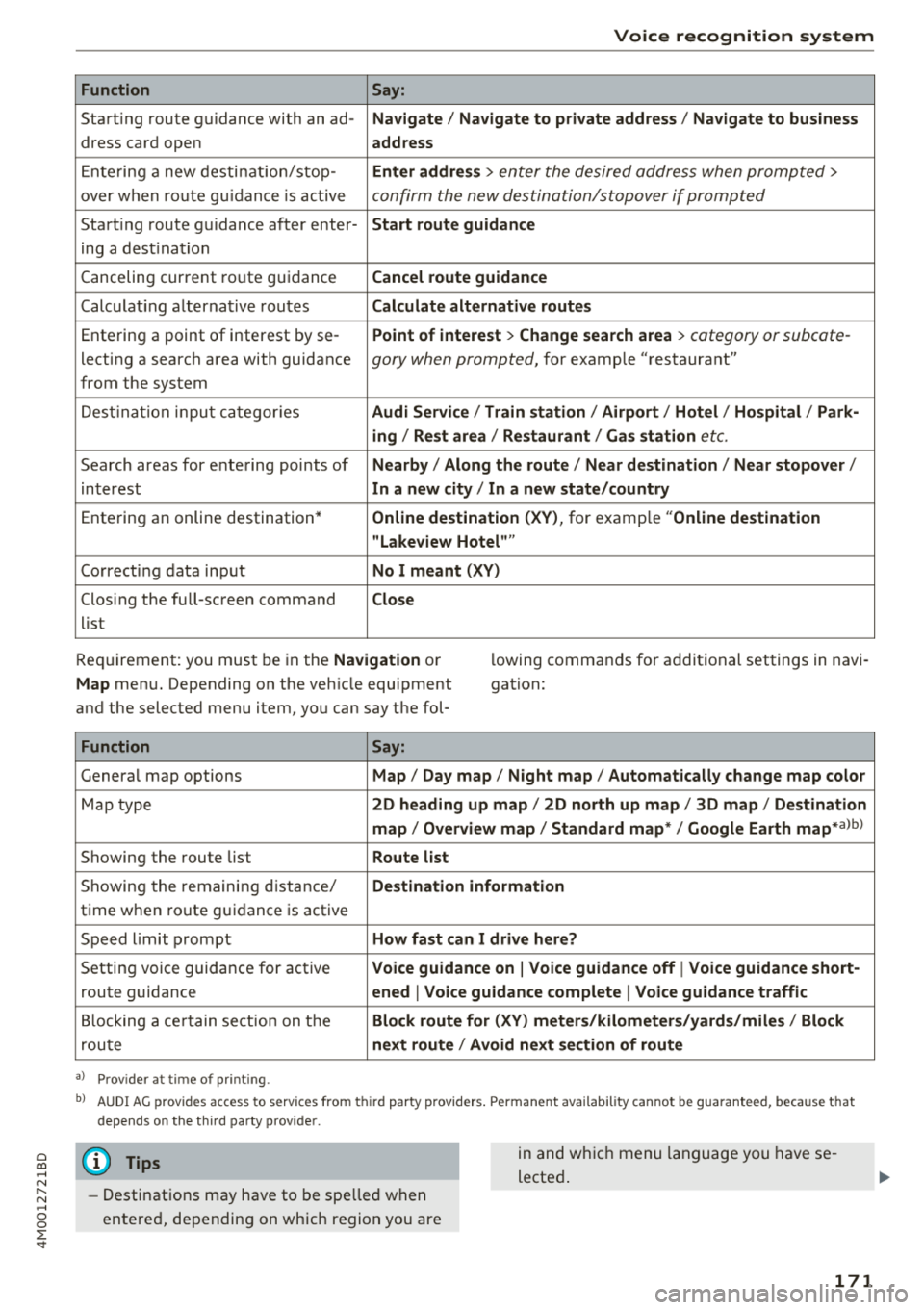
Function
Say:
Start ing route g uidance with an ad- Navigate/ Navigate to p riv ate addre ss/ Navig ate to business
dress card open address
E nte ring a new desti nat ion/stop -Enter addr ess
> enter the desired address when prompted>
over w hen ro ut e gu idance is ac tive confirm the new destination/stopover if prompted
Start ing route guidance after enter- Start route guidance
ing a dest ination
Canceling current ro ute g uidance Cancel route guidance
Calc ulat ing a lternat ive routes Calculate alternative route s
Ente ring a point of interest by se -Point of intere
st
> Change sea rch a rea > category or subcote-
lecting a search area with guidance gory when prompted, for example "restaurant"
from the system
Dest ina tion input ca tegor ies Audi Service / Train station /Airport / Hot el / Ho spital / Park-
ing / Re st area / Restaurant / Gas station
etc.
Search areas for entering points of Nearby/ Along the route / Near destination / Near stopover /
interest In a new
city/ In a new stat e/country
Entering an online destination* Online dest
ination (XV), for examp le "Online de stination
" Lakeview Hotel" "
Correct ing data input No I meant (XV)
Clos ing the full -screen command
Close
list
Requirement: you must be in the Navigation or
Map menu. Depending on the veh icle equipment
and the selected menu item, you can say t he fol- l
owing commands for additional settings in navi
gation:
Function Say:
Genera l map options Map/ Day map / Night map / Automat ically change map color
Map type 2D heading up map/ 2D north up map / 3D map / De stination
map / Overview map / Standard map */ Google Earth map*albl
Showing the route list Route list
Showing the remaini ng d istance/ Destination information
time w hen route guidance is active
Speed limit prompt How fast can I drive here?
Setting voice guidance for active Voice guidance on
I Voice guidance off I Voice guidance short-
route guidance ened
I Voice guidance complete I Voi ce guidance traffic
B locking a ce rtain sect ion on t he Block route for (XV) meter s/kilometers /yards /miles / Block
rou te next route / Avoid n ext se ction of route
a ) Pro vid er at tim e of pr inting .
bl AU DI AG provi des acc ess to s ervi ce s fro m thir d par ty prov id ers. P ermane nt a vailabi lity canno t be guarant eed, beca use tha t
de pen ds on the th ird party p ro vid er.
(D Tips
- Destinations may have to be spelled when
entered, depending on which region you are in and wh
ich menu language you have se
lected .
171
Page 175 of 398
Cl a:, ...... N
" N ...... 0
0
::r '
No phone call is in progress.
T he parking aid as well as the Audi voice recogni
tion system must not be active .
A cell phone must be connected to the MMI with
the
Handsfree profile ¢ page 174.
The cell phone being connected must have voice
control that can be controlled externally .
.. Switching on: press and hold the 5) button on
the multifunction steering wheel* and say the
desired command after the external speech di
alog begins .
.. Continuing/resuming the dialog: the system
remains ready to use for a short time after end
ing the dialog. You can start a new external dia
log during this time . Press the
51 button if
needed, and say a new command .
Or: select
and confirm
Resume on the MMI control panel.
.,. Switching off: press and hold the 5) button .
Or: select and confirm Cancel on the MMI con
trol panel.
(D Tips
- There are no voice guidance* prompts when
a dialog is active.
- This function depends on the cell phone
used. You can obtain more information
from your cell phone service provider or
from your cell phone user guide.
- AUDI AG simply provides access to control
your cell phone with voice operation and
does not take any responsibility for the con
tents and commands within the external
voice control.
Voice recognition system
173
Page 177 of 398
Cl a:, ...... N
" N ...... 0
0
::r '
settings
> Connection manager¢ page 246.
~ Se lect and confirm the desired cell phone from
the list of disp layed Bluetooth devices.
~ The MMI generates a PIN for the connect ion
setup
¢fig . 172.
~ Select and confirm Yes.
~ Enter the PIN for connecting on your ce ll
phone.
Or : whe n the PIN is displayed on your
cell phone, confirm the PIN on your cell phone
and in the MMI. The time allowed for entering
the PIN is limited to approximately 30 seconds.
~ Pay attention to any additiona l system prompts
displayed on your cell phone, for example if the
system should connect automatically in the fu
ture . Depend ing on the cell phone, you may
have to confirm downloading the directory sep
arately .
After connecting successfully
After connecting successfully, information about
the connected profiles will appear. You can a lso
change the profiles later. Select:
!MENUI button>
Settings > left control button > MMI settings >
Connection manager¢ page 246 .
In addition, the cell phone contacts are automat
ically loaded in the MMI directory. T his process
can take several minutes, depend ing on the num
ber of contacts .
You can a lso make your connected cell phone the
default phone by select ing
Set as default tele
phone
in the Connection manager¢ page 248 .
@ Note
Always follow the information found in¢@) in
Wi-Fi hotspot on page 194.
(D Tips
- Making phone calls through the MMI is only
possible using the
Handsfree Bluetooth pro
file.
- You can apply additional settings to con
nected mobile devices using the
Connection
manager ¢ page 246 .
-You can also search for the MMI in your ce ll
phone using the Bluetooth device search.
Telephone
-You only have to pair your device one time.
B lu etooth devices that are already paired
automatically connect to the MMI when the
Bluetooth funct ion is switched on, they are
w ith in range and the ignition is switched on.
The last connected cell phone is given first
pr iority.
- Authorizing the MMI connection in your cell
phone w ill make automatic connection pos
sible .
- Pay attention to any system prompts dis
played on your cell phone, for example if
the system should connect automatically in
the future. Depending on the cell phone,
yo u may also need to download the directo
ry and confirm access to your text messages
separately.
- When leaving the vehicle, the Bluetooth
connection to the cell phon e will automati
cally disconnect. Depending on your cell
phone, phone calls in progress may be auto
matically redirected from the MMI to your
cell phone and you can continue the ca ll on
your phone.
- You can obtain more information from your
cell phone service provider or from your cell
phone user gu ide. For information on using
the telephone, vis it www.aud iusa .com/
bluetooth or contact an authorized Audi
dealer or authorized Audi Service Facility.
- Applies to: veh icles without secondary
phone: Several cell p ho nes can be paired to
th e MM I, but only one cell phon e can be ac
tively connected to the MMI.
- App lies to: veh icles without seconda ry
phone: If a Bluetooth device is already con
nected to the MMI , it will be disconnected
when another device connects to the MMI.
175
Page 182 of 398
Telephone
-Se lect t he right contro l button > Rename fa-
vorite.
Moving stored favorites
- Se lect : Favorit es > a favorite from the list .
-Select t he r ight contro l button > Move favorite .
-Se lect and confirm the location of the selected
favorite .
Deleting a stored favorite
-Se lect : Favorites > a favorit e from th e list .
-Se lect the right contro l button > Delete favor-
ite > Delete this favorite or Delete all favor
ites .
Messages
Text messages
Applies to: cell phones with Bluetooth Message Access Profile
(MAP)
Depending on the cell phone being used and the
cell phone ne twork con trac t, you can receive and
send tex t messages using the MMI.
Requirement
A cell p hone m ust be co nn ecte d t o the MMI via
Bl ue tooth MAP (Message Access Profile)
~ page 174.
.,. Se lect : I MENU I but ton> Telephone > left con
tr ol bu tton >
text message (myPhone) /text
message (secondary phone )*.
Write new text message
S elect a nd conf irm Write new text message .
- Using a template :
select and confirm the de
s ir ed temp late from the lis t.
-Writing your own text *: select and confirm Do
not use template .
Enter text us ing the M MI
touch co ntro l pad* o r the lette r sp eller .
- Ente r one o r mo re recip ients.
- Se lect and confirm
Send .
Inbox
D isp lays a ll re ce ived tex t m essages .
Sent
Displays all sent tex t messages .
180
Outbox
Disp lays all tex t message s to be sent.
Drafts
D isplays all text messages that have no t yet been
sen t and s to red text messages .
(D Tips
-Please note that you may have to activate
t he receivi ng a nd send ing of t ext m essages
dep endi ng on t he SIM card being us ed in
yo ur ce ll pho ne (for e xample, when usin g a
mult i- S IM ). You can obt ain more informa
tion fr om your c ell phone serv ice p rov ider or
from you r ce ll p hone use r guide .
- Fo r m ore inform ation o n suppo rt e d c ell
p ho nes, vi sit www .a udiu sa.co m/ blu eto oth
o r contact a n auth orized Audi dea le r or au
t h orize d Au di Service Fac ility .
- You n eed a cell phone with Mes sa g e A ccess
Profi le that also s upports the sen ding func
t ion to be a ble to se nd text messa ges
throug h the MMI.
Message options
Applies to: cell phones with Bluetooth Message Access Profile
(MAP)
.,. Select: IT ELI bu tton > left contro l butto n > text
message (myPhone) /text message (secondary
phone) * > Inbo x/Sent /Outbox
> r ight control
bu tton.
The followi ng options may be avai la b le depend
i ng on the selected menu .
Storing a text message as a template
Ten tex t mess age temp lates are s to red in t he
M MI. Y ou can s ave up to ten ad dition al tem
p lates .
- Create a text message.
- Select an d confirm
Store template.
Resume last text message
The last ed ited text message can be resumed .
Reply*
A reply can be sen t for t he se lec ted mess age in
t h e
Inbox.
Page 184 of 398
Telephone
Message options
Applies to: cell phones with Bluetooth Message Access Profile
(MAP)
"' Select : IMENUI button> Telephone > left con
trol button >
e-mail (myPhone)/e-mail (secon
dary phone)* > Inbox /Sent /Outbox
> right
contro l button.
The follow ing options may be available depend
ing on the selected menu .
Store as template
Ten e-mail templates are stored in the MMI. You
can save up to ten addit ional templates.
- Create an e-mai l.
- Select and confirm
Store template.
Resume last edited e-mail
The last e-mail in progress can be resumed .
Reply*
A reply can be sent for the selected e -mail in the
In box .
Reply to all*
A reply can be sent for the selected e -mail in the
Inbox and it will be sent to all of the entered re
cipients.
Forward
The selected e-ma il can be forwarded to a differ
ent rec ipient.
Delete this message*
The selected e-ma il can be deleted .
Read out1
)
You can have the MMI read an open e-mail.
E-mail settings*
To disp lay when a new e-mail is received, act ivate
t he
E-mail notifications . New e-ma ils are indicat
ed wit h an enve lope 121 in the Infotainment sys
tem disp lay status line.
1> N ot availa ble in all l an guage s.
182
Connection manager
See¢ page 246.
Wi-Fi settings
See¢ page 193.
Telephone settings
See ¢page 184.
(D Tips
- Messages that are deleted in the MMI are
also automatically deleted in the connected
cell phone .
- You cannot read any messages while driv
ing.
Listening to voicemail
Applies to: vehicles with telephone
"'Select: IMENU I button> Telephone > left con
trol button. Select and confirm
Call list /Direc
tory /Fav orites > Voicemail.
- Entering the voicemail number:
enter the de
s ired number. Select and confirm
OK.
- Dialing the voicemail number: select and con
firm
Voicemail.
{D Tips
- This service must be set up and activated in
advance by the cell phone service provider.
You can obtain more information from your
cell phone service provider .
- Th e voicemai l number depends on the cell
phone service provider .
Page 185 of 398
a co ...... N r--. N ...... 0
0
:E '
Opening the directory
Applies to: veh icles with telephone
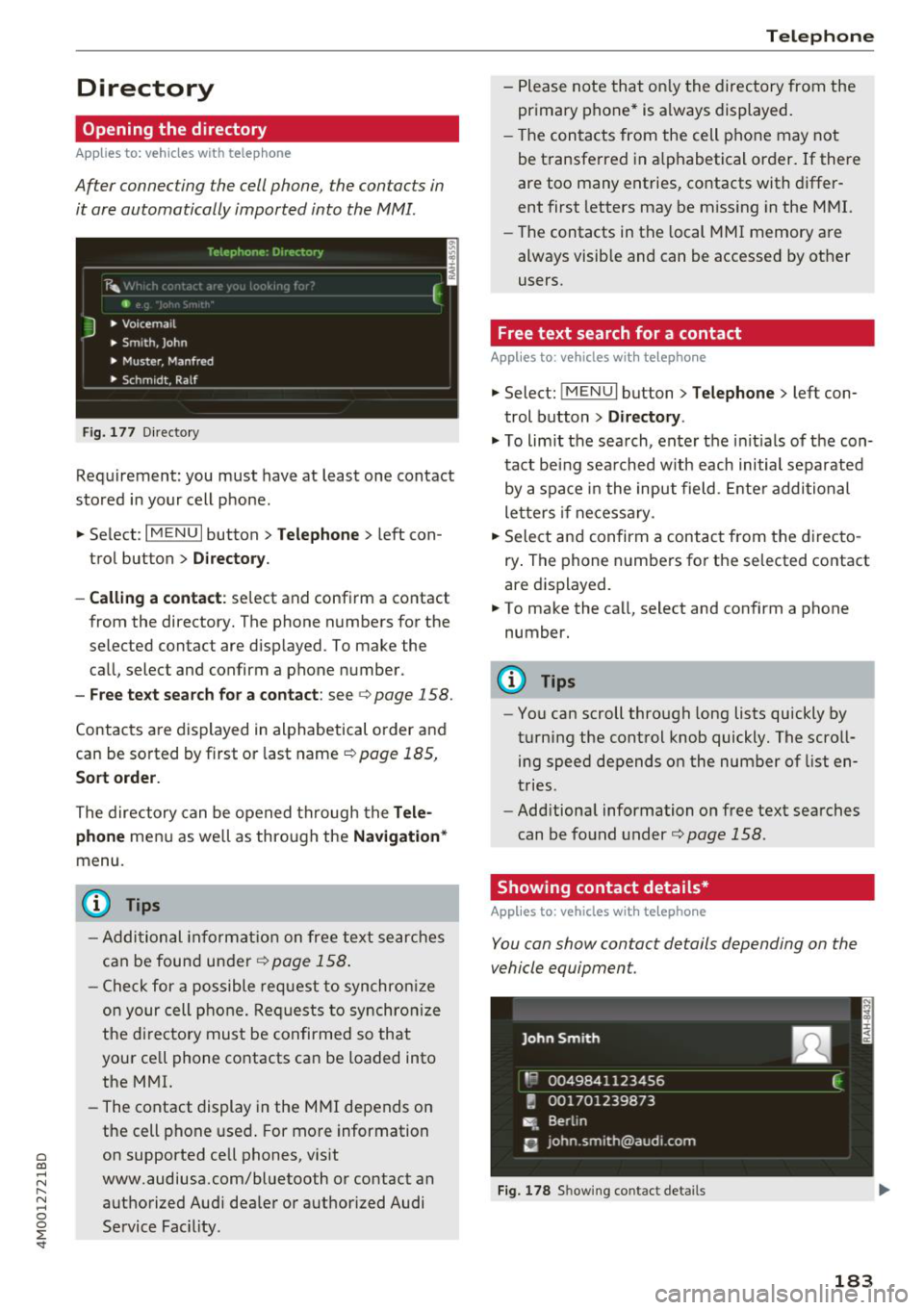
After connecting the cell phone, the contacts in
it are automatically imported into the MMI.
__________ T_e_,e_p_h_o_n_e_· _o_,_,e_,_,_o_,_Y _________ ,
' E 41>
J • Voicema il
• Smith, John
• Muster, Manfred
• Schm idt, Ralf
Fig . 177 Di recto ry
Requirement: you must have at least one contact
stored in your cell phone.
... Select :
IM ENU I button > Telephone > left con
trol button >
D irecto ry.
- Calling a contact :
select and confirm a contact
from the directory. The phone numbers for the
selected contact are displayed. To make the
call, select and confirm a phone number.
-Free text search for a contact: see c;, page 158.
Contacts are displayed in alphabetical order and
can be sorted by first or last name
c:> page 185,
Sort order.
The directory can be opened through the Tele
phone
menu as well as through the Navigation *
menu.
(D Tips
- Additional information on free text searches
can be found under
r::;, page 158.
- Check for a possible request to synchronize
on your cell phone. Requests to synchronize
the di rectory must be confirmed so that
your ce ll phone contacts can be loaded into
the MMI.
- The contact display in the MMI depends on
the cell phone used. For more information
on supported cell phones, visit
www.audiusa.com/bluetooth or contact an
authorized Audi dealer or authorized Audi
Service Fac ility .
Telephone
-Please note that only the directory from the
primary phone* is always displayed.
- The contacts from the cell phone may not
be transferred in alphabetical order. If there
are too many entries, contacts with differ
ent first letters may be missing in the MMI.
- The contacts in the local MMI memory are
always visible and can be accessed by other
users.
Free text search for a contact
Applies to : vehicles with telepho ne
... Select: IMENUI button> Telephone> left con
trol button >
Directory .
.,. To limit the search, enter the initials of the con
tact being sea rched w ith each initial separated
by a space in the input field . Enter additional
letters if necessary .
... Select and confirm a contact from the directo
ry . The phone numbers for the selected contact
are displayed.
... To make the call, select and confirm a phone
number.
(D Tips
- You can scroll through long lists quickly by
turning the control knob quickly. The scroll ing speed depends on the number of list en
tries.
- Additional information on free text searches
can be found under
c:> page 158.
Showing contact details*
Applies to: vehicles wit h telepho ne
You can show contact details depending on the
vehicle equipment.
Fig. 178 Showing contact details
183
Page 187 of 398
Cl a:, ...... N
" N ,-1 0
0
::r '
Call forwarding :
you can switc h the forwarding
of incoming calls to your voicemail or to anothe r
phone number on and off . You can check if the
function is activated or deactivated with
Check
status .
Call waiting :
you are alerted to an incoming call
during a phone call when the function is switched
on~ -You can check if th e function is activated
or deactivated with
Check status .
Send own telephone number:
sending your
phone n umber with an outgoing call can be acti
vated and deactivated . With the
Network -de
pendent
setting, the setting listed in the con
tract with the cell phone service provider is used.
The settings only apply to the
Telephone menu in
the MMI. Please note that the settings on your
cell phone will apply afte r disconnecting the
B luetooth co nnect ion. You ca n check if the func
tion is activated or deactivated with
Check sta
tus .
Ringtone and volume settings
1 )
Using the Mute telephone function, you can
switch the ringtone playback through the MMI
speake r o n and off. You can play the ringtones
using the
Ringtone fu nct ion. Select and confirm
an entry from the list. For th e
Ringtone volume/
Message volume
settings, see¢ page 250. The
Microphone input level can be adj usted during a
phone call using the control knob.
(D Tips
-Several cell phones can be paired to the
MMI, but only two* cell phones can be ac
tive ly connected.
- To delete all paired Bluetooth devices, the
Bluetooth function can be reset to the fac
tory default sett ings
c::> page 246.
Additional options
"' Select : I MENU I button> Telephone > right con
trol button .
ll Depends on t he conne cted cell pho ne.
Telephone
Connection manager
See¢ page 246.
Bluetooth settings*
See¢ page 248 .
Online settings*
See c::> page 248.
Wi-Fi settings*
See ¢ page 193, Wi-Fi hotspot.
Directory settings
Applies to: vehicles with telephone
"'Sele ct: ! MENUI button> Telephone > left con
trol button >
Directory > right control button >
Directory settings.
Memory capacity
Shows the Memory capacity for the directory.
You can manage up to 17,000 contacts with the
directory. You can load up to 4,000 contacts
from your cell phone into each directory. Yo u can
also impo rt up to 1,000 contacts from a storage
device .
Sort order
You can sort the contacts in your directory alpha
bet ically according to
Last name or First name .
Import contacts/Export contacts
See ¢ page 184.
Download directory
To update the contacts in th e MMI, you can man
ually download your cell phone contacts . De
pending on the ce ll phone, the B luetooth connec
tion may need to be disconnected and reconnect
ed to update the contacts.
Hide contacts without phone number
When this function is switched on, g rayed -out
contacts that have no phone numbers stored for
them wi ll be hidden in the directory.
185