ESP AUDI Q7 2018 Owner´s Manual
[x] Cancel search | Manufacturer: AUDI, Model Year: 2018, Model line: Q7, Model: AUDI Q7 2018Pages: 398, PDF Size: 185.58 MB
Page 190 of 398
Audi connect (Infotainment)
,.. Enter your myAudi user data. Or : enter your
eight-digit myAudi PIN .
,.. Confirm your entry with
OK .
Then yo u can open yo ur persona l se tt ings from
your myAudi account in you r vehicle .
(D Tips
You can re ceive you r myAudi P IN if you have
se t up a myAud i account. For addi tional infor
mation, see www.audi usa .com/mya udi.
Opening Audi connect
(Infotainment)
A pp lies to ve hicles with A udi co nnect (Infotainment)
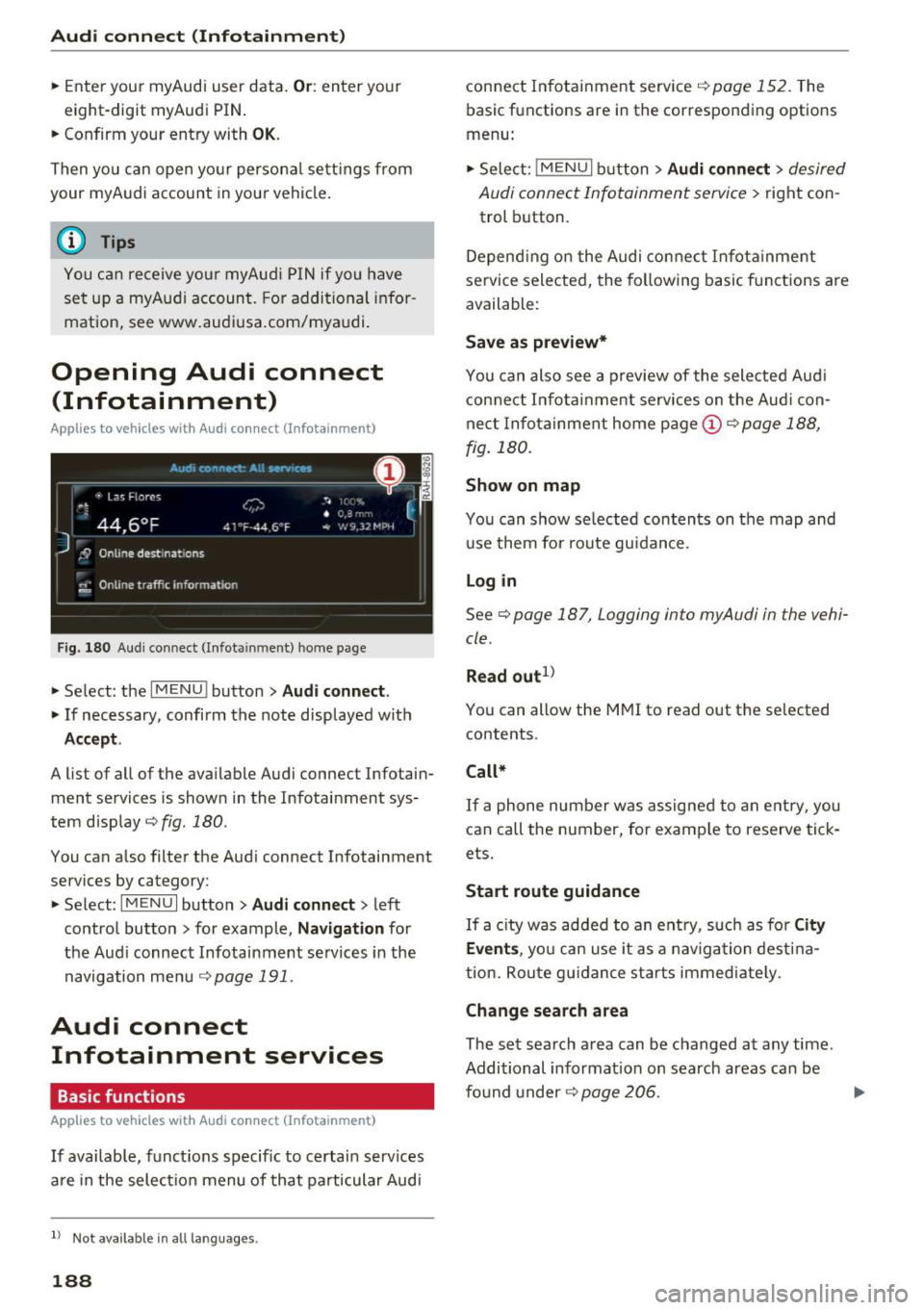
Fig . 180 Aud i co nn ect (I n fota inment) ho m e p age
,.. Se lect : the IMENU ! button> Audi connect .
,.. If necessary, confi rm the note disp layed wit h
Accept.
A list of all of the ava ilable Audi connect Infotain
ment services is shown in the Infotai nment sys
tem disp lay ¢
fig. 180 .
You can a lso filte r the Aud i connect Infotainment
services by category:
,.. Se lect :
I MENU I button> Audi connect > left
contro l button> for example,
Navigation for
the Aud i connect Infotainment se rvices in the
navigation me nu
¢page 191.
Audi connect
Infotainment services
Basic functions
A pp lies to veh icles with A udi co nnect (Infota inment)
If available, funct ions specific to certain services
a re in the selec tion menu of that particular Aud i
ll Not availa ble in a ll la n guage s.
188
connect In fota inme nt service ¢ page 152. The
basic functions are in the correspon ding options
menu:
,.. Sele ct:
!ME NUI butt on> Audi connect > desired
Audi connect Infotainment servi ce>
right con
trol b utton .
Depend ing o n the Audi connect In fota inme nt
se rvice selected, the follow ing basic f unc tions are
available :
Save as preview*
You can also see a preview of the selected Aud i
con nect In fo tai nment services on the Aud i con
nect In fo ta inment home page@¢
page 188,
fig . 180.
Show on map
You can show selected con ten ts on the map and
u se them fo r route gu idan ce .
Log in
See¢ page 187, Logging into myAudi in the vehi
cle .
Read out
1>
You can a llow the M MI to read out the selected
contents .
Call*
If a p hone num ber w as assigne d to an e ntry, you
can call the number, for e xamp le to reserve tick
ets.
Start route guidance
If a city was ad ded to an e ntry, suc h as fo r City
Events ,
you ca n use it as a navig ation dest ina
t ion. Rou te g uidance st art s immediate ly.
Change search area
The se t sea rch area can be changed at any time.
Additional informat io n on search areas can be
fo und under ¢
page 206 .
Page 192 of 398
Audi conn ect (Infotainment)
- when the camera-based traffic sign recogni
tion* is malfunctioning ¢
page 97
- when the re are warnings from t he camera-
based traffic sign recognition*
Switching traffic light information on and
o ff
- Se lect: I MENU I button > Audi connect > Tra ffi c
li g ht info rmati on >
On (~ ) or Off (0 ).
A WARNING
-When traffic light information is shown, a l
so always pay attention to the traffic situa
t ion, the distance to other vehicles and the
area around the ve hicle. The driver is always
respons ible for assessing the traff ic situa
t ion .
- Always adapt your speed to the current
weather, road and traff ic conditions. The
displayed information must never cause you
to ignore lega l traffic regulations and pose a
safety risk.
- Regardless of the traffic light info rmat ion,
yo u should always monitor yo ur speed using
the speedometer and make su re yo u are ad
her ing to the legal speed lim it .
- T he traffic light information does not adjust
yo ur vehicle 's speed to the speed recom
mendat ion shown in the display.
(D Tips
- Traffic light information is not yet ava ilable
i n all cit ies and is not nationw ide .
- Un its of measurement and language set
ti ngs a re d isplayed based on how they were
set in the MMI sys tem set tings
¢ page 245 .
-Always read the chap ter¢ page 194, Audi
connect (Infotainment) general informa
tion .
Weather
Applies to: vehicles with weather information
Information on current weather cond itions as
well as weathe r fo recasts for the selected sea rch
area .
190
-
.. Select and confirm Weather .
You can also disp lay the current weat her condi
t ions on the map , fo r example.
.,. Select: left control button
> on entry .
Flight information
Applies to: vehicles with flight information
Information on flights and current arrival/depar
ture times in the selected search area .
.,. Select and confirm
Flight inf orm ation .
City events
Applies to: vehicles with City events
Information on events in various categories in
the desired search area.
.,. Select
Cit y Event s > left co ntro l button > cate
gory.
Online news
Applies to: vehicles with on line news
You can check the c urrent headlines of your fa
vorite publications in the MMI.
Requirement: yo ur myAud i acco un t must be s ub
scribed to news feeds and your vehicle must be
connected to myAudi
¢ page 187 .
.,. Sele ct: Online n ew s > desired newsfeed > a
headline.
The entire news a rticle w ill be dis
played .
© Tips
If yo u ha ve not s ubs cribe d to a ny pe rsonal
n ewsfeeds in your myA udi account, pre -con
figured newsfeeds will be disp layed .
Twitter
Applies to: vehicles with Twitter
You can access the most important fun ctions in
your Twitter account through your
MMI.
Requirement:
You must have co nnected your myAudi account
with Tw itter. You can f ind additional information
fo r th is on line at www .audiusa .com/myaud i. .,.
Page 193 of 398
Cl a:, ...... N
" N ...... 0
0
::r '
r=> page 187 .
.,. Se lect Twi tter > left co ntrol button > desired
function
(for example, T rend s).
The fo llow ing categories can be selected in the
Twitt er menu:
- My tw eets: News Feed and the Tweets you have
posted are l isted.
- Home: the Tweets for everyone you follow are
displayed .
-Trend s: topics on Twitter that are currently
popular w ith in a country .
Different functions are availab le depending on
the Twitter category you have selected:
- New tweet : you can post a new tweet using
pre -made templates or using myAudi tem
plates that you have created yourse lf.
- Refre sh : the selected Twitter function is re
freshed.
- Fa vo rite : mark a Tweet as favorite to show you
liked it.
- Retwee t: you can quote a Tweet to share it with
others.
(D Tips
- Other se tt in gs such as accoun t, la ng uage,
Tweet security and location settings
cannot
be changed in the MMI. These c hanges must
be made on the Twitter website .
- You can on ly connect
one Twitter account
with your myAudi acco unt .
- Audi con nect (Infotainment) makes i t possi
b le to access Twitter . Permanent avai lability
ca nnot be guaranteed, because t hat de
pends on Twitter.
Travel (travel guide)
Applies to: vehicles with Travel (travel guide)
You can use the Audi MMI connect opp to store
points of interest on your mobile device (such as a smartphone) and then use them for route
guidance in the MMI.
Requirement:
Audi connect (Inf otainment )
The Audi MMI connect app must be insta lled and
open on your mobi le device .
Yo u m ust be logged into your myA udi account in
the
Audi MMI conne ct app and you must have se
l ected your vehicle.
T he Wi-Fi function on your mob ile dev ice and on
t h e M MI m ust be switched on.
T he MMI must be connected to the network .
.,. Select:
!MENUI button> Audi connect > left
control button >
Information category> Tra v
el.
After opening the trave l guide, trave l tips in your
area w ill be displayed including current ratings as
well as the corresponding category .
.,. Press the left control button to change the cat
egory (such as bars nearby) .
A WARNING
-
-It is o nly safe to use tablets, laptops, mo
b ile dev ices and other sim ila r devi ces when
t he vehicle is s ta ti onary bec ause, li ke a ll
loose objec ts, they co uld be thrown around
the inside of the ve hicle in a crash and cause
serio us inj uries . Store these types of devices
securely while driving.
- Do not use any wireless devices on the front
seats within range of the airbags whi le dr iv
ing. Also read the warnings in the chapte r
r::> page 2 73, Front airbags.
@ Note
Always fo llow the information fo und in ¢ @ in
Wi -Fi hotspot on page 194.
(D Tips
Units o f measurement, language settings and
time are shown in the Infotainment system
display based on how they were set in the
M MI system sett ings
r::> page 245.
Audi connect (Infotainment) in navigation
Applies to: vehicles with a navigation system and Audi con
nec t (Infotainment)
.,. Select: !MENUI button> Audi connect > left
control button >
Na vigation .
191
Page 196 of 398
Audi conn ect (Infotainment)
@ Note
- Under some conditions, certain mobile devi
ces and operat ing systems may a utomati
cally switch from your vehicle's Wi-Fi hot
spot to the device's mobile data connection.
In that event, standard text and data usage
rates would apply while t he dev ice's mob ile
data connection is in use . P lease refer to
documentat ion p rovided by yo ur mobi le de
v ice 's man ufac tur e and yo ur d ata ca rr ie r for
d eta ils, re lated terms and privacy state
ment.
- You are responsible fo r all p re caut io ns tak
en fo r data p rotection, an ti- v irus pro tec tion
and protection against loss of data on mo
bile devices that are used to access the In
ternet thro ugh the W i-F i hotspot.
(D Tips
- In vehicles without Audi connect ( Infotain
ment)*, the use of the Wi -Fi hotspot is only
possib le for the Wi-Fi audio p layer*. A data
connection to the Internet cannot be estab
li shed.
- For additional informat ion about the Aud i
connect Infotai nment services, visit
www .audiusa .com/myaud i.
Configuring the data
connection
Applies to vehicles with Audi connect (Infotainment)
The data connection for Audi connect Infotain
ment servic es is pr e-configured at the factory.
However, if o configuration should be n ecessary,
you con adjust the following settings .
"Se lect: I M ENUI button> right control b utton>
Connection manager.
" Se lect : rig ht contro l button > Online settings >
Data connection settings .
Using the Data connection settings menu, you
can set when an Internet connection shou ld be
made. The Int ernet conn ection disconnects auto
mat ica lly once the requested Audi connect Info
tainment service no longer requires any d ata.
The fo llowing settings can be selected:
194
Audi connect (MMI)
With the Audi conne ct (MMI) func tion, you can
Allow or Den y the use of Audi connect Info tain
ment services if the connection is set to
No re
que st or With request.
Wi-Fi devices*
U sing the Wi -Fi d evice s function, yo u can Allow
or Deny a co n ne cti on t o the Inte rnet .
& WARNING
- As t he driver, do not a llow usage o f the Wi
F i hotspot to distract yo u from driving, as
this could increase the r is k of an accide nt.
- It is on ly safe to use tablets, laptops, mo
bi le devices and other simi lar devices when
the vehicle is stat ionary because, like a ll
loose objects, they co uld be thrown around
the inside of the ve hicle in a crash and cause
serious injuries . Store these types of devices
securely wh ile d riving .
- Do not use any wireless devices on the front
seats within range of the airbags while dr iv
ing . Also read the warnings in t he chapter
r:!) page 2 73, Front airbags .
@ Note
Always fo llow the information found in ¢ (!) in
Wi-Fi hotspot on page 194 .
Audi connect
(Infotainment) general
information
Audi connect Infotainment services
Applies to vehicles with Audi connect (Infotainment)
(D Tips
-Yo u ca n only use serv ices suppo rte d b y Aud i
connect (In fotainment) if yo u have the op
tional MMI Navigation plus eq uipment with
M MI touch* and A udi connect (Infotain
ment).
- Use of the L TE* mobile network standard is
not ava ilab le in every country. Contact an
authorized Audi dealer o r autho rized Aud i
Page 197 of 398
Cl a:, ...... N
" N ...... 0
0
::r '
- Usage of Audi connect Infotainment serv
ices depends on the availability of services
through third party providers .
- A udi connect Infotainment services are only
available within the cell phone network cov
erage from yo ur cell phone service provider.
- Audi connect Infotainment services are available in the USA . Audi connect Infotain
ment services are currently not available in
Canada or in Mexico.
- Also read the information in the chapter
¢ page 174, Telephone.
-Availability, scope, providers, screen display
and costs of serv ices may vary depend ing on
the country, model, model year, end dev ice
and rates. For additional informat ion, visit
www.audiusa.com.
- An init ial registration/activation on the
myAudi platform at www.aud iusa.com/
myaudi is requ ired to use individual serv
i ces. You can contact an autho rized Aud i
dealer or Audi connect (Infotainment) cus
tomer service a t (877) SOS-AUDI (2834) to
receive information on options fo r exp and
i ng you r usage and any costs that may re
su lt.
- The Audi connect Infotainment services are
a Wi -Fi/lnternet -based system. If the sys
tem does not function correctly even
though all of the requirements are met,
please try again later or contact Audi con
nect (Infota inment) customer service at
(877) SOS-AUDI (2834).
- For detailed information on Audi connect
(Infotainment) and the Terms of Use, refer
to www .audiusa.com.
Data protection
Applies to vehicles with Audi connect (Infotainment)
(1) Tips
- You can find add itiona l information in your
MM I in the opt ions menu fo r the selec ted
A udi connect Infotainment service and also
on line at www.audiusa .com .
- Your privacy is important to us.
Audi conn ect (Inf otainment )
- AUDI AG collects, processes, shares and
transmits your personal information in ac
co rdance w ith legal reg ulations in o rder to
ensure p roper function and availab ility of
the individua l Audi connect Infotainment
serv ices. You can view the complete, current
and valid Audi connect (Infotainment) data
protec tion po licy in you r M MI. The myAud i
pla tform is availab le for to you to a ct ivate
a dd itio nal Audi conne ct Infotainment serv
i c es and to t ransfe r data to your ve hicl e,
among other services . A one -time registra
tion is require d to establish a connection to
your vehicle. Fo r th is purpose, AUDI AG co l
lects, processes, transm its and uses your re
quired persona l information as required for
you to use the services provided by AUDI
AG. Your informat ion is not distrib uted to
third pa rties. Using your cell phone with
your myAudi p latform allows you to trans
m it d ata fo r yo ur Audi conne ct I nfot ain
ment serv ices functions to yo ur vehicle and
you can allow specific vehicle data to be
transmitted from yo ur vehicle.
- By activating special information se rvices
that are part of your Aud i connect (Infotain
ment) portfolio, you can use these functions
directly in you r vehicle by ente ring data to
confirm your identity (to use soc ial net
works , for example). To do this, the ident ifi
cat ion information you provided is forward
ed with the request to the respec tive service
prov ider. Then you can access yo ur person al
c ontent using a se cu re conne ct ion. T his con
t en t is displaye d in the vehicle for you r use .
Your personal conten t is not stored w ith in
Audi AG. The necessary connection informa tion is processed and used for prov iding
serv ices and the prope r funct ion of the serv
ices in accordance with applicable legal
guide lines.
- You can find additional info rmation in your
MMI in the options menu for the selected
Audi connect Infotainment service and a lso
online at www .a u diusa.com.
- By p roviding Aud i connect Infotainment
serv ices, Audi of America is au thorized to
collec t, p rocess, transmi t and transfer
195
Page 209 of 398
Cl a:, ...... N
" N ,-1 0
0
::r '
-Distances to points of interest are displayed
as a straight -line distance from your current
l ocation. The actua l distance from your cur
rent location to the point of interest is up
dated automat ica lly . The list of found
po ints of interest is not resorted when th is
happens .
- There may be entries in the list that cannot be displayed completely due to the ir length .
Se lect the co rresponding e ntry from the
li st . Se lect : righ t co ntro l butto n
> Show des
t in ati on detai ls . Det ailed informat ion for
t h e selec ted en try in t he list is then dis
p layed.
Online point of interest search (online
search)
Applies to: vehicles with a navigation system and Audi con
nect (Infotainment)
You con sear ch for points of interest on the In
tern et.
Req uirement: the requirements fo r Audi co nnect
(Info tainment) m ust be met
r=> poge 187.
.,. Press the I NAV/MAPI button repeatedly until
the
Ent er destination menu is displayed
r=> poge 203, fig . 185.
.,. Se lect : left cont rol b utton > Online search . The
search area last set is d isplayed in the inp ut
field.
- Changing the search ar ea : select: right control
bu tton
> Sel ect search area .
- Sear ching for online de stination s in the se
lec ted search are a:
enter a new city/state if
necessary. Ente r a sea rch term, such as "Ho tel ",
and press the contro l knob. Select and confirm
an on lin e destination from th e list.
- Sear ching fo r online destination s in a specific
categor y:
select and confirm Select category .
Select and confirm a category such as Restau
rants .
Find which search areas a re available under
¢ page 206, Point of interest search.
You can sea rch fo r onl ine dest inat io n s using the
voice recognition system ¢
table on page 170.
Navigation
(D Tips
Always read the chapter r=> page 194, Audi
connect (Infotainment) general information.
Accessing destinations from myAudi
account
Applies to: vehicles with a navigation system and Audi con nect (Infotainment)
Import individual destinations from your myAudi
account into the MMI.
Requirement:
T he requirements for Audi connect (Infota in
ment) must be met
¢ page 187.
You must have a reg iste red myAud i account a t
www .audiusa .com/myaudi . You must have ave
hicle assigned to your myAud i account and you
must have stored one or more destinations .
.. Press the
INAV/MAPI button repeatedly until
the
Enter dest ination menu is displayed
r=> page 203, fig . 185 .
.. Select: left control button > myAudi contac ts.
.,. If necessa ry, enter yo ur myA ud i use r data or
your myA udi PI N
¢page 187. The con tacts
stored in myAud i a re displayed .
- Select and confirm a contact.
- Select and confirm a p rivate or business dest i-
nation .
- Select and confirm
Start route guidance.
(D Tips
- You on ly need to enter the myAudi user data
one time .
- You can rece ive your myAudi PIN if yo u have
set up a myAud i account.
- For add itiona l information, v is it
www.aud iusa.com.
Entering a destination using geo
coordinates
Applies to: vehicles with navigation system
.,. Press the INAV/MAPI button repeatedly unti l
the
En ter des tination men u is disp layed
¢ page 203, fig. 185 .
207
Page 215 of 398
a co ...... N r--. N ...... 0
0
:E '
Map operation
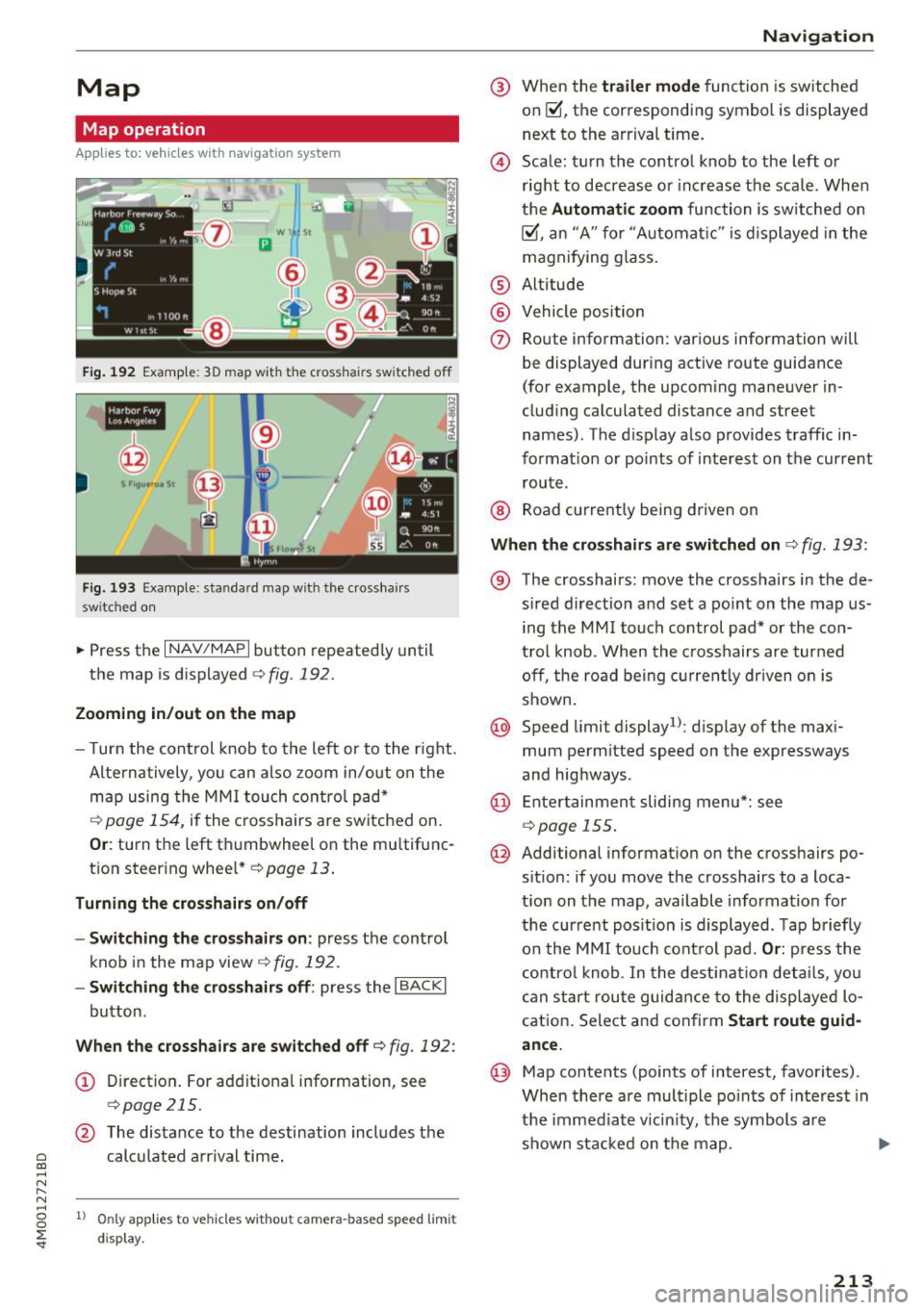
Applies to: veh icles with navigation system
Fig. 192 Example: 30 map with the c ross hair s switched off
--,-
@
Fig. 193 Examp le: stan da rd map with t he crosshai rs
sw itc hed on
~ Press the I NAV /MAPI button repeatedly until
the map is displayed
c;,fig. 192.
Zooming in/out on the map
- Turn the control knob to the left or to the right.
Alternatively, you can also zoom in/out on the
map using the MMI touch control pad*
¢ page 154, if the crosshairs are switched on.
Or: turn the left thumbwheel on the mu ltifunc
tion steering wheel*¢
page 13.
Turning the crosshairs on/off
- Switching the crosshairs on :
press the control
knob in the map view
¢fig. 192.
- Switching the crosshairs off: press the I BACKI
button .
When the crosshairs are switched off¢ fig. 192 :
(D Direction. For additional information, see
¢page 215.
@ The distance to the destination includes the
calculated arrival time.
1l Only appl ies to vehicl es w ithou t camer a-b as ed speed lim it
d ispla y.
Navigation
@ When the trailer mode function is switched
on~, the corresponding symbol is displayed
next to the arrival time.
@ Scale: turn the control knob to the left or
right to decrease or increase the scale. When
the
Automatic zoom function is sw itched on
~, an "A" for "Automat ic " is displayed in the
magnifying gla ss.
® Altitude
@ Vehicle position
0 Route information: various information will
be displayed during active route guidance
(for example, the upcoming maneuver in
cluding calculated distance and street
names) . The display also provides traffic in
formation or points of interest on the current route .
® Road currently being driven on
When the crosshairs are switched on¢ fig. 193 :
® The crosshairs: move the crosshairs in the de-
s ired direction and set a po int on the map us
ing the MMI touch control pad* or the con
t rol knob . When the crosshairs are turned
off, the road being currently driven on is
shown.
@ Speed limit display1>: display of the maxi
mum perm itted speed on the expressways
and highways .
@ Entertainment sliding menu*: see
¢page 155 .
@ Additional information on the crosshairs po
sit ion: if you move the crosshairs to a loca
t ion on the map, available information for
the current posit ion is displayed . Tap briefly
on the MMI touch control pad.
Or: press the
control knob. In the destination details, you
can start route guidance to the displayed lo
cation. Select and confirm
Start route guid
ance.
@ Map contents (points of interest, favorites) .
When there are multiple points of interest in
the immediate vicin ity, the symbols are
shown stacked on the map.
213
Page 219 of 398
a co ...... N r--. N ...... 0
0
:E '
appears in the Infota inment system disp lay
¢ fig . 196.
Selecting th e onlin e map upda te
- Se lect an update package from the list(~)@
<=>fig. 196.
-Confirm you r se lection with the I BACK I button
and go back to the selection.
- The number and amount of data fo r th e select
ed update package are now disp layed in the I n
fotainment system .
Starting the download
-Se lect and confirm Start downlo ad .
- Confirm the secur ity prompt by selecting S tart
download
again .
T he update pack ages begin to down load and the
status of the download progres s is shown in the
Infotainment system display .
Install ation of onlin e map update s
The downloaded map mater ia l installs after you
stop your vehicl e. T he new update packages in
stall only after you switch off the ignition . After
restarting the MMI , the Infota inment system dis
play ind icates if the updates installed successful
ly .
- Confirm the successful update with
OK .
The new map materia l can now be used for navi
gation.
(D Tips
- Always read the chap ter ~ page 18 7 .
- The amou nt of available on line map up-
dates in the vehicle is lim ited. To update
more regions, use the map update via SD
card at www .audiusa.com/myaudi.
- Always read the chap ter ¢
page 194, Audi
connect (Infotainment) general informa
tion . Na
viga tion
Traffic information
Introduction
Applies to: veh icles w ith navigation system
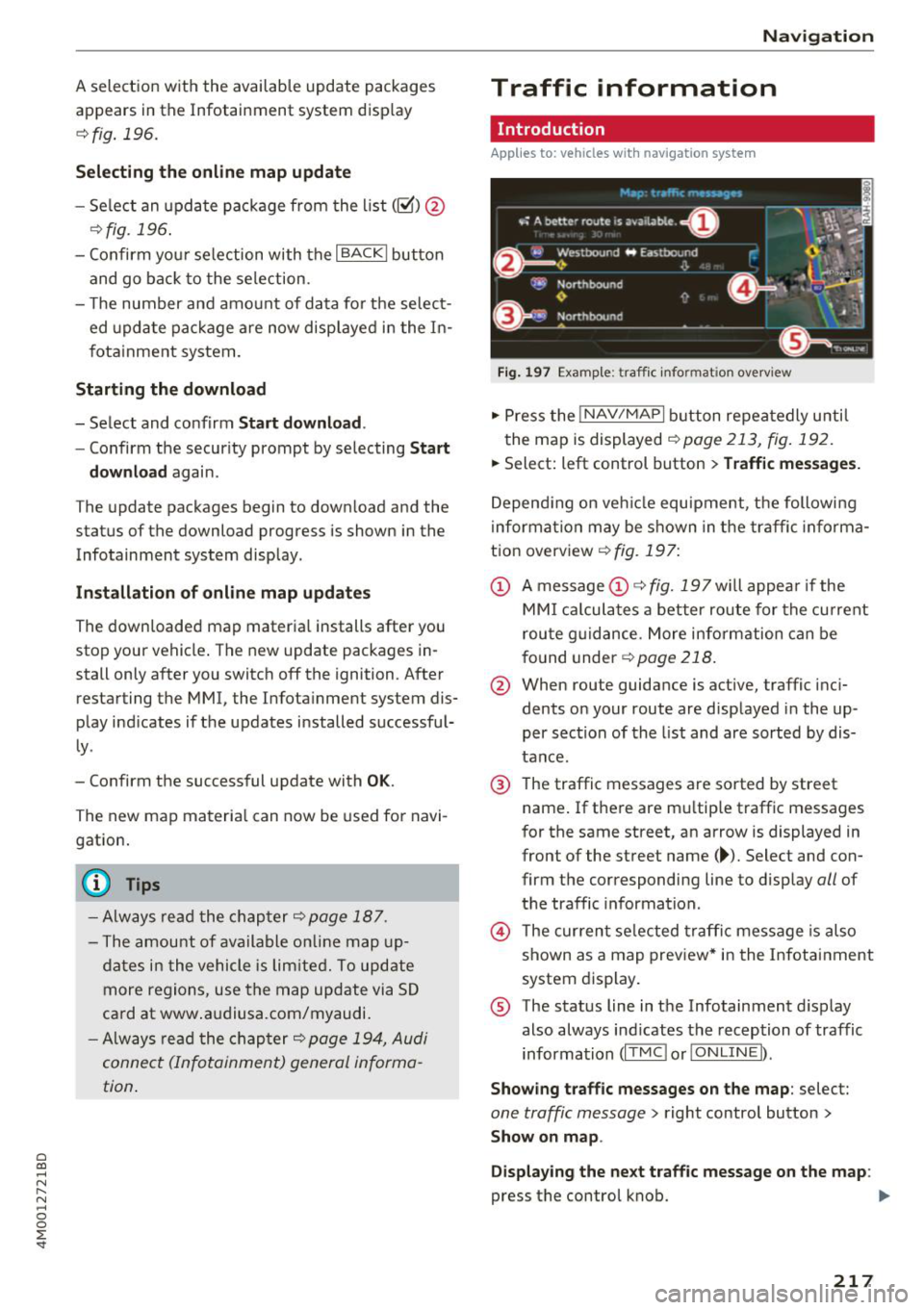
Fig . 1 97 Example: traffic info rm ation overv iew
.,. Press the INAV /MAPI button repea tedly u nti l
the map is displayed
~ page 213, fig. 192.
.,. Select: left control button > Traffic mes sage s.
Depending on veh icle equipment, the following
i nforma tion may be shown in the traffic informa
tion overview ¢
fig. 197:
CD A message CD ¢ fig. 197wi ll appea r if the
MM I ca lculates a better route for the cu rrent
rou te g uidance. More information can be
f o und under
¢ page 218.
@ When route guidance is active, traffic inci
dents on your route are displayed in the up
per section of the list and are sorted by dis
tance.
@ T he traffic messages are sorted by street
name . If there are mu ltip le traffic messages
for the same street, an arrow is displayed in
front of the st reet name (~ ). Select and con
firm the corresponding line to disp lay
all of
t h e traffic information .
@ The cur rent se lected traffi c message is also
shown as a map preview* i n the Infotainment
system display .
® The status line in t he Infotainment d isplay
also always ind icates the reception of traffic
information (IT MC !orlO NLIN EI).
Show ing tra ffic messages on the map : select:
one traffic message > right control button >
Show on map .
Di splaying the ne xt t raffi c message o n the map :
press the control knob. ..,.
217
Page 227 of 398
Cl a:, ...... N
" N ...... 0
0
::r '
Introduction
There are various media drives and connections
avai lab le in the MMI. For example, you can play
audio/video* fi les from t he Jukebox* or connect
your mobi le device to the Audi mus ic interface*
and operate it through the MMI.
Notes
General
Media and format re strictions :
the MM I (includ
ing the SD card reader and the USB storage de
vice connection *) was tested wit h a variety of
products and media on the market. However,
there may be cases where ind ividual devices or
media and audio/video files* may not be recog
n ized, may play on ly w ith restrictions, or may not
play at all.
Digital Rights Management : please note that
the audio/video* files are subjec t to copyright
protection .
The med ia drives do not play f iles that are pro
tected by ORM and that are ident ified with the
symbol
rfl.
Data secu rity : never store important data on SD
cards, the Jukebox*, CDs/DVDs or mobile devices .
Aud i AG is not responsib le for damaged or lost
f il es and media .
Loading times : th e more files/fo lders/p lay lists
that are on a storage medium, the longer it will
take to load the audio/v ideo* files . Audi recom
mends using storage med ia tha t on ly conta in au
d io/video files* . To decrease the t ime it takes to
l oad audio/v ideo f iles*, create subfolders (fo r ex
ample, fo r th e a rt ist o r album). The loading time
will also increase when importing fi les.
Additional information : when playing, audio
f iles are automatically displayed with any add i
tional informat ion that is sto red (such as the ar
tis t, trac k and albu m cover). If this informa tion is
n o t availa ble o n the sto rage med ium, t he M MI
will check the Grace note metadata database .
Media
However, in some cases, the additional in fo rma
tion may not be displayed.
Re stri cted functionality : reset the Media set
tings
t o the fac to ry defau lt settings if func tional
ity is restr icted ¢
page 246.
If functionali ty is rest ricted, reset the Jukebox *
to the fa ctory default sett ings ¢ page 246.
For information about the propert ies of s upport
ed med ia and fi le formats , see ¢
page 240 .
@ Note
Always fo llow the information fo und in ¢ @ in
Wi-Fi hotspot on page 194 .
CD/DVD operation
CD /DVD and format restrictions :
the funct iona li
ty of individ ua l st orage media may be limited due
to the v ariety of b lank CDs/DVDs avai lab le and
t h e various capacities. Audio C Ds or video DV Ds
with copy p rotection, CDs/DVDs that do not con
fo rm to the standard and multi session CDs may
have limit ed playback or may not play at a ll. Audi
recommends finaliz ing the recording process
whe n creat ing mult isess io n CDs . Mult isess ion is
not supported for DVDs .
Using CDs/DVDs , the CD dr ive or the DVD drive :
to ensure correct, hig h-quality playback and to
prevent damage to the dr ive or d isc read ing er
rors, always store CDs/DVDs in a protective
sleeve and do not expose t hem to direct sunlight .
Do
not u se:
- Damaged, dirty or scratched CDs/DVDs
- Sing le CDs/DVDs with 3 in (8 cm) d iameter
- CD/DVDs that a re not round
- CDs/DVDs w it h labe ls
- Protec tive rings
- Clea ning CDs
Thermal protection switch : CD/DVD playback
may be temporarily unavailab le if outs ide tem
peratures a re extremely hot or co ld . A thermal
pro tect io n sw itch is insta lled to p rotect the C D/
D VD and the laser.
La ser devi ce s: lase r devices a re divided i nto safe -
ty classes 1 to 4 in acco rdance w ith DIN I EC 76 .,.
225
Page 233 of 398
a co ...... N r--. N ...... 0
0
:E '
serious injuries. Store these types of devices
securely while driving.
- Do not use any wireless devices on the front
seats within range of the airbags while driv
ing. Also read and follow the warnings in
c::> page 2 73 , Front airbags .
CD Note
-Always follow the information found inc:>@
in Wi-Fi hotspot on page 194 .
-Please note that there generally are addi
tional costs when using an online media
service account, especially when it is used internationally .
(D Tips
-Depending on the Internet connection and
network traffic, a connection loss can occur
during playback of on line media services .
-Online media and Internet radio usage de
pends on the service availability of the third
party provider .
- Audi AG simply makes the access to online
media services possible through the MMI
and does not take any respons ibility for the
contents of the online media services .
- Always read the chapter
c::> page 194, Audi
connect (Infotainment) general informa
tion .
- Depending on the mobile device used, there
may be interruptions during media playback
and when using the
Audi MMI connect app.
To avoid interruptions when using a mobile
device , do not lock the screen on your mo
bile device and keep the
Audi MMI connect
app in the foreground .
- Contact an authorized Audi dealer or au
thorized Audi Service Facility for additional
information about online media .
Media
Multimedia connections
USB adapter for Audi music interface o r
USB charging port
Depending on the vehicle equipment, you can
connect your mobile devices (such as a smart
phone or MP3 player) to the Audi music interface
or a
USB charging port using a special USB
adapter.
@-
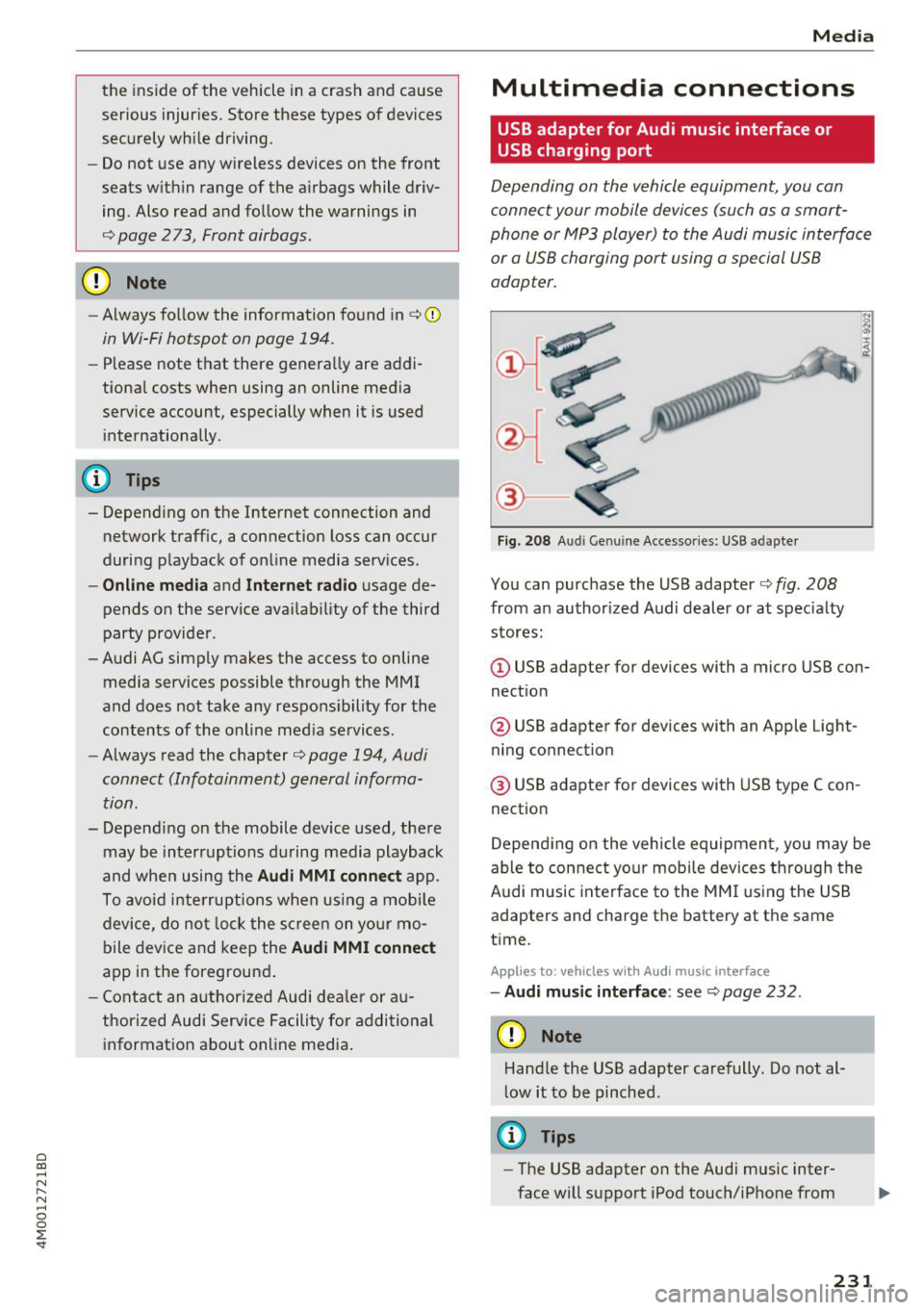
Fig. 208 A udi Genuin e Acce ssories: USB a dapter
You can purchase the USB adapter c::> fig. 208
from an authorized Audi dealer or at specialty
stores:
I
(D USB adapter for devices with a micro USB con
nection
@ USB adapter for devices with an Apple Light
ning connection
@ USB adapter for devices with USB type C con
nection
Depending on the vehicle equipment, you may be
able to connect your mobile devices through the
Audi music interface to the MMI using the USB
adapters and charge the battery at th e same
time .
Applies to : vehicles wit h Aud i music interface
-Audi music interface : see c::> page 232.
CD Note
Handle the USB adapter carefully. Do not al
low it to be pinched.
@ Tips
-The USB adapter on the Audi music inter
face will support iPod touch/iPhone from
231