USB AUDI Q7 2018 Owner´s Manual
[x] Cancel search | Manufacturer: AUDI, Model Year: 2018, Model line: Q7, Model: AUDI Q7 2018Pages: 398, PDF Size: 185.58 MB
Page 62 of 398
Seats and stor age
Acc essing a seat profile
• If the driver's door is open and the ignit ion is
switched off, press the memory button.
• If the driver's door is closed or the ignition is
switched on, press and hold the memory but
ton until the seat adjustment is complete.
A WARNING
- For safety reasons, the seat setting can only
be recalled when the vehicle is stationary to
reduce the risk of an accident.
- In an emergency, seat adjustment operation
can be stopped by pressing the
!SETI button
or the buttons @or@
c::> page 54, fig. 50 .
Ashtray
App lies to: ve hicles w ith ashtray
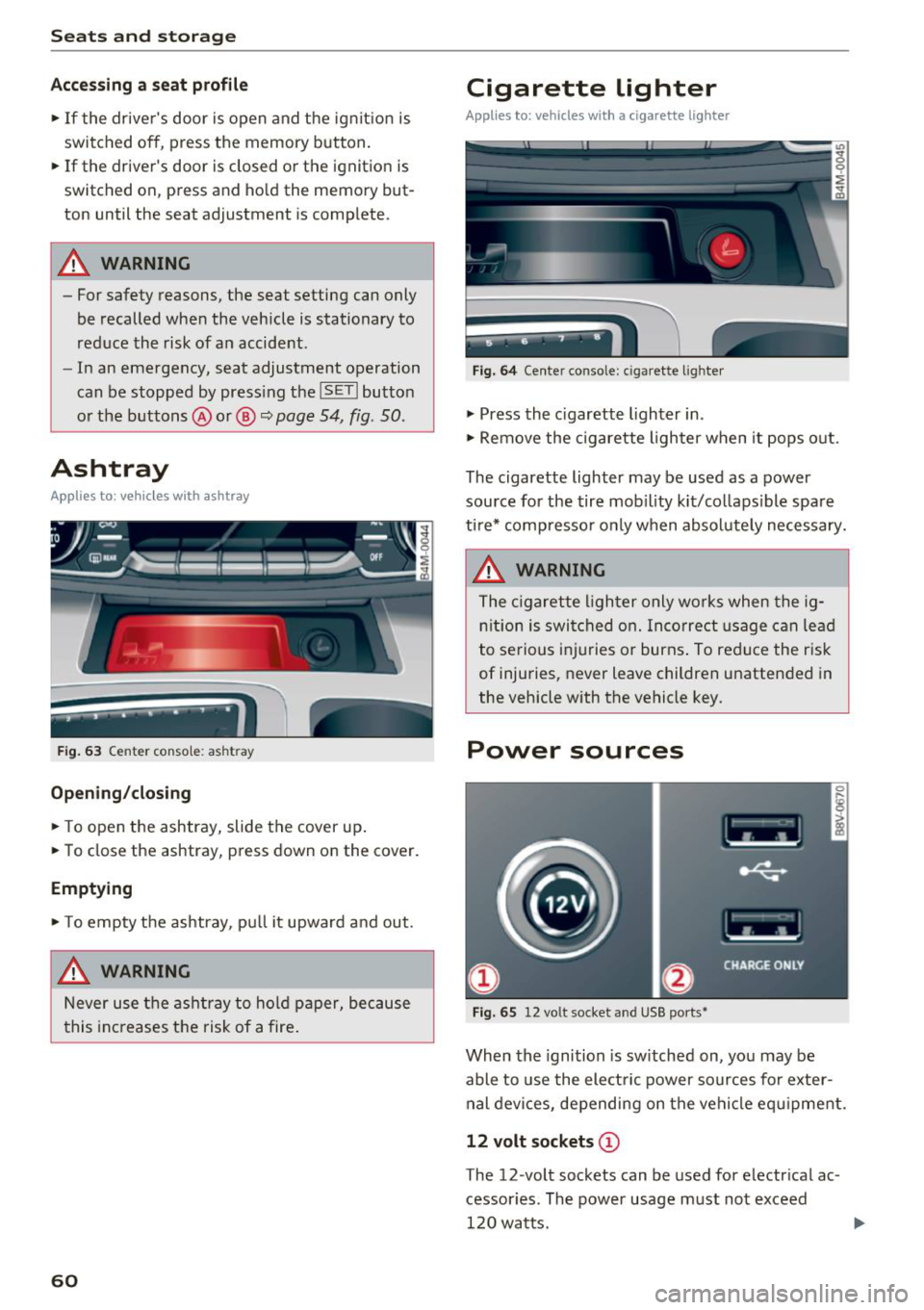
Fig. 63 Center conso le: ashtr ay
Open ing /closing
• To open the ashtray, slide the cover up .
• To close the ashtray, press down on the cover.
Empt ying
• To empty the ashtray, pu ll it upward and out.
A WARNING
Never use the asht ray to hold paper, because
t his increases the risk of a fire .
60
Cigarette lighter
Applies to: vehicles with a cigarette lighter
Fig. 64 Center conso le : cigarette ligh ter
• Press the c igarette lighter in .
• Remove the cigarette lighter when it pops o ut.
The cigarette lighter may be used as a power source for the tire mob ility kit/collaps ible spare
ti re* compresso r o nly when absolute ly necessary.
A WARNING
The c igarette lighter only works when the ig
n ition is switched on. Incorrect usage can lead
to serious i njuries or burns . To reduce the risk
of injuries, never leave children unattended in
the vehicle with the vehicle key.
Power sources
Fig. 65 12 vo lt socket and USB ports•
When the ignition is sw itched on, you may be
able to use the elect ric power sources for exter
nal devices, depending on the vehicle eq uipment.
12 volt sockets (D
The 12-volt sockets can be used for electr ical ac
cessor ies. The power usage m ust not exceed
120 watts.
Page 63 of 398
a co ...... N r--. N ...... 0
0
:E '
sole*, in the rear* and on the luggage compart
ment side tr im panel* .
USB ports @
You can cha rge mobi le devices and/or connect to
the Audi music interface* us ing t he USB ports*.
F or additional information about the USB ports,
see
¢ page 2 31, Multimedia connections.
.8, WARNING
Incorrect usage ca n lead to serio us injuries or
burns . To reduce the risk of injuries, never
leave children unattended in the vehicle with
the vehicle key.
CD Note
- D isconnect the connectors from the power
sources carefully to reduce the risk of dam
aging them .
- To reduce the risk of damage to the vehicle
electrical system, never attempt to charge
the vehicle battery by connecting accesso
ries that prov ide power, such as solar panels
or battery chargers, to the power sources.
- To reduce t he risk of damage to the power
sources, only use plugs and connectors that
fit correctly.
Storage
Cup holde rs
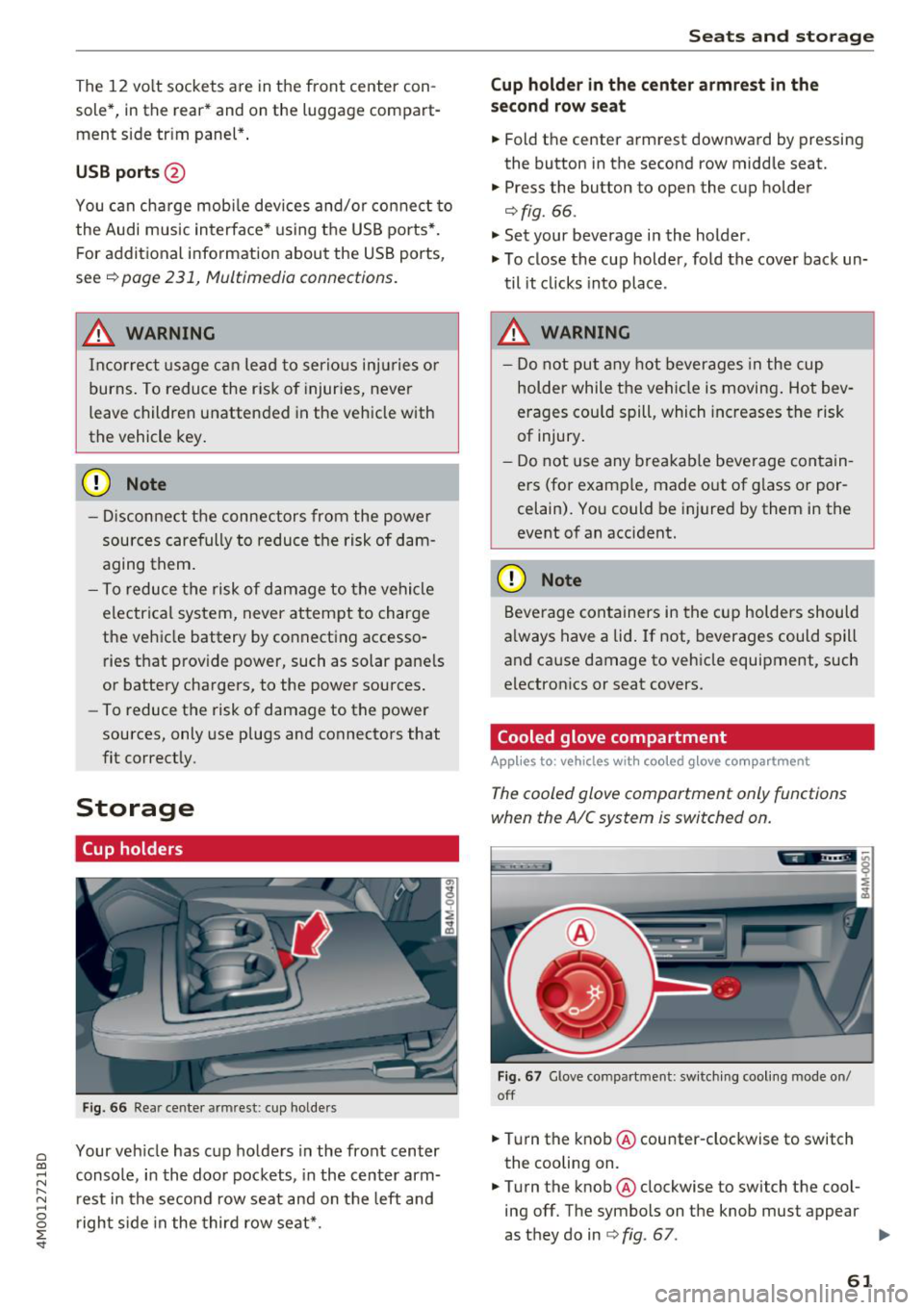
F ig . 66 Rear center armrest: cup holde rs
Your vehicle has c up holders in the front center
console, in the door pockets, in the center arm
rest in the second row seat and on the left and
right s ide in the third row seat*.
S eats and storag e
Cup holde r in the cent er ar mrest in th e
s e co nd row seat
.,. Fold the center armrest downward by pressing
the button in the second row middle seat.
.,. Press the button to open the cup holder
¢ fig. 66.
"'Set your beverage in the holder.
"' To close the cup holder, fold the cover back un
til it clicks into place .
.8, WARNING
-
-Do not put any hot beverages in the cup
holder while the vehicle is moving . Hot bev
erages cou ld spill, which increases the risk
of injury .
- Do not use any breakab le beverage contain
ers (for example, made out of g lass or por
celain). You could be injured by them in the
event of an accident.
CD Note
Beverage containers in the cup holders should
a lways have a lid . If not, beverages could spill
and cause damage to vehicle equipment, such
electron ics or seat covers.
Cooled glove compartment
Applies to : vehicles wi th coo led g love co mpartment
The cooled glove comportment only functions
when the AIC system is switched on.
Fig . 67 G love compartment: sw itch ing cool ing mode on/
off
.,. Turn the knob @counter-clockwise to switch
the cooling on.
.,. Turn the knob@clockwise to switch the cool
ing off. The symbols on the knob must appear
as they do in
¢ fig. 67. ..,.
61
Page 168 of 398
Voice recognition system
• Telephone
• Audi connect •
Favorites
• Call (XV)
• Navigation
• Directory
• Radio
• Media
• Enter number
• Redial
• Read new text message
• Nav igate to
(XY)
• Sound • Enter address/destination
• Help • Online destinations
• Help Speech dialog system
• Help Telephone •
Cancel route guidance
• Map
• Help Aud i connect •
Line
(XY)
• Help Navigation
• Help
Map
• Help Radio •
Next page/ previous page
• Cancel
• No. I meant (XV)
• Help Media • Correction
TE ~EPflON ~
• Enter number • Call list
• Delete number/ correction
• Redial
• Directory
• Call
(XV)
• Call mailbox
• Telephone favorites
• business
I private/ land tine I mobile
N~~It ~JION
• Nav igate to (XY)
• Start/ cancel route guidance
• Directory
• Last destinations • Block
route for
(XV) miles I Block
the next section
• Route list
• Calculate alternative routes
• Nav igation favorites
• Drive home
• Enter address •
Online destinations
• Special destination
• Enter country
I town I street I state
• Exclude route/ Exclude route for
(XV) km/ m
• Map
• Day map/ Night map
• 2D driving position map/ 2D north position map/ 3D map/ Destination map
I Overview map
~l!IDI CONNECT
• Audi connect
• Travel Information/ Parking Information
• Fuel prices
• Weather
RADIO
• Radio presets
• FM
• FM /AM/ SIRIUS XM
• Station (XV) / Frequency (XV)
• Traffic announcement on/ off
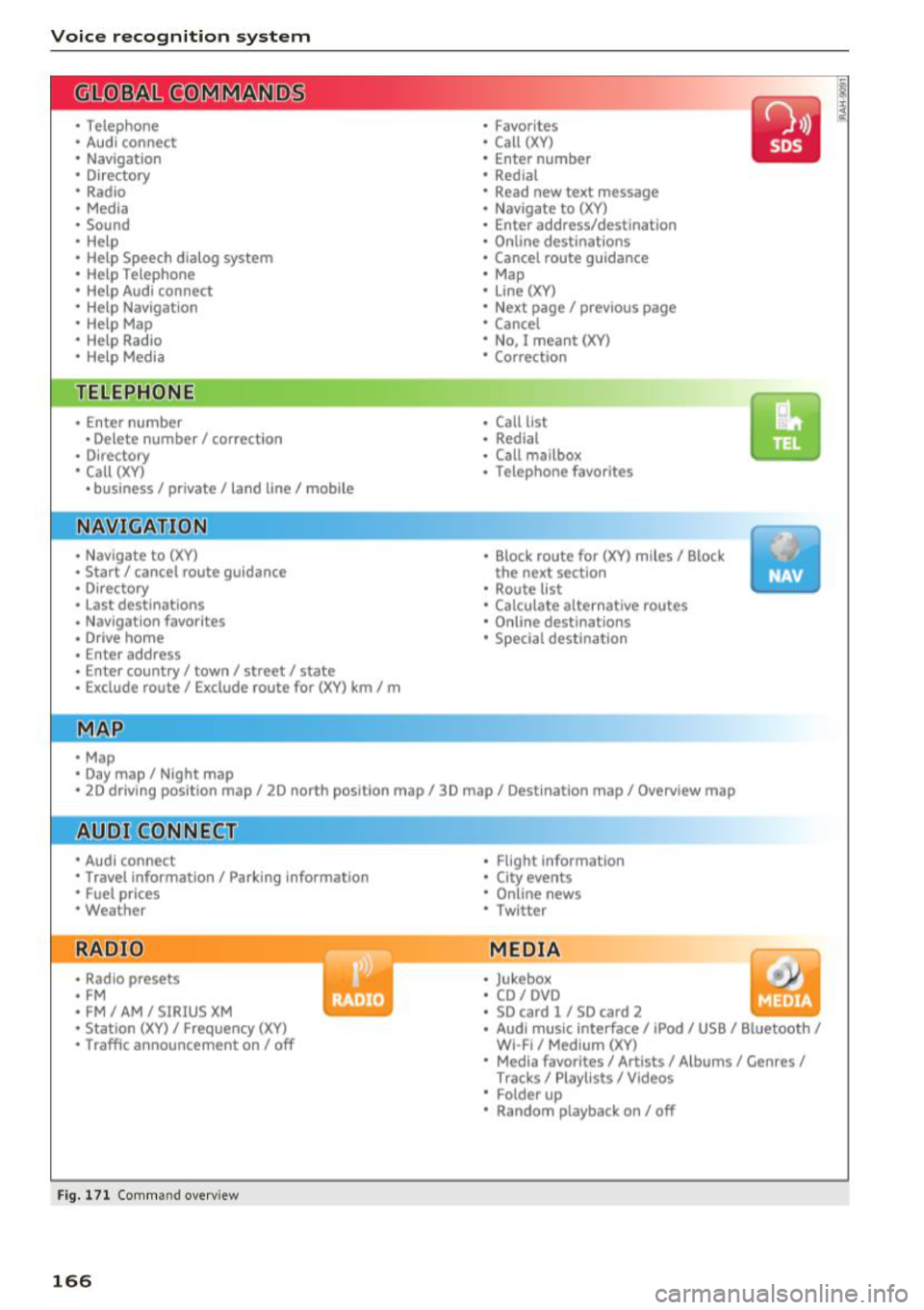
Fig. 171 Comm and overv iew
166
• Flight Informa tion
• City events
• Online news
• Twitter
MEDIA
• Jukebox
• CD
I DVD
• SD card
l / SD card 2
• Audi music Interface/ I Pod/ USB / Bluetooth
I
WI -Fl I Med ium (XV)
• Media favorites
I Artists/ Albums/ Genres I
Tracks I Playll sts / Videos
• Folder up
• Random playback on / off
Page 174 of 398
Voice recognition s ystem
- Always read the chapter ¢ page 194, Audi
connect (Infotainment) general informa tion .
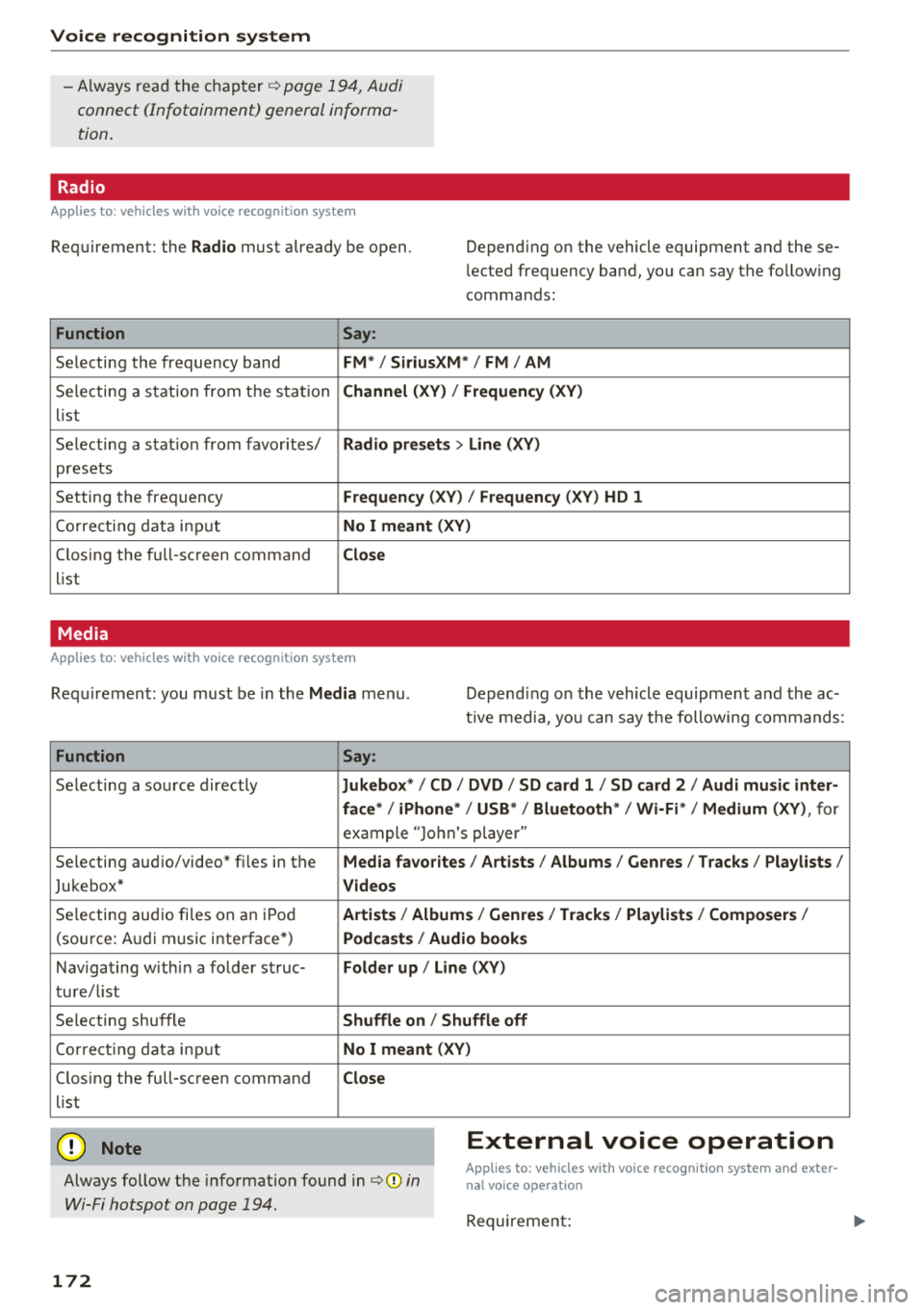
Radio
Applies to: vehicles with voice recognition system
Requirement: the Radio must already be open. Depend ing on the vehicle equipment and these
lected frequency band, you ca n say the fo llow ing
commands :
Function Say:
Selecting the frequency band FM*/ Siriu sXM* / FM / AM
Selecting a station from t he s ta tion Channel (XV ) / !Frequenc y (XV)
list
Selecting a stat ion from favorites/
Radio presets > Line (XV)
presets
Setting the frequency
F requency (X V ) / Frequency ( XV) HO 1
Correct ing data inp ut No I meant (XV )
Closing the full-screen command Close
list
Media
Applies to: vehicles with voice recognition system
Requirement: you mus t be in the Media menu . Depending on the vehicle equipment and the ac
t ive media, yo u can say the following commands :
Function Say:
Selecting a sou rce directly Ju kebox* / CO / DVD / SO card 1 / SO card 2 / Audi music inter-
face */ iPhone * / USB * / Bluetooth * / Wi -Fi * / Medium (XV) ,
for
exa mple "J o hn's player "
Selecting aud io/video" fi les in the
Media fa vorites I Artists / Albums / Genres I Tracks / Playlists /
Jukebox* Videos
Selecting aud io fi les on a n iP od Artists / Albu mis/ Genres I Track s/ Playlists / Compo sers I
(so urce: A udi music i nterface*) Podca st s / Aud io books
Nav iga ting with in a folder s truc-Folder up / Line (XV )
tu re/l ist
Selecting shuffle
Shuffle on / Shuffle off
Co rre ct in g data inp ut No I meant (XV )
Closing the full-screen command Close
list
@ Note External voice operation
Always follow the info rmation found in¢@) in
Wi-Fi hotspot on page 194.
Applies to: vehicles with voice recognition system and exter·
nal voice operation
Requireme nt:
172
Page 186 of 398
Telephone
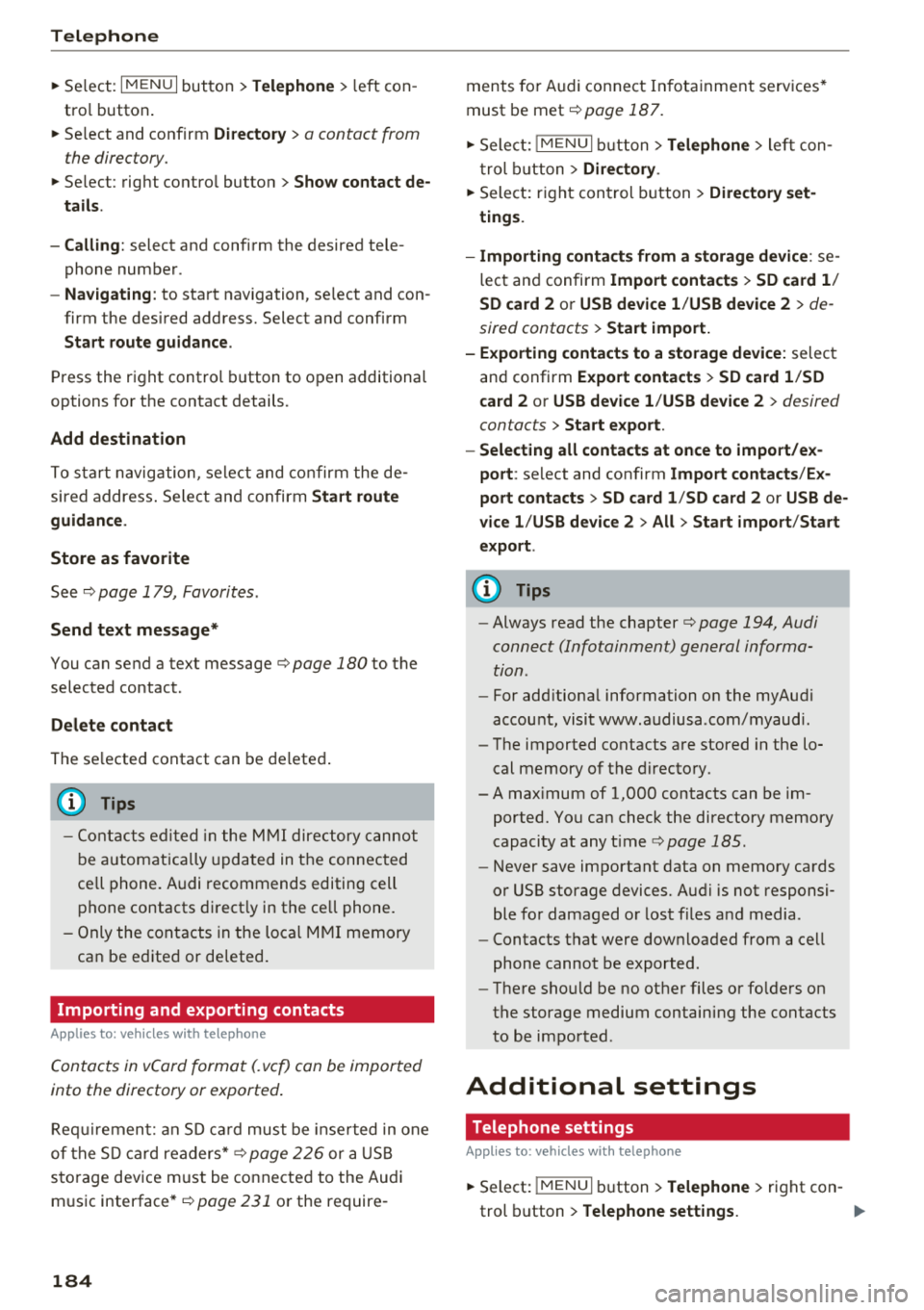
~ Select: I M ENUI button> Telephone > left con
tro l button .
~ Select and confirm Directory > a contact from
the directory.
~ Se lect : rig ht contro l butto n > Show contact de·
tails .
- Calling:
select and confirm the desired tele
phone numbe r.
- Navigating : to start navigation, se lect and con
firm the desi red address. Select and confirm
Start route guidance .
Press the r ight cont rol button to o pen additional
options fo r th e contact details.
Add destination
To st art na vigatio n, se le ct and co nf irm the de
sired ad dress . Se le ct and confirm
Start route
guidance .
Store as favorite
S ee ¢ page 1 79, Favorites .
Send text message*
You can send a text message¢ page 180 to the
selected contact .
Delete contact
The selected contact can be delete d.
(D Tips
- Contacts edit ed in th e MMI d irecto ry cannot
b e autom atic all y up dat ed in t he connec ted
ce ll p hone. Audi recommends editing cell
ph one contacts direct ly in t he ce ll phone .
- On ly the co nt acts in the lo ca l MM I memory
ca n be e dite d or de leted .
Importing and exporting contacts
App lies to: ve hicles w ith telep hone
Con tacts in vCard forma t (. vcf) can be impo rted
into the directory or e xported .
Requir em en t: an S D car d m us t b e in se rted in o ne
of the S D card readers *¢
page 22 6 or a USB
s to rage dev ice m ust be connecte d to the Audi
m usic interface *¢
page 231 or the require -
184 ments
fo r Audi connect In fota inme nt serv ices*
must be met
¢ page 187.
~ Sele ct: !ME NUI butto n> Telephone > le ft co n
t rol butt on >
Directory .
~ Select: r ight con trol button> Directory set
tings.
- Importing contacts from a storage device :
se
le ct and con fir m
Import contacts > SD card 1 /
SD card 2 or USB device 1 /USB device 2
> de
sired contacts
> Start import.
- Exporting contacts to a storage device:
selec t
an d confirm
Export contacts > SD card 1 /SD
card 2 or USB device 1 /USB device 2
> desired
contacts
> Start export .
- Selecting all contacts at once to import/ex
port :
select and confirm Import contacts /Ex
port contacts > SD card 1 /SD card 2 or USB de·
vice 1 /USB device 2 > All > Start import /Start
export .
(D Tips
-Always read the chapter¢ page 194, Audi
connect (Infotainment) gen eral informa
tion.
- Fo r add itiona l information o n the myAu di
accou nt, visi t www .a udiusa .com/myaud i.
- Th e imported contacts a re stored in the lo
cal memory of t he dire ctory.
- A ma ximum of 1, 000 contacts can be im
p orted. Yo u ca n check t he directory memory
capaci ty at any t ime
¢pag e 185.
- Never save important data on memory ca rds
o r U SB storage devices. Audi is not responsi
b le fo r damaged o r los t fil es a nd media.
- Contacts t hat were dow nloa ded from a ce ll
p hon e cannot be e xpo rted.
- Th ere s houl d be no ot her f iles or fo lders on
t h e st ora ge m ediu m co ntain ing th e contacts
to be importe d.
Additional settings
Telephone settings
App lies to: vehicles wit h telepho ne
~ S elect: IME NUI button> Telephone > righ t co n-
trol button >
Telephone settings. .,,.
Page 227 of 398
Cl a:, ...... N
" N ...... 0
0
::r '
Introduction
There are various media drives and connections
avai lab le in the MMI. For example, you can play
audio/video* fi les from t he Jukebox* or connect
your mobi le device to the Audi mus ic interface*
and operate it through the MMI.
Notes
General
Media and format re strictions :
the MM I (includ
ing the SD card reader and the USB storage de
vice connection *) was tested wit h a variety of
products and media on the market. However,
there may be cases where ind ividual devices or
media and audio/video files* may not be recog
n ized, may play on ly w ith restrictions, or may not
play at all.
Digital Rights Management : please note that
the audio/video* files are subjec t to copyright
protection .
The med ia drives do not play f iles that are pro
tected by ORM and that are ident ified with the
symbol
rfl.
Data secu rity : never store important data on SD
cards, the Jukebox*, CDs/DVDs or mobile devices .
Aud i AG is not responsib le for damaged or lost
f il es and media .
Loading times : th e more files/fo lders/p lay lists
that are on a storage medium, the longer it will
take to load the audio/v ideo* files . Audi recom
mends using storage med ia tha t on ly conta in au
d io/video files* . To decrease the t ime it takes to
l oad audio/v ideo f iles*, create subfolders (fo r ex
ample, fo r th e a rt ist o r album). The loading time
will also increase when importing fi les.
Additional information : when playing, audio
f iles are automatically displayed with any add i
tional informat ion that is sto red (such as the ar
tis t, trac k and albu m cover). If this informa tion is
n o t availa ble o n the sto rage med ium, t he M MI
will check the Grace note metadata database .
Media
However, in some cases, the additional in fo rma
tion may not be displayed.
Re stri cted functionality : reset the Media set
tings
t o the fac to ry defau lt settings if func tional
ity is restr icted ¢
page 246.
If functionali ty is rest ricted, reset the Jukebox *
to the fa ctory default sett ings ¢ page 246.
For information about the propert ies of s upport
ed med ia and fi le formats , see ¢
page 240 .
@ Note
Always fo llow the information fo und in ¢ @ in
Wi-Fi hotspot on page 194 .
CD/DVD operation
CD /DVD and format restrictions :
the funct iona li
ty of individ ua l st orage media may be limited due
to the v ariety of b lank CDs/DVDs avai lab le and
t h e various capacities. Audio C Ds or video DV Ds
with copy p rotection, CDs/DVDs that do not con
fo rm to the standard and multi session CDs may
have limit ed playback or may not play at a ll. Audi
recommends finaliz ing the recording process
whe n creat ing mult isess io n CDs . Mult isess ion is
not supported for DVDs .
Using CDs/DVDs , the CD dr ive or the DVD drive :
to ensure correct, hig h-quality playback and to
prevent damage to the dr ive or d isc read ing er
rors, always store CDs/DVDs in a protective
sleeve and do not expose t hem to direct sunlight .
Do
not u se:
- Damaged, dirty or scratched CDs/DVDs
- Sing le CDs/DVDs with 3 in (8 cm) d iameter
- CD/DVDs that a re not round
- CDs/DVDs w it h labe ls
- Protec tive rings
- Clea ning CDs
Thermal protection switch : CD/DVD playback
may be temporarily unavailab le if outs ide tem
peratures a re extremely hot or co ld . A thermal
pro tect io n sw itch is insta lled to p rotect the C D/
D VD and the laser.
La ser devi ce s: lase r devices a re divided i nto safe -
ty classes 1 to 4 in acco rdance w ith DIN I EC 76 .,.
225
Page 233 of 398
a co ...... N r--. N ...... 0
0
:E '
serious injuries. Store these types of devices
securely while driving.
- Do not use any wireless devices on the front
seats within range of the airbags while driv
ing. Also read and follow the warnings in
c::> page 2 73 , Front airbags .
CD Note
-Always follow the information found inc:>@
in Wi-Fi hotspot on page 194 .
-Please note that there generally are addi
tional costs when using an online media
service account, especially when it is used internationally .
(D Tips
-Depending on the Internet connection and
network traffic, a connection loss can occur
during playback of on line media services .
-Online media and Internet radio usage de
pends on the service availability of the third
party provider .
- Audi AG simply makes the access to online
media services possible through the MMI
and does not take any respons ibility for the
contents of the online media services .
- Always read the chapter
c::> page 194, Audi
connect (Infotainment) general informa
tion .
- Depending on the mobile device used, there
may be interruptions during media playback
and when using the
Audi MMI connect app.
To avoid interruptions when using a mobile
device , do not lock the screen on your mo
bile device and keep the
Audi MMI connect
app in the foreground .
- Contact an authorized Audi dealer or au
thorized Audi Service Facility for additional
information about online media .
Media
Multimedia connections
USB adapter for Audi music interface o r
USB charging port
Depending on the vehicle equipment, you can
connect your mobile devices (such as a smart
phone or MP3 player) to the Audi music interface
or a
USB charging port using a special USB
adapter.
@-
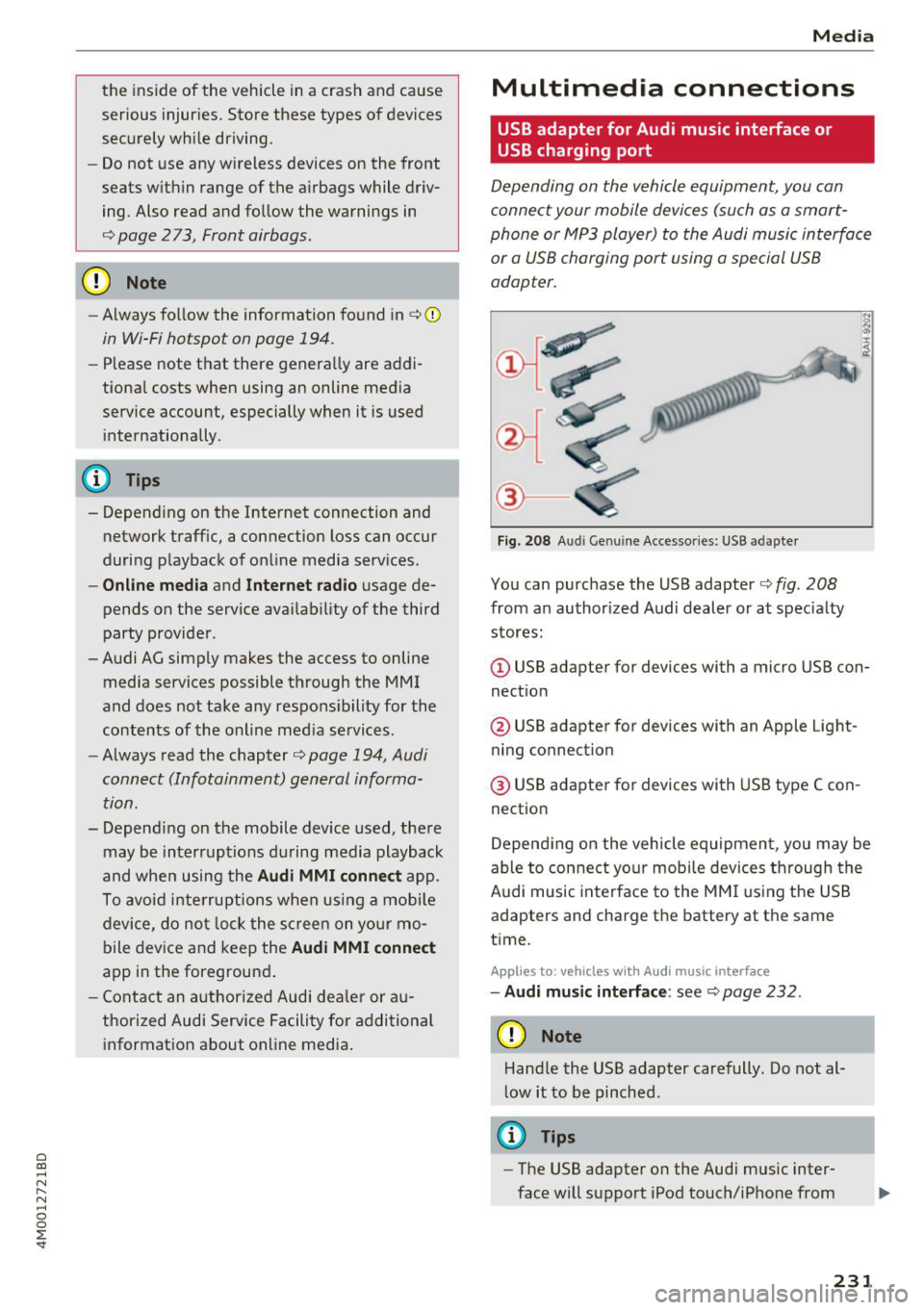
Fig. 208 A udi Genuin e Acce ssories: USB a dapter
You can purchase the USB adapter c::> fig. 208
from an authorized Audi dealer or at specialty
stores:
I
(D USB adapter for devices with a micro USB con
nection
@ USB adapter for devices with an Apple Light
ning connection
@ USB adapter for devices with USB type C con
nection
Depending on the vehicle equipment, you may be
able to connect your mobile devices through the
Audi music interface to the MMI using the USB
adapters and charge the battery at th e same
time .
Applies to : vehicles wit h Aud i music interface
-Audi music interface : see c::> page 232.
CD Note
Handle the USB adapter carefully. Do not al
low it to be pinched.
@ Tips
-The USB adapter on the Audi music inter
face will support iPod touch/iPhone from
231
Page 234 of 398
Media
the 5th generation or later with the light
ning connector .
- Mobile devices with an Apple Dock connec
tor can only be charged with a USB adapter
fo r devices with an Apple Dock connector
and cannot transmit data.
Audi music interface
Applies to: vehicles with Aud i mus ic in terface
Connect your mobil e de vices to the Audi music
interface in order to op era te them through the
MM I and charge the battery.
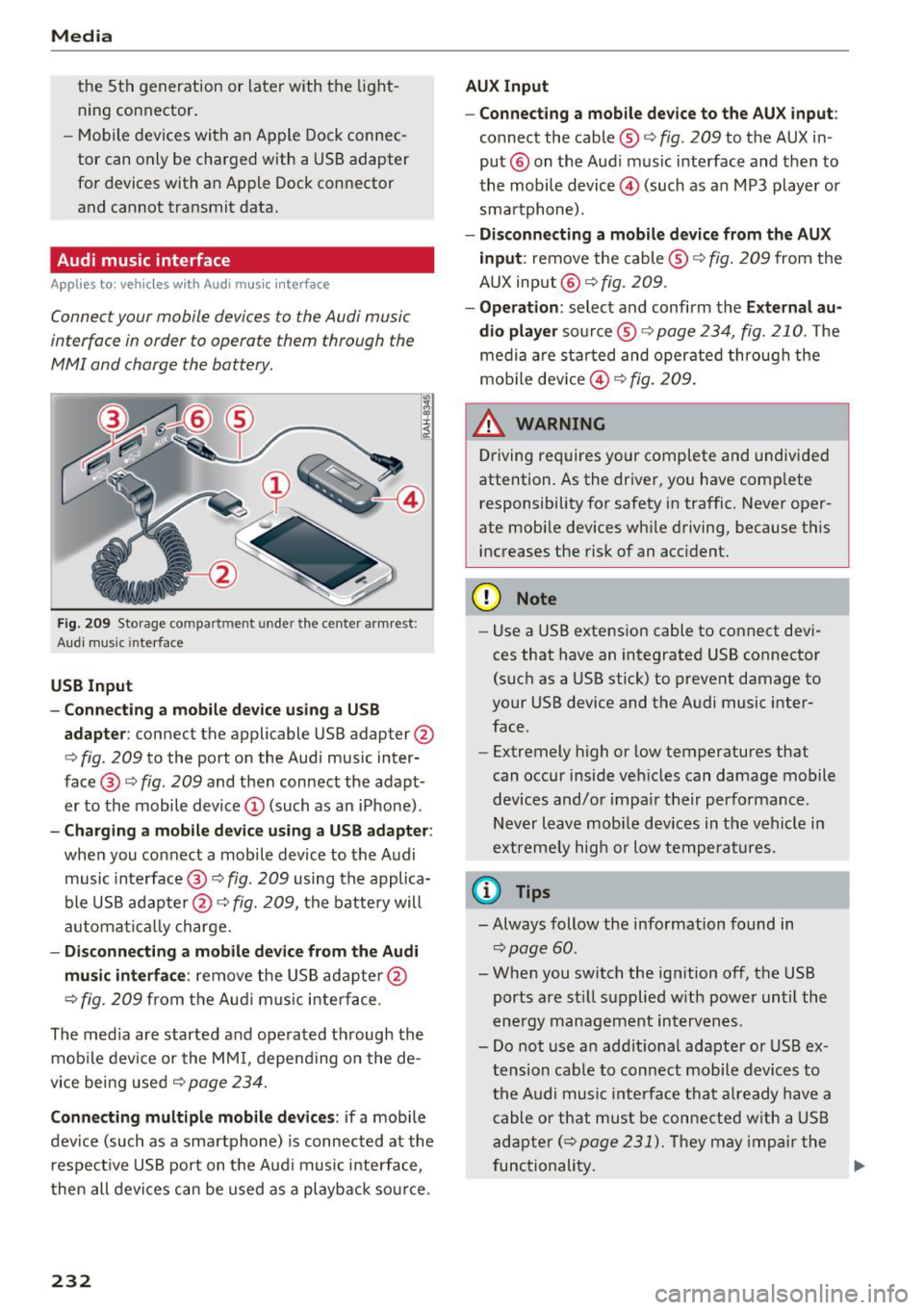
Fig . 2 09 Sto rage co mp artment u nde r the center a rm re st:
Aud i m usi c in terface
USB Input
- Connecting a mobil e device u sing a USB
adapte r:
connect the applic able USB adapter @
c>
fig . 209 to the port on the Audi music inter
face @ c>
fig. 209 and then connect the adapt
er to the mobile device © (such as an iPhone) .
-Charging a mobile device using a U SB adapter:
when you connect a mobile device to the Audi
music inte rface @ c>
fig. 209 using the applica
ble USB adap ter @ c>
fig. 209, the battery will
a utomat ically charge.
- Di sconnecting a mobile device from the Audi
mu sic int erface :
remove the US B adapte r@
¢
fig. 209 fr om the A udi music inter face .
The media a re started a nd ope rated t hrough the
mob ile devi ce or the MM I, depend ing on the de
vice bei ng used c>
page 234 .
Connecting multiple mobile devices : if a mobile
dev ice (such as a sma rtphone) is connected at the
respect ive USB port on t he A ud i music interface,
then all devi ces can be u sed as a playback so urce.
232
AUX Input
-Connect ing a mobile device to the AUX input:
connect the cable ® c> fig. 209 to t he AUX in
put ® on the Aud i music interface and then to
the mobile device@) (such as a n MP3 player or
sma rtphone) .
-Di sconnecting a mobile device from the AUX
input :
remove the cable®¢ fig. 209 from the
AUX input @¢
fig. 209 .
-Oper ation : select and confirm the External au
dio player
so urce ® ¢ page 234, fig. 210. The
medi a are sta rted and operate d through the
mob ile dev ice @ ¢
fig. 209 .
_&. WARNING
Driving requires your complete and undivided
attention. As the driver, yo u have comp lete
responsibility for safety in traffic. Never oper
ate mobi le dev ices wh ile driving, because this
i n creases the risk of an acc ident.
(D Note
- Use a USB extens ion cable to co nnect devi
ces that have an in tegrated USB connector
(such as a USB stick) to prevent damage to
your USB device and the Audi music inter
face .
- Extremely high o r low temperatures that
can occur inside ve hicles can damage mobile
devices and/o r impa ir their performance .
Never l eave mobi le devices in t he vehicle i n
extremely high or low tempe ra tur es.
(D Tips
- Always follow the info rmation found in
c> page60 .
- When you switch the ign ition off, the USB
ports a re st ill supplied w ith power unt il the
e n ergy managem ent interven es.
- Do not use a n addit iona l adapter o r USB ex
tension cab le to connect mobile devices to
the A udi music i nte rfa ce tha t already have a
cable or that must be connected w ith a USB
ad apter( ¢
page 231). Th ey may imp air the
fu nctionality . .,.
Page 235 of 398
Cl a:, ...... N
" N ...... 0
0
::r '
from an authorized Audi dealer or at spe
cialty stores.
- Audi recommends setting the volume of a
mobile device connected to the AUX input to
approximately 70% of the maximum vol
ume.
- Functionality is not guaranteed for mobile
devices that do not conform to the USB 2.0
specification.
- USB hubs are not supported.
- Some versions of the iPod such as the iPod
shuffle cannot be connected to the USB
adapter for devices with Apple Dock connec
tor. Connect these devices using a AUX con nector cable .
- Changed content on a mobile device
l) that
is connected to the Audi music interface
may not be displayed in the media center .
In this case, reset the
Media settings back
to
Factory settings ~ page 246.
-Video playback through the Audi music in
terface is only supported if the connected
device is recognized as a USB storage device
(for example a USB stick). Apple devices and
MTP devices (such as smartphones) are not
recognized as USB storage devices.
- iPod/iPhone malfunctions also affect the
operation of the MMI. Reset your iPod/
iPhone if this happens.
- Audi recommends updating the iPod/iPhone
software to the latest version. For impor
tant information on operating your iPod/
iPhone, refer to the user guide for the de
vice.
- The USB adapter on the Audi music inter
face will support iPod touch/iPhone from
the 5th generation or later with the light
ning connector.
- For more information about the Audi music
interface and supported devices, check the
Audi database for mobile devices at
www .audiusa .com/mp3 or contact an au
thorized Audi dealer or authorized Audi Service Facility.
l) A ppli es o nly t o MTP devic e s. Doe s not a ppl y to Ap ple dev i
ces and U SB mass s to ra g e devi ces.
Media
Rear Seat Entertainment preparation
App lies to : vehicles wit h Rear Seat Enterta inme nt preparat ion
T he Rear Seat Entertainment preparation in
cludes cables and a mount for Audi Entertain
ment mobile in the driver's and front passenger's
seat backrests.
The suitable Audi Entertainment mobile Rear
Seat Entertainment package is available through
Audi Genuine Accessories .
Using Audi Genuine Accessories is recommended.
Audi has established their reliability, safety and
suitability .
We cannot ev alu at e or endorse other p rodu cts in
this way, even if the p roduct is approved by acer
tified testing agency or government agency .
@ Note
Only use devices that are approved for the
Rear Seat Entertainment preparation. Unap
proved devices may cause damage to the vehi
cle electronics .
(D Tips
-Contact an authorized Audi dealer or au
thorized Audi Service Facility for additional
information about
Audi Entertainment mo
bile .
-Always read the chapter~ page 3 77.
- The
Rear Seat Entertainment preparation is
not intended to charge external electronic
devices .
233
Page 236 of 398
Media
Playing media
Accessing media
You can start and operate various media
through the MMI control panel .
Fig . 21 0 Dia gr am : p ossib le sou rces in the Med ia m enu
F ig. 211 Diag ra m : possible sources in th e Me dia me nu
Re quir emen t: a medi a sou rce must contain au
d io/video* fi les ¢
page 226.
• Press t he
I MEDIAi bu tton. Press the left co ntrol
bu tton un til the so urces ove rview is disp laye d.
• Select and co nfirm the desi red sou rce.
Or :
press th e I M ED IAi bu tton repeate dly until t he
desire d source is se lected .
D epending on the ve hicle eq uipme nt, t he fo llow
i ng sources may be disp laye d in the
Media men u:
@ Jukebox * .. .. .. ........... .. .
@ DVD/CD drive * ... .. .... .. ... .
®
© SD card reader
Audi music interface * ....... .. .
such as an iPhone, USB stick
227
226,2 27
226
23 2
® External audio player . . . . . . . . . . 232
such as an MP3 player connected to
the AUX input
@ Bluetooth audio player * . . . . . . . 228
1) Depe ndin g on the DVD , thi s may not be poss ib le d urin g
pla yback.
234
(f) Wi-Fi audio player* ... ... .... .
® Online media* and Internet radio *
229
230
- Playing audio/video files : select a source in the
Media menu> category (such as art ists> al
bum
> track).
- Moving one level up in the folder structure :
press the !BACKI b utton . Or: select and confirm
Folder up.
- Selecting the previous or next track/chapter*
l): press th e On/Off knob on the MMI control
pa nel briefly to the left l
-Fast-forwarding and rewinding audio/video*
files :
press and hold the On/Off knob on th e
M MI control panel to the left l
a longer time .
-Pausing or resuming playback : press th e On/
Off knob on the MM I cont rol panel b riefly .
(D Tips
- Yo u can scroll through long lists quickly by
t u rning the control knob quickly. T he scro ll
ing speed depends o n the nu mber o f list en
t rie s.
- For safety reas ons, the video image is only
display ed w hen t he vehicl e is stationary . On
ly th e so und from the video plays while driv
ing.