infotainment AUDI Q7 2021 Owner´s Manual
[x] Cancel search | Manufacturer: AUDI, Model Year: 2021, Model line: Q7, Model: AUDI Q7 2021Pages: 332, PDF Size: 117.99 MB
Page 201 of 332
4M1012721BC
Emergency call
Emergency call
Overview
Applies to: vehicles with emergency call function
An emergency call is a combination of data trans-
mission and a phone call. The data transmission
from your vehicle forwards important informa-
tion, such as the vehicle and position data, to the
emergency call center.
Depending on the country and the vehicle equip-
ment, the following functions may be available:
With the emergency call, you can call for help in
dangerous situations as quickly as possible. Use
this function when emergency help is needed
=> page 199.
— Audi connect emergency call (TPS emergency
call). This eCall system uses emergency call
centers operated by third party providers.
With online roadside assistance, you can request
assistance if there is a breakdown or a minor acci-
dent > page 200.
ZA\ WARNING
In areas with poor GPS reception or outside
the coverage range of the respective cell
phone service provider, some functions and/or
services may not be available, it may not be
possible to send or receive data, or functional-
ity may be limited.
@) Tips
To see which data can be transmitted, visit
your Audi country or sales region website at
www.audi.com.
Emergency call
Applies to: vehicles with emergency call function
The services are provided through a SIM card in-
stalled in the vehicle. Services are provided as-
suming that the cell phone network required for
the installed SIM card is functioning and availa-
ble for use. The services made availably by Audi
are only available within the mobile phone net-
work coverage area for the mobile phone service
provider selected by Audi.
—The emergency call function cannot be deac-
tivated in the Infotainment system settings.
— The availability of the TPS emergency call is
limited to certain times.
—The costs for call and data connections for
TPS emergency calls is included in the price
of the services.
Applies to: vehicles with emergency call function
A TPS emergency call can be made manually or
automatically > page 199.
Making an emergency call
Applies to: vehicles with emergency call function
mi l
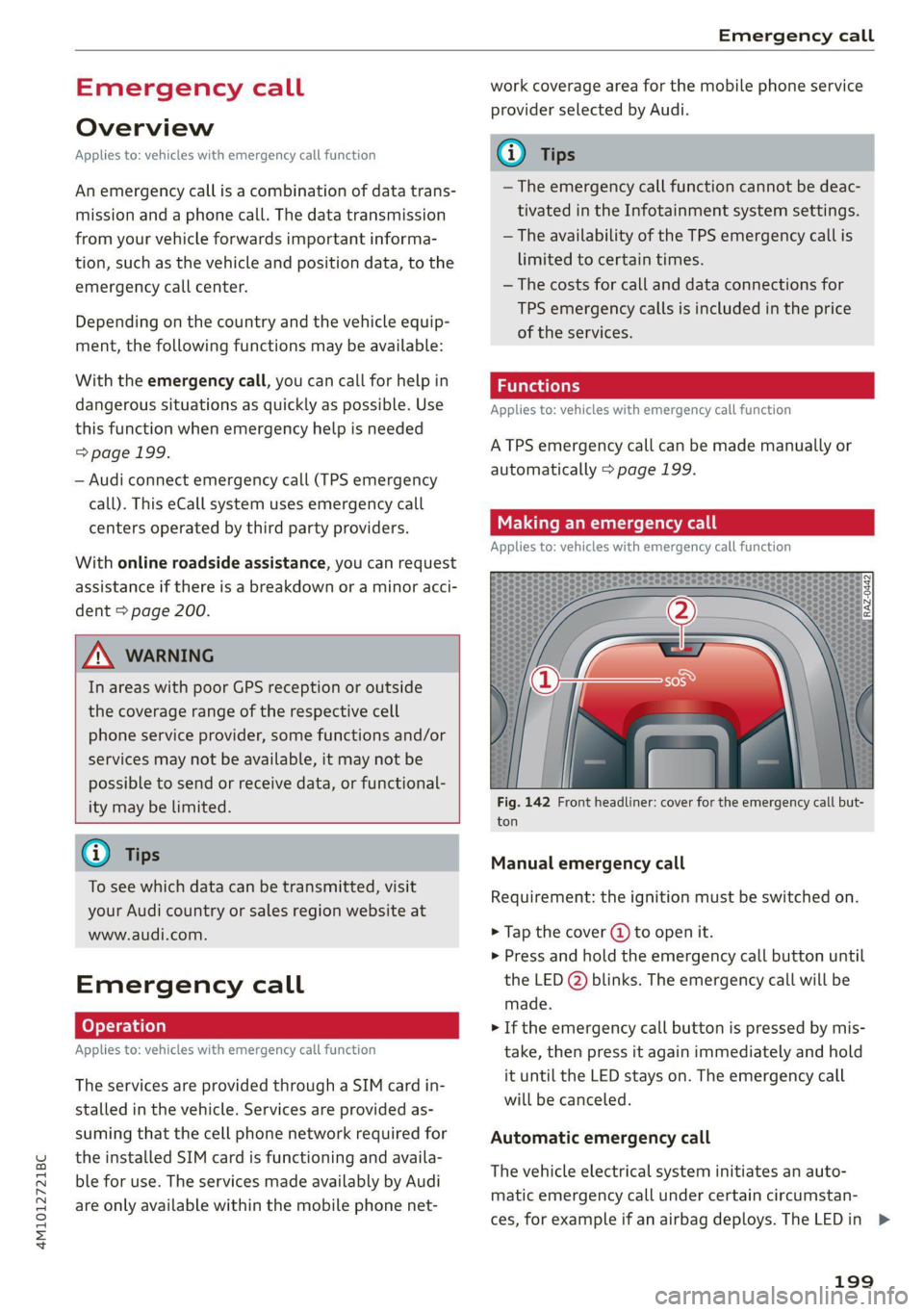
Fig. 142 Front headliner: cover for the emergency call but-
ton
Manual emergency call
Requirement: the ignition must be switched on.
> Tap the cover (@) to open it.
> Press and hold the emergency call button until
the LED () blinks. The emergency call will be
made.
> If the emergency call button is pressed by mis-
take, then press it again immediately and hold
it until the LED stays on. The emergency call
will be canceled.
Automatic emergency call
The vehicle electrical system initiates an auto-
matic emergency call under certain circumstan-
ces, for example if an airbag deploys. The LEDin >
199
Page 204 of 332

Navigation
Navigation
Opening navigation
Applies to: vehicles with navigation system
Fig. 144 Route guidance not started
The navigation system directs you to your desti-
nation, around traffic incidents, and on alterna-
tive routes, if desired.
Opening navigation
>» Applies to: MMI: Press NAVIGATION on the
home screen.
After accessing the navigation for the first time,
the map is displayed.
Opening navigation using the multifunction
steering wheel
> Applies to: multifunction steering wheel: Select
the Navigation tab in the instrument cluster.
> To display navigation when route guidance has
started, select in the instrument cluster: the
button > Map.
The following functions are available in the MMI:
@ Open the Select destination menu
=> page 204, fig. 145.
@ Open the intelligent search > page 203.
@ Switch between the map and the menu:
press A repeatedly until the desired function
is displayed.
You can find additional information about the
map update at > page 207, Map operation.
ZA\ WARNING
— The demands of traffic require your full at-
tention. Always read the chapter > page 19,
Traffic safety information.
— The route calculated by the navigation sys-
tem is a driving recommendation. Follow
202
the traffic regulations that are applicable in
the country where you are operating the ve-
hicle. In the event that the driving directions
contradict traffic regulations, always follow
the traffic regulations applicable in the
country where you are operating the vehicle
to reduce the risk of an accident.
() Note
Read the information about Audi connect, and
be sure to note the connectivity costs section
=>@ in General information on page 194.
(i) Tips
— Snow and obstructions on the GPS antenna
or trees and large buildings can impair sat-
ellite reception and affect the system's abil-
ity to determine the vehicle position. Sever-
al deactivated or malfunctioning satellites
can also interrupt GPS reception and affect
the system's ability to determine the vehicle
position.
— Because street names sometimes change,
the names stored in the MMI may in rare
cases differ from the actual street name.
— Applies to: multifunction steering wheel:
Depending on the selected function, opera-
tion using the upper display may be re-
quired.
— Applies to: vehicles with Audi connect Info-
tainment: Depending on the country and ve-
hicle equipment, additional services may be
available.
— An additional indicator will appear in the
head-up display.
myAudi navigation
Applies to: vehicles with Audi connect Infotainment
MMI navigation works seamlessly with the myAu-
di app.
Your destinations (favorites, last destinations)
are synchronized through your myAudi account.
All important destinations can be displayed in
the vehicle and in the myAudi app.
Page 207 of 332
4M1012721BC
Navigation
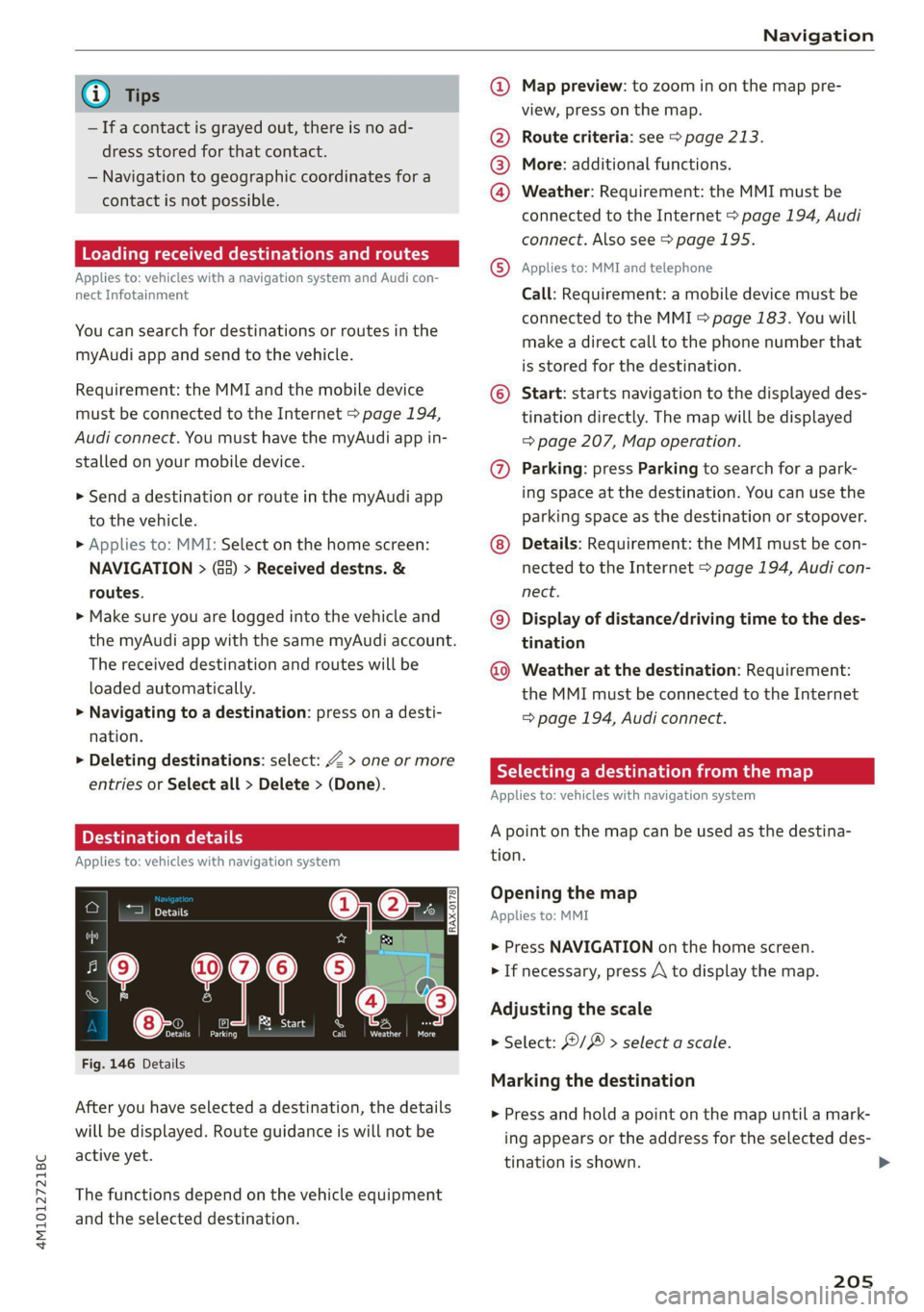
@) Tips @ Map preview: to zoom in on the map pre-
; ; view, press on the map.
— Ifa contact is grayed out, there is no ad- @ Route criteria: see © page 213.
dress stored for that contact.
— Navigation to geographic coordinates for a
contact is not possible. @
®
More: additional functions.
Weather: Requirement: the MMI must be
connected to the Internet > page 194, Audi
connect. Also see > page 195.
Loading received destinations and routes
Applies to: MMI and teleph:
Applies to: vehicles with a navigation system and Audi con- © PRES? STS EBON
nect Infotainment Call: Requirement: a mobile device must be
connected to the MMI > page 183. You will
make a direct call to the phone number that
is stored for the destination.
You can search for destinations or routes in the
myAudi app and send to the vehicle.
Requirement: the MMI and the mobile device © Start: starts navigation to the displayed des-
must be connected to the Internet > page 194, tination directly. The map will be displayed
Audi connect. You must have the myAudi app in- => page 207, Map operation.
stalled on your mobile device. @) Parking: press Parking to search for a park-
> Send a destination or route in the myAudi app ing space at the destination. You can use
the
to the vehicle. parking space as the destination or stopover.
> Applies to: MMI: Select on the home screen: Details: Requirement: the MMI must be con-
NAVIGATION > (a5) > Received destns. & nected to the Internet > page 194, Audi con-
routes. nect.
>» Make sure you are logged into the vehicle
and ©) Display of distance/driving time to the des-
the myAudi app with the same myAudi account. tination
The received destination and routes will be Weather at the destination: Requirement:
loaded automatically. the MMI must be connected to the Internet
> Navigating to a destination: press on a desti- > page 194, Audi connect.
nation.
> Deleting destinations: select: Z > one or more 7 Eh
: RY a date Meld Le MLL] 2)
entries or Select all > Delete > (Done).
Applies to: vehicles with navigation system
Applies to: vehicles with navigation system tion.
0|6:. Opening the map
om Applies to: MMI
> Press NAVIGATION on the home screen
aa 7 > If necessary, press A to display the map.
Adjusting the scale
eases
er a A
> Select: ©/ > select a scale.
Fig. 146 Details
Marking the destination
After you have selected a destination, the details
will be displayed. Route guidance is will not be
active yet.
> Press and hold a point on the map until a mark-
ing appears or the address for the selected des-
tination is shown. >
The functions depend on the vehicle equipment
and the selected destination.
205
Page 220 of 332

Radio
Opening radio text
> Applies to: MMI: Select on the home screen:
RADIO > select a frequency band (such as FM)
> select a station > More > Radio text.
Depending on vehicle equipment, the following
functions
may be available:
Displaying previous radio text entries
> Swipe downward with one finger. The last radio
text entries are displayed if they are available.
Scrolling through radio text entries
> Swipe upward or downward with one finger.
Showing Radio Text Plus information
If a radio text entry is displayed with a color, a
phone number or a navigation destination for the
station is available as radio text plus information.
You have the following options:
Selecting the destination
> Select: a navigation destination marked in col-
or > Set as destination.
Call
> Select: a phone number marked in color > Call.
G) Tips
A call to a phone number stored in the radio
text will start immediately.
Online radio
General information
Applies to: vehicles with Audi connect Infotainment and on-
line radio
You can listen to various radio stations or pod-
casts on the Internet using online radio.
Requirement: the MMI must be connected to the
Internet. A data plan must be available
=> page 198.
Accessing online radio through the MMI
» Applies to: MMI: Select on the home screen:
RADIO > Source > Online.
The following functions are available:
218
Previous selection
The station/podcast list for the last station or
podcast that was playing will be displayed.
Top stations
The favorite online radio stations are displayed.
Filter list
> Select: 2 > (a category) > a station/podcast.
The following categories are available:
— Countries
— Genres
— Languages
— Editor's picks
— Themes
— Nearby
@) Note
Read the information about Audi connect, and
be sure to note the connectivity costs section
=@ in General information on page 194.
G) Tips
— Depending on the Internet connection and
network traffic, the connection may be lost
when online radio is playing.
— Online radio reception may not be possible
if Internet service is throttled.
— Online media usage depends on the service
availability of the third party provider.
—The range and screen display of online me-
dia services from third party providers in the
vehicle can vary.
— Please note that it may not be possible to
play some online radio stations in certain
countries.
— Audi only provides access to online radio
and does not assume any responsibility for
the content of these services.
Page 221 of 332

4M1012721BC
Radio
Applies to: vehicles with Audi connect Infotainment and on-
line radio
Opening podcasts using the MMI
» Applies to: MMI: Select on the home screen:
RADIO > Source > Online > Podcasts.
The following functions are available:
Listening to a podcast
> Select: a podcast > a podcast episode.
Search
> Press 2.
The following functions are available in the pod-
cast playback view:
Displaying podcast episodes
> Press List.
Starting/stopping podcast playback
> Press D /II.
Previous/next podcast
> PressKI/ DI.
Changing the playback position
> You can adjust the playback position using the
knob.
Displaying the online radio menu
> Press Ba.
Switching to radio
> Press Source. The sources in the Radio menu
are displayed.
Podcast favorites
You can store podcasts in the podcast favorites.
Requirement: the playback view for a podcast
must be displayed.
> Press YY @ © page 215, fig. 154.
Requirement: a list with podcasts must be dis-
played.
> Press and hold an entry in the list until the Op-
tions menu appears.
> Press Save podcast.
Listening to podcast favorites
Requirement: the podcast favorites list must be
displayed. At least one podcast favorite must be
stored.
> Select: a podcast > a podcast episode.
Browsing through podcast favorites
Requirement: the podcast favorites list must be
displayed. At least one podcast favorite must be
stored.
> Press or >.
Displaying all podcast favorites
Requirement: the podcast favorites list must be
displayed. At least one podcast favorite must be
stored.
> Press All.
Editing podcast favorites
> Deleting podcast favorites: press W in the
playback view, or
> In the podcast favorites list, select: All > Z >
one or more podcasts, or Select All > Delete >
(Done).
Requirement: the podcast favorites list must be
displayed.
> Moving podcast favorites: Select: All > Z.
> Touch the $ symbol and move the entry to the
desired position.
> Press Done.
Options and settings
Requirement: the playback view @) > page 215,
fig. 154 must be displayed.
> Press More (9, or
Requirement: a list with radio stations or pod-
casts* must be displayed > page 214, fig. 152.
> Press and hold an entry in the list until the Op-
tions menu appears.
219
>
Page 230 of 332
Media
>» Select: a compilation > a song.
Composers
All available composers are displayed.
> Select: d composer > an album > a song.
iTunes Radio
> Press ona radio station.
Audio books
You can control your audio books on the MMI.
> Press on an audio book.
Podcasts
You can control your podcasts through the MMI.
> Select: a podcast > a podcast episode.
Genres
All available genres are displayed.
>» Select: a genre > an artist > an album > a song.
Videos
All available video files are displayed.
> Press on a video.
Tracks
All available tracks are displayed.
> Press ona track.
Albums
All available albums are displayed.
> Select: an album > a track.
@) Note
Applies to: vehicles with Audi connect Infotainment
— Cloud services and the iTunes radio category
always require an Internet connection.
— Read the information about Audi connect,
and be sure to note the connectivity costs
section
>@ in General information on
page 194.
(i) Tips
— Only the categories supported by the medi-
um are available.
— For safety reasons, the video image is only
displayed when the vehicle is stationary. On-
ly the sound from the video plays while driv-
ing.
— When synchronizing a portable device with
Cloud services, playlists may display incor-
rectly in the MMI. Use the media center in
the device.
— Applies to: iPod touch/iPhone: Note the in-
formation about the Audi music interface
and the supported devices > page 224.
elmira (elit
[RAX-0037
The Rock Band
Ca
Blade)
bitsy)
Ceeoec)
Cn
be} Ora sar)
ci nc
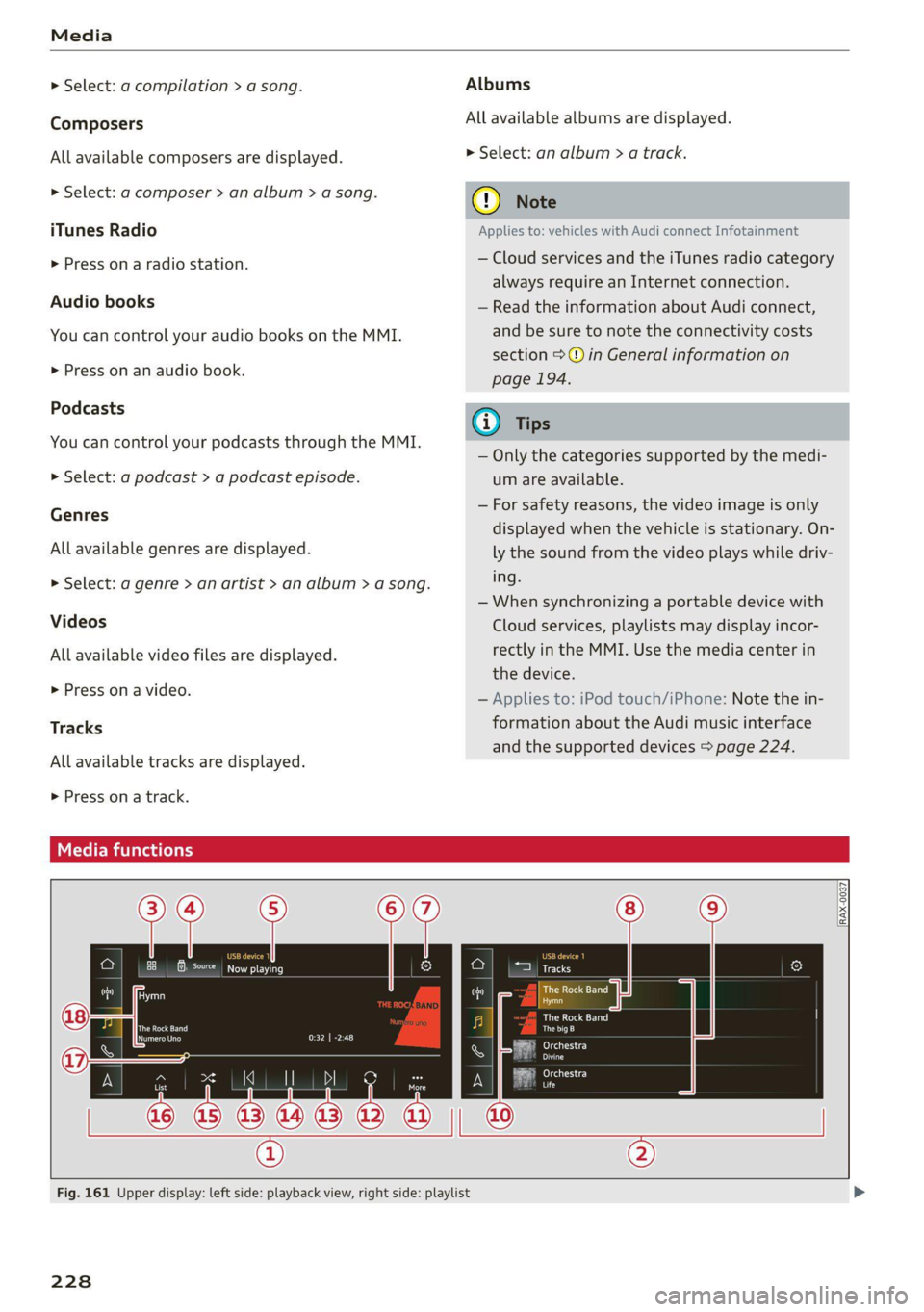
Fig. 161 Upper display: left side: playback view, right side: playlist
228
Page 259 of 332
4M1012721BC
Checking and Filling
— A highly explosive mixture of gases can form
when charging batteries. Only charge the
battery in well-ventilated areas.
— A drained battery can freeze at tempera-
tures around 32 °F (0 °C). Do not charge or
use a frozen or thawed battery. If ice forms,
the battery housing can crack and battery
electrolyte can leak out, which increases the
risk of an explosion and chemical burns.
Contact an authorized Audi dealer or author-
ized Audi Service Facility for more informa-
tion.
— Do not connect or disconnect the charging
cable while charging because this increases
the risk of an explosion.
@) Tips
Read all of the manufacturer's instructions
for the charger before charging the battery.
Windshield washer
system
B4M-0135)
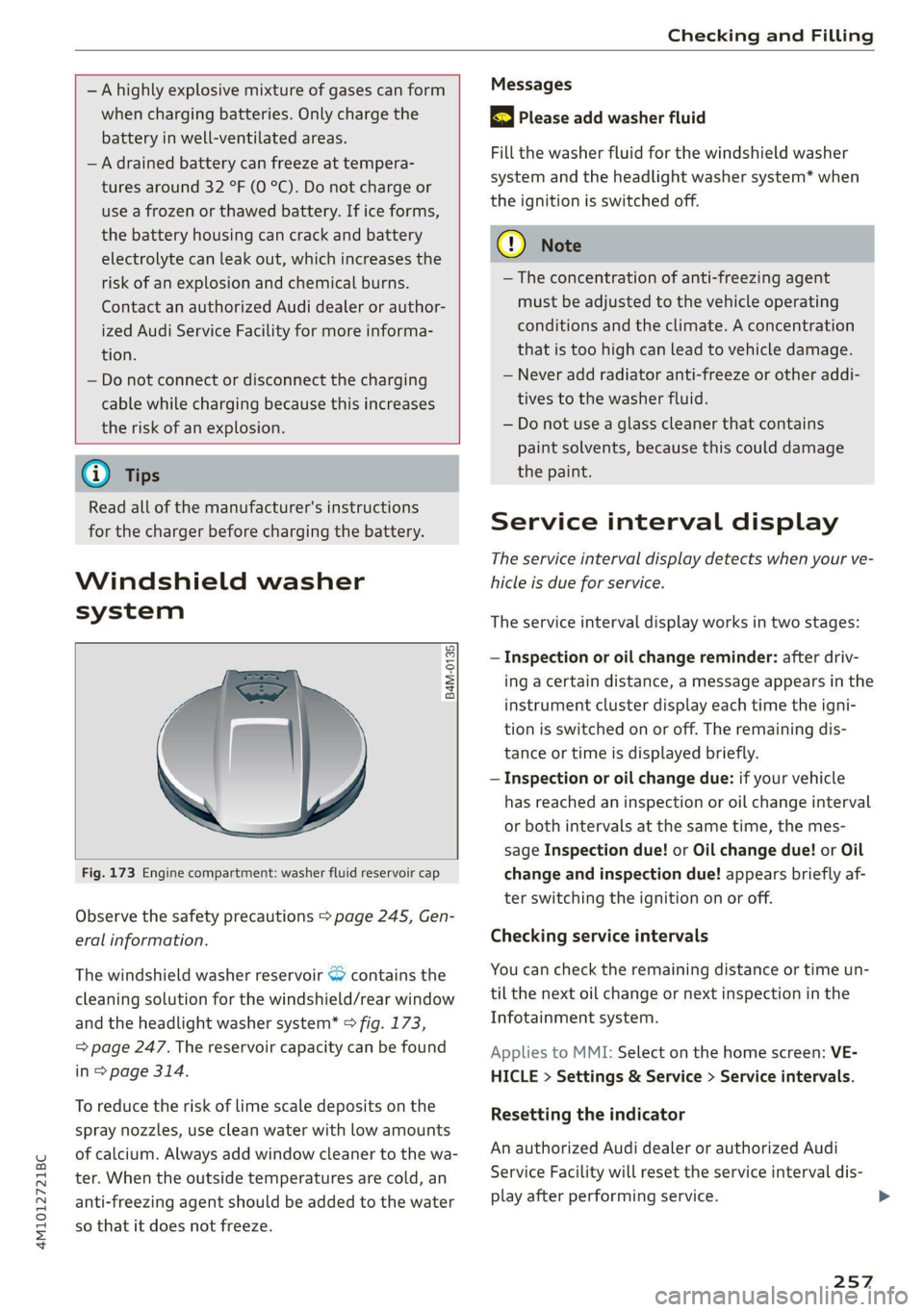
Fig. 173 Engine compartment: washer fluid reservoir cap
Observe the safety precautions > page 245, Gen-
eral information.
The windshield washer reservoir © contains the
cleaning solution for the windshield/rear window
and the headlight washer system* > fig. 173,
=> page 247. The reservoir capacity can be found
in > page 314.
To reduce the risk of lime scale deposits on the
spray nozzles, use clean water with low amounts
of calcium. Always add window cleaner to the wa-
ter. When the outside temperatures are cold, an
anti-freezing agent should be added to the water
so that it does not freeze.
Messages
3 Please add washer fluid
Fill the washer fluid for the windshield washer
system and the headlight washer system* when
the ignition is switched off.
@) Note
— The concentration of anti-freezing agent
must be adjusted to the vehicle operating
conditions and the climate. A concentration
that is too high can lead to vehicle damage.
— Never add radiator anti-freeze or other addi-
tives to the washer fluid.
— Do not use a glass cleaner that contains
paint solvents, because this could damage
the paint.
Service interval display
The service interval display detects when your ve-
hicle is due for service.
The service interval display works in two stages:
— Inspection or oil change reminder: after driv-
ing acertain distance, a message appears in the
instrument cluster display each time the igni-
tion is switched on or off. The remaining dis-
tance or time is displayed briefly.
— Inspection or oil change due: if your vehicle
has reached an inspection or oil change interval
or both intervals at the same time, the mes-
sage Inspection due! or Oil change due! or Oil
change and inspection due! appears briefly af-
ter switching the ignition on or off.
Checking service intervals
You can check the remaining distance or time un-
til the next oil change or next inspection in the
Infotainment system.
Applies to MMI: Select on the home screen: VE-
HICLE > Settings & Service > Service intervals.
Resetting the indicator
An authorized Audi dealer or authorized Audi
Service Facility will reset the service interval dis-
play after performing service.
257
>
Page 302 of 332

Fuses and bulbs
Fuse panel (d) (black)
No. | Equipment
Audi phone box
Climate control system, fragrance system
Head-up display
Audi music interface, USB input
Steering column lock
Upper/Lower display
W}OlN|/
Mm)
BR]
WIN
Instrument cluster
10 | DVD drive
11 | Light switch, switch panels
12 | Steering column electronics
13 | Volume control
14 | MMI Infotainment system control module
15 | Steering column adjustment
16 | Steering wheel heating
with plastic clip
Fig. 200 Left side of the luggage compartment: fuse panel
with plastic clip (plug-in hybrid drive*)
y 1 High-voltage heating, thermomanage-
ment
Air suspension/suspension control
6 |Automatic transmission control module
7 Rear seat heating, rear climate control sys-
tem controls
Third row seat adjustment
9 | Left tail light
10 | Front belt tensioner on driver's side
Luggage compartment lid central locking,
11 | fuel filler door, luggage compartment cov-
er
12 |Luggage compartment lid control module
Fuse panel @)
No. | Equipment
Fig. 199 Left side of the luggage compartment: fuse panel 1 | Rear climate control system blower
2 |Sound-amplifier
3 | Exhaust treatment, sound actuator
4 |Rear climate control system control panel
5 |Right trailer hitch light
300
Page 308 of 332

Data privacy
When the function is switched off, the data con-
nection will be available in order to use Audi
connect services.
Adjusting individual privacy settings
In the MMI, you can adjust individually which da-
ta should be transmitted from the vehicle. If you
switch on a data category, the data will be trans-
mitted.
You can also deactivate individual services for
your vehicle at my.audi.com if you are logged into
the vehicle as the key user > page 31. These de-
activated services will not be available in the ve-
hicle. For additional information, visit my.audi.
com.)
@) Note
You are responsible for all precautions taken
for data protection, anti-virus protection, and
protection against loss of data on mobile de-
vices that are used to access the Internet
through the Wi-Fi hotspot.
G) Tips
— The following interfaces are not affected by
changes to the privacy settings: Bluetooth,
Bluetooth Low Energy (BLE), Wi-Fi, Audi
smartphone interface (ASI), Near Field
Communication (NFC), charging communi-
cation (high-voltage system), Electronic Toll
Collect (ETC), On-Board Diagnostic System
(OBD) if equipped.
— If the maximum privacy settings are switch-
ed on, your vehicle may not receive security
updates and certificates for establishing an
encrypted connection, depending on vehicle
equipment. In order to receive security up-
dates and certificates, switch the maximum
privacy settings off for at least ten minutes
every six months. Make sure that your vehi-
cle is connected to the Internet. A symbol in
the MMI status bar indicates if the required
data connection is available > page 22.
— If the transmission of data is limited, it will
have the following effects on the exchange
D_ In certain countries.
306
of data for Audi connect services and emer-
gency calls, if equipped:
— The emergency call function will remain
available without restrictions and will con-
tinue to transmit data.
— If an online roadside assistance call is ini-
tiated, no data will be transmitted, but a
call will be made.
— If the Geofencing Alert, Speed Alert,
and/or Valet Alert services have been acti-
vated by the key user, then they will re-
main available without restrictions and
continue to transmit data.
— Stored destinations (favorites, last desti-
nations) are only stored in the vehicle. If
you allow transmission of data again,
these destinations will be synchronized via
the myAudi account. To prevent synchroni-
zation of destinations, delete the destina-
tions before you allow data to be trans-
mitted again.
Applies to: vehicles with Audi connect Infotainment
Audi collects, uses, stores and shares your per-
sonal information, such as contact data, vehicle
data, usage data, driving data and precise geolo-
cation, in order to provide you with the products
and services you have purchased or requested,
and for a number of other purposes, for example,
to track quality issues, to performance and safe-
ty, to meet our internal compliance or legal re-
quirements and to market to customers and po-
tential customers. For a more complete list of
the data we collect, how we use it and with
whom we share it, please visit your Audi nation-
al/sales region website at www.audi.com.
The collection, use and sharing may vary depend-
ing on your model and model year, your subscrip-
tion status, or the service offering. For example,
collection, use and sharing may vary between
Audi connect services, if you have designated a
key user, or if you are driving a model equipped
with persistent data logging. Please review the
complete Privacy Statement to understand our >
Page 319 of 332

4M1012721BC
Closing
Automatic luggage compartment lid...... 42
Convenience closing..........0...e5e0% 46
HOO « sisson sa cnamee ov atteoe a como eo ae vo 246
Luggage compartment lid............... 42
Luggage compartment lid with foot motion . 43
Panoramic glass:r00ficc:. «sien as nani we 6 cas 46
Sunshade (roof) .................000008 46
WINGGWS = scau 5 wae 5 § eee & 2 eS a 45
Closing aid (power closing doors).......... 34
Cockpit dimming....................008 55
Cockpit (overview) ............00 eee eee 6
(60) (0) 1-0: =) ee 313
Combustion engine sisi. «esses oe cave oo aoe 104
Coming home/Leaving home
refer to Entry/exit lighting.............. 53
Compartments’ » ween « « weonn + 4 weenie a 0 comes 87
Compass inthe mirror................0-. 61
Compliance. « seve ss seve sv wren 2 o exe ¥ os 311
ConferencerCallin.. ss agus sy eewe su ewe gay 189
Configuration wizard.............0...00 19
CONMECE as 2 news ¢ < Ree dB NOR FD Ree sD ae 194
Data plans: « secs os sew vs ewe v was wv 198
Data Privacy... .... eee cee cece 306
Emergency call.............-.-00000- 199
Infotainment: « s wees 2 & wees ss wae & owes 194
Infotainment services. ....... 000... 005 195
Online roadside assistance............. 200
Vehicle control services. .........0.0005 196
Connected devices
Device overview cc ss wine oo ween ov ewe 238
Connections
refer to Media.............000005 222,226
Consumer information..............0004 308
Consumption
Reducing... ... 2... cee eee eee eee eee 104
Consumption’ CUED) «cases oo russe ov seenere « sine 15
Contacts
Importing..............0-..0 000 eee ee 191,
Updating inthe: MMI a « « asa « paaws s nyen 191
also refer to Directory................. 188
Convenience keys. veces eevee meee soe 34
Convenience closing................... 46
also refer to Vehicle key..............05 38
Convenience opening and closing
Windows or panoramic glass roof........ 46
Coolant temperature display.............. 14
Cooling MOG etic. i = ssc se eocwere ve serene wv omen 94
Cooling system
Adding
coolant................-000 ee 252
Checking the coolant level............. 252
GOOlANE svc 2 x oes ov ewe eo a 2 o oe 251
Cornering lighti:; ¢ 2 aces > = awe yo ees ee ee 50
Cross traffic assist (intersection assistant) .. 159
Cruise control system............000005 136
Cup holders. ....... 0 cece eee eee eee 86
Current consumption.............-0 eens 15
D
Data module
Serial:number (IMED) ¢ esses ss casas canes 191
Data plans... 1... eee eee eee 198
Data Privacy...... 0... s cee cece eee 306
Date... eee eee LS
SOttiliG's s savy 3 ¥ HAY s 4 BaueS 4 E RaER & sae 236
Daytime running lights...............0-. 50
Declaration of compliance...........0005 311
DEF (instrument cluster) ...............4- 12
Demo mode
refer to Presentation mode............. 212
Destination onthe map...............4. 205
Details, . a ssc « sxaneus os stineoue oo omnis mo auncems 205
Determining correct load limit........... 273
Digitalicompass siavis « s sess oa saves o 8 suse a 3 61
DIM@NSIONS. « s ween « seems oy noes 6 2 ew & e 3:13
Dimming the exterior mirrors............. 56
Dimming the rearview mirror............. 56
Directory.......... 2.0.00. cece eee eee 188
Businessicatd cis ss aces so meas s eames s we 189
SOEGINGS
cscs « 2 mazes & aenseee « stems © 6 amt « 191
Display
Cleaning...........0 0. 283
Disposal..... 0.0.0... eee eee eee eee ee 308
DistamG@ sericea & ssseie ss owes so covnine oo creme @ os 15
Distance: warning csvevs © « sce vs sseoee wo senses 148
Doors
Child safety lock...................000. 44
DOOrCONntactSWitch » + ceau sv sees yc aeam a: 54
Mechanically unlocking and locking....... 37
Power closing/closing aid............... 34
Driver information system.............--. 13
317