audio AUDI Q7 2021 Owner´s Manual
[x] Cancel search | Manufacturer: AUDI, Model Year: 2021, Model line: Q7, Model: AUDI Q7 2021Pages: 332, PDF Size: 117.99 MB
Page 228 of 332
Tule tae liana muredey i (me(\ aa)
Applies to: vehicles with Rear Seat Entertainment preparation
and Audi entertainment mobile device
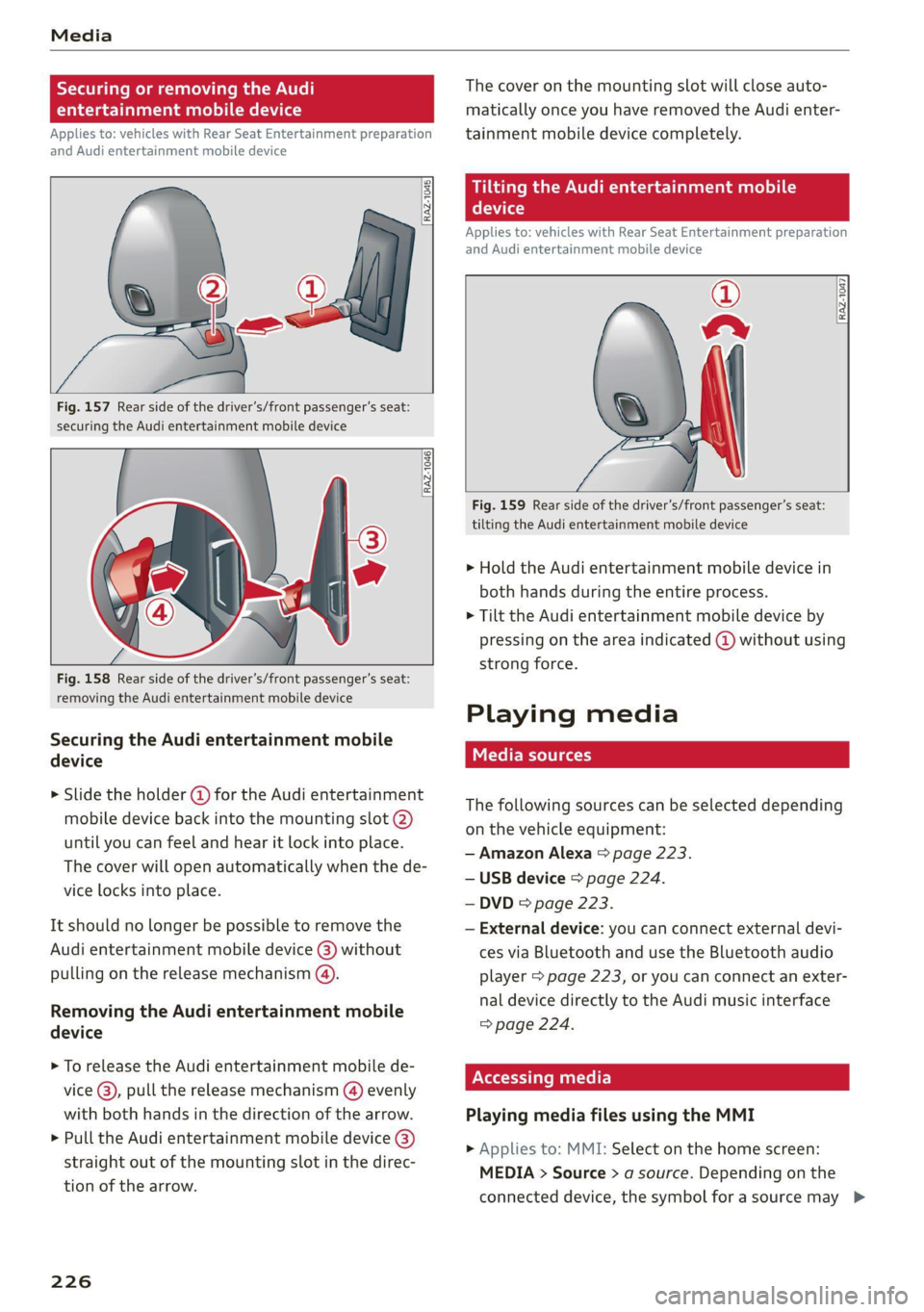
Fig. 157 Rear side of the driver’s/front passenger's seat:
securing the Audi entertainment mobile device
RAZ-1046)
Fig. 158 Rear side of the driver’s/front passenger’s seat:
removing the Audi entertainment mobile device
Securing the Audi entertainment mobile
device
> Slide the holder @ for the Audi entertainment
mobile device back into the mounting slot @)
until you can feel and hear it lock into place.
The cover will open automatically when the de-
vice locks into place.
It should no longer be possible to remove the
Audi entertainment mobile device @) without
pulling on the release mechanism (4).
Removing the Audi entertainment mobile
device
> To release the Audi entertainment mobile de-
vice @), pull the release mechanism (@) evenly
with both hands in the direction of the arrow.
> Pull the Audi entertainment mobile device @)
straight out of the mounting slot in the direc-
tion of the arrow.
226
The cover on the mounting slot will close auto-
matically once you have removed the Audi enter-
tainment mobile device completely.
eR weitere)
device
Applies to: vehicles with Rear Seat Entertainment preparation
and Audi entertainment mobile device
®
aA 3
Fig. 159 Rear side of the driver’s/front passenger’s seat:
tilting the Audi entertainment mobile device
> Hold the Audi entertainment mobile device in
both hands during the entire process.
> Tilt the Audi entertainment mobile device by
pressing on the area indicated (@) without using
strong force.
Playing media
The following sources can be selected depending
on the vehicle equipment:
— Amazon Alexa > page 223.
— USB device > page 224.
— DVD & page 223.
— External device: you can connect external devi-
ces via Bluetooth and use the Bluetooth audio
player > page 223, or you can connect an exter-
nal device directly to the Audi music interface
=> page 224.
Playing media files using the MMI
> Applies to: MMI: Select on the home screen:
MEDIA > Source > a source. Depending on the
connected device, the symbol for a source may >
Page 230 of 332
Media
>» Select: a compilation > a song.
Composers
All available composers are displayed.
> Select: d composer > an album > a song.
iTunes Radio
> Press ona radio station.
Audio books
You can control your audio books on the MMI.
> Press on an audio book.
Podcasts
You can control your podcasts through the MMI.
> Select: a podcast > a podcast episode.
Genres
All available genres are displayed.
>» Select: a genre > an artist > an album > a song.
Videos
All available video files are displayed.
> Press on a video.
Tracks
All available tracks are displayed.
> Press ona track.
Albums
All available albums are displayed.
> Select: an album > a track.
@) Note
Applies to: vehicles with Audi connect Infotainment
— Cloud services and the iTunes radio category
always require an Internet connection.
— Read the information about Audi connect,
and be sure to note the connectivity costs
section
>@ in General information on
page 194.
(i) Tips
— Only the categories supported by the medi-
um are available.
— For safety reasons, the video image is only
displayed when the vehicle is stationary. On-
ly the sound from the video plays while driv-
ing.
— When synchronizing a portable device with
Cloud services, playlists may display incor-
rectly in the MMI. Use the media center in
the device.
— Applies to: iPod touch/iPhone: Note the in-
formation about the Audi music interface
and the supported devices > page 224.
elmira (elit
[RAX-0037
The Rock Band
Ca
Blade)
bitsy)
Ceeoec)
Cn
be} Ora sar)
ci nc
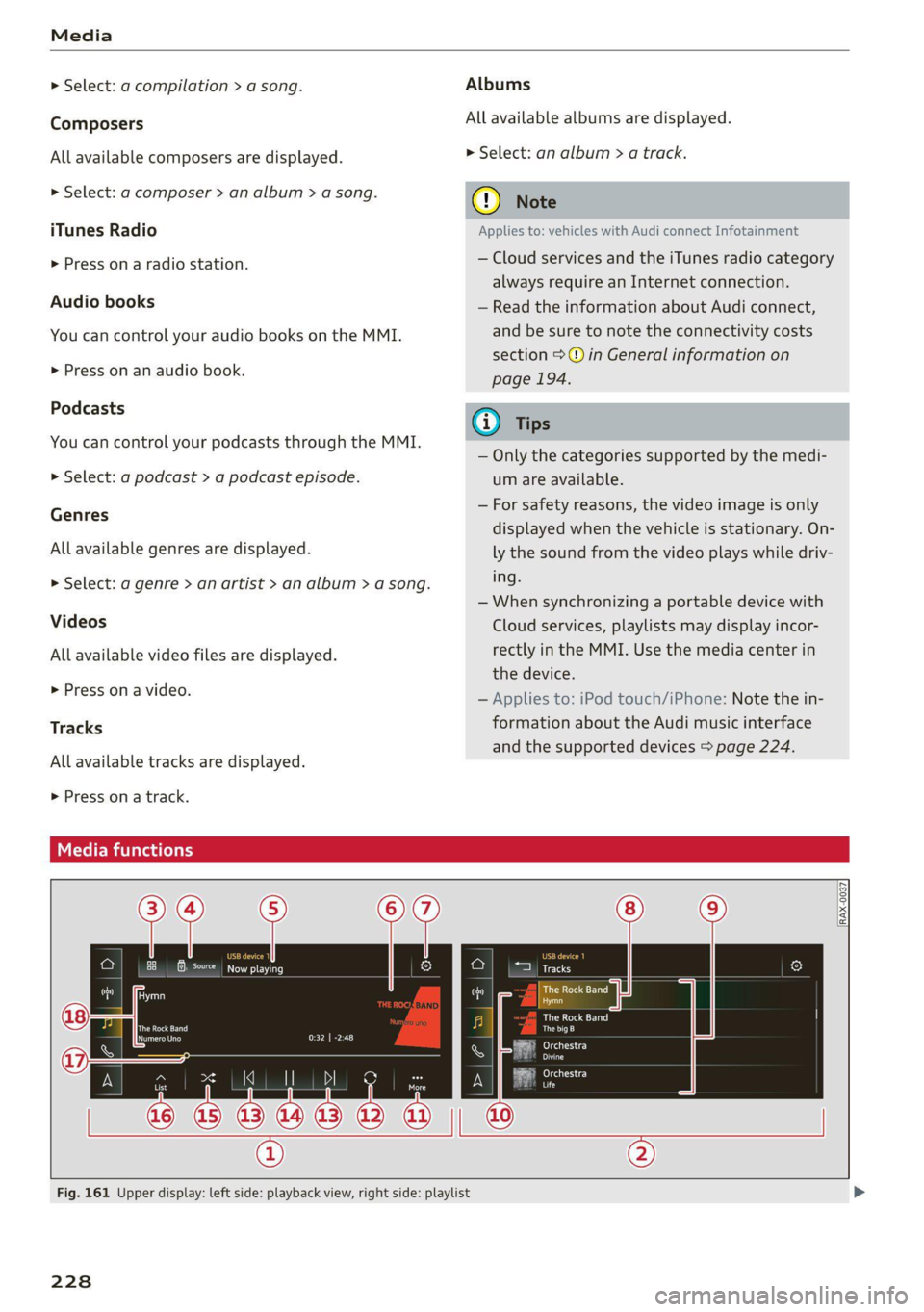
Fig. 161 Upper display: left side: playback view, right side: playlist
228
Page 232 of 332

Media
DVD functions
Applies to: vehicles with a DVD drive
Requirement: the vehicle must be stationary and
a DVD must be playing.
The following functions are available in the play-
back view:
— Display the DVD main menu: press on the up-
per
display. Press DVD menu.
— Using the DVD main menu: press the desired
function.
— Switching to the media functions: press on the
upper display. Select: * > select a chapter, or
start the movie in the DVD main menu and
press on the upper display.
— Adjusting the aspect ratio: press on the upper
display. Select: Aspect ratio > an aspect ratio >
OK > table on page 231.
@ Tips
Not all functions are available in every source
and on every touch display.
Free text search
Applies to: vehicles with free text search
You can search across all active sources, for ex-
ample for tracks and video files.
Opening the search
Requirement: the selected source must support
the search function.
> Applies to: MMI: Select on the home screen:
MEDIA > Search.
Entries that contain the entered search term are
listed in the results list. Each result is marked
with the symbol for a category in the media cen-
ter > page 227.
You can search for the following categories:
— Artists
— Albums
— Tracks
— Genres
— Videos
1) Depending on the DVD, this may not be possible during
playback.
230
Options and settings
Context-dependent functions and settings may
be available depending on the selected source,
the connected mobile device, and the connection
type.
Requirement: the playback view must be dis-
played @ 9 page 228, fig. 161.
> Press More @).
Play more like this
The track currently playing is quickly analyzed for
features such as artist, genre, mood, and beat,
and a smart playlist with similar tracks will be
shown.
Language”)
You can set the language manually. The availabil-
ity of the language and audio format depend on
the video DVD.
Subtitles)
You can manually select subtitles for playback.
The languages available depend on the DVD.
Aspect ratio
Audi recommends the Auto setting for the pic-
ture format. If you press on an aspect ratio, you
will see a preview of the setting on the screen.
Press OK to apply the selected aspect ratio.
The following table gives an overview of the as-
pect ratios. The possible aspect ratios depend on
the source or video file being played.
Page 234 of 332

Media
Audio/video files
Supported media
DVD drive: audio CDs (up to 80 min) with CD text (artist, album,
song)*, CD-ROMs with a capacity of up to 700 MB; DVD+R/RW; DVD
video; DVD audio with audio tracks that are compatible with a DVD
video player;
Audi music interface: mobile devices > page 224 (such as an iPhone,
MTP player, USB storage device in “USB Device Subclass 1 and 6” that
conforms to USB 2.0: USB sticks, USB MP3 players (Plug-and-Play-ca-
pable), external USB flash drives and hard drives
USB storage device: exFAT, FAT, FAT32, NTFS
USB storage device partitions (primary/logical*): 2 per USB connec-
File system :
tion
CD/DVD file systems: ISO9660, Joliet, UDF
Album cover: GIF, JPG, PNG with max. 800x800 px. The album cover
Metadata from the medium or from Gracenote®* is displayed, depending on
availability.
Playlists -M3U; .PLS; .WPL; .M3U8; .ASX
Number of files
DVD drive: max. 1,000 files per medium
USB mass storage device: max. 50,000 files per medium; max. 1,000
files per playlist/folder
Audio files
Format File extension
MPEG 1/2 Layer 3 -mp3
Windows Media Audio 9/10
Up to maximum 320 kbit/s
.wma
MPEG 2/4
48 kHz sampling frequencies
.m4a; .m4b; .aac
Opus Opus; .0gg; .oga
FLAC flac
ALAC .m4a 48 kHz sampling frequency
Monkey's Audio -ape
Video files
Format File extension
MPEG 1/2 -Mpg; .mpeg
MPEG4 AVC (H.264) -mp4; .m4v; .mov; .avi
Windows Media Video 9
up to maximum 15 Mbit/s and
s ; asf
wn 88 1920x1080 px at maximum 30 fps
MPEG-H (H.265/HEVC) -mp4; .mov
VP8/VP9 .webm
Flash video
flv; .f4v
@) Tips
— The media sources do not support the Win-
dows Media Audio 9 Voice format.
— For compressing MP3 files, Audi recom-
display showing the remaining play time
may differ for audio files with variable bit
rate.
— Special characters (such as those in ID3 tag
information) may display differently or may
mends a bit rate of at least 160 kbit/s. The
232
>
Page 235 of 332

4M1012721BC
Media
not always display, depending on the sys-
tem language.
— The manufacturer of the storage device can
— Some MTP player functions are not support-
ed, such as rating music tracks and video
playback.
provide information about its “USB Device
Subclass”.
Troubleshooting
The information that follows lists some trouble-
shooting options. They depend on the equip-
ment.
Problem Solution
Audi music interface/Bluetooth
audio player: the mobile device is
not supported.
Read the instructions in the chapter > page 224, Multimedia
connections/> page 223, Bluetooth audio player.
Audi music interface: the mobile
device is not recognized as a
source.
For many mobile phones or mobile devices, playback is not possi-
ble when the battery level is too low (less than 5% charge level).
The mobile device will only be recognized as a media source in
the MMI after connecting if the battery charge level is sufficient.
Audi music interface: malfunc-
tions during audio playback
through an iPod touch/iPhone.
The Bluetooth audio player function is switched on. Switch this
function off > page 237 when you are not using the Bluetooth
audio player.
Audi music interface: audio play-
back through the connected mo-
bile device is not possible.
Make sure the USB mode MTP is selected in the settings on your
mobile device.
Bluetooth audio player: interfer-
ence with track display and audio
playback.
Playback interference can occur when using the Bluetooth audio
player if a music player app from a third party provider is open.
Audi recommends using the integrated media player on your
Bluetooth device (such as a smartphone).
233
Page 238 of 332

Additional settings
Additional settings
System settings
Introduction
General settings are described in this chapter.
You can find specific settings in the chapters
about those settings. The available settings de-
pend on the vehicle equipment.
Date and time
» Applies to: MMI: Select on the home screen:
SETTINGS > General > Date & time.
Possible settings:
— Automatically set date and time
— Date format
— Time format
— Automatic time zone
— Time zone
Cental ah ey
» Applies to: MMI: Select on the home screen:
SETTINGS > General > Measurement units.
Possible settings:
— Speed
— Distance
— Temperature
— Volume
— Pressure
— Consumption (engine)
Language and keyboard
» Applies to MMI: Select on the home screen:
SETTINGS > Language & keyboard.
Language
You can change the languages for the display,
navigation announcements, and the voice recog-
nition system.
236
Keyboard
See > page 24.
Requirement: an audio source must be active.
» Applies to MMI: Select on the home screen:
SETTINGS > Sound.
Possible settings:
— Treble
— Bass
— Balance/fader
— Speed dependent volume control
— Subwoofer
— Surround Level
Focus
You can optimize the sound distribution for vari-
ous locations in the vehicle.
3D effect
You can adjust the intensity of the 3D effect.
With the Medium setting, you will hear an opti-
mal 3D effect for all sources.
Plea ee ely
> Applies to: MMI: Select on the home screen:
SETTINGS > Announcements & tones.
Possible settings:
— Announcement volume
— Welcome sound
ZA WARNING
Adjust the volume of the audio system so that
signals from outside the vehicle, such as po-
lice and fire sirens, can be heard easily at all
times.
Gi) Tips
The volume is automatically adjusted to a pre-
set level when the MMI is switched on.
Page 239 of 332

4M1012721BC
Additional settings
Bluetooth
> Applies to MMI: Select on the home screen:
SETTINGS > Connection settings > Bluetooth
Bluetooth
You can select a setting for visibility of the MMI
to other Bluetooth devices. To connect a new
Bluetooth device, the Visible setting must be se-
lected. If Invisible is selected, a Bluetooth con-
nection will only be possible with paired devices.
If Off is selected, no Bluetooth device can be con-
nected.
Bluetooth audio player
When this function is switched on, the profile
will load automatically when your Bluetooth au-
dio player is within range.
Bluetooth name
The MMI’s Bluetooth name is displayed and can
be changed.
Factory default settings
Requirement: the ignition must be switched on.
> Applies to MMI: Select on the home screen:
SETTINGS > System maintenance > Restore
factory settings.
> Follow the system instructions.
The settings will be reset. The system will re-
start. This may take some time.
@ Tips
Make sure that not only the settings were de-
leted but also the stored data, if necessary.
Software update
Introduction
Applies to: vehicles with software update
You can update your vehicle’s software.
The functions depend on the country and vehicle
equipment:
— Update through the online system update
=> page 237.
— Map material update for the navigation system
=> page 210.
— Have the software update performed by an au-
thorized Audi dealer or authorized Audi Service
Facility. This can result in additional costs.
ZA\ WARNING
— Perform the installation only when the vehi-
cle is stationary. Otherwise, this increases
the risk of an accident
— If the installation fails, contact an author-
ized Audi dealer or authorized Audi Service
Facility immediately to have the malfunction
corrected.
Online system update
Applies to: vehicles with online system update
With the online system update, you can update
the software directly in the vehicle.
Requirement: the MMI must be connected to the
Internet > page 194, Audi connect.
Downloading updates
Requirement: notification for an online system
update will appear in the upper display.
> Press on the notification, or
> Open the notification in the notification center
on page 22 and press on the notification.
> Follow the system instructions.
You can also check manually if an update is avail-
able.
> Applies to: MMI: Select on the home screen:
SETTINGS > System maintenance > Software
update > Search for updates > desired update
> Continue.
> Follow the system instructions.
The
MMI will start the download. You can check
the status of the download process in the notifi-
cation center > page 22.
Installing updates
Requirement: an online system update must be
downloaded and a notification must be shown in
the upper display.
> Stop the vehicle safely.
237
Page 240 of 332

Additional settings
> Press on the notification, or
> Open the notification in the notification center
on > page 22 and press on the notification.
> Follow the system instructions.
Depending on the scope of the update, the online
system update may only be started if you follow
these instructions:
> Switch the emergency flashers off, if necessary
> Make sure that the starter battery is charged.
> To start the update, exit and lock the vehicle.
The MMI will start the installation. When the up-
date has ended, a notification will be displayed.
Z\ WARNING
Depending on the scope of the installation,
the ignition must not be switched on during
the installation to ensure the installation
completes successfully.
©) Note
Read the information about Audi connect, and
be sure to note the connectivity costs section
=) in General information on page 194.
@ Tips
The software update may take some time.
WEE Tel
Applies to: vehicles with online system update
Online system update: incomplete. Warning!
Vehicle functions limited
If an error occurs when installing an online sys-
tem update, certain functions such as the emer-
gency call function may not be available. Drive to
an authorized Audi dealer or authorized Audi
Service Facility immediately to have the malfunc-
tion corrected.
Connected devices
Displayed connected devices
Requirement: the vehicle must be stationary and
the ignition must be switched on.
> Applies to: MMI: Select on the home screen:
SETTINGS > Connected devices.
238
Possible menu items:
— Telephone 1
— Telephone 2
— Audio player
— Wi-Fi hotspot
— Headset
Audi smartphone interface
You can connect your smartphone to the MMI
=> page 234.
myAudi app
This function is available if the myAudi app is in-
stalled on your mobile device and started, and if
the mobile device is connected with the vehicle’s
Wi-Fi hotspot.
() Note
Read the information about Audi connect, and
be sure to note the connectivity costs section
=> page 194.
Managing connected devices
Requirement: the connected devices menu must
be displayed > page 238.
Connecting a device
Requirement: Bluetooth visibility must be acti-
vated in the MMI & page 237 and mobile device.
> Press on a menu item, such as Telephone 1.
> To search for and connect your mobile device,
press New connection > page 183.
Selecting a connected device
> Press on a menu item, such as Telephone 1.
> Press on the desired mobile device in the list of
displayed devices. The connection will be made.
Disconnecting a connected device
> Press on a menu item, such as Telephone 1.
> Press on the connected mobile device. The se-
lected mobile device will be disconnected from
the MMI.
Deleting a device
> Press on a menu item, such as Telephone 1. >
Page 318 of 332
Index
Battery
Charging (12 Volt vehicle battery)....... 256
Vehicle battery (12 Volt)............... 254
Winter operation (12 Volt vehicle battery) . 255
Blinds
refer to Panoramic glass roof............ 46
BlOGK TOUTE vcs + « crsanin © 5: cavemen © & oreo © wanes 208
Oe 94
Bluetooth
Audio player. .... 0.0.2... ee eee eee eee 223
Connecting a device...............00-- 238
Connecting a mobile phone............ 183
Deleting adevice...............00000- 239
Device overvieW.... 0.0.00. ee eee eee 238
Disconnecting a device................ 238
Displaying profiles.................... 239
Selecting adevice.................00. 238
Specifying a favorite.............0000- 239
BOOStss « : eens 2 y ses « e eee bo ees Go eee ee 15
Boost pressure indicator................. 15
Brake fluid
Checking the brake fluid level........... 253
Brak@Sisss 2 ¢ sews 5 ¢ cans + 0 eee fe ore eo ee 106
Brakesfluids cs season x amamna a x anime oo somnine 6 253)
Emergency braking function............ 109
HGtticra: 2 5 susan 3 8 aatam ¥ S RGIER 2 oe 3 eR 110
New brake pads « sec se ove oe sens sees 107
Bratids:s = seem: = = weeps & = eeeng © 4 eee G4 Ree 240
Break-in security feature................. 37
Breaking in
New brake pads « sess so sesou oo camer o coaans 107
ING WEIROSE: « « winzson s » crnnace 6 9 oxenene © 0 axniean 266
Browser
refer to Media center.................. 227
Business address.............2.22--0-- 208
Cc
California Proposition 65 Warning........ 246
Battery specific...............0.-.00. 255
Calllist.. 0... 2. eee eee eee eee 187
CameraS 0... eee 124
LOCAtIONS <5 « = seem 5 2 Rem FE eR SE oe g 125
Capacities
Fuelitank’: » soos 3 2 mews 2 2 awe 2 4 came + ne 314
Washer fluid reservoir................. 314
CargoPloor eno < csccose 2 v snevece a v exevene av enecene 2 3 91
316
CarQOiMe bien: « sows v seswens wo casicows 1 wt eamwses © vt ome 90
Carwash, . s wvvsa eo soni av anaes 4 ao insane wo ane 280
Catalytic converter... 0.0... cee eee e eens 244
Cell phone
refer to Telephone...........-..-++05- 183
Cell phone compartment
refer to Audi phone box............... 185
Central
lockingsec. « 2 ces 0 x moms + 6 same a 0 ate 34
Auto Lock... 0.6... eee eee es 34
Convenience key..........-.00 eee ee ee 39
Convenience opening and closing......... 46
Luggage compartment lid............... 42
Mechanically unlocking and locking....... 37
MESSAGES « secures so acsmes +o awewes vo exon v aeMN 36
Remote control key............2-..0005 39
SGUeING.< = x sea « = sees Fo eee Fe ees FP wee 35
Vehicle key sass
Geramic brakeSwoas + ¢ eayes ¢ x seme 2 x ees & 6 3 107
GentificatiOnin: « » axa: = wee 2 sme 2 eee 311
Charging
refer to Power sourceS.........--0 eee eee 86
Charging the battery
Mobileidevicesi. . . csisceuss «sania a a avesiue 0 ¥ ave 224
USB... eee 186
Wireless: « « arms s ¢ anes gs agus a 2 awe 2 6 186
Child safety lock
Climate control system controls in the rear. 44
Power windows............0 2.0000 eee 44
ReardGorsis« + s seus «a mame 2 AeS.8 & Gale aS 44
Child safety seats.............0..000 eee 80
Securing to the top tether anchor........ 84
Securing with a safety belt.............. 83
Securing with LATCH..............2-00. 82
Cleaning... 0.2... . cee eee eee eee 280
Cleaning Alcantara................0000. 283
Cleaning artificial leather............... 283
Cleaning carbon components........ 282, 283
Cleaning controls:s « sews s sews «esas x os 283
Cleaning decorative parts andtrim........ 282
Cleaning exhaust tail pipes.............. 282
Cleaning plastic parts.................. 282
Cleaning textiles...............00.000. 283
Climate control system...........--..0-- 93
Climate control system controls in the rear
Child safety lock..... 0... ccc cece eee eee 44