light AUDI Q8 2021 Owner´s Manual
[x] Cancel search | Manufacturer: AUDI, Model Year: 2021, Model line: Q8, Model: AUDI Q8 2021Pages: 332, PDF Size: 118.76 MB
Page 175 of 332
4M8012721BF
Parking and maneuvering
— Park assist plus is an assist system. The driv-
er is still responsible for monitoring the ve-
hicle's surroundings and preventing colli-
sions when using the system.
— When using park assist plus to drive into or
out of a parking space, the steering wheel
turns quickly on its own. Reaching into the
steering wheel spokes while this is happen-
ing can result in injury.
@) Note
Resume steering immediately after the last
corrective movement and the takeover
prompt, so that the specified steering wheel
angle is not recentered.
G) Tips
You can reduce the speed selected by the ve-
hicle or stop the vehicle at any time by press-
ing the brake pedal.
Pausing park assist plus))2)
Applies to: vehicles with park assist plus
You can pause park assist plus at any time by re-
leasing the [>>P] button @ > page 171, fig. 130.
To resume the parking process, press and hold
the [>>P] button again.
Canceling automatically
Park assist plus is canceled automatically among
other things, if:
— If you switch off the system
— You take over steering or press the brake pedal,
— If the time limit is exceeded
— If an obstacle is detected
— The ESC intervenes
Resume control of the vehicle, end the parking
process manually, or:
You can resume the parking process in some sit-
uations. Press and hold the brake pedal and press
Pe.
)_ System availability may be limited depending on the mar-
ket.
2) In preparation at the time of printing.
ZA\ WARNING
Observe the safety precautions and note the
limits of the assist systems, sensors, and
cameras > page 121.
Messages
Applies to: vehicles with park assist plus
If the roll or il indicator light turns on, the
park assist is not available or was interrupted.
A message that indicates the cause and possible
solution may appear with some displays. The
weather conditions may be too poor or a sensor
may be covered. Clean the area in front of the
sensors > page 123 and try to turn the system on
again later.
If the malfunction remains, drive to an author-
ized Audi dealer or authorized Audi Service Facili-
ty immediately to have the malfunction correct-
ed.
Remote controlled
parking!)2)
General information
Applies to: vehicles with remote park assist plus
Remote controlled parking is part of park assist
plus/park assist plus with garage function. The
process for parking or exiting a parking space can
be controlled with a mobile device from outside
the vehicle. To do so, the driver must have both
the vehicle key and the mobile device with him or
her. While the driver controls the vehicle remote-
ly and monitors the vehicle's surroundings, the
system controls the steering, gear selection, ac-
celeration, braking, and locking the vehicle.
ZA\ WARNING
— Observe the safety precautions and note the
limits of the assist systems, sensors, and
cameras > page 121. >
173
Page 178 of 332
Parking and maneuvering
@) Tips
— When parking in garages, you can be
straight in front of the garage or at a slight
angle in front of the garage. You will have
the best results when you align and stop
your vehicle as straight as possible in front
of the garage.
— If there is enough space in a two-car garage,
the system automatically selects the park-
ing position in front of the vehicle that the
driver has selected.
Parking with the myAud re
Applies to: vehicles with remote park assist plus
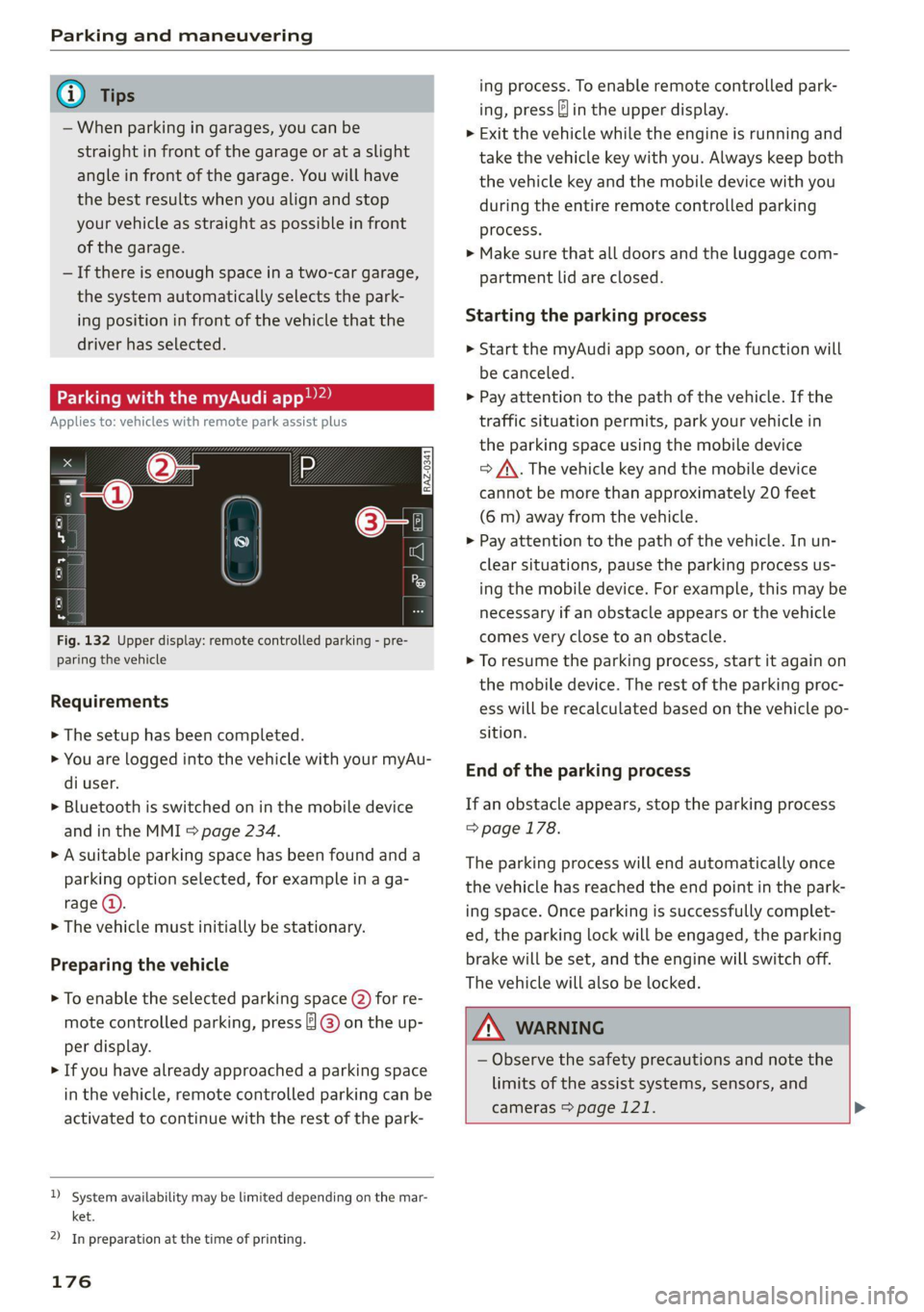
Fig. 132 Upper display: remote controlled parking - pre-
paring the vehicle
Requirements
> The setup has been completed.
> You are logged into the vehicle with your myAu-
di user.
> Bluetooth is switched on in the mobile device
and in the MMI > page 234.
> A suitable parking space has been found anda
parking option selected, for example in a ga-
rage (@).
> The vehicle must initially be stationary.
Preparing the vehicle
> To enable the selected parking space (2) for re-
mote controlled parking, press ] @) on the up-
per display.
> If you have already approached a parking space
in the vehicle, remote controlled parking can be
activated to continue with the rest of the park-
)_ system availability may be limited depending on the mar-
ket.
2) In preparation at the time of printing.
176
ing process. To enable remote controlled park-
ing, press J in the upper display.
> Exit the vehicle while the engine is running and
take the vehicle key with you. Always keep both
the vehicle key and the mobile device with you
during the entire remote controlled parking
process.
> Make sure that all doors and the luggage com-
partment lid are closed.
Starting the parking process
> Start the myAudi app soon, or the function will
be canceled.
> Pay attention to the path of the vehicle. If the
traffic situation permits, park your vehicle in
the parking space using the mobile device
> J\. The vehicle key and the mobile device
cannot be more than approximately 20 feet
(6 m) away from the vehicle.
> Pay attention to the path of the vehicle. In un-
clear situations, pause the parking process us-
ing the mobile device. For example, this may be
necessary if an obstacle appears or the vehicle
comes very close to an obstacle.
> To resume the parking process, start it again on
the mobile device. The rest of the parking proc-
ess will be recalculated based on the vehicle po-
sition.
End of the parking process
If an obstacle appears, stop the parking process
> page 178.
The parking process will end automatically once
the vehicle has reached the end point in the park-
ing space. Once parking is successfully complet-
ed, the parking lock will be engaged, the parking
brake will be set, and the engine will switch off.
The vehicle will also be locked.
ZA WARNING
— Observe the safety precautions and note the
limits of the assist systems, sensors, and
cameras > page 121. >
Page 179 of 332
4M8012721BF
Parking and maneuvering
— Failing to pay careful attention to the vehi-
cle's surroundings increases the risk of an
accident. Park your vehicle with the mobile
device only if you are sure that no obstacle is
in the vehicle's path or under the vehicle,
and that no obstacles will move into the ve-
hicle's path.
G) Tips
— If the parking space is located in a garage, it
must be detected correctly by the vehicle.
When the parking space is detected com-
pletely, the edges of the space will be high-
lighted @).
— The parking process can only be started if
the vehicle key is located outside the vehicle
after the vehicle is prepared. Always keep
both the vehicle key and the mobile device
with you during the entire remote control-
led parking process.
— Remote controlled parking may be restrict-
ed or unavailable in situations such as the
following:
— If the ESC is restricted or switched off, or
if there is a malfunction.
— If there is another vehicle key inside the
vehicle or nearby.
— The system can incorrectly interpret parking
space barriers (such as parking curbs). Take
over the parking process > page 178 if the
vehicle is not completely inside the parking
space or if the vehicle tries to drive over the
parking space barrier.
Exiting parking spaces wit
app)
Applies to: vehicles with remote park assist plus
the myAudi
> Start the myAudi app.
> Start the engine in the myAudi app soon. When
starting, the vehicle key and mobile device
must not be more than approximately 10 feet
(3 m) away from the vehicle.
> Start the parking process with the mobile de-
vice soon. Otherwise, the function will be can-
celed.
> Pay attention to the path of the vehicle. If the
traffic situation permits, drive the vehicle out of
the parking space using the mobile device
> /\. The vehicle key and the mobile device
cannot be more than approximately 20 feet
(6 m) away from the vehicle during remote con-
trolled parking.
> The process for exiting a parking space ends
when the maximum distance is reached or if ad-
ditional corrective movements are no longer
necessary. Unlock and resume manual control
of the vehicle.
If an obstacle appears, stop the parking process
=> page 178.
ZA\ WARNING
— Observe the safety precautions and note the
limits of the assist systems, sensors, and
cameras > page 121.
— Failing to pay careful attention to the vehi-
cle's surroundings increases the risk of an
accident. Park your vehicle with the mobile
device only if you are sure that no obstacle is
in the vehicle's path or under the vehicle,
and that no obstacles will move into the ve-
hicle's path.
)_ System availability may be limited depending on the mar-
ket.
2) In preparation at the time of printing.
(i) Tips
You can interrupt the path set by the vehicle,
for example if it will drive very close to an ob-
stacle, by pausing the parking process using
the mobile device. Based on the position of
the vehicle, the system then calculates the
additional steering and driving directions for
maneuvering.
1L7Z
Page 181 of 332
4M8012721BF
Parking and maneuvering
— % Maneuver assist is temporarily deacti-
vated.
— A (symbol shown in gray) Maneuver assist
is not available.
— No symbol: maneuver assist was switched
off completely in the settings.
Braking intervention
Braking intervention can be initiated if there is an
impending possible collision with a detected sta-
tionary object. If the brakes were applied until
the vehicle stopped, Maneuver assist: vehicle
has been braked. Obstacle detected will appear
in the instrument cluster and you must take over
control of the vehicle.
If you continue driving toward the obstacle after
the vehicle is braked to a stop, maneuver assist
will automatically be temporarily deactivated un-
til the next maneuvering situation.
Z\ WARNING
Observe the safety precautions and note the
limits of the assist systems, sensors, and
cameras > page 121.
G@) Tips
— The system is only partially available when a
trailer is detected. The white outline is hid-
den at the inoperative areas. There is no
guarantee the functions will be deactivated
when using a retrofitted trailer hitch.
—Ifthe BB indicator light blinks while driving,
ESC will intervene to regulate and maneuver
assist will be canceled.
— System functions may not be available if the
ESC is limited or switched off, or if there is a
malfunction.
— The system will not be available when cer-
tain assist systems are switched on or if
park assist plus is used.
Activating or deactivating maneuver assist
Applies to: vehicles with maneuver assist
Requirements
> Maneuver assist must be switched on in the
parking system settings in the MMI.
> The speed must not be higher than approxi-
mately 6 mph (10 km/h).
Automatic activation
Maneuver assist activates automatically when re-
verse gear is engaged while the engine is run-
ning. A brief tone will sound.
Deactivating temporarily
If you do not want to use maneuver assist during
a parking cycle, you can deactivate it temporarily.
If maneuver assist is deactivated temporarily, it
will be activated again automatically the next
time park assist is activated.
> To deactivate maneuver assist temporarily,
press & @) > page 178, fig. 133 in the upper
display. The 7% symbol will appear.
If you continue driving toward the obstacle after
the vehicle is braked to a stop, maneuver assist
will automatically be temporarily deactivated un-
til the next maneuvering situation.
Activating manually
You can activate maneuver assist in various ways
depending on the situation:
> To activate maneuver assist manually (such as
when driving forward), press the 4 button in
the center console.
> To reactivate maneuver assist after it has been
deactivated temporarily, press 74 @,
=> page 178, fig. 133 in the upper display. The
= symbol will appear.
Switching on or off permanently
> Applies to MMI: Select on the home screen: VE-
HICLE > Parking aid > Maneuver assist. Or
> Select |-] > Maneuver assist in the upper dis-
play when the parking aid is active.
If maneuver assist is switched off permanently,
there will be no symbol in the center of the vehi-
cle graphic @) > page 178, fig. 133.
ZA WARNING
Observe the safety precautions and note the
limits of the assist systems, sensors, and
cameras > page 121.
179
Page 197 of 332
4M8012721BF
Audi connect
ZA WARNING
— Always follow the information found in > AA
in General information on page 192.
— Driver messages, text messages, and illumi-
nated warning and indicator lights in the ve-
hicle always take priority over information
from the Audi connect services. The infor-
mation displayed by the Audi connect serv-
ices should not cause you to take safety
risks. This can result in the vehicle breaking
down in traffic and to serious injuries or ac-
cidents.
@) Tips
— Accessing specific data or controlling func-
tions remotely depends on the charge level
of the vehicle battery. Therefore, these
functions only have limited availability after
switching off the ignition.
— An eSIM card establishes the Internet con-
nection for Audi connect vehicle control
services. The costs for this are included in
the price of Audi connect vehicle control
services. The cell phone network, for exam-
ple, must be available to use these services.
Applies to: vehicles with Audi connect vehicle control
Create a myAudi account by registering in the
myAudi app or at my.audi.com, depending on
your country.
>» Set the key user > page 32.
> Install the myAudi app on your mobile device
and log in with your access information.
@) Tips
Some services require you to enter a 4-digit
PIN that you set up during registration.
Settings
Applies to: vehicles with Wi-Fi hotspot
Requirement: the ignition must be switched on.
> Applies to: MMI: Select on the home screen:
SETTINGS > Connection settings > Wi-Fi
Depending on the country and the vehicle equip-
ment, the following functions may be available:
Wi-Fi
When the function is switched on, the MMI's Wi-
Fi hotspot is active and Wi-Fi devices can be con-
nected to the hotspot.
Wi-Fi hotspot settings
The Wi-Fi connection between the MMI and your
Wi-Fi device is encrypted. You can change the fol-
lowing information if needed.
— Access point (SSID): name of the Wi-Fi hot-
spot.
— Password: an initial password was set at the
factory in the MMI. Audi recommends changing
the initial password. Only use secure passwords
that conform to the general guidelines for se-
cure passwords. For more information, refer to
reputable and current sources on password se-
curity.
Allow data connection through Wi-Fi
When the function is switched on, mobile devices
can use the Internet connection through the Wi-
Fi hotspot. A data plan is needed to do this.
Z\ WARNING
Always follow the information found in > AV
in General information on page 192.
@) Note
Always follow the information found in >@ in
General information on page 192.
195
Page 200 of 332
Emergency call
the emergency call button () will blink. The
emergency call will be made. The emergency call
cannot be canceled.
LED status
— Green - The emergency call function is availa-
ble.
— Red - There is a malfunction in the emergency
call function. Contact an authorized Audi dealer
or authorized Audi Service Facility. Note the
messages about the availability of the emer-
gency function > page 198.
— Off - The emergency call function is not availa-
ble, perhaps because no network is available.
Warnings
If there is a critical system failure in the emer-
gency call systems, the vehicle occupants will re-
ceive the following warning: see > page 198, LED
status
and > page 198, Messages.
@) Tips
If the emergency call is canceled due toa
poor connection, then the system automati-
cally tries to connect again.
Messages
Applies to: vehicles with emergency call function
508 Emergency call function: malfunction! Lim-
ited availability. Please contact Service
If this indicator light turns on and this message
appears, the emergency call function is restrict-
ed. For example, you cannot call the emergency
call center, but data may still be transmitted un-
der certain circumstances. Drive to an authorized
Audi dealer or authorized Audi Service Facility im-
mediately to have the malfunction corrected.
BS Emergency call function: malfunction! Func-
tion unavailable. Please contact Service
If this indicator light turns on and this message
appears, you cannot make an emergency call.
Drive to an authorized Audi dealer or authorized
) The availability of the services offered depends on the
country and may change in the future.
198
Audi Service Facility immediately to have the
malfunction corrected.
Online roadside
assistance
Applies to: vehicles with online roadside assistance
An online roadside assistance call )) is a combina-
tion of data transmission and a phone call. The
data transmission from your vehicle forwards im-
portant information to the Audi service center,
such as the vehicle and position data.
Calling online roadside assistance
Applies to: vehicles with online roadside assistance
RAZ-0443
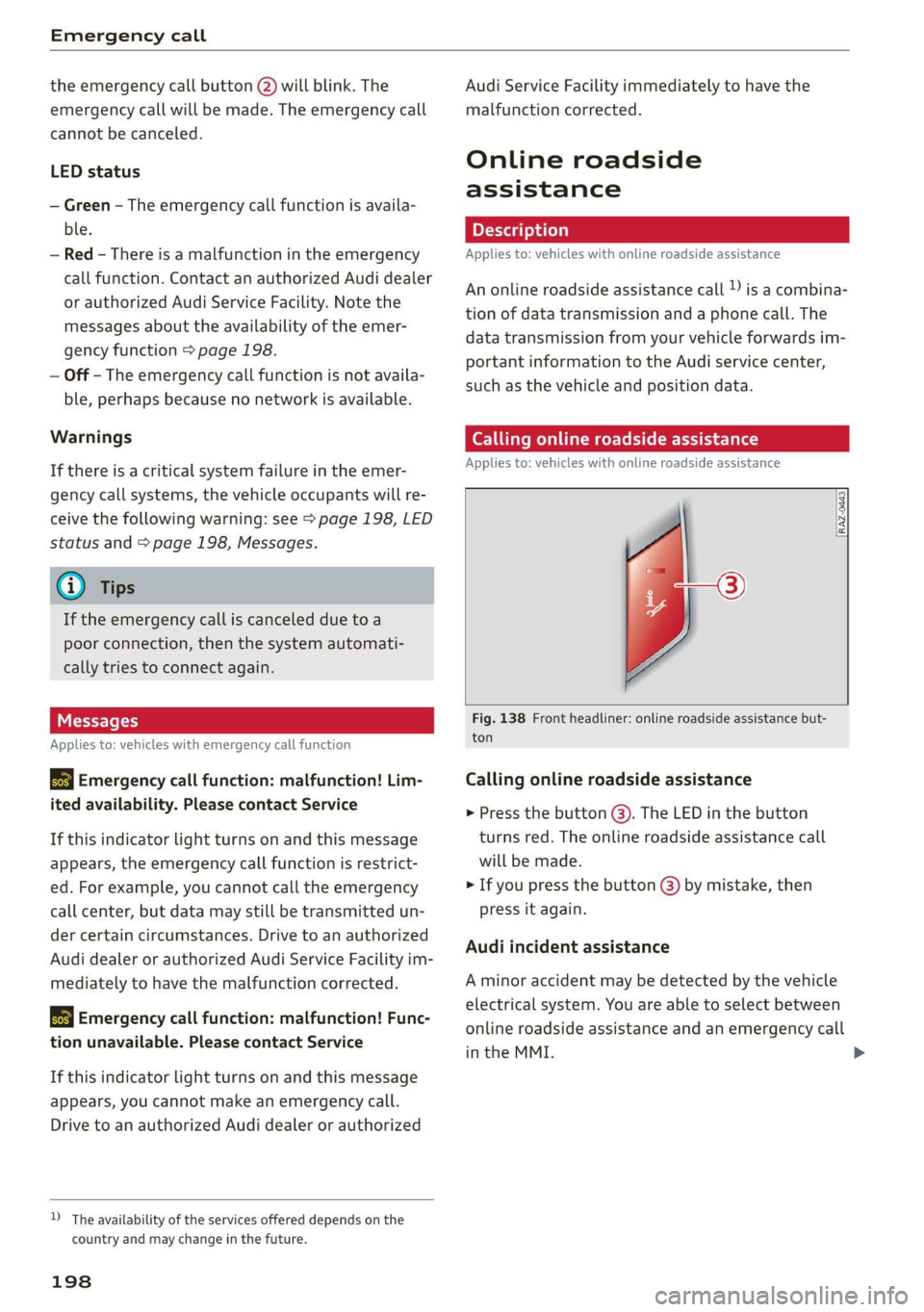
Fig. 138 Front headliner: online roadside assistance but-
ton
Calling online roadside assistance
> Press the button @). The LED in the button
turns red. The online roadside assistance call
will be made.
> If you press the button @) by mistake, then
press it again.
Audi incident assistance
A minor accident may be detected by the vehicle
electrical system. You are able to select between
online roadside assistance and an emergency call
in the MMI.
Page 212 of 332
Navigation
Online traffic information
Applies to: vehicles with navigation system and online traffic
information
The MMI can receive real-time online traffic infor-
mation about congestion, accidents, road
construction, and other incidents.
Requirement: the MMI must be connected to the
Internet > page 192, Audi connect. Traffic infor-
mation must be switched on in the MMI
=> page 210.
Traffic information will be displayed on the
standard map > page 204, fig. 142.
Online traffic information is also displayed on the
standard map > page 207.
G) Tips
— Having the online traffic information func-
tion switched on provides the most accurate
reports of traffic situations and traffic fore-
casting. Your vehicle transmits and process-
es its anonymous, encrypted position infor-
mation at regular intervals to the traffic da-
ta provider. You can switch off data transfer
at any time > page 305.
— The online traffic information network is
not available in all countries, and the cover-
age is not nationwide.
Settings
Applies to: vehicles with navigation system
You can adjust the navigation system settings in
the instrument cluster and in the MMI display
separately. The settings depend on the country
and vehicle equipment.
Accessing settings
» Applies to: MMI: Select on the home screen:
NAVIGATION > ©}.
Accessing settings using the multifunction
steering wheel
> Applies to: multifunction steering wheel: Select
in the instrument cluster: Navigation tab >
button.
210
Please note that a setting applied to the multi-
function steering wheel is only valid for the in-
strument cluster map.
Map settings
Satellite map: see > page 207.
Traffic: you can display current traffic informa-
tion on the map.
— Free flowing traffic
— Traffic obstructions
— Traffic incidents
Map colors
— Automatic: the map display adapts to the light-
ing conditions (for example, by changing from
day to night when driving through a tunnel).
— Day or Night
Map orientation
— 2D heading-up map/2D north-up map: the
current vehicle position is displayed. The map is
oriented in the direction of travel or to the
north.
— 3D heading-up map: the current vehicle posi-
tion is shown on a three-dimensional map and
is aligned to the direction of travel.
— Overview: the entire route from the vehicle po-
sition to the destination or the next stopover is
displayed on the map. The map is oriented to
the north.
Automatic zoom
— On: the map scale is adapted automatically de-
pending on the type of road being traveled (ex-
pressway, highway, other roads) so that you al-
ways have an optimal overview of the road
ahead. When route guidance is active, the scale
is adjusted automatically for a better detailed
view when there are upcoming maneuvers.
— Intersection: when route guidance is active, the
scale is adjusted automatically for a better de-
tailed view when there are upcoming maneu-
vers.
— Off
MMI map contents/Map content: you can switch
the display of additional information (such as
POIs) on the map in the upper display on or off. >
Page 222 of 332
Media
Media
General information
There may be different media sources and con-
nections available depending on the vehicle
equipment. For example, you can play media files
using a connected USB drive or connect your mo-
bile devices to the Audi music interface and oper-
ate them through the MMI.
Media and format restrictions: the MMI (includ-
ing the USB storage device connection) was test-
ed with a variety of products and media on the
market. However, there may be cases where indi-
vidual devices or media and audio/video files may
not be recognized, may play only with restric-
tions, or may not play at all.
Restricted functionality: reset the MMI to the
factory default settings if functionality is restrict-
ed > page 234.
Digital Rights Management: please note that
the
audio/video files are subject to copyright pro-
tection.
Files that are protected by DRM and are identi-
fied with the symbol f@ will not play.
Data security: never store important data on
CDs/DVDs or mobile devices. Audi is not responsi-
ble for damaged or lost files and media.
Loading times: the more files/folders/playlists
there are on a storage medium, the longer it will
take to load. To reduce the amount of time it
takes the audio/video files to load, use a storage
medium that only contains audio/video files, and
create subfolders (for example, for each artist or
album).
Additional information: when playing, audio
files are automatically displayed with any addi-
tional information that is stored (such as the ar-
tist, track and album cover). If this information is
not available on the medium, the MMI will revert
to the local Gracenote metadata database or
search online if necessary. See > page 228, On-
line additional data. However, in some cases, the
additional information may not be displayed.
220
@) Note
Read the information about Audi connect, and
be sure to note the connectivity costs section
=@ in General information on page 192.
DVD drive
General information
Applies to: vehicles with a DVD drive
The functionality of individual storage mediums
may be limited due to the variety of blank CDs/
DVDs available and the various capacities. Audio
CDs or video DVDs with copy protection, CDs/
DVDs that do not conform to the standard, and
multisession CDs may have limited playback or
may not play at all. Audi recommends finalizing
the recording process when creating multisession
CDs. Multisession DVDs are not supported.
(1) Note
To reduce the risk of damaging the drive and
data carriers:
— Always store data carriers in a protective
sleeve and do not expose them to direct
sunlight
— Do not use damaged, dirty, or laminated da-
ta carriers
— Do not use single CDs/-DVDs with a 3.1 inch
(8 cm) diameter, non-circular CDs/DVDs
(shaped CDs), cleaning CDs, and protective
rings
— Never force CDs/DVDs into the drive. Discs
are pulled in automatically.
G) Tips
The thermal protection switch stops playback
temporarily when outside temperatures are
too high.
Page 224 of 332
Media
» Applies to: MMI: Select on the home screen:
MEDIA > Source > Amazon Alexa.
@) Note
Read the information about Audi connect, and
be sure to note the connectivity costs section
=> page 192.
Multimedia connections
USB adapter cable
[RAH-9202
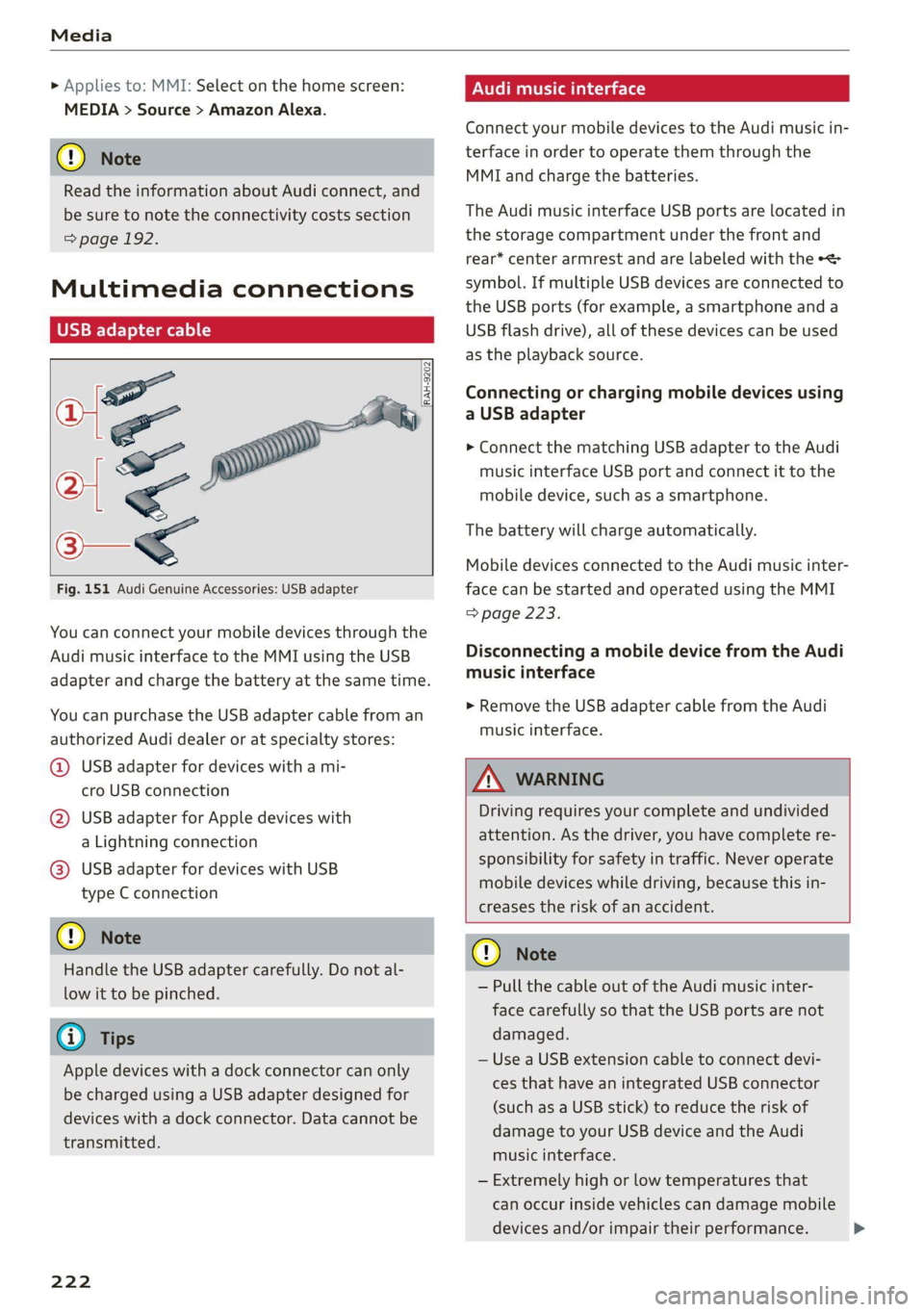
Fig. 151 Audi Genuine Accessories: USB adapter
You can connect your mobile devices through the
Audi music interface to the MMI using the USB
adapter and charge the battery at the same time.
You can purchase the USB adapter cable from an
authorized Audi dealer or at specialty stores:
@ USB adapter for devices with a mi-
cro USB connection
@ USB adapter for Apple devices with
a Lightning connection
@ USB adapter for devices with USB
type C connection
@) Note
Handle the USB adapter carefully. Do not al-
low it to be pinched.
G) Tips
Apple devices with a dock connector can only
be charged using a USB adapter designed for
devices with a dock connector. Data cannot be
transmitted.
222
ONU reat em Tale)
Connect your mobile devices to the Audi music in-
terface in order to operate them through the
MMI and charge the batteries.
The Audi music interface USB ports are located in
the storage compartment under the front and
rear* center armrest and are labeled with the +<
symbol. If multiple USB devices are connected to
the USB ports (for example, a smartphone and a
USB flash drive), all of these devices can be used
as the playback source.
Connecting or charging mobile devices using
a USB adapter
> Connect the matching USB adapter to the Audi
music interface USB port and connect it to the
mobile device, such as a smartphone.
The battery will charge automatically.
Mobile devices connected to the Audi music inter:
face can be started and operated using the MMI
=> page 223.
Disconnecting a mobile device from the Audi
music interface
> Remove the USB adapter cable from the Audi
music interface.
ZA\ WARNING
Driving requires your complete and undivided
attention. As the driver, you have complete re-
sponsibility for safety in traffic. Never operate
mobile devices while driving, because this in-
creases the risk of an accident.
@) Note
— Pull the cable out of the Audi music inter-
face carefully so that the USB ports are not
damaged.
— Use a USB extension cable to connect devi-
ces that have an integrated USB connector
(such as a USB stick) to reduce the risk of
damage to your USB device and the Audi
music interface.
— Extremely high or low temperatures that
can occur inside vehicles can damage mobile
devices and/or impair their performance.
Page 225 of 332
4M8012721BF
Media
Never leave mobile devices in the vehicle in
extremely high or low temperatures.
@ Tips
— Always follow the information found in
=> page 82.
— When you switch the ignition off, the USB
ports are still supplied with power until the
energy management intervenes.
— Do not use an additional adapter cable or
USB extension cable to connect mobile devi-
ces to the Audi music interface that already
have a cable or that must be connected with
a USB adapter cable (> page 222, fig. 151).
Using an additional adapter or US extension
cable may impair functionality.
— Functionality is not guaranteed for mobile
devices that do not conform to the USB 2.0
specification.
— USB hubs are not supported.
— Video playback through the Audi music in-
terface is not supported on Apple devices
and MTP devices (such as smartphones).
— iPod touch or iPhone malfunctions also af-
fect the operation of the MMI. Reset your
mobile device in these situations.
— Audi recommends updating the iPod touch
or iPhone software to the latest version. Re-
fer to your mobile device owner's manual
for more information.
— The USB adapter on the Audi music inter-
face will support iPod touch or iPhone devi-
ces from the 5th generation or newer with
the lightning connector.
—Aselection of supported devices can be
found in the database for tested mobile de-
vices at www.audi.com/mp3.
Playing media
The following sources can be selected depending
on the vehicle equipment:
— Amazon Alexa > page 221.
— USB device > page 222.
— DVD & page 221.
— External device: you can connect external devi-
ces via Bluetooth and use the Bluetooth audio
player > page 221, or you can connect an exter-
nal device directly to the Audi music interface
=> page 222.
Accessing media
Playing media files using the MMI
> Applies to: MMI: Select on the home screen:
MEDIA > Source > a source. Depending on the
connected device, the symbol for a source may
change. The device name may be displayed (for
example: myPhone).
> Select a track from the categories in the media
center > page 224.
Playing media files using the multifunction
steering wheel
Requirement: a media source must contain me-
dia files > page 223.
> Select the radio/media tab in the instrument
cluster.
> Turn the left thumbwheel to display the play-
list.
> To switch to a different source, press the
button.
> To select a media file or a source, turn and
press the left thumbwheel.
> To switch between radio and media, select in
the instrument cluster: the LE] button > Switch
to radio/Switch to media.
G) Tips
— For safety reasons, the video image is only
displayed when the vehicle is stationary. On-
ly the sound from the video plays while driv-
ing.
— Applies to: multifunction steering wheel:
Depending on the selected function, opera-
tion through the MMI may be required.
223