head-up AUDI Q8 2021 Owner´s Manual
[x] Cancel search | Manufacturer: AUDI, Model Year: 2021, Model line: Q8, Model: AUDI Q8 2021Pages: 332, PDF Size: 118.76 MB
Page 4 of 332
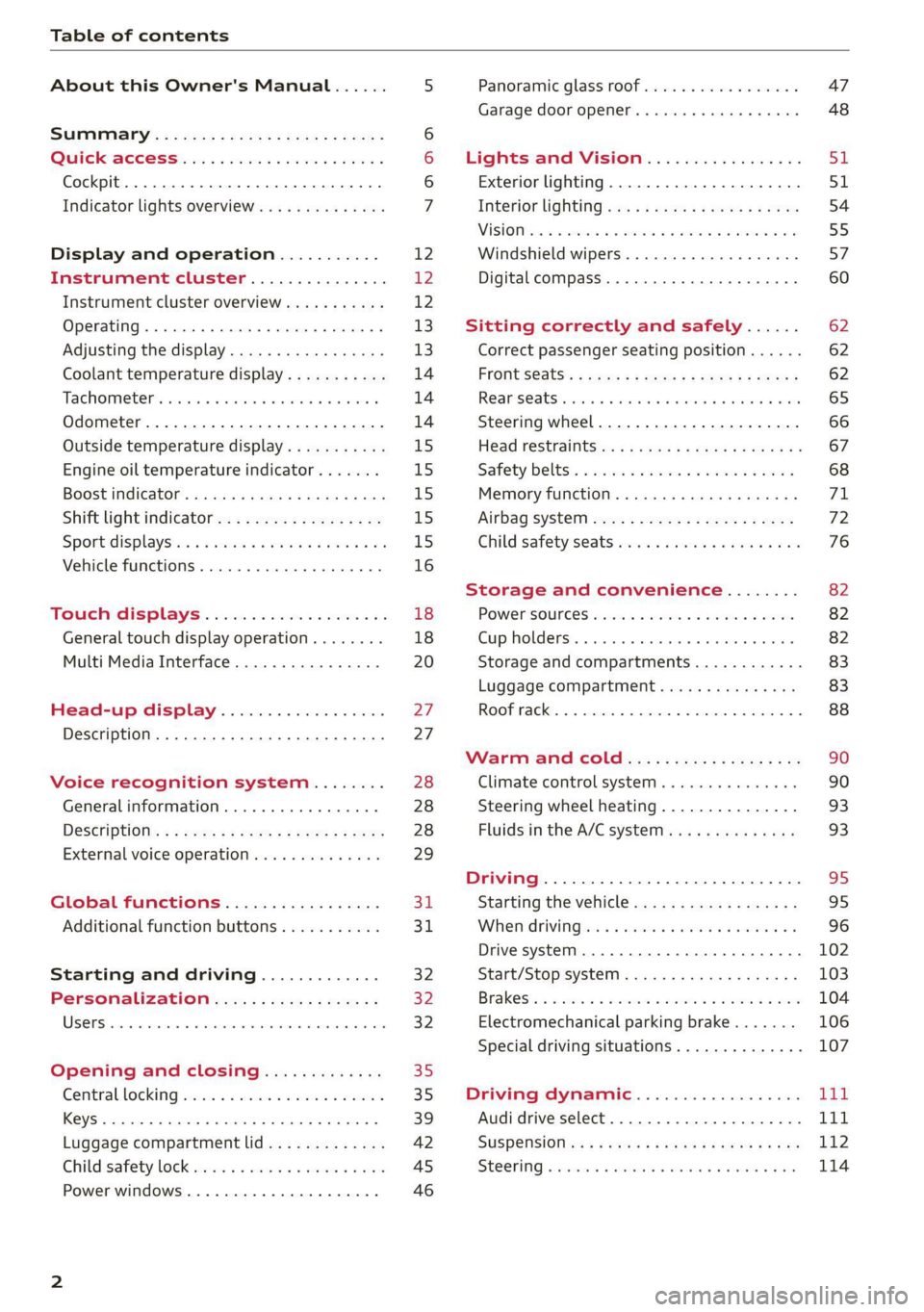
Table of contents
About this Owner's Manual......
SUMIMAry: < = exe : eens: Seen cs sens
QutckeaeCe ssh: «i esis se ois a eaves @
Cockpit. ...... 0... eee eee eee eee
Indicator lights overview...........4..
Display and operation...........
Instrument cluster...............
Instrument cluster overview...........
Operating. ecccuse w+ were oo wens oo ayes 9 ¥
Adjusting the display.................
Coolant temperature display...........
Tachometer’ series i ewe so snes ¥ & ome
Odometer.............. cee eee eee ee
Outside temperature display...........
Engine oil temperature indicator.......
Boost indicator...............0--000.
Shift light indicator..................
Sportidisplaystens « scwne x » eum os vomew «02
Vehicle functions ..............00000.
TOUCKHAISPLAYS « esis 6 6 sccm 6 x wees
General touch display operation........
Multi Media Interface................
Head-up display..................
Description............0.. ee cee eee
Voice recognition system........
General information..............00.
DESGriptiOns « = seen ¢ = seme xs eee st eee
External voice operation..............
Global functions.................
Additional function buttons...........
Starting and driving.............
Personalization..................
Opening and closing.............
Central locking) sani x x swasien © x sponae 2 aaaonor
Keys... eee
Luggage compartment lid.............
Childisafety lock seis 2 « sere ¥ © were 3 ¢ overs
Power windows............000eeeeee
NOD
OO
12 12 12
13
13
14 14 14
15
15
15
15
15)
16 18
18
20
27
27 28 28 28
29
3d:
31
32 32
32
35 35
39
42 45
46
Panoramic glass roof................. 47
Garage door opener..........--.00 eee 48
Lights and Vision................. 51
Exterior lighting...................4. 51
Interior liQhting ss =e aves ss eews so eos 54
ViSIOMsn « 3 ses 3 3 ema oo wena vo ae © ove 55
Windshield wipers.............-..45- 57
Digital compass.............-.-0000- 60
Sitting correctly and safely...... 62
Correct passenger seating position...... 62
Frontseats:: » ssw. « ¢ sews & » saws +s ewe < 62
Rear SOats cravina so suamie si sxomare va aueens 8 a ana 65
Steering wheel..............--000005 66
Head restraints ss = ¢ sao xs eee xo pews ee 67
Safety belts:. scscce ss cmsne a eee o & were 68
Memory function...............00005 71
Airbag SySt€M eves 2s eeen es pean ce ees 72
Child safety'seats wos cs eva. wemwe + ees 76
Storage and convenience........ 82
POWEPSOUICES sess ce wives 2 2 erecem a a eee 82
Cup holders. ... 0.2.00... c eee eee eee 82
Storage and compartments............ 83
Luggage compartment............... 83
ROOF TAGKE. 5 2 cxcnoes «x cecwece = at sammie = = omeween @ 88
Warm and Coles: « ecee ss ene esis 90
Climate control system............... 90
Steering wheel heating............... 93
Fluids in the A/C system. .........0065 93
Driving .............. 0.0... eee eee 95
Starting the vehicle...............0.0. 95
When driving isis ss iovsvie se aerswce oo anes oe 96
Drive system... 2.2... ee eee eee eee 102
Start/Stop system .........ee cece eee 103
BrakeS's so isemi 2 wane w aman a 2 oer as ie 104
Electromechanical parking brake....... 106
Special driving situations.............. 107
Driving: dynamic. . « sic. 6 6 see a 6 se Ld
Audi drive select..................00. Tay
SUSPENSION es « + exes ¢ ¢ eres +o ees vv eae 112
SUECOMIING 6 vessse oo csisweue io & stone 6 a toma ww Bs 114
Page 8 of 332
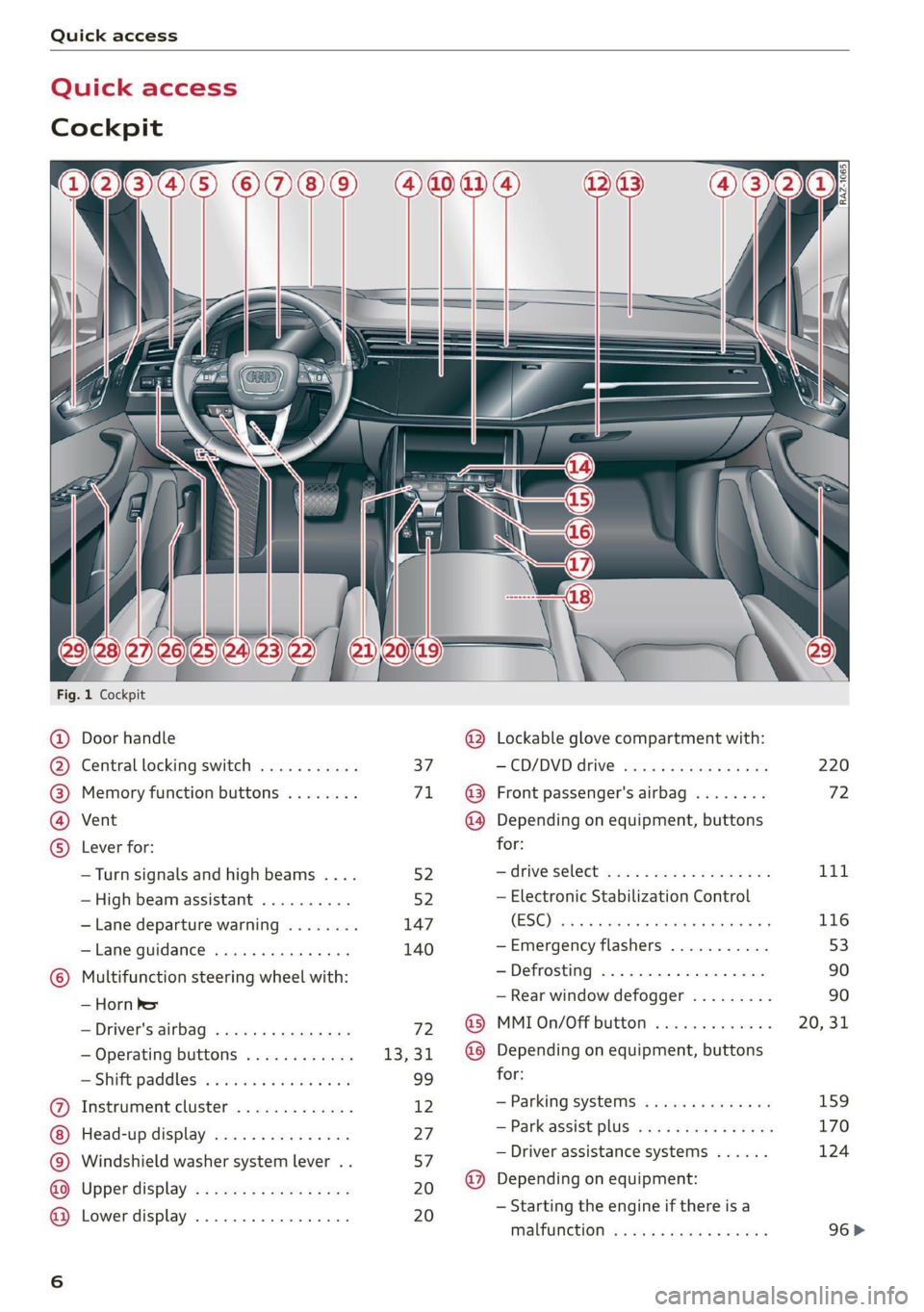
Quick access
Quick access
Cockpit
©
©O®OOO
OOOO
Fig. 1 Cockpit
&
Door handle
Central locking switch
Memory function buttons
Vent
Lever for:
—Turn signals and high beams ....
—High beam assistant ..........
— Lane departure warning
— Lane guidance
Multifunction steering wheel with:
— Horn be
— Driver's airbag
— Operating buttons
= Shift paddles: « « coi e ewes sv ove
Instrument cluster .............
Head-up display ...............
Windshield washer system lever . .
Upper display .................
Lower display .................
® @ @
@®
Lockable glove compartment with:
—CD/DVD drive ...........0005.
Front passenger's airbag
Depending on equipment, buttons
for:
—drive select ...............00.
— Electronic Stabilization Control
(ESC)
— Emergency flashers
— Defrosting
— Rear window defogger .........
MMI On/Off button
Depending on equipment, buttons
for:
— Parking systems
— Park assist plus ...............
— Driver assistance systems ......
Depending on equipment:
— Starting the engine if there is a
malfunction
220
72
01,
116
53
90 90
20, 31
159 170
124
96>
Page 14 of 332

Instrument cluster
Instrument cluster
Instrument cluster overview
12/5/2019
2800 mi 210 mi
RTO Pad
Fig. 2 Instrument cluster overview (Audi virtual cockpit)
Depending on the vehicle equipment, the follow- @ Tips
ing items may appear in the instrument cluster:
— You can select the units used for tempera-
@ Display .
. ture, speed, and other measurements in the
— Engine coolant temperature -E . . 14 :
: Infotainment system > page 233.
@ left dial — Speeds are displayed in mph (miles per
~ Tachometer ......... 1.05.04. 14 hour) or km/h (kilometers per hour).
Tab
area ....... 6. sees eee eee ee 13 — If there is a malfunction in the instrument
Genitiralzarea yan ss ance oo sauise 0 0 13 cluster, DEF will appear in the trip odometer
Status line (one or two lines) display. Have the malfunction corrected as
Right dial soon as possible.
— Certain instrument cluster content can also
be displayed in the head-up display*
=> page 27.
— Convenience display
FueblevelEd) « = secsaw « a secsise vo wena © 239
Right additional display with speed-
ometer
Left additional display with:
—Gear .. eee eee eee eee eee 97
— Audi drive select mode ......... 111
©8®
©OO8®O
©
ZX WARNING
If there is a severe malfunction in the instru-
ment cluster, the display may turn off. The /\|
indicator light may also turn on. Stop the ve-
hicle safely. See an authorized Audi dealer or
authorized Audi Service Facility for assistance.
12
Page 26 of 332
Touch displays
be hidden. To display the older notifications,
drag your finger upward on the screen.
Setting which content is displayed
You can set whether some notifications should be
displayed.
> To set the displayed content, press &S, or
» Applies to MMI: Select on the home screen:
SETTINGS > Notifications.
> Select and confirm which notifications should
be displayed.
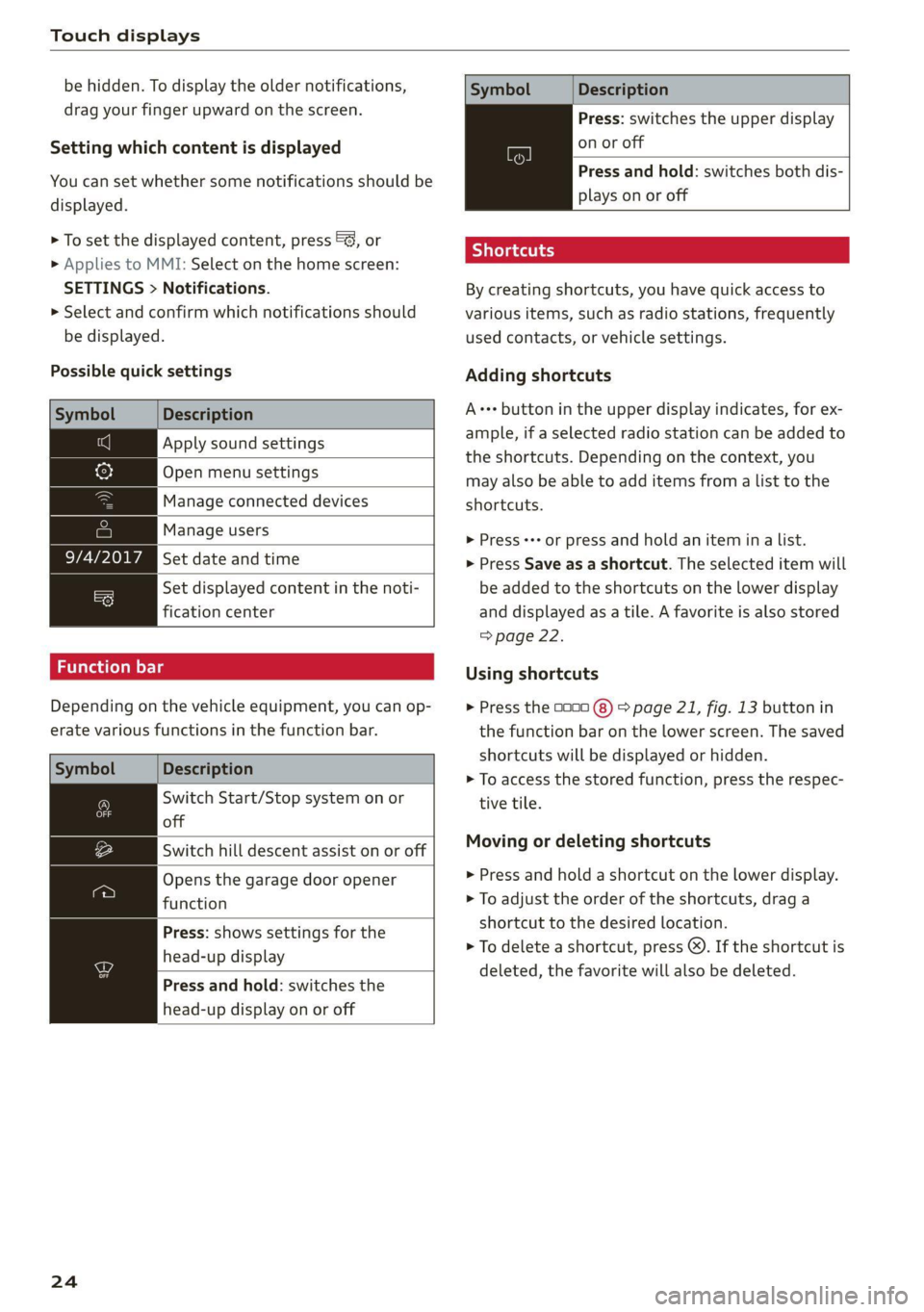
Possible quick settings
Symbol Description
Apply sound settings
Open menu settings
Manage connected devices
Manage users
Set date and time
= Set displayed content in the noti-
fication center
Depending on the vehicle equipment, you can op-
erate various functions in the function bar.
Description
Switch Start/Stop system on or
off
Switch hill descent assist on or off
Opens the garage door opener
function
Press: shows settings for the
head-up display
Press and hold: switches the
head-up display on or off
24
Symbol Description
Press: switches the upper display
on or off
Press and hold: switches both dis-
plays on or off
Shortcuts
By creating shortcuts, you have quick access to
various items, such as radio stations, frequently
used contacts, or vehicle settings.
Adding shortcuts
A+++ button in the upper display indicates, for ex-
ample, if a selected radio station can be added to
the shortcuts. Depending on the context, you
may also be able to add items from a list to the
shortcuts.
> Press +++ or press and hold an item ina list.
> Press Save as a shortcut. The selected item will
be added to the shortcuts on the lower display
and displayed as a tile. A favorite is also stored
=> page 22.
Using shortcuts
> Press the 0000 (8) > page 21, fig. 13 button in
the function bar on the lower screen. The saved
shortcuts will be displayed or hidden.
> To access the stored function, press the respec-
tive tile.
Moving or deleting shortcuts
> Press and hold a shortcut on the lower display.
> To adjust the order of the shortcuts, drag a
shortcut to the desired location.
> To delete a shortcut, press ®. If the shortcut is
deleted, the favorite will also be deleted.
Page 29 of 332
4M8012721BF
Head-up display
Head-up display
Description
Applies to: vehicles with head-up display
The head-up display projects certain warnings or
selected information from the assist systems on
the windshield. The display appears within the
driver's field of vision.
Switching on and off
The Y button is located in the function bar on
the lower display > page 21.
> To switch the head-up display on or off, press
and hold the Y button.
Settings in the Infotainment system
> Applies to MMI: Select on the home screen:
SETTINGS > Display & brightness > Head-up
display, or
> Press the Y button.
Possible settings:
— Display rotation
— Brightness
— Display height: you can adjust the height of the
display. Sit in the correct seating position
= page 62 and adjust the head-up display.
— Display contents: you can set which informa-
tion should be displayed. The display of certain
information and some of the red indicator
lights cannot be hidden.
@) Note
To reduce the risk of scratches on the glass
covering the head-up display, do not place any
objects in the projection opening.
@ Tips
— Sunglasses with polarization filters and un-
favorable lighting conditions can impair visi-
bility of the display.
— An optimal display depends on the seat po-
sition and the height adjustment of the
head-up display.
— A special windshield is needed for the head-
up display function.
— For information on cleaning, see > table In-
terior cleaning on page 282.
27
Page 57 of 332
4M8012721BF
Lights and Vision
Interior lighting
Applies to: vehicles with interior lighting
The ambient lighting turns on when the ignition
is switched on. The ambient lighting is deactivat-
ed when the lights are set to OFF.
You can adjust the interior lighting individually.
The settings depend on the vehicle equipment.
>» Applies to MMI: Select on the home screen: VE-
HICLE > Light & Visibility > Interior lighting.
You can choose from various color profiles, such
as Maritime.
Additional settings and profiles:
— Brightness: you can adjust the brightness for
all of the interior lighting.
— Individual: you can adjust the brightness and
color of the interior lighting separately, divided
into contour and surface lighting.
— Audi drive select: the contour and surface
lighting color changes depending on the select-
ed drive select* mode.
G) Tips
Depending on vehicle equipment, when the
drive select function is activated, the color of
the contour and surface lighting may briefly
change to red or blue when the interior tem-
perature is manually increased or decreased.
Display brightness
You can adjust the instrument and display illumi-
nation separately. The settings depend on the ve-
hicle equipment.
> Applies to MMI: select on the home screen:
SETTINGS > Display & brightness.
Possible settings in the MMI:
— Cockpit dimming
— Head-up display
—MMI
— Audi virtual cockpit
Vision
Adjusting exterior mirrors
RAZ-0150
© ©
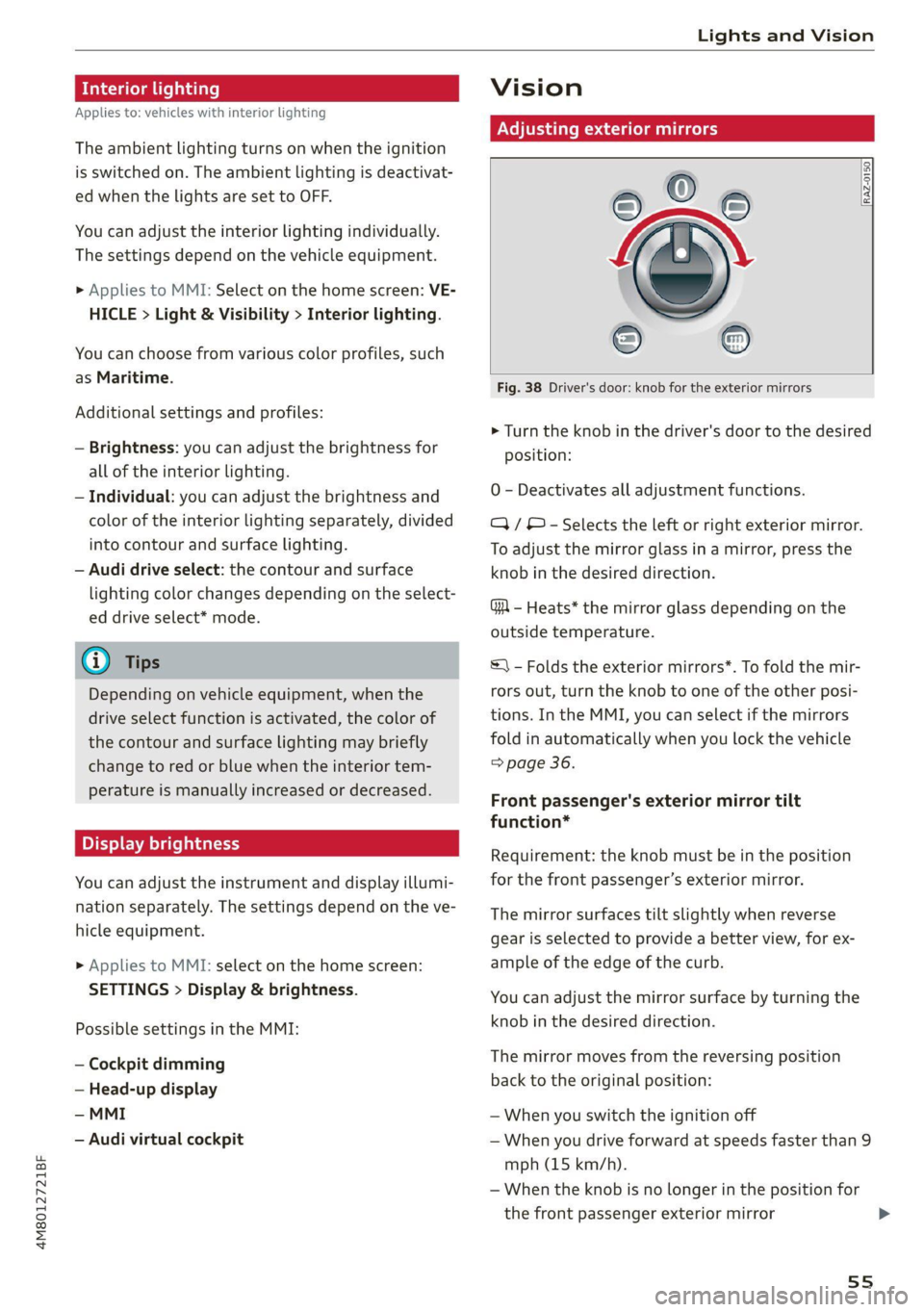
Fig. 38 Driver's door: knob for the exterior mirrors
> Turn the knob in the driver's door to the desired
position:
0 - Deactivates all adjustment functions.
Q/ © - Selects the left or right exterior mirror.
To adjust the mirror glass in a mirror, press the
knob in the desired direction.
GA - Heats* the mirror glass depending on the
outside temperature.
S) - Folds the exterior mirrors*. To fold the mir-
rors out, turn the knob to one of the other posi-
tions. In the MMI, you can select if the mirrors
fold in automatically when you lock the vehicle
=> page 36.
Front passenger's exterior mirror tilt
function*
Requirement: the knob must be in the position
for the front passenger’s exterior mirror.
The mirror surfaces tilt slightly when reverse
gear is selected to provide a better view, for ex-
ample of the edge of the curb.
You can adjust the mirror surface by turning the
knob in the desired direction.
The mirror moves from the reversing position
back to the original position:
— When you switch the ignition off
— When you drive forward at speeds faster than 9
mph (15 km/h).
— When the knob is no longer in the position for
the front passenger exterior mirror
55
>
Page 65 of 332
4M8012721BF
Sitting correctly and safely
— The distance between your upper body and the
steering wheel or instrument panel is at least
10 inches (25 cm)
— The distance between your knees and the in-
strument panel is at least 4 inches (10 cm)
— Your thighs are lightly supported by the front
surface of the seat
— The backrest is in an upright position and your
back
is resting against it
— You have a sufficient view of the area around
the vehicle
— You have a clear view of the instrument cluster,
indicator lights, and the head-up display*
Seat settings menu: quick access
Applies to: vehicles with seat settings in the MMI
If you press on the image of the driver's or front
passenger's seat in the climate control system
menu & page 90, fig. 82 @, you will go directly
to the seat settings for that seat.
to use the pedals if sudden driving or brak-
ing maneuvers were needed, which increas-
es the risk of an accident.
— Make sure that the floor mats are always se-
curely attached.
—To reduce the risk of an accident, never place
additional floor mats or other floor covers
over the installed floor mats, because this
reduces the pedal's range of motion and can
impair pedal operation.
—To reduce the risk of injury, never place your
feet on the instrument panel, out of the
window, or on the seat surfaces. This also
applies to passengers in the rear seats.
ZA WARNING
— If you are too close to the steering wheel or
instrument panel, the airbag system cannot
provide the optimal protection, which in-
creases the risk of injury and death.
—To reduce the risk of injury in the event of
sudden braking maneuvers or accidents,
never drive with the backrest reclined very
far. The airbag system and seat belts can on-
ly provide optimal protection when the back-
rest is in an upright position and the driver
is wearing the seat belt correctly. If the
backrest is angled back too far, the safety
belt can shift to soft areas of the body, such
as the stomach, which increases the risk of
injury.
—To reduce the risk of an accident, only adjust
the seats when the vehicle is stationary.
— Be careful when adjusting the seat. Lack of
control or attention when adjusting can re-
sult in injuries due to pinching to vehicle oc-
cupants both in the front seats and rear
seats.
— Never place objects in the driver's footwell.
Objects could shift and enter the area
around the pedals, which could prevent you
from using them. You would then be unable
@) Note
To reduce the risk of damage, be very careful
when adjusting the seat to make sure the
head restraints do not come into contact with
the headliner or the sunroof*.
G@) Tips
At the same time, only move the respective
seat using the controls.
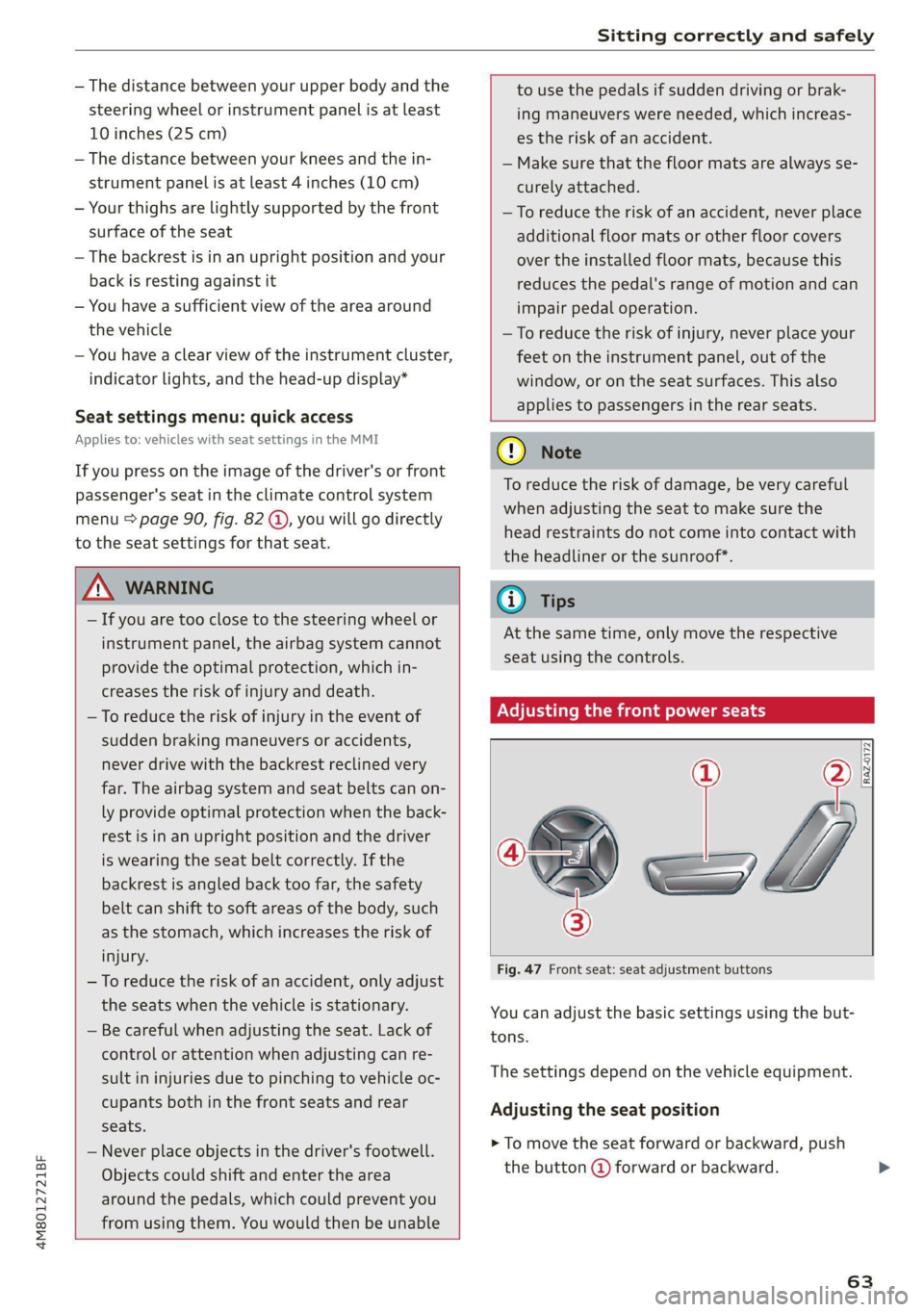
Adjusting the front power seats
[RAz-0172
Fig. 47 Front seat: seat adjustment buttons
You can adjust the basic settings using the but-
tons.
The settings depend on the vehicle equipment.
Adjusting the seat position
> To move the seat forward or backward, push
the button @ forward or backward.
63
Page 68 of 332
Sitting correctly and safely
Adjusting ory
Sl
B8R-0388
Fig. 51 Adjusting the seat position
The settings depend on the vehicle equipment.
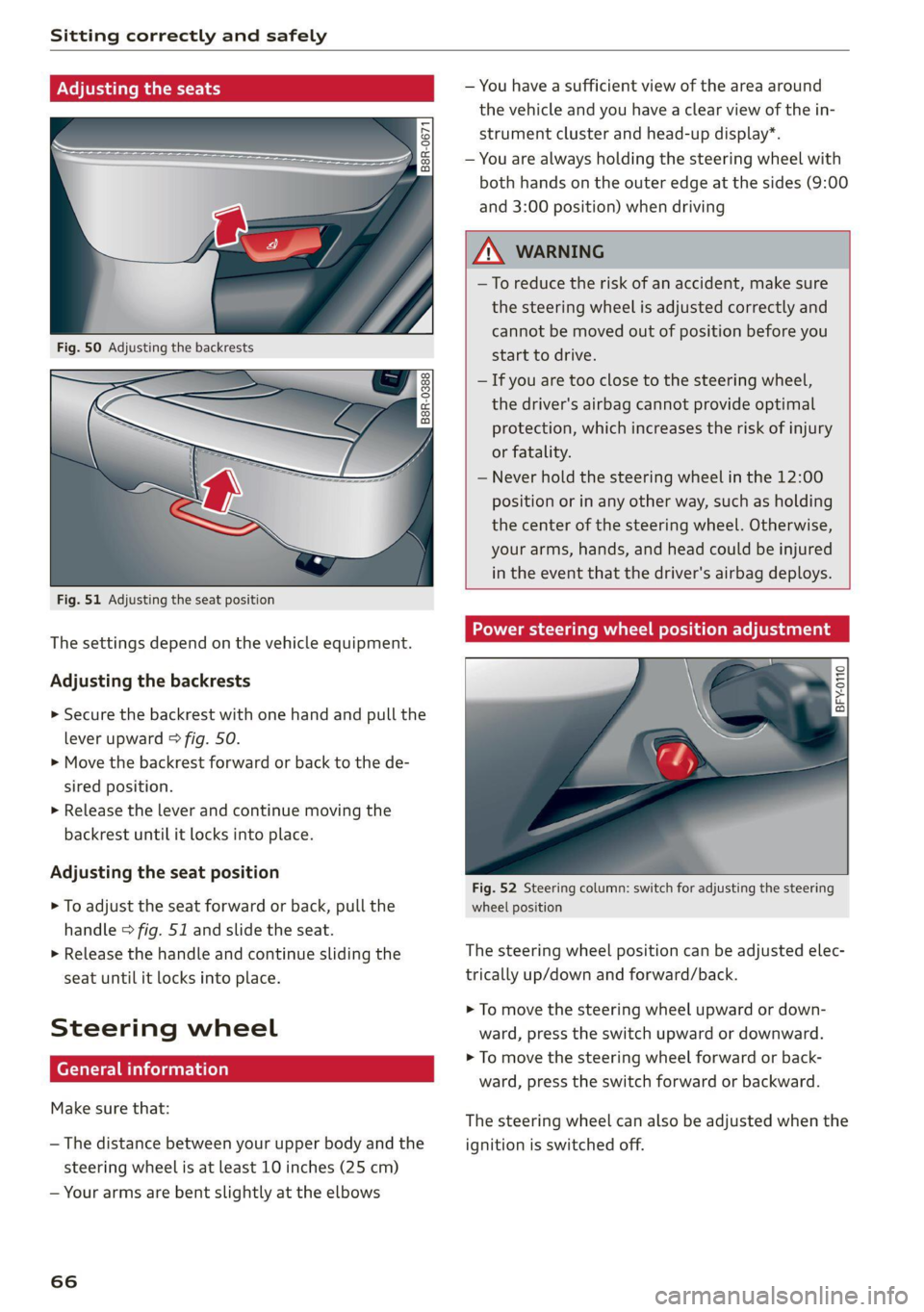
Adjusting the backrests
> Secure the backrest with one hand and pull the
lever
upward > fig. 50.
> Move the backrest forward or back to the de-
sired position.
> Release the lever and continue moving the
backrest until it locks into place.
Adjusting the seat position
> To adjust the seat forward or back, pull the
handle > fig. 51 and slide the seat.
> Release the handle and continue sliding the
seat until it locks into place.
Steering wheel
erally)
Make sure that:
— The distance between your upper body and the
steering wheel is at least 10 inches (25 cm)
— Your arms are bent slightly at the elbows
66
— You have a sufficient view of the area around
the vehicle and you have a clear view of the in-
strument cluster and head-up display”.
— You are always holding the steering wheel with
both hands on the outer edge at the sides (9:00
and 3:00 position) when driving
ZA\ WARNING
— To reduce the risk of an accident, make sure
the steering wheel is adjusted correctly and
cannot be moved out of position before you
start to drive.
— If you are too close to the steering wheel,
the driver's airbag cannot provide optimal
protection, which increases the risk of injury
or fatality.
— Never hold the steering wheel in the 12:00
position or in any other way, such as holding
the center of the steering wheel. Otherwise,
your arms, hands, and head could be injured
in the event that the driver's airbag deploys.
Power steering wheel position adjustment
BFY.0110
:
Fig. 52 Steering column: switch for adjusting the steering
wheel position
The steering wheel position can be adjusted elec-
trically up/down and forward/back.
> To move the steering wheel upward or down-
ward, press the switch upward or downward.
> To move the steering wheel forward or back-
ward, press the switch forward or backward.
The steering wheel can also be adjusted when the
ignition is switched off.
Page 128 of 332
Driving information
Driving information
Speed warning system
Applies to: vehicles with speed warning system
The speed warning system helps the driver to
stay below a specified maximum speed. A warn-
ing threshold can be set in the MMI for this pur-
pose.
Once the speed slightly exceeds the stored
threshold, the speed warning system will alert
the driver with an indicator in the instrument
cluster and a warning tone. Once the speed drops
below the stored maximum speed, the indicator
will turn off.
Setting a threshold is recommended if you would
like to be reminded when you reach a certain
maximum speed. Situations where you may want
to do so include driving in a country with a gener-
al speed limit or if there is a specified maximum
speed for winter tires.
@ Tips
Regardless of the speed warning system, you
should always monitor your speed using the
speedometer and make sure you are following
the legal speed limit.
Setting the warning threshold
Applies to: vehicles with speed warning system
> Applies to MMI: Select on the home screen: VE-
HICLE > Driver assistance > (<3) > Speed warn-
ing.
Messages
Applies to: vehicles with speed warning system
ol Manually set speed limit XX mph
(km/h) exceeded
The stored speed was exceeded.
126
Camera-based traffic
sign recognition
Applies to: vehicles with camera-based traffic sign recognition
ia) meee et
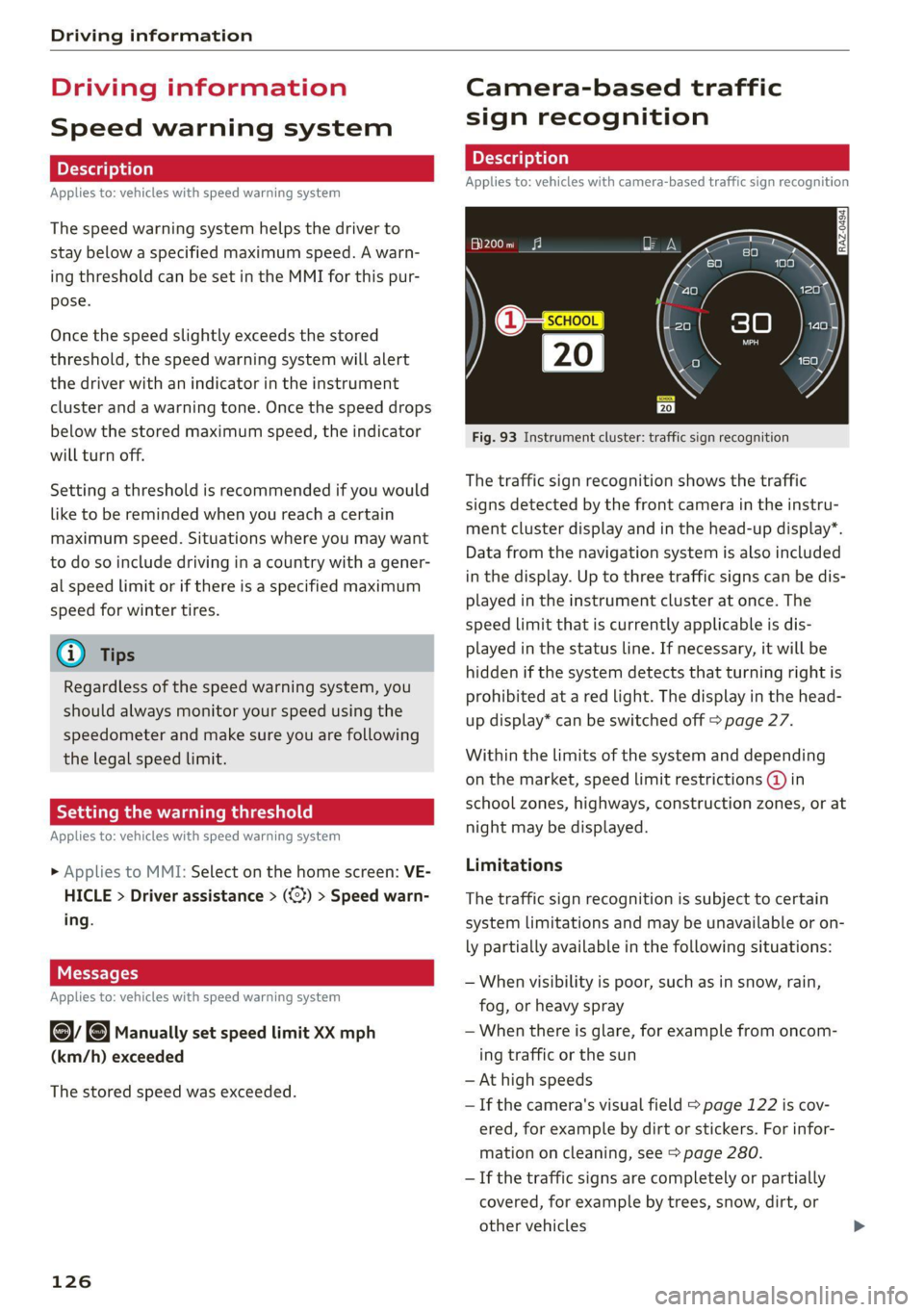
Fig. 93 Instrument cluster: traffic sign recognition
The traffic sign recognition shows the traffic
signs detected by the front camera in the instru-
ment cluster display and in the head-up display”.
Data from the navigation system is also included
in the display. Up to three traffic signs can be dis-
played in the instrument cluster at once. The
speed limit that is currently applicable is dis-
played in the status line. If necessary, it will be
hidden if the system detects that turning right is
prohibited at a red light. The display in the head-
up display* can be switched off > page 27.
Within the limits of the system and depending
on the market, speed limit restrictions @ in
school zones, highways, construction zones, or at
night may be displayed.
Limitations
The traffic sign recognition is subject to certain
system limitations and may be unavailable or on-
ly partially available in the following situations:
— When visibility is poor, such as in snow, rain,
fog, or heavy spray
— When there is glare, for example from oncom-
ing traffic or the sun
— At high speeds
— If the camera's visual field > page 122 is cov-
ered, for example by dirt or stickers. For infor-
mation on cleaning, see > page 280.
— If the traffic signs are completely or partially
covered, for example by trees, snow, dirt, or
other vehicles
Page 130 of 332
Driving information
Traffic light information
Applies to: vehicles with traffic light information
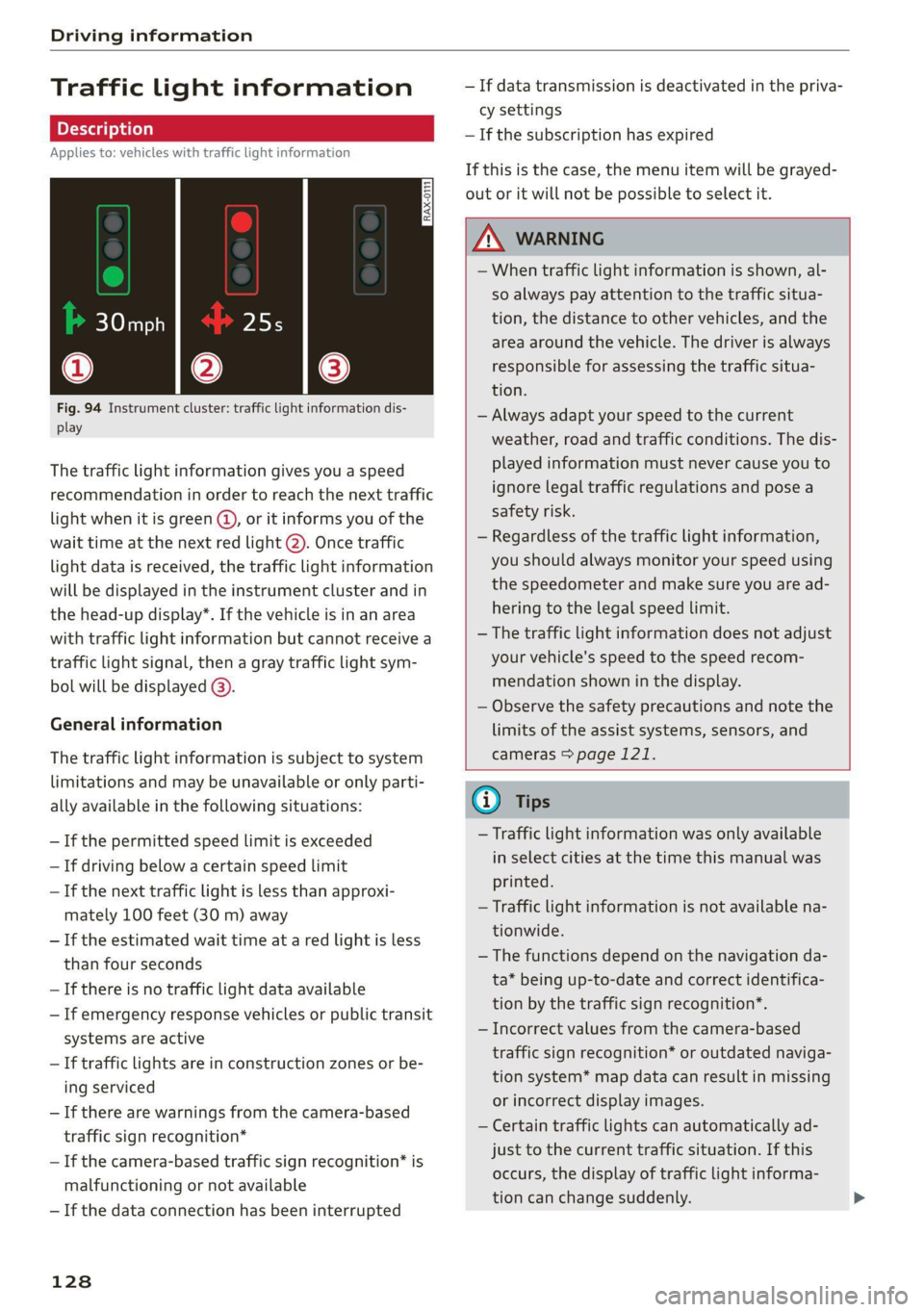
Fig. 94 Instrument cluster: traffic light information dis-
play
The traffic light information gives you a speed
recommendation in order to reach the next traffic
light when it is green @, or it informs you of the
wait time at the next red light (2). Once traffic
light data is received, the traffic light information
will be displayed in the instrument cluster and in
the head-up display*. If the vehicle is in an area
with traffic light information but cannot receive a
traffic light signal, then a gray traffic light sym-
bol will be displayed @).
General information
The traffic light information is subject to system
limitations and may be unavailable or only parti-
ally available in the following situations:
— Ifthe permitted speed limit is exceeded
— If driving below a certain speed limit
— If the next traffic light is less than approxi-
mately 100 feet (30 m) away
— Ifthe estimated wait time at a red light is less
than four seconds
—If there is no traffic light data available
— If emergency response vehicles or public transit
systems are active
— If traffic lights are in construction zones or be-
ing serviced
— If there are warnings from the camera-based
traffic sign recognition*
— If the camera-based traffic sign recognition* is
malfunctioning or not available
— If the data connection has been interrupted
128
— If data transmission is deactivated in the priva-
cy settings
— If the subscription has expired
If this is the case, the menu item will be grayed-
out or it will not be possible to select it.
ZA\ WARNING
— When traffic light information is shown, al-
so always pay attention to the traffic situa-
tion, the distance to other vehicles, and the
area around the vehicle. The driver is always
responsible for assessing the traffic situa-
tion.
— Always adapt your speed to the current
weather, road and traffic conditions. The dis
played information must never cause you to
ignore legal traffic regulations and pose a
safety risk.
— Regardless of the traffic light information,
you should always monitor your speed using
the speedometer and make sure you are ad-
hering to the legal speed limit.
— The traffic light information does not adjust
your vehicle's speed to the speed recom-
mendation shown in the display.
— Observe the safety precautions and note the
limits of the assist systems, sensors, and
cameras > page 121.
(i) Tips
— Traffic light information was only available
in select cities at the time this manual was
printed.
— Traffic light information is not available na-
tionwide.
— The functions depend on the navigation da-
ta* being up-to-date and correct identifica-
tion by the traffic sign recognition*.
— Incorrect values from the camera-based
traffic sign recognition* or outdated naviga-
tion system* map data can result in missing
or incorrect display images.
— Certain traffic lights can automatically ad-
just to the current traffic situation. If this
occurs, the display of traffic light informa-
tion can change suddenly.