center console AUDI R8 COUPE 2020 User Guide
[x] Cancel search | Manufacturer: AUDI, Model Year: 2020, Model line: R8 COUPE, Model: AUDI R8 COUPE 2020Pages: 308, PDF Size: 82.41 MB
Page 75 of 308
4S1012721BA
Driving
Parking lock emergency release
9 2
Ss Ss
db z a
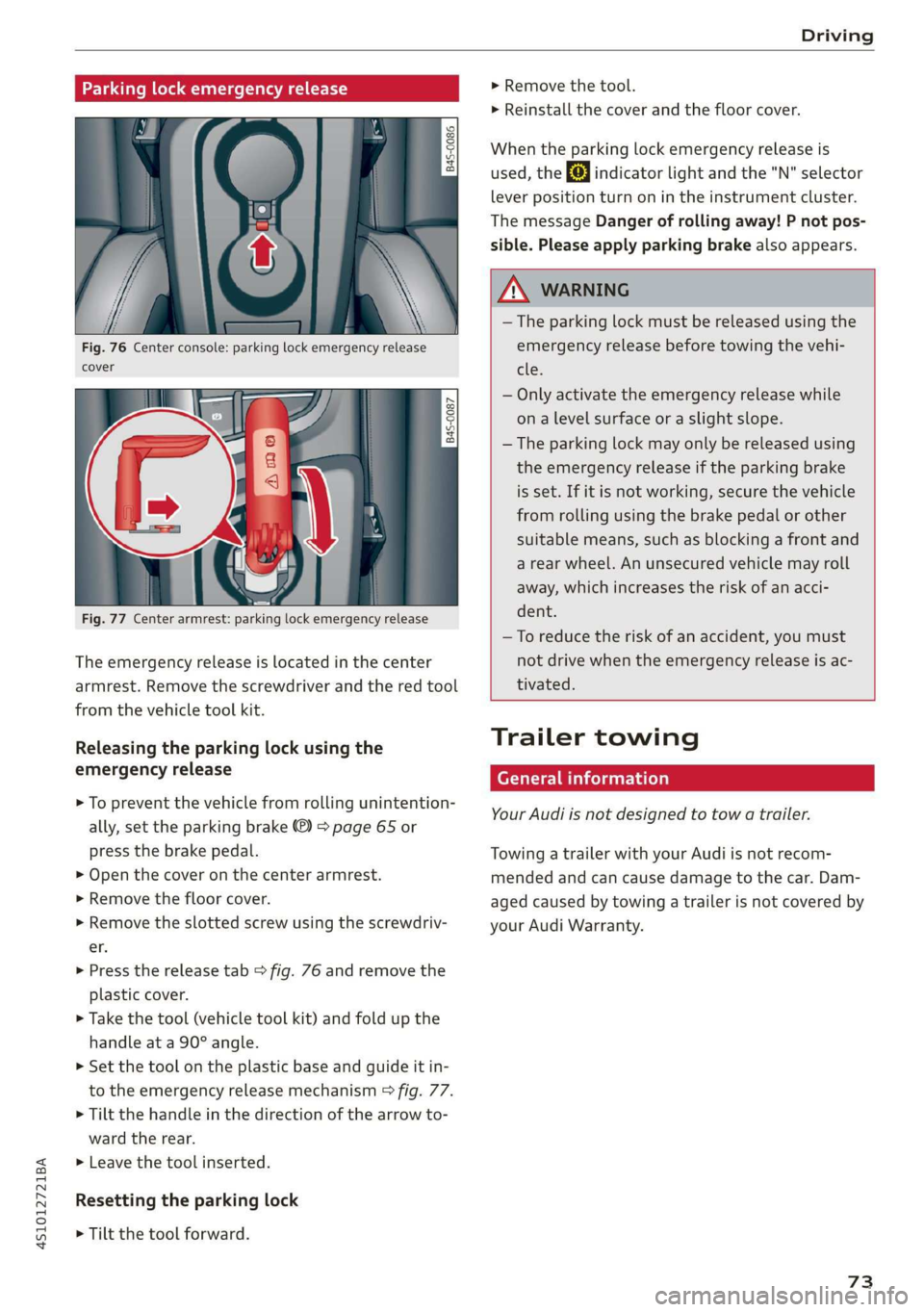
Fig. 76 Center console: parking lock emergency release
cover
[845-0087
|
Fig. 77 Center armrest: parking lock emergency release
The emergency release is located in the center
armrest. Remove the screwdriver and the red tool
from the vehicle tool kit.
Releasing the parking lock using the
emergency release
> To prevent the vehicle from rolling unintention-
ally, set the parking brake ®) > page 65 or
press the brake pedal.
> Open the cover on the center armrest.
> Remove the floor cover.
> Remove the slotted screw using the screwdriv-
er.
> Press the release tab > fig. 76 and remove the
plastic cover.
> Take the tool (vehicle tool kit) and fold up the
handle at a 90° angle.
>» Set the tool on the plastic base and guide it in-
to the emergency release mechanism > fig. 77.
> Tilt the handle in the direction of the arrow to-
ward the rear.
>» Leave the tool inserted.
Resetting the parking lock
> Tilt the tool forward.
> Remove the tool.
> Reinstall the cover and the floor cover.
When the parking lock emergency release is
used, the fs] indicator light and the "N" selector
lever position turn on in the instrument cluster.
The message Danger of rolling away! P not pos-
sible. Please apply parking brake also appears.
ZA WARNING
— The parking lock must be released using the
emergency release before towing the vehi-
tle.
— Only activate the emergency release while
ona level surface or a slight slope.
— The parking lock may only be released using
the emergency release if the parking brake
is set. If it is not working, secure the vehicle
from rolling using the brake pedal or other
suitable means, such as blocking a front and
a rear wheel. An unsecured vehicle may roll
away, which increases the risk of an acci-
dent.
—To reduce the risk of an accident, you must
not drive when the emergency release is ac-
tivated.
Trailer towing
General information
Your Audi is not designed to tow a trailer.
Towing a trailer with your Audi is not recom-
mended and can cause damage to the car. Dam-
aged caused by towing a trailer is not covered by
your Audi Warranty.
73
Page 84 of 308
Parking aid
Sensors are located in the front and rear bump-
ers. If these detect an obstacle, audible and visu-
al signals warn you.
Make sure the sensors are not covered by stick-
ers, deposits or any other obstructions as it may
impair the sensor function. For information on
cleaning, see > page 265.
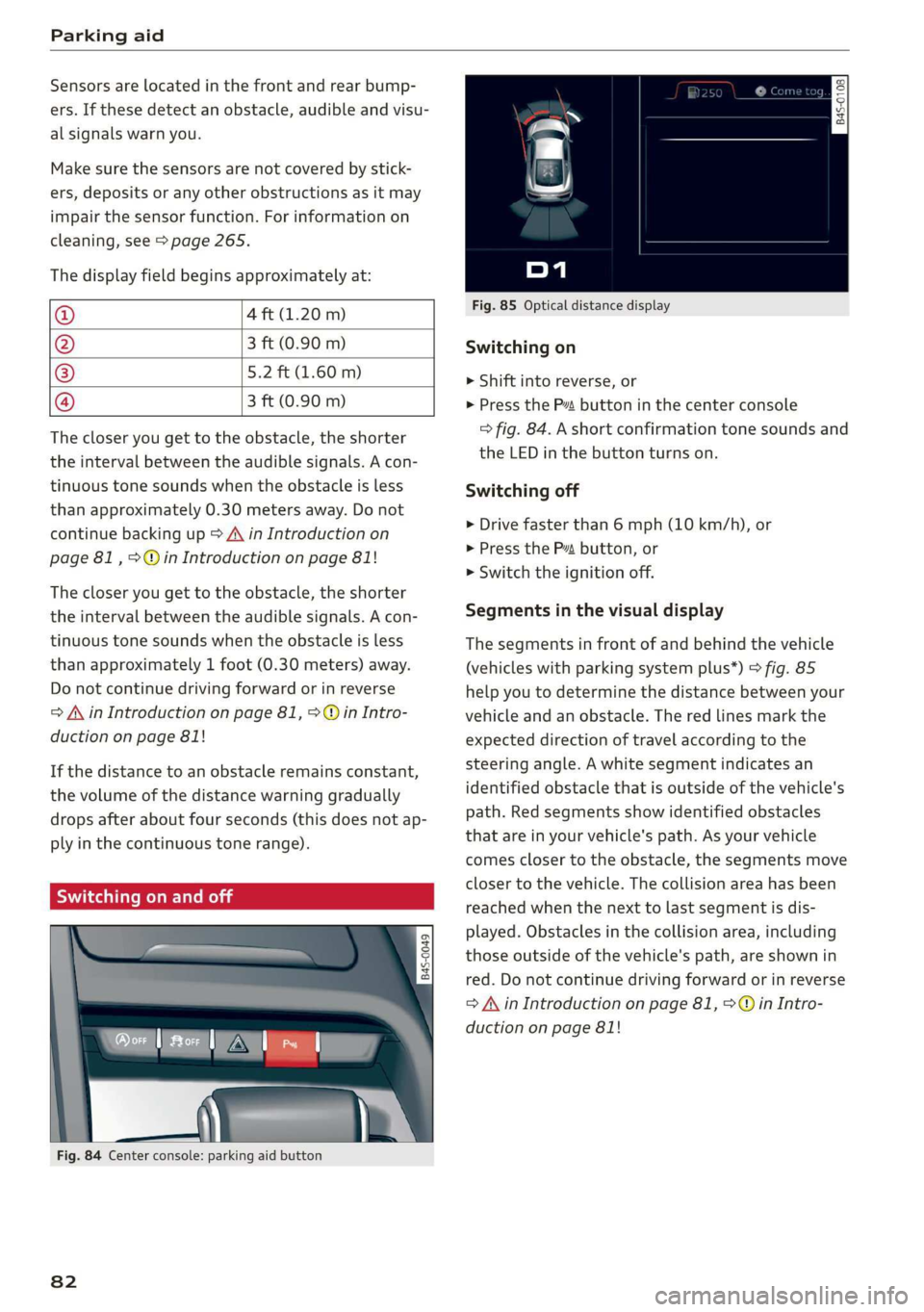
The display field begins approximately at:
@ 4 ft (1.20 m)
@ 3 ft (0.90 m)
® 5.2 ft (1.60 m)
@ 3 ft (0.90 m)
The closer you get to the obstacle, the shorter
the interval between the audible signals. A con-
tinuous tone sounds when the obstacle is less
than approximately 0.30 meters away. Do not
continue backing up > A\ in Introduction on
page 81, >Q@in Introduction on page 81!
The closer you get to the obstacle, the shorter
the interval between the audible signals. A con-
tinuous tone sounds when the obstacle is less
than approximately 1 foot (0.30 meters) away.
Do not continue driving forward or in reverse
=> A\ in Introduction on page 81, >@ in Intro-
duction on page 81!
If the distance to an obstacle remains constant,
the volume of the distance warning gradually
drops after about four seconds (this does not ap-
ply in the continuous tone range).
Scale ie mal
a z $
Ss
o = a
| _ ‘nN
Fig. 84 Center console: parking aid button
82
2 s
9
db = a
Fig. 85 Optical distance display
Switching on
> Shift into reverse, or
> Press the Pt button in the center console
> fig. 84. A short confirmation tone sounds and
the LED in the button turns on.
Switching off
> Drive faster than 6 mph (10 km/h), or
> Press the P74 button, or
> Switch the ignition off.
Segments in the visual display
The segments in front of and behind the vehicle
(vehicles with parking system plus*) > fig. 85
help you to determine the distance between your
vehicle and an obstacle. The red lines mark the
expected direction of travel according to the
steering angle. A white segment indicates an
identified obstacle that is outside of the vehicle's
path. Red segments show identified obstacles
that are in your vehicle's path. As your vehicle
comes closer to the obstacle, the segments move
closer to the vehicle. The collision area has been
reached when the next to last segment is dis-
played. Obstacles in the collision area, including
those outside of the vehicle's path, are shown in
red. Do not continue driving forward or in reverse
=> A\ in Introduction on page 81, > © in Intro-
duction on page 81!
Page 86 of 308
Parking aid
front of the vehicle swings out more than
the rear of the vehicle. Maintain plenty of
distance so that an exterior mirror or a cor-
ner of the vehicle does not collide with any
obstacles.
Scare Rie meal
Applies to: vehicles with rearview camera
Switching on
> Shift into reverse, or
> Press the Pt button in the center console
=> page 82, fig. 84. A short confirmation tone
sounds and the LED in the button turns on.
Switching off
> Drive faster than 6 mph (10 km/h), or
> Press the Pa button, or
> Switch the ignition off.
G) Tips
— The visual display in the left part of the dis-
play should help you detect the critical vehi-
cle areas.
— You can change the volume of the signals
and the display > page 84.
Perpendicular parking
Applies to: vehicles with rearview camera
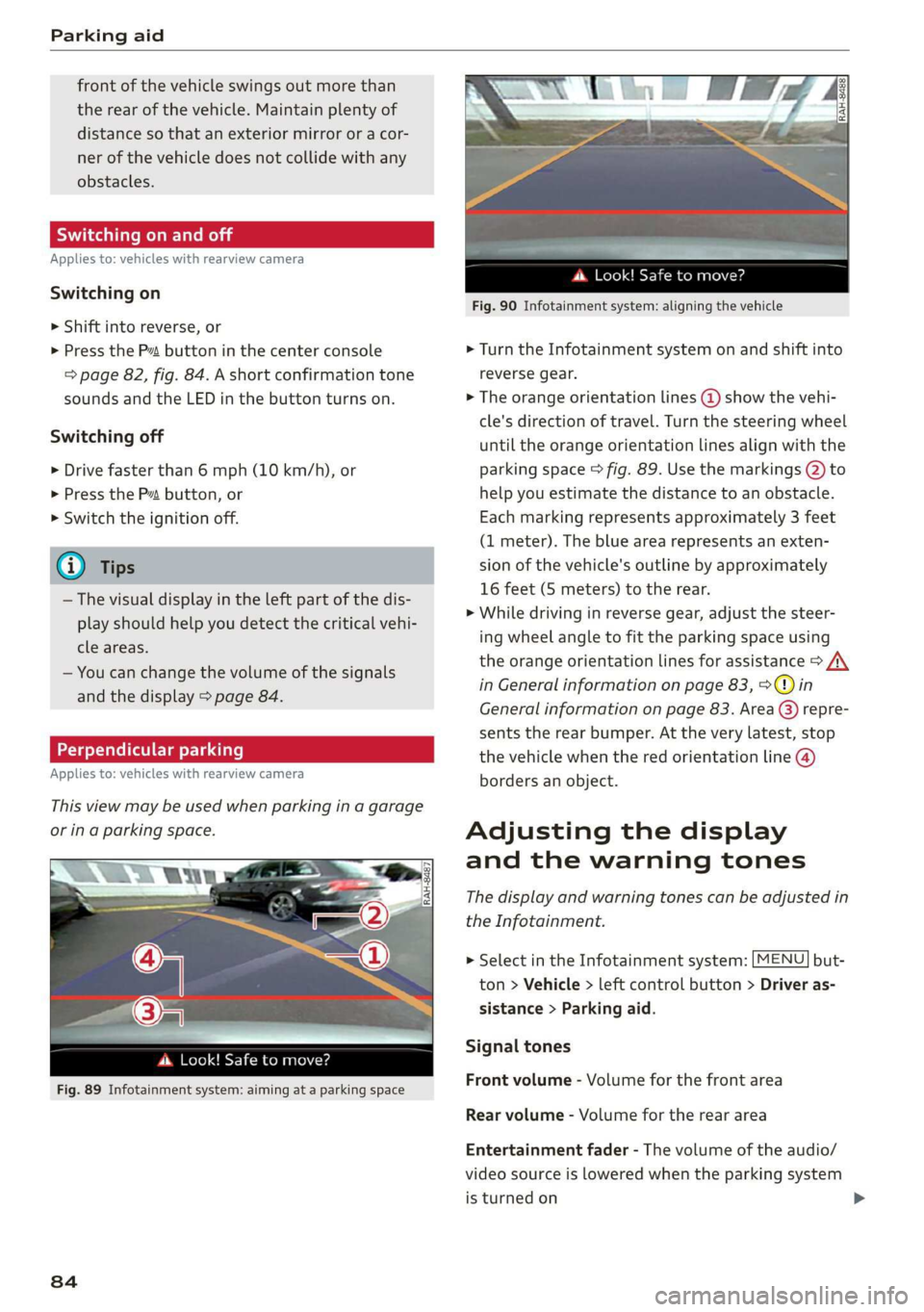
This view may be used when parking in a garage
or ina parking space.
(3)
4. Look! Safe to move?
Fig. 89 Infotainment system: aiming at a parking space
84
ds. Look! Safe to move?
Fig. 90 Infotainment system: aligning the vehicle
> Turn the Infotainment system on and shift into
reverse gear.
> The orange orientation lines @ show the vehi-
cle's direction of travel. Turn the steering wheel
until the orange orientation lines align with the
parking space > fig. 89. Use the markings @ to
help you estimate the distance to an obstacle.
Each marking represents approximately 3 feet
(1 meter). The blue area represents an exten-
sion of the vehicle's outline by approximately
16 feet (5 meters) to the rear.
> While driving in reverse gear, adjust the steer-
ing wheel angle to fit the parking space using
the orange orientation lines for assistance > A\
in General information on page 83, >@) in
General information on page 83. Area () repre-
sents the rear bumper. At the very latest, stop
the vehicle when the red orientation line @
borders an object.
Adjusting the display
and the warning tones
The display and warning tones can be adjusted in
the Infotainment.
> Select in the Infotainment system: [MENU] but-
ton > Vehicle > left control button > Driver as-
sistance > Parking aid.
Signal tones
Front volume - Volume for the front area
Rear volume - Volume for the rear area
Entertainment fader - The volume of the audio/
video source is lowered when the parking system
is turned on
Page 89 of 308
4S1012721BA
Intelligent Technology
— Accelerate carefully when driving on condition. Different tire sizes can lead toa
smooth, slippery surfaces such as ice and reduction in engine power.
snow. The drive wheels can spin even when — You may hear noises when the systems de-
these control systems are installed and this scribed are working.
can affect driving stability and increase the
risk of a collision.
@) Tips
— The ABS and ASR only function correctly
when all four wheels have a similar wear
Sic melal
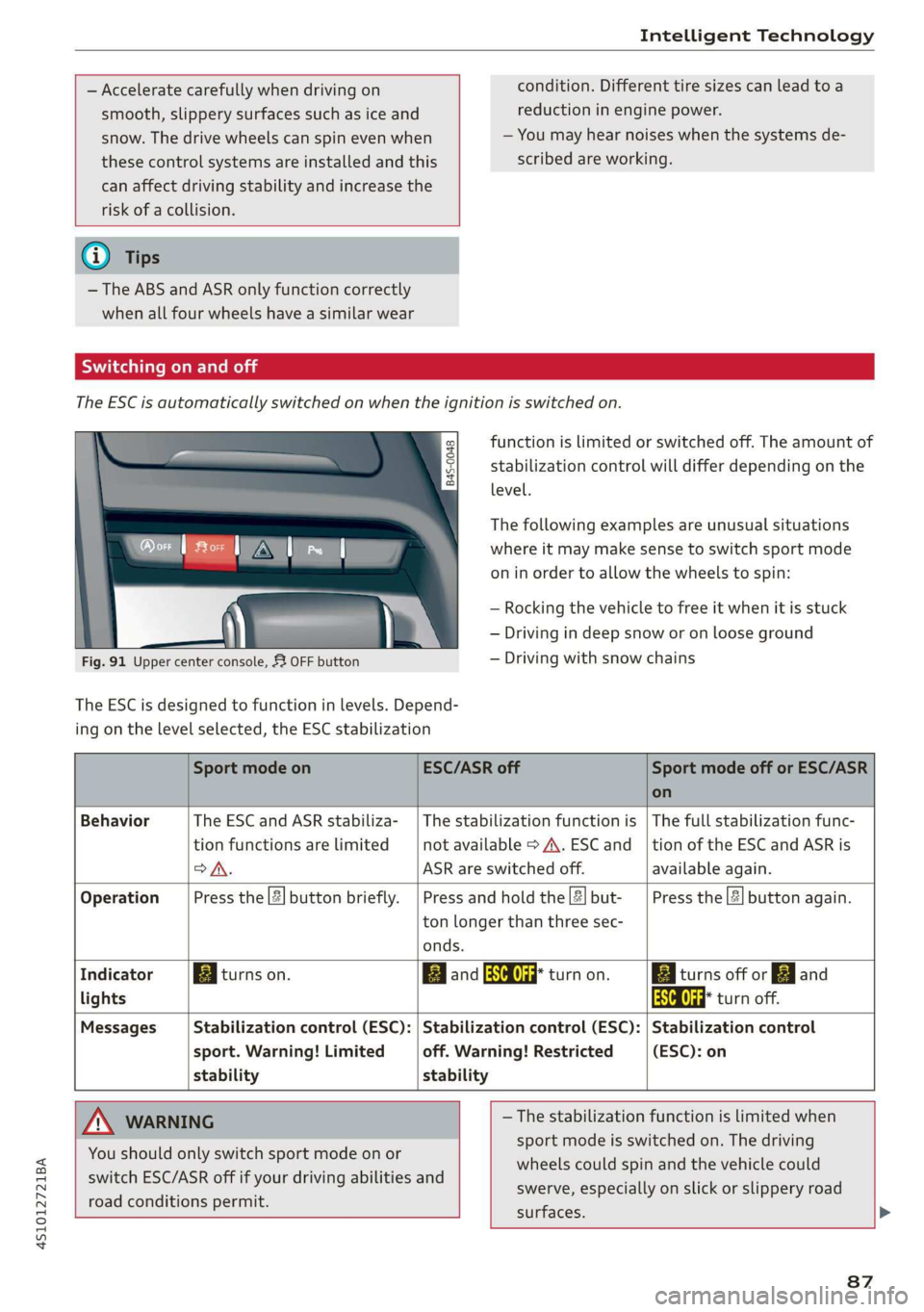
The ESC is automatically switched on when the ignition is switched on.
function is limited or switched off. The amount of
stabilization control will differ depending on the
level.
The following examples are unusual situations
where it may make sense to switch sport mode
on in order to allow the wheels to spin:
— Rocking the vehicle to free it when it is stuck
— Driving in deep snow or on loose ground
Fig. 91 Upper center console, 53 OFF button — Driving with snow chains
The ESC is designed to function in levels. Depend-
ing on the level selected, the ESC stabilization
Sport mode on ESC/ASR off Sport mode off or ESC/ASR
on
Behavior The ESC and ASR stabiliza- | The stabilization function is | The full stabilization func-
tion functions are limited not available > A\. ESC and__| tion of the ESC and ASR is
>A. ASR are switched off. available again.
Operation Press the |#| button briefly. | Press and hold the|#|but- | Press the || button again.
ton longer than three sec-
onds.
Indicator Egiturns on. Band ead turn on. Egliturns off or gj and
lights aa turn off.
Messages Stabilization control (ESC): | Stabilization control (ESC): | Stabilization control
sport. Warning! Limited off. Warning! Restricted (ESC): on
stability stability
A WARNING — The stabilization function is limited when
sport mode is switched on. The driving
wheels could spin and the vehicle could
swerve, especially on slick or slippery road
surfaces.
You should only switch sport mode on or
switch ESC/ASR off if your driving abilities and
road conditions permit.
87
Page 92 of 308
Intelligent Technology
snow and ice. Always read and follow safety pre-
cautions > A\.
Winter tires
By using all wheel drive, your vehicle has good
forward motion with standard tires in winter con-
ditions. However, in winter we recommend using
winter or all season tires on all four wheels, be-
cause this will improve the braking effect.
Snow chains
If there are snow chain laws, snow chains must
also be used on vehicles with all wheel drive
= page 259, Snow chains.
ZA WARNING
— Also, in vehicles with all wheel drive, adapt
your driving style to the current road and
traffic conditions. Do not let the increased
safety provided tempt you into taking risks,
because this increases the risk of an acci-
dent.
— The braking ability of your vehicle is limited
to the traction of the wheels. In this way, it
is not different from a two wheel drive vehi-
cle. Do not be tempted to accelerate toa
high speed when the road is slippery, be-
cause this increases the risk of an accident.
— Note that on wet streets, the front wheels
can “hydroplane” if driving at speeds that
are too high. Unlike front wheel drive vehi-
cles, the engine RPM does not increase sud-
denly when the vehicle begins hydroplaning.
For this reason, adapt your speed to the
road conditions to reduce the risk of an acci-
dent.
90
Rear spoiler
Applies to: vehicles with retractable rear spoiler
The extendable rear spoiler increases driving sta-
bility.
5 =
S $
db + a
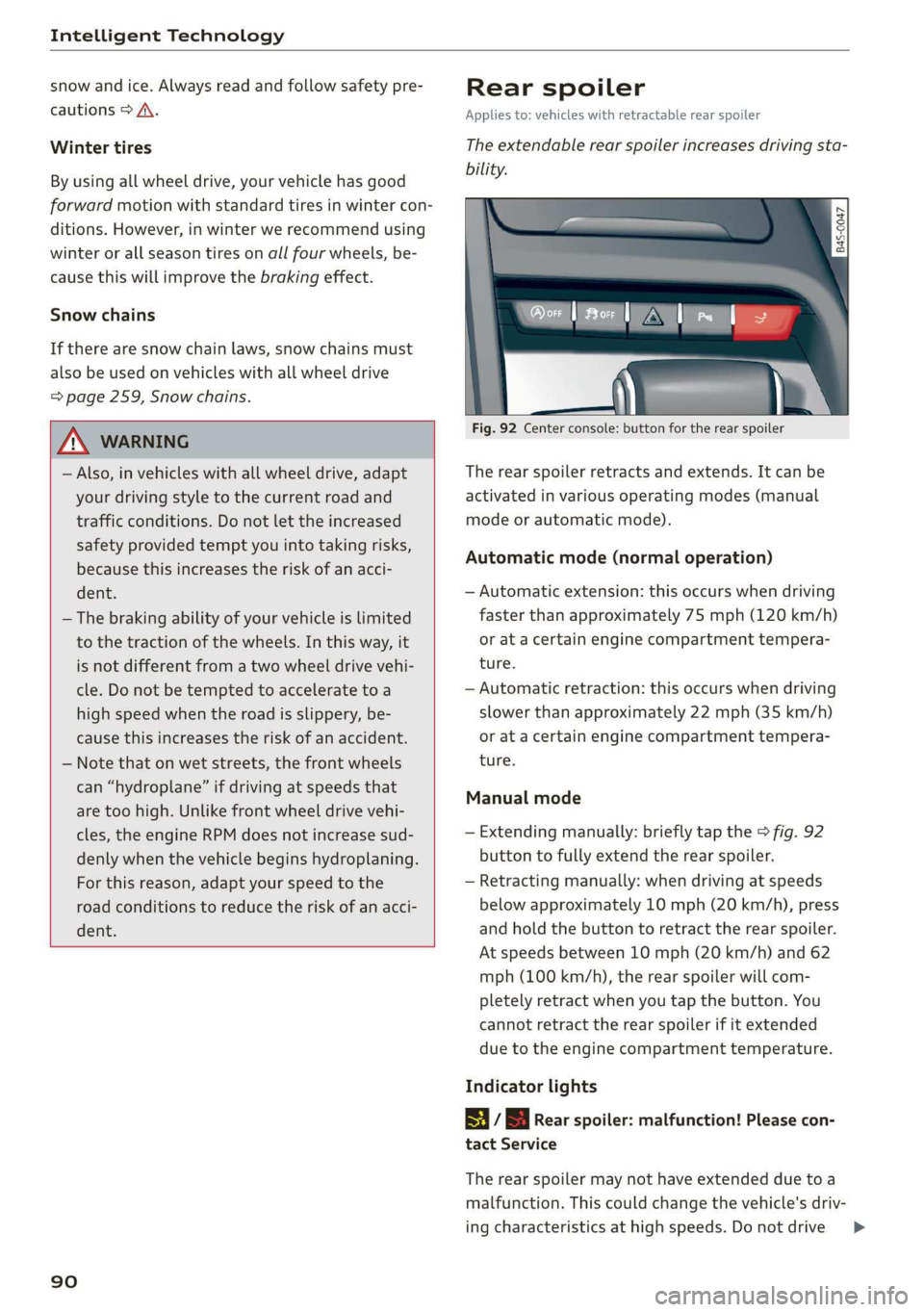
Fig. 92 Center console: button for the rear spoiler
The rear spoiler retracts and extends. It can be
activated in various operating modes (manual
mode or automatic mode).
Automatic mode (normal operation)
— Automatic extension: this occurs when driving
faster than approximately 75 mph (120 km/h)
or at a certain engine compartment tempera-
ture.
— Automatic retraction: this occurs when driving
slower than approximately 22 mph (35 km/h)
or at a certain engine compartment tempera-
ture.
Manual mode
— Extending manually: briefly tap the > fig. 92
button to fully extend the rear spoiler.
— Retracting manually: when driving at speeds
below approximately 10 mph (20 km/h), press
and hold the button to retract the rear spoiler.
At speeds between 10 mph (20 km/h) and 62
mph (100 km/h), the rear spoiler will com-
pletely retract when you tap the button. You
cannot retract the rear spoiler if it extended
due to the engine compartment temperature.
Indicator lights
| / S Rear spoiler: malfunction! Please con-
tact Service
The rear spoiler may not have extended due toa
malfunction. This could change the vehicle's driv-
ing characteristics at high speeds. Do not drive >
Page 114 of 308
Telephone
secondary phone. You can be reached in your ve-
hicle through both cell phones.
The first connected cell phone is displayed as the
primary phone in the MMI. The second cell phone
is connected as the secondary phone.
The directory from the connected primary phone
will always be displayed. If you would like to use
the directory from the secondary phone, you
must switch the primary and secondary phone
=> page 112.
Connecting a cell phone as the primary
phone
Connect your cell phone to the MMI via Blue-
tooth. The first connected cell phone is displayed
as the Primary phone in the MMI.
See > page 110, Connecting a cell phone using
Bluetooth.
Connecting a cell phone as the secondary
phone
Requirement: a cell phone must be connected to
the MMI as the primary phone.
Select: [MENU] button > Telephone > right con-
trol button > Connect secondary telephone.
See > page 110, Connecting a cell phone using
Bluetooth.
Example: you have connected your business cell
phone to the MMI as the primary phone and your
private cell phone as the secondary phone. To be
able to call contacts from your private cell phone
directory, you must switch the primary and sec-
ondary phone, since the directory from the pri-
mary phone is always displayed.
Switching the primary and secondary phone
Requirement: a primary phone and a secondary
phone must be connected.
Select: [MENU] button > Telephone > right con-
trol button > Switch primary and second. phone.
Gi) Tips
— Please note that only the directory from the
primary phone is always displayed.
112
— You can see if a cell phone is connected as
the primary phone or secondary phone in
the Connection manager > page 168.
— The device name of the connected primary
phone is shown in the Telephone menu
(such as myPhone).
— If the primary phone does not connect auto-
matically to the MMI when the ignition is
switched on, for example because it is out
of the vehicle range or the Bluetooth func-
tion is switched off, then a previously paired
secondary phone is automatically connected
as the primary phone.
— You can send and receive messages on your
primary phone as well as on your secondary
phone > page 114, fig. 111. You do not
need to switch your primary phone and sec-
ondary phone for this.
— You can also make your connected cell
phone the default phone by selecting Set as
default telephone in the Connection man-
ager > page 169.
Using the Audi phone
box
Applies to: vehicles with Audi phone box
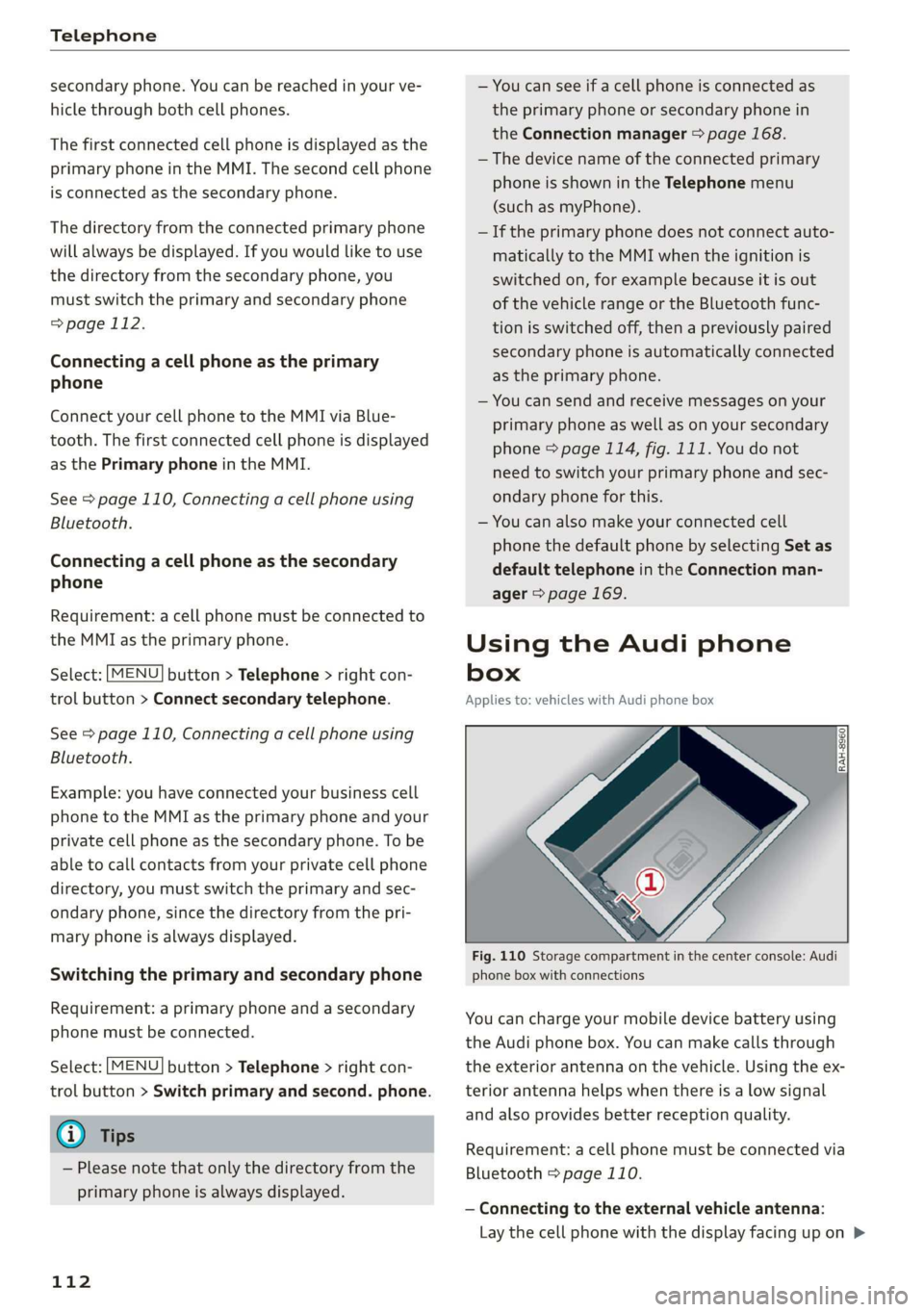
Fig. 110 Storage compartment in the center console: Audi
phone box with connections
You can charge your mobile device battery using
the Audi phone box. You can make calls through
the exterior antenna on the vehicle. Using the ex-
terior antenna helps when there is a low signal
and also provides better reception quality.
Requirement: a cell phone must be connected via
Bluetooth > page 110.
— Connecting to the external vehicle antenna:
Lay the cell phone with the display facing up on >
Page 158 of 308
Media
ONC mata le)
Applies to: vehicles with Audi music interface
RAH-8345|
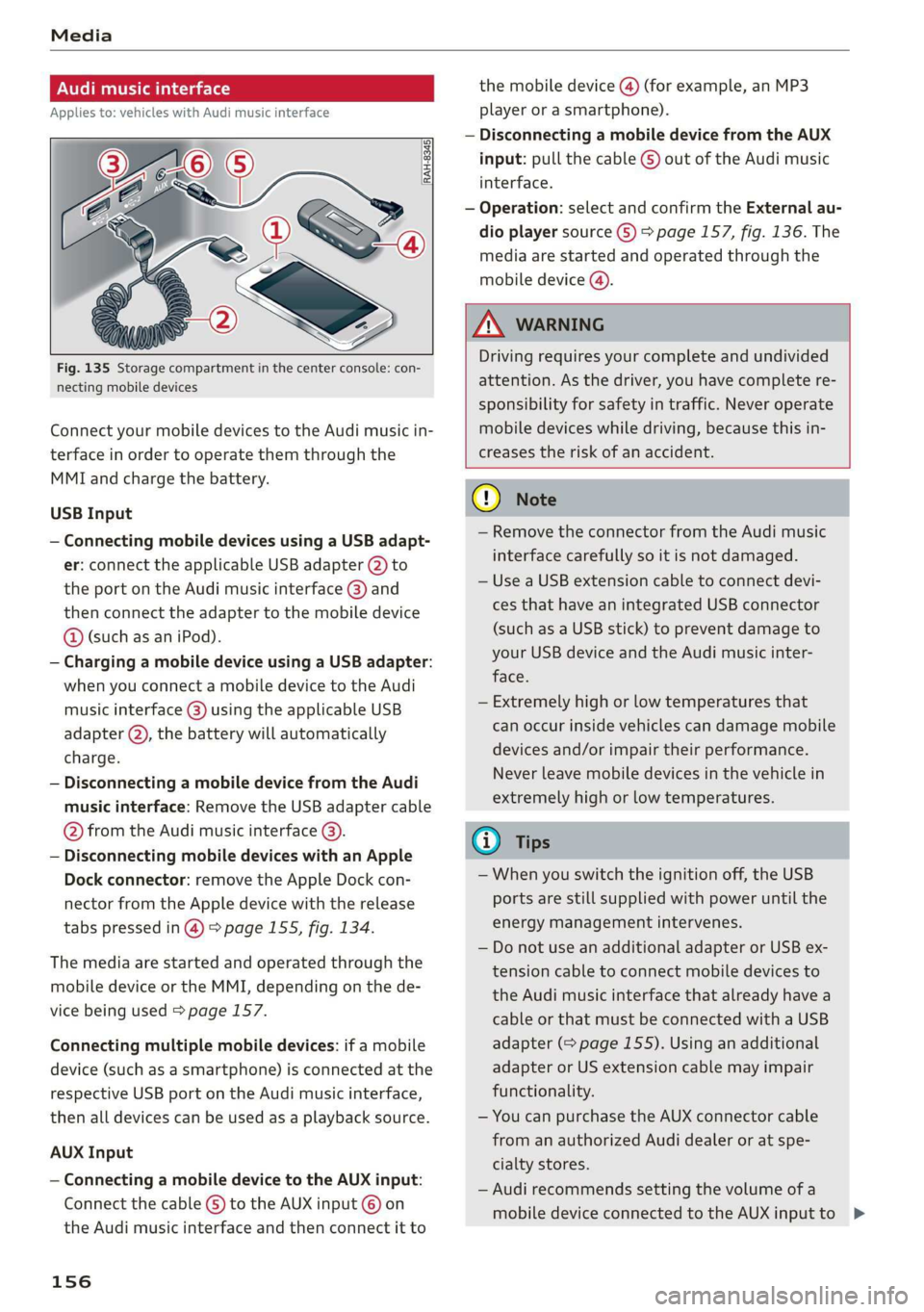
Fig. 135 Storage compartment in the center console: con-
necting mobile devices
Connect your mobile devices to the Audi music in-
terface in order to operate them through the
MMI and charge the battery.
USB Input
— Connecting mobile devices using a USB adapt-
er: connect the applicable USB adapter @) to
the port on the Audi music interface @) and
then connect the adapter to the mobile device
@ (such as an iPod).
— Charging a mobile device using a USB adapter:
when you connect a mobile device to the Audi
music interface @) using the applicable USB
adapter @), the battery will automatically
charge.
— Disconnecting a mobile device from the Audi
music interface: Remove the USB adapter cable
@ from the Audi music interface @).
— Disconnecting mobile devices with an Apple
Dock connector: remove the Apple Dock con-
nector from the Apple device with the release
tabs pressed in @) > page 155, fig. 134.
The media are started and operated through the
mobile device or the MMI, depending on the de-
vice being used > page 157.
Connecting multiple mobile devices: if a mobile
device (such as a smartphone) is connected at the
respective USB port on the Audi music interface,
then all devices can be used as a playback source.
AUX Input
— Connecting a mobile device to the AUX input:
Connect the cable G) to the AUX input © on
the Audi music interface and then connect it to
156
the mobile device @) (for example, an MP3
player or a smartphone).
— Disconnecting a mobile device from the AUX
input: pull the cable G) out of the Audi music
interface.
— Operation: select and confirm the External au-
dio player source G) > page 157, fig. 136. The
media are started and operated through the
mobile device (@).
Z\ WARNING
Driving requires your complete and undivided
attention. As the driver, you have complete re-
sponsibility for safety in traffic. Never operate
mobile devices while driving, because this in-
creases the risk of an accident.
(1) Note
— Remove the connector from the Audi music
interface carefully so it is not damaged.
— Use a USB extension cable to connect devi-
ces that have an integrated USB connector
(such as a USB stick) to prevent damage to
your USB device and the Audi music inter-
face.
— Extremely high or low temperatures that
can occur inside vehicles can damage mobile
devices and/or impair their performance.
Never leave mobile devices in the vehicle in
extremely high or low temperatures.
@) Tips
— When you switch the ignition off, the USB
ports are still supplied with power until the
energy management intervenes.
— Do not use an additional adapter or USB ex-
tension cable to connect mobile devices to
the Audi music interface that already have a
cable or that must be connected with a USB
adapter (= page 155). Using an additional
adapter or US extension cable may impair
functionality.
— You can purchase the AUX connector cable
from an authorized Audi dealer or at spe-
cialty stores.
— Audi recommends setting the volume of a
mobile device connected to the AUX inputto >
Page 293 of 308
4S1012721BA
A
A/C (climate control system) .............. 57
ACCESSOFICES .. 0... ee eee eee 53, 286
Active rollover protection system......... 177
Retracting rollover protection.......... 178
Adaptive light. ......... 0.0.0 cece ee eee 78
Adaptive light (indicator light) ............ 20
Adjusting the additional display........... 14
Adjusting the air distribution............. 57
Adjusting the center console lighting....... 45
Adjusting the sound..............-.0005 171
Adjusting the temperature............... 57
Advanced Airbag System
Gilde mcesc « » asc «a aren os aoeuem so wweecn 2 213
Components. .......... 000s eee eee aes 194
Front airbags............-. cee eee eee 192
How the components work together..... 196
AirbaGion < + says + © wows so wwe ¢ ome 2 ee 187
Tindieator Light wisi «2 vesrevs & x covsens xo enenom « © 17
Airbag’system « «wees + wae ws saver 0 6 asseee 206
Advanced Airbag System............... 191
Cal Giccc s 2 wees & 2 ween Fs eee Fe eeeS Ee 201
Childtrestraints.« « wwivcw 2 3 seowws v2 meow 2 wees 213
Components (front airbags)...........- 194
Danger of fitting a child safety seat on the
front passenger seat..............000. 188
Disposal... .. 0.0... cee eee eee ee eee 201
Front airbags.............. eee eee eee 191
How do the front airbags work?......... 196
How many airbags does my vehicle have?. 194
Important information................ 187
Important safety instructions on the knee
AiKbaAgIsyStEMMs « sasssus ss assis wo snenace a o wr 204
Knee airbags...........-..00--00 eee 202
MONITORING saves « = cezge a 2 eae Fe Qa ez ee 198
PASSENGER AIR BAG light............. 199
Repairs... 06... eee eee 201
Safety Instructions. << veces eewe se ree 200
Siderairbags’. « «sic. ci ewan x + cece « eecee 204
Side curtain airbags...............000. 207
Warning/Indicator lights.............. 198
When must the system be inspected?.... 198
Alarm system
refer to Anti-theft alarm system.......... 26
Alignment pin (tire changing) ............ 271,
All-weather lights ......... 0.0.0 c eee eeee 40
AlUS@aSON TINCS secs es eos ee were © o meee we 259
Allwheel drive wicou. 6 neva ss eswa ev eve oe 89
All wheel drive (indicator light)............ 20
Alternative routes ........ceseceeeeeees 138
AMBIENCE UGH se + 3 eee s saves @ 8 Hee GE He 45
AMI
refer to Audi music interface....... 155,156
Android Auto
refer to Audi smartphone interface...... 165
Announcements (settings)
refer to Voice guidance................ 138
Anti-freeze
Windshield washer system............. 242
Anti-lock braking system (ABS)............ 86
Anti-Slip Regulation................00 00 86
Anti-theft alarmrsyster «voces so eons « « wie © 26
Anti-theft wheel bolts...............04. 274
Apple CarPlay
refer to Audi smartphone interface...... 165
APM ests: sssaws « «arene 6 acca vo wescene a @ esesess oe 52
Aspect ratio (Wide0) sess « . icews « 6 naews o 0 ve 160
ASR
refer to Anti-Slip Regulation............. 86
Audi connect
refertoconnect...................005 124
Audi connect Infotainment
Personal hotspot « vss s cease ss eeu s coer 125
Services overvieW...........0000000 ee 127
Audi magnetic ride
refer to Suspension control.............. 78
Audi music interface................0-- 155
Audi music stream
refer to Wi-Fi...........00200 ee 129, 153
Audio files... 0.02... cece eee ee eee 157
Audio player
Bluetooth audio player................ 153)
Wi-Fi audio player....... 0... cee cece ee 153
Audio track. ......... 0.00 e eee eee ee 160
Audi phone box.............-.000 ee eee 112
Audi smartphone interface.......... 165, 169
Audi virtual cockpit
refer to Instrument cluster.............. 10
AUTO
Automatic climate control system........ 57
Automatic headlights.................. 40
Auto Lock (central locking) ............... 21.