ad blue AUDI R8 COUPE 2020 Owner's Manual
[x] Cancel search | Manufacturer: AUDI, Model Year: 2020, Model line: R8 COUPE, Model: AUDI R8 COUPE 2020Pages: 308, PDF Size: 82.41 MB
Page 159 of 308
4S1012721BA
Media
approximately 70% of the maximum vol-
ume.
— Functionality is not guaranteed for mobile
devices that do not conform to the USB 2.0
specification.
— USB hubs are not supported.
— Some versions of the iPod such as the iPod
shuffle cannot be connected to the USB
adapter
for devices with Apple Dock connec-
tor. Connect these devices using a AUX con-
nector cable.
— Video playback through the Audi music in-
terface is only supported if the connected
device is recognized as a USB storage device
(for example a USB stick). Apple devices and
MTP devices (such as smartphones) are not
recognized as USB storage devices.
— iPod or iPhone malfunctions also affect the
operation of the MMI. Reset your iPod or
iPhone if this happens.
— For important information on operating
your iPod or iPhone, refer to the user guide
for the device. Audi recommends updating
the iPod or iPhone software to the latest
version.
— For more information about the Audi music
interface and supported devices, check the
Audi database for mobile devices at www.
audiusa.com/mp3 or contact an authorized
Audi dealer or authorized Audi Service Fa-
cility.
Playing media
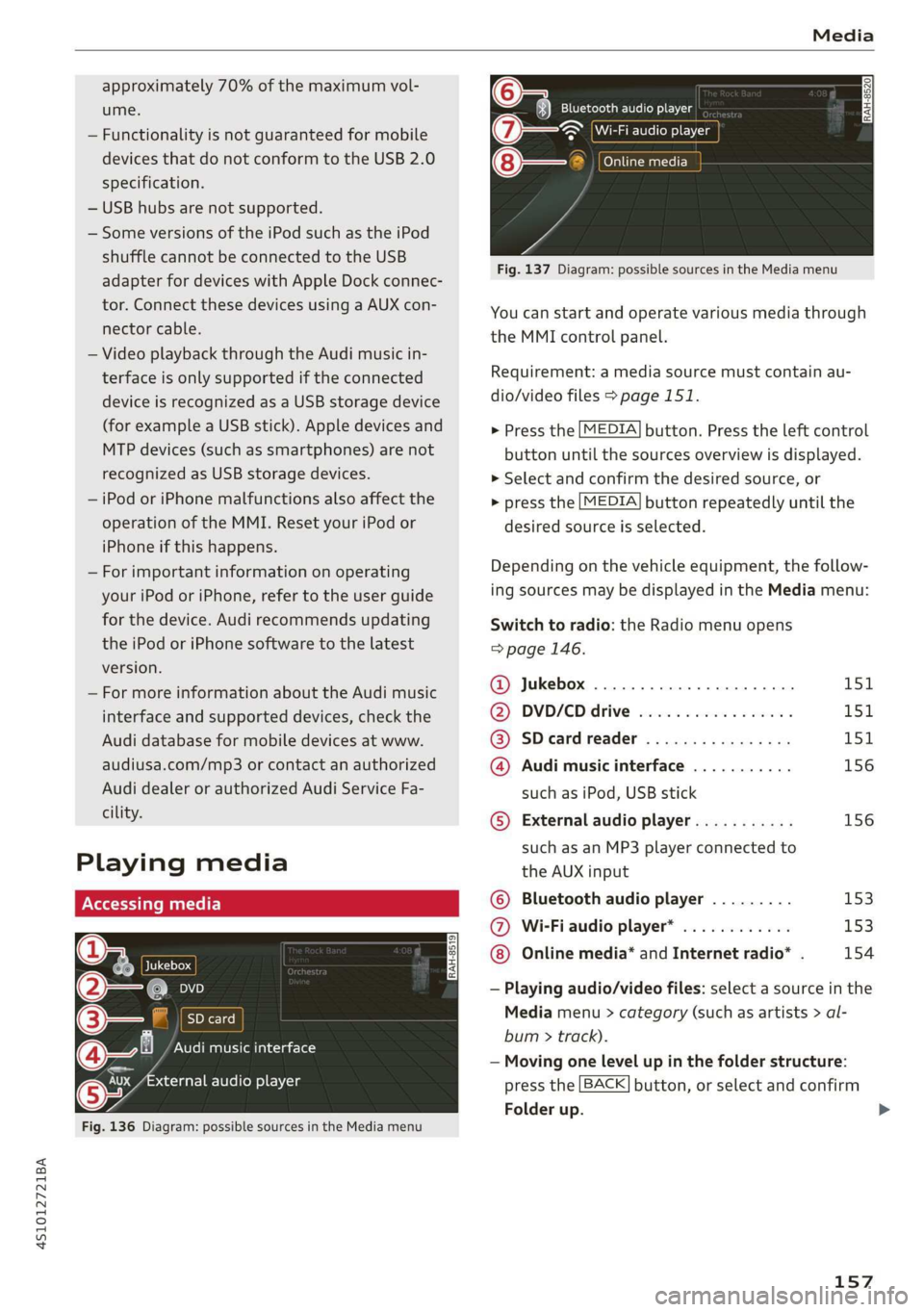
@ Jukebox
@—e an
©— SD card
@Q— Audi music interface
aa audio player
Fig. 136 Diagram: possible sources in the Media menu
Bluetooth audio player
~ Wi-Fi audio player
@— Online media
a
Fig. 137 Diagram: possible sources in the Media menu
You can start and operate various media through
the MMI control panel.
Requirement: a media source must contain au-
dio/video files > page 151.
> Press the [MEDIA] button. Press the left control
button until the sources overview is displayed.
> Select and confirm the desired source, or
> press the [MEDIA] button repeatedly until the
desired source is selected.
Depending on the vehicle equipment, the follow-
ing sources may be displayed in the Media menu:
Switch to radio: the Radio menu opens
=> page 146.
@ Jukebox ..................000. 151
@ DVD/€D drive esse 2 2 cscs es wees L5SiL
@ SDeardreader ................ 151
@ Audi music interface ........... 156
such as iPod, USB stick
© External audio player........... 156
such as an MP3 player connected to
the AUX input
© Bluetooth audio player ......... 153
@ Wi-Fiaudio player* ............ 153
Online media* and Internet radio* . 154
— Playing audio/video files: select a source in the
Media menu > category (such as artists > al-
bum > track).
— Moving one level up in the folder structure:
press the [BACK] button, or select and confirm
Folder up.
157
Page 162 of 308
Media
You can store up to 50 entries for each source in
the favorites list.
Requirement: the playlist or media center must
be open.
— Select the desired entry from the playlist or
media center.
— Select: right control button > Store as favorite,
or press and hold the control knob for several
seconds.
When you store a track as a favorite, the associat-
ed album will appear in the favorites list as an
entry.
Requirement: at least one entry must be stored
in the favorites list.
Displaying the favorites list: press the [MEDIA
button. Press the left control button until the
sources overview > page 157 is displayed. Select
the source that contains the categories
=> page 158 (for example, SD card). Select the Fa-
vorites category.
Requirement: the favorites list must be dis-
played.
— Listening to a favorite: select and confirm an
entry from the favorites list.
— Move favorite: select the desired entry from
the favorites list. Select the right control but-
ton > Move favorite. Select and confirm the de-
sired favorites location.
— Deleting a favorite: select the desired entry
from the favorites list. Select the right control
button > Delete favorite > Delete this favorite
or Delete all favorites.
Additional settings
Context-specific functions and settings are avail-
able depending on the selected source.
> Press the right control button.
D_ The function automatically switches off when the source is
changed.
160
Sound settings
See > page 171.
Input level
Requirement: a mobile device must be connected
to the AUX connection cable or to a USB adapter
=>page 155.
The volume of the mobile device is adapted to
the MMI. Audi recommends adjusting the volume
on the mobile device to 70% of the maximum
volume output.
Bluetooth settings
See > page 169.
Wi-Fi settings
See > page 129, Wi-Fi settings.
Connection manager
See > page 168.
Show "Now Playing" screen
With the function switched on ¥ and a playlist
open, various information about the current track
(such as artist, album and album cover*) as well
as the playing time and the remaining playing
time are displayed.
Jukebox memory capacity
Information on the Jukebox memory capacity and
the number of stored tracks in the Jukebox is dis-
played.
Rewind/Fast forward
Turn the control knob to the left or right, or move
your finger on the MMI touch control pad from
the left to the right.
Shuffle»)
With the function switched on, all files in the
playlist are played and shown in random order.
Repeat track)
When the function is switched on M, the current
track repeats.
Page 165 of 308
4S1012721BA
Media
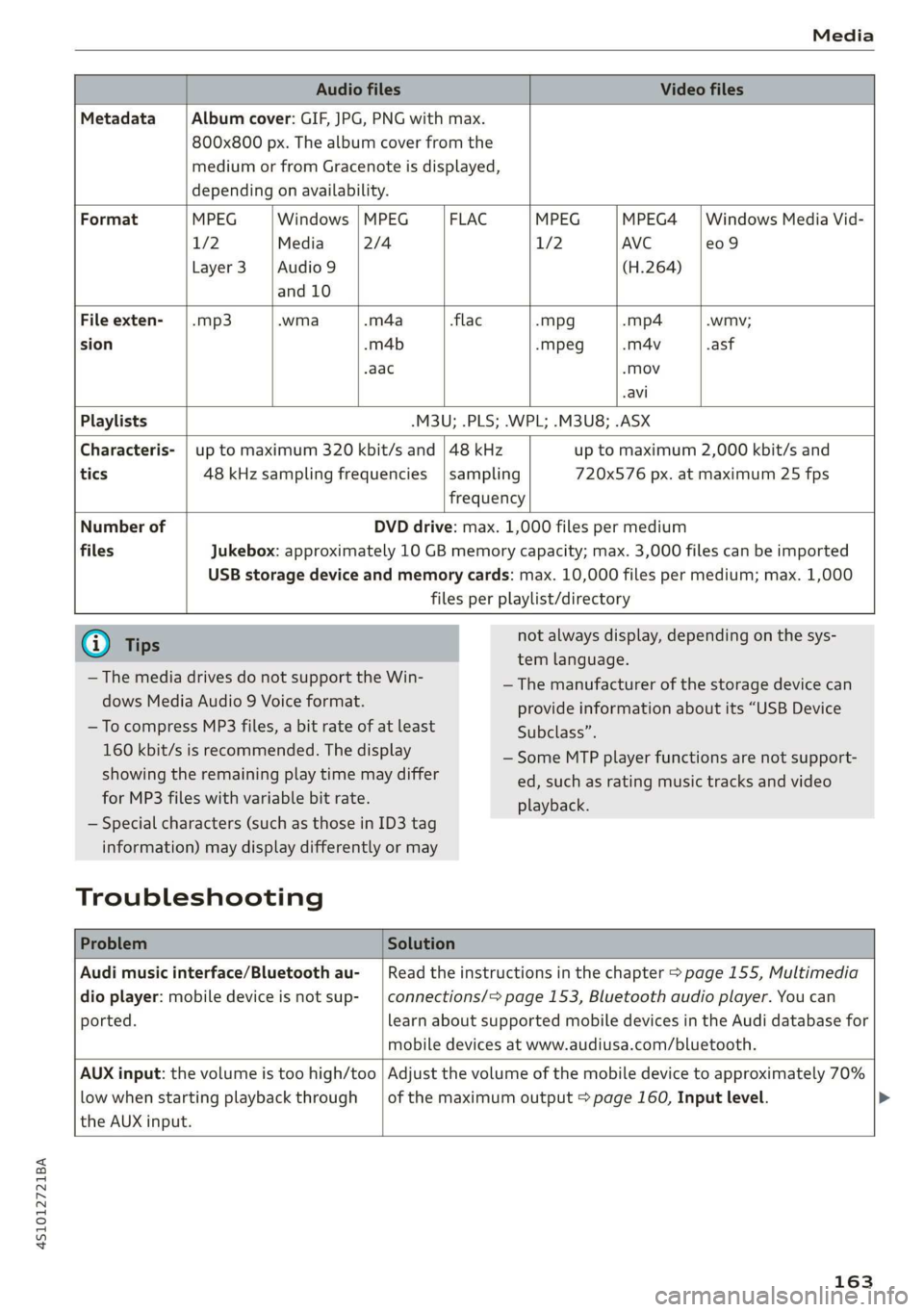
Audio files Video files
Metadata Album cover: GIF, JPG, PNG with max.
800x800 px. The album cover from the
medium or from Gracenote is displayed,
depending on availability.
Format MPEG Windows |MPEG FLAC MPEG MPEG4 | Windows Media Vid-
1/2 Media 2/4 1/2 AVC e09
Layer3 |Audio9 (H.264)
and 10
File exten- | .mp3 -wma -m4a flac -mpg -mp4 .wmv;
sion -m4b -mpeg -m4v .asf
.aac -Mov
-avi
Playlists -M3U; .PLS; .WPL; .M3U8; .ASX
Characteris- | up to maximum 320 kbit/s and | 48 kHz up to maximum 2,000 kbit/s and
tics 48 kHz sampling frequencies | sampling 720x576 px. at maximum 25 fps
frequency
Number of
files
DVD drive: max.
Jukebox: approximately 10 GB memory capacity; max. 3,000 files can be imported
USB storage device and memory cards: max. 10,000 files per medium; max. 1,000
files per playlist/directory
1,000 files per medium
G) Tips
— The media drives do not support the Win-
dows Media Audio 9 Voice format.
— To compress MP3 files, a bit rate of at least
160 kbit/s i s recommended. The display
showing the remaining play time may differ
for MP3 files with variable bit rate.
— Special characters (such as those in ID3 tag
information) may display differently or may
Trouble shooting
not always display, depending on the sys-
tem language.
— The manufacturer of the storage device can
provide information about its “USB Device
Subclass”.
— Some MTP player functions are not support-
ed, such as rating music tracks and video
playback.
Problem Solution
Audi music interface/Bluetooth au-
dio player: mobile device is not sup- | connections/>
ported.
mobile devices
Read the instructions in the chapter > page 155, Multimedia
learn about supported mobile devices in the Audi database for
page 153, Bluetooth audio player. You can
at www.audiusa.com/bluetooth.
AUX input: the volume is too high/too
low when starting playback through
the AUX input.
Adjust the volume of the mobile device to approximately 70%
of the maximum output > page 160, Input level. >
163
Page 166 of 308
Media
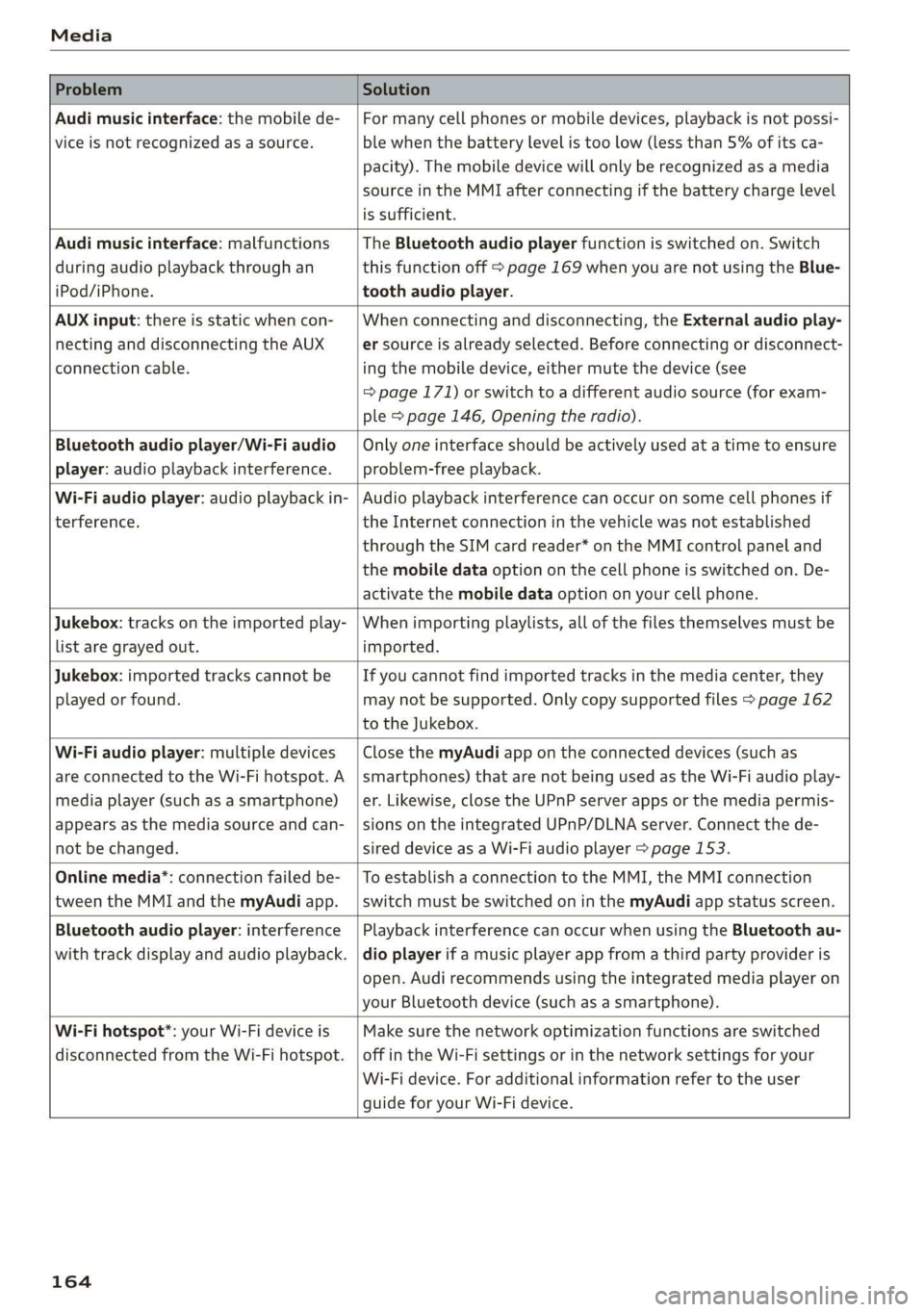
Problem Solution
Audi music interface: the mobile de-
vice is not recognized as a source.
For many cell phones or mobile devices, playback is not possi-
ble when the battery level is too low (less than 5% of its ca-
pacity). The mobile device will only be recognized as a media
source in the MMI after connecting if the battery charge level
is sufficient.
Audi music interface: malfunctions
during audio playback through an
iPod/iPhone.
The Bluetooth audio player function is switched on. Switch
this function off > page 169 when you are not using the Blue-
tooth audio player.
AUX input: there is static when con-
necting and disconnecting the AUX
connection cable.
When connecting and disconnecting, the External audio play-
er source is already selected. Before connecting or disconnect-
ing the mobile device, either mute the device (see
=> page 171) or switch to a different audio source (for exam-
ple > page 146, Opening the radio).
Bluetooth audio player/Wi-Fi audio
player: audio playback interference.
Only one interface should be actively used at a time to ensure
problem-free playback.
Wi-Fi audio player: audio playback in-
terference.
Audio playback interference can occur on some cell phones if
the Internet connection in the vehicle was not established
through the SIM card reader* on the MMI control panel and
the mobile data option on the cell phone is switched on. De-
activate the mobile data option on your cell phone.
Jukebox: tracks on the imported play-
list are grayed out.
When importing playlists, all of the files themselves must be
imported.
Jukebox: imported tracks cannot be
played or found.
If you cannot find imported tracks in the media center, they
may not be supported. Only copy supported files > page 162
to the Jukebox.
Wi-Fi audio player: multiple devices
are connected to the Wi-Fi hotspot. A
media player (such as a smartphone)
appears as the media source and can-
not be changed.
Close the myAudi app on the connected devices (such as
smartphones) that are not being used as the Wi-Fi audio play-
er. Likewise, close the UPnP server apps or the media permis-
sions on the integrated UPnP/DLNA server. Connect the de-
sired device as a Wi-Fi audio player > page 153.
Online media*: connection failed be-
tween the MMI and the myAudi app.
To establish a connection to the MMI, the MMI connection
switch must be switched on in the myAudi app status screen.
Bluetooth audio player: interference
with track display and audio playback.
Playback interference can occur when using the Bluetooth au-
dio player if a music player app from a third party provider is
open. Audi recommends using the integrated media player on
your Bluetooth device (such as a smartphone).
Wi-Fi hotspot*: your Wi-Fi device is
disconnected from the Wi-Fi hotspot.
Make sure the network optimization functions are switched
off in the Wi-Fi settings or in the network settings for your
Wi-Fi device. For additional information refer to the user
guide for your Wi-Fi device.
164
Page 167 of 308
4S1012721BA
Audi smartphone interface
Audi smartphone
interface
Setup
Applies to: vehicles with Audi smartphone interface
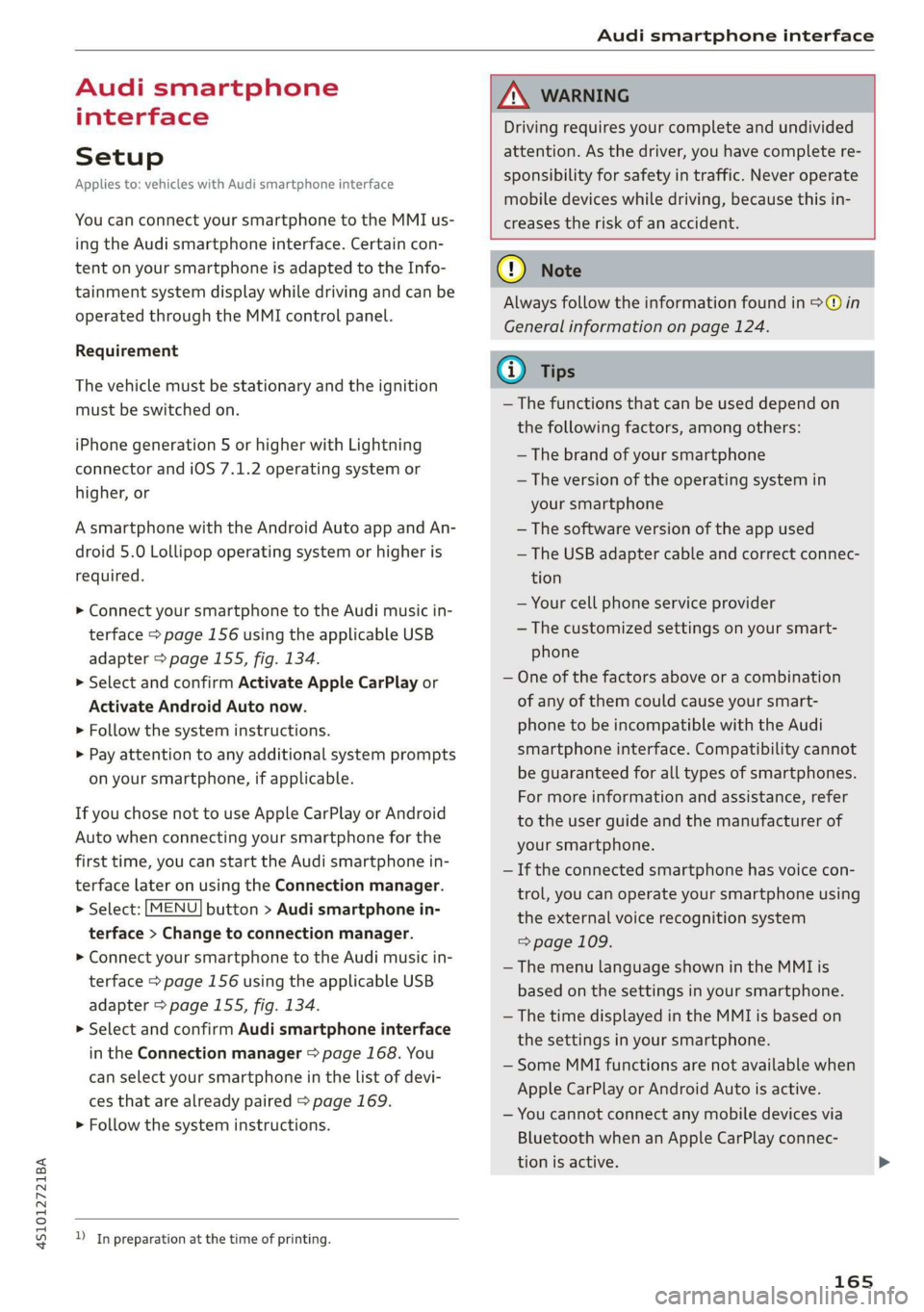
You can connect your smartphone to the MMI us-
ing the Audi smartphone interface. Certain con-
tent on your smartphone is adapted to the Info-
tainment system display while driving and can be
operated through the MMI control panel.
Requirement
The vehicle must be stationary and the ignition
must be switched on.
iPhone generation 5 or higher with Lightning
connector and iOS 7.1.2 operating system or
higher, or
A smartphone with the Android Auto app and An-
droid 5.0 Lollipop operating system or higher is
required.
> Connect your smartphone to the Audi music in-
terface > page 156 using the applicable USB
adapter > page 155, fig. 134.
> Select and confirm Activate Apple CarPlay or
Activate Android Auto now.
> Follow the system instructions.
> Pay attention to any additional system prompts
on your smartphone, if applicable.
If you chose not to use Apple CarPlay or Android
Auto when connecting your smartphone for the
first time, you can start the Audi smartphone in-
terface later on using the Connection manager.
> Select: [MENU] button > Audi smartphone in-
terface > Change to connection manager.
> Connect your smartphone to the Audi music in-
terface > page 156 using the applicable USB
adapter > page 155, fig. 134.
> Select and confirm Audi smartphone interface
in the Connection manager > page 168. You
can select your smartphone in the list of devi-
ces that are already paired > page 169.
> Follow the system instructions.
ZA WARNING
Driving requires your complete and undivided
attention. As the driver, you have complete re-
sponsibility for safety in traffic. Never operate
mobile devices while driving, because this in-
creases the risk of an accident.
) In preparation at the time of printing.
@) Note
Always follow the information found in >@ in
General information on page 124.
@ Tips
— The functions that can be used depend on
the following factors, among others:
—The brand of your smartphone
~The version of the operating system in
your smartphone
— The software version of the app used
— The USB adapter cable and correct connec-
tion
— Your cell phone service provider
— The customized settings on your smart-
phone
— One of the factors above or a combination
of any of them could cause your smart-
phone to be incompatible with the Audi
smartphone interface. Compatibility cannot
be guaranteed for all types of smartphones.
For more information and assistance, refer
to the user guide and the manufacturer of
your smartphone.
— If the connected smartphone has voice con-
trol, you can operate your smartphone using
the external voice recognition system
=> page 109.
— The menu language shown in the MMI is
based on the settings in your smartphone.
— The time displayed in the MMI is based on
the settings in your smartphone.
— Some MMI functions are not available when
Apple CarPlay or Android Auto is active.
— You cannot connect any mobile devices via
Bluetooth when an Apple CarPlay connec-
tion is active.
165
Page 170 of 308
System settings
Tool tips
When this function is switched on M, your MMI
shows you tips for input. The frequency of how
often it displays decreases with time. You can
switch off the operating tips at any time.
Speech dialog system
Command display: when this function is switch-
ed on, the MMI will show you the possible
commands for voice input in the respective
menu. You can switch the function off at any
time.
Short dialog: when this function is switched on
, a shorter form of the prompts is used. You
can switch the function off at any time.
Speech dialog system volume: you can adjust
the volume of the prompts by turning the control
knob.
Individual speech training (only when the vehi-
cle is stationary): you can adapt the voice recog-
nition system to your voice or pronunciation in or-
der to improve the system's ability to recognize
your speech. Individual speech training is com-
prised of 20 speech entries that consist of com-
mands and sequences of numbers. You can de-
lete the programmed voice training with the Re-
set individual speech training function.
Factory settings
The following functions can be reset to the facto-
ry default settings:
— Sound settings
— Radio
— Media settings
— Jukebox
— Directory
— Telephone
— Bluetooth and Wi-Fi
— Navigation settings
— Navigation and online memory
— Voice recognition system
— Message settings*
— Apps*
— Tool tips
— Audi connect*
168
You can select the desired functions individually
or all at once with the option Select all entries.
Select and confirm Restore factory settings.
G) Tips
Make sure that not only the settings were de-
leted but also the stored data, if necessary.
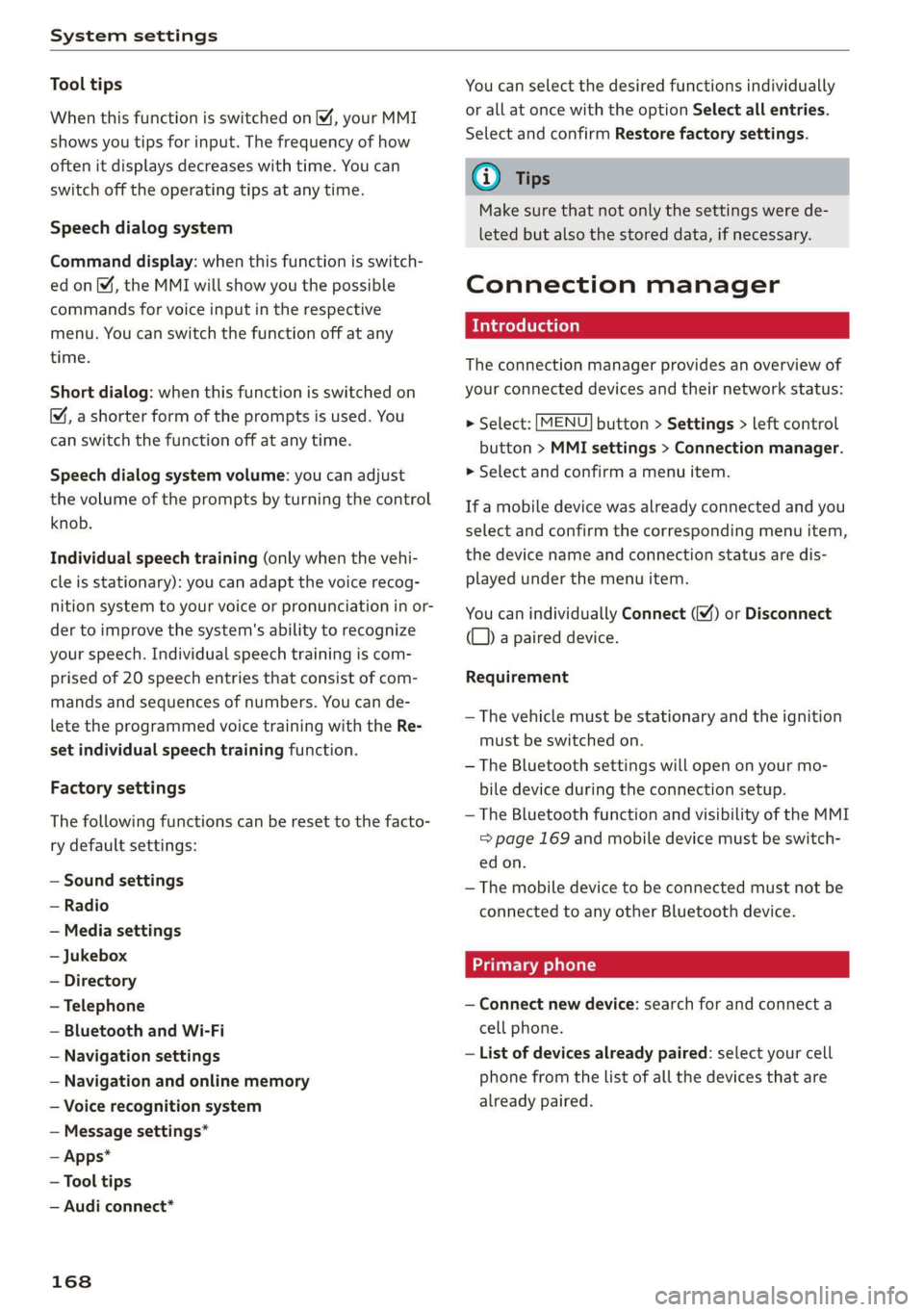
Connection manager
Introduction
The connection manager provides an overview of
your connected devices and their network status:
> Select: [MENU] button > Settings > left control
button > MMI settings > Connection manager.
» Select and confirm a menu item.
If a mobile device was already connected and you
select and confirm the corresponding menu item,
the device name and connection status are dis-
played under the menu item.
You can individually Connect () or Disconnect
(L) a paired device.
Requirement
— The vehicle must be stationary and the ignition
must be switched on.
— The Bluetooth settings will open on your mo-
bile device during the connection setup.
— The Bluetooth function and visibility of the MMI
=> page 169 and mobile device must be switch-
ed on.
— The mobile device to be connected must not be
connected to any other Bluetooth device.
Primary phone
— Connect new device: search for and connect a
cell phone.
— List of devices already paired: select your cell
phone from the list of all the devices that are
already paired.
Page 171 of 308
4S1012721BA
System settings
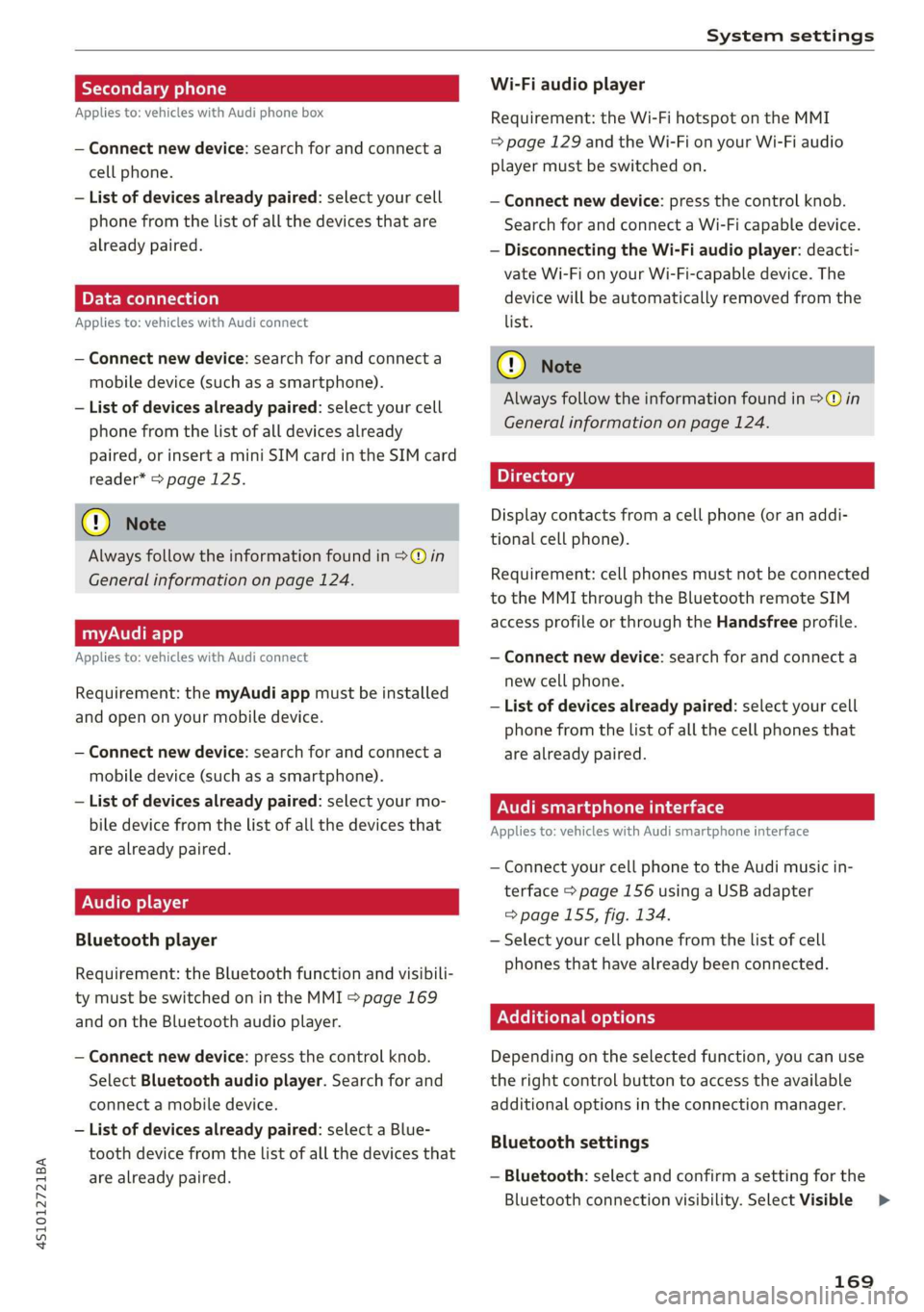
Treedate Tae eli) Wi-Fi audio player
Applies to: vehicles with Audi phone box Requirement: the Wi-Fi hotspot on the MMI
— Connect new device: search for and connect a = page 129 and the Wi-Fi on your Wi-Fi audio
cell phone. player must be switched on.
— List of devices already paired: select your cell — Connect new device: press the control knob.
phone from the list of all the devices that are Search for and connect a Wi-Fi capable device.
already paired. — Disconnecting the Wi-Fi audio player: deacti-
vate Wi-Fi on your Wi-Fi-capable device. The
device will be automatically removed from the
Applies to: vehicles with Audi connect list.
— Connect new device: search for and connect a @) Note
mobile device (such as a smartphone).
Always follow the information found in >@ in
— List of devices already paired: select your cell
General information on page 124.
phone from the list of all devices already
paired, or insert a mini SIM card in the SIM card
@ Note Display contacts from a cell phone (or an addi-
tional cell phone).
Always follow the information found in >@ in
General information on page 124. Requirement: cell phones must not be connected
to the MMI through the Bluetooth remote SIM
access profile or through the Handsfree profile.
myAudi app
Applies to: vehicles with Audi connect — Connect new device: search for and connect a
new cell phone.
— List of devices already paired: select your cell
phone from the list of all the cell phones that
— Connect new device: search for and connect a are already paired.
mobile device (such as a smartphone).
— List of devices already paired: select your mo- Menace
bile device from the list of all the devices that Applies to: vehicles with Audi smartphone interface
are already paired.
Requirement: the myAudi app must be installed
and open on your mobile device.
— Connect your cell phone to the Audi music in-
terface > page 156 using a USB adapter
=> page 155, fig. 134.
Bluetooth player — Select your cell phone from the list of cell
phones that have already been connected.
Audio player
Requirement: the Bluetooth function and visibili-
ty must be switched on in the MMI > page 169
and on the Bluetooth audio player. Additional options
— Connect new device: press the control knob. Depending on the selected function, you can use
Select Bluetooth audio player. Search for and the right control button to access the available
connect a mobile device. additional options in the connection manager.
— List of devices already paired: select a Blue-
tooth device from the list of all the devices that
are already paired. — Bluetooth: select and confirm a setting for the
Bluetooth connection visibility. Select Visible >
Bluetooth settings
169
Page 172 of 308
System settings
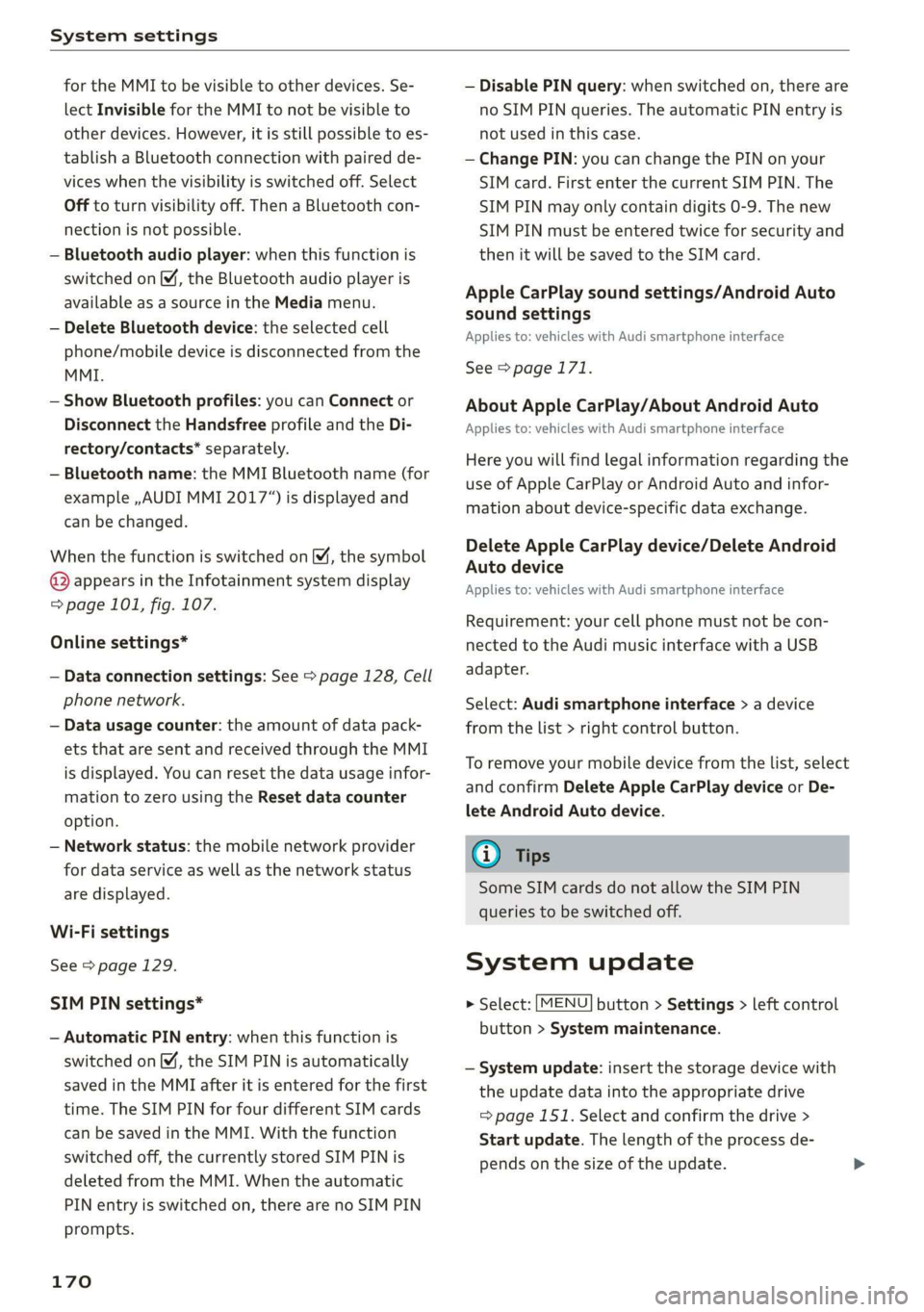
for the MMI to be visible to other devices. Se-
lect Invisible for the MMI to not be visible to
other devices. However, it is still possible to es-
tablish a Bluetooth connection with paired de-
vices when the visibility is switched off. Select
Off to turn visibility off. Then a Bluetooth con-
nection is not possible.
— Bluetooth audio player: when this function is
switched on , the Bluetooth audio player is
available as a source in the Media menu.
— Delete Bluetooth device: the selected cell
phone/mobile device is disconnected from the
MMI.
— Show Bluetooth profiles: you can Connect or
Disconnect the Handsfree profile and the Di-
rectory/contacts* separately.
— Bluetooth name: the MMI Bluetooth name (for
example ,AUDI MMI 2017“) is displayed and
can be changed.
When the function is switched on [M, the symbol
© appears in the Infotainment system display
=> page 101, fig. 107.
Online settings*
— Data connection settings: See > page 128, Cell
phone network.
— Data usage counter: the amount of data pack-
ets that are sent and received through the MMI
is displayed. You can reset the data usage infor-
mation to zero using the Reset data counter
option.
— Network status: the mobile network provider
for data service as well as the network status
are displayed.
Wi-Fi settings
See > page 129.
SIM PIN settings*
— Automatic PIN entry: when this function is
switched on , the SIM PIN is automatically
saved in the MMI after it is entered for the first
time. The SIM PIN for four different SIM cards
can be saved in the MMI. With the function
switched off, the currently stored SIM PIN is
deleted from the MMI. When the automatic
PIN entry is switched on, there are no SIM PIN
prompts.
170
— Disable PIN query: when switched on, there are
no SIM PIN queries. The automatic PIN entry is
not used in this case.
— Change PIN: you can change the PIN on your
SIM card. First enter the current SIM PIN. The
SIM PIN may only contain digits 0-9. The new
SIM PIN must be entered twice for security and
then it will be saved to the SIM card.
Apple CarPlay sound settings/Android Auto
sound settings
Applies to: vehicles with Audi smartphone interface
See > page 171.
About Apple CarPlay/About Android Auto
Applies to: vehicles with Audi smartphone interface
Here you will find legal information regarding the
use of Apple CarPlay or Android Auto and infor-
mation about device-specific data exchange.
Delete Apple CarPlay device/Delete Android
Auto device
Applies to: vehicles with Audi smartphone interface
Requirement: your cell phone must not be con-
nected to the Audi music interface with a USB
adapter.
Select: Audi smartphone interface > a device
from the list > right control button.
To remove your mobile device from the list, select
and confirm Delete Apple CarPlay device or De-
lete Android Auto device.
G) Tips
Some SIM cards do not allow the SIM PIN
queries to be switched off.
System update
> Select: [MENU] button > Settings > left control
button > System maintenance.
— System update: insert the storage device with
the update data into the appropriate drive
= page 151. Select and confirm the drive >
Start update. The length of the process de-
pends on the size of the update.
Page 283 of 308
4S1012721BA
Fuses and bulbs
Fuses and bulbs
Fuses
Seale mie
B4S-0071
&
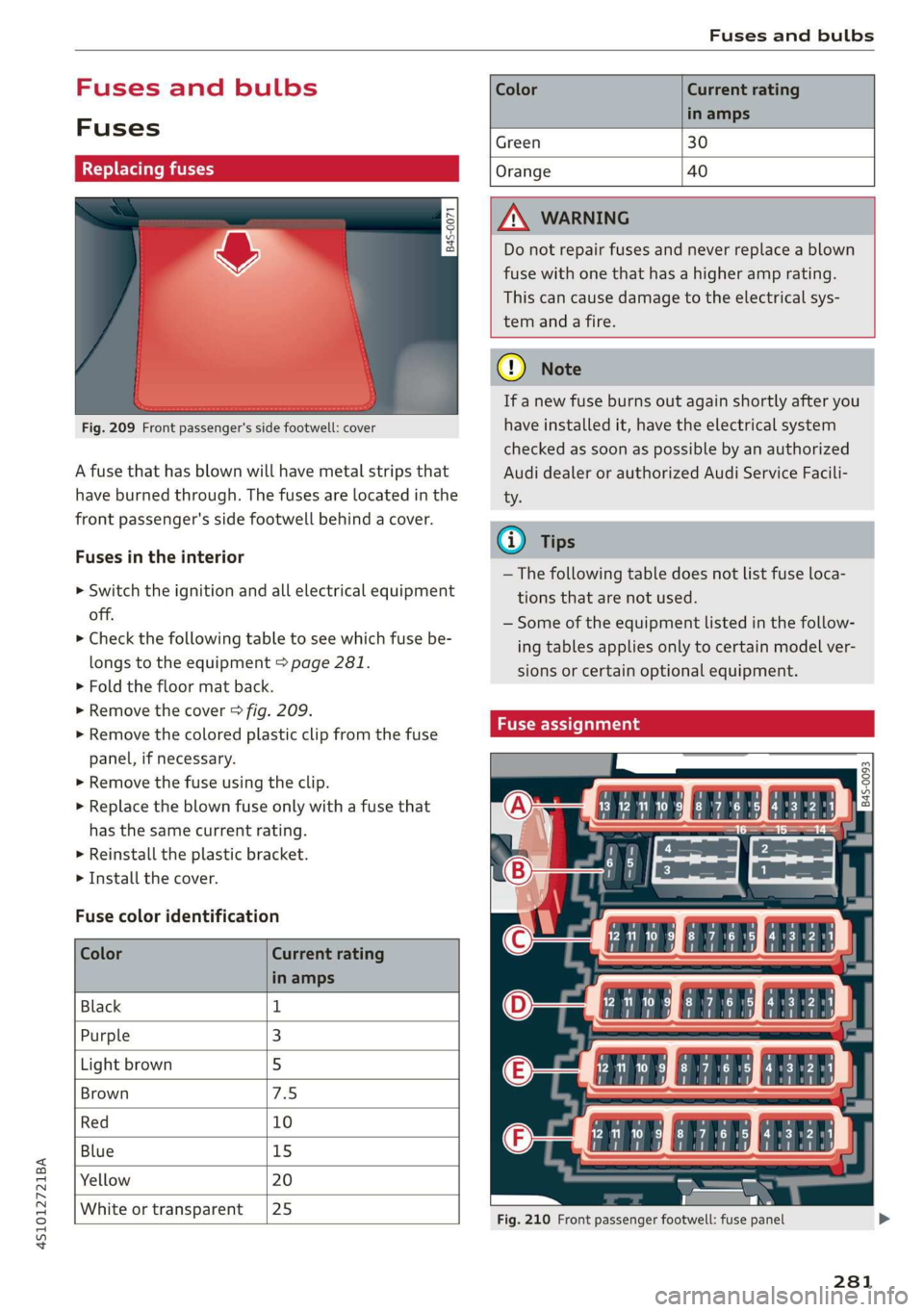
Fig. 209 Front passenger's side footwell: cover
A fuse that has blown will have metal strips that
have burned through. The fuses are located in the
front passenger's side footwell behind a cover.
Fuses in the interior
> Switch the ignition and all electrical equipment
off.
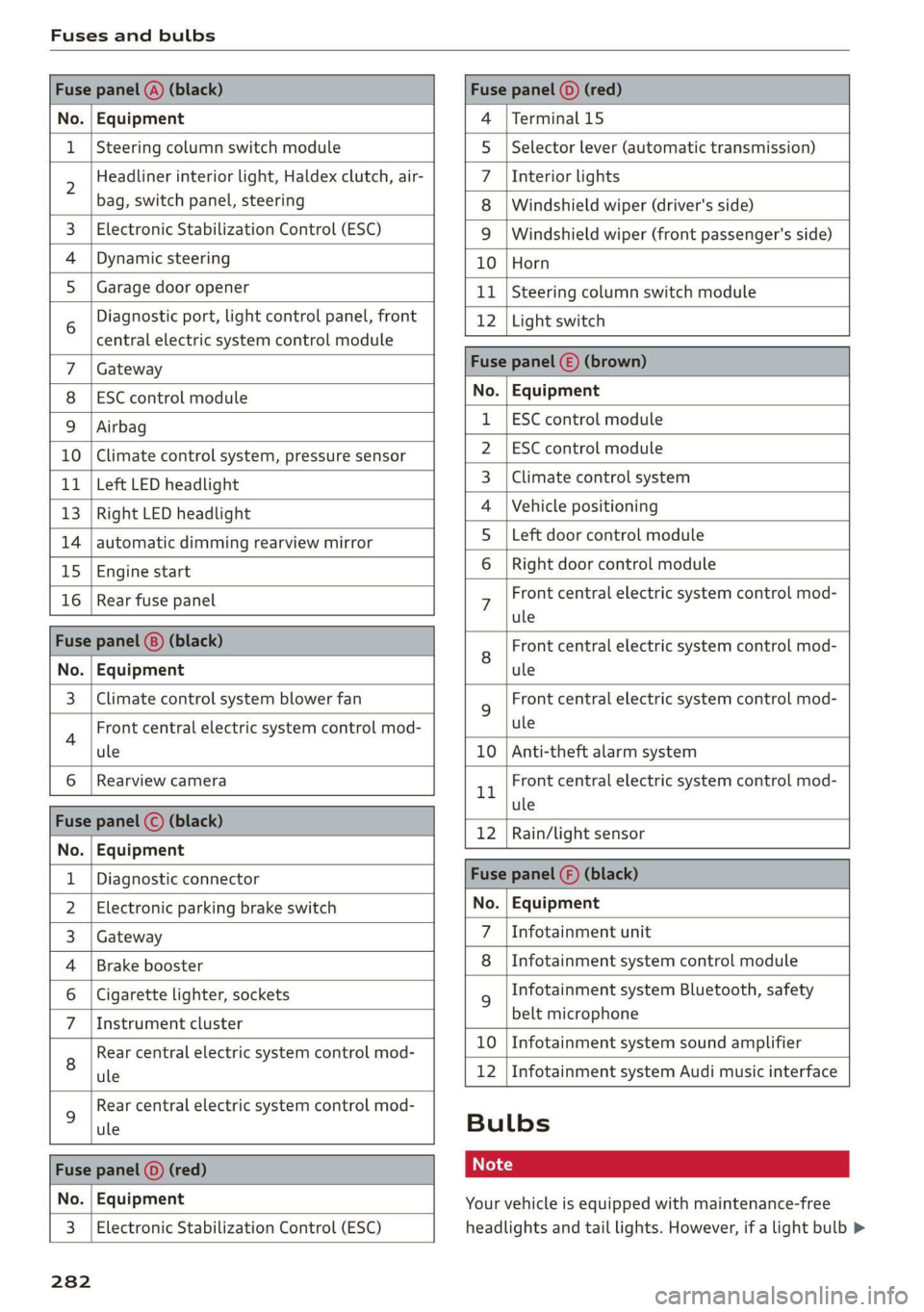
> Check the following table to see which fuse be-
longs to the equipment > page 281.
> Fold the floor mat back.
» Remove the cover > fig. 209.
> Remove the colored plastic clip from the fuse
panel, if necessary.
> Remove the fuse using the clip.
> Replace the blown fuse only with a fuse that
has the same current rating.
> Reinstall the plastic bracket.
> Install the cover.
Fuse color identification
Color Current rating
in amps
Green 30
Orange 40
ZA\ WARNING
Do not repair fuses and never replace a blown
fuse with one that has a higher amp rating.
This can cause damage to the electrical sys-
tem anda fire.
(1) Note
If a new fuse burns out again shortly after you
have installed it, have the electrical system
checked as soon as possible by an authorized
Audi dealer or authorized Audi Service Facili-
ty.
(i) Tips
— The following table does not list fuse loca-
tions that are not used.
— Some of the equipment listed in the follow-
ing tables applies only to certain model ver-
sions or certain optional equipment.
Fuse assignment
B4S-0093
Color Current rating
in amps
Black 1
Purple 3
Light brown 5
Brown 75
Red 10
Blue 1S
Yellow 20
White or transparent /|25
Fig. 210 Front passenger footwell: fuse panel
281
Page 284 of 308
Fuses and bulbs
Fuse panel @) (black) Fuse panel © (red)
No. | Equipment 4 |Terminal 15
1 |Steering column switch module 5 |Selector lever (automatic transmission)
2 Headliner interior light, Haldex clutch, air- 7 |Interior lights
bag, switch panel, steering 8 | Windshield wiper (driver's side)
3. | Electronic Stabilization Control (ESC) 9 | Windshield wiper (front passenger's side)
4 |Dynamic steering 10 |Horn
5_| Garage door opener 11 | Steering column switch module
6 Diagnostic port, light control panel, front 12 | Light switch
central electric system control module —
Gateway Fuse panel () (brown)
ESC control module No. | Equipment
Airbag 1 |ESC control module
10 | Climate control system, pressure sensor 2_|ESC control module
11 | Left LED headlight 3 | Climate control system
13 |Right LED headlight 4 |Vehicle positioning
14 | automatic dimming rearview mirror 5_ Left door control module
15 |Engine start 6 |Right door control module
16 | Rear fuse panel 7 Front central electric system control mod-
ule
Fuse panel (@) (black) 8 Front central electric system control mod-
No. | Equipment ule
3 | Climate control system blower fan 9 Front central electric system control mod-
4 Front central electric system control mod- ule
ule 10 | Anti-theft alarm system
6 |Rearview camera 1 Front central electric system control mod-
- ule
nue pene) sBisch 12 |Rain/light sensor
No. | Equipment
1 | Diagnostic connector Fuse panel () (black)
2 | Electronic parking brake switch No. | Equipment
3 | Gateway 7 \Infotainment unit
4 |Brake booster 8 |Infotainment system control module
6 | Cigarette lighter, sockets 9 Infotainment system Bluetooth, safety
7 |Instrument cluster belt microphone
Rear central electric system control mod- £0 | Infotainment:system:sound amplifier
8 ule 12 | Infotainment system Audi music interface
9 Rear central electric system control mod-
ule Bulbs
Fs panel © ed ot
No. | Equipment Your vehicle is equipped with maintenance-free
3 | Electronic Stabilization Control (ESC) headlights and tail lights. However, if a light bulb >
282