key AUDI R8 COUPE 2020 Owner's Manual
[x] Cancel search | Manufacturer: AUDI, Model Year: 2020, Model line: R8 COUPE, Model: AUDI R8 COUPE 2020Pages: 308, PDF Size: 82.41 MB
Page 64 of 308
![AUDI R8 COUPE 2020 Owners Manual Driving
This message appears when you press the
START ENGINE STOP] button while driving.
Engine start system: malfunction! Please con-
tact Service
The engine automatic start system](/img/6/57639/w960_57639-63.png "AUDI R8 COUPE 2020 Owners Manual Driving
This message appears when you press the
START ENGINE STOP] button while driving.
Engine start system: malfunction! Please con-
tact Service
The engine automatic start system")
Driving
This message appears when you press the
START ENGINE STOP] button while driving.
Engine start system: malfunction! Please con-
tact Service
The engine automatic start system has a mal-
function.
Drive immediately to an authorized Au-
di dealer or authorized Audi Service Facility to
have the malfunction repaired. To start the en-
gine, press and hold the [START ENGINE STOP
button.
Remote control key: hold back of key
against the designated area. See owner's man-
ual
This message appears if there is no convenience
key inside the vehicle or if the system does not
recognize the key. The convenience key may not
be recognized, for example, if it is covered by an
object that disrupts the signal (such as a brief-
case), or if the key battery is weak. Electronic de-
vices such as cell phones can also interfere with
the signal.
To still be able to start or stop the engine, see
=> page 62, Starting the engine when there is a
malfunction.
B Remote control key: key not detected. Is the
key
still in the vehicle?
The B indicator light turns on and this message
appears if the convenience key was removed from
the vehicle when the engine was running. If the
convenience key is no longer in the vehicle, you
cannot switch the ignition on or start the engine
once you stop it. You also cannot lock the vehicle
from the outside.
Please press the brake pedal
This message appears if you do not press the
brake pedal when starting the engine.
Please select N or P
This message appears when starting or stopping
the engine if the selector lever is not in the "N" or
"P" position. The engine will not start/stop.
62
Starting the engine when there is a
area d ea)
It may not be possible to start the engine under
certain circumstances, for example, if the bat-
tery in the vehicle key is drained, if interference is
affecting the key or if there is a system malfunc-
tion.
2 3
9
db + a
Fig. 70 Steering column/remote control key: starting the
engine if there is a malfunction
As long as the message ?) Remote control key:
hold back of key against the designated area.
See owner's manual is displayed, you can emer-
gency start your vehicle.
> Press the brake pedal.
> Press the [START ENGINE STOP] button.
> Hold the master key in the location indicated in
the illustration ?) © fig. 70. The engine will
start.
> If the engine does not automatically start,
press the [START ENGINE STOP] button again.
(i) Tips
You can view the message again by pressing
the [START ENGINE STOP] button.
Start/Stop system
Applies to: vehicles with Start/Stop system
The Start/Stop system can help increase fuel
economy and reduce CO2 emissions.
In Start/Stop mode, the engine shuts off auto-
matically when the vehicle is stopped, such as at
a traffic light. The ignition remains switched on
during this stop phase. The engine will restart
automatically when needed.
Page 65 of 308
4S1012721BA
Driving
The Start/Stop system is automatically activated
once
the ignition is switched on.
Basic requirements for Start/Stop mode
— The driver's door must be closed.
— The driver's seat belt much be fastened.
— The engine compartment lid must be closed.
— The vehicle must have driven faster than 2 mph
(4 km/h) since the last time it stopped.
Z\ WARNING
— Never turn off the engine before the vehicle
has come to a complete stop. Switching it
off before the vehicle has stopped may im-
pair the function of the brake booster and
power steering. You would then need to use
more force to steer and brake the vehicle.
The fact that you cannot steer and brake as
usual may increase the risk of accidents and
serious
injuries.
— If you leave the vehicle, switch the ignition
off and take the vehicle key with you. This
applies particularly when children remain in
the vehicle. Otherwise the children could
start the engine or operate electrical equip-
ment such as power windows.
—To reduce the risk of injuries, make sure that
the Start/Stop system is turned off when
working in the engine compartment
=> page 64.
©) Note
Always switch the Start/Stop system off when
driving through water > page 64.
Stopping/starting the engine
Applies to: vehicles with Start/Stop system
eo Ss
2 db t a
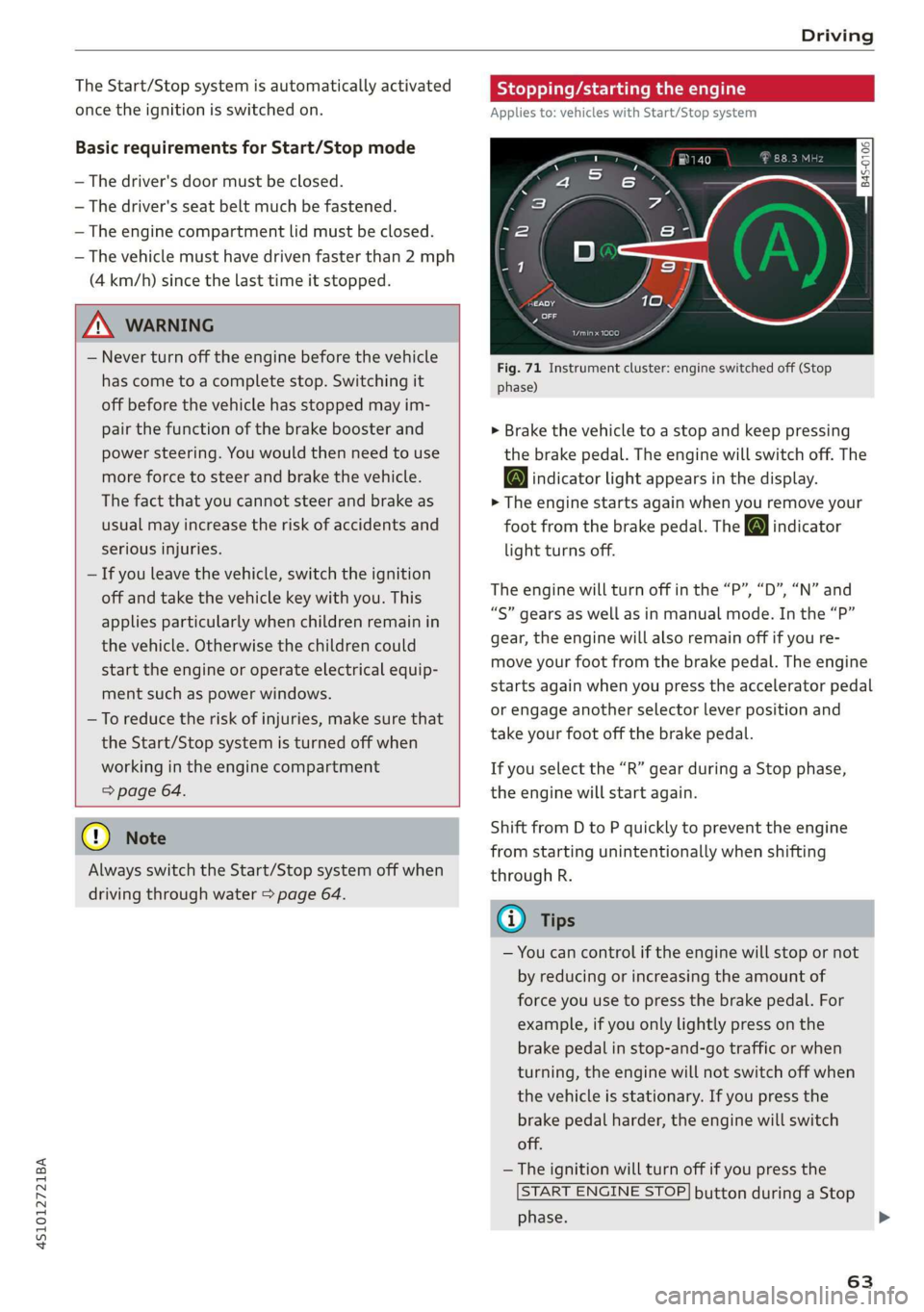
Fig. 71 Instrument cluster: engine switched off (Stop
phase)
> Brake the vehicle to a stop and keep pressing
the brake pedal. The engine will switch off. The
@ indicator light appears in the display.
> The engine starts again when you remove your
foot from the brake pedal. The o indicator
light turns off.
The engine will turn off in the “P”, “D”, “N” and
“S” gears as well as in manual mode. In the “P”
gear, the engine will also remain off if you re-
move your foot from the brake pedal. The engine
starts again when you press the accelerator pedal
or engage another selector lever position and
take your foot off the brake pedal.
If you select the “R” gear during a Stop phase,
the engine will start again.
Shift from D to P quickly to prevent the engine
from starting unintentionally when shifting
through R.
@) Tips
— You can control if the engine will stop or not
by reducing or increasing the amount of
force you use to press the brake pedal. For
example, if you only lightly press on the
brake pedal in stop-and-go traffic or when
turning, the engine will not switch off when
the vehicle is stationary. If you press the
brake pedal harder, the engine will switch
off.
— The ignition will turn off if you press the
START ENGINE STOP] button during a Stop
phase.
63
>
Page 68 of 308
Driving
vehicle to skid or the rear end to swerve,
which increases the risk of an accident.
— If the power supply fails, you cannot set the
parking brake once it is released. In this
case, park the vehicle on level ground and
secure it by placing the selector lever in the
"P" position. See an authorized Audi dealer
or authorized Audi Service Facility for assis-
tance.
— If you leave the vehicle, switch the ignition
off and take the vehicle key with you. This
applies particularly when children remain in
the vehicle. Otherwise children could start
the engine, release the parking brake or op-
erate electrical equipment such as power
windows, which increases the risk of an acci-
dent.
— No one should remain in the vehicle when it
is locked - especially children. Locked doors
make it more difficult for emergency work-
ers to get into the vehicle, which puts lives
at risk.
@) Note
Do not leave your vehicle unattended while
the engine is running, because this increases
the risk of an accident.
@) Tips
When stopping at a traffic signal or stopping
in city traffic, you can set the parking brake
manually. The vehicle does not have to be
held with the brake pedal. The parking brake
eliminates the tendency to creep when a se-
lector lever position is engaged. As soon as
you press the accelerator pedal, the parking
brake releases automatically and the vehicle
starts to move > page 66.
G@) Tips
— Occasional noises when the parking brake is
set and released are normal and are not a
cause for concern.
— The parking brake goes through a self-test
cycle at regular intervals when the vehicle is
stopped. Any noises associated with this are
normal.
66
— If there is a power failure, the parking brake
will not set if it is released, and it will not
release if it is set > A\. See an authorized
Audi dealer or authorized Audi Service Fa-
cility for assistance.
Starting to drive
Various convenience and safety functions may be
available when the vehicle begins driving, de-
pending on vehicle equipment.
Starting on hills with the parking brake set
Requirement: the driver's door must be closed.
> To start driving comfortably when on a hill, set
the parking brake and begin driving as usual.
The braking force of the parking brake does not
release automatically until the wheels build up
enough driving force.
Starting on hills with hill hold assist
Hill hold assist makes it easier to start on hills.
Requirement: the driver's door must be closed
and the engine must be running.
> To activate hill hold assist, press and hold the
brake pedal for several seconds. The vehicle
must be facing uphill.
After releasing the brake pedal, the braking pow-
er is maintained briefly > A\ to prevent the vehi-
cle from rolling back when starting. This allows
you to begin driving more easily.
Z\ WARNING
Applies to: vehicles with hill hold assist
— If you do not begin driving immediately or
the engine stalls after releasing the brake
pedal, your vehicle may begin to roll back-
ward. Press the brake pedal or set the park-
ing brake immediately.
— The intelligent technology of hill hold assist
cannot overcome the limitations imposed by
natural physical laws. The increased comfort
offered by hill hold assist should not cause
you to take safety risks. >
Page 82 of 308
Assist systems
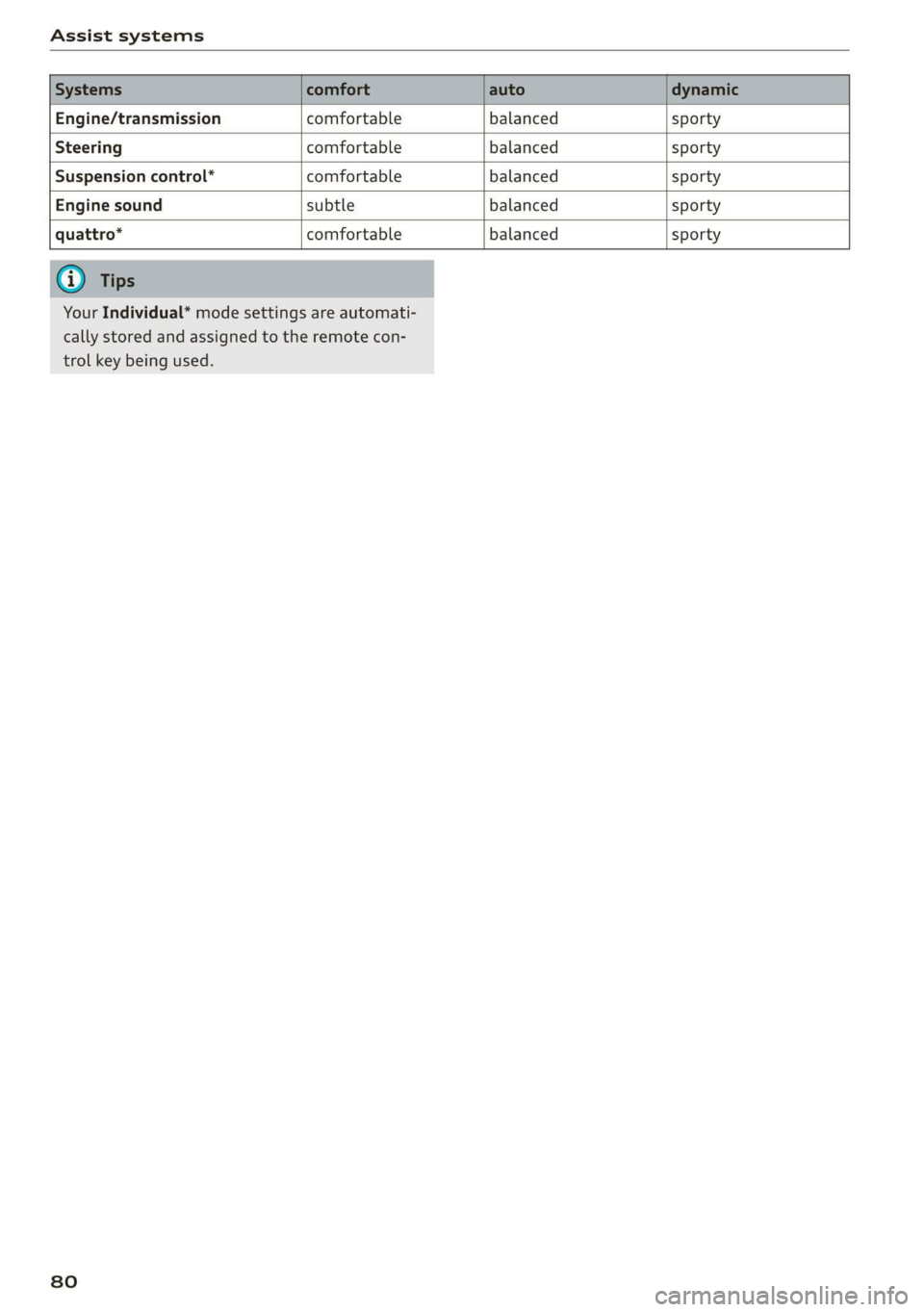
Engine/transmission comfortable balanced sporty
Steering comfortable balanced sporty
Suspension control* comfortable balanced sporty
Engine sound subtle balanced sporty
quattro* comfortable balanced sporty
Your Individual* mode settings are automati-
cally stored and assigned to the remote con-
trol key being used.
80
Page 87 of 308
4S1012721BA
Parking aid
@) Tips
— The settings are automatically stored and
assigned to the remote control key that is in
use.
— The new level is demonstrated briefly* when
the volume is adjusted.
Error messages
There is an error in the system if the LED in the
Pv button is blinking and you hear a continuous
alarm for a few seconds after switching on the
parking system or when the parking system is al-
ready activated. If the error is not corrected be-
fore you switch off the ignition, the LED in the Pa
button will blink the next time you switch on the
parking system by shifting into reverse.
Parking system plus*
If a sensor or speaker is faulty, the P4 symbol
will appear in front of/behind the vehicle in the
Infotainment display. If a rear sensor is faulty,
only obstacles that are in areas @) and @)
=> page 81, fig. 83 are shown. If a front sensor is
faulty, only obstacles that are in areas @) and @)
are shown.
Drive immediately to an authorized Audi dealer
or authorized Audi Service Facility to have the
malfunction repaired.
8s
Page 125 of 308
4S1012721BA
Telephone
The safety belt microphone is positioned in the
ideal location to provide the best hands-free call
quality regardless of body size and seat position.
The safety belt microphone activates when you
buckle the safety belt. Make sure that the micro-
phone is on the side of the safety belt that is fac-
ing outward > fig. 117.
If you unbuckle the driver's safety belt, the sys-
tem switches from the safety belt microphone to
the roof microphone.
Troubleshooting
@) Tips
— If you deactivate the front passenger's air-
bag, the front passenger's safety belt micro-
phone will be deactivated regardless of
whether the front passenger's safety belt is
buckled or not.
—A dirty microphone opening can affect
hands-free call quality. If this happens,
clean the safety belt microphone using a
brush.
Problem Solution
Pairing the cell phone to the MMI
failed.
Make sure the requirements for connecting a cell phone have been
met > page 110, or
make sure you did not accidentally decline the PIN for establish-
ing a connection on your cell phone. If necessary, repeat the pair-
ing process > page 110.
After pairing, not all contacts or
no contacts have been loaded into
the MMI.
Avoid using special characters in names.
Avoid using contact groups on your cell phone.
Certain telephone functions are
grayed out or not available.
The telephone functions depend on the mobile device service pro-
vider and the mobile device you are using. You can obtain more in-
formation from your cell phone service provider, in your cell phone
user guide or in the database for mobile devices at www.audiusa.
com/bluetooth.
Some telephone functions may
be switched off or not available,
even though the mobile device is
supported.
On corporate phones, some Bluetooth settings may not be com-
patible or the cell phone Bluetooth function may be deactivated.
You can obtain more information from your system administrator.
Applies to: vehicles with Audi
phone box Wireless cell phone
charging is not working or is inter-
rupted.
Applies to: vehicles with Audi phone box Check if your mobile de-
vice is Qi-capable.
Check if your cell phone is centered on the phone symbol in the
Audi phone box page 112 and make sure there are no other ob-
jects
in the Audi phone box.
Do not place your remote control key in the Audi phone box with
your cell phone.
123
Page 128 of 308
![AUDI R8 COUPE 2020 Owners Manual Audi connect
Connecting the MMI with the personal
hotspot
> Select: [MENU] button > Telephone > right con-
trol button > Wi-Fi settings > Wi-Fi > On.
> Then select and confirm Network s](/img/6/57639/w960_57639-127.png "AUDI R8 COUPE 2020 Owners Manual Audi connect
Connecting the MMI with the personal
hotspot
> Select: [MENU] button > Telephone > right con-
trol button > Wi-Fi settings > Wi-Fi > On.
> Then select and confirm Network s")
Audi connect
Connecting the MMI with the personal
hotspot
> Select: [MENU] button > Telephone > right con-
trol button > Wi-Fi settings > Wi-Fi > On.
> Then select and confirm Network search. The
devices that are found are shown in the Info-
tainment system display.
> Select and confirm your personal Wi-Fi hotspot
from the list.
>» Enter the password that your mobile device
provides, if necessary.
> Select and confirm OK.
ZA WARNING
Always follow the information found in > AV
in General information on page 124.
() Note
Always follow the information found in >@ in
General information on page 124.
@) Tips
— Your cell phone service provider can deter-
mine which functions are supported by your
mobile device.
— Your cell phone data package determines if
other devices will be able to use the person-
al Wi-Fi hotspot.
— Audi recommends protecting your mobile
wireless network with a password to prevent
unauthorized access.
Using a Wi-Fi hotspot
Applies to: vehicles with Wi-Fi hotspot
You can connect up to eight Wi-Fi devices (such
as smartphones) with the MMI Wi-Fi hotspot. If
the MMI is connected to the Internet
=> page 124, the connected Wi-Fi devices can also
use the MMI’s Internet connection.
Requirement: The ignition must be switched on.
> Select: [MENU] button > Telephone > right con-
trol button > Wi-Fi settings > Wi-Fi. Switch on
the Wi-Fi hotspot.
> Select: [MENU] button > Telephone > right con-
trol button > Wi-Fi settings > Network key. The
access data for the Wi-Fi hotspot is displayed.
126
Switch on the visibility of the Wi-Fi hotspot if
necessary.
> Switch the Wi-Fi function on in your mobile de-
vice and connect it to the MMI Wi-Fi hotspot
using the authentication data that is shown.
> Follow any additional system prompts on your
Wi-Fi device if necessary.
Your device is successfully connected with the
MMI's Wi-Fi hotspot.
ZA WARNING
Always follow the information found in > AV
in General information on page 124.
@) Note
Always follow the information found in >@ in
General information on page 124.
Audi connect
Infotainment services
Configuration
Applies to: vehicles with Audi connect Infotainment
Requirement: your vehicle must be connected to
the Internet > page 124.
Some Audi connect Infotainment services must
be configured through your personal myAudi ac-
count before using them for the first time.
> Register at my.audi.com.
> Add your vehicle to your myAudi account.
> Select: [MENU] button > Audi connect > right
control button > Log in.
> Log in to myAudi in the vehicle using your e-
mail address and password.
(i) Tips
— For some Audi connect Infotainment serv-
ices, you may also have to enter your myAu-
di access information when accessing serv-
ices inthe MMI.
— Some Audi connect Infotainment services
must be activated at my.audi.com.
Page 131 of 308
4S1012721BA
Audi connect
Data connection settings
Using the Data connection settings menu, you
can set when the system should connect to the
Internet. The Internet connection disconnects
automatically once the requested Audi connect
Infotainment service no longer requires any data.
— Connection setup: you can select when a data
connection should be established.
— Audi connect (MMI): when this function is
switched on, a data connection is automatically
established in order to use Audi connect Info-
tainment services.
— Wi-Fi devices: when this function is switched
on, you can allow or deny Internet connections.
Connection settings
The connection is configured automatically based
on the SIM card being used. The following values
can be changed. You can obtain more information
from your cell phone service provider.
— APN: the access point depends on the cell
phone service provider and is assigned auto-
matically.
— User name: your cell phone service provider as-
signs the user name for your online profile.
— Password: your cell phone service provider as-
signs the password for your online profile.
TX WARNING
Always follow the information found in > AV
in General information on page 124.
C) Note
Always follow the information found in >@ in
General information on page 124.
@) Tips
For more information on roaming charges,
contact your cell phone service provider.
Applies to: vehicles with Wi-Fi hotspot
Requirement: the ignition must be switched on.
> Select: [MENU] button > Telephone > right con-
trol button > Wi-Fi settings.
Depending on the country and the vehicle equip-
ment, the following functions may be available:
Wi-Fi
When the function is switched on, the MMI's Wi-
Fi hotspot is active and Wi-Fi devices can be con-
nected to the hotspot.
Network key
The
Wi-Fi connection between the MMI and your
Wi-Fi device is encrypted. You can change the fol-
lowing information if needed.
— Access point (SSID): Wi-Fi hotspot name.
— Password: a random password was set in the
MMI at the factory. The password can be
changed. The encryption method requires a
password to be at least eight characters long.
Choose a secure password.
— Visible to others: you can switch the visibility
of the Wi-Fi hotspot on or off.
Network search
A list of available Wi-Fi networks in your area is
displayed.
Connection to personal hotspot
The MMI Wi-Fi hotspot is activated. An MMI In-
ternet connection to a personal Wi-Fi hotspot
(such as a smartphone) can be established. For
additional information, see > page 125.
ZA WARNING
Always follow the information found in > AV
in General information on page 124.
@) Note
Always follow the information found in >@ in
General information on page 124.
@ Tips
In vehicles without Audi connect Infotain-
ment, the use of the Wi-Fi hotspot is only
possible for the Wi-Fi audio player*. A data
connection to the Internet cannot be estab-
lished.
129
Page 132 of 308
Audi connect
Data Privacy
Applies to: vehicles with Audi connect Infotainment
AUDI AG collects, uses, stores and shares your
personal information, such as contact data, vehi-
cle data, usage data, driving data and precise ge-
olocation, in order to provide you with the prod-
ucts and services you have purchased or request-
ed, and for a number of other purposes, for ex-
ample, to track quality issues, to performance
and safety, to meet our internal compliance or le-
gal requirements and to market to customers
and potential customers. For a more complete
list of the data we collect, how we use it and with
whom we share it, please visit your Audi nation-
al/sales region website at www.audi.com.
The collection, use and sharing may vary depend-
ing on your model and model year, your subscrip-
tion status, or the service offering. For example,
collection, use and sharing may vary between Au-
di connect services, if you have designated a key
user, or if you are driving a model equipped with
Troubleshooting
Applies to: vehicles with Audi connect Infotainment
The information that follows lists some trouble-
shooting options. They depend on the equip-
ment.
persistent data logging. Please review the com-
plete Privacy Statement to understand our data
handling practices with respect to a particular
service.
You can find additional information about our da-
ta privacy practices in your MMI.
> Select: [MENU] button > Audi connect > right
control button > About Audi connect.
Information about our privacy practices in con-
junction with the mobile Audi connect applica-
tion can be found in the Application’s Privacy
Statement.
For additional information about the privacy
practices relating to Audi connect, myAudi, or
other websites, applications or online services as
well as your obligations with respect to using
these services, and for additional information re-
garding Audi connect terms and conditions,
please visit your Audi national/sales region web-
site at www.audi.com.
Problem Solution
Audi connect Infotainment serv-
ices: individual Audi connect Info-
tainment services are grayed out or
not available.
Some Audi connect Infotainment services must be activated or
configured through your personal myAudi account before using
them for the first time. You can find detailed information online
at my.audi.com.
Wi-Fi hotspot: it is not possible to
connect through Wi-Fi.
Check if Wi-Fi is activated in the MMI > page 129.
Delete all existing Wi-Fi connections on your mobile device and
restart it.
Wi-Fi hotspot: the data connection
is interrupted.
Check if the function Connection to personal hotspot is activat-
ed = page 129. Turn the function off if you are not using a per-
sonal hotspot.
Personal Wi-Fi hotspot: the Net-
work search is not possible (grayed
out).
To start a network search for your personal Wi-Fi hotspot, the
Wi-Fi hotspot must be turned on > page 125.
130
Page 150 of 308
Radio
Symbols in the Show "Now Playing" screen
> fig. 130:
@ Radio text availability
Radio text is available for the selected station
=> page 147.
@ iTunes tagging
The Tag this song for iTunes option is available
for the set station > page 147, Additional op-
tions.
@ FM HD Radio technology
The station is received through FM HD Radio
technology.
@ Screen view
Display Cover art or Station logo > page 149.
Displaying the station list: turn the control
knob, or press the [BACK] button.
Radio menu
Le ) | Change to media
key
©—o LER Ta tebe (olay
pia Tvy A @-
Fig. 131 Example: Radio menu
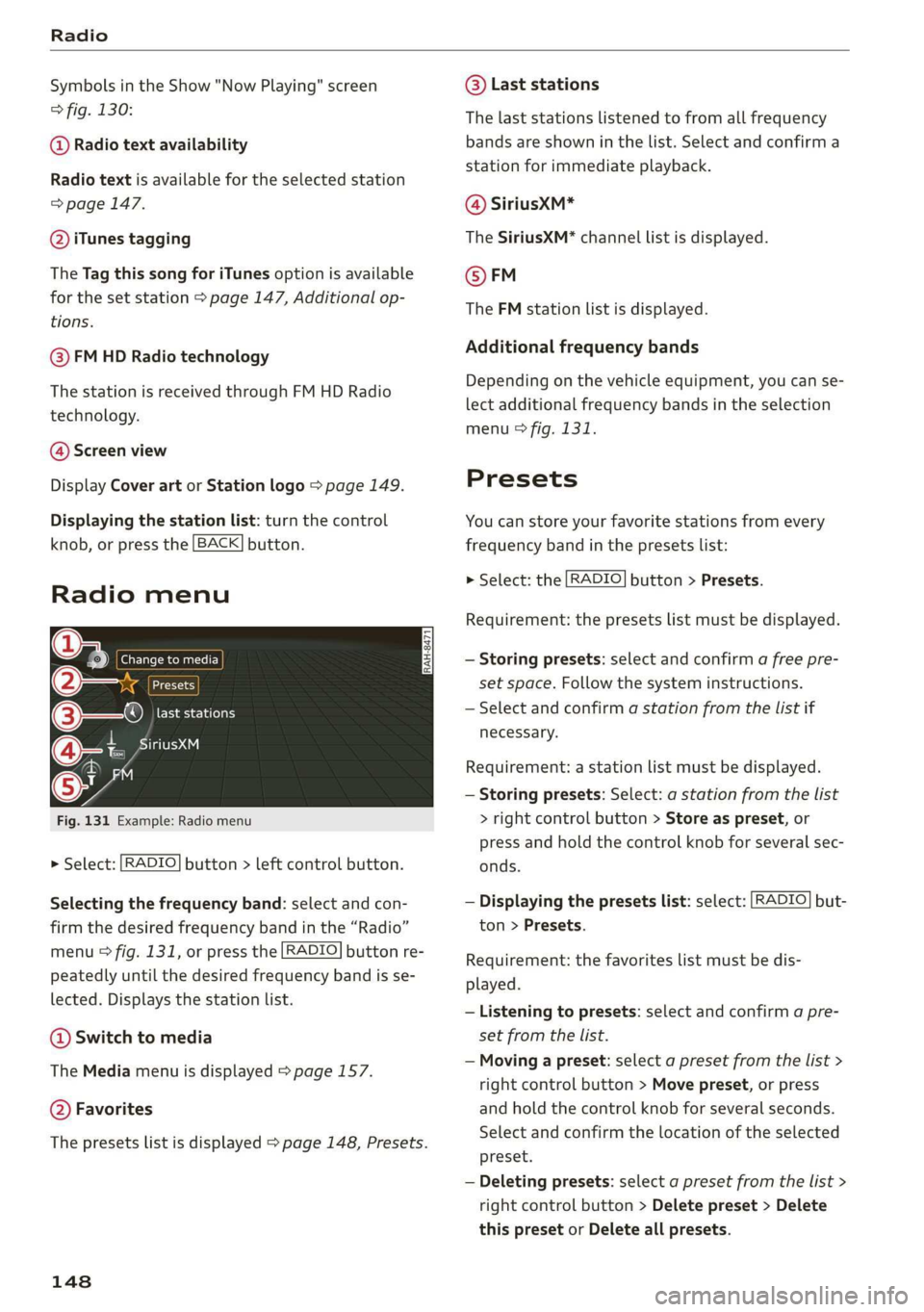
> Select: [RADIO] button > left control button.
Selecting the frequency band: select and con-
firm
the desired frequency band in the “Radio”
menu & fig. 131, or press the [RADIO] button re-
peatedly until the desired frequency band is se-
lected. Displays the station list.
@ Switch to media
The Media menu is displayed > page 157.
@ Favorites
The presets list is displayed > page 148, Presets.
148
© Last stations
The last stations listened to from all frequency
bands are shown in the list. Select and confirm a
station for immediate playback.
@ SiriusxM*
The SiriusXM* channel list is displayed.
© FM
The FM station list is displayed.
Additional frequency bands
Depending on the vehicle equipment, you can se-
lect additional frequency bands in the selection
menu > fig. 131.
Presets
You can store your favorite stations from every
frequency band in the presets list:
> Select: the [RADIO] button > Presets.
Requirement: the presets list must be displayed.
— Storing presets: select and confirm a free pre-
set space. Follow the system instructions.
— Select and confirm a station from the list if
necessary.
Requirement: a station list must be displayed.
— Storing presets: Select: a station from the list
> right control button > Store as preset, or
press and hold the control knob for several sec-
onds.
— Displaying the presets list: select: [RADIO] but-
ton > Presets.
Requirement: the favorites list must be dis-
played.
— Listening to presets: select and confirm a pre-
set from the list.
— Moving a preset: select a preset from the list >
right control button > Move preset, or press
and hold the control knob for several seconds.
Select and confirm the location of the selected
preset.
— Deleting presets: select a preset from the list >
right control button > Delete preset > Delete
this preset or Delete all presets.