service AUDI R8 COUPE 2020 Repair Manual
[x] Cancel search | Manufacturer: AUDI, Model Year: 2020, Model line: R8 COUPE, Model: AUDI R8 COUPE 2020Pages: 308, PDF Size: 82.41 MB
Page 156 of 308
Media
ZA WARNING
— As the driver, do not allow usage of the Wi-
Fi hotspot to distract you from driving, as
this could increase the risk of an accident.
— It is only safe to use tablets, laptops, mobile
devices and other similar devices when the
vehicle is stationary because, like all loose
objects, they could be thrown around the in-
side of the vehicle in a crash and cause seri-
ous injuries. Store these types of devices se-
curely while driving.
— Do not use any Wi-Fi devices within range of
the airbags while driving. Also read the
warnings in the chapter > page 187.
@ Note
Always follow the information found in >@ in
General information on page 124.
@) Tips
— The Wi-Fi connection is reconfigured when
inserting or removing the mini SIM card in
the SIM card reader*. There may be a tem-
porary interruption in audio playback, de-
pending on the media player.
— Always read the chapter > page 124, Audi
connect.
— Please note that a Wi-Fi connection does
not automatically make it possible to use
the Internet. For additional information,
see > page 124.
— To avoid interruptions during playback, de-
activate the power saving function on the
media player or connect it to a charger.
— The loading times for the audio data depend
on the media player used and the number of
files
that it contains.
—A maximum of 2,000 entries per directory
are displayed in the MMI.
— Songs downloaded for offline use using mu-
sic streaming services are stored on your
mobile device (such as a smartphone) and
may be DRM protected. The Wi-Fi audio
player will not play DRM protected files.
— Contact an authorized Audi dealer or au-
thorized Audi Service Facility for additional
information on the Wi-Fi audio player.
154
Online media and
Internet radio
Applies to: vehicles with Audi connect
You can playback and operate various online me-
dia services and Internet radio using the MMI.
> Press the [MEDIA] button. Press the left control
button until the sources overview > page 157,
fig. 137 is displayed.
Applies to: online media and Internet radio usage
Requirement:
— The myAudi app must be installed and open on
your mobile device.
— You must be logged in to your myAudi account
in the myAudi app and you must have selected
your vehicle.
— The Wi-Fi function on the mobile device and on
the MMI must be switched on.
—If necessary, check in the connection manager
=> page 168 if the mobile device you connected
is selected under the MMI connect app ().
—The MMI must be connected to the network.
— The symbol for the Online media* source
= page 157, fig. 137 is shown in the MMI.
Applies to: online media usage
Additional requirement:
— A supported online media service must be avail-
able in the country where the vehicle is being
operated.
— You must have an account with a supported on-
line media service.
— Depending on the online media service, you
may need to install and open an app on your
mobile device.
Starting Online media
— Press the [MEDIA] button. Press the left control
button until the sources overview > page 157 is
displayed.
— Select and confirm an online media service.
Starting Internet radio
— Press the [MEDIA] button. Press the left control
button until the sources overview > page 157 is
displayed.
— Select and confirm Internet radio. The Internet
radio browser or the last station that was play-
ing is shown.
Page 157 of 308
4S1012721BA
Media
— Selecting the station: if necessary, select and
confirm a category in the Internet radio Brows-
er > astation.
Online media and Internet radio:: additional op-
tions
— Press the right control button.
The following options may be available, depend-
ing on the information shown (such as the sta-
tion/track that is currently playing):
— Sound settings: see > page 171.
— Wi-Fi settings: see > page 129, Wi-Fi settings.
— Connection manager: see > page 168.
— Additional options may be available, depending
on the active online media service or Internet
radio.
Z\ WARNING
— It is only safe to use tablets, laptops, mobile
devices and other similar devices when the
vehicle is stationary because, like all loose
objects, they could be thrown around the in-
side of the vehicle in a crash and cause seri-
ous injuries. Store these types of devices se-
curely while driving.
— Do not use any Wi-Fi devices within range of
the airbags while driving. Also read the
warnings in the chapter > page 187.
@ Note
Always follow the information found in >@ in
General information on page 124.
@ Tips
— Depending on the Internet connection and
network traffic, the connection may discon-
nected when online media sources are play-
ing.
— Online media and Internet radio usage de-
pends on the service availability of the third
party provider.
— Audi AG simply makes the access to online
media services possible through the MMI
and does not take any responsibility for the
contents of the online media services.
— Always read the chapter > page 124, Audi
connect.
— Depending on the mobile device being used,
there may be interruptions during media
playback and when using the myAudi app.
To prevent interruptions when using a mo-
bile device, do not lock the screen on your
mobile device and keep the myAudi app in
the foreground.
— Contact an authorized Audi dealer or au-
thorized Audi Service Facility for additional
information about online media.
Multimedia connections
UR) Foye acl meme Tare)
ee |®
2
<
owe
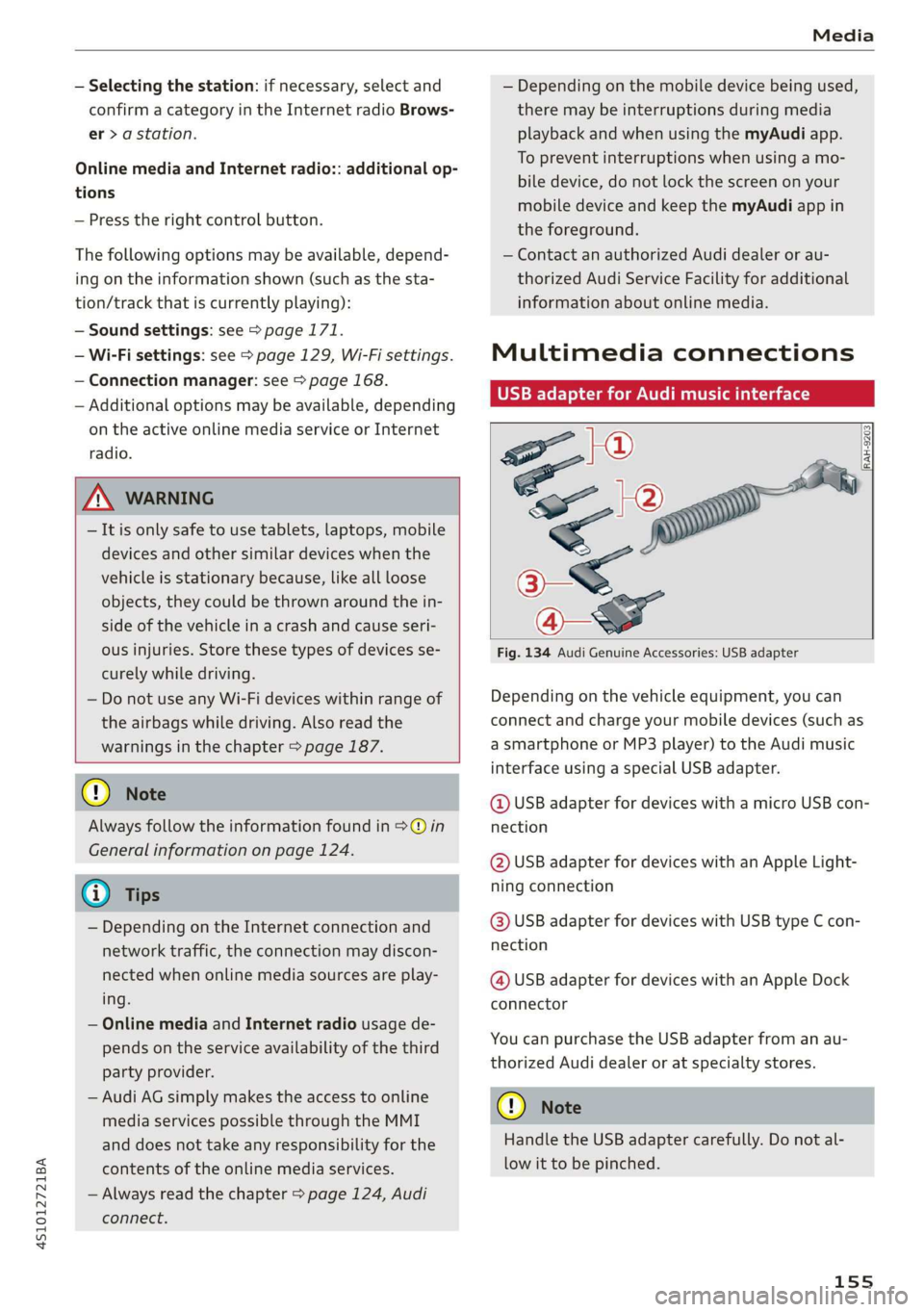
Fig. 134 Audi Genuine Accessories: USB adapter
[RAH-9203)
Depending on the vehicle equipment, you can
connect and charge your mobile devices (such as
a smartphone or MP3 player) to the Audi music
interface using a special USB adapter.
@ USB adapter for devices with a micro USB con-
nection
@ USB adapter for devices with an Apple Light-
ning connection
@ USB adapter for devices with USB type C con-
nection
@ USB adapter for devices with an Apple Dock
connector
You can purchase the USB adapter from an au-
thorized Audi dealer or at specialty stores.
C) Note
Handle the USB adapter carefully. Do not al-
low it to be pinched.
155
Page 159 of 308
4S1012721BA
Media
approximately 70% of the maximum vol-
ume.
— Functionality is not guaranteed for mobile
devices that do not conform to the USB 2.0
specification.
— USB hubs are not supported.
— Some versions of the iPod such as the iPod
shuffle cannot be connected to the USB
adapter
for devices with Apple Dock connec-
tor. Connect these devices using a AUX con-
nector cable.
— Video playback through the Audi music in-
terface is only supported if the connected
device is recognized as a USB storage device
(for example a USB stick). Apple devices and
MTP devices (such as smartphones) are not
recognized as USB storage devices.
— iPod or iPhone malfunctions also affect the
operation of the MMI. Reset your iPod or
iPhone if this happens.
— For important information on operating
your iPod or iPhone, refer to the user guide
for the device. Audi recommends updating
the iPod or iPhone software to the latest
version.
— For more information about the Audi music
interface and supported devices, check the
Audi database for mobile devices at www.
audiusa.com/mp3 or contact an authorized
Audi dealer or authorized Audi Service Fa-
cility.
Playing media
@ Jukebox
@—e an
©— SD card
@Q— Audi music interface
aa audio player
Fig. 136 Diagram: possible sources in the Media menu
Bluetooth audio player
~ Wi-Fi audio player
@— Online media
a
Fig. 137 Diagram: possible sources in the Media menu
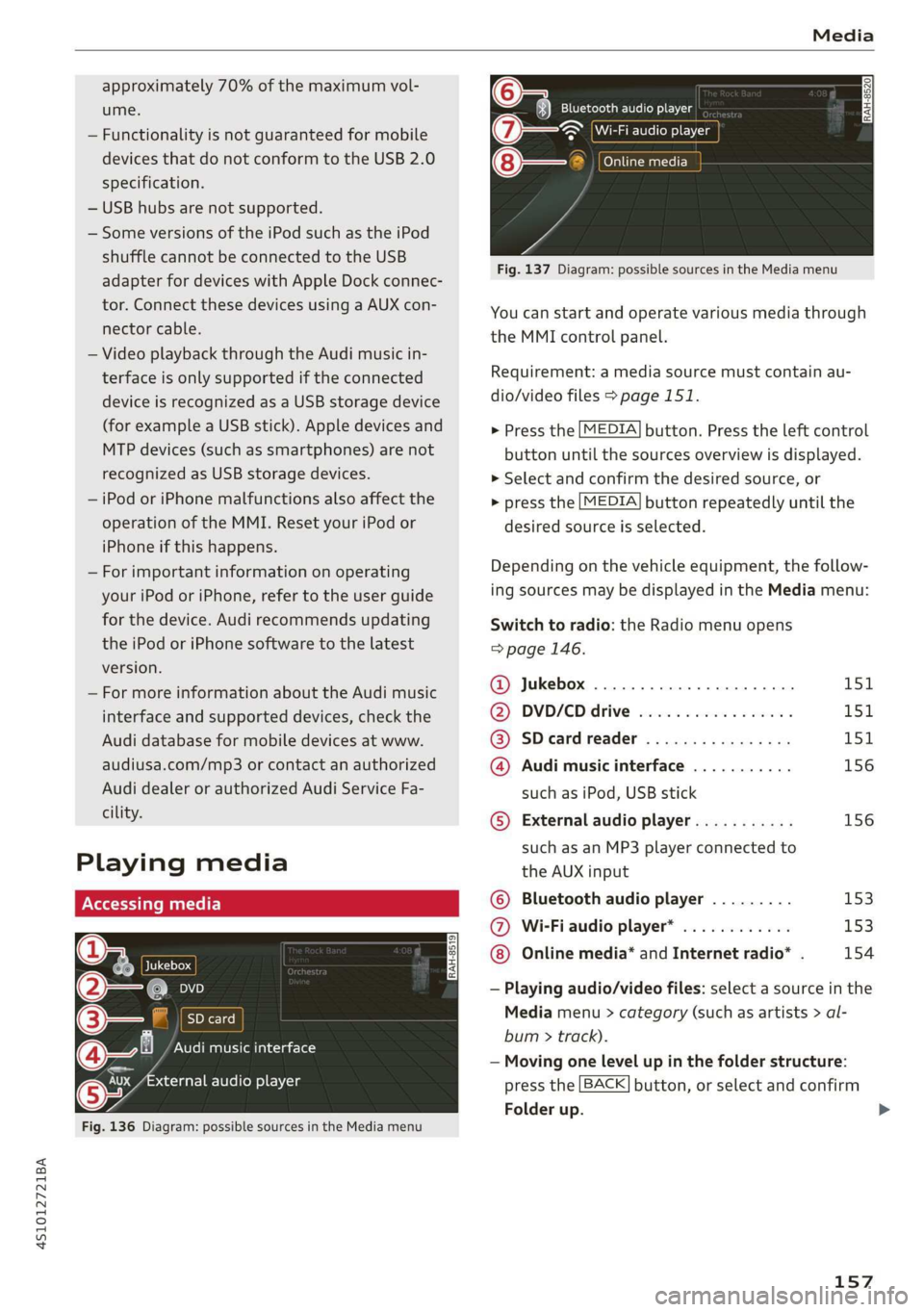
You can start and operate various media through
the MMI control panel.
Requirement: a media source must contain au-
dio/video files > page 151.
> Press the [MEDIA] button. Press the left control
button until the sources overview is displayed.
> Select and confirm the desired source, or
> press the [MEDIA] button repeatedly until the
desired source is selected.
Depending on the vehicle equipment, the follow-
ing sources may be displayed in the Media menu:
Switch to radio: the Radio menu opens
=> page 146.
@ Jukebox ..................000. 151
@ DVD/€D drive esse 2 2 cscs es wees L5SiL
@ SDeardreader ................ 151
@ Audi music interface ........... 156
such as iPod, USB stick
© External audio player........... 156
such as an MP3 player connected to
the AUX input
© Bluetooth audio player ......... 153
@ Wi-Fiaudio player* ............ 153
Online media* and Internet radio* . 154
— Playing audio/video files: select a source in the
Media menu > category (such as artists > al-
bum > track).
— Moving one level up in the folder structure:
press the [BACK] button, or select and confirm
Folder up.
157
Page 160 of 308
Media
— Selecting the previous/next track/chapter)):
Press the On/Off knob for the MMI control pan-
el briefly to the left KK or to the right Pel.
— Fast-forwarding and rewinding audio/video
files: press and hold the On/Off knob on the
MMI control panel to the left Kd or right Pol for
a longer time.
— Pausing or resuming playback: press the
On/Off knob on the MMI control panel briefly.
G@) Tips
— You can scroll through long lists quickly by
turning the control knob quickly. The scroll-
ing speed depends on the number of list en-
tries.
— For safety reasons, the video image is only
displayed when the vehicle is stationary. On-
ly the sound from the video plays while driv-
ing.
o.° 2
Naa a)
(4) fl Atbums
[ale
Fig. 138 Example: USB stick categories
i Beep
Orn oli
RAH-8518
8) apie ee
Nie (=fol-)
Fig. 139 Example: USB stick categories
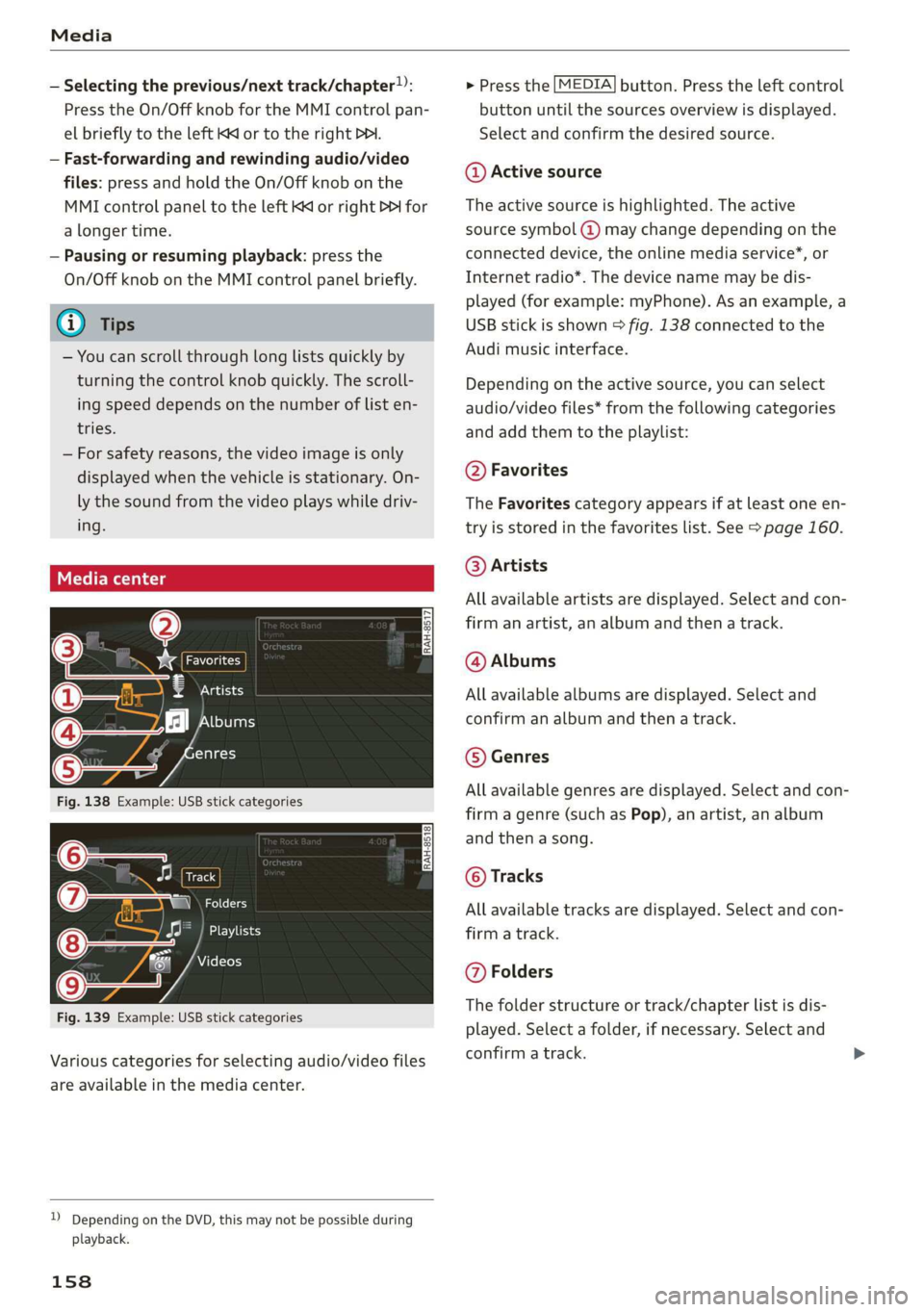
Various categories for selecting audio/video files
are available in the media center.
)) Depending on the DVD, this may not be possible during
playback.
158
> Press the [MEDIA] button. Press the left control
button until the sources overview is displayed.
Select and confirm the desired source.
@ Active source
The active source is highlighted. The active
source symbol @) may change depending on the
connected device, the online media service*, or
Internet radio*. The device name may be dis-
played (for example: myPhone). As an example, a
USB stick is shown > fig. 138 connected to the
Audi music interface.
Depending on the active source, you can select
audio/video files* from the following categories
and add them to the playlist:
@ Favorites
The Favorites category appears if at least one en-
try is stored in the favorites list. See > page 160.
@ Artists
All available artists are displayed. Select and con-
firm
an artist, an album and then a track.
@ Albums
All available albums are displayed. Select and
confirm an album and then a track.
© Genres
All available genres are displayed. Select and con-
firm a genre (such as Pop), an artist, an album
and then a song.
© Tracks
All available tracks are displayed. Select and con-
firm a track.
@ Folders
The folder structure or track/chapter list is dis-
played. Select a folder, if necessary. Select and
confirm a track.
Page 161 of 308
4S1012721BA
Media
Playlists
All available playlists from the source and the
smart playlists are displayed. Select and confirm
a playlist and then a track.
Smart playlists:
— Last played tracks: the last tracks played in the
selected source are displayed.
— Most played: the most played songs in the se-
lected source are displayed.
— 5 stars to 1 star: tracks from the selected
source are displayed according to their rating.
— Unrated: all files from the selected source
without rating information (for example, in the
ID3 tag) are displayed.
© Videos
All available video files are displayed. Select and
confirm a video file.
@) Tips
— Only the categories supported by the medi-
um are available. For example, CD/DVD-
ROM tracks cannot be selected with catego-
ries such as Artists, Albums or Genres.
With an iPod (source: Audi music interface
= page 155), the Podcasts, Audio books
and Composers categories are also availa-
ble.
— For safety reasons, the video image is only
displayed when the vehicle is stationary. On-
ly the sound from the video plays while driv-
ing.
— When synchronizing a portable device with
"Cloud“ services, playlists may display incor-
rectly
in the MMI. Use the media center in
the device.
ct -mey aaa]
(2) aia
g Leal ast 1ale}
13] Rock Band
RAH-8524
[se
@-» latest
Rock Banc
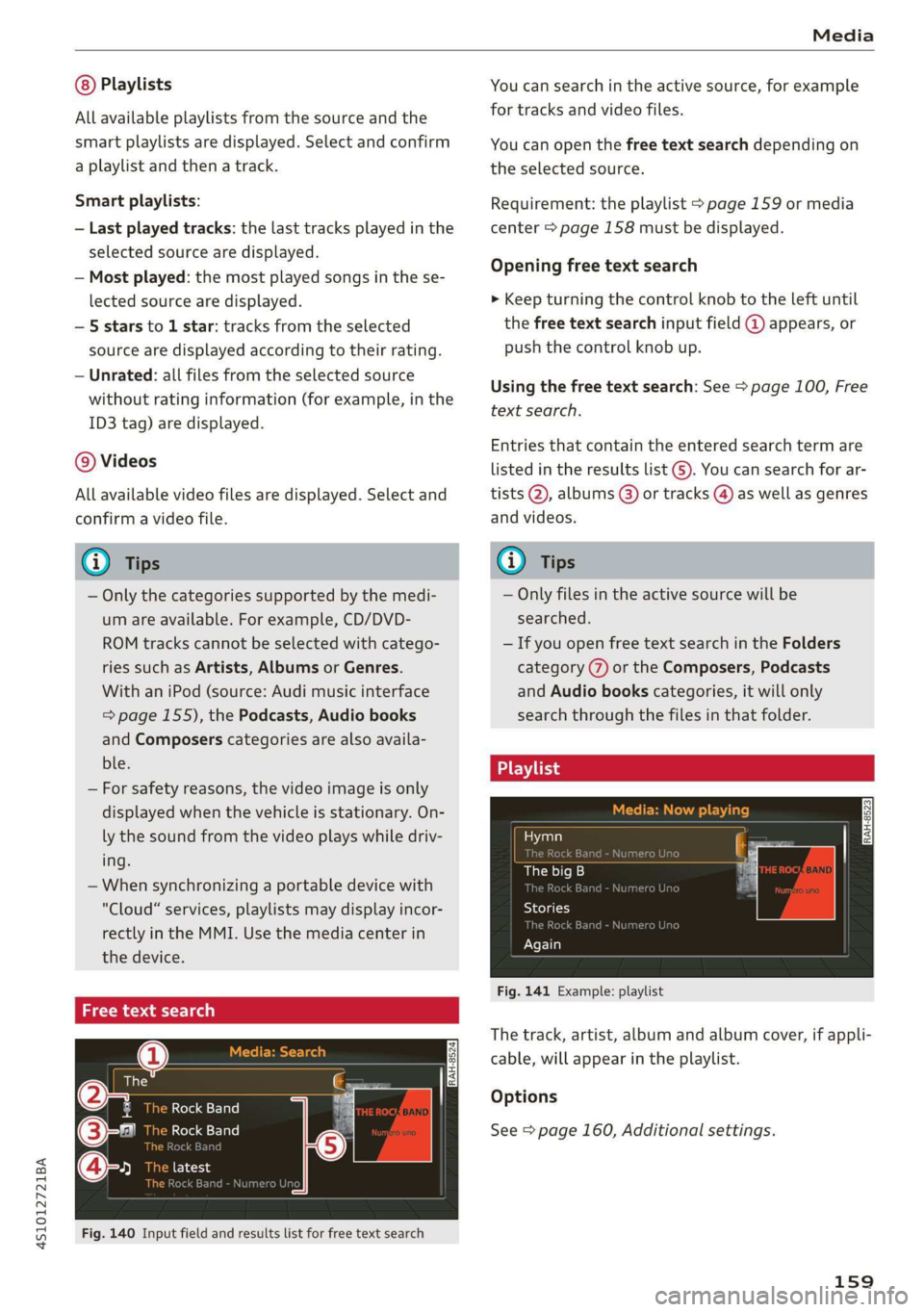
Fig. 140 Input field and results list for free text search
You can search in the active source, for example
for tracks and video files.
You can open the free text search depending on
the selected source.
Requirement: the playlist > page 159 or media
center > page 158 must be displayed.
Opening free text search
> Keep turning the control knob to the left until
the free text search input field @ appears, or
push the control knob up.
Using the free text search: See > page 100, Free
text search.
Entries that contain the entered search term are
listed
in the results list @). You can search for ar-
tists @, albums @) or tracks @) as well as genres
and videos.
(i) Tips
— Only files in the active source will be
searched.
— If you open free text search in the Folders
category (7) or the Composers, Podcasts
and Audio books categories, it will only
search through the files in that folder.
ae ts
Hymn
The big B
i kB
Sola
Dasha
Again
Fig. 141 Example: playlist
The track, artist, album and album cover, if appli-
cable, will appear in the playlist.
Options
See > page 160, Additional settings.
159
Page 167 of 308
4S1012721BA
Audi smartphone interface
Audi smartphone
interface
Setup
Applies to: vehicles with Audi smartphone interface
You can connect your smartphone to the MMI us-
ing the Audi smartphone interface. Certain con-
tent on your smartphone is adapted to the Info-
tainment system display while driving and can be
operated through the MMI control panel.
Requirement
The vehicle must be stationary and the ignition
must be switched on.
iPhone generation 5 or higher with Lightning
connector and iOS 7.1.2 operating system or
higher, or
A smartphone with the Android Auto app and An-
droid 5.0 Lollipop operating system or higher is
required.
> Connect your smartphone to the Audi music in-
terface > page 156 using the applicable USB
adapter > page 155, fig. 134.
> Select and confirm Activate Apple CarPlay or
Activate Android Auto now.
> Follow the system instructions.
> Pay attention to any additional system prompts
on your smartphone, if applicable.
If you chose not to use Apple CarPlay or Android
Auto when connecting your smartphone for the
first time, you can start the Audi smartphone in-
terface later on using the Connection manager.
> Select: [MENU] button > Audi smartphone in-
terface > Change to connection manager.
> Connect your smartphone to the Audi music in-
terface > page 156 using the applicable USB
adapter > page 155, fig. 134.
> Select and confirm Audi smartphone interface
in the Connection manager > page 168. You
can select your smartphone in the list of devi-
ces that are already paired > page 169.
> Follow the system instructions.
ZA WARNING
Driving requires your complete and undivided
attention. As the driver, you have complete re-
sponsibility for safety in traffic. Never operate
mobile devices while driving, because this in-
creases the risk of an accident.
) In preparation at the time of printing.
@) Note
Always follow the information found in >@ in
General information on page 124.
@ Tips
— The functions that can be used depend on
the following factors, among others:
—The brand of your smartphone
~The version of the operating system in
your smartphone
— The software version of the app used
— The USB adapter cable and correct connec-
tion
— Your cell phone service provider
— The customized settings on your smart-
phone
— One of the factors above or a combination
of any of them could cause your smart-
phone to be incompatible with the Audi
smartphone interface. Compatibility cannot
be guaranteed for all types of smartphones.
For more information and assistance, refer
to the user guide and the manufacturer of
your smartphone.
— If the connected smartphone has voice con-
trol, you can operate your smartphone using
the external voice recognition system
=> page 109.
— The menu language shown in the MMI is
based on the settings in your smartphone.
— The time displayed in the MMI is based on
the settings in your smartphone.
— Some MMI functions are not available when
Apple CarPlay or Android Auto is active.
— You cannot connect any mobile devices via
Bluetooth when an Apple CarPlay connec-
tion is active.
165
Page 172 of 308
System settings
for the MMI to be visible to other devices. Se-
lect Invisible for the MMI to not be visible to
other devices. However, it is still possible to es-
tablish a Bluetooth connection with paired de-
vices when the visibility is switched off. Select
Off to turn visibility off. Then a Bluetooth con-
nection is not possible.
— Bluetooth audio player: when this function is
switched on , the Bluetooth audio player is
available as a source in the Media menu.
— Delete Bluetooth device: the selected cell
phone/mobile device is disconnected from the
MMI.
— Show Bluetooth profiles: you can Connect or
Disconnect the Handsfree profile and the Di-
rectory/contacts* separately.
— Bluetooth name: the MMI Bluetooth name (for
example ,AUDI MMI 2017“) is displayed and
can be changed.
When the function is switched on [M, the symbol
© appears in the Infotainment system display
=> page 101, fig. 107.
Online settings*
— Data connection settings: See > page 128, Cell
phone network.
— Data usage counter: the amount of data pack-
ets that are sent and received through the MMI
is displayed. You can reset the data usage infor-
mation to zero using the Reset data counter
option.
— Network status: the mobile network provider
for data service as well as the network status
are displayed.
Wi-Fi settings
See > page 129.
SIM PIN settings*
— Automatic PIN entry: when this function is
switched on , the SIM PIN is automatically
saved in the MMI after it is entered for the first
time. The SIM PIN for four different SIM cards
can be saved in the MMI. With the function
switched off, the currently stored SIM PIN is
deleted from the MMI. When the automatic
PIN entry is switched on, there are no SIM PIN
prompts.
170
— Disable PIN query: when switched on, there are
no SIM PIN queries. The automatic PIN entry is
not used in this case.
— Change PIN: you can change the PIN on your
SIM card. First enter the current SIM PIN. The
SIM PIN may only contain digits 0-9. The new
SIM PIN must be entered twice for security and
then it will be saved to the SIM card.
Apple CarPlay sound settings/Android Auto
sound settings
Applies to: vehicles with Audi smartphone interface
See > page 171.
About Apple CarPlay/About Android Auto
Applies to: vehicles with Audi smartphone interface
Here you will find legal information regarding the
use of Apple CarPlay or Android Auto and infor-
mation about device-specific data exchange.
Delete Apple CarPlay device/Delete Android
Auto device
Applies to: vehicles with Audi smartphone interface
Requirement: your cell phone must not be con-
nected to the Audi music interface with a USB
adapter.
Select: Audi smartphone interface > a device
from the list > right control button.
To remove your mobile device from the list, select
and confirm Delete Apple CarPlay device or De-
lete Android Auto device.
G) Tips
Some SIM cards do not allow the SIM PIN
queries to be switched off.
System update
> Select: [MENU] button > Settings > left control
button > System maintenance.
— System update: insert the storage device with
the update data into the appropriate drive
= page 151. Select and confirm the drive >
Start update. The length of the process de-
pends on the size of the update.
Page 180 of 308
Safe driving
A WARNING
Do not use the area behind the head restraints
> fig. 144 as a seat or storage area. This is the
area where the rollbars deploy. If the rollover
protection system is triggered, objects placed
there can be propelled through the vehicle
and make it more difficult for the rollbars to
deploy. This increases the risk for serious or
life-threatening injuries.
When is rollover protection deployed?
Applies to: vehicles with active rollover protection system
Rollover protection deploys in a collision or roll-
over.
Depending on the collision, sensors throughout
the vehicle and the control module trigger the
rollover system to deploy.
For safety reasons, rollover protection also de-
ploys during front, side and rear collisions above
a certain level of severity.
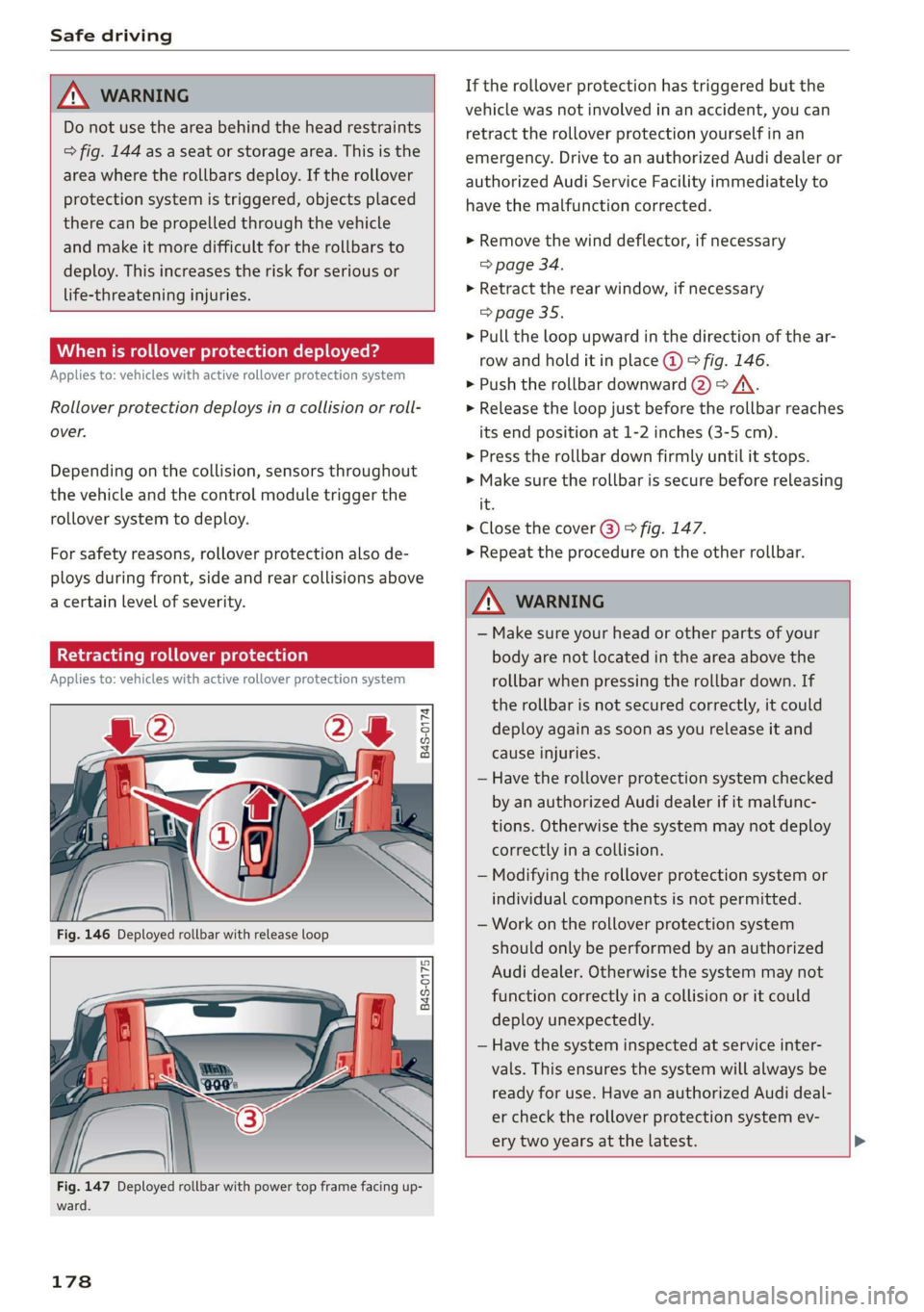
Retracting rollover protection
Applies to: vehicles with active rollover protection system
B4S-0174
B4S-0175
rh
Fig. 147 Deployed rollbar with power top frame facing up-
ward.
178
If the rollover protection has triggered but the
vehicle was not involved in an accident, you can
retract the rollover protection yourself in an
emergency. Drive to an authorized Audi dealer or
authorized Audi Service Facility immediately to
have the malfunction corrected.
> Remove the wind deflector, if necessary
> page 34.
> Retract the rear window, if necessary
=> page 35.
> Pull the loop upward in the direction of the ar-
row and hold it in place @ © fig. 146.
> Push the rollbar downward @) => /A\.
> Release the loop just before the rollbar reaches
its end position at 1-2 inches (3-5 cm).
> Press the rollbar down firmly until it stops.
> Make sure the rollbar is secure before releasing
it.
> Close the cover @) © fig. 147.
> Repeat the procedure on the other rollbar.
ZA\ WARNING
— Make sure your head or other parts of your
body are not located in the area above the
rollbar
when pressing the rollbar down. If
the rollbar is not secured correctly, it could
deploy again as soon as you release it and
cause injuries.
— Have the rollover protection system checked
by an authorized Audi dealer if it malfunc-
tions. Otherwise the system may not deploy
correctly in a collision.
— Modifying the rollover protection system or
individual components is not permitted.
— Work on the rollover protection system
should only be performed by an authorized
Audi dealer. Otherwise the system may not
function correctly in a collision or it could
deploy unexpectedly.
— Have the system inspected at service inter-
vals. This ensures the system will always be
ready for use. Have an authorized Audi deal-
er check the rollover protection system ev-
ery two years at the latest.
Page 188 of 308
Safety belts
@ Tips
—A fine dust is released when the pyrotechnic
safety belt pretensioners deploy. This is nor-
mal and is not caused by a fire in the vehi-
eles
— The relevant safety requirements must be
observed when the vehicle or components
of the system are scrapped. A qualified
dealership is familiar with these regulations
and will be pleased to pass on the informa-
tion to you.
Service and disposal of safety belt preten-
Serie
The safety belt pretensioners are parts of the
safety belts on your Audi. Installing, removing,
servicing or repairing of belt pretensioners can
damage the safety belt system and prevent it
from working correctly in a collision.
There are some important things you have to
know to make sure that the effectiveness of the
system will not be impaired and that discarded
components do not cause injury or pollute the
environment.
ZA\ WARNING
Improper care, servicing and repair proce-
dures can increase the risk of personal injury
and death by preventing a safety belt preten-
sioner from activating when needed or acti-
vating it unexpectedly:
— The belt pretensioner system can be activat-
ed only once. If belt pretensioners have
been activated, the system must be re-
placed.
— Never repair, adjust, or change any parts of
the safety belt system.
— Safety belt systems including safety belt
pretensioners cannot be repaired. Special
procedures are required for removal, instal-
lation and disposal of this system.
— For any work on the safety belt system, we
strongly recommend that you see your au-
thorized Audi dealer or qualified technician
who has an Audi approved repair manual,
training and special equipment necessary.
186
Page 204 of 308
Airbag system
have not been specifically approved by Au-
di.
— Never use additional seat cushions that
cover the areas where the side airbags in-
flate.
— Damage to the original seat covers or to
the seam in the area of the side airbag
module must always be repaired immedi-
ately by an authorized Audi dealer.
— The airbag system can deploy only once. Af-
ter
an airbag has been deployed, it must be
replaced with new replacement parts de-
signed and approved especially for your Audi
model version. Replacement of complete
airbag systems or airbag components must
be performed by qualified workshops only.
Make sure that any airbag service action is
entered in your Audi Warranty & Mainte-
nance booklet under AIRBAG REPLACEMENT
RECORD.
— For safety reasons in severe accidents, the
alternator and starter are separated from
the vehicle battery with a pyrotechnic circuit
interrupter.
— Work on the pyrotechnic circuit interrupter
must only be performed by a qualified
technicians who have the experience, in-
formation and special tools necessary to
perform the work safely.
— If the vehicle or the circuit interrupter is
scrapped, all applicable safety precautions
must be followed.
Orme Mar eel e ce)
Airbag performance
Changing the vehicle's suspension system can
change the way that the Advanced Airbag System
performs in a crash. For example, using tire-rim
combinations not approved by Audi, lowering the
vehicle, changing the stiffness of the suspension,
including the springs, suspension struts, shock
absorbers etc. can change the forces that are
measured by the airbag sensors and sent to the
electronic control unit. Some suspension changes
can, for example, increase the force levels meas-
ured by the sensors and make the airbag system
deploy in crashes in which it would not deploy if
202
the changes had not been made. Other kinds of
changes may reduce the force levels measured by
the sensors and prevent the airbag from deploy-
ing when it should.
Z\ WARNING
Changing the vehicle's suspension including
use of unapproved tire-rim combinations can
change Advanced Airbag performance and in-
crease the risk of serious personal injury in a
crash.
— Never install suspension components that
do not have the same performance charac-
teristics as the components originally instal-
led on your vehicle.
— Never use tire-rim combinations that have
not been approved by Audi.
Knee airbags
Description of knee airbags
The knee airbag system can provide supplemen-
tal protection to properly restrained front seat
occupants.
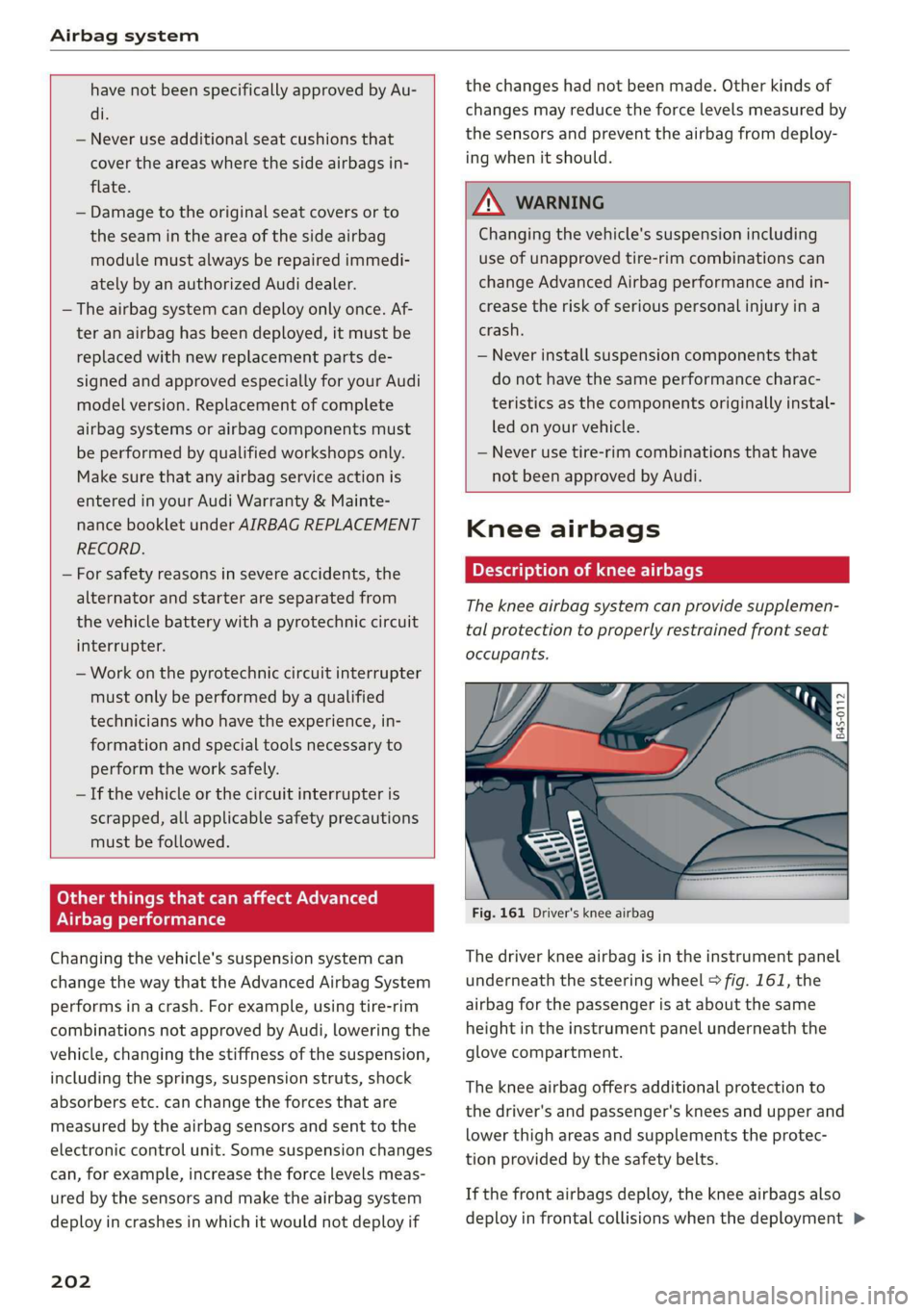
Fig. 161 Driver's knee airbag
The driver knee airbag is in the instrument panel
underneath the steering wheel > fig. 161, the
airbag for the passenger is at about the same
height in the instrument panel underneath the
glove compartment.
The knee airbag offers additional protection to
the driver's and passenger's knees and upper and
lower thigh areas and supplements the protec-
tion provided by the safety belts.
If the front airbags deploy, the knee airbags also
deploy in frontal collisions when the deployment >