radio AUDI S3 SEDAN 2017 User Guide
[x] Cancel search | Manufacturer: AUDI, Model Year: 2017, Model line: S3 SEDAN, Model: AUDI S3 SEDAN 2017Pages: 400, PDF Size: 67.32 MB
Page 171 of 400
"' "' ... N ,.._ N ... 0 N > a,
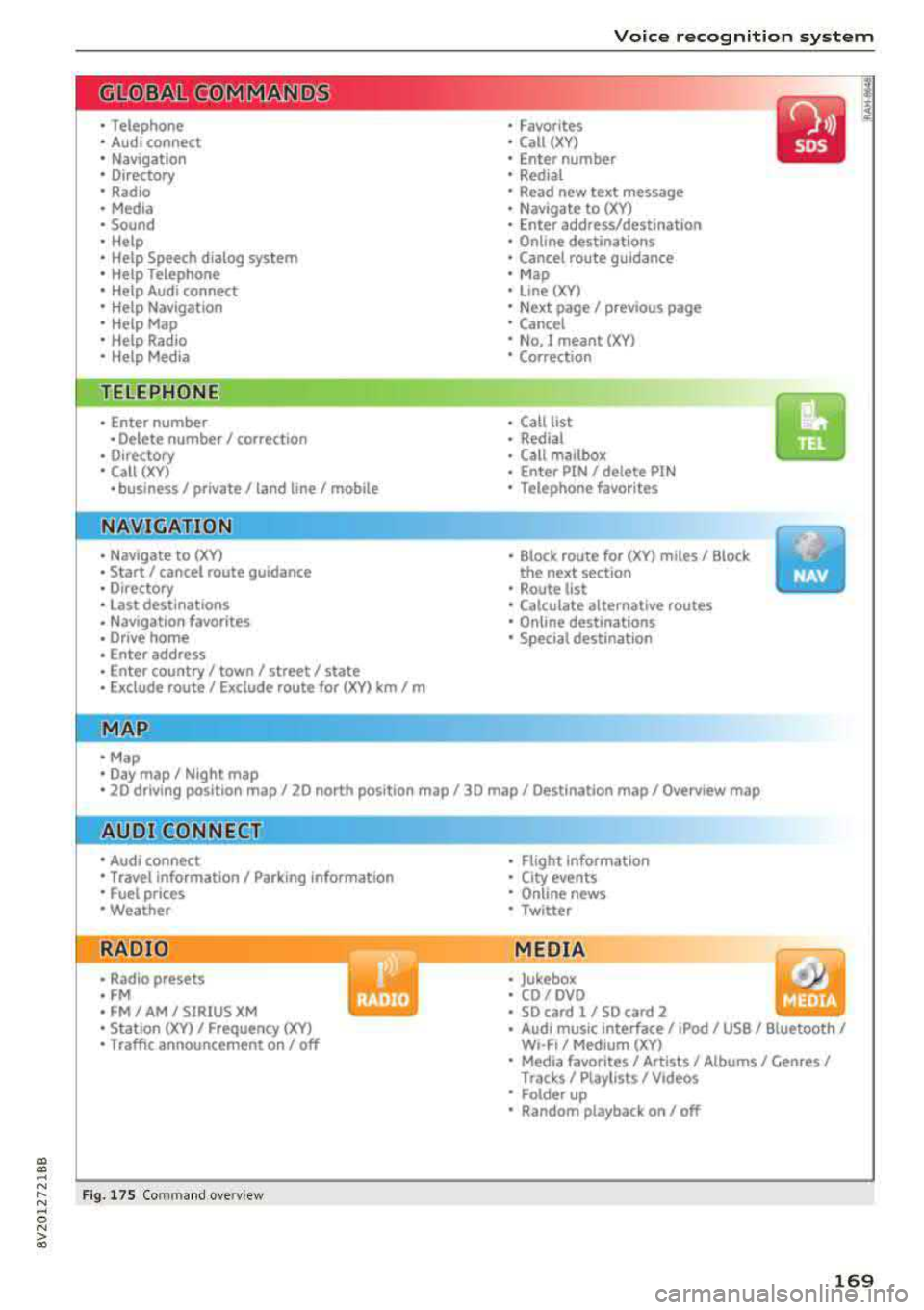
Voice recognition system
• Telephone
• Audi connect •
Favor ites
• Call (XY)
• Navigation
• Directory
• Radio
• Med ia
• Sound •
Enter number
• Redial
• Read new tex t message
• N avigate to (XV)
• Enter address/destination
• Help • Onhne destinations
• Help Speech dia log system
• Help Telephone •
Cancel route guidance
• M ap
• Help Audi connect •
Line (XY)
• Help Navigation
• Help Map
• Help Radio
• Help Media • N
ext page/ previous page
• Cancel
• No, l meant
()(Y)
• Correction
TELEPHONE
• Enter number • Call list
• Delete number/ correc tion
• Redial
•
Oltectory
• Call (XY) •
Call mailbox
• Enter PIN/ delete PI N
· business/ private/ land line/ mobile • Telephone favorites
NAVIG:ATI0N
• N avigate to CXV)
• Start/ cancel route guidance
• Directory
• Last destinations •
Bloc k route for
(XYJ miles/ Block
the next section
• Route list
• Calculate alternative routes
• Nav igation favorites
• Drive home
• Enter address •
Online destinations
• Special destination
• Enter country/ town
I street I state
• Exclude route / Exclude route for (XY)
km / m
M~P
• Map
• Day map/ Night map
• 20 driving position map/ 20 north posi tion map/ 30 map/ Destination map/ Overview map
AllJDI G QNNECT
• Audi connect
• Travel Information/ Parking Information
• Fuel prices
• Weather
RADIO
• Rad io presets
• FM
• FM/ AM/ SIRIUS XM
• Station (XY) / Frequency
(XYJ
• Traffic announcement on/ off
Fig. 17 S Co mmand overv ie w
• Flight Information
• City events
• Online news
• Twitter
MEDIA
• Jukebo x
• CO/ DVD .))
• SD card 1 / SD card 2
• Audi music Interface/
IPod I use / Bluetooth /
W I-Fl/ Medium (XV)
• Media favorites/ Artists/ Albums/ Genres/
Tracks/ Ptayllsts / Videos
· Folder up
• Random playback on / off
169
Page 172 of 400
Voice recognition system
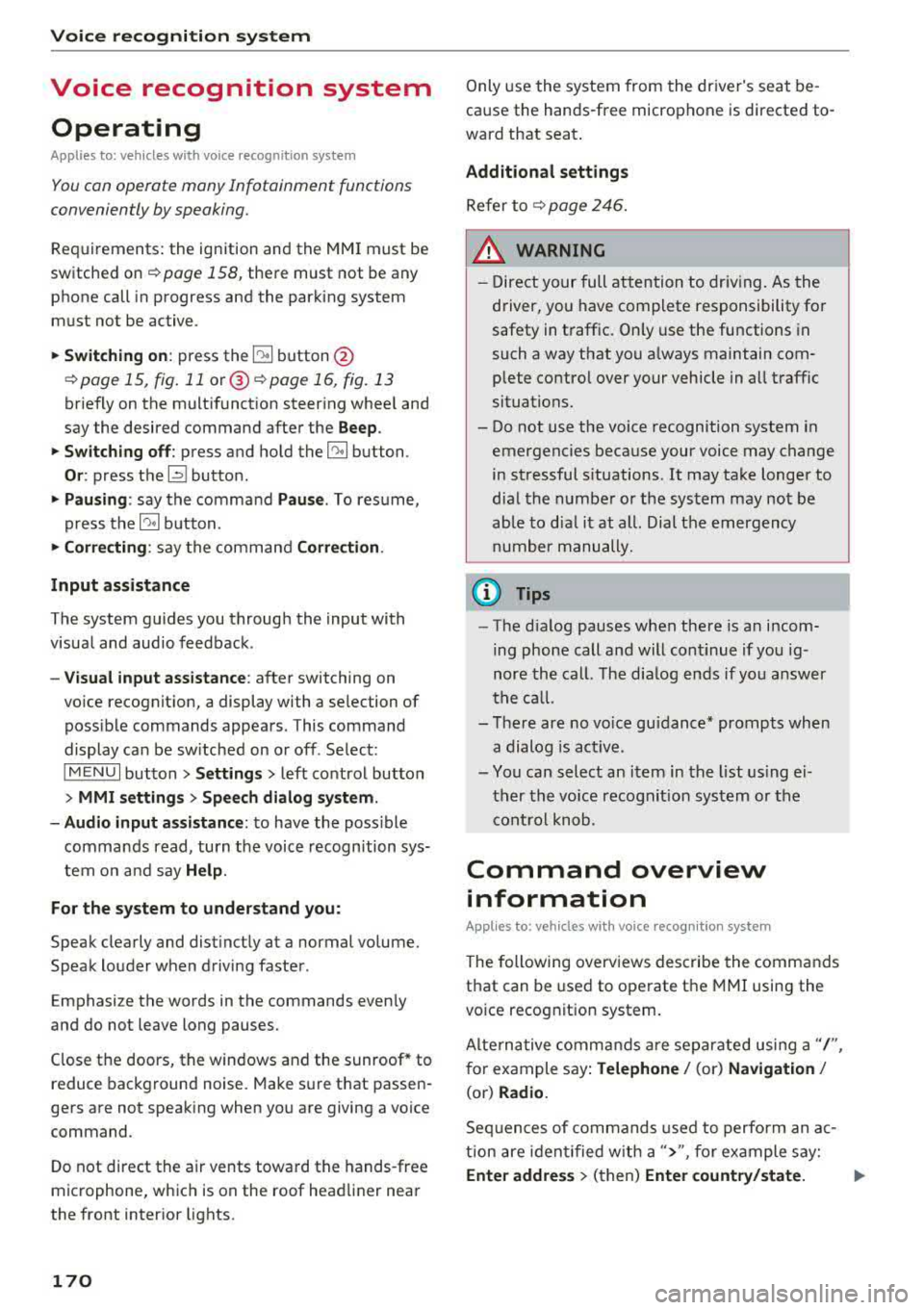
Voice recognition system Operating
Applies to: vehicles with vo ice recognition system
You con operate many Infotainment functions
conveniently by speaking.
Requirements: the ignition and the MM I must be
sw itched
on~ page 158, the re must not be any
phone call in progress and the parking system
m ust not be active.
.. Switching on : press the~ button @
¢ page 15, fig. 11 or@ ~ page 16, fig . 13
briefly on the multifunct ion steer ing whee l and
say the desired command after the
Beep.
.. Switching off : press and hold the~ button.
Or : press the l2l butto n.
.,. Pausing : say the command Pause. To resume,
press
the~ button.
.,. Corre cting : say the command Correction .
Input assistance
The system guides you through the input with
visua l and audio feedback.
- Visual input as sistance : after switching on
vo ice recognit ion, a display with a selection of
poss ible commands appears. This command
display can be sw itched on or off . Se lect:
IMENU I button> Settings > left control button
> MMI settings > Speech dialog sy stem .
- Audio input as sis tance :
to have the poss ible
commands read, turn the voice recognition sys
tem on and say
Help .
For the system to understand you:
Speak clearly and distinct ly at a normal volume.
Speak louder when driving faster.
Emphasize the words in the commands even ly
and do not leave long pauses.
Close the doors, the windows and the sunroof* to
reduce background noise. Make sure th at passen
gers are not speaking when you are giving a voice
command.
D o not direct the air vents toward the hands-free
microphone, whic h is on the roof head liner near
the front interior lights.
170
Only use the system from the dr iver's seat be
cause the hands-free microphone is directed to
ward that seat.
Additional sett ings
Refer to~ page 246.
_&. WARNING
- Direct your full attention to dr iv ing. As the
driver, you have complete responsibility fo r
safety in t raffic. Only use the functions in
such a way that you a lways maintain com
plete contro l over your vehicle in all traffic
situations.
-
- Do not use the voice recognition system in
emergencies because your voice may change
in stressful s ituations.
It may take longer to
dial the numbe r or the system may not be
ab le to dia l it at all. Dial the emergency
number manually .
(D Tips
- The d ia log pauses when the re is an incom
ing phone call a nd will continue i f you ig
nore the cal l. The dia log ends if you answer
the ca ll.
- There are no vo ice gu idance* prompts when
a dialog is act ive.
- You can select an item in the list using ei
ther the vo ice recognit ion system or the
cont rol knob.
Command overview
information
Applies to: vehicles with voice recognition system
The following overv iews des cribe the commands
that can be used to operate the MMI using the
vo ice recog nit ion system.
Alte rnative commands are separated using a"/",
for example say:
Telephone / (or) Navigation /
(or) Radio.
Sequences of com mands used to perform an a c
tion are iden tified w ith a
">", fo r example say:
Ente r addre ss > (then) Enter country /state. IJ,,
Page 173 of 400
CXl CXl .... N ,.__
N .... 0 N > 00
Voice recognition system
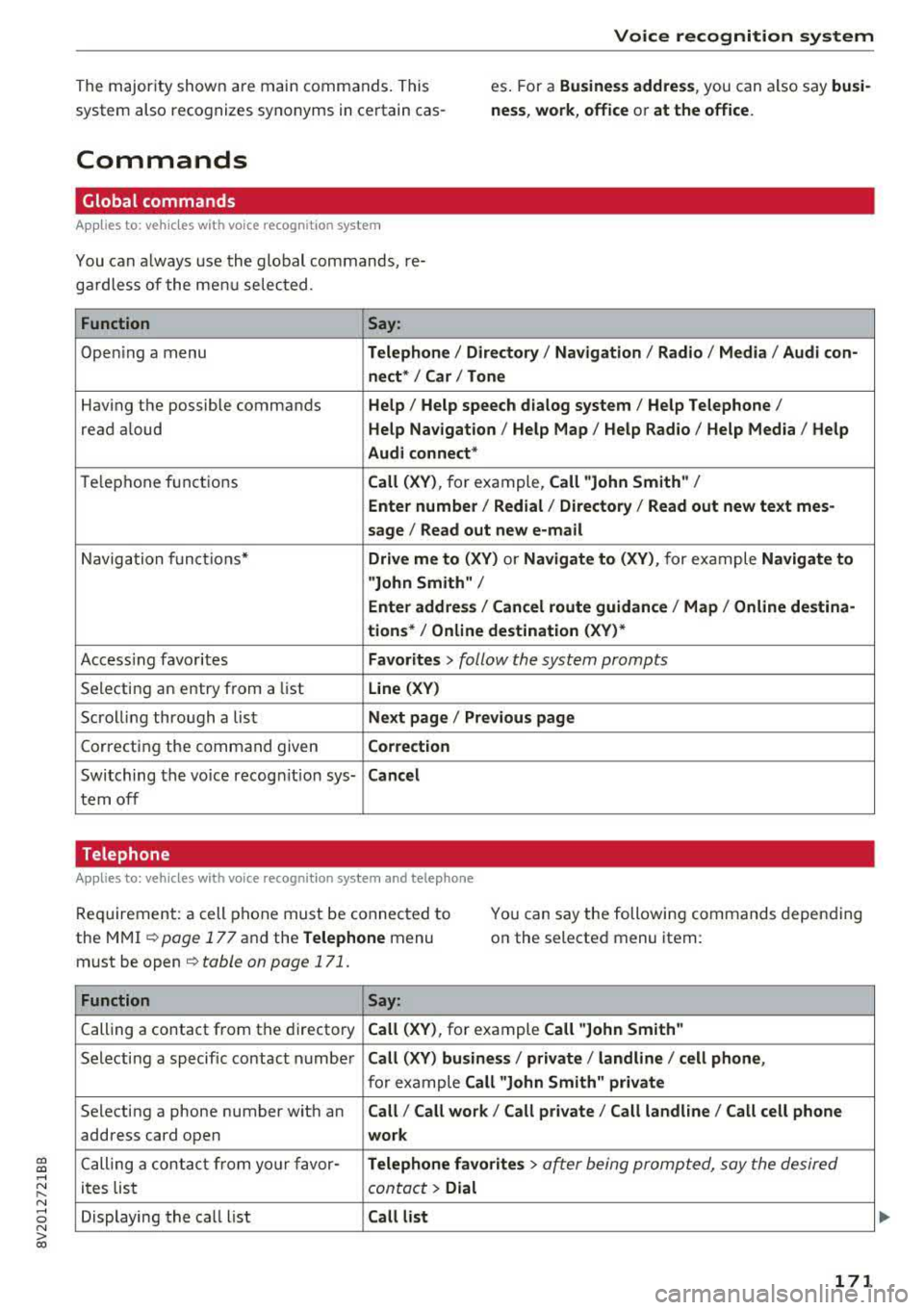
The majority shown are main commands. This
system also recognizes synonyms in certain cas-es
. For a Bu sine ss addre ss, you can a lso say bu si
ness , work , office or at the office .
Commands
Global commands
Applies to: vehicles with voice recognition system
You can a lways use the global commands, re
ga rdless of the me nu selected .
Function Say:
Open ing a menu Tel ephon e/ Directory / Navigation / Radio / Medi a/ Audi con ·
n ec t*
I Car I Tone
Hav ing the possible commands Help / Help s peech dialog s ystem / Help Telephone /
read aloud Help Na vigat ion / Help Map / Help Radio / Help Med ia / He lp
Aud i connect *
Telephone fu nctions Call (XV ), for example, Call "John Smith" /
Enter numbe r/ Redial / Di rectory
I Read out new te xt me s-
s age
I Read out new e -mail
Navigation funct ions* Driv e me to (XV ) or Navigate to (XV ), for example Navigate to
"John Smith" /
Enter addre ss/ Cancel r oute guidance / Map / Online de stin a·
tion s*
I Online destinat ion (X V)*
Access ing favorites Favorit es > follow the system prompts
Selecting an entry from a list Line (XV)
Scrolling through a list N ex t page I Pre viou s page
Correcting the command given Correction
Switching the vo ice recogn it io n sys-Canc el
tern off
Telephone
Applies to: veh icles with vo ice recognition system and telephone
Req uirement: a cell phone must be connected to
the MMI ¢
page 177 and the Telephone menu
must be open ¢
table on page 171.
You can say the following commands depending
on the selected menu item :
Function
Say:
Calling a contact from the directory Call (X V ), for example Call "John Smith "
Selecting a specific contact number Call (XV) bu sines s/ private / land line / cell phone ,
for example Call "John Smith " privat e
Selecting a phone number with an Call/ Call wo rk / Call private / Call land l ine / Call cell phone
address card open wo rk
Calling a contact from yo ur favor -Teleph one fav orite s > a~er being prompted, say the desired
ites list contact > Dial
Displaying the call list Call list
171
Page 177 of 400
CXl CXl .... N r--N .... 0 N > 00
Voice recognition system
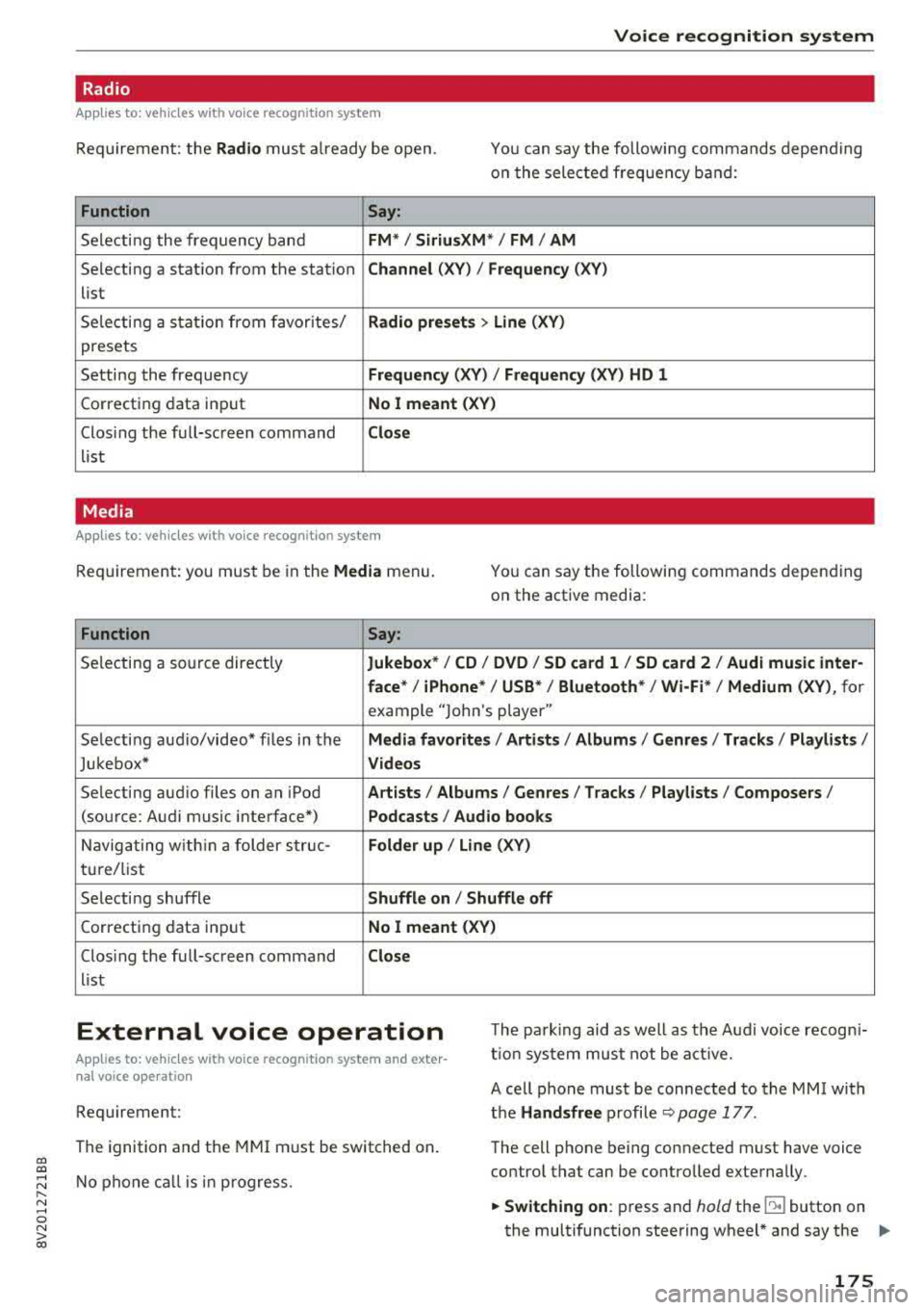
Radio
Applies to: vehicles with voice recognition system
Requ ireme nt: the Radio must a lready be open. You can say the followi ng commands depend ing
o n t he sele cted frequen cy b and:
Function Say:
Sele cti ng the frequency ba nd FM */ SiriusXM * / FM / AM
Selecting a stat ion from the station Channel (XV ) / Frequency (XV)
list
S ele cti ng a s tat io n from favorites/
Radio prese ts > Line (XV)
presets
Setting the frequency
Frequency (XV) I Frequency (XV) HD 1
Correcting data inp ut No I meant (XV )
Closing the full-sc reen command Close
list
Media
Applies to: vehicles with voice recognitio n system
Re qui reme nt: you mus t be in the Media menu.
You can say the following commands depen ding
on the active media:
Function Say:
Selectin g a so urce directly Jukebox* / CD / DVD / SD card 1 / SD card 2 / Audi music inter-
face *
I iPhone* / USB * / Bluetooth* / Wi-Fi * / Medium (XV) , for
example "Jolhn 's player"
Selecti ng aud io/video * fi les in the
Media favorites / Artists / Albums / Genres / Track s/ Playlists /
Jukebox* Videos
Selecting aud io files on an iPod A rt ists / Albums / Genres / Tracks / Playlists /Composers /
(source: Audi music interface*) Podcasts / Audio books
Naviga ting w ith in a folder s truc -Folder up / Line (XV)
tu re/list
Selecti ng shuffle
Shuffle on I Shuffle off
C orrecting data inp ut No I meant (XV)
Clos ing the fu ll-sc reen command Close
list
External voice operation T he pa rk ing aid as well as the A ud i voice r ecogn i
t io n sys te m must not be a ctive.
Applies to: vehicles with voice recognition system and exter
nal voice operation
Requirement:
The ignition and the MMI m ust be switched on.
N o phone call is in progress . A cell phone must be connected to the MMI with
the Handsfree p rofile ~ pag e 177.
The cell p hone be ing connected must have voice
contro l that can be contro lled exte rna lly.
.,. Switching on : press and hold the lei.I button on
the multifunction steering wheel * and say the
liJJ,,
175
Page 183 of 400
CXl CXl .... N ,.__
N .... 0 N > 00
Accepting/ending a call
Applies to: ve hicles with telephone
- Accepting a call: select and confirm Answer.
- Declining a call: select and confirm Decline.
- Muting the active call: select and confirm
Mute .
- Ending a phone call/cancel dialing: select and
confirm End call.
Caller information: the
name, phone number or
Unknown appears in the Infotainment system
display depending on if the caller has been stored
in the directory and if the phone number has
been transmitted . A picture may also be dis·
played, depending on whether you have assigned
a picture to a contact in your directory and if it
was transferred to your MMI. You can find out if
your cell phone supports this function from your
cell phone network provider, your cell phone
owner's manual or at www.audiusa.com/blue
tooth.
- The radio or media playback is muted during
a phone call.
- Missed calls are displayed with a symbol in the status line of the Infotainment system
display @
~page 167, fig. 174.
During a phone call
Applies to: ve hicles with telephone
Requirement: there must be a call in progress .
.. End call: you can end a phone call.
.. Send tone sequence: you can enter tone se
quences (DTMF) directly using the number
speller and send to the other person on the call.
.,. Other call options: press the right control but-
ton.
The following options are possible during a call depending on the cell phone being used and the
type of connection:
-Answering an additional call: if there is an in
coming call while another call is active, you can
select Answer to put the existing call on hold
Telephone
and answer the incoming call. If you select De
cline, the incoming call will be declined.
- Accepting an incoming call when there is an
ac
tive call and a call on hold: select Replace. The
active call is replaced with the incoming call.
- Muting the incoming call: select and confirm
Mute.
- Additional call: select: Find contact
> Call list/
Directory/Favorites
> an entry from the list.
Mute: if you select and confirm this function, the
other person on the phone cannot hear you . You
can hear the other person. To turn the micro
phone back on, select and confirm Un mute.
Hold call/Resume held call : you can place the
ex
isting call on hold and resume it again. To re
sume the call, select and confirm the call you
would like to resume.
Transfer call to mobile device*: select and con·
firm Transfer call to mobile device to transfer
the existing call from the MMI to your cell phone.
Switch to hands-free mode*: Requirement: you
must have a phone call in progress on your cell
phone . Select and confirm Switch to hands-free
mode to transfer the call from your cell phone
back to the MMI.
Swap call: alternate between two phone calls
while one of the calls is on hold . Selecting End
call will end the active phone call. A phone call on
hold can be resumed using the right control but
ton
> Resume.
Connection manager: see
¢page 242 .
Telephone settings: see~ page 187 .
(D Tips
- To be notified of an incoming call during a
phone call, the
call waiting function in your
cell phone must be switched on when using
the Handsfree profile.
- You can obtain more information from your
cell phone service provider or from your cell
phone user guide.
- When leaving the vehicle, the Bluetooth
connection to the cell phone will automati
cally disconnect. Depending on your cell
phone, phone calls in progress may be
181
Page 219 of 400
Radio
Opening the radio
The radio supports the F M , AM and SiriusXM *
(satellite radio) bands. Using the HO Radio re
ceiver also allows you to receive radio stations
on the FM and AM bands in digital format.
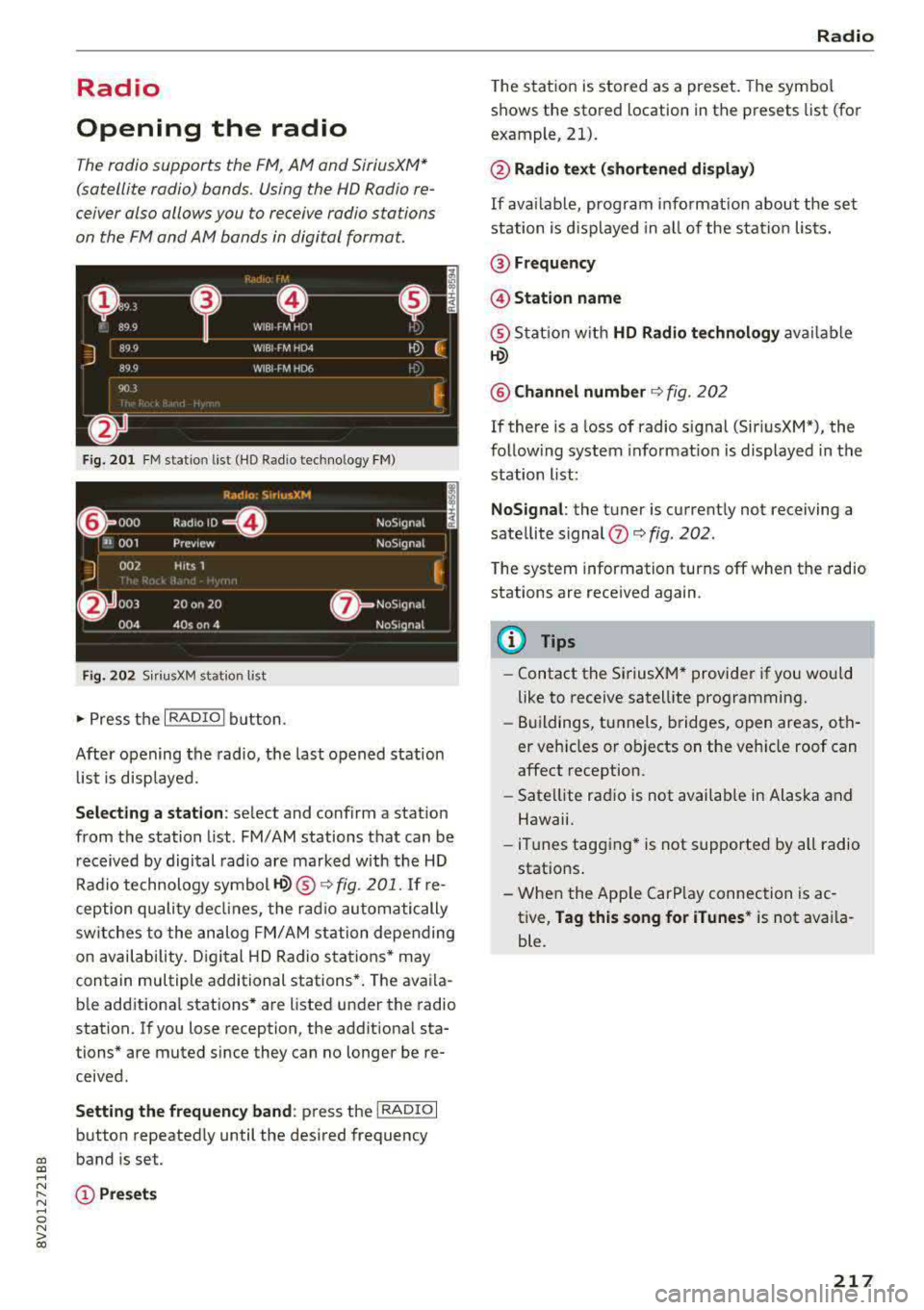
Fig . 201 FM stat ion list ( HO Ra dio tec hn ology FM)
Radio: SiriusXM
~ 000 Rad,olD e· N oS,gnal
'JI 001 Prev iew N oS,gnal
J 002 H tts 1
~
f) 003 20 on 20
NoStgna l
004 40s on 4 NoS,gnal
F ig. 202 Siri usXM station list
.. P ress the I RAD IO I bu tton.
Afte r opening the rad io, t he last opened station
lis t is disp laye d.
.
I
Selecting a station : select and confirm a stat io n
from the station list . FM/ AM stations t hat can be
received by digital rad io are ma rked w ith the HD
R adio technology symbol
tQ) ® ¢fig. 201. If re
ception quality decl ines, the r adio automatically
switches to the analog FM/AM station depe nding
on availability , D igi tal HD Radio s ta tions * may
contain multiple additional stations* . The ava ila
b le add itiona l stations* are listed under the radio
station. I f you lose reception, the add it iona l sta
tions* are muted since they can no longer be re
ceived.
Setting the frequency band : press the I RADIO I
button repeated ly until the desired frequency
a, band is set. a, ....
~ (D Pre sets
.... 0 N > 00
Radio
T he s tation is stored as a preset . The symbol
shows the stored location in the presets list (for
example, 21).
@ Radio text (shortened display )
If availab le, program i nfo rmat ion about the set
station is d isplayed in a ll of the station lists.
@ Frequency
@ Station name
® Stat ion w it h HD Radio te chnology av aila ble
tQ)
@ Channel number ¢ fig. 202
If there is a loss of radio s ignal (Sir iusXM*), the
follow ing system informat io n is displayed in the
station list:
NoSignal : the tu ner is current ly not receiving a
sate llite signal
(fJ ¢ fig. 202 .
The system information turns off when the radio
stations are received again.
(D Tips
-Contact the Si riusXM* provider if you wou ld
like to receive satell ite programming .
- Buildings, tu nnels, b ridges, open areas, oth
er veh icles or objects on the veh icle roof can
affect reception.
- Sate llite rad io is not availab le in Alaska and
Hawaii.
- iTun es tagging * is not supported by all radio
statio ns.
- When the App le CarPlay connection is ac
tive,
Tag this song for iTunes * is not ava ila
ble.
217
Page 220 of 400
Radio
Radio functions
Free text search
App lies to: ve hicles w ith free text search
Using the free text search, you can select the or
der that the search terms are entered in the in
put field. Search in all frequency bands for a sta tion name or program type such as
News ).
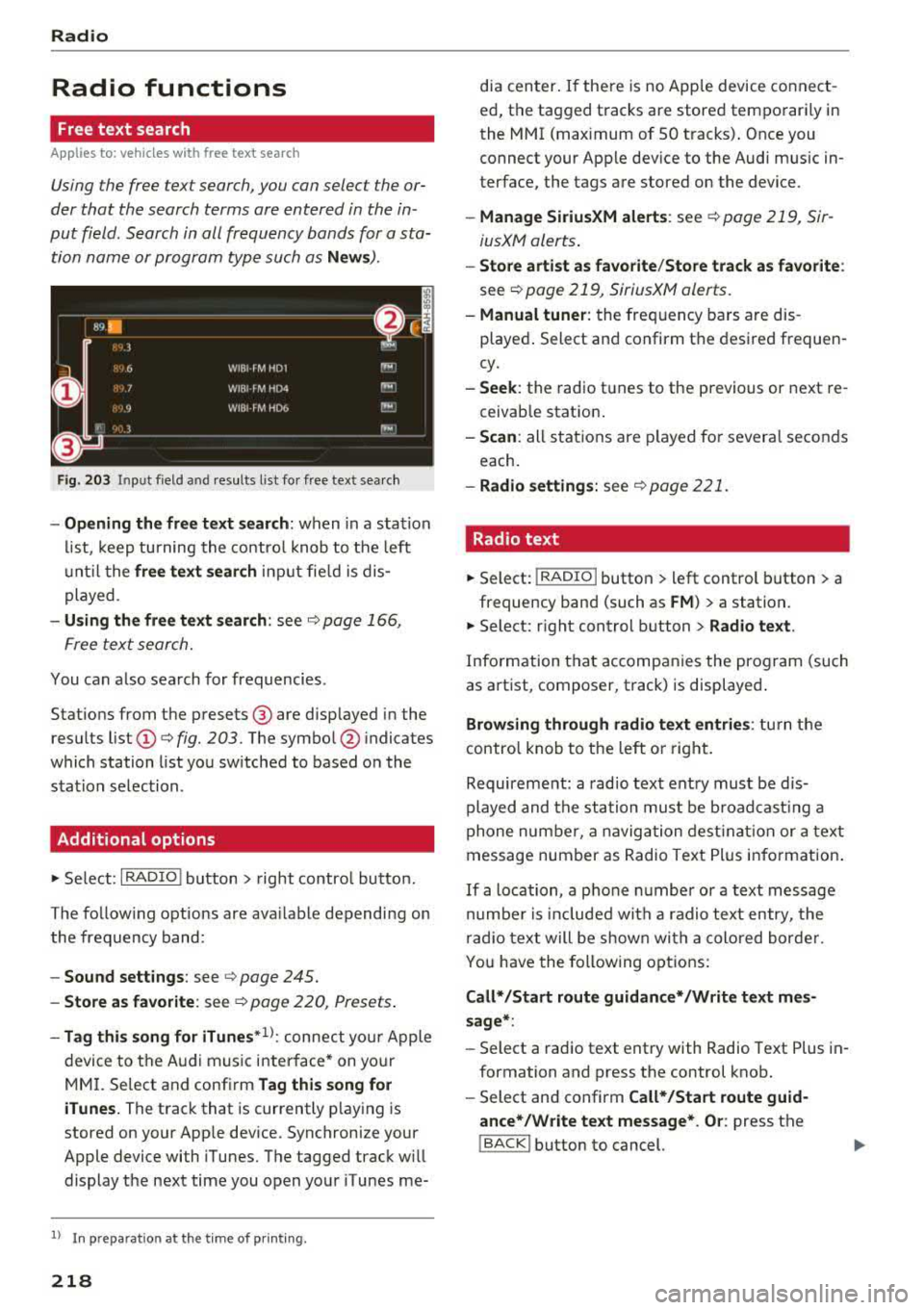
Fig. 203 Input field and results list fo r free text sea rch
- Opening the free text search : when in a s ta tion
list, keep turning the control knob to the left
u nt il the
free text search input fie ld is dis
played .
-Using the free text search: see c::> page 166,
Free text search.
You can a lso search for frequencies.
Stat ions from the presets @ are disp layed in the
results list
(D c::> fig. 203. The symbo l@ indicates
which station list you sw itched to based on the
station selection.
Additional options
.,. Se lect: I RADIO I button > r ight contro l button.
The follow ing options are ava ilable depending on
the frequency band:
- Sound settings : see c::> page 245.
-Store as favorite : see c::> page 220, Presets.
-Tag this song for iTunes*1>: connect your Apple
device to the Audi music interface* on yo ur
MM I. Select and confi rm
Tag this song for
iTunes.
The track that is currently p laying is
stored on your App le device. Synchronize your
Apple device with iTunes. The tagged track w ill
display the next time you open your iTunes me-
1> I n preparation at the t ime of pr inting.
218
dia center . If the re is no Apple device connect
ed, the tagged tracks are stored temporarily in
the MMI (max imum of 50 tracks) . Once you
connect your Apple dev ice to the Audi music in
terface, the tags are stored on the device.
- Manage SiriusXM alerts : see c::> page 219, Sir
iusXM alerts .
-Store artist as favorite /Store track as favorite :
see c::> page 219, SiriusXM alerts.
-Manual tuner : the freq uency bars are dis
played . Select and confirm the desired frequen
cy.
- Seek: the radio tunes to the previous or next re
ceivab le station .
-Scan : all stations are played for severa l seconds
each.
- Radio settings: see c::> page 221.
Radio text
.,. Select: I RADIO I button > left control button > a
frequency band (such as
FM ) > a station.
.,. Select: r ight control button> Radio text .
Information that accompanies the program (such
as artist, composer, t rack) is displayed.
Browsing through radio text entries: turn the
contro l knob to the left o r right.
Requirement: a radio text entry must be d is
played and the station must be broadcast ing a
phone number, a navigation destination or a text
message number as Radio Text Plus information .
If a location, a phone number or a text message
number is included with a radio text entry, the
radio text will be shown with a colored borde r.
You have the following options:
Call* /Start route guidance* /Write text mes
sage* :
-Select a radio text entry with Radio Text Plus in
formation and press the control knob.
- Select and confirm
Call* /Start route guid
ance* /Write text message* . Or :
press the
I BACK I button to cancel.
Page 221 of 400
a, a, ..... N
" N ..... 0 N > 00
(D Tips
The availability of radio text and Radio Text
Plus depends on the radio station .
SiriusXM alerts
Applies to: vehicles with SiriusXM
You can display on overview of your favorite ar
tis ts or tracks that are currently being played on
a SiriusXM channel.
11M&-48/M
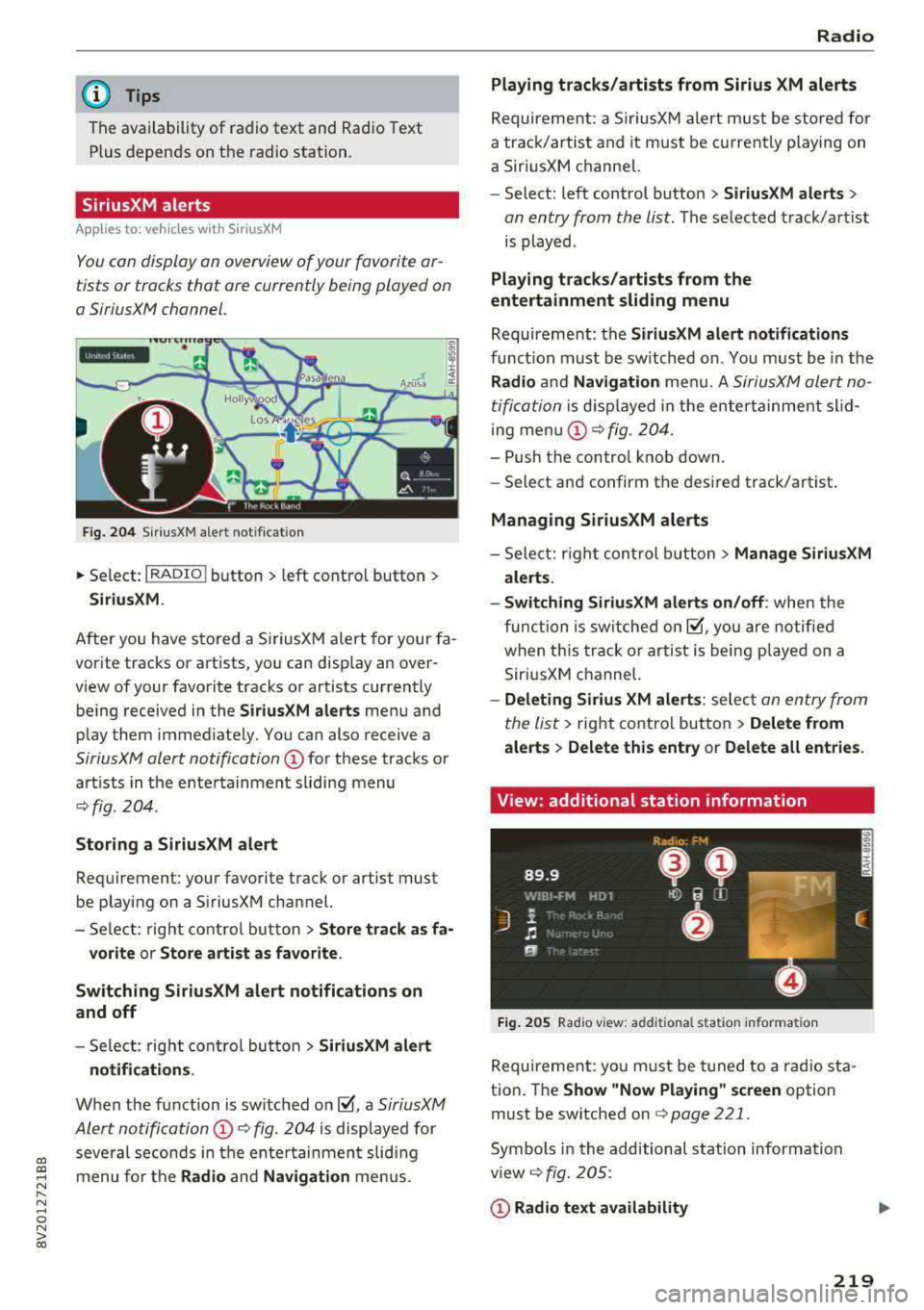
Fig. 204 SiriusXM a le rt n otifi cat io n
.. Select : I RADIO I button > left control button >
SiriusXM.
After you have stored a SiriusXM alert for your fa
vorite tracks or artists, you can display an over
view of your favorite tracks or artists currently be ing received in the
SiriusXM alerts menu and
p lay them immediate ly. You can also receive a
SiriusXM alert notification CD for these tracks or
art ists in the entertainment sliding menu
¢fig . 204 .
Storing a SiriusXM alert
Requirement : your favorite t rack or artist must
be playing on a SiriusXM channel.
- Select : right control button
> Store track as fa-
vorite
or Store artist as favorite.
Switching SiriusXM alert notifications on
and off
- Se lect : right control button > SiriusXM alert
notifications .
When the function is switched on~' a SiriusXM
Alert notification
CD 9 fig . 204 is displayed for
several seconds in the ente rtainmen t slidi ng
menu for the
Radio and Navigation menus.
Radio
Playing tracks/artists from Sirius XM alerts
Requireme nt: a SiriusXM alert must be stored for
a track/artist and it must be current ly playing on
a SiriusXM channel.
- Select: left control button
> SiriusXM alerts >
on entry from the list . The selected track/artist
is played .
Playing tracks/artists from the
entertainment sliding menu
Requirement: the SiriusXM alert notifications
function must be switched on . You must be in the
Radio and Navigation menu. A SiriusXM alert no
tification
is d isplayed in the enterta inment slid
ing menu
CD ¢ fig. 204.
-Push the control knob down .
-Select and confirm the desired track/artist .
Managing SiriusXM alerts
-Select: right con trol button > Manage SiriusXM
alerts .
- Switching SiriusXM alerts on/off :
when the
function is switched
on~ ' you are notified
when this track or artist is being played on a
SiriusXM channel.
-Deleting Sirius XM alerts : select an entry from
the list>
right control button > Delete from
alerts
> Delete this entry or Delete all entries.
View: additional station information
Fig. 205 Radio v iew : ad dit io nal sta ti on in forma tion
Requirement: yo u must be tuned to a radio sta
tion . The
Show "Now Playing " screen option
must be switched on
9 poge 22 1.
Symbols in the additional station information
view ¢ fig. 205 :
CD Radio text availability
219
Page 222 of 400
Radio
Radio text is availab le for the selected stat ion.
Ref er to
~ page 218.
@ iTunes tagging
The Tag this song for iTunes option is available
for the set station . Refer
to ~ page 218 , Addi
tional options.
@ FM HD Radio technology
The station is received through FM HD Radio
technology.
@ Screen view
Display Cover art or Station logo. Refer to
~ page 221, Preferred picture view *.
Displaying the station list:
Turn the control knob. Or: press the !BACK ! but
ton .
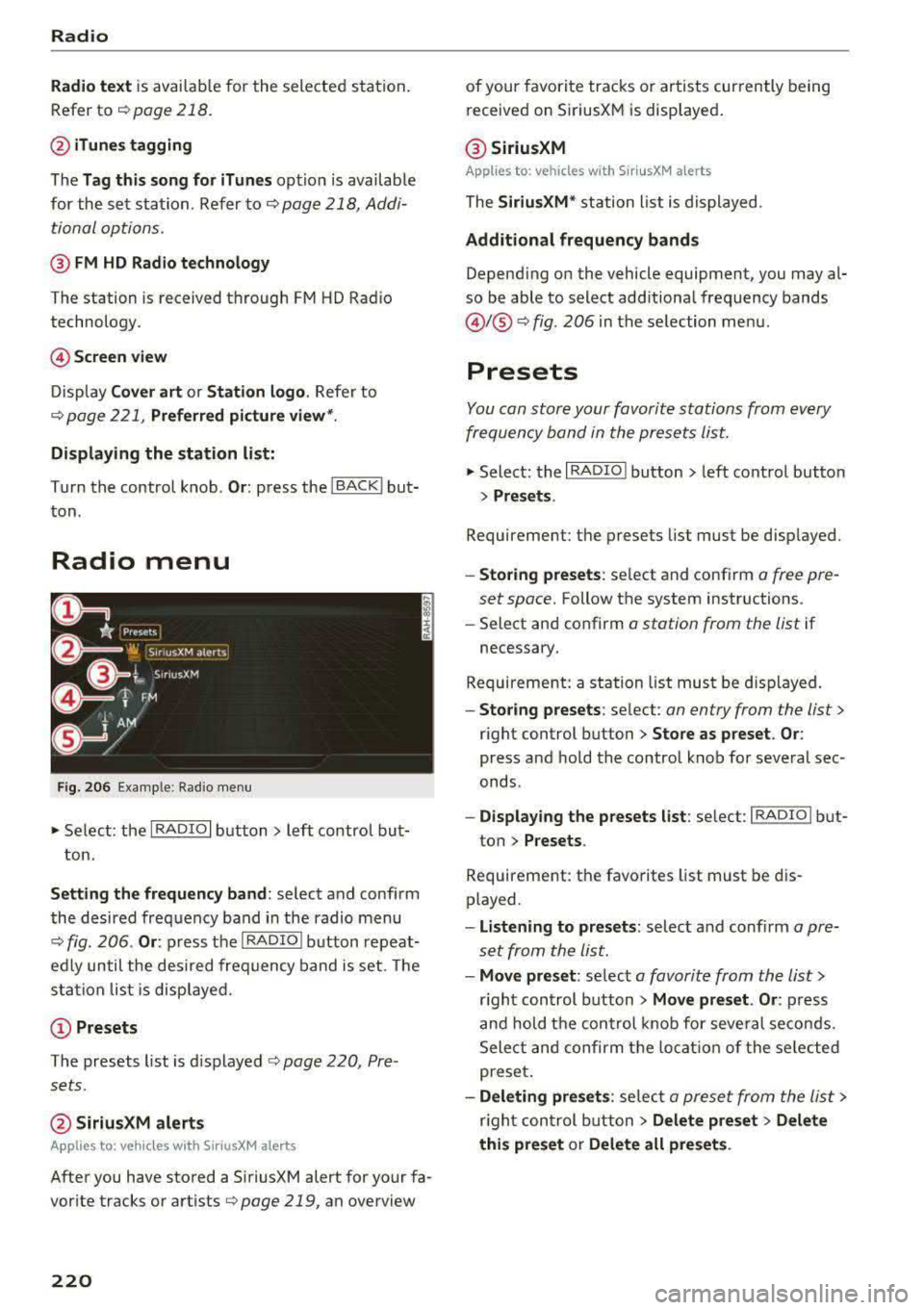
Radio menu
Fig. 206 Example : Rad io menu
~ Select: the I RADIO I button> left control but
ton.
Setting the frequency band : select and confirm
the desired frequency band in the radio menu
~ fig . 206 . Or: press the I RADIO I button repeat
edly until the desired frequency band is set. The
sta tion list is displayed.
(!) Presets
The presets list is displayed ~ page 220, Pre
sets .
@SiriusXM alerts
Applies to: veh icles with SiriusXM alerts
After you have stored a SiriusXM alert for your fa
vor ite tracks or artists
q poge 219, an overview
220
of your favorite tracks or artists currently being
received on S iriusXM is displayed .
@ SiriusXM
Applies to: vehicles with SiriusXM alerts
The SiriusXM * station list is displayed .
Additional frequency bands
Depending on the vehicle equipment, you may al
so be able to select additional frequency bands
@ !@ ~ fig. 206 in the selection menu.
Presets
You con store your favorite stations from every
frequency bond in the presets list.
~ Select: the I RADIO I button > left control button
> Presets .
Requirement: the presets list must be displayed.
-Storing presets: select and conf irm o free pre
set space.
Follow the system instructions .
-Select and confirm a station from the list if
necessary.
Requirement: a station list must be displayed.
-Storing presets: select: on entry from the list>
right control button > Store as preset. Or :
press and hold the control knob for several sec
onds .
-Displaying the presets list : select: IRADIOI but-
ton >
Presets .
Requirement: the favorites list must be dis
played.
-Listening to presets: select and confirm a pre
set from the list.
-Move preset : select a favorite from the list>
right control button > Move preset . Or : press
and hold the control knob for several seconds.
Select and confirm the locat ion of the selected
preset.
-Deleting presets : select a preset from the list >
r ig ht con trol button
> Delete preset > Delete
this preset or Delete all presets .
Page 223 of 400
CXl CXl .... N ,.__
N .... 0 N > 00
Additional settings
Radio settings
"'Select: I RADIO! button> right control button>
Radio settings.
The following settings can be selected, depend
ing on the band that is selected :
Station names (FM)
Variable:
scrolling text transmitted by the FM
stations is shown in the Infotainment system dis play.
Fixed : scrolling text transmitted by the FM sta
tions is not shown in the Infotainment system
display. Only the current section of the scrolling
text displayed.
FM/ AM HD Radio*
You can switch HD Radio reception on or off.
Channel sorting (SiriusXM*)
You can set the station sort ing for SiriusXM sta
tion lists* by:
-Channel number: the stat ions are sorted in as
cending order according to their channel num
ber.
- Channel name: the stations are listed in alpha
betical order.
-First category, then channel number: the sta
t ions are sorted by their category and then by
their channe l numbers.
- First category, then channel name : the sta
t ions are sorted by their category and then by
their channe l names.
Category filter (SiriusXM*)
The stations shown in the station list can be fil
tered by your personal preferences and by pro
gram type. The program categor ies that you can
Troubleshooting
Problem
Solution
Radio
select depend on what is offered by your provid
er. Select the
All categories option to deactivate
all filter options and display all available stations
in the satellite station list.
Additional station information
When the function is switched on~ and the sta
tions or presets list is open, the disp lay will
switch to the
Show "Now Playing" screen view
after approximately five seconds
c> page 219. De
pending on availabi lity, information about the
set station (such as station name, artist and sta
tion logo) is displayed in this view .
Preferred picture view*
You can set your preferred screen view for the
Show "Now Playing" screen r=> page 219.
-Station logo: the station logo is displayed, de
pending on availability .
-Cover art: the album cover is displayed if availa-
ble.
Gracenote online database*
Requirement: the MMI must be connected to the
Internet. The
Cover art optio n must be selected
c> page 221, Preferred picture view*.
When the funct ion is switched on~, the album
cover or genre cover for the song that is p lay ing
is loaded from the Gracenote online database,
depending on availability.
Subscription status (SiriusXM)*
This opt ion is available when your subscription is
about to expire or has already expired . The expi
ration date for your license is displayed.
Call to SiriusXM*: the contact information for
your satellite radio provider is displayed . To call
your satellite radio provider using the MMI, press
Call to SiriusXM *.
A station with poo r reception is no longer Store the station as a preset in advance. Access the pre-
displayed in the station list once you sets usi ng the presets list
c> page 220 .
switch to a different station .
221