OE number AUDI S3 SEDAN 2018 User Guide
[x] Cancel search | Manufacturer: AUDI, Model Year: 2018, Model line: S3 SEDAN, Model: AUDI S3 SEDAN 2018Pages: 404, PDF Size: 62.3 MB
Page 168 of 404
Multifunction steering wheel
-Always pay attention to the Infotainment
system d isp lay . Add itiona l operat ion
th ro ugh t he M MI cont rol panel may be nec
essa ry, depend ing o n the selected f unction.
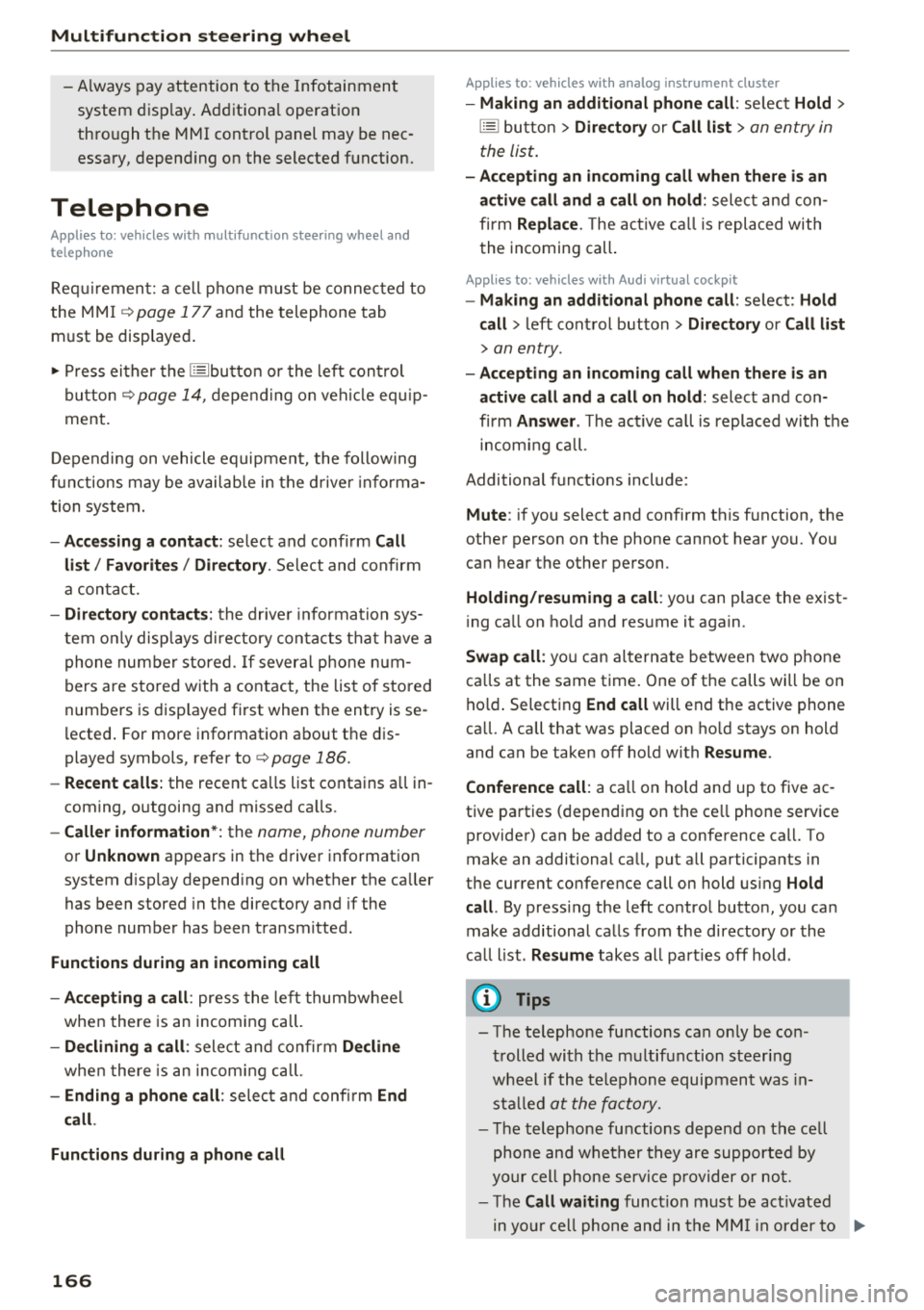
Telephone
Applies to: vehicles with multifunction steering wheel and
telephone
R equir emen t: a cell phone must be connec ted to
the MMI
¢ page 177 an d the telephone tab
m ust be displayed .
.,. Press ei ther the l== lbu tto n or the left con trol
but ton
~page 1 4 , d epe ndin g on veh icle eq uip
ment.
D epe nding on vehicle equip men t, the follow ing
f un ctions may be av aila ble i n t he drive r info rma
t ion system .
-Accessing a contact : selec t and conf irm Call
list / Favorites / Directory .
Select and co nfirm
a c onta ct.
-Directory contacts : the drive r information sys
tem o nly disp lays dire ctory co ntacts t hat have a
p hone num ber stored . If severa l pho ne n um
bers are s to red w it h a contac t, the lis t of stored
num bers is dis played fi rst when the entry is se
l ected . For more informat io n about t he di s
played symbols, refer
to ¢ page 186 .
-Recent calls: the recent ca lls list conta ins a ll in
coming, o utgoing and missed ca lls.
-Caller information* : the name, phone number
or Unknown ap pears in t he dr ive r informat io n
system d isp lay depending on whether the ca ller
has been stored in the directory and if the
phone numbe r has been t ransm itted .
Functions during an incoming call
-Accepting a call : press the le ft thu mb whee l
whe n there is an incom in g ca ll.
-Declining a call : sele ct and c onfirm Decline
whe n there is an incom in g ca ll.
-Ending a phone call : selec t a nd confi rm End
call .
Functions during a phone call
166
Applies to: vehicles with analog instrument cluster
-Making an additional phone call : selec t Hold >
[§] butto n > Directory or Call list > an entry in
t he lis t.
-Accepting an incoming call when there is an
active call and a call on hold:
sele ct and con
f ir m
Replace . The ac tive c all is repl aced with
t he incoming call.
Appl ies to: vehicles with Aud i v irtual cockp it
-Making an additional phone call : select: Hold
call
> l eft con trol button > Directory or Call list
> an entry .
-Accepting an incoming call when there is an
active call and a call on hold:
select and con
fi rm
Answer . The act ive ca ll is replaced wi th t he
i n com ing c all.
Additional f unct ions include:
Mute : if you select and confirm this f unction, the
othe r person on the phone cannot hear you. You
can hea r the other person .
Holding/resuming a call : you can place the exist
i ng ca ll on ho ld and res ume it aga in.
Swap call : you can alt ern ate between two p ho ne
ca lls at the same time . One of t he calls will be on
h o ld. Select ing
End call will end t he active phone
ca ll. A call that was placed on ho ld stays on hold
and can be taken
off ho ld with Resume .
Conference call :
a call on ho ld and up to five ac
tive pa rties ( dep endi ng on the ce ll phone serv ice
provide r) ca n be added to a confe rence cal l. To
make an additional ca ll, put all participants in
the cur rent conference call on hold us ing
Hold
call .
By press ing the left contro l button, you ca n
make additional ca lls from the directory or the
ca ll list .
Resume takes all par ties off hold .
(D Tips
-The telephone fu nctions can on ly be co n
tr olled wi th t he mu ltifunc tio n steer ing
w heel if th e te lep hon e equip ment was in
stall ed
at the fa ctory.
-The te le phon e fun ctions dep end on the c ell
ph one and wheth er they are suppor te d by
y ou r ce ll ph one serv ice pro vider or not.
-The Call waiting funct ion must b e ac tivate d
in y our c ell ph on e and in th e MMI in order to
...
Page 171 of 404
LL
"' ..; N ,.... N ..; 0 N > a,
Voice recognition system
• Telephone
• Audi connect •
Favorites
• Call (XY)
• Navigation
• Directory
• Radio
• Media
• Sound •
Enter number
• Redial
• Read new tex t message
• Navigate to
(XY)
• Enter address/destination
• Help • Online destinations
• Help Speech dia log system
• Help Telephone •
Cancel route guidance
• M ap
• Help Audi connect •
Line (XY)
• Help Navigation
• Help Map
• Help Radio
• Help Media • N
ext page/ previous page
• Cancel
• N o. I meant
()(Y)
• Correction
TELEPHONE
• Enter number • Call list
• Delete number/ correc tion
• Redial
•
Directory
• Call (XY) •
Call
mailbox
• Enter PIN/ delete PI N
· business/ private/ land line/ mobile • Telephone favori tes
NAVIG:ATI0N
• Navigate to (XY)
• Start/ cancel route guidance
• Directory
• Last destinations •
Bloc k route for (XYJ miles/ Block
the next section
• Route list
• Calcul.ate alternative routes
• Navigation favorites
• Drive home
• Enter address •
Online destinations
• Special destination
• Enter country
I town/ street/ state
• Exclude route
I Exclude route for (XV) km / m
M~P
• Map
• Day map/ Night map
• 20 driving position map/ 20 north posi tion map/ 30 map/ Destination map/ Overview map
Al!JDI G ONNECT
• Audi connect
• Travel Information/ Parking Information
• Fuel prices
• Weather
RADIO
• Radio presets
• FM
• FM/ AM/ SIRIUS XM
• Station (XYJ / Frequency
(XYJ
• Traffic announcement on/ off
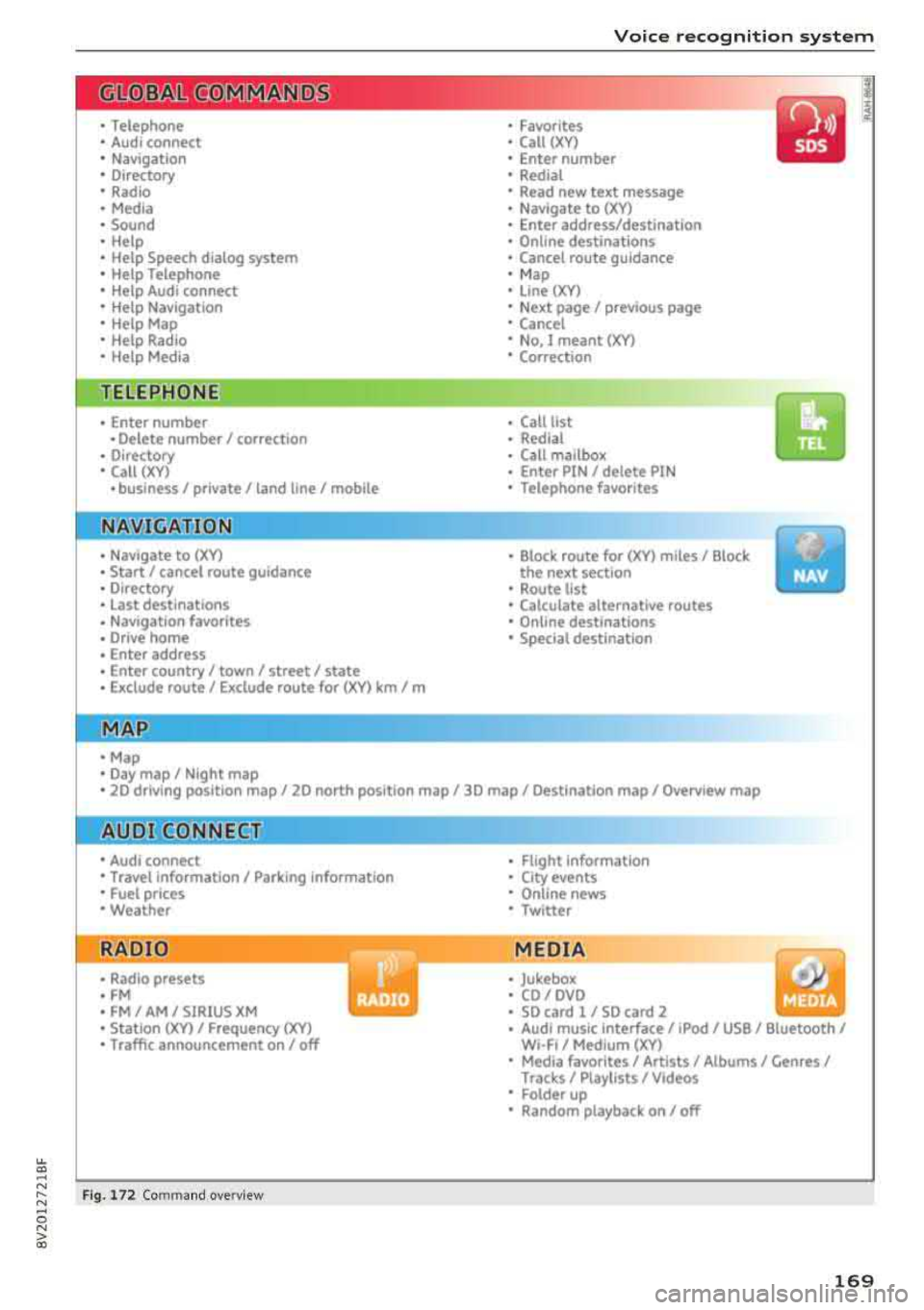
Fig. 172 Com mand ove rview
• Flight Information
• City events
• Online news
• Twitter
MEDIA
• Jukebo x
• CO/ DVD
• SD card l / SD card 2
• Audi music Interface/ 1Pod
I use / Bluetooth /
WI-Fl/ Medium
(XY)
• Media favorites/ Artists/ Albums/ Genres I
Tracks/ Playllsts / Videos
• Folder up
• Random playback on / off
169
Page 172 of 404
Voice recognition s ystem
Voice recognition system
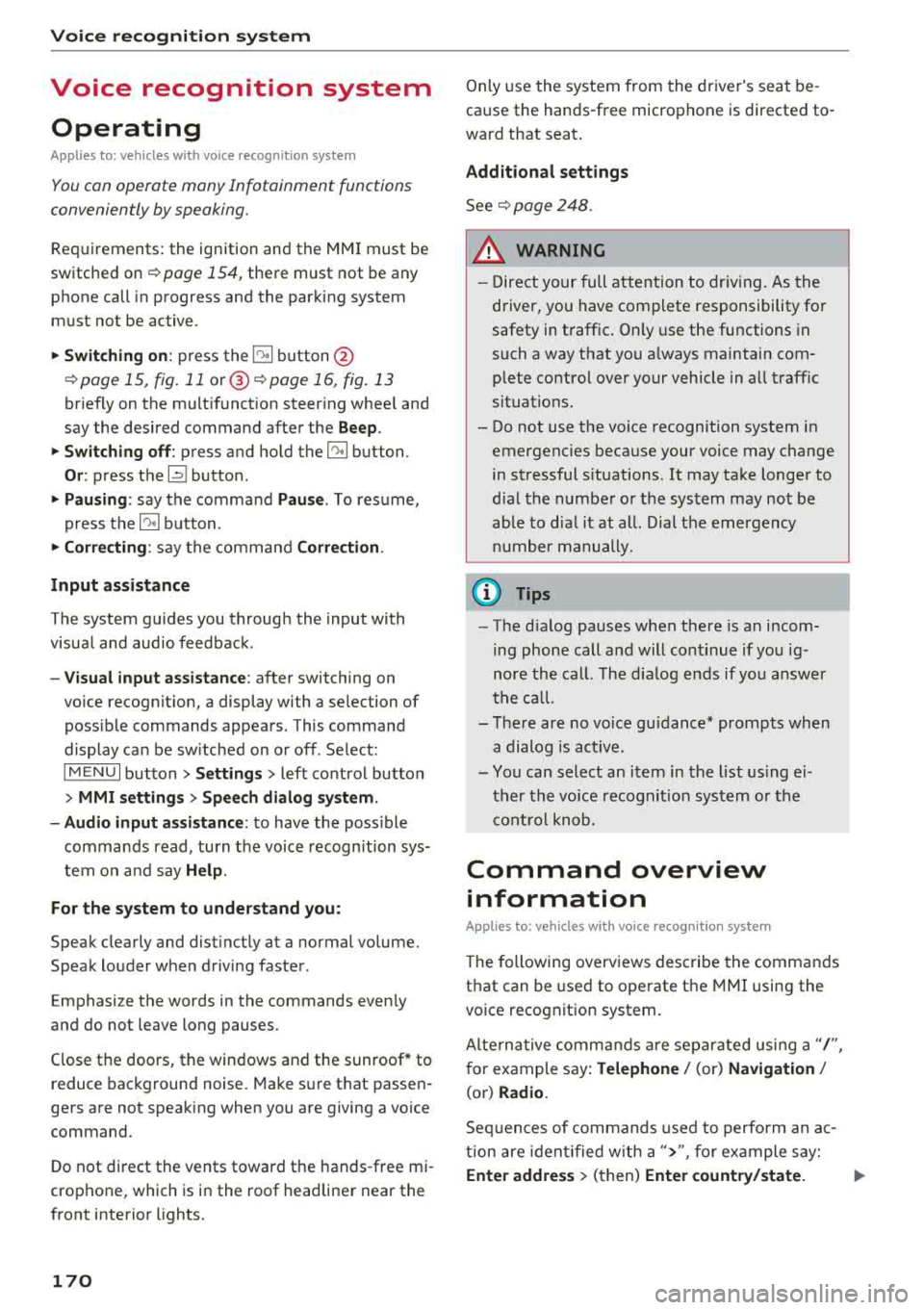
Operating
A pplies to: ve hicles w ith vo ice recognition system
You con operate many Infotainment functions
conveniently by speaking.
R equirements: the ignition and the MMI must be
switched
on <=> page 154, there must not be any
phone call in progress and the parking system
must not be active .
~ Switching on: press the~ button @
<=> page 15, fig. 11 or@ <=> page 16, fig . 13
briefly on the mult ifunct ion steer ing whee l and
say the desired command after the
Beep .
~ Sw itching off : press and hold the~ button.
Or: press the [21 butto n.
~ Pausing : say the command Pau se . To res ume,
press
the~ button .
~ Correcting : say the command Corre ction .
Input assis tance
The system gu ides you through the input with
visual and audio feedback .
-Visual input a ssistance : after switching on
vo ice recognit ion, a display with a se lection of
poss ible commands appears . This command
display can be sw itched on or off . Select:
IMENU I button> Settings> left control button
> MMI settings > Sp eech dialog system .
- Audio input a ssis tance :
to have the poss ible
commands read, turn the voice recogn ition sys
tem o n and say
Help .
For the s ystem to under stand you:
Speak clearly and dist inct ly at a normal volume.
Speak louder when driving faster .
E mphasi ze the words in the commands even ly
and do not leave long pauses.
Close the doors, the windows and the sunroof* to reduce background noise . Make sure t hat passen
gers are not speaking when you are giving a voice
command.
Do not direct the vents toward the hands -free mi
crophone, which is in the roof headliner near the
front interior lights.
170
Only use the system from the dr iver's seat be
ca use the hands -free microphone is directed to
ward that seat .
Additional settings
See<=> page 248.
_8. WARNING
- Direct yo ur full attention to dr iv ing. As the
d river, you have complete responsibility fo r
safety in t raffic. On ly use the functions in
such a way that you a lways maintain com
plete contro l over your vehicle in a ll traffic
situations.
- Do not use the voice recognition system in
emergencies because your voice may change
in s tressful s ituations .
It may take longer to
d ia l the numbe r or th e system may not be
ab le to d ia l it at all. Dial the emergency
number manually.
(D Tips
- The d ia log pauses when there is a n incom
ing phone call a nd will cont inue if you ig
nore the ca ll. The d ia log ends if yo u answer
t h e ca ll.
- Th ere are no vo ice gu idance* prompts when
a dialog is act ive.
- You can select an i tem in the list using ei
ther the vo ice recognit ion system o r the
cont ro l knob .
Command overview
information
App lies to : vehicles wi th voice recog nitio n system
The following overv iews describe the commands
that can be used to operate the MMI using the
voice recog nition system.
Alte rnative commands a re separ ated using a"/ ",
for example say:
Telephone / (or) Navigati on /
(or) Radio .
Sequences of commands used to perform an ac
t ion are iden tified w ith a
"> ", fo r example say:
Enter addre ss > (t hen) Enter country /state. .,..
Page 173 of 404
u. 00 ... N l' N ... 0 N > 00
Voice recognition system
The major ity shown are main commands. This
system also recognizes synonyms in certain cas -es
. For a Business addre ss, you can also say busi
ness , work , office or at the office .
Commands
Global commands
Applies to: ve hicles with vo ice recognition syste m
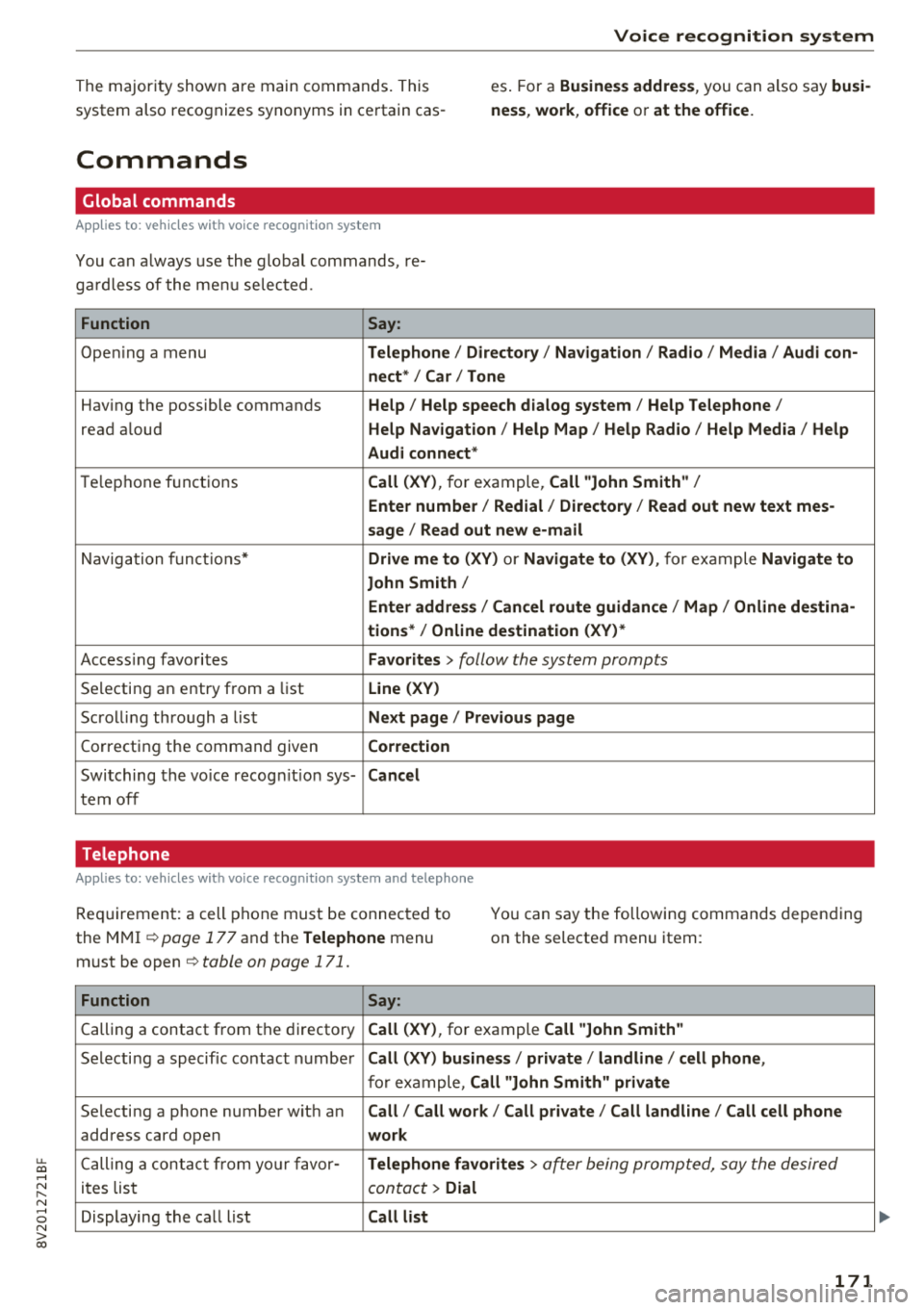
You can always use the global commands, re
ga rdless of the me nu selec ted .
Function Say:
Ope ning a menu Telephone / Directory / Navigation / Radio / Media / Audi con-
nect * /Car / Tone
Hav ing the possible commands Help / Help speech dialog system / Help Telephone /
read aloud Help Nav igat ion / Help Map / Help Radio / Help Media / Help
Audi connect *
Telephone f unct ions Call (XV) , for example, Call "John Smith" /
Enter number / Redial / Directory / Read out new text mes-
sage
I Read out new e-mail
N avigation f unc tions* Drive me to (XV ) or Navigate to (XV ), for example Navigate to
John Smith /
Enter addre ss / Cancel route guidance / Map / Online de stina-
tions* /Online destination (XV )*
Accessing favorites Favorites > follow the system prompts
Se lecting an entry from a list Line (XV)
Scrolli ng thro ugh a lis t Next page / Previou s page
Correcting the command given Correction
Switching the vo ice recog nitio n sys-Cancel
tern off
Telephone
A ppl ies to: ve hicles with vo ice recogni tion syste m and telep hone
Requirement: a cell phone must be connec ted to
the M MI ¢
page 177 and the Telephone menu
must be open ¢
table on page 171.
You can say the following commands depending
o n the selected menu item :
Function
Say:
Calling a contact from the dir ecto ry Call (XV) , for example Call "John Smith"
Selecti ng a specific contac t numbe r Call (XV) business / private / land line / cell phone ,
for example, Call "John Smith" private
Selecting a phone number wit h an Call / Call work / Call private / Call land line / Call cell phone
address card open work
Ca lling a cont act fr om your fa vor-Telephone favorites > a~er being prompted, say the desired
it es lis t contact > Dial
Displaying the ca ll list Call list
171
Page 174 of 404
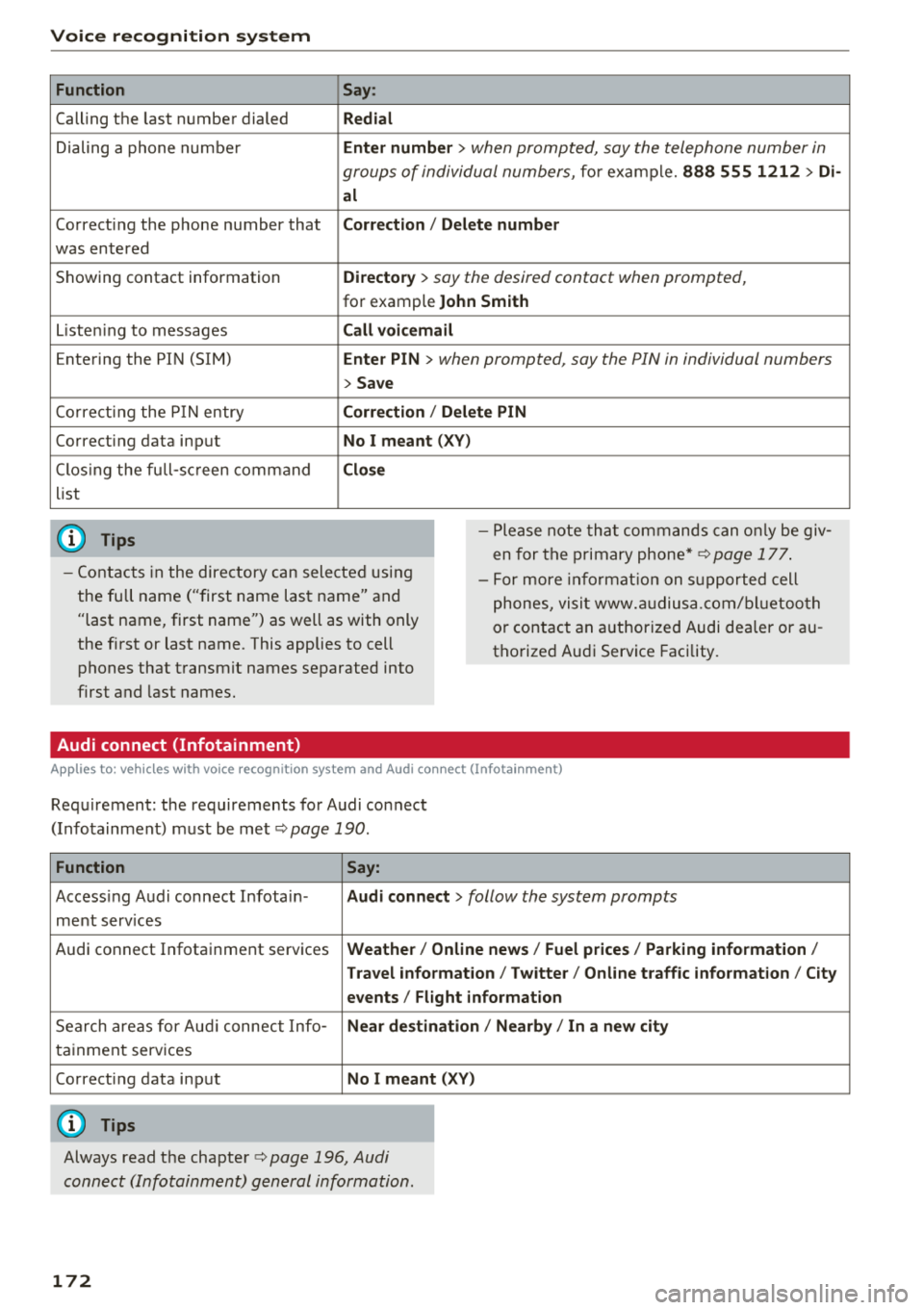
Voice recognition s ystem
Function
Calling the last number dialed
Dialing a phone numbe r
Correcting the phone number that
was entered
Showing contact information
L isten ing to messages
Entering the PIN (SIM)
Co rrect ing the P IN entry
Correcting data input
C los ing the full-sc reen command
list
(D Tips
Say :
R edi al
Enter number
> when prompted, say the telephone number in
groups of individual numbers,
for example. 888 555 1212 > Di -
al
C orr ect ion / Delet e numb er
Di rector y
> say the desired contact when prompted,
for example John Sm ith
C all voic emai l
Ente r PIN
> when prompted , say the P IN in individual numbers
> S av e
Corr ection
I Delete PIN
No I meant ( XV)
Clos e
-Please note tha t commands can on ly be giv
en for the primary
phone*¢ page 177 .
-Contacts in the directory can selected using
the full name ("first name last name" and "last name, first name") as well as with only
the first or last name . This applies to cell
phones that transmit names separated into
first and last names. -
For more informat ion on s upported cell
phones, visit www.a udiusa.com/ bluetoo th
or contact an authorized Audi dealer or au
thorized Audi Service Facility .
Audi connect (Infotainment)
Applies to: vehicles with voice recognition system and Audi connect (Infotainment)
Requirement: the requirements for Audi connect
(Infotainment) must be met
¢ page 190 .
Function Say:
Accessing Audi connect Infota in -Audi connect > follow the system prompts
ment services
Audi connect Infotainment services
Weather / Online news / Fuel p rice s/ Parking info rmation /
T rav el info rmat ion / Tw itte r/ Online traffic info rmation / City
e v ents / Fl ight informat ion
Search areas for Aud i connect Info-N ear de stination / Nearb y/ In a new city
tainment serv ices
Correcting data input
No I m eant (XV)
(D Tips
Always read the chapter ¢ page 196, Audi
connect (Infotainment) general information.
172
Page 175 of 404
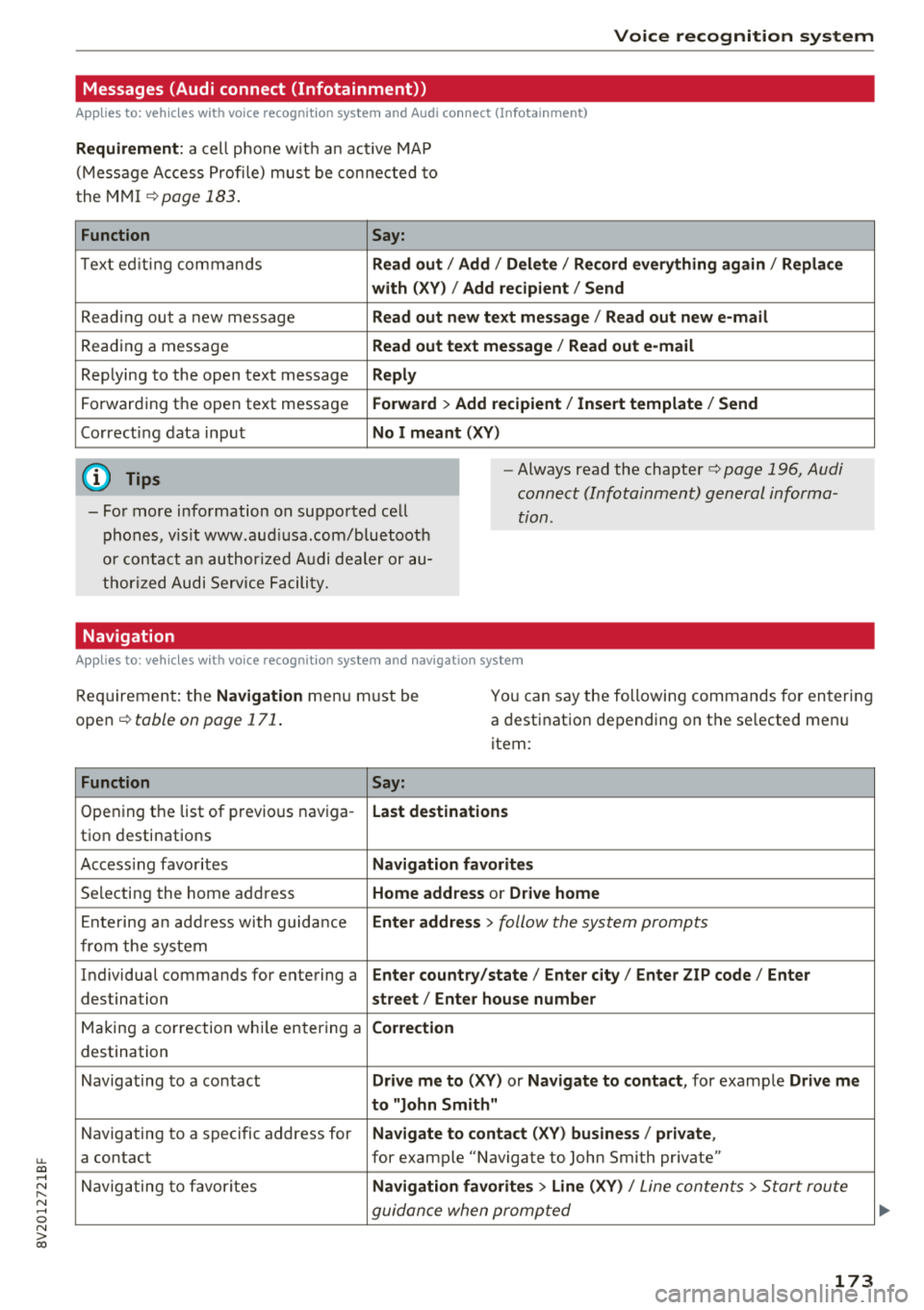
u. 00 .-< N l' N .-< 0 N > 00
Voice recognition system
Messages (Audi connect (Infotainment))
Applies to: vehicles with voice recognition system and Audi connect (Infotainment)
Requirement : a cell phone w it h an ac tive MAP
( M essage Access Profi le) mus t be con nected to
the M MI
c::>page 183 .
Function Say:
T ext ed it ing commands Read out
I Add / Delete / Rec ord everything again / Replace
with (XY) / Add recipient / Send
Read ing out a new message Read out new te xt me ssage / Read out new e-mail
Reading a message Read out text message / Read out e-mail
Replying to the open text message Reply
Forwarding the open text message Forward > Add recipient / Insert template / Send
Correcting data inp ut No I meant (XV)
(D Tips
-Fo r more information on sup ported ce ll
phones, v is it www.aud iusa .com/b luetoot h
or con tact a n au thor ized A udi dealer or au
t h or ized Audi Serv ice Facili ty.
-Always read the chapter c::> page 196 , Audi
connect (Infotainment) gen eral informa
tion.
Navigation
Applies to: vehicles with voice recognitio n system and navigation system
Requi rement: the Navigation men u m ust be
open
c::> table on page 171 .
You can say the following commands fo r en ter ing
a destination depending on the se lected men u
item:
Function Say:
Opening the list of previous naviga -Last destinations
tion destinations
Access ing favo rit es Navigation favorites
Selecting the home add ress Home address or Drive home
E nte ring a n add ress with guida nce Enter address
> follow the system prompts
from the system
Individua l commands for entering a Enter country/state/ Enter city / Enter ZIP code / Enter
destination street/ Enter house number
Ma king a co rrection wh ile ente ring a Correction
destination
Navigating to a contact Drive me to (XY) or Navigate to contact , for examp le Drive me
to "John Smith"
N avigating to a specific address for Navigate to conta
ct (XV) business / private ,
a contact for example "Navigate to John Smith pr ivate"
N avigating to favor ites Navigation favorites > Line (XV) /
Line con tents> Start rou te
guidan ce when promp ted
173
Page 179 of 404
u. 00 .-< N l' N .-< 0 N > 00
Telephone Introduction
Applies to: vehicles with telephone
To make phone coils in your vehicle using the
MMI, connect your cell phone to the MMI via
Bluetooth.
Handsfree
After you have connected your ce ll phone to the
MMI via Bluetooth, you can use the handsfree
system and operate telephone functions through
your MMI. You can make calls using the antenna
on your cell phone.
A WARNING
-Medical experts warn that cell phones can
interfere w ith the funct ion of pacemakers .
Always ma inta in a m inimum distance of
about 8 inches (20 cm) between the cell
phone antenna and the pacemake r.
-Do not carry the cell phone in a pocket di
rectly over the pacemaker when the phone
is switched on.
-Sw itch the cell phone off immediately if
you suspect it may be interfering w ith the
pacemaker.
-Do not use the voice recognition system*
¢ page 170 in emergencies because your
voice may change in stressful situations. It
may take longer to dial the number or the
system may not be able to dial it at all. Dial
the emergency number manually.
-Switch your cell phone off in areas where
there is a risk of an exp losion. These loca
t ions are not always clearly marked. This
may include gas stations, fuel and chemical
storage facilities or transport vehicles, or lo
cations where fue l vapors (such as propane
or gasoline vapor in vehicles or bui ldings),
chem icals or large quantities of dust parti
cles (such as flour, sawdust or metal) may
be present in the air. Th is also applies to all
ot her locations where you would normally
turn your vehicle engine off.
-The demands of traffic require your full at
tention. Always read the chapter
¢ page 154, Traffic safety information.
-
Telephone
@ Note
Always fo llow the information found in Q@ in
Wi -Fi hotspot on page 195.
(D Tips
-The Bluetooth connection range is limited
to inside the vehicle . It can a lso be affected
by loca l conditions and interference with
other devices.
-T o learn which Bluetooth connections and
which of the functions in your cell phone are
supported, check with your cell phone serv
ice provider or the database for mobile devi
ces at www .aud iusa .com/bluetooth.
Setup
Connecting a cell phone using Bluetooth
Applies to: vehicles with telephone
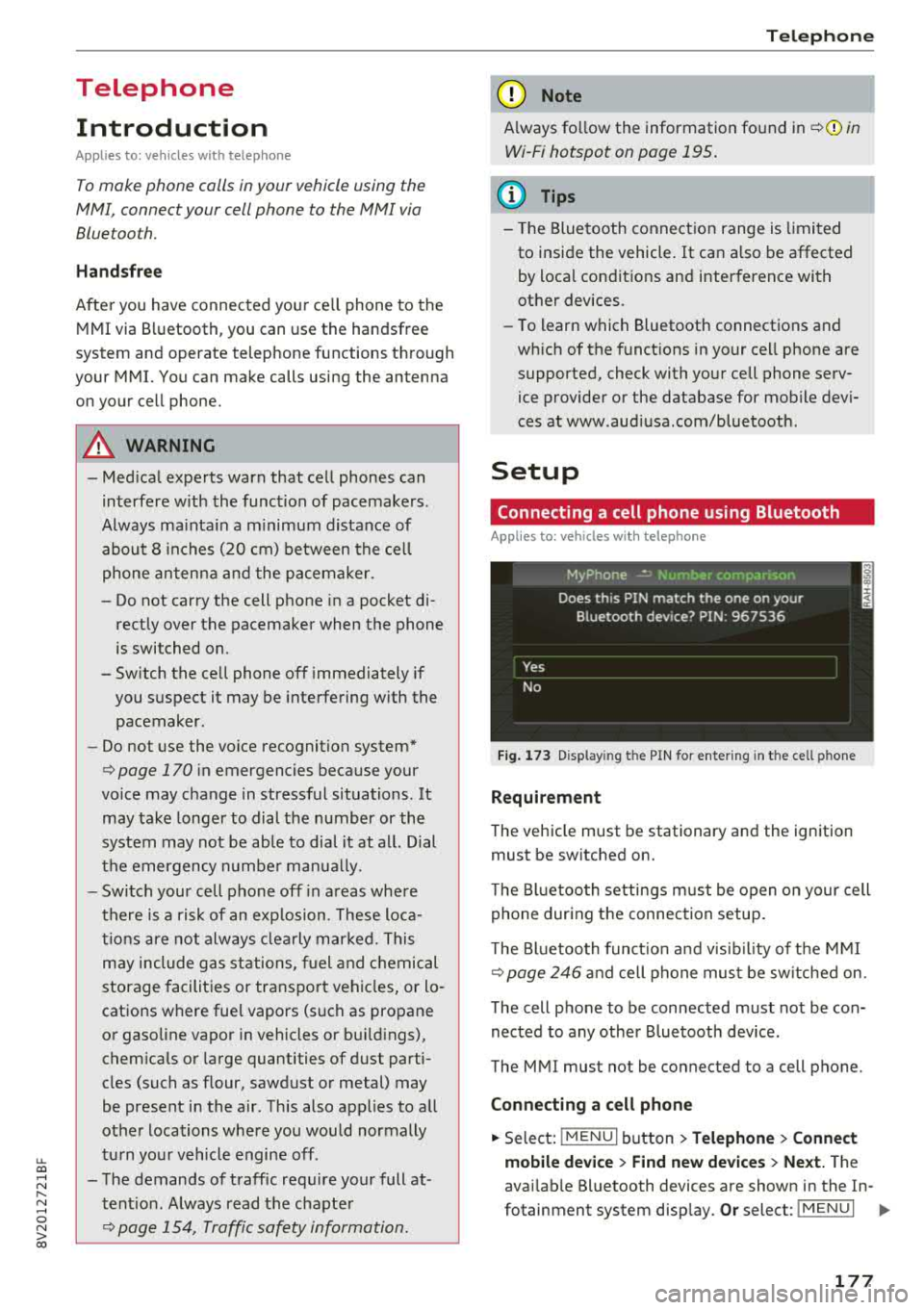
Fig. 173 Display in g t he PIN for enter ing in t he cell p hone
Requirement
T he vehicle must be stationary and the ignition
must be switched on.
T he Bl uetoo th settings must be open on your cell
phone during the connection setup .
T he Bluetooth funct io n and v is ibilit y of the MMI
Q page 246 and cell phone must be switched on.
The cell phone to be connected must not be con
nected to any other Bluetooth device.
The MMI must not be connected to a cell phone.
Connecting a cell phone
.,. Select: IMENU I button> Telephone> Connect
mobile device > Find new devices > Next.
The
avai lab le Bluetooth devices are shown in the In-
fotainment system display.
Or select: I MENU I II>-
177
Page 182 of 404
Telephone
Using the telephone
Opening the telephone
Applies to: vehicles with telephone
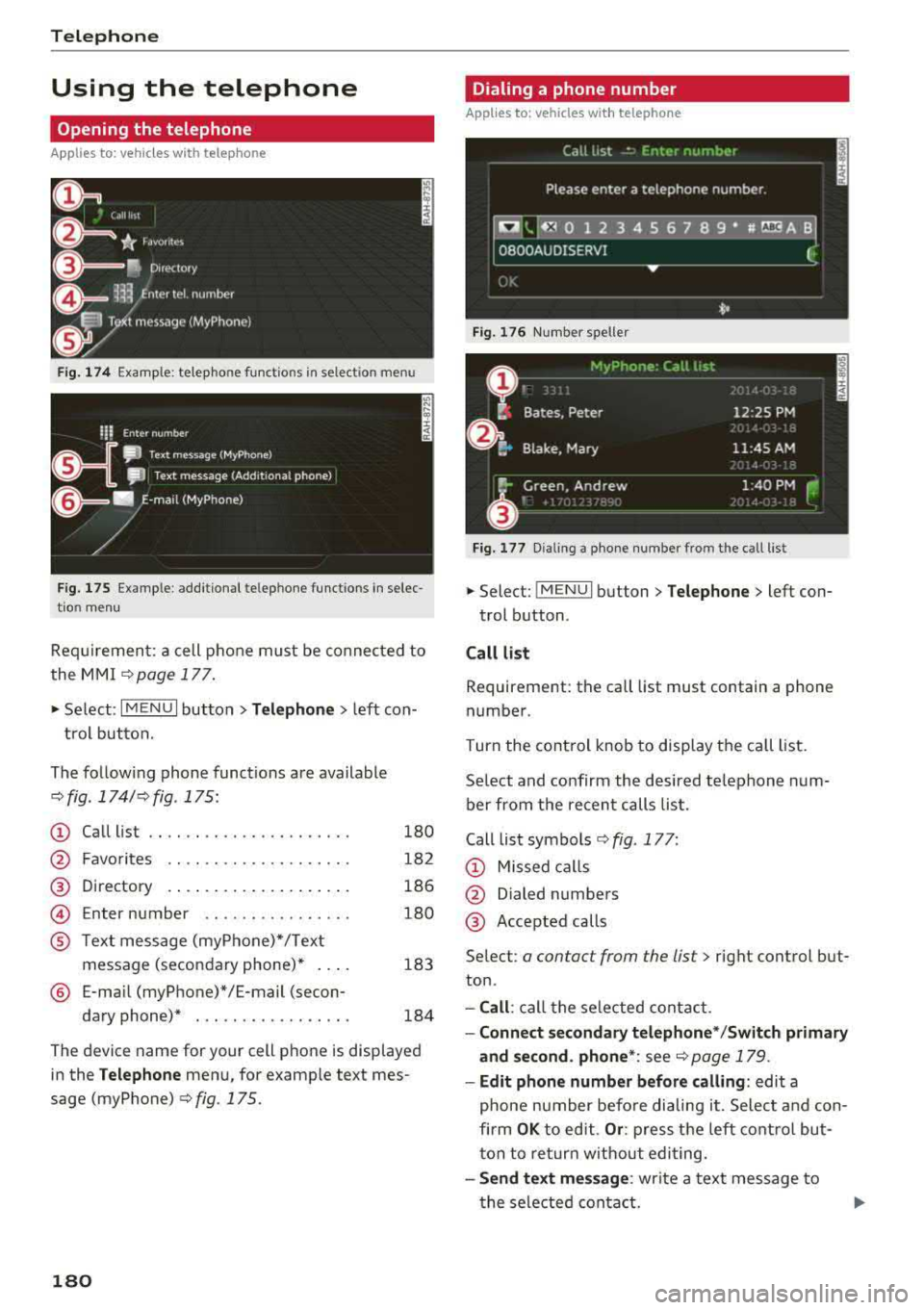
Fig. 1 74 Example: te lep ho ne fu nct ions in se lec tion menu
Fig . 175 Example: add it ional te lephone funct ions in se lec
t io n m enu
Re qui remen t: a cell phone m ust be connec ted to
the MMI
c> page 1 77.
~ Se lect : I MENU I but ton> T elephone > left con
t rol button.
The fo llow ing phone funct ions are available
¢ fig . 174/ c>fig . 175:
CD
@
Call list
F avo rites .. .. .. .. .. ... ... ... .
Directory
Enter number .. .. .. .... .... . .
®
©
® Text mess age (myP hone) */ T ext
message (seco ndary phone)* ....
® E-ma il (myP hone)*/E-mail (secon-
da ry phone)* . .. ... ....... ... .
180
18 2
186
1 80
183
184
T he dev ice name for your cell pho ne is d isplayed
in the
Telephone men u, for examp le text mes
sage (myPhone)
c> fig. 175.
180
Dialing a phone number
Applies to: vehicles with telephone
Fig. 176 N umber s pell er
Fi g. 1 7 7 D ialing a ph one numb er from t he c all list
~ Select: ! M EN UI button> Telephone > left con-
t rol b utton .
Call list
Requ irement : th e call list must contain a phone
numbe r.
Turn the cont rol knob to disp lay the ca ll li st.
Se lect and confirm the desired te lephone num
b er from the recen t calls list.
Call list symbo ls
c> fig . 177:
CD Missed ca lls
@ Dialed n umbers
@ Acce pted calls
Se lec t:
a con tac t from the lis t> right control but
ton .
-Call : ca ll t he se lected contact .
-Connect secondary telephone * /Switch primary
and second . phone *:
see r::!) page 179 .
-Edit phone number before calling : edit a
phone number befo re dialing i t. S elec t and con
firm
OK to edit. Or : pre ss t he left contro l but
t on to re turn w it h out edi ting.
- Send text mes sage : write a text message to
t he sele cted conta ct.
Page 183 of 404
u. 00 ... N l' N ... 0 N > 00
-Delete call list : select and confirm if you would
li ke to
Delete this entry or Delete all entries.
- Store a s favorite :
store t he selec ted contac t as
a favorite.
- Show contact details : see c:> page 186.
-Connection manager : see c:> page 244.
-Bluetooth setting s: see c:> page 246 .
-Online settings : see c:> page 246.
-Wi -Fi sett ings : see c:> page 195, Wi-Fi hotspot.
-Telephone setting s: see c:> page 187.
Favorites
Requi reme nt: a pho ne n umber or con tact must
b e s to red as a favori te
c:> page 182 .
Select and confi rm a favor ite in the favo rites list .
Directory
Requirement: you must have at least one contact
stored in your cell phone.
Select and confirm a phone num ber from the di
rectory
c:> page 186.
Enter number
- Entering a phone number as a sequence of
numbers :
enter th e n umber usi ng the num ber
spelle r
c:> fig. 176 .
-Entering the phone number a s a sequence of
letters:
select an d confi rm !ABC ! above the
numbe r speller. Ente r a seq uence of lette rs us
ing the letter speller, for examp le AUD/SER
VICE.
-Dialing a phone number : select and confirm~
Or: push the control knob down. Select and
confirm
OK .
-Deleting individual characters : select and con
f irm
<& l
- Deleting all characters entered at once : tur n
the control knob wit h the character se lection to
<&I and p ress and ho ld the contro l knob . Or: se
lect the right contro l button
> Clear input field .
Accepting/ending a call
Applies to: vehicles with telephone
-Ac cepting a call : select and confirm Answer.
- Declining a call :
select and confirm Decline. Telephone
- Muting the active call :
select and confirm
Mute.
- Ending a phone call/ cancel dialing :
select and
confirm
End call .
Caller information :
the name, phone number or
Unknown app ea rs in the Infot ain ment system
display depen ding on if the ca ll er has been stored
in the di recto ry and if the p hone n umber has
been transmitte d. A pict ure may also be d is
played, depending on whether you have assigned
a p icture to a contact in yo ur directory and if it
was transferred to your MMI. You can f ind out if
you r ce ll phone s upports t his fu nction from your
ce ll phone network prov ider, your cell p hone
owner 's ma nual or at www.audiusa .com/
bl uetoo th .
(D Tips
- Th e radio or media playback is mut ed dur ing
a phone c all.
- Mi ssed calls are d isplayed with a symbol in
t he status line of the Infotai nment syste m
display @ c:>page 163 , fig. 1 68.
During a phone call
Applies to: vehicles with telephone
Req uirement: there m ust be a c all in pr ogress.
.,. End call: you can e nd a p ho ne call.
.,. Send tone sequence: you can e nte r tone se
quences
( DTMF ) direct ly using t he num ber
speller and send t o the o ther pe rso n on the
ca ll.
.,. Other call option s: press the r ight control but -
ton .
T he following op tions are poss ible d uring a call
depen ding on the cell p hone being used and t he
type of connect ion :
- An swer ing an ad ditional call: if the re is an in
coming call whi le ano ther call is active, you can
select
Answer t o put t he exist ing ca ll on ho ld
and answer the incoming call. If you select
De
cline ,
the incoming ca ll w ill be declined.
- Accepting an incoming call when there is an ac
tive ca ll and a ca ll on h old: select
Replace . The
act ive ca ll is replaced with the incoming cal l.
..,.
181
Page 184 of 404
Tele phone
- Muting the incoming ca ll: select and confirm
Mut e.
- Additi onal c all :
se lect: Find c onta ct > Call li st/
Di rector y/Fa vo rites
> an entry from the list.
M ute: if you se lect and co nfirm th is function , the
other pe rson on the phone cannot hea r yo u. You
can hear the other person . To turn the micro
phone back on, se lect and confirm
Unmute.
Hold call /R es um e held call:
you can p lace the ex
isting call on hold and resume i t again. To re
sume the call, select and confirm the ca ll you
wou ld like to resume.
Tran sfe r ca ll to m obile d evic e*: select and con
fi rm
Tr ansfe r call to mobil e devic e to transfer
the existing call from the MM I to your cell phone.
Switch to hands -fr ee mod e*: Requirement: you
must have a phone ca ll in prog ress o n your cell
p hone. Select and confirm
Swit ch to hand s-free
mode
to transfer the call from your ce ll phone
back to the MMI.
Swap call : alternate between two phone ca lls
while one of the ca lls is on hold. Select ing
End
c a ll
wi ll end the active phone call. A p hone call on
hold can be resumed using the right control but
ton >
Resume .
Co nne cti on manag er:
see ~ page 244.
Telephone sett ings : see ~ page 187 .
(D Tips
-To be notified of an incoming call during a
phone call, the
call waiting function in your
cell phone must be switched on when using
the
Handsfre e profile .
- You can obta in more information from your
ce ll phone serv ice prov ider or from your cell
phone use r guide.
- When leaving the vehicle, the Bluetooth
con nection to the ce ll phone w ill automat i
ca lly dis co nne ct. Depending on you r cell
phone, phone ca lls in p rogress may be auto
matically redirected from t he M MI to your
ce ll phone and you can continue t he call on
your phone.
- The display of an incoming phone ca ll in the
Infotainment system disp lay may still be
182
visible for a few seconds after a call is an
swered/ignored depending on the ce ll
phone in use.
Making an emergency call
Applies to: vehicles with telephone
.,. Select: ! MENU I button> Telephone > left con
trol button >
Enter n umber > Enter emergency
call number (for example, 911) >
OK .
A WARNING
-
-Because you r phone works with rad io sig
na ls, a connection canno t be gua ran teed un
de r all ci rcumsta nces. Do not rely o n only
your phone when it comes to essential com
munication (such as a medical emergency) .
- Always follow the instr uct ions given by the
emergen cy personne l dur ing an emergency
call and on ly end the ca ll when they instruct
you to do so.
(D Tips
E mergency numbe rs a re not the s ame every
whe re. Find out wh ic h emergency n umber is
u sed in your current location.
Favorites
Applies to: vehicles with telephone
Up to 50 contacts , in addition to the voicemail
number, can be stored in any order in the favor
ites lis t.
.,. Select: !MENU I button> Telephone > left con-
trol b utton .
Storing an e xis ting phone number as a
fa vorit e:
-Select and confirm Call list /Director y.
- Select a contact or phone n umbe r from the list.
- Select: r ight cont rol b utton>
S tor e as favorite .
-Enter a name for the favor ite or select a sug-
gestion .
- Select and confirm
Save .
Ren aming stored fa vorite s
- Select: Favo rite s > a favorite from the list.