start AUDI S3 SEDAN 2018 Manual PDF
[x] Cancel search | Manufacturer: AUDI, Model Year: 2018, Model line: S3 SEDAN, Model: AUDI S3 SEDAN 2018Pages: 404, PDF Size: 62.3 MB
Page 216 of 404
Navigation
-Import map updates from the SO card* to your
MMI. You can find additional information on
li ne at www.audiusa.com/myaudi.
-Map update at an authorized Audi dealer or au
thorized Audi Service Facility. This can result in
additional costs.
Online map update
Applies to: vehicles with a navigation system and Audi con
nect (Infotainment)
Using the online map update, you can update
the map material in your navigation system di
rectly from your vehicle.
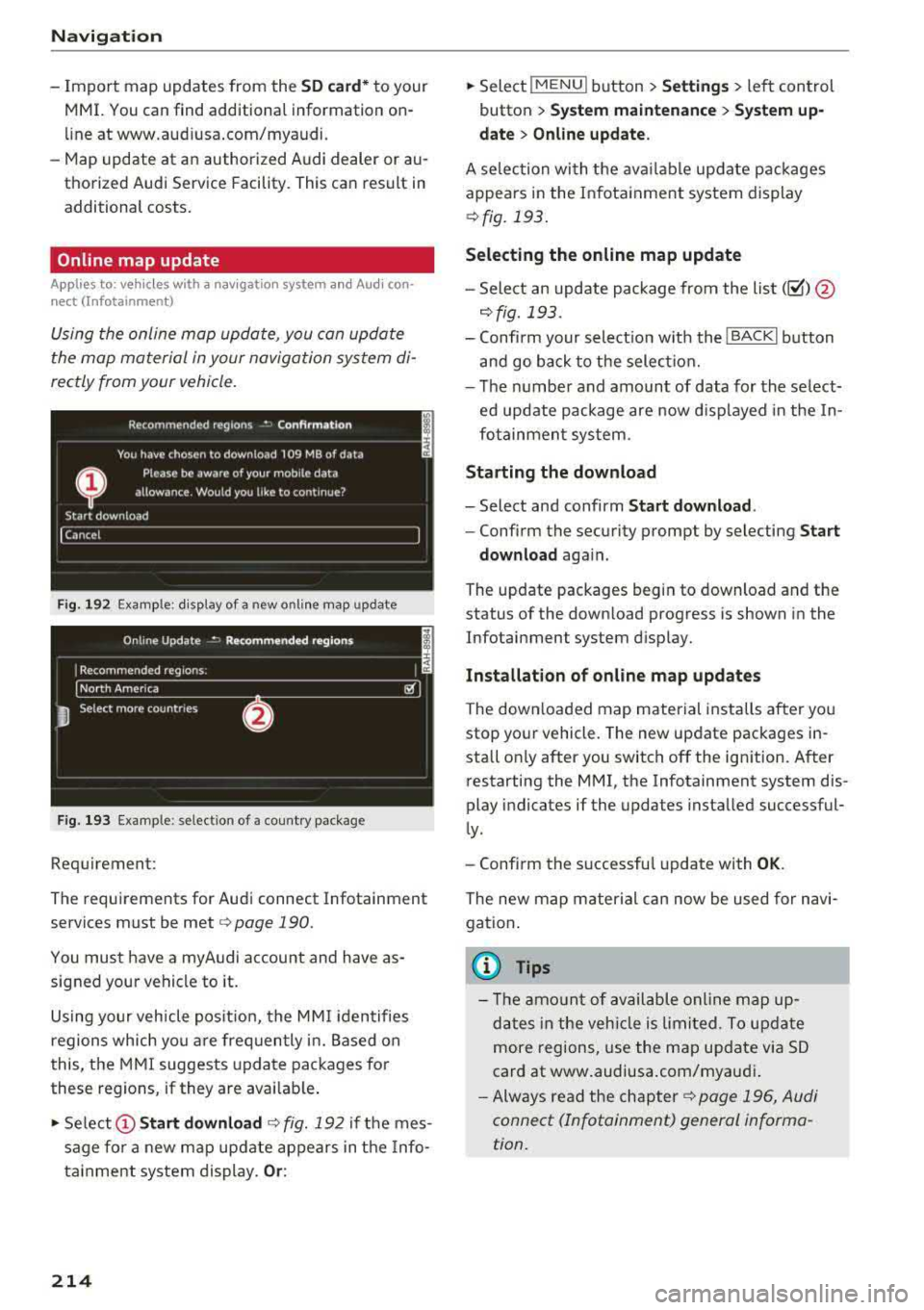
Fig. 192 Exa mple: disp lay of a new onl ine map update
Fig. 193 Example : select ion of a country package
Requirement:
The requirements for Audi connect Infotainment
services must be met
r=> page 190.
You must have a myAudi account and have as
signed your vehicle to it.
Using your vehicle position, the MMI identifies
regions which you are frequently in. Based on
this, the MMI suggests update packages for
these regions, if they are avai lable .
• Select @Start download c> fig. 192 if the mes
sage for a new map update appears in the Info
tainment system display.
Or :
214
.. Select !MENUI button> Settings> left control
button >
System maintenance > System up
date > Online update.
A selec tion with the available update packages
appears in the Infotainment system display
¢fig. 193.
Selecting the online map update
-Sele ct an update package from the list(~) @
r=>fig. 193.
-Confirm your select ion w ith the ! BACK I button
and go back to the select ion.
-The number and amount of data for the se lect
ed update package are now displayed in the In
fotainment system.
Starting the download
-Select and confirm Start download .
-Confirm the security prompt by selecting Start
download
again.
The update packages begin to download and the
status of the down load progress is shown in the
Infotainment system display.
Installation of online map updates
The downloaded map material installs after you
stop your vehicle. The new update packages in
stall on ly after you switch
off the ign ition. After
restarting the MMI, the Infotainment system dis
play indicates if the updates installed successful
ly.
-Confirm the successful update with OK.
The new map material can now be used for navi
gation.
{i) Tips
-Th e amount of available on line map up
dates in the vehicle is limited. To update
more regions, use the map update via SD
card at www.audiusa.com/myaudi .
-Always read the chapter c> page 196, Audi
connect (Infotainment) general informa
tion.
Page 221 of 404
u. 00 .-< N l' N .-< 0 N > 00
Radio functions
Free text search
App lies to: ve hicles with free text search
Using the free text search, you can select the or
der that the search terms are entered in the in
put field . Search in all frequency bands for a sta
tion name or program type, such as
News .
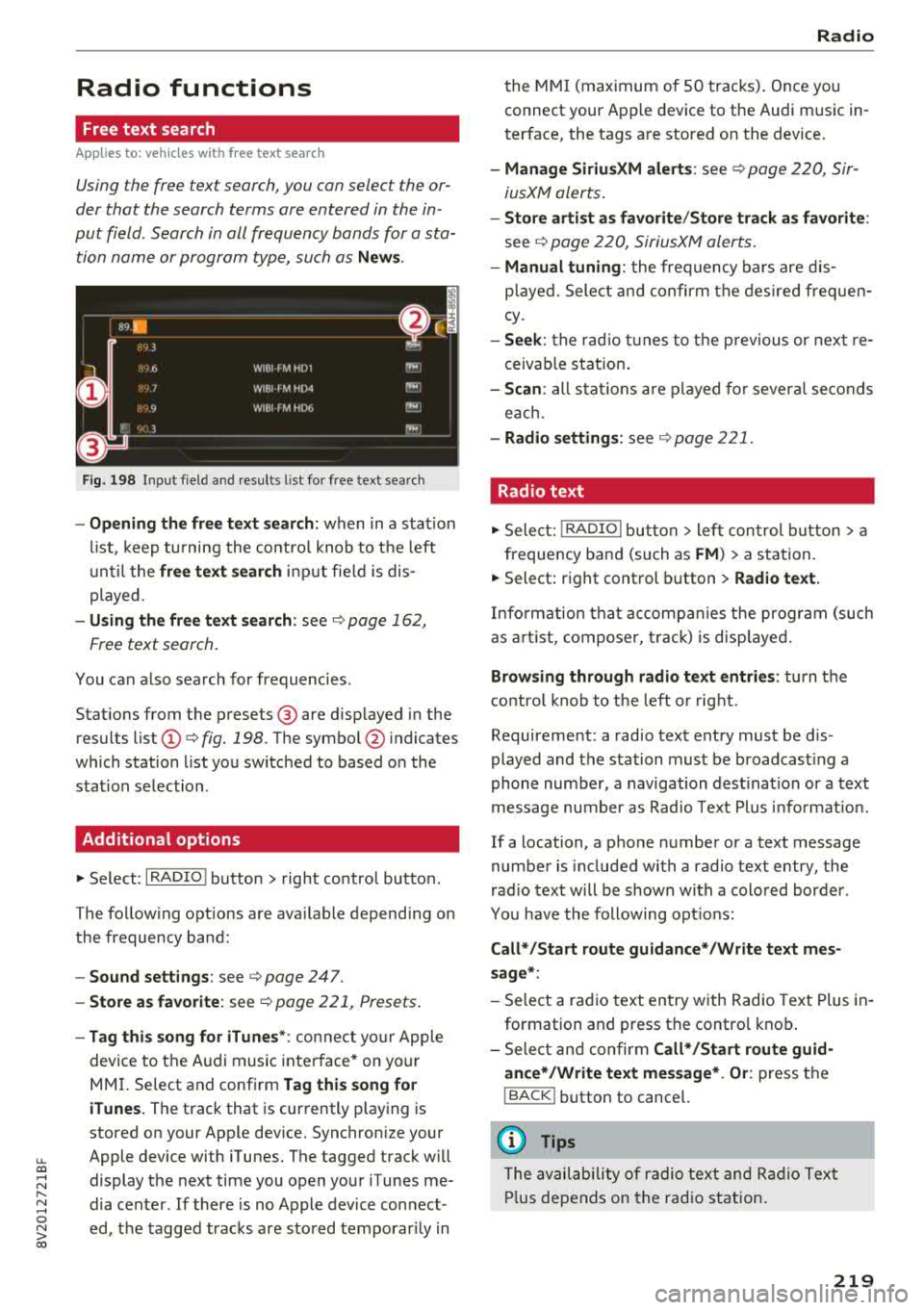
Fig. 198 Input field and results l ist for free text search
- Opening the free text search: when in a stat ion
list, keep turning the control knob to the left
until the
free text search input fie ld is dis
played.
- Using the free text search: see ¢ page 162,
Free text search.
You can also search for frequencies .
Stations from the presets ® are disp layed in the
results list
(D ¢ fig. 198. The symbol @ indicates
which station list you switched to based on the
stat ion selection .
Additional options
"'Se lect: I RADIO ! button > right control button.
The following options are ava ilable depending on
the frequency band:
- Sound settings: see ¢ page 247.
-Store as favorite : see ¢ page 221, Presets .
-Tag this song for iTunes* : connect your Apple
device to the Audi music interface* on your
MMI. Select and confirm
Tag this song for
iTunes.
The track that is currently playing is
stored on your App le device. Synchronize your
Apple device with iTunes. The tagged track w ill
display the next time you open your iTunes me
dia center . If there is no Apple device connect
ed, the tagged tracks are stored temporarily in
Radio
the MMI (maximum of 50 tracks). Once you
connect your Apple device to the Audi music in
terface, the tags are stored on the device .
-Manage SiriusXM alerts: see¢ page 220, Sir
iusXM alerts.
-Store artist as favorite/Store track as favorite:
see¢ page 220, SiriusXM aler ts.
- Manual tuning: the frequency bars are d is
p la yed. Select and confirm the desired frequen
cy.
- Seek: the radio tunes to the previous or next re
ceivab le station.
- Scan : all stations are played for several seconds
each.
- Radio settings: see ¢page 221.
Radio text
"' Select: I RADIO I button > left control button > a
frequency band (such as
FM ) > a station.
"'Select: right control button > Radio text.
Information that accompanies the program (such
as artist, composer, track) is disp layed.
Browsing through radio text entries: turn the
control knob to the left o r right .
Requirement: a radio text entry must be d is
played and the station must be broadcast ing a
phone number, a navigation destination or a text
message number as Radio Text Plus info rm ation.
If a location, a phone number or a text message
number is included with a radio text entry, the
radio text will be shown with a colored border .
You have the following opt ions:
Call*/Start route guidance* /Write text mes
sage*:
- Select a radio text entry with Radio Text Plus in
formation and press the contro l knob.
- Select and confirm
Call* /Start route guid
ance*/Write text message* . Or :
press the
I BACK ! button to cancel.
(D Tips
The availability of radio text and Radio Text
Plus depends on the radio station.
219
Page 226 of 404
Media
(CO) 6/VDE 0837. The optical readers that are in
stalled conform to safety class
1. Lasers in this
class are very weak and well shielded, so there is no danger if used correctly.
Media drives
SO card reader
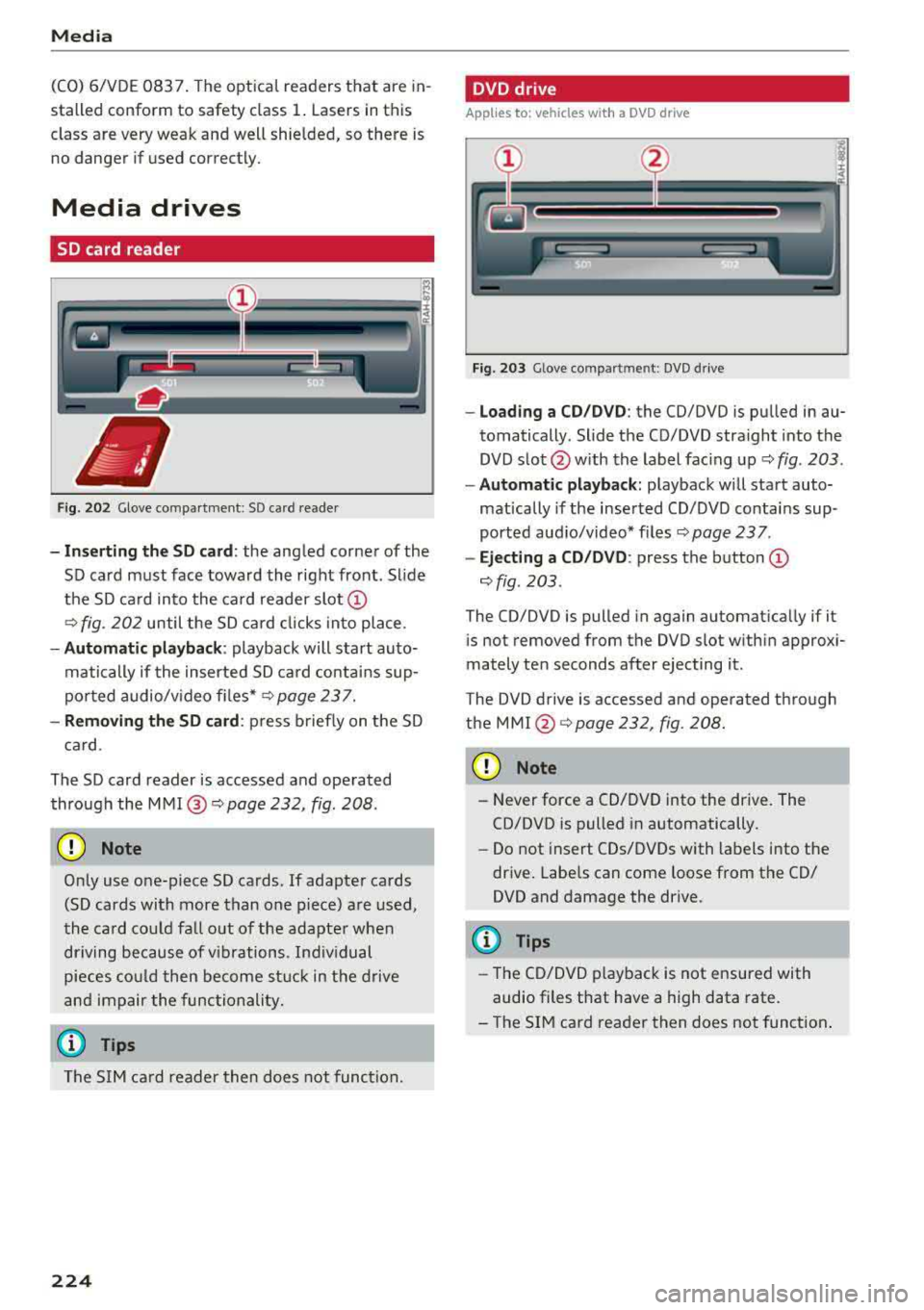
Fig. 202 Glove compa rtment : SD ca rd reader
-I n se rt in g th e S D card : the angled corner of the
SD card must face toward the right front . Sl ide
the SD ca rd into the card reader
slot @
9fig. 202 until the SD ca rd cli cks into place .
-Automatic pla yback : playback will start auto
matically if the inserted SD ca rd contains sup
po rted audio/v ideo fi les*
r:::.> page 23 7.
-Remo vin g the SD card : press briefly on the SD
ca rd.
The SD card reader is accessed and operated
through the
MMI @9 page 232, fig . 208 .
(D Note
Only use one-piece SD cards. If adapter cards
(SD cards with more than one piece) are used,
the card cou ld fa ll out of the adapter when
driving because of v ibrations . Ind ividual
pieces cou ld then become s tuck in the d rive
and impair the func tionality.
(D Tips
The S IM ca rd reader then does not func tion.
224
DVD drive
App lies to : vehicles with a DVD dr ive
Fig. 2 03 Glove comp art m en t: DVD d riv e
-Loading a CD /DVD : the CD/DVD is pu lled in au
tomatically . Slide the CD/DVD straight into the
DVD s lot @ with the label fac ing up
9 fig. 203 .
-Automa tic playback: playback w ill start auto
matically if the inserted CD/DVD conta ins sup
ported aud io/video* f iles
r:::.> page 23 7 .
-Ej ect ing a CD /DVD : press the button @
r:::.>fig . 203 .
The CD/DVD is pulled in again automat ica lly if it
is not removed from the DVD slot w ith in approx i
mately ten seconds after ejecting it.
T he DVD drive is accessed and operated through
the
MMI @r:::.>page 232 , fig . 208.
(D Note
-N ever force a CD/DVD into the drive. The
CD/DVD is pulled in automatically .
-Do not insert CDs/DVDs with labels into the
drive. Labe ls can come loose from the CD/
DVD and damage the drive.
(D Tips
-T he CD/DVD p layback is not ensured with
audio files that have a high data rate.
-T he SIM card reader then does not function .
Page 227 of 404
u. 00 .-< N l' N .-< 0 N > 00
CD drive
App lies to: ve hicles wit h a CD drive
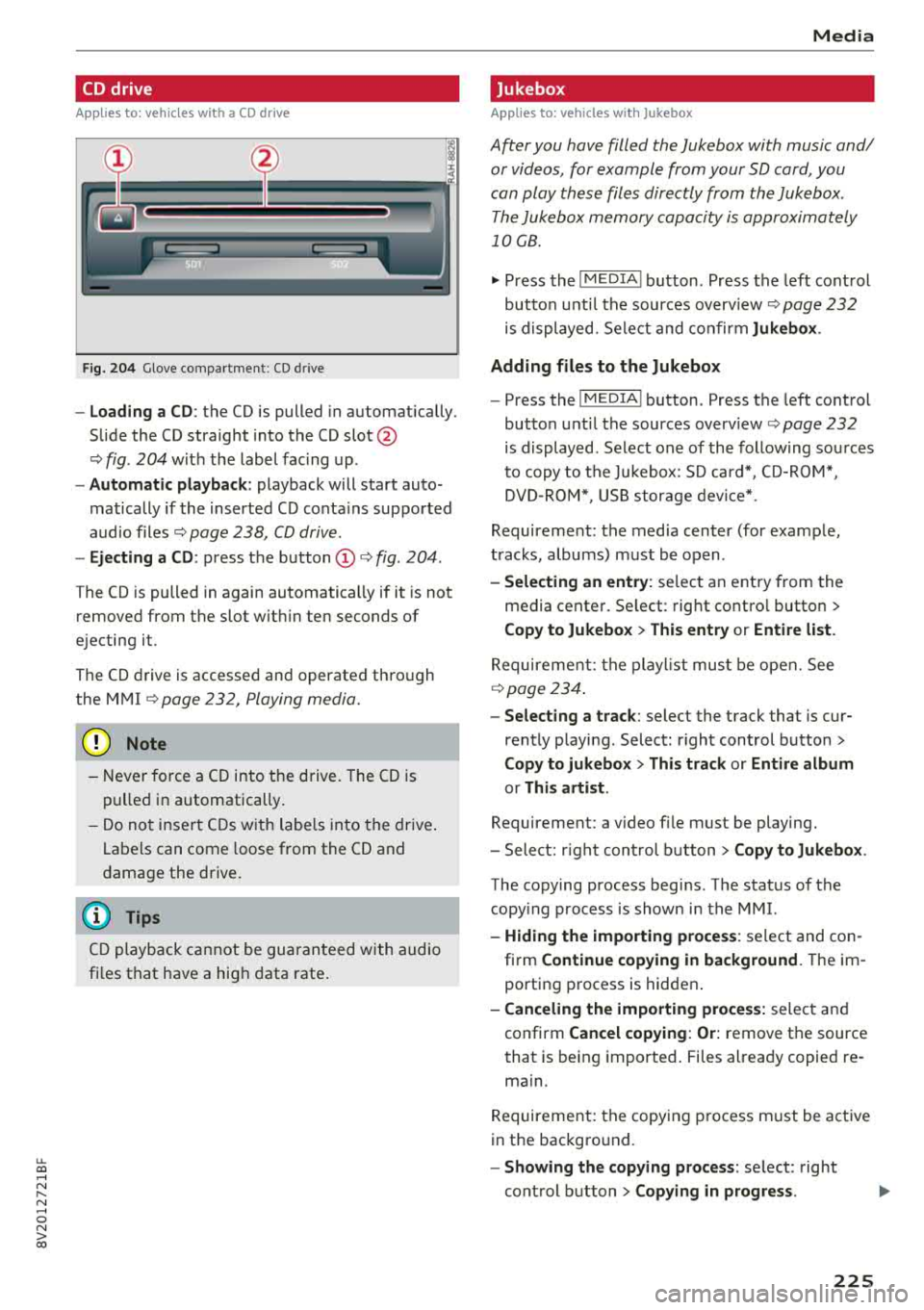
Fig. 204 G love co mpart m en t: CD driv e
-Load ing a CD : the CD is pulled in automatically .
S lide the CD straight into the CD
slot @
ca:> fig. 2 04 wit h the label fac ing up .
- Automatic playback : playback will start auto
matically if the inserted CD conta ins sup port ed
a u dio files
ca:> pag e 238, CD driv e.
- Ejecting a CD : press t he b utton (D <=:> fig . 204 .
The CD is pulled in again automatically if it is not
removed from t he slot w it hi n ten seconds of
e j ecting it .
T h e CD drive is accessed and operate d th ro ug h
the M MI
<=:> page 232, Playing m edia.
{Ll) Note
- Neve r for ce a CD into t he dr ive . The CD is
pull ed in auto matically .
- D o no t in se rt CDs w ith la b els in to the dri ve.
La bels can come loose from the CD and
d ama ge the drive .
(D Tips
CD play back c anno t be guaran teed wit h audio
fi les t hat have a high d ata rate .
Media
Jukebox
Applies to : veh icles w it h Jukebox
After you have filled the Jukebo x with music and/
or videos, for example from your SD card , you
can play th ese fil es dir ectly from the Jukebo x.
T he Jukebox me mory capa city is approximately
1 0 GB .
.,. Press th e I M EDIA ! button . Press the left cont rol
bu tton unt il the sources
overv iew <=:> page 232
is displayed. Se le ct and co nfir m Jukebox .
Adding files to the Jukebox
- Press th e I MEDIA ! button. Press t he left cont rol
button unt il the sources
overv iew <=:> page 23 2
is displayed . Select one of the follow ing so urces
t o copy to t he Ju kebox: SD c ard*, CD-R OM* ,
DVD -ROM *, US B stor age devi ce*.
Requirem ent: the media center (for examp le ,
t racks, albums) m ust be o pen .
-Selecting an entry : selec t an e ntry fr om the
media cente r. Se lect : rig ht contro l butto n
>
Copy to Jukebox > This entry or Entire list.
Requiremen t: th e pla yli st mus t be open. See
<=:> page 234.
- Selecting a track : select the track that is cur
rent ly p layi ng . Selec t: right control b utton
>
Copy to jukebox > This track or Entire album
or This artist .
Requirement: a v ideo file must be playing .
- Sele ct: r ig h t con trol button
> Copy to Jukebox .
The copying process begins . T he stat us of the
copy ing process is shown i n the MMI.
- Hiding the importing process : select and co n
fi rm
Continue copying in background . Theim
porti ng process is hid den .
-Canceling the importing process: selec t and
confirm
Cancel copying : Or: remove t he source
that is be ing i mported . Files al rea dy copied re
ma in.
R equirement: the copy in g pr ocess m ust be a ctive
in the bac kg ro un d.
-Showing the copying process : select: right
con trol b utton
> Copying in progress .
225
Page 228 of 404
Media
When importing, the audio files a re au tomatica l
ly sorted into the media center categories based
on the stored addit iona l info rmation
¢ page 233. The copied video files a re stored in
the media center under the
Videos category.
Playing the Jukebo x
Req uiremen t: the J ukebox must con tain audio/
video
fi les ¢ page 225, Adding files to the Juke
box.
T he Jukebox is accessed an d ope ra ted t hrough
the
MMI (D ¢ page 232, fig . 2 08.
Displaying Jukebox memory capacity
Select : righ t control button > Juk ebo x memory
capacity .
Info rmation abou t the J ukebo x memo ry
c a pacity and the numbe r of s to red tracks is dis
p layed .
Deleting tracks from the Jukebox1
)
Req uiremen t: the Jukebox must contain audio/
video fi les.
- Delet ing an ent ry : se lect an e ntry from the
Jukebox media center . Se lect: rig ht contro l but
ton
> Delete from jukebox > Thi s entry or En
tire list .
- The status of t he de leti ng p rocess is shown in
the MMI. J ukebox playback s tops d uring the de
l et ing p ro cess a nd s tarts again au toma tically
o nce the dele tion is comp lete .
(D) Note
Do not import aud io/video files when the en
gi ne is t urne d off because this will drain the
veh icle b attery.
(D Tips
- Tracks fro m audio C Ds cannot be im port ed
t o t he Ju ke box for legal reasons .
- Fil es that have a lready been importe d are
a utomat ica lly recogn ized and cannot be
cop ie d to the J ukebo x again.
- It i s no t possib le to play audio/v ideo* files
i n the C D/DVD* dr ive while importi ng the m.
1> Not i n the Pl ayba ck view .
226
- Th e Juk eb ox does not provi de a n ex port
function due to legal reasons .
- Files o r tra cks w ithou t addi tional store d in
formation a re listed as
Unknown. A ud i rec
ommends adding a dditiona l info rmation
(such as ID3 tags) to a udio f iles.
- Reset the
Jukebox to the facto ry defa ult
settings when sel ling yo ur vehicle
¢ page 244.
Bluetooth audio player
Appl ies to: vehicles with Bluetooth audio player
With the Bluetooth audio player, you can play
music wirelessly from your Bluetooth-capable
device (such as a cell phone) through the MMI.
Requirement: the vehicle must be stationary and
the ignit io n m ust be switched on. The B luetooth
settings w ill open on your mob ile dev ice d uring
t h e connection setup . The Blue tooth function
and vis ibili ty of the
MM I ¢ pag e 246 and mob ile
device must be sw itched on. The
Bluetooth audio
player ¢ page 246 must be switched on in t he
MM I.
-Connecting a Bluetooth player : press the
!MEDIA ! butto n. Press the left con trol b utton
un til the sources ove rview is d isp layed. Selec t
and confirm
Bluetooth audio player ®
¢page 232, fig . 209 .
-If n ecess ary, se lect and co nf ir m Not connected
> Connect Bluetooth audio player . The Bl ue
tooth device search starts. Follow the instruc
tions in the MMI.
- Select and confirm t he des ired Bl uetooth de
vice from the list . The
MMI generates a PIN fo r
the connection.
- Select and confirm
Yes.
- En ter the PI N for conne ct in g on your Bluetoo th
dev ice .
Or : if the P IN is already dis played on
your Bl uetooth device, confi rm it in the Bl ue
tooth device and in the
M MI. The time a llowed
for entering the PI N is lim ited to approx imately
30 seconds .
IJIJ,
Page 229 of 404
u. 00 ... N l' N ... 0 N > 00
The media is started and operated through the
mobile device or the
MMI, depending on the de
vice being used.
(D Tips
-Check for any connection requests on your
Bluetooth device.
-Multiple Bluetooth audio players can be
connected to the
MMI, but only one mobile
device can be active.
-Bluetooth protocols AVRCP (1.0/1.3/1.4)
and A2DP are supported.
-Note the volume setting on your Bluetooth
device. Audi recommends setting your mo
bile device to the maximum volume when
using it as a Bluetooth audio player.
-The supported media functions (such as
shuffle) depend on the Bluetooth device be
ing used.
-For more information on the supported de
vices, visit www.audiusa.com/bluetooth or
contact an authorized Audi dealer or author ized Audi Service Facility.
Wi-Fi audio player
Appl ies to: ve hicles with Wi-F i audio playe r
Using the Wi -Fi audio player media source on the
MMI, you can connect and operate your Wi-Fi-ca
pable media player (such as a smartphone) to
wirelessly play music from your media player
li
brary. The media player is connected through the
vehicle's Wi-Fi hotspot. A UPnP Server opp or an
integrated UPnPIDLNA server on your media
player is required to access your media player
li
brary.
Requirement: the Wi-Fi function on your media
player must be switched on. The
Audi MMI con
nect
app or a UPnP server app must be installed
on your media player .
Or: you must be using a
media player with an integrated UPnP/DLNA
server.
-Connecting a media player: press the I MEDIA !
button. Press the left control button until the
sources overview
c::;, page 232 is displayed. Se
lect and confirm
Wi-Fi audio player 0
c::;,page 232, fig . 209 .
Media
-If necessary, select and confirm Wi-Fi turned
off> Turn on Wi-Fi
to activate Wi-Fi in the
MMI. Select
Wi-Fi settings, if necessary. Select
the same settings on the wireless media player
that are used for the Wi-Fi hotspot.
-Starting the Wi-Fi audio player: start the Audi
MMI connect
app or a UPnP server app, or set
media permissions on your media player.
Operating the media player: the media player is
operated through the MMI.
-Press the left control button repeatedly until
the
Folders menu item appears. Select and con
firm
Folders.
-Playing music from the media player: select
and confirm
Media center .
Web radio:
see c::;, page 228 .
A WARNING
-
-As the driver, do not allow usage of the Wi
Fi hotspot to distract you from driving, as
this could increase the risk of an accident.
-It is only safe to use tablets, laptops, mo
bile devices and other similar devices when
the vehicle is stationary because, like all
loose objects, they could be thrown around
the inside of the vehicle in a crash and cause
serious injuries. Store these types of devices
securely while driving.
-Do not use any wireless devices on the front
seats within range of the airbags while driv
ing. Also read and follow the warnings in
c::;, page 2 73, Front airbags.
@ Note
Always follow the information found in ¢@ in
Wi-Fi hotspot on page 195.
(D Tips
-Always read the chapter c::;, page 196, Audi
connect (Infotainment) general informa
tion.
-Please note that a Wi-Fi connection does
not automatically make it possible to use
the Internet. For additional information,
see
c::;, page 190.
227
Page 230 of 404
Media
- To avoid interruptions during playback, de
activate the power saving function on the
media player or connect it to a charger.
- The loading times for the audio data depend
on the media player used and the number of
files that it contains.
- A maximum of 2,000 entries per directory
are displayed in the MMI.
- Songs downloaded for offline use using mu
sic streaming services are stored on your mobile device (such as a smartphone) and
may be DRM protected. The Wi-Fi audio
player will not play ORM protected files.
- Contact an authorized Audi dealer or au thorized Audi Service Facility for additional
information on the Wi-Fi audio player .
Online media and
Internet radio
A pp lies to veh icles with A udi co nnect (Infotainment)
You con playback and operate various online me
dia services and Internet radio using the MMI.
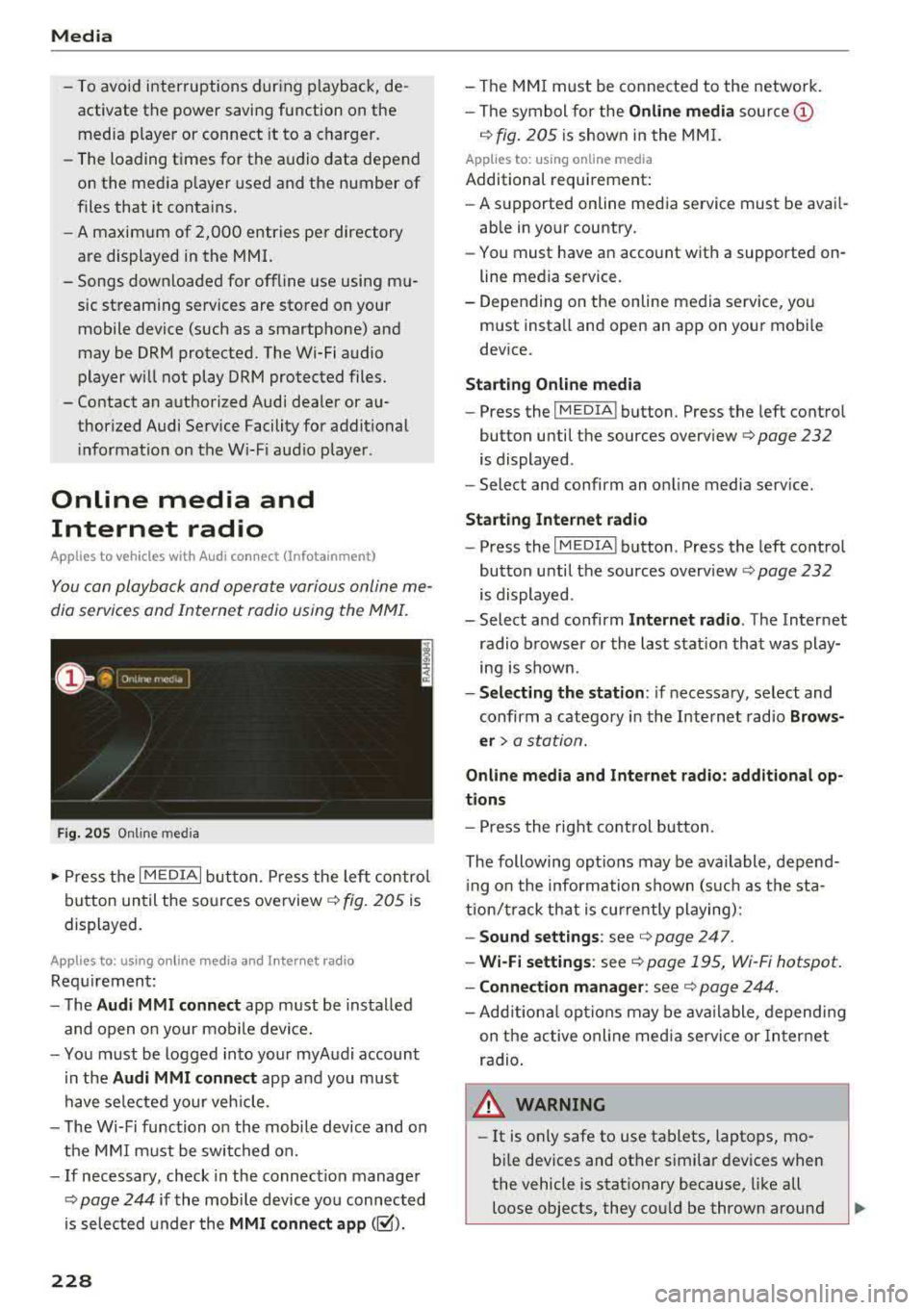
Fig. 205 Online media
.,. Press the I MEDIAi button. Press the left control
button until the sources
overview ¢ fig. 205 is
displayed.
A ppl ies to: using o nline me dia an d Internet radi o
Requirement:
- The
Audi MMI connect app must be installed
and open on your mobile device.
- You must be logged into your myAudi account
in the
Audi MMI connect app and you must
have selected your veh icle.
- The Wi-Fi function on the mobile device and on
the MMI must be switched on.
- If necessary, check in the connection manager
¢
page 244 if the mobile device you connected
is selected under the
MMI connect app (~).
228
-The MMI must be connected to the network.
- The symbol for the
Online media source @
¢ fig. 205 is shown in the MMI.
Applies to: usin g on line media
Additional requirement:
- A supported online media service must be avail
able in your country.
- You must have an account with a supported on
line media service.
- Depending on the online media service, you
must install and open an app on your mobile
device.
Starting Online media
-Press the IM EDIA I button . Press the left control
button until the sources
overview ¢ page 232
is displayed .
- Select and confirm an online media service.
Start ing Internet radio
-Press the IM EDIA I button . Press the left control
button until the sources
overv iew ¢ page 232
is displayed .
- Select and confirm
Internet radio. The Internet
radio browser or the last station that was play
ing is shown .
-Selecting the station : if necessary, select and
confirm a category in the Internet radio
Brows
er>
a station.
Online media and Internet radio: additional op
tions
- Press the right control button.
The following options may be available , depend
i ng on the information shown (such as the sta
tion/t rack that is currently playing):
-Sound settings: see ¢ page 247 .
-Wi-Fi settings: see ¢ page 195, Wi -Fi hotspot.
- Connection manager: see ¢ page 244.
-Add itional options may be available, depending
on the active online media service or Internet
radio .
,&. WARNING
-It is on ly safe to use tablets, laptops, mo
bile devices and other similar devices when
the vehicle is stationary because, like all
loose objects, they could be thrown around
-
Page 232 of 404
Media
Audi music interface
Connect your mobile devices to the Audi music
interface in order to operate them through the
MMI and charge the battery.
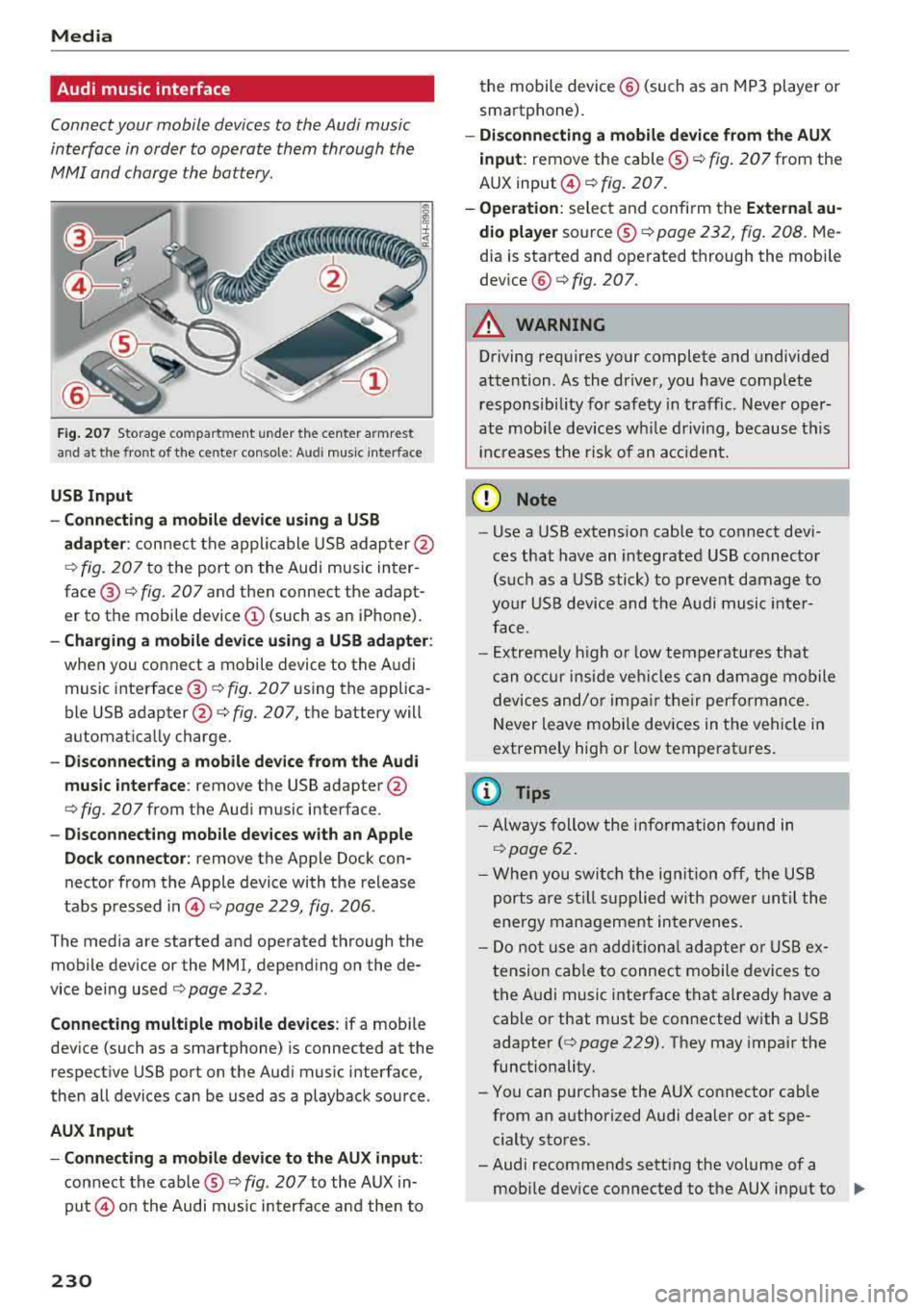
Fig. 207 Storage co mpa rtm ent u nder the cente r armrest
and at the front of t he ce nter con so le: A udi music interface
USB Input
- Connecting a mobile device using a USB
adapter :
connect the applicable USB adapter @
¢
fig. 207 to the port on the Audi music inter
face®¢ fig. 207 and then connect the adapt
er to the mobile device @(such as an iPhone) .
-Charging a mobile device using a USB adapter :
when you connect a mobile device to the Audi
music
interface @¢ fig. 207 using the applica
ble USB
adapter @¢ fig. 207, the battery will
automat ically charge.
- Disconnecting a mobile device from the Audi
music interface:
remove the USB adapter @
¢ fig. 207 from the Audi music interface .
-Disconnecting mobile devices with an Apple
Dock connector:
remove the Apple Dock con
nector from the Apple device with the release
tabs pressed
in © ¢ page 229, fig. 206 .
The media are started and operated through the
mobile device or the MMI, depending on the de
vice being used
¢ page 232 .
Connecting multiple mobile devices: if a mobile
device (such as a smartphone) is connected at the
respective USB port on the Audi music interface,
then all devices can be used as a playback source .
AUX Input
- Connecting a mobile device to the AUX input :
connect the cable ® ¢ fig. 207 to the AUX in
put© on the Audi music interface and then to
230
the mobile device@ (such as an MP3 player or
sma rtphone).
-Disconnecting a mobile device from the AUX
input:
remove the cable ®¢ fig. 207 from the
AUX
input @¢fig. 207.
- Operation: select and confi rm the External au
dio player
source ®¢ page 232, fig. 208. Me
dia is started and operated through the mobile
dev ice @ ¢ fig. 207.
A WARNING
Driving requires your complete and undivided
attention . As the driver , you have comp lete
responsibility for safety in traffic . Never oper
ate mobi le devices wh ile driving, because this
inc reases the risk of an acc ident.
(D Note
- Use a USB extens ion cable to connect devi
ces that have an integrated USB connector
(such as a USB stick) to prevent damage to
your USB device and the Audi music inter
face.
- Extremely high or low temperatures that
can occur inside veh icles can damage mobile
devices and/or impair their performance.
Never leave mobile devices in the vehicle in
extremely high or low temperat ures.
(D Tips
- Always follow the information found in
¢page 62.
-When you switch the ignition off, the USB
ports are still suppli ed with power until the
energy management intervenes.
- Do not use an additional adapter or USB ex
tension cable to connect mobile devices to
the Audi music interface that already have a
cable or that must be connected with a USB
adapter(¢ page 229). They may impair the
functionality.
- You can purchase the AUX connector cable
from an authorized Audi dealer or at spe
cialty stores.
-Audi recommends setting the volume of a mobile device connected to the AUX input to
..,
Page 234 of 404
Media
been connected by a USB adapter . They may
impair the functionality.
- USB hubs a re not supported .
- Refer to the man ufactu rer's operating man-
ua l for important informat ion regarding the
ope ration of your mob ile dev ice .
- Co rrect funct ion of all mobile devices can
not be guaranteed .
- The vehicle ba tte ry dra ins when mobile de
v ices are turned on b ut the engine is off.
Playing media
Accessing media
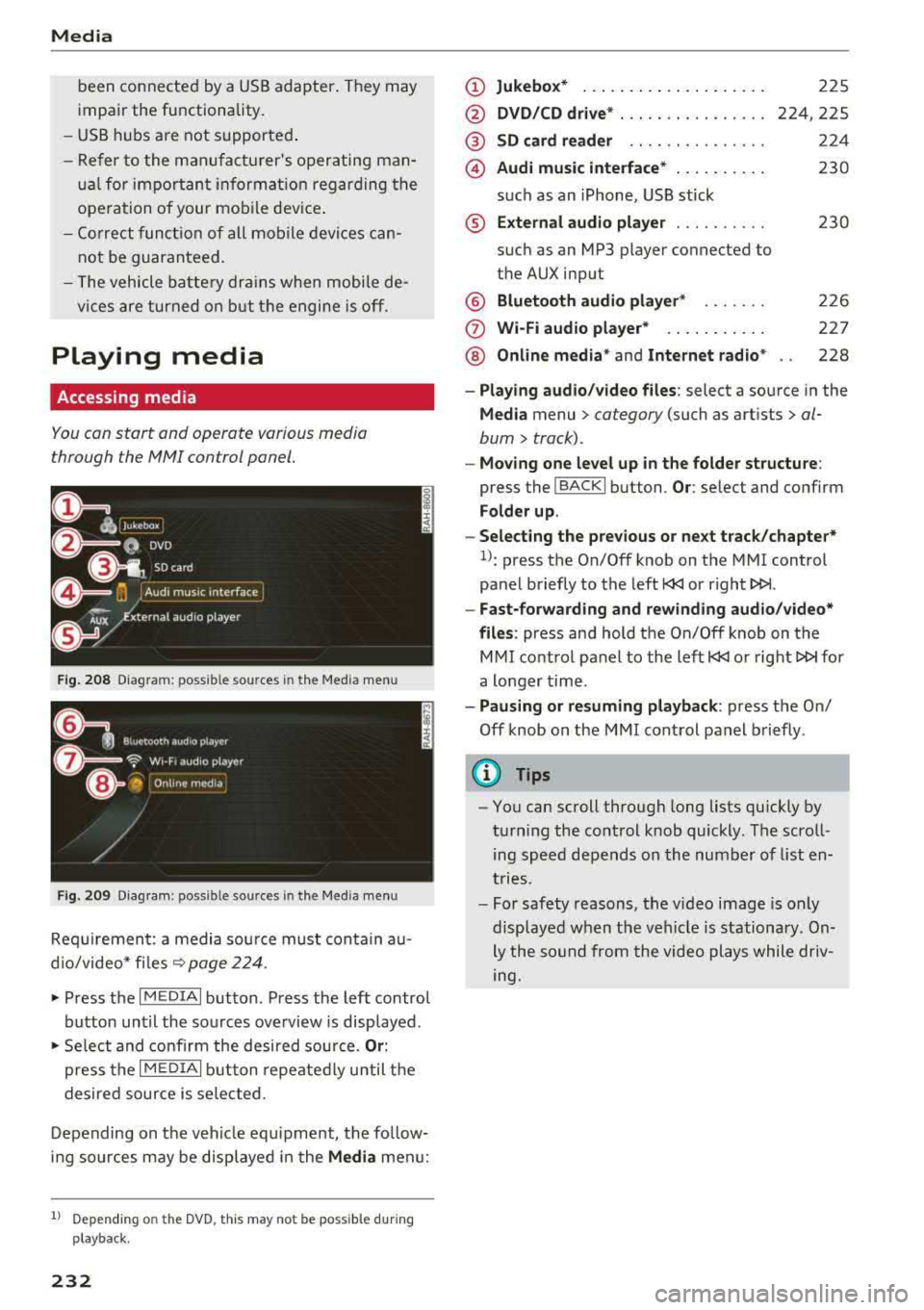
You con start and op erat e various med ia
t hrough the
MM I control panel.
F ig . 208 Diagram : poss ible so ur ces in the Medi a men u
Fi g. 209 Diag ram : p ossible s our ces in the M ed ia m enu
Req uirement: a media sou rce must contain au
d io/video* fi les
9 page 224 .
• Press the I MEDIAi button. Press the left control
button until the sources overview is disp layed.
• Se lect and confirm the desired source. Or :
press the I MEDI Ai button repeatedly until t he
desired source is selected.
Depending on the vehi cle equ ipment, the follow
ing sources may be disp layed in the
Media men u:
1) Depe ndin g o n th e DVD , th is m ay not be poss ib le dur ing
p la y ba ck.
232
(D Jukebo x* ... .. .. .. ... .. ..... .
@ DVD/CD drive * ... .. ...... .... .
@ SD card re ader .. .. .. .... .... .
@) Audi music interface * .. .. ..... .
su ch as an iPhone, USB stick
® External audio p la y er ......... .
such as an MP3 pl ayer connected to
the AUX input
@ Bluetooth audio player * ...... .
(J) Wi-Fi audio pl ayer* ... .. ..... .
@ Online m edia * and Internet radio *
225
224,225
224
230
230
226
227
228
- Playi ng audio /video files : select a source in the
Media menu> ca tegory (such a s art ists> al
bum> track) .
-Moving one level up in the folder structure :
press the I BACKI button. Or: selec t and confirm
Folder up .
- Selec ting the p re v ious or ne xt track /chapter*
1>: press the On/Off knob on the MMI control
panel briefly to the left
l
- Fa st-for warding and rew inding audio /video *
fil es :
press and hold the On/Off knob on the
MMI control pa nel to the left
l
a longer time .
-Paus ing or re suming pla yback : press the On/
Off knob on the MMI control panel b riefly .
(@ Tips
-You can scroll through long lis ts quickly by
turning the cont rol knob quickly . The scroll
ing speed depends on the number of list en
t ries .
- For safety reasons, the video image is only
displayed when t he vehicle is stationary. On
ly the so und from the video plays while driv
ing.
Page 243 of 404
u. 00 ... N l' N ... 0 N > 00
Audi smartphone interface
Setup
A ppl ies to : ve hicles w ith Audi smartpho ne inte rfa ce
You con conn ect your smortphone to the MM I us
ing the Audi smortphon e int erfac e. Certain con
t e n t on you r sm ortphone is ado pted to th e Info
tainme nt system d is p lay while driving and con
be operated through the
MMI control panel .
Requirement
The vehicle must be stat ionary and the ignition
must be switched on .
iPhone generation 5 or h igher w ith Lightning
connector and iOS 7 .1.2 operating system or h igher.
O r:
Smartphone with Android Auto app and Android
5 .0 Loll ipop operating system or higher.
.,. Connec t your sma rtphone to the Audi music in
terface ¢ page 230 using a USB adapte r
¢ page 229, fig. 206.
.. Select and confirm A ctivate Apple CarPlay or
Acti vate And roid Auto now .
.. Follow the system instruct ions.
.. Pay attention to any additiona l system prompts
on your smartphone if applicable .
If yo u chose not to use Apple CarP lay or Android
Auto when connecting your smartphone for the
first time, you can start the Audi smartphone in
terface later on using the
Connection manager.
.,. Se lect : I MENU I button > Audi smartphone in-
terfa ce
> Change to connection manager .
.. Connect your sma rtphone to the A udi music in
terface using a USB
ad apter ¢ page 229,
fig. 206.
.. Select and confirm Audi smartphone in t he
Connection manager ¢ page 244. You can se
l ect your smartphone in the list of devices that
are already
paired¢ page 245.
.,. Follow the system instruct ions .
@ Note
Always follow the i nformat ion found in¢ @) in
Wi-Fi hotspot on page 195 .
Audi smartph one interfac e
(D Tips
-The functions that can be used depen d on
the fo llow ing factors, among others:
- the brand of your smartphone
- the vers io n of the ope rating system in
your smartphone
- the software ve rsion of the app used
- the USB adapter cab le and correct connec-
tion
- your cell phone se rvice provide r
- the customized settings on yo ur sma rt -
phone
- One of the factors above o r a com bina tion
of any of them could cause your sma rtphone
to be incompatib le wit h the Audi smart
phone inter face. Compatibility cannot be
guaranteed for all types of smartp hones.
For more informat io n and assistance, refer
t o the user guide and the man ufactu rer of
yo ur sma rtphone .
- If the connected smartphone has voice con
tr ol, you can ope rate yo ur smartp hon e usi ng
the ex ter nal voic e recognition system
¢page 175.
- Th e menu language show n in t he MMI is
based on t he sett ings in you r smartp ho ne .
- Th e time d is p layed in the M MI is based o n
the settings in yo ur sma rtphone .
- Severa l M MI functions a re not avai lab le
when Apple Car Play o r Andro id A uto is ac
t ive.
- Yo u ca nnot co nnect any mob ile dev ices via
B lu etooth whe n an App le CarPlay connec
tion is a ctive .
- Whe n the App le CarPlay connection is ac
t ive,
Tag this song for iTunes* is not av aila
ble
¢p age 219 .
Operating
A pp lies to: vehicles wit h Audi sm artph one interface
Opening a menu
Apple CarPlay :
you can go back to the Apple Ca r
Play main me nu regardless of the se lected me nu
i tem by p ressing and holdi ng the
I BACKI button .
Android Auto : to go back to the Andro id Auto
menu bar , push the control knob down .
241