remote control AUDI S4 2014 User Guide
[x] Cancel search | Manufacturer: AUDI, Model Year: 2014, Model line: S4, Model: AUDI S4 2014Pages: 296, PDF Size: 73.56 MB
Page 106 of 296
104 Audi adaptive cruise control and braking guard
Setting the distance
Applies to vehicles: wit h Aud i adapt ive cru ise co ntrol
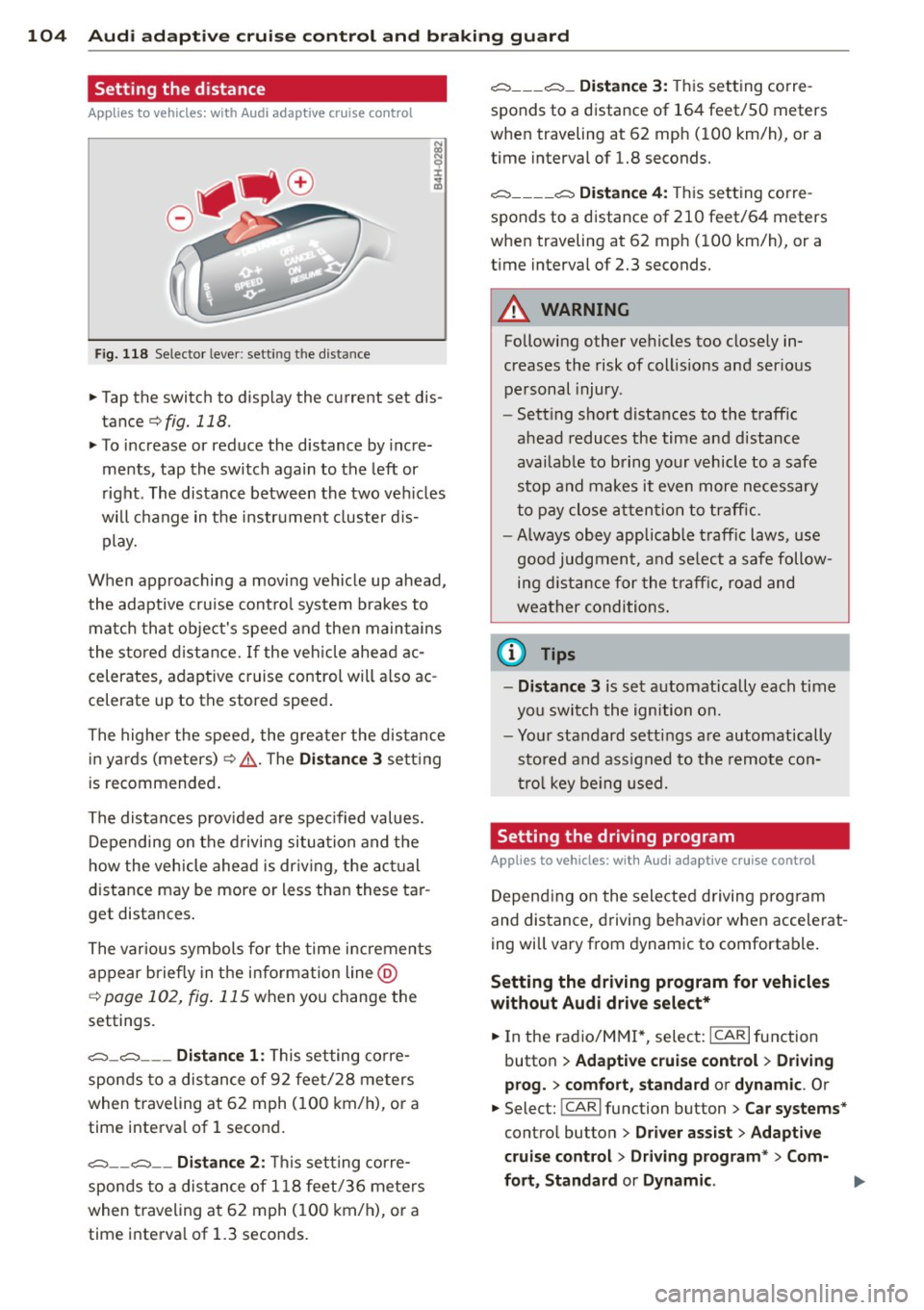
Fig. 118 Selector lever: setting the distance
~ Tap the switch to display the current set dis
tance
¢fig. 118.
~ To increase or reduce the distance by incre
ments, tap the switch again to the left or
right. The distance between the two vehicles
will change in the instrument cluster dis
play.
When approaching a moving vehicle up ahead,
the adaptive cruise control system brakes to match that object's speed and then maintains
the stored distance. If the vehicle ahead ac
celerates, adaptive cruise control will also ac
celerate up to the stored speed.
The higher the speed, the greater the distance
in yards (meters)¢ ,&.. The
Distance 3 setting
is recommended.
The distances provided are specified values.
Depending on the driving situation and the
how the vehicle ahead is driving, the actual
distance may be more or less than these tar
get distances.
The various symbols for the time increments
appear briefly in the information line @
c;, page 102, fig. 115 when you change the
settings.
c::::::,_c::::::, ___ Distance 1: This setting corre-
sponds to a distance of 92 feet/28 meters
when traveling at 62 mph (100 km/h), or a
time interval of 1 second.
c::::::, __ c::::::, __ Distance 2: This setting corre
sponds to a distance of 118 feet/36 meters
when traveling at 62 mph (100 km/h), or a
time interval of 1.3 seconds.
c::::::, ___ c::::::,_ Distance 3: This setting corre-
sponds to a distance of 164 feet/SO meters
when traveling at 62 mph (100 km/h), or a
time interval of 1.8 seconds.
c::::::, ____ c::::::, Distance 4: This setting corre-
sponds to a distance of 210 feet/64 meters
when traveling at 62 mph (100 km/h), or a
time interval of 2.3 seconds.
A WARNING
Following other vehicles too closely in
creases the risk of collisions and serious
personal injury .
- Setting short distances to the traffic
ahead reduces the time and distance
available to bring your vehicle to a safe
stop and makes it even more necessary
to pay close attention to traffic.
-
-Always obey applicable traffic laws, use
good judgment, and select a safe follow
ing distance for the traffic, road and
weather conditions.
0) Tips
- Distance 3 is set automatically each time
you switch the ignition on.
- Your standard settings are automatically
stored and assigned to the remote con
trol key being used.
Setting the driving program
Applies to veh icles: w ith Audi ada ptive c ruise control
Depending on the selected driving program
and distance, driving behavior when accelerat
ing will vary from dynamic to comfortable.
Setting the driving program for vehicles
without Audi drive select*
~ In the radio/MM!*, select: ICARlfunction
button
> Adaptive cruise control > Driving
prog.
> comfort, standard or dynamic. Or
~ Select: !CAR I function button > Car systems*
control button > Driver assist > Adaptive
cruise control> Driving program*
> Com-
fort, Standard
or Dynamic . ll-
Page 107 of 296
Audi adaptive cruise control and braking guard 105
Setting the driving mode for vehicles with
Audi drive select*
Refer to r=;,poge 114 .
(D Tips
Your settings are automatically stored and
assigned to the remote control key being
used.
Request for driver intervention
Applies to vehicles: with Audi adaptive cruise control
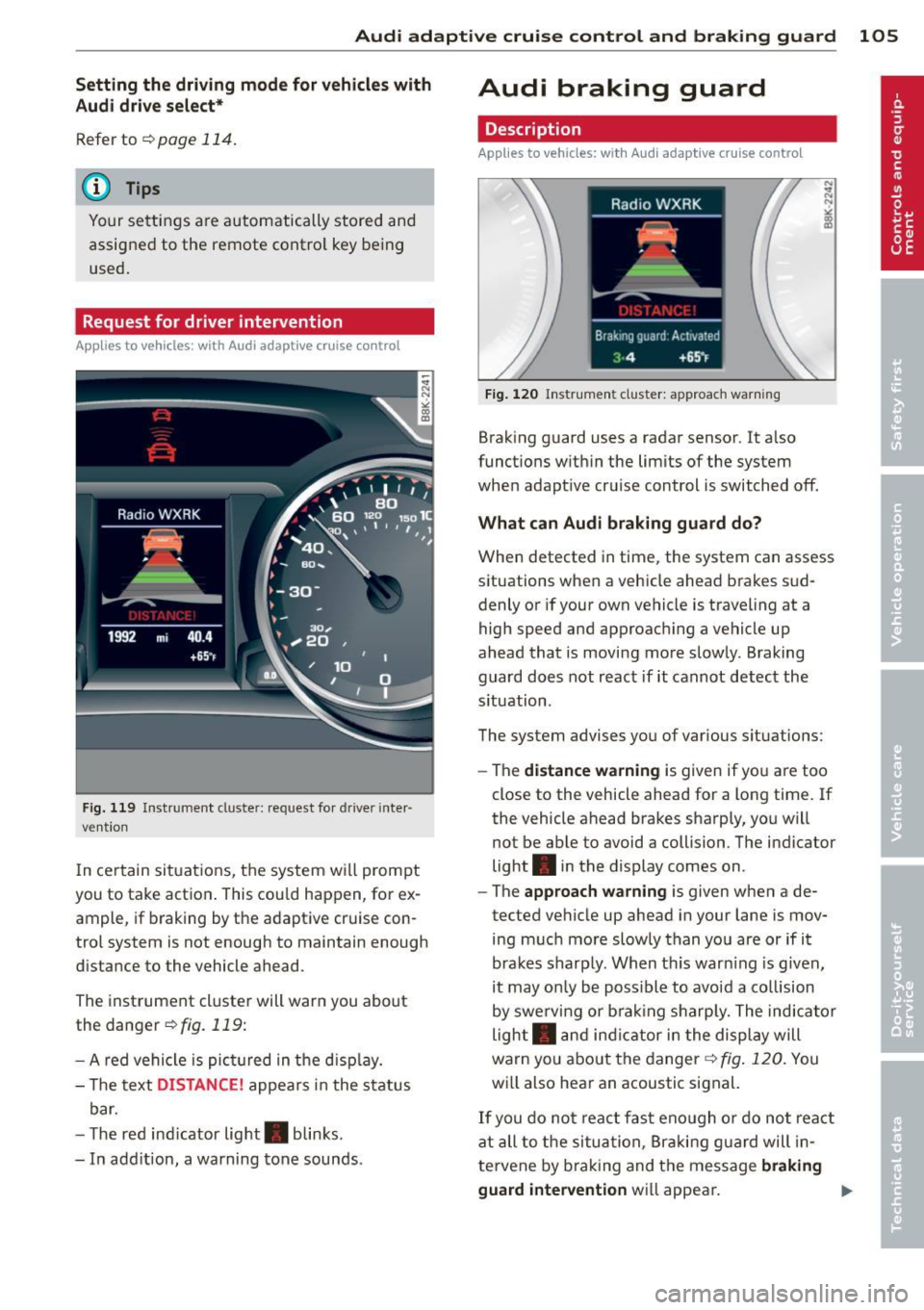
Fig. 119 Instrumen t cl us ter: reques t for drive r inte r·
vention
I n ce rtain situat ions, the system will prompt
you to take action . This cou ld happen, for ex
ample, if braking by the adaptive cruise con
trol system is not enough to maintain enough
distance to the vehicle ahead.
The instrument cluster will warn you about
the danger
r=;,fig. 119:
- A red vehicle is pict ured in the disp lay.
- The text
DISTANCE! appears in the status
bar.
- T he red ind icator light . blinks.
- In add ition, a warning tone sounds.
Audi braking guard
Description
Applies to vehicles: with Audi adaptive cruise control
Fig. 120 Instr ument cluster: approach warning
Braking guard uses a radar sensor. It also
functions within the limits of the system
when adapt ive cruise control is switched off.
What can Audi braking guard do?
When detected in time, the system can assess
situations when a vehicle ahead brakes sud
denly or if your own vehicle is traveling at a
high speed and approaching a vehicle up
ahead that is moving more slowly. Braking
guard does not react if it cannot detect the
s ituation.
The system advises you of various situations:
- The
distance warning is given if you are too
close to the vehicle ahead for a long time. If
the vehicle ahead brakes sharply, you will
not be able to avoid a collision . The indicator
light . in the display comes on .
- The
approach warning is given when a de
tected vehicle up ahead in your lane is mov
ing much more slowly than you are or if it
brakes sharply. When thi s war ning is given,
it may on ly be possible to avoid a co llision
by swerving or brak ing sharp ly. The indicator
light . and indicator in the display will
warn you about the danger¢
fig. 120. You
wi ll also hear an acoustic signal.
If you do not react fast enough or do not react
at all to the situation, Braking guard will in
te rvene by brak ing and the message
braking
guard intervention
wi ll appear.
Page 108 of 296
106 Audi adap tive cruise control and br aking guard
- If a co llision is imminent, the system will
first provide an
acute warning by bri efly and
sharp ly app ly ing the brakes .
- If you do not react to the ac ute warning ,
braking guard can brake within the limits of
the system. This reduces the veh icle speed
in the event of a collision.
- At speeds under 20 mph (30 km/h), the sys
tem can in it iate a complete deceleration
s hortly before a collision
l) .
-If the braking guard senses that you are not
braking hard enough when a collision is im
minent, it can increase the braking force.
Which funct ion s can be contr oll ed ?
You can switch braking guard and the dis
tance/approach warning on or off in the radio
or MM I c> poge 106, Settings in the radio/
MMI.
A WARNING
Lack of attention can cause col lisions, oth
er accidents and serious personal injuries.
The braking guard is an assist system and
cannot prevent a collis ion by itself. The
driver m ust always intervene . T he d river is
always responsib le for bra king at the cor
rect time.
- Always pay close attention to traffic,
even when the brak ing guard is switched
on. Be ready to intervene and be ready to
take complete control whenever necessa
ry. A lways keep the safe and legal dis
tance between your vehicle and vehicles
up ahead.
- Braking guard works w ith in limits and
will not respond outs ide the system lim
its, for example when approaching a
stopped vehicle or stationary obstacle
(end of a traff ic jam or veh icle that has
broken down in traffic).
- Always remember that the radar sensor
for the braking guard works only within
defined detection and range limits that
l ) Th is is not available in some c oun tri es.
may prevent the proper detection of oth
er vehicles.
- The radar sensor's function and range
can be reduced by rain, snow and heavy
spray. Moving veh icles up ahead may not
be prompt ly detected or may not be de
tected at all .
- Reflective surfaces including crash barri
ers or tunne l entrances may impair the
function of the radar sensor .
(D Tips
- You can cancel the braking that is in it iat
ed by the system by braking yourse lf, by
accelerating not iceably or by swerving .
- Braking guard error messages
c>poge 107.
- Keep in mind that braking guard can brake unexpectedly. Always secure any
cargo or objects that you are transport
ing to reduce the risk of damage or in
jury .
Settings in the radio/MMI
App lies to vehicles : wit h Audi ada ptive cr uise contro l
.,. Select: !CARI function button> Car sy ste m s*
contro l but ton > Driv er a ssi st> Audi brak
ing guard .
Or
.,. Select: !CAR I function button> Audi b raking
gua rd.
Sys tem -
Switch A udi braking guard On and
Off . When you switch the ignition on, the
message
Audi b raking gu ard off appears if
the system is switch ed off .
Ea rly warnin g -The distance and approach
warnings in the display can be switched
On/
Off .
(D Tips
-Yo ur settings are automatically s tored
and assigned to the remote contro l key
being used at the times the settings are
made.
Page 114 of 296
112 Audi side assist
- Side assist is not active wh ile you are
making the adjus tment.
- Your settings are automatica lly sto red
and ass igned to the remote control key
being used.
Driver messages
App lies to vehicles: with Audi side assist
If s ide ass ist switches off by itse lf, t he LED in
the butto n tur ns off a nd a message will ap
pear in t he instr ume nt cl uster d is p lay:
Audi side assist unavailable : Sensors blocked
T he radar sensors' vision is a ffected. Do not
cover the area in front of the senso rs with bike
wheels, stickers, dirt or other objects . Clean
the area in front of the sensors, if necessary
c::;,page 110, fig. 124.
Audi side assist : Currently unavailable
Side assist can not be swi tched on tempora ril y
bec ause there is a mal func tio n (for ex am ple,
the ba ttery cha rge leve l may be too low) .
Audi side assist : System fault!
The system ca nnot guara ntee that it w ill de
tec t ve hicles co rrec tly and it is sw itched off .
Th e senso rs have been displaced o r are faulty .
H ave the sys tem che cked by an au thor ized
Au di d eale r or auth oriz e d Au di S ervice Fa cility
soon .
Audi side assist : Unavailable when towing
Side assist sw itches off automatically when a
factory- insta lled trailer hitch is connected to
the elec trical connector on the trailer . There is
no guarantee the system will switc h off when
usi ng a retrofitted t railer hi tch . Do not use
si de assis t when towing a tra iler .
Page 124 of 296
122 Park assis t
the b lue area should be on the curb. The en
ti re b lue area must fit into the parking spot.
• While the vehicle is stationary, turn the
steering wheel to the right as far as it will
go.
• Back into the park ing spot . Stop the vehicle
as soon as the blue curve touches the curb
¢ fig . 135.
• While the vehicle is stationa ry, turn the
steering wheel to t he left as far as i t wi ll go.
• Conti nue to bac k up into the park ing spot
unti l the vehicle is pa rked parallel to the
c ur b.® marks the rear bumper . You sho uld
stop dr iving in reverse as soon as and no lat
er than when the red orientation line@
abuts an object¢,&! Keep an eye on the
front of your veh icle wh ile doing this
c> (D .
Pa rking ne xt to obstacle s
When there is an obstacle (such as a wall)
next to the parking spot, choose a spot w ith
more space on the sides. Pos ition the long
side of the blue area so that there is sufficient
space from the curb . T he area must not be on
the curb . Yo u will also need to start turn ing
the steer ing whee l much ear lie r. T he re s hou ld
be a suff ic ient amoun t of sp ace between the
curb and the b lue curve, and the blue c urve
¢
fig . 135 must not touch the curb .
8_ WARNING
-The rea r view came ra does not show the
entire area beh ind the veh icle
¢
page 118, fig. 130. Watch o ut espe
cially for small children and an imals. The
rear view camera cannot a lways detect
them, pos ing risk of a n accide nt!
- Please note that objects not touch ing the
ground can appear to be further away
than they really are (for examp le, the
bumper of a pa rked vehicle, a t railer
hit ch, or the rear of a t ru ck ). In this case,
yo u shoul d no t use the help li nes to he lp
with par king, which poses danger of an
acc ident!
(D Note
In the M MI dis p lay, the direction of travel
of the vehicle rear is represented depend
i ng on the steering wheel angle . The vehi
cle front swings out more than the vehicle
rear. Mainta in plenty of dista nce from an
obstacle so that your outs ide mir ro r or a
corner of you r vehicle does not coll ide with
any obstacles - dange r of accide nt!
(D Tips
The left o r right orie ntation lines and su r
faces will be disp layed, depending on t he
t u rn s ignal being used .
Adjusting the display and warning tones
Applies to vehicles: with parking system (rear, with rear
view camera)
The display and warning tones are adjus ted in
the radio or MMI*.
.. Select: !CAR I function button> Parking sys
tem .
Or
--.. Select: !C AR I func tion but ton> Car systems "
control butto n> Driver assist > Parking aid .
Di splay
- Off -when the parking system is switched
off, only a udible s ignals a re given .
-On -when the par king system is switched
on, the picture from the rear view camera is
disp layed.
Warning tones
- Rear volum e -
rear sensor vo lume
- Rear frequency -rear senso r frequency
- Music volume whil e parking -when the
parking system is sw itched on, the volume
of the active audio sour ce is lowered.
The newly ad justed value is briefly heard from
the sig nal generato r. The sett ings are auto
matically stored and assigned to the remote
control key. ..,
Page 126 of 296
124 Homelin k
Homelink
Universal remote
control
Description
Appl ies to vehicles: wit h Homeli nk
The HomeLink universal remote control can
be programmed with the remote control for
devices that are already present.
W ith Home Link, you can control devices such
as the garage door, security systems, house lights, etc. comfortably from the inside of you
vehicle.
Homelink makes it possible for you to replace
three d ifferent remote controls from dev ices
in your home with one universal remote. This
feature works for most garage door and exte
rior door motor signals. Programming the in
div idual remote control for your remote con
trol takes place near the center of the radiator
grille. There is a control module attached at
this location .
A one -time programm ing of the sensor must
be performed before you are able to use sys
tems with Home link. If the system does not
activate after performing the one-time pro
gramm ing, check whether the system uses a
rolling code
q page 127 for vehicles without
the MMI*.
& WARNING
-
- Never use the Homelink transmitter
with any garage door opener that does
have not the safety stop and reverse fea
ture as required by federa l safety stand
ards. This includes any garage door open
er model manufactured before April 1,
1982.
- A garage door opener which cannot de
tect an object, signaling the door to stop
and reverse does not meet current feder
al safety standards. Using a garage door
opener without these features increases
risk of serious injury or death. -
For safety reasons never release the
parking brake or start the engine while
anyone is standing in front of the vehicle.
- A garage door or an estate gate may
sometimes be set in motion when the
Homelink remote control is being pro
grammed. If the device is repeatedly ac
tivated, this can overstrain motor and
damage its e lectrica l components - an
overheated mo tor is a fire hazard!
- To avo id possib le injuries or property
damage, please always make abso lutely
certain that no persons or objects are lo
cated in the range of motion of any
equipment being operated.
{D Tips
- If you would li ke more information on
Homel ink, where to purchase the Home
Link compat ible prod ucts, or wou ld like
to purchase the Homelink Home Light
ing Package, please call toll-free:
1-800-355-3515.
- For Declaration of Compliance to United
States FCC and Industry Canada regula
tions
¢ page 2 78.
- For security reasons, we recommend that
you clear the programmed buttons be
fore selling the vehicle.
Operation
Applies to veh icles : w it h Ho meli nk
~ ,.......,,...--, ........... ~
,;,,, r . o : o . ) .~
®
Fig. 136 Headl iner: controls
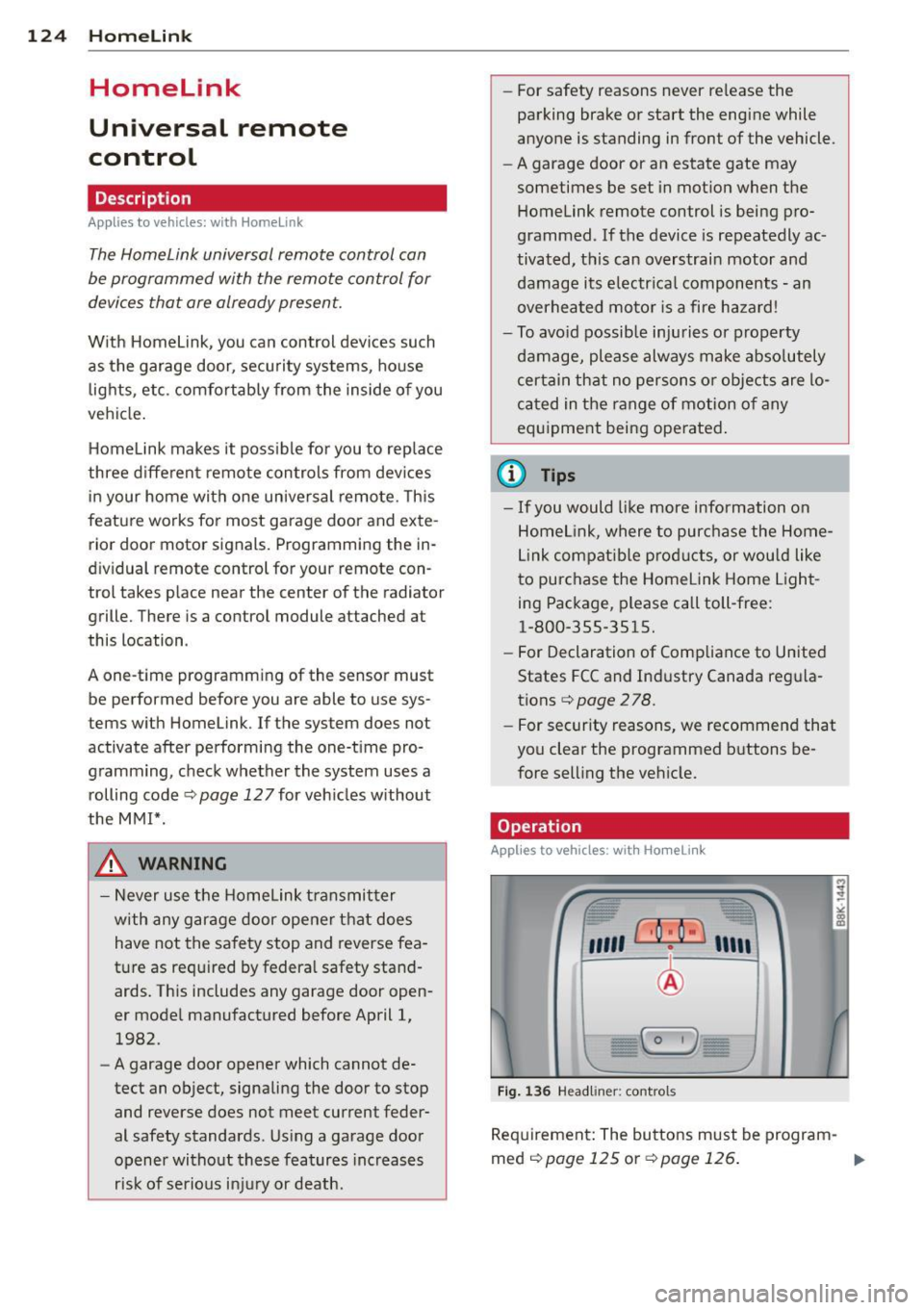
Requirement : The buttons must be program-
med
¢ page 125 or ¢page 126. II>
Page 127 of 296
.. To open the garage door, press the program
med button. The LED® will light up or
flash.
.. To close the garage door, press the button
again.
@ Tips
To open the garage door, press the button,
but do not press it for longer ten seconds
or the Homelink module will switch to
programming mode.
Programming the transmitter (version A)
A pp lies to vehicles : wit h Homelink a nd MMI
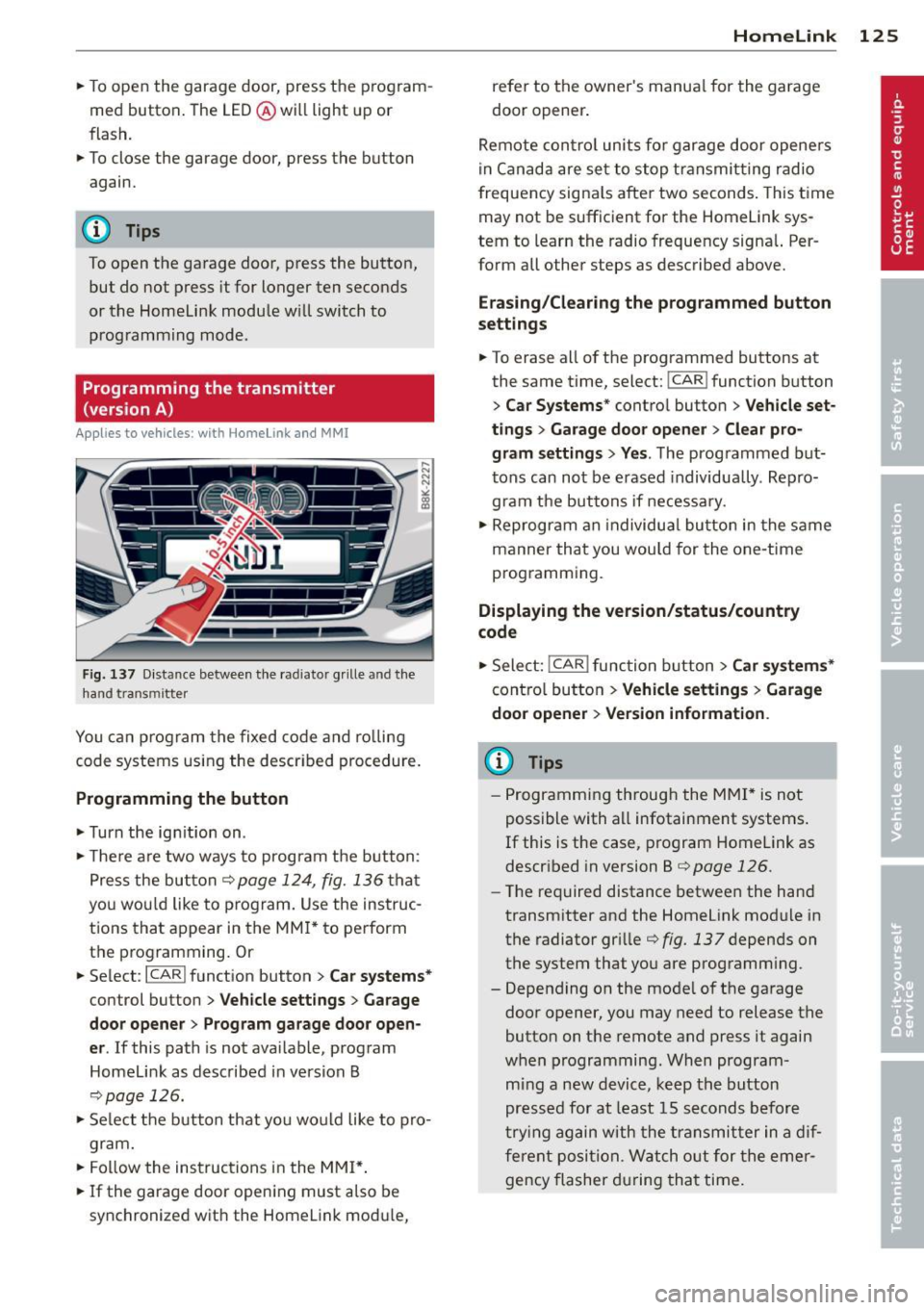
Fig. 137 Distance between the radiato r grille an d the
hand trans mitter
You can program the fixed code and rolling
code systems using the described procedure.
Programming the button
.. Turn the ignition on .
.. There are two ways to program the button:
Press the button ¢
page 124, fig. 136 that
you would like to program. Use the instruc
tions that appear in the MMI* to perform
the programming. Or
.. Select :
I CARI function button > Car systems*
control button > Vehicle settings> Garage
door opener> Program garage door open·
er .
If this path is not available, program
Homelink as described in version B
¢page 126.
.. Select the button that you would like to pro
gram.
.. Follow the instructions in the MMI*.
.. If the garage door opening must also be
synchronized with the Homelink module,
Homelink 125
refer to the owner's manual for the garage
door opener.
Remote control units for garage door openers
in Canada are set to stop transmitting radio
frequency signals after two seconds. This time
may not be sufficient for the Home Link sys
tem to learn the radio frequency signal. Per
form all other steps as described above.
Erasing/Clearing the programmed button
settings
.. To erase all of the programmed buttons at
the same time, select:
I CAR ! function button
> Car Systems* control button > Vehicle set·
tings> Garage door opener > Clear pro·
gram settings> Yes .
The programmed but
tons can not be erased individually. Repro
gram the buttons if necessary .
.. Reprogram an individual button in the same
manner that you would for the one-time
programming .
Displaying the version/status/country
code
.. Select: !CAR ! function button > Car systems*
control button > Vehicle settings > Garage
door opener > Version information .
(D Tips
- Programming through the MMI* is not
possible with all infotainment systems .
If this is the case, program Homelink as
described in version B
¢ page 126 .
-The required distance between the hand
transmitter and the Homelink module in
the radiator grille
¢fig. 137 depends on
the system that you are programming .
- Depending on the model of the garage door opener, you may need to release the
button on the remote and press it again
when programming. When program
ming a new device, keep the button
pressed for at least 15 seconds before
trying again with the transmitter in a dif
ferent position. Watch out for the emer
gency flasher during that time .
Page 128 of 296
126 Homelink
Programming the transmitter
(version B)
Applies to vehicles: with Homelink
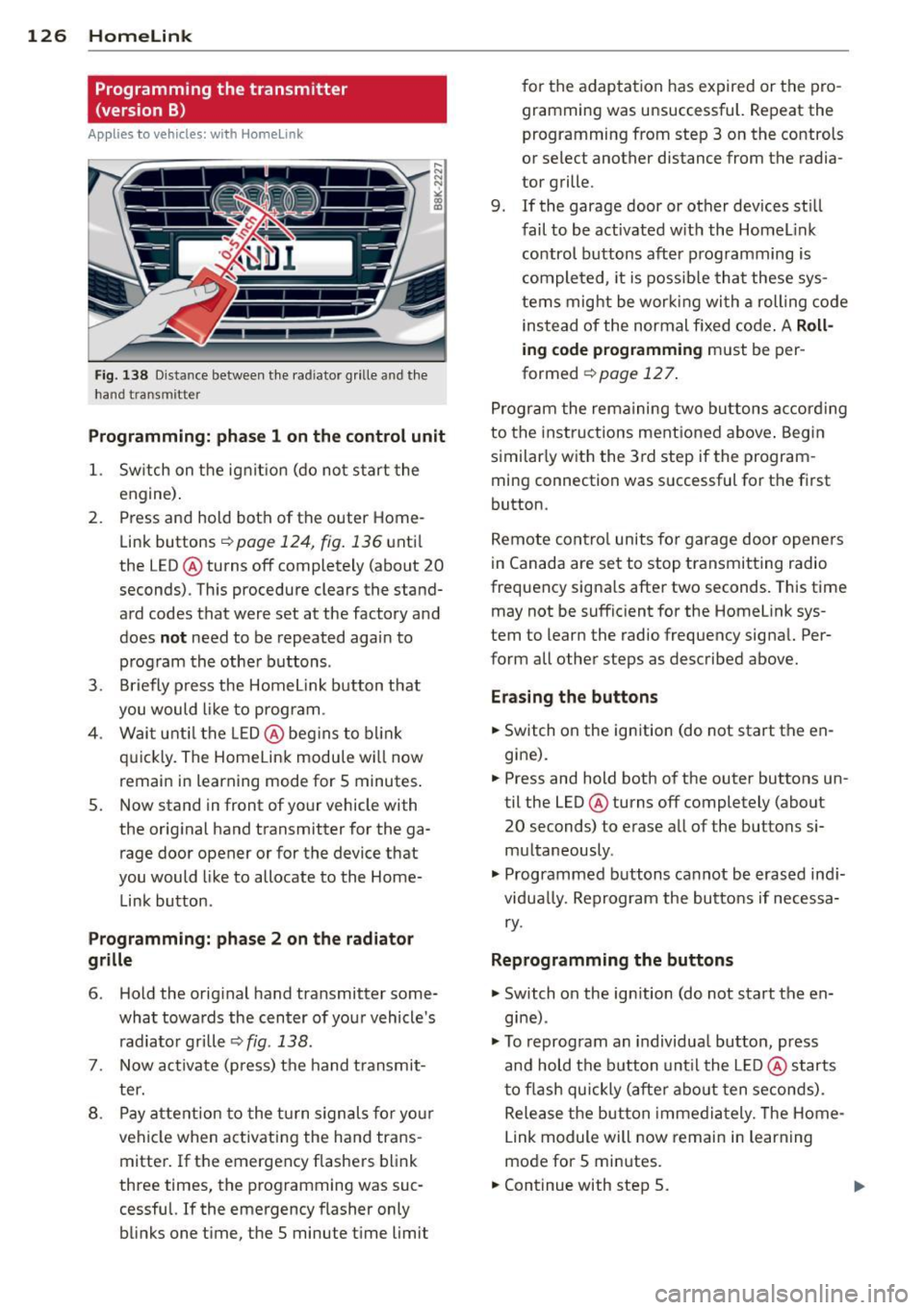
F ig. 138 Distance between t he rad iator grille and the
hand transm itter
P rogramming: phase 1 on th e control unit
1. Sw itch on the ign it ion (do not start the
engine) .
2. Press and hold both of the outer Home
Link buttons
¢ page 124, fig. 136 unti l
the LED @turns off completely (about
20
seconds). Th is procedure clears the stand
ard codes that were set at the factory and
does not need to be repeated again to
p rogram the other buttons .
3 . Briefly press the Homelink button that
you would like to prog ram .
4. Wai t unti l the LED @ beg ins to blin k
q uickly. The Homelink module wi ll now
remain in learning mode for
5 minutes .
5. Now stand in front of your vehicle with
the original hand transmitter for the ga
rage door opener or for the device that
you would like to allocate to the Home
Link button .
P rogramming: pha se 2 on the radiator
gr ille
6 . Hold the orig inal hand transmitter some
what towa rds the center of your vehicle's
r adiato r grille ¢
fig. 138 .
7. Now activate (p ress) the hand transmit
ter.
8 . Pay attention to the tu rn signals fo r your
vehicle when activating the hand trans
mitter . If the emergency flashers blink
three times, the programming was suc
cessful. If the emergency flasher only blinks one time, the S minute time limit f
or the adaptation has expired or the pro
gramming was unsuccessful. Repeat the
programming from step 3 on the controls
or select another distance from the radia
tor grille.
9 . If the garage door or other devices still
fail to be activated w it h the HomeL ink
control buttons after programming is
comple ted, it is possib le tha t these sys
tems mig ht be work ing with a roll ing code
instead of the normal f ixed code .
A Roll
ing code programming must be per
formed
¢ page 127 .
Program the remaining two buttons accord ing
to the instructions mentioned above . Begin
similarly with the 3rd step if the program
ming connection was successful for the first
button.
Remote contro l units for garage door openers
in Canada are set to stop transmitting radio
frequency signa ls after two seconds. This time
may not be suffic ient for the Homelink sys
tem to learn the radio frequency signa l. Per
form all other steps as described above.
E rasing the button s
.,. Switch on the ignition (do not start the en
gine).
.,. Press and hold both of the outer buttons un
til the LED @turns off completely (about
20 seconds) to erase all of the buttons si
multaneously .
.. Programmed buttons cannot be erased ind i
vidua lly. Reprogram the buttons if necessa
ry .
Reprogramming the buttons
.. Switch on the ignition (do not start the en
gine) .
.. To reprogram an individua l button, press
and hold the b utton unt il the L ED@starts
to f lash quickly (after abo ut ten seconds).
Release the button immedia tely. The Home
Link module will now remain in learning
mode for 5 minutes.
.,. Continue with step 5.
Page 129 of 296
@ Tips
-Programming using the Homelink but
tons is not possible with all infotainment
systems. If this is the case, program Homelink as described in version A
<=> page 125.
-The required distance between the hand
transmitter and the Homelink module in
the radiator grille<=>
fig. 138 depends on
the system that you are programming.
- Depending on the model of the garage
door opener, you may need to release the
button on the remote and press it again
when programming. When program
ming a new device, keep the button
pressed for at least 15 seconds before
trying again with the transmitter in a dif
ferent position. Watch out for the emer gency flasher during that time.
Programming the rolling code
App lies to vehicles: with Home link
Additionally, a rolling code programming for
the Homelink universal remote control is re
quired for some systems.
Identifying the rolling code
"'Press the previously programmed Homelink
button again and hold it down.
"'Look at the
LED@r=)page 124, fig. 136. If
the LED blinks quickly, the features, such as
the garage door opener, are equipped with
the rolling code.
"'Program the rolling code as follows:
Activating the garage door opener motor
unit
"'Locate the setting button on the garage
door opener motor unit. The exact location
and color of the button may vary depending
on the garage door opener manufacturer .
"'Press the setting button on the garage door
opener motor unit (usually this will activate
a "setting light display" on the motor unit).
Now you will have about
30 seconds time to
perform the HomeLink button programming
on the controls.
Homelink 127
Programming on the controls
"'Press the Home Link button that was already
programmed and hold for two seconds.
"'To end rolling code programming , press and
hold the Home link button for two seconds
again.
"'The Homelink button may need to be press
ed a third time to end the adjustment proce
dure for some garage door openers .
After the controls have been programmed, the garage door opener should recognize the
Homelink signal and operate when the Home
Link button is pressed . Now you may program
the other buttons as needed .
(D Tips
- Programming the rolling code can be
performed quicker and more easily with
the help of a second person.
- If difficulties should arise when pro
gramming the rolling code, consult the
operating instructions for the garage
door opener or other devices for possible
solutions.
Page 280 of 296
2 78 Consumer Information
Technical Modifications
Our guidelines must be complied with when technical modifications are made .
Always consult an authorized Audi dealer be
fore starting work on any modifications.
This will help ensure that vehicle function,
performance and safety are not impaired
¢ &. .
Attempting to work on electronic components
and the software used with them can cause
malfunctions. Because of the way electronic
components are interconnected with each
other, such malfunctions can also have an ad
verse affect on other systems that are not di
rectly involved. This means that you risk both
a substantial reduction in the operational
safety of your vehicle and an increased wear of
ve hicle parts ¢
A:,..
Author ized Audi dealers will perform th is
wo rk in a professiona l and competent manner
or, in special cases, refer you to a professional
company that specializes in such modifica
tions .
A WARNING
-
Improper repairs and modifications can
change the way vehicle systems work and
cause serious personal injury.
(D Note
If emergency repairs must be performed
elsewhere, have the vehicle examined by
an authorized A udi dealer as soon as possi
ble.
Declaration of
Compliance, Telecom
munications and
Electronic Systems
Radio Frequency Devices and Radiocommuni
cation Equipment User Manual Notice.
The manufacturer is not responsib le for any
radio or TV interference caused by unauthor
ized modifications to this equipment.
Devices
T he following devices each comply with FCC
Part 15.19, FCC Part 15.21 and RSS-Gen Iss ue
1:
- Adapt ive cru ise control*
- Conven ience key*
- Side assist*
- Cell phone package*
- Electron ic immobilizer
- Homelink universal remote control*
- Remote control key
FCC Part 15.19
This device complies with part 15 of the FCC
Rules . Operation is subject to the follo wing
two conditions:
(1) This device may not cause harmful inter
ference, and
(2) this device must accept any interference
received, including interference that may
cause undesired operation.
FCC Part 15 .21
CAUTION:
Changes or modifications not expressly ap
proved by the party responsible for compli
ance could void the user's authority to operate
the equipment.
RSS-Gen Issue 1
Operation is subject to the following two con
ditions:
(1) this device may not cause inte rfe rence,
and