park assist AUDI S4 2017 User Guide
[x] Cancel search | Manufacturer: AUDI, Model Year: 2017, Model line: S4, Model: AUDI S4 2017Pages: 386, PDF Size: 96.32 MB
Page 85 of 386
slow your vehicle down as if you had made a
full braking maneuver. ESC and the associat
ed components (ABS, ASR, EDL) cannot over
come the laws of physics . In corners and
when road or weather conditions are bad , a
full brake application can cause the vehicle to skid or the rear end to swerve, which increas
es the risk of an accident.
Hill hold assist
Hill hold assist makes it easier to start on hills .
The system is activated when the brake pedal is pressed for a
few seco nds. The vehicle must be in
an uphill direction of travel.
After releasing the brake pedal , the brake power
is held for a
brief moment to prevent the vehicle
from rolling back when starting. During this
time , you can easily begin to
move your vehicle.
& WARNING
- If you did not begin moving immediately af
ter releasing the brake pedal, the vehicle
could begin to roll backward under certain
conditions . Press the brake pedal or set the
parking brake immediately .
-If the engine stalls, press the brake pedal or
set the parking brake immediately.
- To prevent the vehicle from rolling back un
intentionally when starting in stop-and-go
traffic, keep the brake pedal pressed for a
few seconds before you start driving.
- Switch the ignition off when you leave the
vehicle, even for a short period of time. Also
set the
parking brake to prevent the vehicle
from rolling unintentionally . This applies
particularly when children remain in the
ve
hicle, because there is the risk of an acci
dent .
Automatic transmission
Introduction
The automati c transmission is controlled elec
tronically . The transmission shifts up or down au
tomatically depending on which drive program is
selected .
Driving
When a moderate driving style is used, the
transmission selects the most economical driving
mode. The transmission shifts up at a lower RPM
and shifts down at a higher RPM to improve fuel
efficiency.
The transmission switches to a sporty mode after
a kick-down or when the driver uses a
sporty
driving style
characteri zed by quick accelerator
pedal movements, heavy acceleration, frequent
changes in speed and t raveling at the maximum
speed .
If desired, the driver can also select the gears
manually (tiptronic mode) ¢ page 86.
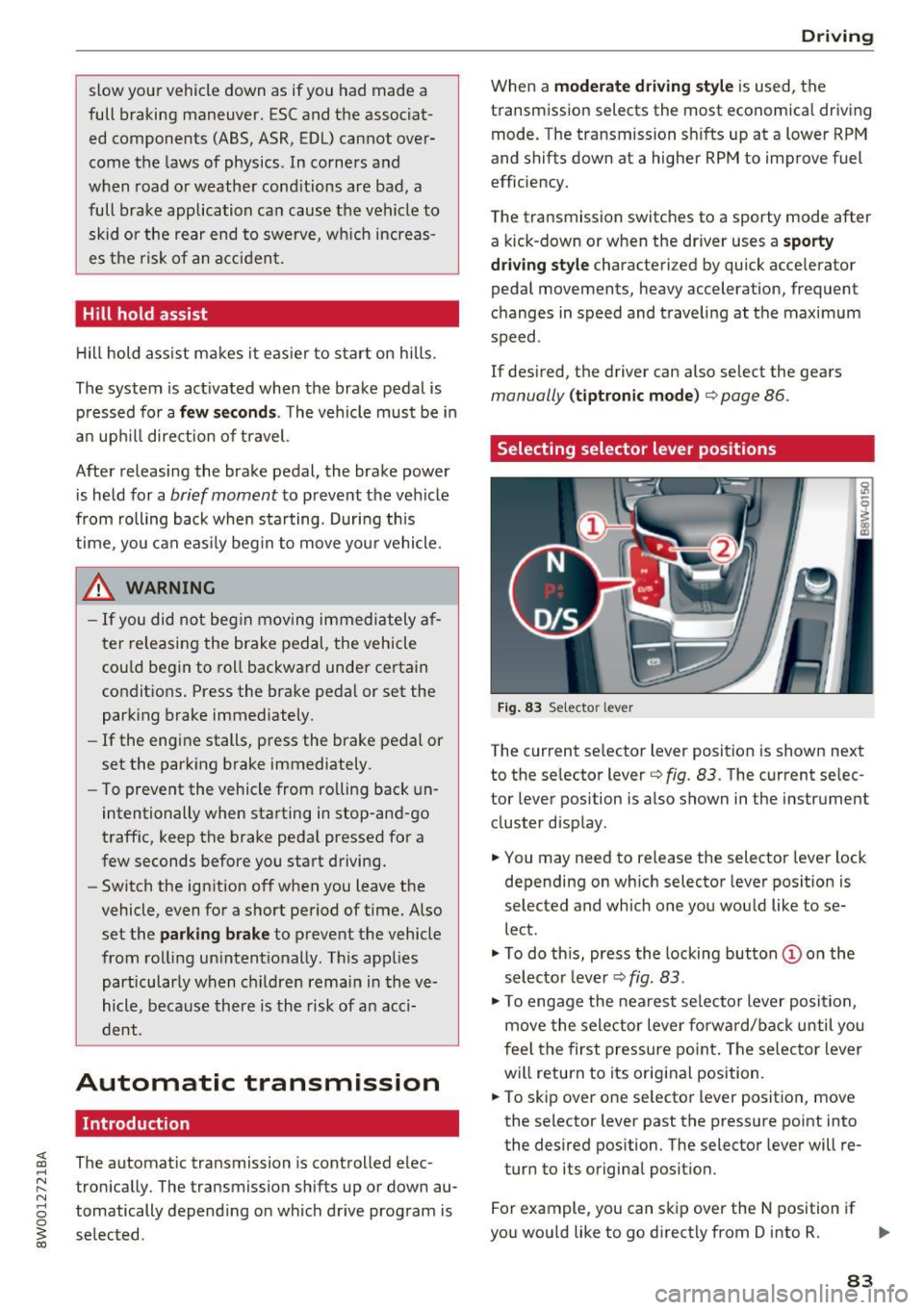
Selecting selector lever positions
Fig. 83 Selecto r lever
The current selector l ev e r pos ition is shown next
to the selector lever¢
fig. 83 . The current selec
tor lever position is also shown in the instrument
cluster d isplay .
.,. You may need to release the selector lever lock
depending on which selector lever position is
selected and which one you would like to se
lect .
.,. To do this, press the locking button (Don the
selector lever¢
fig. 83.
.,. To engage the nearest se lector lever position,
move the selector lever forward/back until you
feel the first pressure point. The selector lever
will return to its original position.
.,. To skip
over one selector lever position, move
the selecto r lever past the pressure point into
the desired position . The selector lever will re
turn to its original position.
For example, you can skip
over the N position if
you would like to go directly from D into R. ..,.
83
Page 87 of 386

-Power is st ill transmitted to the wheels
when the eng ine is r unning at idle. To pre
vent the veh icle from "creeping", you must
keep your foot on the brake in all selector
lever posi tions (except P and N) when the
engine is ru nning.
- Before opening the hood, se lect the P selec
tor leve r pos ition and set the parking bra ke.
T his redu ces the risk of an accid ent. Always
read and fo llow the appli cable warnings
¢ page 30 4, Wor king in the engine com
partment.
@ Tips
If you accidentally se lect N wh ile d riving, take
your foot off the a ccele rat or pedal an d wait
for the engine to s low down to idle before se
lect ing Dor S.
Driving tips
Starting the engine
.,. The P or N posi tion m ust be selected .
Starting from a stop
.,. Press and hold the brake pedal.
.,. Start the engi ne ¢
page 76.
.,. Press t he lo ck ing bu tton (D on the se le ctor lev
er and select the D, E, Sor R pos ition
¢ page 83.
.,. Wait a moment unti l the transmission shifts.
Yo u w ill notice a slight movement when the
gear engages .
.,. Release the brake pedal and press the acce lera
tor pedal ¢
A,.
Stopp ing temporarily
.,. Press t he brake peda l to stop the vehicle, fo r
example at a t raff ic light. Do not press the ac
ce le rator peda l when do ing this.
.,. To prevent the vehicle from rolling when you
sta rt driving, set the park ing brake when stop
ping on steep hill s¢
A, .
.,. The park ing bra ke w ill release automatically
;;§ and the vehi cle will s tart moving on ce you press ....
~ th e accelerator pedal.
N .... 0 0
3
Stopping /parking
If the selector lever is not in the P position when
yo u open the drive r's door, the vehicle cou ld ro ll.
.,. Press and hold the b rake pe dal¢
A, .
.,. Se t the par king bra ke.
.,. To sele ct the P se lec to r lever posit io n, press the
P button @on the selector lever¢
page 83,
fig. 83.
Un der certa in conditions , such as d riv ing i n the
moun tains o r whe n towi ng a t railer, it may be
helpful to swi tch to man ua l mode tempo rari ly
and shift
manually to adapt to the driv ing condi
t ions ¢
page 86 .
On hills, ac tivate the park ing brake fi rst and then
shi ft into the P position¢
page 81 . This preven ts
too much stress from being p laced on the locking
mechan ism .
A WARNING
----The vehicle can roll even when the eng ine is
sw itched off .
- Unintended vehicle movement can lead to
serio us inju ries .
- Do not press the acce le rator pedal when
chang ing the se lector lever position while
the vehicle is stationary and the engine is r u nning . This could result in a c rash .
- To reduce the r isk of an accident, never se
lect the R o r P positions while dr iv ing .
- Do not inadvertently p ress the accelerator
pedal when the vehicle is stationary. Other
wise the veh icle wi ll start to move immedi
ately , even i f the pa rking brake is set. This
could result in a c rash .
(D Tips
For safety reasons, the park ing bra ke only re
l eases automatically when the drive r's door is
closed .
Hill descent control
The hill descent control system assists the driver
when driving down hills .
Hill descent control activates when the t ransmis-
s io n is in the Dor 5 position and you press the ..,.
85
Page 108 of 386
Assist
Messages
Applies to: vehicles with Audi adaptive cruise control
II ACC with Conge stion assist: unavailable. See
owner 's manual
Th e system c annot guarantee that it w ill detec t
ve hicl es co rre ctly and it h as swit ched
off. T he ra
dar senso rs have s hifted o r are faul ty . D rive to an
authorized Audi dealer or authorized Audi Se rvice
Facility immediately to have t he mal function cor
rected.
II ACC with Congestion assist: currently un
available. Sensor v ision restricted due to sur
roundings. See owner 's manual
T hi s message appears if the radar sensor view is
obs truc ted, for example by leaves, snow, heavy
spray or dirt. C lean the sensors ~
page 97,
fig . 90.
IIJ ACC with Congestion assist : currently un
available. Gradient too steep
T he road exceeds the maximu m possib le grade
for safe ope ra tion. The systems c annot be swi tch
e d on.
IIJ ACC with Congestion assist: only available in
D, Sor M
Select the D/S o r M selector lever position .
Bl ACC with Congestion assist: currently un·
a vailable . Parking brake applied
The systems sw itch off if yo u set the pa rk in g
brake. The systems a re availab le again after you
release the pa rking brake .
IIJ ACC with Congestion assist : currently un
available. Stabilization control (ESC ) input
This message appea rs if the Ele ct ro nic St abiliza
tion Cont rol (ESC) is ta king a ction to s tabilize the
ve hicl e. The sys tems sw itch
o ff in this s cenar io.
IIJ ACC with Congestion assist: manual control!
This message appea rs if the veh icle rolls bac k
when starting on a slight incl ine , even thoug h the
sys tems are ac tive . P ress the b rake pedal to pre
ve nt the vehicle from rolling o r sta rting to move.
106
ilJ ACC with Congestion a ssist: currently un
available. Downhill assist activated
Y ou canno t activ ate the sys te m when hill hold as
s ist is active.
tei ACC with Congestion assist: manual control!
This message appears if the driver does not take
over steering after multiple driver i ntervention
r equests and the system sw itches
o ff . The veh icle
brakes un til it is sta tionary .
tei Congestion assist: unava ilable . See owner's
manual
The system can no longer ensu re that the vehicle
will stay in t he lane and switches
off. Have your
vehicle checked by an authorized Audi dealer o r
aut horize d Aud i Serv ice Facility if the ma lf u nc
t ion is continuous .
II Congestion assist: Please take over steering!
This message app ears as soon as t he system
stops detect ing steering act iv ity when the system
li mits a re reached . Always keep your hands o n
t h e steer ing whee l so you can be ready to steer at
any t ime.
@ Conge stion assist: currently unavailable.
Please fasten seat belt
The system swi tches off when the drive r's safety
b elt is unfas tene d.
II ACC: efficiency as sist not available in thi s
country
The adaptation to speed lim its and rou tes ahead
i s not available in this co unt ry .
ii ACC: efficiency assist currently unavailable .
See owner's manual
The adaptation to speed lim its and routes ahead
switches off at speed limits under 20 mph
(30 km/h).
The message can also appear if the adaptation to speed limits and routes ahead has a temporary
failure. Have your vehicle checked by an a uthor
i zed Audi dealer or author ized Audi Se rvice Facili
ty if the malfunction is cont inuous.
Distance warning: malfunction! Please contact
Service
...
Page 121 of 386
_& WARNING
The exit warning system is subject to limita
tions and cannot warn you before every im
pending collision:
- If the vehicle is too wide for the parking
space and covered by the neighboring
vehicles.
- Approaching objects or people such as cy
cl ists o r skateboarders may not be detected
under certain circumstances.
- The system does not react to stationary ob
jects.
- The view of the radar sensors may be im
paired by leaves, snow, heavy spray or d irt.
Clean the area in front of the sensors
r:!vpage 116, fig. 112.
(D Note
Also read this information ¢0 in General in
formation on page 117.
@ Tips
- The ex it warning system is switched on and
off through the side assist¢
page 117.
-The display brightness for the exit warning
system cannot be adjusted.
- The system is not available when towing a
trailer.
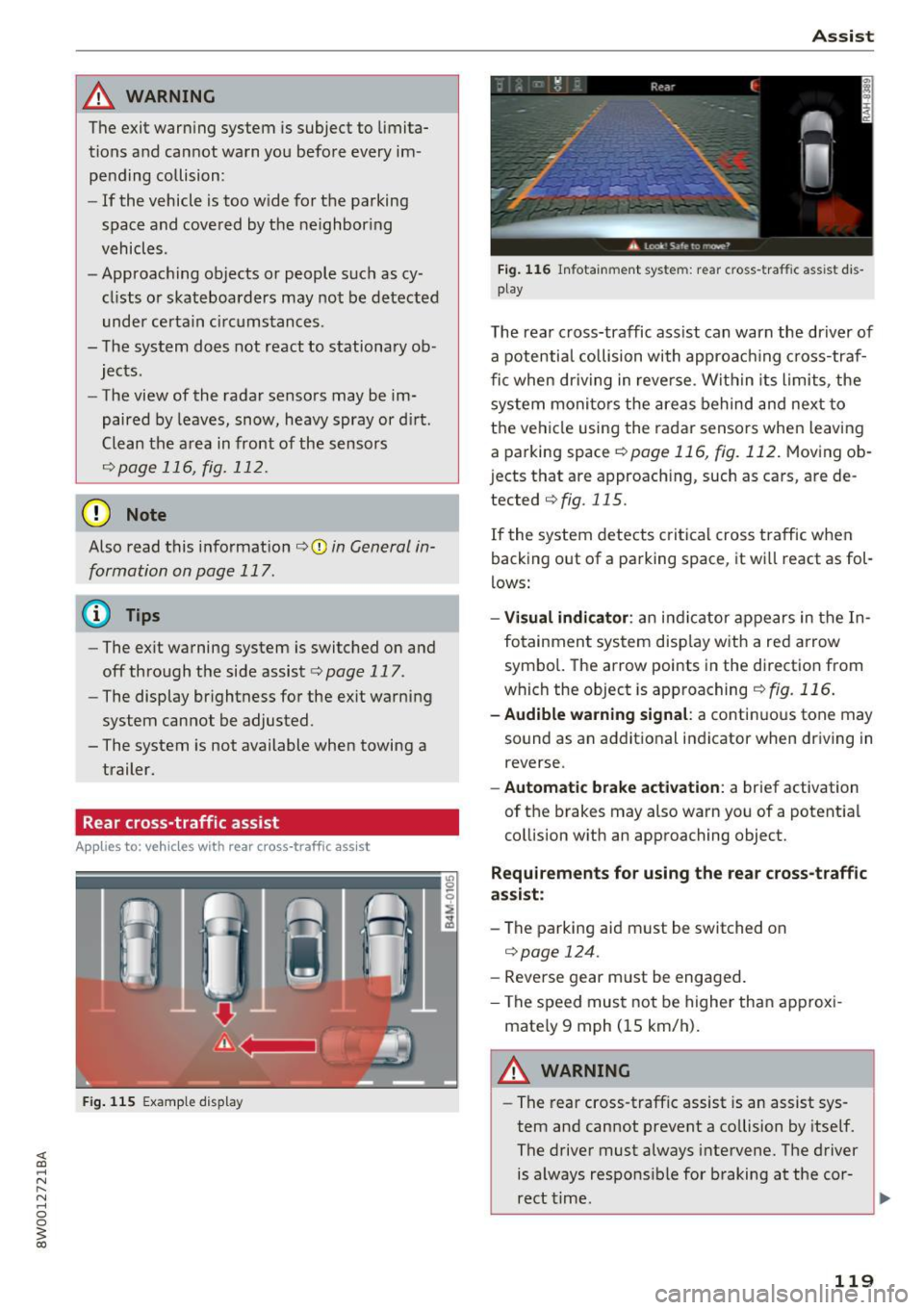
Rear cross-traffic assist
A ppl ies to: vehicl es with rear cross-traffic assist
Fig. 115 Example display
Assist
Fig. 116 Infotainment system: rear c ross -tra ffic assist dis
play
The rear cross-traffic ass ist can warn the driver of
a potential collision with approach ing cross-traf
fic when driving in reve rse. Within its limits, the
system monitors the areas behind and next to
the vehicle using the radar sensors when leaving
a parking space
r:!vpage 116, fig. 112. Moving ob
j ects that are approaching, such as cars, are de
tected
¢ fig. 115.
If the system detects critical cross traffic when
backing out of a parking space, it wi ll react as fol
lows:
- Visual indicator : an indicator appears in the In
fotainment system disp lay with a red arrow
symbo l. The arrow points in the direction from
which the object is approaching
¢fig. 116.
-Audible warning signal: a continuous tone may
sound as an additional indicator when driving in
reverse.
- Automatic brake activation : a brief activation
of the brakes may also warn you of a potent ial
collision with an approaching object.
Requirements for using the rear cross-traffic
assist :
-The parking aid m ust be switched on
¢page 124.
-Reverse gear m ust be engaged.
- The speed must not be higher than approxi-
mate ly 9 mph (15 km/h).
A WARNING
- The rear cross-traffic assist is an assist sys
tem and cannot prevent a co llision by itself.
The driver must always intervene. The driver
is always responsible for braking at the cor-
rect time .
~
119
Page 122 of 386
Ass is t
- Please note that the rear cross-traffic assist
may act ivate the brakes unexpectedly. Se
cure any cargo that you are transporting to
reduce the risk of damage or injury .
- An additional brake act ivat ion may be tr ig
gered within 20 seconds after an automat ic
brake activation.
- If there is an acoustic warning signa l from
the rear cross-traff ic assist, then the park
ing system may not warn you of detected
obstacles under certa in circumstances .
- The view of the radar sensors may be im paired by leaves, snow, heavy spray or d irt.
Clean the a rea in front of the sensors
~ page 116, fig . 112.
A WARNING
T he rear cross-t raff ic assist is s ubject to lim i
t at ions and cannot warn you before every im
pending collision:
- If the vehicle is too w ide fo r the pa rki ng
spa ce and covered by the ne ighbor ing
vehicles.
- People , such as cyclis ts, jogge rs, in line skat
ers and pedestrians, may not be detected
under certain circ umstances.
- If you are in a par allel par king sp ace.
(D Note
Also read this info rmation ~ CD in General in
formation on page 117.
(0 Tips
- You can cancel the automatic brake activa
tion with increasing braking force if you ap
ply the bra kes yourself or accele rate cons id
e rab ly.
- In some s ituations, rea r cross-traffic ass ist
may warn you even if t here is no cross traffi c
i n a critic al are a, for examp le w hen ba cking
i nto a parking space or maneuver ing.
- T he rea r cross -traffic ass ist also switches off
whe n you swi tch off the ESC.
- T he rea r cross traffic assist switches on and
off thro ugh the p arking aid<:?
page 12 4.
- T he system is not ava ilable when towing a
trailer.
120
' Messages
Applies to: vehicles with Audi side assist
A message appea rs in the ins trument cluster dis
play if the side ass ist sw itches off automat ica lly.
@j Audi side assist: currently unavailable . Sen
sor vi sion re stricted due to surroundings. See
owner' s manual
@j Audi side ass ist and ex it warning: currently
unav ailable . Sensor vi sion restricted due to sur
rounding s
The radar sensors ' vision is affected . The area in
front of the sensors must not be covered by bike
racks, stickers, leaves, snow or any other objects .
Clean the area in front of the sensors, if necessa
r y
<:? page 116, fig . 112.
@j Audi side ass ist: currently unavailable . See
owner's manual
@j Audi side ass ist and exit warning: currently
unavailable. See owne r's manual
Side assist ca nnot be switched on at this time be
cause ther e is a malfunction (for example, the
battery charge level may be too low).
@j Audi side as sist: malfunction! Plea se contact
Service
@j Audi side assi st and exit warning: malfunc
tion! Plea se contact Service
The system cannot guarantee that it will detect
vehicles correct ly and it has sw itched off. The
senso rs have been moved or are fa ulty . Have the
system checked by an authori zed Aud i dea ler o r
a uthorized Aud i Serv ice Facility soon.
@j Audi side assi st: unavailable in towing mode
@j Audi side ass ist and ex it warning: currently
unavailable. Towing mode
Side assist switches off automatically when the electrical connector in the factory-installed trail
er hitch is connected . There is no guarantee the
system will sw itch off when using a retrofitted
trailer hitch . Do not use side assist and the ex it
warning when tow ing a tra ile r.
Ill Rea r parking aid: obstacl e detection res trict-
ed ..,.
Page 126 of 386
Parking systems
Parking systems
General information
A ppl ies to: ve hicles w ith a rea r parking sys te m /pa rking sys
tem p lus/rearv iew camera/peripheral ca meras
Depending on your vehicle's equipment , various
parking aids will help you when parking and ma
neuvering.
The
rear parking system is an audible parking aid
that warns you of obstacles
behind the vehicle
¢ page 125.
Parking system plus assists you when parking by
using audio and visual signals to indicate objects
detected in
front of and behind the vehicle
¢ page 125.
The rearview camera shows the area behind the
vehicle in the Infotainment display . The lines in
the rearview camera image help you to park or
maneuver ¢
page 126. The parking system plus
functions are also available
¢page 125.
The peripheral cameras give various views to
help you when parking or maneuvering
¢ page 128 . fhe parking system plus functions
are also available
¢ page 125.
A WARNING
- Always look for traffic and check the area
around your vehicle by looking at it directly
as well. The parking system cannot replace
the driver 's attention. The driver is always
responsible when entering or leaving a park
ing space and during similar maneuvers.
- Please note that some surfaces, such as
clothing, are not detected by the system.
-
- Sensors and cameras have blind spots in
which people and objects cannot be detect ed . Be especially cautious of small children
and animals .
- Always keep your eyes on the vehicle's sur
roundings, using the rearview mirror as
well .
- The sensors can be displaced by impacts or
damage to the radiator grille, bumper,
wheel housing and the underbody . The park
ing system may be impaired as a result.
Have an authorized Audi dealer or author-
124
ized Audi Service Facility check their func
tion .
(D Note
-Some objects are not detected or displayed
by the system under certain circumstances:
- Objects such as barrier chains, trailer draw
bars, vertical poles or fences
- Objects above the sensors such as wall ex
tensions
- Objects with certain surfaces or structures
such as chain link fences or powder snow
- If you continue driving closer to a low ob
ject, it may disappear from the sensor range. Note that you will no longer be
warned about th is obstacle .
- Keep enough distance from the curb to
avoid damage to the rims.
(D Tips
-The system may provide a warning even
though there are no obstacles in the cover
age area in some situations, such as :
- certain road surfaces or when there is tall
grass.
- external ultrasonic sources such as from
cleaning vehicles .
- in heavy rain, snow, or thick vehicle ex
haust.
- We recommend that you practice parking in
a traffic-free location or parking lot to be
come familiar with the system . When doing
this, there should be good light and weath
er conditions.
- You can change the volume of the signals
and the display ¢
page 131.
-Please refer to the instructions for trailer
towing in
¢page 132.
- What appears in the infotainment display is
somewhat time-delayed.
- Th e sensors must be kept clean and free of
snow and ice for park assist to operate.
Page 127 of 386
Rear parking system
Description
Applies to: vehicles with rear parking system
The rear parking system is an audible parking
aid .
Descr iption
There is a sensor in the rear bumper cover. If
these detect an obstacle, audible signals warn
you .
Make sure the sensors are not covered by stick
ers, deposits or any other obstructions as it may
impair the function of the system . For informa
tion on cleaning, refer to
c:> page 337.
The range at which the sensors begin to measure
is approximately:
side 3 ft (0 .90 m)
rear
center 5.2
ft (1.60 m)
The closer you get to the obstacle, the shorter
the interval between the audible signals . A con
tinuous tone sounds when the obstacle is less
than approximately 1 foot (0.30 meters) away.
Do not continue backing up
c:::> &. in General infor
mation on page 124,
c:> Q) in General information
on page
124!
If the distance to an obstacle remains constant,
the volume of the distance warning lowers down
to mute after a few seconds (this does not apply
in the continuous tone range). If the obstacle
comes closer before the system mutes, the tone
sounds again. If the obstacle moves farther away
before the system mutes, a tone will not sound.
Pay attention to the vehicle's surround ings when
you start to drive.
Activating
The rear parking assist activates automatically
when the reverse gear is engaged. You will hear a
brief confirmation tone.
Parking systems
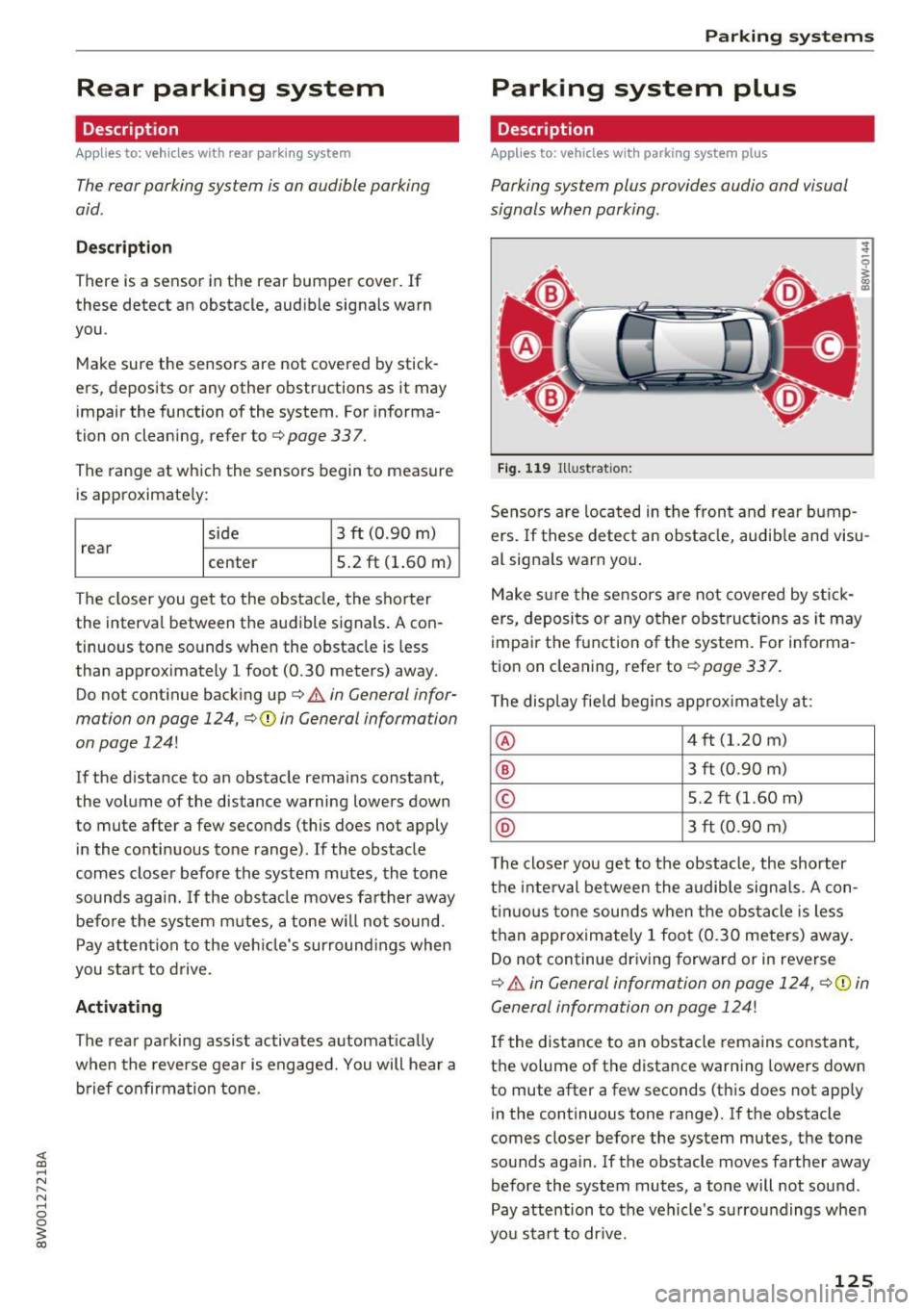
Parking system plus
Description
Applies to: veh icles w ith park ing system plus
Parking system plus provides audio and visual
signals when parking.
Fig. 119 Illustration:
Sensors are located in the front and rear bump
ers. If these detect an obstacle, audib le and visu
al signals warn you.
Make sure the sensors are not covered by stick
ers, deposits or any other obstructions as it may
impair the function of the system. For informa
tion on cleaning, refer to
c:::>page 337.
The display field begins approximately at:
® 4 ft (1.20 m)
® 3 ft (0.90 m)
© 5.2 ft (1.60 m)
@ 3 ft (0.90 m)
T he close r you get to the obstacle, the shorter
the interval between the audible signals . A con
tinuous tone sounds when the obstacle is less
than approximately 1 foot (0.30 meters) away.
Do not continue driving forward or in reverse
c:::> &. in General information on page 124, c:>(i) in
General information on page 124!
If the distance to an obstacle remains constant,
the volume of the distance warning lowers down
to mute after a few seconds (this does not apply
in the continuous tone range).
If the obstacle
comes closer before the system mutes, the tone
sounds again .
If the obstacle moves farther away
before the system mutes, a tone will not sound.
Pay attention to the vehicle's surroundings when
you start to drive.
125
Page 129 of 386
<( a, .... N ,....
N .... 0 0
3 a,
The rearview camera is located above the rear li
cense plate bracket. Mak e sure that the lens for
the rearview camera
c::> fig. 124 is not covered by
deposits or any other obstructions because this
can impair the function of the rearview camera .
For information on cleaning, refer to
c::> page 337 .
The rearview camera coverage area includes (D
c::> fig. 123. Only this a rea is shown in the Info
tainment display . Objects that are outside of this
area @are not displayed.
A WARNING
-Always read and follow the applicable warn
ings
c::> .&. in General information on
page 124.
- If the position and the installation angle of
the rearview camera was changed, for ex
ample after a collision, do not continue to
use the system for safety reasons. Have it
checked by an authorized Audi dealer or au
thorized Audi Service Facility.
- Only use the rearview camera to assist you if
it shows a good, clear picture. For example,
the image may be affected by the sun shin
ing into the lens, dirt on the lens or if there
is a malfunction.
- Use the rearview camera only if the luggage
compartment lid is completely closed. Make
sure any objects you may have mounted on
the luggage compartment lid do not block
the rearview camera .
- The camera lens enlarges and distorts the field of vision . The object appears both al
tered and inexact on the screen .
- In certain situations , people or objects in
the display appear closer or farther away:
- For objects that do not touch the ground,
such as the bumper of a parked vehicle, a
trailer hitch or the rear of a truck. Do not use the orientation lines in this case.
- If driven from a level surface onto an in
cline, or a downward slope.
- If driven toward protruding objects.
- If the vehicle is carrying too much load in
the rear.
Parking systems
(D Note
-Always read and follow the applicable warn
ings
c::> (D in General information on
page 124.
- The orange colored orientation lines in the
Infotainment display show the vehicle path
based on the steering wheel angle. The
front of the vehicle swings out more than
the rear of the vehicle . Maintain plenty of
distance so that an exterior mirror or a cor
ner of the vehicle does not collide with any
obstacles.
Switching on/off
Appl ies to: vehicles wi th rearv iew camera
Switching on
.,. Shift into reverse, or
.,. Press the
PwA button in the center console
c::> page 126, fig. 120. A short confirmation
tone sounds and the LED in the button turns
on.
Switching off
.,. Drive faster than 6 mph (10 km/h), or
.,. Press the
p,qA button , or
.,. Switch the ignition off.
@ Tips
- The visual display in the right part of the
display should help you detect the critical
vehicle area.
- You can change the volume of the signals
and the display
<=:>page 131.
127
Page 130 of 386
Parking system s
Perpendicular parking
Applies to: ve hicles w ith rearview camera
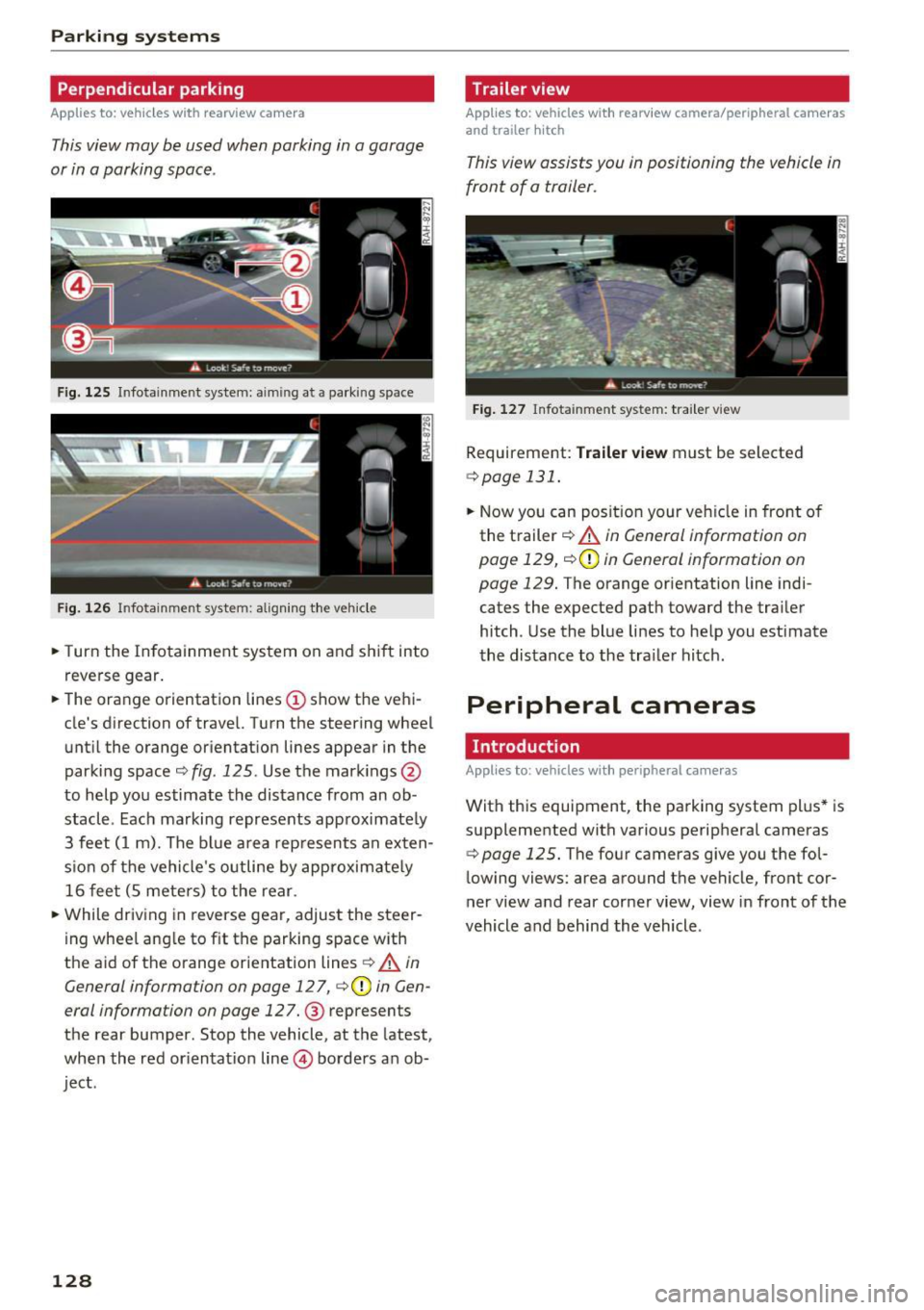
This view may be used when parking in a garage
or in a parking space .
Fig. 125 Infotainment system: aiming at a parking space
Fig . 126 Infotainment system: aligning the vehicle
.. Turn the Infotainment system on and shift into
reverse gear.
.. The orange orientation lines
(I) show the ve hi
cle's direction of travel. Turn the steering wheel
until the orange orientat ion lines appear in the
parking space
c:::> fig. 125 . Use the mark ings @
to help you estimate the distance from an ob
stacle. Each marking represents approximate ly
3 feet ( 1 m). The b lue area rep resents an exten
s ion of the vehicle 's o utline by approximate ly
16 feet (5 meters) to the rear.
.. While driving in reverse gear, adjust the steer
ing wheel ang le to f it the parking space with
the a id of the orange orientation lines
c:::> .&, in
General information on page 127,
c:::>@) in Gen
eral information on page 127. @ represents
the rear bumper. Stop the vehicle, at the latest,
when the red or ientat ion line @ borders an ob
ject.
128
Trailer view
App lies to : vehicles wit h rearview camera/peripheral cameras
and trailer hitch
This view assists you in positioning the vehicle in
front of a trailer.
Fig . 127 Infota inment system: tra iler view
Requirement: Tr ail er view must be selected
c:::> page 131 .
.. Now you can posit ion your veh icle in front of
the trailer
c:::> .&, in General information on
page 129,
c:::> (D in General information on
page 129. The orange orientation line indi
cates the expected path toward the trailer
hitch. Use the blue lines to help you estimate
the distance to the tra iler hitch.
Peripheral cameras
Introduction
App lies to: vehicles wit h peripheral cameras
With this equipment, the parking system plus* is
supplemented with various peripheral cameras
c:::> page 125. The four cameras give you the fol
lowing views: area around the vehicle, front cor
ner view and rear corner view, view in front of the
vehicle and behind the vehicle.
Page 132 of 386

Parking systems
Switching on
.. Shift into reverse , or
.. Press the
P1JJA button in the center console
c::> fig. 129 . A short conf irmation tone sounds
and the LED in the button turns on .
Selecting the mode
.. Turn the con trol knob to the symbol fo r the de
s ir ed mode @thr ough @¢
fig. 130 and press
the control knob .
Switching off
.. Drive faster than 6 mph (10 km/h), or
.. Press the P
1#A button, or
.. Switch the ignition off .
You may select from the following modes:
@ -Corner view (front) ¢
page 130
@-Front ¢ page 130
©-Surround ing ¢ page 130
@-Rear c::> page 131
© -Corner view (rear) ¢ page 130
You can also sw itch to trailer view¢ page 128.
Corner view (front)/corner view (rear)
Applies to: veh icles w ith per ip heral cameras
F ig . 131 In fotainme nt system: corner v iew (front)
Fig. 132 Infotainment sys tem: corner v iew (rear)
130 This view can assist you fo
r example, when you
are exiting from an area with poor visibility. The
area at the front and rear sides of the veh icles is
displayed.
.. To show the side view toward the front, select
the symbol @
c::> fig. 131 with the control knob
and press the control knob .
.. To show the side view toward the rear, select
the symbol ©
c::> fig. 132 with the control knob
and press the control knob .
Front
Applies to : ve hicles with pe ripheral cameras
Fig. 133 Infota inment sys tem: front mode
This view assists you fo r example, in using the
full maneuvering range in front of the vehicle.
The area in front of the vehicle is displayed . The
vehicle surround ings are shown in the right area
of the display. You can switch between the opti
cal display and camera image¢
page 131 .
.. Select the@ symbo l w ith the control knob. The
orange orientation lines mark the expected
path of the vehicle. Stop the vehicle at the lat
est when the red orientation line* borders an
object¢ &.
in General information on
page 129.
Peripheral
App lies to : vehicles with per ipheral cameras
Fig. 134 Infota inment system : peripheral mode