warning AUDI S4 2018 Owners Manual
[x] Cancel search | Manufacturer: AUDI, Model Year: 2018, Model line: S4, Model: AUDI S4 2018Pages: 403, PDF Size: 66.81 MB
Page 151 of 403
a co .... N ..... N .... 0 0
3 co
-the LED in the button turns on
-the vehicle speed is lower than 19 mph (30 km/
h)
-the h ill angle is at least app rox imately 6%
_& WARNING
-Always adapt yo ur speed to the weather,
road and traffic conditions. Do not let the
increased safety provided tempt you into
tak ing risks, because this increases the risk
of an accident.
-
-T he hill descent assist system cannot over
come the laws of physics. Your driving style
must a lways be adapted to the current road
and traffic conditions.
- Hill descent assist may not be able to hold your vehicle at a constant speed under a ll
condit ions while driving on a hill (for exam
ple if ground under the veh icle is loose) .
Brakes
New brake p ads
New brake pads do not ach ieve the ir full braking
effect during the first 250 mi (400 km). They
must be "broken
in" first. However, you can com
pensate for the slightly reduced brak ing fo rce by
p ressing firmly o n the brake pedal. Avoid heavy
b raking during t he b reak-in per iod.
Wear
B rake pad
wear depends largely on the way the
veh icle is driven a nd on operat ing cond itions.
This is especia lly true if you are d riving frequently
in t he c ity and on c urves or wi th a sporty driving
style.
Operating noise
Noises may occur when braking depend ing on the
speed, braking force and outs ide cond itions such
as temperature and humidity .
Wet conditions or road salt
In certain situations, for example after driving
through water, in heavy ra in or after washing
your car, the brak ing effect may be reduced due
to moisture or ice on the brake rotors and brake
Intellig ent Technology
pads. The brakes m ust be "dried" first with a few
carefu l brake app lications.
At higher speeds and w ith the win dshield wipe rs
tu rned on, the brake pads press agains t the b rake
roto rs fo r a short amount of time. This action,
which is not felt by the driver, happens at regu lar
i nterva ls and ensures a better reaction t ime for
the b rakes in wet weather.
T he brak ing effec t can a lso be reduced if yo u are
driving on salted roads and yo u do not app ly the
brakes for long per iods of t ime. The layer of sa lt
on the brake rotors and pads m ust be worn off
first whe n the brakes are applied.
Corrosion
Leaving the vehi cle parked for long periods o f
time, low mileage and avoiding heavy b raking
can contrib ute to corros ion on the brake rotors
and to dirty brake pads.
If you usu a lly avoid heavy bra king or if there is
corrosion present, occasiona l heavy braking at
high speeds is recommended to clean the brake
roto rs and
pads ¢~ -
Brake system malfunction
If you notice that the bra ke pedal trave l has sud
denly increased, then a brake circuit in the dua l
ci rcuit brake system may have malfunctioned.
Drive to an authorized Audi dealer or authorized
Audi Service Facility immed iate ly to have the
problem corrected. On the way there, drive w ith
reduced speed and keep in mind t hat you will
need a longer distance to stop and you will need
to press the bra ke ped al ha rder.
Low brake fluid level
When the bra ke fluid level is low, malfunctions in
the brake system may occur. The brake fluid level is elec tronically monitored.
Brake booster
The brake booster ampli fies the p ressure you ap-
ply to the brake pedal.
.,..
149
Page 152 of 403
Intelligent Technology
& WARNING
- Only apply the brakes for the purpose of
cleaning the brake system whe n road and
t raffic conditions perm it . You must not en
dange r othe r road users . This increases the
risk of an accide nt.
- Never let the vehicle roll while the e ng ine is
stopped because this increases the risk of a n
a cci den t.
([) Note
- Neve r let the brakes " rub" by pressing the
pedal lightly when braki ng is not actually
necessa ry . T his ca uses the bra kes to over
h ea t an d inc reases br akin g d istance an d
c a uses wear .
- B efo re driv ing downhill a long distance on a
steep hi ll, decre ase your spee d an d se lec t a
l ower gear . This makes use of t he engine
b raking effe ct and re lieves the brakes . If
you nee d to b rake additionally, b rake in in
tervals and not continuously .
(D Tips
- If the brake booste r is no t working, yo u
must press the brake pedal with much more
fo rce than normal.
- If you retrofit you r vehicle with a front spoil
er, whee l covers o r similar items, ma ke sure
that the a ir flow to the front whee ls is not
i nte rr u pted. Othe rw ise the brake system
ca n become too hot.
Electromechanical
steering, Dynamic
steering
T h e electromechanical st eering supports the
driver's steering movements.
Power steering adapts electronically based on
the vehicle speed.
Indicator lights and messages
• St ee ring : malfunction! Plea se stop vehicle
150
If this indicato r light turns on and stays on and
this message appears, the power steering may
have failed.
Stop t he vehi cle in a sa fe location as soon as pos
s ible . Do
not contin ue driving . See an authorized
Audi dealer or authorized A udi Service Facility for
ass istance .
'I- ij Steering: malfun ction! You may continue
driving
I f the indicato r light turns on and the message
a ppears, the steeri ng wheel may be more d iffi
cu lt to move o r more sensitive than usu al. The
stee ring wheel may also be at a n ang le when
driving straight.
D rive slowly to an auth o rized Audi dea ler or au
thorized Aud i Serv ice Facili ty to have t he mal
f unct io n corre cted .
t$Jj Dynamic steering: correcting steering wheel
position
If the indicator light turns on and this message
appears , the dynamic steering * is re in it ia liz ing .
The s teer ing whee l will be easy to move afte r
st ar ting t he engine . Reinitializa tio n might be
ne cessary if the stee ring w heel was moved while
t h e engine was switched off. The disp lay t urns
off if the initialization was successfu l.
(D Tips
- If the . or krfl i ndi cato r ligh t only s tays on
f or a sho rt time, you may cont inue driving .
- Th e dynamic stee ring s tabili ty sys tem s
¢ page 14 6 are not av ailabl e in the event of
a system malfunction .
- For add ition al informa tion o n dynamic
s teering, see
¢ page 133.
ALL-wheel drive (quattro)
App lies to: vehicles wi th all wheel drive
General information
In all whee l dr ive, the dr iv ing power is dis trib ut-
ed between all fo ur whee ls when needed. This
happens automatically depending on your driving
behavior as we ll as the c urrent road conditions.
.,_
Page 153 of 403
a co .... N ,....
N .... 0 0
3 co
Also see¢ page 146, Electronic stabilization
control (ESC) .
The all-wheel drive system dist ributes the d riving
power var iably to the front and rear axle. It works
together with selective whee l torque cont rol,
which activates when driving through curves
c:> page 146. With the sport differentia l*, power
d istribution to the rear wheels is variable and can
be adjusted using the dr ive select
c:> page 134.
The all wheel drive concept is designed for high
engine power. Your ve hicle is exceptionally pow
erful and has excellent driving characterist ics
both under norma l dr iving condit ions and on
snow and ice . Always read and fo llow safety pre
cautions
c:> .&. .
Winter t ires
By us ing all wheel drive, yo ur vehicle has good
forward motion with standard tires in w inte r con
d itions. However, using winter or all season tires
on
all four wheels in the winter is recommended ,
because this will improve the
braking effec t.
Snow chains
If there are snow chain laws, snow chains must
also be used on vehicles with all wheel drive
c:> page 350, Snow chains .
Replacing tire s
For vehicles with all whee l drive, only whee ls with
the same ro lling circumference s hou ld be used.
Avoid using tires w ith different tread depths
c:> page 341, New tires or wheels.
Offroad vehicle?
The ground clearance is too low on some mode ls
to drive on rough terrain. Therefore, avoid off road trips.
A WARNING
-Also, in vehicles with a ll w heel d rive, adapt
your dr iv ing style to the current road and
t raff ic conditions . Do not let the increased
safety provided tempt you into tak ing risks,
because t his increases the r is k of an acci
dent .
Intellig ent Technology
- The braking ab ility o f your vehicle is limited
to the traction of the wheels. In this way, it
is not different from a two wheel drive vehi
cle . Do not be tempted to accelerate to a
h igh speed whe n the road is sli ppery, be
cause this i ncreases the risk of an accident.
- No te that o n wet streets, the fron t wheels
can "hydrop la ne" if dr iv ing at speeds that
are too high. Unlik e front wheel d rive
veh icles, the engine does not rev h ig her sud
denly when the vehicle begins hydrop laning.
F orthisre ason,ad aptyo urspeedto the
road conditions to re duce the risk of an acci
dent .
Energy management
The starting ability is optimized
The energy management system manages the
electrical energy distribution and optimizes the
availability of electrical energy for starting the
engine .
When a vehicle with a conventional energy sys
tem is not drive n for a long time, the ve hicle bat
te ry is d rained by equipment (for example, t he
immob ilizer). In certa in circ ums tances , there
c ou ld m ay no t be eno ugh e nergy to start the en
gine.
You r vehicle is equi pped with an in tell igent ener
gy manageme nt system fo r dist ributing electrici
ty. This sig nifican tly improves the start ing ability
and in cre ase s t he vehicle battery life.
The ene rgy ma nagement system Is made up of
battery diagnosi s, idling current management ,
and dynamic energy management .
Battery diagnosis
The battery diagnos is determines the vehicle bat
te ry c harge level. The sensors determine the bat
te ry vo ltage, the batte ry cu rrent, and the batte ry
temperat ure. The current c ha rge level and t he
perfo rman ce of the vehicle battery a re de ter-
mine d base d on this.
..,.
151
Page 157 of 403
Multi Media Interface
Traffic safety information
Audi recommends performing certain Infotain
ment system functions, such as entering a desti
nation, only when the vehicle is stationary . Al
ways be prepared to stop operating the Infotain
ment system in the interest of your safety and
the safety of other road users.
A WARNING
Only use the Infotainment system when traf
fic conditions permit and always in a way that
allows you to maintain complete control over
your vehicle.
@ Tips
Certain functions are not available while driv
ing .
Introduction
The Multi Media Interface, or MMI for short,
combin es various systems for communication,
navigation* and entertainment in your Audi. You
can operate the MMI using the MMI control pan
el, the multifunction steering wheel or the voice
recognition system*.
Applies to: vehicles with automatic transmiss ion:
Fig. 157 MMI contro l panel· integrated shortc ut keys
Multi Media Interface
Applies to: ve hicles w ith manua l transmission:
Fig . 158 MMI cont rol p anel
-separa te shortcut keys o n
t he ce nte r conso le
MM I control panel overview
(D Control knob , if needed with joy-
stick funct ion* . .. .. .... .. .... . 157 ,160
@ MMI touch control pad* ....... .
@
@
®
Left control button ........... .
Right control button .......... .
Buttons for opening menus
directly .. ... .. .. ............ .
® IMENUI button . .. .. .... ...... .
0
®
I BA CKI button
Shortcut keys
@ Tips
The shortcut keys @~ fig. 158 for the MMI
control panel (manual transmission) are on
the center console .
MMI On/Off knob with
joystick function
Operating
Fig. 159 MMI On/O ff knob with jo ystick f unction
158
157
1 5 7
15 7
157
157
162
155
Page 158 of 403
Multi Media Interface
Switching the MMI on /off : the M MI can be
switched on/off manua lly.
- Switching on manu ally : press the On/Off knob
@ c> fig. 159 briefly . Or: press the I MENU ! but
ton ®
c> page 155 , fig. 157 or c> page 155,
fig . 158,
or one of the buttons to open the me
nus d irectly @.
-Switching off manually : press and hold the
On/Off knob
@ c> fig. 159 until the MMI
switches
off. If the MMI has bee n switched off
manually, it does not switch on again au tomati
ca lly the next time the ignit io n is switched on .
Additional functions :
- Adjusting the volume :
tu rn the On/Off k nob @
.:>fig. 159.
-Muting : press the O n/Off knob @.:> fig. 159
briefly.
-Selecting the previou s/next function (for ex
ample, a radio stat ion /tra ck ):
press the On/Off
kn ob @ .:> fig. 159 briefly toward the le ft l«l or
rightt>C>I .
-Fast forwarding /re winding (for example
song s):
p ress and hold the On/ Off knob @
c> fig. 159 toward the left l«l or right t>C>I.
A WARNING
Adjust the volume of t he a udi o system so that
signa ls from outside t he ve hicle, such as po
lice and fire sirens, can be heard easily at all
times .
@ Tips
The MMI sw itches off automatically if the en
gine is not r unning and the vehicle battery is
low .
Infotainment system
display
Switching on and off
- Switching on and off manually :
press the roJ
button @ c> page 8, fig. 2.
When the M MI i s switched o n and the disp lay is
sw itched off, you can operate certa in f unct io ns
using the On/Off knob with t he M MI joystick
function
.:> page 155.
156
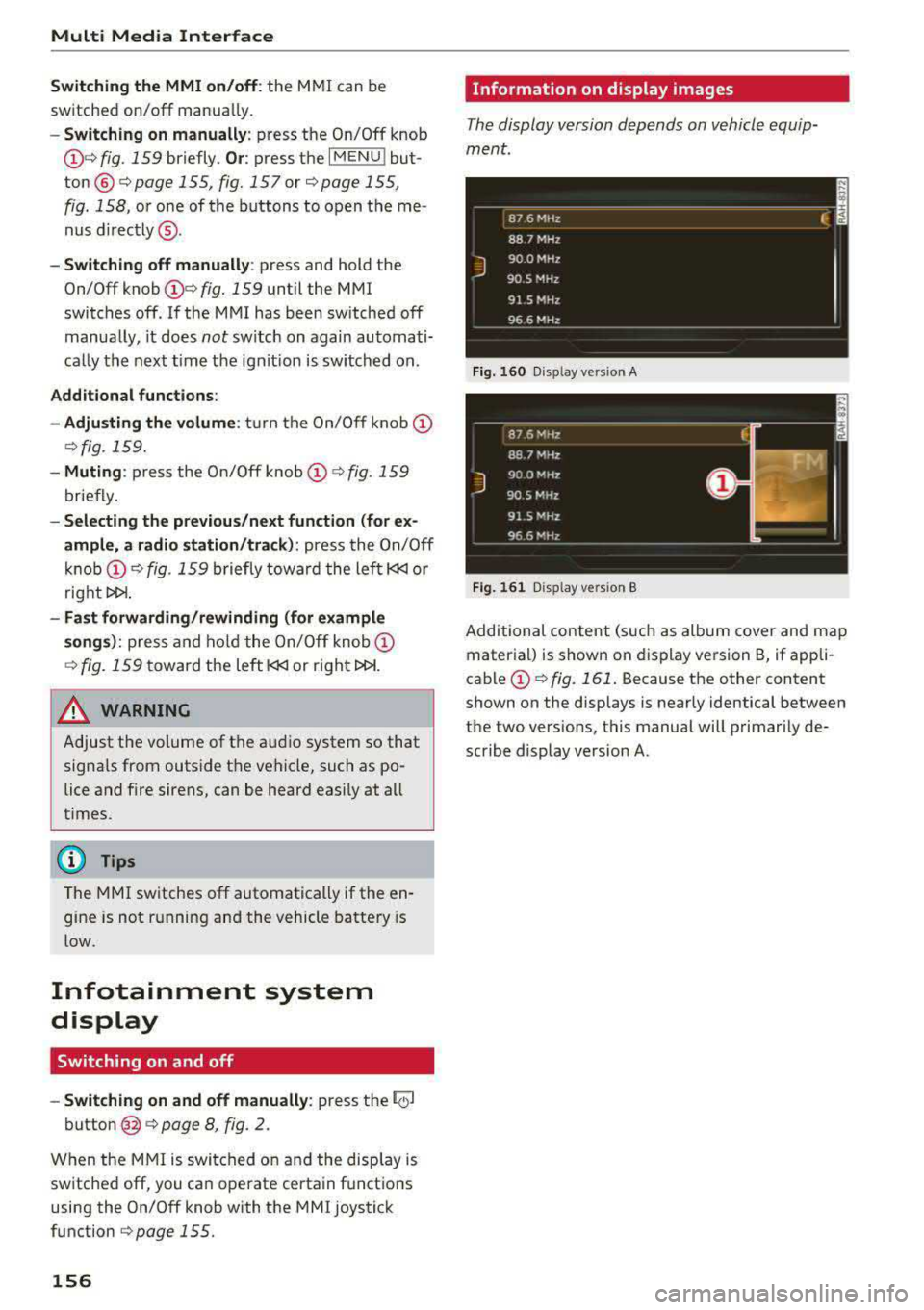
Information on display images
The display version depends on vehicle equip
ment .
Fig. 16 0 Disp lay ve rs ion A
F ig. 161 Disp lay ve rs ion B
Additional content (such as album cover and map
mater ial) is shown on display ve rsion
B, if appli
cable@.:> fig. 161 . Because the other content
shown on the displays is nearly identical between
the two vers ions, this manual will p rimari ly de
scribe display version A .
Page 170 of 403
Voice recognition system
Voice recognition system Operating
Applies to: vehicles with vo ice recognition system
You con operate many Infotainment functions
conveniently by speaking.
Req uirements: the ignition and the MM I must be
sw itched
on~ page 155 , there must not be any
phone call in progress and the parking system
m ust not be active .
.. Switching on: press the~ button @
¢
page 15, fig. 11 or ¢ page 16, fig . 13 briefly
on the multifunction steering wheel and say
the des ired command after the
Beep .
.. Switching off : press and hold the~ button.
Or: press the l2l button.
.,. Pause : say the command Pause . To resume,
press
the~ button .
.,. Correcting : say the command Correction . Or :
simp ly say a new comma nd during an an
no uncement ¢
page 248.
Input assistance
The system gu ides you throug h the input with
visual and audio feedbac k.
- Visual input as sistance : after switching on
vo ice recognit ion, a display with a selection of
poss ible commands appears . This command
display can be sw itched on o r off. Se lect:
IMENU I button> Set tings > left co ntrol button
> MMI setting s> Speech di alog system .
- Audio input a ssistanc e:
to have the poss ible
commands read, turn t he voice recogn ition sys
tem on and say
Help.
For the system to understand you:
Speak clearly and dist inctly at a normal volume .
Speak louder when d riving faster .
Emphasize the words in the commands even ly
and do not leave long pauses .
Close the doors, the windows and the sunroof* to reduce background noise . Make sure that passen
gers are not speaking when you are giving a voice
command .
168
Do not direct the air vents toward the hands -free
microp hone, which is on the roof headliner near
the front interior lights .
Only use the system from the dr iver's seat be
ca use the hands -free microphone is directed to
ward that seat .
Additional settings
See¢ page 248, Speech dialog system .
.8, WARNING
-Dire ct yo ur full attention to dr iv ing . As the
driver, you have complete responsibility fo r
safety in traffic. Only use the functions in
such a way that yo u always maintain com
plete contro l over your vehicle in a ll traffic
situations .
- Do not use the voice recognition system in
emergencies beca use your voice may change
in stressful s ituations. It may take longer to
dia l the number or the system may not be
ab le to dial it at all. Dial the emergency
number manually.
(D Tips
- The d ialog pauses when there is an incom
ing phone call and will continue if you ig
nore the call. The dia log ends if you answer
the ca ll.
- You can select an item in the list us ing ei
ther the vo ice recognit ion system or the
cont rol knob.
Command overview
information
Applies to: vehicles with voice recognition system
The following overv iews des cribe the commands
that can be used to operate the MMI using the
voice recognition system.
Alte rnative commands are separated using a"/ ",
for example say:
Telephone / (or) Navigation /
(or) Radio.
Sequences of commands used to perform an a c
tion are identified w ith a
"> ", fo r example say:
Enter addre ss> (t hen) Enter country /state . ..,.
Page 177 of 403
a co .... N ,....
N .... 0 0
3 co
Telephone Introduction
A pp lies to: ve hicles with telep hone
To make phone coils in your vehicle using the
MMI, connect your cell phone to the
MMI via
Bluetooth.
H and sfree
Afte r you have connected your cell phone to the
MMI via Bluetooth, you can use the handsfree
system and operate telephone functions through
your MMI. You can make calls using the antenna
on your cell phone.
A WARNING
- Medical experts warn that cell phones can
interfere w ith the function of pacemakers.
Always ma inta in a m inimum distance of 20
centimeters between the cell phone anten
na and the pacemaker.
- Do not carry the cell phone in a pocket di
rectly over the pacemaker when the phone
is switched on.
- Sw itch the cell phone off immediately if
you suspect it may be interfering with the pacemaker.
- Do not use the voice recognition system*
c::> page 168 in emergencies because your
voice may change in stressful situations. It may take longer to dial the number or the
system may not be able to dia l it at all. Dial
the emergency n umber manua lly.
- Switch your cell phone off in areas where
there is a risk of an exp losion. These loca
tions are not always clea rly marked. This
may include gas stations, fuel and chemical
storage facilities or transport vehicles, or lo
cations where fuel vapors (such as propane
or gasoline vapor in vehicles or bu ildings),
chem icals or large quantities of dust parti
cles (such as flour, sawdust or metal) may
be present in the air. Th is also applies to all
other locations where you would normally
tu rn your vehicle engine off.
- The demands of traffic requ ire your full at
tent io n. Always read t he chapter
c::> page 155, Traffic safety information.
-
T e le ph on e
(D Note
Always fo llow the information found in Q (!) in
Wi-Fi hotspot on page 194.
(D Tips
- The Bluetooth connect ion range is limited
to inside the vehicle. It can also be affected
by local condit ions and interference with
other devices.
- To learn which Bluetooth connections and
wh ich of the functions in your cell phone are
supported, check with your cell phone serv
ice provider or the database for mobile devi
ces at
www .audiu sa.com /bl uetooth .
Setup
Connecting a cell phone using Bluetooth
Applies to: vehicles wi th telepho ne
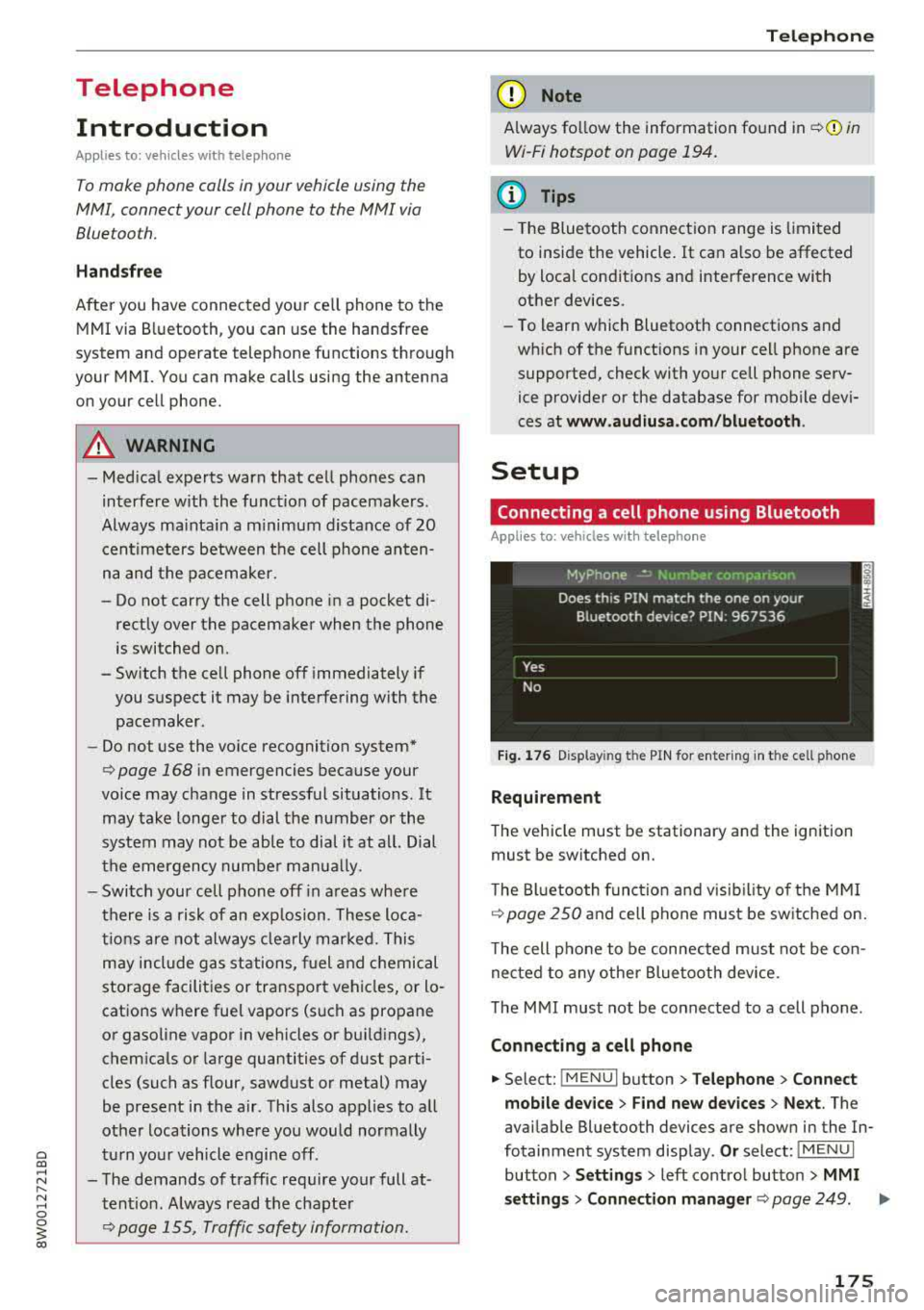
Fig . 17 6 Display ing t he PIN for enter ing in t he cell ph one
R equirem ent
The vehicle must be stationary and the ignition
must be switched on.
T he Bl uetoo th funct ion and v isib ility o f the MMI
¢ page 250 and cell phone must be sw itched on.
T he cell phone to be connected must not be con
nected to any other Bluetooth device.
T he
MMI must not be connected to a cell phone .
Connecting a cell phone
.,. Select: !MENUI button> T elephone > Co nnect
mobile dev ice
> Find new de vices > Ne xt. The
avai lable Bluetooth devices are shown in the In
fotainment system display .
Or select: !MENUI
button > S etting s> left contro l button > MMI
s etting s
> Connec tion manag er ¢ page 249 . .,..
175
Page 182 of 403
Telephone
-You can o btai n mo re information from your
ce ll phone service prov ider or from your cell
phone user guide .
- W hen leaving the vehicle, the Bl uetooth
connection to the ce ll phone wi ll automat i
cally disconnect. Depending on your cell phone, phone ca lls in progress may be a uto
matically redirected from t he MMI to your
cell phone and yo u can cont inue the call on
your phone.
- The display of a n in coming phone call in the
Infotainment system d is pl ay may still be
v is ib le for a few seconds after a call is an
swered/ ig nored depe nding on the cell
p hone in use .
Making an emergency call
Applies to: vehicles with telephone
~ Se lect: I M ENU I but ton > Telephone > left con
trol button >
Enter number > Enter emer gency
ca ll number (for examp le, 911) >
OK.
A WARNING
- Beca use your phone wo rks with radio s ig
nals, a connection cannot be guaranteed un
der all ci rc u ms tances. Do not rely on only
yo ur phone when it comes to essent ial com
mun ication (s uch as a medica l emer ge ncy).
-Always follow the ins truct ions gi ven by the
em ergency perso nnel during an eme rgency
c a ll and only e nd th e call whe n they inst ruct
y ou to d o so .
{1) Tips
Eme rg en cy numbers are not the same eve ry
wher e. Fin d ou t which eme rgency number is
used in yo ur cur rent lo ca ti on.
Favorites
Applies to: vehicles with telephone
Up to 5 0 contacts, in addition to the voicemail
num ber, can be stored in any order in the favor
ites lis t.
~ Select: I M ENU I button> Telephone > lef t con
tro l but ton.
180
Storing an existing phone number as a
favorite:
- Select and confirm Call list /Directory.
- Sele ct a contac t or phone n umbe r from the list.
- Select: r ig ht con trol button>
Store as favorite .
-Enter a name for the favor ite or select a s ug-
gestion.
- Select and confirm
Store .
Renaming stored favorites
- Select: Favorites > a favorite from the list.
-Select the right contro l button > Rename fa-
vorite .
Moving stored favorites
- Sele ct: Favorites > a favorite from the lis t.
- Sele ct the rig ht cont ro l bu tton > Move favorite .
-Select and confirm t he location of the se lected
favor ite.
Deleting a stored favorite
- Select: Favorites > a favorite from the list.
-Select the right contro l button > Delete f avor-
ite
> Delete this favor ite or Delete all fa vor
i tes .
Messages
Text messages
Applies to: cell phones with Bluetooth Message Access Profile
(MAP)
Depending on the cell phone being used and the
cell phone network contract, you can receive and
send text messages using the MMI .
Requirement
A cell phone must be connected to t he MM I via
B luetoot h MAP ( Message Access Profi le)
¢ page 175.
~ Select: !ME NUI button> Telephone > le ft con
trol button >
Text message (MyPhone )/Text
message (secondary phone)* .
Write new text message
Se lec t and confi rm Write new text message .
- Using a template :
select and confirm the de
sired template from the list .
Page 190 of 403
Audi connect (Infotainm ent )
Audi connect
(Infotainment)
Introduction
Applies to vehicles with Audi connect (Infotainment)
With Audi connect Infotainment services, on line
information is transmitted directly to the vehicle
and then integrated .
A WARNING
To reduce the risk of an accident, only use
Audi connect Infotainment services when
road and traffic cond itions permit. A lways
read and fo llow the notes in
9page 155,
Traffic safety information.
Setup
Requirements for Audi connect
(Infotainment)
Applies to vehicles with Audi connect (Infota inment)
The data connection fo r Audi connect Infota in
ment services is made thro ugh an embedded SIM
card (eS IM card) that is equipped in the veh icle.
The fo llow ing requ irements must be met to use
the embedded SI M card:
- You have already registered at
www .audiu sa.com /my audi and ass igned ave
hicle.
- You have also already logged in to your myAudi
account under
Audi conn ect plan for the em
bedded SIM ca rd and accepted the terms of use
given there. For add it iona l info rmation, co ntact
an a uth orized Aud i de aler or a uthorized Audi
Service Facility .
Then you r Audi co nnect Infota inment services are
activated and can be used in your veh icle.
(D Tips
- After the free subscription has ended or the
data volume has been used up, data pac kets
ca n be purchased for the use of Audi con
nect Infot ainment serv ices. Yo u can find a d
dit ional info rmation about fees and pur
chasing at
www .audiusa .com /myaudi.
188
-Read this chapter before operating
~ page 195, Audi connect (Infotainment)
general information.
Configuration through myAudi
Audi connect (Infotainment) configuration
Applies to vehicles with Aud i connect (Infotainment)
Some Audi connect Infotainment services must
be configured through your personal myAudi ac
count before using them for the first time.
-If you do not have a persona l myAud i acco unt
yet, you can register online at
www.audiusa.com /m yaudi .
-Add your vehicle to your my Audi account.
- Activate/configure the A ud i connect (Infotain -
ment) services you would like for your veh icle in
your myAudi account.
-For some Audi connect Infotainment services,
you may also have to enter your myAudi user
data or your myAudi PIN when accessing serv
ices in the MMI to connect your vehicle to
myAudi.
For detailed information on configuration, visit
www.audiu sa.com /m yaudi .
Logging into myAudi in the vehicle
Applies to vehicles with Audi connect (Infotainment)
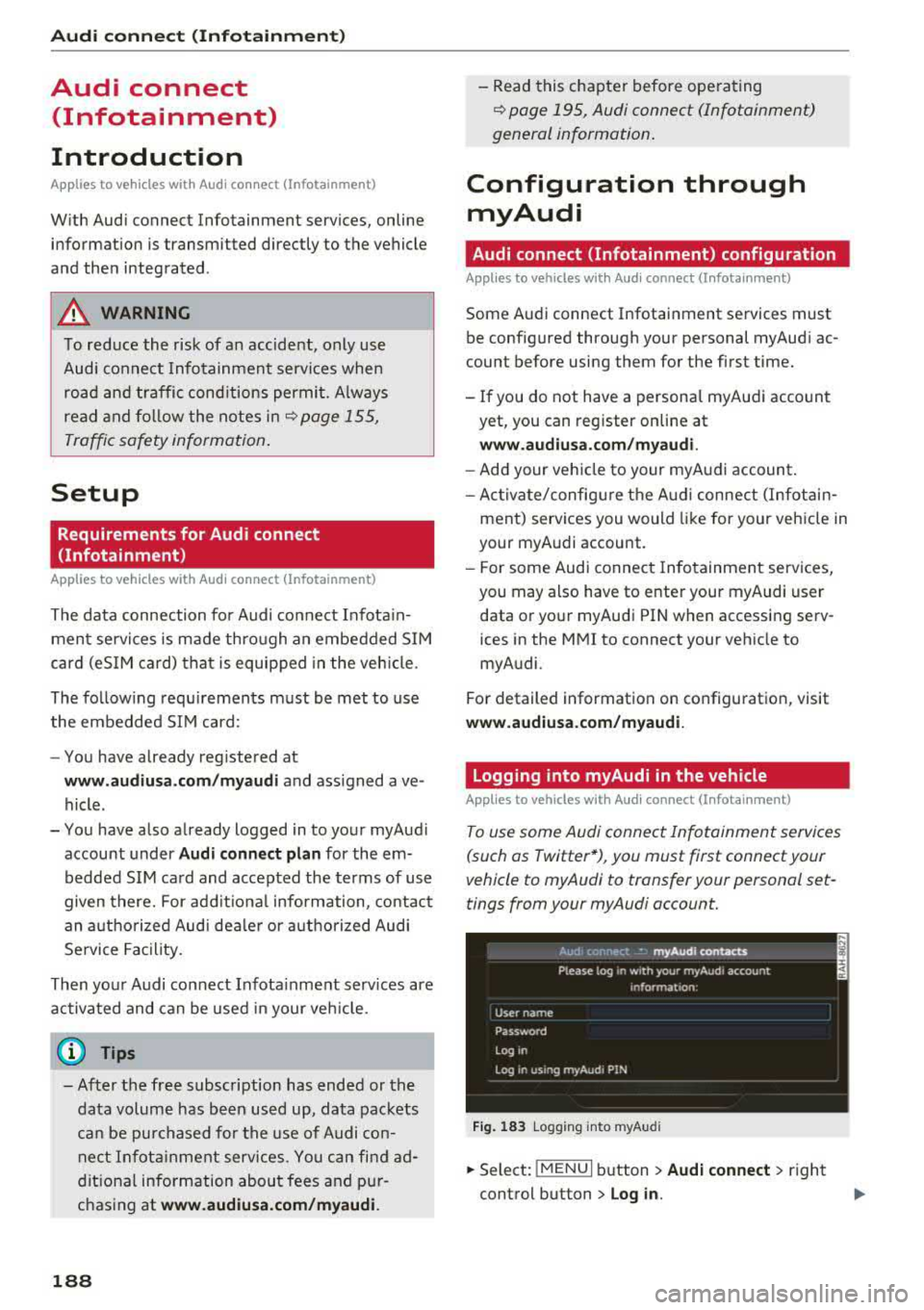
To use some Audi connect Infotainment services
(such as Twitter*), you must first connect your
vehicle to myAudi to transfer your personal set
tings from your myAudi account.
Fig . 1 83 Logging into myA udi
... Select: !MENUI b utton> Audi conne ct > right
control button >
Log in.
Page 193 of 403
a co .... N ,....
N .... 0 0
3 co
-when the camera-based t raffic sign recogni
t ion* is malf unct ioning
¢ page 104
-when there are warnings from the camera-
based traffic sign recognit ion*
Switching traffic light information on and
off
-Se lect : I MENU I button > Audi connect > Tr affi c
li g ht inf orm ati on >
On(~) or Off (0 ).
A WARNING
-
-When traffic light information is shown, a l
so always pay attention to the traffic situa
t ion, the distance to other vehicles and the
area around the vehicle. The driver is always
responsible for assessing the traff ic situa
t ion .
-Always adapt your speed to the current
weather, road and traff ic conditions . The
displayed informat ion must never cause you
to ignore legal traffic regulations and pose a
safety risk.
-Regardless of the traffic light informat ion,
yo u should always monitor your speed using
the speedometer and make su re you are ad
hering to the legal speed limit .
-The traffic light information does not adjust
yo ur vehicle's speed to the speed recom
mendat ion shown in the display.
(D Tips
-Traffic light information is not yet ava ilable
i n a ll cit ies and is not nationwide .
-Units of measurement and language set
tings are displayed based on how they were
set in the MMI system se tt ings
¢ page 248 .
-Alw ays read the chapter r:¢> page 195, Audi
connect (Infotainment) general informa
tion .
Weather
Applies to vehicles with Audi connect (Infotainment)
Information on current weather conditions as
well as weather fo recasts for the selected search
a rea .
Audi c onn ect ( Inf ota inm ent )
.. Select and confirm Weather .
You can also disp lay the cu rrent weather condi
tio ns on the map , fo r example .
.. Select: left control button > on entry.
Flight information
Applies to vehicles with Audi connect (Infotainment)
Information on flights and current arrival/depar
ture times in the selected search area .
.. Select and confirm Flight inform ation .
City events
Applies to vehicles with Audi connect (Infotainment)
Info rmation on events in vario us categories in
the desired search area .
.. Select City E vent s > left cont rol button > cate
gory.
Online news
Applies to vehicles with Audi connect (Infotainment)
You can check the c urrent headlines of your fa
vo rite publications in th e MMI.
Requirement: yo ur myAud i accoun t must be sub
sc ribed to newsfeeds and your veh icle must be
connected to myAudi
r::¢> page 188.
.. Select: !M ENUI button> Audi conn ect> Online
new s>
desired newsfeed > a headline .
(i) Tips
If you have not s ubsc ribed to any pe rsonal
newsfeeds in your myAudi account, pre-con
figured newsfeeds will be displayed.
Twitter
Applies to vehicles with Audi connect (Infotainment)
You can access the most important functions in
your Twitter account through your MMI.
Requirement:
You must have connec ted your myAudi ac coun t
with Tw itter. You can find additional information
for this on line at
www .audiu sa. com /myaudi. ..,
191