bluetooth AUDI S4 2018 User Guide
[x] Cancel search | Manufacturer: AUDI, Model Year: 2018, Model line: S4, Model: AUDI S4 2018Pages: 403, PDF Size: 66.81 MB
Page 182 of 403
Telephone
-You can o btai n mo re information from your
ce ll phone service prov ider or from your cell
phone user guide .
- W hen leaving the vehicle, the Bl uetooth
connection to the ce ll phone wi ll automat i
cally disconnect. Depending on your cell phone, phone ca lls in progress may be a uto
matically redirected from t he MMI to your
cell phone and yo u can cont inue the call on
your phone.
- The display of a n in coming phone call in the
Infotainment system d is pl ay may still be
v is ib le for a few seconds after a call is an
swered/ ig nored depe nding on the cell
p hone in use .
Making an emergency call
Applies to: vehicles with telephone
~ Se lect: I M ENU I but ton > Telephone > left con
trol button >
Enter number > Enter emer gency
ca ll number (for examp le, 911) >
OK.
A WARNING
- Beca use your phone wo rks with radio s ig
nals, a connection cannot be guaranteed un
der all ci rc u ms tances. Do not rely on only
yo ur phone when it comes to essent ial com
mun ication (s uch as a medica l emer ge ncy).
-Always follow the ins truct ions gi ven by the
em ergency perso nnel during an eme rgency
c a ll and only e nd th e call whe n they inst ruct
y ou to d o so .
{1) Tips
Eme rg en cy numbers are not the same eve ry
wher e. Fin d ou t which eme rgency number is
used in yo ur cur rent lo ca ti on.
Favorites
Applies to: vehicles with telephone
Up to 5 0 contacts, in addition to the voicemail
num ber, can be stored in any order in the favor
ites lis t.
~ Select: I M ENU I button> Telephone > lef t con
tro l but ton.
180
Storing an existing phone number as a
favorite:
- Select and confirm Call list /Directory.
- Sele ct a contac t or phone n umbe r from the list.
- Select: r ig ht con trol button>
Store as favorite .
-Enter a name for the favor ite or select a s ug-
gestion.
- Select and confirm
Store .
Renaming stored favorites
- Select: Favorites > a favorite from the list.
-Select the right contro l button > Rename fa-
vorite .
Moving stored favorites
- Sele ct: Favorites > a favorite from the lis t.
- Sele ct the rig ht cont ro l bu tton > Move favorite .
-Select and confirm t he location of the se lected
favor ite.
Deleting a stored favorite
- Select: Favorites > a favorite from the list.
-Select the right contro l button > Delete f avor-
ite
> Delete this favor ite or Delete all fa vor
i tes .
Messages
Text messages
Applies to: cell phones with Bluetooth Message Access Profile
(MAP)
Depending on the cell phone being used and the
cell phone network contract, you can receive and
send text messages using the MMI .
Requirement
A cell phone must be connected to t he MM I via
B luetoot h MAP ( Message Access Profi le)
¢ page 175.
~ Select: !ME NUI button> Telephone > le ft con
trol button >
Text message (MyPhone )/Text
message (secondary phone)* .
Write new text message
Se lec t and confi rm Write new text message .
- Using a template :
select and confirm the de
sired template from the list .
Page 183 of 403
a co .... N ,....
N .... 0 0
3 co
-Writing your own text*: select and confirm Do
not use template.
Enter text using the MMI
touch contro l pad* or the letter speller.
-Enter one or more recipients.
-Select and confirm Send .
lnbox
Displays all received text messages .
Sent
Displays all sent text messages.
Outbox
Displays all text messages to be sent.
Drafts
Displays all text messages that have not yet been
sent and stored text messages .
(D Tips
-Please note that you may have to act ivate
the receiving and send ing of text messages
i n your cell phone depending on the SIM
card being used (for example, when using a
Multi-SIM). You can obtain mo re informa
tion from your cell phone service provider or
from your cell phone user guide.
- Fo r more information on supported cell
phones, vis it
www.audiusa.com/bluetooth
or contact an authorized Audi dealer or au
thorized Audi Service Facility.
- You need a cell phone with Message Access
Profile that also supports the sending func
tion to be able to send text messages
through the MMI.
Message options
Applies to: ce ll phones wit h Bl ue tooth Message Access Profile
(MAP)
~ Select : ITELI button> left control button > text
message (MyPhone)/text message (secondary
phone)* > lnbox/Sent/Outbox
> right control
button.
The following options may be avai lab le depend
ing on the se lected menu .
l) Not available in all la nguage s.
Telephone
Storing a text message as a template
Ten text message templates are stored in the
MM I. You can
save up to ten additiona l tem
plates .
-Create a text message.
-Select and confirm Store as template .
Resume last text message
The last ed ited text message can be resumed .
Reply*
A reply can be sent for the selected message in
the
lnbox.
Forward
T he selected text message can be forwarded to a
diffe rent recipient.
Send again*
The selected text message can be resent.
Delete this text message*
The selected text message can be de leted .
Read out1
)
You can have the MMI read an open text mes
sage .
Text messaging settings*
To display when a new text message is received,
activate the
Text message notifications . New
text messages are indicated w ith an envelope
121
in the Infotainment system display status line .
Connection manager
See¢ page 249.
Wi-Fi settings
See ¢page 194.
Telephone settings
See ¢page 185.
181
Page 184 of 403
Telephone
(D Tips
Messages that are deleted in the MMI are a lso
de leted in the ce ll phone automatica lly .
E-mail*
Applies to: cell phones with Bluetooth Message Access Profile
(MAP)
Depending on the type of cell phone being used,
you can receive and send e-mails through the
MMI .
Requirement: a cell phone must be connected to
the MMI via B luetooth MAP (Message Access Pro
fi le)
r:=:> page 175 . You can find o ut in your cell
phone owner's manua l if your ce ll phone sup
ports this f unction .
.,. Select : I MENU I button> Tel ephon e> left con
trol but ton >
E -m ail (MyPhone )/E-mail ( se con
dar y phone )*.
Write new e-mail
Select and confirm W rit e new e -mail .
- Us ing a templat e:
select and confirm the de
sired template from the list.
-Writing your o wn te xt*: select and confirm Do
not use templ ate .
Enter text using the MMI
touch control pad* or the letter speller .
- Enter one or more recipients.
- Se lect and confirm
Send .
Inbox
All received e-ma ils are d isplayed.
Sent
All sent e-ma ils are d isplayed .
Outbox
All e-mails that will be sent are displayed.
Drafts
All saved e -mails that have not been sent yet a re
d isp layed.
(D Note
Always follow the info rmation found in r:=;, (j) in
Wi-Fi hotspot on page 194.
182
(D Tips
- For more information on supported cell
phones, visit
www.audiusa. com /bluetooth
or contact an authorized Audi dealer or au
thorized Aud i Service Facility.
- To ensure that your sent e-ma ils are re
ceived, connect your cell phone to the Wi-Fi
hotspot* in the vehicle so that the e-mail
app on your cell phone conti nues to have In
ternet access . If you are still not receiving e
ma ils even tho ugh yo u have a successfu l
c onnect io n, then contact you r e-mail se rvice
prov ider o r yo ur ce ll phone serv ice prov ider.
Message options
Appl ies to: cell phones with Bluetooth Message Access Profile
(MAP)
.,. Select: ! ME NUI button> Telephon e> left con
trol b utton >
E-mail (MyPhone )/E-mail (secon
dary phone) *
> Inbox/Sent /Outbox > righ t
control button.
The following options may be ava ilable depend
i ng on the selected menu .
Store as template
Ten e-mail templates are stored in the MMI. You
can save up to ten additional templates.
- Create an e-mail.
- Select and confirm
Store a s template.
Resume last edited e-mail
The last e-ma il in prog ress can be resumed.
Repl y*
A reply can be sent for the selected e-mail in the
lnbo x.
Repl y to all*
A reply can be sent for the se lected e-mai l in the
In bo x and it will be sent to all of the entered re
c ipients.
Forward
The selected e -mail can be forwarded to a differ
ent recipient.
Page 186 of 403
Telephone
-The contact display in the MMI depends on
the cell phone used. For more information
on supported cell phones, visit
www.audiusa.com/bluetooth or contact an
authorized Audi dealer or authorized Audi
Service Facility.
- Please note that only the directory from the
primary phone* is always displayed.
- The contacts from the cell phone may not be transferred in alphabetical order. If there
are too many entries, contacts with differ
ent first letters may be missing in the MMI.
- The contacts in the local MMI memory are
always visible and can be accessed by other
users.
Free text search for a contact
Applies to: vehicles with telephone
.. Select: I MENU I button> Telephone> left con
trol button >
Directory .
.. To limit the search, enter the initials of the con
tact being searched with each initial separated
by a space in the input field. Enter additional
letters if necessary.
.. Select and confirm a contact from the directo
ry. The phone numbers for the selected contact
are displayed.
.. To make the call, select and confirm a phone
number .
- You can scroll through long lists quickly by
turning the control knob quickly. The scroll
ing speed depends on the number of list en
tries.
-Additional information on free text searches
can be found under
<:}page 164.
184
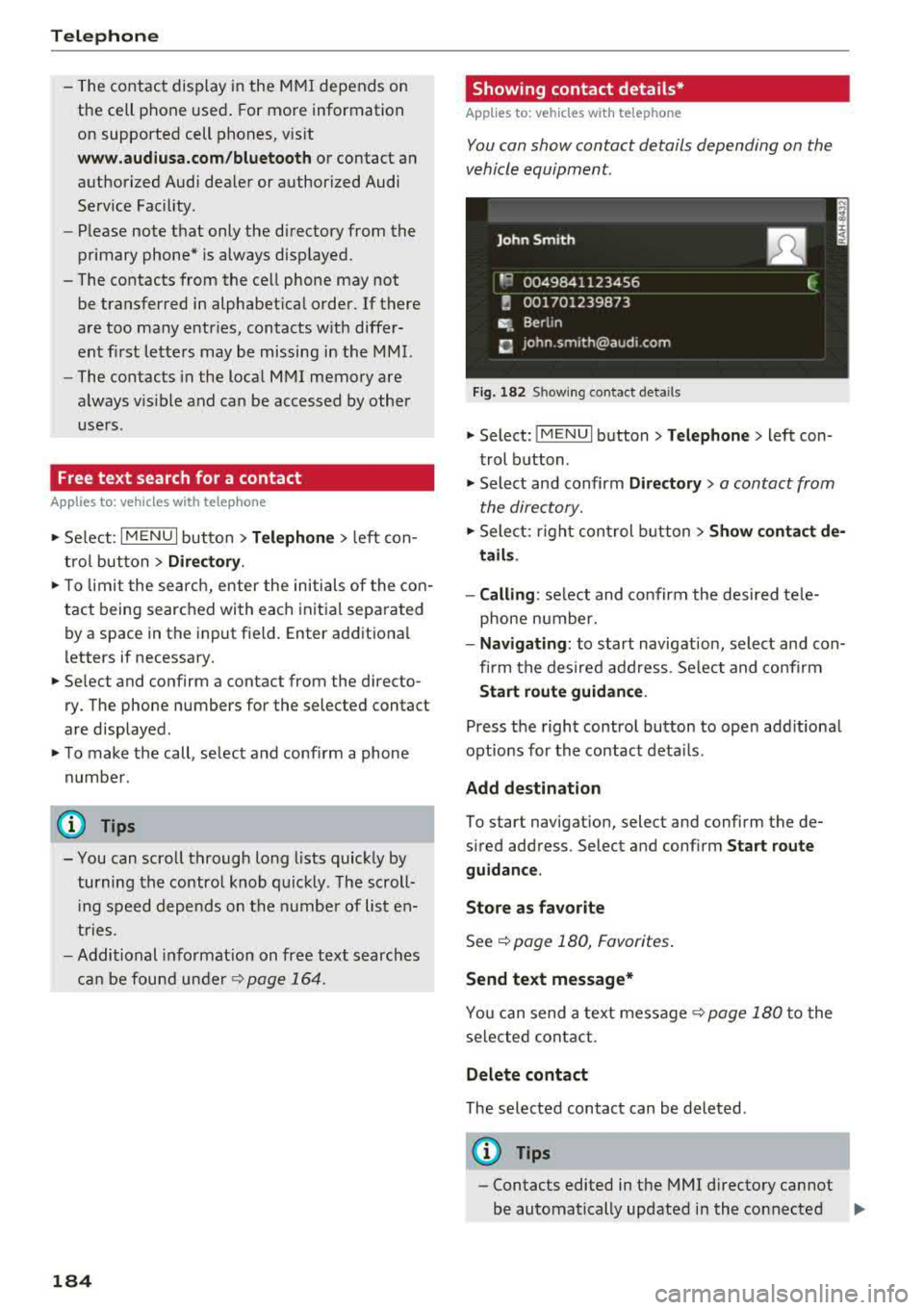
· Showing contact details*
Applies to: vehicles with telephone
You con show contact details depending on the
vehicle equipment.
Fig. 182 S h owing contact deta ils
.. Select: !MENUI button> Telephone> left con
trol button .
.. Select and confirm Directory> a contact from
the directory .
.. Select: right control button> Show contact de
tails.
- Calling :
select and confirm the desired tele
phone number.
- Navigating: to start navigation, select and con
firm the desired address . Select and confirm
Start route guidance.
Press the right control button to open additional
options for the contact details .
Add destination
To start navigation, select and confirm the de
sired address. Select and confirm
Start route
guidance.
Store as favorite
See c::> page 180, Favorites.
Send text message*
You can send a text message c::> page 180 to the
selected contact .
Delete contact
The selected contact can be deleted .
(D Tips
-Contacts edited in the MMI directory cannot
be automatically updated in the connected
.,,.
Page 188 of 403
Telephone
using the Ringtone fu nction . Select and confirm
an entry from the list. Fo r the
Ringtone volume /
Message volume
sett ings, refer to ¢ pag e 253 .
The Microphone input level can be ad justed d ur
ing a phone call using the contro l knob .
(D Tips
-Seve ra l cell ph ones can be paire d to the
MM I, but only two* cell phones ca n be ac
tive ly connected.
- To delete all paired Bluetooth devices, the
Bluetooth funct ion can be reset to the fac
tory default sett ings
c:> page 249.
Additional options
... Se lect : I MENU I button> Telephone > right co n-
t ro l butto n.
Connection manage r
See c:> page 249.
Bluetooth settings*
See c:> page 25 0.
Online settings*
See c:> page 251 .
Wi-Fi settings*
See c:> page 194, Wi-Fi hotspot .
Directory settings
A ppl ies to: ve hicles w ith tele phone
... Select : I MENU I button> Telephone > left con
trol button
> Directory > right control button>
Directory settings .
186
Memory capacity
Sho ws the Memory capacity fo r t he direct ory.
You can ma nage up to 17 ,00 0 co nta cts wi th the
d irectory. Yo u can load up to 4, 000 contacts
from your cell phon e into each directory. Yo u ca n
a ls o im por t up to 1,00 0 c ontacts fr om a storage
d evice.
Sort order
You can so rt the contacts in your directo ry alpha
b eti call y acco rdi ng to
Last name or First name .
Import contacts/Export contacts
See c:> page 185.
Download directory
To update the contacts in the MMI, yo u ca n man
u ally down loa d your cell phon e contacts . De
pending on the ce ll phone, the Bluetooth connec
tion may need to be disconnected and reconnect
ed to upda te t he contacts.
Hide contacts without phone number
W hen t his fu ncti on i s s witch ed o n~ , conta cts
that do not have any num bers assig ned to them
will be g rayed ou t in the directory.
Page 189 of 403
a co .... N ,....
N .... 0 0
3 co
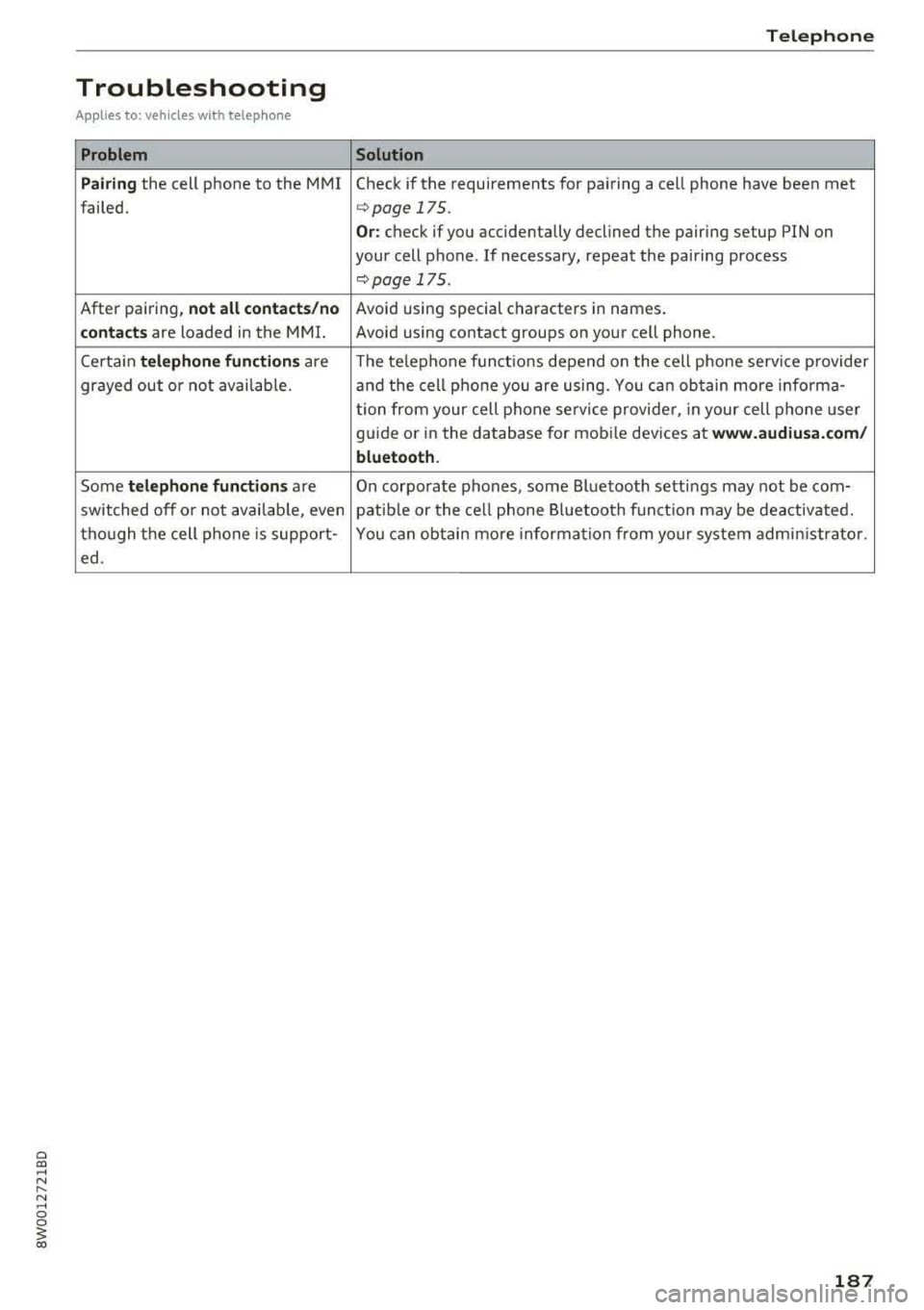
Troubleshooting
Applies to: vehicles with telephone
Problem
Pairing
the cell phone to the MMI
failed.
After pai ring,
not all contact s/no
contacts
are loaded in the MMI.
Certa in
telephone functions are
gr ayed out o r not avai lab le.
Some
telephone function s are
switched off o r not avai lab le, even
tho ugh t he cell phone is support -
ed .
Telephone
Solution
Check if the requirements for pai ring a ce ll phone have been met
c::;,page 175.
Or: check if you accidentally declined the pairing setup PIN on
your cell phone . If necessary, repeat the pairing process
c::;, page 17 5.
Avoid using special c haracters in names .
Avoid using contact groups on your cell phone.
The te lephone funct ions depend o n the cell phone service p rovider
and the cell p hone you are using. Yo u ca n ob tain more info rma-
tion from your cell phone se rvice provide r, in your cell phone user
g ui de or in the database for mob ile dev ices at
www.audiusa.com /
bluetooth .
On corporate phones, some Bluetooth setti ngs may not be com-
patib le or the ce ll phone Bluetooth f unct ion may be deactivated.
You c an obtai n more informa tion from yo ur system adm inistrator.
187
Page 231 of 403
Media
When importing, the audio files are automatical
ly sorted into the media center categories based
on the stored addit ional information
¢ page 237. The copied video files are stored in
t he media center under the
Videos category.
Playing the Jukebox
Requirement: the Jukebox must contain audio/
video fi les
¢ page 229, Adding files to the Juke
box.
The Jukebox is accessed and operated through
the
MMl (D¢page236, fig . 215.
Displaying Jukebox memory capacity
Select: right control button > Jukebox memory
capacity .
Information about the Jukebox memory
cap acity and the number of sto red tracks is dis
p la yed.
Deleting tracks from the Jukebox1
)
Requ irement: the Jukebox must contain audio/
video fi les.
- Delet ing an entry: select an entry from the
Jukebox media center . Select: right control but
ton
> Delete from jukebox > This entry or En
tire list.
- The status of the deleting process is shown in
the MMI. Jukebox playback stops during the de
leting process and starts again automatically
once the dele tion is complete .
0 Note
Do not import aud io/video files when the en
gine is t urned off because this will drain the
veh icle battery.
(D Tips
- Tracks from aud io CDs cannot be imported
to the Jukebox for legal reasons .
- Files that have already been imported are
automat ically recognized and cannot be
copied to the Jukebox again.
- It is not possible to play audio/v ideo* files
in the CD/DVD* drive while importing them.
1> N ot i n t he Playback view.
230
- Th e Juk ebox does not provide an export
function due to legal reasons .
- Files or tracks without additional stored in
formation a re listed as
Unknown . Audi rec
ommends adding additional information
(such as ID3 tags) to audio files.
- Reset the
Jukebox to the factory defau lt
settings when selling your vehicle
¢ page 249.
Bluetooth audio player
App lies to: vehicles wi th Blue toot h audio playe r
With the Bluetoo th audio player, you can play
music wirelessly from your Bluetooth-capable
device (such as a cell phone) through the MMI .
Requirement: the vehicle must be stationary and
the Bluetooth function on your Bluetooth device
and the
Bluetooth audio player ¢ page 250 in
the
MMI must both be sw itched on .
-Connecting a Bluetooth device: press the
!MEDIA ! button. Press the left control button
until the sources overview is displayed . Select
and confirm
Bluetooth audio player @
¢page 236, fig. 216 .
-If necessary, select and confirm, Not connected
> Connect Bluetooth audio player . The Blue
tooth device search starts. Follow the instruc
tions in the MMI.
- Select and confirm the desired Bluetooth de
vice from the list. The
MMI generates a PIN for
the connection.
- Select and confirm
Yes.
-Enter the PIN for connecting on your Bluetooth
dev ice.
Or : if the PIN is already displayed on
your Bl uetoo th device , confi rm it in the Blue
tooth device and in the
MMI. The time allowed
for entering the PIN is limited to approximately
30 seconds.
The media is started and operated thro ugh the
mobile device o r the
MMI, depending on the de-
vice being used.
..,.
Page 232 of 403
@ Tips
-Check for any connection requests on your
Bluetooth device.
- Multiple Bluetooth audio players can be
connected to the MMI, but only one mobile
device can be active.
- Bluetooth protocols AVRCP (1.0/1.3/1.4)
and A2DP are supported.
- Note the volume setting on your Bluetooth device. Audi recommends setting your
mo
bile device to the maximum volume when
using it as a Bluetooth audio player.
- The supported media functions (such as
shuffle) depend on the Bluetooth device
be
ing used.
- For more information on the supported
de
vices, visit www.audiusa.com/bluetooth or
contact an authorized Audi dealer or author
ized Audi Service Facility.
Wi-Fi audio player
Applies to: vehicl es with Wi ·F i audio player
Using the Wi-Fi audio player media source on the
MMI, you can connect and operate your Wi-Fi-ca
pable media player (such as a smartphone) to
wirelessly play music from your media player
li
brary. The media player is connected through the
vehicle's Wi-Fi hotspot. A UPnP Server app or an
integrated UPnPIDLNA server on your media
player is required to access your media player
li
brary.
Requirement: the Wi-Fi function on your media
player must be switched on. The
Audi MMI con·
nect
app or a UPnP server app must be installed
on your media player .
Or: you must be using a
media player with an integrated UPnP/DLNA
server.
- Connecting a media player: press the I MEDIA !
button. Press the left control button until the
sources
overview¢ page 236 is displayed . Se
lect and confirm Wi-Fi audio player (J)
¢page 236, fig . 216 .
~ -If necessary, select and confirm Wi-Fi off>
;::; Turn on Wi-Fi to activate Wi-Fi in the MMI. Se-,....
:::l Leet Wi·Fi settings, if necessary. Select the 0 0
3
same settings on the wireless media player
that are used for the Wi-Fi hotspot.
-Starting the Wi-Fi audio player: start the Audi
MMI connect
app or a UPnP server app, or set
media permissions on your media player.
Operating the media player: the media player is
operated through the MMI.
- Press the left control button repeatedly until
the
Folders menu item appears. Select and con
firm
Folders.
-Playing music from the media player: select
and confirm
Media center .
Web radio:
see ¢ page 232.
A WARNING
= -
-As the driver, do not allow usage of the Wi
Fi hotspot to distract you from driving, as
this could increase the risk of an accident.
- It is only safe to use tablets, laptops, mo·
bile devices and other similar devices when
the vehicle is stationary because, like all
loose objects, they could be thrown around
the inside of the vehicle in a crash and cause
serious injuries . Store these types of devices
securely while driving.
- Do not use any wireless devices on the front
seats within range of the airbags while driv
ing. Also read and follow the warnings in
¢ page 2 75, Front airbags.
(D Note
Always follow the information found in ¢Q) in
Wi-Fi hotspot on page 194.
(D Tips
-Always read the chapter¢ page 195, Audi
connect (Infotainment) general informa
tion.
- Please note that a Wi-Fi connection does
not automatically make it possible to use
the Internet. For additional information,
see
¢ page 188.
- To avoid interruptions during playback, de
activate the power saving function on the
media player or connect it to a charger.
231
Page 237 of 403
Media
Playing media
Accessing media
You can start and operate various media
through the
MMI control panel.
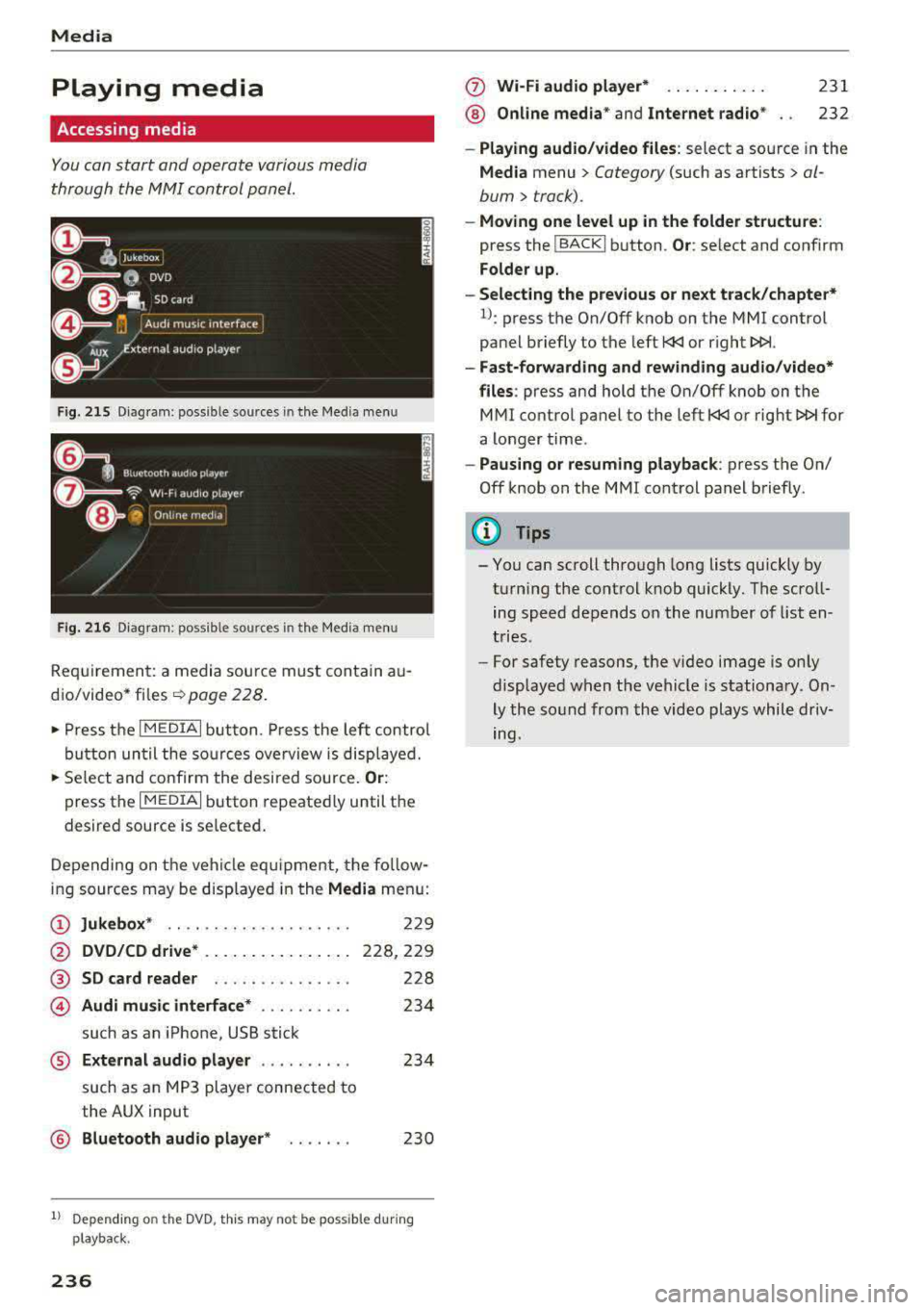
F ig . 215 D ia gr am : p oss ible sources in th e M ed ia m enu
F ig. 216 D iag ra m : possible sources in th e M edi a me nu
Re qu ir emen t: a media sou rce must contain a u
d io/video*
fi les -=> page 228.
• Press t he I M EDIAi bu tton. Press the left co ntro l
b utton until the so urces ove rview is disp layed.
• Se lect and confirm the desi red sou rce. Or :
press th e I M ED IAi b utton repeate dly until the
desired source is selected .
D epending on the ve hicle eq uipme nt, t he fo llow
i ng sources may be disp laye d in the
Media men u:
(D Jukebox * .. .... ........ ..... .
@ DVD/CD drive * .. .. .. .... .. ... .
@ SD card reader ... ..... .. ... . .
© Audi music interface * .. ..... .. .
such as an iPhone, USB stick
229
228,2 29
228
23 4
® External audio player . . . . . . . . . . 234
such as an MP3 player connected to
the AUX input
@ Bluetooth aud io player * . . . . . . . 230
1l Depe ndin g on the DVD , thi s may not be possible du rin g
p laybac k.
236
(f) Wi-Fi audio player* ... .. . .... .
® Online media* and Internet radio *
231
232
-Playing audio /video files : select a source in the
Media menu > Category (such as artists > al
bum
> track).
- Moving one level up in the folder structure :
press the !BACKI b utton . Or: select and confirm
Folder up.
-Selecting the previous or next track/chapter*
1l: press the On/Off knob on the MMI control
pa nel briefly to the left
l
-Fast-forwarding and rewinding audio /video*
files :
press and hold th e On/Off knob on the
M Ml control panel to the left
l
a longer time .
-Pausing or resuming playback : press th e On/
Off knob on the MMI cont rol panel b riefly.
(D Tips
- Yo u can scroll through long lists quickly by
t u rning the control knob quickly. T he scro ll
ing speed depends o n the num ber of list en
t ries.
- For safety reas ons, the video image is only
display ed w hen t he vehicl e is stationa ry . On
ly the so und from the vid eo plays whil e driv
ing.
Page 240 of 403
a co .... N ,....
N .... 0 0
3 co
Playlist
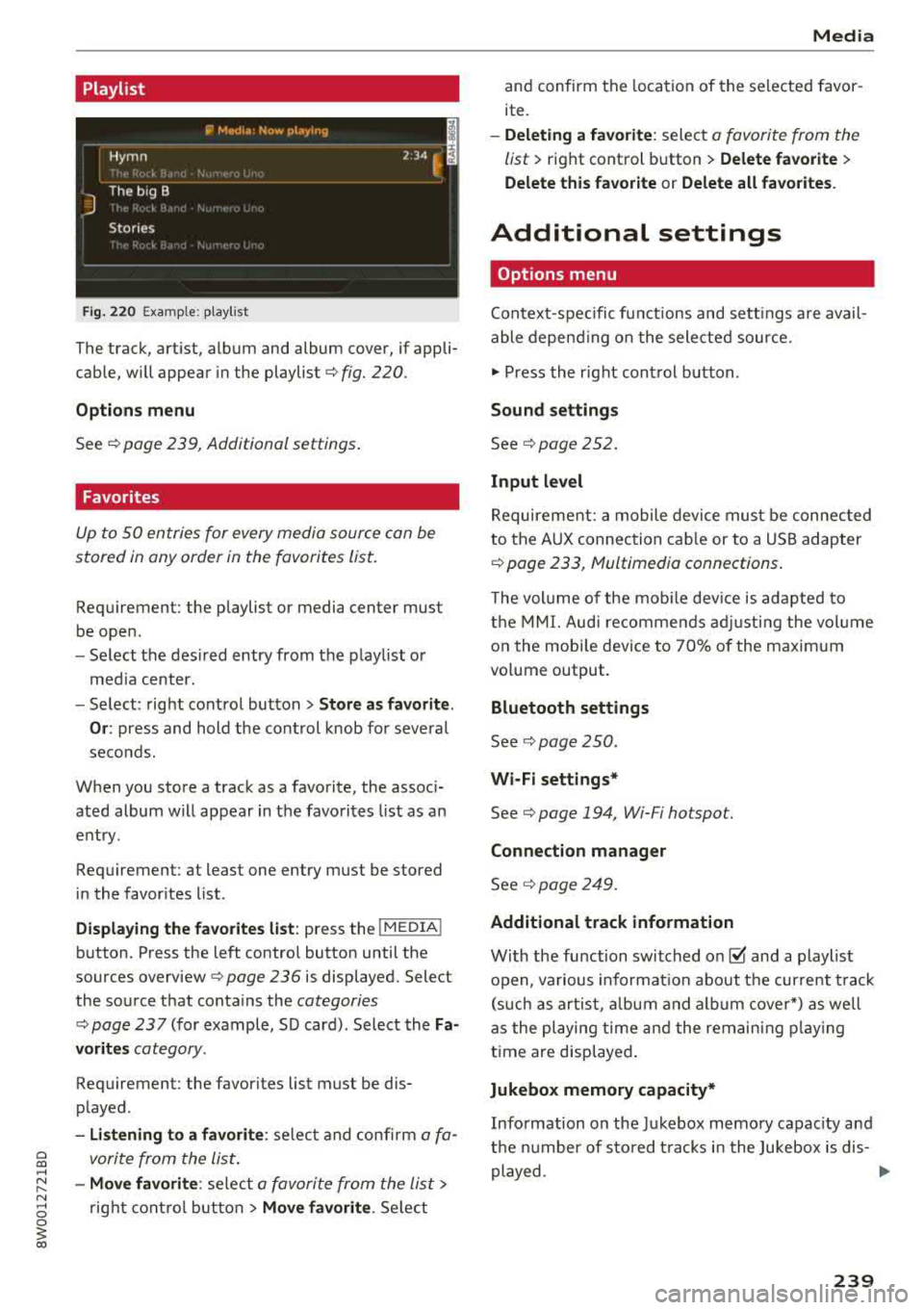
Fig. 220 Example: p lay list
The track, art ist, album and album cover, if appli
cable, will appear in the playlist
¢ fig. 220.
Option s m enu
See ¢ page 239, Additional settings .
Favorites
Up to 50 entries for every media source can be
stored in any order in the favorites list.
Requirement: the playlist or media center must
be open.
- Select the des ired entry from the playlist or
med ia center.
- Select: right control button
> Stor e as fa vori te.
O r:
press and hold the control knob for several
seconds.
When you store a track as a favorite, the assoc i
ated album will appear in the favorites list as an
entry .
Requirement: at least one entry must be stored
in the favorites list.
Dis play ing the fa vorit es list : press the I MEDIA !
button. Press the left contro l button until the
sources
overview ¢ page 236 is displayed. Select
the source that conta ins the
categories
¢ page 237 (for example, SD card) . Select the Fa
v or it e s
category.
Requirement: the favorites list must be dis
played.
- Listening to a fav orite : select and confirm a fa
vorite from the list.
- Mo ve fa vorite : select a favorite from the list>
rig ht cont rol button > Move f avorite . Select
Media
and confirm the location of the selected favor
ite.
- Deleti ng a fav orit e: select a favorite from the
list>
right control b utton> Delete f avorite >
Delete thi s fa vorite or Delete all fa vorite s.
Additional settings
Options menu
Context-spec ific functions and sett ings a re avail
able depend ing on the sele cted source.
.,. Press the right control button.
Sound setting s
See¢ page 252.
Input level
Requirement: a mobile device mus t be connected
to the AUX connection cab le or to a USB adapter
¢ page 233, Multimedia connections.
T he volume of the mob ile dev ice is adapted to
the MMI. Audi recommends adj usti ng the vol ume
on the mobi le device to 70% of the maxim um
vo lume output.
Bluetooth settings
See ¢ page 250 .
Wi-Fi sett ings *
See¢ page 194, Wi-Fi ho tspot.
C onn ection manag er
See ¢ page 249.
Addit ional track information
With the function switched on@' and a playlist
open , va rious informat ion about the current t rack
(s uch as artist, a lbum and alb um cove r*) as we ll
as the playing time and the remaining p lay ing
time are displayed .
Jukebox memory capacity*
Information on the Jukebox memory capac ity and
the number of sto red t racks in the Jukebox is dis-
played.
..,
239