bluetooth AUDI S4 2018 Owner's Manual
[x] Cancel search | Manufacturer: AUDI, Model Year: 2018, Model line: S4, Model: AUDI S4 2018Pages: 403, PDF Size: 66.81 MB
Page 244 of 403
a co .... N ,....
N .... 0 0
3 co
Media
-The manufacturer of the storage device can
provide information about its "USB Device
Subclass" . -Some MTP player funct ions are not support
ed, such as rating music tracks and video
playback.
CD drive
App lies to: ve hicles with a CD drive
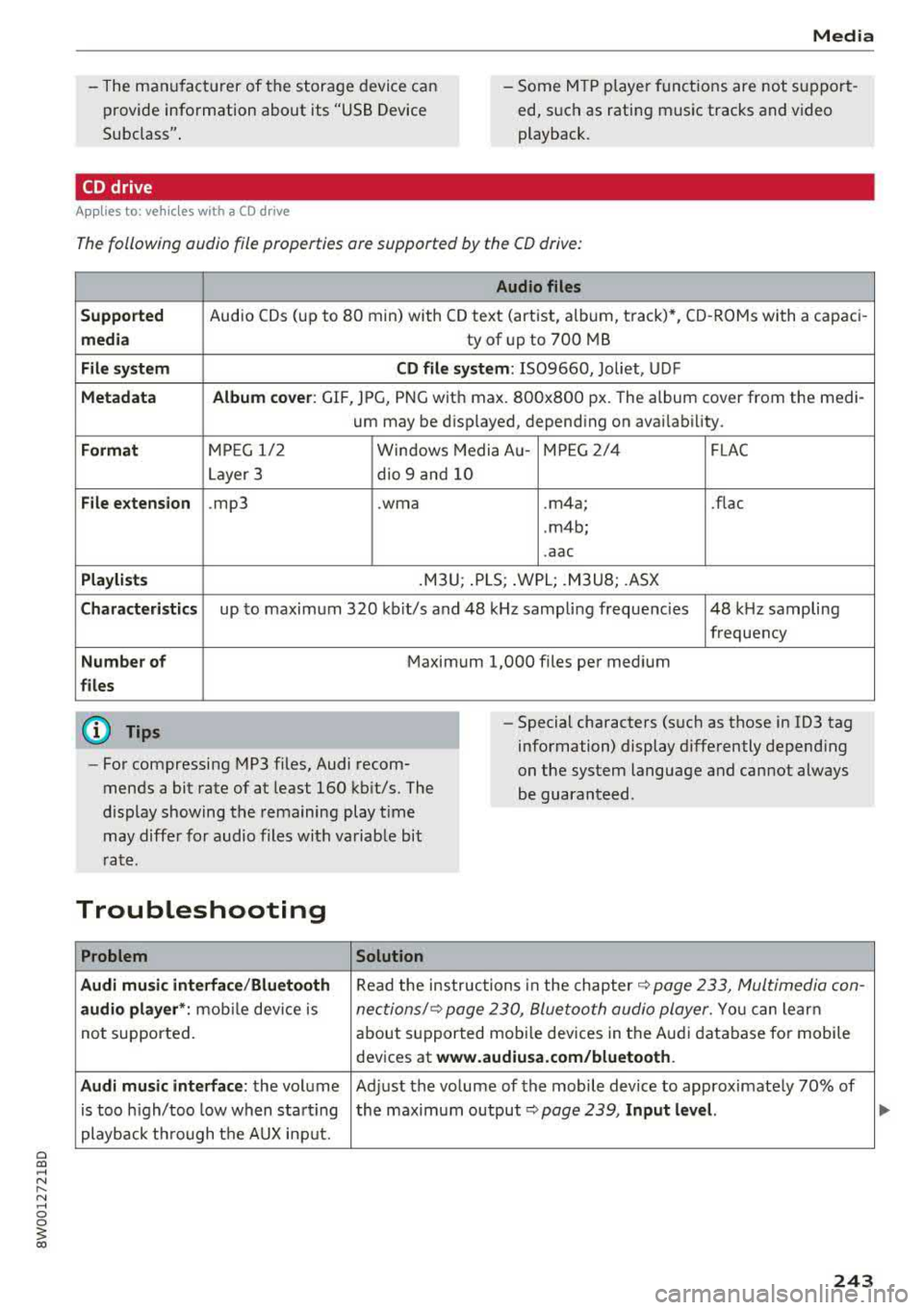
The following audio file properties are supported by the CD drive:
Audio files
Supported
Audio CDs (up to 80 min) with CD text (artist, album, track)*, CD -ROMs with a capaci -
media ty of up to 700 MB
File system CD file system: IS09660, Joliet, UDF
Metadata Album cover: GIF, JPG, PNG with max. 800x800 px. The album cover from the medi-
um may be disp layed, depend ing on availability.
Format MP EG 1/ 2 Windows Media Au- MPEG 2/4 FLAC
Layer 3 dio 9 and 10
File extension .mp3 .wma .m4a; .flac
. m4b;
.aac
Playlists .M3U; .PLS; .WPL; .M3U8; .ASX
Characteristics up to maximum 320 kbit/s and 48 kHz samp ling frequenc ies 48 kHz sampling
frequency
Number of Maximum 1,000 files per medium
files
@ Tips
-For compressing MP3 files, Audi recom
mends a bit rate of at least 160 kb it/s. The
display showing the remaining play time
may differ for audio files with va riable bit
r ate. -
Special characters (s uch as those in 1D3 tag
information) display differently depend ing
on the system language and cannot always
be guaranteed .
Troubleshooting
Problem Solution
Audi music interface /Bluetooth
Read the instructions in the chapter ~ page 233, Multimedia con-
audio player *: mobile dev ice is nectionsl~ page 230, Bluetooth audio player . You can learn
not supported . about supported mobi le devices in the Audi database for mobile
devices at
www.audiusa.com/bluetooth.
Audi music interface :
the volume Adjust the volume of the mobile device to approximately 70% of
is too high/too low when start ing the maximum output ¢
page 239, Input level.
playback through the AUX inp ut.
243
Page 245 of 403
Media
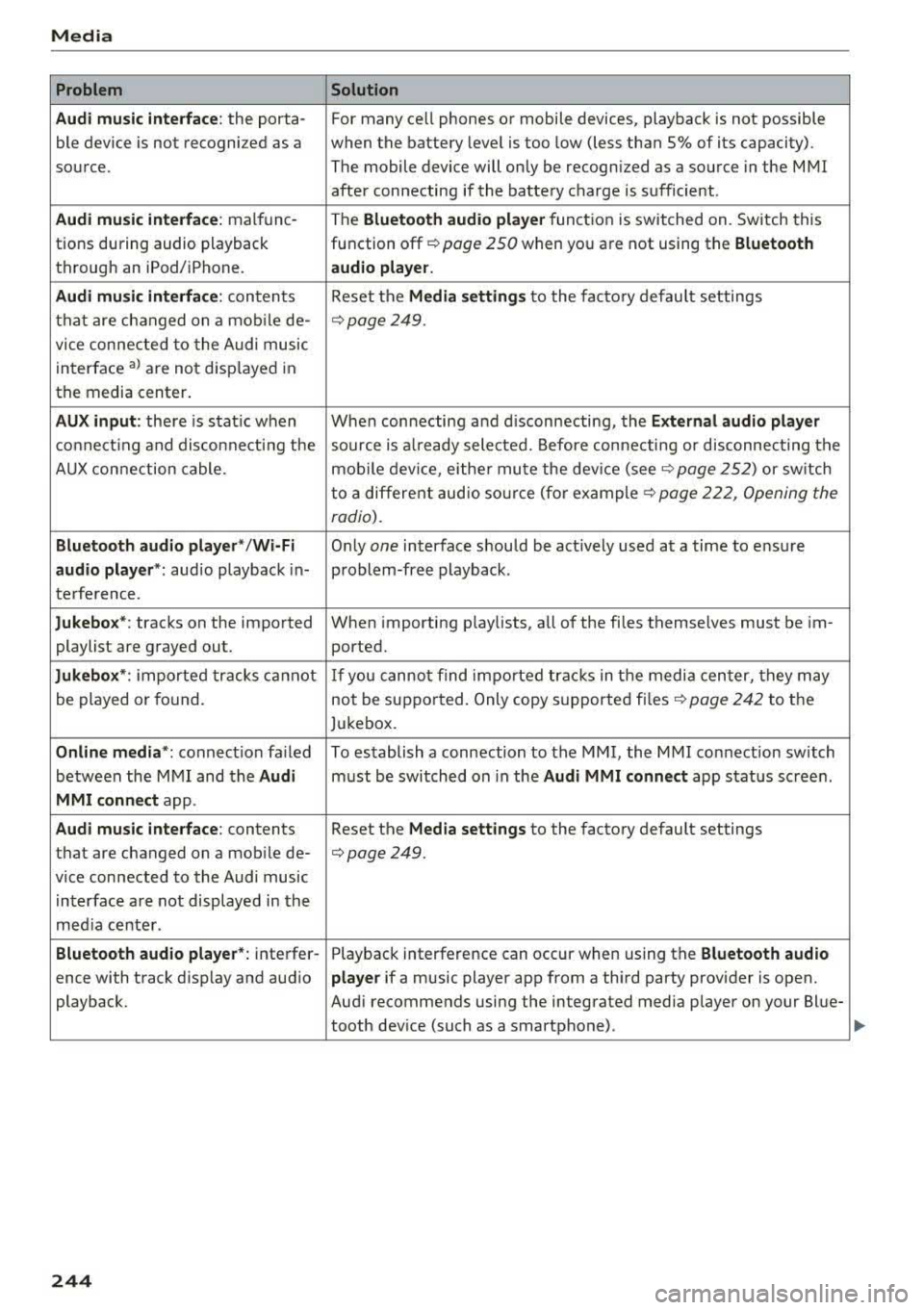
Problem Solution
Audi music inte rface :
the porta- For many ce ll phones or mobile devices, playback is not possible
ble device is not recognized as a when the battery level is too low (less than 5% of its capacity).
source. The mobile device will only be recognized as a source in the MMI
after connecting if the battery charge is sufficient .
Audi music interface: malfunc-The Bluetooth audio player function is switched on. Switch this
tions during audio playback function
off¢ page 250 when you are not using the Bluetooth
through an iPod/ iPhone. audio player.
Audi music interface:
contents Reset the Media settings to the factory default settings
that are changed on a mobile de-
¢page 249.
vice connected to the Audi music
interface
al are not disp layed in
the media center.
AUX input: there is stat ic when When connecting and disconnecting, the External audio player
connecting and disconnecti ng the source is already selected. Before connecting or disconnecting the
AUX connection cable. mobile device, either mute the device
(see¢ page 252) or sw itch
to a different audio sourc e (fo r
example ¢ page 222, Opening the
radio).
Bluetooth audio player* /Wi-Fi Only one interface should be act ively used at a time to ensure
audio player*: audio playback in- problem-free playback.
terference.
Jukebox*: tracks on the imported When importing playlists, all of the fi les themselves must be im-
playlist are grayed out. ported.
Jukebox*: imported tracks ca nnot If you cannot find imported tracks in the media center, they may
be played or found. not be supported. Only copy supported
files¢ page 242 to the
Jukebox.
Online media *: connection fa iled To establish a connection to the MMI, the MMI connection switch
between the MMI and the
Audi must be switched on in the Audi MMI connect app status sc reen.
MMI connect app.
Audi music interface: contents Reset the Media settings to the factory default settings
that are changed on a mob ile de-
¢page 249.
vice connected to the Audi music
interface are not displayed in the
med ia center .
Bluetooth audio player *: interfer- Playback interference can occur when using the Bluetooth audio
ence with track d isp lay and aud io player if a music player app from a third party provider is open.
playback. Audi recommends using the integrated media player on your Blue-
tooth device (such as a smartphone) .
244
Page 250 of 403
wait for the signal tone (beep) to say a new
command.
Volum e: you can adjust t he volume of the
prompts by turning the control knob.
Indi vidual sp eech training (only when the vehi
cle is stationary): yo u can adapt the vo ice recog
ni tion system to yo ur vo ice or pronunc iation in
order to improve the system 's ability to recognize
your speech . Individua l train ing is comprised of
20 speech entries that consist of commands and
sequences of numbers. Yo u can delete the pro
grammed voice training w ith the
Reset indi vidu
al speech training
function.
Display brightnes s
You can adjust the brightness of the Infotain
m ent system disp lay by turning the control knob.
Factory s ettings
The fo llow ing funct ions can be reset to the facto
r y default settings :
-Sound setting s
- Rad io
- Media sett ings
- Jukebo x*
- Directory
-Tel ephone
- Bluetooth and Wi -Fi *
- Nav igat ion sett ings *
- Nav iga tion and onlin e mem ory *
- Voice recognition s ystem *
- Shortcut ke ys
- Me ssage se ttings *
-A pps*
- Tool tips
- Aud i conn ect *
- Aud i smartphone in terface *
You can se lect the desired functions individually
or all at once with the option
S ele ct all ent rie s.
Select and confirm Res tore factor y settings .
(D Tips
~ Make sure that not only the settings were de-....
~ leted but also the stored data, if applicable.
N .... 0 0
3
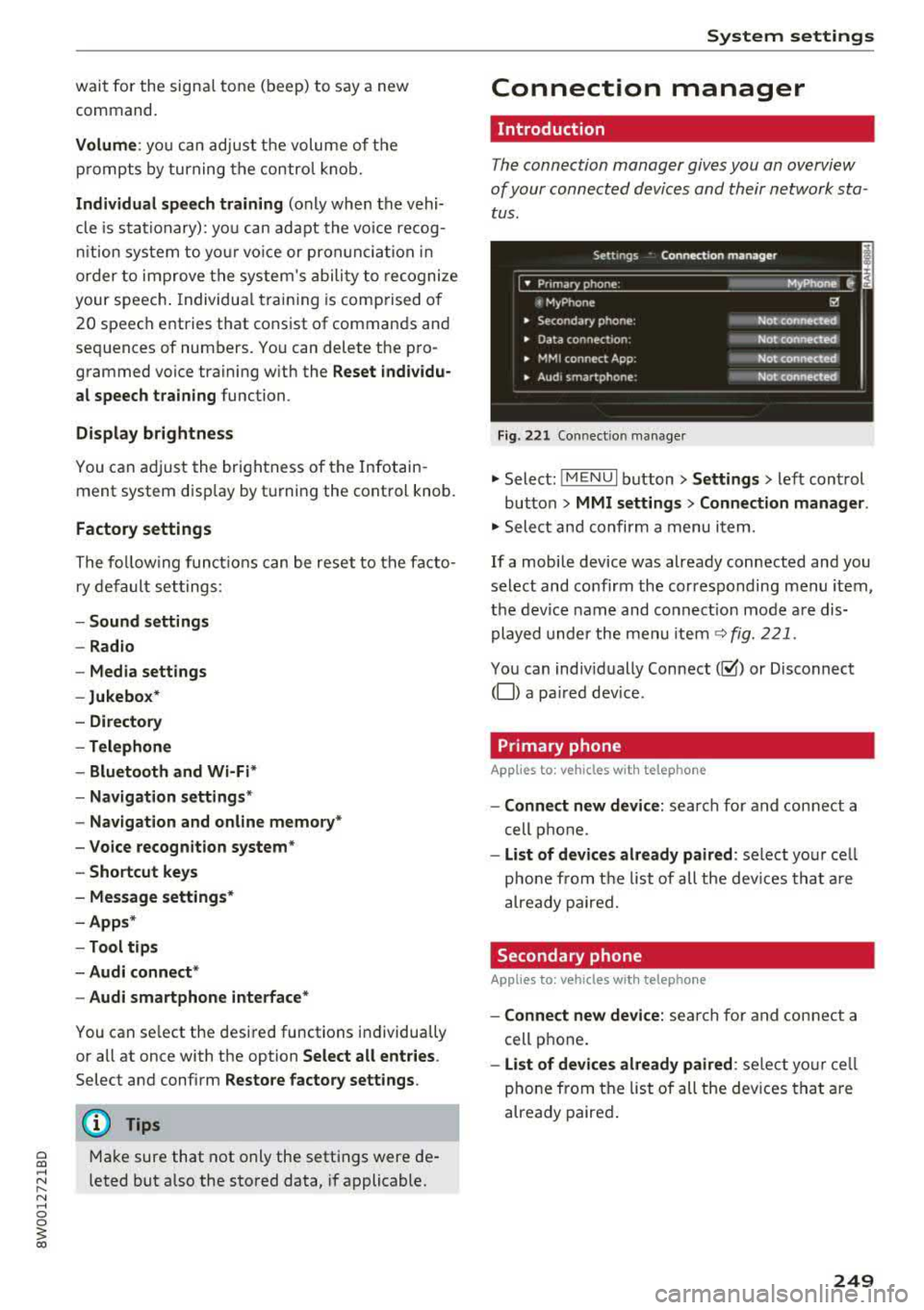
Connection manager
Introduction
The connection manager gives you an overview
of your connected devices and their network sta
tus .
Settings Connection mana ger I
====-... · • Prima hone: MyPhone ..
c M yPhone
• Secondary phone :
" Data connection:
• MM I connect App :
• Audi smartphone:
Fig. 221 Co nnect io n manager
@
Not connected
Not connected
Not connected
Not
connect"d
.,. Select: ! M EN UI button> Settings > left control
button >
MMI setting s> Connection manager .
.,. Select and confirm a menu item.
If a mobile device was already connected and you
select and confirm the corresponding menu item,
the device name and connect ion mode a re dis
played under the menu item
~ fig. 221.
You can indiv idually Connect(~ or Disconnect
(0) a pa ired dev ice .
Primary phone
Applies to : veh icles w ith telep hone
- Connect new de vice : search for and connect a
cell phone.
- List of d evic es alre ady pai red : select you r cell
phone from the list of all the dev ices that a re
already paired.
Secondary phone
Appl ies to: veh icles w ith telep hone
- Connect new device: sea rch fo r and connect a
cell phone .
-List of devi ces alre ad y paired : select yo ur ce ll
phone from the list of all the devices that a re
already paired .
249
Page 251 of 403
Sys te m setting s
Data connection
Applies to vehicles with Audi connect (Infotainment)
- The data conne ction is made using the embed
ded SIM card
l) ¢page 188. You do not need to
adjust any additional se ttings.
(D Note
Always follow the info rmation found in ¢ (D in
Wi-Fi hotspot on page 194.
MMI connect app
Applies to vehicles with Audi connect (Infotainment)
Requirement: the Audi MMI conn ect app must
be installed and open on your mobile device .
-Co nnect n ew d evice: search for and connect a
mobile device (s uch as a smartphone).
- List of devic es already paired : select your mo
bile device from the l ist of a ll the devi ces that
are already paired.
Audio player
Applies to vehicles with Bluetooth or Wi- Fi audio player
Blueto oth play er*
Req uirement: the Bl uetooth funct ion and visib ili
ty must be switched on in the MMI
¢ page 250
and on the ce ll phone.
- Conn ect n ew devic e : press the contro l knob.
Se lect
Blue to oth audio pl ayer. Search for and
connect a mobile device.
- List of device s already pai red : select a Bl ue
tooth device from the list of a ll the devices that
are already paired .
Wi-Fi audio player *
Requirement: the Wi-Fi hotspot on the M MI
¢ page 194 and on you r cell phone must be
sw itched on.
- Connect new de vic e: press the contro l knob .
Search for and connect a Wi-Fi capable device .
-Di scon nect Wi -Fi audio pla yer : deact ivate the
Wi-Fi on your Wi-Fi capab le device . The dev ice
will be automat ically removed from the list .
l) SIM card in sta lled in t he veh icle at th e fact ory.
250
(D Note
Always fo llow the information found in ¢(!) in
Wi-Fi hotspot on page 194.
Directory
App lies to : vehicles wit h telepho ne
Display contacts from a cell phone (or an addi
tional cell phone).
Requirement: no cell phones ca n be connected to
the MMI using the
Hand sfr ee profi le .
- Connect new devic e: search for and connect a
new cell phone .
-Lis t of devi ces alre ad y paired : select your ce ll
phone from t he list of all the cell phones that
are a lready paired .
Audi smartphone
Applies to: vehicles with Aud i smartphone interface
- Connect you r ce ll phone to the A udi music in
terface ¢
page 234 using a USB adapter
¢page 233, fig . 213.
- Select your cell phone from the list of cell
phones that have a lready been connected.
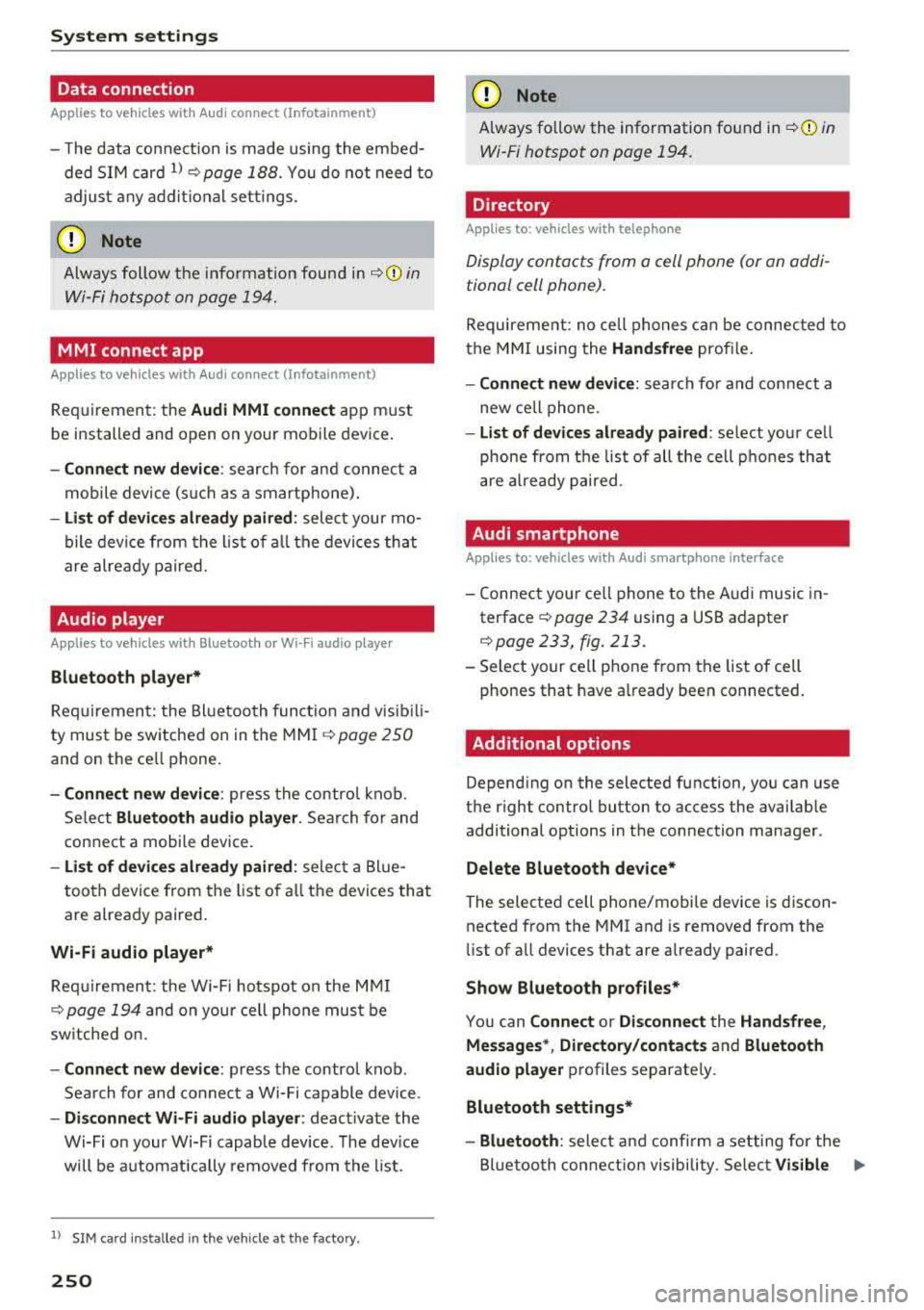
· Additional options
Depend ing on the selected function, you can use
the righ t control button to access the availab le
additional options in the connection manager .
Delete Bluetooth de vic e*
The selected ce ll phone/mobile device is discon
nected from the MMI and is removed from the
li st of all devices that are already pai red.
Show Blu etooth profiles*
You can Connect or Disconne ct the H andsfr ee,
Me ssag es* , Di rector y/contact s
and Bluetooth
aud io pl ayer
p rofiles separately.
Bluetooth settings *
- Bluetooth :
select and confi rm a setting for the
Bl uetoo th connection visibility . Se lect
Vi sible Ill-
Page 252 of 403
a co .... N ,....
N .... 0 0
3 co
for the MMI to be visib le to o ther dev ices . Se
l ect
Invisible fo r the MMI to not be vis ible to
othe r devices. Howeve r, it is still possib le to es
tab lish a Bl uetooth connection w ith paired de
v ices when the v is ibility is switched off. Se lect
Off to tur n visib ility off . The n a B luetooth con
nect io n is no t possible .
-Bluetooth audio player : when this function is
switched
on~ , the Bluetooth aud io player is
available as a source in the
Media menu .
-Bluetooth name : the MMI Bluetooth name (for
example
,,AUDI MM I 2016") is displayed and
can be changed .
Online settings*
- Data usage counter :
the amount of data pack
ets that are sent a nd received through the MMI
is d is pl ayed . You can reset t he data usage infor
mation to zero using the
Reset data counter
opt io n.
- Network status : the mobile netwo rk provider
f o r da ta se rvice as well as t he network status
are disp laye d.
Wi-Fi settings*
See ¢ page 194, Wi-Fi hotspot.
Storing as a default telephone
Applies to: vehicles with telephone
Requ irement: a cell phone must be connec ted to
the M MI
¢ page 175 .
As soo n as the cell phone is i n range and the
B lue too th func tion on t he ce ll phone and in the
M MI is swi tched on, this ce ll phone is given pr io r
ity over the other Bluetoot h dev ices and is con
n ected direct ly to the MMI. The connected cell
p hone is displayed f irst in the device list.
Network settings*
- Login :
you ca n chose an Automatic lo gin to
yo ur cell phone serv ice p rov ider's ne twork, o r
yo u can choose a
Manual login from t he list of
available networ ks.
- Network selection : available networks in t he
p resent location can be se lected unde r networ k
se lection. Th is function is only available for the
Manual login sett ing.
System settings
Apple CarPlay sound settings/ Android Auto
sound settings
Applies to: vehicles with Aud i smartphone interface
See c::> page 2 52.
About Apple CarPlay/ About Android Auto
Applies to: vehicles wi th Audi smartphone interface
Here you w ill fin d leg al informa tio n r egarding
th e use of App le Car Pla y or Andro id A uto an d in
f o rmat io n a bou t devi ce-s peci fic data exc hange .
Delete CarPlay device/Delete Android Auto
device
A ppl ies to: vehicles with Audi smartphone interface
Req uireme nt: your c ell pho ne mu st n ot be con
ne cted to t he Au di music in terf ace wi th a US B
adapter .
Se le ct :
Audi smartphone > a d evice from t he list
> r igh t co ntrol button.
T o re mov e your cell p hon e from the list , se lect
and confir m
Delete CarPlay device or Delete An
droid Auto device .
System update
.. Select: !ME NUI bu tton> Settings > left con trol
bu tton >
System maintenance .
- System update :
slid e the s torage device with
t h e u pdate da ta into the appro priate driv e
¢ page 228 . Sele ct and co nfi rm t he dr ive>
Start update . The leng th o f the pro cess de
pe nd s o n th e siz e of the updat e.
- Reset driver installation: the sele cte d medi a
d river p ack age i s reset to t he se ttings at the
t ime o f delivery .
-Version information : info rm ation on t he M MI
so ftwar e ve rsi on and the navig ation datab ase *
so ftware version is displ ayed. The
Software in
formation
f u nction also prov ides informat ion
on t he softwa re co ntai ned in the M MI and t he
licensing agreement .
251