steering AUDI S7 2015 Owner's Manual
[x] Cancel search | Manufacturer: AUDI, Model Year: 2015, Model line: S7, Model: AUDI S7 2015Pages: 316, PDF Size: 78.09 MB
Page 97 of 316
M N <( (.J
'SI: ,...., \!) 1.1'1 ,...., 1.1'1 ,....,
Audi active Lane assist
Active Lane assist
Description
Applies to vehicles: with active lane assist
Active lane assist helps you keep your vehicle
in your lane.
Active lane assist detects lane marker lines
within the limits of the system using a camera in the windshield . If you are approaching a de
tected lane marker line and it appears likely
that you w ill leave the lane, the system will
warn you by means of corrective steer ing . T he
driver can over ride the cor re ct ive steer ing at
any time. If the veh icle crosses a line, the d riv
er is also warned by a light
vibration in the
steering whee l. The vibration warning must
be switched on in the MMI for this to happen.
Active lane ass ist is operable when the line
marking the lane is detected on at least one
side of the vehicle .
If the system is in active standby mode and
the turn signa l is activated before driving over
the lane marker line, the warning does not oc
cur since the system allows for intentional lane changes .
The system is designed for driv ing on free
ways and expanded highways and thus works
only at speeds of 40 mph (65 km/h) or more .
If the vehicle is also equipped with Audi adap
tive cruise control*, the corrective steering
will be more specif ic in regard to the driving
situation . In addition to the lane marker lines,
the system can a lso take into acco unt other
objects such as guard rails. If they are detect
ed i n close proximity to the veh icle, Audi a c
tive lane ass ist helps prevent the vehi cle from
driving too close to them . The re is also pass
ing assistance. The system does not provide
any corrective steering if it detects that you
are passing another vehicle.
A WARNING
- The system warns the driver that the ve
hicle is leaving the lane us ing corrective
Audi acti ve lane a ssis t 95
steer ing. The driver is always responsible
for keeping the vehicle within the lane.
- The system can assist the driver in keep
ing the vehicle in the lane, but it does
not steer by itself. A lways keep your
hands on the steering wheel.
- Corrective steering may not occur in cer tain sit uat ions, such as dur ing heavy
brak ing.
- The camera does not recognize all lane
marker lines. Corrective steer ing can only
take p lace on the side of the vehicle
where lane marker lines are detected .
- Other road structures or objects cou ld
possibly be identified un intent ionally as
lane ma rker lines. As a result, cor rect ive
steer ing may be unexpected or may not
oc cur .
- The camera view can be restricted, for
examp le by vehicles driving ahead o r by
r ai n, snow, heavy spray or light s hining
into the camera. This can result in a ctive
lane assist not detecting the lane marke r
lines or detect ing them inco rrectly .
- Unde r ce rtain condi tions such as ruts in
the road, a banked roadway or cross
winds, the corrective stee ring alone may
not be enough to keep the vehicle in the
lane.
- For safety reasons, active lane ass ist
must not be used when there are poor
road and/or weather condit ions such as
slippery roads, fog, gravel, heavy rai n,
snow and the potent ial for hydroplaning .
Using act ive lane assist under thes e con
ditions may increase the risk of a crash.
Page 98 of 316

96 Audi active lane assist
Activating and deactivating
App lies to vehicles: with active lane assist
-
I
Fig. 100 Turn signal lever: Act ive lan e ass ist button
Fig. 101 Windshield: Active lane assist camera viewin g
win dow
~ Press the ¢ fig. 100 button to activate or
deactivate the system . The indicator light
• or. in the instrument cluster will illu
minate or go out.
Instrument cluster indicator light
• Ready: The indicator light shows that the
system is ready to use . The system can now
warn you if you are about to cross a known
lane marker line .
• Not ready: The ind icator light shows that
the system is turned on but unable to send a
warning . This can be due to the following :
- There is no lane marker line .
- The relevant lane marker lines are not de-
tected (for example, markings in a construc
tion zone or because they are obstructed by
snow, dirt, water or backlight ing).
- The vehicle' s speed is below the speed need
ed to activate it, which is about 40 mph (65
km/h) .
- The lane is narrower than about 8 ft . (2 .5 m)
or wider than 15 ft (4 .5 m).
- The curve is too sharp . - The driver's hands are not on the steering
wheel.
(D Tips
Make sure the camera's field of view
¢
fig. 101 is not obstructed by stickers,
deposits or anything else. For information
on cleaning, refer to ¢
page 212.
Active lane assist display in the
instrument cluster
Applies to vehicles: wit h active lane assist
Fig. 102 D isp lay : Act iv e lane ass ist is swi tc h ed on a nd
is wa rnin g
Fig. 103 Instrumen t cl uster: Active lane as sis t is
s witch ed o n but not re ad y to provid e wa rnin gs
You can call up the active lane assist display
using the buttons in the multifunction steer
ing wheel ¢
pag e 24.
An additional indicator appears in the Head
up Display*.
When active lane assist is switched on, the
system indicates which lines are detected by
displaying solid lines on the left and/or right
side of your vehicle: .,..
Page 99 of 316

M N <( (.J
'SI: ,...., \!) 1.1'1 ,...., 1.1'1 ,....,
White Active l ane assist is sw itched on
line(s) and ready to p rov ide warnings
on the side that is ind icated
¢ fig. 102 .
Red line Act ive lane assist is warning you
(left or that you are about to leave your
right) lane
¢ fig . 102 . In addition, the
steeri ng wheel vibrates s light ly.
Gray Act ive l ane assist is switched on
line(s) but is not ready to provide warn-
ings
¢ fig . 103 .
Mes sages in the instrument clu ster
display
When the active lane ass ist turns off automat
ically, the i nstrument cluster ind icator goes
out and one of the fo llow ing messages ap
pears on the display :
Audi active lane a ssist : Curr ently un availa
bl e. No camera view
This message appears if the camera is no lon
ger funct ional after the system has cont inous
ly failed to detect the lane markings . This
could happen if :
- The camera field of view¢
page 96, fig. 101
is d irty or covered in ice. Clean the area on
the windshie ld.
- The camera field of view is fogged over. Wait
until the fog has cleared before switching
active lane assist on .
- The system has been unable to detect the
lanes for an extended period of time due to
road cond it ions . Switch active lane ass ist
back on when the lines are more visible .
Audi active lane a ssist : Currently un available
A temporary ma lf u nction is preventing lane
assist from operating. Try sw itching active
lane assist on again later.
Audi acti ve lane a ssist : S ys tem fault!
Drive to you r autho rized Aud i dea le r soon to
h ave the ma lfunction co rrected.
Audi active lane a ssis t: Pl ea se take over
s te ering
Audi acti ve lane a ssis t 97
This message appears if yo u do not s teer the
vehicle yourself . If this is the case, active lane
ass ist does not switch off, b ut it does sw itch
to the "not ready" stat us. The system can help
you keep the vehicle in the lane. However it is
your own responsibility to steer and control
t h e ve hicle .
Setting the steering wheel vibration
Applies to veh icles: w ith active la n e assist
11> Select: !CAR ! function button> (Car )* sys
tem s
control button > Driver a ssis t > Aud i
a ctive lan e as sis t.
You can switch the vibrat ing warn ing in t he
stee ring wheel
o n or off .
(D Tips
Your setting is a utomat ically stored and
assigned to the remote control key being
used.
Page 104 of 316

102 Audi drive select
Audi drive select
Driving settings
Introduction
Aud i d rive select mak es it possible to expe ri
ence diffe ren t types of vehi cle se ttin gs i n o ne
ve hicl e. The dr ive r can se lect th ree
Comfort ,
Auto and Dynamic modes in the M MI to
switch between a sporty and a comforta ble
driving mo de.
You c an a lso a djust the setti ng according to
your p re ferences in the
Individual mode . F o r
examp le, you ca n combine settings such as a
sporty en gine t uning with comfortab le steer
ing.
A WARNING
Improper use of the A udi drive select can
cause collisions, ot her acc idents and se ri
ous personal injury.
Description
The follow ing systems a re affected by dr ive
se lect:
Engine and transmission
Depending on the mode, the engine and the
tra nsmission respond quicker or in a more bal
a nced manner to acce lerator pedal move
men ts. I n the sporty dynamic mode, the
tra nsmission sh ifts at highe r RPMs.
Air suspension*
The adaptive air suspension/adaptive air sus
pe nsion sport*
(A ir suspension in the MMI) is
an e lec tronically con tro lled air suspens ion and
d ampi ng sys tem. Th ey are adjusted depe nd
ing on the se lected driving mode, the dr ive r's
steer ing, br aki ng and acceler ation inpu t and
the road s urface, ve hicle speed an d load . A
sporty se tting is generally use d in vehicl es
with a daptive ai r suspension s port* .
The vehicle clea rance v aries depe nd ing on the
se lec ted mode and the speed . T
he hig hway setting is act ivated automat ically
whe n you drive above 7 5 mph (120 km/ h) for
m ore than
30 seconds in the Auto or Dynamic
mode. The g ro und clearance is increased a uto
matically if the speed drops below
44 mph
(70 km/h) for more than 120 seconds .
Steering
The steering adapts in terms of steering effort
and steering ratios. Indirect steering that
moves easily, like the steer ing in comfort
m ode, is best suited to lo ng drives o n a hig h
way. In contrast, dynamic mode provides spo rty, direct steer ing .
The following applies to veh icles with dynamic
steering* : the steer ing rat io changes based on
vehicle speed in orde r to ma inta in optimum
stee ring effort for the dr ive r at all times . This
sets the stee ring to be less sens itive at h igher
speeds in order to provide improved vehicle
co ntrol. At reduced spee ds, howeve r, s teer ing
is mo re d ire ct in order to keep the stee ring ef
fort as minima l as poss ible when the drive r is
mane uve rin g the vehicle. At low and average
speeds, dynamic steering addit iona lly pro
vides more responsive steeri ng performance.
Sport differential*
As a component o f the all whee l dr ive system
(quatt ro)
¢ page 200, the Sport differential *
dist ributes t he d riving power to the rear ax le
depend ing on the sit uat ion . The distrib ution
of power var ies depending on the selected
mode, from balanced (comfo rt) to agile (dy
nam ic) . The goal is a h igh level of ag ility and
abili ty to acce lera te on curves . Th e veh icle is
very respons ive to stee ring.
Curve light*
The curve light adapts to driving on curves.
The pivoting act io n and the lighting are also
adapt ed to the mode.
Adaptive cruise control*
The behav ior when accelerating can be adjust
ed from comfortab le to sporty, depending on
the drive select mode . Adaptive cru ise contro l
also responds to the driv ing behavior o f the
IJI,,
Page 105 of 316

M N <( I.J "". rl I.O
"' rl
"' rl
vehicle ahead in a more conservative or sporty manner .
Engine sound *
The sou nd of the engine is adapted to these
lec ted mode and ranges from subtle to sporty.
(D Note
- Make sure there is eno ugh clearance
above and below the veh icle when park
i ng. The height of the vehicle can change
once it is parked due to temperature
fluctuations, changes to the load condi
tions and changes to the driving modes,
which can affect clearance.
- When transporting the vehicle on a car
carrier, train, ship or by other means, on
ly tie the vehicle down at the running
surface of the tires, which is the outer
circumference. Securing the vehicle at
the axle components, suspension struts
or tow ing eyes is not permitted because
the pressure in the air suspension struts
can change d uring transport. The vehicle
may not be sec ured s uff icient ly if this
happens.
-If you are going to tow a trailer, you
must activate the trailer ope rat ion mode
¢page 208 .
@ Tips
-In some mode ls, the m axim um vehicle
speed can on ly be reached in the Auto
and Dynami c modes.
- Se lecting the Dynami c mode results in
sporty shifting characteristics . The S
gear position engages automatically .
- In vehicles with sport differential*, the
D ynamic mode is deactivated when tow
ing a trai ler .
- In vehicles that have dynamic steering*,
operating noise is heard when starting or
Audi dri ve sele ct 103
stopping the engine. This does not indi
cate a prob lem .
Selecting the driving mode
You con choose between Comfort, Auto, Dy
namic and Individual.
F ig . 1 09 MMI: Drive select
.,. To select the mode, select the following in
the MMI : ICARlfunction button> Comfort,
A uto , Dynamic or In d iv idual.
You can c hange the driving mode when the ve
hicle is stationary or while driving. If traffic
permits, after changing modes, briefly take
your foot off the acce lerator pedal so that the
recently selected mode is also activated for
the engine .
Comfo rt -provides a comfort-oriented vehicle
setup and is suited for long drives on high
ways .
Auto -provides an overall comfortable yet dy
namic driving feel and is suited for every day
use.
D ynamic -gives the driver a sporty driving
feel and is suited to a sporty driving style .
Indi vidual -
¢ page 104.
WARNING
Pay attention to traffic when operating
Audi drive select to prevent potential risk
of an accident.
Page 106 of 316

104 Audi drive select
Adjusting the Individual mode
You can adjust the vehicle settings to your personal preferences .
• Se lect : I CAR ! function button > Set individu
al
control button. You can now adjust the in
dividual systems.
The
Individual dr iving mode will automatica l
ly be activated when you have finished config
uring the settings .
Systems Comfort
Engine /Transmission
balanced
Air suspension* comfortable
Steering comfortable The equipment
in your vehicle will determine
which settings you can adjust. The following
table provides an overview of the characteris
tics of each driving mode.
Auto Dynamic
balanced sporty
balanced sporty
balanced sporty
Dynamic steering* comfortable/indirect balanced/direct sporty direct
Sport differential * balanced agile sporty
Adaptive cruise control* comfortable balanced sporty
Engine sound* subtle
subtle/sportya> sporty
al Sub
tle in th e d riv in g po sit ion D an d sp or ty in t he driving pos itio n S.
Your Individual mode settings are auto
matically stored and assigned to the re
mote control key being used.
Raising/lowering the
vehicle
Appl ies to vehicles : wit h adapt ive a ir suspe nsion
Raising the vehicle
You can ra is e your veh icle temporarily, for ex
ample to drive over a tall curb.
• Select the following in the MMI:
ICARI func
t ion button
> Raise control button.
• Wait for the arrows in the display to stop
blinking and the vehicle to reach its fina l po
sit ion .
Lowering the vehicle
• To lower the vehicle, select the following in
the MMI:
!CARI function button > Lower con
tro l button.
• Wait for the arrows in the display to stop
blinking and the vehicle to lower complete
l y .
(D Note
- Remember that your vehicle is not suita
ble for dr iv ing offroad even when it is
raised. There is not enough ground clear
ance.
- If the vehicle is raised, it wi ll lower auto
matically when driving 62 mph (100 km/
h) or faster.
Driver messages
Air suspension: vehicle currently too low .
Level control running
Air suspension: vehicle currently too high.
Level control running
The driver message switches off when the lev
el control process is complete .
Page 107 of 316

M N <( I.J "". rl I.O
"' rl
"' rl
Night vision assistant
Night vision assistant
with detected pedestrian marking
Description
App lies to vehicles: with night v isio n assistant
Fig . 110 Display: nig ht v is ion assistant
"N ight v is ion assistant with pedestrian detec
tion" uses an infrared camera to monitor the
area in front of your vehicle at night. Within
the limits of the system , it can display objects
up to about 1000 feet (300 meters) away. The
heat image of a pedestrian detected by the
camera is shown in the instrument cluster dis
play
r::;, fig . 110 . Warm areas appear lighter
and cold areas appear darker .
Pedestrian detection
Applies to vehicles: with n ig ht v ision ass istant
Fig. 111 Display : yellow pedestrian marking
Night vision assistant 105
Fig. 1 12 Disp lay: symbo l w hen infrare d image is not
visi ble
Night vision assistant can detect pedestrians
that are between about 50 and 300 feet (15
and 90 meters) in front of the vehicle, under
ideal conditions .
If a pedestrian is detected
when it is dark outside and the vehicle head
lights are switched on, the pedestrian is high
lighted in yellow
r::;, fig . 111, r::;, page 106,
General information.
If another display such
as navigation replaces the image from the
night vision assistant, the symbo l~,, appears
in a tab
r=;, fig. 112.
(D Tips
If the night vision assistant image does
not appear when the system is sw itched
on, you can access it with the buttons on
the multifunction steering wheel
r::;, page25.
Page 119 of 316

M N <( I.J "". rl I.O
"' rl
"' rl
Parking system plus
Description
Applies to vehicles: with parking system plus
Audi parking system plus provides audio and
visual signals when parking.
Fi g. 12 4 Dis p lay f ie ld
Sensors are located in the front and rear
bumpers.
If these detect an obs tacle, visual
and in some situations aud ible signals warn
you.
M ake sure t he sensors are not cove red by
s t icke rs, deposits or any o ther obs truc tions as
it may impair the sensor function. For infor
mation on cleaning, refer to
c::> page 212.
The display field begins approximately at:
® 4 ft (1.20 m)
® 3 ft (0 .90 m)
© 5.2 ft (1.60 m)
@ 3 ft (0 .90 m)
The clos er you get to the obstacle, the sho rter
the interval between the audible signa ls. A
con tinuous tone sounds when the obstacle is
l ess than approximate ly 1 ft (0.30 m) away .
Do not continue driving farther¢
& in Gener
al information on page 116,
¢ CD i n General
information on page
116!
If the d istance to an obstacle remains con
stant, the volume of the d istance warning
gradually drops after about four seconds (this
does not apply in the continuous tone range).
P arking systems 11 7
Switching on/off
Applies to vehicles: with parking system plus
F ig. 125 Center co nso le :
Pv! button
F ig . 1 26 Infota in m ent : v is u al d is ta n ce d isplay
Switching on
.,. Shift into reverse or
.,. Press the
p,;A button in the center console
c::> fig. 125 . A short confirmation tone
sounds and the LED in the button turns on .
Switching off
.,. Dr ive fo rward fas ter than 6 mph (10 km/ h),
or
.,. press the
P"IA button, or
.,. sw itch the ignit ion off.
Visual d isplay
U sing the segments, yo u can estimate the dis
tance to a n object in front of o r behind the ve
hicle ¢
fig. 126 . The red lines mark the ex
pected d irect ion of travel according to the
steering ang le . A wh ite segment indicates an
identified obstacle that is outside of the vehi
cle's pat h. Red segments show identified ob
stacles that are in your vehicle's path . As your
vehicle comes close r to the obstacle, the seg
ments move closer to the vehicle . At the lat-
est th e collision area has been reached when ..,.
Page 121 of 316
M N <( (.J
'SI: ,...., \!) 1.1'1 ,...., 1.1'1 ,....,
example, after a collision, do not contin
ue to use the system for safety reasons.
Have it checked by your authorized Audi
dealership or authorized repa ir facility .
- Only use the rear v iew camera to assist
you if it shows a good, clear picture. For
example, the image may be affected by
the sun shin ing into the lens, dirt on the
lens or if there is a system fau lt.
- Use the rear view camera only if the lug
gage compartment lid is comp letely
closed. Ma ke su re any objects you may
h ave mounted on the luggage compart
ment lid do not block the rear view cam
era.
- The camera lens en la rges and dis torts
the field of vision. The ob ject appears
both a ltered and inaccurate on the
screen .
- In certain s ituations, peop le or objects in
the display appear closer or f urther
away:
- For objects that do not touch the
ground , such as the bumper of a
pa rked vehicle, a t railer hitch or the
rea r of a truck. Do not use the help
lines in this case.
- If driven from a leve l surface onto a n
incline, or a downward slope.
- If driven towa rd p rotruding objects.
- If the veh icle is ca rrying too much load
in the rear.
(D Note
- Always read and follow the applicable
warnings
¢ (D in General information on
page 116 .
-The orange colored orientat ion lines in
the Infotainment d isplay show the vehi
cle path depending on the steering
whee l ang le. The front of the vehicle
front sw ings out more than the rear of
the veh icle. Mainta in p lenty of distan ce
so that your outside mirro r o r a corne r of
you r vehicle does not collide with any ob
stacles.
Par king sys tem s 119
Switching on/off
App lies to vehicles: wit h parking system plus w ith rear
v iew camera
Switching on
.. Shift in to reverse or
.. press the
PwA bu tton in the center console
¢ page 11 7, fig . 125 . A short confirmation
tone sounds and the LED in the button turns
on .
Swi tching between the re ar view camera
and optic al displa y
.,. Press the Graphi c control button®
¢ page 120, fig. 131 to see the optical d is
play .
.. Press the
Rearview control b utton to see the
rear view camera image.
Switching off
.,. Dr ive forward faster than 6 mph (10 km/h),
or
.. Press the p,,1A button, or
.,. Switch the ignit ion off.
(D Tips
The visual d isplay in the left part of the
display should help you detec t the critical
vehicle areas .
Page 122 of 316
120 Parking systems
Cross parking
Applies to vehicles: with park ing system p lus w it h rear
view ca mera
This view may be used when parking in a ga
rage or in a parking space.
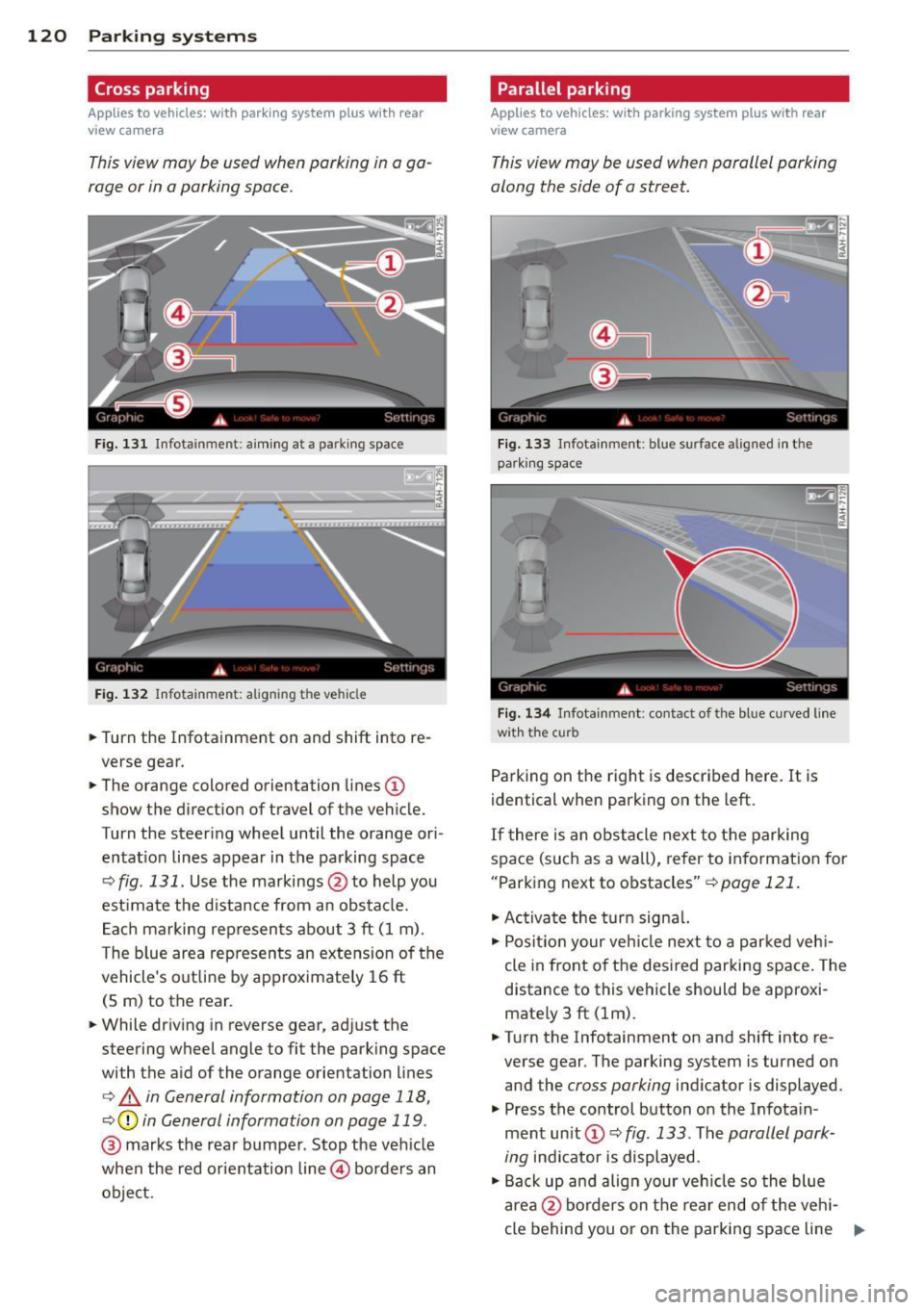
F ig. 131 Infotainment: aim ing at a parking space
Fig. 132 Infotainment : aligning the ve hicle
... Turn the Infotainment on and shift into re
verse gear.
... The orange colored orientation lines
(D
show the direction of travel of the vehicle.
Turn the steering wheel until the orange ori
entat ion lines appear in the parking space
¢ fig. 131 . Use the markings @to help you
est imate the distance from an obstacle.
Each marking represents about 3 ft (1 m).
The blue area represents an extens ion of the
vehicle's out line by approximately 16 ft
(5 m) to the rear.
... While driving in reverse gear, adjust the
steering wheel angle to fit the parking space
with the aid of the orange orientation lines
¢ & in General information on page 118,
¢ @ in General information on page 119 .
@ marks the rear bumper . Stop the veh icle
when the red orientation line@ borders an
object.
Parallel parking
Applies to vehicles : wit h parking system pl us with rear
v iew camera
This view may be used when parallel parking
along the side of a street.
Fig . 13 3 Infotainment : blue surface aligned in the
park ing space
Fig. 134 Infotainme nt: contact of the blue curved lin e
w ith the curb
Parking on the right is described here. It is
identical when parking on the left.
If there is an obstacle next to the parking
space (such as a wall), refer to information for
"Parking next to obstacles"
¢pa ge 121.
"'Activate the turn signal.
"'P osit ion your veh icle next to a parked vehi
cle in front of the desired parking space. The
distance to this vehicle should be approxi
mate ly 3 ft (lm) .
... Turn the Infotainment on and shift into re
verse gear . The parking system is turned on
and the
cross parking indicator is displayed.
.,. Press the control button on the Infota in
ment unit (!) ¢
fig. 133. The parallel park
ing
indicator is displayed.
"' Back up and align your vehicle so the blue
area @borders on the rear end of the vehi-
cle behind you or on the parking space line ..,.