warning AUDI S8 2009 Owners Manual
[x] Cancel search | Manufacturer: AUDI, Model Year: 2009, Model line: S8, Model: AUDI S8 2009Pages: 408, PDF Size: 91.63 MB
Page 177 of 408
Advanced Parking Syst em -
---------------=--=--
The image in the visua l display can be switched off on the MMI
display ::::> page
185. The acoustic distance warning remains active.
If you press a function button on the MMI termina l, the visual
display disappears . Manually switching the parking assist on again
via the
p ,y 1 switch shows the visual image on the MM I display aga in.
Further information regarding the MMI terminal is included in the
MMI user's manual.
R ear-view camera (rear view )
The rear-view camera picture::::> page 178, fig. 200 appears on the
MM I display as a mirror image. The rear -view camera picture has
orientation lines and marked s urfaces projected into it as an aid to
the parking process ::::> page
176. The red line in the picture
::::> pag e
176, fig. 196 or ::::, page 176, fig. 197 indicates th e collis ion
area . You shou ld stop backing up, preferably before you reach this
point ::::>
&.
If your vehicle is close to an obstacle, the visual distance display
a lso appears in the picture from the rear -view camera . This superim
posed display is intended to help d isplay the relevan t critica l vehicle
area.
I f the visual d isplay is shown on the MMI display and you press the
control button with the Rear view function::::> page
173, fig. 195, the
pictu re from the rear -v iew came ra is displayed.
If the picture from the rear -view camera is s hown a nd you press the
control button w ith the Graphic function ::::, page
178, fig. 200, the
visual display is shown.
T he picture from the rear -view camera can be switched off on the
M MI display ::::, page
185 . The acoustic distance warn ing re mains
active.
I f you press a function button on the MMI te rmina l, the rear-view
camera p icture disappea rs. The rear -v iew came ra picture reappears
the next time you park. But the picture from the rear -view camera
can also be shown aga in on the MM I display by ma nually sw itch ing
off and on with the
P •1A switch . Further information regarding the
MMI terminal is i ncluded in the MM I user's ma nual.
Controls and equip
ment
& WARNING
• Sensor s have dead spaces in which obje cts cannot be
detected. Be e spe cially careful to check for small children and
an imals before ba cking up . Small children and animals will not
always be detected by the sensors.
• The Audi parking system is not a substitute for being careful
and alert when backing up. Be e spe cially careful during parking
and similar maneuvers . Always watch where you are dri ving and
make sure that nothing is in the way.
• Remember that low ob sta cles which have already been
s ignaled may pass below the system' s sen sing zone when the
v ehi cle is ba cking up . The fa ct that the signal stops doe s not mean
that you have cleared the obstacle . When the signal stops , impact
is imminent . Obje cts su ch as trailer hit che s, chain s, narrow posts
or fences covered by a thin l ayer of paint may not always be
detected by the sy stem. They can still damage your vehicle
without warning .
• Alway s make sure that the volume and frequency of the chime s
is adjusted so that you can eas ily hear the acoustic distance signal
even if the radio is playing , the air -conditioner blower is on High or
there is a high level of out side noise .
- Check the setting s whenever someone else has dri ven the
vehicle before you.
• Improper relian ce on the Aud i parking sy stem can cau se colli
sions and serious per sonal injury .
- Never rely only on parking assi st when ba cking up .
- Always check rear view mirrors to make sure it is safe to back
up .
[ i ] Tips
• The rear -view camera picture is available as soon as the MMI
Disp lay or the MMI is swi tch ed o n, or the start -up phase is
completed.
I • •
Page 179 of 408
__________________________________________ A_ d_v _a_ n ___ c...;.e ...;.d _ P_a_ r_ k_ i_n ..::g :::..- S~y~ s::.. t::.. e::.. m:..:...:.._...J_
& WARNING
• The rear -view camera has blind spots , in whi ch objects cannot
be detected . Be especially careful to check for small children and
animals before ba cking up . S mall children and animals will not
always be detected by the sensors .
• The Audi pa rking system is not a substitute for being careful
and alert when backing up. Be especially careful during parking
and similar maneuvers . Always watch where you are driving and
make sure that nothing is in the way.
• Remember that low obstacles which have already been
signaled may pass below the system's sensing zone when the
vehicle is backing up . The fact that the signal stops does not mean
that you have cleared the obstacle . When the signal stops , impact
is imminent . Objects such as trailer hitches , chains , narrow posts
or fences covered by a thin layer of paint may not always be
detected by the system. They can still damage your vehicle
without warning .
• Always make sure that the volume and frequency of the chimes
is adjusted so that you can easily hear the acoustic distance signal
even if the radio is playing , the air -conditioner blower is on High or
there is a high level of outs ide noise .
- Check the settings whenever someone else has driven the
vehicle before you.
• Improper reliance on the Audi parking system can cause colli
sions and serious personal injury .
- Never rely only on parking assist when changing backing up .
- Always check rear view mirrors to make sure it is safe to back
up .
[ i ) Tips
• B efore park ing with the rear -vi ew ca mera , the Adaptive Air
S uspe nsi on s tand ard or automatic m ode mus t be switc h ed on
=>
pa ge 21 .
Con tro ls and eq uip
ment • T
he rear -view camera picture is avai lable as soon as the MMI
Di spl ay or the M MI is swi tch ed on, or the sta rt-up p hase is
completed.
• In order for th e rear-view ca mera to func tion pr operly, the
camera lens=>
page 173, fig . 193 must be k ept clean, and free of
sno w an d ice . Please follo w t he ad dit io nal no tes on=>
pag e 186.
• T he came ra cove rag e angle chang es when the trunk lid is op en.
There fore , th e rear-vi ew came ra picture is dis play ed wit hout o rien
ta tion lines and withou t blue surfaces .
• O bserve a nd follow th e notes o n to wi ng m ode on =>
page 183 . •
A pplie s to veh ic les : w it h Adva nce d Park in g Sy ste m w it h re ar view c amera
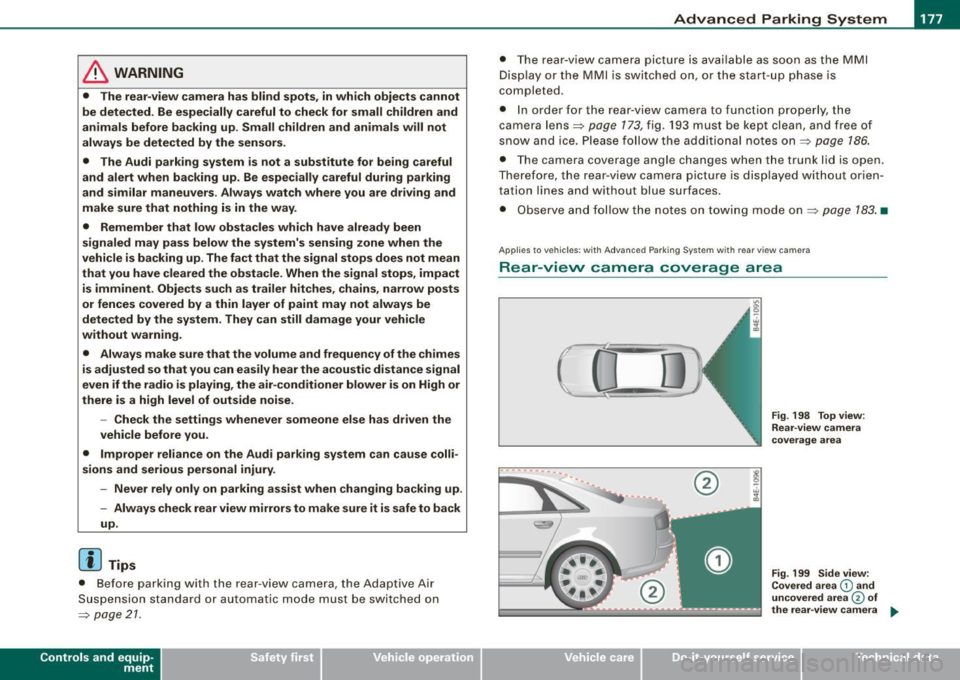
Rear -view camera coverage area
0
-- ·---.... __ --
Vehicle care I I
®
Fig . 198 Top view :
Re ar-v iew came ra
coverage area
Fig . 199 Side view:
Covered area
G) and
uncovered a rea
© of
the rea r-view camera ...
irechnical data
Page 180 of 408

• ..__A_ d_v _ a_ n_c _e _ d_ P_ a_r _k _in ---== g'-- S...:y _ s_ t_ e_ m ___________________________________________ _
The rear-view camera section appearing in the MMI Display is
approximately the same as the coverage area represented in
~ page 177, fig. 198 or G) in ~ page 177, fig. 199. Objects located in
the rear -view camera's uncovered area
0 ~ page 177, fig. 199 or in
the close vicinity of the bumper are not recognized .
& WARNING
Please note that objects not touching the ground can appear to be
further away than they really are (for example, the bumper of a
parked vehicle, a trailer hitch, or the rear of a truck) . In this case,
you should not use the guide help lines to measure distance -
danger of accident! •
Applies to vehicles : with Advanced Parking Sys tem w it h rear view c ame ra
Parking mod e 1
"Parking mode 1" can aid when parking in a garage or
parking space, for example.
Fig. 200 MMI Display:
Aiming at the parking
spot by adjusting the
steering wheel angle Fig
. 201 MMI Display:
Orienting the vehicle
with aid of the blue
surface
- Before parking, switch on the Adaptive Air Suspension
=>
page 21 standard or automatic mode.
- Activate the Audi parking system=>
page 173. "Parking
mode 1" => fig. 200 is displayed by default. Dynamic
orange orientation lines
0 and a blue static surface G)
are projected into the rear-view camera picture.
- With the vehicle stationary, select the proper steering
wheel angle for the parking spot with the aid of the
orange orientation lines.
- While driving in reverse gear, adjust the steering wheel
angle to fit the parking space with the aid of the orange
orientation lines=>
0.
-Align your vehicle corresponding to the blue surface. The
blue surface should be parallel to the parking spot lines
=:> fig. 201.
G) Blue surface
The surface behind the vehicle, identified by various shades of blue,
represents an extension of the outer vehicle outline by approxi
mately 16 ft (5 m) to the rear. The transitions of the blue surfaces are
distanced approximately 3 ft (1 m), 6
ft (2 ml, and 16 ft (5 ml away
from the vehicle. .,
Page 181 of 408
_________________________________________ ...:A...:.= d:..:v :..:a:..: n:...:..:: c.::e :.:d :....:.. P:..:a:..: r...: k:..: i.::n:.::g :!...::S:.Jy~ s:::. t:.: e::.: m:..:.:._..JIIIIII
@ and 0 O ra ng e o rientati on line s
The orientation lines cha nge direction with the steering wheel
angle. These lines identify the direction of travel the rear of the
veh icle would be taking, d riving in reverse gear with t he current
steering whee l ang le.
T he dynamic orientation lines are provided with markers @. T hese
markers are each placed at a distance of app rox. 3 ft (1 ml from o ne
another. Through thes e markers, the distance to an obstacle can be
es timated .
©Redli ne
The distance between your rear bumper © and the red l ine is
approximately 16 inch es (40 cm)~& . Here, at the latest, you
should stop backing up~
page 182 .
© Rear bump er
The rear bumper of your vehicle also appears in the MMI Display, for
bett er orientation .
& WARNING
Please note that obje cts not touching the ground can appear to be
further away than they re ally are (for example , the bumper of a
parked vehicle , a trailer hitch , or the re ar of a truck ). In th is case ,
you should not use the guide help line s to mea sure distance -
danger of accident!
0 Note
I n the MMI Display, the direction of trav el of the vehicle rear is
shown depending on the steering wheel a ngle . The vehicle front
swings ou t more than the vehicle rear .
Contro ls and eq uip
ment
[ i ] Tips
• I n order for the rear -view camera to function properly, the
camera lens~
page 173, fig. 193 must be kept clean, and free of
snow and ice . Please follow the additional no tes on ~
page 186.
• The positions of the orientation lines / surfaces are disp laced up
or down if the parking process is car ried out with the rea r-view
camera in Adap tive Air Suspension ~
page 21 dynamic or lift mode .
Therefore , the accuracy is reduced. •
Applies to vehi cles : w ith Adva nce d Pa rki ng S yste m with rear view c amera
Parking mode 2
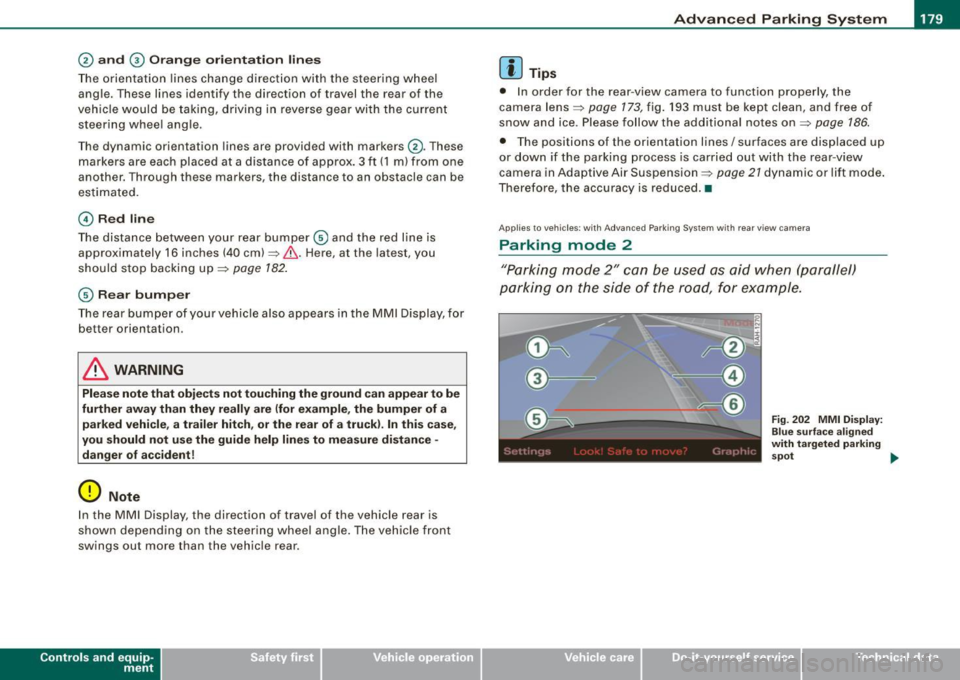
"P ar king m ode 2" ca n be u sed as aid when (pa rallel)
parki ng on the side of the r oad, for e xample.
Vehicle care I I
Fig . 2 02 MMI Di splay:
Blue surfa ce a ligned
with t argeted par king
s p ot ...
irechnical data
Page 182 of 408
• ..__A_ d_v _ a_ n_c _e _ d_ P_ a_r _k _in ---== g'-- S...:y _ s_ t_ e_ m ___________________________________________ _
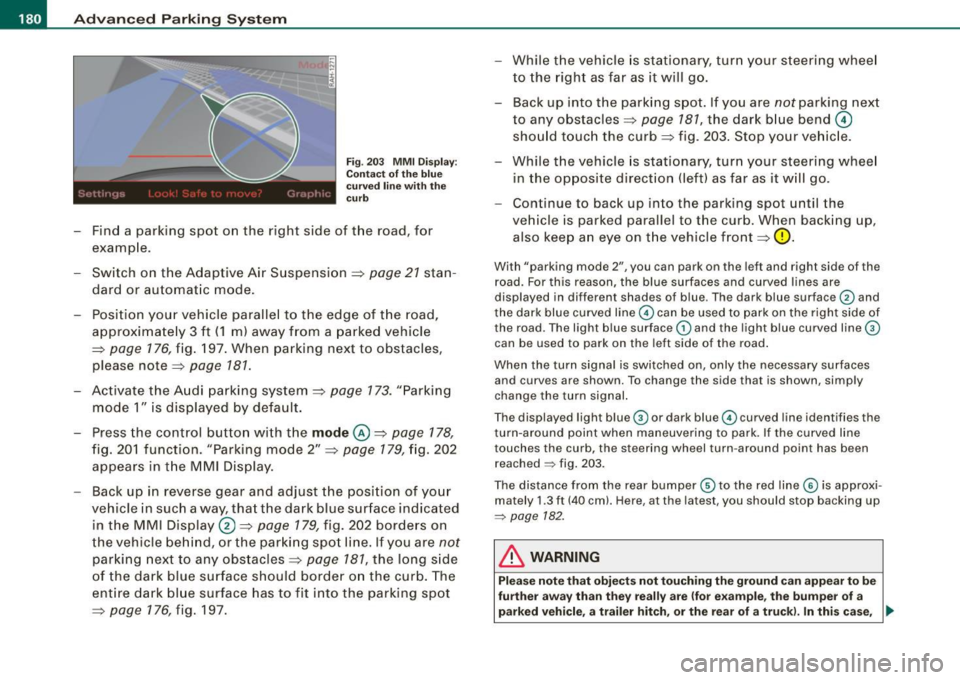
Fig. 203 MM I D isp lay:
Co ntac t of th e bl ue
c ur ved line with th e
c ur b
- Find a park ing spot on the right side of the road, for
examp le .
- Sw itch on the Adaptive Air Suspension=>
page 21 stan
dard or automat ic mode.
- Position your vehicle paralle l to the edge of t he road,
approximate ly 3 ft ( 1 m) away from a parked vehicle
=>
page 176 , fig. 197 . When parking next to obstacles ,
please note=:,
page 181.
-Activate the A udi p arking system => page 173. "Parking
mode 1" is displayed by default .
- Press the control butto n with t he
mode @=> pag e 178,
fig. 20 1 f uncti on. "Park ing mode 2" => page 179, fig. 202
appears in t he M M I Dis pla y.
- Back up in reverse gear and adjust the posi tion of your
vehicle in such a way, tha t the dark blue sur face indicated
in the MMI Display®=>
page 179, fig. 202 borde rs on
t he veh icle be hin d, o r the park ing spo t lin e. If you are
not
par king nex t to any obs tacles => page 781, the long s ide
of the dark blue surface shoul d border o n the curb. The
ent ire dark bl ue surface has to fit into the parking spot
=>
page 176 , fig. 197. While the vehicle
is stat io nary, tur n yo ur s teering whee l
to the righ t as far as it will g o.
- Back up into the parki ng spot. If you are
not parking next
to any obstacles =>
page 787, the dark b lue bend 0
sho uld touc h the curb => fig. 203 . Sto p your ve hic le.
- Wh ile t he vehicle is stationa ry, tur n your steering whee l
in the opposite direction (left) as far as it w ill go .
- Continue to bac k up into the parking spot until the
vehicle is parked parallel to the curb. When backing up,
also keep a n eye on t he vehicle front=>
0-
With "parking mode 2", you can park on the le ft and right sid e of the
road. For this reason, the blue surfaces and curved l ines are
displayed in differen t shades of blue . The dark blue surface
G) and
the dark blue curved line
G) can be used to park on the right side of
the road. The light b lue surface
G) and the light blue curved line®
can be used to park on the left side of the road .
When the turn signal is switched on, only the necessary surfaces and curves are shown. To change the side that is shown, simply
change the turn signal.
The displayed light blue ® or dark blue© curved line identifies the
turn -around point when maneuvering to park. If the curved lin e
touches the curb , the steering wheel turn -around point has been
reached
~ fig . 203.
The distance from the rear bumper ® to the red line © is approxi
mately 1.3 ft (40 cm). Here, at the latest, you should stop backing up
~ page 182.
& WARNING
Pl ea se note that obje cts not touching the ground can appea r to b e
fu rther awa y than the y re ally are (for e xample , the bumper of a
parked vehicl e, a trailer hitch, or the rear of a tru ck). In thi s cas e, •
Page 183 of 408
____________________________________________ A_d_ v_ a_n_ c_ e_d _ P_a_ r_ k_ i_ n ..::g==-- S_ y=- s_t _e _m __ ffllll
& WA RNIN G (continu ed )
you should not u se the guide help line s to mea sur e dist ance -
danger of accid ent !
0 Note
In the MMI Display, the direct ion of travel of the vehicle rear is repre
sented depending on the steering wheel angle. The vehic le front
swings out more than the vehic le rear.
[ i ] Tips
• I n order for the rear -view camera to function properly, the
camera lens=>
page 173, fig. 193 must be kept clean, and free of
snow and ice . P lease follow the additional notes on=>
page 186 .
• The positions of the orientation lines/ surfaces are disp laced up
or down if the parking process is carried ou t with the rear -view
camera in Adaptive Air Suspension=>
page 21 dynamic or lift mode .
Therefore, the accuracy is reduced .•
Controls and equip
ment
Special parking situations
Ap plies to vehicles: with Advance d Pa rk ing Sys tem w ith rear view came ra
Parking next to obstacles
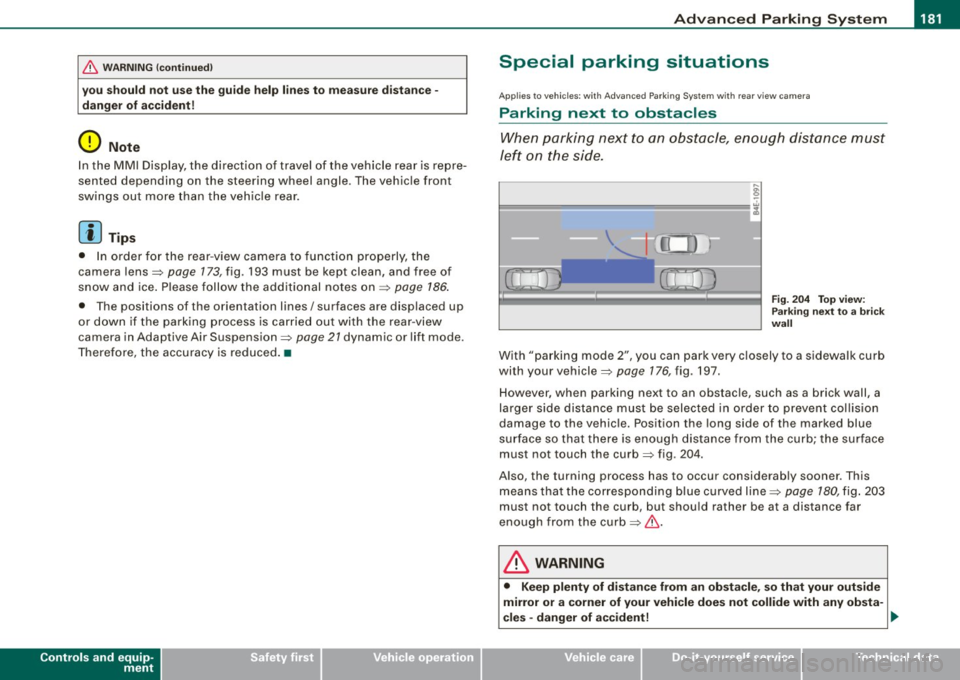
When parking next to an obstacle, enough distance must
left on the side.
Fig. 2 04 To p view:
P ark in g next t o a brick
w all
With "parking mode 2", you can park very c losely to a sidewalk curb
with your vehicle=>
page 176, fig. 197.
However, when parking next to an obstacle, such as a brick wall, a
larger side distance must be selected in o rder to prevent collision
damage to the vehicle. Position the long side of the marked blue
s u rface so that there is enoug h distance from the curb; the surface
must not touch the curb=> fig.
204.
Also, the turning process has to occur considerab ly sooner . This
means that the corresponding blue curved line=>
page 180, fig. 203
must not touch the curb, but shou ld rather be at a distance far
enough from the curb=>& .
& WARNING
• Keep plenty of di sta nce from an ob stacle , so that your out side
mirror or a corner of your vehi cle does not collide with any ob sta-
cle s -danger of a ccident!
~
I • •
Page 184 of 408
• ..__A_ d_v _ a_ n_c _e _ d_ P_ a_r _k _in ---== g'-- S...:y _ s_ t_ e_ m ___________________________________________ _
& WARNING (continued )
• The Audi parking system is not a substitute for being careful
and alert when backing up. Be especially careful during parking
and similar maneuvers . Always watch where you are driving and
make sure that nothing is in the way.
• When maneuvering or parking, do not only use the MMI Display
for orientation . Certain objects • depending on the screen resolu
tion -may not , or not entirely , be displayed ; for example trailer
hitches , chains , narrow posts , or fence s.
• Improper reliance on the Audi parking system can cause colli
sions and serious personal injury.
- Never rely only on parking assist when changing backing up .
- Always check rear view mirrors to make sure it is safe to ba ck
up. •
Applies to veh icles : wit h Ad vanced Pa rk ing System w ith rea r view c ame ra
Notes on distance information
Fig . 205 MMI Displ ay:
di splayed red l ine
touche s the bumpe r F
ig . 206 Actu al
distan ce from bumpe r
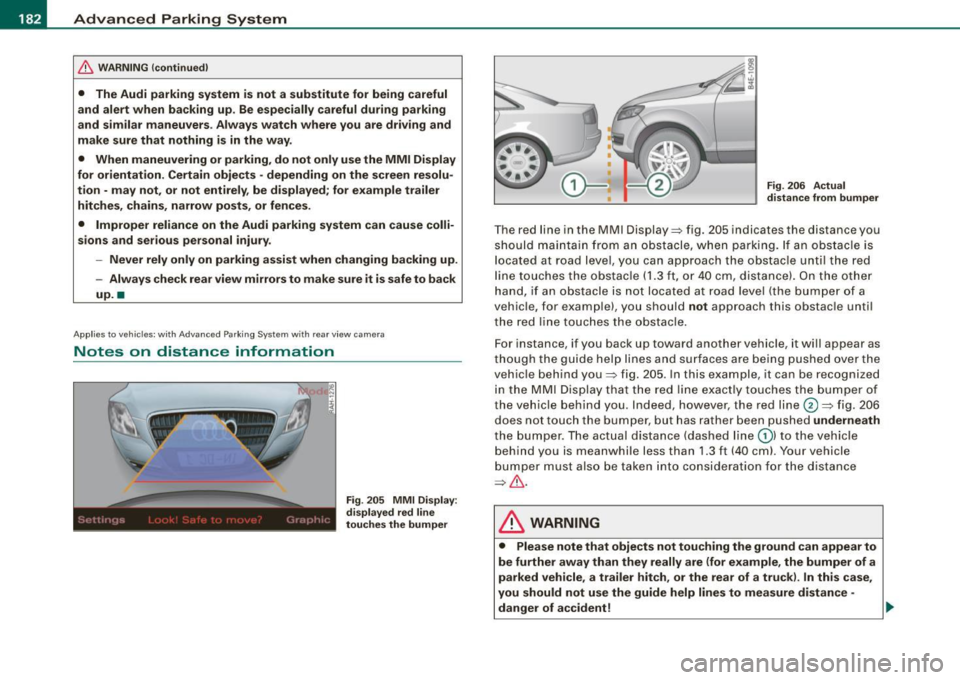
The red line in the MMI Display~ fig. 205 indicates the distance you
should maintain from an obstacle, when parking. If an obs tac le is
l ocated at road l eve l, you can approach the obstacle unti l the red
l ine to uche s the obstac le ( 1.3
ft, or 4 0 cm , distance). On the o the r
h a n d, if an obstacle is no t locat ed a t road level (the bu mpe r of a
vehic le, for examp le), you should not approach this obstac le unti l
t h e red line touc hes the obstacle.
F or instance, if you back u p toward another vehicle, it will a ppear as
thou gh the gui de help line s and s urface s are be ing pushed over the
vehic le behind you~ fig. 205 . In this example, it can be reco gnized
in the M MI Display that t he re d l in e exac tly touc hes the bum per o f
th e ve hicle behind you . Ind eed, however, the red line@~ fig. 206
does not touch the bumper, b ut has rather been pushed underneath
t h e b umpe r. T h e actual d istance (dashed line G) l to the vehicle
behind you is meanwhile less than 1.3 ft ( 40 cm). Your vehicle
bu mper must als o be taken into co nsiderat ion for the d istance
~&. .
& WARNING
• Please note that objects not touch ing the ground can appear to
be further away than they really are (for example , the bumper of a
parked vehicle , a trailer hitch, or the rear of a truck) . In this case ,
you should not use the guide help lines to measure distance -
danger of accident ! .,_
Page 185 of 408
____________________________________________ A_d_ v_ a_n_ c_ e_d _ P_a_ r_ k_ i_ n ..::g==-- S_ y=- s_t _e _m __ lllll
& WARNING (continued)
• Maintain plenty of distance from an obstacle, so that your
outside mirror or a corner of your vehicle does not collide with any
obstacles -danger of accident!
• The Audi parking system is not a substitute for being careful
and alert when backing up. Be especially careful during parking
and similar maneuvers. Always watch where you are driving and
make sure that nothing is in the way.
• When maneuvering or parking , do not only use the MMI Display
for orientation. Certain objects -depending on the screen resolu
tion -may not, or not entirely, be displayed; for example trailer
hitches , chains, narrow posts, or fences . •
Appl ies to vehicles: with Advanced Park ing System with rear view came ra a nd a trailer hitch
i nsta lle d acco rding to fac tory s pecif ications
Towing hitch
For vehicles with a trailer hitch installed according to factory speci
fications, the rear acoustic parking sensors are not activated when
the vehicle is put in reverse gear while an electrical connection to
the trailer socket* is established. No distance alert occurs in the rear
~ page 173. The rear-view camera picture~ page 176 is displayed
wi thou t orienta tion lines and without blu e surfaces .•
Controls and equip
ment
Settings in the MMI
A pplies to v ehicles: with Advanc ed Park ing System w ith rear view camera
Adjusting the chimes -option 1
The volume and the pitch (frequency) of the chimes can
be adjusted in the MM/.
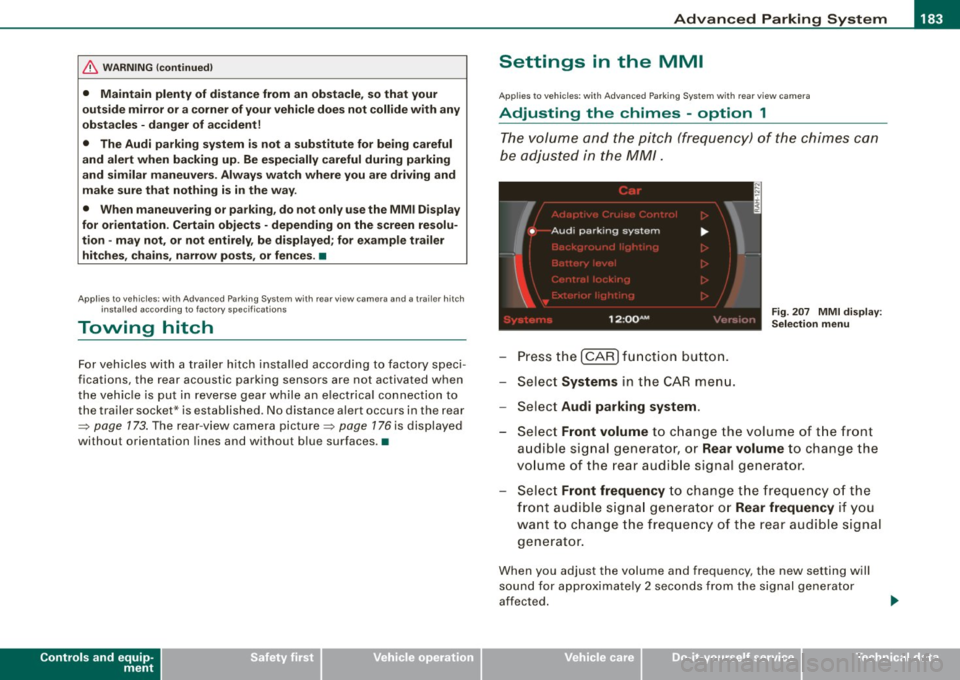
Press the [CAR] function button.
Select
Systems in the CAR menu.
- Select
Audi parking system .
Fig. 207 MMI display :
Selection menu
- Select Front volume to change the volume of the front
audible signal generator, or
Rear volume to change the
volume of the rear audible signal generator.
Select
Front frequency to change the frequency of the
front audible signal generator or
Rear frequency if you
want to change the frequency of the rear audible signal
generator.
When you adjust the volume and frequency, the new setting will
sound for approximately 2 seconds from the signal generator
affected.
I • •
Page 186 of 408
• ..__A_ d_v _ a_ n_c _e _ d_ P_ a_r _k _in ---== g'-- S...:y _ s_ t_ e_ m ___________________________________________ _
The volume and frequency settings are automatically stored and
assigned to the remote master key.
& WARNING
Always make sure that the volume and frequency of the chimes is
adjusted so that you can easily hear the acoustic distance signal
even if the radio is playing, the air-conditioner blower is on High or
there is a high level of outside noise. Check the settings whenever
someone else has driven the vehicle before you. •
Applies to veh icles: with Advanced Parking System with rear view ca me ra
Adjusting the chimes -option 2
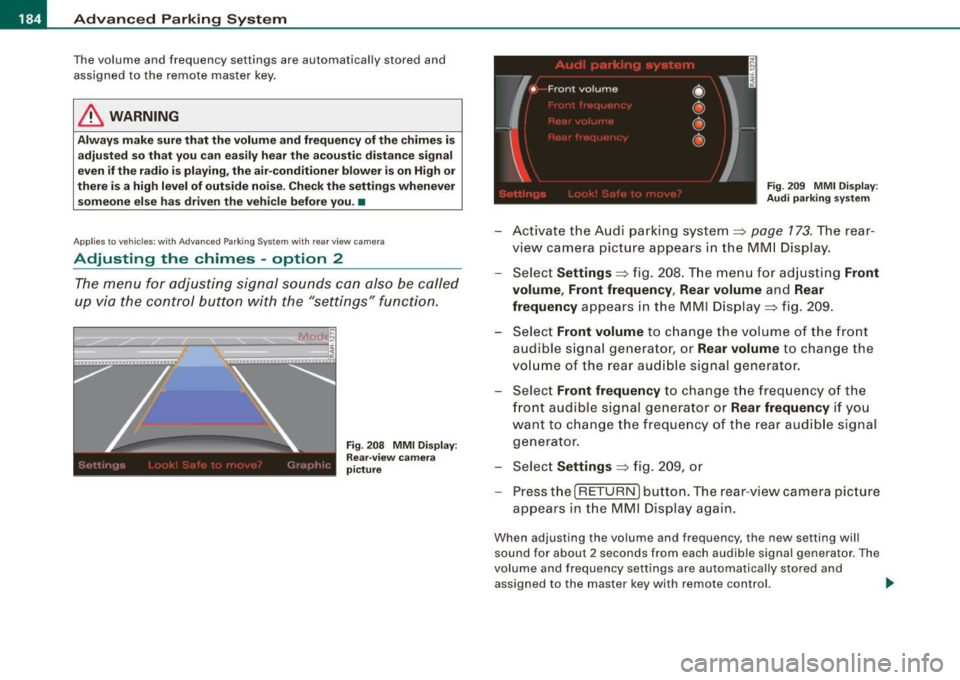
The menu for adjusting signal sounds can also be called
up via the control button with the "settings" function.
Fig . 208 MMI Display:
Rear-view camera
picture Fig
. 209 MMI Display:
Audi parking system
-Activate the Audi parking system:::::, page 173 . The rear
view camera picture appears in the MMI Display.
- Select
Settings :::::, fig. 208. The menu for adjusting Front
volume, Front frequency , Rear volume
and Rear
frequency
appears in the MMI Display:::::, fig. 209.
Select
Front volume to change the volume of the front
audible signal generator, or
Rear volume to change the
volume of the rear audible signal generator.
- Select
Front frequency to change the frequency of the
front audible signal generator or
Rear frequency if you
want to change the frequency of the rear audible signal
generator.
- Select
Settings :::::, fig. 209, or
- Pressthe[RETURN]button. The rear -view camera picture
appears in the MMI Display again.
When adjusting the volume and frequency, the new setting will
sound for about 2 seconds from each audible signal generator. The
volume and frequency settings are automatically stored and
assigned to the master key with remote control. _..
Page 187 of 408
___________________________________________ A_ d_ v_ a_n _ c_ e_ d_ P_a _ r_ k_ i_n -=g=-- S_ yc..,_ s_t _ e _m _ __.lftll
& WARNING
Alwa ys make sure that the volu me and frequen cy of the ch ime s is
adjusted so that y ou can ea sily he ar the a coustic di stance signal
eve n if the r adi o i s pl aying , the air -condit io ne r blo wer i s on High o r
there i s a high level of outside noi se . Check the settings when ever
s omeon e el se ha s dri ven th e vehi cle before you .•
A pp lies to vehicles: w ith Adva nce d Par kin g S ystem with rear view camera
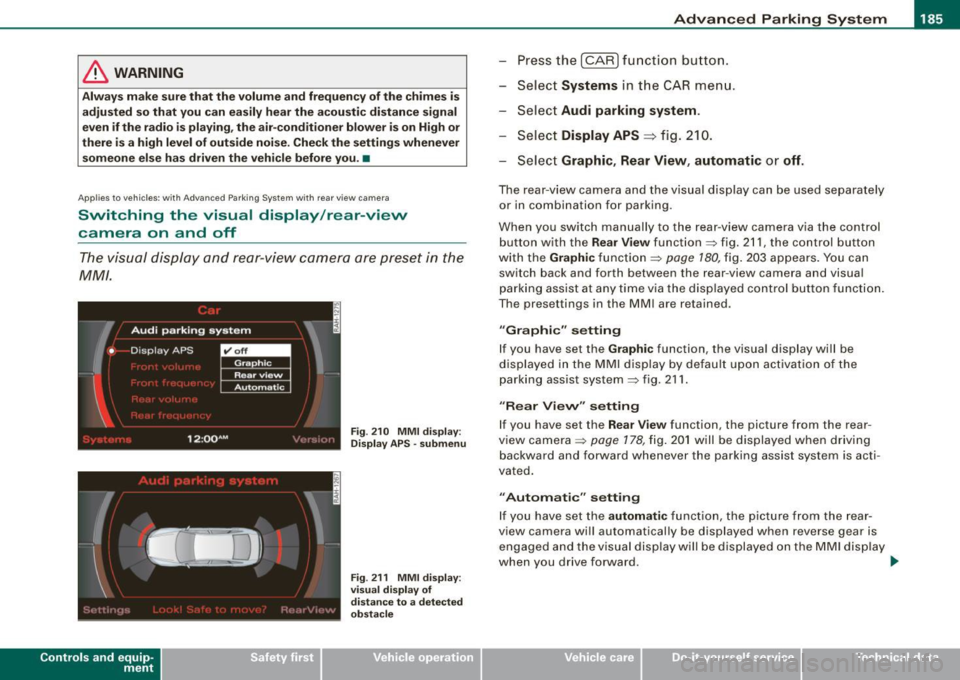
Switching the visual display /rear-view
camera on and off
The visual display and rear-view camera are preset in the
MM!.
Con tro ls and eq uip
ment
F ig . 2 10 MMI di splay:
Dis play A PS -su bmenu
Fig . 2 11 MMI di spl ay:
vi su al di splay o f
di sta nce to a detec te d
ob st ac le
Press the I CAR I fu nction b utton.
Selec t Systems in the
CAR menu.
Select Audi parking system .
Select Display APS
=> fig. 210 .
Select Graphic , Rear View , automati c or off.
The rear-view camera and the visual display can be used separately
or in combination for parking .
When you switch manually to the rear -view camera v ia the control
button with the
Re ar V ie w function => fig. 211, the control button
with the
Graphic function => page 180, fig. 203 appears . You can
switch back and forth between the rear-view camera and visua l
parking assist at any
time via the disp layed control button function .
The presettings in the MMI are retained .
"Graphic " setting
If you have set the Graphi c function, the visual display will be
displayed in the MMI display by defau lt upon activation of the
parking assis t system => fig . 211 .
"Rear Vi evv " s ett ing
If you have set the R ear View function , the picture from the rear
v iew camera =>
page 178, fig. 20 1 will be displayed when driving
backward and forward whenever the parking assist system is acti
vated.
" Autom atic" sett in g
If you have set the automat ic function, the picture fro m the rear
view camera will automatically be displayed when reverse gear is engaged and the visual disp lay will be displayed on the MM I display
when you drive forward . .,.
Vehicle care I I Technical data