warning AUDI TT 2021 Owner´s Manual
[x] Cancel search | Manufacturer: AUDI, Model Year: 2021, Model line: TT, Model: AUDI TT 2021Pages: 280, PDF Size: 99.18 MB
Page 147 of 280
8S1012721BE
Audi connect
If you logged in to myAudi in your vehicle
=> page 143, personalized newsfeeds can be dis-
played.
Access to Twitter
Requirement: you must have connected your ve-
hicle with myAudi > page 743. You must have
connected your myAudi account with Twitter.
You can only connect one Twitter account with
your myAudi account. Not all settings can be ad-
justed in the MMI. Some can only be adjusted
through the Twitter website.
> Select: Twitter > left control button > desired
function (for example, Trends).
A WARNING
Always follow the information found in > AV
in General information on page 141.
@) Note
Always follow the information found in >@ in
General information on page 141.
Additional options
Applies to: vehicles with Audi connect Infotainment
> Select: [MENU] button > Audi connect > right
control button.
Depending on the equipment and the country,
the following options may be available in the
overview of Audi connect Infotainment services:
About Audi connect
Here you will find legal information regarding
Audi connect Infotainment usage.
Log in
See > page 143.
Connection manager
See > page 190.
Subscriptions
The validity and expiration date of your licenses
are displayed.
Refresh
The content of the selected Audi connect Info-
tainment service or the entire Audi connect Info-
tainment list is updated.
Data privacy
See > page 257.
@) Note
Always follow the information found in >@ in
General information on page 141.
Settings
Cell phone network
> Select: [MENU] button > Audi connect > right
control button > Connection manager.
> Select: right control button > Online settings >
Data connection settings.
Depending on the country, vehicle equipment,
and connection type, the following functions may
be available:
Data connection settings
Using the Data connection settings menu, you
can set when the system should connect to the
Internet. The Internet connection disconnects au-
tomatically once the requested Audi connect In-
fotainment service no longer requires any data.
— Connection setup: you can select when a data
connection should be established.
— Audi connect (MMI): when this function is
switched on, a data connection is automatically
established in order to use Audi connect Info-
tainment services.
— Wi-Fi devices: when the function is switched
on, mobile devices can use the Internet connec-
tion through the Wi-Fi hotspot.
Connection settings
The connection is configured automatically based
on the SIM card being used. The following values
can be changed. You can obtain more information
from your cell phone service provider. >
145
Page 148 of 280
Audi connect
— APN: the access point depends on the cell
phone service provider and is assigned auto-
matically.
— User name: your cell phone service provider as-
signs the user name for your online profile.
— Password: your cell phone service provider as-
signs the password for your online profile.
ZA WARNING
Always follow the information found in > A\
in General information on page 141.
@) Note
Always follow the information found in >@ in
General information on page 141.
@® Tips
For more information on roaming charges,
contact your cell phone service provider.
Wi-Fi settings
Applies to: vehicles with Wi-Fi hotspot
Requirement: the ignition must be switched on.
> Select: [MENU] button > Telephone > right con-
trol button > Wi-Fi settings.
Depending on the country and the vehicle equip-
ment, the following functions may be available:
Wi-Fi
When the function is switched on, the MMI's Wi-
Fi hotspot is active and Wi-Fi devices can be con-
nected to the hotspot.
Network key
The Wi-Fi connection between the MMI and your
Wi-Fi device is encrypted. You can change the fol-
lowing information if needed.
Troubleshooting
Applies to: vehicles with Audi connect Infotainment
The information that follows lists some trouble-
shooting options. They depend on the equip-
ment.
146
— Access point (SSID): name of the Wi-Fi hot-
spot.
— Password: an initial password was set at the
factory in the MMI. Audi recommends changing
the initial password. Only use secure passwords
that conform to the general guidelines for se-
cure passwords. For more information, refer to
reputable and current sources on password se-
curity.
— Visible to others: you can switch the visibility
of the Wi-Fi hotspot on or off.
Network search
A list of available Wi-Fi networks in your area is
displayed.
Connection to personal hotspot
The MMI Wi-Fi hotspot is activated. An MMI Inter-
net connection to a personal Wi-Fi hotspot (such
as a smartphone) can be established. For addi-
tional information, see > page 142.
ZA\ WARNING
Always follow the information found in > A\
in General information on page 141.
C) Note
Always follow the information found in >@ in
General information on page 141.
G) Tips
In vehicles without Audi connect Infotain-
ment, the use of the Wi-Fi hotspot is only
possible for the Wi-Fi audio player*. A data
connection to the Internet cannot be estab-
lished.
Page 150 of 280

Navigation
Navigation
Opening navigation
Applies to: vehicles with navigation system
aay
Fig. 135 Instrument cluster: entering a destination
The navigation system directs you to your desti-
nation, around traffic incidents, and on alterna-
tive routes, if desired.
> Press the [NAV/MAP] button.
The Enter destination menu is displayed after
opening navigation.
The following information can be displayed:
@ Input field for free text search .... 149
@ Home address ................. 150
@® Last destinations ............... 149
@ Stored favorites ............... 150
Once you select an entry from the list (depending
on the vehicle equipment), the corresponding
destination will display as a map preview* ).
If you have connected a mobile device to the
MMI, your directory contacts will also be listed if
they have navigation data assigned to them.
The Favorites (4) menu item as well as the direc-
tory/contacts are only shown in the Enter desti-
nation menu if you have entered one or more
characters using the input field.
Switching between the destination entry and
the map
— Press the [NAV/MAP] button repeatedly until
the map is displayed, or
148
— Select: left control button > Switch to map.
ZA\ WARNING
— The demands of traffic require your full at-
tention. Always read the chapter
=> page 110, Traffic safety information.
— The route calculated by the navigation sys-
tem is a driving recommendation. Follow
the traffic regulations that are applicable in
the country where you are operating the ve-
hicle. In the event that the driving directions
contradict traffic regulations, always follow
the traffic regulations applicable in the
country where you are operating the vehicle
to reduce the risk of an accident.
(i) Tips
— You can find information about importing a
map update to your MMI using an SD card
at my.audi.com.
— Snow and obstructions on the GPS antenna
or interference caused by trees and large
buildings can impair satellite reception and
affect the system's ability to determine the
vehicle position. Several deactivated or mal-
functioning satellites can also interrupt GPS
reception and affect the system's ability to
determine the vehicle position.
Page 157 of 280

8S1012721BE
Navigation
Alternative routes
Applies to: vehicles with navigation system
Fig. 138 Infotainment system: display of alternative routes
Requirement: a destination must be entered and
the route guidance must be started.
> Press the [NAV/MAP] button repeatedly until
the Enter destination menu is displayed
=> page 148, fig. 135.
> Select: right control button > Navigation set-
tings > Show alternative routes.
Three routes are displayed in the overview map
after you enter a destination.
> Select and confirm the desired route that you
would like to use for route guidance.
If available, the following information will appear
on the route suggestions:
— Route type (fast (, fast alternative (2), eco-
nomic route @)
— Distance to the destination and the calculated
arrival time
— Traffic congestion along the route including
time delays
The route that was calculated according to the
route criteria you selected is shown on the over-
view map . The special properties of the route
will also be displayed (4).
Additional settings
Navigation settings
Applies to: vehicles with navigation system
> Press the [NAV/MAP] button repeatedly until
the Enter destination menu is displayed
=> page 148, fig. 135.
> Select: right control button > Navigation set-
tings.
Depending on the selected function, the follow-
ing settings can be selected:
Show alternative routes
Up to three route suggestions and their proper-
ties are displayed on the overview map when the
function is switched on [M page 155.
Low fuel warning
A message is displayed if the fuel gauge goes be-
low the reserve marking when this function is
switched on M. After confirming this message, a
list of gas stations in the area is displayed. When
a gas station is selected, route guidance from the
current vehicle position is calculated.
Notification when nearby*
The notification when nearby is switched off at
the factory.
The MMI notifies you when you are approaching
selected points of interest when this function is
switched on MW. You can also have a Notification
tone.
Presentation mode
The Presentation mode helps you to effectively
plan a trip and follow the planned route without
moving the vehicle. You can use Select starting
point when you would like to calculate a route
starting from a location other than the vehicle
position, for example. Start Presentation mode
to simulate route guidance.
ol etic]
Applies to: vehicles with navigation system
10] 16
> tak) ° (|
Fig. 139 Infotainment system: possible route criteria
[RAH-8472,
155
Page 163 of 280
8S1012721BE
Navigation
Accessing traffic information
CON Maelareeeleurl ela)
Applies to: vehicles with a navigation system and Audi connect Infotainment
Q. eae better route is available. —@
eek
Nogales St, Northbound
@ Northbound
em
@) Northbound
cory eins
oe
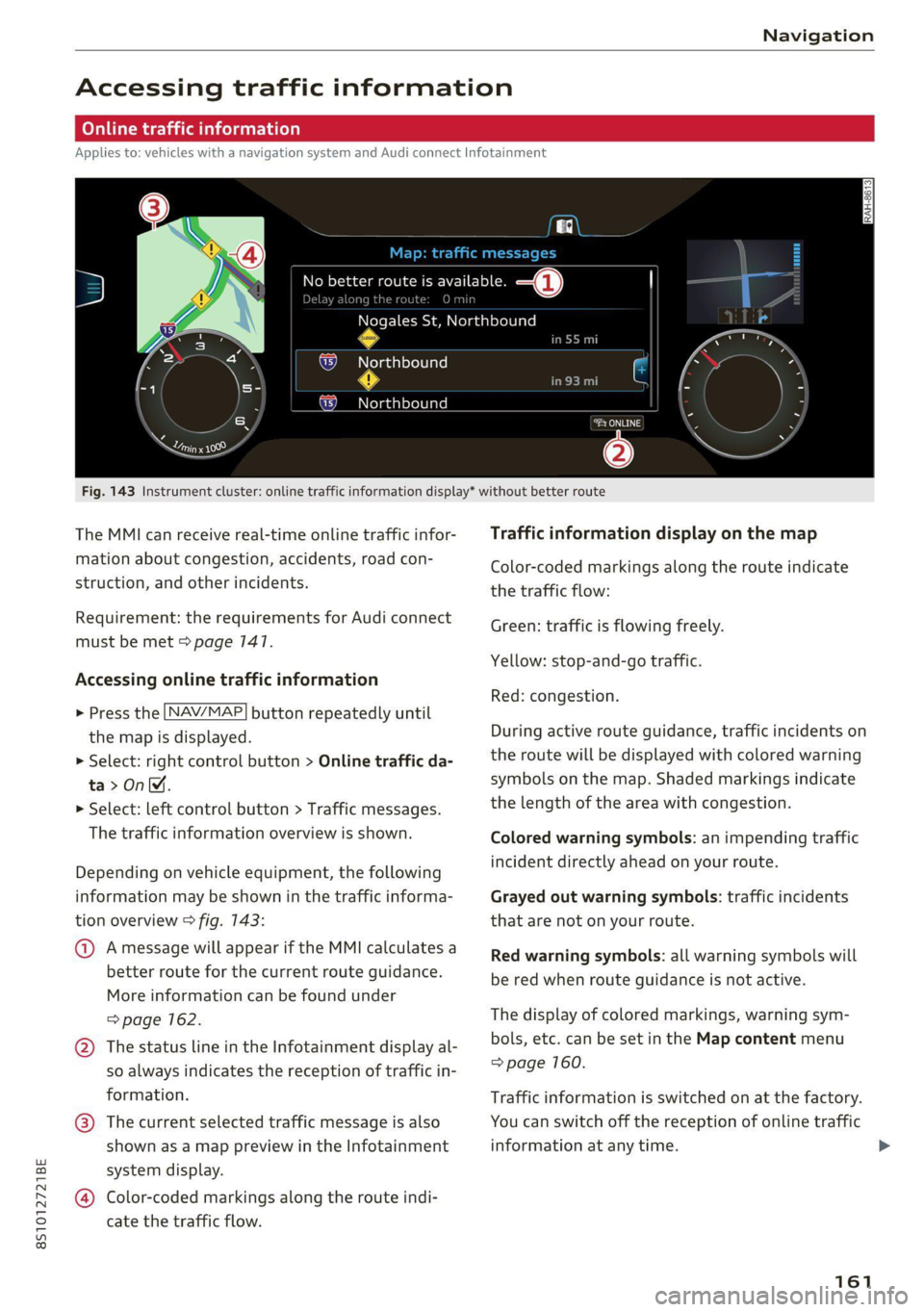
Fig. 143 Instrument cluster: online traffic information display* without better route
The MMI can receive real-time online traffic infor-
mation about congestion, accidents, road con-
struction, and other incidents.
Requirement: the requirements for Audi connect
must be met > page 147.
Accessing online traffic information
> Press the [NAV/MAP] button repeatedly until
the map is displayed.
> Select: right control button > Online traffic da-
ta>OnM.
> Select: left control button > Traffic messages.
The traffic information overview is shown.
Depending on vehicle equipment, the following
information may be shown in the traffic informa-
tion overview > fig. 143:
@ Amessage will appear if the MMI calculates a
better route for the current route guidance.
More information can be found under
=> page 162.
@ The status line in the Infotainment display al-
so always indicates the reception of traffic in-
formation.
@® The current selected traffic message is also
shown as a map preview in the Infotainment
system display.
@ Color-coded markings along the route indi-
cate the traffic flow.
Traffic information display on the map
Color-coded markings along the route indicate
the traffic flow:
Green: traffic is flowing freely.
Yellow: stop-and-go traffic.
Red: congestion.
During active route guidance, traffic incidents on
the route will be displayed with colored warning
symbols on the map. Shaded markings indicate
the length of the area with congestion.
Colored
warning symbols: an impending traffic
incident directly ahead on your route.
Grayed out warning symbols: traffic incidents
that are not on your route.
Red warning symbols: all warning symbols will
be red when route guidance is not active.
The display of colored markings, warning sym-
bols, etc. can be set in the Map content menu
=> page 160.
Traffic information is switched on at the factory.
You can switch off the reception of online traffic
information at any time.
161
Page 175 of 280
8S1012721BE
Media
device. The time allowed for entering the PIN is
limited to approximately 30 seconds.
The media is started and operated through the
mobile device or the MMI, depending on the de-
vice being used.
G) Tips
— Check for any connection requests on your
Bluetooth device.
— Multiple Bluetooth audio players can be
connected to the MMI, but only one mobile
device can be active.
— Bluetooth protocols AVRCP (1.0/1.3/1.4)
and A2DP are supported.
— Note the volume setting on your Bluetooth
device. Audi recommends setting your mo-
bile device to the maximum volume when
using it as a Bluetooth audio player.
— The supported media functions (such as
shuffle) depend on the Bluetooth device be-
ing used.
—Aselection of supported Bluetooth devices
can be found in the database for tested mo-
bile devices at www.audi.com/bluetooth.
Wi-Fi audio player
Applies to: vehicles with Wi-Fi audio player
Using the Wi-Fi audio player media source on the
MMI, you can connect and operate your Wi-Fi-ca-
pable media player (such as a smartphone) to
wirelessly play music from your media player Li-
brary. The media player is connected through the
vehicle's Wi-Fi hotspot. A UPnP Server app or an
integrated UPnP/DLNA server on your media
player is required to access your media player li-
brary.
Requirement: the Wi-Fi function on your media
player must be switched on. The myAudi app or a
UPnP server app is installed on your media player,
or your media player has an integrated UPnP/
DLNA server.
Connecting a media player
> Press the [MEDIA] button.
> Press the left control button until the sources
overview > page 177 is displayed.
> Select and confirm Wi-Fi audio player (7)
=> page 177, fig. 155.
> If necessary, select and confirm Wi-Fi turned
off > Turn on Wi-Fi to activate Wi-Fi in the
MMI.
> If necessary, select and confirm Wi-Fi settings.
> Select the same settings on the wireless media
player that are used for the Wi-Fi hotspot.
Starting the Wi-Fi audio player
> Start the myAudi app or an UPnP server app, or
allow media sharing on your device.
Operating a media player
The media player is operated through the MMI.
> Press the left control button repeatedly until
the Folders menu item appears.
> Select and confirm Folders.
Playing music from a media player
> Select and confirm Media center.
Internet radio: see > page 174.
ZA\ WARNING
—As the driver, do not allow usage of the Wi-
Fi hotspot to distract you from driving, as
this could increase the risk of an accident.
—To reduce the risk of an accident, only use
Audi connect services and the Wi-Fi hotspot
only if the traffic situation permits it. Read
and follow the guidelines provided in
=> page 710, Traffic safety information.
— It is only safe to use tablets, laptops, mobile
devices and other similar devices when the
vehicle is stationary because, like all loose
objects, they could be thrown around the in-
side of the vehicle in a crash and cause seri-
ous injuries. Store these types of devices se-
curely while driving. Also read the warnings
in the chapter > page 52.
@) Note
Always follow the information found in @ in
General information on page 141.
173
>
Page 177 of 280
8S1012721BE
Media
ZA WARNING
—To reduce the risk of an accident, only use
Audi connect services and the Wi-Fi hotspot
only if the traffic situation permits it. Read
and follow the guidelines provided in
=>
page 110, Traffic safety information.
— It is only safe to use tablets, laptops, mobile
devices and other similar devices when the
vehicle is stationary because, like all loose
objects, they could be thrown around the in-
side of the vehicle in a crash and cause seri-
ous injuries. Store these types of devices se-
curely while driving. Also read the warnings
in the chapter > page 52.
Multimedia connections
USB adapter for Audi music interface or
USB charging port
Applies to: vehicles with Audi music interface/USB charging
es
2
<
eg
[RAH-9203|
@) Note
Always follow the information found in >@® in
General information on page 141.
G) Tips
— Depending on the Internet connection and
network traffic, the connection may discon-
nected when online media sources are play-
ing.
— Online media and Internet radio usage de-
pends on the service availability of the third
party provider.
— Audi simply makes the access to online me-
dia services possible through the MMI and
does not take any responsibility for the con-
tent
of the online media services.
— Depending on the mobile device being used,
there may be interruptions during media
playback and when using the myAudi app.
To avoid interruptions when using a mobile
device, do not lock the screen on your mo-
bile device and keep the myAudi app in the
foreground.
— Contact an authorized Audi dealer or au-
thorized Audi Service Facility for additional
information about online media.
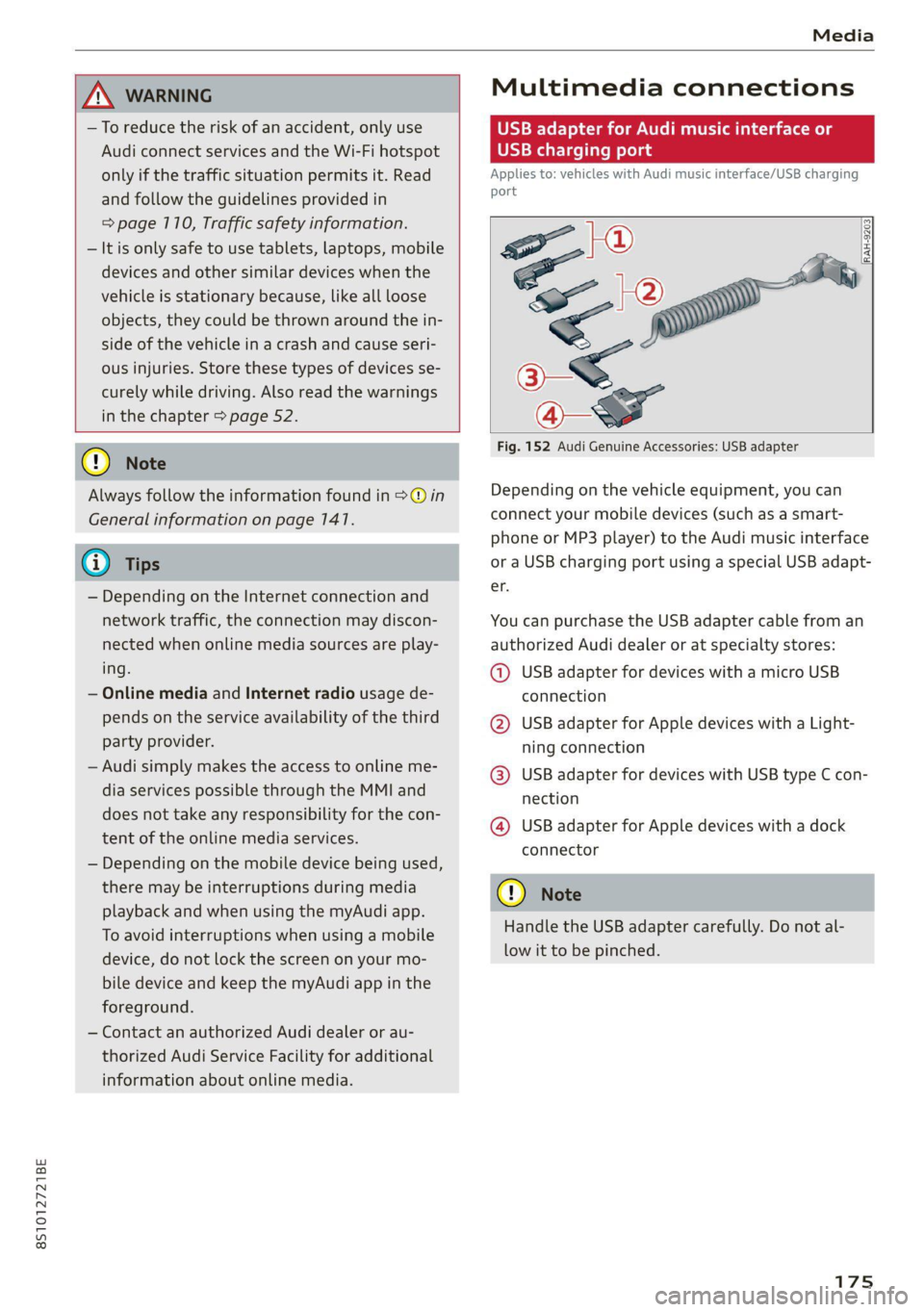
Fig. 152 Audi Genuine Accessories: USB adapter
Depending on the vehicle equipment, you can
connect your mobile devices (such as a smart-
phone or MP3 player) to the Audi music interface
or a USB charging port using a special USB adapt-
er.
You can purchase the USB adapter cable from an
authorized Audi dealer or at specialty stores:
@ USB adapter for devices with a micro USB
connection
@ USB adapter for Apple devices with a Light-
ning connection
@ USB adapter for devices with USB type C con-
nection
@ USB adapter for Apple devices with a dock
connector
C) Note
Handle the USB adapter carefully. Do not al-
low it to be pinched.
Page 178 of 280
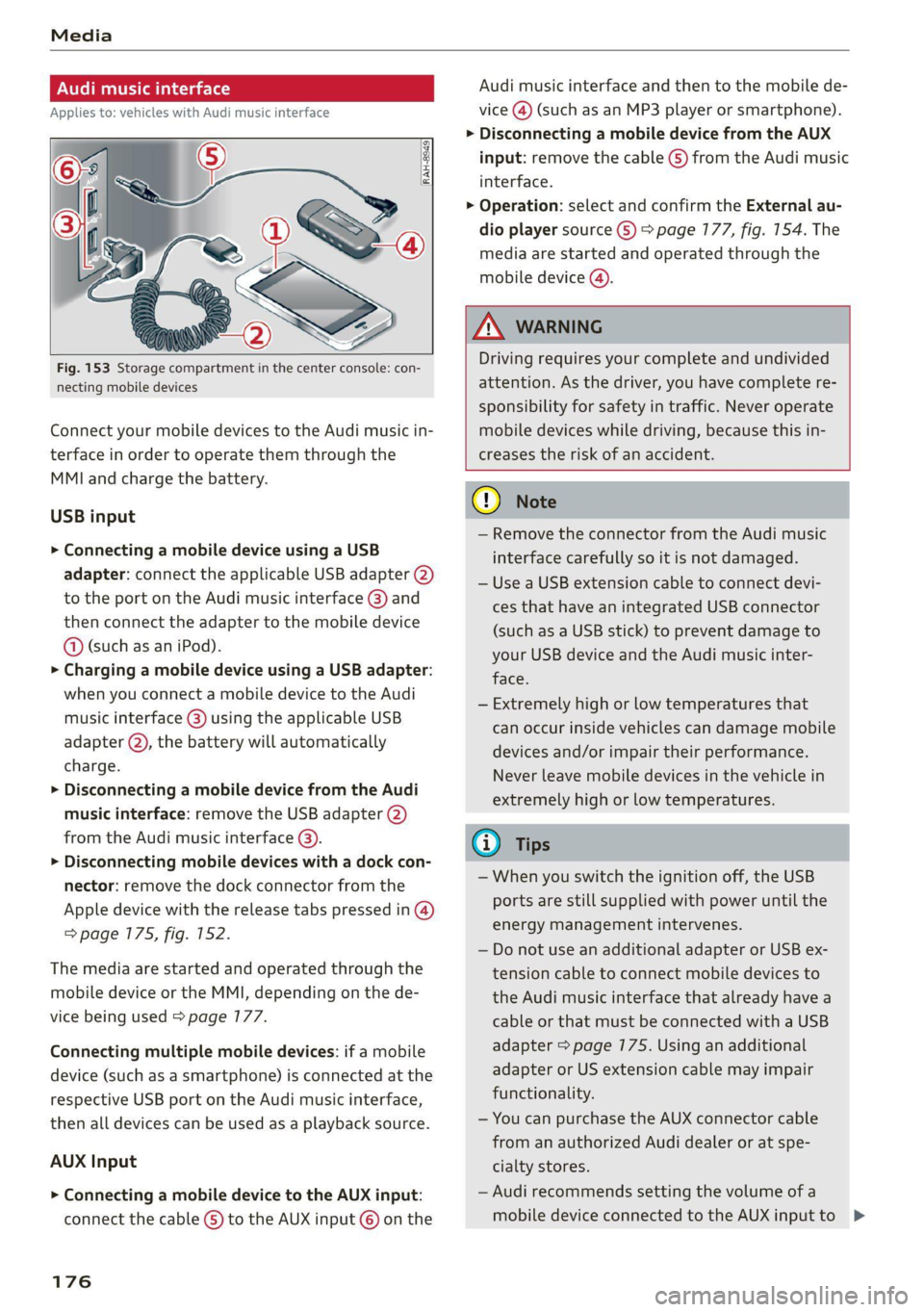
Fig. 153 Storage compartment in the center console: con-
necting mobile devices
Connect your mobile devices to the Audi music in-
terface in order to operate them through the
MMI and charge the battery.
USB input
> Connecting a mobile device using a USB
adapter: connect the applicable USB adapter (2)
to the port on the Audi music interface @) and
then connect the adapter to the mobile device
@ (such as an iPod).
> Charging a mobile device using a USB adapter:
when you connect a mobile device to the Audi
music interface (@) using the applicable USB
adapter @), the battery will automatically
charge.
> Disconnecting a mobile device from the Audi
music interface: remove the USB adapter @)
from the Audi music interface @).
> Disconnecting mobile devices with a dock con-
nector: remove the dock connector from the
Apple device with the release tabs pressed in @)
=> page 175, fig. 152.
The media are started and operated through the
mobile device or the MMI, depending on the de-
vice being used > page 177.
Connecting multiple mobile devices: if a mobile
device (such as a smartphone) is connected at the
respective USB port on the Audi music interface,
then all devices can be used as a playback source.
AUX Input
> Connecting a mobile device to the AUX input:
connect the cable G) to the AUX input © on the
176
Audi music interface and then to the mobile de-
vice
@) (such as an MP3 player or smartphone).
> Disconnecting a mobile device from the AUX
input: remove the cable (S) from the Audi music
interface.
> Operation: select and confirm the External au-
dio player source ©) > page 177, fig. 154. The
media are started and operated through the
mobile device ().
ZA WARNING
Driving requires your complete and undivided
attention. As the driver, you have complete re-
sponsibility for safety in traffic. Never operate
mobile devices while driving, because this in-
creases the risk of an accident.
@) Note
— Remove the connector from the Audi music
interface carefully so it is not damaged.
— Use a USB extension cable to connect devi-
ces that have an integrated USB connector
(such as a USB stick) to prevent damage to
your USB device and the Audi music inter-
face.
— Extremely high or low temperatures that
can occur inside vehicles can damage mobile
devices and/or impair their performance.
Never leave mobile devices in the vehicle in
extremely high or low temperatures.
@ Tips
— When you switch the ignition off, the USB
ports are still supplied with power until the
energy management intervenes.
— Do not use an additional adapter or USB ex-
tension cable to connect mobile devices to
the Audi music interface that already have a
cable or that must be connected with a USB
adapter > page 175. Using an additional
adapter or US extension cable may impair
functionality.
— You can purchase the AUX connector cable
from an authorized Audi dealer or at spe-
cialty stores.
— Audi recommends setting the volume of a
mobile device connected to the AUX input to >
Page 189 of 280
8S1012721BE
Audi smartphone interface
Audi smartphone
interface
Setup
Applies to: vehicles with Audi smartphone interface
You can connect your smartphone to the MMI us-
ing the Audi smartphone interface. Certain con-
tent on your smartphone is adapted to the Info-
tainment system display while driving and can be
operated through the MMI control panel.
Requirement: the vehicle must be stationary and
the ignition must be switched on. iPhone genera-
tion 6 or higher with Lightning connector and iOS
7.1.2 operating system or higher, or smartphone
with Android Auto app and Android 5.0 Lollipop
operating system or higher.
> Connect your smartphone to the Audi music in-
terface > page 776 using the applicable USB
adapter > page 175, fig. 152.
> Select and confirm Activate Apple CarPlay or
Activate Android Auto now.
> Follow the system instructions.
> Pay attention to any additional system prompts
on your smartphone, if applicable.
If you chose not to use Apple CarPlay or Android
Auto when connecting your smartphone for the
first time, you can start the Audi smartphone in-
terface later on using the Connection manager.
> Select: [MENU] button > Audi smartphone in-
terface > Change to connection manager.
> Connect your smartphone to the Audi music in-
terface > page 7176 using the applicable USB
adapter > page 175, fig. 152.
> Select and confirm Audi smartphone interface
in the Connection manager => page 790. You
can select your smartphone in the list of devi-
ces that are already paired > page 197.
> Follow the system instructions.
mobile devices while driving, because this in-
creases the risk of an accident.
ZA\ WARNING
Driving requires your complete and undivided
attention. As the driver, you have complete re-
sponsibility for safety in traffic. Never operate
In preparation at the time of printing.
() Note
Read the information about Audi connect, and
be sure to note the connectivity costs section
=> page 1417.
G) Tips
— The functions that can be used depend on
the following factors, among others:
—The brand of your smartphone
— The version of the operating system in
your smartphone
— The software version of the app used
— The USB adapter cable and correct connec-
tion
— Your cell phone service provider
— The customized settings on your smart-
phone
— One of the factors above or a combination
of any of them could cause your smart-
phone to be incompatible with the Audi
smartphone interface. Compatibility cannot
be guaranteed for all types of smartphones.
For more information and assistance, refer
to the user guide and the manufacturer of
your smartphone.
— If the connected smartphone has voice con-
trol, you can operate your smartphone using
the external voice recognition system*
=> page 127.
—The menu language shown in the MMI is
based on the settings in your smartphone.
— The time displayed in the MMI is based on
the settings in your smartphone.
— Some MMI functions are not available when
there is an active Audi smartphone interface
connection.
— You cannot connect any mobile devices via
Bluetooth when an Audi smartphone inter-
face connection is active.
— When the Apple CarPlay connection is ac-
tive, Tag this song for iTunes*”) is not avail-
able > page 165.
187
Page 195 of 280
8S1012721BE
System settings
on the software contained in the MMI and the
licensing agreement.
Sound settings
The sound distribution and volume of the MMI
can be adjusted individually. The settings depend
on the vehicle equipment.
> Select: [MENU] button > Sound > left control
button > Entertainment.
Treble/Bass
You can adjust the Treble and Bass settings by
turning the control knob. The changed settings
only apply for the audio source that is active at
the time. This allows you to adjust the sound set-
tings for each audio source separately.
Balance/fader (Sound focus)
— Adjusting the sound distribution to the left or
right: press the control knob. Turn the control
knob to the left or right to the desired position.
— Adjusting the sound distribution to the front
or rear: press the control knob again. Turn the
control knob to the left or right to the desired
position.
— Adjusting the sound distribution using the
MMI touch: move your finger on the MMI touch
control panel in the desired direction.
Sound effects
Select and confirm a Focus setting:
— All: all speakers in the vehicle are active (sym-
metrical sound distribution).
— Front: only the speakers in the front of the ve-
hicle are active.
Speed dependent volume control
Turn the control knob to adjust the playback vol-
ume to the noise inside the vehicle.
Volume settings
Adjusting the volume
The volume of an audio source or a system mes-
sage (for example, from the voice recognition
system*) can be adjusted directly while the sound
is playing using the On/Off knob.
> Increasing or decreasing the volume: turn the
On/Off knob (2) > page 170, fig. 175 to the
right or left.
> Muting or pausing: press the On/Off knob
briefly, or:
> Turn the On/Off knob to the left until the sym-
bol @ > page 779 appears. An active audio/
video source* is stopped.
> Unmuting or resuming: press the On/Off knob
briefly, or:
> Turn the On/Off knob to the right.
ZA\ WARNING
Adjust the volume of the audio system so that
signals from outside the vehicle, such as po-
lice and fire sirens, can be heard easily at all
times.
@ Tips
The volume is automatically adjusted to a pre-
set level when the MMI is switched on.
Adjusting the system volume
> Select: [MENU] button > Sound > left control
button.
Telephone
Applies to: vehicles with telephone
Mute telephone: messages and ringtones are set
to mute.
Ringtone: see > page 139, Ringtone and volume
settings.
Ringtone volume: you can adjust the volume of
the selected ringtone by turning the control
knob.
Message volume: you can adjust the volume of
the notification for an incoming text message by
turning the control knob.
Microphone input level: you can adjust the call
volume during a phone call by turning the control
knob.
Navigation
Applies to: vehicles with navigation system
Voice guidance: see > page 156.
193