warning AUDI TT 2021 Owner´s Manual
[x] Cancel search | Manufacturer: AUDI, Model Year: 2021, Model line: TT, Model: AUDI TT 2021Pages: 280, PDF Size: 99.18 MB
Page 112 of 280

Multi Media Interface
Multi Media Interface
Traffic safety
information
Audi recommends performing certain Infotain-
ment system functions, such as entering a desti-
nation, only when the vehicle is stationary. Al-
ways be prepared to stop operating the Infotain-
ment system in the interest of your safety and
the safety of other road users.
Z\ WARNING
Only use the Infotainment system when road,
traffic, weather, and visibility conditions per-
mit and always in a way that allows you to
maintain complete control over your vehicle.
@ Tips
Certain functions are not available while driv-
ing.
Introduction
[RAH-8837
Fig. 114 MMI control panel: overview
The Multi Media Interface, or MMI for short, com-
bines various systems for communication, navi-
gation* and entertainment in your Audi. You can
operate the MMI using the MMI control panel,
the multifunction steering wheel or the voice rec-
ognition system”.
MMI control panel overview
@ Control knob with joystick function*
eee ete eee tenets 111
@ MMI touch control pad* ......... 112
® Left control button ............. 111
@ Right control button ............ 11
110
© Buttons for opening menus direct-
WY cecccecceceveeseseeeeeenees 11
©) [MENU] button eves. 2 2 coscens ve somes» 111
@)- [BACK] BUttON esia x segues yx meme & 111
MMI On/Off knob with
joystick function
Operat
Applies to: vehicles with On/Off knob with joystick function
[RAH-8739
Fig. 115 MMI control panel: On/Off knob with joystick
function
Switching the MMI on or off
The MMI can be manually switched on and off.
Switching on manually
> Press the On/Off knob @ briefly, or
> Press the [MENU] button @) > page 710,
fig. 114 or one of the buttons to open the me-
nus directly ©) > page 110, fig. 114.
Switching off manually
> Press and hold the On/Off knob (@) until the
MMI switches off. If the MMI has been switched
off manually, it does not switch on again auto-
matically the next time the ignition is switched
on.
Additional functions
> Adjusting the volume: turn the On/Off knob
@.
> Muting: press the On/Off knob (~) briefly.
> Selecting the previous/next function (for ex-
ample, a radio station/track): briefly press the
On/Off knob (@) toward the left Kd or right DD.
> Fast forwarding/rewinding (for example,
tracks): press the On/Off knob (a) Longer to-
ward the right DDI or left Kd.
Page 113 of 280
8S1012721BE
Multi Media Interface
A WARNING Opening a main menu/menu
To reduce the risk of an accident, adjust the
volume of the audio systems so that signals EJ Vehicle
outside of the vehicle, such as police and fire
sirens, can be heard easily at all times.
}) NI cl
6) Tips = J édia
The MMI switches off automatically if the en-
gine is not running and the vehicle battery is
low.
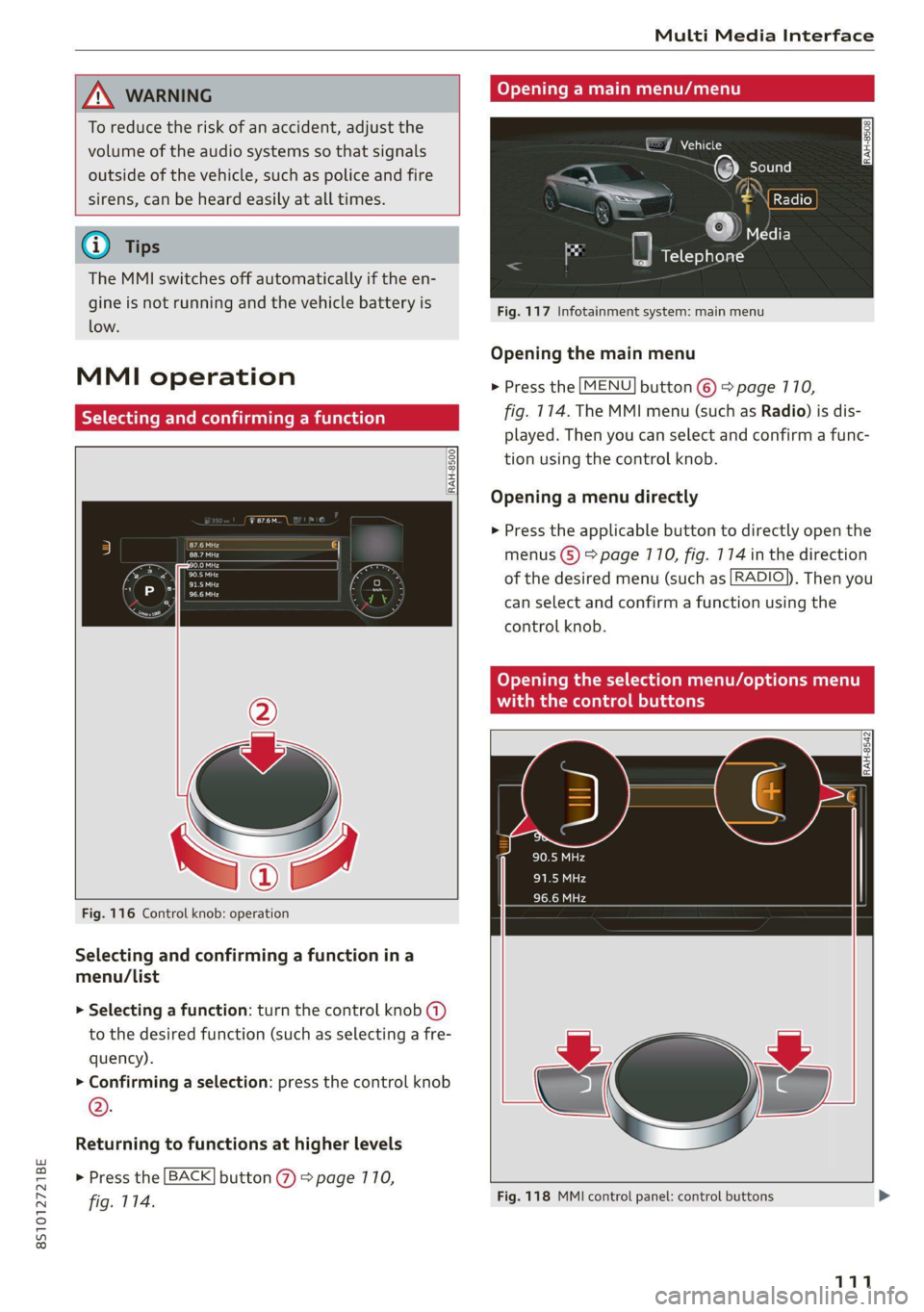
Fig. 117 Infotainment system: main menu
Opening the main menu
> Press the [MENU] button ©) > page 770,
fig. 114. The MMI menu (such as Radio) is dis-
played. Then you can select and confirm a func-
tion using the control knob.
MMI operation
Ya ate) rming a func
RAH-8500.
Opening a menu directly
> Press the applicable button to directly open the
eras menus (5) > page 110, fig. 174 in the direction
sare ‘ ' of the desired menu (such as [RADIO}), Then you
— can select and confirm a function using the
control knob.
Opening the selection menu/options menu
with the control buttons
RAH-8542
Fig. 116 Control knob: operation
Selecting and confirming a function ina
menu/List
> Selecting a function: turn the control knob (a)
to the desired function (such as selecting a fre-
quency).
> Confirming a selection: press the control knob
®.
Returning to functions at higher levels
> Press the [BACK] button @ > page 770,
fig. 114. Fig. 118 MMI control panel: control buttons >
111
Page 124 of 280
Voice recognition system
Voice recognition system
General information
Applies to: vehicles with voice recognition system
You can operate many functions in the vehicle
easily using voice commands.
Using the voice recognition system optimally
> Speak clearly and distinctly at a normal volume.
Speak louder when driving faster.
> Emphasize the words in the commands evenly
and do not leave long pauses.
> Close the doors, the windows, and the power
top* to reduce background noise. Make sure
that passengers are not speaking when you are
giving a voice command.
> Do not direct the vents toward the hands-free
microphone, which is in the roof headliner/on
the driver’s safety belt* near the front interior
lights. For additional information on the safety
belt microphone’, see > page 140.
> Only the driver should speak to the system, be-
cause the handsfree microphone is aimed to-
ward this seating position.
ZA\ WARNING
— Direct your full attention to driving. As the
driver, you have complete responsibility for
safety in traffic. Only use the functions in
such a way that you always maintain com-
plete control over your vehicle in all traffic
situations.
— Do not use the voice recognition system in
emergencies because your voice may change
in stressful situations. The system may take
longer to dial the number or may not be
able to dial it at all. Dial the emergency
number manually.
G) Tips
There are no voice guidance* prompts when a
dialog is active.
Operating
Applies to: vehicles with voice recognition system
Requirement: the ignition and the MMI must be
switched on. A system language supported by
122
the voice recognition system must be set. There
must be no phone calls in progress and the park-
ing aid must not be active.
> Switching on: briefly press the %» button @)
=> page 14, fig. 10 on the multifunction steer-
ing wheel and say the desired command after
the Beep.
> Switching off: press and hold the ™» button,
or:
» Say the command Cancel.
> Pausing: say the command Pause. To resume,
press the ™» button.
> Correcting: press the button one time G)
=> page 12, fig. 6, or:
» Say the command Correction.
Input assistance
The system guides you through the input with
visual and audio feedback.
— Visual input assistance: after switching on
voice recognition, a display with a selection of
possible commands appears. This command
display can be switched on or off. Select:
MENU] button > Settings > left control button
> MMI settings > Speech dialog system.
— Audio input assistance: to have the possible
commands read, press the “9 button on the
multifunction steering wheel briefly and say
Help.
Additional settings
See > page 194, Voice recognition system.
Gi) Tips
—The dialog pauses when there is an incom-
ing phone call and will continue if you ig-
nore the call. The dialog ends if you answer
the call.
— You can select an item in the list using ei-
ther the voice recognition system or the
control knob.
Page 130 of 280
Telephone
Telephone
Introduction
Applies to: vehicles with telephone
You can operate various telephone functions easi-
ly through the MMI in your vehicle.
Depending on the country and the vehicle equip-
ment, the following options may be available:
— Connecting a cell phone with Bluetooth
— Using two telephones
— Using the Audi phone box
ZA\ WARNING
— Medical experts warn that mobile devices
can interfere with the function of pacemak-
ers. Always maintain a minimum distance of
about 7.9 inches (20 cm) between the mo-
bile device antennas and the pacemaker.
— Do not carry the mobile device in a pocket
directly over the pacemaker when the
phone is switched on.
— Switch the mobile device off immediately
if you suspect it may be interfering with
the pacemaker.
— Do not use the voice recognition system*
=> page 122 in emergencies because your
voice may change in stressful situations. The
system may take longer to dial the number
or may not be able to dial it at all. Dial the
emergency number manually.
— Switch your mobile device off in areas where
there is a risk of an explosion. These loca-
tions are not always clearly marked. This
may include gas stations, fuel and chemical
storage facilities or transport vehicles, or lo-
cations where fuel vapors (such as propane
or gasoline vapor in vehicles or buildings),
chemicals or large quantities of dust parti-
cles (such as flour, sawdust or metal) may
be present in the air. This also applies to all
other locations where you would normally
turn your vehicle motor off.
— The demands of traffic require your full at-
tention. Always read the chapter
= page 110, Traffic safety information.
128
@) Note
Read the information about Audi connect, and
be sure to note the connectivity costs section
=> page 1417.
@) Tips
— The Bluetooth connection range is limited
to inside the vehicle.
—Aselection of supported Bluetooth devices
can be found in the database for tested mo-
bile devices at www.audi.com/bluetooth.
Setup
Connecting a mobile phone via Bluetooth
Applies to: vehicles with telephone
Requirement: the vehicle must be stationary and
the ignition must be switched on. The Bluetooth
settings must be open on your mobile device dur-
ing the connection setup. The mobile device to be
connected must not be actively connected to any
other Bluetooth device. The MMI must not be
connected to a mobile device.
> Enable the Bluetooth function and visibility on
the MMI = page 192 and the mobile phone.
> Select: [MENU] button > Telephone > Connect
mobile device > Find new devices > Next. The
available
Bluetooth devices are shown in the In-
fotainment system display, or:
>» Search for the MMI on your cell phone using the
Bluetooth device search.
> Select and confirm the desired cell phone from
the list of displayed Bluetooth devices.
A PIN for a secure Bluetooth connection will be
generated.
> Confirm the PIN on your cell phone and on the
MMI, or:
> Enter the PIN for connecting on your cell
phone. The time allowed for entering the PIN is
limited to approximately 30 seconds.
> Follow the system instructions.
> Pay attention to any other system prompts on
the MMI and on your cell phone.
Page 132 of 280
Telephone
secondary phone, since the directory from the
primary phone is always displayed.
Switching the primary and secondary phone
Requirement: a primary phone and a secondary
phone must be connected.
> Select: [MENU] button > Telephone > right con-
trol button > Switch primary and second.
phone.
iG) Tips
— You can see if a cell phone is connected as
the primary phone or secondary phone in
the Connection manager > page 190.
— You can also make your connected cell
phone the default phone by selecting Set as
default telephone in the Connection man-
ager > page 792.
— The device name of the connected primary
phone is shown in the Telephone menu
(such as myPhone).
— If the primary phone does not connect auto-
matically to the MMI when the ignition is
switched on, for example because it is out
of the vehicle range or the Bluetooth func-
tion is switched off, then a previously paired
secondary phone is automatically connected
as the primary phone.
— You can send and receive messages on your
primary phone as well as on your secondary
phone
> page 132, fig. 1317. You do not
need to switch your primary phone and sec-
ondary phone for this.
1) The Qi standard makes it possible to charge your mobile
device wirelessly.
130
Using the Audi phone
box
Applies to: vehicles with Audi phone box
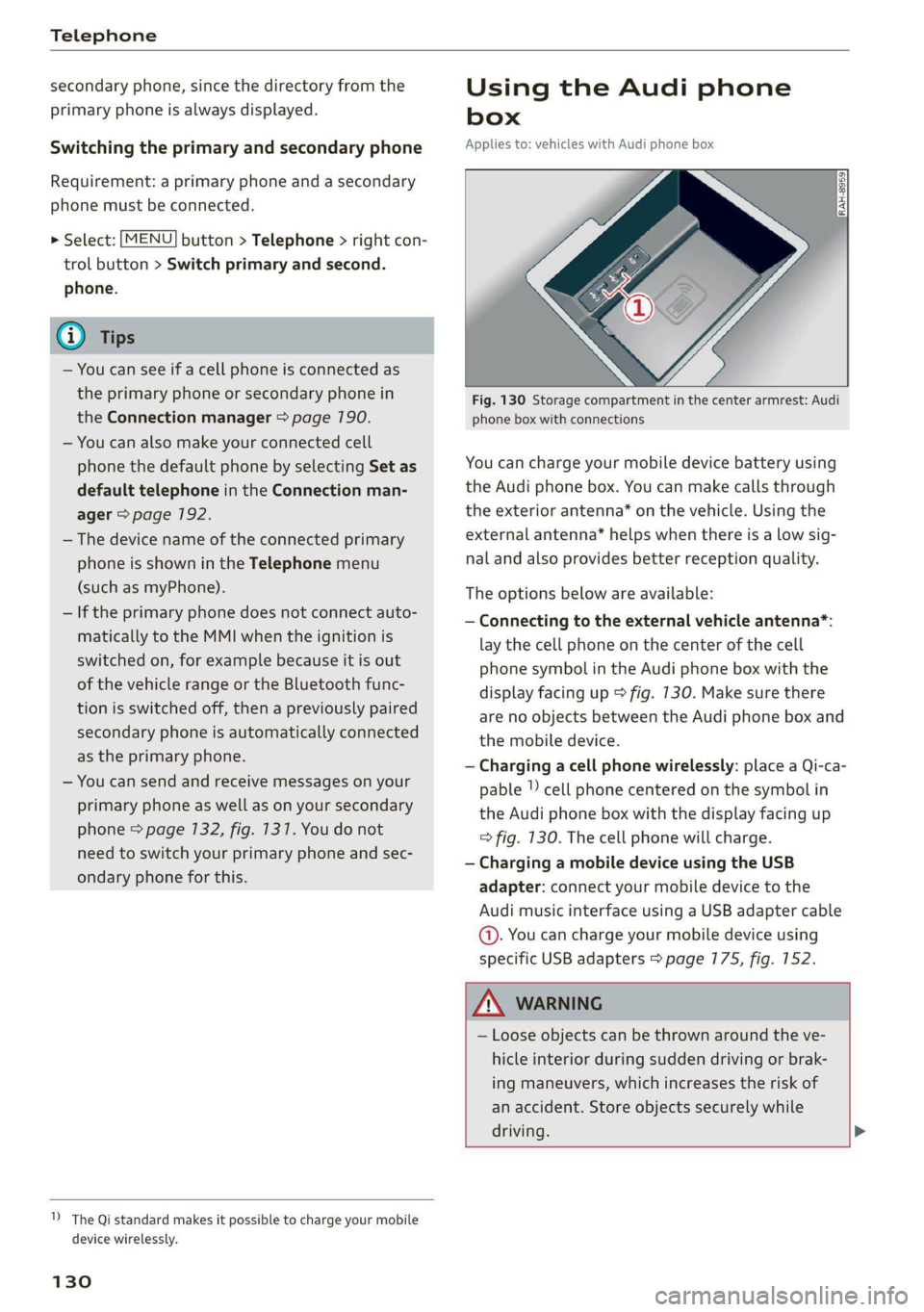
Fig. 130 Storage compartment in the center armrest: Audi
phone box with connections
You can charge your mobile device battery using
the Audi phone box. You can make calls through
the exterior antenna* on the vehicle. Using the
external antenna* helps when there is a low sig-
nal and also provides better reception quality.
The options below are available:
— Connecting to the external vehicle antenna*:
lay the cell phone on the center of the cell
phone symbol in the Audi phone box with the
display facing up > fig. 130. Make sure there
are no objects between the Audi phone box and
the mobile device.
— Charging a cell phone wirelessly: place a Qi-ca-
pable | cell phone centered on the symbol in
the Audi phone box with the display facing up
=> fig. 130. The cell phone will charge.
— Charging a mobile device using the USB
adapter: connect your mobile device to the
Audi music interface using a USB adapter cable
@. You can charge your mobile device using
specific USB adapters > page 775, fig. 152.
ZA WARNING
— Loose objects can be thrown around the ve-
hicle interior during sudden driving or brak-
ing maneuvers, which increases the risk of
an accident. Store objects securely while
driving. >
Page 133 of 280
8S1012721BE
Telephone
— The mobile device may become hot during
wireless charging. Pay attention to the tem-
perature of your mobile device and be care-
ful when removing it from the Audi phone
box.
— An alternating magnetic field is used for
wireless charging. Maintain a minimum dis-
tance of approximately 2.4 inches (6 cm) to
the Audi phone box charging plate. The
thresholds for prolonged exposure at this
distance comply with ICNIRP1998. There-
fore, interactions such as irritation of senso-
ry organs, malfunctions of active implants
(such as pacemakers, infusion pumps, or
neurostimulators) or effects on passive im-
plants (such as prosthetic limbs) is highly
unlikely. If you have an implant, consult a
medical specialist if you have any questions.
@) Note
Applicable to U.S.A.
Operation of the Audi phone box is subject to
the following requirements of the Federal
Communications Commission:
— This is a CONSUMER device.
— BEFORE USE, you MUST REGISTER THIS DE-
VICE with your wireless provider and have
your provider’s consent. Most wireless pro-
viders consent to the use of signal boosters.
Some providers may not consent to the use
of this device on their network. If you are
unsure, contact your service provider.
— You MUST operate this device with approved
antennas and cables as specified by the
manufacturer. Antennas MUST be installed
at least 20 cm (8 inches) from any person.
— You MUST cease operating this device im-
mediately if requested by the FCC or a li-
censed wireless service provider.
— WARNING: E911 location information may
not be provided or may be inaccurate for
calls served by using this device.
@) Note
Applicable to Canada
In Canada, operation of a Zone Enhancer,
such as an Audi phone box, is subject to the
following requirements of the Innovation,
Science and Economic Development Canada
(ISED):
—This is a CONSUMER device.
— BEFORE USE, you MUST meet all require-
ments set out in CPC-2-1-05. At the time of
printing this user manual, the CPC-2-1-05
client procedures circular of ISED Canada
was available at the following web page:
http://www.ic.gc.ca/eic/site/smt-gst.
nsf/eng/sf08942.html.
— You MUST operate this device with approved
antennas and cables as specified by the
manufacturer. Antennas MUST NOT be in-
stalled within 20 cm of any person.
— You MUST cease operating this device im-
mediately if requested by ISED or a licensed
wireless service provider.
— WARNING: £911 location information may
not be provided or may be inaccurate for
calls served by using this device.
G@) Tips
— The system complies with United States FCC
regulations and ISED regulations
=> page 267.
— Placing the mobile device in a bag or protec-
tive sleeve inside the Audi phone box can in-
terfere with the connection to the external
antenna*.
— Metallic objects in the Audi phone box block
the wireless charging of your mobile device
and calls made using the exterior antenna”.
— The charging time and temperature will vary
depending on the mobile device being used.
— Your mobile device can only be charged in
the Audi phone box when the ignition is
switched on.
—To reduce the risk of malfunctions, make
sure the mobile device is positioned correct-
ly in the Audi phone box.
—The maximum charging output is 5 W.
— Strong transmission quality* cannot be
guaranteed if more than one mobile device
is in the box.
— Only one mobile device at a time can be
charged wirelessly in the Audi phone box.
131
>
Page 136 of 280
Telephone
call will end the active phone call. A phone call
on hold can be resumed using the right control
button > Resume.
Add to conference: a party on hold and up to five
active parties (depending on the network) can be
added to a conference call. To make an additional
call, put all participants in the current conference
call on hold using the right control button > Hold
conference. Press the left control button. Select
and confirm Call list/Directory/Favorites > an
entry from the list. You can add called contacts
to the conference using the right control button
> Add to conference. Resume takes all parties off
hold.
Multi-party calling: select the right control but-
ton > Telephone settings > Call options. When
the function is switched on M, you can accept an
additional call using Answer or decline a call us-
ing Decline. When the function is switched off,
you can Replace or Decline a call.
Connection manager: see > page 190.
Telephone settings: see > page 139.
@ Tips
—To be notified of an incoming call during a
phone call, the call waiting function in your
mobile device must be switched on when
using the Handsfree profile.
— When leaving the vehicle, the Bluetooth
connection to the mobile device will auto-
matically disconnect. Depending on your
mobile device, phone calls in progress may
be automatically redirected from the MMI to
your mobile device so that you can continue
the call on your phone.
Making an emergency call
Applies to: vehicles with telephone
> Select: [MENU] button > Telephone > left con-
trol button > Dial number > Enter emergency
call number (for example, 911) > OK.
Z\ WARNING
— Because your phone works with radio sig-
nals, a connection cannot be guaranteed un-
134
der all circumstances. Do not rely on only
your phone when it comes to essential com-
munication (such as a medical emergency).
— Always follow the instructions given by the
emergency personnel during an emergency
call and only end the call when they instruct
you to do so.
(i) Tips
Emergency numbers are not the same every-
where. Find out which emergency number is
used in your current location.
Favorites
Applies to: vehicles with telephone
Up to 50 contacts, in addition to the voicemail
number, can be stored in any order in the favor-
ites list:
Opening a menu
> Select: [MENU] button > Telephone > left con-
trol button.
Storing an existing phone number as a
favorite:
>» Select and confirm Call list/Directory.
> Select a contact or phone number from the list.
> Select: right control button > Store as favorite.
» Enter a name for the favorite or select a sug-
gestion.
> Select and confirm Save.
Renaming stored favorites
> Select: Favorites > a favorite from the list.
> Select the right control button > Rename favor-
ite.
Moving stored favorites
> Select: Favorites > a favorite from the list.
> Select the right control button > Move favorite.
> Select and confirm the location of the selected
favorite.
Deleting a stored favorite
>» Select: Favorites > a favorite from the list.
» Select: right control button > Delete favorite >
Delete this entry or Delete all entries.
Page 143 of 280

8S1012721BE
Audi connect
Audi connect
General information
Applies to: vehicles with Audi connect
Depending on the country and the vehicle equip-
ment, the following functions may be available:
— Audi connect Infotainment
ZA WARNING
—To reduce the risk of an accident, only use
Audi connect services and the Wi-Fi hotspot
only if the traffic situation permits it. Read
and follow the guidelines provided in
=> page 110, Traffic safety information.
— It is only safe to use tablets, laptops, mobile
devices and other similar devices when the
vehicle is stationary because, like all loose
objects, they could be thrown around the in-
side of the vehicle in a crash and cause seri-
ous injuries. Store these types of devices se-
curely while driving. Also read the warnings
in the chapter > page 52.
@) Note
— Applies to: use of separate SIM card in the
SIM card reader or SIM card in the Wi-Fi de-
vice via personal hotspot: If you use your
own SIM card, all data connections for all
Audi connect Infotainment services will run
through your SIM card. This could result in
additional costs, depending on your cell
phone service provider and especially when
using in other countries. A flat rate data
plan is strongly recommended. You can ob-
tain more information from your cell phone
service provider.
— In certain situations, the Wi-Fi hotspot data
connection may be established as a replace-
ment for the SIM card on your Wi-Fi device.
This feature depends on the configuration
of your Wi-Fi device and operating system.
This could result in fees depending on your
cell phone service provider, especially if you
are using this feature while abroad. A flat
rate data plan is strongly recommended.
For more information, contact your cell
phone service provider or refer to the own-
er's manual for your Wi-Fi device.
— You are responsible for all precautions tak-
en for data protection, anti-virus protection,
and protection against loss of data on mo-
bile devices that are used, for example, to
access the Internet through the Wi-Fi hot-
spot.
— In areas with poor GPS reception or outside
the coverage range of the respective cell
phone service provider, some functions
and/or services may not be available, it may
not be possible to send or receive data, or
functionality may be limited.
@) Tips
— The availability of services depends on the
subscription.
— Audi merely provides access to third party
services through the MMI and does not as-
sume any responsibility for the content and
availability of these services.
— Use of the most up-to-date mobile network
standard is not available in every country.
Contact an authorized Audi dealer or au-
thorized Audi Service Facility or your cell
phone service provider for additional infor-
mation.
— Availability, scope, providers, screen dis-
play, and costs of services may vary depend-
ing on the country, model, model year, end
device and rates.
— All services can be modified, activated/deac-
tivated, renamed, and enhanced without
further notification.
Audi connect
Infotainment
Applies to: vehicles with Audi connect Infotainment
With Audi connect Infotainment services, online
information is transmitted directly to the vehicle.
An Internet connection is required to use Audi
connect Infotainment. Depending on the country
and the vehicle equipment, the following options
may be available:
141
>
Page 144 of 280
Audi connect
— SIM card reader
— Personal Wi-Fi hotspot
ZA\ WARNING
Always follow the information found in > AV
in General information on page 1417.
©) Note
Always follow the information found in >@ in
General information on page 147.
SIM card reader
Applies to: vehicles with Audi connect Infotainment and a SIM
card reader
All data connections will be made through the
SIM card in the card reader, if a SIM card is insert-
ed >@) in General information on page 141.
Requirement: the vehicle must be stationary and
the ignition must be switched on. A data connec-
tion must be configured for Audi connect Info-
tainment services. Your personal SIM card must
be a mini SIM card >@) and have a data option.
Inserting a SIM card
The SIM card reader is located in the glove com-
partment.
> The angled corner of the SIM card must face to-
ward the left front side when being inserted.
> Slide the SIM card into the SIM card reader slot
until you feel the SIM card click into place.
> Select and confirm Enter PIN on the MMI. Enter
the PIN for your SIM card.
> Select and confirm OK.
> To connect to the Internet automatically in the
future, select and confirm Yes; see also
=> page 145.
After connecting successfully, the signal strength
@ and connection type @) will be displayed in
the MMI status bar > page 779, fig. 128.
Removing a SIM card
> Press on the SIM card briefly.
@) Note
— Always follow the information found in >®
in General information on page 141.
142
—To reduce the risk of damaging the SIM card
reader, only use mini SIM cards (25 mmx 15
mm). Contact your cell phone service pro-
vider for more information on mini SIM
cards.
— If a SIM card of a different size is inserted in
the SIM card reader, do not under any cir-
cumstances remove this card yourself due
to the risk of damaging the SIM card reader.
Contact an authorized Audi dealer or au-
thorized Audi Service Facility.
— There is a risk of damaging the SIM card
reader if you use a SIM card adapter, be-
cause vibrations can cause the SIM card to
fall out of the adapter while driving. Contact
an authorized Audi dealer or authorized
Audi Service Facility.
@) Tips
— Additional Internet connection settings can
be found under > page 7145.
— Do not remove the SIM card from the SIM
card reader when using the Audi connect In-
fotainment services.
Using personal Wi-Fi hotspot
Applies to: vehicles with Audi connect Infotainment and a per-
sonal Wi-Fi hotspot
Depending on the country and the vehicle equip-
ment, the MMI can use the established Internet
connection on your mobile device through a Wi-Fi
connection.
Requirement: the vehicle must be stationary and
the ignition must be switched on. Your mobile
device and your cell phone service provider must
support the personal Wi-Fi hotspot function. The
personal Wi-Fi hotspot must be activated on your
mobile device. Access by other devices must be
permitted on the personal hotspot. Your own SIM
card in the mobile device must have a data op-
tion. No SIM card is inserted in the SIM card read-
er.
Connecting the MMI with the personal
hotspot
> Select: [MENU] button > Telephone > right con-
trol button > Wi-Fi settings > Wi-Fi > On.
Page 145 of 280

8S1012721BE
Audi connect
> Then select and confirm Network search. The
devices that are found are shown in the Info-
tainment system display.
> Select and confirm your personal Wi-Fi hotspot
from the list.
> Enter the password that your mobile device
provides, if necessary.
> Select and confirm OK.
ZA\ WARNING
Always follow the information found in > A\
in General information on page 141.
@) Note
Always follow the information found in @ in
General information on page 141.
G) Tips
— Your cell phone service provider can deter-
mine which functions are supported by your
mobile device.
— Your cell phone data package determines if
other devices will be able to use the person-
al Wi-Fi hotspot.
— Audi recommends protecting your mobile
wireless network with a password to pre-
vent unauthorized access.
— The system complies with United States FCC
regulations and ISED regulations
=> page 261.
Using a Wi-Fi hotspot
Applies to: vehicles with Wi-Fi hotspot
You can connect up to eight Wi-Fi devices (such
as smartphones) with the MMI Wi-Fi hotspot. If
the MMI is connected to the Internet > page 147,
the connected Wi-Fi devices can also use the
MMI’s Internet connection.
Requirement: the ignition must be switched on.
> Select: [MENU] button > Telephone > right con-
trol button > Wi-Fi settings > Wi-Fi. Switch on
the Wi-Fi hotspot.
> Select: [MENU] button > Telephone > right con-
trol button > Wi-Fi settings > Network key. The
access data for the Wi-Fi hotspot is displayed.
Switch on the visibility of the Wi-Fi hotspot if
necessary.
> Switch the Wi-Fi function on in your mobile de-
vice and connect it to the MMI Wi-Fi hotspot us-
ing
the authentication data that is shown.
> Follow any additional system prompts on your
Wi-Fi device if necessary.
Your device is successfully connected with the
MMI's Wi-Fi hotspot.
ZA WARNING
Always follow the information found in > AV
in General information on page 147.
CG) Note
Always follow the information found in >@ in
General information on page 141.
(i) Tips
The system complies with United States FCC
regulations and ISED regulations > page 267.
Audi connect
Infotainment services
Applies to: vehicles with Audi connect Infotainment
Requirement: your vehicle must be connected to
the Internet > page 147.
Some Audi connect Infotainment services must
be configured through your personal myAudi ac-
count at my.audi.com before using them for the
first time.
> Register at my.audi.com.
> Add your vehicle to your myAudi account.
> Select: [MENU] button > Audi connect > right
control button > Log in.
> Log in to myAudi in the vehicle using your e-
mail address and password.
@ Tips
— For some Audi connect Infotainment serv-
ices, you may also have to enter your myAu-
di access information when accessing serv-
ices in the MMI.
143