instrument cluster AUDI TT 2021 Owner´s Manual
[x] Cancel search | Manufacturer: AUDI, Model Year: 2021, Model line: TT, Model: AUDI TT 2021Pages: 280, PDF Size: 99.18 MB
Page 91 of 280
8S1012721BE
Assist systems
Assist systems
Speed warning system
Applies to: vehicles with speed warning system
The speed warning system helps the driver to
stay below a specified maximum speed. A warn-
ing threshold can be set in the Infotainment sys-
tem for this purpose.
Once the speed slightly exceeds the stored
threshold, the speed warning system will alert
the driver with an indicator in the instrument
cluster and a warning tone. Once the speed drops
below the stored maximum speed, the indicator
will turn off.
Setting a threshold is recommended if you would
like to be reminded when you reach a certain
maximum speed. Situations where you may want
to do so include driving in a country with a gener-
al speed limit or if there is a specified maximum
speed for winter tires.
@) Tips
Regardless of the speed warning system, you
should always monitor your speed using the
speedometer and make sure you are adhering
to the legal speed limit.
Setting the warning threshold
Applies to: vehicles with speed warning system
> Select in the Infotainment system: [MENU] but-
ton > Vehicle > left control button > Driver as-
sistance > Speed warning > Manual.
Messages
Applies to: vehicles with speed warning system
ol Manually set speed limit XX mph
(km/h) exceeded
The stored speed was exceeded.
Cruise control system
Applies to: vehicles with cruise control system
The cruise control system assists the driver in
maintaining a constant speed above approxi-
mately 15 mph (20 km/h). The system maintains
the desired speed by braking and accelerating.
ZA WARNING
— Always pay attention to the traffic around
your vehicle when the cruise control system
is in operation. As the driver, you are always
responsible for controlling your vehicle
speed and the distance between your vehicle
and
other vehicles.
— For safety reasons, cruise control should not
be used in the city, in stop-and-go traffic, on
winding roads, and when road conditions
are poor (such as ice, fog, gravel, heavy rain,
and conditions that could lead to hydroplan-
ing), because this increases the risk of an ac-
cident.
— Switch the cruise control off temporarily
when driving in turning lanes, highway exits,
or in construction zones.
—To reduce the risk of an accident, you should
only resume the stored speed if it is suitable
for the current traffic conditions.
@) Note
Before driving downhill a long distance ona
steep hill, decrease your speed and select a
lower gear. This makes use of the engine
braking effect and reduces the load placed on
the brakes.
@) Tips
The brake lights turn on when the brakes are
applied automatically.
89
Page 92 of 280
Assist systems
Switching the system on
Applies to: vehicles with cruise control system
BFV-0220
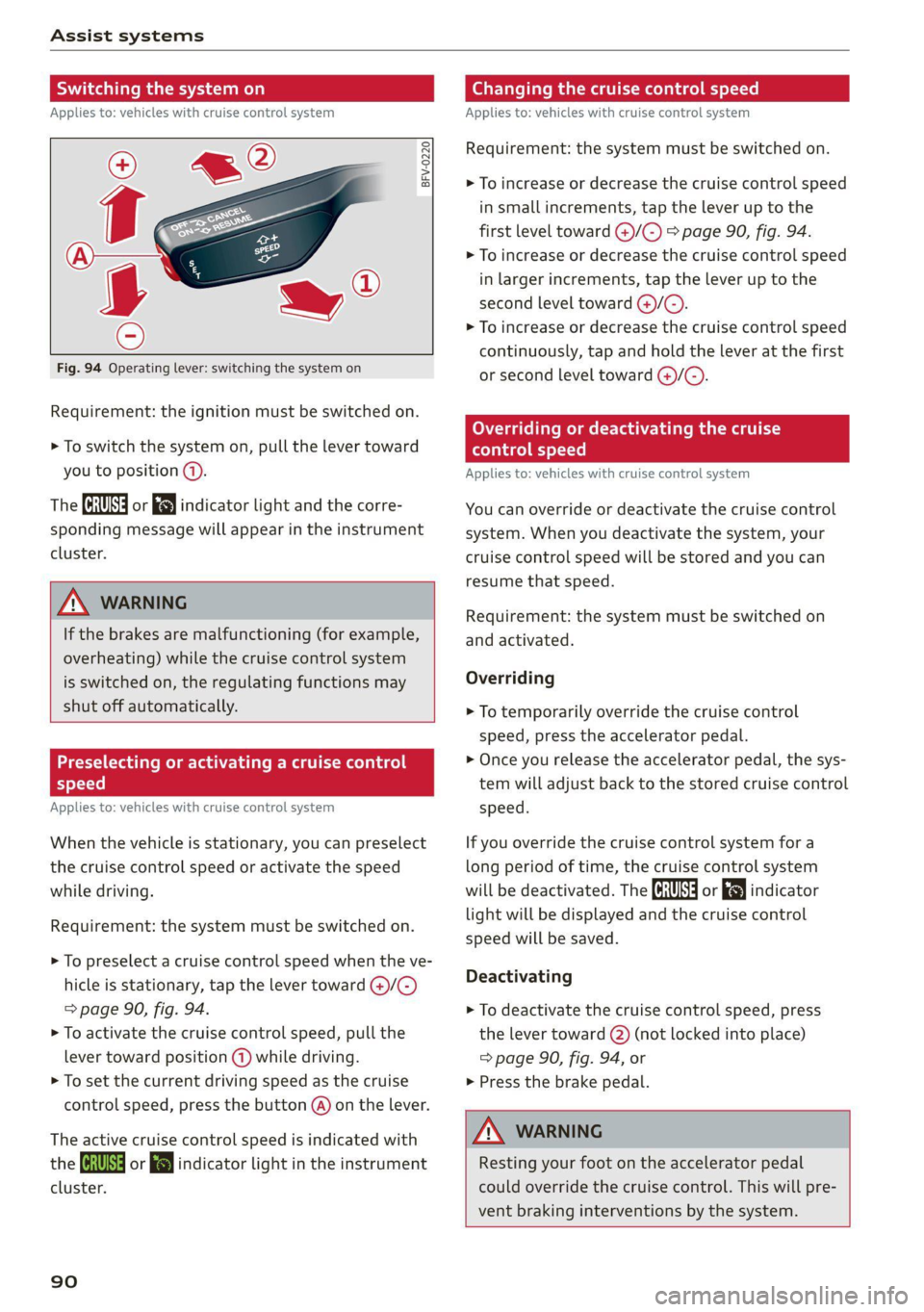
Fig. 94 Operating lever: switching the system on
Requirement: the ignition must be switched on.
> To switch the system on, pull the lever toward
you to position (4).
The (a or (8) indicator light and the corre-
sponding message will appear in the instrument
cluster.
ZA\ WARNING
If the brakes are malfunctioning (for example,
overheating) while the cruise control system
is switched on, the regulating functions may
shut off automatically.
Preselecting or activating a cruise co
speed
Applies to: vehicles with cruise control system
When the vehicle is stationary, you can preselect
the cruise control speed or activate the speed
while driving.
Requirement: the system must be switched on.
> To preselect a cruise control speed when the ve-
hicle is stationary, tap the lever toward @)/G)
=> page 90, fig. 94.
> To activate the cruise control speed, pull the
lever toward position (@) while driving.
> To set the current driving speed as the cruise
control speed, press the button @) on the lever.
The active cruise control speed is indicated with
the Gs or =) indicator light in the instrument
cluster.
90
Changing the cruise control speed
Applies to: vehicles with cruise control system
Requirement: the system must be switched on.
> To increase or decrease the cruise control speed
in small increments, tap the lever up to the
first level toward @/C) > page 90, fig. 94.
> To increase or decrease the cruise control speed
in larger increments, tap the lever up to the
second level toward @)/C).
> To increase or decrease the cruise control speed
continuously, tap and hold the lever at the first
or second level toward (+)/G).
Overriding or deactivating the cruise
control speed
Applies to: vehicles with cruise control system
You can override or deactivate the cruise control
system. When you deactivate the system, your
cruise control speed will be stored and you can
resume that speed.
Requirement: the system must be switched on
and activated.
Overriding
> To temporarily override the cruise control
speed, press the accelerator pedal.
> Once you release the accelerator pedal, the sys-
tem will adjust back to the stored cruise control
speed.
If you override the cruise control system for a
long period of time, the cruise control system
will be deactivated. The [M4 or RSM indicator
light will be displayed and the cruise control
speed will be saved.
Deactivating
> To deactivate the cruise control speed, press
the lever toward (2) (not locked into place)
=> page 90, fig. 94, or
» Press the brake pedal.
ZA WARNING
Resting your foot on the accelerator pedal
could override the cruise control. This will pre-
vent braking interventions by the system.
Page 93 of 280
8S1012721BE
Assist systems
Seem ea
Applies to: vehicles with cruise control system
When you switch the system off, the cruise con-
trol speed will be erased.
Requirement: the system must be switched on.
> To switch the system off, press the lever toward
@ (locked into place) > page 90, fig. 94, or
> Switch the ignition off.
Applies to: vehicles with cruise control system
ICRUISE| / 3) Speed control system: currently un-
available. See owner's manual
If the indicator light turns on and this message
appears, the cruise control system has been de-
activated. There is a temporary malfunction, for
example the brakes are overheating. Switch the
cruise control system on again later.
Lap timer
Introduction
Applies to: vehicles with lap timer
You can measure and analyze lap times with the
lap timer in the display. The time is measured in
minutes, seconds and 1/10 seconds. With lap
times longer than 60 minutes, the hour is also
shown and the display of 1/10 seconds is re-
moved.
The time measurement on an individual lap ends
after 99 hours 59 minutes and 59 seconds. A new
lap starts automatically after that.
You can control the lap timer using the controls
on the multifunction steering wheel > page 72.
ZA WARNING
Your focus should always be on driving your
vehicle safely. As the driver, you have com-
plete responsibility for safety in traffic. To re-
duce the risk of an accident, only use the lap
timer functions in such a way that you always
maintain complete control over your vehicle in
all traffic situations.
@) Tips
You can retrieve information from the trip
computer while the lap timer stopwatch is
running.
Caer mi ra Opening the lap
Applies to: vehicles with lap timer
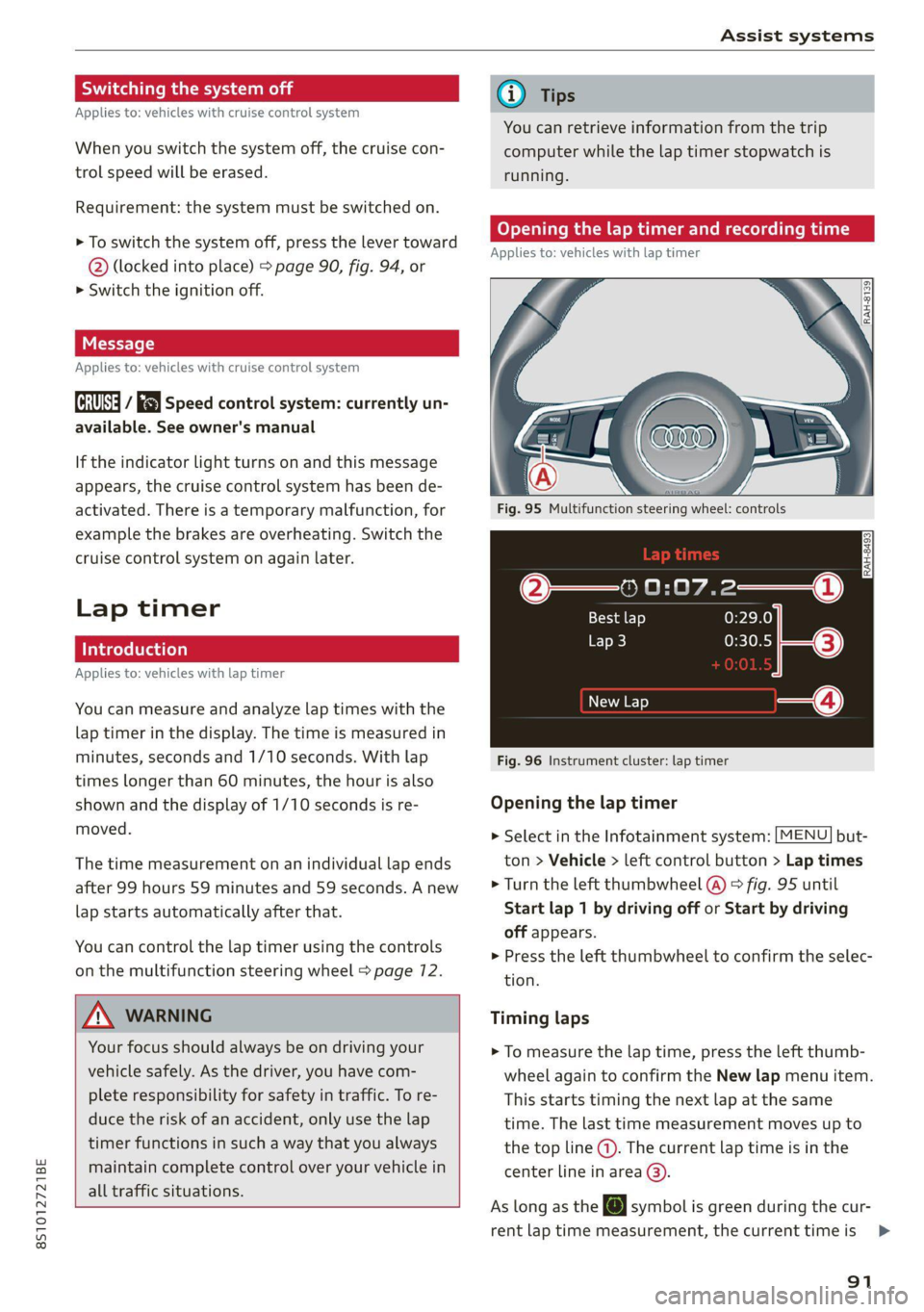
Fig. 95 Multifunction steering wheel: controls
[RAH-£493]
@—» 0:07.2——_@
Best lap 0:29.0
0:30.5 ETO)
New Lap
Fig. 96 Instrument cluster: lap timer
Opening the lap timer
> Select in the Infotainment system: [MENU] but-
ton > Vehicle > left control button > Lap times
> Turn the left thumbwheel @) © fig. 95 until
Start lap 1 by driving off or Start by driving
off appears.
> Press the left thumbwheel to confirm the selec-
tion.
Timing laps
> To measure the lap time, press the left thumb-
wheel again to confirm the New lap menu item.
This starts timing the next lap at the same
time. The last time measurement moves up to
the top line @). The current lap time is in the
center line in area @).
As long as the [@J symbol is green during the cur-
rent lap time measurement, the current timeis >
91
Page 94 of 280

Assist systems
faster than your best time to date. If the sym-
bol @ is red, the current time is slower (2).
Displaying split time and pausing timing
> To display a split time @, turn the left thumb-
wheel until Split time appears in line @). Press
the left thumbwheel to confirm the selection.
The split time appears for approximately
10 seconds in area @). The current lap timing
will continue running.
> To insert a pause oi immediately after the split
time, first press the left thumbwheel to con-
firm
the menu item Back to lap time.
> To insert a pause, turn the left thumbwheel un-
til Pause appears in line @). Press the left
thumbwheel to confirm the selection. The
pause symbol Oi appears in area @).
> To resume timing, press the left thumbwheel
again.
Meaning of the indicator in the Infotainment sys-
tem display > fig. 96:
@ __ | Display of last recorded time
@_ |Symbols:
- fo): start of time recording
fe @.: slowest recorded time
- @: fastest recorded time
F él: split time
- pause
Current time measurement
®©|© Menu:
- Start lap 1 by driving off
- Start by driving off
- New lap
- Split time
- Pause
- Cancel lap
Evaluating or resetting times
Applies to: vehicles with lap timer
= Ss
3
z
ss
Fig. 97 Instrument cluster: lap timer
You can evaluate the fastest, slowest and average
lap times.
After evaluating the lap times, you can continue
the current timing round or start over, meaning
start lap 1 again.
> Select in the Infotainment system: [MENU] but-
ton > Vehicle > left control button > Lap statis-
tics. The display shows the fastest lap fe), the
slowest lap ] and the average lap time @.
> Turn the thumbwheel down or up to display the
individual lap times.
> To resume the timing that was started, press
the left thumbwheel again.
> To reset the timing to zero, press the left con-
trol button on the multifunction steering
wheel. Turn the left thumbwheel and select the
desired setting by moving the cursor (red
frame). Press the left thumbwheel to confirm
the selection.
> Press the left thumbwheel to restart the lap
timer for a new lap timing, if needed.
> Press the [MENU] button to exit the lap timer.
Evaluation legend 9 fig. 97:
- Reset times
92
: total number of laps
@ |BL fastest lap time
@ |B slowest lap time
@ |f@ average lap time
Gi) Tips
—A maximum of 30 lap times can be meas-
ured.
Page 98 of 280

Assist systems
The system cannot guarantee that it will detect
vehicles correctly and it has switched off. The
sensors have been moved or are faulty. Have the
system checked by an authorized Audi dealer or
authorized Audi Service Facility soon.
Audi drive select (drive
settings)
Introduction
Applies to: vehicles with Audi drive select
Drive select makes it possible to experience dif-
ferent types of vehicle characteristics in one vehi-
cle. With different driving modes, the driver can
switch the setting, for example from sporty to
comfortable. In the Individual mode, the set-
tings can be adjusted to your personal preferen-
ces. This makes it possible to combine settings
such as a sporty drivetrain setting with comforta-
ble steering.
Using Audi drive select incorrectly can lead to
collisions, other accidents and serious inju-
ries.
Applies to: vehicles with Audi drive select
The vehicle setup in each mode depends on the
vehicle's features.
Engine and automatic transmission
Depending on the mode, the engine and auto-
matic transmission respond more quickly or ina
more balanced manner to accelerator pedal
movements.
Suspension control (Audi magnetic ride)*
The suspension control uses sensors to record in-
formation regarding steering movements, brak-
ing and acceleration operations by the driver, as
well as information about the road surface, driv-
ing speed, and load. With drive select, you can
adjust the suspension control to sporty (dynam-
ic), comfortable (comfort) or balanced (auto).
96
Steering
The power steering adapts. Indirect steering that
moves easily as in comfort mode is especially
suited to long drives on a highway. The dynamic
mode provides sporty, direct steering.
Engine sound*
The engine sound adapts to the current mode
and can be subtle to sporty.
— Certain vehicle settings will be reset when
the ignition is switched off.
— In some models, the maximum vehicle
speed can only be reached in the auto and
dynamic modes.
Selecting the driving mode
Applies to: vehicles with Audi drive select
You can choose between comfort, auto, dynamic
and individual.
BFV-0307
drive
select
Fig. 102 Center console: drive select button
BFV-0308
Applies to: TT RS
Fig. 103 Steering wheel: drive select button
> Press the ste button repeatedly until the de-
sired drive mode is displayed in the instrument
cluster/Infotainment system display. Or
Page 150 of 280

Navigation
Navigation
Opening navigation
Applies to: vehicles with navigation system
aay
Fig. 135 Instrument cluster: entering a destination
The navigation system directs you to your desti-
nation, around traffic incidents, and on alterna-
tive routes, if desired.
> Press the [NAV/MAP] button.
The Enter destination menu is displayed after
opening navigation.
The following information can be displayed:
@ Input field for free text search .... 149
@ Home address ................. 150
@® Last destinations ............... 149
@ Stored favorites ............... 150
Once you select an entry from the list (depending
on the vehicle equipment), the corresponding
destination will display as a map preview* ).
If you have connected a mobile device to the
MMI, your directory contacts will also be listed if
they have navigation data assigned to them.
The Favorites (4) menu item as well as the direc-
tory/contacts are only shown in the Enter desti-
nation menu if you have entered one or more
characters using the input field.
Switching between the destination entry and
the map
— Press the [NAV/MAP] button repeatedly until
the map is displayed, or
148
— Select: left control button > Switch to map.
ZA\ WARNING
— The demands of traffic require your full at-
tention. Always read the chapter
=> page 110, Traffic safety information.
— The route calculated by the navigation sys-
tem is a driving recommendation. Follow
the traffic regulations that are applicable in
the country where you are operating the ve-
hicle. In the event that the driving directions
contradict traffic regulations, always follow
the traffic regulations applicable in the
country where you are operating the vehicle
to reduce the risk of an accident.
(i) Tips
— You can find information about importing a
map update to your MMI using an SD card
at my.audi.com.
— Snow and obstructions on the GPS antenna
or interference caused by trees and large
buildings can impair satellite reception and
affect the system's ability to determine the
vehicle position. Several deactivated or mal-
functioning satellites can also interrupt GPS
reception and affect the system's ability to
determine the vehicle position.
Page 159 of 280
8S1012721BE
Navigation
Map
Map operation
Applies to: vehicles with navigation system
RAH-8885)
@ 3 3 % = <
|
Machado St 3 +
@_150 yd Oy
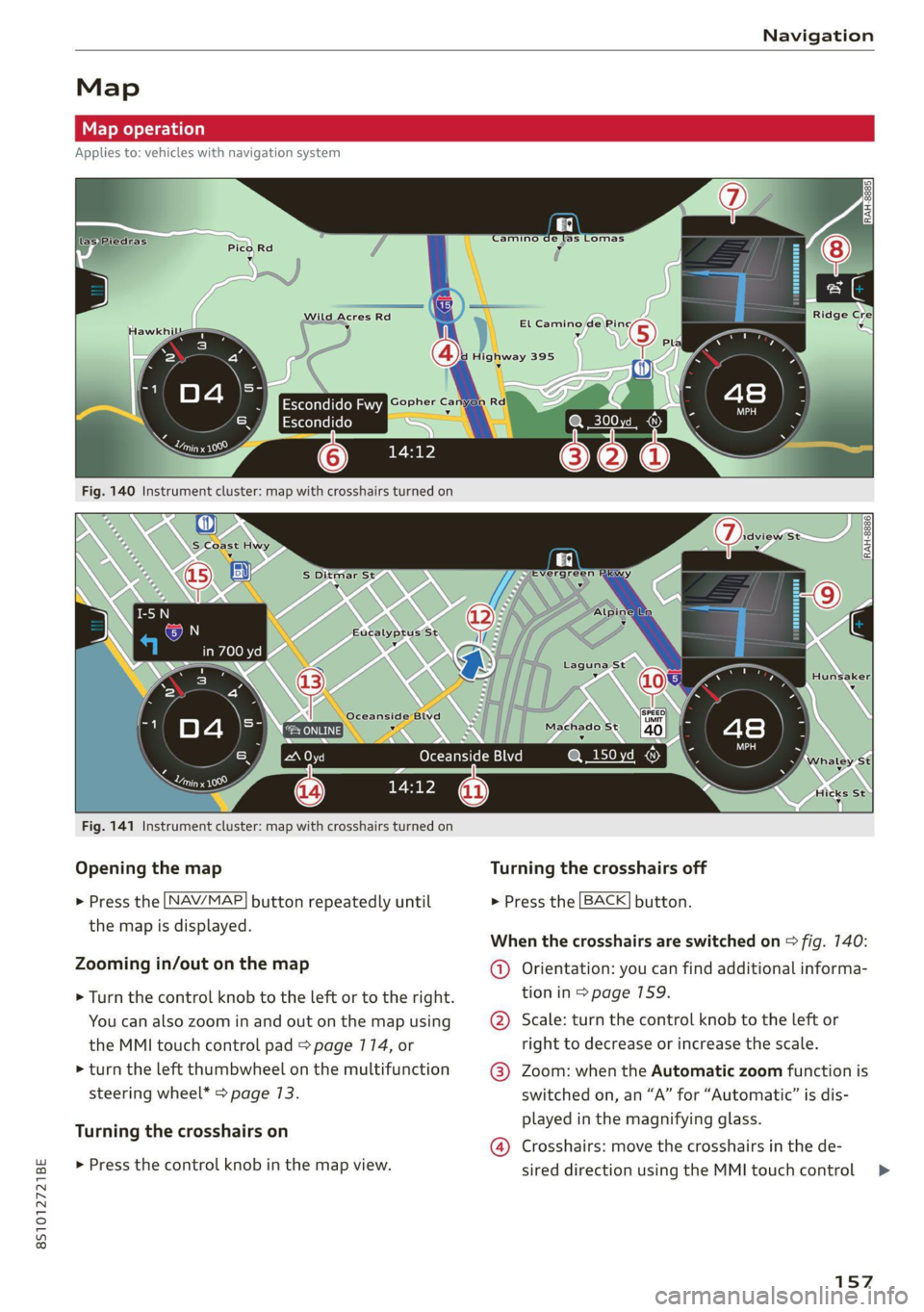
Fig. 141 Instrument cluster: map with crosshairs turned on
Opening the map Turning the crosshairs off
> Press the [NAV/MAP] button repeatedly until > Press the [BACK] button.
the map is displayed.
When the crosshairs are switched on > fig. 140:
Zooming in/out on the map @ Orientation: you can find additional informa-
> Turn the control knob to the left or to the right. tion in > page 159.
You can also zoom in and out on the map using @ Scale: turn the control knob to the left or
the MMI touch control pad > page 714, or right to decrease or increase the scale.
>» turn the left thumbwheel on the multifunction @® Zoom: when the Automatic zoom function is
steering wheel* > page 13. switched on, an “A” for “Automatic” is dis-
layed in th ifyi lass.
Turning the crosshairs on Played in tne magnirying g'ass
@® Crosshairs: move the crosshairs in the de-
» Press the control knob in the map view. sired direction using the MMI touch control >
157
Page 163 of 280
8S1012721BE
Navigation
Accessing traffic information
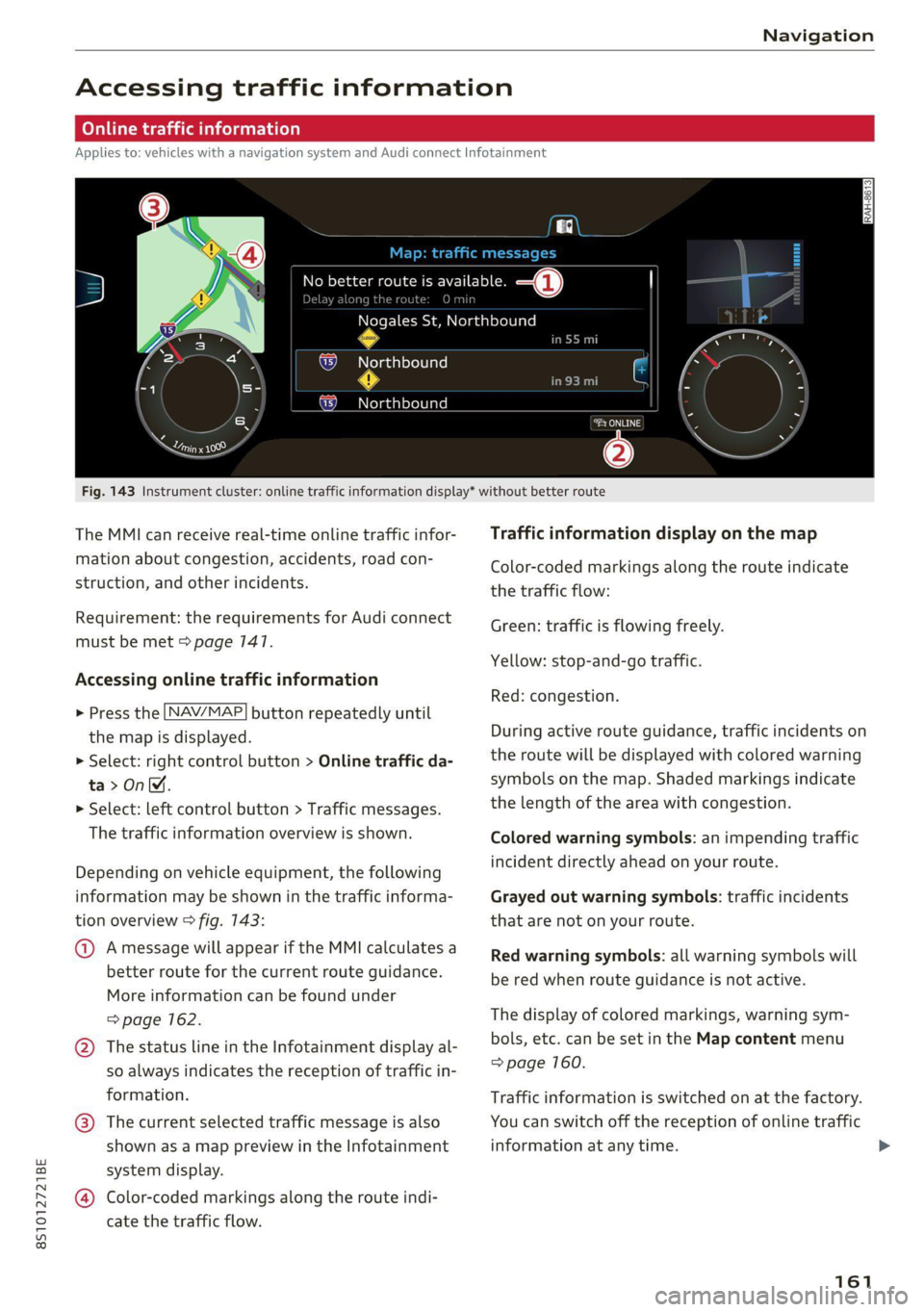
CON Maelareeeleurl ela)
Applies to: vehicles with a navigation system and Audi connect Infotainment
Q. eae better route is available. —@
eek
Nogales St, Northbound
@ Northbound
em
@) Northbound
cory eins
oe
Fig. 143 Instrument cluster: online traffic information display* without better route
The MMI can receive real-time online traffic infor-
mation about congestion, accidents, road con-
struction, and other incidents.
Requirement: the requirements for Audi connect
must be met > page 147.
Accessing online traffic information
> Press the [NAV/MAP] button repeatedly until
the map is displayed.
> Select: right control button > Online traffic da-
ta>OnM.
> Select: left control button > Traffic messages.
The traffic information overview is shown.
Depending on vehicle equipment, the following
information may be shown in the traffic informa-
tion overview > fig. 143:
@ Amessage will appear if the MMI calculates a
better route for the current route guidance.
More information can be found under
=> page 162.
@ The status line in the Infotainment display al-
so always indicates the reception of traffic in-
formation.
@® The current selected traffic message is also
shown as a map preview in the Infotainment
system display.
@ Color-coded markings along the route indi-
cate the traffic flow.
Traffic information display on the map
Color-coded markings along the route indicate
the traffic flow:
Green: traffic is flowing freely.
Yellow: stop-and-go traffic.
Red: congestion.
During active route guidance, traffic incidents on
the route will be displayed with colored warning
symbols on the map. Shaded markings indicate
the length of the area with congestion.
Colored
warning symbols: an impending traffic
incident directly ahead on your route.
Grayed out warning symbols: traffic incidents
that are not on your route.
Red warning symbols: all warning symbols will
be red when route guidance is not active.
The display of colored markings, warning sym-
bols, etc. can be set in the Map content menu
=> page 160.
Traffic information is switched on at the factory.
You can switch off the reception of online traffic
information at any time.
161
Page 196 of 280
System settings
Voice guidance during phone call: see
=> page 156.
Voice guidance volume: you can adjust the voice
guidance volume by turning the control knob or
you can adjust it while route guidance is active by
turning the On/Off knob.
Entertainment fader: the volume of audio play-
back can be temporarily lowered when the park-
ing system or voice guidance is active.
Voice recognition system
Applies to: vehicles with voice recognition system
Short dialog: see > page 190.
Speech dialog system volume: see > page 190.
Parking aid*
You can adjust the volume of the signal tone by
turning the control knob.
— Adjusting the Front volume: select and con-
firm
High, Medium or Low.
— Adjusting the Rear volume: select and confirm
High, Medium or Low.
MMI touch*
Turn the control knob to adjust the volume of the
spoken prompts from the MMI touch*.
Audi Heartbeat
You can adjust the volume of Audi Heartbeat by
turning the control knob.
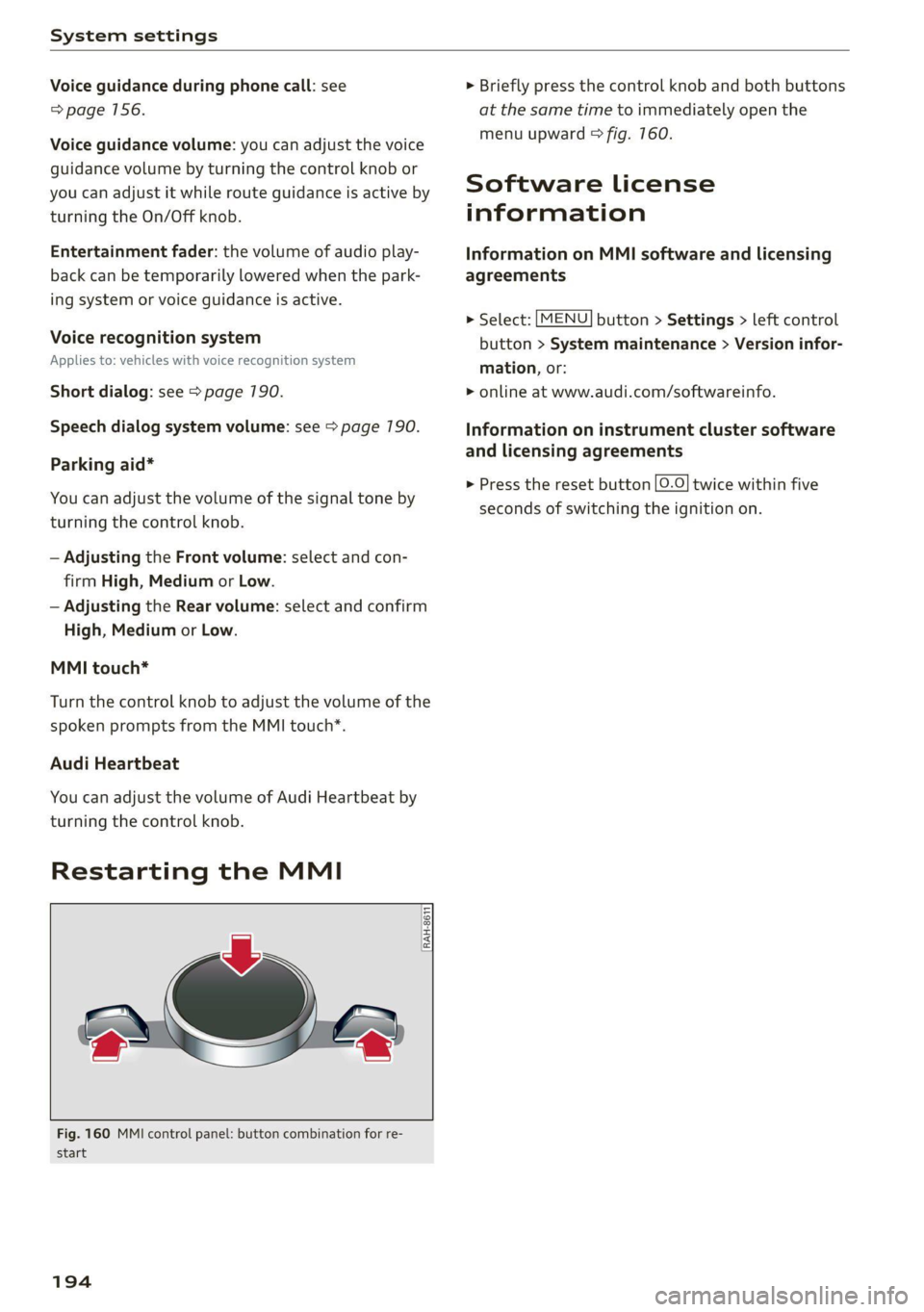
Restarting the MMI
RAH-8611
wv
= ‘=
Fig. 160 MMI control panel: button combination for re-
start
194
> Briefly press the control knob and both buttons
at the same time to immediately open the
menu upward > fig. 760.
Software License
information
Information on MMI software and licensing
agreements
> Select: [MENU] button > Settings > left control
button > System maintenance > Version infor-
mation, or:
> online at www.audi.com/softwareinfo.
Information on instrument cluster software
and licensing agreements
> Press the reset button |O.O} twice within five
seconds of switching the ignition on.
Page 234 of 280

Wheels
If the tire pressure monitoring indicator
appears
Applies to: vehicles with Tire Pressure Monitoring System in-
dicator
The tire pressure indicator in the instrument
cluster informs you if the tire pressure is too low
or if there is a system malfunction.
Using the ABS sensors, the tire pressure monitor-
ing system compares the tire tread circumfer-
ence and vibration characteristics of the individu-
al tires. If the pressure changes in one or more
tires, this is indicated in the Infotainment system
display with an indicator light (J and a message.
If only one tire is affected, the location of that
tire will be indicated.
The tire pressures must be stored in the Infotain-
ment system again each time the pressures
change (switching between partial and full load
pressure) or after changing or replacing a tire on
your vehicle > page 232. The tire pressure moni-
toring system only monitors the tire pressure you
have stored. Refer to the tire pressure label for
the recommended tire pressure for your vehicle
=> page 224, fig. 178.
Tire tread circumference and vibration character-
istics can change and cause a tire pressure warn-
ing if:
— The tire pressure in one or more tires is too low
— The tire has structural damage
— The tire was replaced or the tire pressure was
changed and it was not stored > page 232
— The spare tire” is installed
Indicator lights
If the @ indicator light turns on, there is a loss
of pressure in at least one tire .> A\ Check the
tires and replace if necessary. Check/correct the
pressures of all four tires and store the pressure
again in the Infotainment system > page 232.
iis Tire pressure: malfunction! See owner's
manual
ft oS appears after switching the ignition on or
while driving and the @ indicator light in the in-
strument cluster blinks for approximately one
minute and then stays on, there is system mal-
232
function. Try to store the correct tire pressures
=> page 232. In some cases, you must drive for
several minutes after storing the pressures until
the indicator light turns off. If the indicator light
does turn off or turns on again after a short peri-
od of time, drive to an authorized Audi dealer or
authorized Audi Service Facility immediately to
have the malfunction corrected.
Z\ WARNING
— If the tire pressure indicator appears in the
display,
reduce your speed immediately and
avoid any hard steering or braking maneu-
vers. Stop as soon as possible and check the
tires and their pressure.
— The driver is responsible for maintaining the
correct tire pressure. You must check the
tire pressure regularly.
— Under certain conditions (such as a sporty
driving style, winter conditions, or unpaved
roads), the tire pressure monitoring system
indicator may be delayed.
— Do not use run-flat tires on your vehicle. Us-
ing them when not permitted can lead to ve-
hicle damage or accidents.
(i) Tips
— The tire pressure monitoring system can al-
so stop working when there is an ESC mal-
function.
— Using snow chains may result in a system
malfunction.
— The tire pressure monitoring system in your
Audi was calibrated with “Audi Original
Tires” > page 227. Audi recommends using
these tires.
Storing tire pressures
Applies to: vehicles with Tire Pressure Monitoring System in-
dicator
If the tire pressure changes or a tire is replaced,
it must be confirmed in the Infotainment sys-
tem.
> Before storing the tire pressures, make sure the
tire pressures in all four tires meet the speci-
fied values and are adapted to the load
=> page 223.