sell AUDI TT 2021 Owner´s Manual
[x] Cancel search | Manufacturer: AUDI, Model Year: 2021, Model line: TT, Model: AUDI TT 2021Pages: 280, PDF Size: 99.18 MB
Page 7 of 280
8S1012721BE
About this Owner's Manual
In this manual, Audi provides important informa-
tion, tips, suggestions, and warnings for using
your vehicle. “Audi” refers to AUDI AG, the re-
spective importer in a country, as well as joint
ventures.
It has always been Audi's policy to continuously
improve its products. Audi reserves the right to
make changes in design and specifications, and
to make additions or improvements in its prod-
ucts without incurring any obligation to install
them on products previously manufactured. This
owner's manual is based on the current data
available when it was printed. Text, illustrations,
and specifications in this owner's manual are
based on the most current information available
at the time of printing, and shall not constitute a
basis for liability claims.
KEEP THIS GUIDE
Keep this manual and any other applicable docu-
ments in your vehicle at all times. This is espe-
cially important if you loan your vehicle to others
or sell it.
This owner's manual describes the equipment
range for all model versions of this vehicle at the
time of printing. Individual equipment options
described may only be available at a later date or
may only be offered in certain countries.
Some sections in this manual do not apply to all
vehicles. When this is the case, the beginning of
the section indicates the validity, for example
“Applies to: vehicles with speed warning sys-
tem”. Optional or vehicle-specific equipment is
ugn also identified with an asterisk “*”.
The illustrations in this manual are a guide.
Some of the details in your vehicle may differ
from the illustration.
All directions, such as “Left”, “right”, “front” and
“rear”, are based on the vehicle's direction of
travel.
* — Optional or vehicle-specific equipment
> The section continues on the next page.
=> A\ Cross reference to a “WARNING” within a
section. If a page number is indicated, the
WARNING is located outside of the section.
ZA WARNING
Text with this symbol contains information
about safety and how to reduce the risk of se-
rious personal injury or death.
@) Note
Text with this symbol contains information
about reducing the risk of damage to your ve-
hicle.
@) For the sake of the environment
Text with this symbol contains information on
protecting the environment.
@) Tips
Text with this symbol contains additional use-
ful information.
Page 30 of 280
Opening and closing
Convenience closing with the convenience
key*
> Touch the sensor* on the door handle long
enough until all windows are closed. Do not
place your hand in the door handle when doing
this.
Setting convenience opening in the
Infotainment system
The function can be switched on/off in the Info-
tainment system > page 23.
ZA WARNING
— Never close the windows carelessly or in an
uncontrolled manner, because this increases
the risk of injury.
— For security reasons, the windows can only
be opened and closed with the remote con-
trol key at a maximum distance of approxi-
mately 6 feet (2 m) away from the vehicle.
When pressing the f button, always watch
the windows while they are closing so that
no one is pinched in the window. The closing
process will stop immediately when the &
button is released.
Correcting power window malfunctions
If necessary, you can reactivate the one-touch up/
down function if it malfunctions.
> Pull the power window switch up until the win-
dow is completely raised.
> Release the switch and pull it up again for at
least one second.
28
Garage door opener
Applies to: vehicles with garage door opener
——
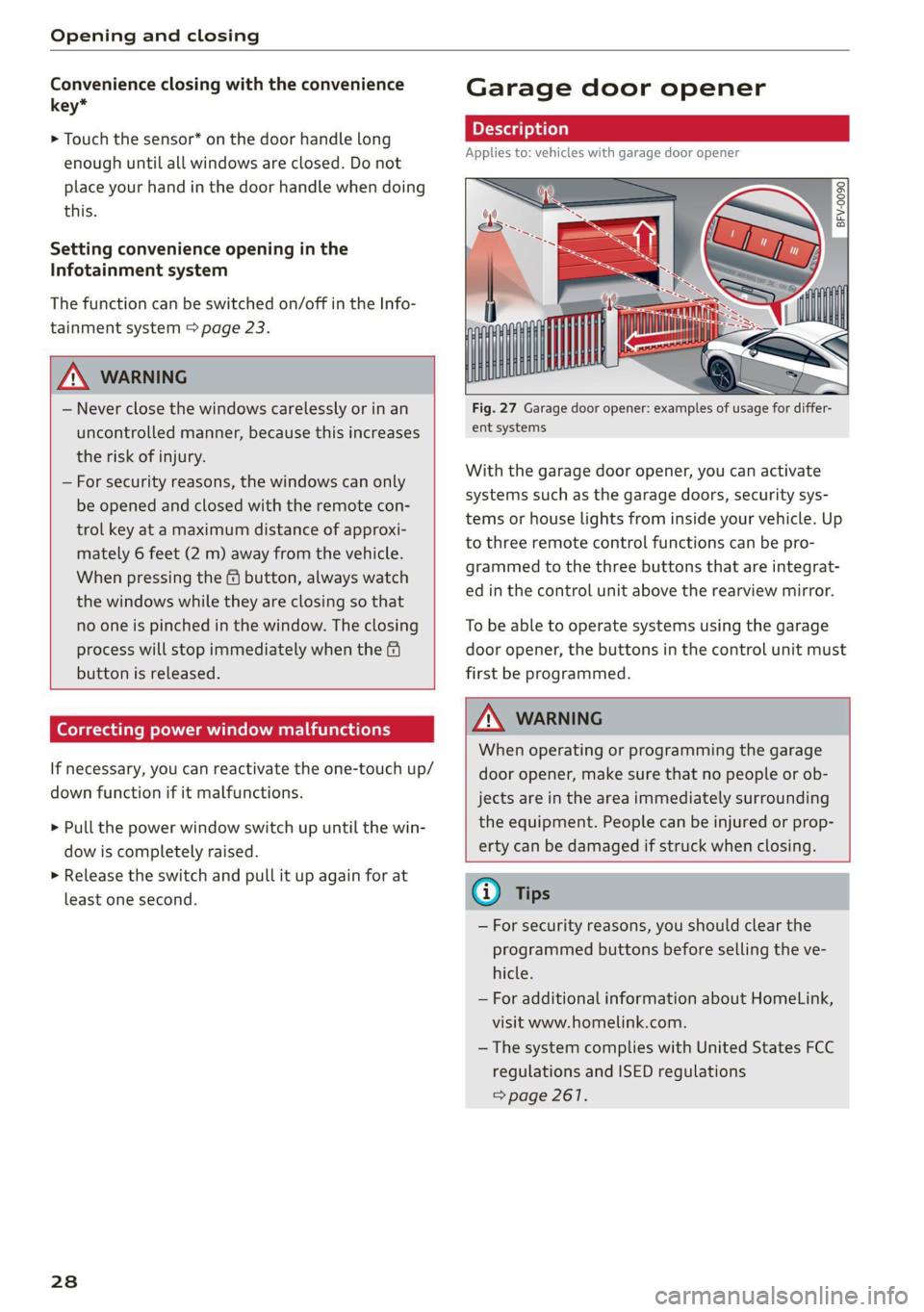
Fig. 27 Garage door opener: examples of usage for differ-
ent systems
With the garage door opener, you can activate
systems such as the garage doors, security sys-
tems or house lights from inside your vehicle. Up
to three remote control functions can be pro-
grammed to the three buttons that are integrat-
ed in the control unit above the rearview mirror.
To be able to operate systems using the garage
door opener, the buttons in the control unit must
first be programmed.
Z\ WARNING
When operating or programming the garage
door opener, make sure that no people or ob-
jects are in the area immediately surrounding
the equipment. People can be injured or prop-
erty can be damaged if struck when closing.
® Tips
— For security reasons, you should clear the
programmed buttons before selling the ve-
hicle.
— For additional information about HomeLink,
visit www.homelink.com.
—The system complies with United States FCC
regulations and ISED regulations
=> page 261.
Page 174 of 280
Media
Requirement: the copying process must be active
in the background.
> Showing the copying process: select: right
control button > Copying in progress.
When importing, the audio files are automatical-
ly sorted into the media center categories based
on the stored additional information > page 178.
The copied video files* are stored in the media
center under the Videos* category.
Playing the Jukebox
Requirement: the Jukebox must contain audio/
video* files > page 171, Adding files to the Juke-
box.
The Jukebox is accessed and operated through
the MMI@) & page 177, fig. 154.
Displaying Jukebox memory capacity
> Select: right control button > Jukebox memory
capacity. Information about the Jukebox mem-
ory capacity and the number of stored tracks is
displayed.
Deleting tracks from the Jukebox!)
Requirement: the Jukebox must contain audio/
video files*.
> Select an entry from the Jukebox media center.
> Select: right control button > Delete from juke-
box > This entry or Entire list.
The status of the deleting process is shown in the
MMI. Jukebox playback stops during the deleting
Process and starts again automatically once the
deletion is complete.
@) Note
Do not import audio/video files* when the en-
gine is turned off because this will drain the
vehicle battery.
@ Tips
— Tracks from audio CDs cannot be imported
to the Jukebox for legal reasons.
1) Not in the Playback view.
172
— Files that have already been imported are
automatically recognized and cannot be
copied to the Jukebox again.
— It is not possible to play audio/video* files in
the CD/DVD* drive while importing them.
— The Jukebox does not provide an export
function due to legal reasons.
— Files or tracks without additional stored in-
formation are listed as Unknown. Audi rec-
ommends adding additional information
(such as ID3 tags) to audio files.
— Reset the Jukebox to the factory default set-
tings when selling your vehicle > page 190.
Bluetooth audio player
Applies to: vehicles with Bluetooth audio player
With the Bluetooth audio player, you can play
music wirelessly from your Bluetooth-capable de-
vice (such as a cell phone) through the MMI.
Requirement: the vehicle must be stationary and
the ignition must be switched on. The Bluetooth
settings will open on your mobile device during
the connection setup. The Bluetooth function
and visibility of the MMI > page 192 and mobile
device must be switched on. The Bluetooth audio
player > page 192 must be switched on in the
MMI.
Connecting a Bluetooth device
> Press the [MEDIA] button.
> Press the left control button until the sources
overview is displayed.
> Select and confirm Bluetooth audio player @)
=> page 177, fig. 155.
> If necessary, select and confirm: Not connected
> Connect Bluetooth audio player. The Blue-
tooth device search starts. Follow the instruc-
tions in the MMI.
> Select and confirm the desired Bluetooth de-
vice from the list. The MMI generates a PIN for
the connection.
> Select and confirm Yes.
>» Enter the PIN for connecting on your Bluetooth
device, or if the PIN is already displayed on your
Bluetooth device, confirm it on the Bluetooth
>