radio AUDI TT COUPE 2014 User Guide
[x] Cancel search | Manufacturer: AUDI, Model Year: 2014, Model line: TT COUPE, Model: AUDI TT COUPE 2014Pages: 284, PDF Size: 34.42 MB
Page 112 of 284
Downloaded from www.Manualslib.com manuals search engine Multi
Media Interface
Selecting and confirming a function
.. @To select a function: Turn the rotary push
button to the desired function (e.g. setting a
frequency).
.. @ To confirm the selection: Press the rotary
pushbutton.
Returning to the previous function level
.. Press
the I BACK!
button@ ¢ page 109,
Fig. 113.
Calling up/closing the selection menu
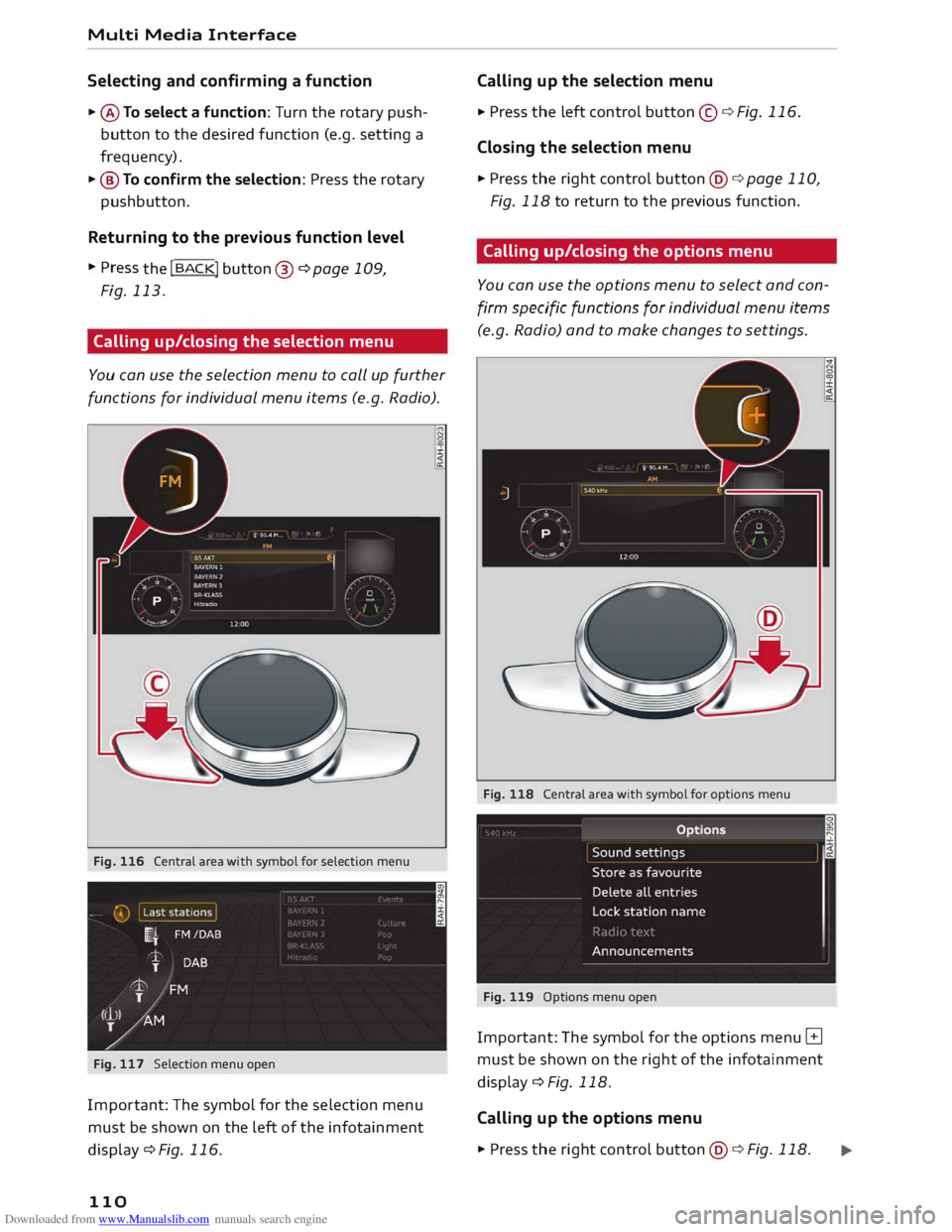
You can use the selection menu to call up further
functions for individual menu items (e.g. Radio).
Fig. 116 Central area with symbol for selection menu
Fig. 117 Selection menu open
Impor tant: The symbol for the selection menu
must be shown on the left of the infotainment
display c:::> Fig. 116.
110 Calling
up the selection menu
.. Press
the Left control button©¢ Fig. 116 .
Closing the selection menu
.. Press the right control button@c:::>page 110,
Fig. 118 to return to the previous function.
Calling up/closing the options menu
You can use the options menu to select and con
firm specific functions for individual menu items
(e.g. Radio) and to make changes to settings.
Fig. 118 Central area with symbol for options menu
Fig. 119 Options menu open
Important: The symbol for the options menu B
must be shown on the right of the infotainment
display¢ Fig. 118.
Calling up the options menu
.. Press the rig ht control button @ ¢ Fig. 118.
Page 113 of 284
Downloaded from www.Manualslib.com manuals search engine 0
N
co
....
\D Lfl
N
Lfl
.... Closing
the options menu
• Press the left control button © ¢ page 110,
Fig. 116 to return to the previous function.
Notes on path descriptions
The path descriptions in this manual show you at
a glance how to call up the menu you require
along with its settings and functions.
Example of a path description: I RADIO! button>
left control button > FM
Using a path description:
.,. Press the I RADIO! button.
.,. Press the left control button.
.,. Tu rn the rotary pushbutton to FM in the menu
to preselect this function.
.,. Press the rotary pushbutton to confirm FM.
MMI touch
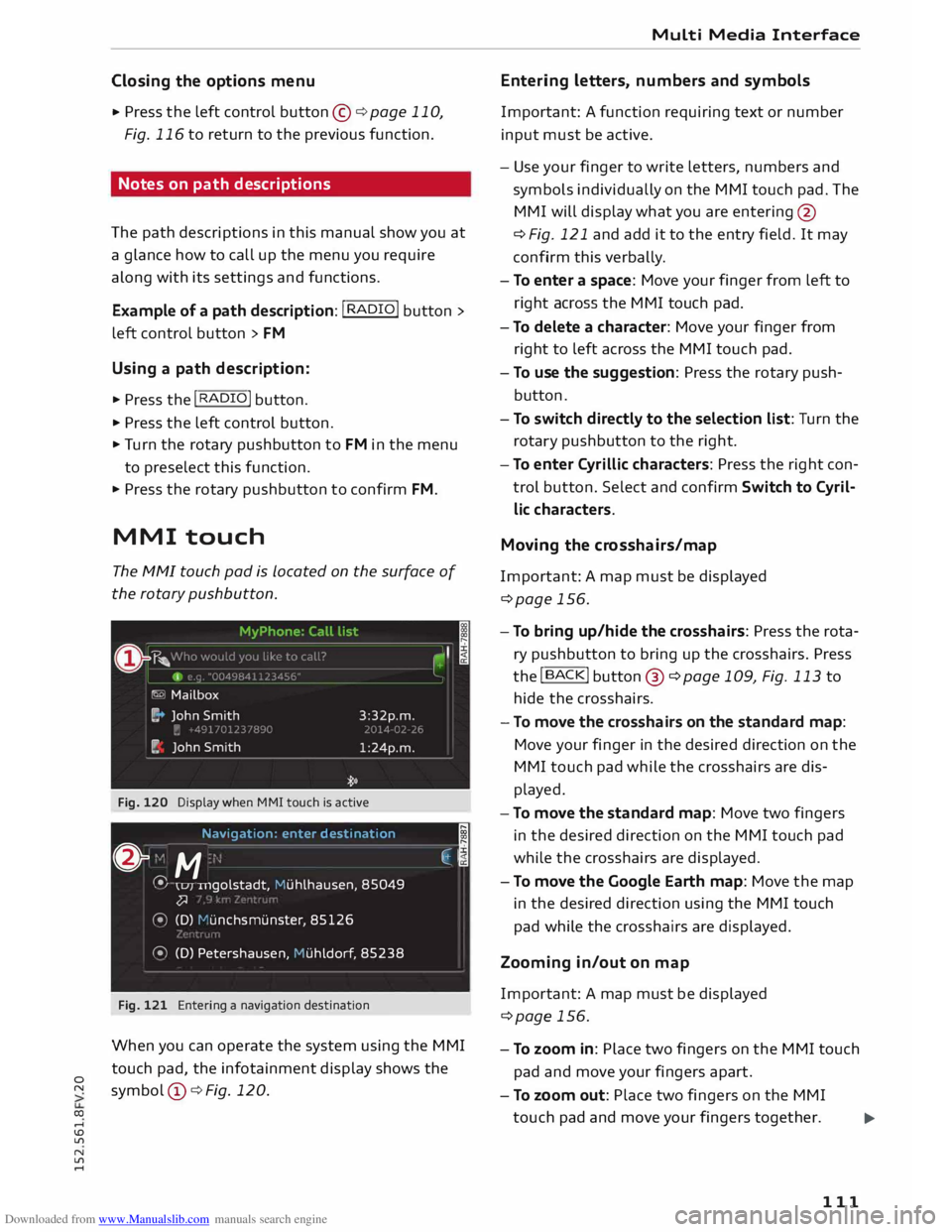
The MMI touch pad is Located on the surface of
the rotary pushbutton.
Fig. 120 Display when MMI touch is active
Navigat ion: enter destinati on
;
& "
M ·
.
�,j
� \u1
u1golstadt,
Muhlhausen , 85049
�
� (D) 1-'unchsmunste r, 85126
� (D) Petershausen, Huhldorf , 85238
Fig. 121 Entering a navigation destination
When you can operate the system using the MMI
touch pad, the infotainment display shows the
symbol @¢ Fig. 120. Multi
Media Interface
Entering letters, numbers and symbols
Important: A function requiring text or number
input must be active.
- Use your finger to write letters, numbers and
symbols individually on the MMI touch pad. The
MMI will display what you are entering @
¢ Fig. 121 and add it to the entry field. It may
confirm this verbally.
- To enter a space: Move your finger from left to
right across the MMI touch pad.
- To delete a character: Move your finger from
right to left across the MMI touch pad.
- To use the suggestion: Press the rotary push
button .
- To switch directly to the selection list: Turn the
rotary pushbutton to the right .
- To enter Cyrillic characters: Press the right con
trol button. Select and confirm Switch to Cyril
lic characters.
Moving the crosshairs/map
Important: A map must be displayed
¢page 156.
- To bring up/hide the crosshairs: Press the rota
ry pushbutton to bring up the crosshairs. Press
the !BACK! button@ ¢page 109, Fig. 113 to
hide the crosshairs.
- To move the crosshairs on the standard map:
Move your finger in the desired direction on the
MMI touch pad while the crosshairs are dis
played.
- To move the standard map: Move two fingers
in the desired direction on the MMI touch pad
while the crosshairs are displayed.
- To move the Google Earth map: Move the map
in the desired direction using the MMI touch
pad while the crosshairs are displayed.
Zooming in/out on map
Important: A map must be displayed
¢page 156.
- To zoom in: Place two fingers on the MMI touch
pad and move your fingers apart.
- To zoom out: Place two fingers on the MMI
touch pad and move your fingers together.
...,_
111
Page 114 of 284
Downloaded from www.Manualslib.com manuals search engine Multi
Media Interface
Adjusting the sound focus
Important: The balance/fader option must be se
lected ¢ page 190.
- To move the crosshairs of the sound focus:
Move your finger in the desired direction on the
MMI touch pad.
Operating the DVD main menu
Important: A video DVD must be playing
¢page 179.
- To select a menu option: Move your finger up/
down or to the left/right on the MMI touch pad.
- To confirm your selection: Press the rotary
pushbutton.
@ Note
You can set the volume of the MMI touch spo
ken cues according to your own preferences
¢page 191.
Rotary pushbutton with
joystick function
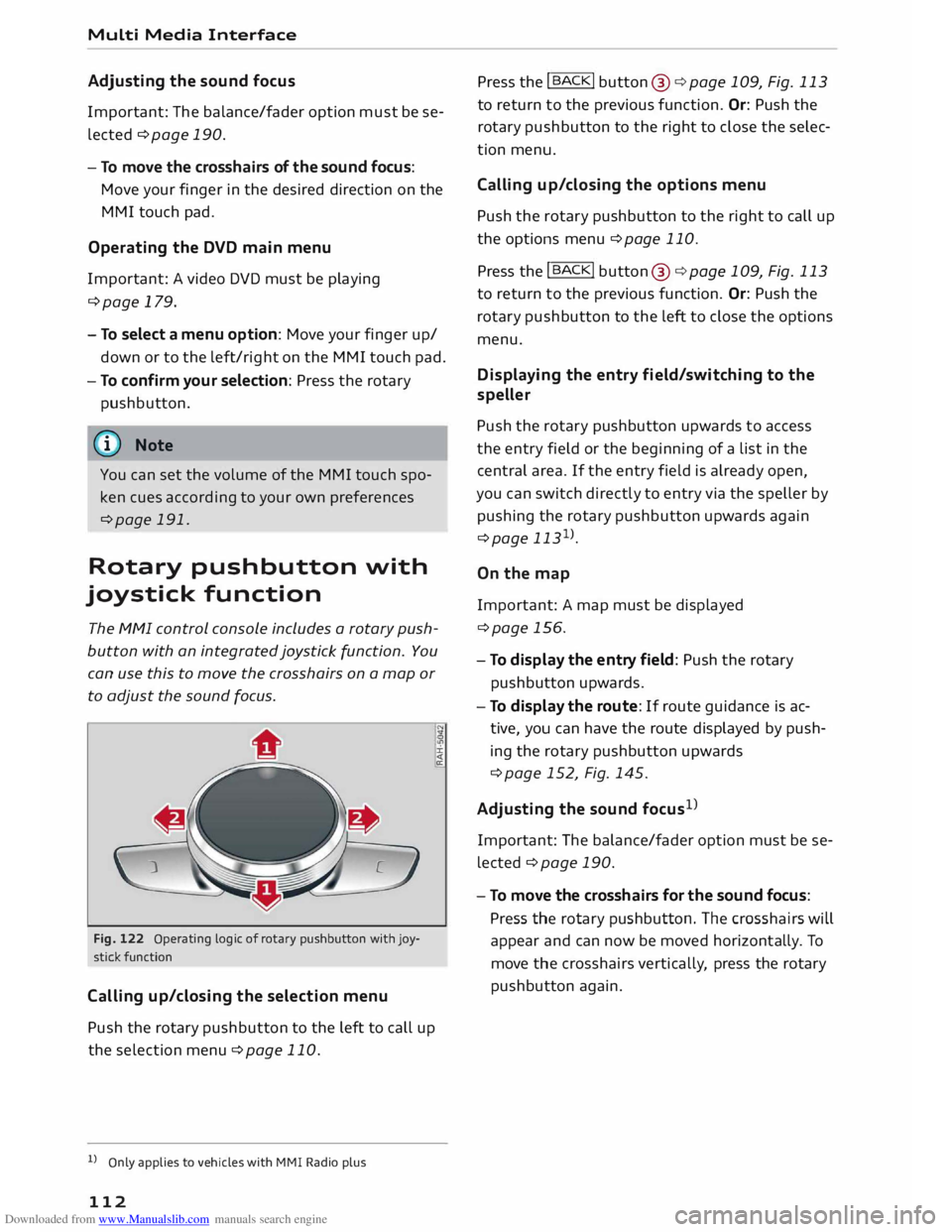
The MMI control console includes a rotary push
button with an integrated joystick function. You
can use this to move the crosshairs on a map or
to adjust the sound focus.
Fig. 122 Operating logic of rotary pushbutton with joy
stick function
Cal ling up/c losing the selection menu
Push the rotary pushbutton to the left to call up
the selection menu ¢page 110.
l l
Only applies to vehicles with MMI Radio plus
112 :i:
<{
a: Press
the I
BACK!
button @¢ page 109, Fig. 113
to return to the previous function. Or: Push the
rotary pushbutton to the right to close the selec
tion menu.
Cal ling up/clos ing the options menu
Push the rotary pushbutton to the right to call up
the options menu ¢page 110.
Press the I
BACK!
button @¢page 109, Fig. 113
to return to the previous function. Or: Push the
rotary pushbutton to the left to close the options
menu.
Displaying the entr y field /switching to the
speller
Push the rotary pushbutton upwards to access
the entry field or the beginning of a list in the
central area. If the entry field is already open,
you can switch directly to entry via the speller by
pushing the rotary pushbutton upwards again
¢page 1131
>.
On the map
Important: A map must be displayed
¢page 156.
- To display the entry field: Push the rotary
pushbutton upwards.
- To display the route: If route guidance is ac
tive, you can have the route displayed by push
ing the rotary pushbutton upwards
¢ page 152, Fig. 145.
Adjusting the sound focus1
>
Important: The balance/fader option must be se
lected ¢ page 190.
- To move the crosshairs for the sound focus:
Press the rotary pushbutton. The crosshairs will
appear and can now be moved horizont ally. To
move the crosshairs vertically, press the rotary
pushbutton again.
Page 116 of 284
![AUDI TT COUPE 2014 User Guide Downloaded from www.Manualslib.com manuals search engine Multi
Media Interface
Symbol / marking Explanation
@ (&] To
delete the character to the left of the cursor.
@ Character
selecti](/img/6/57662/w960_57662-115.png "AUDI TT COUPE 2014 User Guide Downloaded from www.Manualslib.com manuals search engine Multi
Media Interface
Symbol / marking Explanation
@ (&] To
delete the character to the left of the cursor.
@ Character
selecti")
Downloaded from www.Manualslib.com manuals search engine Multi
Media Interface
Symbol / marking Explanation
@ (&] To
delete the character to the left of the cursor.
@ Character
selection The
character selected will be highlighted.
@ � The
entry suggestion can be accepted by pushing the rotary push-
button upwards.
Searching You can use the search function to search for en
tries in the fvf fvfl (e.g. station names).
Fig. 124 Entry suggestion in the radio function
The search function is available in the Vehicle,
Radio, Media, Telephone, Navigation and Audi
connect menus.
Calling up the search function
.,. Select: !MENU! button > desired menu item
(e.g. Radio) .
.,. You
may need to push the rotary pushbutton
upwards to call up the entry field@¢ Fig. 124.
Searching for an entry
.,. Enter one or more search terms in the entry
field. The individual search terms must be sep
arated by spaces.
The system may make suggestions © depending
on what you have entered. Further entries con
taining the search terms entered will be dis
played in the List of results @.
If the desired term is not yet being displayed,
continue entering Letters until it appears.
You can enter search terms in any order using the
search function. The first few Letters of the
search terms will often be sufficient to bring up a
List of results. In the Radio menu, for example,
write the name of a radio station and the initial
Letters of the programme type.
114 Accepting
an entry suggestion
Important: An entry suggestion must be dis
played.
.,. When using MMI touch*: Press the rotary
pushbutton .
.,. When using the speller: Push the rotary push
button upwards.
Using an entry from the results list
.,. When using MMI touch*: Turn the rotary push
button to the right. Select an entry from the
List and confirm it.
.,. When
using the speller: Select and confirm
I LIST!
. Or: Push the rotary pushbutton down
wards. Select an entry from the List and confirm
it.
Page 117 of 284
Downloaded from www.Manualslib.com manuals search engine 0
N
co
....
\D L/'l
N
L/'l
.... •
Telephone
• Audi connect
• Navigation
• Directory
• Radio
• Media
• Sound
• Help
• Help Speech Dialogue System
• Help Telephone
• Help Audi connect
• Help Navigation
• Help Map
• Help Radio
• Help Media
• Enter
number
• Delete
number/ correct number
• Directory
• Call (XY)
• business / private / land line/ mobile
• Drive
me to (XY)
• Business address/ Private address
• Start/ stop route guidance
• Directory
• Last destinations
• Navigation
favourites
• Drive
home
• Enter
address
• Enter
country / town / street
• Exclude
route/ Exclude route for (XY) km / m
• Map
• Day map/ Night map/ Route info Speech
dialogue system
• Favourites
• Call (XY)
• Enter number
• Redial
• Read new text message
• Drive
me to (XY)
• Enter address
• Stop route guidance
• Map
• Line (XY)
• Next page/ previous page
• Cancel
• Online destinations
• No, I meant (XY)
• Correct
• Call
list
• Redial
• Call
mailbox
• Enter
PIN / delete PIN
• Telephone favourites
• Exclude
next route section / Exclude
next street
• Manual / Automatic traffic
avoidance
• Route
list
• Calculate
alternative routes
• Online destinations
• Special
destination •
• 20 driving position map/ 20 north position map/ 30 map / Destination map/ Overview map
• Audi connect
• Travel information / Parking information
• Fuel prices
• Weather
R � D IO
• Radio
favourites
• Last
stations
• FM and DAB
•FM/ DAB/ AM
• Station (XY) / Frequency (XY)
• Ensemble (XY)
• Traffic programme on I off
Fig. 125 Overview of commands •
Flight
information / Train information
• City events
• Online
news
• Facebook
/ Twitter
ME DIA
• Jukebox
• CD I DVD
• SD card 1 / SD card 2
• Audi
music interface / iPod / USB / Bluetooth /
Wi-Fi / Medium (XY)
• Media favourites / Artists / Albums / Genres /
Tracks / Playlists / Videos
• Folder up
• Random playback on / off
115
Page 119 of 284
Downloaded from www.Manualslib.com manuals search engine 0
N
co
....
\D U'l
N
U'l
.... -
No navigation cues* or traffic announce
ments are given when a dialogue is running.
- You can select an entry from a list both via
the speech dialogue system and using the
rotary pushbutton.
- The speech dialogue system does not sup
port commands in Arabic, Norwegian or
Hungarian.
Notes on the command
overviews
Applies to vehicles: with speech dialogue system
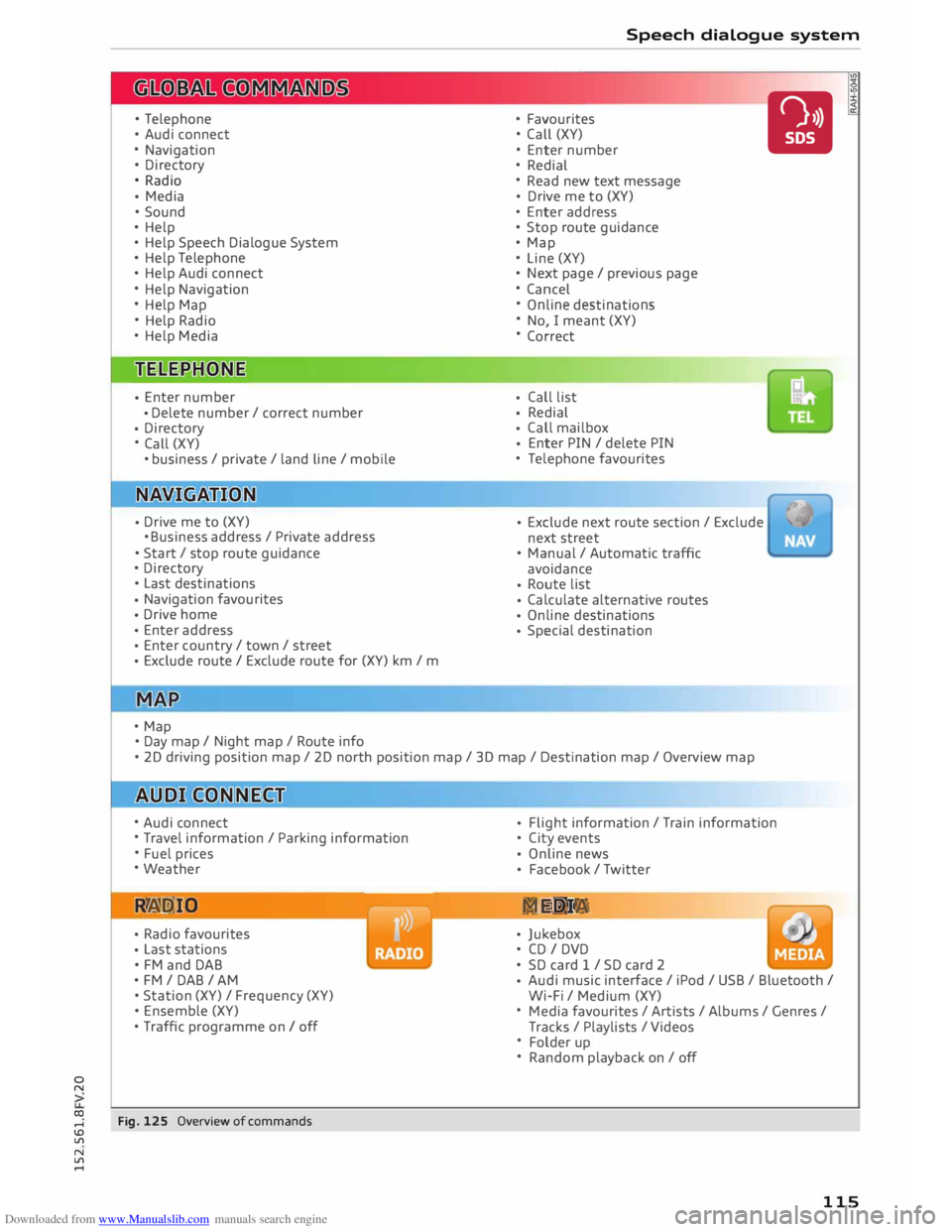
The following overviews show you the commands
that you can give to operate the MMI via the
speech dialogue system.
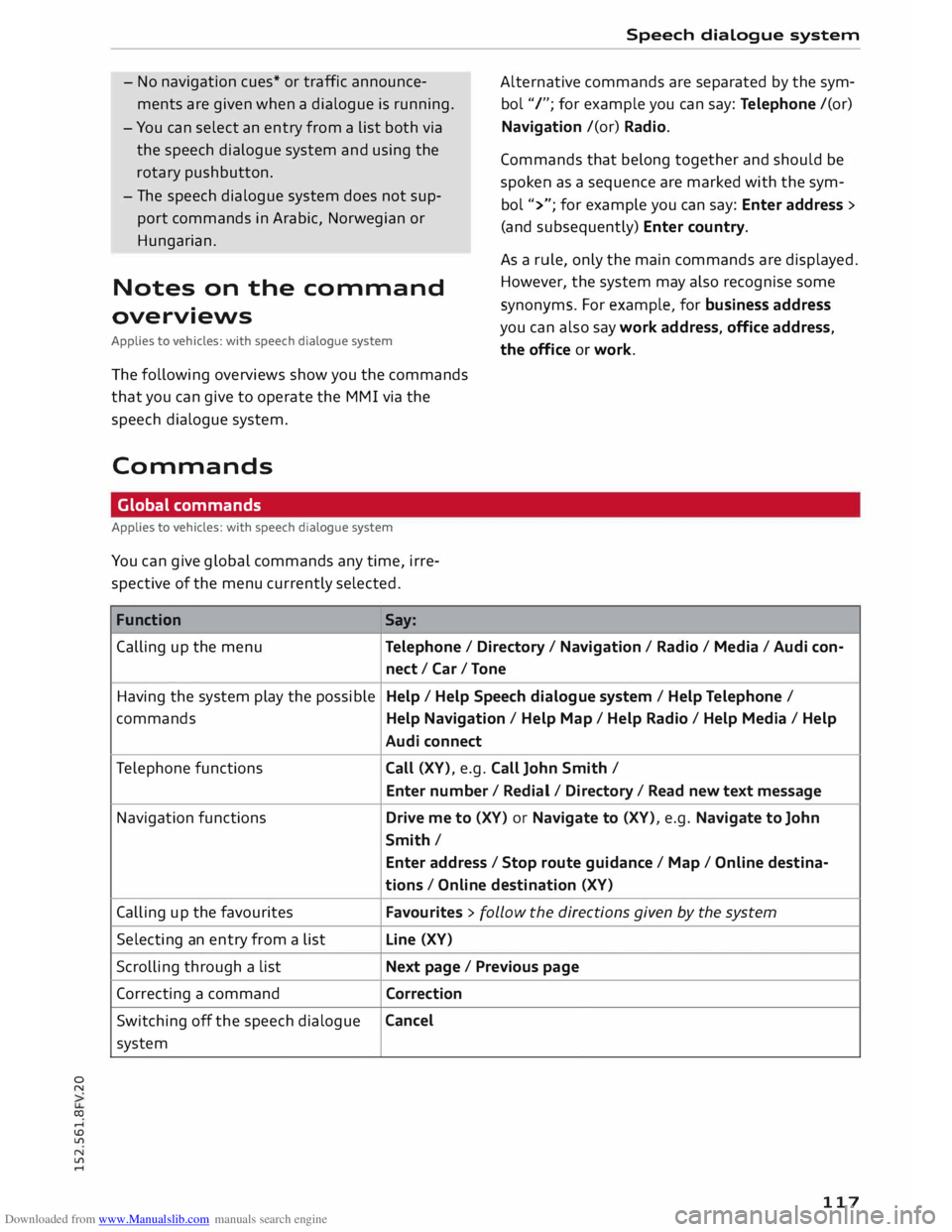
Commands Global commands
Applies to vehicles: with speech dialogue system
You can give global commands any time, irre
spective of the menu currently selected.
Function Say: Speech
dialogue system
Alternative commands are separated by the sym
bol "/"; for example you can say: Telephone /(or)
Navigation /(or) Radio.
Commands that belong together and should be
spoken as a sequence are marked with the sym
bol ">"; for example you can say: Enter address >
(and subsequently) Enter country.
As a rule, only the main commands are displayed.
However, the system may also recognise some
synonyms. For example, for business address
you can also say work address, office address,
the office or work.
Calling up the menu
Telephone/ Directory / Navigation / Radio / Media / Audi con-
nect /Car/ Tone
Having the system play the possible Help
/ Help Speech dialogue system/ Help Telephone /
commands Help Navigation / Help Map/ Help Radio / Help Media / Help
Audi connect
Telephone functions
Call (XV), e.g. Call John Smith /
Enter number/ Redial/ Directory/ Read new text message
Navigation functions
Drive me to (XV) or Navigate to (XV), e.g. Navigate to John
Smith/ Enter address / Stop route guidance / Map / Online destina-
tions / Online destination (XV)
Calling up the favourites Favourites > follow the directions given by the system
Selecting an entry from a list Line
(XV)
Scrolling through a list Next page / Previous page
Correcting a command
Correction
Switching off the speech dialogue Cancel
system
117
Page 123 of 284
Downloaded from www.Manualslib.com manuals search engine 0
N
co
....
\D L/'l
N
L/'l
.... Speech
dialogue system
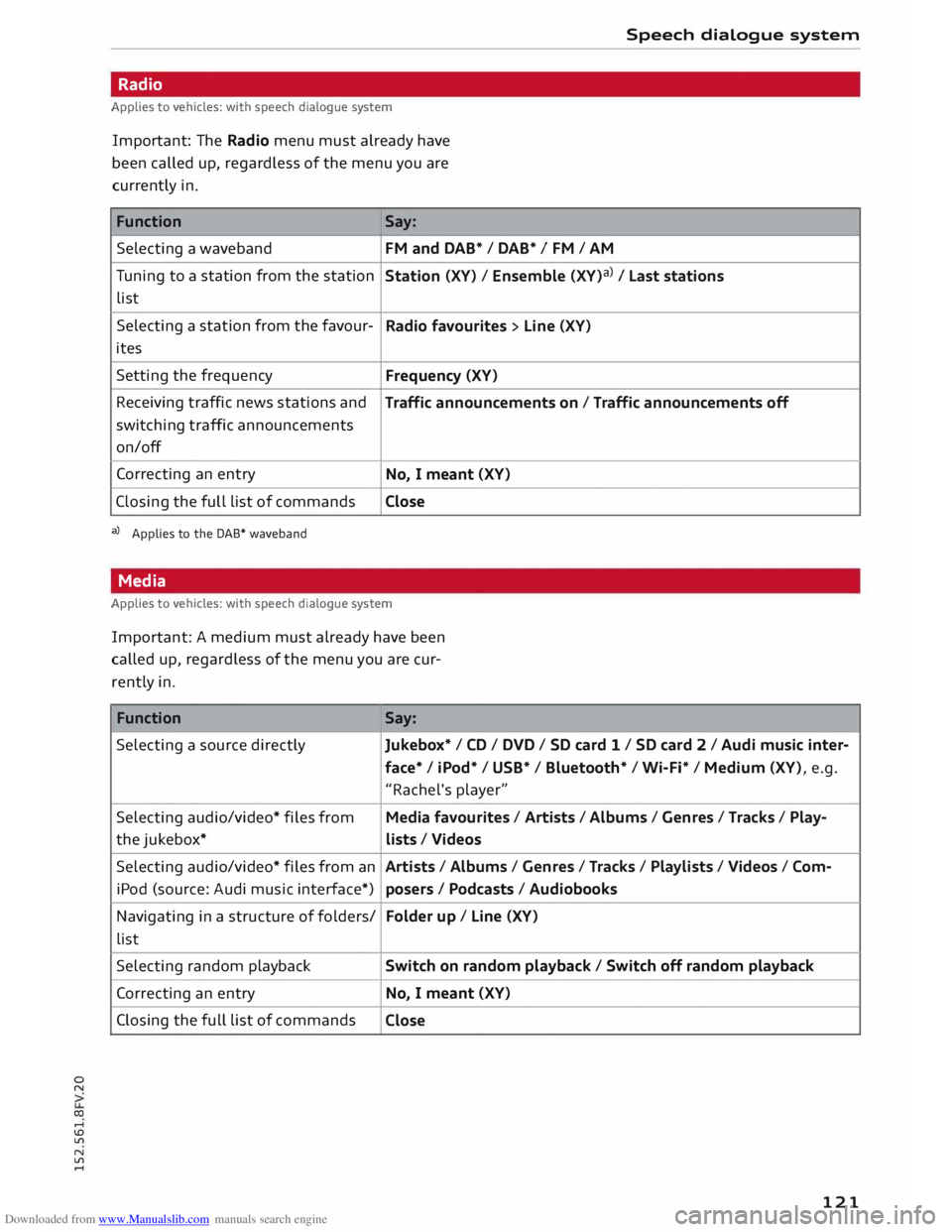
Radio
Applies to vehicles: with speech dialogue system
Important: The Radio menu must already have
been called up, regardless of the menu you are
currently in.
Function Say:
Selecting a waveband FM
and DAB* / DAB* / FM / AM
Tuning to a station from the station
Station (XV) / Ensemble (XV)a) I Last stations
list
Selecting a station from the favour-
Radio favourites > Line (XV)
ites
Setting the frequency
Frequency (XV)
Receiving traffic news stations and
Traffic announcements on/ Traffic announcements off
switching traffic announcements
on/off
Correcting an entry
No, I meant (XV)
Closing the full list of commands
Close
a) Applies to the DAB* waveband
Media
Applies to vehicles: with speech dialogue system
Important: A medium must already have been
called up, regardless of the menu you are cur
rently in.
Function Say:
Selecting a source directly Jukebox*/ CD/ DVD/ SD card 1 / SD card 2 / Audi music inter-
face* I iPod* / USB* / Bluetooth* / Wi-Fi* / Medium (XV), e.g.
"Rachel's player"
Selecting audio/video* files from Media favourites / Artists /Albums / Genres / Tracks / Play-
the jukebox*
lists / Videos
Selecting audio/video* files from an Artists/ Albums/ Genres / Tracks / Playlists /Videos / Com-
iPod (source: Audi music interface*)
posers I Podcasts / Audiobooks
Navigating in a structure of folders/ Folder
up/ Line (XV)
list
Selecting random playback
Switch on random playback/ Switch off random playback
Correcting an entry
No, I meant (XV)
Closing the full list of commands
Close
121
Page 131 of 284
Downloaded from www.Manualslib.com manuals search engine 0
N
co
....
\D L/'l
N
L/'l
.... find
out if your mobile phone supports this func
tion by asking your mobile network provider, con
sulting the operating manual of your mobile
phone or visiting www.audi.com/bluetooth.
@ Note
Radio/media playback is muted when you
make or receive phone calls.
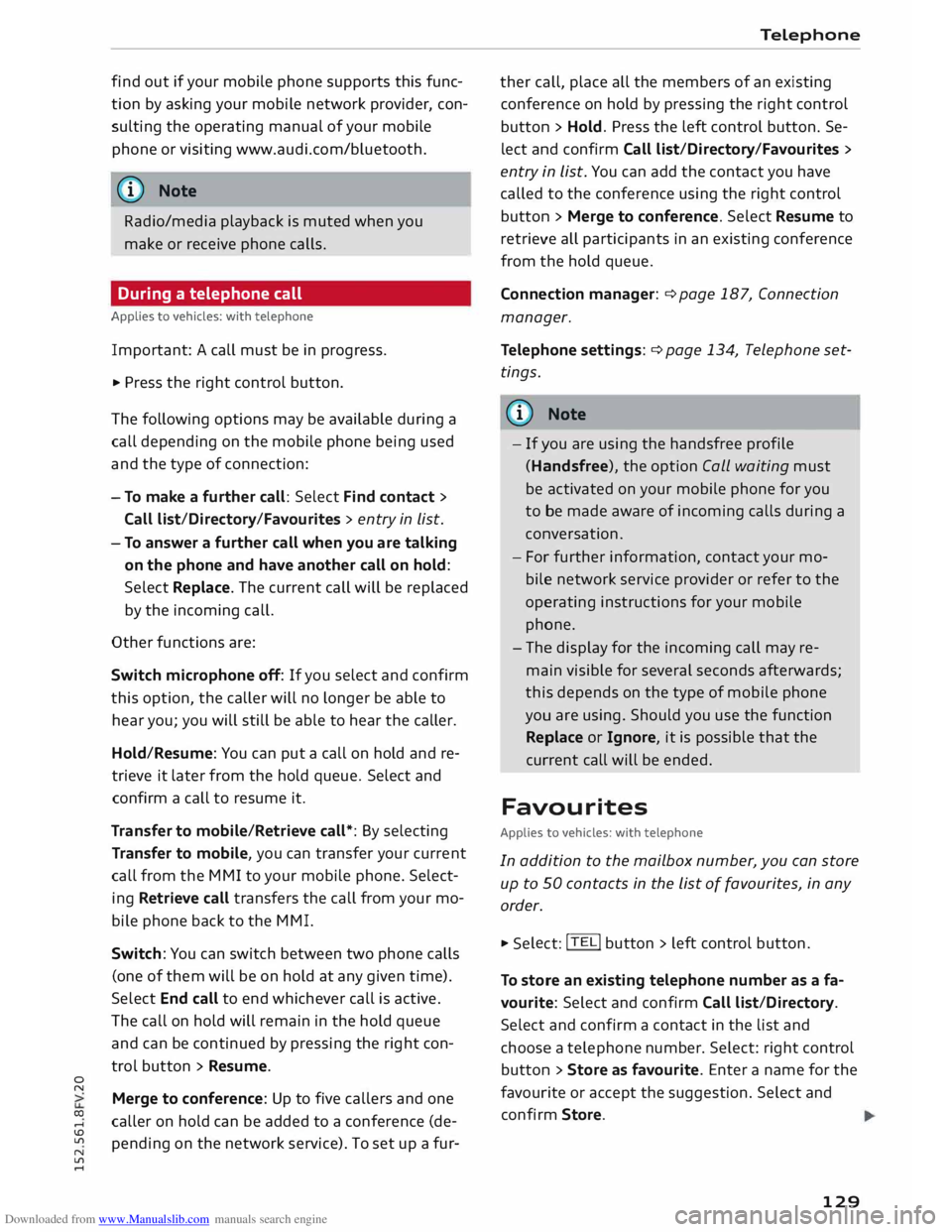
During a telephone call
Applies to vehicles: with telephone
Important: A call must be in progress.
.,. Press
the right control button.
The following options may be available during a
call depending on the mobile phone being used
and the type of connection:
- To make a further call: Select Find contact >
Call list/Directory/Favourites > entry in List.
- To answer a further call when you are talking
on the phone and have another call on hold:
Select Replace. The current call will be replaced
by the incoming call.
Other functions are:
Switch microphone off: If you select and confirm
this option, the caller will no longer be able to
hear you; you will still be able to hear the caller.
Hold/Resume: You can put a call on hold and re
trieve it later from the hold queue. Select and
confirm a call to resume it.
Transfer to mobile/Retrieve call*: By selecting
Transfer to mobile, you can transfer your current
call from the MMI to your mobile phone. Select
ing Retrieve call transfers the call from your mo
bile phone back to the MMI.
Switch: You can switch between two phone calls
(one of them will be on hold at any given time).
Select End call to end whichever call is active.
The call on hold will remain in the hold queue
and can be continued by pressing the right con
trol button > Resume.
Merge to conference: Up to five callers and one
caller on hold can be added to a conference (de
pending on the network service). To set up a fur- Telephone
ther call, place all the members of an existing
conference on hold by pressing the right control
button > Hold. Press the left control button. Se
lect and confirm Call list/Directory/Favourites >
entry in List. You can add the contact you have
called to the conference using the right control
button > Merge to conference. Select Resume to
retrieve all participants in an existing conference
from the hold queue.
Connection manager: ¢ page 187, Connection
manager.
Telephone settings: ¢ page 134, Telephone set
tings .
@ Note
- If you are using the handsfree profile
(Handsfree), the option Call waiting must
be activated on your mobile phone for you
to be made aware of incoming calls during a
conversation.
- For further information, contact your mo
bile network service provider or refer to the
operating instructions for your mobile
phone.
- The display for the incoming call may re
main visible for several seconds afterwards;
this depends on the type of mobile phone
you are using. Should you use the function
Replace or Ignore, it is possible that the
current call will be ended.
Favourites
Applies to vehicles: with telephone
In addition to the mailbox number, you can store
up to 50 contacts in the List of favourites, in any
order. .,. Sele
ct:
!TEL! button > left control button.
To store an existing telephone number as a fa
vourite: Select and confirm Call list/Directory.
Select and confirm a contact in the list and
choose a telephone number. Select: right control
button > Store as favourite. Enter a name for the
favourite or accept the suggestion. Select and
confirm Store.
129
Page 133 of 284
Downloaded from www.Manualslib.com manuals search engine 0
N
co
....
\D Lfl
N
Lfl
.... Delete
this text message*
You can delete a text message you have selected.
Text message settings*
The number of the text message centre of your
mobile network service provider is displayed. If
no number has been stored, you can enter the
number of the text message centre. For more in
formation, contact your service provider.
Connection manager
Refer to¢ page 187, Connection manager.
Wi-Fi settings
Refer to r:::> page 143, Wi-Fi hotspot.
Telephone settings
Refer tor:::> page 134, Telephone settings.
i Note
Messages deleted using the MMI are also au
tomatically deleted on the mobile phone.
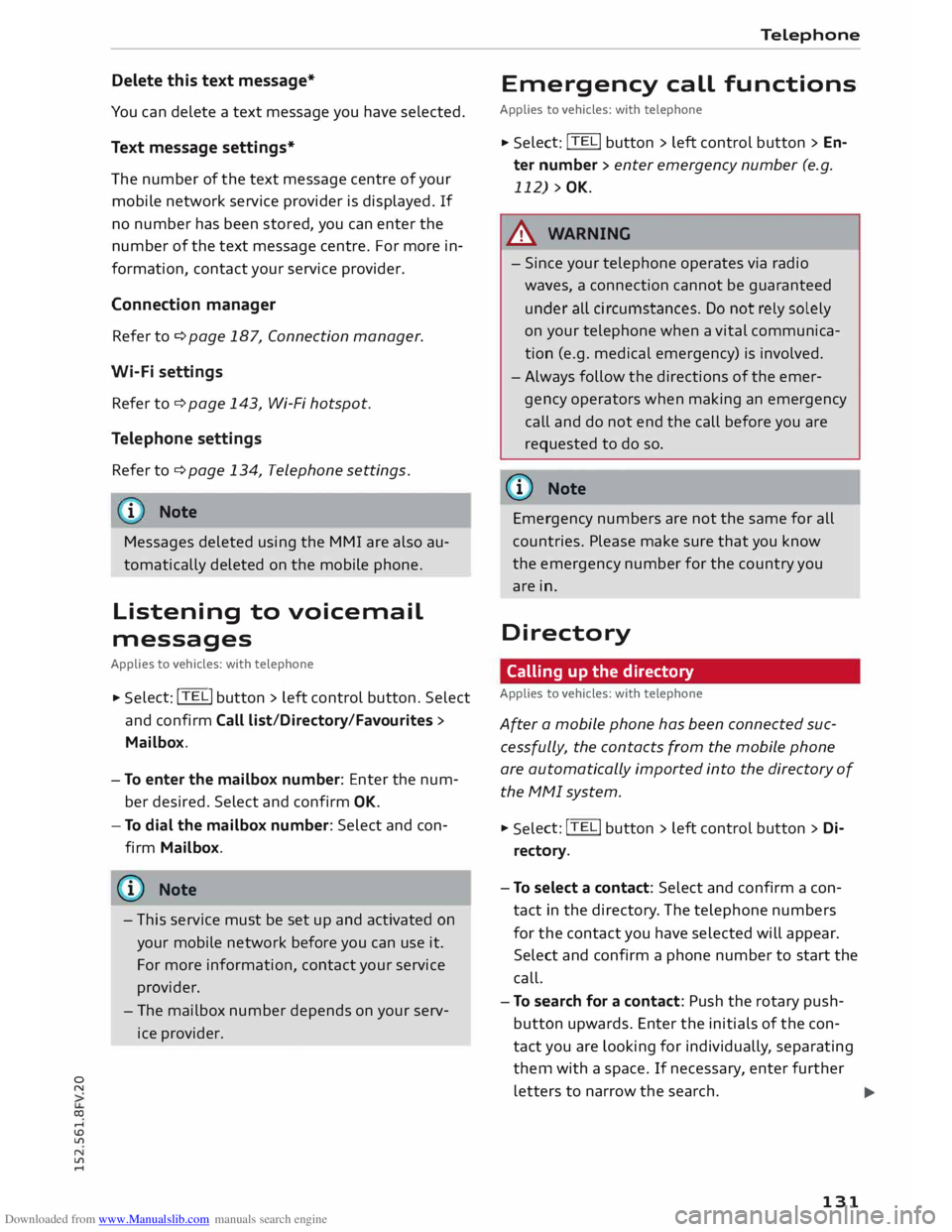
Listening to voicemail
messages
Applies to vehicles: with telephone � Sele
ct: !TEL! button > Left control button. Select
and confirm Call list/Directory/Favourites >
Mailbox.
-To enter the mailbox number: Enter the num
ber desired. Select and confirm OK.
- To dial the mailbox number: Select and con
firm Mailbox.
CD} Note
- This service must be set up and activated on
your mobile network before you can use it.
For more information, contact your service
provider.
- The mailbox number depends on your serv
ice provider. Telephone
Emergency call functions
Applies to vehicles: with telephone
� Sele
ct: !TEL! button > Left control button > En
ter number > enter emergency number (e.g.
112) > OK.
A WARNING
- Since your telephone operates via radio
waves, a connection cannot be guaranteed
under all circu mstances. Do not rely solely
on your telephone when a vital communica
tion (e.g. medical emergency) is involved.
- Alw ays follow the directions of the emer
gency operators when making an emergency
call and do not end the call before you are
requested to do so.
((1) Note
Emergency numbers are not the same for all
countries. Please make sure that you know
the emergency number for the country you
are in.
Directory Calling up the directory
Applies to vehicles: with telephone
After a mobile phone has been connected suc
cessfully, the contacts from the mobile phone
are automatically imported into the directory of
the MMI system.
� Selec t: !TEL! button > Left control button > Di
rectory.
- To select a contact: Select and confirm a con
tact in the directory . The telephone numbers
for the contact you have selected will appear.
Select and confirm a phone number to start the
call.
- To search for a contact: Push the rotary push
button upwards. Enter the initials of the con
tact you are Looking for individually, separating
them with a space. If necessary, enter further
letters to narrow the search.
..,.
131
Page 145 of 284
Downloaded from www.Manualslib.com manuals search engine 0
N
co
....
\D L/'l
N
L/'l
.... installed
in your vehicle. You can then check
whether a new version is available at
www.audi.com/myaudi. You can also have
the new navigation data installed by an Audi
dealer (carries additional charges).
- For more information on the myAudi spe
cial destinations and the navigation map
update service, please see the Operating
Manual for Audi connect at www.audi.com/
myaudi.
Audi connect services for the telephone
Applies to vehicles: with Audi connect
The following Audi connect services are currently
available:
- Creating contacts on your PC via your myAudi
account and loading the contacts into the direc
tory of your MMI system ¢page 133.
Audi connect services in the media menu
Applies to vehicles: with Wi-Fi audio player and Audi connect
- Wi-Fi audio player: To access the media centre
of your player (e.g. smartphone) connected via
Wi-Fi ¢page 172. Additionally, you can use
the Audi MMI connect app to access Internet
radio programmes*.
- Online media: With assistance from the Audi
MMI connect app, this function allows you to
access and operate various online media serv
ices using the MMI.
@ Note
Please contact an Audi dealer for more infor
mation on Wi-Fi audio players and for a list of
supported devices.
Further options
Applies to vehicles: with Audi connect
.,. Select: I MENU I button > Audi connect > right
control button.
The following options are available to you in the
overview of the Audi connect services:
- Login: ¢ page 140
- Connection manager: ¢page 187 Audi
connect
- Licence periods: The validity and the time re
maining on your licences is displayed. If the Li
cence expiry warning function is switched on, a
message will be displayed before the licence ex
pires.
Wi-Fi hotspot
Applies to vehicles: with Wi-Fi hotspot
You can use your MMI system as a Wi-Fi hotspot
for connecting to the Internet on up to eight Wi
Fi devices. Small, light Wi-Fi devices that are not
permanently attached to the vehicle must only
be operated from the rear seats while the vehicle
is moving.
Impor tant: The ignition must be switched on.
.,. Select: !TEL!
button > right control button Con-
nection manager.
.,. Select:
right control button > Wi-Fi settings.
You can access the following settings in the Wi-Fi
settings menu:
Wi-Fi mode
The Wi-Fi hotspot is deactivated when the vehicle
leaves the factory. Set the Wi-Fi hotspot to hot
spot before establishing a connection between
your vehicle and your Wi-Fi device.
- hotspot: The MMI's Wi-Fi hotspot is active and
visible to other devices. It is possible to connect
to new Wi-Fi devices.
- hotspot and client: The MMI's Wi-Fi hotspot is
active. An Internet connection to a personal
Wi-Fi hotspot (e.g. smartphone) can be estab
lished. You can search for your personal hot
spot and connect to the MMI using Network
search ¢page 144 ¢page 139.
- off: The MMI system's Wi-Fi hotspot is deacti
vated. It will not be possible to establish an In
ternet connection .
Hotspot settings
The Wi-Fi connection between your vehicle and
the Wi-Fi device (laptop or mobile phone) is en
crypted. Before a connection can be established,
you must enter the following values/settings
when setting up your Wi-Fi device (these values
can be edited as required):
..,.
143