radio AUDI TT COUPE 2014 Owner's Manual
[x] Cancel search | Manufacturer: AUDI, Model Year: 2014, Model line: TT COUPE, Model: AUDI TT COUPE 2014Pages: 284, PDF Size: 34.42 MB
Page 165 of 284
Downloaded from www.Manualslib.com manuals search engine 0
N Listening
to the radio
Calling up the radio
The radio supports the following wavebands:
FM, AM, DAB* (digital radio).
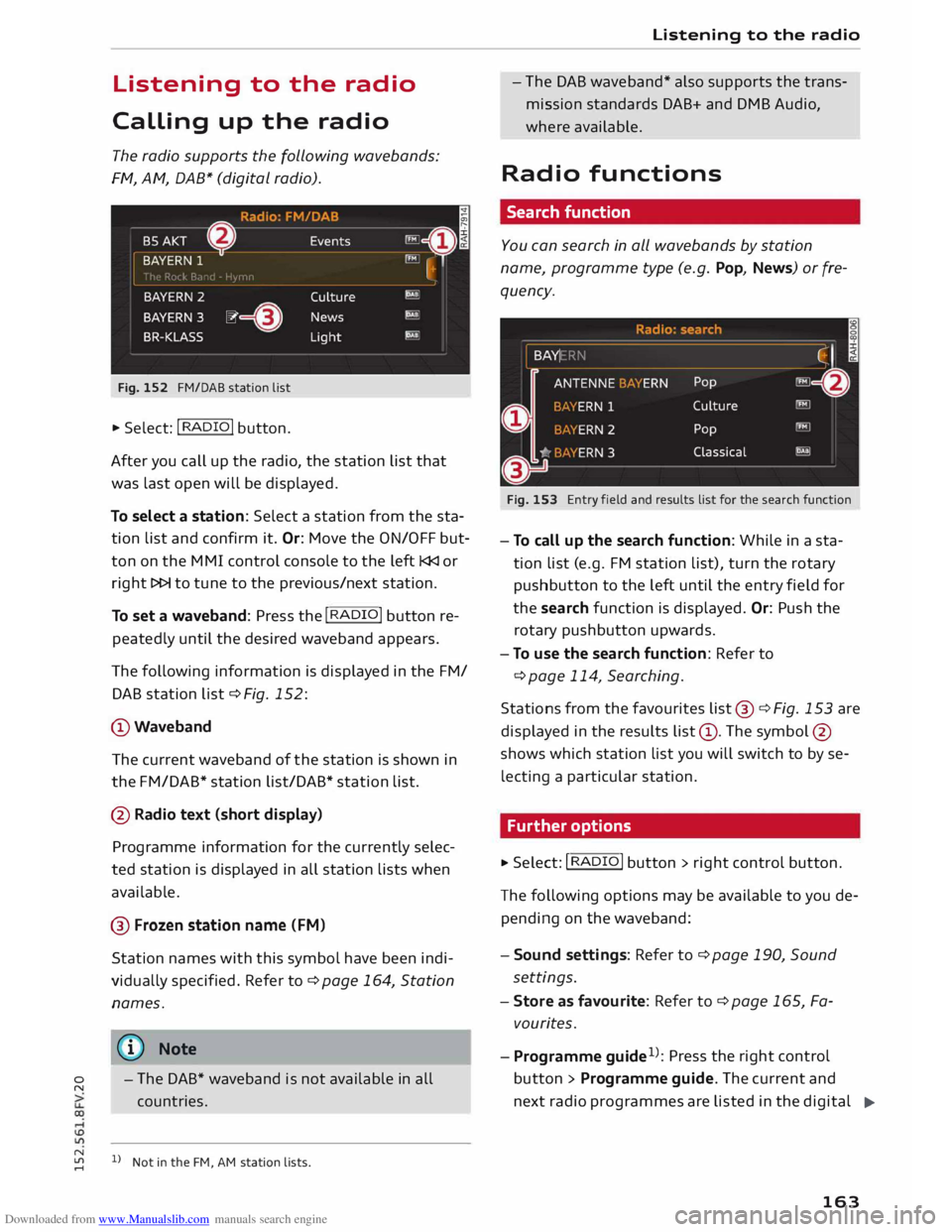
Fig. 152 FM/DAB station list
.,. Select: I RADIO !
button.
After you call up the radio, the station list that
was last open will be displayed.
To select a station: Select a station from the sta
tion list and confirm it. Or: Move the ON/OFF but
ton on the MMI control console to the left l
To set a waveband: Press the I
R
AD I
O! button re
peatedly until the desired waveband appears.
The following information is displayed in the FM/
DAB station list¢ Fig. 152:
@Waveband The current waveband of the station is shown in
the FM/DAB* station list/DAB* station list.
@ Radio text (short display)
Programme information for the currently selec
ted station is displayed in all station lists when
available.
@ Frozen station name (FM)
Station names with this symbol have been indi
vidually specified. Refer to¢ page 164, Station
names.
� Note - The
DAB* waveband is not available in all
countries.
N
� l
l
Not in the FM, AM station lists. Listening
to the radio
- The DAB waveband* also supports the trans
mission standards DAB+ and DMB Audio,
where available.
Radio functions
Search function
You can search in all wavebands by station
name, programme type (e.g. Pop, News) or fre
quency.
Fig. 153 Entry field and results list for the search function
- To call up the search function: While in a sta
tion list (e.g. FM station list), turn the rotary
pushbutton to the left until the entry field for
the search function is displayed. Or: Push the
rotary pushbutton upwards.
- To use the search function: Refer to
¢ page 114, Searching.
Stations from the favourites list @¢ Fig. 153 are
displayed in the results list@. The symbol @
shows which station list you will switch to by se
lecting a particular station.
Further options
.,. Select: I RADIO I button > rig ht control button.
The following options may be available to you de
pending on the waveband:
- Sound settings: Refer to¢ page 190, Sound
settings.
- Store as favour ite: Refer to ¢ page 165, Fa
vourites.
- Programme guide1
>
: Press the right control
button > Programme guide. The current and
next radio programmes are listed in the digital
...,.
163
Page 166 of 284
Downloaded from www.Manualslib.com manuals search engine Listening
to the radio
Programme guide for all supported stations.
Select and confirm a radio programme to have
more details on the programme displayed.
- Manual station search1
): The frequency bar is
displayed. Select and confirm the desired fre
quency.
- Seek 1
): The previous/next receivable frequency
will be set.
- Radio settings: Refer to ¢ page 166.
Announcements
• Select: !RADIO! button> right control button>
An nouncements.
Traffic announcements:
- off: Traffic announcements are not played.
- FM: Traffic announcements can be received via
FM and played by the system irrespective of the
selected waveband.
- FM/DAB:* You receive traffic announcements
from both wavebands. If DAB traffic announce
ments are not available from the station cur
rently set, they will be received from the FM
waveband.
DAB announcements:*
Depending on station availability, information
(e.g. news, weather information) may be played
when the function � is switched on.
Volume of announcements:
Refer to¢ page 191, Announcements.
Radio text
• Select: I RADIO! button> left control button>
FM or DAB*.
Displaying radio text:
Select the desired station from the station list.
Select: right control button > Radio text. Addi
tional information on the programme (e.g. artist,
composer, track) is shown.
l l
Not in the mixed station list FM/DAB*.
164 Browsing
through radio text entries:
Turn the rotary pushbutton to the Left or right.
Station names
• Select: I RADIO! button > left control button >
FM. Select the desired station from the station
list.
Variable station names:
Some stations use variable station names. De
pending on how the station names are sorted,
the position of a variable station name may
change in the station list. You can lock the cur
rent name of a selected station permanently by
selecting the Lock station name option.
- Lock station name: Select the right control but
ton >Confirm.The Locked station name will be
marked with the symbol @¢ page 163,
Fig. 152.
- Unlock station name: Select the right control
button > Unlock station name. The name re
ceived for the radio station will be displayed.
- Change station name: You can adjust the name
of a station. Select: right control button > Lock
station name. Turn the rotary pushbutton to
the Left to edit the station name. Enter a sta
tion name. Select and accept Confirm.
Detailed station information view
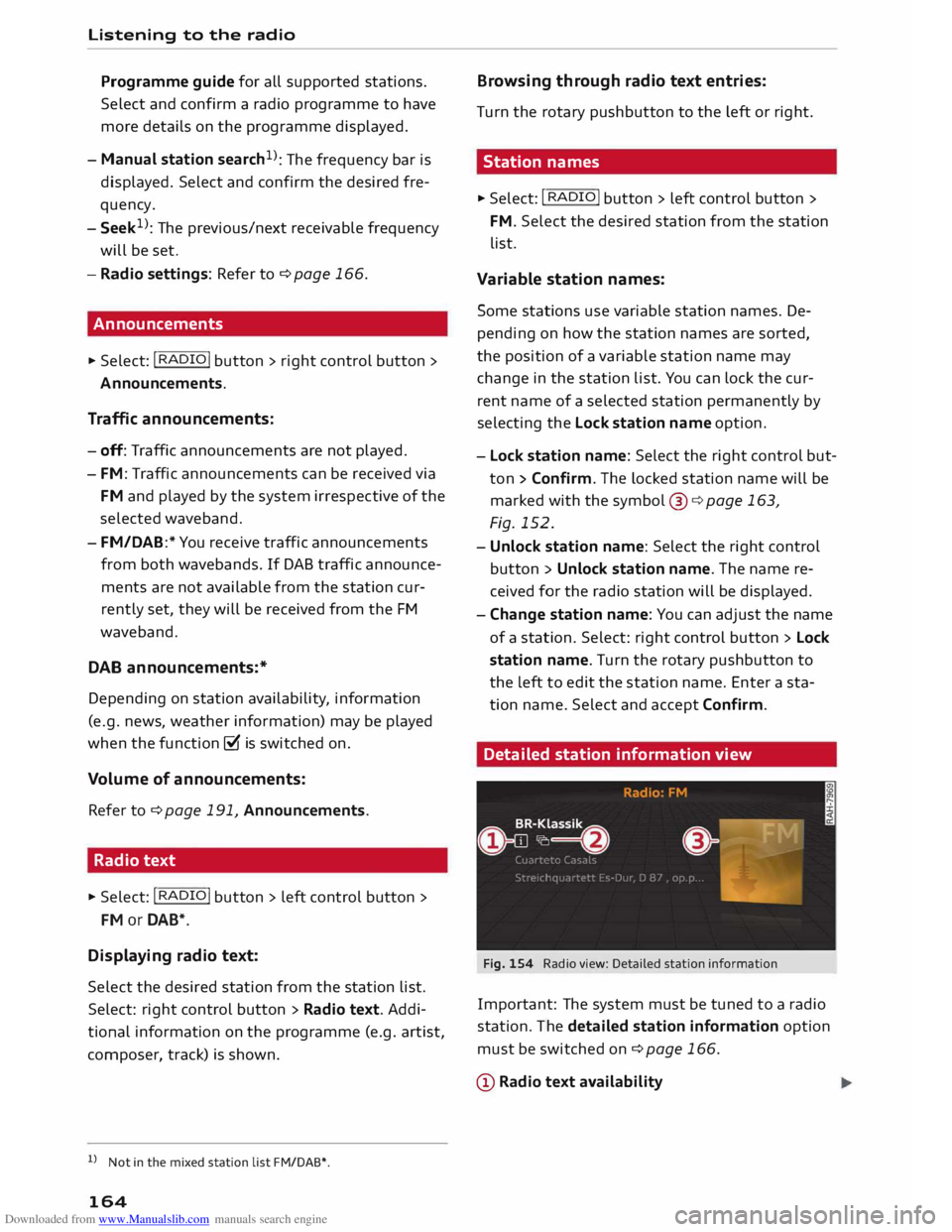
Fig. 154 Radio view: Detailed station information
Important: The system must be tuned to a radio
station. The detailed station information option
must be switched on¢ page 166.
(D Radio text availability
Page 167 of 284
Downloaded from www.Manualslib.com manuals search engine 0
N
co
....
\D U'l
N
U'l
.... Radio
text is available for the current station. Re
fer to c::::> page 164, Radio text.
@ Slide show availability
A slide show is available for the current station.
@ Picture view
You can choose to display a Slide show or the
Station logo. Refer to c::::> page 166, Preferred
image (DAB*).
Displaying the station list:
Turn the
rotary pushbutton. Or: Press the I BACK!
button.
Radio menu
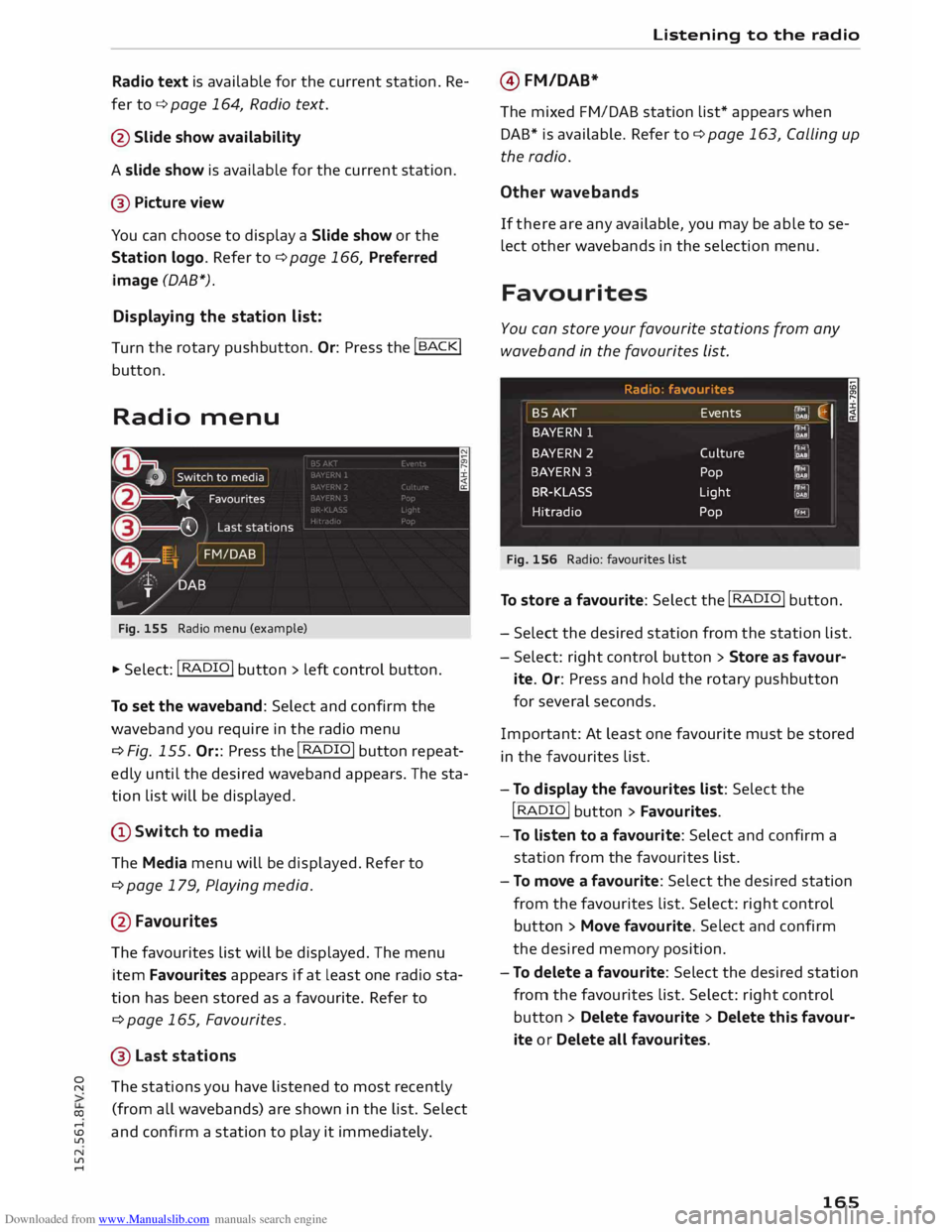
Fig. 155 Radio menu (example)
.,.. Select: I RADIO!
button> left control button.
To set the waveband: Select and confirm the
waveband you require in the radio menu
¢ Fig. 155. Or:: Press the I RADIO!
button repeat
edly until the desired waveband appears. The sta
tion list will be displayed.
(D Switch to media
The Media menu will be displayed. Refer to
¢ page 179, Playing media.
@ Favourites
The favourites list will be displayed. The menu
item Favourites appears if at least one radio sta
tion has been stored as a favourite. Refer to
¢ page 165, Favourites.
® Last stations
The stations you have listened to most recently
(from all wavebands) are shown in the list. Select
and confirm a station to play it immediately. Listening
to the radio
@ FM/DAB*
The mixed FM/DAB station list* appears when
DAB* is available. Refer to c::::> page 163, Calling up
the radio.
Other wavebands
If there are any available, you may be able to se
lect other wavebands in the selection menu.
Favourites
You can store your favourite stations from any
waveband in the favourites List.
Radio : fa vour ite s
BSAKT Events f'lM
�1
DAB;
BAYERN 1 ,r,;f' o••
BAYERN
2
Culture P"i:"M' DAB
BAYERN 3
Pop f'lM
,QM
BR-KLASS Light r'fMI
.11!!
Hitradio Pop 'FM
Fig. 156 Radio: favourites list I
To store a favourite: Select the I RADIO!
button.
- Select the desired station from the station list.
- Select: right control button > Store as favour-
ite. Or: Press and hold the rotary pushbutton
for several seconds.
Important: At least one favourite must be stored
in the favourites list.
- To display the favourites List: Select the
I RADIO
I
button > Favourites.
- To Listen to a favourite: Select and confirm a
station from the favourites list.
- To move a favourite: Select the desired station
from the favourites list. Select: right control
button > Move favourite. Select and confirm
the desired memory position.
- To delete a favourite: Select the desired station
from the favourites list. Select: right control
button > Delete favourite > Delete this favour
ite or Delete all favourites.
165
Page 168 of 284
Downloaded from www.Manualslib.com manuals search engine Listening
to the radio
Other settings
Radio settings
.,. Select: I RADIO! button> right control button>
Radio settings.
Depending on the waveband setting (FM, AM or
DAB*), you can select the following functions:
Alternative frequency (FM, DAB*)
on: The tuner attempts to switch to an alterna
tive frequency of the current station when the re
ception quality becomes weaker. When the re
ception is lost in the FM or DAB* waveband, the
system will automatically (in the background)
switch to an alternative station, if there is one
available.
off: Switching to an alternative frequency is
switched off. The current frequency will be main
tained, and in some cases may no longer be re
ceived. The alternative frequency function is au
tomatically switched on again when the station is
changed.
Switch regional stations (FM)
Impor tant: The Alternative frequency function
must be switched on.
Some FM stations split up their transmission and
provide different regions with regional pro
grammes with differing content. When the func
tion is on �. the system switches to alternative
reg ion-specific frequencies.
L band (DAB*)
There are two wavebands for the digital radio:
Band III and L band. Ensembles in the band III
usually have a larger range extending into several
regions. They can be received at all times. In
some regions DAB is broadcast in the L band.
When this option is on, stations from the L band
will also be received.
Station sorting (FM)
A-Z: The stations are displayed in the station list
in alph abetical order. Radio stations with variable
station names are displayed after the stations
which have been sorted alphabetically. Radio sta-
166 tions
with a frequency as their station name are
displayed at the end of the list.
ID: The stations in the station list are sorted ac
cording to the station's ID (e.g. all BBC radio sta
tions are sorted together). Radio stations with a
frequency as their station name are displayed at
the end of the list.
Station sorting (DAB*)
A-Z: The stations are displayed in the station list
in alphabetical order.
Ensemble: Ensembles comprise various radio sta
tions of a specific area (e.g. a town or region);
they are listed together as an ensemble in the
station list. To open/close the list of radio sta
tions in an ensemble, select and confirm the en
semble. Available sub-programmes* (additional
services provided by DAB* radio stations) are lis
ted beneath the radio station (indented).
Detailed station info
When this function is switched on� and the sta
tion or favourites list is open, the system
switches to the Deta iled station information
view ¢ page 164 after approximately five sec
onds. If it is available, information on the selec
ted station (e.g. station name, artist, slide show,
station logo) may be shown.
Preferred image (DAB*)
You can specify your preferred image for the De
ta iled station information option ¢ page 164.
- station logo: The station logo is displayed if
available.
- slide show: Depending on availability, addition
al information as a supplement to the normal
programme may be shown (e.g. images from
the studio, current photographs of artists or al
bum covers).
({D Note
- If the Traffic announcements or DAB an
nouncements* function is switched on,
playback is interrupted for announcements.
You can cancel an announcement while it is
being played by briefly pressing the ON/OFF
button @
¢ page 109, Fig. 113. ____ ..,.
Page 169 of 284
Downloaded from www.Manualslib.com manuals search engine 0
N
co
....
\D U'l
N
U'l
.... -
Not all radio settings for the FM and DAB*
wavebands are available in the mixed sta
tion list FM/DAB*.
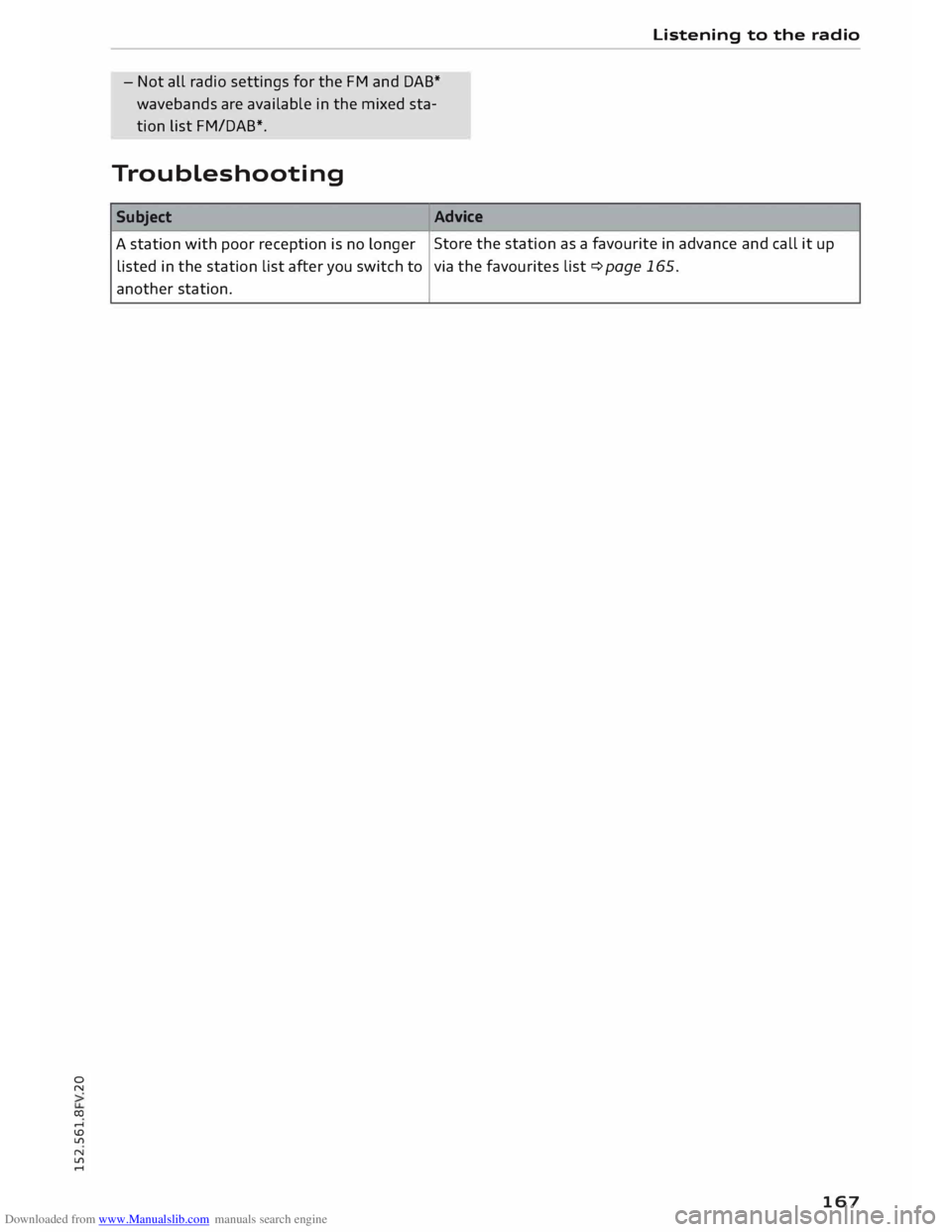
Troubleshooting Subject Advice Listening
to the radio
A station with poor reception is no longer Store
the station as a favourite in advance and call it up
listed in the station list after you switch to
via the favourites list¢ page 165.
another station.
167
Page 174 of 284
Downloaded from www.Manualslib.com manuals search engine Media
@ Note
- Pay attention to any connection queries on
your Bluetooth device.
- Bluetooth devices only have to be bonded
once. Any Bluetooth devices that have al
ready been bonded to the M MI system once
are connected automatically when they are
within range.
- You can bond several Bluetooth audio play
ers to the MMI system; however only one
connection can be active at a time.
- The system supports the Bluetooth proto
cols AVRCP (1.0/1.3) and A2DP .
- Please consider the volume control on your
Bluetooth device. Audi recommends setting
the volume of mobile devices to maximum
when they are being used as Bluetooth au
dio players.
- Which media functions (e.g. random play
back) are supported depends on the Blue
tooth device you are using.
- For more information on which
devices
are
supported, please go to www.audi.c om/
bluetooth or contact an Audi dealer.
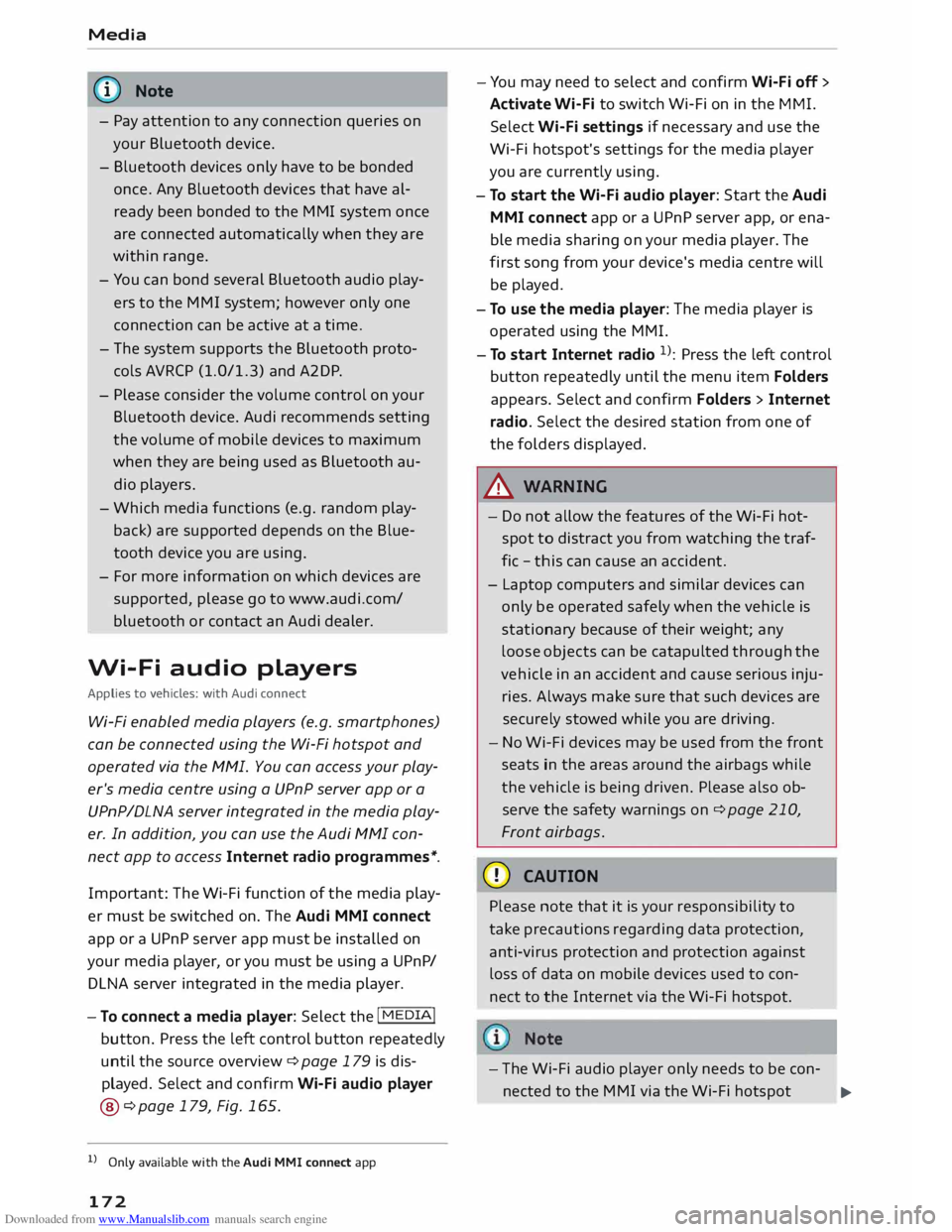
Wi-Fi audio players
Applies to vehicles: with Audi connect
Wi-Fi enabled media players (e.g. smartphones)
can be connected using the Wi-Fi hotspot and
operated via the MMI. You can access your play
er's media centre using a UPnP server app or a
UPnPIDLNA server integrated in the media play
er. In addition, you can use the Audi MMI con
nect app to access Internet radio programmes*.
Important: The Wi-Fi function of the media play
er must be switched on. The Audi MMI connect
app or a UPnP server app must be installed on
your media player, or you must be using a UPnP/
DLNA server integrated in the media player.
- To connect a media player: Select the I
MEDIA!
button. Press the Left control button repeatedly
until the source overview ¢ page 179 is dis
played. Select and confirm Wi-Fi audio player
@ ¢page 179, Fig. 165.
l l
Only available with the Audi MMI connect app
172 -
You may need to select and confirm Wi-Fi off>
Activate Wi-Fi to switch Wi-Fi on in the MMI.
Select Wi-Fi settings if necessary and use the
Wi-Fi hotspot's settings for the media player
you are currently using.
- To start the Wi-Fi audio player: Start the Audi
MMI connect app or a UPnP server app, or ena
ble media sharing on your media player. The
first song from your device's media centre will
be played.
- To use the media player: The media player is
operated using the MMI.
- To start Internet radio 1
>: Press the Left control
button repeatedly until the menu item Folders
appears. Select and confirm Folders> Internet
radio. Select the desired station from one of
the folders displayed.
.&_ WARNING
- Do not allow the features of the Wi-Fi hot
spot to distract you from watching the traf
fic -this can cause an accident.
- Laptop computers and similar devices can
only be operated safely when the vehicle is
stationary because of their weight; any
loose objects can be catapulted through the
vehicle in an accident and cause serious inju
ries. Always make sure that such devices are
securely stowed while you are driving.
- No Wi-Fi devices may be used from the front
seats in the areas around the airbags while
the vehicle is being driven. Please also ob
serve the safety warnings on¢ page 210,
Front airbags.
CD CAUTION
Please note that it is your responsibility to
take precautions regarding data protection,
anti-virus protection and protection against
Loss of data on mobile devices used to con
nect to the Internet via the Wi-Fi hotspot.
- The Wi-Fi audio player only needs to be con-
nected to the MMI via the Wi-Fi hotspot
.,.
Page 181 of 284
Downloaded from www.Manualslib.com manuals search engine 0
N
co
.-I
\D L/'l
N
L/'l
.-I -
The display of country-specific characters
(e.g.
for
ID3 tag information) depends on
the language set on the system; it cannot
be ensured that these characters are always
displayed correctly.
Playing media
Calling up media
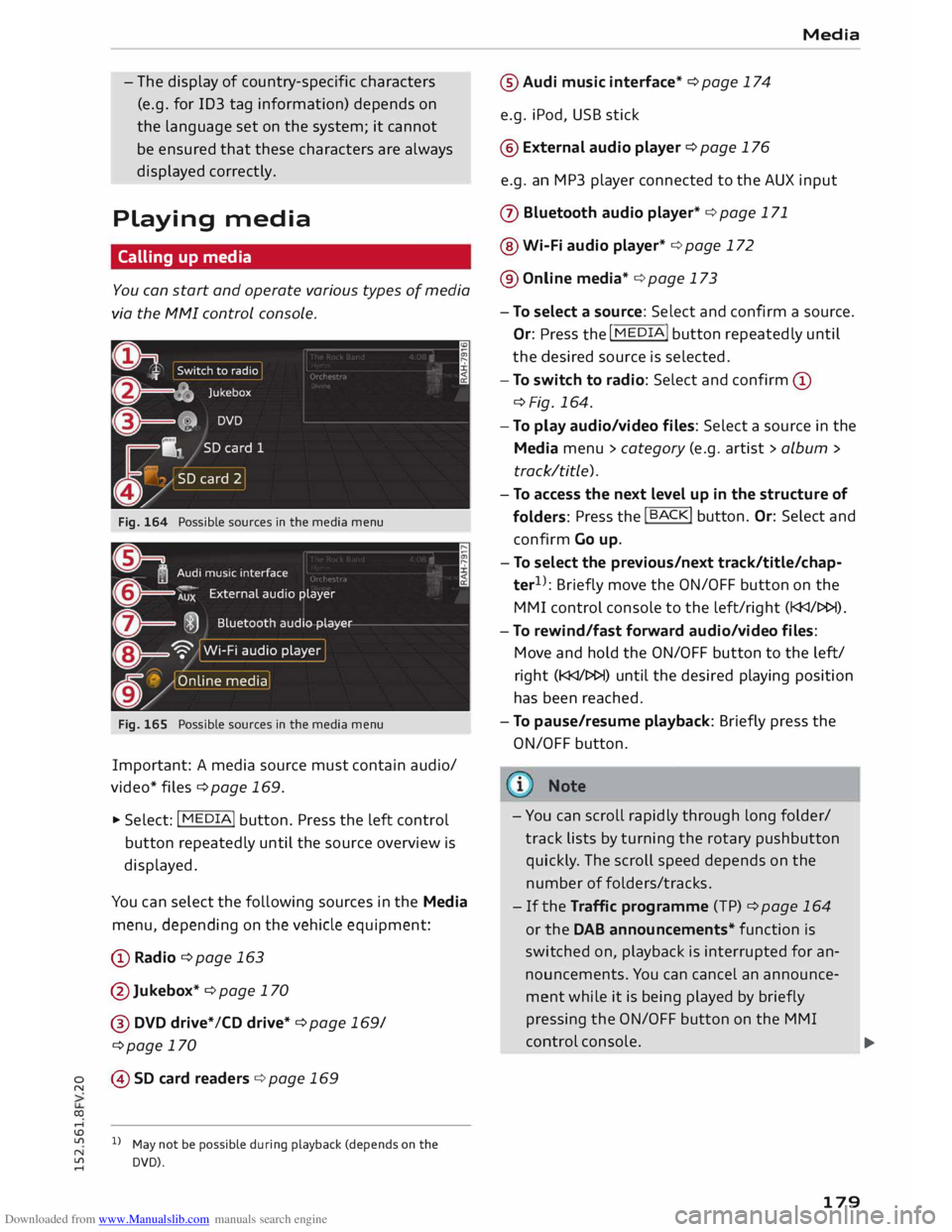
You can start and operate various types of media
via the MMI control console.
Fig. 164 Possible sources in the media menu
Fig. 165 Possible sources in the media menu
Important: A media source must contain audio/
video* files ¢page 169.
.,. Select: I MEDIA!
button. Press the left control
button repeatedly until the source overview is
displayed.
You can select the following sources in the Media
menu, depending on the vehicle equipment:
(D Radio ¢page 163
@Jukebox* ¢ page 170
@ DVD drive*/CD drive* ¢page 169/
¢page 170
© SD card readers ¢ page 169
l l
May not be possible during playback (depends on the
DVD). Media
® Audi music interface* ¢ page 174
e.g. iPod, USB stick
@ External audio player ¢ page 176
e.g. an MP3 player connected to the AUX input
(J) Bluetooth audio player* ¢ page 171
@ Wi-Fi audio player* ¢ page 172
® Online media* ¢ page 173
- To select a source: Select and confirm a source.
Or:
Press
the I MEDIA! button
repeatedly until
the desired source is selected.
- To switch to radio: Select and confirm (D
¢Fig. 164.
- To play audio/video files: Select a source in the
Media menu> category (e.g. artist > album >
track/title).
- To access the next level up in the structure of
folders: Press
the I B A
CK! button.
Or: Select and
confirm Go up.
- To select the previous/next track/title/chap
ter 1
>
: Briefly move the ON/OFF button on the
MMI control console to the left/right (l
- To rewind/fas t forward audio/video files:
Move and hold the ON/OFF button to the left/
right (l
has been reached.
- To pause/resume playback: Briefly press the
ON/OFF button.
- You can scroll rapidly through long folder/
track lists by turning the rotary pushbutton
quickly . The scroll speed depends on the
number of folders/tracks.
-If the Traffic programme (TP) ¢page 164
or the DAB announcements* function is
swit ched on, playback is interrupted for an
nouncements. You can cancel an announce
ment while it is being played by briefly
pressing the ON/OFF button on the MMI
control console.
..,.
179
Page 186 of 284
Downloaded from www.Manualslib.com manuals search engine Media
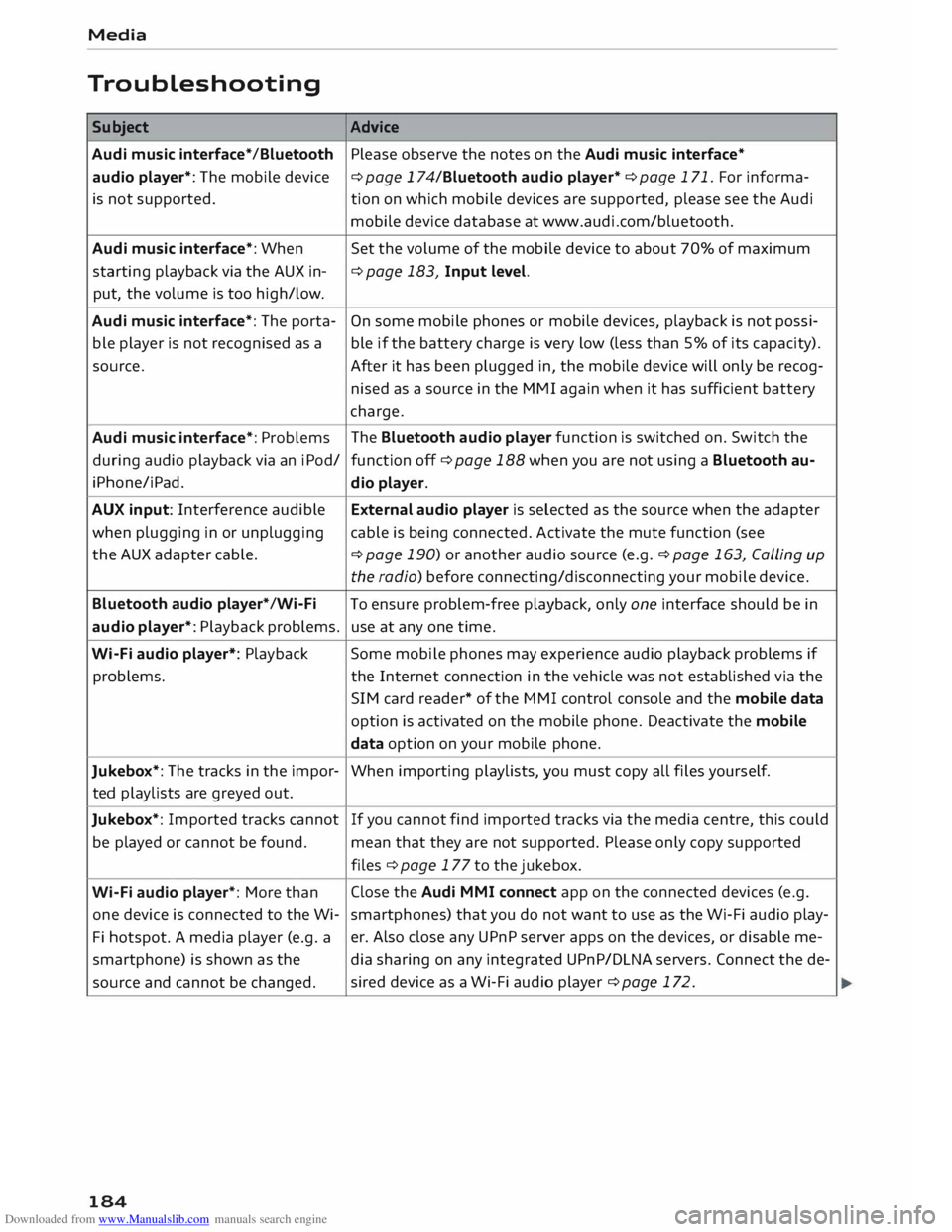
Troubleshooting Subject Advice
Audi music interface* /Bluetooth Please observe the notes on the Audi music interface*
audio player*: The mobile device
¢ page 174/Bluetooth audio player* ¢ page 171. For informa-
is not supported. tion on which mobile devices are supported, please see the Audi
mobile device database at www.audi.com/bluetooth.
Audi music interface*: When
Set the volume of the mobile device to about 70% of maximum
starting playback via the AUX in- ¢
page 183, Input level.
put, the volume is too high/low.
Audi music interface*: The porta- On
some mobile phones or mobile devices, playback is not possi-
ble player is not recognised as a ble if the battery charge is very low (less than 5% of its capacity).
source. After it has been plugged in, the mobile device will only be recog-
nised as a source in the MMI again when it has sufficient battery
charge.
Audi music interface*: Problems The
Bluetooth audio player function is switched on. Switch the
during audio playback via an iPod/
function off¢ page 188 when you are not using a Bluetooth au-
i Phone/i Pad.
dio player.
AUX input: Interference audible External audio player is selected as the source when the adapter
when plugging in or unplugging cable is being connected. Activate the mute function (see
the AUX adapter cable.
¢ page 190) or another audio source (e.g.¢ page 163, Calling up
the radio) before connecting/disconnecting your mobile device.
Bluetooth audio player*/Wi-Fi
To ensure problem-free playback, only one interface should be in
audio player*: Playback problems. use at any one time.
Wi-Fi audio player*: Playback Some
mobile phones may experience audio playback problems if
problems. the Internet connection in the vehicle was not established via the
SIM card reader* of the MMI control console and the mobile data
option is activated on the mobile phone. Deactivate the mobile
data option on your mobile phone.
Jukebox*: The tracks in the impor-
When importing playlists, you must copy all files yours elf.
ted playlists are greyed out.
Jukebox*: Imported tracks cannot If
you cannot find imported tracks via the media centre, this could
be played or cannot be found.
mean that they are not supported. Please only copy supported
files ¢ page 177 to the jukebox.
Wi-Fi audio player*: More than Close
the Audi MMI connect app on the connected devices (e.g.
one device is connected to the Wi- smartphones) that you do not want to use as the Wi-Fi audio play-
Fi hotspot. A media player (e.g. a er.
Also close any UPnP server apps on the devices, or disable me-
smartphone) is shown as the
dia sharing on any integrated UPnP/DLNA servers. Connect the de-
source and cannot be changed. sired
device as a Wi-Fi audio player ¢ page 172.
184
Page 189 of 284
Downloaded from www.Manualslib.com manuals search engine 0
N
co
....
\D L/'l
N
L/'l
.... Factory
settings
You can reset the following functions to the fac
tory settings:
- Sound settings
-Radio
- Media settings
-Jukebox*
- Directory*
- Telephone*
- Bluetooth and Wi-Fi*
- Navigation settings*
- Navigation and online memory*
- Speech dialogue system*
- Message settings*
-Apps*
- Usage tips
- Audi connect*
You can select the desired options individually or
mark Select all entries. Select and confirm Re
store factory settings.
i Note
Please note that not only settings will be de
leted when you do this;
saved
data may also
be erased.
Connection manager
Introduction
The connection manager gives you an overview
of your connected devices and their connection
status.
.. Select: I MENU
I button
>Settings> left control
button > MMI settings > Connection manager.
If a mobile device has already been connected, its
name and connection mode is displayed under
the relevant menu item.
Telephone
- Connect new device: You can search for and
connect a mobile phone.
- List of devices already bonded: Select your mo
bile phone from the list of all devices which System
settings
have already been bonded. Or: Insert a SIM
card in the SIM card reader¢ page 126.
Data connection
Applies to vehicles: with Audi connect
- Connect new device: You can search for and
connect a mobile device (e.g. a smartphone).
- List of devices already bonded: Select your mo
bile phone from the list of all devices which
have already been bonded. Or: Insert a SIM
card in the SIM card reader¢ page 138.
MMI connect app
Applies to vehicles: with Audi connect
Important: The Audi MMI connect app must be
installed on your mobile device and have been
started.
- Connect new device: You can search for and
connect a mobile device (e.g. a smartphone).
- List of devices already bonded: Select your mo
bile device from the list of all devices which
have already been bonded.
Music
Applies to vehicles: with Bluetooth audio player or Wi-Fi au
dio player
Audio player*
Important: The Bluetooth function and the dis
coverability option of the MMI system
¢ page 188 and the mobile phone must be acti
vated.
- To connect a new device: Press the rotary push
button. Select Bluetooth audio player. Search
for and connect a new device.
- List of devices already bonded: Select a Blue
tooth device from the list of all devices which
have already been bonded.
Wi-Fi audio player*
Important: The Wi-Fi hotspot on the MMI system
¢ page 143 and your mobile phone must be acti
vated.
- To connect a new device: Press the rotary push
button. Search for and connect a Wi-Fi enabled
device. ...,.
187
Page 194 of 284
Downloaded from www.Manualslib.com manuals search engine Safe
driving
Safe driving
General notes
Safety is the first priority
Your safety is our first priority.
This chapter contains important information,
tips, suggestions and warnings that you should
read and observe for your own safety and the
safety of your passengers.
_&. WARNING
- The information in this chapter is important
for the driver of the vehicle and all passen
gers. The other chapters in this manual
(and, where applicable, in the other litera
ture supplied with the vehicle) contain fur
ther important notes which you should read
and observe for your own safety and that of
your passengers.
- Ensure that the complete vehicle wallet is
always in the vehicle. This is especially im
portant when you lend or sell the vehicle to
others.
Notes on traffic safety
You should only use certain infotainment system
functions, e.g. enter a navigation destination,
while the vehicle is stationary. Always be pre
pared to stop operating the infotainment system
in the interest of your own safety and that of oth
er road users.
_&. WARNING
- To day's driving conditions require your full
attention. As the driver, you have full re
sponsibility for the safety of the vehicle and
other road users. For this reason, only oper
ate the infotainment system when the traf
fic conditions allow you to do so safely and
when you can maintain proper control of
your vehicle - risk of accident!
- The volume of the audio sources (radio, CD
player, etc.) should only be set at a level
which enables you to hear distant police and
192 emergency
vehicles clearly-failure to do so
could result in an accident.
- Please observe the laws regulating the use
of telephones in vehicles.
Safety features
The safety features Listed here are part of the ve
hicle's occupant restraint system. They work to
gether to help reduce the risk of injury in a wide
variety of accident situations.
Your safety and the safety of your passengers
should not be left to chance. In the event of an
accident, the safety features incorporated in your
vehicle are capable of reducing the risk of injury.
These are just a few of the safety features in your
Audi:
- Seat belts for all seats
- Belt force limiters for all seats
- Belt tensioners for the front seats
- Front airbags
- Side airbags in the front seat backrests
- Head-protection airbags
- "ISO FIX" anchorages* for "ISO FIX" child seats
on the rear seats
-Adjustable steering column
These individual safety features are harmonised
to provide you and your passengers with the best
possible protection in accident situations. How
ever, they can only be effective if you and your
passengers sit in the correct position and adjust
and use the safety equipment properly.
For these reasons, this chapter explains why
these safety features are so important, how they
can protect you, what you need to remember
when using them, and how you and your passen
gers can gain the most benefit from them. There
are also a number of important safety warnings
which you and your passengers should always ob
serve in order to minimise the risk of injury.
Safety is everyone's responsibility!