infotainment AUDI TT COUPE 2014 Owner's Guide
[x] Cancel search | Manufacturer: AUDI, Model Year: 2014, Model line: TT COUPE, Model: AUDI TT COUPE 2014Pages: 284, PDF Size: 34.42 MB
Page 89 of 284
Downloaded from www.Manualslib.com manuals search engine 0
N
co
....
\D U'l
N
U'l
.... long
period. Do not switch the active lane assist
system on again before the lane markings are
discernible.
Audi active lane assist: currently unavailable.
See owner's manual
A temporary fault is preventing the active lane
assist system from functioning. Try switching on
the active lane assist system again later.
Audi active lane assist: fault. See owner's man
ual
Drive to a qualified workshop soon and have the
fault rectified.
Audi active lane assist: please take over steering
This message will appear if you do not steer the
vehicle yourself. In this case, the active lane as
sist will switch to "not ready for warning" but will
not be deactivated completely. The system can
assist you to keep the vehicle in the lane. Howev
er it is your own responsibility to steer and con
trol the vehicle.
Setting the steering input time and
vibration warning
Applies to vehicles: with Audi active lane assist
You can change the active lane assist settings on
the infotainment system to suit your individual
preferences.
Select the following on the infotainment system:
I MENU!
button> Car> left control button> Driv
er assist > Audi active lane assist.
Steering input1
>
early: If this setting is selected, a continuous
steering input assists the driver to keep the vehi
cle in the middle of the lane.
late: If this setting is selected, the steering is not
corrected until just before a wheel touches a de
tected lane marking.
l l
The steering input function is not available on all export
versions Driver
assist systems
Vibration warning
You can switch the additional steering wheel vi
bration warning on/off.
(!} Note
Your personal settings are stored automati
cally and assigned to the remote control key
which is being used (only applies to some
countries).
Audi side assist (Lane
change assist feature)
Description
Applies to vehicles: with Audi side assist
Fig. 95 Area covered by the radar sensors
Fig. 96 Warning lamp on exterior mirror
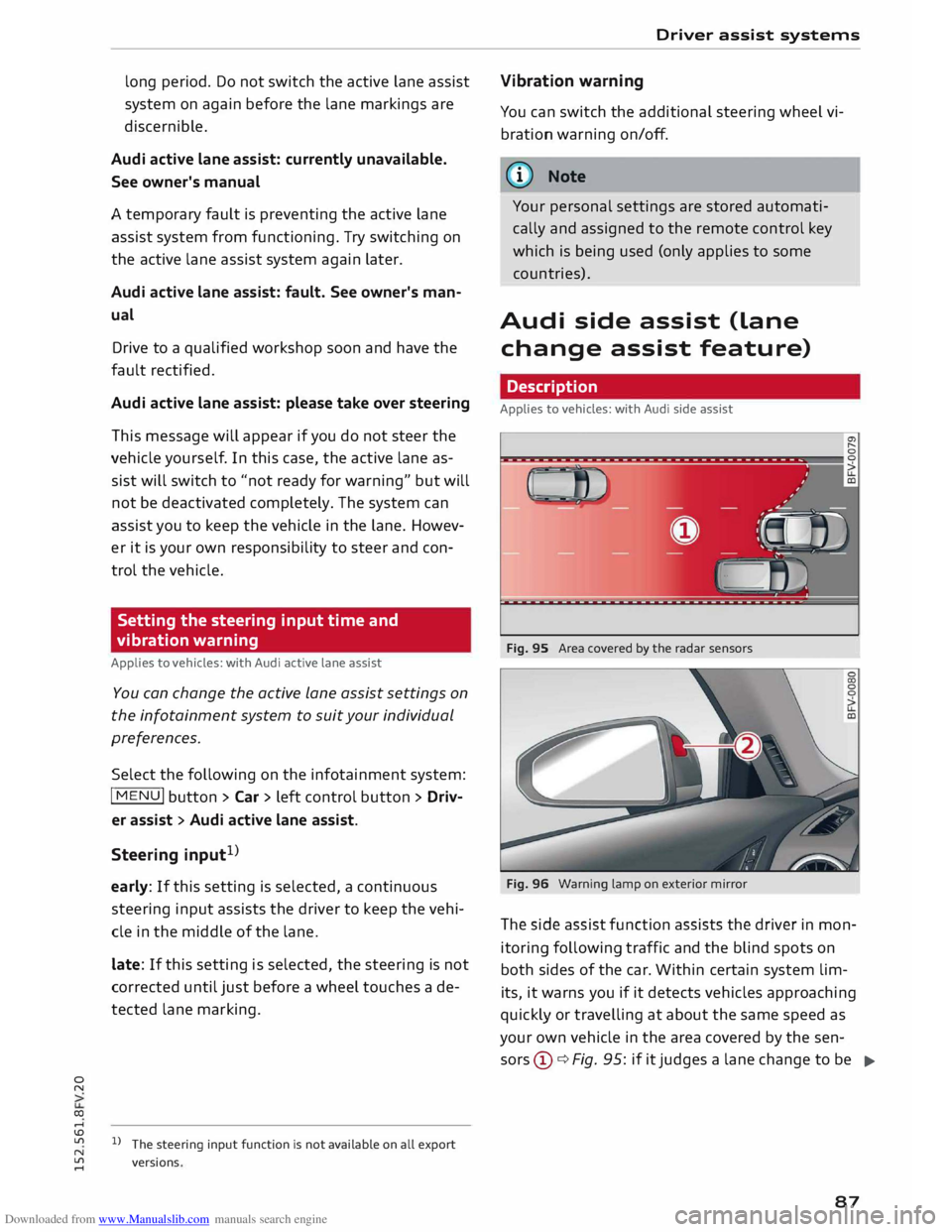
The side assist function assists the driver in mon
itoring following traffic and the blind spots on
both sides of the car. Within certain system lim-
its, it warns you if it detects vehicles approaching
quickly or travelling at about the same speed as
your own vehicle in the area covered by the sen
sors ©¢ Fig. 95: if it judges a lane change to be
..,.
87
Page 91 of 284
Downloaded from www.Manualslib.com manuals search engine 0
N
co
....
\D Lfl
N
Lfl
.... lane
change. In all cases, the side assist will give
a warning for the vehicles it has detected at the
latest when they enter the "blind spot".
© Other vehicles being overtaken
When you are overtaking another vehicle slowly,
with a speed differential of less than 15 km/h,
the warning lamp in the exterior mirror will light
up as soon as the other vehicle enters your blind
spot.
If you are overtaking another vehicle quickly, with
a speed differential of more than 15 km/h, the
warning lamp will not light up.
System limitations
The radar sensors are designed for normal lane
widths and monitor the lanes immediately to the
left and right of your vehicle. In certain situations
the warning lamp on one of the exterior mirrors
may light up even if no vehicle is travelling in an
area that could be critical in the event of a lane
change. For example:
- When you are travelling in a narrow lane or
when you are not travelling in the centre of the
lane. In this case the system may monitor an
other lane and register a vehicle that is not in
fact travelling in an adjacent lane.
- When you are driving into a bend. The side as
sist may react to a vehicle two lanes away.
- If the system detects other objects (such as
crash barriers, etc).
- In poor weather conditions. The functionality of
the side assist is then restricted.
The radar sensors ¢ Fig. 98 must not be obstruc
ted by stickers, bicycle racks, deposits or any oth
er substances which could impair the function of
the system. For notes on cleaning, please refer to
¢page 236.
.&_ WARNING
-Always watch the road and the area sur
rounding the vehicle. The side assist feature
is not a substitute for the full concentration
of the driver. The driver is always responsi
ble for the safety of lane changes and other
manoeuvres. Driver
assist systems
- In certain situations, the system may not
function properly, or the functionality of the
system may be restricted. For example:
- If other vehicles are approaching very
qui ckly, or if you are overtaking other
vehicles quickly. The warning lamp may
not light up in time.
- In poor weather conditions, such as heavy
rain, snow or road spray.
- If you are travelling in very wide lanes, in
tight bends or over crests. The system may
not detect vehicles in the adjacent lane
because they are outside the area covered
by the sensors.
CD CAUTION
Impacts or damage to the bumper, wheel
arches or underbody can cause misalignment
of the sensors. This can impair the functional
ity of the system. Have the systems checked
by a qualified workshop.
� Note
The warning lamps on the exterior mirrors
may not be properly visible if tinted foil is af
fixed to the side windows on the driver's or
passenger's side.
Switching on and off
Applies to vehicles: with Audi side assist
The system can be switched on and off on the in
fotainment system.
... Select the following on the infotainment sys
tem: I MENU I button >Car> left control button
> Driver assist> Audi side assist.
The warning lamps in the exterior mirrors light
up briefly each time the ignition is switched on to
indicate that the system is activated .
89
Page 92 of 284

Downloaded from www.Manualslib.com manuals search engine Driver
assist systems
Adjusting brightness of warning lamp
Applies to vehicles: with Audi side assist
The brightness of the warning Lamp can be ad
justed on the infotainment system.
.. Select the following on the infotainment sys
tem: IM E
N u I
button > Car > left control button
> Driver assist> Audi side assist.
The brightness of the warning lamp in both the
information and warning modes is regulated au
tomatically according to the ambient light level.
If you are in very dark or very light surroundings
when you adjust the brightness of the warning
lamp, the automatic brightness control may al
ready have reached the lowest or the brightest
setting. In such a case it is possible that you
won't notice a difference while you are adjusting
the brightness or that you will only notice it once
the light surroundings have changed.
Please adjust the brightness of the warning lamp
for the information mode so that it does not dis
tract you while you are looking at the road in
front. When you change the brightness, the
warning lamp on the exterior mirror will light up
briefly with the intensity set for the information
mode. The intensity of the lamp in the warning
mode is linked to the intensity in the information
mode and is adjusted automatically.
(CO} Note
- The side assist is not active while the set
tings are being adjusted.
- Your personal settings are stored automati
cally and assigned to the remote control key
which is being used.
Driver messages
Applies to vehicles: with Audi side assist
Should the side assist be deactivated automati
cally, a driver message will appear on the info
tainment display.
@j Audi side
assist: currently unavailable.
Sensor view restricted due to surroundings.
See owner's manual
The radar sensors are blocked. The area in front
of the sensors must not be obstructed by bicycle
90 racks,
stickers, deposits or any other substances.
If necessary, clean the area in front of the sen
sors ¢ page 88, Fig. 98.
@j Audi
side assist: currently unavailable.
See owner's manual
The side assist is temporarily inoperative and
cannot be switched on (for instance if the battery
is not sufficiently charged).
@j Audi
side assist: fault. Please contact
workshop
The system cannot detect vehicles reliably and
will be deacti vated. The sensors are out of align
ment or defective. Have the system checked by a
qualified workshop soon.
Audi drive select (vehicle
set-up functions)
Introduction
Applies to vehicles: with Audi drive select
Drive select allows you to use different set-ups on
your vehicle. The four modes efficiency*, com
fort, auto and dynamic allow the driver, for ex
ample, to change from a sporty mode to a more
comfortable one via the �:11
� button in the centre
console or via the infotainment system. In addi
tion, the individual mode allows you to adapt the
vehicle set-up to suit your personal driving style.
For example, you might choose to combine a
more dynamic engine set-up with a lighter steer
ing response.
Description
Applies to vehicles: with Audi drive select
The possible vehicle set-up in each mode de
pends on which equipment is installed on your
vehicle. The engine and steering are basic parts
of your vehicle which are always included in the
set-up.
Engine and automatic gearbox*
The response of the engine and automatic gear
box* to accelerator pedal movements will be
more spontaneous or balanced, depending on
which mode you select. In efficiency* mode the
automatic gearbox* selects the next gear at
..,.
Page 93 of 284
Downloaded from www.Manualslib.com manuals search engine 0
N
co
....
\D U'l
N
U'l
.... lower engine
speeds and the coasting mode is ac
tivated ¢ page 75. This helps to reduce fuel con
sumption.
Suspension control (Audi magnetic ride)*
The suspension control uses sensors to collect in
formation on steering movements, braking and
acceleration input by the driver, road surface
quality, road speed and vehicle Loading. With
drive select you can choose between dynamic and
comfort-oriented suspension set-ups (dynamic
and comfort modes), or opt for a more balanced
set-up (auto mode).
Steering
The degree of power assistance can be varied.
Various modes are possible ¢ page 92.
The steering response is even more agile on
vehicles with progressive steering*.
Air conditioner*
The air conditioner runs in a particularly econom
ical mode when the efficiency* setting is selec
ted. When this function is selected, eco* is shown
in the display of the automatic air conditioner.
Cruise control system*
The acceleration response is particularly econom
ical in efficiency* mode.
@ Note
- On vehicles with manual gearbox, an E ap
pears in the gear-change indicator when ef
ficiency* mode is activated.
- On vehicles with automatic gearbox, if you
select efficiency* mode when the selector
Lever is in position D, E will automatically
appear on the infotainment display. Driver
assist systems
Selecting the driving mode
Applies to vehicles: with Audi drive select
You can choose between efficiency*, comfort, au
to, dynamic and individual.
Fig. 99 Centre console: Button for drive select
Fig. 100 Infotainment: Drive select
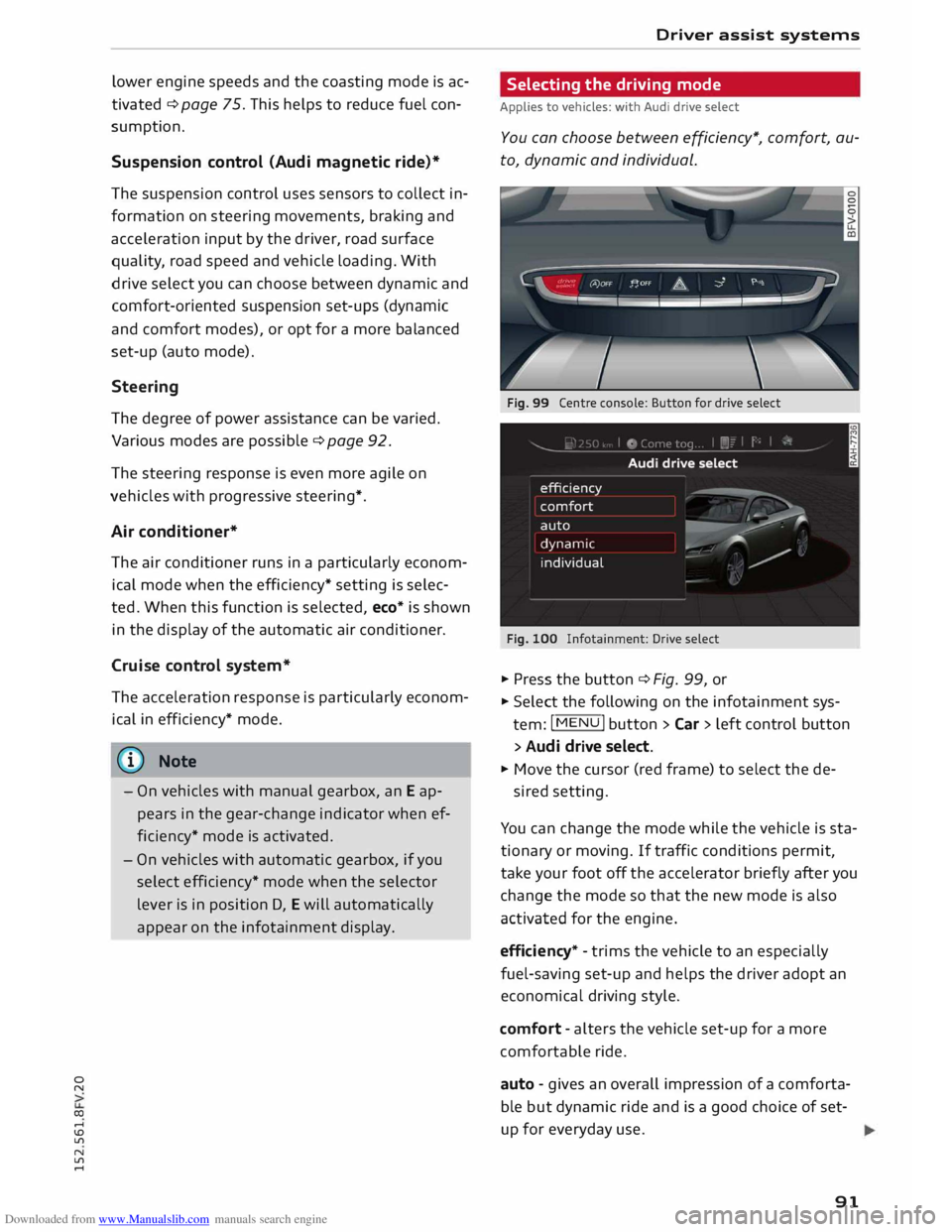
� Press the button ¢ Fig. 99, or
� Select the following on the infotainment sys
tem: I MENU
I button >Car> Left control button
> Audi drive select.
� Move the cursor (red frame) to select the de-
sired setting.
You can change the mode while the vehicle is sta
tionary or moving. If traffic conditions permit,
take your foot off the accelerator briefly after you
change the mode so that the new mode is also
activated for the engine.
efficiency* -trims the vehicle to an especially
fuel-saving set-up and helps the driver adopt an
economical driving style.
comfort -alters the vehicle set-up for a more
comfortable ride.
auto -gives an overall impression of a comforta
ble but dynamic ride and is a good choice of set
up for everyday use .
91
Page 94 of 284
Downloaded from www.Manualslib.com manuals search engine Driver
assist systems
dynamic -gives the vehicle a tighter set-up and is
ideal for performance driving.
individual -¢page 92.
The last selected mode is still active when you re
start the vehicle.
Configuring individual mode
You can configure your own personal vehicle set-up .
.,. Press the button ¢ page 91, Fig. 99 > individu-
al > right control button, or:
.,. Select the following on the infotainment sys
tem: IM EN u I
button > Car > left control button
> Audi drive select> individual> right control
button.
The individual* driving mode will automatically
be activated when you have finished configuring
the settings.
Systems comfort
Engine and Gearbox Comfortable
Steering Comfortable
Suspension control* Comfortable
Engine sound* Subdued
quattro* Comfortable
(©) Note
Your settings in individual* mode are stored
automatically and assigned to the remote
control key currently in use.
92 A
WARNING
Always keep an eye on the traffic when using
the drive select controls - Risk of accident!
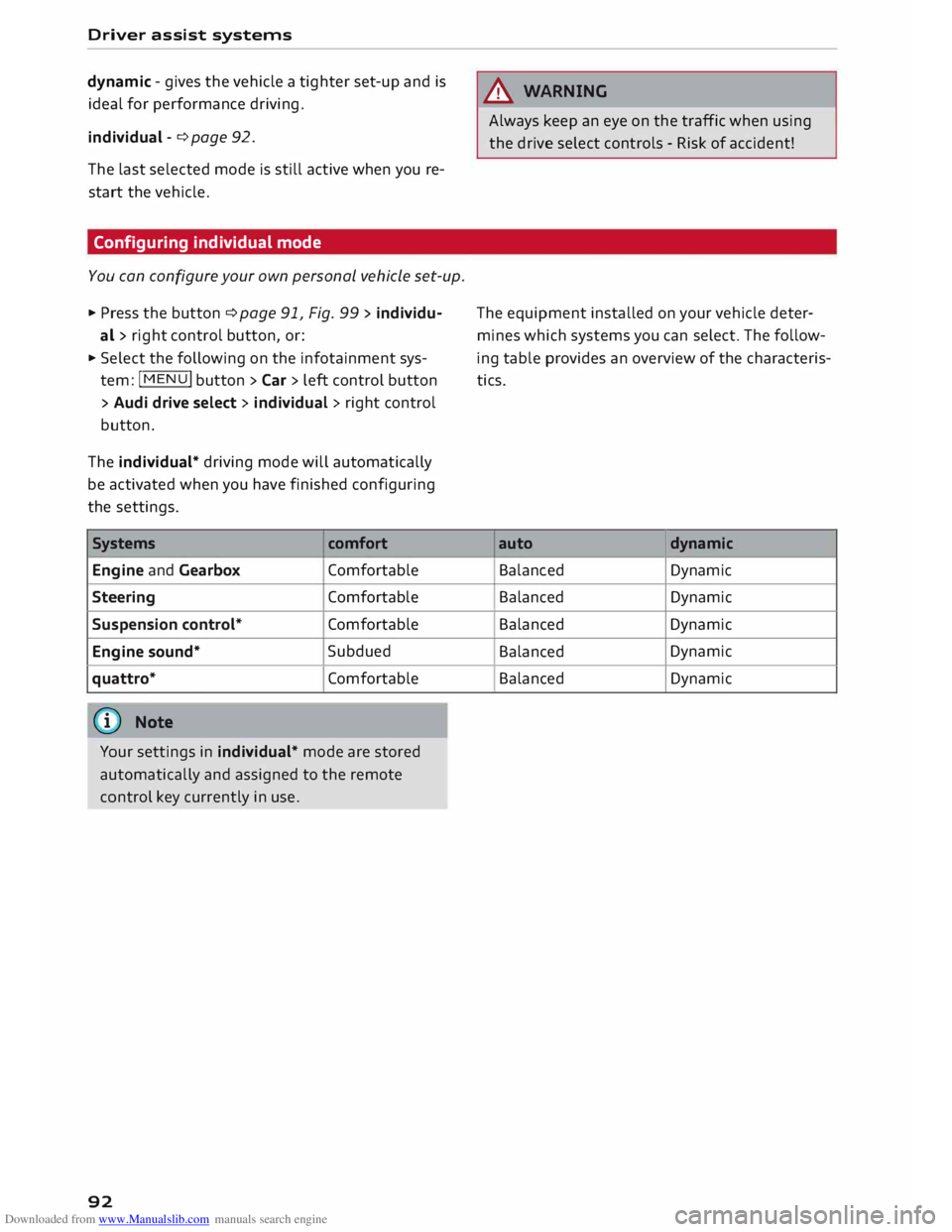
The equipment installed on your vehicle deter
mines which systems you can select. The follow
ing table provides an overview of the characteris
tics.
auto dynamic
Balanced Dynamic
Balanced Dynamic
Balanced Dynamic
Balanced Dynamic
Balanced Dynamic
Page 96 of 284
Downloaded from www.Manualslib.com manuals search engine Parking
aids
Please ensure that the sensors are kept free of
stickers, deposits and any other substances which
could impair the function of the system. Notes
on cleaning ¢page 236.
The measuring range of the sensors starts at
about:
I Side
Centre 1.60
m
The acoustic signals sound with increasing fre
quency as you approach the obstacle. A warning
tone will sound continuously when the vehicle is
less than approx. 0.30 m away from the obstacle.
Stop reversing immediately ¢.&. in General notes
on page 93, ¢Q) in General notes on page 93!
The volume of the warning beeps will be gradual
ly reduced after about four seconds if the vehicle
remains at a constant distance from a detected
obstacle (it will not be reduced if the obstacle is
closer than 0.30 m).
Activating
The rear parking aid is activated automatically
when reverse gear is engaged. You will hear a
brief acknowledgement tone.
Parking system plus
Description
Applies to vehicles: with parking system plus/park assist
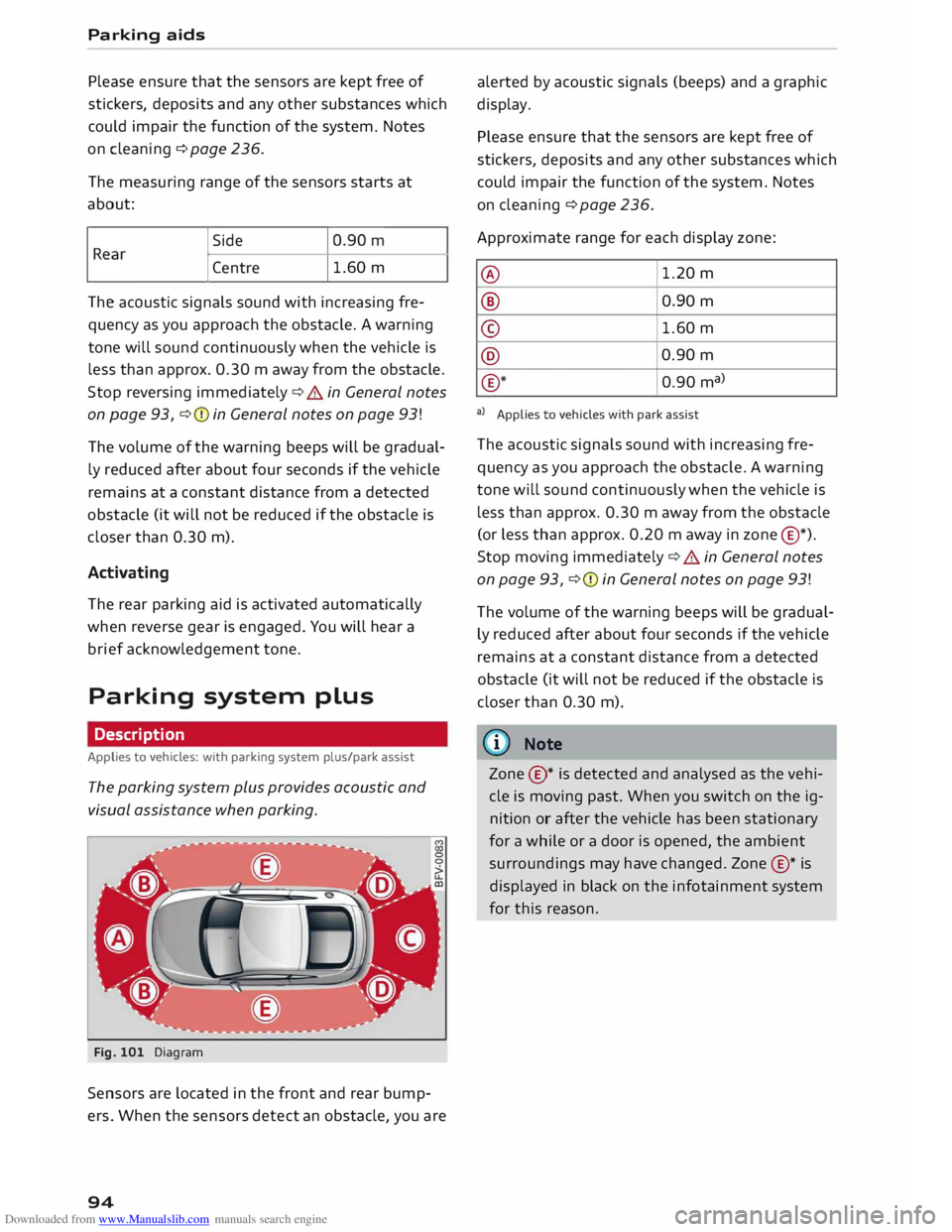
The parking system plus provides acoustic and
visual assistance when parking.
Fig. 101 Diagram
Sensors are located in the front and rear bump
ers. When the sensors detect an obstacle, you are
94 alerted
by acoustic signals (beeps) and a graphic
display.
Please ensure that the sensors are kept free of
stickers, deposits and any other substances which
could impair the function of the system. Notes
on cleaning ¢ page 236.
Approximate range for each display zone:
@ 1.20
m
® 0.90 m
© 1.60
m
@ 0.90
m
® *
0.90 ma)
a) Applies to vehicles with park assist
The acoustic signals sound with increasing fre
quency as you approach the obstacle. A warning
tone will sound continuously when the vehicle is
less than approx. 0.30 m away from the obstacle
(or less than approx. 0.20 m away in zone @*).
Stop moving immediately¢ .&. in General notes
on page 93, ¢Q) in General notes on page 93!
The volume of the warning beeps will be gradual
ly reduced after about four seconds if the vehicle
remains at a constant distance from a detected
obstacle (it will not be reduced if the obstacle is
closer than 0.30 m).
ID Note
Zone ©* is detected and analysed as the vehi
cle is moving past. When you switch on the ig
nition or after the vehicle has been stationary
for a while or a door is opened, the ambient
surroundings may have changed. Zone®* is
displayed in black on the infotainment system
for this reason.
Page 99 of 284
Downloaded from www.Manualslib.com manuals search engine 0
N
co
,-j
\D U'l
N
U'l
,-j Switching
on and off
Applies to vehicles: with park assist
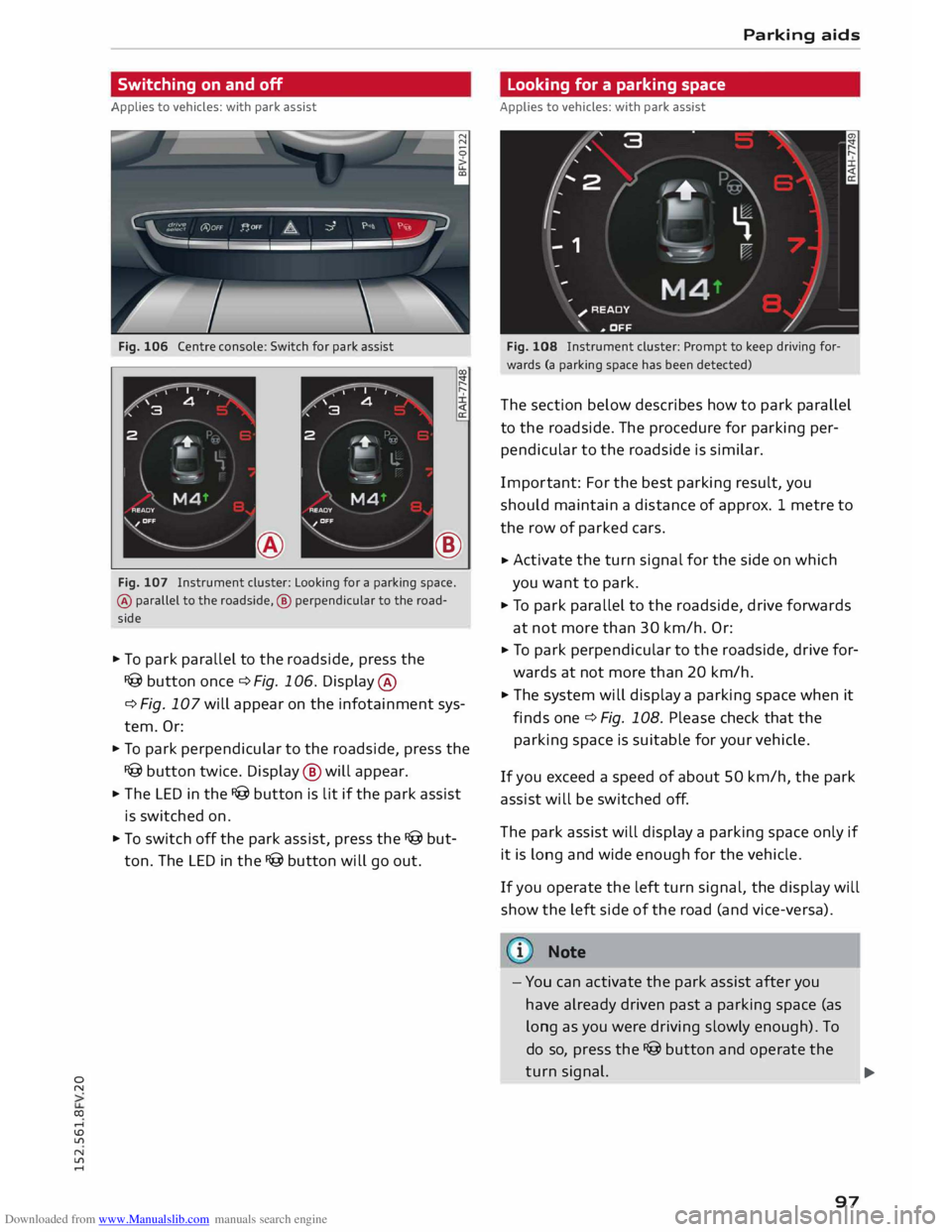
Fig. 106 Centre console: Switch for park assist
®
Fig. 107 Instrument cluster: Looking for a parking space.
® parallel to the roadside, ® perpendicular to the road
side
.. To park parallel to the roadside, press the
I@ button once c::> Fig. 106. Display ®
c:> Fig. 107 will appear on the infotainment sys
tem. Or:
.. To park perpendicular to the roadside, press the
I@ button twice. Display @ will appear.
.. The LED in the I@ button is lit if the park assist
is switched on.
.. To switch off the park assist, press the I@ but
ton. The LED in the I@ button will go out. Parking
aids
Looking for a parking space
Applies to vehicles: with park assist
Fig. 108 Instrument cluster: Prompt to keep driving for
wards (a parking space has been detected)
The section below describes how to park parallel
to the roadside. The procedure for parking per
pendicular to the roadside is similar.
Impor tant: For the best parking result, you
should maintain a distance of approx. 1 metre to
the row of parked cars.
.. Activate
the turn signal for the side on which
you want to park.
.. To park parallel to the roadside, drive forwards
at not more than 30 km/h. Or:
.. To
park perpendicular to the roadside, drive for
wards at not more than 20 km/h.
.. The system will display a parking space when it
finds one c::> Fig. 108. Please check that the
parking space is suitable for your vehicle .
If you exceed a speed of about 50 km/h, the park
assist will be switched off.
The park assist will display a parking space only if
it is long and wide enough for the vehicle.
If you operate the left turn signal, the display will
show the left side of the road (and vice-versa).
Note
- You can activate the park assist after you
have already driven past a parking space (as
long as you were driving slowly enough). To
do so, press the I@ button and operate the
turn signal.
97 ...
Page 102 of 284
Downloaded from www.Manualslib.com manuals search engine Parking
aids
II Park assist: not stopped long enough
After you select reverse gear, the vehicle has to
remain stationary for a moment so that the park
assist can activate the steering. Follow the direc
tions given in the display.
Ill Park assist: fault. Please contact workshop
II Park assist: fault. Continue steering vehicle!
Please contact workshop
Please contact a qualified workshop. The park as
sist cannot be used to park the vehicle if a system
fault occurs.
II Park assist: cancelled. Space too small. Con
tinue steering vehicle!
The park assist cannot be used to park the vehicle
in this space. Park the vehicle without using the
park assist or look for a bigger space.
Ill Park assist: stabilisation control (ESC) input
The detected space could not be used because
the stabilisation control intervened.
Adjusting graphic display
and warning beeps
Applies to vehicles: with parking system plus/park assist
The settings for the graphic display and acoustic
signals are controlled via the infotainment sys
tem.
.., Select the following on the infotainment sys
tem: IM EN u I button > Car > left control button
> Driver assist> Parking aid.
Warning beeps
Front volume -Volume for the front and side*
zones
Rear volume -Volume for the rear zone
In-car entertainment fader -The volume of the
current audio or video source is reduced when the
parking aid is switched on.
You will hear a short test tone each time you
make a new setting.
100 @
Note
The settings will be automatically stored and
assigned to the remote control key in use.
Fault warnings
Applies to vehicles: with rear parking aid/parking system
plus/park assist
Rear parking aid: fault. Obstacles cannot be de
tected
Front parking aid: fault. Obstacles cannot be
detected
Parking aid: fault. Obstacles cannot be detected
If the LED in the P,1
1i button starts flashing when
you switch the system on, a system fault has oc
curred. If the fault is not corrected before you
switch off the ignition, it will only be indicated by
the flashing LED in the P111i button the next time
you switch on the parking aid by engaging re
verse gear. The fault warning can be displayed in
the second tab of the driver information system
as long as the fault is active.
Parking system plus*/parking system plus
and park assist*
If a sensor or loudspeaker malfunctions, the J;l4:
symbol will be shown on the infotainment sys
tem in front of or behind the vehicle. If a rear
sensor malfunctions, obstacles will only be dis
played in zones @and @ ¢ page 94, Fig. 101. If
a front sensor malfunctions, obstacles will only
be displayed in zones © and@ .
Drive to a qualified workshop soon and have the
fault rectified.
Page 109 of 284
Downloaded from www.Manualslib.com manuals search engine 0
N
co
....
\D Lfl
N
Lfl
.... Dynamic
power management
While the vehicle is moving, this function distrib
utes the available power to the various electrical
components and systems according to their re
quirements. The power management ensures
that on-board systems do not consume more
electrical power than the alternator can supply,
and thus maintains the maximum possible bat
tery power Level.
ijJ Note
- The power management system is not able
to overcome the given physical Limits.
Please remember that the power and Life of
the battery are Limited.
- If the indicator Lamp ril c:> page 13 appears,
the starting ability may be impaired.
Points to remember
Starting ability has first priority.
Short trips, city traffic and Low temperatures all
place a heavy Load on the battery . In these condi
tions a Large amount of power is consumed, but
only a small amount is supplied. The situation is
also critical if electrical equipment is in use when
the engine is not running. In this case power is
consumed when none is being generated.
In these situations you will be aware that the
power management system is intervening to con
trol the distribution of electrical power.
When the vehicle is parked for long periods
If you do not drive your vehicle for a period of
several days or weeks, the power management
will gradually shut off the on-board systems one
by one, or reduce the amount of current they are
using. This Limits the amount of power consumed
and helps to ensure reliable starting even after a
Long period. Certain convenience features, such
as remote control unlocking, may not be availa
ble. These functions will be restored when you
switch on the ignition and start the engine. Intelligent
technology
With the engine switched off
If you Listen to the radio or use other electrical
equipment when the engine is not running, this
will discharge the battery.
A message will appear on the infotainment dis
play before the battery power drops to a Level
where the starting ability is impaired.
This message warns you that the system you are
using will soon be switched off automatically.
You should therefore start the engine if you wish
to continue using the system.
When the engine is running
Although the alternator generates electrical pow
er, the battery can still become discharged while
the vehicle is being driven. This can occur when a
Lot of power is being consumed but only a small
amount supplied, especially if the battery is not
fully charged initially.
To restore the necessary energy balance, the sys
tem will then temporarily shut off the electrical
components that are using a Lot of power, or re
duce the current they are consuming. Heating
systems in particular use a Large amount of elec
trical power. If you notice, for instance, that the
seat heating* or the rear window heater is not
working, they may have been temporarily switch
ed off or regulated to a Lower heat output. These
systems will be available again as soon as suffi
cient electrical power is available.
You may also notice that the engine runs at a
slightly faster idling speed. This is quite normal,
and no cause for concern. The increased idling
speed allows the alternator to meet the greater
power requirement and charge the battery at the
same time.
Information saved in the
control units
The vehicle is fitted in the factory with electronic
control units that, among other things, control
the engine and the gearbox. The control units al
so monitor the exhaust system and the airbags.
The control units continually analyse data rele-
vant to the vehicle while you are driving. In the
...,.
107
Page 112 of 284
Downloaded from www.Manualslib.com manuals search engine Multi
Media Interface
Selecting and confirming a function
.. @To select a function: Turn the rotary push
button to the desired function (e.g. setting a
frequency).
.. @ To confirm the selection: Press the rotary
pushbutton.
Returning to the previous function level
.. Press
the I BACK!
button@ ¢ page 109,
Fig. 113.
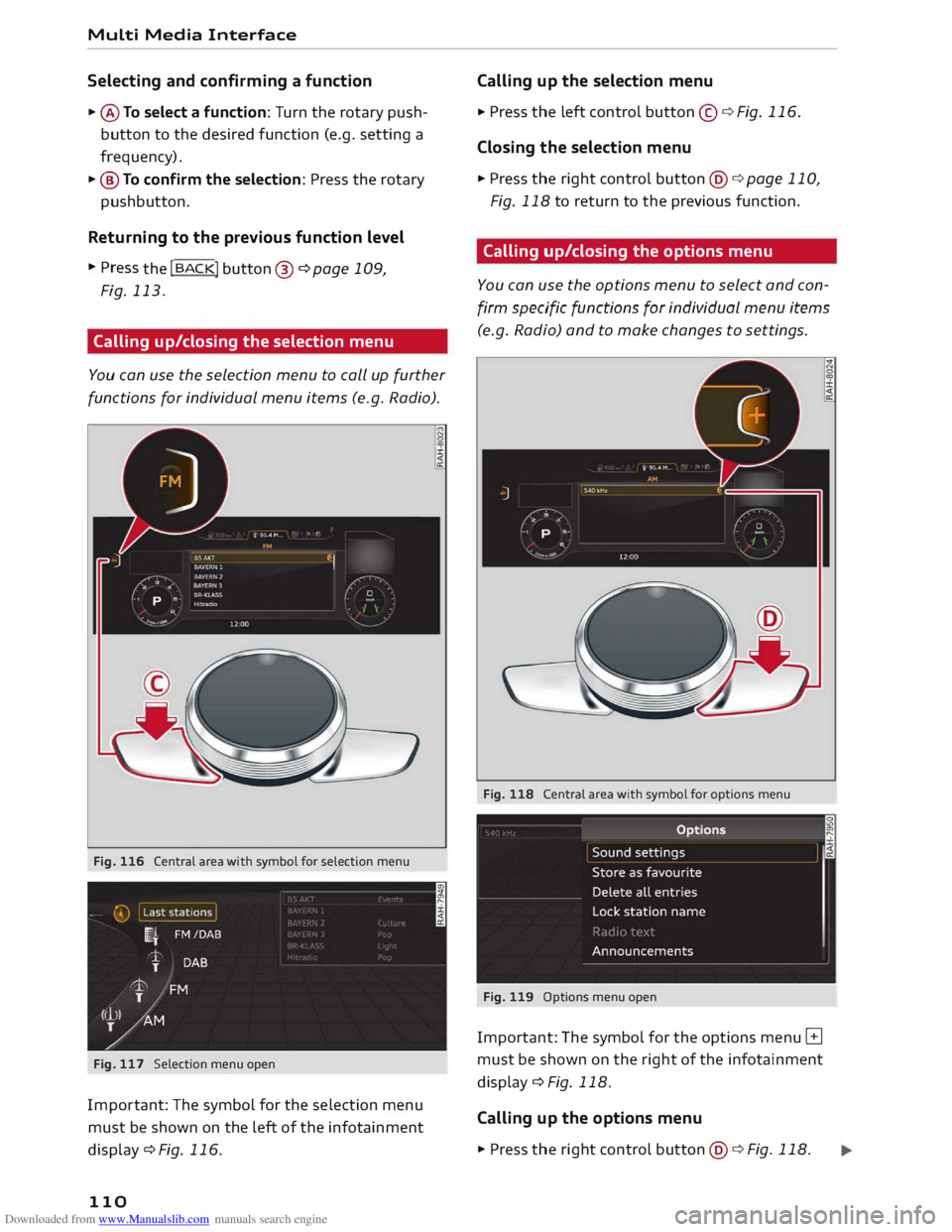
Calling up/closing the selection menu
You can use the selection menu to call up further
functions for individual menu items (e.g. Radio).
Fig. 116 Central area with symbol for selection menu
Fig. 117 Selection menu open
Impor tant: The symbol for the selection menu
must be shown on the left of the infotainment
display c:::> Fig. 116.
110 Calling
up the selection menu
.. Press
the Left control button©¢ Fig. 116 .
Closing the selection menu
.. Press the right control button@c:::>page 110,
Fig. 118 to return to the previous function.
Calling up/closing the options menu
You can use the options menu to select and con
firm specific functions for individual menu items
(e.g. Radio) and to make changes to settings.
Fig. 118 Central area with symbol for options menu
Fig. 119 Options menu open
Important: The symbol for the options menu B
must be shown on the right of the infotainment
display¢ Fig. 118.
Calling up the options menu
.. Press the rig ht control button @ ¢ Fig. 118.