infotainment AUDI TT COUPE 2014 Service Manual
[x] Cancel search | Manufacturer: AUDI, Model Year: 2014, Model line: TT COUPE, Model: AUDI TT COUPE 2014Pages: 284, PDF Size: 34.42 MB
Page 113 of 284
Downloaded from www.Manualslib.com manuals search engine 0
N
co
....
\D Lfl
N
Lfl
.... Closing
the options menu
• Press the left control button © ¢ page 110,
Fig. 116 to return to the previous function.
Notes on path descriptions
The path descriptions in this manual show you at
a glance how to call up the menu you require
along with its settings and functions.
Example of a path description: I RADIO! button>
left control button > FM
Using a path description:
.,. Press the I RADIO! button.
.,. Press the left control button.
.,. Tu rn the rotary pushbutton to FM in the menu
to preselect this function.
.,. Press the rotary pushbutton to confirm FM.
MMI touch
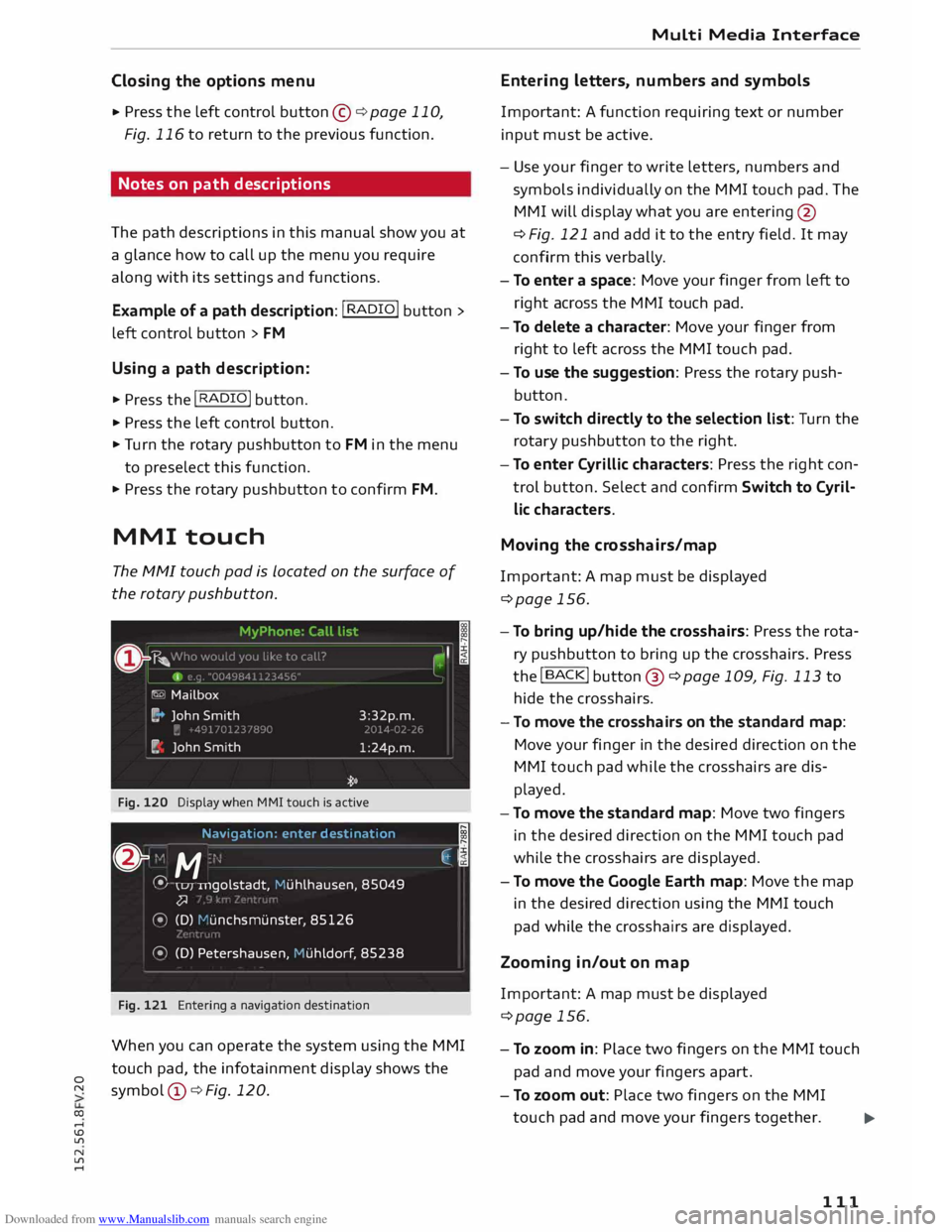
The MMI touch pad is Located on the surface of
the rotary pushbutton.
Fig. 120 Display when MMI touch is active
Navigat ion: enter destinati on
;
& "
M ·
.
�,j
� \u1
u1golstadt,
Muhlhausen , 85049
�
� (D) 1-'unchsmunste r, 85126
� (D) Petershausen, Huhldorf , 85238
Fig. 121 Entering a navigation destination
When you can operate the system using the MMI
touch pad, the infotainment display shows the
symbol @¢ Fig. 120. Multi
Media Interface
Entering letters, numbers and symbols
Important: A function requiring text or number
input must be active.
- Use your finger to write letters, numbers and
symbols individually on the MMI touch pad. The
MMI will display what you are entering @
¢ Fig. 121 and add it to the entry field. It may
confirm this verbally.
- To enter a space: Move your finger from left to
right across the MMI touch pad.
- To delete a character: Move your finger from
right to left across the MMI touch pad.
- To use the suggestion: Press the rotary push
button .
- To switch directly to the selection list: Turn the
rotary pushbutton to the right .
- To enter Cyrillic characters: Press the right con
trol button. Select and confirm Switch to Cyril
lic characters.
Moving the crosshairs/map
Important: A map must be displayed
¢page 156.
- To bring up/hide the crosshairs: Press the rota
ry pushbutton to bring up the crosshairs. Press
the !BACK! button@ ¢page 109, Fig. 113 to
hide the crosshairs.
- To move the crosshairs on the standard map:
Move your finger in the desired direction on the
MMI touch pad while the crosshairs are dis
played.
- To move the standard map: Move two fingers
in the desired direction on the MMI touch pad
while the crosshairs are displayed.
- To move the Google Earth map: Move the map
in the desired direction using the MMI touch
pad while the crosshairs are displayed.
Zooming in/out on map
Important: A map must be displayed
¢page 156.
- To zoom in: Place two fingers on the MMI touch
pad and move your fingers apart.
- To zoom out: Place two fingers on the MMI
touch pad and move your fingers together.
...,_
111
Page 118 of 284
Downloaded from www.Manualslib.com manuals search engine Speech
dialogue system
Speech dialogue system
How to use the system
Applies to vehicles: with speech dialogue system
You can operate many infotainment functions
conveniently by voice.
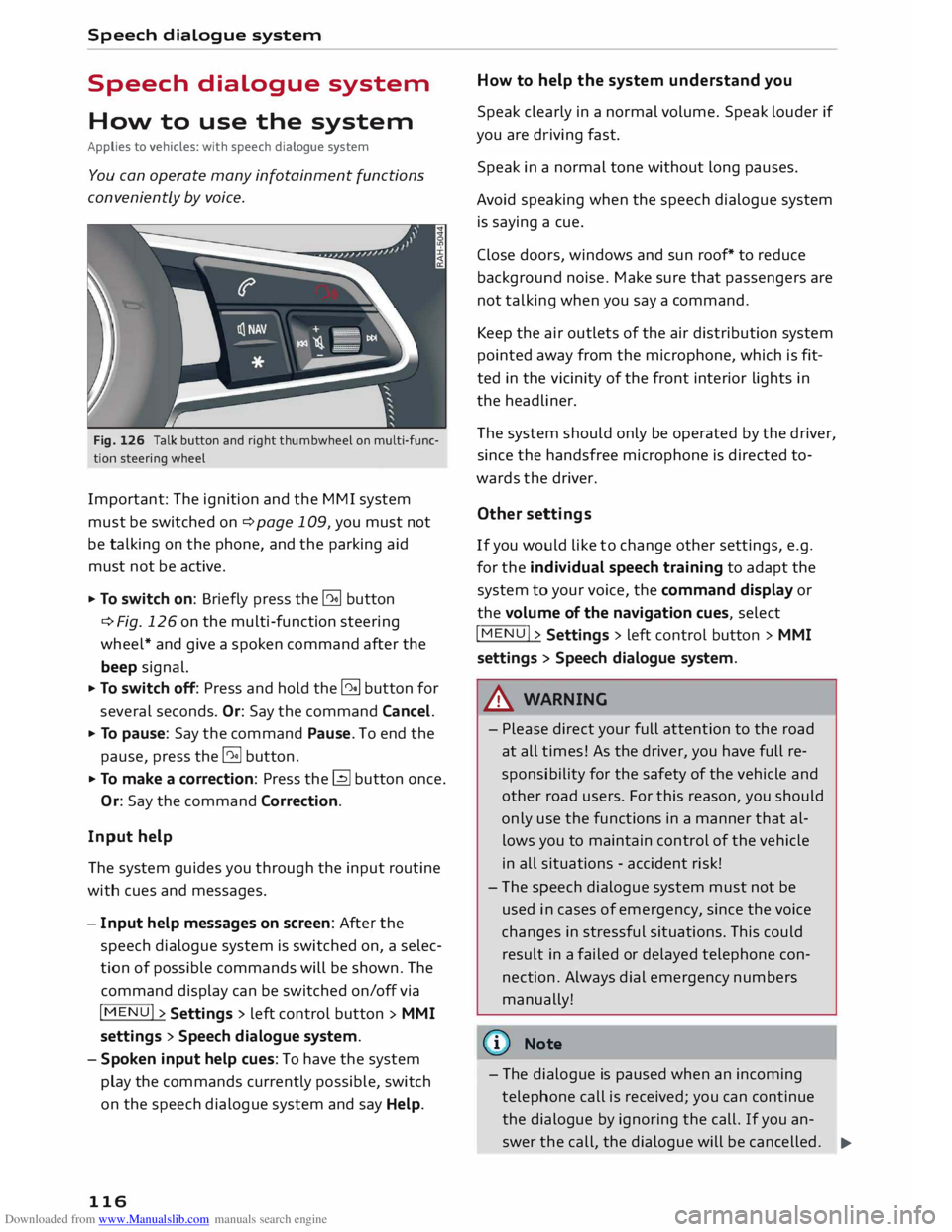
Fig. 126 Talk button and right thumbwheel on multi-func
tion steering wheel
Important: The ignition and the MMI system
must be switched on ¢page 109, you must not
be talking on the phone, and the parking aid
must not be active.
... To switch on: Briefly press the [2!] button
c:::> Fig. 126 on the multi-function steering
wheel* and give a spoken command after the
beep signal.
... To switch off: Press and hold the [2!] button for
several seconds. Or: Say the command Cancel.
... To pause: Say the command Pause. To end the
pause, press the l2!l button.
... To make a correction: Press the� button once.
Or: Say the command Correction.
Input help
The system guides you through the input routine
with cues and messages.
- Input help messages on screen: After the
speech dialogue system is switched on, a selec
tion of possible commands will be shown. The
command display can be switched on/off via
I MENU I>
Settings > left control button >
MMI
settings > Speech dialogue system.
- Spoken input help cues: To have the system
play the commands currently possible, switch
on the speech dialogue system and say Help.
116 How
to help the system understand you
Speak clearly in a normal volume. Speak louder if
you are driving fast.
Speak in a normal tone without long pauses.
Avoid speaking when the speech dialogue system
is saying a cue.
Close doors, windows and sun roof* to reduce
background noise. Make sure that passengers are
not talking when you say a command.
Keep the air outlets of the air distribution system
pointed away from the microphone, which is fit
ted in the vicinity of the front interior lights in
the headliner.
The system should only be operated by the driver,
since the handsfree microphone is directed to
wards the driver.
Other settings
If you would like to change other settings, e.g.
for the individual speech training to adapt the
system to your voice, the command display or
the volume of the navigation cues, select
I MENU I>
Settings > left control button >
MMI
settings > Speech dialogue system.
A WARNING
- Please direct your full attention to the road
at all times! As the driver, you have full re
sponsibility for the safety of the vehicle and
other road users. For this reason, you should
only use the functions in a manner that al
lows you to maintain control of the vehicle
in all situations -accident risk!
- The speech dialogue system must not be
used in cases of emergency, since the voice
changes in stressful situations. This could
result in a failed or delayed telephone con
nection. Always dial emergency numbers
manually!
{tI)) Note
- The dialogue is paused when an incoming
telephone call is received; you can continue
the dialogue by ignoring the call. If you an-
swer the call, the dialogue will be cancelled.
..,.
Page 126 of 284
Downloaded from www.Manualslib.com manuals search engine Telephone
Your
mobile phone must support the remote SIM
Access Profile (rSAP) and be connected to the
MMI using the Car phone mode in order to use
the online functions of Audi connect*. Alterna
tively, you can use a separate SIM card in the SIM
card reader* ¢ page 126. A data plan1
l
is neces
sary in both cases.
You can use the online functions of Audi connect
¢ page 137 if your mobile phone contract in
cludes a data option 1
l
.
Handsfree
With this type of connection, you can use the
handsfree system to operate the telephone func
tions via the MMI. Your phone calls will be made
via the antenna of your mobile phone.
With the Audi phone box*, you can use the vehi
cle's external aerial to make calls. You can also
charge your phone with a USB adapter.
Connecting a mobile phone using
Bluetooth
Applies to vehicles: with telephone
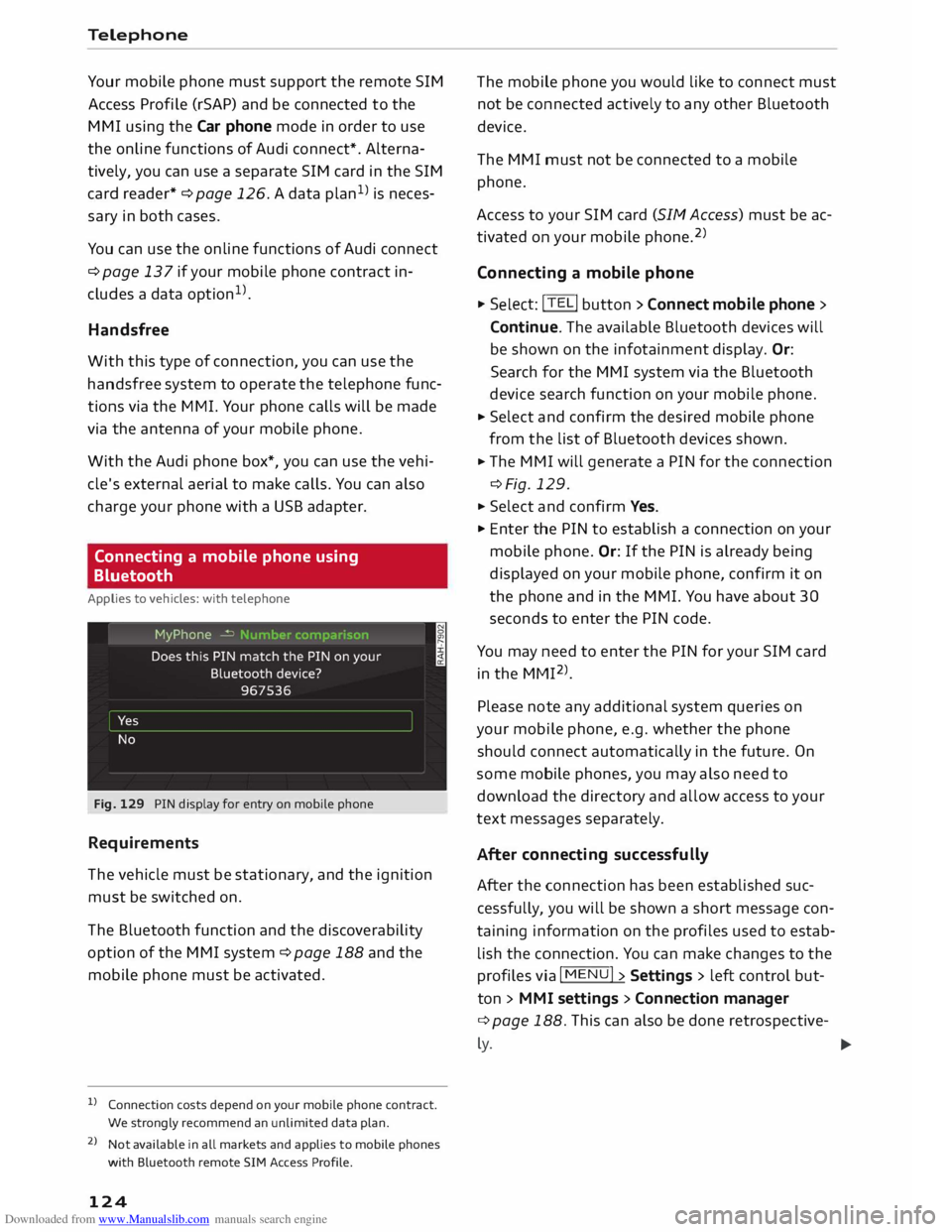
Fig. 129 PIN display for entry on mobile phone
Requirements
The vehicle must be stationary, and the ignition
must be switched on.
The Bluetooth function and the discoverability
option of the MMI system ¢ page 188 and the
mobile phone must be activated.
l) Connection costs depend on your mobile phone contract.
We strongly recommend an unlimited data plan.
2 l
Not available in all markets and applies to mobile phones
with Bluetooth remote SIM Access Profile.
124 The
mobile phone you would like to connect must
not be connected actively to any other Bluetooth
device.
The MMI must not be connected to a mobile
phone.
Access to your SIM card (SIM Access) must be ac
tivated on your mobile phone. 2
)
Connecting a mobile phone ... Sel ect: !TELi button > Connect mobile phone>
Continue. The available Bluetooth devices will
be shown on the infotainment display. Or:
Search for the MMI system via the Bluetooth
device search function on your mobile phone.
... Select and confirm the desired mobile phone
from the list of Bluetooth devices shown.
... The MMI will generate a PIN for the connection
¢Fig. 129 .
... Select and confirm Yes.
"' Enter the PIN to establish a connection on your
mobile phone. Or: If the PIN is already being
displayed on your mobile phone, confirm it on
the phone and in the MMI. You have about 30
seconds to enter the PIN code.
You may need to enter the PIN for your SIM card
in the MMI 2
l
_
Please note any additional system queries on
your mobile phone, e.g. whether the phone
should connect automatically in the future. On
some mobile phones, you may also need to
download the directory and allow access to your
text messages separately.
After connecting successfully
After the connection has been established suc
cessfully, you will be shown a short message con
taining information on the profiles used to estab
lish the connection. You can make changes to the
profiles via I MENU I> Settings > left control but
ton > MMI settings > Conn ection manager
¢ page 188. This can also be done retrospective-
� �
Page 130 of 284
Downloaded from www.Manualslib.com manuals search engine Telephone
Di alling a telephone number
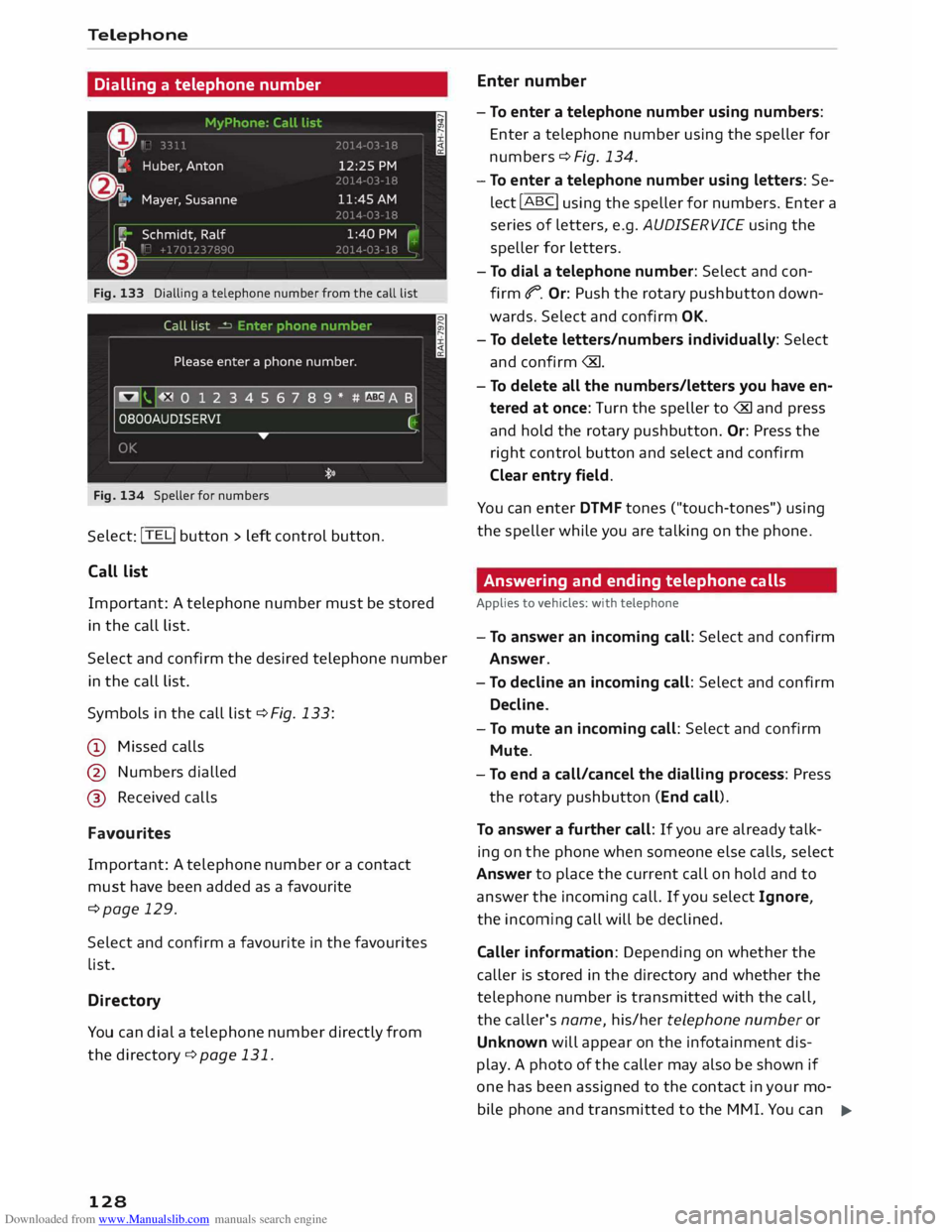
Fig. 133 Dialling a telephone number from the call list
Fig. 134 Speller for numbers Sele
ct: !TEL! button > Left control button.
Call List
Important: A telephone number must be stored
in the call List.
Select and confirm the desired telephone number
in the call List.
Symbols in the call List¢ Fig. 133:
CD Missed calls
@ Numbers dialled
@ Received calls
Favourites
Important: A telephone number or a contact
must have been added as a favourite
¢page 129.
Select and confirm a favourite in the favourites
List.
Directory
You can dial a telephone number directly from
the directory ¢page 131.
128 Enter
number
- To enter a telephone number using numbers:
Enter a telephone number using the speller for
numbers ¢ Fig. 134.
- To enter a telephone number using letters: Se
lect !ABC!
using the speller for numbers. Enter a
series of letters, e.g. AUD/SERVICE using the
speller for Letters.
- To dial a telephone number: Select and con
firm t". Or: Push the rotary pushbutton down
wards. Select and confirm OK.
- To delete letters/numbers individually: Select
and confirm
tered at once: Turn the speller to
right control button and select and confirm
Clear entry field.
You can enter DTMF tones ("touch-tones") using
the speller while you are talking on the phone.
Answering and ending telephone calls
Applies to vehicles: with telephone
- To answer an incoming call: Select and confirm
Answer.
- To decline an incoming call: Select and confirm
Decline.
- To mute an incoming call: Select and confirm
Mute.
- To end a call/cancel the dialling process: Press
the rotary pushbutton (End call).
To answer a further call: If you are already talk
ing on the phone when someone else calls, select
Answer to place the current call on hold and to
answer the incoming call. If you select Ignore,
the incoming call will be declined.
Caller information: Depending on whether the
caller is stored in the directory and whether the
telephone number is transmitted with the call,
the caller's name, his/her telephone number or
Unknown will appear on the infotainment dis-
play. A photo of the caller may also be shown if
one has been assigned to the contact in your mo
bile phone and transmitted to the MMI. You can ..,.
Page 154 of 284
Downloaded from www.Manualslib.com manuals search engine Navigation
Entering a stopover
Applies to vehicles: with navigation system
You can enter a new stopover while route guid
ance is active.
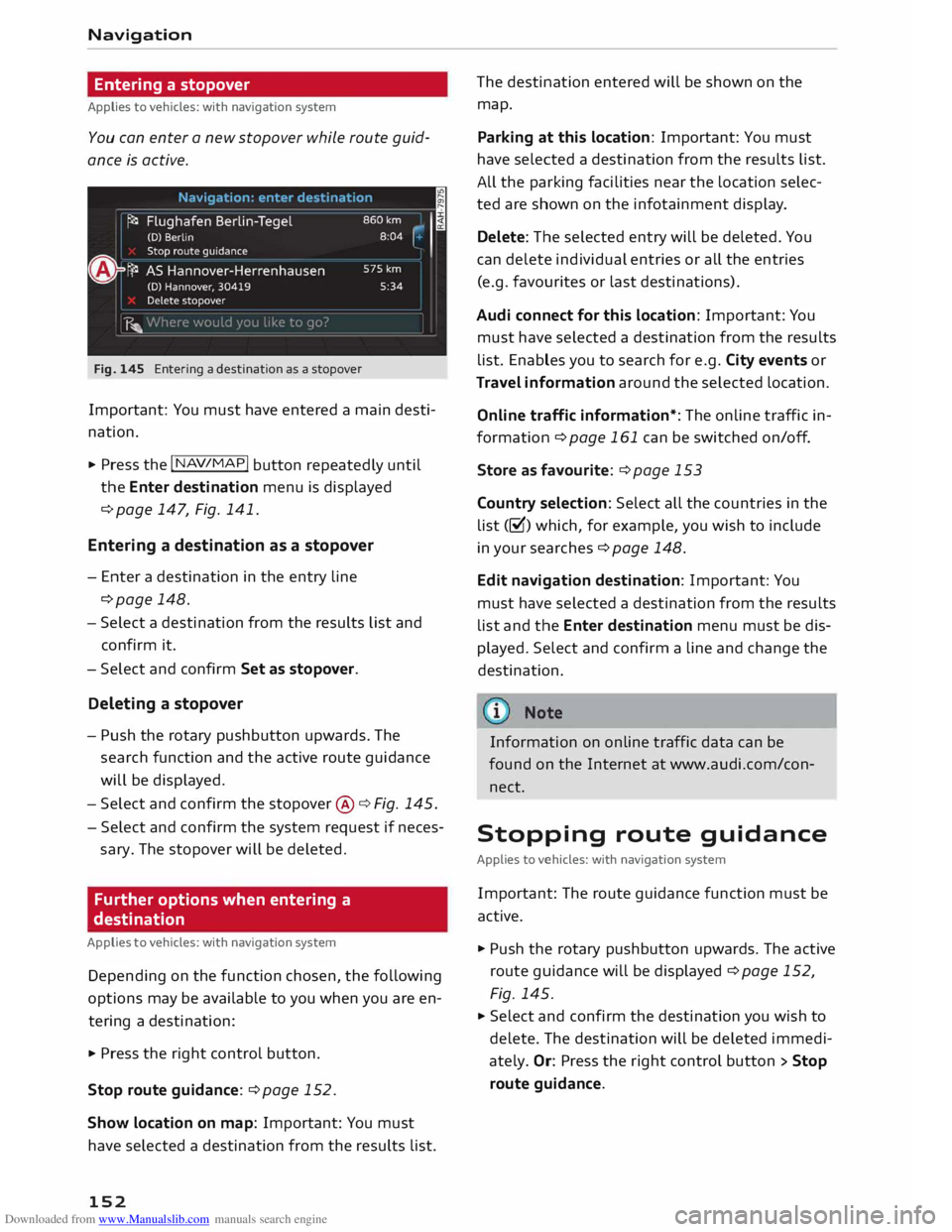
Fig. 145 Entering a destination as a stopover
Important: You must have entered a main desti
nation.
... Press the I NAV/MAP!
button repeatedly until
the Enter destination menu is displayed
¢ page 147, Fig. 141.
Entering a destination as a stopover
- Enter a destination in the entry line
¢page 148.
- Select a destination from the results list and
confirm it.
- Select and confirm Set as stopover.
Deleting a stopover
- Push the rotary pushbutton upwards. The
search function and the active route guidance
will be displayed.
- Select and confirm the stopover @¢ Fig. 145.
- Select and confirm the system request if neces-
sary. The stopover will be deleted.
Further options when entering a
destination
Applies to vehicles: with navigation system
Depending on the function chosen, the following
options may be available to you when you are en
tering a destination:
... Press the right control button.
Stop route guidance:¢ page 152.
Show location on map: Important: You must
have selected a destination from the results list.
152 The
destination entered will be shown on the
map.
Parking at this location: Important: You must
have selected a destination from the results list.
All the parking facilities near the location selec
ted are shown on the infotainment display.
Delete: The selected entry will be deleted. You
can delete individual entries or all the entries
(e.g. favourites or last destinations).
Audi connect for this location: Important: You
must have selected a destination from the results
list. Enables you to search for e.g. City events or
Travel information around the selected location.
Online traffic information*: The online traffic in
formation ¢ page 161 can be switched on/off .
Store as favourite: ¢ page 153
Country selection: Select all the countries in the
list (�) which, for example, you wish to include
in your searches ¢ page 148.
Edit navigation destination: Important: You
must have selected a destination from the results
list and the Enter destination menu must be dis
played. Select and confirm a line and change the
destination.
Information on online traffic data can be
found on the Internet at www.audi.com/con
nect.
Stopping route guidance
Applies to vehicles: with navigation system
Important: The route guidance function must be
active.
... Push the rotary pushbutton upwards. The active
route guidance will be displayed ¢ page 152,
Fig. 145.
... Select and confirm the destination you wish to
delete. The destination will be deleted immedi
ately. Or: Press the right control button > Stop
route guidance.
Page 161 of 284
Downloaded from www.Manualslib.com manuals search engine 0
N
co
....
\D L/'l
N
L/'l
.... Google
Earth map
display
Applies to vehicles: with navigation system and Audi connect
You can have the map display satellite images
using the Google Earth map display.
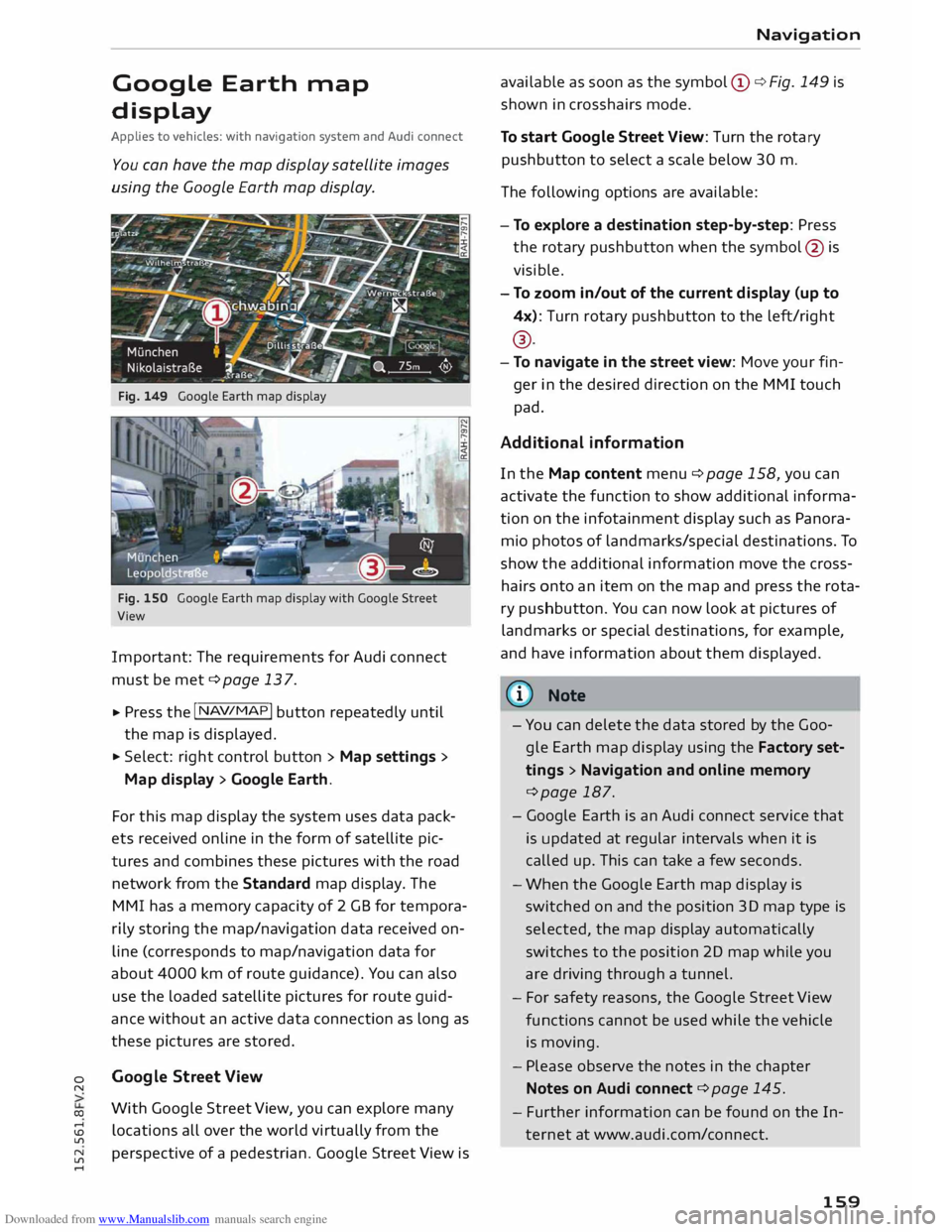
Fig. 149 Google Earth map display
Fig. 150 Google Earth map display with Google Street
View
Important: The requirements for Audi connect
must be met ¢page 137.
... Press
the I NAV/MAP!
button repeatedly until
the map is displayed.
... Select: right control button > Map settings>
Map display> Google Earth.
For this map display the system uses data pack
ets received on line in the form of satellite pic
tures and combines these pictures with the road
network from the Standard map display. The
MMI has a memory capacity of 2 GB for tempora
rily storing the map/navigation data received on
line (corresponds to map/navigation data for
about 4000 km of route guidance). You can also
use the loaded satellite pictures for route guid
ance without an active data connection as long as
these pictures are stored.
Google Street View
With Google Street View, you can explore many
locations all over the world virtually from the
perspective of a pedestrian. Google Street View is Navigation
available as soon as the symbol (D ¢ Fig. 149 is
shown in crosshairs mode.
To start Google Street View: Turn the rotary
pushbutton to select a scale below 30 m.
The following options are available:
- To explore a destination step-by-step: Press
the rotary pushbutton when the symbol @is
visible.
- To zoom in/out of the current display {up to
4x): Turn rotary pushbutton to the left/right
® ·
- To navigate in the street view: Move your fin-
ger in the desired direction on the MMI touch
pad.
Additional information
In the Map content menu¢ page 158, you can
activate the function to show additional informa
tion on the infotainment display such as Panora
mic photos of landmarks/special destinations. To
show the additional information move the cross
hairs onto an item on the map and press the rota
ry pushbutton. You can now look at pictures of
landmarks or special destinations, for example,
and have information about them displayed.
@ Note
- You can delete the data stored by the Goo
gle Earth map display using the Factory set
tings > Navigation and online memory
¢page 187.
- Google Earth is an Audi connect service that
is updated at regular intervals when it is
called up. This can take a few seconds.
- When the Google Earth map display is
switched on and the position 3D map type is
selected, the map display automatically
switches to the position 2D map while you
are driving through a tunnel.
- For safety reasons, the Google Street View
functions cannot be used while the vehicle
is moving.
- Please observe the notes in the chapter
Notes on Audi connect ¢page 145.
- Further information can be found on the In
ternet at www.audi.com/connect.
159
Page 163 of 284
Downloaded from www.Manualslib.com manuals search engine 0
N
co
....
\D L/'l
N
L/'l
.... Navigation
Online traffic information
Applies to vehicles: with navigation system and Audi connect
The MMI system can receive real-time information from the Internet regarding traffic congestion, ac
cidents, roadworks and other incidents.
Wu rmt alst raBe
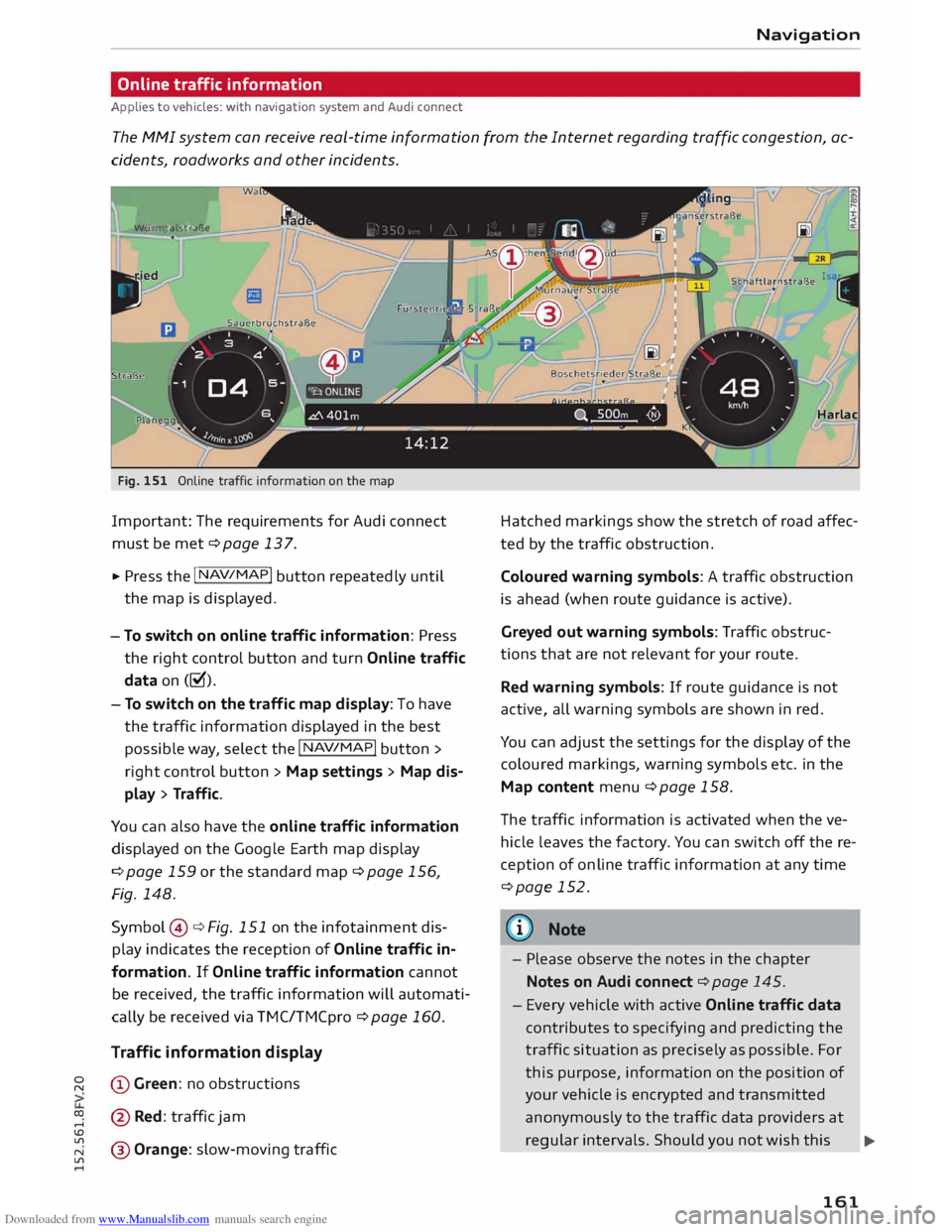
Fig. 151 Online traffic information on the map
Important: The requirements for Audi connect
must be met ¢page 137.
.,. Press the I NAV
/
MAP !
button repeatedly until
the map is displayed.
- To switch on online traffic information: Press
the right control button and turn Online traffic
data on(�).
- To switch on the traffic map display: To have
the traffic information displayed in the best
possible way, select the I NAV
/MAP !
button >
right control button > Map settings > Map dis
play > Traffic.
You can also have the online traffic information
displayed on the Google Earth map display
¢ page 159 or the standard map¢ page 156,
Fig. 148.
Symbol ©¢ Fig. 151 on the infotainment dis
play indicates the reception of Online traffic in
formation. If Online traffic information cannot
be received, the traffic information will automati
cally be received via TMC/TMCpro ¢page 160.
Traffic information display
@ Green : no obstructions
@ Red: traffic jam
@ Orange: slow-moving traffic Harlac
Hatched markings show the stretch of road affec
ted by the traffic obstruction .
Coloured warning symbols: A traffic obstruction
is ahead (when route guidance is active).
Greyed out warning symbols: Traffic obstruc
tions that are not relevant for your route.
Red warning symbols: If route guidance is not
active, all warning symbols are shown in red.
You can adjust the settings for the display of the
coloured markings, warning symbols etc. in the
Map content menu ¢ page 158.
The traffic information is activated when the ve
hicle leaves the factory. You can switch off the re
ception of on line traffic information at any time
¢page 152.
(©) Note
- Please observe the notes in the chapter
Notes on Audi connect ¢page 145.
- Every vehicle with active Online traffic data
contributes to specifying and predicting the
traffic situation as precisely as possible. For
this purpose, information on the position of
your vehicle is encrypted and transmitted
anonymously to the traffic data providers at
regular intervals. Should you not wish this ..,_
161
Page 183 of 284
Downloaded from www.Manualslib.com manuals search engine 0
N
co
....
\D Lfl
N
Lfl
.... The
categories Podcasts, Audiobooks and
Composers are available when you are using
an iPod (source: Audi music interface
¢page 174).
- For safety reasons, the video picture is not
available while the vehicle is moving. While
you are driving, only the sound is played.
- If you synchronise a portable player with
"cloud" services, the playlists may not be
displayed correctly on the MMI. Use the de
vice's local media library.
Further options
Further options may be available via the right
control button depending on the source selected
and the current view.
.,. Press the right control button.
Options
- Change play position: Turn the rotary pushbut
ton to the left/right. Or: Move your finger from
left to right across the MMI touch pad.
- Random playback 1
>: When this function is
switched on�. all the files in the playlist will
be played and shown in random order.
- Repeat track1
>: When this function is switched
on �, the current track will be repeated.
- Play entire medium: When this function is
switched on�. all tracks from the active
source will be used in the playlist at the next
selection, regardless of the category selected.
If the function is switched off, only the content
of the selected folder will be used for the play
list at the next selection from the media centre.
- Back to 'Now playing': This closes the options
menu. The track currently playing will be shown
in the playlist.
- Copy to jukebox: Refer to ¢ page 170, Filling
the jukebox.
- Jukebox memory capacity: Refer to
¢page 183.
- Media settings: Refer to ¢ page 183.
l) This function is automatically deactivated if you change
the source .
2 > May not be possible during playback (depends on the
DVD). Media
Important: A video file* or a DVD* must be play
ing, and the vehicle must be stationary.
- Switch to full screen: The video picture is dis
played. Press the rotary pushbutton to show
the playlist. Or: Press the I
BACK!
button.
- Replay video1
>: When this function is switched
on �. the current video will be replayed.
- Display DVD menu: The DVD main menu will
appear on the infotainment display. To select a
menu option, move your finger on the MMI
touch pad and press the rotary pushbutton.
- Audio track2
>: You can adjust the audio track
(language and audio format) manually. It de
pends on the video DVD whether different lan
guages and audio formats are available.
- Subtitles 2
l
: You can select playback subtitles
manually . It depends on the video DVD whether
different languages are available.
Picture format option
We recommend using the automatic setting for
the picture format. Depending on the active file
or source (e.g. video file*, DVD*), you may be able
to adjust the picture format.
Picture for-Information
mat
automatic The
MMI detects the picture for-
mat of the source and displays the
picture using the best possible
width-to-height ratio. Depending
on the source format and the info-
tainment display installed, black
bars may be displayed on the edges
of the picture.
zoom The
picture is enlarged to fill the
infotainment display. Switch this
function off if the picture is distor-
ted.
cinema- Use
this setting for films in the cin-
scope ema
format 21:9. Black bars will
be shown on the upper and lower
edges of the infotainment display.
181
Page 184 of 284
Downloaded from www.Manualslib.com manuals search engine Media
Picture for-
Information
mat
original The
picture will be displayed using
the picture ratio of the source for-
mat. Select this option if the pie-
ture shown with auto selected is
distorted or partially cut off.
4:3 The picture is set to a width-to-
height ratio of 4:3. Black bars will
be shown on the edges of the info-
tainment display.
16:9 The
picture is set to a width-to-
height ratio of 16:9. Black bars will
be shown on the upper and lower
edges of the infotainment display.
Search function
You can search for e.g. tracks and video files* in
the active source.
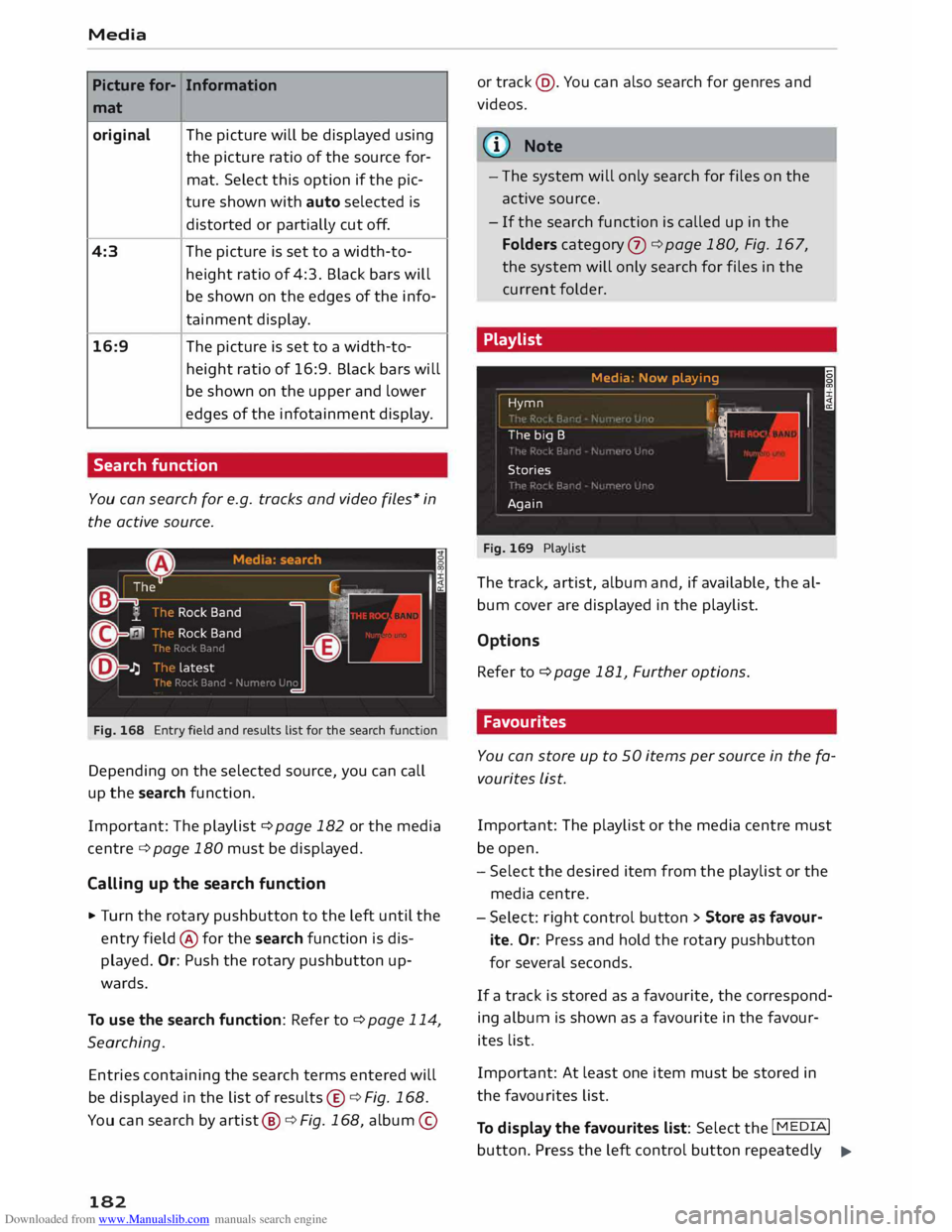
Fig. 168 Entry field and results List for the search function
Depending on the selected source, you can call
up the search function.
Important: The playlist ¢ page 182 or the media
centre ¢page 180 must be displayed.
Calling up the search function
� Turn the rotary pushbutton to the left until the
entry field @for the search function is dis
played. Or: Push the rotary pushbutton up
wards.
To use the search function: Refer to ¢ page 114,
Searching.
Entries containing the search terms entered will
be displayed in the list of results ©¢ Fig. 168.
You can search by artist @¢Fig. 168, album ©
182 or
track @. You can also search for genres and
videos.
{(!) Note
- The system will only search for files on the
active source.
- If the search function is called up in the
Folders category (J) ¢ page 180, Fig. 167,
the system will only search for files in the
current folder.
Playlist
Hymn
The big B
Stories
Again
Fig. 169 Playlist Media
: Now play ing
�
I· ��. I ;
� o
The track, artist, album and, if available, the al
bum cover are displayed in the playlist.
Options Refer to ¢ page 1 Bl, Further options.
Favourites
You can store up to 50 items per source in the fa
vourites List.
Important: The playlist or the media centre must
be open.
- Select the desired item from the playlist or the
media centre.
- Select: right control button > Store as favou r
ite. Or: Press and hold the rotary pushbutton
for several seconds.
If a track is stored as a favourite, the correspond
ing album is shown as a favourite in the favour
ites list.
Important: At least one item must be stored in
the favourites list.
To display the favourites list: Select the I MEDIA!
button. Press the left control button repeatedly .,..
Page 194 of 284
Downloaded from www.Manualslib.com manuals search engine Safe
driving
Safe driving
General notes
Safety is the first priority
Your safety is our first priority.
This chapter contains important information,
tips, suggestions and warnings that you should
read and observe for your own safety and the
safety of your passengers.
_&. WARNING
- The information in this chapter is important
for the driver of the vehicle and all passen
gers. The other chapters in this manual
(and, where applicable, in the other litera
ture supplied with the vehicle) contain fur
ther important notes which you should read
and observe for your own safety and that of
your passengers.
- Ensure that the complete vehicle wallet is
always in the vehicle. This is especially im
portant when you lend or sell the vehicle to
others.
Notes on traffic safety
You should only use certain infotainment system
functions, e.g. enter a navigation destination,
while the vehicle is stationary. Always be pre
pared to stop operating the infotainment system
in the interest of your own safety and that of oth
er road users.
_&. WARNING
- To day's driving conditions require your full
attention. As the driver, you have full re
sponsibility for the safety of the vehicle and
other road users. For this reason, only oper
ate the infotainment system when the traf
fic conditions allow you to do so safely and
when you can maintain proper control of
your vehicle - risk of accident!
- The volume of the audio sources (radio, CD
player, etc.) should only be set at a level
which enables you to hear distant police and
192 emergency
vehicles clearly-failure to do so
could result in an accident.
- Please observe the laws regulating the use
of telephones in vehicles.
Safety features
The safety features Listed here are part of the ve
hicle's occupant restraint system. They work to
gether to help reduce the risk of injury in a wide
variety of accident situations.
Your safety and the safety of your passengers
should not be left to chance. In the event of an
accident, the safety features incorporated in your
vehicle are capable of reducing the risk of injury.
These are just a few of the safety features in your
Audi:
- Seat belts for all seats
- Belt force limiters for all seats
- Belt tensioners for the front seats
- Front airbags
- Side airbags in the front seat backrests
- Head-protection airbags
- "ISO FIX" anchorages* for "ISO FIX" child seats
on the rear seats
-Adjustable steering column
These individual safety features are harmonised
to provide you and your passengers with the best
possible protection in accident situations. How
ever, they can only be effective if you and your
passengers sit in the correct position and adjust
and use the safety equipment properly.
For these reasons, this chapter explains why
these safety features are so important, how they
can protect you, what you need to remember
when using them, and how you and your passen
gers can gain the most benefit from them. There
are also a number of important safety warnings
which you and your passengers should always ob
serve in order to minimise the risk of injury.
Safety is everyone's responsibility!