lights AUDI TT COUPE 2014 Service Manual
[x] Cancel search | Manufacturer: AUDI, Model Year: 2014, Model line: TT COUPE, Model: AUDI TT COUPE 2014Pages: 284, PDF Size: 34.42 MB
Page 84 of 284
Downloaded from www.Manualslib.com manuals search engine Driver
assist systems
.. Switch off the ignition.
The speed setting will remain stored after the
system is temporarily deactivated. To resume the
programmed cruising speed, release the clutch or
brake pedal and pull the lever to position (!).
The stored speed will be deleted once the igni
tion is switched off.
_& WARNING
Do not resume the programmed cruising
speed if this is too high for the traffic condi
tions -this can cause accidents.
Speed limiter
Description
Applies to vehicles: with speed limiter
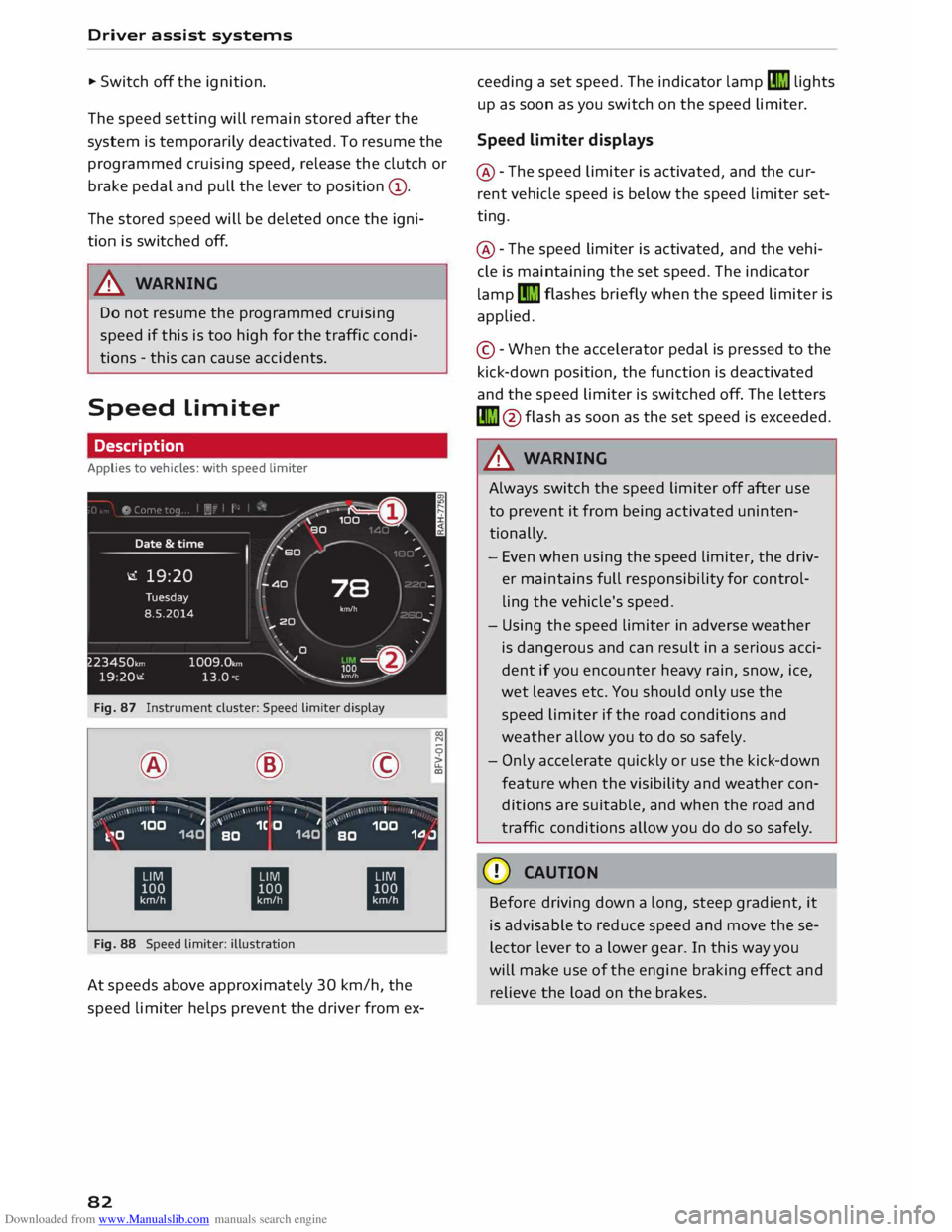
Fig. 87 Instrument cluster: Speed limiter display
® ·-
' I I @
,.,...---:-;- ·-
/ \ \ •
I I ©
·-
, ' I
' 00
N
0
>
LL
a,
,, _ ,\ 100 1
k.�0 140 '
1C O 1
BO 140 '
100
BO 1.0.J
ti ti
ti
Fig. 88 Speed limiter: illustration
At speeds above approximately 30 km/h, the
speed limiter helps prevent the driver from ex-
82 ceeding
a set speed. The indicator lamp�
lights
up as soon as you switch on the speed limiter.
Speed limiter displays
@ -The speed limiter is activated, and the cur
rent vehicle speed is below the speed limiter set
ting.
@ -The speed limiter is activated, and the vehi
cle is maintaining the set speed. The indicator
lamp �
flashes briefly when the speed limiter is
applied.
© -When the accelerator pedal is pressed to the
kick-down position, the function is deactivated
and the speed limiter is switched off. The letters
� @flash as soon as the set speed is exceeded.
_& WARNING
Always switch the speed limiter off after use
to prevent it from being activated uninten
tionally.
- Even when using the speed limiter, the driv
er maintains full responsibility for control
ling the vehicle's speed.
- Using the speed limiter in adverse weather
is dangerous and can result in a serious acci
dent if you encounter heavy rain, snow, ice,
wet leaves etc. You should only use the
speed limiter if the road conditions and
weather allow you to do so safely.
- Only accelerate quickly or use the kick-down
feature when the visibility and weather con
ditions are suitable, and when the road and
traffic conditions allow you do do so safely.
CD CAUTION
Before driving down a long, steep gradient, it
is advisable to reduce speed and move these
lector lever to a lower gear. In this way you
will make use of the engine braking effect and
relieve the load on the brakes.
Page 88 of 284
Downloaded from www.Manualslib.com manuals search engine Driver
assist systems
Indicator lamps
• Ready: The indicator Lamp Lights up when the
system is fully functional. The system is ready to
intervene .
• Not ready: The indicator Lamp Lights up when
the system is switched on but not ready to inter
vene. The causes for this can include the follow
ing:
- There are no Lane markings.
- The system cannot detect the relevant Lane
markings (e.g. temporary markings for road
works or markings obscured by snow, dirt, rain
or adverse Light).
- The vehicle's speed is below 65 km/h, the
speed at which the Lane assist system is activa
ted (the threshold may vary in different export
markets).
- The Lane is narrower than 2.1 m or wider than
5.5 m.
- The bend is too tight.
- You have taken your hands off the steering
wheel.
@ Note
- Make sure that the camera window
¢ Fig. 92 is not covered with stickers or sim
ilar objects. Notes on cleaning ¢ page 236.
- On vehicles for some export markets: once
the system is activated, it is "ready" each
time the ignition is switched on.
Infotainment display
Applies to vehicles: with Audi active lane assist
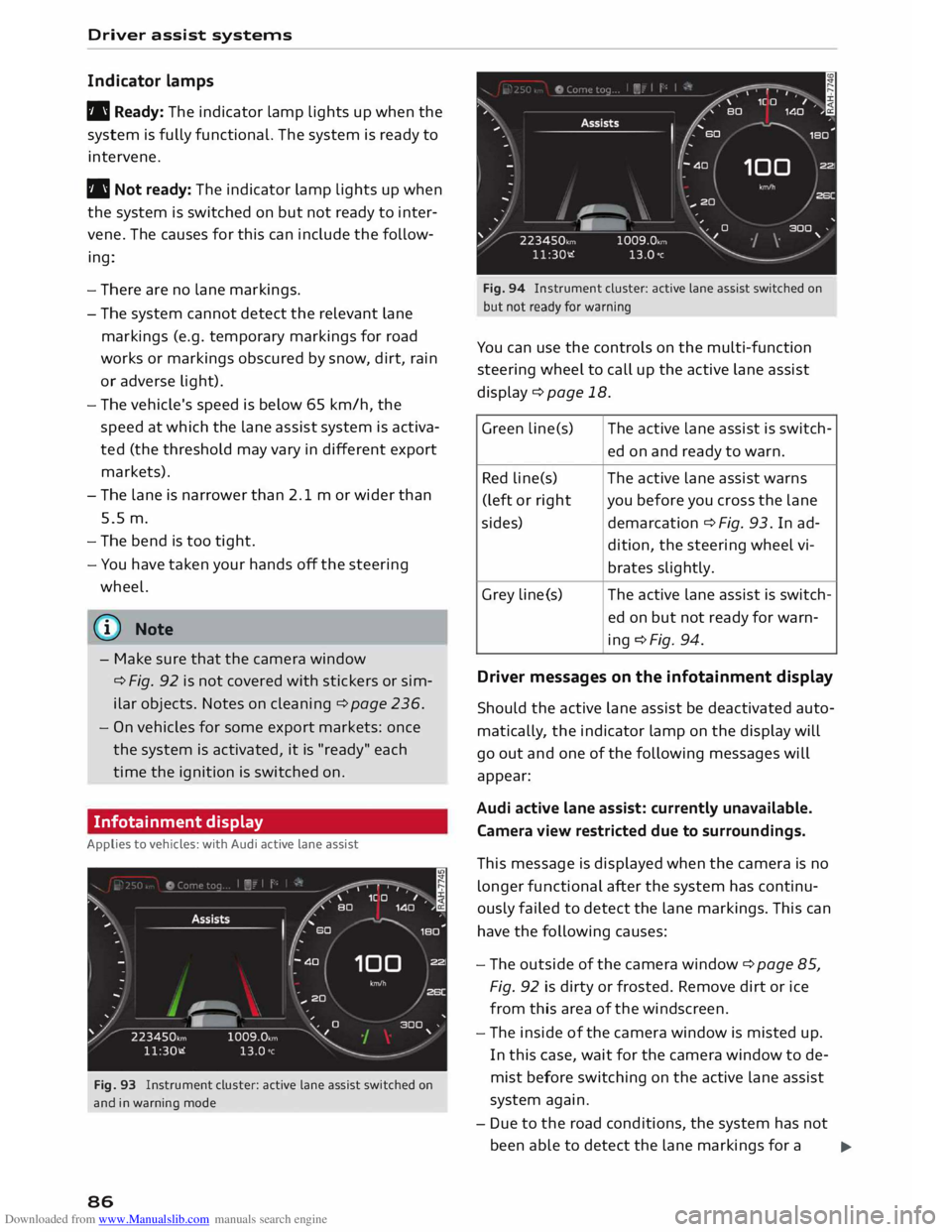
Fig. 93 Instrument cluster: active lane assist switched on
and in warning mode
86 Fig.
94 Instrument cluster: active lane assist switched on
but not ready for warning
You can use the controls on the multi-function
steering wheel to call up the active lane assist
display¢ page 18.
Green Lin e(s) The active Lane assist is switch-
ed on and ready to warn.
Red line(s) The active lane assist warns
(left or right you before you cross the lane
sides) demarcation¢ Fig. 93. In ad-
dition, the steering wheel vi-
brates slightly.
Grey Line(s) The
active lane assist is switch-
ed on but not ready for warn-
ing ¢Fig. 94.
Driver messages on the infotainment display
Should the active lane assist be deactivated auto
matically, the indicator lamp on the display will
go out and one of the following messages will
appear:
Audi active lane assist: currently unavailable.
Camera view restricted due to surroundings.
This message is displayed when the camera is no
longer functional after the system has continu
ously failed to detect the lane markings. This can
have the following causes:
- The outside of the camera window¢ page 85,
Fig. 92 is dirty or frosted. Remove dirt or ice
from this area of the windscreen.
- The inside of the camera window is misted up.
In this case, wait for the camera window to de
mist before switching on the active lane assist
system again.
- Due to the road conditions, the system has not
been able to detect the lane markings for a .,..
Page 90 of 284
Downloaded from www.Manualslib.com manuals search engine Driver
assist systems
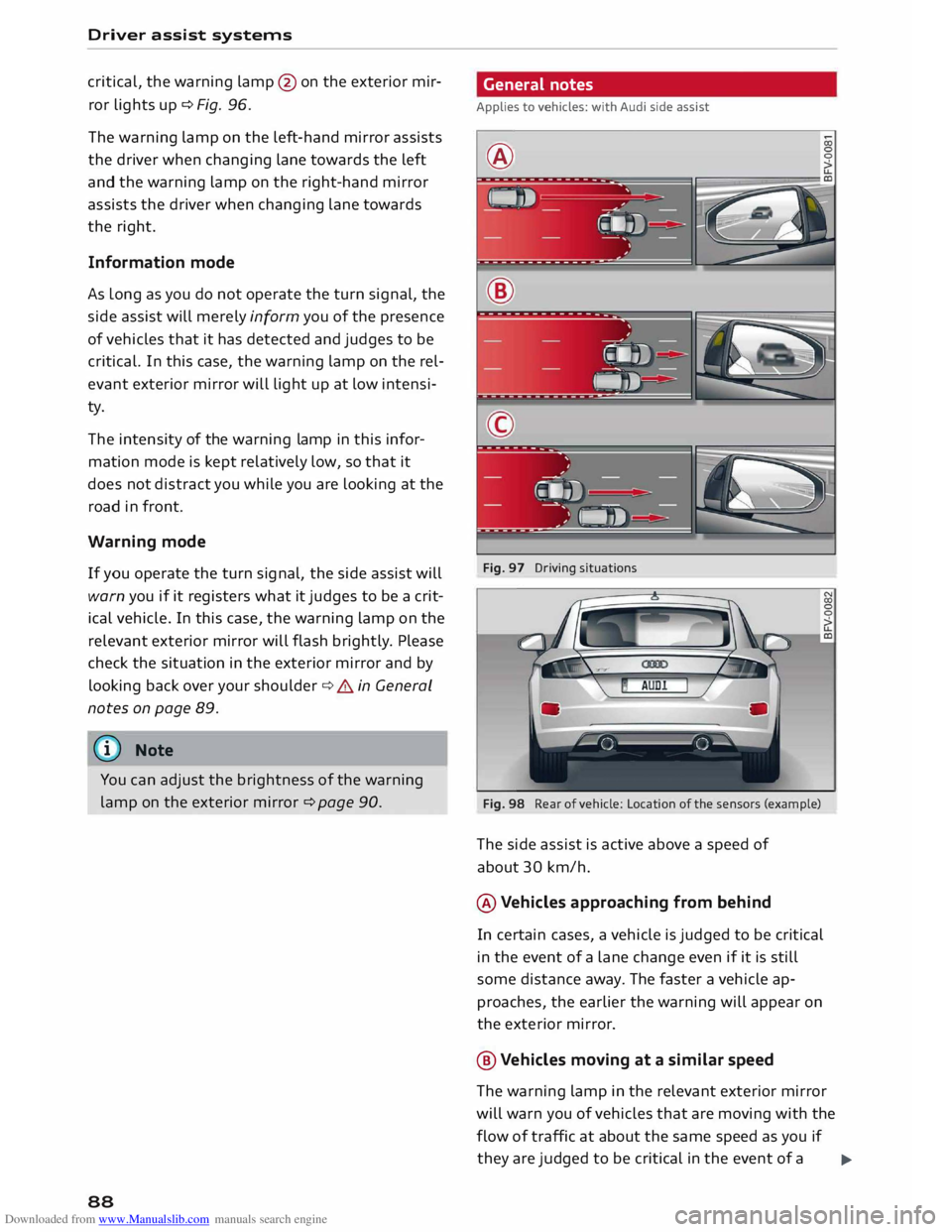
critical, the warning lamp@ on the exterior mir
ror lights up¢ Fig. 96.
The warning lamp on the left-hand mirror assists
the driver when changing lane towards the left
and the warning lamp on the right-hand mirror
assists the driver when changing lane towards
the right.
Information mode
As long as you do not operate the turn signal, the
side assist will merely inform you of the presence
of vehicles that it has detected and judges to be
critical. In this case, the warning lamp on the rel
evant exterior mirror will light up at low intensi
ty.
The intensity of the warning lamp in this infor
mation mode is kept relatively low, so that it
does not distract you while you are looking at the
road in front.
Warning mode
If you operate the turn signal, the side assist will
warn you if it registers what it judges to be a crit
ical vehicle. In this case, the warning lamp on the
relevant exterior mirror will flash brightly. Please
check the situation in the exterior mirror and by
looking back over your shoulder ¢.&. in General
notes on page 89.
@ Note
You can adjust the brightness of the warning
lamp on the exterior mirror¢ page 90.
88 General
notes
Applies to vehicles: with Audi side assist
®
Fig. 97 Driving situations
Fig. 98 Rear of vehicle: Location of the sensors (example)
The side assist is active above a speed of
about 30 km/h.
® Vehicles approaching from behind
In certain cases, a vehicle is judged to be critical
in the event of a lane change even if it is still
some distance away. The faster a vehicle ap
proaches, the earlier the warning will appear on
the exterior mirror.
@ Vehicles moving at a similar speed
The warning lamp in the relevant exterior mirror
will warn you of vehicles that are moving with the
flow of traffic at about the same speed as you if
they are judged to be critical in the event of a ..,.
Page 103 of 284
Downloaded from www.Manualslib.com manuals search engine Intelligent
technology
Electro-mechanical
power steering
Electro-mechanical power steering assists the
driver when steering.
The degree of power assistance is adapted elec
tronically, depending on the speed.
If the power steering should fail at any time or
the engine is switched off (for instance when be
ing towed), the car can still be steered. However,
substantially more effort than normal will be re
quired to turn the steering wheel.
Warning/indicator lamps and driver
messages
• Steering: fault. Please stop vehicle
If the warning lamp lights up permanently and
the message appears, there may be a power
steering failure.
Do NOT drive on. Obtain professional assistance.
• Steering: fault. Please stop vehicle
There is a malfunction in the electronic steering
lock. The ignition can no longer be switched on.
Do not have the vehicle towed away, because you
won't be able to steer it. Obtain professional as
sistance.
G'!b Steering:
fault. You can continue driving
If the indicator lamp lights up, the steering re
sponse may be heavier or lighter than usual. In
addition, it is possible that the steering wheel
will be off centre when driving in a straight line.
Drive slowly to a qualified workshop and have the
fault rectified.
Ive Steering
lock: fault. Please contact work
shop
There is a malfunction in the electronic steering
lock.
� Drive
to a qualified workshop soon and have the
a: fault rectified.
....
\D Lfl
N
Lfl
.... Intelligent
technology
A WARNING
Have the system malfunction repaired by a
qualified workshop as soon as possible -risk
of accident!
«]} Note
You can drive on if the warning/indicator lamp
• or mJ lights up only briefly.
Brakes
New brake pads
New brake pads do not give full braking effect for
the first 400 km, they must first be "bedded in".
However, you can compensate for the slightly re
duced braking effect by applying more pressure
on the brake pedal. Avoid placing a heavy load on
the brakes during the running-in period.
Wear The rate of wear on the brake pads depends a
great deal on how you drive and the conditions in
which the vehicle is operated. Negative factors
are, for instance, city traffic, frequent short trips
or hard driving with abrupt starts and stops.
Noises Brake noise may develop in certain situations, de
pending on the speed, braking force and ambient
conditions (such as temperature and relative hu
midity).
Effect of moisture and salt
In certain conditions, such as in heavy rain, or af
ter washing the car or driving through water, the
full braking effect can be delayed by moisture (or
in winter by ice) on the discs and brake pads. The
brakes should be "dried" by pressing the pedal to
restore full braking effect.
When you are driving at higher speeds with the
windscreen wipers on, the brake pads are very
briefly brought into contact with the brake discs.
This automatic process which goes unnoticed by
the driver is carried out at regular intervals and is
intended to improve braking response in wet con-
ditions. ..,..
101
Page 106 of 284
Downloaded from www.Manualslib.com manuals search engine Intelligent
technology
Switching on/off
The ESC is switched on automatically when the engine is started.
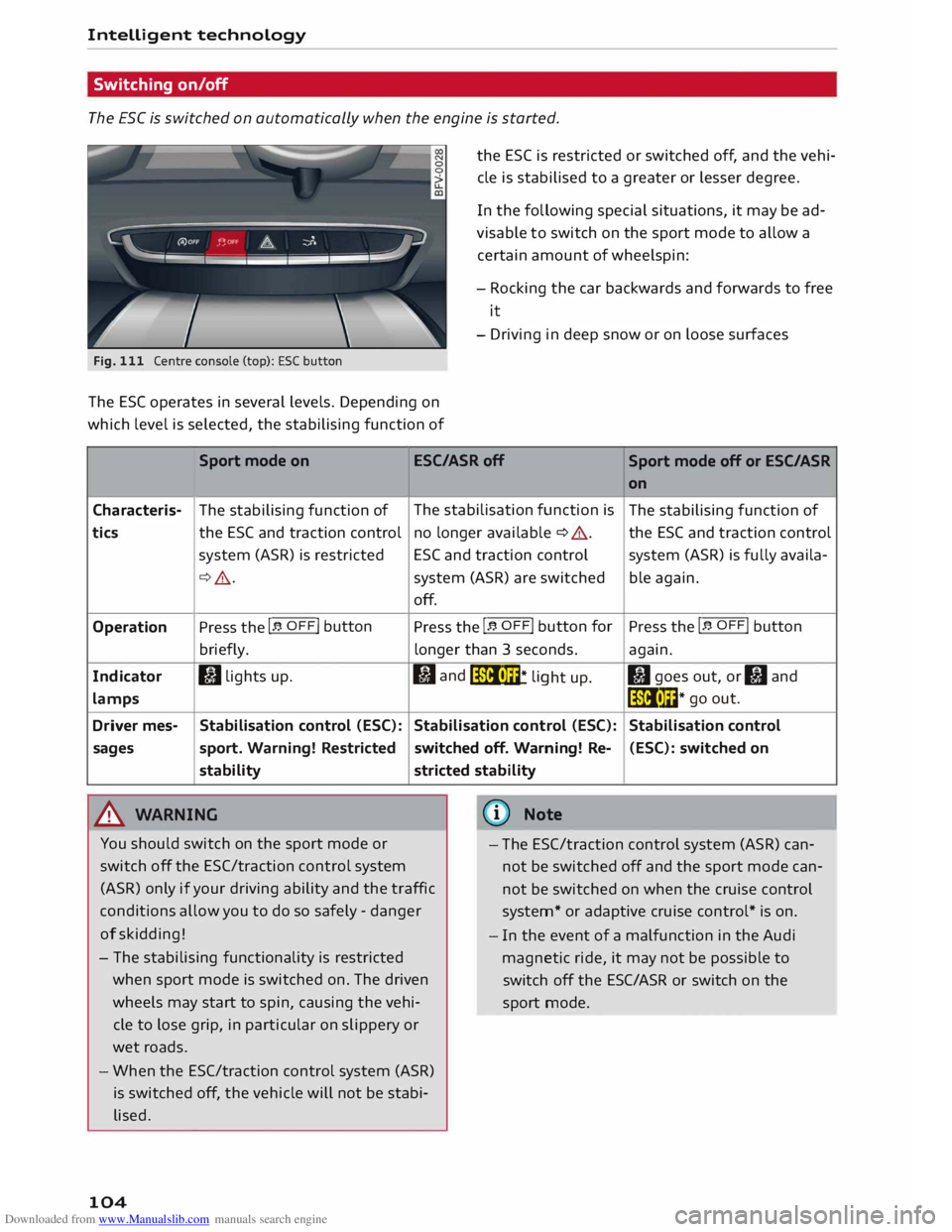
Fig. 111 Centre console (top): ESC button
The ES( operates in several levels. Depending on
which level is selected, the stabilising function of the
ESC is restricted or switched off, and the vehi
cle is stabilised to a greater or lesser degree.
In the following special situations, it may be ad
visable to switch on the sport mode to allow a
certain amount of wheelspin:
- Rocking the car backwards and forwards to free
it
- Driving in deep snow or on loose surfaces
Sport mode on ESC/ASRoff
Sport mode off or ESC/ASR
Characteris-
tics
Operation
Indicator
lamps
Driver mes-
sages The
stabilising function of
the ESC and traction control
system (ASR) is restricted
¢ .&_.
Press the I� OFF! button
briefly.
I) lights up.
Stabilisation control (ESC):
sport. Warning! Restricted
stability
.&_ WARNING The
stabilisation function is
no longer available ¢ A.
ESC and traction control
system (ASR) are switched
off.
Press the I� OFF! button
for
longer than 3 seconds.
fl and
liiii• m
* li
ght up.
Stabilisation control (ESC):
switched off. Warning! Re-
stricted stability
@ Note on
The stabilising function of
the ESC and traction control
system (ASR) is fully availa-
ble again.
Press the I� OFF! button
again.
II goes out, or II and
liiii• l��* go
out.
Stabilisation control (ESC): switched on
You should switch on the sport mode or
switch off the ESC/traction control system
(ASR) only if your driving ability and the traffic
conditions allow you to do so safely -danger
of skidding! -
The ESC/traction control system (ASR) can
not be switched off and the sport mode can
not be switched on when the cruise control
system* or adaptive cruise control* is on.
- The stabilising functionality is restricted
when sport mode is switched on. The driven
wheels may start to spin, causing the vehi
cle to lose grip, in particular on slippery or
wet roads.
- When the ESC/traction control system (ASR)
is switched off, the vehicle will not be stabi
lised.
104 -
In the event of a malfunction in the Audi
magnetic ride, it may not be possible to
switch off the ESC/ASR or switch on the
sport mode.
Page 118 of 284
Downloaded from www.Manualslib.com manuals search engine Speech
dialogue system
Speech dialogue system
How to use the system
Applies to vehicles: with speech dialogue system
You can operate many infotainment functions
conveniently by voice.
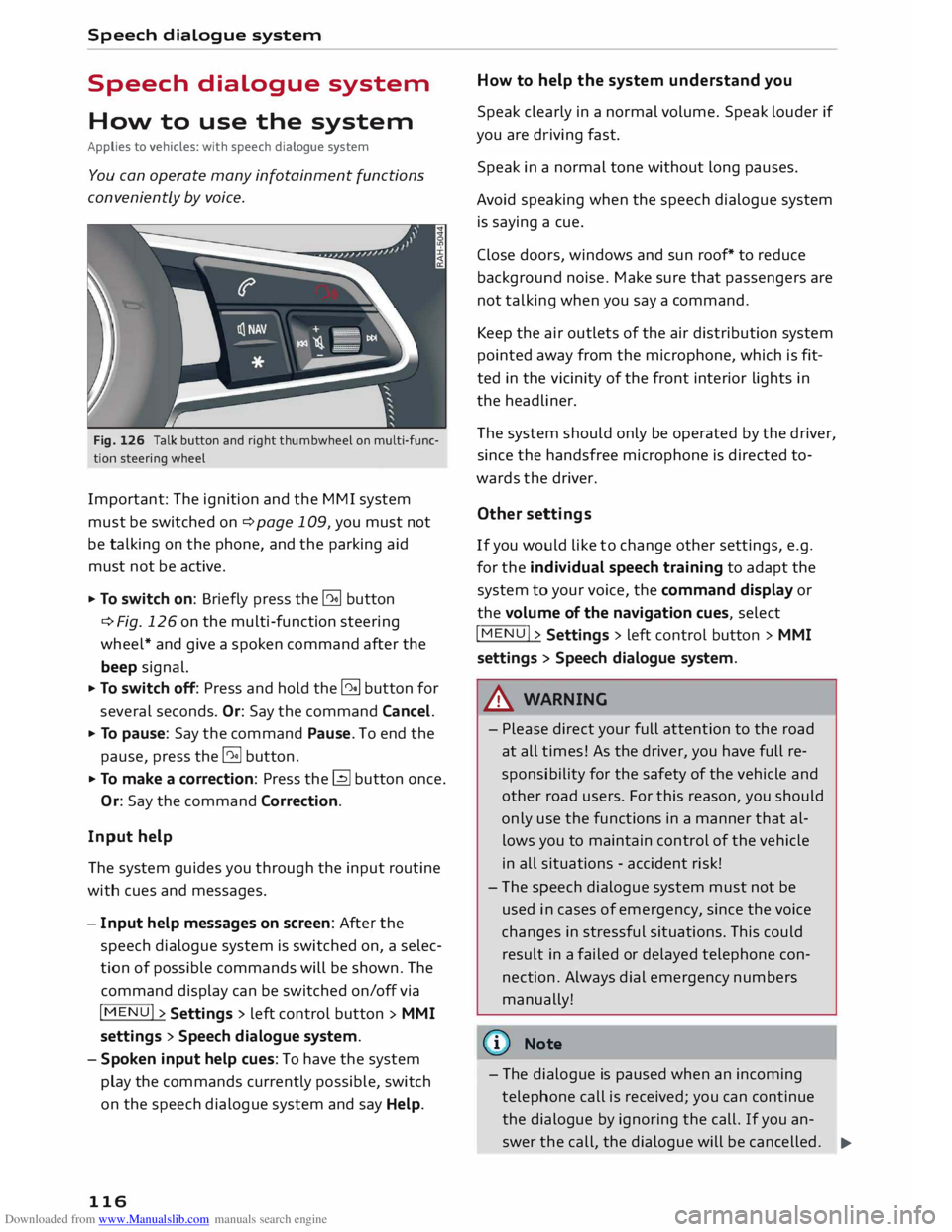
Fig. 126 Talk button and right thumbwheel on multi-func
tion steering wheel
Important: The ignition and the MMI system
must be switched on ¢page 109, you must not
be talking on the phone, and the parking aid
must not be active.
... To switch on: Briefly press the [2!] button
c:::> Fig. 126 on the multi-function steering
wheel* and give a spoken command after the
beep signal.
... To switch off: Press and hold the [2!] button for
several seconds. Or: Say the command Cancel.
... To pause: Say the command Pause. To end the
pause, press the l2!l button.
... To make a correction: Press the� button once.
Or: Say the command Correction.
Input help
The system guides you through the input routine
with cues and messages.
- Input help messages on screen: After the
speech dialogue system is switched on, a selec
tion of possible commands will be shown. The
command display can be switched on/off via
I MENU I>
Settings > left control button >
MMI
settings > Speech dialogue system.
- Spoken input help cues: To have the system
play the commands currently possible, switch
on the speech dialogue system and say Help.
116 How
to help the system understand you
Speak clearly in a normal volume. Speak louder if
you are driving fast.
Speak in a normal tone without long pauses.
Avoid speaking when the speech dialogue system
is saying a cue.
Close doors, windows and sun roof* to reduce
background noise. Make sure that passengers are
not talking when you say a command.
Keep the air outlets of the air distribution system
pointed away from the microphone, which is fit
ted in the vicinity of the front interior lights in
the headliner.
The system should only be operated by the driver,
since the handsfree microphone is directed to
wards the driver.
Other settings
If you would like to change other settings, e.g.
for the individual speech training to adapt the
system to your voice, the command display or
the volume of the navigation cues, select
I MENU I>
Settings > left control button >
MMI
settings > Speech dialogue system.
A WARNING
- Please direct your full attention to the road
at all times! As the driver, you have full re
sponsibility for the safety of the vehicle and
other road users. For this reason, you should
only use the functions in a manner that al
lows you to maintain control of the vehicle
in all situations -accident risk!
- The speech dialogue system must not be
used in cases of emergency, since the voice
changes in stressful situations. This could
result in a failed or delayed telephone con
nection. Always dial emergency numbers
manually!
{tI)) Note
- The dialogue is paused when an incoming
telephone call is received; you can continue
the dialogue by ignoring the call. If you an-
swer the call, the dialogue will be cancelled.
..,.
Page 143 of 284
Downloaded from www.Manualslib.com manuals search engine 0
N
co
....
\D U'l
N
U'l
.... You can
use the right control button to sort the
car parks by distance or by availability.
Fuel prices
Applies to vehicles: with Audi connect
Information on filling stations with the cheapest
prices for your vehicle in the search area selected.
.,.. Select and confirm Fuel prices.
You can use the right control button to sort the
fuel prices by price or by distance.
Weather
Applies to vehicles: with Audi connect
Information on the current weather and weather
forecasts for the search area selected (e.g. In im
mediate vicinity).
.,.. Select and confirm Weather.
Flight information
Applies to vehicles: with Audi connect
Information on flights and current arrival/depar
ture times in the search area selected.
.,.. Select and confirm Flight information.
You can use the right control button to select the
information you require.
Train information
Applies to vehicles: with Audi connect
Information on stations, stops and current arriv
al/departure times in the search area selected.
.,.. Select and confirm Train information.
You can use the right control button to select the
train information you require.
City events
Applies to vehicles: with Audi connect
Information on events of different categories in
the search area selected.
.,.. Select and confirm City events > left control
button > a category. Audi
connect
Online news
Applies to vehicles: with Audi connect
With this service, you can call up the latest head
lines from your preferred news providers in the
MMI.
Important: You must have subscribed to news
feeds via your myAudi account and your vehicle
must be connected to myAudi c::> page 140 .
.,.. Select
Online news> a headline.
If you have not yet subscribed to any personal
news feeds in your myAudi account, pre-con
figured news feeds will be shown.
Facebook
Applies to vehicles: with Audi connect
You can access the most important functions of
your Facebook account via the MMI.
Important: You must have a Facebook account
and your vehicle must be connected to myAudi
c::>page 140.
.,.. Select Facebook > left control button > func-
tion desired (e.g. News Feed) .
You can choose the following categories in the
Facebook menu:
- News Feed: New posts (e.g. from friends or
groups) are displayed.
- Timeline: Your Facebook timeline is displayed.
- Messages: Messages you have received are dis-
played.
- Places nearby: Places located near you (e.g .
that have been recommended by your friends)
are displayed. You can enter categories to re
strict the search further.
- Events: Events to which you have been invited
are displayed.
- Friends: All your Facebook friends are dis-
played.
Depending on the Facebook category chosen, dif
ferent Functions will be available to you:
- What's on your mind?: You can update your
Face book status with the help of ready-made
IJJJ.
141
Page 149 of 284
Downloaded from www.Manualslib.com manuals search engine 0
N
co
.-I
\D Lfl
N
Lfl
.-I Navigation
Navigation
Calling up the navigation menu
Applies to vehicles: with navigation system
The navigation system guides you directly to your destination, avoiding traffic obstructions and using
alternative routes if desired.
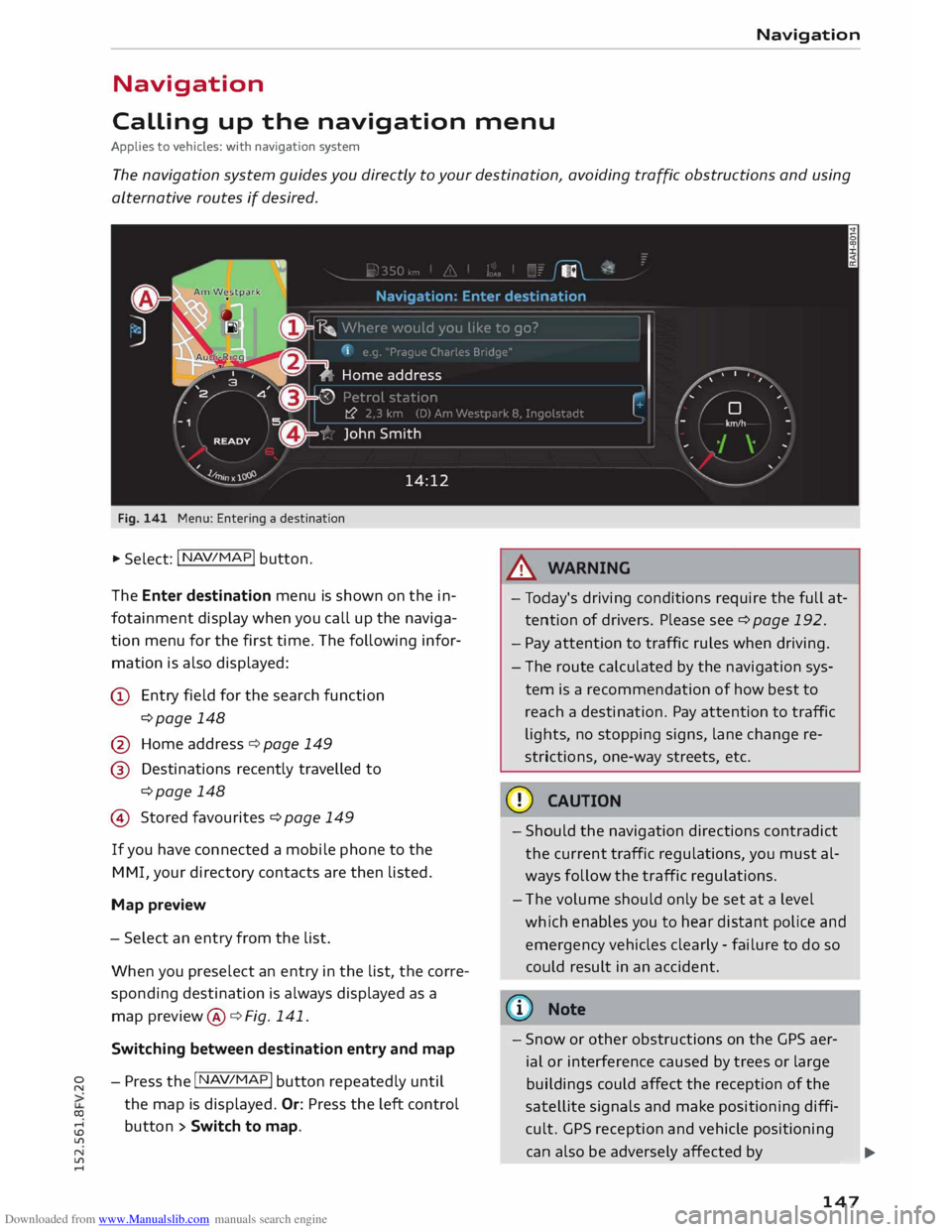
Fig. 141 Menu: Entering a destination
.. Select: I N AV/MAP
!
button.
The Enter destination menu is shown on the in
fotainment display when you call up the naviga
tion menu for the first time. The following infor
mation is also displayed:
@ Entry field for the search function
¢page 148
@ Home address ¢ page 149
@ Destinations recently travelled to
¢page 148
© Stored favourites ¢page 149
If you have connected a mobile phone to the
MMI, your directory contacts are then listed.
Map preview
- Select an entry from the list.
When you preselect an entry in the list, the corre
sponding destination is always displayed as a
map preview @¢ Fig. 141.
Switching between destination entry and map
- Press the I N
AV/MAP !
button repeatedly until
the map is displayed. Or: Press the left control
button > Switch to map. A
WARNING
- Today's driving conditions require the full at
tention of drivers. Please see¢ page 192.
- Pay attention to traffic rules when driving.
- The route calculated by the navigation sys-
tem is a recommendation of how best to
reach a destination. Pay attention to traffic
lights, no stopping signs, lane change re
strictions, one-way streets, etc.
CD CAUTION
- Should the navigation directions contradict
the current traffic regulations, you must al
ways follow the traffic regulations.
- The volume should only be set at a level
which enables you to hear distant police and
emergency vehicles clearly -failure to do so
could result in an accident.
@ Note
- Snow or other obstructions on the GPS aer
ial or interference caused by trees or large
buildings could affect the reception of the
satellite signals and make positioning diffi
cult. GPS reception and vehicle positioning
can also be adversely affected by
--- �
IJII.
147
Page 160 of 284
Downloaded from www.Manualslib.com manuals search engine Navigation
Route criteria: Refer to¢ page 154
Voice guidance: Refer to¢ page 154
Navigation settings: Refer to¢ page 153
Online traffic data*: Refer to ¢ page 161.
Exclude route: Refer to¢ page 155
Display alternative routes: Refer to¢ page 155
Parking in vicinity of route: Parking facilities
near the vehicle are displayed.
Store current position: You can store your vehi
cle's current position as a favourite ¢page 153
or as a contact in the directory ¢page 153.
Audi connect for this location*: Enables you to
search for e.g. City events or Travel information
in the Location entered (events, weather at desti
nation etc.).
Country information: With this option, you can
view the speed limits for towns and country
roads in the country you have selected. This infor
mation is displayed automatically when you cross
a border in the route information �¢ page 156,
Fig. 148 if this is activated ¢page 158.
Map settings
Applies to vehicles: with navigation system
.,. Press the
I NAV/MAP!
button repeatedly until
the map is displayed.
.,. Select: right control button > Map settings.
Depending on the function selected, you can use
the following settings:
Map colours
day/night: The map is displayed with a light/dark
background colour.
automatic: When the lights are on, the map
scheme will switch from day to night.
Map display
Standard ¢ page 156, Fig. 148.
Google Earth ¢page 159, Fig. 149.
Traffic ¢page 161, Fig. 151.
158 Map
orientation
destination: The map indicates the destination
and is set to face north.
2D driving position/2D north: The map depicts
the vehicle's current position. The map is set to
face the direction of travel or north.
3D map: When this function is activated, the cur
rent vehicle position is displayed in a three-di
mensional map, and the map is set to face the di
rection of travel. If the map scale is more than
100 km, the map is set to face north.
overview: The entire route from the vehicle posi
tion to the final destination or next stopover is
displayed on the map. The map scale varies ac
cording to the length of the route and is adapted
automatically. The map is set to face north.
Route information
The display of route information such as the
street you are currently on, upcoming turn-offs,
traffic information or special destinations on the
current route can be switched on/off.
Automatic zoom
on: The map scale is adjusted automatically ac
cording to the category of the road you are on
(motorway , major road, other road) to ensure
that you always have the best possible overview
of the route ahead. When there is an upcoming
turn-off, the map display will also be automati
cally adjusted so that you have a more detailed
view.
intersection: When route guidance is active and
there are upcoming turn-offs, the map display
will temporarily switch to a more detailed scale
so that the road layout can be identified more
easily.
off: The map scale you have set will remain unal
tered.
Map content
The display of map content such as traffic infor
mation, favourite destinations, restaurants, and
content from Google can be switched on� and
off.
Page 195 of 284
Downloaded from www.Manualslib.com manuals search engine Before
every trip
The driver is responsible for the safety of the
passengers and the safe operation of the vehicle
at all times.
For your own safety and the safety of your pas
sengers, always note the following points before
every trip:
.,. Make sure that all lights and turn signals are
working properly.
.,. Check the tyre pressures.
.,. Make sure that all windows are clean and give
good visibility to the outside.
.,. Secure all luggage and other items carefully
¢page 201.
.,. Make sure that no objects can interfere with the
pedals.
.,. Adjust
the mirrors and the front seat according
to your body height.
.,. Make sure that children are protected with suit
able safety seats and properly worn seat belts
¢page 195.
.,. Sit in the correct position in your seat. Make
sure that your passengers are sitting in the cor
rect positions ¢ page 46 .
.,. Fasten your seat belt correctly. Make sure that
your passengers do the same ¢page 204.
What factors can impair your safety?
Safety on the road is directly related to how you
drive, and can also be affected by the passengers
in the vehicle.
The driver is responsible for the safety of the ve
hicle and all its occupants. If your ability to drive
is impaired in any way, you endanger yourself and
other road users ¢& . Therefore:
.,. Do not let yourself be distracted by passengers
or by using a mobile phone, etc.
.,. Never drive when your driving ability is im
paired (by medication, alcohol, drugs, etc.).
.,. Obey all traffic regulations and speed limits
and always maintain a safe distance to the vehi-
� de
in front.
� .,.
Always adjust your speed to suit the road, traf-
� fie
and weather conditions.
U'l
N
U'l
.-1 Safe
driving
.,. Take frequent breaks on long trips. Do not drive
for more than two hours without a stop.
.,. If possible, avoid driving when you are tired or
stressed.
A WARNING
- Distractions while driving or any kind of im
pairment to your driving ability increase the
risk of accident and injury .
- Do not place loose objects on the dash pan
el. These objects could fly around the interi
or when the vehicle is moving (under accel
eration or whilst cornering) and distract the
driver -risk of accident!
Correct sitting positions
Correct driving position
The correct driving position is important for safe
driving.
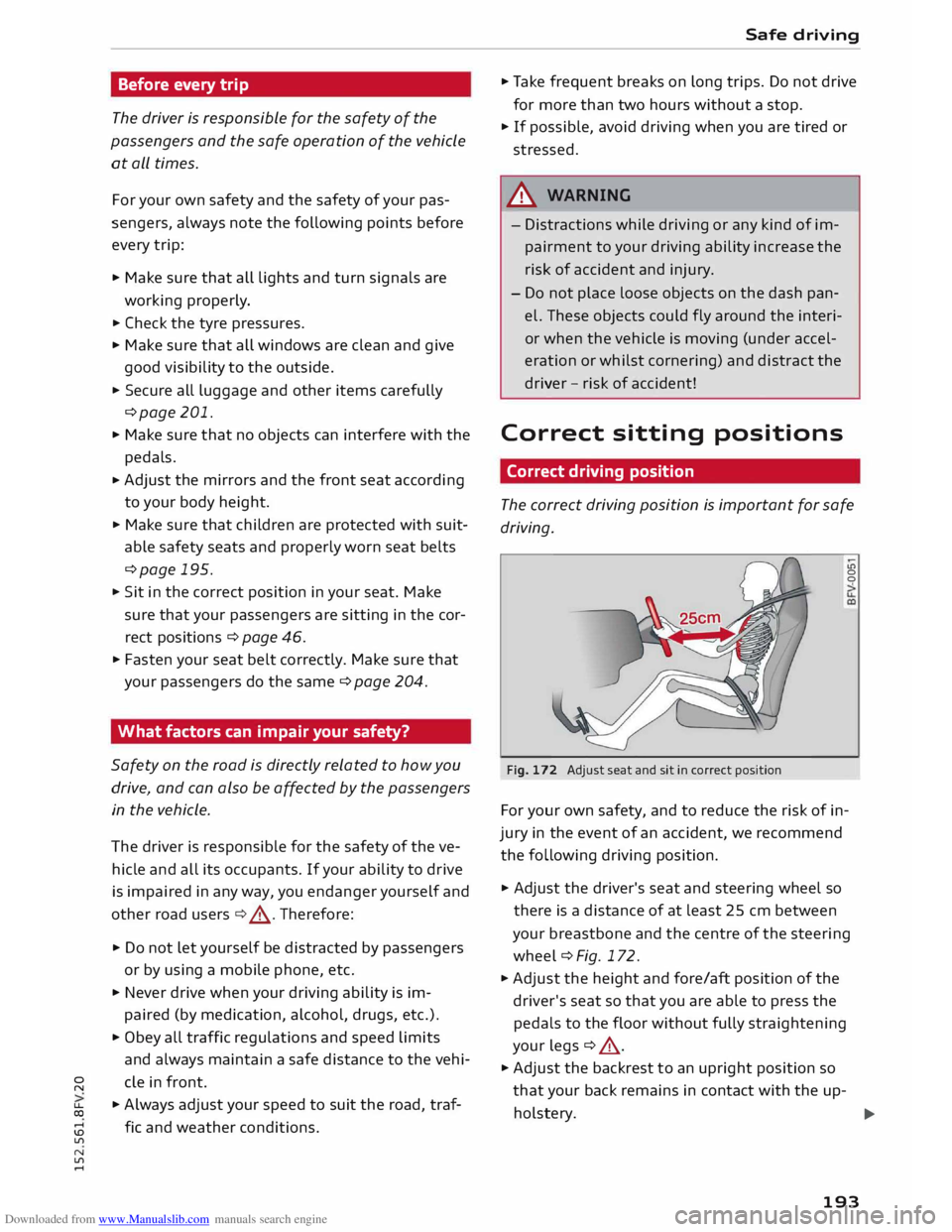
Fig. 172 Adjust seat and sit in correct position LO
0
0
For your own safety, and to reduce the risk of in
jury in the event of an accident, we recommend
the following driving position.
.,. Adjust the driver's seat and steering wheel so
there is a distance of at least 25 cm between
your breastbone and the centre of the steering
wheel¢ Fig. 172.
.,. Adjust the height and fore/aft position of the
driver's seat so that you are able to press the
pedals to the floor without fully straightening
your legs ¢ .&_ .
.,. Adjust the backrest to an upright position so
that your back remains in contact with the up-
holstery. ...,
193