USB AUDI TT COUPE 2014 Owners Manual
[x] Cancel search | Manufacturer: AUDI, Model Year: 2014, Model line: TT COUPE, Model: AUDI TT COUPE 2014Pages: 284, PDF Size: 34.42 MB
Page 117 of 284
Downloaded from www.Manualslib.com manuals search engine 0
N
co
....
\D L/'l
N
L/'l
.... •
Telephone
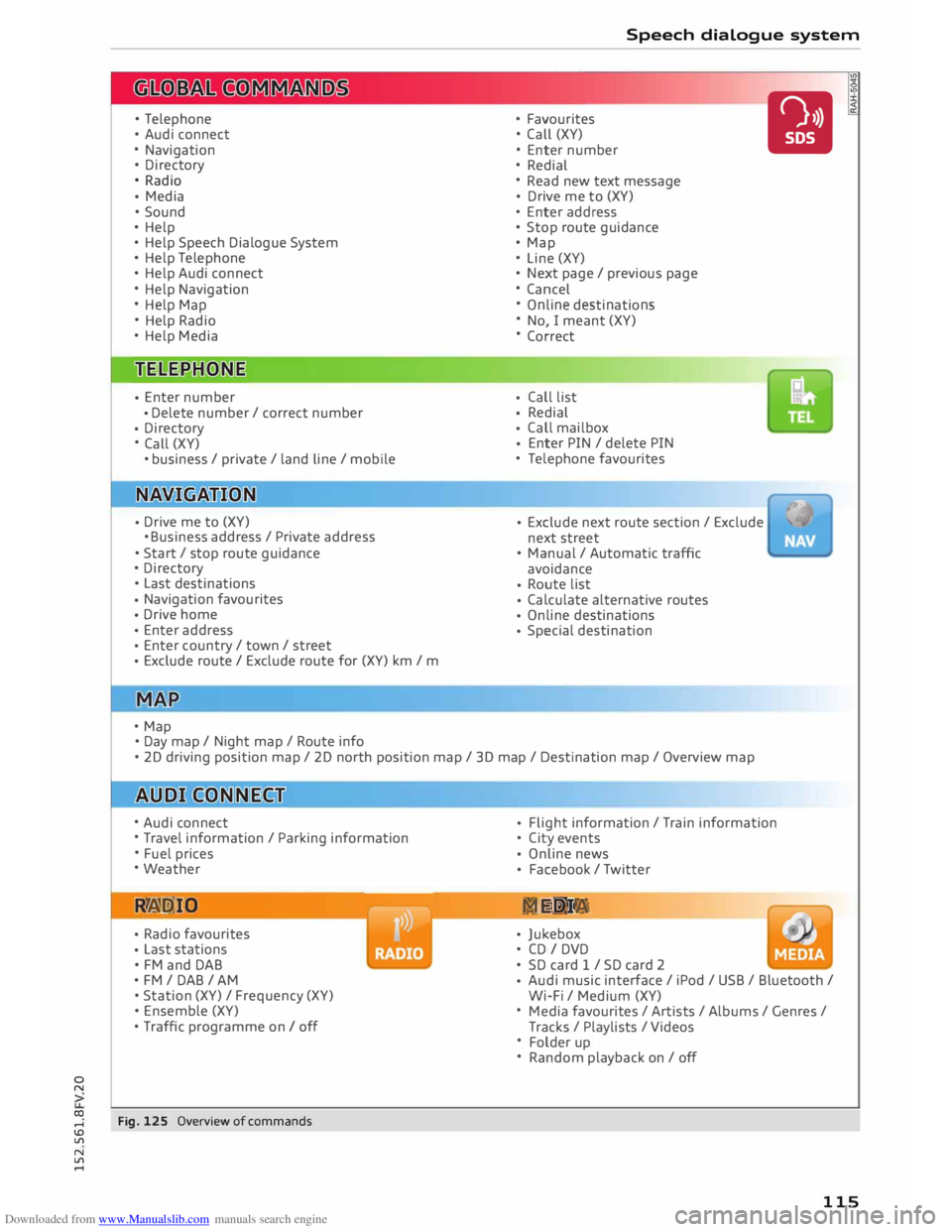
• Audi connect
• Navigation
• Directory
• Radio
• Media
• Sound
• Help
• Help Speech Dialogue System
• Help Telephone
• Help Audi connect
• Help Navigation
• Help Map
• Help Radio
• Help Media
• Enter
number
• Delete
number/ correct number
• Directory
• Call (XY)
• business / private / land line/ mobile
• Drive
me to (XY)
• Business address/ Private address
• Start/ stop route guidance
• Directory
• Last destinations
• Navigation
favourites
• Drive
home
• Enter
address
• Enter
country / town / street
• Exclude
route/ Exclude route for (XY) km / m
• Map
• Day map/ Night map/ Route info Speech
dialogue system
• Favourites
• Call (XY)
• Enter number
• Redial
• Read new text message
• Drive
me to (XY)
• Enter address
• Stop route guidance
• Map
• Line (XY)
• Next page/ previous page
• Cancel
• Online destinations
• No, I meant (XY)
• Correct
• Call
list
• Redial
• Call
mailbox
• Enter
PIN / delete PIN
• Telephone favourites
• Exclude
next route section / Exclude
next street
• Manual / Automatic traffic
avoidance
• Route
list
• Calculate
alternative routes
• Online destinations
• Special
destination •
• 20 driving position map/ 20 north position map/ 30 map / Destination map/ Overview map
• Audi connect
• Travel information / Parking information
• Fuel prices
• Weather
R � D IO
• Radio
favourites
• Last
stations
• FM and DAB
•FM/ DAB/ AM
• Station (XY) / Frequency (XY)
• Ensemble (XY)
• Traffic programme on I off
Fig. 125 Overview of commands •
Flight
information / Train information
• City events
• Online
news
• Facebook
/ Twitter
ME DIA
• Jukebox
• CD I DVD
• SD card 1 / SD card 2
• Audi
music interface / iPod / USB / Bluetooth /
Wi-Fi / Medium (XY)
• Media favourites / Artists / Albums / Genres /
Tracks / Playlists / Videos
• Folder up
• Random playback on / off
115
Page 123 of 284
Downloaded from www.Manualslib.com manuals search engine 0
N
co
....
\D L/'l
N
L/'l
.... Speech
dialogue system
Radio
Applies to vehicles: with speech dialogue system
Important: The Radio menu must already have
been called up, regardless of the menu you are
currently in.
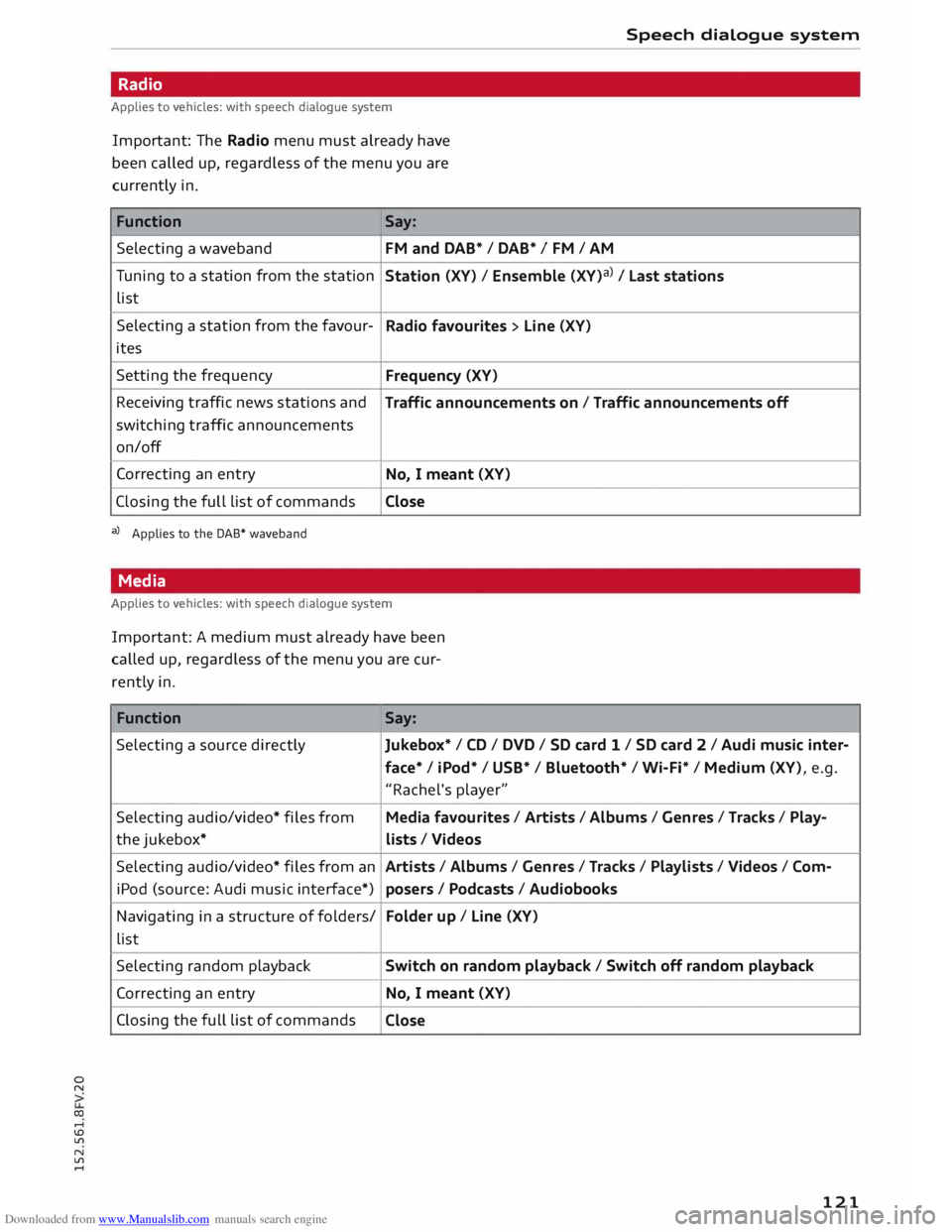
Function Say:
Selecting a waveband FM
and DAB* / DAB* / FM / AM
Tuning to a station from the station
Station (XV) / Ensemble (XV)a) I Last stations
list
Selecting a station from the favour-
Radio favourites > Line (XV)
ites
Setting the frequency
Frequency (XV)
Receiving traffic news stations and
Traffic announcements on/ Traffic announcements off
switching traffic announcements
on/off
Correcting an entry
No, I meant (XV)
Closing the full list of commands
Close
a) Applies to the DAB* waveband
Media
Applies to vehicles: with speech dialogue system
Important: A medium must already have been
called up, regardless of the menu you are cur
rently in.
Function Say:
Selecting a source directly Jukebox*/ CD/ DVD/ SD card 1 / SD card 2 / Audi music inter-
face* I iPod* / USB* / Bluetooth* / Wi-Fi* / Medium (XV), e.g.
"Rachel's player"
Selecting audio/video* files from Media favourites / Artists /Albums / Genres / Tracks / Play-
the jukebox*
lists / Videos
Selecting audio/video* files from an Artists/ Albums/ Genres / Tracks / Playlists /Videos / Com-
iPod (source: Audi music interface*)
posers I Podcasts / Audiobooks
Navigating in a structure of folders/ Folder
up/ Line (XV)
list
Selecting random playback
Switch on random playback/ Switch off random playback
Correcting an entry
No, I meant (XV)
Closing the full list of commands
Close
121
Page 126 of 284
Downloaded from www.Manualslib.com manuals search engine Telephone
Your
mobile phone must support the remote SIM
Access Profile (rSAP) and be connected to the
MMI using the Car phone mode in order to use
the online functions of Audi connect*. Alterna
tively, you can use a separate SIM card in the SIM
card reader* ¢ page 126. A data plan1
l
is neces
sary in both cases.
You can use the online functions of Audi connect
¢ page 137 if your mobile phone contract in
cludes a data option 1
l
.
Handsfree
With this type of connection, you can use the
handsfree system to operate the telephone func
tions via the MMI. Your phone calls will be made
via the antenna of your mobile phone.
With the Audi phone box*, you can use the vehi
cle's external aerial to make calls. You can also
charge your phone with a USB adapter.
Connecting a mobile phone using
Bluetooth
Applies to vehicles: with telephone
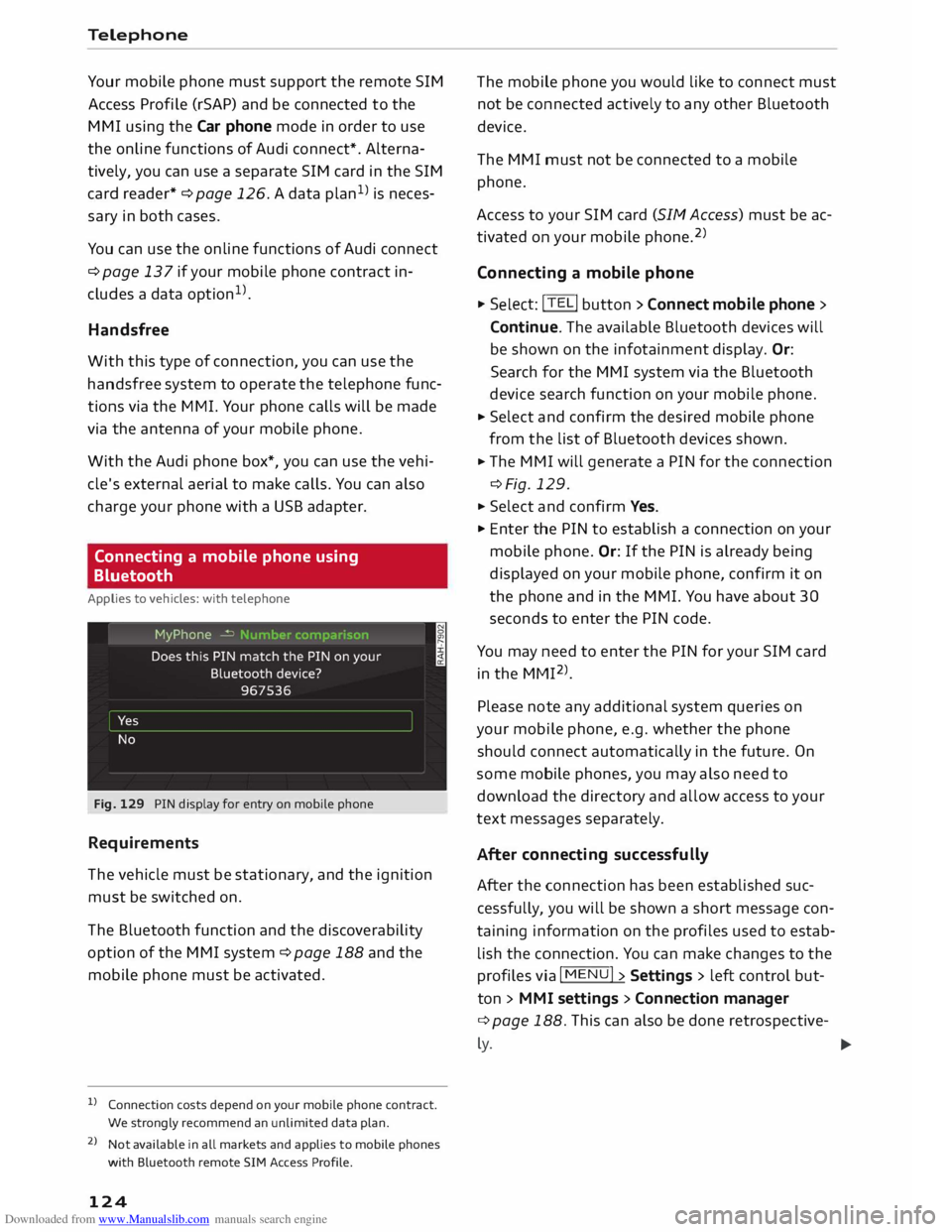
Fig. 129 PIN display for entry on mobile phone
Requirements
The vehicle must be stationary, and the ignition
must be switched on.
The Bluetooth function and the discoverability
option of the MMI system ¢ page 188 and the
mobile phone must be activated.
l) Connection costs depend on your mobile phone contract.
We strongly recommend an unlimited data plan.
2 l
Not available in all markets and applies to mobile phones
with Bluetooth remote SIM Access Profile.
124 The
mobile phone you would like to connect must
not be connected actively to any other Bluetooth
device.
The MMI must not be connected to a mobile
phone.
Access to your SIM card (SIM Access) must be ac
tivated on your mobile phone. 2
)
Connecting a mobile phone ... Sel ect: !TELi button > Connect mobile phone>
Continue. The available Bluetooth devices will
be shown on the infotainment display. Or:
Search for the MMI system via the Bluetooth
device search function on your mobile phone.
... Select and confirm the desired mobile phone
from the list of Bluetooth devices shown.
... The MMI will generate a PIN for the connection
¢Fig. 129 .
... Select and confirm Yes.
"' Enter the PIN to establish a connection on your
mobile phone. Or: If the PIN is already being
displayed on your mobile phone, confirm it on
the phone and in the MMI. You have about 30
seconds to enter the PIN code.
You may need to enter the PIN for your SIM card
in the MMI 2
l
_
Please note any additional system queries on
your mobile phone, e.g. whether the phone
should connect automatically in the future. On
some mobile phones, you may also need to
download the directory and allow access to your
text messages separately.
After connecting successfully
After the connection has been established suc
cessfully, you will be shown a short message con
taining information on the profiles used to estab
lish the connection. You can make changes to the
profiles via I MENU I> Settings > left control but
ton > MMI settings > Conn ection manager
¢ page 188. This can also be done retrospective-
� �
Page 127 of 284
Downloaded from www.Manualslib.com manuals search engine 0
N
co
....
\D Lfl
N
Lfl
.... In
addition, the contacts on the mobile phone are
automatically Loaded into the directory of the
MMI. This may take several minutes, depending
on how many contacts are stored on the mobile
phone.
After you have connected your mobile phone to
the MMI successfully, you can immediately begin
configuring Audi connect ¢page 137.
{i)) Note
- You can adjust further settings for connec
ted mobile phones using the connection
manager ¢page 187.
- Bluetooth devices only have to be bonded
once. Any devices that have already been
bonded to the MMI system are connected
automatically when they are within range
and the ignition is on.
- You will need to authorise the MMI connec
tion on your mobile phone to enable auto
matic connection.
- Please note any system queries on your mo
bile phone, e.g. whether the phone should
connect automatically in the future. On
some mobile phones, you may also need to
download the directory and allow access to
your text messages separately.
- You receive the SIM PIN code from your mo
bile network service provider together with
the SIM card. If you enter the SIM PIN code
incorrectly three times1
)
in a row, the SIM
card will be be blocked. A PUK (personal un
blocking key) must be entered in order to re
activate the SIM card.
- You can bond several mobile phones to the
MMI system; however only one connection
is active at a time.
- Any Bluetooth device that is already connec
ted to the MMI system is disconnected
when another device is connected to the
system.
- The Bluetooth connection between the sys
tem and the mobile phone is automatically
terminated when you Leave the car.
l l
The number of possible attempts depends on the SIM
card. Telephone
- For further information regarding your mo
bile phone, contact your mobile network
service provider or refer to the operating in
structions for your mobile phone. For infor
mation on using a phone in your car, please
go online (e.g. www.audi.com/bluetooth) or
ask an Audi dealer.
Using the Audi phone box
Applies to vehicles: with Audi phone box
With the Audi phone box*, you can use the vehi
cle's external aerial to make calls. You can also
charge your phone with a USB adapter. The use
of the external aerial reduces radiation in the ve
hicle and also ensures better reception quality.
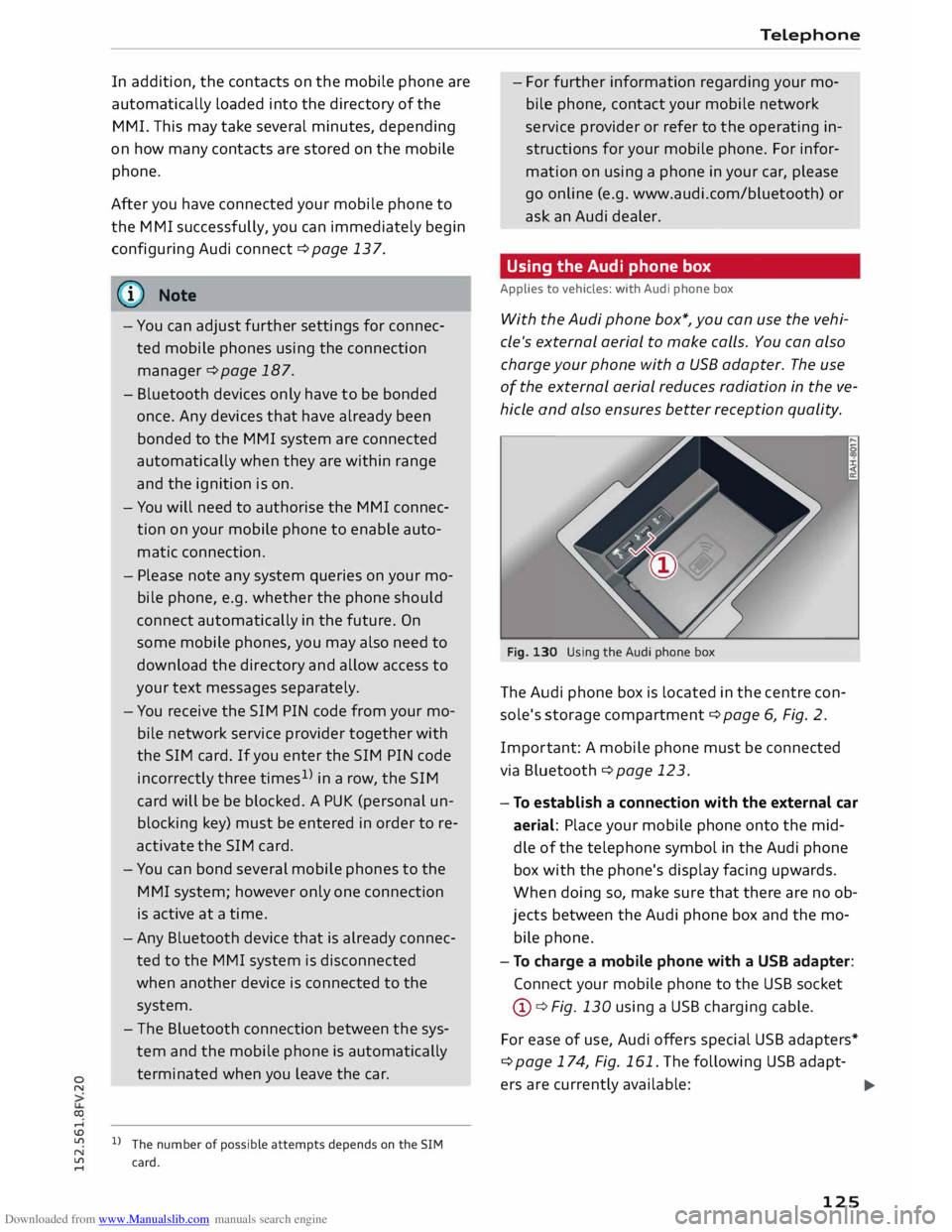
Fig. 130 Using the Audi phone box
The Audi phone box is Located in the centre con
sole's storage compartment¢ page 6, Fig. 2.
Impor tant: A mobile phone must be connected
via Bluetooth ¢ page 123.
- To establish a connection with the external car
aerial: Place your mobile phone onto the mid
dle of the telephone symbol in the Audi phone
box with the phone's display facing upwards.
When doing so, make sure that there are no ob
jects between the Audi phone box and the mo
bile phone.
- To charge a mobile phone with a USB adapter:
Connect your mobile phone to the USB socket
@ ¢Fig. 130 using a USB charging cable.
For ease of use, Audi offers special USB adapters*
¢ page 174, Fig. 161. The following USB adapt-
ers are currently available:
.,..
125
Page 128 of 284
Downloaded from www.Manualslib.com manuals search engine Telephone
® USB adapter for mobile phones with micro
USB connector*
@ USB adapter for mobile phones with Apple
Lightning connector*
© USB adapter for mobile phones with Apple
dock connector*
_& WARNING
Loose objects can be flung around in the pas
senger compartment in the event of sudden
driving or braking manoeuvres. This could re
sult in serious injuries and also cause you to
lose control of the vehicle. Always keep the
centre armrest closed when driving.
- The Audi phone box is not available in all
countries. Your Audi dealer will be able to
provide you with more detailed information.
- If the mobile phone is placed in the Audi
phone box in a bag or a protective case, this
may interfere with the connection to the ex
ternal aerial.
- An enhanced transmission quality cannot be
guaranteed if more than one mobile phone
is placed inside.
- Audi recommends the use of Audi Genuine
Accessories. Audi has tested these products
for suitability, reliability and safety.
- USB adapters are available from Audi deal
ers or specialist retailers.
- To avoid malfunctions, ensure that the mo
bile phone is correctly placed inside the Audi
phone box.
Using the SIM card reader
Applies to vehicles: with SIM card reader
You can choose how you wish to make telephone
calls when you insert a separate SIM card in the
SIM card reader:
Telephone installed in vehicle (SIM card)*
The SIM card in the SIM card reader is used both
for telephone calls and Audi connect services
¢page 137.
126 Your
telephone conversations are directed via the
external vehicle aerial to optimise sound and re
ception quality. For the telephone options, you
can be reached on the telephone number of the
SIM card in the SIM card reader. Depending on
the SIM card type, this may be the same number
as for your the current mobile phone contract
(twin/Multi SIM card) or another number from a
different mobile phone contract.
Personal mobile phone (Bluetooth)
Calls are made with the mobile phone connected
using the Handsfree function. You can therefore
be reached on the phone number of the SIM card
in your mobile phone. In this case, the SIM card
in the SIM card reader is used for Audi connect
services only.
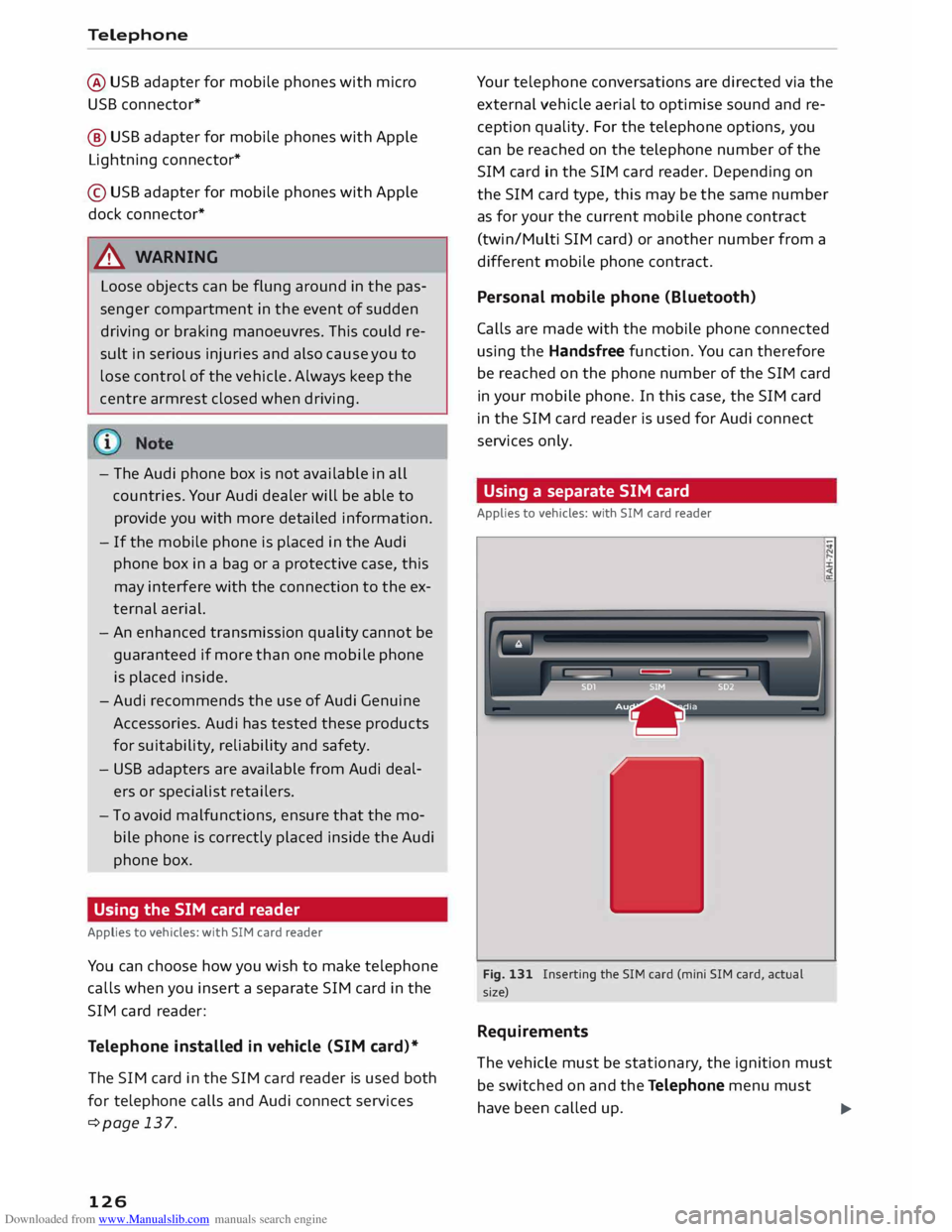
Using a separate SIM card
Applies to vehicles: with SIM card reader
Fig. 131 Inserting the SIM card (mini SIM card, actual
size)
Requirements
The vehicle must be stationary , the ignition must
be switched on and the Telephone menu must
have been called up.
liJ.
Page 135 of 284
Downloaded from www.Manualslib.com manuals search engine 0
N
co
....
\D Lfl
N
Lfl
.... Using
a contact
Applies to vehicles: with telephone
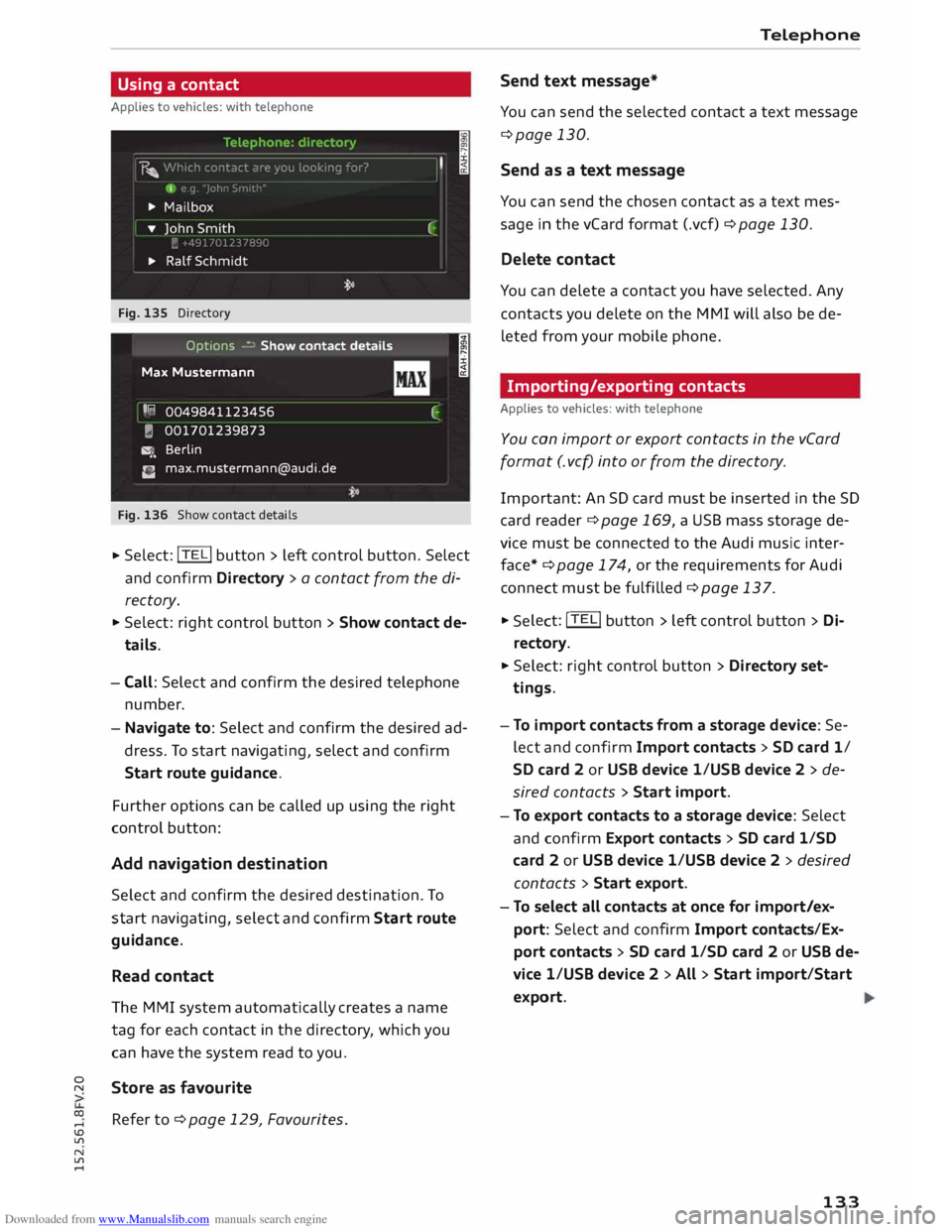
Fig. 135 Directory
Options � Show contact details
Max Mustermann
I R
0049841123456
� 001701239873
�. Berlin
C [email protected]
Fig. 136 Show contact details I
C
.,. Select:
!TE
Li button
> left control button. Select
and confirm Directory > a contact from the di
rectory.
.,. Select: right control button > Show contact de
tails.
- Call: Select and confirm the desired telephone
number.
- Navigate to: Select and confirm the desired ad
dress. To start navigating, select and confirm
Start route guidance.
Further options can be called up using the right
control button:
Add navigation destination
Select and confirm the desired destination. To
start navigating, select and confirm Start route
guidance.
Read contact
The MMI system automatically creates a name
tag for each contact in the directory, which you
can have the system read to you.
Store as favourite
Refer to ¢ page 129, Favourites . Telephone
Send text message*
You can send the selected contact a text message
¢page 130.
Send as a text message
You can send the chosen contact as a text mes
sage in the vCard format (.vcf) ¢ page 130.
Delete contact
You can delete a contact you have selected. Any
contacts you delete on the MMI will also be de
leted from your mobile phone.
Importing/exporting contacts
Applies to vehicles: with telephone
You can import or export contacts in the vCard
format (. vcf) into or from the directory.
Importa nt: An SD card must be inserted in the SD
ca rd reader ¢ page 169, a USB mass storage de
vice must be connected to the Audi music inter
face*¢ page 174, or the requirements for Audi
connect must be fulfilled ¢page 137. .,.
Sele ct: !TE Li button
> left control button > Di
re cto ry .
.,. Select: right control button > Directory set
tings.
- To import contacts from a storage device: Se
lect and confirm Import contacts > SD card 1/
SD card 2 or USB device 1/USB device 2 > de
sired contacts > Start import.
- To export contacts to a storage device: Select
and confirm Export contacts > SD card 1/SD
card 2 or USB device 1/USB device 2 > desired
contacts > Start export.
- To select all contacts at once for import/ex
port: Select and confirm Import contacts/Ex
port contacts > SD card 1/SD card 2 or USB de
vice 1/USB device 2 > All > Start import/Start
export.
133
Page 136 of 284
Downloaded from www.Manualslib.com manuals search engine Telephone
- To import contacts from your myAudi ac
count l
): Select and confirm Import contacts >
myAudi account. Enter your myAudi user data.
You must have a myAudi account before you can
import contacts from the myAudi account. You
only have to enter your myAudi user data/myAudi
PIN once. When you store a vehicle in your myAu
di account, you will receive the myAudi PIN in the
account.
(D} Note
- Please also observe the notes on Audi con
nect ¢page 145.
- For more information on the myAudi ac
count, please see www.audi.com/myaudi.
- The imported contacts are stored in the lo
cal memory of the directory you are using.
- You can import up to 1000 contacts. You
can call up the memory capacity of the di
rectory any time ¢ page 135.
- Never store important data on SD cards or
USB mass storage devices. Audi shall not ac
cept any liability whatsoever for the loss of
data or media.
- It is not possible to export contacts which
have been downloaded from a mobile
phone.
Other settings
Telephone settings
Applies to vehicles: with telephone
.,. Select: !TEL! button > right control button Tele-
phone settings.
Call options*
Call forward: Forwarding incoming calls to your
mailbox or to another phone number can be acti
vated/deactivated. You can use Check status to
check whether this function is activated or deacti
vated.
l l
The conditions for using Audi connect services must be
met and you must have created an account at
www.audi.co m/myaudi, added a vehicle to the account
and stored contacts.
134 Call
waiting: The warning (beep) that there is an
incoming call during a telephone conversation
can be activated/deactivated. You can use Check
status to check whether this function is activated
or deactivated.
Transmit caller ID: Sending your telephone num
ber in outgoing calls can be activated/deactiva
ted. With the Network-dependent option, the
setting agreed in your mobile network service
contract will be used. The settings apply only to
the Telephone menu in the MMI system. When
the Bluetooth connection has been terminated,
the settings of your mobile phone apply. You can
use Check status to check whether this function
is activated or deactivated.
Bluetooth settings
See ¢ page 188, Bluetooth settings onwards.
Data connection settings*
Refer to¢ page 144, Configuring the data con
nection.
Teleph one mode*
On vehicles with a car telephone kit, you can
choose between three different telephone modes
to optimise the network response. In Automatic
mode, the car telephone automatically switches
between the UMTS network (3G) and the GSM
network (2G) depending on network availability
and reception and on the position of the vehicle.
There may be restrictions when using Google
Earth or Wi-Fi. With Telephony optimised, the
car telephone kit registers with the GSM network
(2G). In this mode, the reception is prioritised for
making and receiving calls. There may be restric
tions when using Google Earth orWi-Fi. When
you select the telephone mode Automatic or Tel
ephony optimised, there may be network restric
tions when you try to use Audi connect services
and make voice calls at the same time. With Data
service optimised, the car telephone registers ..,.
Page 170 of 284
Downloaded from www.Manualslib.com manuals search engine Media
Media
Introduction
The MMI system includes various media drives
and provides various options for connecting devi
ces. For example, you can play audio/video* files
from the jukebox or connect a mobile device to
the Audi music interface* and operate it via the
MMI.
Notes General notes
Media and format limitations: The MMI system
(incl uding the SD card reader and the connection
for the USB mass storage device*) has been tes
ted for use with many of the products and media
currently available on the market. However, there
may be some devices/media and audio/video*
files that are not supported or cannot be played,
or the functionality may be limited under certain
circ umstances.
Copyright: Please note that copyright law applies
to audio/video* files.
The MMI media drives do not support ORM-pro
tected files; these files are marked with the sym
bol ffi.
Data storage: Never store important data on SD
cards, the jukebox*, CDs/DVDs or mobile devices.
Audi shall not accept any liability whatsoever for
the loss of files and media.
Loading times: The more files, folders or play
lists are stored on a storage device, the longer it
will take to load the audio files/video* files. We
recommend using a storage device which con
tains only audio/video* files. If you want to re
duce the time it takes to load the audio/video*
files, you can create subfolders (e.g. for an artist
or album). The loading time will be extended ad
ditionally if you are importing data.
Metadata: Metadata stored on audio files (e.g.
artists, tracks, album covers) will be displayed
automatically when the files are played. If this in
formation is not stored on the relevant medium,
the MMI system will use the database of metada-
168 ta
from Gracenote. Nevertheless, metadata may
not be displayed in some cases.
Restricted performance: If you experience re
stricted performance, reset the Media settings
to the factory defaults ¢ page 187.
If you experience restricted performance from
the Jukebox*, reset it to the factory settings
¢page 187.
For information on the characteristics of the sup
ported media and file formats, please refer to
¢ page 177 onwards.
CD/DVD mode
CD/DVD and format limitations: In view of the
variety of CDs/DVDs and the difference in memo
ry capacities, the functionality may be restricted
in the case of some storage devices. Under cer
tain circumstances, audio CDs/video DVDs that
are copy-protected or CDs/DVDs that do not com
ply with the standard audio format, and multi
session CDs cannot be played at all, or the func
tionality may be limited. We recommend always
finalising the burning process when creating mul
tisession CDs. Multisession is not supported for
DVDs.
Handling CDs/DVDs, the CD drive or the DVD
drive: To ensure perfect, high-quality playback
and avoid scanning errors or damage to the me
dia drive, always store CDs/DVDs in a suitable
case and do not expose them to direct sunlight.
Do not use:
- Damaged, dirty or scratched CDs/DVDs
- Single CDs/DVDs (diameter 8 cm / 3 inches)
- Non-circular CDs/DVDs (shape CDs)
- CDs/DVDs with stickers
- Protective rings
- Cleaning discs
Thermal cut-out: In the case of unusually hot or
cold outside temperatures, it is possible that CD/
DVD playback will temporarily not be possible. A
thermostat switch is installed to protect the CD/
DVD and the reading laser.
Laser devices: Laser devices are divided into the
safety classes 1 to 4, as specified by DIN IEC 76
..,.
Page 173 of 284
Downloaded from www.Manualslib.com manuals search engine 0
N
co
....
\D L/'l
N
L/'l
.... ¢page
179 is displayed. Select one of the fol
lowing sources to copy to the jukebox: SD card,
CD-ROM*, DVD-ROM*, USB storage device*.
Important: The media centre (e.g. tracks, al
bums) must be open.
- To select an entry: Select an entry from the me
dia centre. Select: right control button > Copy
to jukebox > Th is entry or Entire list.
Important: The playlist must be open. Refer to
¢page 182.
- To select a track: Select the track currently
playing. Select: right control button > Copy to
jukebox > This track/Entire album or Th is ar
tist.
Important: A video file must be playing.
- Select: right control button > Copy to jukebox.
The copying procedure will start and its status
will be shown on the MMI.
- To hide the copying procedure: Select and con
firm Continue copying in background. The
copying procedure will be hidden.
- To cancel the copying procedure: Select and
confirm Cancel copying procedure. Or: Remove
the source you are importing files from. Files
that have already been copied will remain stor
ed.
During the copying procedure, the audio files are
automatically sorted according to the categories
in the media centre based on the metadata stor
ed for the files ¢ page 180. The video files cop
ied can be found in the Videos category of the
media centre.
CD CAUTION
Only copy audio/video files while the engine is
running; otherwise the vehicle battery will be
discharged.
('D Note
- For legal reasons it is not possible to copy
tracks from audio CDs onto the jukebox.
- Files that have already been copied are de
tected automatically and cannot be copied
to the jukebox again. Media
- It is not possible to play audio/video files*
in the CD/DVD* drive while they are being
copied.
- For legal reasons there is no export function
for the jukebox.
- Files or tracks that do not include stored
metadata are listed as Unknown. Audi rec
ommends that you
mark
the audio files with
the corresponding metadata (e.g. ID3 tags).
- When handing over your vehicle e.g. to a
new buyer, reset the jukebox to the factory
settings ¢ page 187.
Bluetooth audio player
Applies to vehicles: with Bluetooth
You can use the Bluetooth audio player to play
music from your Bluetooth-enabled device (e.g.
smartphone) wirelessly via the MMI.
Important: To connect a Bluetooth device, the ve
hicle must be stationary and the Bluetooth func
tion of your Bluetooth device and the Bluetooth
audio player ¢ page 188 function of the MMI
system must be switched on.
- To connect a Bluetooth device: Select the
I MEDIA!
button. Press the left control button
repeatedly until the source overview is dis
played. Select and confirm Bluetooth audio
player 0 ¢page 179, Fig. 165.
- You may need to select and confirm Not con
nected > Connect Bluetooth audio player. The
system will start searching for Bluetooth devi
ces. Follow the instructions given by the MMI.
- Select and confirm the desired Bluetooth device
from the list. The MMI will generate a PIN to
establish the connection.
- Select and confirm Yes.
- Enter the PIN on your Bluetooth device to es-
tablish a connection. Or: If the PIN is already
being displayed on your Bluetooth device,
please confirm it on the device. You have about
30 seconds to enter the PIN code.
Depending on the device you are using, the media
are started and operated using the mobile device
or the MMI.
..,..
171
Page 176 of 284
Downloaded from www.Manualslib.com manuals search engine Media
the vehicle is being driven. Please also ob
serve the safety warnings on ¢ page 210,
Front airbags.
CD CAUTION
In order to use on line media, you generally
have to set up an account with an on line me
dia service, which may lead to additional
costs, especially if you are using the service
abroad.
@ Note
- Mobile devices only need to be connected to
the MMI via the Wi-Fi hotspot once. De
pending on the device, a device that has al
ready been bonded will automatically be re
connected to the Wi-Fi hotspot of the MMI
when it is within range.
- Depending on the Internet connection, play
back of the on line media services may be in
terrupted.
- Whether online media can be used depends
on the availability of services provided by
third parties.
- AUDI AG only enables you to access online
media services via the MMI system and ac
cepts no responsibility for the content of
online media services.
- Please observe the notes in the chapter
Notes on Audi connect ¢ page 145.
- Depending on the mobile device you are us
ing, media playback may be interrupted. To
avoid interruptions, keep the Audi MMI con
nect app running in the foreground and do
not lock the screen on your mobile device.
- Audi dealerships will be able to provide you
with further information on online media.
174 Multimedia
connections
USB adapters for Audi music interface or
USB charging socket
Depending on the vehicle equipment, you may be
able to connect your mobile devices (e.g. smart
phones, MP3 players) to the Audi music interface
or the USB charging socket using the special USB
adapters.
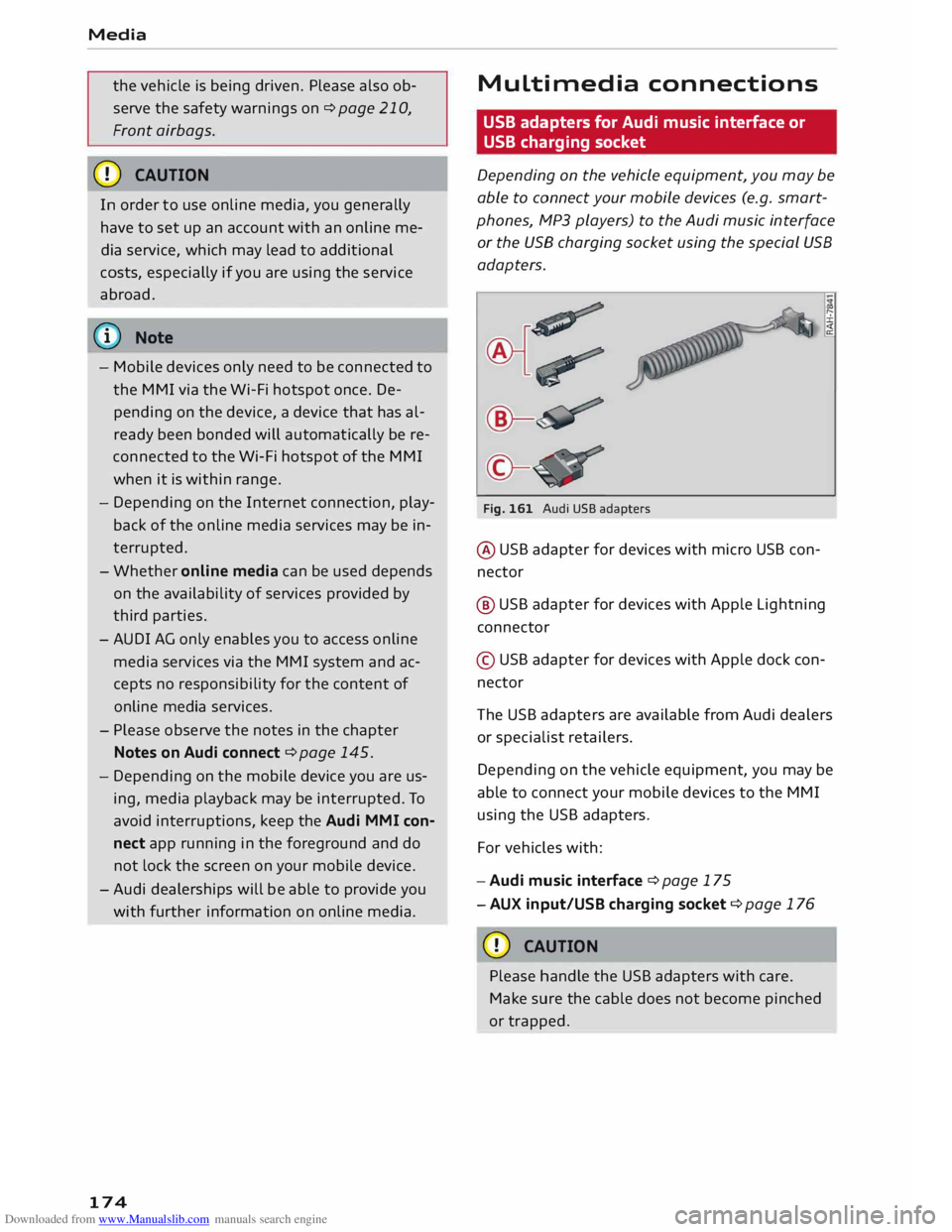
Fig. 161 Audi USB adapters
@ USB adapter for devices with micro USB con
nector
@ USB adapter for devices with Apple Lightning
connector
© USB adapter for devices with Apple dock con
nector
Th e USB adapters are available from Audi dealers
or specialist retailers.
Depending on the vehicle equipment, you may be
able to connect your mobile devices to the MMI
using the USB adapters.
For vehicles with:
- Audi music interface ¢ page 175
- AUX input/USB charging socket¢ page 176
CD CAUTION
Please handle the USB adapters with care.
Make sure the cable does not become pinched
or trapped.