audio AUDI TT COUPE 2014 Owners Manual
[x] Cancel search | Manufacturer: AUDI, Model Year: 2014, Model line: TT COUPE, Model: AUDI TT COUPE 2014Pages: 284, PDF Size: 34.42 MB
Page 5 of 284
Downloaded from www.Manualslib.com manuals search engine 0
N
co
....
\D L/'l
N
L/'l
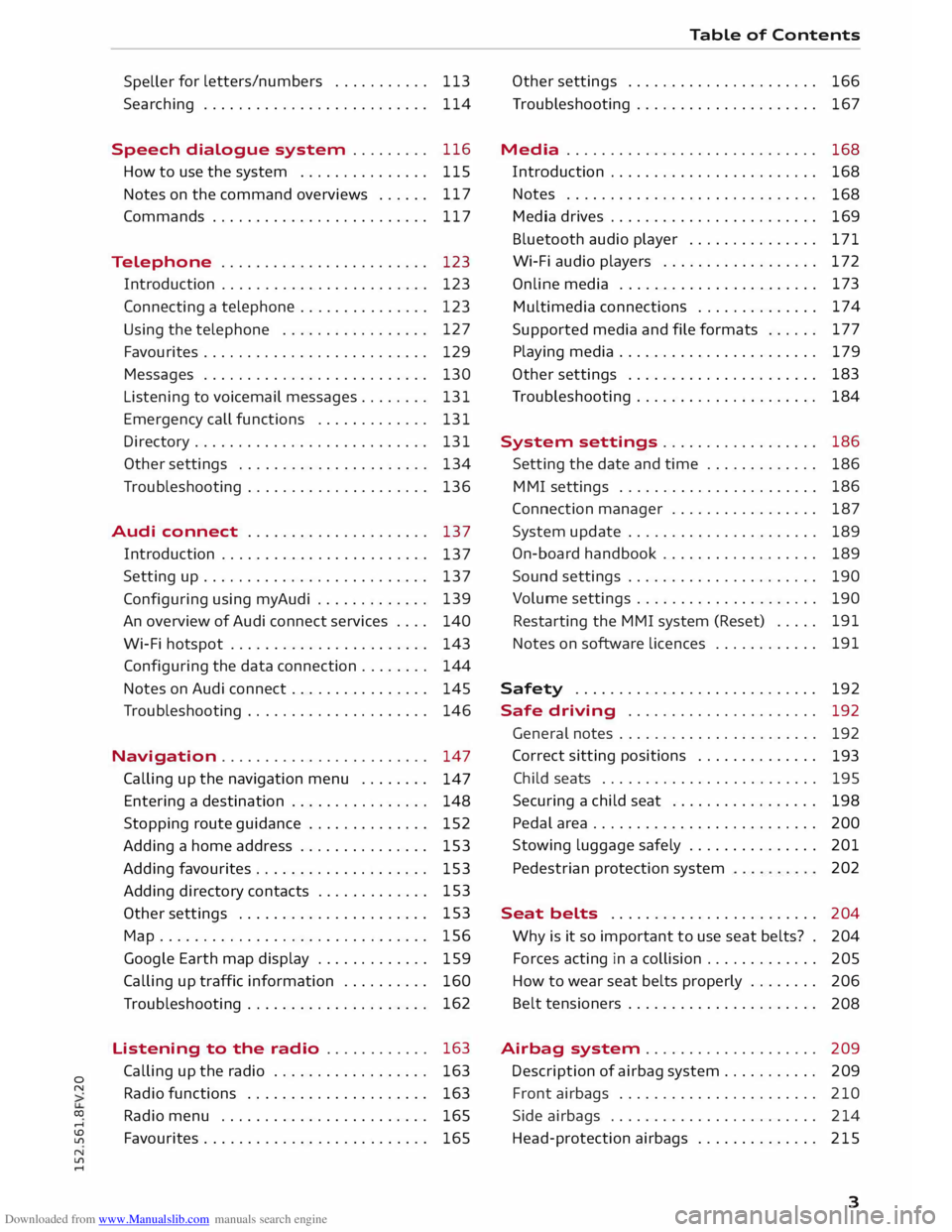
.... Speller
for
letters/numbers . . . . . . . . . . . 113
Searching . . . . . . . . . . . . . . . . . . . . . . . . . . 114
Speech dialogue system . . . . . . . . . 116
How to use the system . . . . . . . . . . . . . . . 115
Notes on the command overviews . . . . . . 117
Commands . . . . . . . . . . . . . . . . . . . . . . . . .
117
Telephone . . . . . . . . . . . . . . . . . . . . . . . . 123
Introduction . . . . . . . . . . . . . . . . . . . . . . . . 123
Connecting a telephone . . . . . . . . . . . . . . . 123
Using the telephone . . . . . . . . . . . . . . . . . 127
Favourites . . . . . . . . . . . . . . . . . . . . . . . . . . 129
Messages . . . . . . . . . . . . . . . . . . . . . . . . . . 130
Listening to voicemail messages. . . . . . . . 131
Emergency call functions . . . . . . . . . . . . . 131
Directory ........................... 131
Other settings . . . . . . . . . . . . . . . . . . . . . . 134
Troubleshooting . . . . . . . . . . . . . . . . . . . . .
136
Audi connect . . . . . . . . . . . . . . . . . . . . .
137
Introduction . . . . . . . . . . . . . . . . . . . . . . . .
137
Setting up . . . . . . . . . . . . . . . . . . . . . . . . . . 137
Configuring using myAudi . . . . . . . . . . . . . 139
An overview of Audi connect services . . . . 140
Wi-Fi hotspot . . . . . . . . . . . . . . . . . . . . . . . 143
Configuring the
data connection . . . . . . . .
144
Notes on Audi connect . . . . . . . . . . . . . . . . 145
Troubleshooting . . . . . . . . . . . . . . . . . . . . . 146
Navigation . . . . . . . . . . . . . . . . . . . . . . . . 147
Calling up the navigation menu . . . . . . . .
147
Entering a destination . . . . . . . . . . . . . . . . 148
Stopping route guidance . . . . . . . . . . . . . .
152
Adding a home address . . . . . . . . . . . . . . . 153
Adding favourites . . . . . . . . . . . . . . . . . . . .
153
Adding directory contacts . . . . . . . . . . . . . 153
Other settings . . . . . . . . . . . . . . . . . . . . . . 153
Map............................... 156
Google Earth map display . . . . . . . . . . . . . 159
Calling up traffic information . . . . . . . . . . 160
Troubleshooting . . . . . . . . . . . . . . . . . . . . . 162
Listening to the radio . . . . . . . . . . . . 163
Calling up the radio . . . . . . . . . . . . . . . . . . 163
Radio functions . . . . . . . . . . . . . . . . . . . . . 163
Radio menu . . . . . . . . . . . . . . . . . . . . . . . . 165
Favourites . . . . . . . . . . . . . . . . . . . . . . . . . .
165 Table
of Contents
Other settings . . . . . . . . . . . . . . . . . . . . . . 166
Troubleshooting . . . . . . . . . . . . . . . . . . . . . 167
Media ............................. 168
Introduction . . . . . . . . . . . . . . . . . . . . . . . .
168
Notes . . . . . . . . . . . . . . . . . . . . . . . . . . . . .
168
Media drives . . . . . . . . . . . . . . . . . . . . . . . .
169
Bluetooth audio player . . . . . . . . . . . . . . .
171
Wi-Fi audio players . . . . . . . . . . . . . . . . . . 172
Online media . . . . . . . . . . . . . . . . . . . . . . . 173
Multimedia connections . . . . . . . . . . . . . . 174
Supported media and file formats . . . . . . 177
Playing media . . . . . . . . . . . . . . . . . . . . . . . 179
Other settings . . . . . . . . . . . . . . . . . . . . . . 183
Troubleshooting . . . . . . . . . . . . . . . . . . . . . 184
System settings .. . . . . . . . . . . . . . . . . 186
Setting the date and time . . . . . . . . . . . . . 186
MMI settings . . . . . . . . . . . . . . . . . . . . . . . 186
Connection manager . . . . . . . . . . . . . . . . . 187
System update . . . . . . . . . . . . . . . . . . . . . . 189
On-board handbook . . . . . . . . . . . . . . . . . . 189
Sound settings . . . . . . . . . . . . . . . . . . . . . . 190
Volume settings . . . . . . . . . . . . . . . . . . . . .
190
Restarting the MMI system (Reset) . . . . . 191
Notes on software licences . . . . . . . . . . . . 191
Safety ............................ 192
Safe driving . . . . . . . . . . . . . . . . . . . . . . 192
General notes . . . . . . . . . . . . . . . . . . . . . . . 192
Correct sitting positions . . . . . . . . . . . . . .
193
Child seats . . . . . . . . . . . . . . . . . . . . . . . . .
195
Securing a child seat ................ .
Pedal area ......................... .
Stowing luggage safely .............. .
Pedestrian protection system 198
200
201 202
Seat belts . . . . . . . . . . . . . . . . . . . . . . . .
204
Why is it so important to use seat belts? . 204
Forces acting in a collision . . . . . . . . . . . . .
205
How to wear seat belts properly . . . . . . . .
206
Belt tensioners . . . . . . . . . . . . . . . . . . . . . .
208
Airbag system. . . . . . . . . . . . . . . . . . . . 209
Description of airbag system . . . . . . . . . . .
209
Front airbags . . . . . . . . . . . . . . . . . . . . . . . 210
Side airbags . . . . . . . . . . . . . . . . . . . . . . . . 214
Head-protection airbags . . . . . . . . . . . . . . 215
3
Page 9 of 284
Downloaded from www.Manualslib.com manuals search engine 0
N
co
....
\D L/'l
N
L/'l
.... (D
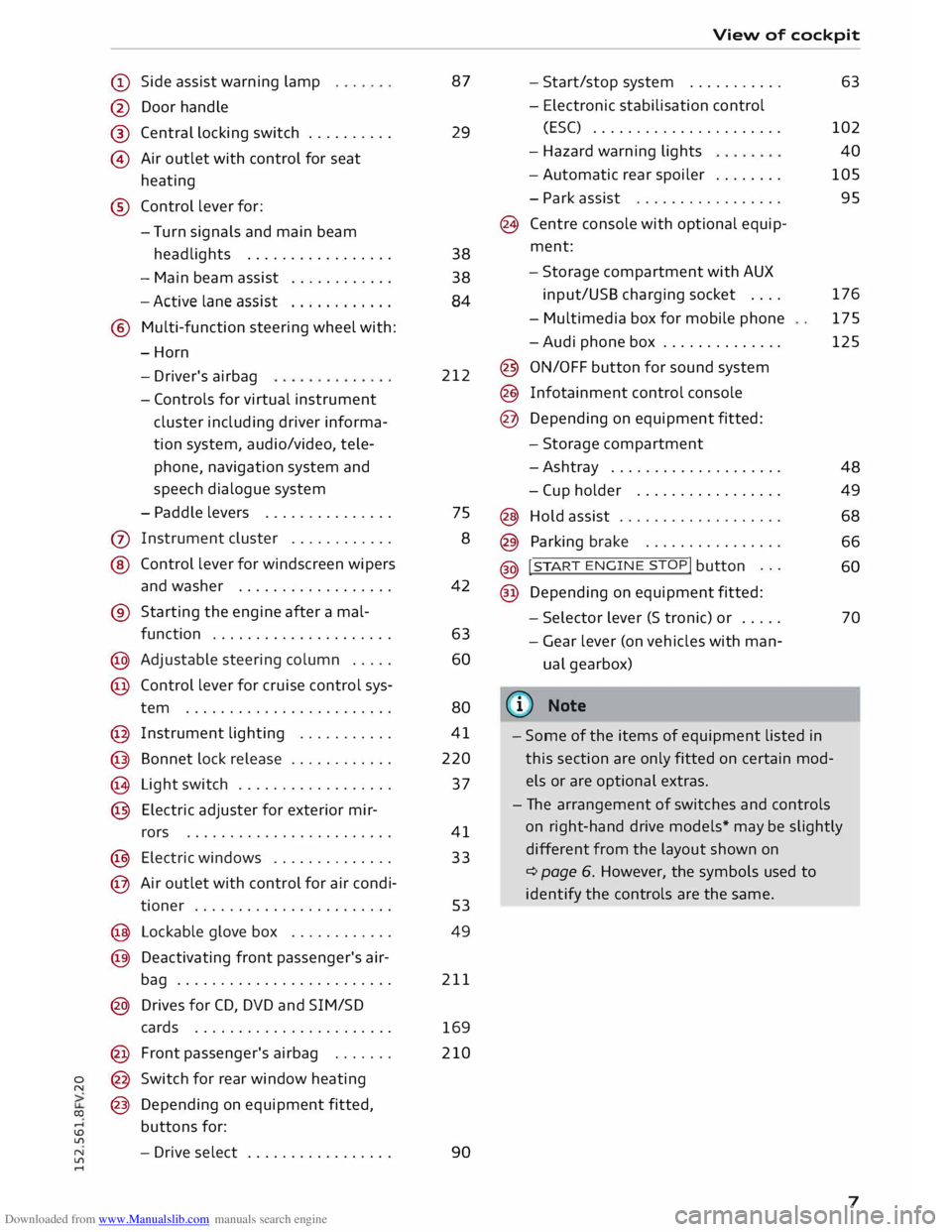
Side assist warning lamp
@ Door handle
®
© Central
locking switch ......... .
Air outlet with control for seat
heating
® Control lever for:
- Turn signals and main beam
headlights ................ .
- Main beam assist
........... .
- Active lane assist
........... .
® Multi-function steering wheel with:
-Horn
- Driver's airbag
- Controls for virtual instrument
cluster
including
driver informa
tion system, audio/video, tele
phone, navigation system and
speech dialogue system
- Paddle levers .............. .
(j) Instrument cluster ........... .
@ Control lever for windscreen wipers
and washer ................. .
® Starting the engine after a mal-
function .................... .
@ Adjustable steering column .... .
@ Control lever for cruise control sys-
tem ....................... .
@ Instrument lighting .......... .
@ Bonnet lock release ........... .
@ Light switch ................. .
@ Electric adjuster for exterior mir-
rors ....................... .
@ Electric windows ............. .
@ Air outlet with control for air condi-
tioner ...................... . 87
29
38
38 84
212
75 8
42
63 60
80
41
220
37
41
33
53
@ Lockable glove box . . . . . . . . . . . .
49
@ Deactivating front passenger's air-
bag . . . . . . . . . . . . . . . . . . . . . . . . . 211
@ Drives for CD, DVD and SIM/SD
cards . . . . . . . . . . . . . . . . . . . . . . .
169
@ Front passenger's airbag ...... . 210
@ Switch for rear window heating
@ Depending on equipment fitted,
buttons for:
- Drive select ................ . 90 View
of cockpit
- Start/stop system .......... .
- Electronic stabilisation control
(ES() ..................... .
- Hazard warning lights
- Automatic rear spoiler ....... .
- Park assist ................ .
@ Centre console with optional equip
ment:
- Storage compartment with AUX
input/USS charging socket ....
- Multimedia box for mobile phone
-Audi phone box ............. .
@ ON/OFF button for sound system
@ Infotainment control console
@ Depending on equipment fitted:
- Storage compartment
-Ashtray ................... .
- Cup holder ................ .
@ Hold assist .................. .
@ Parking brake ............... .
@ !
S TAR
T ENGINE ST
OP! button ..
.
@ Depending on equipment fitted: 63
102 40
105
95
176 175
125
48 49
68
66 60
- Selector lever (S tronic) or . . . . .
70
- Gear lever (on vehicles with man
ual gearbox)
((ij} Note
- Some of the items of equipment listed in
this section are only fitted on certain mod
els or are optional extras.
- The arrangement of switches and controls
on right-hand drive models* may be slightly
different from the layout shown on
¢ page 6. However, the symbols used to
identify the controls are the same.
7
Page 22 of 284
Downloaded from www.Manualslib.com manuals search engine Driver
information system
Control buttons
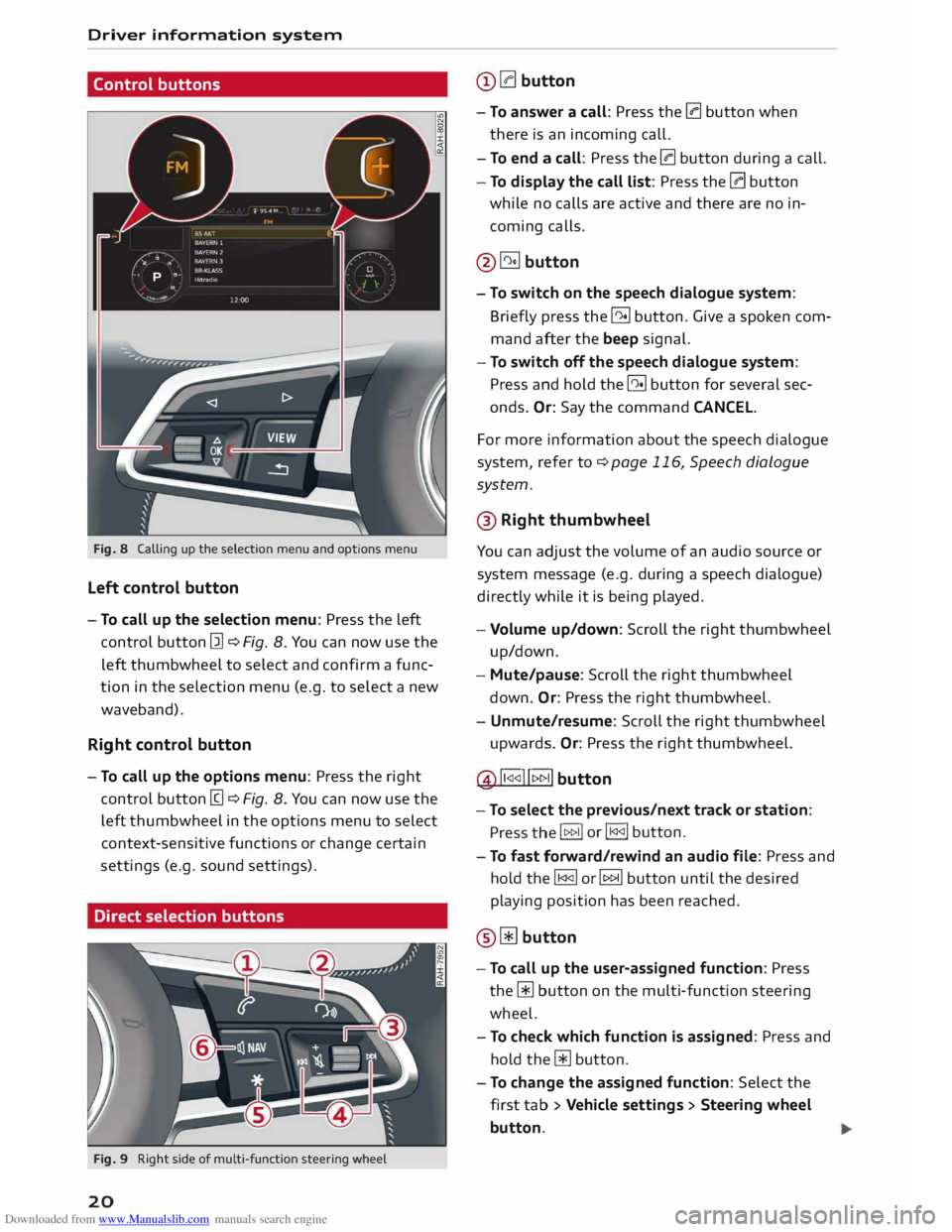
Fig. 8 Calling up the selection menu and options menu
Left control button
- To call up the selection menu: Press the left
control button [21 ¢ Fig. 8. You can now use the
left thumbwheel to select and confirm a func
tion in the selection menu (e.g. to select a new
waveband).
Right control button
- To call up the options menu: Press the right
control button [g ¢ Fig. 8. You can now use the
left thumbwheel in the options menu to select
context-sensitive functions or change certain
settings (e.g. sound settings).
Direct selection buttons
Fig. 9 Right side of multi-function steering wheel
20 @
0 button
- To answer a call: Press the 0 button when
there is an incoming call.
- To end a call: Press the 0 button during a call.
- To display the call list: Press the 0 button
while no calls are active and there are no in
coming calls.
@� button
- To switch on the speech dialogue system:
Briefly press the 51 button. Give a spoken com
mand after the beep signal.
- To switch off the speech dialogue system:
Press and hold the 51 button for several sec
onds. Or: Say the command CANCEL.
For more information about the speech dialogue
system, refer to ¢ page 116, Speech dialogue
system.
@ Right thumbwheel
You can adjust the volume of an audio source or
system message (e.g. during a speech dialogue)
directly while it is being played.
- Volume up/down: Scroll the right thumbwheel
up/down.
- Mute/pause: Scroll the right thumbwheel
down. Or: Press the right thumbwheel.
- Unmute/resume: Scroll the right thumbwheel
upwards. Or: Press the right thumbwheel.
@ ll
button
- To select the previous/next track or station:
Press the I 1>1>11 or
I 1<1<11 button.
- To fast forward/rewind an audio file: Press and
hold the� or� button until the desired
playing position has been reached.
@ Wbutton
- To call up the user-assigned function: Press
the [ii button on the multi-function steering
wheel.
- To check which function is assigned: Press and
hold the [ii button.
- To change the assigned function: Select the
first tab> Vehicle settings > Steering wheel
button.
Page 23 of 284
Downloaded from www.Manualslib.com manuals search engine 0
N
co
....
\D Lfl
N
Lfl
.... ®
l<)NAVI button
- To have the last navigation cue repeated: Press
the� button while route guidance is active.
- To adjust the volume of the navigation cues:
Scroll the right thumbwheel up/down during
route guidance while a navigation cue is being
spoken.
Multi-function steering
wh
eel
with !MODE! button
How to use the multi-function steering
wheel
Applies to vehicles: with multi-function steering wheel
You can use the multi-function steering wheel to
control the driver information system and MMI
functions and adjust the volume.
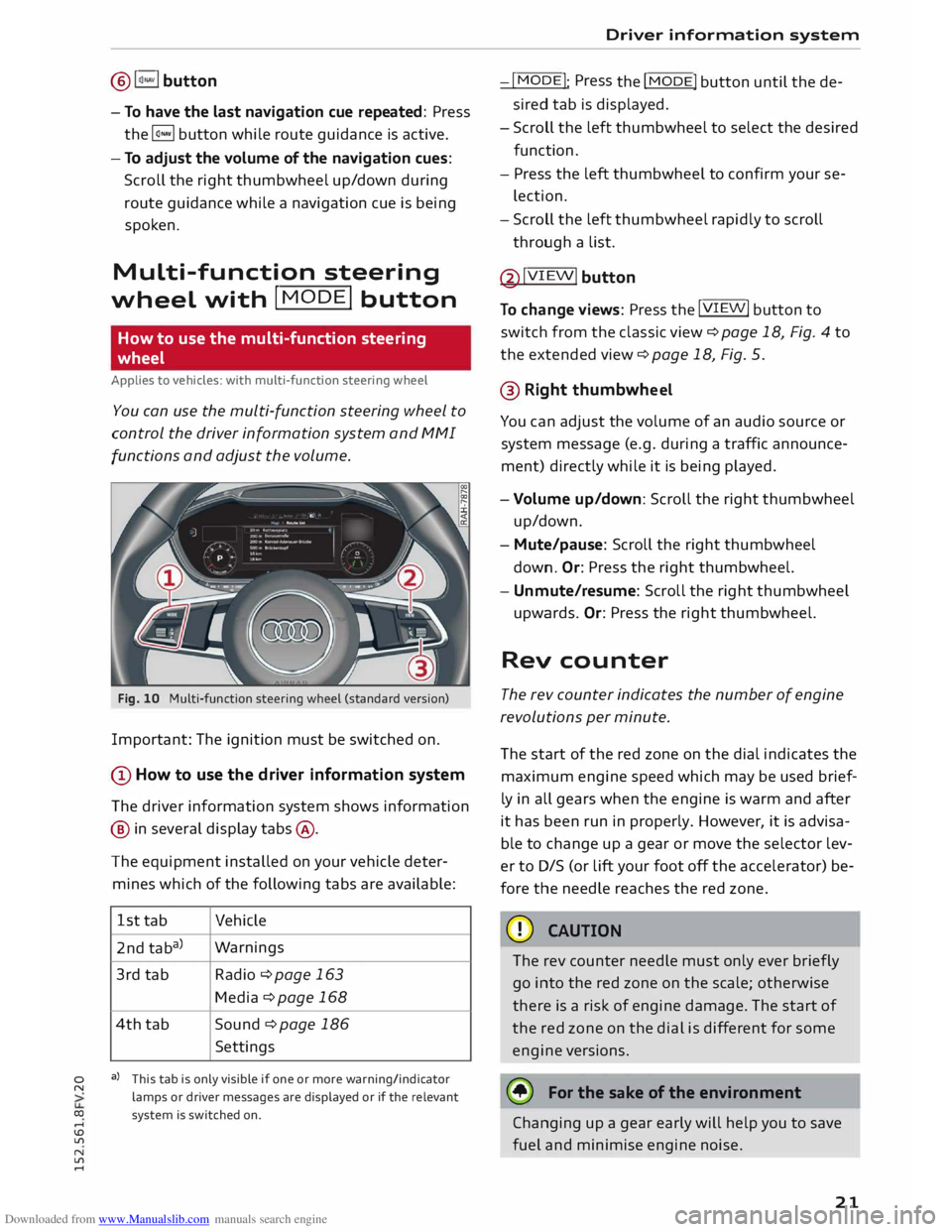
Fig. 10 Multi-function steering wheel (standard version)
Important: The ignition must be switched on.
(D How to use the driver information system
The driver information system shows information
@ in several display tabs@.
The equipment installed on your vehicle deter
mines which of the following tabs are available:
1st tab Vehicle
2nd taba) Warnings
3rd tab
Radio ¢page 163
Media ¢ page 168
4th tab
Sound ¢ page 186
Settings
a) This tab is only visible if one or more warning/indicator
lamps or driver messages are displayed or if the relevant
system is switched on. Driver
information system
-I MODE!
: Press
the I
MODE! button until the de
sired tab is displayed.
- Scroll the left thumbwheel to select the desired
function.
- Press the left thumbwheel to confirm your se
lection.
- Scroll the left thumbwheel rapidly to scroll
through a list.
@ !VIEW!
button
To change views: Press the !VIEW!
button to
switch from the classic view¢ page 18, Fig. 4 to
the extended view¢ page 18, Fig. 5.
@ Right thumbwh eel
You can adjust the volume of an audio source or
system message (e.g. during a traffic announce
ment) directly while it is being played.
- Volume up/down: Scroll the right thumbwheel
up/down.
- Mute/pause: Scroll the right thumbwheel
down. Or:
Press the right thumbwheel.
- Unmute/resume: Scroll the right thumbwheel
upwards. Or: Press the right thumbwheel.
Rev counter
The rev counter indicates the number of engine
revolutions per minute.
The start of the red zone on the dial indicates the
maximum engine speed which may be used brief
ly in all gears when the engine is warm and after
it has been run in properly. However, it is advisa
ble to change up a gear or move the selector lev
er to D/S (or lift your foot off the accelerator) be
fore the needle reaches the red zone.
CD CAUTION
The rev counter needle must only ever briefly
go into the red zone on the scale; otherwise
there is a risk of engine damage. The start of
the red zone on the dial is different for some
engine versions.
@ For the sake of the environment
Changing up a gear early will help you to save
fuel and minimise engine noise.
21
Page 102 of 284
Downloaded from www.Manualslib.com manuals search engine Parking
aids
II Park assist: not stopped long enough
After you select reverse gear, the vehicle has to
remain stationary for a moment so that the park
assist can activate the steering. Follow the direc
tions given in the display.
Ill Park assist: fault. Please contact workshop
II Park assist: fault. Continue steering vehicle!
Please contact workshop
Please contact a qualified workshop. The park as
sist cannot be used to park the vehicle if a system
fault occurs.
II Park assist: cancelled. Space too small. Con
tinue steering vehicle!
The park assist cannot be used to park the vehicle
in this space. Park the vehicle without using the
park assist or look for a bigger space.
Ill Park assist: stabilisation control (ESC) input
The detected space could not be used because
the stabilisation control intervened.
Adjusting graphic display
and warning beeps
Applies to vehicles: with parking system plus/park assist
The settings for the graphic display and acoustic
signals are controlled via the infotainment sys
tem.
.., Select the following on the infotainment sys
tem: IM EN u I button > Car > left control button
> Driver assist> Parking aid.
Warning beeps
Front volume -Volume for the front and side*
zones
Rear volume -Volume for the rear zone
In-car entertainment fader -The volume of the
current audio or video source is reduced when the
parking aid is switched on.
You will hear a short test tone each time you
make a new setting.
100 @
Note
The settings will be automatically stored and
assigned to the remote control key in use.
Fault warnings
Applies to vehicles: with rear parking aid/parking system
plus/park assist
Rear parking aid: fault. Obstacles cannot be de
tected
Front parking aid: fault. Obstacles cannot be
detected
Parking aid: fault. Obstacles cannot be detected
If the LED in the P,1
1i button starts flashing when
you switch the system on, a system fault has oc
curred. If the fault is not corrected before you
switch off the ignition, it will only be indicated by
the flashing LED in the P111i button the next time
you switch on the parking aid by engaging re
verse gear. The fault warning can be displayed in
the second tab of the driver information system
as long as the fault is active.
Parking system plus*/parking system plus
and park assist*
If a sensor or loudspeaker malfunctions, the J;l4:
symbol will be shown on the infotainment sys
tem in front of or behind the vehicle. If a rear
sensor malfunctions, obstacles will only be dis
played in zones @and @ ¢ page 94, Fig. 101. If
a front sensor malfunctions, obstacles will only
be displayed in zones © and@ .
Drive to a qualified workshop soon and have the
fault rectified.
Page 111 of 284
Downloaded from www.Manualslib.com manuals search engine 0
N
co
....
\D L/'l
N
L/'l
.... Multi
Media Interface
Introduction The Multi Media Interface (MMI) combines dif
ferent communication, navigation* and enter
tainment systems in your Audi.
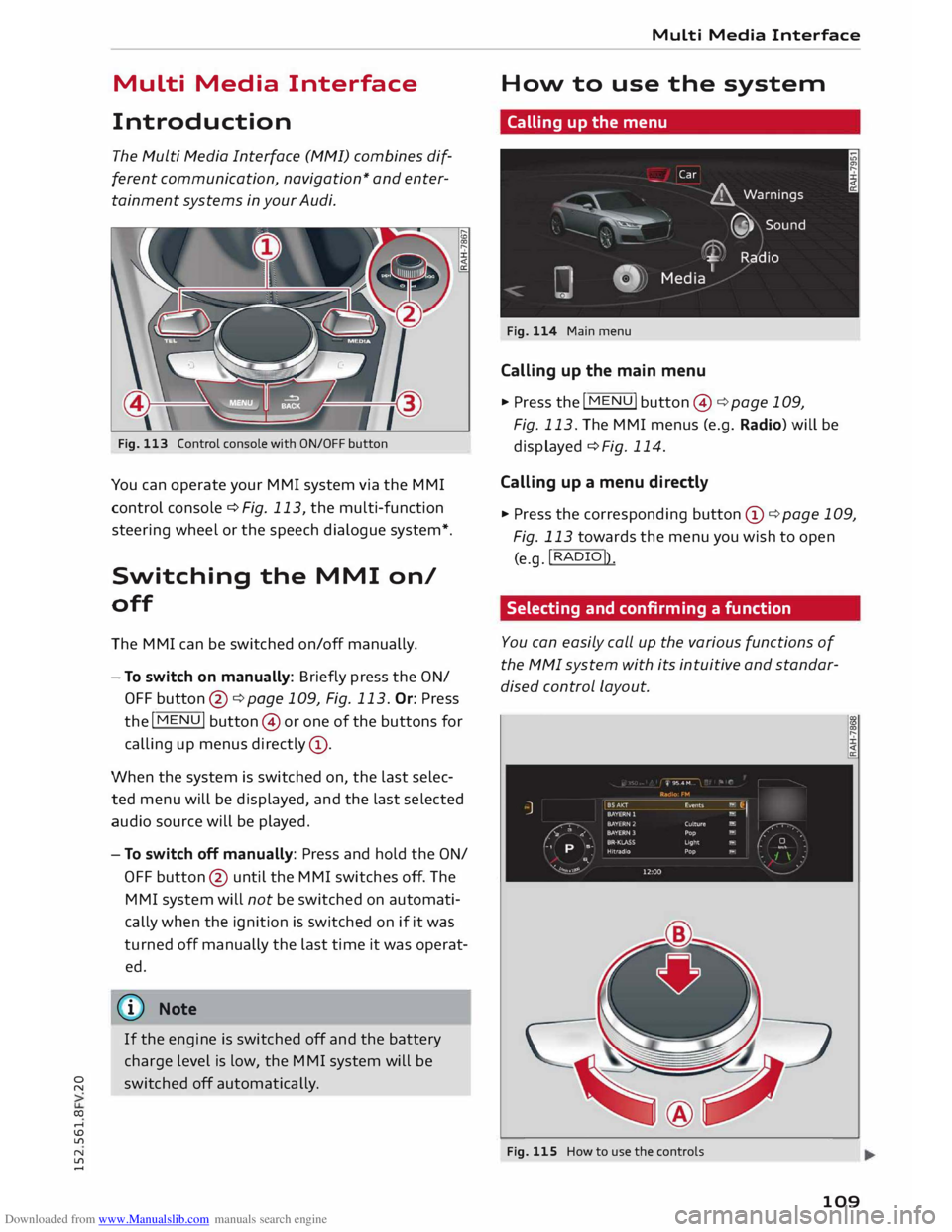
Fig. 113 Control console with ON/OFF button
You can operate your MMI system via the MMI
control console¢ Fig. 113, the multi-function
steering wheel or the speech dialogue system*.
Switching the MMI on/
off
The MMI can be switched on/off manually.
- To switch on manually: Briefly press the ON/
OFF button @¢page 109, Fig. 113. Or: Press
the I
MENU! button@or one of the buttons for
calling up menus directly (!).
When the system is switched on, the last selec
ted menu will be displayed, and the last selected
audio source will be played.
- To switch off manually: Press and hold the ON/
OFF button @ until the MMI switches off. The
MMI system will not be switched on automati
cally when the ignition is switched on if it was
turned off manually the last time it was operat
ed.
CD) Note
If the engine is switched off and the battery
charge level is low, the MMI system will be
switched off automatically. Multi
Media Interface
How to use the system
Calling up the menu
Fig. 114 Main menu
Calling up the main menu
.,. Press the I MENU! button@¢ page 109,
Fig. 113. The MMI menus (e.g. Radio) will be
displayed ¢ Fig. 114.
Calling up a menu directly
.,. Press the corresponding button CD¢ page 109,
Fig. 113 towards the menu you wish to open
(e.g. !RADIO!)
.
Selecting and confirming a function
You can easily call up the various functions of
the MMI system with its intuitive and standar
dised control Layout.
Fig. 115 How to use the controls
109
Page 123 of 284
Downloaded from www.Manualslib.com manuals search engine 0
N
co
....
\D L/'l
N
L/'l
.... Speech
dialogue system
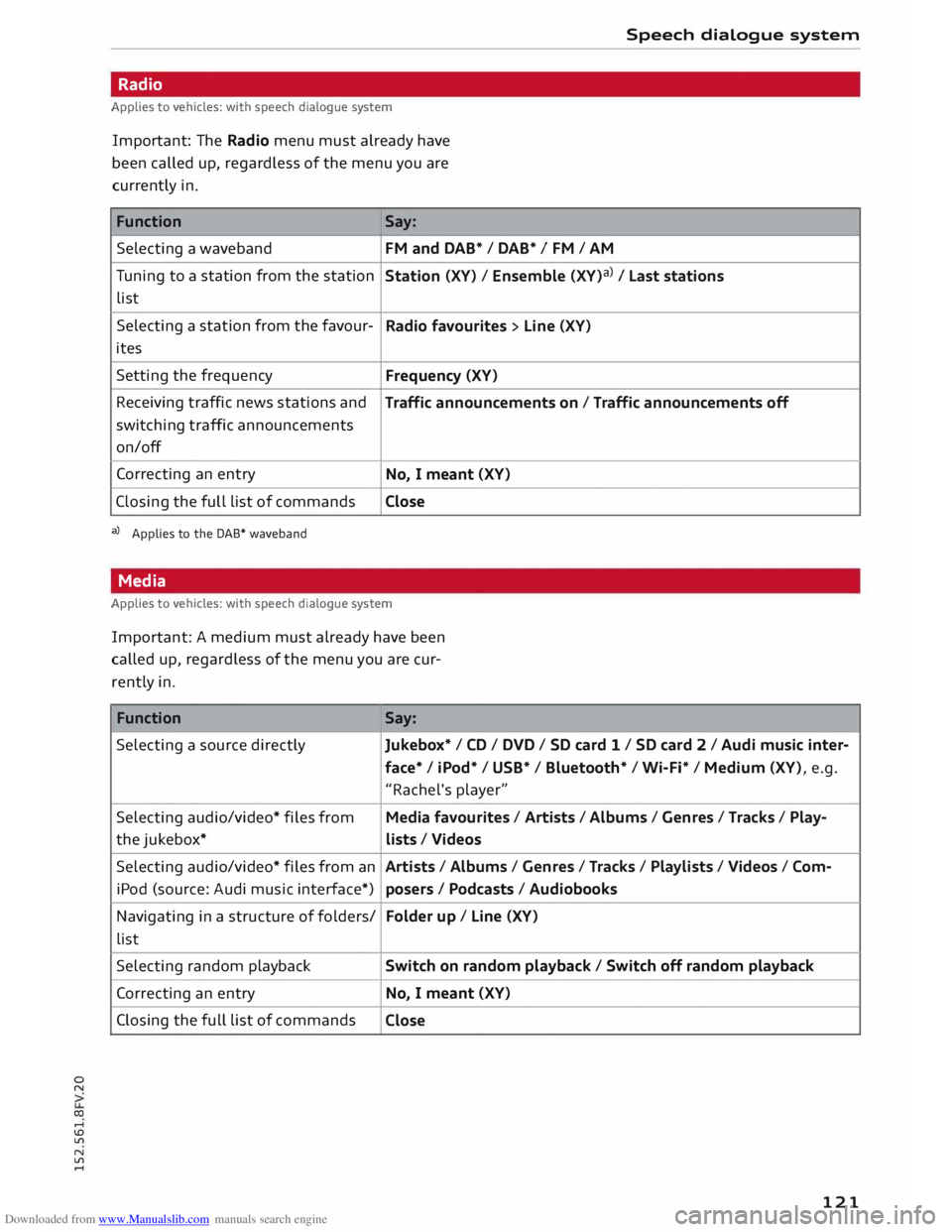
Radio
Applies to vehicles: with speech dialogue system
Important: The Radio menu must already have
been called up, regardless of the menu you are
currently in.
Function Say:
Selecting a waveband FM
and DAB* / DAB* / FM / AM
Tuning to a station from the station
Station (XV) / Ensemble (XV)a) I Last stations
list
Selecting a station from the favour-
Radio favourites > Line (XV)
ites
Setting the frequency
Frequency (XV)
Receiving traffic news stations and
Traffic announcements on/ Traffic announcements off
switching traffic announcements
on/off
Correcting an entry
No, I meant (XV)
Closing the full list of commands
Close
a) Applies to the DAB* waveband
Media
Applies to vehicles: with speech dialogue system
Important: A medium must already have been
called up, regardless of the menu you are cur
rently in.
Function Say:
Selecting a source directly Jukebox*/ CD/ DVD/ SD card 1 / SD card 2 / Audi music inter-
face* I iPod* / USB* / Bluetooth* / Wi-Fi* / Medium (XV), e.g.
"Rachel's player"
Selecting audio/video* files from Media favourites / Artists /Albums / Genres / Tracks / Play-
the jukebox*
lists / Videos
Selecting audio/video* files from an Artists/ Albums/ Genres / Tracks / Playlists /Videos / Com-
iPod (source: Audi music interface*)
posers I Podcasts / Audiobooks
Navigating in a structure of folders/ Folder
up/ Line (XV)
list
Selecting random playback
Switch on random playback/ Switch off random playback
Correcting an entry
No, I meant (XV)
Closing the full list of commands
Close
121
Page 145 of 284
Downloaded from www.Manualslib.com manuals search engine 0
N
co
....
\D L/'l
N
L/'l
.... installed
in your vehicle. You can then check
whether a new version is available at
www.audi.com/myaudi. You can also have
the new navigation data installed by an Audi
dealer (carries additional charges).
- For more information on the myAudi spe
cial destinations and the navigation map
update service, please see the Operating
Manual for Audi connect at www.audi.com/
myaudi.
Audi connect services for the telephone
Applies to vehicles: with Audi connect
The following Audi connect services are currently
available:
- Creating contacts on your PC via your myAudi
account and loading the contacts into the direc
tory of your MMI system ¢page 133.
Audi connect services in the media menu
Applies to vehicles: with Wi-Fi audio player and Audi connect
- Wi-Fi audio player: To access the media centre
of your player (e.g. smartphone) connected via
Wi-Fi ¢page 172. Additionally, you can use
the Audi MMI connect app to access Internet
radio programmes*.
- Online media: With assistance from the Audi
MMI connect app, this function allows you to
access and operate various online media serv
ices using the MMI.
@ Note
Please contact an Audi dealer for more infor
mation on Wi-Fi audio players and for a list of
supported devices.
Further options
Applies to vehicles: with Audi connect
.,. Select: I MENU I button > Audi connect > right
control button.
The following options are available to you in the
overview of the Audi connect services:
- Login: ¢ page 140
- Connection manager: ¢page 187 Audi
connect
- Licence periods: The validity and the time re
maining on your licences is displayed. If the Li
cence expiry warning function is switched on, a
message will be displayed before the licence ex
pires.
Wi-Fi hotspot
Applies to vehicles: with Wi-Fi hotspot
You can use your MMI system as a Wi-Fi hotspot
for connecting to the Internet on up to eight Wi
Fi devices. Small, light Wi-Fi devices that are not
permanently attached to the vehicle must only
be operated from the rear seats while the vehicle
is moving.
Impor tant: The ignition must be switched on.
.,. Select: !TEL!
button > right control button Con-
nection manager.
.,. Select:
right control button > Wi-Fi settings.
You can access the following settings in the Wi-Fi
settings menu:
Wi-Fi mode
The Wi-Fi hotspot is deactivated when the vehicle
leaves the factory. Set the Wi-Fi hotspot to hot
spot before establishing a connection between
your vehicle and your Wi-Fi device.
- hotspot: The MMI's Wi-Fi hotspot is active and
visible to other devices. It is possible to connect
to new Wi-Fi devices.
- hotspot and client: The MMI's Wi-Fi hotspot is
active. An Internet connection to a personal
Wi-Fi hotspot (e.g. smartphone) can be estab
lished. You can search for your personal hot
spot and connect to the MMI using Network
search ¢page 144 ¢page 139.
- off: The MMI system's Wi-Fi hotspot is deacti
vated. It will not be possible to establish an In
ternet connection .
Hotspot settings
The Wi-Fi connection between your vehicle and
the Wi-Fi device (laptop or mobile phone) is en
crypted. Before a connection can be established,
you must enter the following values/settings
when setting up your Wi-Fi device (these values
can be edited as required):
..,.
143
Page 165 of 284
Downloaded from www.Manualslib.com manuals search engine 0
N Listening
to the radio
Calling up the radio
The radio supports the following wavebands:
FM, AM, DAB* (digital radio).
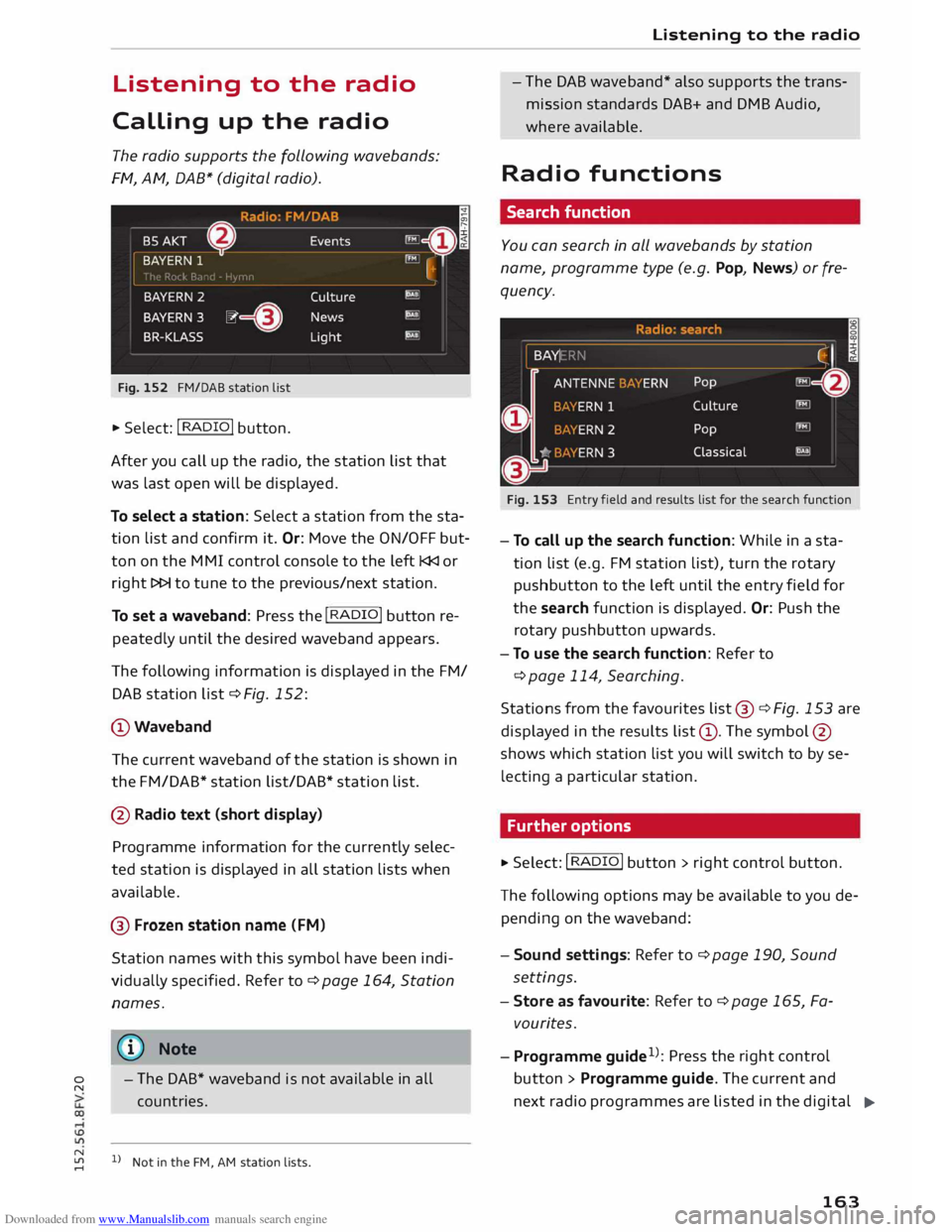
Fig. 152 FM/DAB station list
.,. Select: I RADIO !
button.
After you call up the radio, the station list that
was last open will be displayed.
To select a station: Select a station from the sta
tion list and confirm it. Or: Move the ON/OFF but
ton on the MMI control console to the left l
To set a waveband: Press the I
R
AD I
O! button re
peatedly until the desired waveband appears.
The following information is displayed in the FM/
DAB station list¢ Fig. 152:
@Waveband The current waveband of the station is shown in
the FM/DAB* station list/DAB* station list.
@ Radio text (short display)
Programme information for the currently selec
ted station is displayed in all station lists when
available.
@ Frozen station name (FM)
Station names with this symbol have been indi
vidually specified. Refer to¢ page 164, Station
names.
� Note - The
DAB* waveband is not available in all
countries.
N
� l
l
Not in the FM, AM station lists. Listening
to the radio
- The DAB waveband* also supports the trans
mission standards DAB+ and DMB Audio,
where available.
Radio functions
Search function
You can search in all wavebands by station
name, programme type (e.g. Pop, News) or fre
quency.
Fig. 153 Entry field and results list for the search function
- To call up the search function: While in a sta
tion list (e.g. FM station list), turn the rotary
pushbutton to the left until the entry field for
the search function is displayed. Or: Push the
rotary pushbutton upwards.
- To use the search function: Refer to
¢ page 114, Searching.
Stations from the favourites list @¢ Fig. 153 are
displayed in the results list@. The symbol @
shows which station list you will switch to by se
lecting a particular station.
Further options
.,. Select: I RADIO I button > rig ht control button.
The following options may be available to you de
pending on the waveband:
- Sound settings: Refer to¢ page 190, Sound
settings.
- Store as favour ite: Refer to ¢ page 165, Fa
vourites.
- Programme guide1
>
: Press the right control
button > Programme guide. The current and
next radio programmes are listed in the digital
...,.
163
Page 170 of 284
Downloaded from www.Manualslib.com manuals search engine Media
Media
Introduction
The MMI system includes various media drives
and provides various options for connecting devi
ces. For example, you can play audio/video* files
from the jukebox or connect a mobile device to
the Audi music interface* and operate it via the
MMI.
Notes General notes
Media and format limitations: The MMI system
(incl uding the SD card reader and the connection
for the USB mass storage device*) has been tes
ted for use with many of the products and media
currently available on the market. However, there
may be some devices/media and audio/video*
files that are not supported or cannot be played,
or the functionality may be limited under certain
circ umstances.
Copyright: Please note that copyright law applies
to audio/video* files.
The MMI media drives do not support ORM-pro
tected files; these files are marked with the sym
bol ffi.
Data storage: Never store important data on SD
cards, the jukebox*, CDs/DVDs or mobile devices.
Audi shall not accept any liability whatsoever for
the loss of files and media.
Loading times: The more files, folders or play
lists are stored on a storage device, the longer it
will take to load the audio files/video* files. We
recommend using a storage device which con
tains only audio/video* files. If you want to re
duce the time it takes to load the audio/video*
files, you can create subfolders (e.g. for an artist
or album). The loading time will be extended ad
ditionally if you are importing data.
Metadata: Metadata stored on audio files (e.g.
artists, tracks, album covers) will be displayed
automatically when the files are played. If this in
formation is not stored on the relevant medium,
the MMI system will use the database of metada-
168 ta
from Gracenote. Nevertheless, metadata may
not be displayed in some cases.
Restricted performance: If you experience re
stricted performance, reset the Media settings
to the factory defaults ¢ page 187.
If you experience restricted performance from
the Jukebox*, reset it to the factory settings
¢page 187.
For information on the characteristics of the sup
ported media and file formats, please refer to
¢ page 177 onwards.
CD/DVD mode
CD/DVD and format limitations: In view of the
variety of CDs/DVDs and the difference in memo
ry capacities, the functionality may be restricted
in the case of some storage devices. Under cer
tain circumstances, audio CDs/video DVDs that
are copy-protected or CDs/DVDs that do not com
ply with the standard audio format, and multi
session CDs cannot be played at all, or the func
tionality may be limited. We recommend always
finalising the burning process when creating mul
tisession CDs. Multisession is not supported for
DVDs.
Handling CDs/DVDs, the CD drive or the DVD
drive: To ensure perfect, high-quality playback
and avoid scanning errors or damage to the me
dia drive, always store CDs/DVDs in a suitable
case and do not expose them to direct sunlight.
Do not use:
- Damaged, dirty or scratched CDs/DVDs
- Single CDs/DVDs (diameter 8 cm / 3 inches)
- Non-circular CDs/DVDs (shape CDs)
- CDs/DVDs with stickers
- Protective rings
- Cleaning discs
Thermal cut-out: In the case of unusually hot or
cold outside temperatures, it is possible that CD/
DVD playback will temporarily not be possible. A
thermostat switch is installed to protect the CD/
DVD and the reading laser.
Laser devices: Laser devices are divided into the
safety classes 1 to 4, as specified by DIN IEC 76
..,.