turn signal AUDI TT COUPE 2016 User Guide
[x] Cancel search | Manufacturer: AUDI, Model Year: 2016, Model line: TT COUPE, Model: AUDI TT COUPE 2016Pages: 322, PDF Size: 52.86 MB
Page 64 of 322
Downloaded from www.Manualslib.com manuals search engine Driving
-If driver's door is opened while the ignition
is
switched on, the parking brake sets auto
matically. This prevents unintended rolling
of the vehicle.
- Occasional noises
when the parking brake is
applied
and released are normal and are not
a cause for concern.
-
When the vehicle is parked, the parking
brake goes through a self-test cycle at regu
lar intervals. Any noises associated with this
are normal.
-If the. (USA models) I. (Cana-
da models) indicator lights or llJ indicator
lig ht
turn on, there could be a malfunction
in the park ing brake ~page 11.
-If there is a power failure, the parking brake
will not set if it is released, and it will not
release if it is set~.&.. See an authorized
Audi dealer or authorized Audi Service Fa
cility for
assistance.
Parking
.... Press the brake pedal to stop the vehicle.
.... Pull the switch~ to set the parking brake .
.... Place the selector lever in the P position.
.... Turn the engine off~,&.
.... Turn the steering wheel when parking on in
clines
so that the wheels will roll into the curb
if the vehicle starts moving .
A WARNING
-Always take the vehicle key with you when
leaving the vehicle, even for a short period
of time. This applies particularly when chi l
dren remai n in the vehicle. Otherwise the
children could start the engine, release the
parking brake or operate electrical equip
ment (e.g. power windows). There is the risk
of an accident.
-
When the vehicle is locked, no one -particu
larly
not children should remain in the vehi
cle. Locked
doors make it more difficult for
emergency workers to get into the vehicle,
which
puts lives at risk.
62
Starting from a stop
The start assist function ensures that the park
ing brake
is released automatically upon start
mg.
Stopping and applying parking brake
.... Pull the switch~ to set the parking brake.
Starting and automatically releasing the
parking brake
Requirement: the driver's door must be closed
and the driver's safety belt must be fastened.
.... When you press the accelerator pedal, the
parking brake is automatically released and
your vehicle begins to move.
When stopping at a traffic signal or stopping in
city traffic, the park ing brake can be applied. The
vehicle
does not have to be held with the brake
pedal. The parking brake eliminates the tendency
to creep when a selector lever position is engag
ed. As soon as you press the accelerator pedal,
the parking brake releases automatically and the
vehicle starts to move .
Starting on slope s
When starting on inclines, the hill start assist
prevents the vehicle from unintentionally rolling
back. The braking force
of the parking brake is
not released until sufficient driving force has
been built up at the wheels.
(0 Tips
For safety reasons, the parking brake is re
l
eased automatically onl y when the driver's
safety be lt is fastened and the driver's door is
l ocked.
Emergency braking function
In the event that the conventional brake system
fails or locks.
.... To brake your vehicle in an emergency, pull the
~switch and hold it pulled.
.... As soon as you release the button or accelerate,
the braking stops. .,..
Page 76 of 322
Downloaded from www.Manualslib.com manuals search engine Assist
The speed you saved will be retained ifthe cruise
control has been switched off temporarily. To re
sume the stored speed, release the brake or
clutch pedal and pull the lever to position(!).
Switching the ignition off will erase the stored
speed.
A WARNING
-You should only resume the saved speed if it
is not too high for existing traffic conditions.
Otherwise you risk an accident.
Audi active lane assist
Description
App lies to: ve h icles with Audi active lane assis t
Active lane assist detects lane marker lines with
in the limits of the system using a camera in the
windshield. If you are approaching a detected
lane marker line and it appears likely that you
will leave
the lane, the system will warn you with
corrective
steering. You can override this steering
at any time. If you pass over a line, the steering
wheel will vibrate lightly. In order for this warn
ing vibration to occur, it must first be switched
on in the Infotainment system. Active lane assist
is operable when the lane marker line is detected
on at least one side of the vehicle.
The
system is designed for driving on express
ways and highways and
therefore only activates
at speeds above approximately 40 mph (65 km/
h) (depending on the market).
Appl i
es to vehicles with side assist*: if you acti
vate a turn s ignal when active lane assist is ready
and it classifies a lane change as critical because
of vehicles traveling alongside you or approach
ing you, there will be noticeable corrective steer
ing
shortly before you leave the lane. This will at
tempt to keep your vehicle in the lane.
Applies
to vehicles without side assist*: the sys
tem does not warn when it is ready if you activate
the turn signal before crossing the lane marker
ll The co rrective steering function is not a va ilable in all mar
kets.
7 4
line. In this case, it assumes that you are chang
ing lanes intentionally.
A WARNING
!-="' -
-The system warns the driver that the vehicle
is leaving the lane using corrective steering.
The driver is always responsible for keeping
the vehicle within the lane.
- The
system can help you keep the vehicle in
the lane, but it does not drive by itself. Al
ways keep your hands on the steering
wheel.
- Corrective
steering may not occur in certain
situations, such as during heavy braking.
- There
may be cases where the camera does
not recognize all lane marker lines. Correc
tive steering can only take place on the side
of the vehicle where lane marker lines are
detected.
-Other road structures or objects could possi
bly be identified unintentionally as lane
marker lines. As a result, corrective steering
may be
unexpected or may not occur.
- The
camera view can be restricted, for ex
ample by vehicles driving ahead or by rain,
snow, heavy spray light shining into the
camera or by dirt on the window. This can
result in active lane assist not detecting the
lane marker lines or detecting them incor
rectly.
- In
certain situations where visibility is low,
the vehicle may switch internally from "ear
ly" to "late" steering correction ll.
-Under certain cond itions such as ruts in the
road, an inclined roadway or crosswinds, the
corrective steering alone may not be enough
to keep the vehicle in the middle of the lane.
- For
safety reasons, active lane assist must
not be used when there are poor road and/
or weather conditions such as slippery
roads, fog, gravel, heavy rain,
snow and the
potential for hydroplaning . Using active lane
assist under these conditions may increase
the risk of a crash.
Page 77 of 322
Downloaded from www.Manualslib.com manuals search engine Switching on and off
Applies to: vehicles with Audi active lane assist
F ig.
71 Turn signal lever: button for active lane assist
Fig. 72 Windshield : camera window for active lane assist
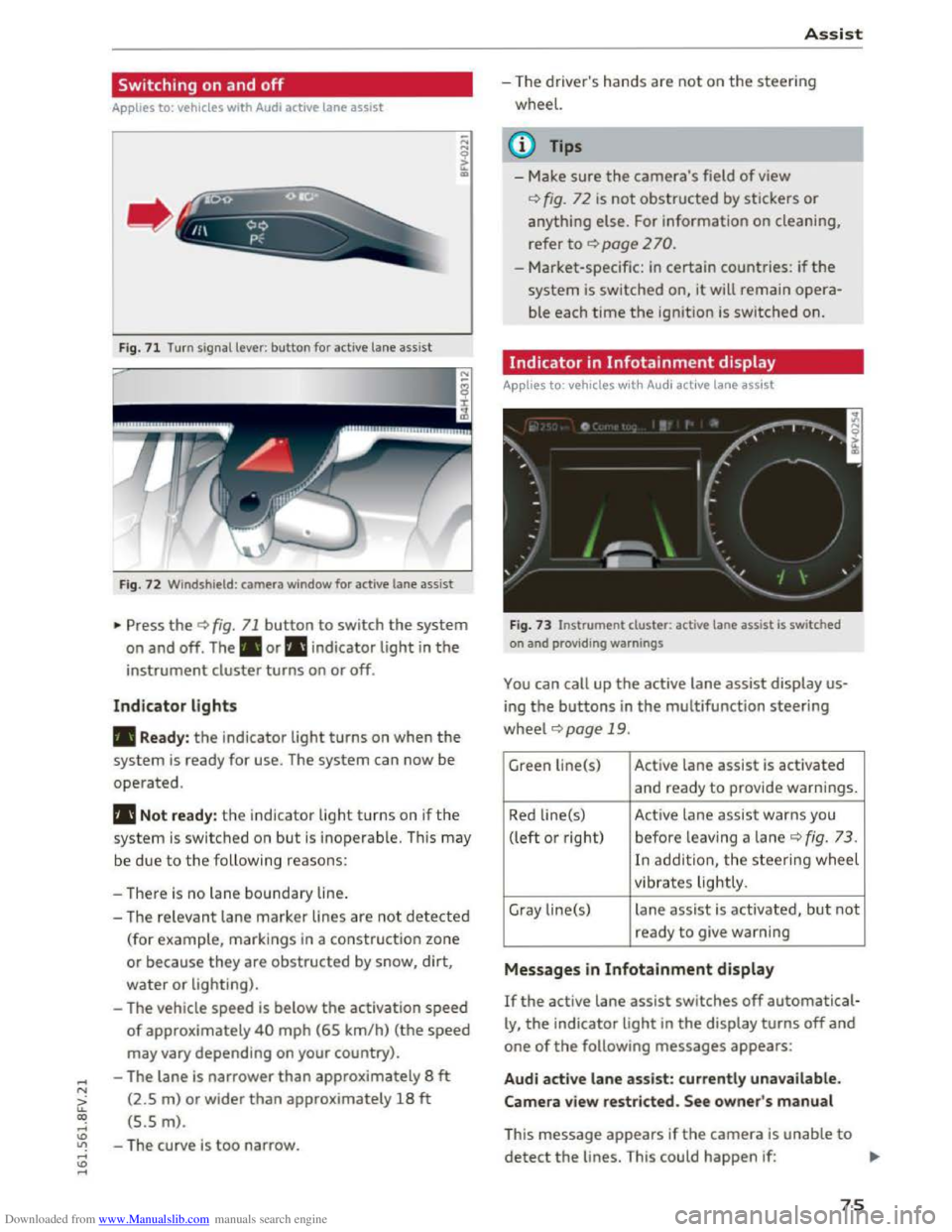
... Press the¢ fig. 71 button to switch the system
on and off. The . or rl1 indicator light in the
instrument cluster turns on or off.
Indicator lights
• Ready: the indicator light turns on when the
system is ready for use. The system can now be
operated.
rl1 Not ready: the indicator light turns on if the
system is switched on but is inoperable. This may
be
due to the following reasons:
- There
is no lane boundary line.
-
The relevant lane marker lines are not detected
(for example, markings in a construction zone
or because they
are obstructed by snow, dirt,
water or lighting).
- The vehicle
speed is below the activation speed
of approximately 40 mph (65 km/h) (the speed
may vary depending on your country).
- The lane
is narrower than approximately 8 ft
(2.5 m) or wider than approximately 18 ft
(5.5 m).
- The curve
is too narrow.
Assist
-The driver's hands are not on the steering
wheel.
{!) Tips
- Make sure the camera's field of view
¢fig. 72 is not obstructed by stickers or
anything else. For information on cleaning,
refer
to ¢ page 2 70.
- Market-specific: in certain countries: if the
system is switched on, it will remain opera
ble each time the ignition is switched on.
Indicator in Infotainment display
Applies to: vehicles with Audi active lane assist
Fig.
73 Instrument clu ster: active lane assist is switched
on and providing warnings
You can call up the active lane assist display us
ing the buttons in the multifunction steering
wheel ¢page 19 .
Green Li ne(s) Active lane assist is activated
and ready to provide warnings.
Red line(s) Active lane assist warns you
(left or right) before leav ing a lane
¢ fig. 73 .
In addit ion, the steering wheel
vibrates lightly.
Gray line(s)
lane assist is activated, but not
ready to give warning
Messages in Infotainment display
If the active lane assist switches off automatical
ly, the indicator light in the display turns off and
one of the following messages appears:
Audi active lane assist: currently unavailable.
Camera view restricted. See owner's manual
This message appears if the camera is unable to
detect the lines. This could happen if: ..,.
75
Page 79 of 322
Downloaded from www.Manualslib.com manuals search engine ..... N
G: CX)
.....
"' U"I
.....
"' .....
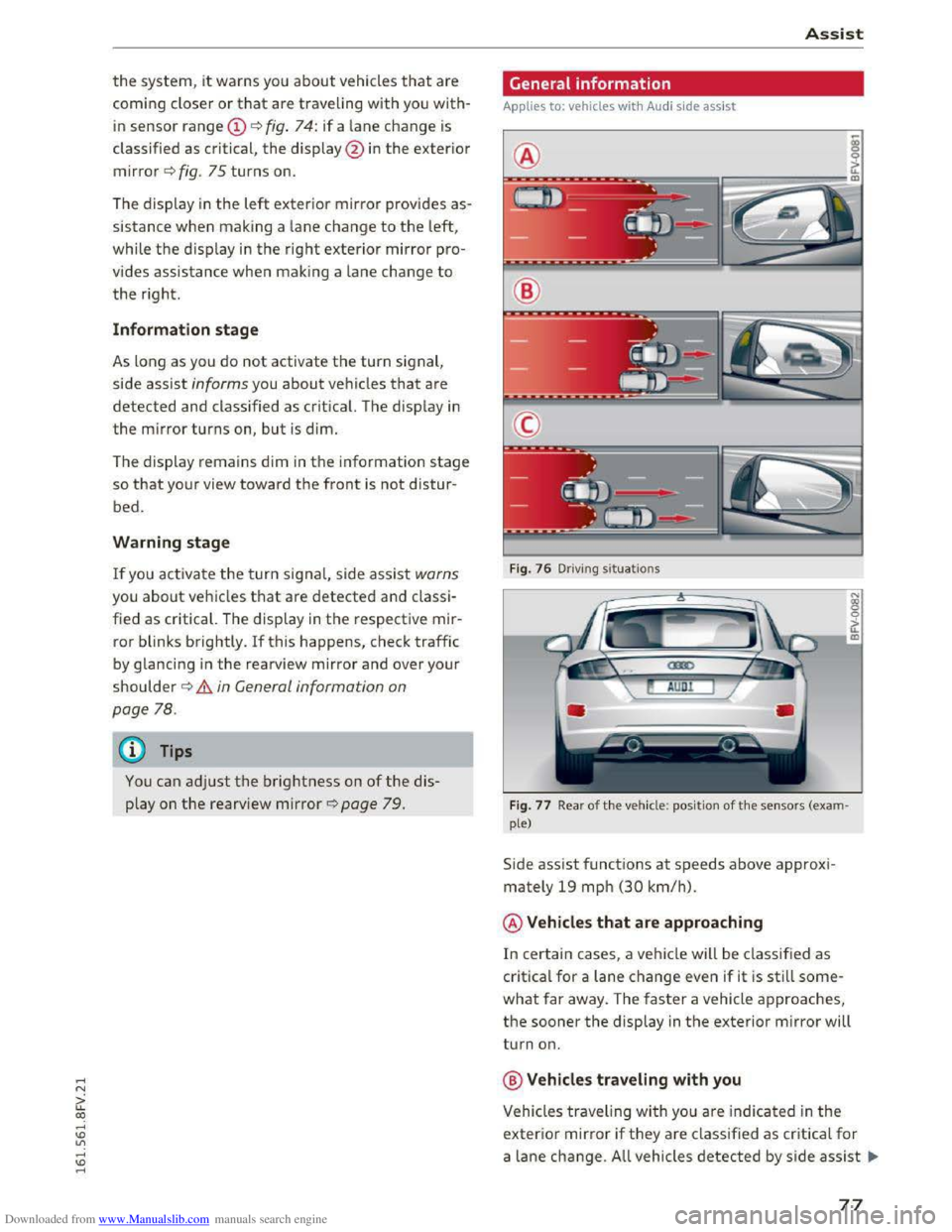
the system, it warns you about vehicles that are
coming closer or
that are traveling with you with
in sensor range(!) c::> fig. 74: if a lane change is
classified as critical, the display @ in the exterior
mirror c::>fig. 75 turns on.
General information
Applies to: veh icles wit h Aud i s ide assi st
®
Assist
The display in the left exterior mirror provides as
sistance when making a lane change to the left,
while the disp lay in the right exterior mirror pro
vides assistance when making a lane change
to
the right. @
Information stage
As long as you do not activate the turn signal,
side assist
informs you about vehicles that are
detected and class ified
as critical. The display in
the mirror turns on, but is dim.
The display remains
dim in the information stage
so that your view toward the front is not distur
bed.
Warning stage
If you activate the turn signal, side assist warns
you about vehicles
that are detected and classi
fied
as critical. The display in the respective mir
ror blinks brightly. If this happens, check traffic
by glancing in the rearview mirror and over your
shoulder
c::> .& in General information on
page 78.
@ Tips
You can adjust the brightness on of the dis
play on
the rearview mirror r::;, page 79.
Fig. 76 Driv ing s ituations
Fig.
77 Rear of t h e vehicl e: positio n of the sensors (exam
ple)
Side assist functions at speeds above approxi
mately 19 mph
(30 km/h).
@Vehicles that are approaching
In certain cases, a vehicle will be classified as
critical for a lane change even if it is still some
what far away. The faster a vehicle approaches,
the sooner the display in the exterior mirror will
turn on.
@Vehicles traveling with you
Vehicles traveling with you are indicated in the
exterior mirror if they are classified as critica l for
a lane change. All vehicles detected by side assist 111>-
77
Page 81 of 322
Downloaded from www.Manualslib.com manuals search engine Switching on and off
App lies to: vehicles with Audi side assist
The system can be switched on/off in the Info
tainment system.
"'Select in the Infotainment system: IM ENUI but
ton >Vehicle > left control button >Driver as
sistance >Audi side assist
An activated system will signal every time the ig
nition is switched on by turning the displays in
the exterior mirrors on briefly.
Adjusting the display brightness
Applies to: vehicles with Audi side assist
The display brightness can be adjusted in the In
fotainment system.
"'Select in the Infotainment system: IM ENUI but
ton >Vehicle > left control button >Driver as
sistance >Audi side assist
The display brightness adjusts automatically to
the brightness of the surroundings, both in the
information and in the warning stage. In very
dark or very bright surroundings, the display is
already set to the minimum or maximum level by
the automatic adjustment. In such cases, you
may notice no
change when adjusting the bright
ness, or the change may only be noticeable once
the surroundings change.
Adjust
the brightness to a level where the display
in the information stage will not disrupt your
view forward. If you change the brightness, the
display in the exterior mirror will briefly show the
brightness level in the information stage. The
brightness of the warning stage is linked to the
brightness in the information stage and is adjust
ed along with the information stage adjustment.
-Side assist is not active while you are mak
ing the adjustment.
- Your settings are automatically stored and
assigned to the remote control key being
used.
Assist
Driver messages
Applies to: vehicles with Audi side assist
If the side assist switches off automatically, a
message appears in the Infotainment system dis
play.
@i Audi side assist: currently unavailable.
Sensor vision restricted due to surroundings.
See owner's
manual
The radar sensors' vision is affected. Do not cover
the area in front of the sensors with bike wheels,
stickers, dirt or other objects. Clean the area in
front of the sensors, if necessary q page 77,
fig. 77.
@i Audi side assist: currently unavailable.
See owner's
manual
Side assist cannot be switched on temporarily be
cause there is a malfunction (for example, the
battery charge level may be too low).
@i Audi side assist: malfunction! Please
contact
Service
The system cannot guarantee that it will detect
vehicles correctly and it is switched off. The sen
sors have been displaced or are faulty. Have the
system checked by an authorized Audi dealer or
authorized Audi Service Facility soon.
Audi drive select (drive
settings)
Introduction
Applies to: vehicles with Audi drive select
Drive select makes it possible to experience dif
ferent types of vehicle settings in one vehicle.
The driver can
select from three modes, Comfort,
Auto and Dynamic, using the~.~;\,~ button in the
center console or by using the Infotainment sys
tem. This allows you to switch between a sporty
and a comfortable driving mode, for example. In
the Individual mode, the settings can be adjust
ed to your personal preferences. This makes it
possible to combine settings such as a sporty en-
gine
tuning with light steering. .,.
79
Page 87 of 322
Downloaded from www.Manualslib.com manuals search engine ..... N
G: CX)
.....
"' U"I
.....
"' .....
use the system for safety reasons. Have it
checked by an authorized Audi dealer or au
thorized Audi Serv ice Facility.
-
Only use the rearview camera to assist you if
it shows a good, clear picture. For example,
the image may be affected by the sun shin
ing into
the lens, dirt on the lens or ifthere
is a defect.
-Use the rearview camera only ifthe luggage
compartment lid is completely closed. Make
sure any objects you may have mounted on
the luggage compartment lid do not block
the rearview camer a.
- T
he camera lens enlarges and distorts the
field of vi sion. The object appears both al
tered and inaccurate on the screen.
-In certain situations, people or objects in
the display appear close r or further away :
- For objects
that do not touch the ground,
such as the bumper of a parked vehicle, a
trailer hitch or the rear of a truck. Do not
use the help lines in this case.
-
If driven from a level surface onto an in
cline, or a downward slope.
-
If driven toward protrudi ng objects.
-If the vehicle is carrying too much load in
the rear.
CD Note
- Always re ad and follow the applicable warn
ings¢(!) in General information on
page82.
-The orange colo red orientation lines in the
Infotainment display show the vehicle path
depending on the steering wheel angle. The
front of the vehicle front swings out more
than the rear of the vehicle. Maintain plenty
of distance so that your outside mirror or a
corner of your vehicle does not collide with
any
obstacles.
Switching on/off
App lies to: vehi cles with rearv iew camera
Switching on
•Shift into reverse , or
Parking systems
•Press the P'#! button in the cen ter conso le
~page 83, fig . 81 . A short confirmation tone
sounds and the LE D in the button turns on.
Switching off
•Drive faster than 6 mph (10 km/h), o r
• Press the P'#! button, or
• switch the ign it ion off.
(!} Tips
- The visua l display in the left part of the dis
play
shoul d he lp you detect the critical vehi
cle areas.
-You can change the volume and display for
the signals ¢ page 86.
Cross parking
Applies to: veh icles wit h rearv iew camera
This view may be used when parking in a garage
or
in a parking space.
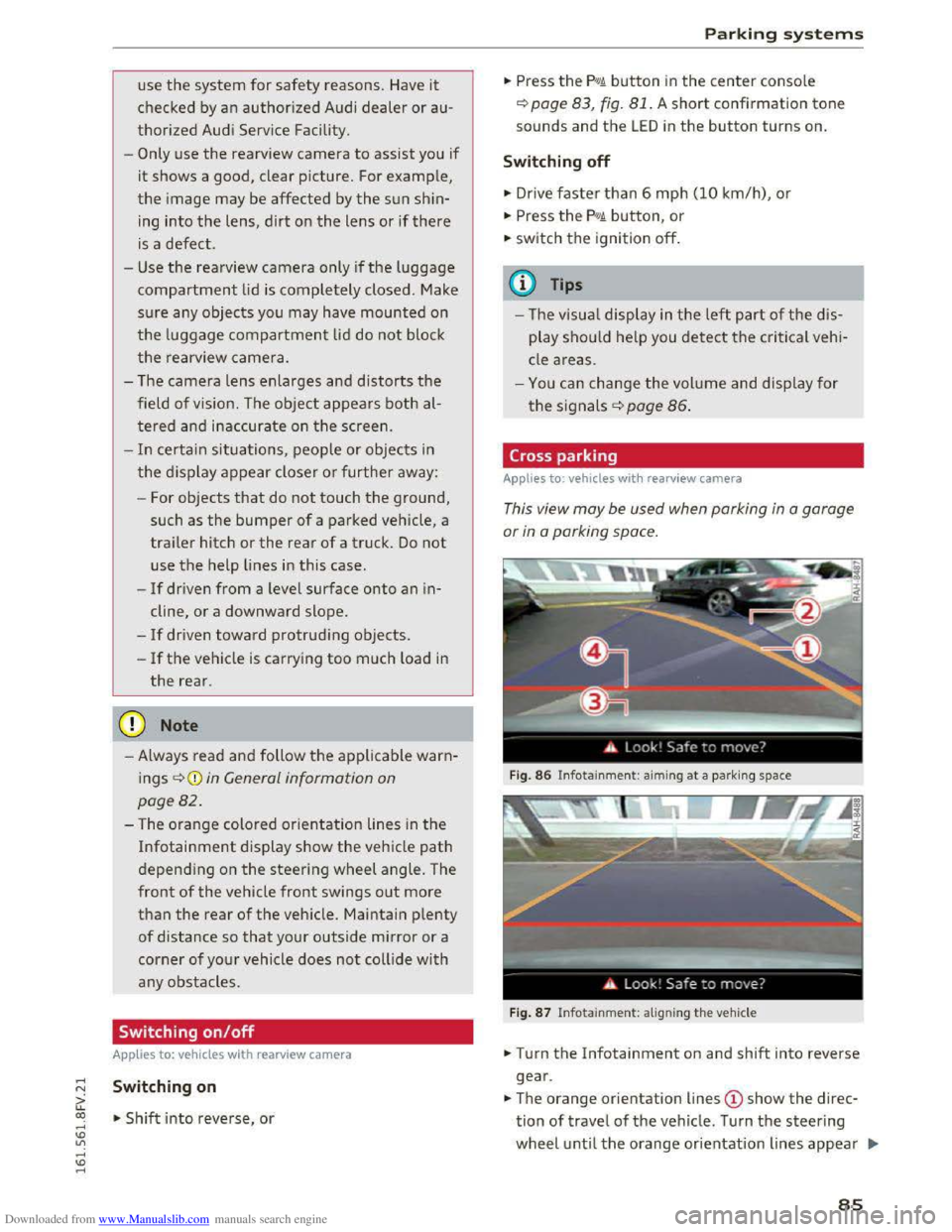
Fig. 86 Infotainme nt: aiming at a par king space
Fig. 87 Infotainme nt: al igning the vehicle
• Turn the Infotainment on and shift into reverse
gear .
•The orange orientation lines @show the direc
tion of travel of the vehicle. Turn the steering
wheel until the orange or ientation lines appear .,..
85
Page 97 of 322
Downloaded from www.Manualslib.com manuals search engine Multi Media Interface
Traffic safety
information
Audi recommends only performing certain Info
tainment system functions, such as entering a
destination, when the vehicle is stationary. Al
ways be prepared to stop operating the Infotain
ment system in the interest of your safety a nd
the safety o f other road users.
A WARNING
Only use the Infotainment sy ste m whe n traf
fic cond itions pe rmi t an d alw ay s i n a way that
allow s you to m aintain complete control over
your ve hicl e.
Introduction
The Multi Media Interface, or MMI for short,
combines various
systems for communication,
navigation " and entertainment in your Audi. You
can operate the MMI using the MMI control pan
el, the multifunction steering wheel or the voice
recognition
system".
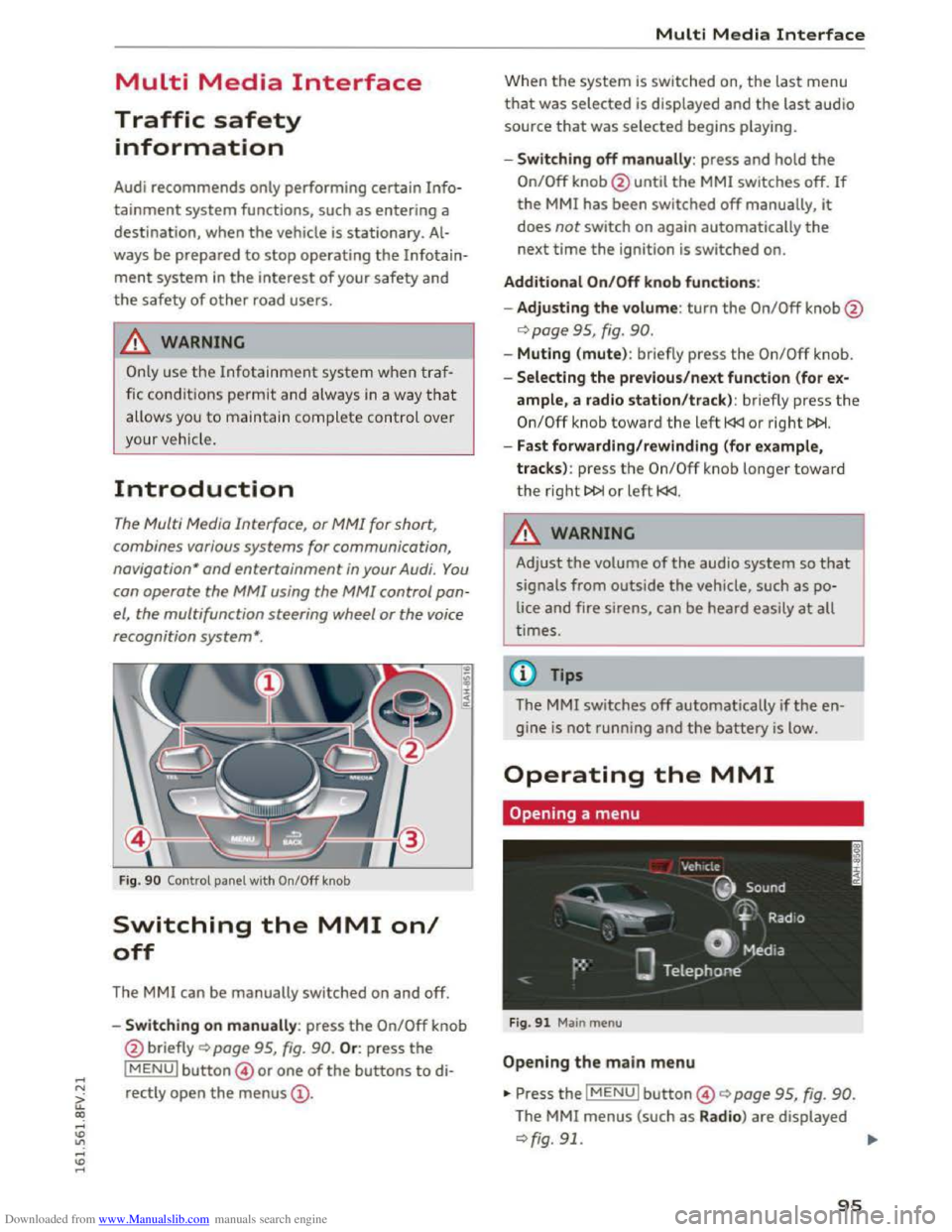
Fig. 90 Control panel with On/Off knob
Switching the MMI on/
off
The MMI can be manually switched on and off.
..
i
-Switching on manu ally: press the On/Off knob
@ briefly
Qpage 95, fig. 90. Or: press the
lMENUI button© or one of the buttons to di
rectly
open the menus@ .
Multi Media Interface
Wh en th e system is switched on, the last menu
that was selected is displayed and the last audio
source that was selected begins play ing.
-Swit ch ing off manually : press and hold the
On/Off knob@until the MMI switches off. If
the MMI has been switched off manually, it
does not switch on again automatically the
next time the ignition is switched on.
Additional On/Off knob functions:
- Adjusting the volum e:
turn the On/Off knob@
¢page 95, fig. 90.
-Muting (mute): br iefly press the On/Off knob.
-Selecting the previous/next function (for ex-
ample, a radio station/track ): br iefly press the
On/Off knob toward th e left l
-Fast forwarding/rewinding (for example,
tracks) :
press th e On/Off kno b longe r toward
the right t>l>I or left l
!-=-
Adjust the volume of th e a udio system so that
signals from outside the vehicle, such as po
lice
and fire sirens, can be heard easily at all
t imes.
Tips
The MMI switches off automatically if th e e n
gine
is not running and the battery is low.
Operating the MMI
Opening a menu
Fig . 91 Main menu
Open ing the main menu
•Press the IMENUI button© ~page 95, fig. 90.
The MMI menus (such as Radio ) are displayed
¢fig. 91. ....
95
Page 100 of 322
Downloaded from www.Manualslib.com manuals search engine Multi Media Interface
Entering numbers, letters, and symbols
Requirement: it must be possible to enter text or
numbers.
-
Write an individual letter (also: upper case/
lower case) or numbers/characters on the MMI
touch control pad using your finger. A character
recognized by the system will appear in the In
fotainment system display@¢ fig. 97 and it
will confi rm with an audio signal, if necessary,
and transfer the character to the input fie ld.
- Entering spaces: move your finger across the
MMI touch control pad from left to right.
- Deleting characters: move your finger across
the MMI touch control pad from right to left.
-Selecting the input suggestion: press the con
trol knob.
-Switching directly to the results list: turn the
control knob to the right
- Entering Cyrillic characters : press the right
control button. Select and confirm Change to
Cyrillic character set.
Moving
the crosshairs/map
Requirement: a map must be displayed
¢page 139, fig. 120.
- Showing/hiding the crosshairs : press the con
trol knob to show the crosshairs. Press the
I BACK! button@¢ page 95, fig. 90 to hide the
crosshairs again.
-Moving the crosshairs in a standard map:
move the crosshairs shown in the desi red direc
tion using your
finger on the MMI touch control
pad.
-Moving the standard map/online map: move
the crosshairs shown in the desired direction
using
two fingers on the MMI touch control pad
¢page 143.
-Moving the map quickly: pull two of your fin
gers in the desired direction quickly along the
MMI touch control pad. The map will come to a
stop after several seconds.
Zooming in/out on the map
Requirement: a map must be disp layed
¢ page 139, fig. 120.
98
-Zooming in on the map: press the control knob
to show the crosshairs. Touch the MMI touch
control pad with two fingers and pull your fin
gers away from each other.
-Zooming out on the map : press the control
knob to show the crosshairs. Touch the MMI
touch control pad with two fingers and pull
your fingers together.
Adjusting the sound focus
Requirement: the Balance/Fader function must
be selected ¢page 169.
- Moving the crosshairs for sound focus: move
your
finger in the desired direction on the MMI
touch control pad.
Using the DVD main menu
Requirement: a DVD must be playing
¢page 159.
-Selecting a menu item: move your finger up/
down or left/right on the MMI touch control
pad.
-Confirming a selection: press the control knob.
@ Tips
The volume of the voice guidance prompts for
the MMI touch can be adjusted separately
¢page 170.
Control knob with
joystick function
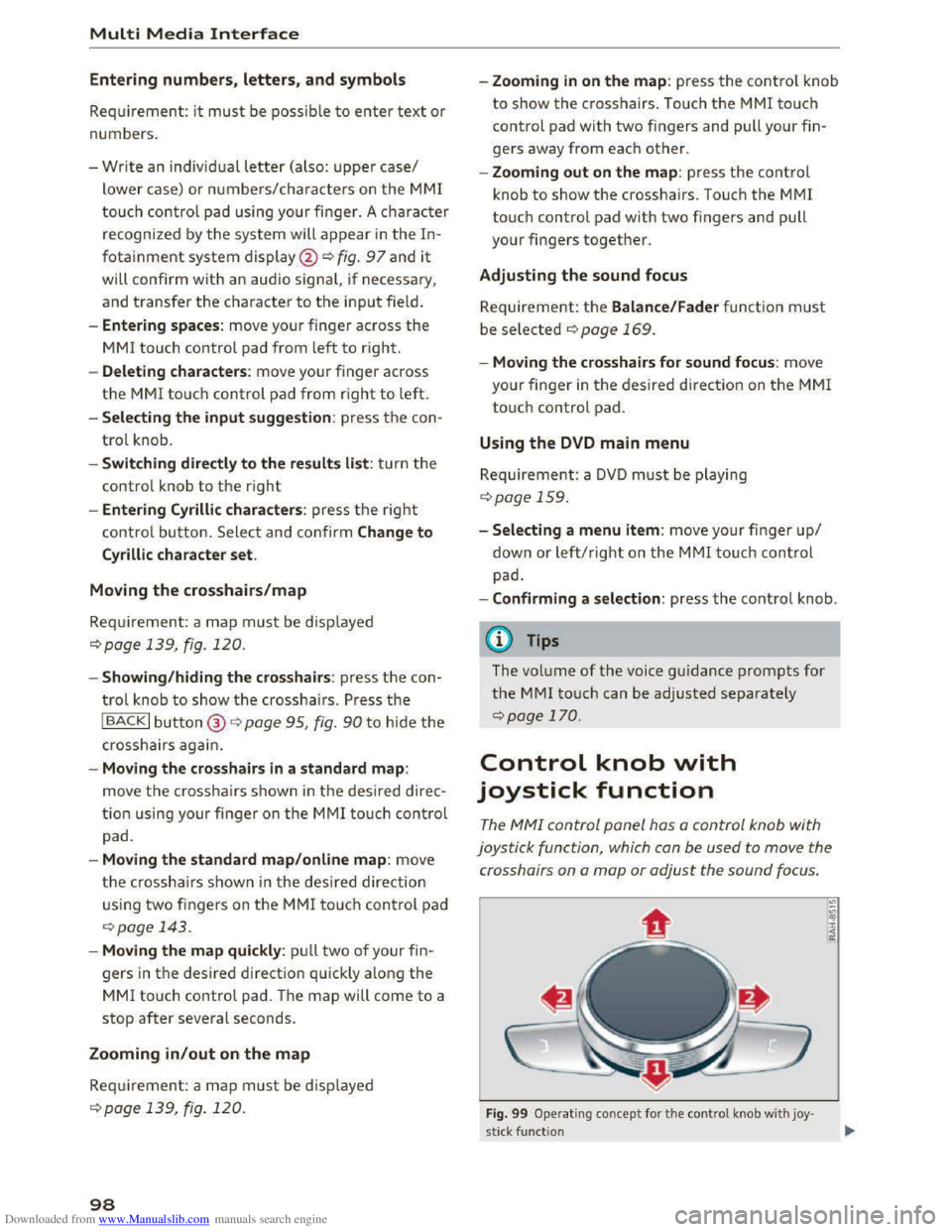
The MMI control panel hos a control knob with
joystick function, which con
be used to move the
crosshairs on a map or adjust the sound focus.
Fig. 99 Operating concept for the control knob with joy·
stick function
Page 104 of 322
Downloaded from www.Manualslib.com manuals search engine Multi Media Interface
Symbol/Description Explanation
@>
Cell phone signal Cell phone network signal strength for a connected cell phone
strength bars* ¢ page 110
@ Selection list Settings for the selected function that are accessed by pressing the
control knob
Free text search
Using the free text search, you can select the or
der that the search terms are entered in the in
put field.
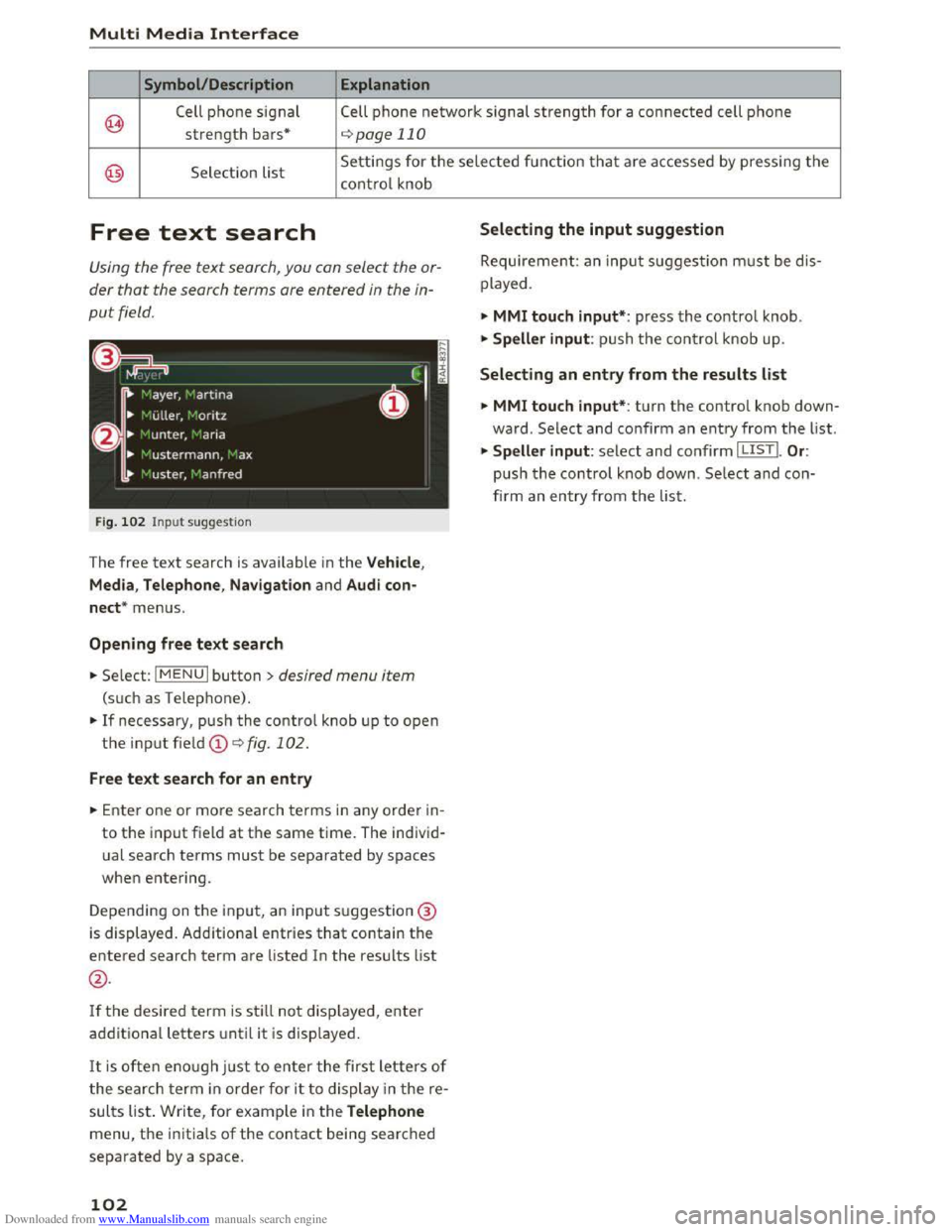
Fig. 102 Input suggestion
The free text search is available in the Vehicle,
Media , Telephone, Navigation
and Audi con
nect* menus.
Opening free text search
... Select: I MENU I button >desired menu item
(such as Telephone) .
... If necessary, push the control knob up to open
the input field
... Enter one or more search terms in any order in
to the input field at the same time. The individ
ual search terms must be separated by spaces
when entering.
Depending on the input, an input suggestion@
is displayed. Additional
entries that contain the
entered search term are listed In the results list
@.
Ifthe desired term is sti ll not displayed, enter
additional letters until it is disp layed.
It is often enough just to enter the first letters of
the search term in order for it to display in the re
sults list. Write, for example in the Telephone
menu, the initials of the contact being searched
separated by a space.
102
Selecting the input suggestion
Requirement: an input suggestion must be dis
played .
... MMI touch input*: press the control knob .
.,. Speller input: push the control knob up.
Selecting an entry from the results list
... MMI touch input* : turn the control knob down
ward. Select and confirm an entry from the list .
... Speller input: select and confirm I LISTI. Or:
push the control knob down. Se lect and con
firm an entry from the list.
Page 147 of 322
Downloaded from www.Manualslib.com manuals search engine ..... N
G: CX)
.....
"' U"I
.....
"' .....
Radio
Accessing the radio
The radio supports the FM, AM and SiriusXM*
(satellite radio) bands. Using
the HO Radio re
ceiver also
allows you to receive radio stations
on the FM and AM bond in digital format.
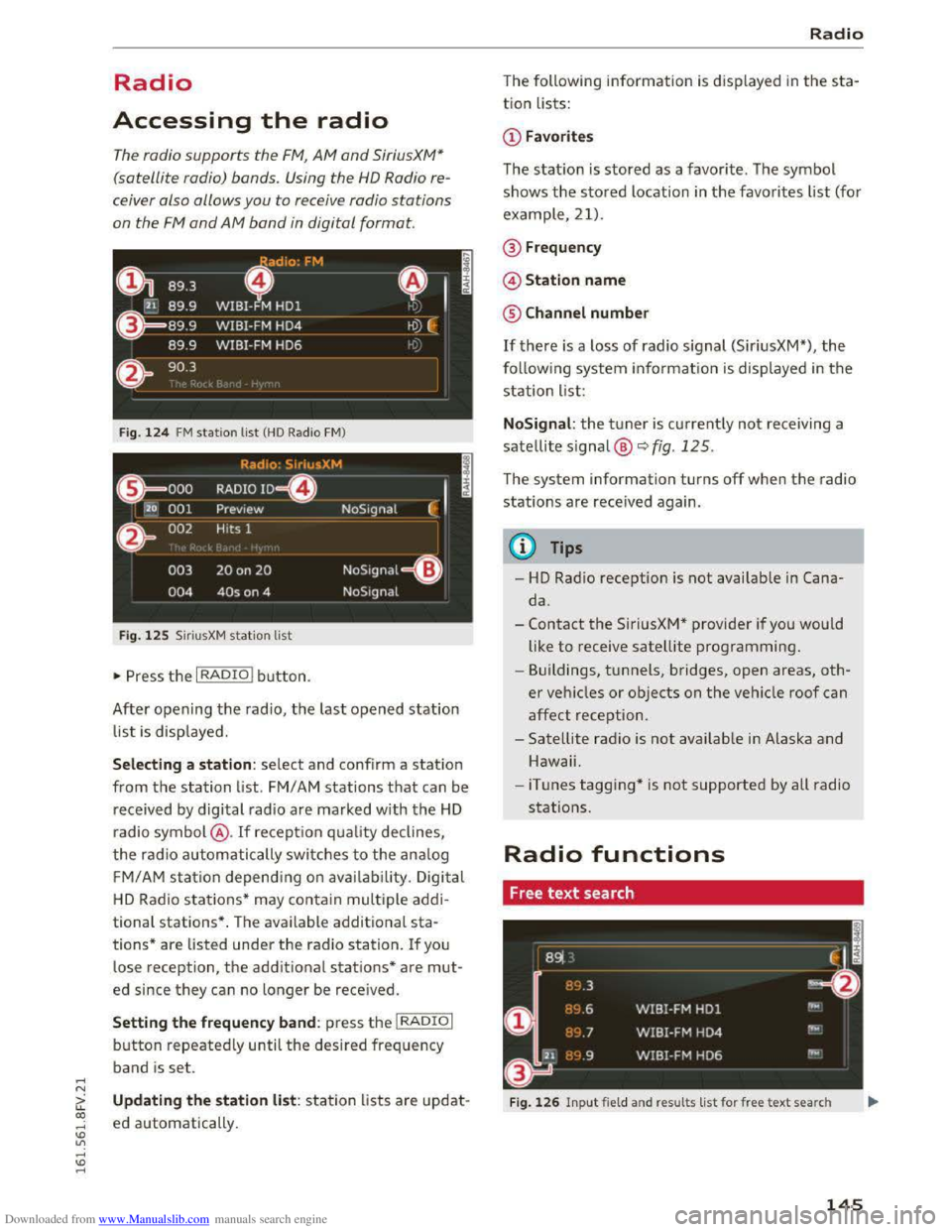
Fig. 124 FM station list (HO Radio FM)
Radio: SiriusXM
~'
.000 RADIO 10 D
120 001 Preview NoSignal
&
002 Hits 1
003 20 on 20 NoSignal =
Fig. 125 Siri usXM station list
"Press the I RADIO I button.
After opening the radio, the last opened station
list is displayed.
.
I
Selecting a station : select and confirm a station
from the station list. FM/ AM stations that can be
received by
digital radio are marked with the HD
radio symbol @. If recept ion quality declines,
the radio automatically switches to the analog
FM/AM station depending on availability . Digital
HD Radio stations * may contain multiple addi
tional stations* . The available additional sta
tions* are listed under
the radio station. If you
lose recept ion,
the additional stations* are mut
ed since they can no Longer be received.
Setting the frequency band: press the I RADIO I
button repeatedly until the desired frequency
band
is set.
Updating the station list: station lists are updat
ed automatically .
Radio
The following information is d isplayed in the sta
tion Lists:
The statio n is stored as a favor ite. The symbol
shows
the stored Location in the favorites list (fo r
example, 21).
@Frequency
©Station name
® Channel number
If there is a loss of radio signal (SiriusXM*), the
following system information is displayed in the
station List:
NoSignal: the tuner is currently not receiving a
satellite signal @
c::> fig. 125.
The system information turns off when the radio
stations are received again.
{!) Tips
-HD Radio reception is not availab le in Cana
da.
-
Contact the SiriusXM* provider if you would
like
to receive satellite programming.
- Buildings, tunnels, bridges, open areas,
oth
er veh icles or objects on the vehicle roof can
affect reception.
- Satellite radio is
not availab le in Alaska and
Hawaii.
- iTunes
tagging* is not supported by all radio
stations.
Radio functions
Free text search
Fig. 126 Input field and results list for free text search
145