audio AUDI TT COUPE 2016 Owner's Manual
[x] Cancel search | Manufacturer: AUDI, Model Year: 2016, Model line: TT COUPE, Model: AUDI TT COUPE 2016Pages: 322, PDF Size: 52.86 MB
Page 161 of 322
Downloaded from www.Manualslib.com manuals search engine .... N
G'. co ..... ID VI .... ID .....
Playing media
Accessing media
You can start and operate various media
through the MMI control panel.
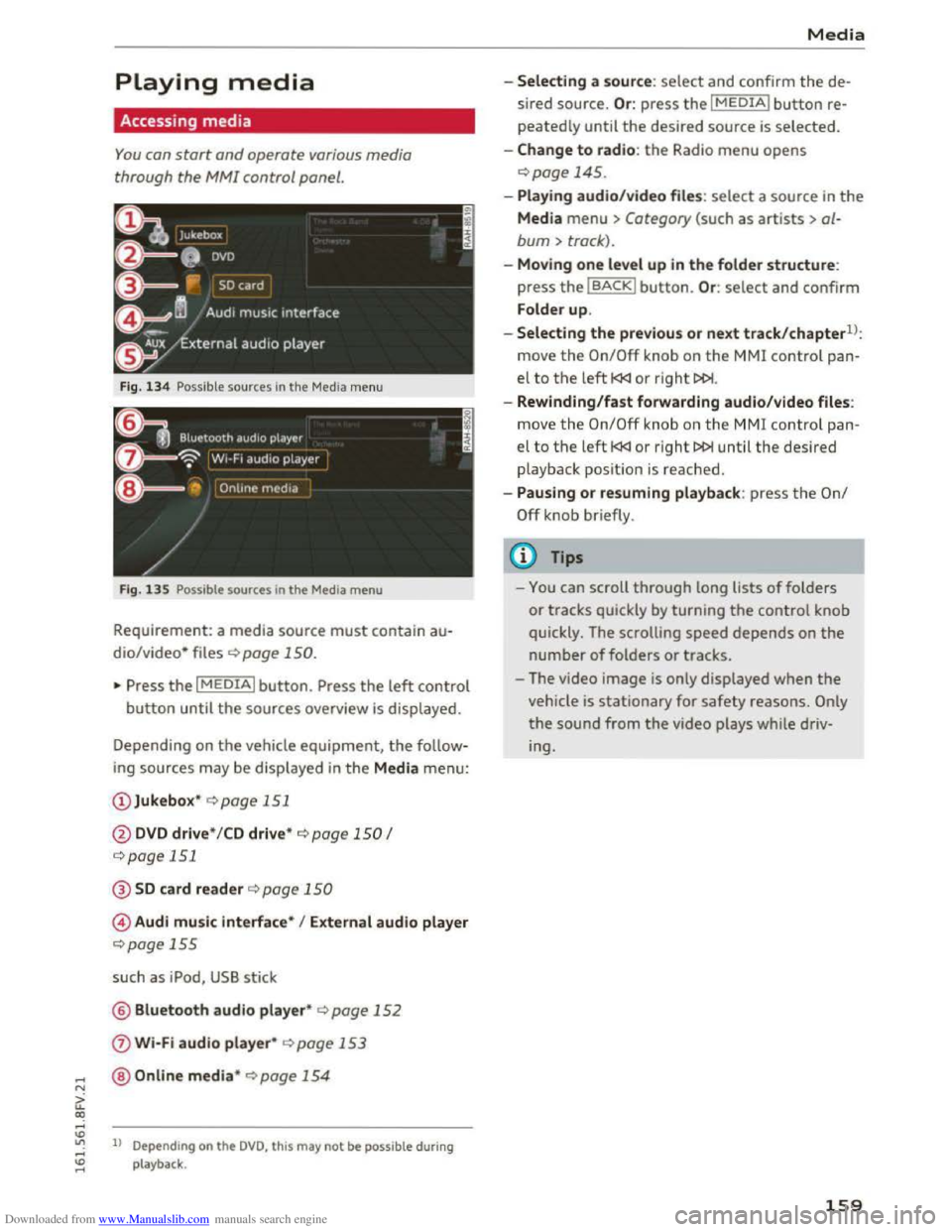
Fig. 134 Possible sources in the Media menu
F ig .
135 Possible sources in the Media menu
Requirement: a media source must contain au
dio/video* files c::> page 150.
"Press the I MEDIAi button. Press the left control
button until the sources overview is displayed.
Depending on
the vehicle equipment, the follow
ing sources may be displayed in the Media menu:
@ Jukebox* c::>page 151
@DVD drive * /CD drive* c::> page 150 I
c::>page 151
@SD card reader c::> page 150
© Audi music interface* I External audio player
c::>page 155
such as iPod, USB stick
@ Bluetooth audio player* c::> page 152
0 Wi-Fi audio player* c::> page 153
@Online media* c::>page 154
ll Depend ing on the DVD, this may not be possible during
playback .
Media
-Selecting a source: select and confirm the de
sired
source. Or : press the I MEDIAi button re
peatedly until the desired source is selected.
-Change to radio: the Radio menu opens
c::> page 145.
-Playing audio/video file s: select a source in the
Media menu > Category (such as artists > al
bum > track).
-Moving one level up in the folder structure:
press the IBACKI button. Or : select and confirm
Folder
up.
-
Selecting the previous or next track/chapterll:
move the On/Off knob on the MMI control pan
el to the left l
-Rewinding/fast forwarding audio/video files:
move
the On/Off knob on the MMI control pan
el to the left l
playback posit ion is reached .
-
Pausing or resuming playback: press the On/
Off knob briefly.
(D Tips
-You can scroll through long lists of folders
or tracks quickly by turning the control knob
quickly. The scrolling
speed depends on the
number of folders or tracks.
- The video
image is only displayed when the
vehicle is stationary for safety reasons. Only
the sound from the video plays while driv
ing.
159
Page 162 of 322
Downloaded from www.Manualslib.com manuals search engine Media
Media center
Various categories for selecting audio/video*
files are available
in the media center.
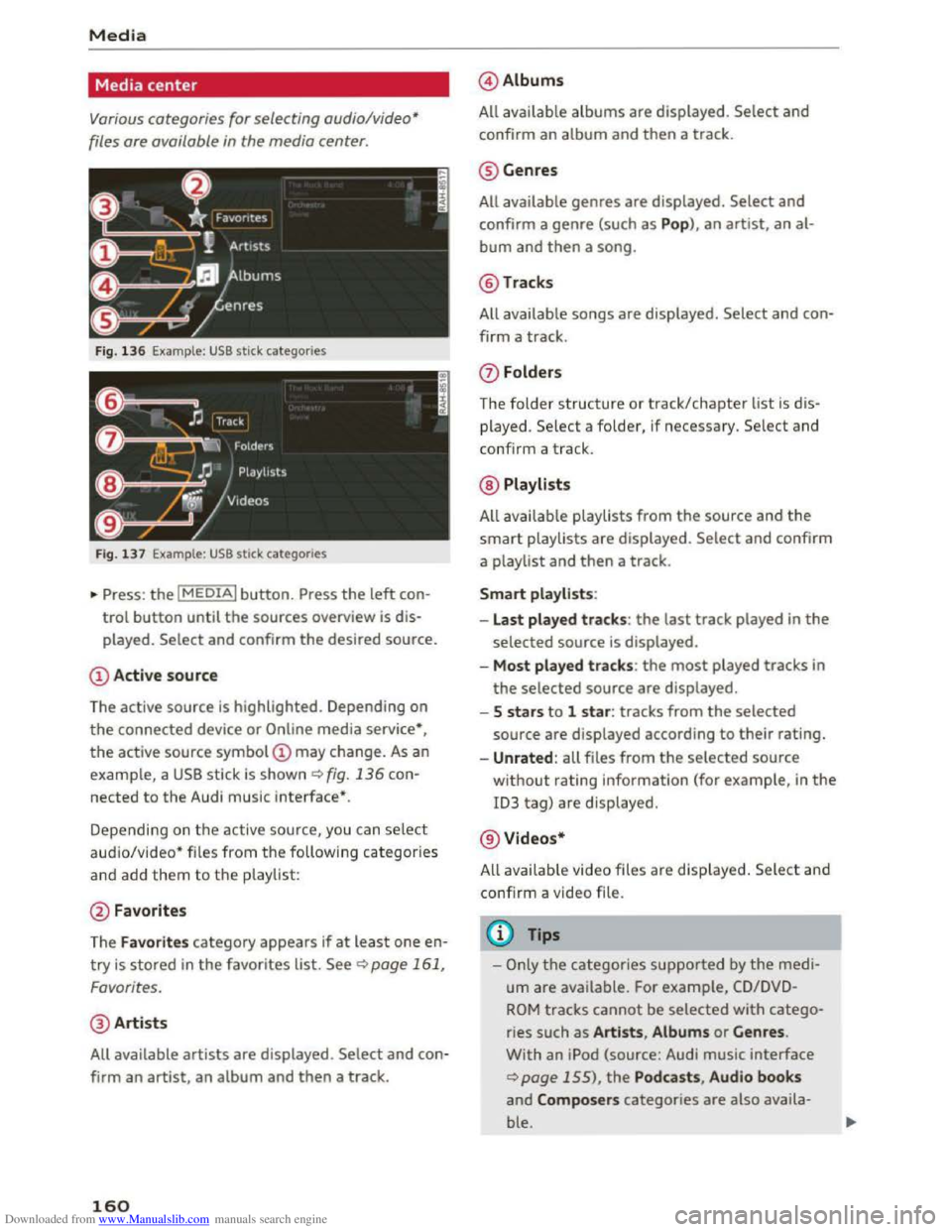
Fig. 136 Example : USB stick categories
Fig. 137 Example: USB stick categorie s
•Press : the I MEDIAi button. Press the left con
trol button until the sources overview is dis
played.
Select and confirm the desired source.
(!) Active source
The active source
is highlighted. Depending on
the connected device or Online media service*,
the active source symbol @ may change. As an
example, a USB stick is shown¢ fig. 136 con
nected to the Audi music interface*.
Depending on
the active source, you can select
aud io/video* files from the following categories
and add them to the p laylist:
@ Favorites
The
Favorites category appears if at leas t one en
try is stored in the favorites list. See¢ page 161,
Favorites.
@ Artists
All available artists are displayed . Select and con
firm
an artist, an album and then a track.
160
@ Albums
All available
albums are displayed . Select and
confirm
an album and then a track.
@ Genres
All available genres are displayed. Select and
confirm a genre (such as Pop), an artist, an al
bum and then a song.
@Tracks
All available songs are displayed. Select and con
firm a
track.
0 Folders
The
folder structure or track/chapter list is d is
played. Select a folder, if necessary. Select and
confirm a track.
@ Playlists
All avai l
able playlists from the source and the
smart playlists are displayed. Select and confirm
a playlist and
then a track.
Smart playlists :
- Last played
tracks: the last track played in the
selected source is displayed.
-Most p lay ed track s: the most played tracks in
the selected source are displayed.
- 5 stars to 1 star : tracks from the selected
source are displayed according to their rating.
-Unrated : all files from the selected source
without rating information (for example, in the
ID3 tag) are displayed.
@ Videos*
A ll availab le video files
are displayed. Select and
confirm a video file.
@Tips
-Only the categories supported by the medi
um are available. For example, CD/DVD
ROM tracks cannot be selected with catego
ries such as Artists , Album s or Genres .
With an iPod (source: Audi music interface
¢page 155), the Podcasts , Audio books
and Composers categories are also availa
ble.
Page 163 of 322
Downloaded from www.Manualslib.com manuals search engine ..... N
G: CX)
..... I.Cl U"I
..... I.Cl .....
-The video image is only displayed when the
vehicle is stationary for safety reasons. Only
the sound from the video plays while driv
ing.
- When synchronizing a
portable device with
"Cloud" services, playlists may display incor
rectly
in the MM!. Use the media center in
the device.
Free text search
You con search in the active source by tracks and
video files*, for example
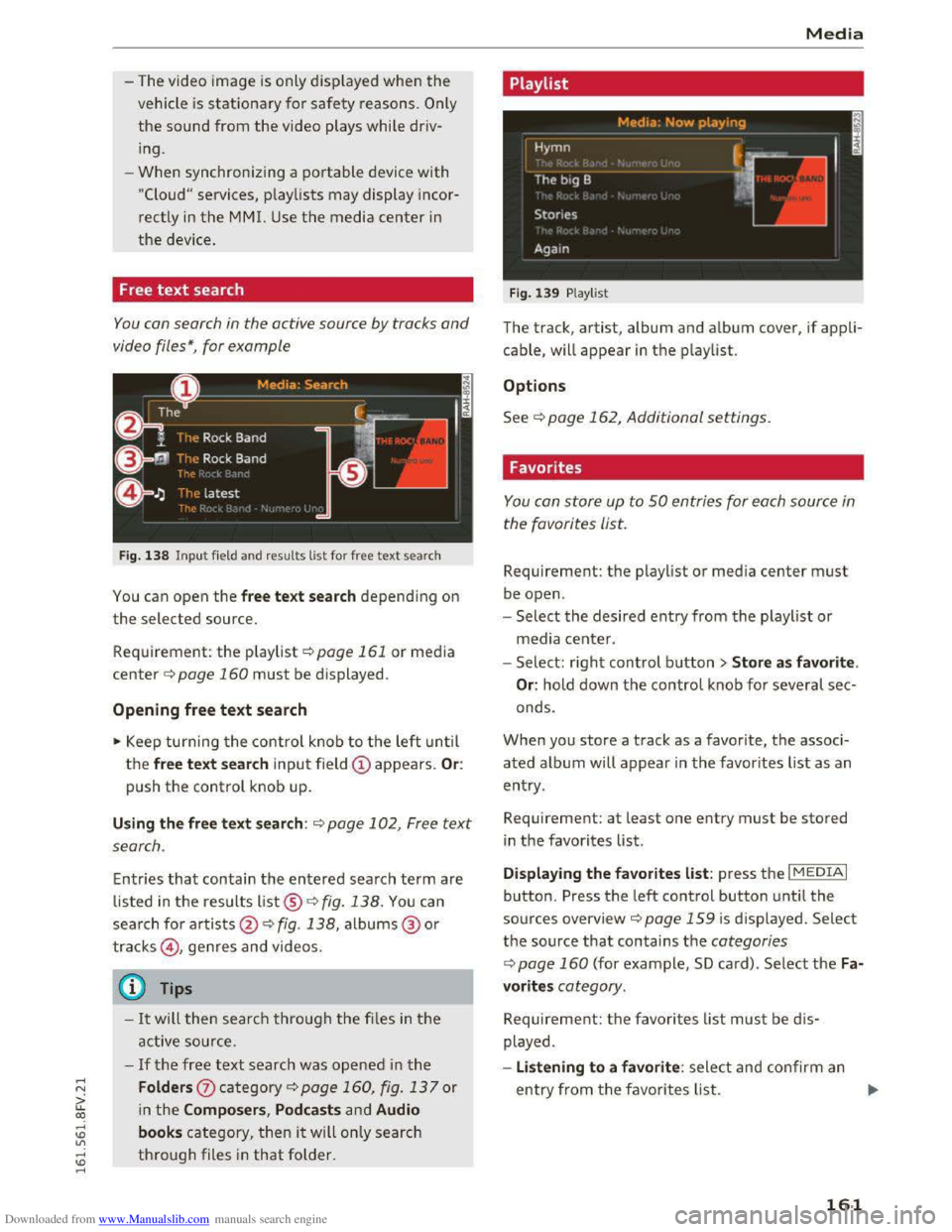
Fig. 138 Input field an d results list for free text search
You can open the free text search depending on
the selected source.
Requirement:
the playlist ¢page 161 or media
center¢ page 160 must be displayed .
Opening free text search
.,. Keep turning the control knob to the left until
the free text search input field @ appears. Or:
push the control knob up.
Using the free text search: ¢page 102, Free text
search .
Entries that contain the entered search term are
listed in the results list®~ fig. 138. You can
search for artists@ ¢ fig. 138, albums@ or
tracks@, genres and videos.
Q Tips
-It will then search through the files in the
active source.
-If the free text search was opened in the
Folders 0 category¢ page 160, fig. 13 7 or
in the Composers, Podcasts and Audio
books category, then it will only search
through files in that folder .
Media
Playlist
Fig. 139 Playl ist
The track, artist, album and album cover, if appli
cable, will
appear in the playlist .
Options
See ¢page 162, Additional settings.
Favorites
You con store up to 50 entries for each source in
the favorites list.
Requirement: the playlist or media center must
be open.
-
Select the desired entry from the playlist or
media
center.
- Select: ri
ght control button > Store as favorite.
Or: hold down the control knob for several sec
onds.
When you
store a track as a favorite, the associ
a t
ed a lbum will appear in the favor ites list as an
entry .
Requirement:
at least one entry must be stored
in the favorites list.
Displaying
the favorites list: press the I MEDIAi
button. Press the left control button until the
sources overview¢ page 159 is d isplayed. Select
the source that contains the categories
¢ page 160 (for example, SD card) . Select the Fa
vorites category.
Requirement: the favorites list must be dis
played .
- Listening
to a favorite : select and confirm an
entry from the favorites list. ..,.
161
Page 165 of 322
Downloaded from www.Manualslib.com manuals search engine Additional options
Requirement: the vehicle must be stationary and
a video file* or a DVD* must be playing.
Parental control*
Playback of video DVDs can be restricted using
pa rental control.
Enter the password for parental control. Pass
word set at the factory: 1234. You have the fol
l
owing options:
- Protect ion level : select and confirm the protec
t ion level (for example, Level 5). Eight different
protection levels can be set for parental con
trol. If you set the parental control level at Lev
el 5, all DVDs from level 1-5 can be played. Vid
eo DVDs with a higher level will not play . Select
No restriction to remove all of t h e restrictions.
-Chang e password: edit the curre nt password.
Switch to full scre e n
The video image is displayed. Turn the control
knob to display the playlist. Or: press the I BACKI
button.
Replay video
When this function is switched on~. the current
video will replay.
Show DVD menu
The DVD main menu is opened in the Infotain
ment system display . T o select a menu item,
move your finger on th e MMI touch control pad
and press the control knob.
Aud io trackll
You ca n manually set the a u dio track (language
and audio format). The language and audio for
mat options depend on the video DVD.
Subtitles l)
You can set s ubtit les for playback manually. The
languages available depend on the DVD.
l) Depe ndi ng o n the DVD, thi s may not be poss ib le during
playback .
Media
Picture format
Audi recommends the Automatic setting for the
picture format. You can set the picture format
depending on the active file or source (for exam
ple Video file*, DVD*).
Picture for-Information
mat
autom atic The MMI detects the pictu re for-
mat of the sou rce and displays the
image in the optimum ratio. Black
bars may appear on the sides of
the d isplay, depending on the
sour ce format and the Infotain-
men t system display that is instal-
led.
Zoom The image is enlarged to fill the
entire Infotainment system dis-
play .
Switc h the function off if the
image is dist orted.
Cinema· Use this setting for films in the cin-
scope ema format 21:9. Black bars are
shown in the upper and lower
edges o f the Infotainment system
display.
Original The image is displayed in the ratio
of the sou rce format. Select this
option if the image is distorted or a
section of the image is cut off
when Auto is selected.
4 :3 The image is fixed in the 4:3 pie-
tu re format. Blac k bars are shown
on the sides of the Infotainment
system display.
16:9 The image is fixed in the 16:9 pie-
tu r e format. Bla ck bars are shown
in the upper and lower edges of the
Infotainment system display.
(D Tips
- Not all video D VDs have parental control.
163
Page 166 of 322
Downloaded from www.Manualslib.com manuals search engine Media
-The security levels for the Parental control
are based on the US standards from the Mo
tion Picture Association of America (MPAA).
Note that the age levels for video DVDs in
European countries may differ. -
Password entry
for Parental control will be
locked for approximately one minute if you
enter the incorrect password three times in
a row. The password can only be reset by an
authorized
Audi dealer.
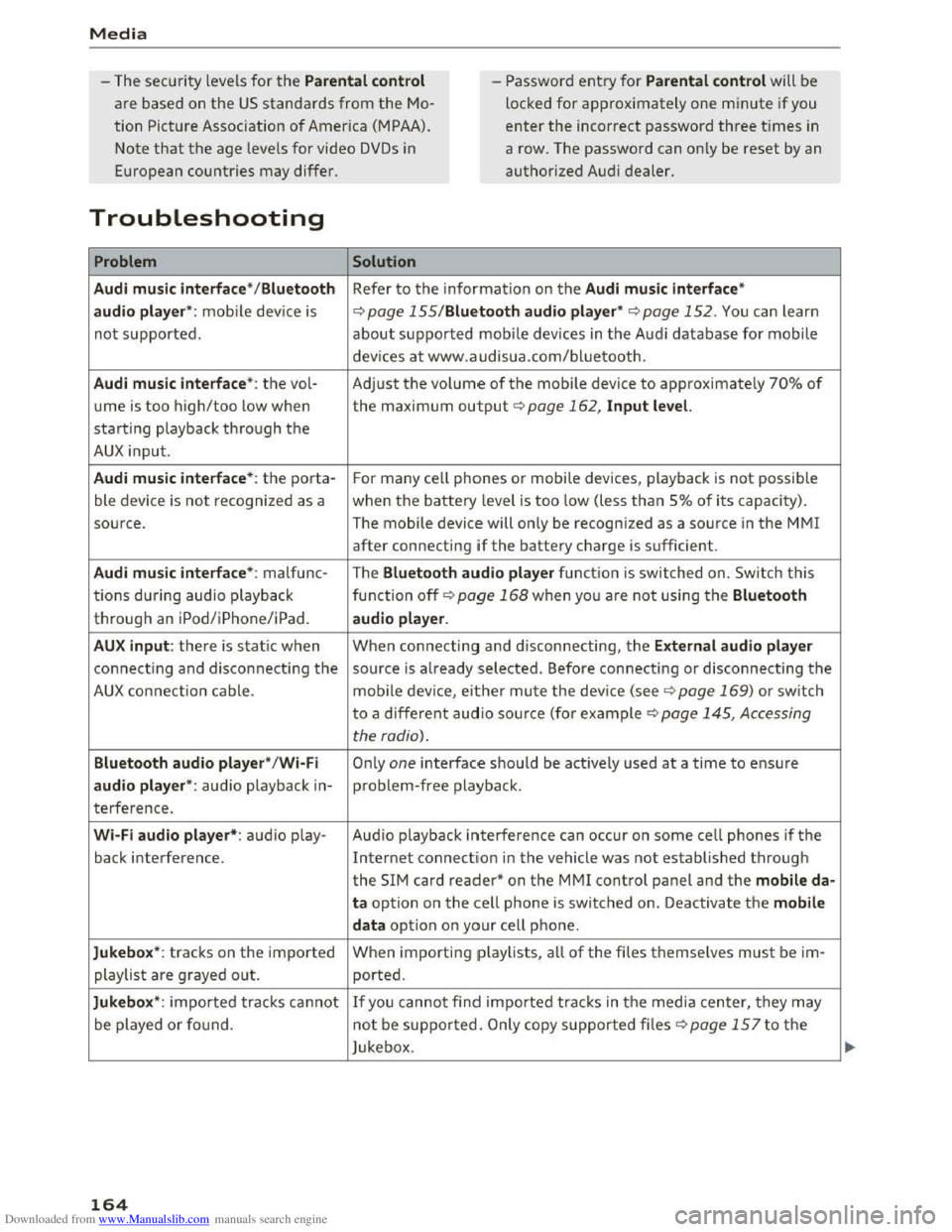
Troubleshooting
Problem Solution
Audi music interface* /Bluetooth
Refer to the information on the Audi music interface*
audio player*:
mobile device is c::.> page 155/Blue·tooth audio player* c::.> page 152. You can learn
not supported. about supported mobile devices in the Audi database for mobile
devices
at www.audisua.com/bluetooth.
Audi music interface* : the vol-Adjust the volume of the mobile device to approximately 70% of
ume is too high/too low when the maximum output c> page 162, Input level.
starting playback through the
AUX input.
Audi music interface* : the porta-For many cell phones or mobile devices, playback is not possible
ble device
is not recognized as a when the battery level is too low (less than So/o of its capacity).
source. The mobile device will only be recognized as a source
in the MM!
after connecting if the battery charge is sufficient.
Audi music interface* : malfunc- The Bluetooth audio player function is switched on. Switch this
tions during audio playback
function off
c> page 168 when you are not using the Bluetooth
through an iPod/iPhone/iPad. audio player.
AUX input: there is static when When connecting and disconnecting, the External audio player
connecting and disconnecting the source is already selected. Before connecting or disconnecting the
AUX connection cable. mobile device, either mute the device (see q page 169) or switch
to a different audio source (for example
c> page 145, Accessing
the radio).
Bluetooth audio player*/Wi-Fi Only one interface should be actively used at a time to ensure
audio player*: audio playback in-problem-free playback.
terference .
Wi-Fi audio player*: audio play- Audio playback interference can occur on some cell phones if the
back interference . Internet connectilon in the vehicle was not established through
the SIM card reader* on the MMI control panel and the mobile da-
ta option on the cell phone is switched on. Deactivate the mobile
data
option on your cell phone.
Jukebox*: tracks on the imported When
importing playlists , all of the files themselves must be im-
playlist are grayed out. ported.
Jukebox*: imported tracks cannot If you cannot find imported tracks in the media center, they may
be played or found . not be supported .
Only copy supported files q page 15 7 to the
Jukebox .
164
Page 167 of 322
Downloaded from www.Manualslib.com manuals search engine Media
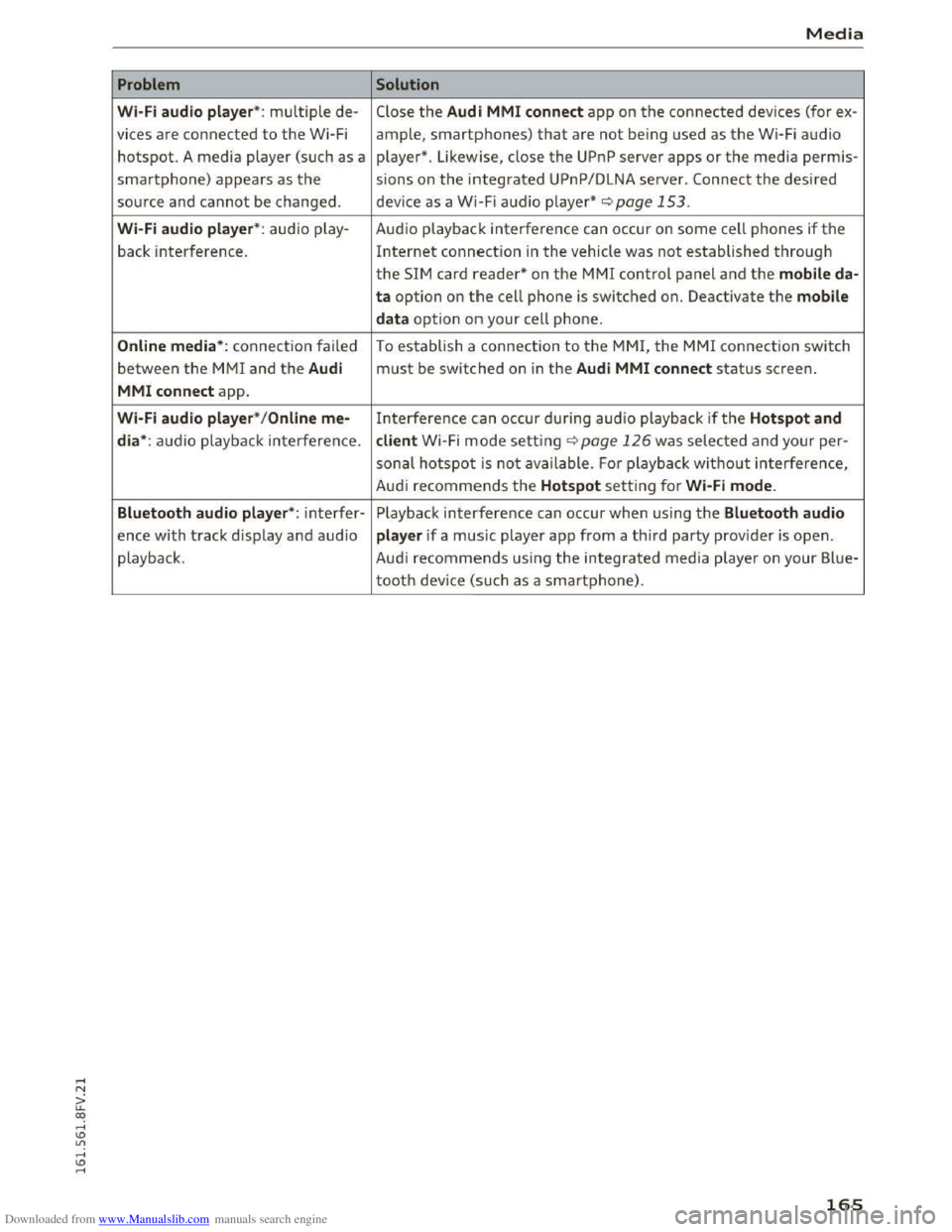
Problem Solution
Wi·Fi aud io pl aye r*: multiple de-Close the Audi MMI conn ect app on the connected devices (for ex-
vices
are connected to the Wi-Fi ample, smartphones) that are not being used as the Wi-Fi audio
hotspot. A media player (such as a player*. Likewise, close the UPnP server apps or the media perm is-
smartphone) appears as the sions on the integrated UPnP/DLNA server. Connect the desired
source and cannot be changed. device as a Wi-Fi audio player* <::;>page 153.
Wi-Fi audio play er* : audio play - Audio playback interference can occur on some cell phones if the
back interference. Internet connection in the vehicle was not established through
the SIM card reader* on the MMI control panel and the mobile da·
ta option on t h e cell phone is switched on. Deactivate the mobile
d a
ta option on your cell phone.
Online media *: connection failed To establish a connection to the MMI, the MMI connection switch
between the MMI and the Audi must be switched on in the Audi MMI c o nnect status screen.
MMI conne ct app.
Wi-Fi audio pla ye r* / Onl in e me-Interference can occur during audio playback if the Hots p ot and
di a*:
audio playback interference. client Wi -Fi mode setting c::;, page 126 was selected and your per-
sonal hotspot is not ava ilable. Fo r playbac k without interference,
Aud i
recommends the Hotspot setting for Wi·Fi mode .
Bluetooth
aud io pla yer*: interfer-Playback interference can occur when using the Blue tooth audio
ence with track d isplay and audio player if a music player app from a third party provider is open.
playback . Audi
recommends using the integrated media playe r on your Blue-
tooth device (such as a smartphone).
165
Page 169 of 322
Downloaded from www.Manualslib.com manuals search engine ...... N
> u. CX> ...... u:>
"' ...... u:> ......
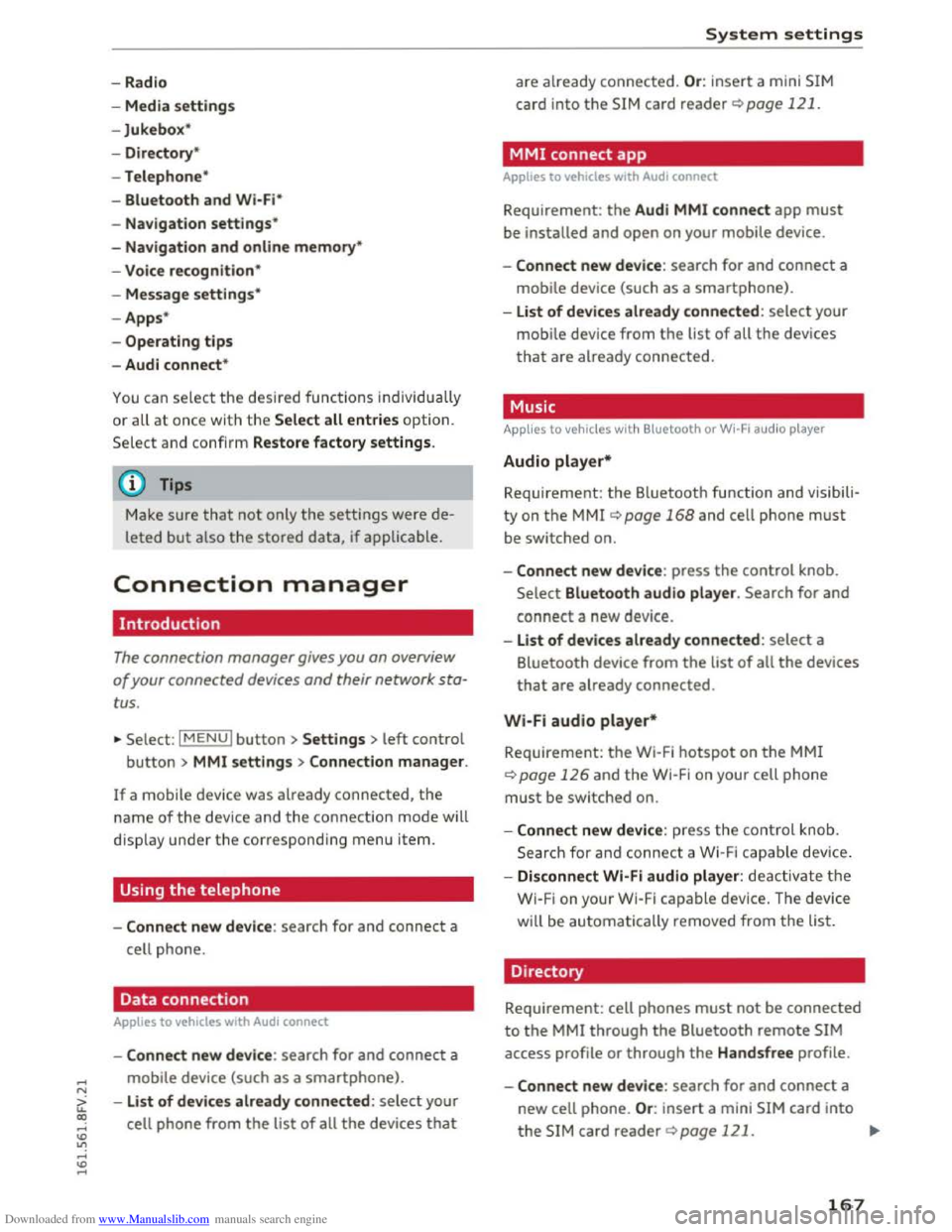
-Radio
- Media s
ettings
-Jukebox*
- Directory *
-
Telephone*
-
Bluetooth and Wi·Fi *
-Nav igation settings*
-Navigation and online memory*
-
Voice recognition*
- Message
settings*
-Apps *
-
Operating tips
- Audi connect*
You can select the desired func tions individ ually
or all at once with the Select all entries optio n.
Select and confirm Restore factory settings.
{!) Tips
Make sure that not only the sett ings were de
leted
but a lso the stored data, if applicable.
Connection manager
Introduction
The connection manager gives you an overview
of your connected devices and their network sta
tus.
~ Select: IM ENU I button > Settings > left control
button> MMI settings> Connection manager.
If a mobile device was already connected, the
name of the dev ice and the connection mode will
dis pl ay under th e correspond ing menu item.
Using the telephone
-Connect new device : search for and connect a
cell phone.
' Data connection
Applies to vehicles with Audi connect
-Connect new device : search for and connect a
mobile device (such as a
smartphone).
-List of devices already connected: select your
cell
phone from the list of all the devices that
System settings
are already connected. Or: insert a mini SIM
card into
the SIM card reader Qpage 121.
MMI connect app
Applies to vehicles with Audi connect
Requirement: the Audi MMI connect app must
be installed and open on your mobile device.
-
Connect new device : search for and connect a
mobile device (such
as a smartphone).
-List of device s already connected: select your
mobi le device
from the list of all the devices
that are already connected.
Music
Applies to vehicles wit h Bluetooth or Wi-Fi au dio player
Audio player*
Requirement: the Bluetooth function and visibili
ty on the MM! Q page 168 and cell phone must
be switched on.
-
Connect new devi ce : press the control knob.
Select Bluetooth audio player . Search for and
connect a new device.
-List of devices already connected: select a
Bluetooth device
from the list of all the devices
that are already connected.
Wi·Fi audio player*
Requirement: the Wi·Fi hotspot on the MMI
Q page 126 and the Wi-Fi on your cell phone
must be switched on.
-
Connect new device : press the control kno b.
S earc h
for and connect a Wi-F i capa ble device.
- Disconnect
Wi·Fi audio player: deactivate th e
Wi-Fi on your
Wi·Fi capable device. The device
will
be automatically removed from the list.
Directory
Requirement: cell phones must not be connected
to the MM! through the Bluetooth remote SIM
access profile or through the Handsfree profile.
-
Connect new d evice : search for and connect a
new cell phone.
Or: insert a mini SIM card into
the SIM card reader Qpage 121. ..,.
167
Page 170 of 322
Downloaded from www.Manualslib.com manuals search engine System settings
-
Lis t of devices already co nn ected : select your
cell phone from the list of all the cell phones
that are already connected.
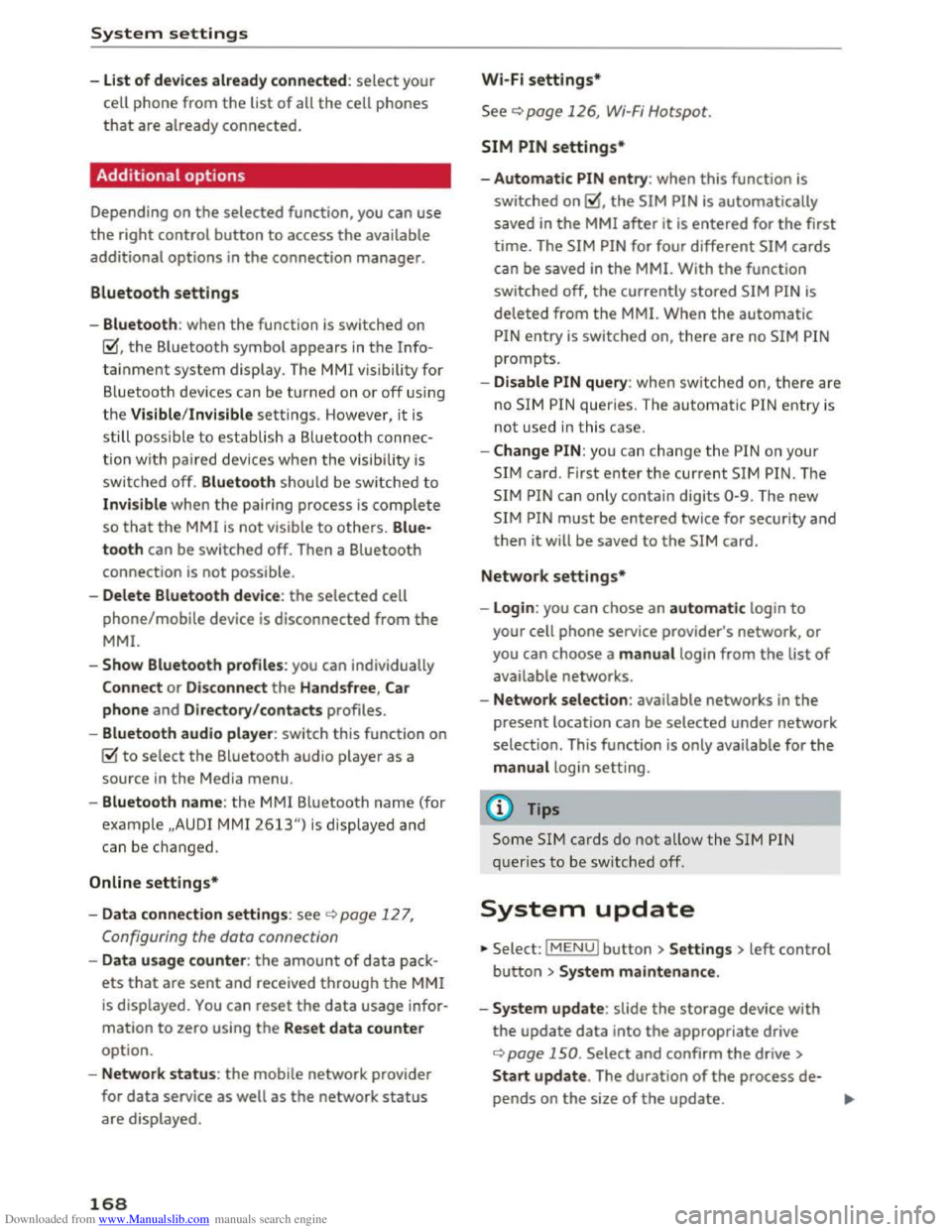
Additional options
Depending on the selected function, you can use
the right control button to access the available
additional options in the connection manager.
Bluetooth settings
-Bluetooth : when the function is switched on
~, the Bluetooth symbol appears in the Info
tainment system display. The MMI visibility for
Bluetooth devices can be turned on or off using
the Visible /Invi sible settings. Howeve r, it is
still possible to establish a Bluetooth connec
tion w ith pa ired devices when the visibility is
switched off. Bluetooth shoul d be switched t o
Invisible when the pairing process is complete
so that the MMI is not visible to others. Blue
tooth can be switched off. Then a Bluetooth
connection is not possible.
-Delete Bluetooth device: the selected cell
phone/mobile device is disconnected from the
MMI.
-Show Bluetooth profi les: you can individually
Connect or Dis connect the H andsfree , Car
phone and Directory/contacts profiles.
- Bluetooth audio player : switch this function on
~to select the Bluetooth audio player as a
source in the Media menu.
-Bluetooth name: the MMI Bluetooth name (for
example ,,AUDI MMI 2613") is displayed and
can be changed.
Online settings*
-Data connection settings: see~ page 127,
Configuring
the data connection
- Data usage coun ter : the amount of data pack
ets that are sent and received through the MMI
is displayed. You can reset the data usage infor
mation to zero using the Reset data cou nter
option.
-Netwo rk status: the mobile network provider
for data service as well as the network status
are displayed.
168
Wi-Fi settings*
See ~page 126, Wi-Fi Hotspot.
SIM PIN settings*
-Automatic PIN en try : when this function is
switched on~, the SIM PIN is automatically
saved in the MMI after it is entered for the first
time. The SIM PIN for four different SIM cards
can be saved in the MMI. With the function
switched off, the currently stored SIM PIN is
deleted from the MMI. When the automatic
PIN entry is switched on, there are no SIM PIN
prompts.
- Disable PIN query : when switched on, there are
no SIM PIN queries. The automatic PIN entry is
not used in this case.
-Change PIN: you can change the PIN on your
SIM card. First enter the current SIM PIN. The
SIM PIN can only contain digits 0-9. The new
SIM PIN must be entered twice for security and
then it will be saved to the SIM card.
Network settings*
- Logi
n: you can chose an autom atic login to
your cell phone service provider's network, or
you can choose a manual login from the list of
available networks.
-Netwo rk selection : available networks in the
present location can be selected under network
selection. This function is only available for the
manual login setting.
(D Tips
Some SIM cards do not allow the SIM PIN
queries to be switched off.
System update
"'Select: IMENUI button> Settings> left control
button > Sy ste m ma intenance .
-
System update : slide the storage device with
the update data into the appropriate drive
¢page 150. Select and confirm the drive>
Start update . The duration of the process de
pends on the size of the update.
Page 171 of 322
Downloaded from www.Manualslib.com manuals search engine -Reset driv e r in stallation: the selected media
driver package is
reset to the settings at the
time of delivery.
- Ver
sion in fo rmation: information on the MMI
software version and the navigation database*
software version is displayed. The Software in
formation function also provides information
on the software contained in the MMI and the
licensing agreement.
Sound settings
The sound distribution and volume of the MM!
can be adjusted individually . The settings depend
on vehicle equipment.
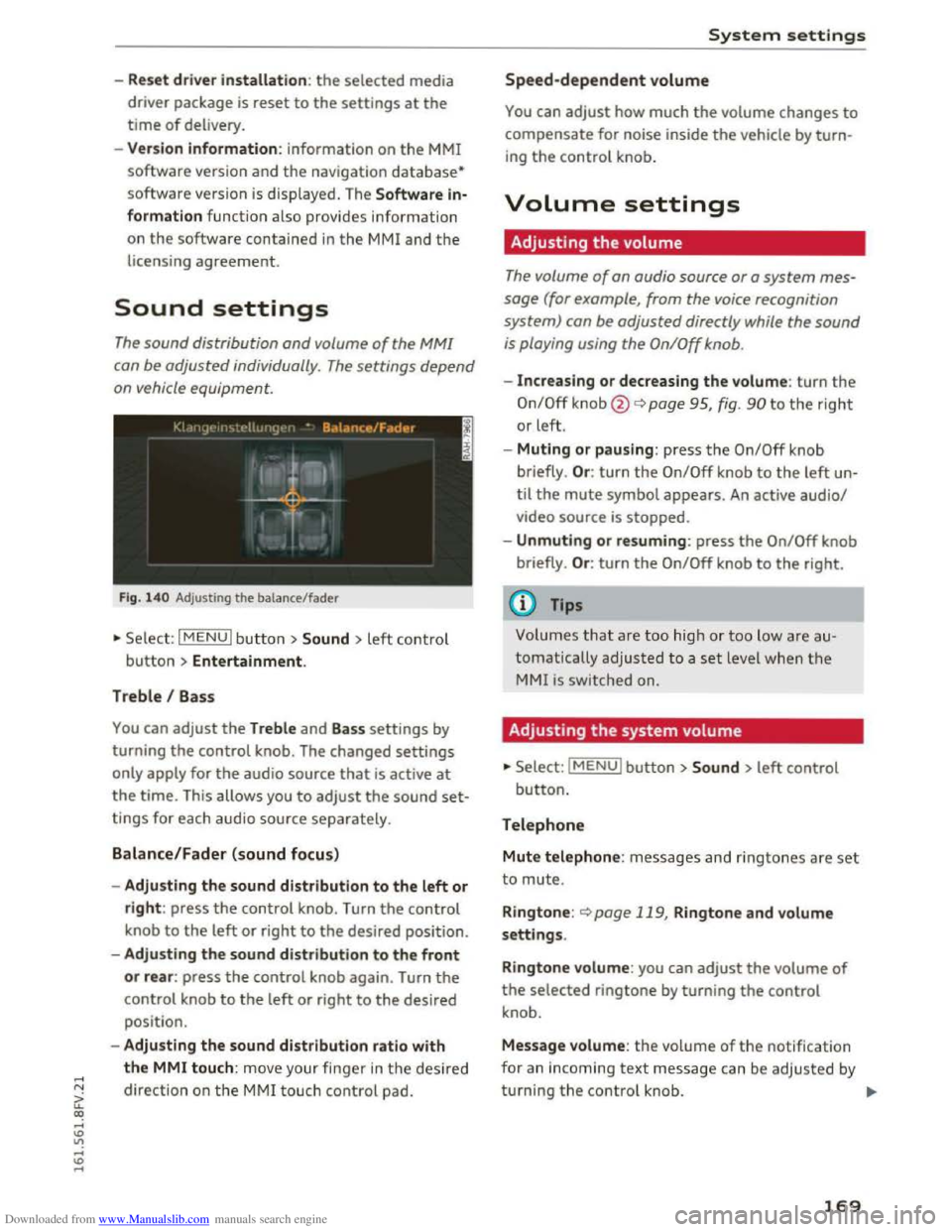
Fig. 14 0 Adjusting the balance/fader
"'Se lect: I MENU I butt on >Sound > left contro l
button > Entertainment.
Treble I Bass
You can adjust the Treble and Bass settings by
turning
the control knob. The changed settings
only apply for the audio source that is active at
the time. This allows you to adjust the sound set
tings for each audio source separately.
Balance/Fader (sound focus)
- Adju sting the sound distribution to the left or
right: press the control knob. Turn the control
knob to the left or right to the desired position.
- Adjusting
the sound distribution to the front
or rear: press the control knob again. Turn the
control knob to the left or right to the desired
position.
- Adjusting
the sound distribution ratio with
the MMI touch: mov e your finger in the desired
direction
on the M MI touch control pad.
System settings
Speed-dependent volume
You can adjust how much the volume changes to
compensate for noise inside the vehicle by turn
ing the control knob.
Volume settings
Adjusting the volume
The volume of an audio source or a system mes
sage (for example, from the voice recognition
system) can be adjusted directly while the sound
is playing using the On/Off knob.
-Increasing or decreasing the volume: turn the
On/Off knob@¢ page 95, fig. 90 to the right
or left.
- Muting
or pausing: press the On/Off knob
briefly . Or :
turn the On/Off knob to the left un
til the mute symbol appears. An active audio/
video source is stopped.
-Unmuting or resuming: press the On/Off knob
briefly . Or :
turn the On/Off knob to the right.
(0 Tips
Volumes that are too hig h or too low are au
tomatically
adjusted to a set level when the
MMI is switched on.
Adjusting the system volume
"'Select: IMENUI button> Sound> left control
button.
Telephone
Mute telephone: messages and ringtones a re set
to mute.
R i
ngtone: <::)page 119, Ringtone and volume
settings.
Ringtone volume: you can adjust the volume of
the selected ringtone by turning the control
knob.
Message volume: the volume of the notification
for an incoming
text message can be adjusted by
turning
the control knob. ..,..
169
Page 172 of 322
Downloaded from www.Manualslib.com manuals search engine System settings
Microphone sensitivity: the vo lume of a phone
call can be adjusted during the phone call using
the control knob.
Navigation
Voice guidance:~ page 138, Voice guidance.
Voice guidance during phone call: 9 page 138,
Voice guidance.
Voice guidance volume: the voice guidance vol
ume can be adjusted during active route guid
ance by turning the control knob.
Entertainment fader: the volume of audio play
back can be
temporarily lowered when the park
i n g
system or voice guidance is active .
Voice recognition
Short dialog : prompts in a shorter format can be
switched on or off.
Speech dialog system volume: you can adjust
the volume of the announcements by turning the
control knob.
Parking aid*
You can adjust the signal tone volume by turning
the control knob.
-Adjusting the Front volume : select and con
firm
High , Medium or Low .
- Adjusting
the Rear volume: select and confirm
High, Medium or Low.
MMI touch
The volume
of the MM! touch voice prompts can
be
adjusted by turning the control knob.
Audi Heartbeat
You can adjust the Audi Heartbeat volume by
turning the control knob.
170
Restarting the MMI
(reset)
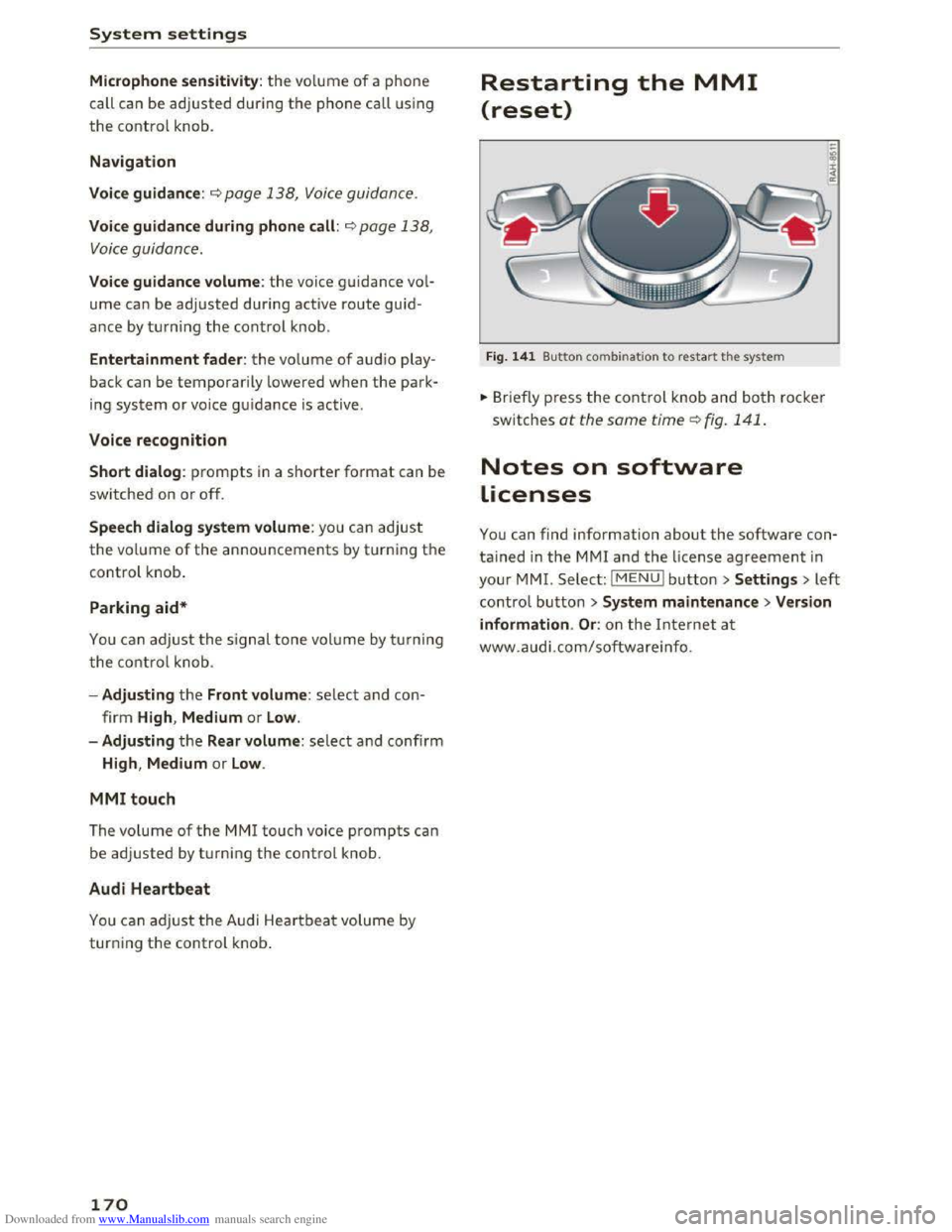
Fig. 141 Button combination to restart th e system
... Briefly press the control knob and both rocker
switches at the same time Q fig. 141 .
Notes on software
Licenses
You can find information about the software con
tained in the MMI and the license agreement in
your MM!. Select: I MENU! button >Settings > left
control button > System maintenance >Version
information .
Or: on the Internet at
www.audi.com/softwareinfo.