audio AUDI TT COUPE 2017 User Guide
[x] Cancel search | Manufacturer: AUDI, Model Year: 2017, Model line: TT COUPE, Model: AUDI TT COUPE 2017Pages: 322, PDF Size: 79.73 MB
Page 133 of 322
co
co
.... N
" N .... 0
0
Vl c:o
-On: the MMI Wi- Fi hotspot is active and visib le
to other devices. You can connect your Wi-Fi device with the MMI.
- Off: the MM I Wi -Fi hotspot is deactivated. An
Internet connection for Wi -Fi devices is not
possible.
A WARNING
- As the driver, do not allow usage of the Wi
Fi hotspot to distract you from driving, as
this could increase the risk of an accident .
- It is only safe to use tab lets, laptops, mo
bile devices and other s imilar dev ices when
the vehicle is stationary because , like all
loose objects, they could be thrown aro und
the ins ide of the vehicle in a crash and cause
serious injur ies. S to re these types of devices
sec urely wh ile driving.
- Do not use a ny w ireless devices on the front
seats w it hi n range of the a irb ags while d riv
ing. Also read the warnings in the chapter
e:!> page 197 .
(D Note
You are respons ible for a ll precautions ta ken
for data protection , a nt i-virus p rotection and
protection against loss of data on mobile de
vices that are used to access the Internet
through the Wi-Fi hotspot.
@ Tips
- A separate, paid mobile subscription may be
needed to use the Wi-Fi hotspot. You can
obtain more information from your cell
phone service provider .
- In vehicles without Aud i connect *, the use
of the Wi-Fi hotspot is only poss ible for the
Wi-Fi audio p layer*. A data connection to
the Internet cannot be established.
-Additional informat ion can be found under
www.audiusa.com /aud iconnect . Audi c
onn ect
Configuring the data
connection
Appl ies to : vehicles wit h Audi connect
To use Audi connect services, a data connection
must be configured .
.. Select: !M ENUI button> right control button>
Connection manag er.
.. Select: r ight cont rol b utton > Online settings >
Dat a conne ction s ettings .
Using the Data conn ection settings menu, you
can set when a n Internet connect ion should be
made . The Internet connection disconnects auto
matically once the requested Audi connect serv
ice no longer requires any data packets.
T he following options can be selected:
Connection setup
- With request :
a data connect ion is only estab
lished when conf irmed.
- No reque st : a data conn ect ion is automatica lly
established to use Audi connect services.
- Ne ver : a data connection is not established.
Aud i connect services cannot be accessed.
If a da ta connection is established, the type of
connection and the s ignal strength is displayed in
the status line of the Infotainment system dis
play @/@
¢ pag e 105 , fig . 107.
An active data conne ct ion can be ended manually
by setting the
Connection setup to Nev er.
Data roaming
Data roaming
is switched off at the factory . To
u se a data conne ct ion outs ide of the cou ntry ,
Da
ta roam ing
m ust be switched on (~) . The sett ing
is sto red for the current SIM card o r the cell
phone that is c urrent ly connected.
Audi connect (MMI)
With this function, you can Allow or Den y the use
of Aud i connect se rvices if the connec tion is set
to
No r eques t or With request .
Connection settings
The connection is configured automat ically based
o n the SIM card be ing used . These values can be .,..
131
Page 157 of 322
co
co
.... N
" N .... 0
0
Vl c:o
Media
Introduction
There are various media drives and connections
avai lable in the MMI. You can play, for example,
audio/video files from the Jukebox* or connect
your mobile device to the Audi mus ic interface*
and operate it through the MMI.
Notes
General information
Media and format restrictions:
the MMI (includ
ing the SD card reader and the USB storage de
vice connection*) was tested with a variety of products and media on the market. However,
there may be cases where individual devices or media and audio/video* files may not be recog
n ized, may play only w ith restrictions or may not
play at all.
Digital Rights Management: please note that
the audio/video files are subject to copyright pro
tection .
The media drives do not play fi les that are pro
tected by ORM and that are ident ified with the
symbol
l'.D .
Data security: never store important data on SD
cards, the Jukebox*, CDs/DVDs or mobile devices .
Audi AG is not responsible for damaged or lost
files and media .
Loading times: the more files/fo lders/play lists
that are on a storage medium, the longer it will
take to load the audio/video files* . Audi recom
mends using storage media that only contain au
dio/video files*. To decrease the t i me it takes to
load audio/v ideo files*, create subfolders (for ex
ample, fo r the art ist or album). The loading time
will also increase when importing fi les.
Additional information : when playing, audio
files are automatically displayed w ith any add i
tional information that is stored (such as the ar
tist, track and album cover). If this information is
not available o n the storage med ium, the MMI
will check the Grace note metadata database .
Media
However, in some cases, the additional informa
tion may not be displayed.
Restricted functionality : reset the Media set
tings
t o the factory default settings if functional
ity is restr icted
<> page 175.
Reset the Jukebox* to the factory default set
t in gs if functiona lity is rest ricted <>
page 175.
For information about the propert ies of support
ed media and fi le formats, see
<>page 168 .
(D Note
You are responsible for all precaut ions taken
for data protection, anti-virus protect ion and
protection against loss of data on mobi le de
v ices that are used to access the Internet
through the Wi-Fi hotspot.
CD/DVD operation
CD/DVD and format restrictions:
the functionali
ty of individual storage media may be limited due
to the variety of blank CDs/DVDs availab le and
the various capacities. Audio CDs or video DVDs
with copy protection, CDs/DVDs that do not con
form to the standard and mult isess ion CDs may
have limited playback or may not play at all . Audi
recommends finaliz ing t he recording process
whe n creat ing mult isess ion CDs. Mult isession is
not supported for DVDs .
Using CDs /DVDs, the CD drive or the DVD drive :
to ensure correct, high-quality playback and to
prevent damage to the drive or disc reading er
ro rs, always store CDs/DVDs in a protective
s leeve and do not expose them to direct sunlight.
Do
not use:
- Damaged, dirty or scratched CDs/DVDs
- Single CDs/DVDs (3 inch/8 cm diameter)
- CD/DVDs that are not round
- CDs/DVDs w ith labels
- Protective rings
- Cleaning CDs
Thermal protection switch: CD/DVD playback
may be temporarily unavailable if outside tem-
peratures are extremely hot or cold. A thermal
llo-
155
Page 158 of 322
Media
protection switch is installed to protect the CD/
DVD and the laser.
L aser dev ices: laser dev ices are d iv ided into safe
ty classes 1 to 4 in accordance with DIN IEC 76
(CO) 6/VDE 0837. The various types of audio
equipment installed conform to safety class
l.
The laser uses so little power or is sh ielded so
there is no danger when it is used correctly.
Media drives
SD card reader
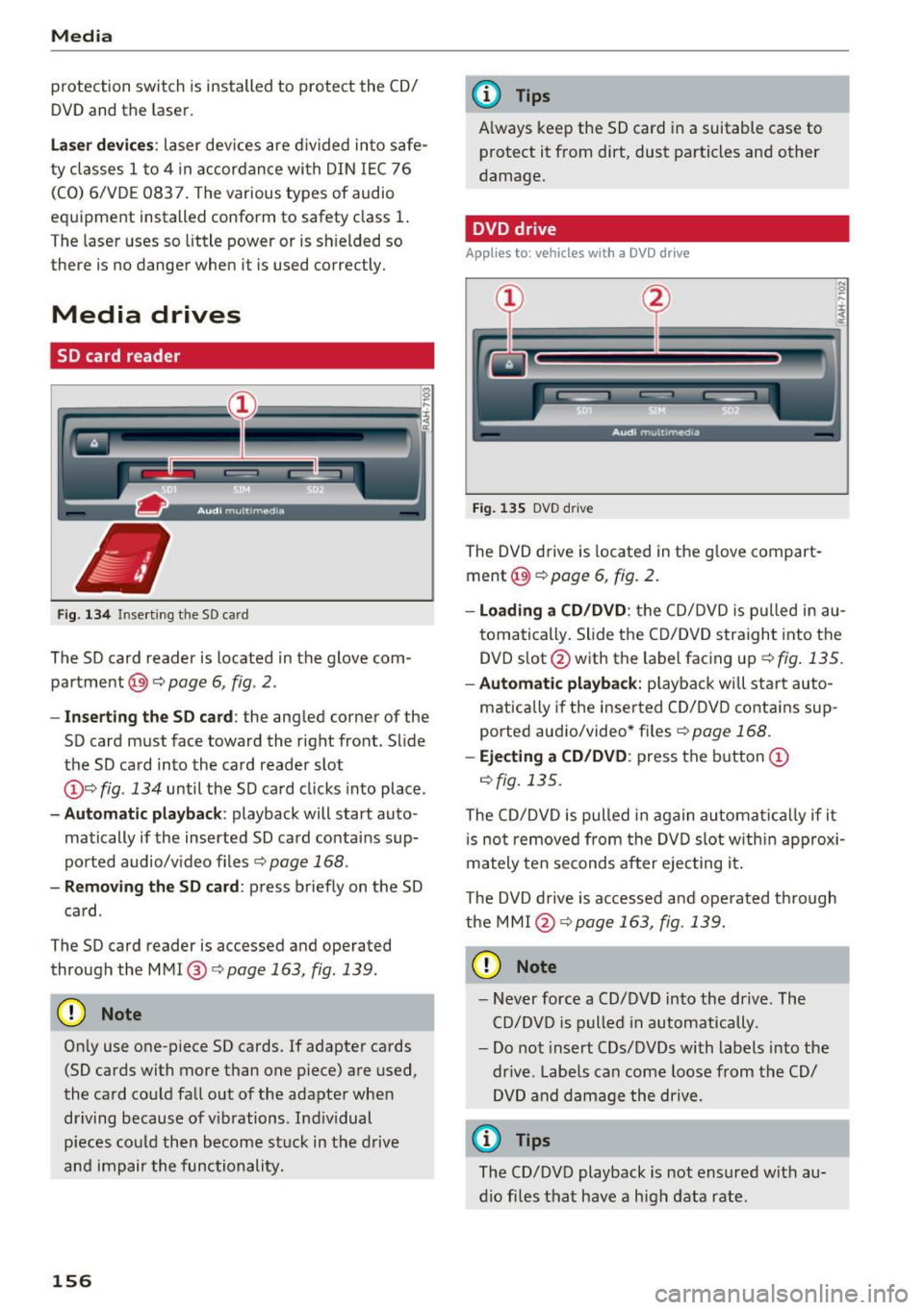
Fig . 134 In serting the SD card
The SD card reader is located in the glove com
pa rtment @)¢
page 6, fig. 2.
- In se rting the SD c ard : the angled corner of the
SD card must face toward the right front. Slide
the SD card into the card reader slot
(J) c:> fig . 134 until the SD card clicks into place .
-Aut om atic playback : playback will start auto
matically if the inserted SD card contains sup
po rted audio/v ideo f iles
c::> page 168 .
-Removing th e SD card : press briefly on the SD
card .
The SD card reader is accessed and operated
through the MMI @c::>
page 163, fig. 139 .
(D Note
Only use one-piece SD cards. If adapter cards
(SD cards with more than one piece) are used,
the card cou ld fall out of the adapter when
dr iving because of v ibrations . Ind iv idual
pieces cou ld then become stuck in the drive
and impair the functionality.
156
@ Tips
A lways keep the SD card in a suitable case to
protect it from dirt, dust particles and other
damage.
DVD drive
Applies to: vehicles with a DVD drive
Fig . 135 DVD dr ive
The DVD drive is located in the g love compart
ment @)
c::> page 6, fig . 2.
-Loadin g a CD /DVD : the CD/DVD is p ulled in au
tomatically . Slide the CD/DVD straight into the
DVD s lot @ with the label facing up
c::>fig . 135.
-Aut om atic playb ack: playback wi ll sta rt auto-
matically if the inse rted CD/DVD contains sup
ported aud io/video* fi les
c::> pag e 168.
-Eje cting a CD /DVD : press the b utton (J)
c::> fig. 135.
The CD/DVD is pulled in again automat ically if it
i s not removed from the DVD slot w ith in a pprox i
mately ten seconds after ejecting it .
The DVD d rive is accessed a nd operated t hrough
the MMI @
c::> page 163, fig. 139.
(D Note
-Never force a CD/DVD into the drive . The
CD/DVD is pulled in automatically.
- Do not insert CDs/DVDs with labels into the
dr ive . Labe ls can come loose from the CD/
DVD and damage the drive.
¢j) Tips
The CD/DVD playback is not ensured with au
d io fi les that have a high data rate .
Page 159 of 322
co
co
.... N
" N .... 0
0
Vl c:o
CD drive
Applies to: vehicles wit h a CD drive
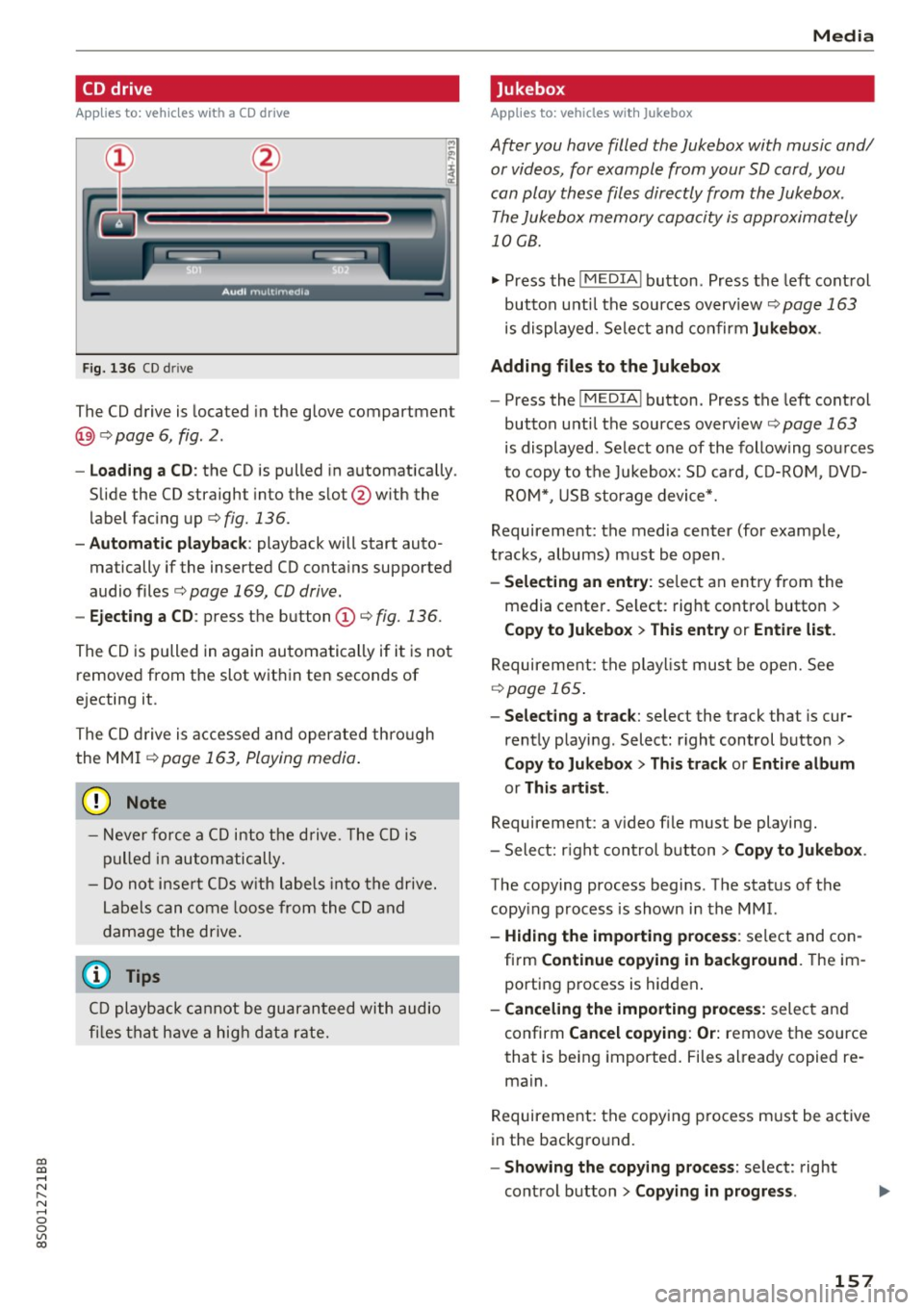
Fig. 13 6 CD drive
The CD drive is located in the glove compartment
@) c> page 6, fig. 2 .
-Loading a CD : the CD is pulled in a utomat ically .
S lide the CD straight into the s lot @ with the
label fac ing up
c> fig. 136.
- Automatic playback : playback will start auto
matically if the inserted CD conta ins suppo rted
audio files
c> page 169, CD drive.
- Ejecting a CD : press the button (D c> fig. 136.
Th@ CD is pulled in again au toma tic ally if i t is no t
remove d from the slot w it hi n te n seconds of
e jecting it.
T h e CD dr ive is accessed and operate d thro ugh
the MMI
c>page 16 3, Playing media .
(D Note
- Never force a CD into th e dr ive . The CD is
pull ed in a uto mat ically .
- D o not i nsert CDs with lab els in to t he drive .
L ab els ca n co me lo os e from the CD an d
dam age the drive .
(D Tips
CD p layback cannot be gu aran tee d wi th audio
fi les that have a h igh data rate.
Media
Jukebox
Applies to: veh icles w ith Jukebox
After you have filled the Jukebox with music and/
or videos, for example from your SD card, you
can play th ese files directly from the Jukebox .
T he Jukebox memory capacity is approxima tely
10 CB .
.,. Press th e I MEDIA ! button. Press the left cont rol
button unt il the sources overv iew
c> page 163
is displayed. Sele ct and co nfir m Jukebox .
Adding files to the Jukebox
- Press the !MEDIA ! button. Press the left cont rol
button unti l the sources overv iew
c> page 163
is displayed . Select one of the follow ing so urces
t o copy to t he Jukebox: SD card, C D-RO M, D V D
RO M*, USB storage device*.
Requirement: the media center (for examp le ,
tracks, albums) m ust be o pen .
-Selecting an ent ry : se lec t an entry from the
media cente r. Se lect : rig ht contro l button
>
Copy to Jukebox > This entry or Entire list.
R equirement: the pla yli st mus t be open. See
c>page 165.
-Selecting a track : select the track that is cur
rent ly p laying . Select : right control b utton
>
Copy to Jukebox > This track or Entire album
or This artist .
Requirement: a v ideo file must be playing.
- Sele ct: r igh t cont rol button
> Copy to Jukebox .
The copying process begi ns. T he stat us of the
copy ing process is shown in the MMI.
- Hiding the importing process : select and co n
fi rm
Continue copying in background . Theim
porti ng p rocess is hidden .
-Canceling the importing process: selec t and
confirm
Cancel copying : Or: remove t he source
that is being imported . Files al rea dy copied re
ma in.
R equirement: the copy in g pr ocess m ust be active
in the bac kgro und.
- Showing the copying process : select: right
cont rol bu tton
> Copying in progress .
157
Page 160 of 322
Media
When importing, the audio files are automatical
ly sorted into the media center categories based
on the stored addit ional information
¢
page 164. The copied video files are stored in
the media center under the
Videos category.
Playing the Jukebox
Requirement: the Jukebox must contain audio/
video fi les ¢
page 15 7, Adding files to the Juke
box.
The Jukebox is accessed and operated through
the MMI
(D ¢ page 163, fig . 139.
Displaying Jukebox memory capacity
Select: right control button > Jukebox memory
capacity .
Information about the Jukebox memory
cap acity and the number of sto red tracks is dis
p la yed.
Deleting tracks from the Jukebox1
)
Requ irement: the Jukebox must contain audio/
video fi les.
- Delet ing an entry: select an entry from the
Jukebox media center . Select: right control but
ton
> Delete from Jukebox > This entry or En
tire list.
- The status of the deleting process is shown in
the MMI. Jukebox playback stops during the de
leting process and starts again automatically
once the dele tion is complete .
0 Note
Do not import aud io/video files when the en
gine is t urned off because this will drain the
veh icle battery.
(D Tips
- Tracks from aud io CDs cannot be imported
to the Jukebox for legal reasons .
- Files that have already been imported are
automat ically recognized and cannot be
copied to the Jukebox again.
- It is not possible to play audio/v ideo* files
in the CD/DVD* drive while importing them.
1> Not i n the Playback vie w.
158
- Th e Juk ebox does not provide an export
function due to legal reasons .
- Files or tracks without stored additional in
formation a re listed as
Unknown . Audi rec
ommends adding additional information
(such as ID3 tags) to audio files.
- Reset the Jukebox to the factory default set
t ings when selling your vehicle¢
page 175 .
Bluetooth audio player
Applies to: vehicles wi th Blu et oot h
With the Bluetooth audio player, you can play
music wirelessly from your Bluetooth-capable
device (such as a cell phone) through the MMI.
Requirement: the vehicle must be stationary and
the Bluetooth function on your Bluetooth device and the
Bluetooth audio player¢ page 176 in
the MMI must both be sw itched on .
-Connecting a Bluetooth device : press the
!MEDIA ! button. Press the left control button
until the source overview is d isp layed. Select
and confirm
Bluetooth audio player @
opage 163, fig . 140 .
-If necessary, select and confirm, Not connected
> Connect Bluetooth audio player . The Blue
tooth device search starts . Follow the instruc
tions in the MMI.
- Select and confirm the des ired Bluetooth de
vice from the list. The MMI generates a PIN for
the conn ection.
- Select and confirm
Yes .
-Enter the PIN for connecting on your Bluetooth
dev ice .
Or : if the PIN is already displayed on
your Bluetooth device, conf irm it in the Blue
tooth device and in the MMI. The time allowed
for entering the PIN is lim ited to approximately
30 seconds.
The media is started and operated through the
mobile device o r the MMI, depending on the de
vice being used.
(D Tips
- Check fo r any connection requests on your
Bluetooth device.
Page 161 of 322
-Multiple Bluetooth audio players can be
connected to the MMI, but only one mobile
device can be active.
- Bluetooth protocols AVRCP (1.0/1.3/1.4)
and A2DP are supported.
- Note the volume setting on your Bluetooth
device. Audi recommends setting your mo
bile device to the maximum volume when
using it as a Bluetooth audio player.
- The supported media functions (such as
shuffle) depend on the Bluetooth device be
ing used.
- For more information on the supported de
vices, visit
www.audi.com/bluetooth or
contact your authorized Audi dealer or au
thorized Audi Service Facility.
Wi-Fi audio player
App lies to: ve hicles with Wi-F i
Using the Wi-Fi audio player media source on the
MMI, you can connect and operate your Wi-Fi-ca
pable media player (such as a smartphone) to
wirelessly play music from your media player
li
brary. The media player is connected through the
vehicle's Wi-Fi hotspot. A UPnP Server opp or an
integrated UPnPIDLNA server on your media
player is required to access your media player
li
brary.
Requirement: the Wi-Fi function on your media
player must be switched on. The
Audi MMI con
nect
app or a UPnP server app must be installed
on your media player .
Or: you must be using a
media player with an integrated UPnP/DLNA
server .
-Connecting a media player: press the I MEDIA !
button. Press the left control button until the
sources overview
c:;, page 163 is dis played. Se
lect and confirm
Wi-Fi audio player
(!) ¢page 163, fig . 140 .
-If necessary, select and confirm Wi-Fi off>
Turn on Wi-Fi
to activate Wi-Fi in the MMI. Se
lect
Wi-Fi settings, if necessary. Select the
same settings on the wireless media player
co that are used for the Wi-Fi hotspot. co
;:::: -Starting the Wi-Fi audio player: start the Audi
" ~ MMI connect app or a UPnP server app . Or: al-o
~ low media sharing on your media player. c:o
Media
Operating the media player: the media player is
operated through the MMI.
- Press the left control button repeatedly until
the
Folders menu item appears . Select and con
firm
Folders.
- Playing music from the media player:
select
and confirm
Media center .
Web radio:
see c:;, page 160 .
A WARNING
-As the driver, do not allow usage of the Wi
Fi hotspot to distract you from driving, as
this could increase the risk of an accident.
- It is only safe to use tablets, laptops, mo
bile devices and other similar devices when
the vehicle is stationary because, like all
loose objects, they could be thrown around
the inside of the vehicle in a crash and cause
serious injuries. Store these types of devices
securely while driving.
- Do not use any wireless devices on the front
seats within range of the airbags while driv
ing. Also read the warnings in the chapter
c:;, page 19 7.
@ Note
You are responsible for all precautions taken
for data protection, anti-virus protection and
protection against loss of data on mobile de
vices that are used to access the Internet
through the Wi-Fi hotspot.
(D Tips
- The Wi-Fi connection is reconfigured when
inserting or removing the mini SIM card in
the SIM card reader* . There may be a tem
porary interruption in audio playback, de
pending on the media player.
- Always read the chapter
c:;, page 132, About
Audi connect.
- Please note that a Wi-Fi connection does
not automatically make it possible to use
the Internet. For additional information, see
¢ page 126.
-To avoid interruptions during playback, de
activate the power saving function on the
media player or connect it to a charger.
159
Page 162 of 322
Media
-The loading times fo r the a udio data depend
on the media p layer used and the number of
files that it conta ins .
- A maxim um of 2,000 entries per directory
are displayed in the MMI.
- Songs down loaded for off line use using m u
sic streaming services are stored on your
mobile device (such as a smartphone) and
may be DRM protected. The Wi-Fi a udio
player will not play DRM protected files.
- Contact you r authorized Audi dea ler or a u
thorized Audi Service Facility for additional i nformat io n on the Wi-Fi audio player.
Online media and
Internet radio
Applies to: vehicl es w ith Audi connect
You can playback and opera te various online me
dia services and Internet radio using the MMI.
.,. Press the IM EDIA I button. Press the left control
button un til the so urces ove rview
¢page 163,
fig. 140
is d isp layed.
Applies to: using online media and Internet radio
Req uirement:
- The
Audi MMI connect app must be installed
and open o n your mob ile device .
- You must be logged into your myAudi account
in the
Audi MMI connect app and you must
have selected your veh icle.
- The Wi-Fi function on the mobile device and on
the MMI must be switched on.
- If necessary, check in the connection manager
¢
page 175 if the mobile device yo u connected
is selected under the
MMI connect app (~).
-The MMI must be connected to the network.
- The symbol for the
Online media* sou rce @
¢page 163, fig . 140 is shown in the MMI.
Applies to: using online media
Addit io nal requirement:
- A suppor ted on line media serv ice m ust be avail
able in your country.
- You must have an accou nt w ith a supported on
li ne med ia serv ice .
- Depend ing on the online media service, you
must install and open an app on your mob ile
device .
160 Starting Online med
ia
- Press the IM EDIA I button. Press the left contro l
button until the sources overview ¢
page 163
is displayed.
- Select and confirm an o n line media serv ice.
Starting Internet radio
- Press th e I MEDIA i button. Press the left cont rol
button u nti l the sources overview ¢
page 163
is displayed.
- Select and confirm
Internet radio . The In ter net
radio b rowser or the last stat ion that was play
i n g is shown.
- Select ing the station : if necessa ry, select and
confirm a category in the I nte rnet rad io
Brows
er
> a s ta tion.
Online m edia and Internet radio : additional op
tion s
-Press the right control but ton.
The following op tions may be ava ilable, depen d
i ng o n the information shown (s uch as the sta
t ion/ track th at is cur rently playing):
- Sound sett ings : ¢ page 178.
-Wi-Fi settings : see¢ page 130, Wi-Fi hotspot.
- Connection manager : see ¢page 175.
- Add ition al opt ions may be ava ilable, dep end ing
on t he active online media service or In ternet
radio .
A WARNING
-It is on ly safe to use ta blets , laptops, mo
bi le devices and ot her simi lar devices when
the vehicle is stat ionary because, like all
loose objects, they cou ld be thrown around
the inside o f th e ve hicle in a c rash and cause
serio us inju ries. S tore these ty pes of devices
secure ly wh ile driving.
- Do no t use any wire less dev ices on the front
seats wi thin ra nge of the air bags while dr iv
ing . Also read t he war ning s in the chapte r
¢page 197.
0 Note
Please note that there genera lly are add it ion
a l costs when usi ng an on line media se rvice
a ccoun t, es pe ci ally w hen it i s used inte rna
tion ally.
-
Page 165 of 322
CD
CD
.... N
" N
Playing media
Accessing media
You can start and operate various media
th rough the MMI control panel.
F ig . 13 9 Diag ram: possible sources in the Med ia m enu
Fi g. 14 0 Diagram : poss ible sources in the Media me nu
Requ irement: a media sou rce must contain au
dio/video* files¢
page 156.
~ Press t he I M EDIA i button. P ress the left control
bu tton until the so urce overview is d isp layed.
~ S e lect and confirm the desi red sou rce. Or :
press the I MEDIAi button repeated ly until the
desired source is selected .
Depen ding on t he veh icle eq uipment, the fo llow
i ng sources may be disp layed in the
Media menu:
Switch to radio : the Radio menu opens
¢page 150.
(D Jukebox * 157
@
®
©
DVD/CD drive * . . . . . . . . . . . . . . . 156, 15 7
SD card reader . . . . . . . . . . . . . . . 156
Audi music interface* ......... . 161
such as iPod, U5B st ick
® Exte rnal audio player . . . . . . . . . . 161
8 1l Depe nding on th e DVD, t his may not be possib le dur ing 0 :G playback .
su ch as an MP3 player connected to
t h e AUX input
@ Bluetooth audio player * .. .. .. .
(v Wi-Fi audio player* .......... .
@ Online media* and Internet radio *
Media
158
159
160
-Playing audio/video files : select a source in the
Media menu > Category (such as artists > al
bum> track).
- Mo ving one le vel up in the folder structure :
press the !BACKI button. Or : select and confirm
Folder up.
- Selecting the previous or next track /chapter
1l: press the On/Off k nob on the MMI control
panel briefly to the left
kJ
- Fast-forwarding and rew inding audio /video
files :
press and hold the On/Off knob on the
MMI control panel to the left
kJ
a longer time.
- Pausing or resuming playback : press the On/
Off knob on the MMI cont rol panel briefly.
(D Tips
-Yo u can scroll through long lists quickly by
t u rning the control knob quickly. The scro ll
ing speed depends on the number of list en
tries.
- For safety reasons, the v ideo image is only
disp layed when the vehicle is stationary. On
ly the sound from the video plays while dr iv
ing.
163
Page 166 of 322
Media
Media center
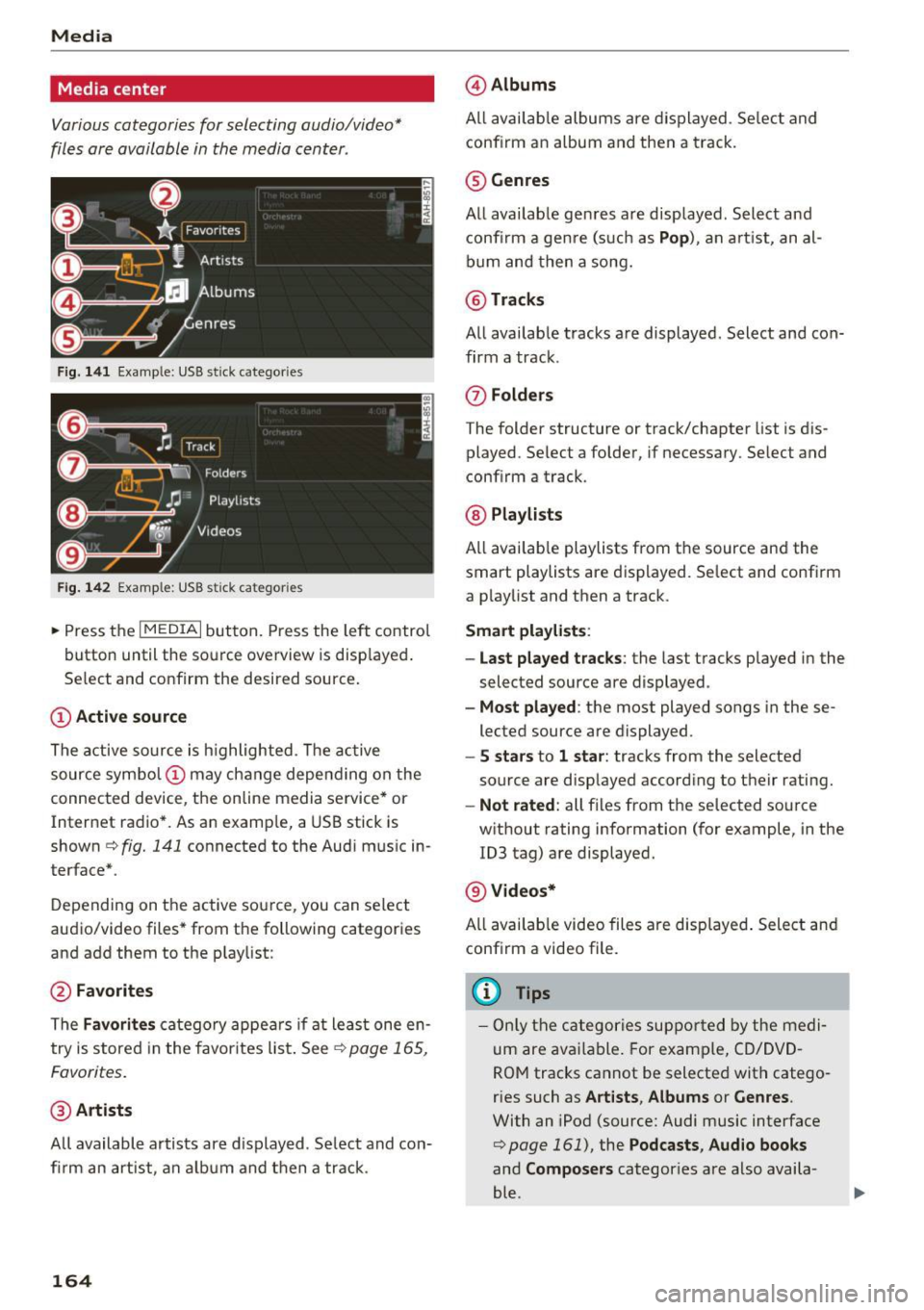
Various categories for selecting audio/video*
files ore available in the media center .
Fig. 141 Example : USB st ick categories
F ig . 142 Example: USB s tick cat egories
~ Press the I MEDIAi but ton. Press the left control
button until the source overview is disp layed.
Se lect and confirm the desired source.
(D Active sourc e
The active source is h ighlighted . T he ac tive
source symbol (!) may change depending on the
connected device, the online media service* or
Internet radio* . As an examp le, a USB stick is
shown
c!;> fig. 141 connected to the Aud i mus ic in
terface* .
Depending on the active source, you can select
audio/video files* from the following categories
and add them to the playlist:
@ Favorites
The Favorit es catego ry appea rs if at least one en
try is stored in the favor ites list . See ~
page 165,
Favor ites.
@ Arti sts
All available artists are d isplayed . Se lect and con
fi rm an art ist , an a lb u m and then a track.
164
@ Album s
All avai lab le albums are displayed . Se lect and
conf irm an a lbum and then a track.
® Genres
All available genres are displayed . Select and
confi rm a gen re (s uch as
Pop ), an a rt ist, an al
bum and then a song.
@ Tracks
All availab le tracks are displayed . Select and con
firm a track .
0 Fo lder s
The folder structure or track/chapter list is dis
played . Se lect a folder , if necessary. Select and
conf irm a track .
@ Playlists
All availab le playlists from the source and the
smart playlists are displayed . Se lect and confirm
a p laylist and then a track .
Smart pla yli sts:
- Last played tra cks :
the last tracks played in the
selected source are displayed .
-Mo st played : the most played songs in these
lected source are displayed.
- S s ta rs to 1 star : tracks from the selected
source are disp layed according to their rating.
- Not rat ed : all files from the selected source
w ithout rating information (for example, in the
ID3 tag) are displayed.
@ Videos*
All availab le video files are displayed . Select and
conf irm a video file .
@ Tips
- Only the categories suppo rted by the medi
um are available . For example, CD/DVD
ROM tracks cannot be selected with catego
ries such as
Art ists , Albums or Genres .
With an iPod (source: Audi music interface
<:!;> page 161), the Podcasts , Aud io books
and Composer s categories are also availa
ble .
Page 167 of 322
CD
CD
.... N
" N .... 0
0
Ill co
-For safety reasons, the video image is only
displayed when the vehicle is stationary. On
ly the sound from the video plays while driv
ing .
- When synchronizing a portable device with
"Cloud" services, playlists may display incor
rectly in the MMI. Use the media center in
the device.
Free text search
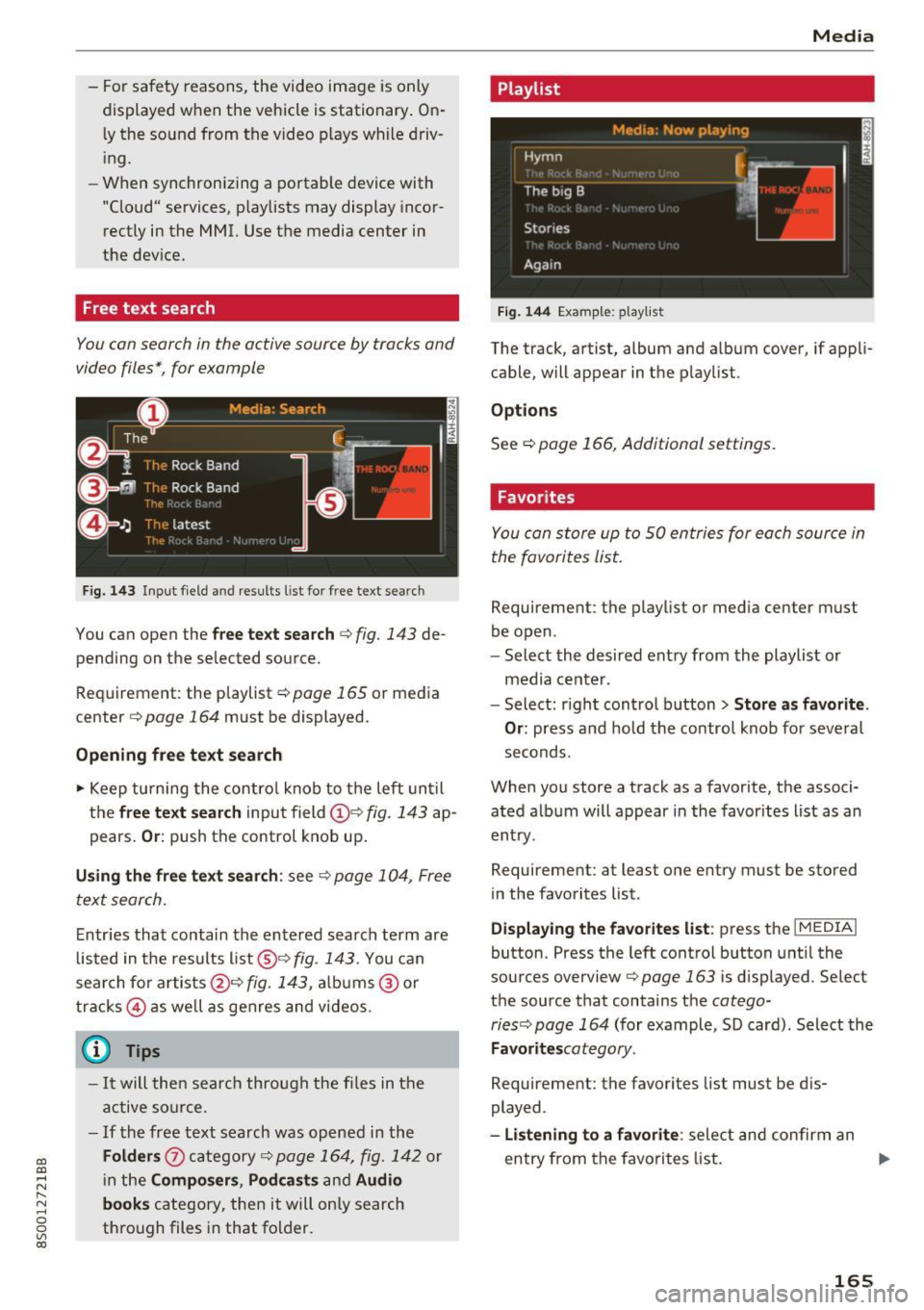
You con search in the active source by tracks and
video files*, for example
Fig. 143 I npu t field and results list for free text sear ch
You can open the free text search c::> fig. 143 de
pend ing on the selected source.
Requirement : the playlist
c::> page 165 or media
center
c::> page 164 must be displayed .
Opening free text search
.,. Keep turning the control knob to the left until
the
free text search input field (D e:> fig. 143 ap
pears.
Or: push the control knob up.
Using the free text search: see c::> page 104, Free
text search.
Entries that contain the entered search term are
listed in the results list@c::>
fig . 143. You can
search for artists@¢
fig. 143, albums @ or
tracks @as well as genres and videos.
Q Tips
-It will then search through the files in the
active source.
- If the free text search was opened in the
Folders 0 category c::> page 164, fig. 142 or
in the
Composers, Podcasts and Audio
books
category, then it will only search
through files in that folder.
Media
Playlist
Fig. 144 Example: playlis t
The track , artist, album and album cover, if appli
cable, will appear in the playlist .
Options
See c::> page 166, Additional settings .
Favorites
You con store up to 50 entries for each source in
the favorites list.
Requirement : the playlis t or media center must
be open .
- Select the desired entry from the playlist or
media center.
- Select: right control button
> Store as favorite.
Or:
press and hold the control knob for several
seconds.
When you store a track as a favorite, the associ ated album will appear in the favorites list as an
entry .
Requiremen t: at least one entry must be stored
in the favorites list.
Displaying the favorites list: press the I MEDIAi
button . Press the left control button until the
sources overview
c::>poge 163 is displayed. Select
the source that contains the
cotego-
ries c::> page 164
(for example, SD card) . Select the
Favoritescotegory .
Requirement: the favorites list must be dis
played .
-Listening to a favorite: select and confirm an
entry from the favorites list . ..,.
165