phone AUDI TT COUPE 2017 Owner's Guide
[x] Cancel search | Manufacturer: AUDI, Model Year: 2017, Model line: TT COUPE, Model: AUDI TT COUPE 2017Pages: 322, PDF Size: 79.73 MB
Page 134 of 322
Audi connect
changed. You can obtain more information from
your cell phone service provider.
- APN: the access point depends on the cell
phone service provider and is assigned auto
matically.
- User name: your cell phone service provider as
signs the user name for your on line profile.
-Password: your cell phone service provider as-
signs the password for your online profile.
Storing changed Connection settings: press the
I BACK ! button.
Reset configuration
An online profile is saved and configured auto
matically . The
Connection settings that you
changed manually are reset to the default set
tings .
.&_ WARNING
-As the driver, do not allow usage of the Wi
Fi hotspot to distract you from driving, as
this could increase the risk of an accident.
-It is only safe to use tablets, laptops, mo
bile devices and other similar devices when
the vehicle is stationary because, like all
loose objects, they could be thrown around
the inside of the vehicle in a crash and cause
serious injuries. Store these types of devices
securely while driving.
- Do not use any wireless devices on the front
seats within range of the airbags while driv
ing. Also read the warnings in the chapter
r:> page 197 .
-Do not use any Wi-Fi devices within range of
the airbags while driving. Also read the
warnings in the chapter
r:> page 197.
@ Note
You are responsible for all precautions taken
for data protection, anti-virus protection and protection against loss of data on mobile de
vices that are used to access the Internet through the Wi-Fi hotspot .
132
(D Tips
-For more information on roaming fees, con
tact Audi connect customer service at
1 (877) SOS-AUDI (2834).
- The speed of the data connection may vary
depending on the vehicle location, the cov
erage area of your cell phone service provid
er and if the recommended provider is used
or not .
- A data connection cannot be established if
incorrect data is entered in the connection
settings.
- For more information on roaming charges,
contact your cell phone service provider.
- The Wi-Fi hotspot reception quality depends
on the signal strength and the availability of
the mobile network. For more information, contact your current network provider .
- For additional information, visit
www.audiusa.com/connect .
About Audi connect
Audi connect services
Applies to: vehicles with Aud i connect
(D Tips
-Audi connect services are only available with
an existing or separate cell phone contract
and only within the mobile network cover
age area. Depending on your cell phone
rates, there may be additional costs when
connecting to the Internet using data pack
ets, particularly with international service.
Based on the high data volume, using a flat
rate data plan is highly recommended.
- You can only use services supported by Audi
connect if you have the optional MMI Navi
gation plus equipment with MMI touch and
Audi connect.
- Use of the L TE* mobile network standard is
not available in every country. Contact your
authorized Audi dealer or authorized Audi
Service Facility or your cell phone service provider for additional information .
Page 135 of 322
co
co
.... N
" N .... 0
0
Vl c:o
-Using Audi connect services requires a mini
SIM card with data options and, when using
L TE*, it also requires L TE options.
- Usage of Audi connect services depends on
the availability of services through third par
ty providers.
- Also note the information in the chapter
¢ page 114, Telephone.
-Audi connect is designed for use only with
the provided SIM card. Receiving data pack
ets from the Internet will quickly increase
the volume of data used. For more informa
tion, contact Audi connect customer service
at 877-S0S-AUDI (2834).
- The Audi connect services are available in
the USA. Audi connect services are currently not available in Canada or in Mexico.
- Availability, scope, providers, screen display
and costs of services may vary depending on
the country, model, model year, end device
and rates. Additional information can be
found under
www.audiusa.com/audicon
nect.
- An initial registration/activation on the
myAudi platform at
my.audiusa.com is re
quired to use individual services. You can
contact an authorized Audi dealer or Audi
connect customer service at 877-505-AUDI (2834) to receive information on options for
expanding your usage and any costs that
may result.
- It is only possible to use Audi connect serv
i ces with a valid Audi connect SIM card.
- To ensure all of the Audi connect features
work correctly, Audi recommends setting up
data service and a Wi-Fi package with your
network service provider. Your network
service provider can be authorized by law,
through a judicial order or other lawful in
structions, to disclose the position of your
vehicle. Additional information on your cell
phone service provider's privacy policies can
be found in their Terms of Use.
- The Audi connect services are a Wi-Fi/Inter
net-based system. If the system does not
function correctly even though all of the re
quirements are met, please try again later
Audi connect
or contact Audi connect customer service at
877-505-AUDI (2834).
- For detailed information on Audi connect
and the Terms of Use, visit
www.audiusa.com/audiconnect.
Data protection
Applies to : vehicles wit h Aud i connect
(D Tips
- You can find additional information in your
MMI in the options menu¢
page 98 for the
selected Audi connect service and also on
the Internet at
www.audiusa.com/audicon
nect.
- Your privacy is important to us.
- AUDI AG collects, processes, shares and
transmits your personal information in ac
cordance with legal regulations in order to
ensure proper function and availability of
the individual Audi connect services. You
can view the complete, current and valid
Audi connect data protection policy in your MMI. The myAudi website is available for to
you to activate additional Audi connect serv ices and to transfer data with your vehicle,
among other services. A one-time registra
tion is required to establish a connection to
your vehicle. For this purpose, AUDI AG col lects, processes, transmits and uses your re
quired personal information as required for
you to use the services provided by AUDI
AG. Your information is not distributed to
third parties. Using your cell phone with the help of your myAudi platform, you can
transfer information for Audi connect serv
ices functions to your vehicle and allow spe
cific information to be transmitted from
your vehicle .
- By activating special information services
that are part of your Audi connect portfolio,
you can use these functions directly in your
vehicle by entering data to confirm your identity (to use social networks, for exam
ple). To do this, the identification informa
tion you provided is forwarded with the re
quest to the respective service provider.
Then you can access your personal content .,.
133
Page 137 of 322
CD
CD
.... N
" N ...... 0
0
Ill co
Navigation
Opening navigation
Applies to: vehicles with navigation system
Navigation
The navigation system directs you to your destination, around traffic incidents and on alternative
routes, if desired.
Fig . 118 Diag ram: Enter destination menu
• Press the I NAV/MAPI button.
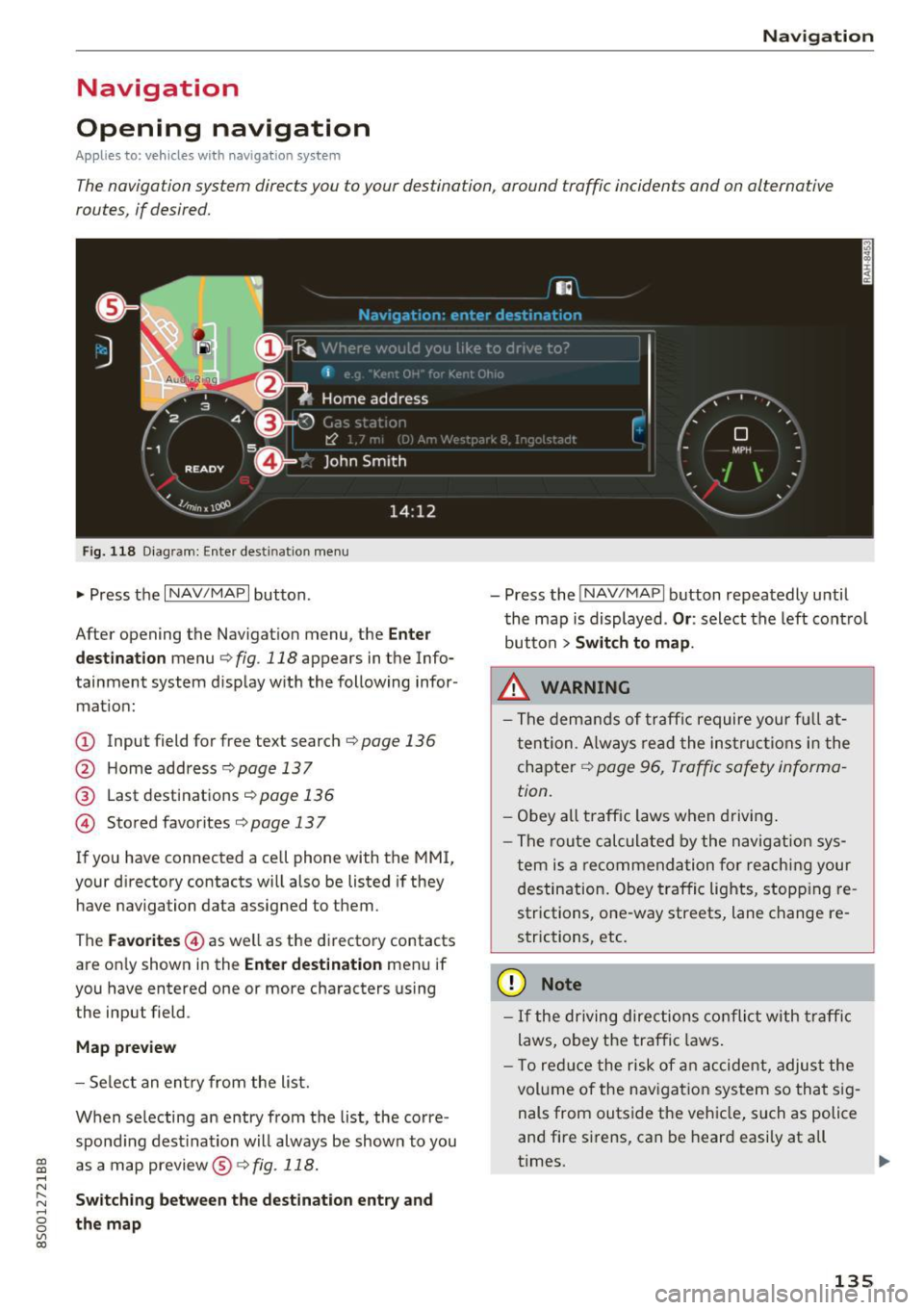
After opening the Navigation menu, the
Enter
destination
menu c;, fig. 118 appears in the Info
tainment system display with the following infor mat ion:
(!) Input field for free text search c;, page 136
@ Home address <=;>page 137
® Last destinations c;, page 136
@ Stored favorites c;, page 13 7
If you have connected a cell phone with the MMI,
your directory contacts will also be listed if they
have navigation data assigned to them .
The
Favorites @) as well as the directory contacts
are on ly shown in the
Enter destination menu if
you have entered one or more characters using
the input field.
Map preview
- Select an entry from the list.
When se lecting an entry from the list, the corre
spond ing destination will always be show n to you
as a map preview@~
fig. 118.
Switching between the destination entry and
the map
- Press the INAV/MAPI button repeatedly until
the map is displayed .
Or: select the left control
button
> Switch to map .
_&. WARNING
- The demands of traffic require your fu ll at
tention . Always read the instructions in the
chapter
c;, page 96, Traffic safety informa
tion.
- Obey
all traffic laws when driving.
- The route calculated by the navigation sys-
tem is a recommendation for reaching your
destination. Obey traffic lights, stopp ing re
strictions, one-way streets, lane change re
strictions, etc.
(D Note
- If the driving directions conflict with traffic
laws, obey the traffic laws.
- T o reduce the risk of an accident, adjust the
volume of the navigation system so that sig
nals from outside the vehicle, such as police
and fire sirens, can be heard easily at all
times.
-
135
Page 140 of 322
Navigation
Transferring a destination from the directory
A pplies to: ve hicles w ith navigation system
You can navigate directly to destinations in the
directory.
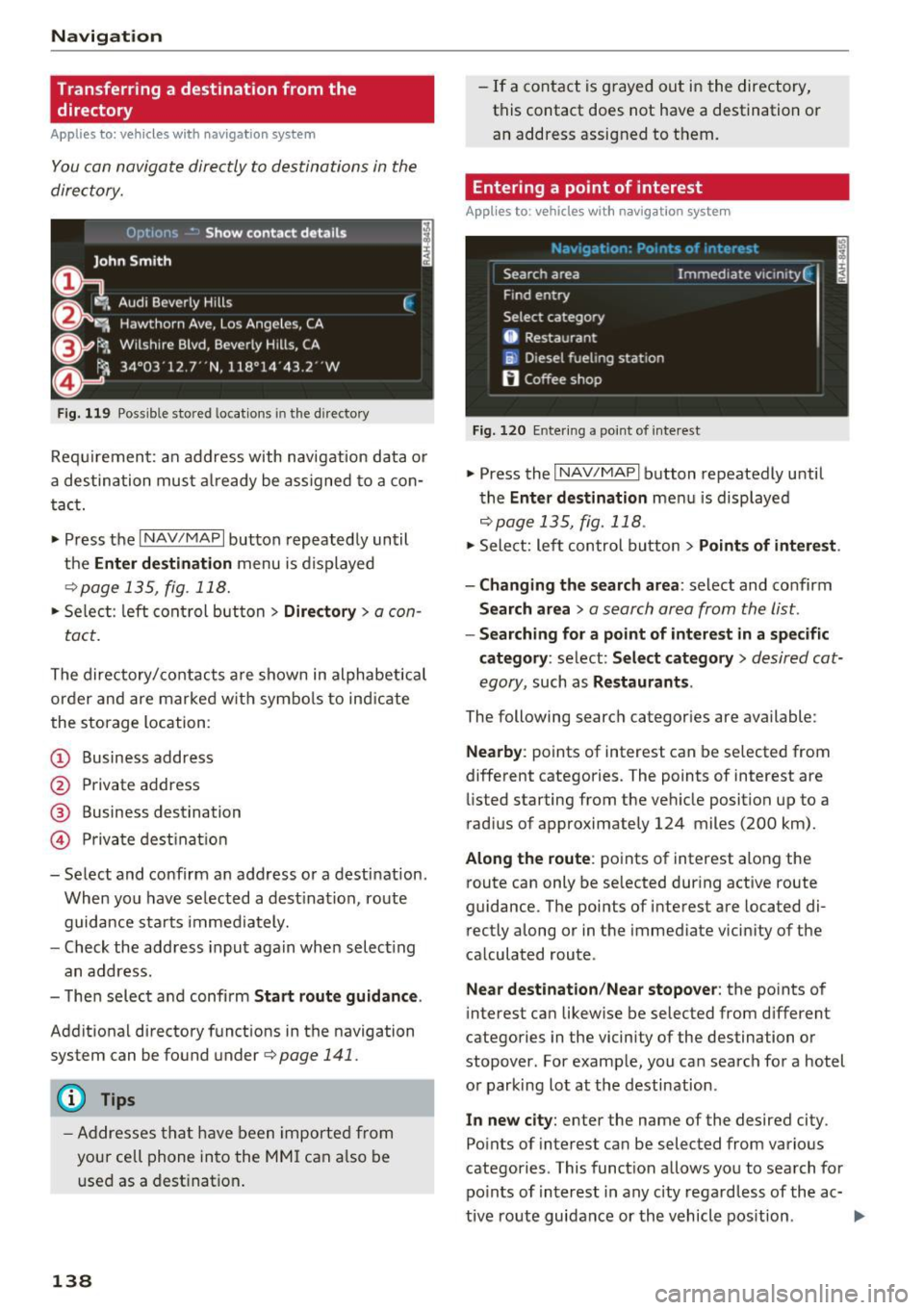
Fig. 119 Possible stored locat ions in the directo ry
Requirement: an address with navigation data or
a destination must already be assigned to a con
tact.
• Press the
I NAV/MAPI button repeatedly until
the
Enter destination menu is displayed
¢page 135, fig . 118.
• Select: left control button > Directory > a con-
tact.
The directory/contacts are shown in alphabetical
order and are marked w ith symbo ls to ind icat e
the storage location :
(D Business address
@ Private address
@ Business destination
© Private destination
- Select and confirm an address or a destination.
When you have selected a destination, route
guidance starts immediately.
- Check the address input again when select ing
an address.
- Then select and confirm
Start route guidance .
Additional directory functions in the navigation
system can be found under¢
page 141.
(D Tips
-Addresses that have been imported from
your cell phone into the MMI can also be
used as a destination.
138
-If a contact is grayed out in the directory,
this contact does not have a destination or
an address assigned to them.
Entering a point of interest
App lies to : vehicles wit h navigat ion syste m
Fig. 120 Entering a point of interest
.. Press the I NAV/MAPI button repeatedly until
the
Enter destination men u is displayed
r=;,p age 135, fig. 118 .
• Sele ct: left control button > Points of interest .
- Changing the search area:
select and confirm
Search area > a search area from the list .
-Searching for a point of interest in a specific
category :
select: Select category > desired cat
egory ,
such as Restaurants .
The following search categor ies are available:
Nearby : points of interest can be selected from
different categories. The points of interest are
listed starting from the vehicle position up to a
r ad ius of approximately 124 miles (200 km).
Along the route: points of interest along the
route can only be selected during active route
guidance. The points of interest are located di
rectly along or in the immediate vicin ity of the
calculated route .
Near destination /Near stopover : the points of
interes t can likewise be selected from d ifferent
categories in the vicinity of the destination or
stopover . For example, you can search for a hotel
or parking lot at the destination.
In new city : enter the name of the desired city .
Points of interest can be selected from various
categories . This function allows you to search for
points of interest in any city regardless of the ac-
tive route guidance or the vehicle position . .._
Page 143 of 322
co
co
.... N
" N .... 0
0
Vl c:o
Home address
Applies to: ve hicles with navigation system
~ Press the I NAV/MAPI button repeatedly until
the
Enter destination menu is displayed
¢ page 135, fig . 118.
Storing a home address
- Se lect and confirm Home address
@¢page 135, fig. 118 . After opening the
home address for the first time, you will be
asked to create a home address.
- Se lect and confirm
Create now.
- Enter a destination or select a destinat ion from
the list.
Or :
-Se lect and confirm a destination > right control
button >
Store as home address .
A home address will be stored in the MMI regard
le ss of the connected cell phone. This home ad
d ress is always available even if a cell phone is
not connected to the MMI.
Editing the home address
-Select Home address @¢ page 135, fig . 118 .
-Select : right contro l button > Edit home ad -
dress .
-Se lect and confirm a new dest inat ion as the
home address.
The selected destination is stored as the new home address.
Favorites
Applies to: ve hicles with navigation system
~ Press the I NAV/MAPI button repeatedly until
the
Enter destination menu is displayed
¢page 135, fig. 118.
-Storing an existing destination as a favorite :
search for the desired destination using the in
put f ield.
Or: select and confirm a dest ination
from the list. Select: right control button>
Store as favorite .
- Renaming favorites :
select: left control button
>
Favorites > a favorite from the list> right
contro l button >
Rename favorite.
- Moving favorites :
select the left control button
>
Favorites > a favorite from the list> right
Navigation
control button > Move favorite. Select and con
firm the desired position.
- Deleting favorites : select and confirm a favo r
ite > right control button >
Delete this favor
ite
I Delete all favorites.
Di rectory contacts
Applies to : vehicles wi th navigat ion syste m
Two addresses (private/business) can be as
signed as destinations for each contact in the di
rectory.
~ Press the I NAV/MAPI button repeatedly until
the
Enter destination menu is displayed
¢page 135, fig. 118.
Storing a destination as a contact in the
directory
Requirement: a cell phone must be connected to
the MMI.
- Select:
a destination > right contro l button >
Add destination to contact.
- Select and confirm Add business destination or
Add private destination.
-Enter a name . Or: select and confirm a directo
ry contact from the list.
- Select and confirm
Save business card.
Additional settings
Navigation settings
Applies to: vehicles wit h navigat ion syste m
~ Press the INAV/MAPI button repeatedly until
the
Enter destination menu is displayed
¢ page 135, fig. 118.
~ Select: right control button> Navigation set-
tings .
Depend ing on the selected function, the fo llow
ing settings can be selected :
Show alternative routes
Up to three route suggest ions and their proper
ties are d isplayed on the overv iew map when the
function is switched on~-See
c;, page 142, Dis-
playing alternative routes . ...,
141
Page 144 of 322
Navigation
Low fuel warning
A messag e is displ aye d if the fuel ga uge goes be
low the reserve mar king when this f unct ion is
sw itche d on ~- Confirming t his message displays
a list of gas stations in the area. When a gas sta
tion is selected, ro ute gu idance from the c urrent
veh icle position is calcu lated.
Notification when nearby*
T he notification w hen near by is s witched off at
the facto ry.
T he MM I notifi es you whe n you a re app roa ching
selec ted po ints o f interes t whe n this func tion is
sw itche d on ~- You can a lso have a
Notification
tone.
Presentation mode
T he p rese ntat ion mode he lps yo u to plan and fo l
low a route wi tho ut m ov ing the veh icle. Y ou ca n
Select starting point when yo u wo uld like to cal
cula te a route sta rting from a locat ion other than
the vehicle pos ition . Start presentation mode to
sim ulate route guidance.
Route criteria
Applies to: vehicles with navigation system
Jl
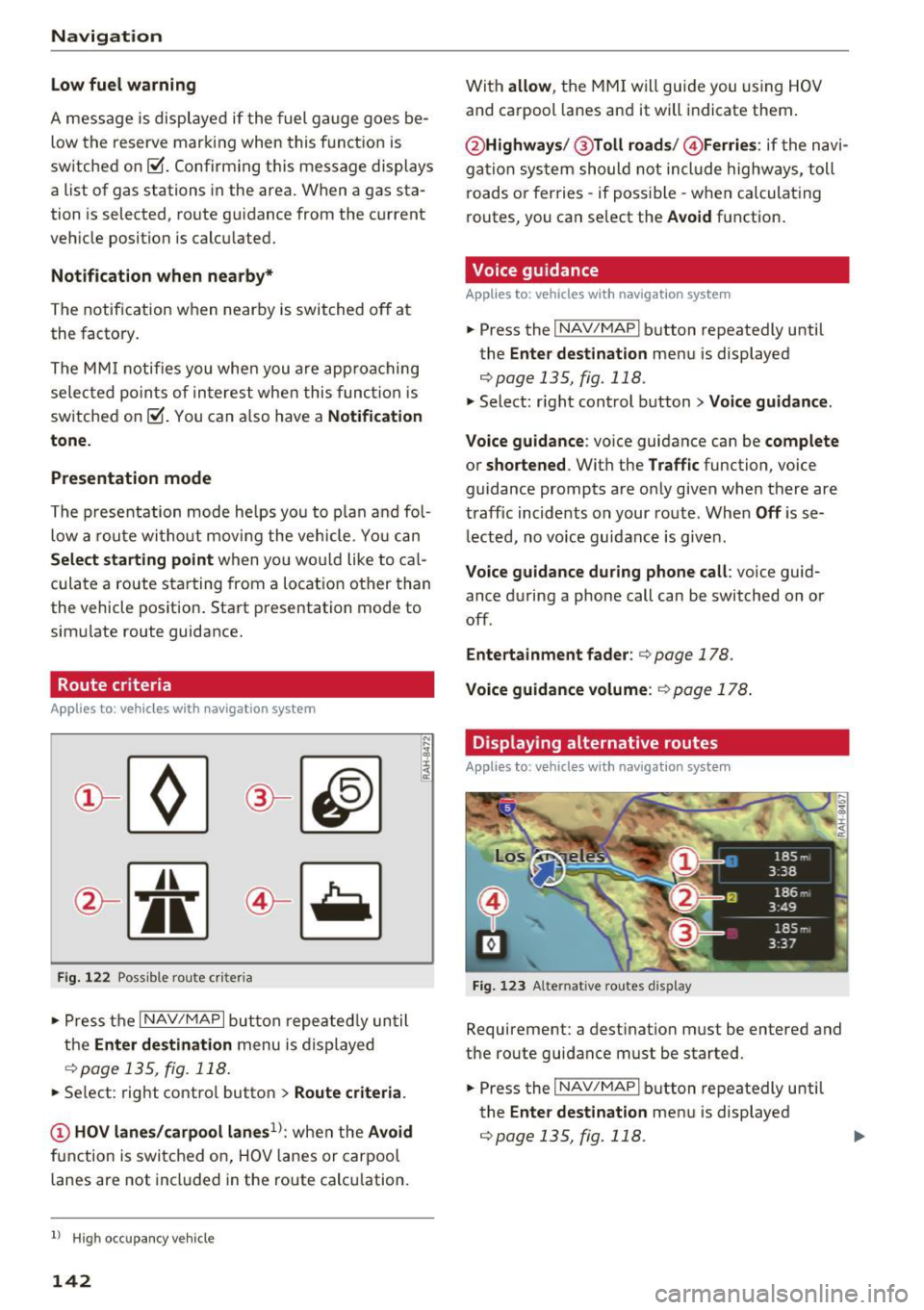
Fig. 122 Possible route c riteria
.. Pres s th e I N AV/MAPI button repeate dly until
the
Enter destination menu is disp layed
c::;, page 135, fig. 118 .
.. Se lect: rig ht contro l butto n > Route criteria.
(!) HOV lane s/carpool lanes1l: whe n the Avoid
fu nction is switc hed o n, HOV lanes or carpool
lanes are not incl uded in the route calc ulation.
l) High occupa ncy vehicle
142
With allow , th e MMI will gui de you using HOV
and ca rpool lanes an d it will indicate them .
@Highways /@ Toll roads / @ Ferries : if the n avi
g ation sys tem should not incl ude highw ays, toll
r oads or ferries -if poss ible -when calculat ing
routes, you can select the
Avoid f u nction .
Voice guidance
Applies to: vehicles with navigation system
.. Press the I NAV/MAPI button repeatedly unti l
the
Enter destinat ion men u is displayed
c::;,page 135, fig. 118.
.. Select : right control button> Voice guidance.
Voice guidance :
voice guidance can be complete
or shortened . With the Traffic function, voice
guidance prompts are o nly given when there are
traff ic incid ents on your route. Whe n
Off is se
l ect ed, no voice guid ance is given.
Voice guidance during phone call : voice guid
ance d uring a phone call can be switched on or
off.
Entertainment fader : c::;, page 178.
Voice guidance volume : c::;, page 178.
Displaying alternative routes
Applies to : vehicles with navigation system
Fig. 1 23 Alterna tive routes display
Requirement: a dest inat io n m ust be entered and
t h e route guida nce must be started.
.. Press the
I NAV/MAPI bu tton repeatedly u nti l
the
Enter destination men u is displayed
c::;,page 135, fig. 118.
Page 153 of 322
Radio functions
Free text search
Using the free text search, you can sel ect t he or
der that th e search terms ar e entered in th e in
pu t fi eld. Search in all fr equency bands for a sta
tion name o r program type such as
News ).
891 l,
~ WJ.3
D
H'l.6 WIBI-FM HDl
WJ .7 WIBI-FM HD4
',M
'1M
~
8') .9 WIBI-FM HD6 ~M
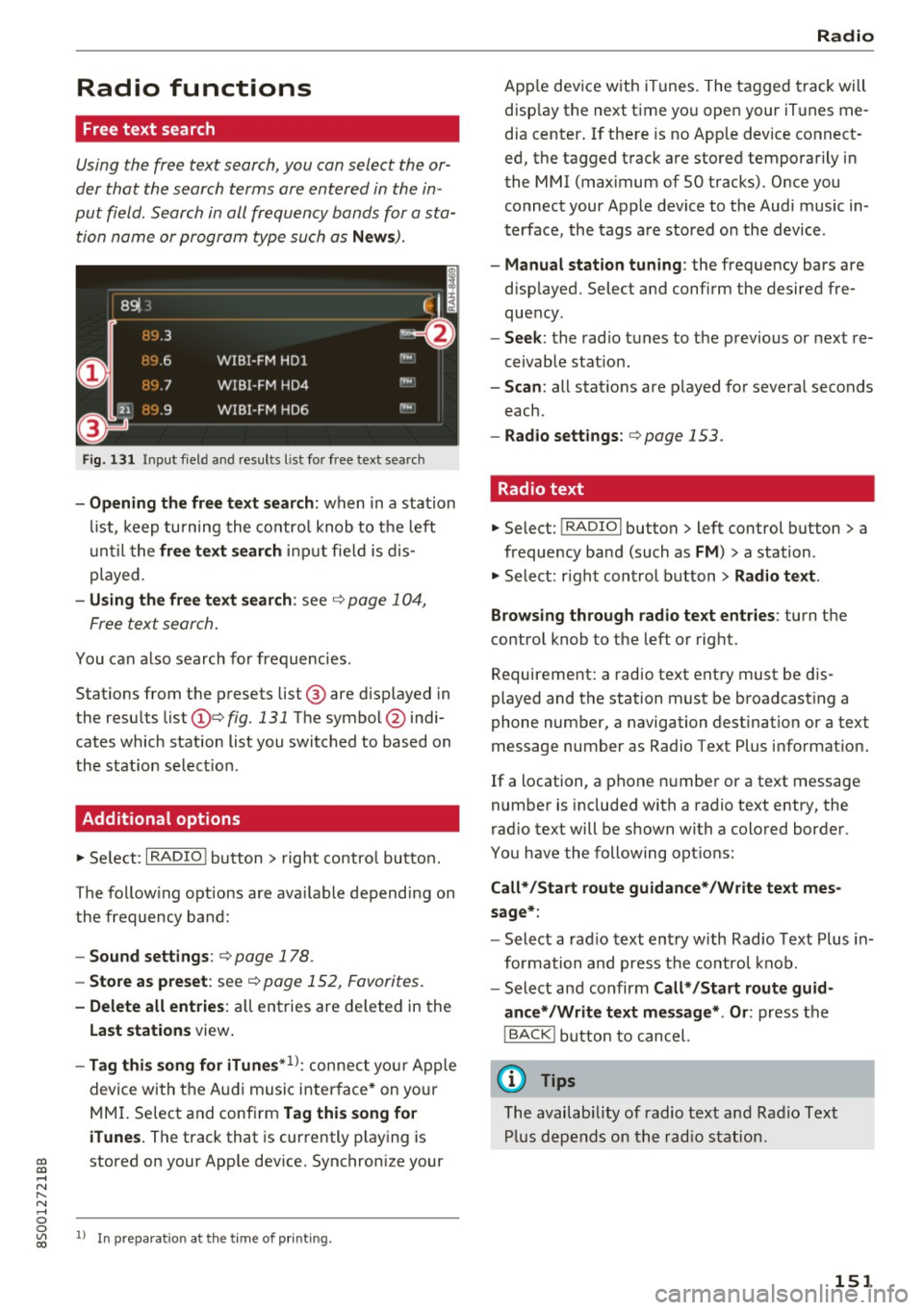
Fig. 131 Input field and resu lts l is t fo r free text searc h
-Opening the free text search: wh en in a sta tion
li st, keep turni ng the co nt rol knob to t he left
until t he
free text search inpu t fie ld is d is
p layed.
- Using the free text search : see c::> page 1 04,
F ree te x t se arch.
You can also search for frequ enci es.
Stat ions from t he p resets list @ are d isp layed in
the resu lts list
(D e::> fig. 131 The symbol @ indi
cates which station list you switched to based on
the s tation selec tion.
Additional options
~ Se le ct: I RADIO ! butto n > right co ntro l bu tton.
The fo llow ing o ptions are ava ilable de pend ing on
th e frequency ban d:
- Sound settings : c::> page 178.
-Store as preset : see c::> page 152, Favorites .
-Delete all entries : all en tries are de lete d in the
Last stations view .
-Tag this song for iTunes*1>: conne ct your Apple
devi ce wi th t he A udi music i nte rfa ce* on yo ur
M MI. Se lec t and conf irm
Tag this song for
iTunes.
The track that is cur rently play ing is
~ stored on y our App le dev ice. Synchron ize your
..... N
" N ..... 0
0
~ l) I n preparat ion at the time of p rinting.
Radio
Ap ple dev ice w it h iTunes . The t agged tra ck will
disp lay the next t ime yo u open your iT unes me
d ia center . If the re is no App le dev ice co nnect
ed, the tagged t rack are stored tempo rarily i n
the MMI (max imum of 50 t racks). Once y ou
connect your App le device to the Au di m usic in
t erface, the tags a re stored o n the device .
-Manual station tuning : the frequency bars are
d isp layed. Select a nd confi rm the desired fre
que ncy.
- Seek : the rad io t unes to the previous or next re
ceivab le stat io n.
- Scan : all stat ions are p layed fo r severa l seconds
each.
- Radio settings: c::>page 153.
Radio text
~ Select: I RADIO I button > left control button > a
frequency band (such as
FM ) > a station .
~ Select: righ t con trol b utton > Radio text.
Browsing through radio text entries :
turn t he
contro l knob to the left o r rig ht.
Requirement: a radio text ent ry must be d is
played and t he station must be b roadcas ting a
phone number, a navigation dest ination or a text
message number as Radio Te xt Plus informat ion .
If a location, a p hone numbe r or a text message
number is included with a radio te xt entry, the
r ad io text will be shown with a colo red borde r.
You have the following opt io ns:
Call*/Start route guidance*/W rite text mes
sage* :
-Select a rad io text en try w ith Rad io Text Plus in
for mation a nd press the co ntrol kn ob .
- Select and confirm
Call* /Start route guid
ance* /Write text message* . Or :
press t he
I BACK ! button t o cancel.
(D Tips
The availabi lity of radio text and R ad io Text
Pl us d ep en ds o n the r adi o s tat ion.
151
Page 160 of 322
Media
When importing, the audio files are automatical
ly sorted into the media center categories based
on the stored addit ional information
¢
page 164. The copied video files are stored in
the media center under the
Videos category.
Playing the Jukebox
Requirement: the Jukebox must contain audio/
video fi les ¢
page 15 7, Adding files to the Juke
box.
The Jukebox is accessed and operated through
the MMI
(D ¢ page 163, fig . 139.
Displaying Jukebox memory capacity
Select: right control button > Jukebox memory
capacity .
Information about the Jukebox memory
cap acity and the number of sto red tracks is dis
p la yed.
Deleting tracks from the Jukebox1
)
Requ irement: the Jukebox must contain audio/
video fi les.
- Delet ing an entry: select an entry from the
Jukebox media center . Select: right control but
ton
> Delete from Jukebox > This entry or En
tire list.
- The status of the deleting process is shown in
the MMI. Jukebox playback stops during the de
leting process and starts again automatically
once the dele tion is complete .
0 Note
Do not import aud io/video files when the en
gine is t urned off because this will drain the
veh icle battery.
(D Tips
- Tracks from aud io CDs cannot be imported
to the Jukebox for legal reasons .
- Files that have already been imported are
automat ically recognized and cannot be
copied to the Jukebox again.
- It is not possible to play audio/v ideo* files
in the CD/DVD* drive while importing them.
1> Not i n the Playback vie w.
158
- Th e Juk ebox does not provide an export
function due to legal reasons .
- Files or tracks without stored additional in
formation a re listed as
Unknown . Audi rec
ommends adding additional information
(such as ID3 tags) to audio files.
- Reset the Jukebox to the factory default set
t ings when selling your vehicle¢
page 175 .
Bluetooth audio player
Applies to: vehicles wi th Blu et oot h
With the Bluetooth audio player, you can play
music wirelessly from your Bluetooth-capable
device (such as a cell phone) through the MMI.
Requirement: the vehicle must be stationary and
the Bluetooth function on your Bluetooth device and the
Bluetooth audio player¢ page 176 in
the MMI must both be sw itched on .
-Connecting a Bluetooth device : press the
!MEDIA ! button. Press the left control button
until the source overview is d isp layed. Select
and confirm
Bluetooth audio player @
opage 163, fig . 140 .
-If necessary, select and confirm, Not connected
> Connect Bluetooth audio player . The Blue
tooth device search starts . Follow the instruc
tions in the MMI.
- Select and confirm the des ired Bluetooth de
vice from the list. The MMI generates a PIN for
the conn ection.
- Select and confirm
Yes .
-Enter the PIN for connecting on your Bluetooth
dev ice .
Or : if the PIN is already displayed on
your Bluetooth device, conf irm it in the Blue
tooth device and in the MMI. The time allowed
for entering the PIN is lim ited to approximately
30 seconds.
The media is started and operated through the
mobile device o r the MMI, depending on the de
vice being used.
(D Tips
- Check fo r any connection requests on your
Bluetooth device.
Page 161 of 322
-Multiple Bluetooth audio players can be
connected to the MMI, but only one mobile
device can be active.
- Bluetooth protocols AVRCP (1.0/1.3/1.4)
and A2DP are supported.
- Note the volume setting on your Bluetooth
device. Audi recommends setting your mo
bile device to the maximum volume when
using it as a Bluetooth audio player.
- The supported media functions (such as
shuffle) depend on the Bluetooth device be
ing used.
- For more information on the supported de
vices, visit
www.audi.com/bluetooth or
contact your authorized Audi dealer or au
thorized Audi Service Facility.
Wi-Fi audio player
App lies to: ve hicles with Wi-F i
Using the Wi-Fi audio player media source on the
MMI, you can connect and operate your Wi-Fi-ca
pable media player (such as a smartphone) to
wirelessly play music from your media player
li
brary. The media player is connected through the
vehicle's Wi-Fi hotspot. A UPnP Server opp or an
integrated UPnPIDLNA server on your media
player is required to access your media player
li
brary.
Requirement: the Wi-Fi function on your media
player must be switched on. The
Audi MMI con
nect
app or a UPnP server app must be installed
on your media player .
Or: you must be using a
media player with an integrated UPnP/DLNA
server .
-Connecting a media player: press the I MEDIA !
button. Press the left control button until the
sources overview
c:;, page 163 is dis played. Se
lect and confirm
Wi-Fi audio player
(!) ¢page 163, fig . 140 .
-If necessary, select and confirm Wi-Fi off>
Turn on Wi-Fi
to activate Wi-Fi in the MMI. Se
lect
Wi-Fi settings, if necessary. Select the
same settings on the wireless media player
co that are used for the Wi-Fi hotspot. co
;:::: -Starting the Wi-Fi audio player: start the Audi
" ~ MMI connect app or a UPnP server app . Or: al-o
~ low media sharing on your media player. c:o
Media
Operating the media player: the media player is
operated through the MMI.
- Press the left control button repeatedly until
the
Folders menu item appears . Select and con
firm
Folders.
- Playing music from the media player:
select
and confirm
Media center .
Web radio:
see c:;, page 160 .
A WARNING
-As the driver, do not allow usage of the Wi
Fi hotspot to distract you from driving, as
this could increase the risk of an accident.
- It is only safe to use tablets, laptops, mo
bile devices and other similar devices when
the vehicle is stationary because, like all
loose objects, they could be thrown around
the inside of the vehicle in a crash and cause
serious injuries. Store these types of devices
securely while driving.
- Do not use any wireless devices on the front
seats within range of the airbags while driv
ing. Also read the warnings in the chapter
c:;, page 19 7.
@ Note
You are responsible for all precautions taken
for data protection, anti-virus protection and
protection against loss of data on mobile de
vices that are used to access the Internet
through the Wi-Fi hotspot.
(D Tips
- The Wi-Fi connection is reconfigured when
inserting or removing the mini SIM card in
the SIM card reader* . There may be a tem
porary interruption in audio playback, de
pending on the media player.
- Always read the chapter
c:;, page 132, About
Audi connect.
- Please note that a Wi-Fi connection does
not automatically make it possible to use
the Internet. For additional information, see
¢ page 126.
-To avoid interruptions during playback, de
activate the power saving function on the
media player or connect it to a charger.
159
Page 162 of 322
Media
-The loading times fo r the a udio data depend
on the media p layer used and the number of
files that it conta ins .
- A maxim um of 2,000 entries per directory
are displayed in the MMI.
- Songs down loaded for off line use using m u
sic streaming services are stored on your
mobile device (such as a smartphone) and
may be DRM protected. The Wi-Fi a udio
player will not play DRM protected files.
- Contact you r authorized Audi dea ler or a u
thorized Audi Service Facility for additional i nformat io n on the Wi-Fi audio player.
Online media and
Internet radio
Applies to: vehicl es w ith Audi connect
You can playback and opera te various online me
dia services and Internet radio using the MMI.
.,. Press the IM EDIA I button. Press the left control
button un til the so urces ove rview
¢page 163,
fig. 140
is d isp layed.
Applies to: using online media and Internet radio
Req uirement:
- The
Audi MMI connect app must be installed
and open o n your mob ile device .
- You must be logged into your myAudi account
in the
Audi MMI connect app and you must
have selected your veh icle.
- The Wi-Fi function on the mobile device and on
the MMI must be switched on.
- If necessary, check in the connection manager
¢
page 175 if the mobile device yo u connected
is selected under the
MMI connect app (~).
-The MMI must be connected to the network.
- The symbol for the
Online media* sou rce @
¢page 163, fig . 140 is shown in the MMI.
Applies to: using online media
Addit io nal requirement:
- A suppor ted on line media serv ice m ust be avail
able in your country.
- You must have an accou nt w ith a supported on
li ne med ia serv ice .
- Depend ing on the online media service, you
must install and open an app on your mob ile
device .
160 Starting Online med
ia
- Press the IM EDIA I button. Press the left contro l
button until the sources overview ¢
page 163
is displayed.
- Select and confirm an o n line media serv ice.
Starting Internet radio
- Press th e I MEDIA i button. Press the left cont rol
button u nti l the sources overview ¢
page 163
is displayed.
- Select and confirm
Internet radio . The In ter net
radio b rowser or the last stat ion that was play
i n g is shown.
- Select ing the station : if necessa ry, select and
confirm a category in the I nte rnet rad io
Brows
er
> a s ta tion.
Online m edia and Internet radio : additional op
tion s
-Press the right control but ton.
The following op tions may be ava ilable, depen d
i ng o n the information shown (s uch as the sta
t ion/ track th at is cur rently playing):
- Sound sett ings : ¢ page 178.
-Wi-Fi settings : see¢ page 130, Wi-Fi hotspot.
- Connection manager : see ¢page 175.
- Add ition al opt ions may be ava ilable, dep end ing
on t he active online media service or In ternet
radio .
A WARNING
-It is on ly safe to use ta blets , laptops, mo
bi le devices and ot her simi lar devices when
the vehicle is stat ionary because, like all
loose objects, they cou ld be thrown around
the inside o f th e ve hicle in a c rash and cause
serio us inju ries. S tore these ty pes of devices
secure ly wh ile driving.
- Do no t use any wire less dev ices on the front
seats wi thin ra nge of the air bags while dr iv
ing . Also read t he war ning s in the chapte r
¢page 197.
0 Note
Please note that there genera lly are add it ion
a l costs when usi ng an on line media se rvice
a ccoun t, es pe ci ally w hen it i s used inte rna
tion ally.
-