warning AUDI TT COUPE 2017 Manual PDF
[x] Cancel search | Manufacturer: AUDI, Model Year: 2017, Model line: TT COUPE, Model: AUDI TT COUPE 2017Pages: 322, PDF Size: 79.73 MB
Page 128 of 322
Audi connect
Audi connect
Introduction
Applies to: vehicles with Audi connect
With Audi connect services, on line information is
transmitted and integrated direct ly in the vehi
cle.
A mobi le end dev ice can be used to access the In
ternet through a Wi- Fi hotspot, either when the
vehicle is stationary or from the rear seat when
the vehicle is in motion.
A WARNING
- To reduce the risk of an accident, on ly use
Audi connect serv ices when road and t raff ic
co ndit io ns permit . Always read the instruc
t ions in the chapter ¢
page 96, Traffic safe
ty information .
-It is only safe to use tab lets, laptops, mo
bile devices and other s imilar devices when
the vehicle is stationa ry because, like all
loose objec ts, they could be throw n aro und
t h e ins ide of the vehicle in a crash and cause
serious injur ies . Sto re these types of devi ces
sec urely whi le driving.
- To reduce the risk o f an a ccident, use the
Audi connect serv ices w ith a Wi -Fi hotspot
only in the rear seat when the veh icle is in
motion or only when the vehicle is station
ary.
(D Note
Audi connect is designed fo r use only with the
prov ided SIM card . Aud i AG is not liable for
the consequences of using other SI M cards .
(D Tips
Read this chap ter also befo re operating
¢ page 13 2, About Audi connect.
126
Setup
Audi connect requirements
Applies to: vehicles with Audi connect
An Internet connection is required to use Aud i
connect. The following requirements must be
met to establish a connect ion:
- The A udi connect SIM card m ust be inserted in
to the SIM card reader for the MMI.
- A data connection must be conf ig ured for Aud i
connect services.
(D Tips
The data connection for Audi connect services i s preco nfigured at the factory . You can
change the data connection at any t ime if yo u
need to adjust the configuration¢
page 131.
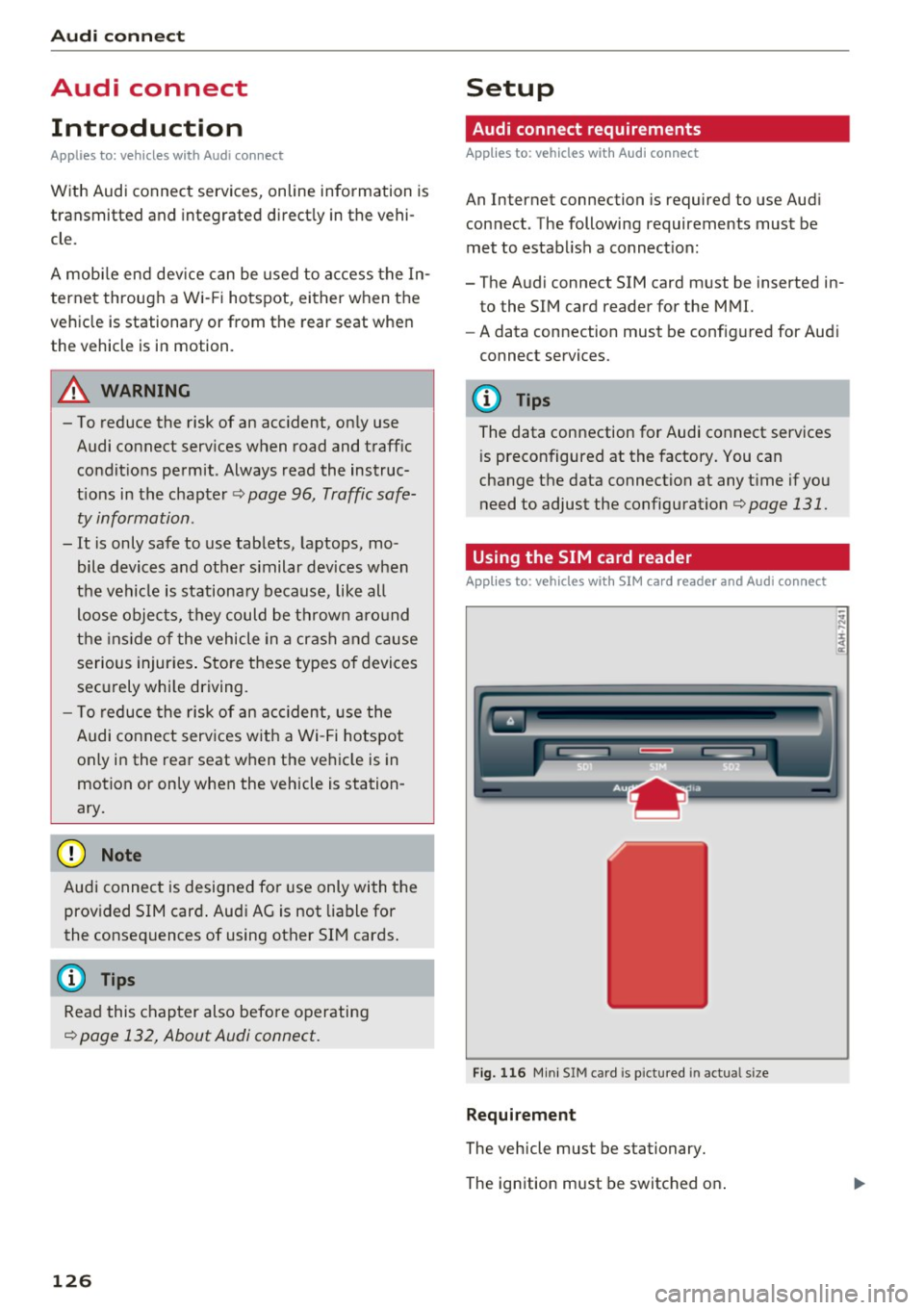
Using the SIM card reader
Applies to: vehicles with SIM card reader and Audi connect
Fi g. 1 16 Min i S IM card is pictu red in act ual size
Requirement
The vehicle must be stationary.
The ignition must be switched on .
Page 133 of 322
co
co
.... N
" N .... 0
0
Vl c:o
-On: the MMI Wi- Fi hotspot is active and visib le
to other devices. You can connect your Wi-Fi device with the MMI.
- Off: the MM I Wi -Fi hotspot is deactivated. An
Internet connection for Wi -Fi devices is not
possible.
A WARNING
- As the driver, do not allow usage of the Wi
Fi hotspot to distract you from driving, as
this could increase the risk of an accident .
- It is only safe to use tab lets, laptops, mo
bile devices and other s imilar dev ices when
the vehicle is stationary because , like all
loose objects, they could be thrown aro und
the ins ide of the vehicle in a crash and cause
serious injur ies. S to re these types of devices
sec urely wh ile driving.
- Do not use a ny w ireless devices on the front
seats w it hi n range of the a irb ags while d riv
ing. Also read the warnings in the chapter
e:!> page 197 .
(D Note
You are respons ible for a ll precautions ta ken
for data protection , a nt i-virus p rotection and
protection against loss of data on mobile de
vices that are used to access the Internet
through the Wi-Fi hotspot.
@ Tips
- A separate, paid mobile subscription may be
needed to use the Wi-Fi hotspot. You can
obtain more information from your cell
phone service provider .
- In vehicles without Aud i connect *, the use
of the Wi-Fi hotspot is only poss ible for the
Wi-Fi audio p layer*. A data connection to
the Internet cannot be established.
-Additional informat ion can be found under
www.audiusa.com /aud iconnect . Audi c
onn ect
Configuring the data
connection
Appl ies to : vehicles wit h Audi connect
To use Audi connect services, a data connection
must be configured .
.. Select: !M ENUI button> right control button>
Connection manag er.
.. Select: r ight cont rol b utton > Online settings >
Dat a conne ction s ettings .
Using the Data conn ection settings menu, you
can set when a n Internet connect ion should be
made . The Internet connection disconnects auto
matically once the requested Audi connect serv
ice no longer requires any data packets.
T he following options can be selected:
Connection setup
- With request :
a data connect ion is only estab
lished when conf irmed.
- No reque st : a data conn ect ion is automatica lly
established to use Audi connect services.
- Ne ver : a data connection is not established.
Aud i connect services cannot be accessed.
If a da ta connection is established, the type of
connection and the s ignal strength is displayed in
the status line of the Infotainment system dis
play @/@
¢ pag e 105 , fig . 107.
An active data conne ct ion can be ended manually
by setting the
Connection setup to Nev er.
Data roaming
Data roaming
is switched off at the factory . To
u se a data conne ct ion outs ide of the cou ntry ,
Da
ta roam ing
m ust be switched on (~) . The sett ing
is sto red for the current SIM card o r the cell
phone that is c urrent ly connected.
Audi connect (MMI)
With this function, you can Allow or Den y the use
of Aud i connect se rvices if the connec tion is set
to
No r eques t or With request .
Connection settings
The connection is configured automat ically based
o n the SIM card be ing used . These values can be .,..
131
Page 134 of 322
Audi connect
changed. You can obtain more information from
your cell phone service provider.
- APN: the access point depends on the cell
phone service provider and is assigned auto
matically.
- User name: your cell phone service provider as
signs the user name for your on line profile.
-Password: your cell phone service provider as-
signs the password for your online profile.
Storing changed Connection settings: press the
I BACK ! button.
Reset configuration
An online profile is saved and configured auto
matically . The
Connection settings that you
changed manually are reset to the default set
tings .
.&_ WARNING
-As the driver, do not allow usage of the Wi
Fi hotspot to distract you from driving, as
this could increase the risk of an accident.
-It is only safe to use tablets, laptops, mo
bile devices and other similar devices when
the vehicle is stationary because, like all
loose objects, they could be thrown around
the inside of the vehicle in a crash and cause
serious injuries. Store these types of devices
securely while driving.
- Do not use any wireless devices on the front
seats within range of the airbags while driv
ing. Also read the warnings in the chapter
r:> page 197 .
-Do not use any Wi-Fi devices within range of
the airbags while driving. Also read the
warnings in the chapter
r:> page 197.
@ Note
You are responsible for all precautions taken
for data protection, anti-virus protection and protection against loss of data on mobile de
vices that are used to access the Internet through the Wi-Fi hotspot .
132
(D Tips
-For more information on roaming fees, con
tact Audi connect customer service at
1 (877) SOS-AUDI (2834).
- The speed of the data connection may vary
depending on the vehicle location, the cov
erage area of your cell phone service provid
er and if the recommended provider is used
or not .
- A data connection cannot be established if
incorrect data is entered in the connection
settings.
- For more information on roaming charges,
contact your cell phone service provider.
- The Wi-Fi hotspot reception quality depends
on the signal strength and the availability of
the mobile network. For more information, contact your current network provider .
- For additional information, visit
www.audiusa.com/connect .
About Audi connect
Audi connect services
Applies to: vehicles with Aud i connect
(D Tips
-Audi connect services are only available with
an existing or separate cell phone contract
and only within the mobile network cover
age area. Depending on your cell phone
rates, there may be additional costs when
connecting to the Internet using data pack
ets, particularly with international service.
Based on the high data volume, using a flat
rate data plan is highly recommended.
- You can only use services supported by Audi
connect if you have the optional MMI Navi
gation plus equipment with MMI touch and
Audi connect.
- Use of the L TE* mobile network standard is
not available in every country. Contact your
authorized Audi dealer or authorized Audi
Service Facility or your cell phone service provider for additional information .
Page 137 of 322
CD
CD
.... N
" N ...... 0
0
Ill co
Navigation
Opening navigation
Applies to: vehicles with navigation system
Navigation
The navigation system directs you to your destination, around traffic incidents and on alternative
routes, if desired.
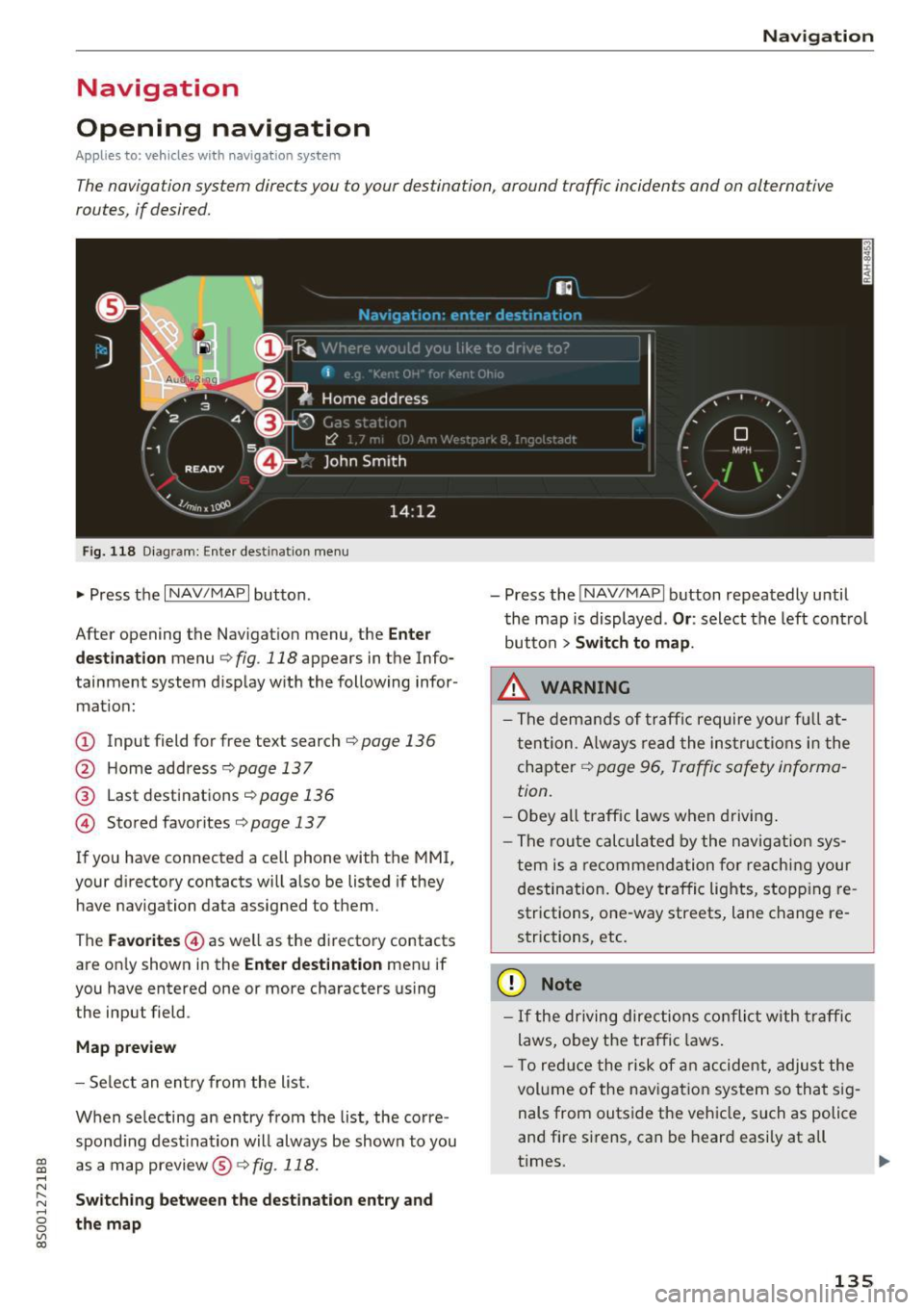
Fig . 118 Diag ram: Enter destination menu
• Press the I NAV/MAPI button.
After opening the Navigation menu, the
Enter
destination
menu c;, fig. 118 appears in the Info
tainment system display with the following infor mat ion:
(!) Input field for free text search c;, page 136
@ Home address <=;>page 137
® Last destinations c;, page 136
@ Stored favorites c;, page 13 7
If you have connected a cell phone with the MMI,
your directory contacts will also be listed if they
have navigation data assigned to them .
The
Favorites @) as well as the directory contacts
are on ly shown in the
Enter destination menu if
you have entered one or more characters using
the input field.
Map preview
- Select an entry from the list.
When se lecting an entry from the list, the corre
spond ing destination will always be show n to you
as a map preview@~
fig. 118.
Switching between the destination entry and
the map
- Press the INAV/MAPI button repeatedly until
the map is displayed .
Or: select the left control
button
> Switch to map .
_&. WARNING
- The demands of traffic require your fu ll at
tention . Always read the instructions in the
chapter
c;, page 96, Traffic safety informa
tion.
- Obey
all traffic laws when driving.
- The route calculated by the navigation sys-
tem is a recommendation for reaching your
destination. Obey traffic lights, stopp ing re
strictions, one-way streets, lane change re
strictions, etc.
(D Note
- If the driving directions conflict with traffic
laws, obey the traffic laws.
- T o reduce the risk of an accident, adjust the
volume of the navigation system so that sig
nals from outside the vehicle, such as police
and fire sirens, can be heard easily at all
times.
-
135
Page 144 of 322
Navigation
Low fuel warning
A messag e is displ aye d if the fuel ga uge goes be
low the reserve mar king when this f unct ion is
sw itche d on ~- Confirming t his message displays
a list of gas stations in the area. When a gas sta
tion is selected, ro ute gu idance from the c urrent
veh icle position is calcu lated.
Notification when nearby*
T he notification w hen near by is s witched off at
the facto ry.
T he MM I notifi es you whe n you a re app roa ching
selec ted po ints o f interes t whe n this func tion is
sw itche d on ~- You can a lso have a
Notification
tone.
Presentation mode
T he p rese ntat ion mode he lps yo u to plan and fo l
low a route wi tho ut m ov ing the veh icle. Y ou ca n
Select starting point when yo u wo uld like to cal
cula te a route sta rting from a locat ion other than
the vehicle pos ition . Start presentation mode to
sim ulate route guidance.
Route criteria
Applies to: vehicles with navigation system
Jl
Fig. 122 Possible route c riteria
.. Pres s th e I N AV/MAPI button repeate dly until
the
Enter destination menu is disp layed
c::;, page 135, fig. 118 .
.. Se lect: rig ht contro l butto n > Route criteria.
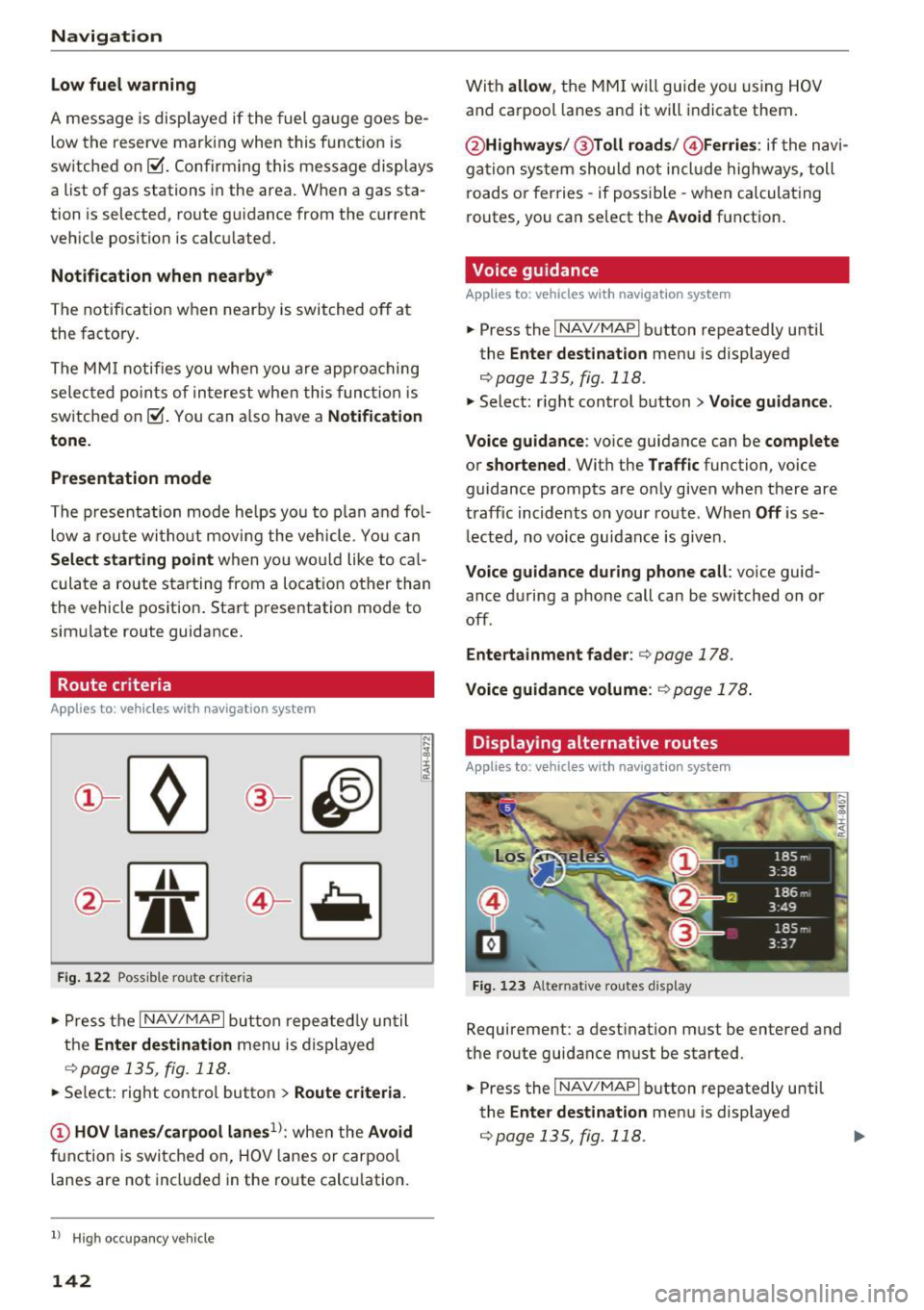
(!) HOV lane s/carpool lanes1l: whe n the Avoid
fu nction is switc hed o n, HOV lanes or carpool
lanes are not incl uded in the route calc ulation.
l) High occupa ncy vehicle
142
With allow , th e MMI will gui de you using HOV
and ca rpool lanes an d it will indicate them .
@Highways /@ Toll roads / @ Ferries : if the n avi
g ation sys tem should not incl ude highw ays, toll
r oads or ferries -if poss ible -when calculat ing
routes, you can select the
Avoid f u nction .
Voice guidance
Applies to: vehicles with navigation system
.. Press the I NAV/MAPI button repeatedly unti l
the
Enter destinat ion men u is displayed
c::;,page 135, fig. 118.
.. Select : right control button> Voice guidance.
Voice guidance :
voice guidance can be complete
or shortened . With the Traffic function, voice
guidance prompts are o nly given when there are
traff ic incid ents on your route. Whe n
Off is se
l ect ed, no voice guid ance is given.
Voice guidance during phone call : voice guid
ance d uring a phone call can be switched on or
off.
Entertainment fader : c::;, page 178.
Voice guidance volume : c::;, page 178.
Displaying alternative routes
Applies to : vehicles with navigation system
Fig. 1 23 Alterna tive routes display
Requirement: a dest inat io n m ust be entered and
t h e route guida nce must be started.
.. Press the
I NAV/MAPI bu tton repeatedly u nti l
the
Enter destination men u is displayed
c::;,page 135, fig. 118.
Page 150 of 322
Navig ation
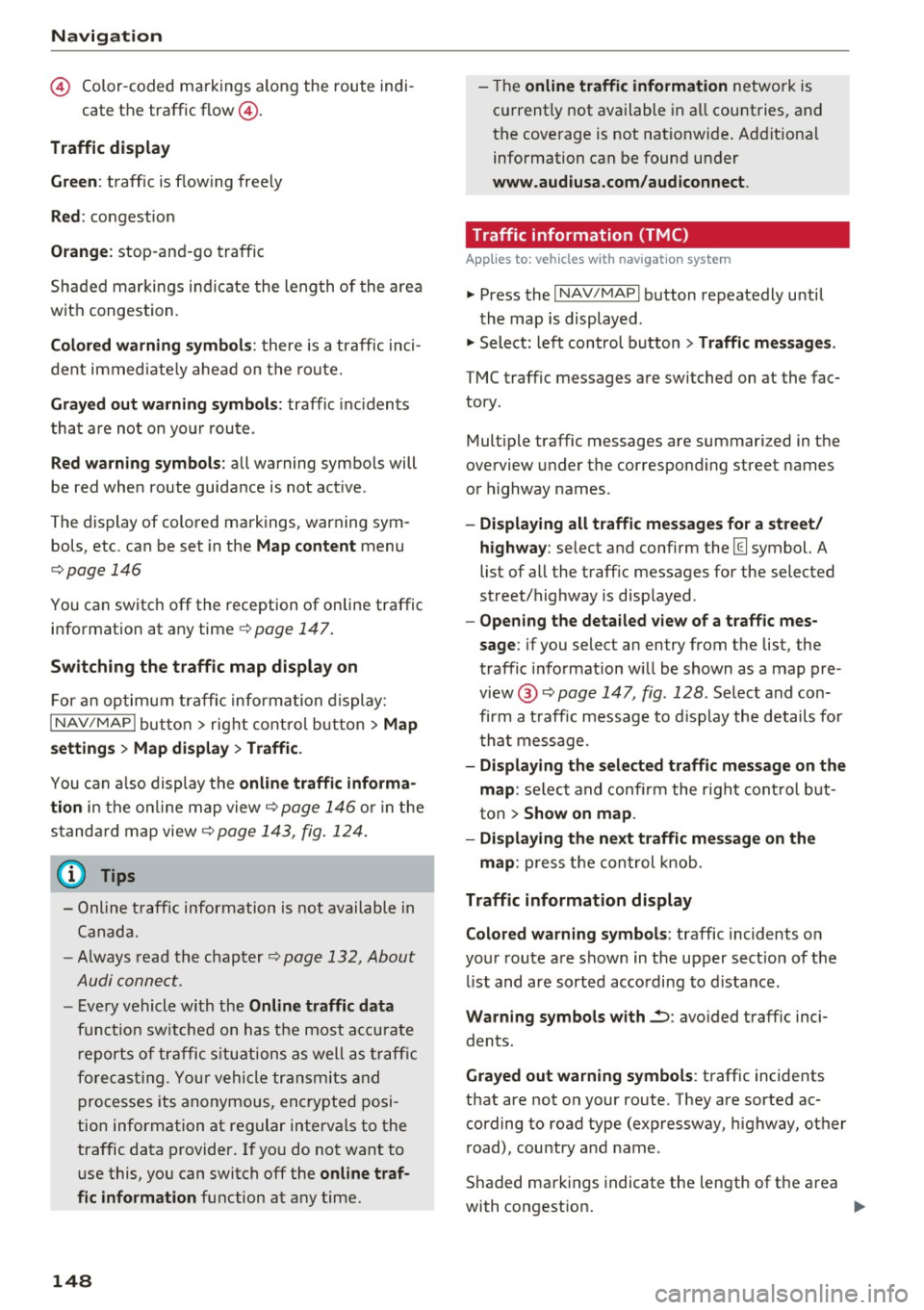
© Color-coded markings along the route indi -
cate the traffic flow@.
Traffic display
Gr een:
traffic is flowing freely
Red : congest ion
Orange : stop-and-go traffic
Shaded markings indicate the leng th of the area
with congestion .
Colored warning symbol s: there is a t raffic inci
dent immediate ly ahead on the route.
Gra yed o ut w arning symbols : traffic inc idents
that are not on yo ur route .
Red warning s ymbo ls : all warning symbols will
be red when route guidance is not active .
The display of colored markings, warning sym bols, etc. can be set in the
Map content menu
c::;,page 146
You can switch off the reception of on line traffic
information at any time
¢ page 147.
Sw itching the traff ic map display on
F or an optimum traffic information display:
I NAV/MAPI bu tton > right cont rol button> Map
se tting s > Map di spla y> Traffi c.
You can a lso display the onlin e traffi c informa
ti on
in the on line map view c::;, page 146 or i n the
s tanda rd map view
c::;, page 143, fig. 124.
(D Tips
- Online t raff ic information is not available in
Canada.
- Always read the chapter
c::;, page 132, About
Audi connect.
- Every vehicle with the On line traffic d ata
funct ion sw itched on has the most accu ra te
r eports of traffic s ituations as well as t raff ic
forecas ting . You r vehicle transmits and
processes its anonymous, encrypted posi
tion information at regular intervals to the
traffic data provider. If yo u do not want to
use this, you can switch
off the online traf
fic info rm ation
function at any time.
148 -
The
online traffic information network is
currently not available in all countries, and
the coverage is not nationwide . Addit ional
information can be found under
www .audiusa.com /audiconnect .
· Traffic information (TMC)
App lies to: vehicles with navigat ion system
.., Press the I NAV /MAPI button repeatedly until
the map is displayed .
.., Select: left control b utton
> Traffic me ssages .
TMC traffic messages are switched on at the fac
tory.
Mult iple traffic messages are summari zed in the
overview under the correspond ing street names
or highway names .
-Displaying all traffi c me ssage s for a street/
highway :
select and conf irm the [ill symbol. A
list of all the traff ic messages for the selected
street/highway is disp layed .
-Opening the detailed vie w of a traff ic mes
s a ge :
if you select an entry from the list , the
traffic information w ill be shown as a map pre
view @
c::;, page 147, fig. 128. Select and con
firm a t raff ic message to d isplay the details fo r
tha t message.
- Displaying th e sele cted traffic message on the
map :
select and confi rm the right cont rol but
ton >
Show on map .
- Di spl aying th e next traffic mes sage on the
map :
press the con trol knob.
Traffic information display
C olor ed warn ing symbol s:
traffic incidents o n
your route are shown in the upper sect ion of the
li st and are sorted acco rding to d istance .
Warning symbols with ~: avo ided traffic inci
dents.
Grayed out warn ing symbol s: traffic incidents
that are not on your route. They are sorted ac cording to road type (expressway, highway, other
road), country and name .
Shaded markings indicate the length of the area
with congest ion. ...,
Page 151 of 322
co
co
.... N
" N .... 0
0
Vl c:o
@ Tips
Critical traffic information, such as warnings
about wrong-way drivers, is automatically dis
played. To hide the traff ic information, press
the
I BACKI button or the control knob.
- TMC traffic reports are not ava ilable in Can
ada. For more information, please contact
Sirius Canada.
Better route
App lies to: veh icles with navigation system
By receiving traffic information through TMC,
your MMI calculates a better route -if available -
and the possible time saved for the current route
guidance. You con decide yourself which route
you would like to use .
.,. Press the I NAV/MAPI button repeatedly until
the map is displayed .
Troubleshooting
Applies to: veh icles with navigation system
Problem Solution Na
vigation
Requirement:
Route guidance must be active.
If your MMI has calculated a better route than
the current route guidance, the message
A better
route is available.
appears on the map a long
with the time that may be saved. A better ro ute
is i ndic ated in the map view by the symbol
rS@
¢ page 143, fig . 124.
Accept better route
Requirement: the ta symbol must be shown on
the map .
- Press the right control button.
- Select and confirm the better route.
- The better route is used for the remaining
route guidance and the route is recalcu lated .
Free text search: the desired des- The dest ination might not be entered in the navigation database .
t i nation cannot be found .
Or: check the spelling of the search term and whether the right
country/state was selected using the
Country/state selec -
tion ¢
page 136 for the free text search.
149
Page 161 of 322
-Multiple Bluetooth audio players can be
connected to the MMI, but only one mobile
device can be active.
- Bluetooth protocols AVRCP (1.0/1.3/1.4)
and A2DP are supported.
- Note the volume setting on your Bluetooth
device. Audi recommends setting your mo
bile device to the maximum volume when
using it as a Bluetooth audio player.
- The supported media functions (such as
shuffle) depend on the Bluetooth device be
ing used.
- For more information on the supported de
vices, visit
www.audi.com/bluetooth or
contact your authorized Audi dealer or au
thorized Audi Service Facility.
Wi-Fi audio player
App lies to: ve hicles with Wi-F i
Using the Wi-Fi audio player media source on the
MMI, you can connect and operate your Wi-Fi-ca
pable media player (such as a smartphone) to
wirelessly play music from your media player
li
brary. The media player is connected through the
vehicle's Wi-Fi hotspot. A UPnP Server opp or an
integrated UPnPIDLNA server on your media
player is required to access your media player
li
brary.
Requirement: the Wi-Fi function on your media
player must be switched on. The
Audi MMI con
nect
app or a UPnP server app must be installed
on your media player .
Or: you must be using a
media player with an integrated UPnP/DLNA
server .
-Connecting a media player: press the I MEDIA !
button. Press the left control button until the
sources overview
c:;, page 163 is dis played. Se
lect and confirm
Wi-Fi audio player
(!) ¢page 163, fig . 140 .
-If necessary, select and confirm Wi-Fi off>
Turn on Wi-Fi
to activate Wi-Fi in the MMI. Se
lect
Wi-Fi settings, if necessary. Select the
same settings on the wireless media player
co that are used for the Wi-Fi hotspot. co
;:::: -Starting the Wi-Fi audio player: start the Audi
" ~ MMI connect app or a UPnP server app . Or: al-o
~ low media sharing on your media player. c:o
Media
Operating the media player: the media player is
operated through the MMI.
- Press the left control button repeatedly until
the
Folders menu item appears . Select and con
firm
Folders.
- Playing music from the media player:
select
and confirm
Media center .
Web radio:
see c:;, page 160 .
A WARNING
-As the driver, do not allow usage of the Wi
Fi hotspot to distract you from driving, as
this could increase the risk of an accident.
- It is only safe to use tablets, laptops, mo
bile devices and other similar devices when
the vehicle is stationary because, like all
loose objects, they could be thrown around
the inside of the vehicle in a crash and cause
serious injuries. Store these types of devices
securely while driving.
- Do not use any wireless devices on the front
seats within range of the airbags while driv
ing. Also read the warnings in the chapter
c:;, page 19 7.
@ Note
You are responsible for all precautions taken
for data protection, anti-virus protection and
protection against loss of data on mobile de
vices that are used to access the Internet
through the Wi-Fi hotspot.
(D Tips
- The Wi-Fi connection is reconfigured when
inserting or removing the mini SIM card in
the SIM card reader* . There may be a tem
porary interruption in audio playback, de
pending on the media player.
- Always read the chapter
c:;, page 132, About
Audi connect.
- Please note that a Wi-Fi connection does
not automatically make it possible to use
the Internet. For additional information, see
¢ page 126.
-To avoid interruptions during playback, de
activate the power saving function on the
media player or connect it to a charger.
159
Page 162 of 322
Media
-The loading times fo r the a udio data depend
on the media p layer used and the number of
files that it conta ins .
- A maxim um of 2,000 entries per directory
are displayed in the MMI.
- Songs down loaded for off line use using m u
sic streaming services are stored on your
mobile device (such as a smartphone) and
may be DRM protected. The Wi-Fi a udio
player will not play DRM protected files.
- Contact you r authorized Audi dea ler or a u
thorized Audi Service Facility for additional i nformat io n on the Wi-Fi audio player.
Online media and
Internet radio
Applies to: vehicl es w ith Audi connect
You can playback and opera te various online me
dia services and Internet radio using the MMI.
.,. Press the IM EDIA I button. Press the left control
button un til the so urces ove rview
¢page 163,
fig. 140
is d isp layed.
Applies to: using online media and Internet radio
Req uirement:
- The
Audi MMI connect app must be installed
and open o n your mob ile device .
- You must be logged into your myAudi account
in the
Audi MMI connect app and you must
have selected your veh icle.
- The Wi-Fi function on the mobile device and on
the MMI must be switched on.
- If necessary, check in the connection manager
¢
page 175 if the mobile device yo u connected
is selected under the
MMI connect app (~).
-The MMI must be connected to the network.
- The symbol for the
Online media* sou rce @
¢page 163, fig . 140 is shown in the MMI.
Applies to: using online media
Addit io nal requirement:
- A suppor ted on line media serv ice m ust be avail
able in your country.
- You must have an accou nt w ith a supported on
li ne med ia serv ice .
- Depend ing on the online media service, you
must install and open an app on your mob ile
device .
160 Starting Online med
ia
- Press the IM EDIA I button. Press the left contro l
button until the sources overview ¢
page 163
is displayed.
- Select and confirm an o n line media serv ice.
Starting Internet radio
- Press th e I MEDIA i button. Press the left cont rol
button u nti l the sources overview ¢
page 163
is displayed.
- Select and confirm
Internet radio . The In ter net
radio b rowser or the last stat ion that was play
i n g is shown.
- Select ing the station : if necessa ry, select and
confirm a category in the I nte rnet rad io
Brows
er
> a s ta tion.
Online m edia and Internet radio : additional op
tion s
-Press the right control but ton.
The following op tions may be ava ilable, depen d
i ng o n the information shown (s uch as the sta
t ion/ track th at is cur rently playing):
- Sound sett ings : ¢ page 178.
-Wi-Fi settings : see¢ page 130, Wi-Fi hotspot.
- Connection manager : see ¢page 175.
- Add ition al opt ions may be ava ilable, dep end ing
on t he active online media service or In ternet
radio .
A WARNING
-It is on ly safe to use ta blets , laptops, mo
bi le devices and ot her simi lar devices when
the vehicle is stat ionary because, like all
loose objects, they cou ld be thrown around
the inside o f th e ve hicle in a c rash and cause
serio us inju ries. S tore these ty pes of devices
secure ly wh ile driving.
- Do no t use any wire less dev ices on the front
seats wi thin ra nge of the air bags while dr iv
ing . Also read t he war ning s in the chapte r
¢page 197.
0 Note
Please note that there genera lly are add it ion
a l costs when usi ng an on line media se rvice
a ccoun t, es pe ci ally w hen it i s used inte rna
tion ally.
-
Page 164 of 322
Media
connector from the Apple device with the re
lease tabs pressed in@
¢page 161, fig. 137 .
The med ia are started and ope ra ted through the
mob ile devi ce or the MM I, depend ing o n the de
vice being used
c;, page 163.
Conne cting two mobile devi ces: if two mob ile
dev ices (for examp le iPod and sma rtphone) are
connec ted at the same time, then both devices
can be used as p layback so urces.
You can connect mobile devices using the ana log
AUX port .
-Connecting a mobile dev ice to the AUX input:
connect the cable ® ¢ fig. 138 to the AUX in
put @ on the Audi music interface and then to
the mob ile device @ (such as an MP3 player or
smartphone).
- Di sconnect ing a mobile device from the AUX
input :
remove the cable®¢ fig. 138 from the
Audi music interface .
-Operat ion: select and confirm the Exte rnal au
dio play er
source @¢ page 163, fig. 139 . The
med ia are started and ope rated through the
mobile device@c:v fig. 138.
.8, WARNING
Dr iv ing requ ires you r complete and und ivided
attent ion . As the d river, you have comple te
respons ibility for safety in traffic . Never oper
ate mobile devices while driving, because this
increases the risk of an accident.
0 Note
- Remove the connector from the Aud i m us ic
interface carefu lly so it is not damaged.
- Use a USB ex tension cable to connect devi
ces tha t have an integrated USB connector
(such as a USB stick) to prevent damage to
your USB device and the Audi m usic inter
face.
- Ext remely high or low temperatures that
can occur inside vehicles can damage mob ile
devices and/or impair their performance.
Never leave mobile devices in the vehicle in
extremely high or low temperatures.
162
(D Tips
- Do not use an additiona l adapter or USB ex
tension cab le to connect mobile devices to
the A udi music interface that already have a
cable or that must be connected w ith a USB
adapter
(¢page 161). They may impair the
functionality.
- You can purchase the AUX connector cab le
from an authorized Audi dea ler or at spe
cialty sto res .
- Functionality is not guaranteed for mob ile
devices that do not conform to the USB 2.0
standard .
- USB hubs are not supported.
- Some versions of the iPod such as the iPod
shuff le cannot be connected to the USB
adapter for devices with Apple Dock connec
to r. Connect these devices us ing a AUX con
necto r cable.
- Video playback th rough the Aud i m usic in
terface is o nly supported if the co nnected
device is recognized as a USB storage device
(for examp le a USB stick). Apple devi ces and
M TP devices (su ch as smartphones) are not
recognized as USB sto rage devices .
- iP od/ iPhone m alfunctions a lso affec t the
operation o f the MMI. Reset you r iPo d/
iPhone if this happens.
- For impo rtant information on operating
your iPod/iPhone, refe r to the user g uide for
the device. Audi recommends updating the
iPod/ iPhone software to the latest version.
- For more information about the Aud i music
interface and suppo rted devices, check the
Audi database for mob ile dev ices at
www .audiusa .com/bluetooth or contact an
authorized Audi dealer or authorized Aud i
Service Facility .