ignition AUDI TT COUPE 2020 Workshop Manual
[x] Cancel search | Manufacturer: AUDI, Model Year: 2020, Model line: TT COUPE, Model: AUDI TT COUPE 2020Pages: 280, PDF Size: 98.79 MB
Page 145 of 280
 Note
Always follow the information found in >@ in
General informati")
8S1012721BB
Audi connect
ZA\ WARNING
Always follow the information found in > A\
in General information on page 142.
@) Note
Always follow the information found in >@ in
General information on page 142.
Sy IM eee Mate lg
Applies to: vehicles with Audi connect Infotainment and a
SIM card reader
All data connections will be made through the
SIM card in the card reader, if a SIM card is insert-
ed >@) in General information on page 142.
Requirement: the vehicle must be stationary and
the ignition must be switched on. A data connec-
tion must be configured for Audi connect Info-
tainment services. Your personal SIM card must
be a mini SIM card >@) and have a data option.
Inserting a SIM card
The SIM card reader is located in the glove com-
partment.
> The angled corner of the SIM card must face to-
ward the left front side when being inserted.
> Slide the SIM card into the SIM card reader slot
until you feel the SIM card click into place.
> Select and confirm Enter PIN on the MMI. En-
ter the PIN for your SIM card.
> Select and confirm OK.
> To connect to the Internet automatically in the
future, select and confirm Yes; see also
=> page 146.
After connecting successfully, the signal strength
@ and connection type @) will be displayed in
the MMI status bar > page 120, fig. 129.
Removing the SIM card
> Press on the SIM card briefly.
@) Note
— Always follow the information found in >®
in General information on page 142.
—To reduce the risk of damaging the SIM card
reader, only use mini SIM cards (25 mmx
15 mm). Contact your cell phone service
provider for more information on mini SIM
cards.
—If a SIM card of a different size is inserted in
the SIM card reader, do not under any cir-
cumstances remove this card yourself due
to the risk of damaging the SIM card reader.
Contact an authorized Audi dealer or au-
thorized Audi Service Facility.
— There is a risk of damaging the SIM card
reader if you use a SIM card adapter, be-
cause vibrations can cause the SIM card to
fall out of the adapter while driving. Contact
an authorized Audi dealer or authorized
Audi Service Facility.
G) Tips
— Additional Internet connection settings can
be found under > page 146.
— Do not remove the SIM card from the SIM
card reader when using the Audi connect In-
fotainment services.
Using personal Wi-Fi hotspot
Applies to: vehicles with Audi connect Infotainment and a
personal Wi-Fi hotspot
Depending on the country and the vehicle equip-
ment, the MMI can use the established Internet
connection on your mobile device through a Wi-Fi
connection.
Requirement: the vehicle must be stationary and
the ignition must be switched on. Your mobile
device and your cell phone service provider must
support the personal Wi-Fi hotspot function. The
personal Wi-Fi hotspot must be activated on your
mobile device. Access by other devices must be
permitted on the personal hotspot. Your own
SIM card in the mobile device must have a data
option. No SIM card is inserted in the SIM card
reader.
Connecting the MMI with the personal
hotspot
> Select: [MENU] button > Telephone > right con-
trol button > Wi-Fi settings > Wi-Fi > On.
143
>
Page 146 of 280
Audi connect
> Then select and confirm Network search. The
devices that are found are shown in the
Infotainment system display.
> Select and confirm your personal Wi-Fi hotspot
from the list.
> Enter the password that your mobile device
provides, if necessary.
> Select and confirm OK.
Z\ WARNING
Always follow the information found in > A\
in General information on page 142.
@) Note
Always follow the information found in >@® in
General information on page 142.
@) Tips
— Your cell phone service provider can deter-
mine which functions are supported by your
mobile device.
— Your cell phone data package determines if
other devices will be able to use the person-
al Wi-Fi hotspot.
— Audi recommends protecting your mobile
wireless network with a password to prevent
unauthorized access.
— For an explanation on conformity with the
FCC regulations in the United States and the
Industry Canada regulations, see
=> page 260.
Using a Wi-Fi hotspot
Applies to: vehicles with Wi-Fi hotspot
You can connect up to eight Wi-Fi devices (such
as smartphones) with the MMI Wi-Fi hotspot. If
the MMI is connected to the Internet
= page 142, the connected Wi-Fi devices can also
use the MMI’s Internet connection.
Requirement: The ignition must be switched on.
> Select: [MENU] button > Telephone > right con-
trol button > Wi-Fi settings > Wi-Fi. Switch on
the Wi-Fi hotspot.
> Select: [MENU] button > Telephone > right con-
trol button > Wi-Fi settings > Network key. The
access data for the Wi-Fi hotspot is displayed.
144
Switch on the visibility of the Wi-Fi hotspot if
necessary.
> Switch the Wi-Fi function on in your mobile de-
vice and connect it to the MMI Wi-Fi hotspot
using the authentication data that is shown.
> Follow any additional system prompts on your
Wi-Fi device if necessary.
Your device is successfully connected with the
MMI's Wi-Fi hotspot.
ZA WARNING
Always follow the information found in > AV
in General information on page 142.
@) Note
Always follow the information found in >@ in
General information on page 142.
(i) Tips
For an explanation on conformity with the
FCC regulations in the United States and the
Industry Canada regulations, see > page 260.
Audi connect
Infotainment services
Configuration
Applies to: vehicles with Audi connect Infotainment
Requirement: your vehicle must be connected to
the Internet > page 142.
Some Audi connect Infotainment services must
be configured through your personal myAudi ac-
count at my.audi.com before using them for the
first time.
> Register at my.audi.com.
> Add your vehicle to your myAudi account.
> Select: [MENU] button > Audi connect > right
control button > Log in.
> Log in to myAudi in the vehicle using your e-
mail address and password.
Page 149 of 280
8S1012721BB
Audi connect
can be changed. You can obtain more information
from your cell phone service provider.
— APN: the access point depends on the cell
phone service provider and is assigned auto-
matically.
— User name: your cell phone service provider as-
signs the user name for your online profile.
— Password: your cell phone service provider as-
signs the password for your online profile.
ZA\ WARNING
Always follow the information found in > AV
in General information on page 142.
@) Note
Always follow the information found in >@ in
General information on page 142.
@ Tips
For more information on roaming charges,
contact your cell phone service provider.
Maes
Applies to: vehicles with Wi-Fi hotspot
Requirement: the ignition must be switched on.
> Select: [MENU] button > Telephone > right con-
trol button > Wi-Fi settings.
Depending on the country and the vehicle equip-
ment, the following functions may be available:
Wi-Fi
When the function is switched on, the MMI's Wi-
Fi hotspot is active and Wi-Fi devices can be con-
nected to the hotspot.
Network key
The Wi-Fi connection between the MMI and your
Wi-Fi device is encrypted. You can change the fol-
lowing information if needed.
Troubleshooting
Applies to: vehicles with Audi connect Infotainment
The information that follows lists some trouble-
shooting options. They depend on the equip-
ment.
— Access point (SSID): name of the Wi-Fi hot-
spot.
— Password: a random password was set at the
factory in the MMI. The password can be
changed. The encryption method requires a
password to be at least eight characters long.
Choose a secure password.
— Visible to others: you can switch the visibility
of the Wi-Fi hotspot on or off.
Network search
A list of available Wi-Fi networks in your area is
displayed.
Connection to personal hotspot
The MMI Wi-Fi hotspot is activated. An MMI In-
ternet connection to a personal Wi-Fi hotspot
(such as a smartphone) can be established. For
additional information, see > page 143.
ZX WARNING
Always follow the information found in > A\
in General information on page 142.
@) Note
Always follow the information found in >@ in
General information on page 142.
@ Tips
In vehicles without Audi connect Infotain-
ment, the use of the Wi-Fi hotspot is only
possible for the Wi-Fi audio player*. A data
connection to the Internet cannot be estab-
lished.
147
Page 175 of 280

8S1012721BB
Media
Playing the Jukebox
Requirement: the Jukebox must contain audio/
video files > page 172, Adding files to the
Jukebox.
The Jukebox is accessed and operated through
the MMI @) > page 178, fig. 155.
Displaying Jukebox memory capacity
Select: right control button > Jukebox memory
capacity. Information about the Jukebox memory
capacity and the number of stored tracks is dis-
played.
Deleting tracks from the Jukebox)
Requirement: the Jukebox must contain audio/
video files.
— Deleting an entry: select an entry from the
Jukebox media center. Select: right control but-
ton > Delete from jukebox > This entry or En-
tire list.
— The status of the deleting process is shown in
the MMI. Jukebox playback stops during the de-
leting process and starts again automatically
once the deletion is complete.
@) Note
Do not import audio/video files when the en-
gine is turned off because this will drain the
vehicle battery.
@) Tips
— Tracks from audio CDs cannot be imported
to the Jukebox for legal reasons.
— Files that have already been imported are
automatically recognized and cannot be
copied to the Jukebox again.
— It is not possible to play audio/video files
in the CD/DVD* drive while importing them.
— The Jukebox does not provide an export
function due to legal reasons.
— Files or tracks without additional stored in-
formation are listed as Unknown. Audi rec-
ommends adding additional information
(such as ID3 tags) to audio files.
)) Not in the Playback view.
— Reset the Jukebox to the factory default set-
tings when selling your vehicle > page 190.
Bluetooth audio player
Applies to: vehicles with Bluetooth audio player
With the Bluetooth audio player, you can play
music wirelessly from your Bluetooth-capable de-
vice (such as a cell phone) through the MMI.
Requirement: the vehicle must be stationary and
the ignition must be switched on. The Bluetooth
settings will open on your mobile device during
the connection setup. The Bluetooth function and
visibility of the MMI = page 192 and mobile de-
vice must be switched on. The Bluetooth audio
player > page 192 must be switched on in the
MMI.
— Connecting a Bluetooth player: press the
MEDIA] button. Press the left control button
until the sources overview is displayed. Select
and confirm Bluetooth audio player ©)
=> page 178, fig. 156.
—If necessary, select and confirm, Not connected
> Connect Bluetooth audio player. The Blue-
tooth device search starts. Follow the instruc-
tions in the MMI.
— Select and confirm the desired Bluetooth device
from the list. The MMI generates a PIN for the
connection.
— Select and confirm Yes.
— Enter the PIN for connecting on your Bluetooth
device, or if the PIN is already displayed on your
Bluetooth device, confirm it on the Bluetooth
device. The time allowed for entering the PIN is
limited to approximately 30 seconds.
The media is started and operated through the
mobile device or the MMI, depending on the de-
vice being used.
@® Tips
— Check for any connection requests on your
Bluetooth device.
— Multiple Bluetooth audio players can be
connected to the MMI, but only one mobile
device can be active.
173
Page 179 of 280
8S1012721BB
Media
— Disconnecting a mobile device from the Audi
music interface: Remove the USB adapter cable
@ from the Audi music interface @).
— Disconnecting mobile devices with an Apple
Dock connector: remove the Apple Dock con-
nector from the Apple device with the release
tabs pressed in @) > page 176, fig. 153.
The media are started and operated through the
mobile device or the MMI, depending on the de-
vice being used > page 178.
Connecting multiple mobile devices: if a mobile
device (such as a smartphone) is connected at the
respective USB port on the Audi music interface,
then all devices can be used as a playback source.
AUX Input
— Connecting a mobile device to the AUX input:
Connect the cable G) to the AUX input © on
the Audi music interface and then connect it to
the mobile device @) (for example, an MP3
player or a smartphone).
— Disconnecting a mobile device from the AUX
input: pull the cable @) out of the Audi music
interface.
— Operation: select and confirm the External au-
dio player source ©) > page 178, fig. 155. The
media are started and operated through the
mobile device @).
Z\ WARNING
Driving requires your complete and undivided
attention. As the driver, you have complete re-
sponsibility for safety in traffic. Never operate
mobile devices while driving, because this in-
creases the risk of an accident.
@) Note
— Remove the connector from the Audi music
interface carefully so it is not damaged.
— Use a USB extension cable to connect devi-
ces that have an integrated USB connector
(such as a USB stick) to prevent damage to
your USB device and the Audi music inter-
face.
— Extremely high or low temperatures that
can occur inside vehicles can damage mobile
devices and/or impair their performance.
Never leave mobile devices in the vehicle
extremely high or low temperatures.
G) Tips
in
—When you switch the ignition off, the USB
ports are still supplied with power until t!
energy management intervenes.
he
— Do not use an additional adapter or USB ex-
tension cable to connect mobile devices to
the Audi music interface that already hav
cable or that must be connected with a U
ea
SB
adapter (= page 176). Using an additional
adapter or US extension cable may impair
functionality.
— You can purchase the AUX connector cabl ec
from an authorized Audi dealer or at spe-
cialty stores.
— Audi recommends setting the volume of a
mobile device connected to the AUX input to
approximately 70% of the maximum vol-
ume.
— Functionality is not guaranteed for mobil
devices that do not conform to the USB 2
specification.
— USB hubs are not supported.
— Some versions of the iPod such as the iPo
shuffle cannot be connected to the USB
adapter for devices with Apple Dock conn
e
0
d
EGS
tor. Connect these devices using a AUX con-
nector cable.
— Video playback through the Audi music in-
terface is only supported if the connected
device is recognized as a USB storage dev ice
(for example a USB stick). Apple devices and
MTP devices (such as smartphones) are not
recognized as USB storage devices.
— iPod or iPhone malfunctions also affect the
operation of the MMI. Reset your iPod or
iPhone if this happens.
— For important information on operating
your iPod or iPhone, refer to the user guide
for the device. Audi recommends updatin
the iPod or iPhone software to the latest
version.
g
— For more information about the Audi music
interface and supported devices, check the
Audi database for mobile devices at www
audi.com/mp3 or contact an authorized
177
>
Page 189 of 280

8S1012721BB
Audi smartphone interface
Audi smartphone
interface
Setup
Applies to: vehicles with Audi smartphone interface
You can connect your smartphone to the MMI us-
ing the Audi smartphone interface. Certain con-
tent on your smartphone is adapted to the Info-
tainment system display while driving and can be
operated through the MMI control panel.
Requirement
The vehicle must be stationary and the ignition
must be switched on.
iPhone generation 5 or higher with Lightning
connector and iOS 7.1.2 operating system or
higher, or
A smartphone with the Android Auto app and An-
droid 5.0 Lollipop operating system or higher is
required.
> Connect your smartphone to the Audi music in-
terface > page 176 using the applicable USB
adapter > page 176, fig. 153.
> Select and confirm Activate Apple CarPlay or
Activate Android Auto now.
> Follow the system instructions.
> Pay attention to any additional system prompts
on your smartphone, if applicable.
If you chose not to use Apple CarPlay or Android
Auto when connecting your smartphone for the
first time, you can start the Audi smartphone in-
terface later on using the Connection manager.
> Select: [MENU] button > Audi smartphone in-
terface > Change to connection manager.
> Connect your smartphone to the Audi music in-
terface > page 176 using the applicable USB
adapter > page 176, fig. 153.
> Select and confirm Audi smartphone interface
in the Connection manager > page 190. You
can select your smartphone in the list of devi-
ces that are already paired > page 191.
> Follow the system instructions.
ZA WARNING
Driving requires your complete and undivided
attention. As the driver, you have complete re-
sponsibility for safety in traffic. Never operate
mobile devices while driving, because this in-
creases the risk of an accident.
) In preparation at the time of printing.
@) Note
Always follow the information found in >@ in
General information on page 142.
@ Tips
— The functions that can be used depend on
the following factors, among others:
—The brand of your smartphone
~The version of the operating system in
your smartphone
— The software version of the app used
— The USB adapter cable and correct connec-
tion
— Your cell phone service provider
— The customized settings on your smart-
phone
— One of the factors above or a combination
of any of them could cause your smart-
phone to be incompatible with the Audi
smartphone interface. Compatibility cannot
be guaranteed for all types of smartphones.
For more information and assistance, refer
to the user guide and the manufacturer of
your smartphone.
— If the connected smartphone has voice con-
trol, you can operate your smartphone using
the external voice recognition system*
=> page 128.
— The menu language shown in the MMI is
based on the settings in your smartphone.
— The time displayed in the MMI is based on
the settings in your smartphone.
— Some MMI functions are not available when
Apple CarPlay or Android Auto is active.
— You cannot connect any mobile devices via
Bluetooth when an Apple CarPlay connec-
tion is active.
187
Page 192 of 280

System settings
Tool tips
When this function is switched on M, your MMI
shows you tips for input. The frequency of how
often it displays decreases with time. You can
switch off the operating tips at any time.
Speech dialog system
Applies to: vehicles with voice recognition system
Command display: when this function is switch-
ed on, the MMI will show you the possible
commands for voice input in the respective
menu. You can switch the function off at any
time.
Short dialog: when this function is switched on
, a shorter form of the prompts is used. You
can switch the function off at any time.
Speech dialog system volume: you can adjust
the volume of the prompts by turning the control
knob.
Individual speech training (only when the vehi-
cle is stationary): you can adapt the voice recog-
nition system to your voice or pronunciation in or-
der to improve the system's ability to recognize
your speech. Individual speech training is com-
prised of 20 speech entries that consist of com-
mands and sequences of numbers. You can de-
lete the programmed voice training with the Re-
set individual speech training function.
Factory settings
Depending on the vehicle equipment, the follow-
ing functions can be reset to factory settings:
— Sound settings
— Radio
— Media settings
— Jukebox
— Directory
— Telephone
— Bluetooth and Wi-Fi
— Navigation settings
— Navigation and online memory
— Voice recognition system
— Message settings
— Apps
— Tool tips
— Audi connect
190
You can select the desired functions individually
or all at once with the option Select all entries.
Select and confirm Restore factory settings.
G) Tips
Make sure that not only the settings were de-
leted but also the stored data, if necessary.
Connection manager
Introduction
The connection manager provides an overview of
your connected devices and their network status:
> Select: [MENU] button > Settings > left control
button > MMI settings > Connection manager.
> Select and confirm a menu item.
If a mobile device was already connected and you
select and confirm the corresponding menu item,
the device name and connection status are dis-
played under the menu item.
You can individually connect (M) or disconnect
(L) a paired device.
Requirement: The vehicle must be stationary and
the ignition must be switched on. The Bluetooth
settings will open on your mobile device during
the connection setup. The Bluetooth function and
visibility of the MMI > page 192 and mobile de-
vice must be switched on. The mobile device to
be connected must not be connected to any other
Bluetooth device.
daar lava dared)
Applies to: vehicles with telephone
> Connect new device: search for and connect a
mobile device.
> List of devices already paired: select your cell
phone from the list of all the devices that are
already paired.
Secondary phone
Applies to: vehicles with telephone and Audi phone box
> Connect new device: search for and connect a
mobile device.
Page 196 of 280
System settings
Navigation
Applies to: vehicles with navigation system
Voice guidance: See > page 157.
Voice guidance during phone call: See
=> page 157.
Voice guidance volume: you can adjust the voice
guidance volume by turning the control knob or
you can adjust it while route guidance is active by
turning the On/Off knob.
Entertainment fader: the volume of audio play-
back can be temporarily lowered when the park-
ing system or voice guidance is active.
Voice recognition system
Applies to: vehicles with voice recognition system
Short dialog: prompts in a shorter format can be
switched on or off.
Speech dialog system volume: you can adjust
the volume of the prompts by turning the control
knob.
Parking aid*
You can adjust the volume of the signal tone by
turning the control knob.
— Adjusting the Front volume: select and con-
firm High, Medium or Low.
— Adjusting the Rear volume: select and confirm
High, Medium or Low.
MMI touch volume*
Turn the control knob to adjust the volume of the
spoken prompts from the MMI touch*.
Audi Heartbeat
You can adjust the volume of Audi Heartbeat by
turning the control knob.
194
Restarting the MMI
(reset)
RAH-8611
ev
= ‘=
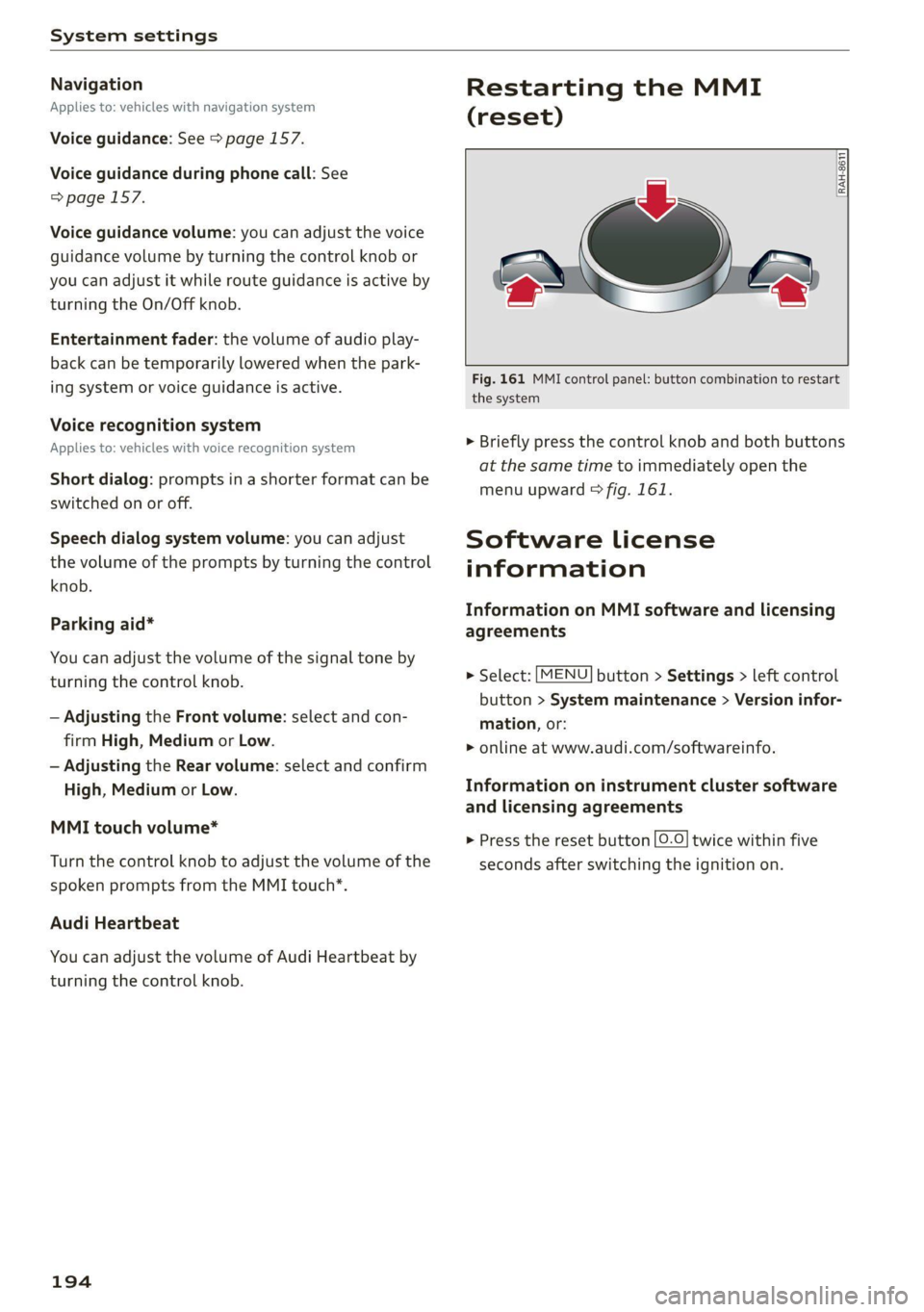
Fig. 161 MMI control panel: button combination to restart
the system
> Briefly press the control knob and both buttons
at the same time to immediately open the
menu upward > fig. 161.
Software License
information
Information on MMI software and licensing
agreements
> Select: [MENU] button > Settings > left control
button > System maintenance > Version infor-
mation, or:
> online at www.audi.com/softwareinfo.
Information on instrument cluster software
and licensing agreements
> Press the reset button [0-0] twice within five
seconds after switching the ignition on.
Page 199 of 280

8S1012721BB
Checking and Filling
The correct fuel type for your vehicle can be
found ona label located on the inside of the fuel
filler door. For additional information on fuel, see
=>page 195.
For the tank capacity in your vehicle, refer to the
Technical Data > page 263.
If the central locking system malfunctions, there
is a fuel filler door emergency release
=> page 199.
Messages
[i Tank system: malfunction! Please contact
Service
If the indicator light turns on and this message
appears, there is a malfunction in the tank sys-
tem. Drive to an authorized Audi dealer or au-
thorized Audi Service Facility immediately to have
the malfunction corrected.
ZA WARNING
Improper fueling procedures and improper
handling of fuel can lead to explosions, fires,
severe burns, and other injuries.
— Do not smoke. Keep away from open flames.
— The ignition must be switched off when re-
fueling.
— Mobile devices, radio devices, and other ra-
dio equipment should always be switched
off when refueling. Electromagnetic rays
could cause sparks and start a fire.
— If you do not insert the fuel pump nozzle all
the way into the filler tube, then fuel can
leak out. Spilled fuel can ignite and start a
fire.
— Never get into the vehicle when refueling. If
there is an exceptional situation where you
must enter the vehicle, close the door and
touch a metal surface before touching the
fuel pump nozzle again. This will reduce the
risk of electrostatic discharge that can cause
flying sparks. Sparks can start a fire when
refueling.
the container and ignite, especially during an
accident. This can cause explosions, fires, and
injuries.
— If you must transport fuel in a fuel contain-
er, note the following:
— Always place the fuel container on the
ground before filling. Never fill the fuel
container with fuel while it is inside or on
the vehicle. Electrostatic discharge can oc-
cur while refueling and the fuel vapors
could ignite.
— When using fuel containers made of met-
al, the fuel pump nozzle must always re-
main in contact with the container to re-
duce the risk of static charge.
— Insert the fuel pump nozzle as far as pos-
sible into the filler opening while refuel-
ing.
— Follow the applicable legal regulations in
the country where you are driving when
using, storing and transporting fuel con-
tainers.
— Make sure that the fuel container meets
the industry standards, for example ANSI
or ASTM F852-86.
ZA WARNING
Transporting fuel containers inside the vehicle
is not recommended. Fuel could leak out of
C) Note
— Remove fuel that has overflowed onto any
vehicle
components immediately to reduce
the risk of damage to the vehicle.
— Never drive until the fuel tank is completely
empty. The irregular supply of fuel that re-
sults from that can cause engine misfires.
Uncombusted fuel may enter the exhaust
system and increase the risk of damage to
the catalytic converter.
(@) For the sake of the environment
— Do not overfill the fuel tank, or fuel could
leak out when the vehicle is warming up.
— Fuel should never enter the sewer system or
come into contact with the ground.
197
>
Page 202 of 280

Checking and Filling
ZA WARNING
Incorrect use of the connection port for the
On Board Diagnostic System can cause mal-
functions, which can then result in accidents
and serious injuries.
— Only allow an authorized Audi dealer or au-
thorized Audi Service Facility to read out the
engine data.
Engine compartment
General information
Special care is required if you are working in the
engine compartment
For work in the engine compartment, such as
checking and filling fluids, there is a risk of in-
jury, scalding, accidents, and burns. For this
reason, follow all the warnings and general
safety precautions provided in the following in-
formation. The engine compartment is a dan-
gerous area. > /\.
ZA WARNING
— Turn the engine off.
— Switch the ignition off.
— Set the parking brake.
— Select the “P” (Park) selector lever position.
— Allow the engine to cool.
— Keep children away from the engine com-
partment.
— Never spill fluids on a hot engine. These flu-
ids (such as the freeze protection contained
in the coolant) can catch fire.
— Avoid short circuits in the electrical system.
— Never reach into the radiator fan. The fan is
temperature-controlled and can turn on
suddenly, even when the ignition is switched
off.
— Never open the hood when there is steam or
coolant escaping from the engine compart-
ment, because there is a risk that you could
be burned. Wait until no steam or coolant is
escaping.
— The cap on the coolant expansion tank must
never be opened when the coolant is hot.
200
The cooling system is under pressure. There
is a risk of burns
—To protect your face, hands, and arms from
hot steam or coolant, cover the cap with a
thick cloth when opening.
— Do not remove the engine cover under any
circumstances. This increases the risk of
burns.
— Due to the risk of electric shock, never touch
the ignition cable or other components in
the electronic high-voltage ignition system
when the engine is running or is starting.
— Ifa gear is engaged while the vehicle is sta-
tionary and the engine is running, do not
press the accelerator pedal inadvertently.
Pressing the accelerator pedal will cause the
vehicle to move, and this could result in an
accident.
— If inspections or repairs must be performed
while the engine is running, moving compo-
nents (such as the ribbed belt, generator,
and radiator fan) pose an additional risk.
— Set the parking brake first and select the
“P” (Park) selector lever position.
— Always make sure that no parts of the
body, jewelry, ties, loose clothing, and
long hair can be caught in moving engine
components. Before any work, always re-
move any jewelry and/or ties, tie back long
hair, and make sure all clothing fits close
to the body to reduce the risk of anything
becoming caught in engine components.
— Pay attention to the following warnings list-
ed when work on the fuel system or on the
electrical equipment is required.
— Do not smoke.
— Never work near open flames.
— Always have a working fire extinguisher
nearby.
— All work on the battery or electrical system
in your vehicle can result in injuries, chemi-
cal burns, accidents, or burns. Because of
this, all work must be performed only by an
authorized Audi dealer or authorized Audi
Service Facility.
— Limit your exposure to exhaust and chemi-
cals to as short a time as possible.