light AUDI TT COUPE 2020 Workshop Manual
[x] Cancel search | Manufacturer: AUDI, Model Year: 2020, Model line: TT COUPE, Model: AUDI TT COUPE 2020Pages: 280, PDF Size: 98.79 MB
Page 109 of 280
8S1012721BB
Intelligent Technology
— If malfunctions occur in other systems or
certain driver assist systems are active, the
ESC must be switched on by the system. The
ESC
may switch on automatically and can-
not be operated with the button.
Brakes
General information
You can apply the vehicle's brakes using the brake
pedal.
Operating noise
Noises may occur when braking depending on the
speed, braking force, and outside conditions such
as temperature and humidity.
Braking effect
The response time from the brakes depends on
the weather and environmental conditions. To
ensure the optimal braking effect, the brake sys-
tem is cleaned at regular intervals. This is done
by applying the brake pads to the brake rotors for
a short period of time when driving at high
speeds when the windshield wipers are switched
on.
If the brake system becomes damp, for example
after driving in heavy rain, the braking effect may
be delayed. Other factors that could temporarily
increase the response time of the brakes include:
— Wet conditions
— Low temperatures, ice, and snow
— Roads covered in salt
— Dirty brake pads
Corrosion
Corrosion may form on the brake rotors if there is
no heavy braking, if the vehicle is not driven for
long periods of time, or if the vehicle is not driv-
en
frequently or for long distances. In this case,
braking heavily several times while driving at
high speeds can clean the brake rotors > A\.
Brake pads
New brake pads do not achieve their full braking
effect during the first 250 miles (400 km). They
must be “broken in” first. However, you can com-
pensate for the slightly reduced braking force by
pressing firmly on the brake pedal. Avoid heavy
braking during the break-in period.
Brake pad wear depends largely on the way the
vehicle is driven and on operating conditions.
Brake pad wear increases when driving frequently
in the city or short distances or when using a very
sporty driving style.
Ceramic brakes
Applies to: vehicles with ceramic brakes
Ceramic brakes provide excellent deceleration
rates.
The break-in period for new ceramic brakes may
be significantly longer than for standard brake
rotors. Due to the properties of the material,
they may cause noises at lower speeds. Ceramic
brakes also absorb more moisture in wet condi-
tions. Therefore, there will temporarily be less
braking force than when the brakes are dry. You
can compensate for this by pressing the brake
pedal harder.
Z\ WARNING
— Only apply the brakes for the purpose of
cleaning the brake system when road and
traffic conditions permit. You must not en-
danger other road users and increase the
risk of an accident.
— Due to the risk of injury, only have an au-
thorized Audi dealer or authorized Audi
Service Facility work on the brake system.
Incorrect repairs could impair the function.
— Never let the vehicle roll while the engine is
stopped because this increases the risk of an
accident.
— During automatic braking maneuvers, the
brake pedal may move downward automati-
cally. To reduce the risk of injury, do not
place your foot under the brake pedal.
C) Note
— Never let the brakes “rub” by pressing the
pedal lightly when braking is not actually
necessary. This can cause the brakes to over-
heat and increases braking distance and
causes wear.
107
Page 110 of 280

Intelligent Technology
— Utilize the engine braking effect when driv-
ing downhill by selecting the “S” driving
program > page 80. This reduces the load
on the brakes. If you need to brake addition-
ally, brake in intervals and not continuously.
G) Tips
— If you retrofit your vehicle with a front spoil-
er, wheel covers or similar items, make sure
that the air flow to the brakes is not ob-
structed. Otherwise the brake system can
overheat.
— Also refer to the information about brake
fluid > page 208.
Messages
EG / @ Brakes: malfunction! Safely stop ve-
hicle
There is a malfunction in the brake system. If
s/w and BAlalso turn on, there is a malfunc-
tion in the ABS, ESC, and braking distribution.
Do not continue driving. See an authorized Audi
dealer or authorized Audi Service Facility for as-
sistance. Read and follow the other safety pre-
cautions > A\.
GG / © Warning! No brake booster function
If the brake booster is not working, you have to
use much more force when braking the vehicle.
See an authorized Audi dealer or authorized Audi
Service Facility for assistance.
GG / @ Brake pads: wear limit reached. You
can continue driving. Please contact Service
The brake pads are worn. Drive to an authorized
Audi dealer or authorized Audi Service Facility as
soon as possible to have the malfunction correct-
ed.
Ga Jo Parking brake: malfunction! Safely
stop vehicle. See owner's manual
— If the indicator light and the message appear
when the vehicle is stationary or after switch-
ing the ignition on, check if you can release the
parking brake. If you cannot release the parking
brake, see an authorized Audi dealer or author-
ized Audi Service Facility. If you can release the
108
parking brake and the message still appears,
see an authorized Audi dealer or authorized
Audi Service Facility immediately to have the
malfunction corrected.
— If the indicator light and message appear while
driving, the hill start assist or emergency brak-
ing function may be malfunctioning. It may not
be possible to set the parking brake or release
it once it has been set. Do not park your vehicle
on hills. See an authorized Audi dealer or au-
thorized Audi Service Facility for assistance.
Z\ WARNING
If a malfunction occurs in the ABS, ESC, and
braking distribution, interventions that stabi-
lize the vehicle will no longer be available.
This could cause the vehicle to swerve, which
increases the risk that the vehicle will slide.
Do not continue driving. See an authorized
Audi dealer or authorized Audi Service Facility
for assistance.
Steering
Electromechanical steering supports the driver's
steering movements by electronically adapting
the power steering depending on the vehicle
speed. The settings depend on the selected Audi
drive select* mode.
Messages
a Steering: malfunction! Please stop vehicle
The power steering may have failed. Adapt your
driving style immediately to compensate for the
fact that it may be more difficult to turn the
steering wheel, and stop your vehicle in a safe lo-
cation as soon as possible. Do not continue driv-
ing. See an authorized Audi dealer or authorized
Audi Service Facility for assistance.
a Steering: malfunction! You can continue
driving
There is a malfunction. Steering may be more dif-
ficult or more sensitive. Adapt your driving style.
Have the steering system checked immediately >
Page 111 of 280

8S1012721BB
Intelligent Technology
by an authorized Audi dealer or authorized Audi
Service Facility. Please note that the red indicator
light may turn on after restarting the engine. Do
not continue driving if it does.
@) Tips
If the & or e indicator light only stays on
for a short time, you may continue driving.
ALL wheel drive (quattro)
Applies to: vehicles with all wheel drive
In all wheel drive, all four wheels are powered.
General information
In all wheel drive, the driving power is divided be-
tween all four wheels. This happens automatical-
ly depending on your driving behavior as well as
the current road conditions. Also see > page 105,
Electronic Stabilization Control (ESC).
The all wheel drive concept is designed for high
engine power. Your vehicle is exceptionally pow-
erful and has excellent driving characteristics
both under normal driving conditions and on
snow and ice. Always read and follow safety pre-
cautions > A\.
Winter tires
By using all wheel drive, your vehicle has good
forward motion with standard tires in winter con-
ditions. However, in winter we recommend using
winter or all season tires on all four wheels, be-
cause this will improve the braking effect.
Snow chains
If there are snow chain laws, snow chains must
also be used on vehicles with all wheel drive
=> page 228, Snow chains.
Replacing tires
For vehicles with all wheel drive, only wheels with
the same rolling circumference should be used.
Avoid using tires with different tread depths
= page 220, New tires or wheels.
Is this an offroad vehicle?
Your Audi is not an offroad vehicle - there is not
enough ground clearance. For this reason, avoid
difficult terrain.
ZA\ WARNING
— Also, in vehicles with all wheel drive, adapt
your driving style to the current road and
traffic conditions. Do not let the increased
safety provided tempt you into taking risks,
because this increases the risk of an acci-
dent.
— The braking ability of your vehicle is limited
to the traction of the wheels. In this way, it
is not different from a two wheel drive vehi-
cle. Do not be tempted to accelerate to a
high speed when the road is slippery, be-
cause this increases the risk of an accident.
— Note that on wet streets, the front wheels
can “hydroplane’” if driving at speeds that
are too high. Unlike front wheel drive
vehicles, the engine RPM does not increase
suddenly when the vehicle begins hydro-
planing. For this reason, adapt your speed to
the road conditions to reduce the risk of an
accident.
Rear spoiler
Applies to: vehicles with retractable rear spoiler
a
g
a %
Fig. 114 Center console: button for the rear spoiler
The rear spoiler increases driving stability. The
rear spoiler extends automatically at speeds
above approximately 75 mph (120 km/h). It will
retract automatically when the speed drops be-
low approximately 50 mph (80 km/h).
You can also extend and retract the rear spoiler
manually.
109
>
Page 112 of 280
Intelligent Technology
> Extending: press > briefly.
> Retracting: press and hold 3% when driving at
speeds up to approximately 10 mph (20 km/h).
At speeds from approximately 10 mph (20
km/h) to 75 mph (120 km/h), press > briefly.
Messages
If the | or turns on and a corresponding
message appears, the rear spoiler may not be
able to extend due to a malfunction. This could
change the vehicle's driving characteristics at
high speeds. Do not drive faster than 85 mph
(140 km/h).
The rear spoiler may be blocked. Clean the rear
spoiler compartment > page 236, close all vehi-
cle doors and lids, and wait several minutes until
the vehicle has completely turned off. If the indi-
cator light turns on again the next time the en-
gine starts, drive immediately to an authorized
Audi dealer or authorized Audi Service Facility to
have the malfunction repaired. The color of the
indicator light depends on the vehicle speed.
Z\ WARNING
— Make sure that the rear spoiler is extended
at speeds above 85 mph (140 km/h). Other-
wise, the reduced driving stability will in-
crease the risk of an accident.
— When extending and retracting the rear
spoiler, make sure there are no persons or
objects within the spoiler range to reduce
the risk of injury.
@ Note
—To reduce the risk of damage, do not press
on the rear spoiler if pushing the vehicle.
— To reduce the risk of damage, never lean
against the rear spoiler or place heavy pres-
sure on it.
— To reduce the risk of damage when extend-
ing or retracting the rear spoiler, make sure
the luggage compartment lid is closed and
there is nothing in the way of the rear spoil-
er,
110
Energy management
Your vehicle is equipped with an intelligent ener-
gy management system for distributing electrici-
ty. This significantly improves the starting ability
and increases the vehicle battery life.
G) Tips
— If you drive short distances frequently, the
vehicle battery may not charge enough
while driving. As a result, convenience func-
tions for electrical equipment may be tem-
porarily unavailable.
— The vehicle battery will gradually drain if
the vehicle is not driven for long periods of
time, or if electrical equipment is used
when the engine is not running. To ensure
that the vehicle can still be started, the
electrical equipment will be limited or
switched off.
Page 120 of 280
Multi Media Interface
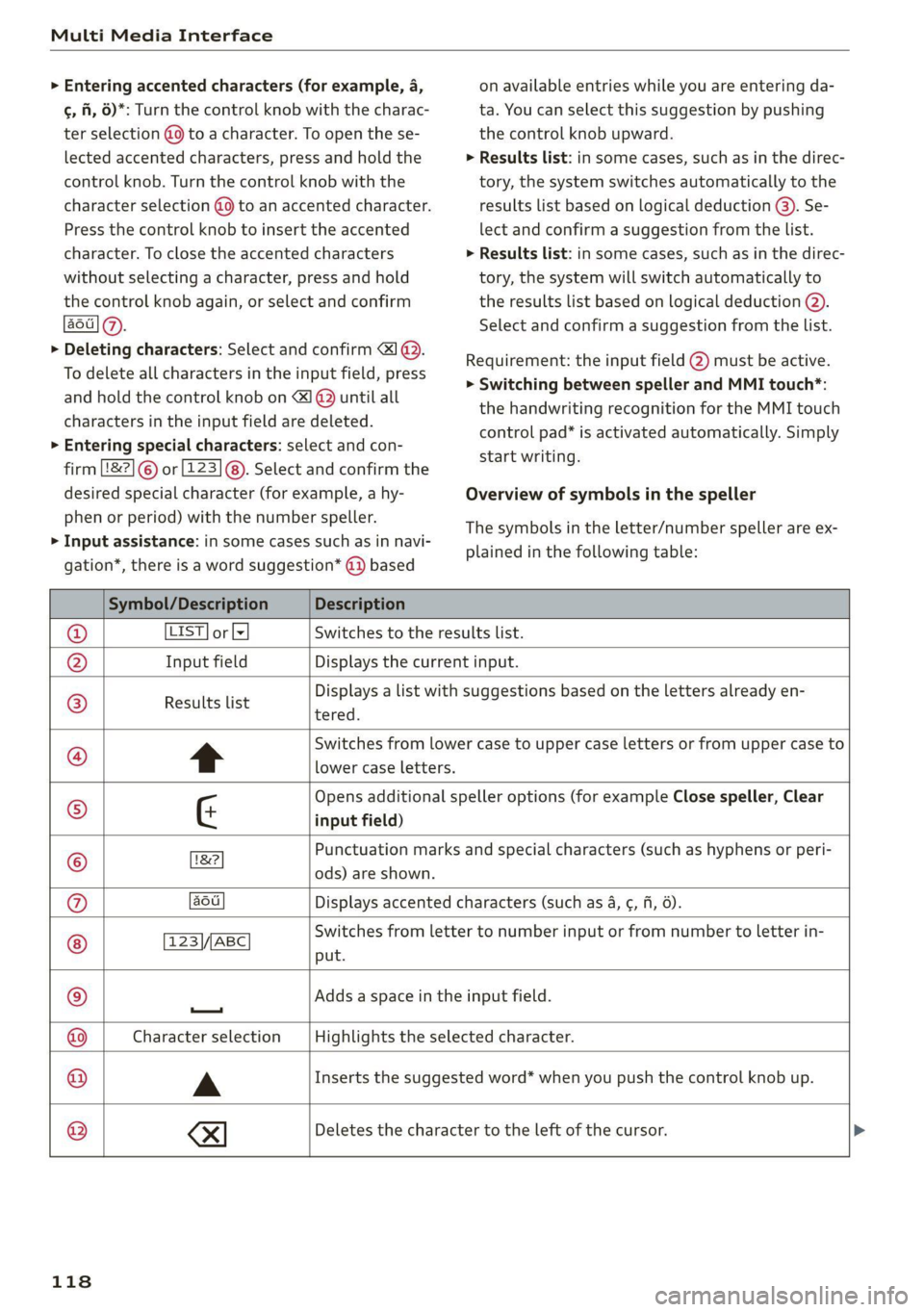
> Entering accented characters (for example, a,
¢, fi, 6)*: Turn the control knob with the charac-
ter selection (9 to a character. To open the se-
lected accented characters, press and hold the
control knob. Turn the control knob with the
character selection @0) to an accented character.
Press the control knob to insert the accented
character. To close the accented characters
without selecting a character, press and hold
the control knob again, or select and confirm
aot].
> Deleting characters: Select and confirm &1@.
To delete all characters in the input field, press
and hold the control knob on 1 @ until all
characters in the input field are deleted.
> Entering special characters: select and con-
firm 8&2] © or [123]@). Select and confirm the
desired special character (for example, a hy-
phen or period) with the number speller.
> Input assistance: in some cases such as in navi-
gation*, there is a word suggestion* @) based
on available entries while you are entering da-
ta. You can select this suggestion by pushing
the control knob upward.
> Results list: in some cases, such as in the direc-
tory, the system switches automatically to the
results list based on logical deduction (3). Se-
lect and confirm a suggestion from the list.
> Results list: in some cases, such as in the direc-
tory, the system will switch automatically to
the results list based on logical deduction @).
Select and confirm a suggestion from the list.
Requirement: the input field @) must be active.
> Switching between speller and MMI touch*:
the handwriting recognition for the MMI touch
control pad* is activated automatically. Simply
start writing.
Overview of symbols in the speller
The symbols in the letter/number speller are ex-
plained in the following table:
Symbol/Description Description
LIST] or [= Switches to the results list.
Input field Displays the current input.
Results list
tered.
Displays a list with suggestions based on the letters already en-
Switches from lower case to upper case letters or from upper case to
lower case letters.
input field)
Opens additional speller options (for example Close speller, Clear
ods) are shown.
Punctuation marks and special characters (such as hyphens or peri-
aou Displays accented characters (such as 4, ¢, fi, 6).
©
|C}
©
|
@/|O)]
©
E|O
FN
123\/,ABC
put.
Switches from letter to number input or from number to letter in-
—
Adds a space in the input field.
Character selection Highlights the selected character.
A Inserts the suggested word* when you push the control knob up.
®
|
©
|O|
©
I
Deletes the character to the left of the cursor.
118
Page 124 of 280
Voice recognition system
GLOEYAL COMMI/ANN
+ Telephone + Favorites
+ Audi connect * Call (XY)
* Navigation * Enter number
* Directory * Redial
* Radio * Read new text message
+ Media + Navigate to (XY)
+ Sound + Enter address/destination
* Help + Online destinations
+ Help Speech dialog system * Cancel route guidance
* Help Telephone * Map
* Help Audi connect * Line (XY)
* Help Navigation * Next page / previous page
* Help Map * Cancel
* Help Radio * No, I meant (XY)
* Help Media * Correction
TELEPHONE al
+ Enter number Call list
+ Delete number / correction Redial
+ Directory Call mailbox
* Call (XY) Enter PIN / delete PIN
«business / private / land line / mobile Telephone favorites
NAVIGATION i
+ Navigate to (XY) + Exclude next route section / Exclude
*Business address / Private address next street
+ Start / cancel route guidance * Route list
+ Directory * Calculate alternative routes
+ Last destinations * Online destinations
+ Navigation favorites * Special destination
+ Drive home
+» Enter address
+ Enter country / town / street / state
+ Exclude route / Exclude route for (XY) km /m
* Map
* Day map / Night map
* 2D driving position map / 2D north position map / 3D map / Destination map / Overview map
AUDI CONNECT
* Audi connect Flight information / Train information
* Travel information / Parking information * City events
* Fuel prices * Online news
* Weather + Twitter
RADIO)
+ Radio presets * Jukebox 6}
+ Last stations + CD/DVD aay e
*FM + SDcard1/SDcard2
*FM/AM/ SIRIUS XM « Audi music interface / iPod / USB / Bluetooth /
+ Station (XY) / Frequency (XY) Wi-Fi / Medium (XY)
* Traffic announcement on / off * Media favorites / Artists / Albums / Genres /
Tracks / Playlists / Videos
* Folder up
* Random playback on / off
RAH-8462|
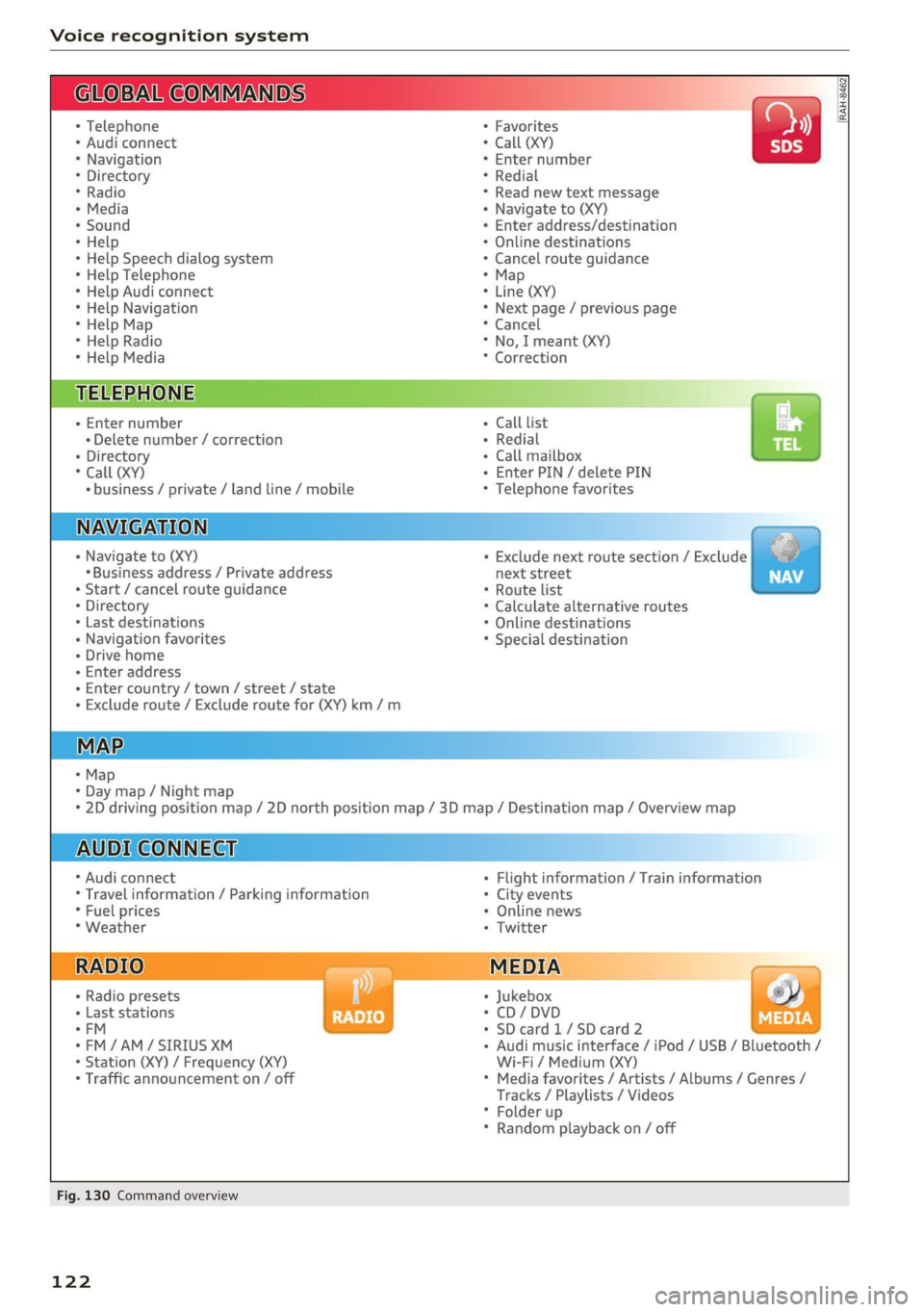
Fig. 130 Command overview
122
Page 125 of 280

8S1012721BB
Voice recognition system
Voice recognition system
General information
Applies to: vehicles with voice recognition system
You can operate many functions in the vehicle
easily using voice commands.
Using the voice recognition system optimally
> Speak clearly and distinctly at a normal volume.
Speak louder when driving faster.
» Emphasize the words in the commands evenly
and do not leave long pauses.
>» Close the doors, the windows, and the sunroof*
to reduce background noise. Make sure that
passengers are not speaking when you are giv-
ing a voice command.
> Do not direct the vents toward the hands-free
microphone, which is in the roof headliner/on
the driver’s safety belt* near the front interior
lights. For additional information on the safety
belt microphone’, see > page 141.
> Only the driver should speak to the system, be-
cause the handsfree microphone is aimed to-
ward this seating position.
Z\ WARNING
— Direct your full attention to driving. As the
driver, you have complete responsibility for
safety in traffic. Only use the functions in
such a way that you always maintain com-
plete control over your vehicle in all traffic
situations.
— Do not use the voice recognition system in
emergencies because your voice may change
in stressful situations. The system may take
longer to dial the number or may not be
able to dial it at all. Dial the emergency
number manually.
G) Tips
There are no voice guidance* prompts when a
dialog is active.
Operating
Applies to: vehicles with voice recognition system
Requirement: the ignition and the MMI must be
switched on. A system language supported by
the voice recognition system must be set. There
must be no phone calls in progress and the park-
ing aid must not be active.
> Switching on: briefly press the [2] button @)
=> page 14, fig. 10 on the multifunction steer-
ing wheel and say the desired command after
the Beep.
> Switching off: press and hold the |] button,
or:
» Say the command Cancel.
> Pausing: say the command Pause. To resume,
press the |] button.
> Correcting: press the [5] button one time ©)
=> page 12, fig. 6, or:
> Say the command Correction.
Input assistance
The system guides you through the input with
visual and audio feedback.
— Visual input assistance: after switching on
voice recognition, a display with a selection of
possible commands appears. This command
display can be switched on or off. Select:
MENU] > Settings > left control button > MMI
settings > Speech dialog system.
— Audio input assistance: to have the possible
commands read, press the [2] button on the
multifunction steering wheel briefly and say
Help.
Additional settings
See > page 194, Voice recognition system.
@) Tips
— The dialog pauses when there is an incom-
ing phone call and will continue if you ig-
nore the call. The dialog ends if you answer
the call.
— You can select an item in the list using ei-
ther the voice recognition system or the
control knob.
123
Page 162 of 280

Navigation
Parking along the route: parking options along
the route will be displayed.
Save current position: you can save your current
vehicle position as a favorite > page 155 or save
it as a contact in the directory > page 155.
Audi connect at this location*: allows you to
search for travel information at the entered loca-
tion (events, weather at the destination, etc.).
Country information: you can display the appli-
cable urban and rural speed limits for any coun-
try/state. This information will be automatically
shown to you in the route information (5)
=> page 158, fig. 142 when the speed limit is ex-
ceeded, if this function is activated > page 160.
Avoid route*: when route guidance is active, the
calculated route will avoid the area you have
specified (maximum: 12 mi (20 km)), if possible.
The navigation system calculates an alternative
route. The route to be avoided that you have en-
tered applies only to the current route and must
be set again, if needed. The areas you have se-
lected to avoid will appear with red and white
shading on the map.
Map settings
Applies
to: vehicles with navigation system
> Press the [NAV/MAP] button repeatedly until
the map is displayed > page 158, fig. 142.
> Select: right control button > Map settings.
Depending on the selected function, the follow-
ing settings can be selected:
Map colors
Day/Night: the map is displayed with a light/
dark background.
Automatic: when the lights switch on, the map
colors switch from day to night.
Map display
Standard > page 158, fig. 141.
Satellite map*)) > page 161, fig. 143.
2) AUDI AG provides access to services from third party pro-
viders. Permanent availability cannot be guaranteed, be-
cause that depends on the third party provider.
160
Traffic > page 162.
Map orientation
Destination map: the map indicates the destina-
tion and is oriented to the north.
2D heading up map/2D north up map: the cur-
rent vehicle position is displayed. The map is ori-
ented in the direction of travel or to the north.
3D heading-up map: when this function is
switched on, the current vehicle position is
shown on a three-dimensional map and oriented
in the direction of travel. At a scale of 62 mi
(100 km) and larger, the map orientation is to
the north.
Overview map: the entire route from the vehicle
position to the destination or the next stopover is
displayed on the map. The map scale depends on
the length of the route and adapts automatically.
The map is oriented to the north.
Route information
The display of route information such as the cur-
rent road being driven on, upcoming maneuvers,
traffic information or points of interest along the
route can be switched on/off.
Automatic zoom
On: the map scale is adapted automatically de-
pending on the type of road being traveled (ex-
pressway, highway, other roads) so that you al-
ways have an optimal overview of the road ahead.
The scale will also be automatically adapted
when there are upcoming maneuvers to provide a
better detailed view.
Off: the map scale you have chosen is main-
tained.
Map content
Map content, such as traffic information, favor-
ites or restaurants, can be displayed or hidden
(™).
Page 172 of 280
Media
Media
Introduction
There are various media drives and connections
available in the MMI. You can play, for example,
audio/video files from the Jukebox* or connect
your mobile device to the Audi music interface*
and operate it through the MMI.
Notes
Media and format restrictions: the MMI (includ-
ing the SD card reader and the USB storage de-
vice connection*) was tested with a variety of
products and media available in the market.
However, there may be cases where individual de-
vices or media and audio/video” files may not be
recognized, may play only with restrictions or
may not play at all.
Digital Rights Management: please note that
the audio/video files are subject to copyright pro-
tection.
The media drives do not play files that are pro-
tected by DRM and that are identified with the
symbol fi.
Data security: never store important data on SD
cards, the Jukebox*, CDs/DVDs or mobile devices.
Audi AG is not responsible for damaged or lost
files and media.
Loading times: the more files/folders/playlists
that are on a storage medium, the longer it will
take to load the audio/video* files. Audi recom-
mends using storage media that only contain au-
dio/video files*. To decrease the time it takes to
load audio/video files*, create subfolders (for ex-
ample, for the artist or album). The loading time
will also increase when importing files.
Additional information: when playing, audio
files are automatically displayed with any addi-
tional information that is stored (such as the ar-
tist, track and album cover). If this information is
not available on the storage medium, the MMI
will check the Gracenote metadata database.
170
However, in some cases, the additional informa-
tion may not be displayed.
Restricted functionality: reset the Media set-
tings to the factory default settings if functional-
ity is restricted > page 190.
If functionality is restricted, reset the Jukebox* to
the factory default settings > page 190.
For information about the properties of support-
ed media and file formats, see > page 183.
@) Note
Always follow the information found in >@ in
General information on page 142.
CD/DVD operation
CD/DVD and format restrictions: the functionali-
ty of individual storage media may be limited due
to the variety of blank CDs/DVDs available and
the various capacities. Audio CDs or video DVDs
with copy protection, CDs/DVDs that do not con-
form to the standard, and multisession CDs may
have limited playback or may not play at all. Audi
recommends finalizing the recording process
when creating multisession CDs. Multisession
DVDs are not supported.
Using CDs/DVDs, the CD drive or the DVD drive:
to ensure correct, high-quality playback and to
prevent damage to the drive or disc reading er-
rors, always store CDs/DVDs in a protective
sleeve and do not expose them to direct sunlight.
Do not use:
— Damaged, dirty or scratched CDs/DVDs
— Single CDs/DVDs with 3 in (8 cm) diameter
— CD/DVDs that are not round
— CDs/DVDs with labels
— Protective rings
— Cleaning CDs
Thermal protection switch: CD/DVD playback
may be temporarily unavailable if outside tem-
peratures
are extremely hot or cold. A thermal
protection switch is installed to protect the
CD/DVD and the laser.
Laser devices: laser devices are divided into safe-
ty classes 1 to 4 in accordance with DIN IEC 76 >
Page 178 of 280
Always follow the information found in >@ in
General information on page 142.
@ Tips
— Depending on the Internet connection and
network traffic, the connection may discon-
nected when online media sources are play-
ing.
— Online media and Internet radio usage de-
pends on the service availability of the third
party provider.
— Audi AG simply makes the access to online
media services possible through the MMI
and does not take any responsibility for the
contents of the online media services.
— Always read the chapter > page 142, Audi
connect.
— Depending on the mobile device being used,
there may be interruptions during media
playback and when using the myAudi app.
To prevent interruptions when using a mo-
bile device, do not lock the screen on your
mobile device and keep the myAudi app in
the foreground.
— Contact an authorized Audi dealer or au-
thorized Audi Service Facility for additional
information about online media.
Multimedia connections
USB adapter for Audi music interface or
USB charging port
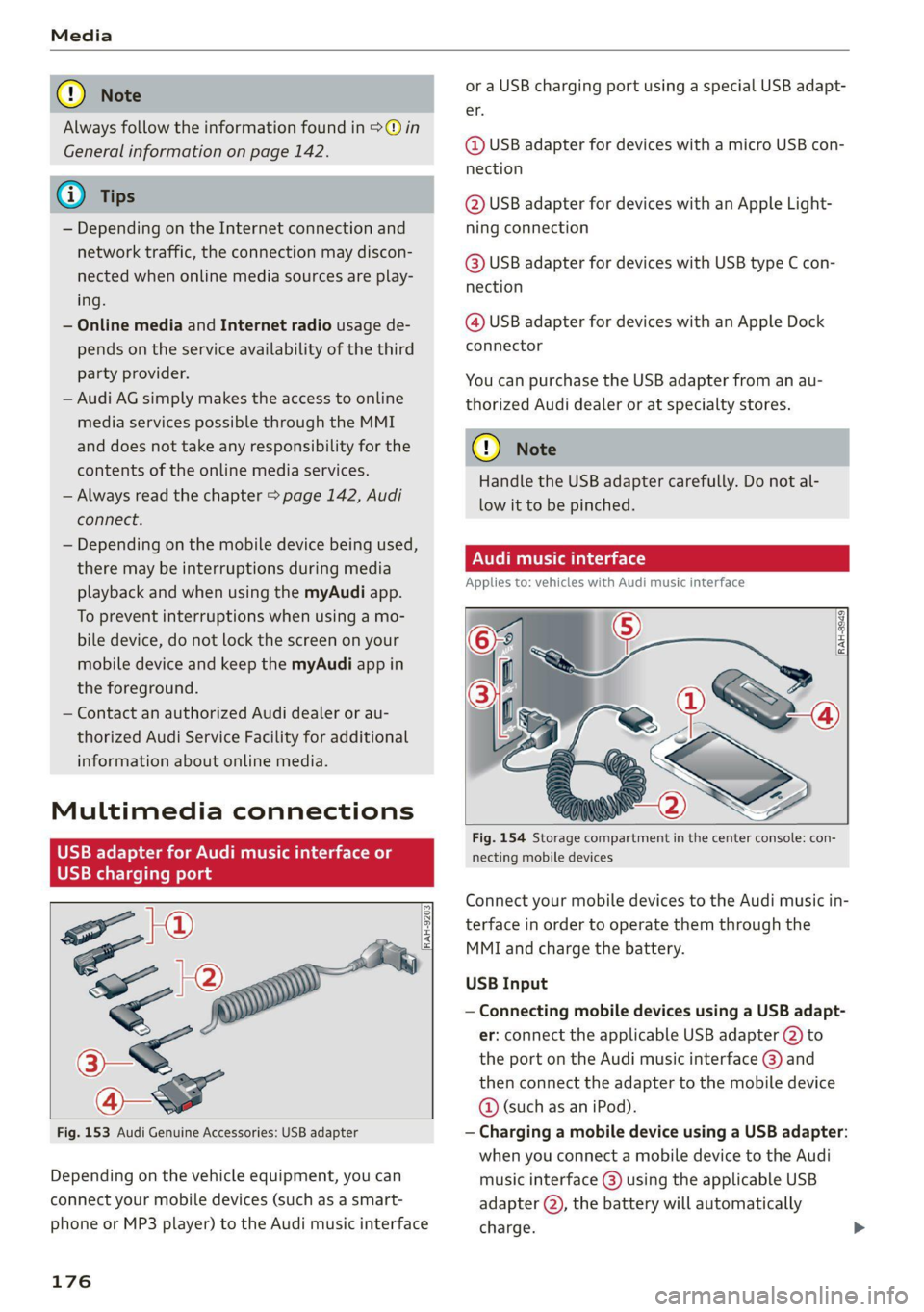
Fig. 153 Audi Genuine Accessories: USB adapter
{RAH-9203}
Depending on the vehicle equipment, you can
connect your mobile devices (such as a smart-
phone or MP3 player) to the Audi music interface
176
or a USB charging port using a special USB adapt-
er.
@ USB adapter for devices with a micro USB con-
nection
@ USB adapter for devices with an Apple Light-
ning connection
@ USB adapter for devices with USB type C con-
nection
@ USB adapter for devices with an Apple Dock
connector
You can purchase the USB adapter from an au-
thorized Audi dealer or at specialty stores.
@) Note
Handle the USB adapter carefully. Do not al-
low it to be pinched.
ONT ee la
Applies to: vehicles with Audi music interface
Copan >
(! 7
a
Fig. 154 Storage compartment in the center console: con-
necting mobile devices
Connect your mobile devices to the Audi music in-
terface in order to operate them through the
MMI and charge the battery.
USB Input
— Connecting mobile devices using a USB adapt-
er: connect the applicable USB adapter @) to
the port on the Audi music interface @) and
then connect the adapter to the mobile device
@ (such as an iPod).
— Charging a mobile device using a USB adapter:
when you connect a mobile device to the Audi
music interface @) using the applicable USB
adapter (2), the battery will automatically
charge.