navigation AUDI TT ROADSTER 2016 User Guide
[x] Cancel search | Manufacturer: AUDI, Model Year: 2016, Model line: TT ROADSTER, Model: AUDI TT ROADSTER 2016Pages: 306, PDF Size: 31.82 MB
Page 131 of 306
Downloaded from www.Manualslib.com manuals search engine 0
N
,.....
N
....
0
,.....
Vl
CX) CD
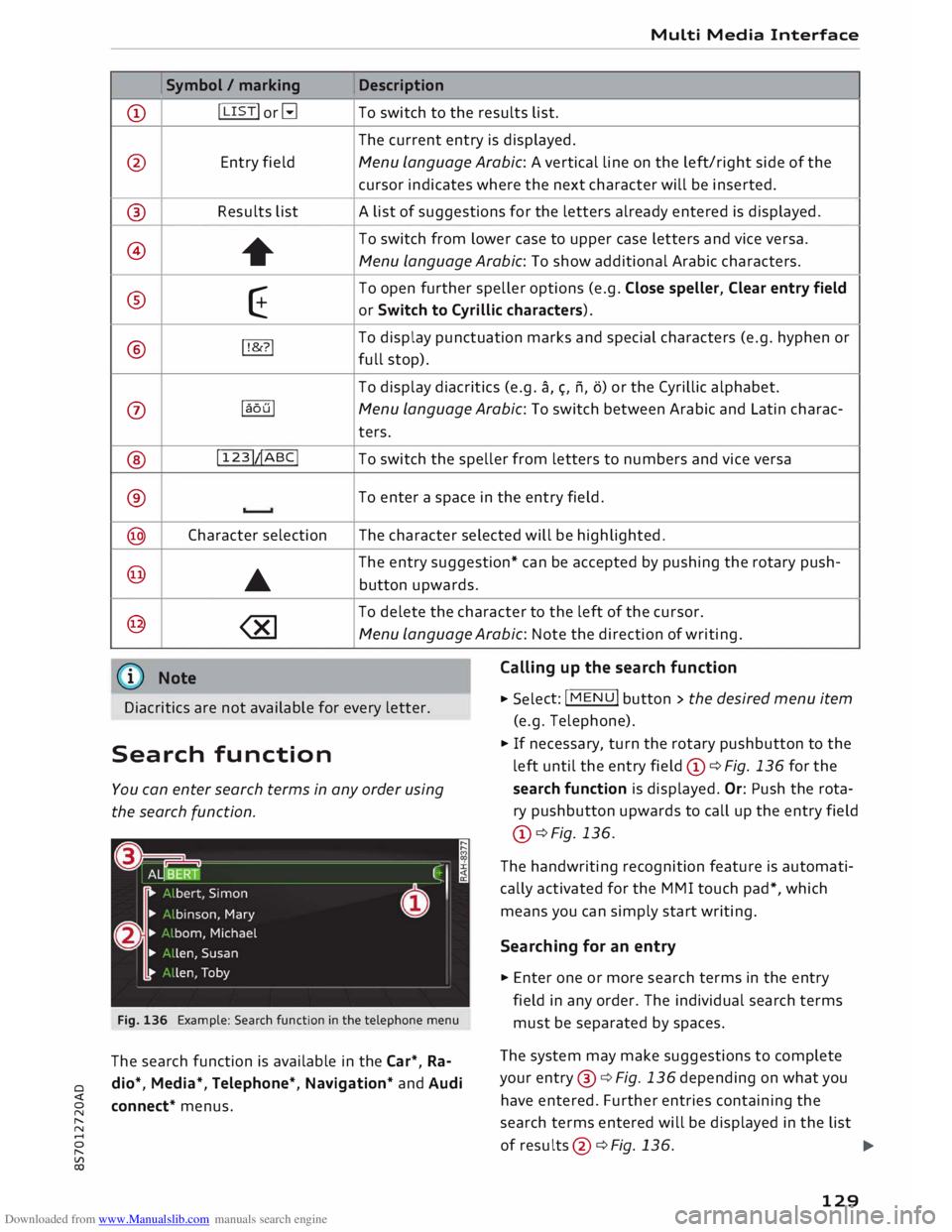
@ ®
@
®
®
0
®
®
@
@
@ Symbol
/ marking
I LIST! or�
Entry field
Results list +
E
!!&? !
laoul
! 123!�ABC!
Character selection
•
Media Interface
Description
To switch to the results list.
The current entry is displayed.
Menu Language Arabic: A vertical line on the left/right side of the
cursor indicates where the next character will be inserted.
A list of suggestions for the letters already entered is displayed.
To switch from lower case to upper case letters and vice versa.
Menu Language Arabic: To show additional Arabic characters.
To open further speller options (e.g. Close speller, Clear entry field
or Switch to Cyrillic characters).
To display punctuation marks and special characters (e.g. hyphen or
full stop).
To display diacritics (e.g. a,�. n, o) or the Cyrillic alphabet.
Menu Language Arabic: To switch between Arabic and Latin charac-
ters.
To switch the speller from letters to numbers and vice versa
To enter a space in the entry field .
The character selected will be highlighted.
The entry suggestion* can be accepted by pushing the rotary push-
button upwards.
To delete the character to the left of the cursor.
Menu Language Arabic: Note the direction of writing.
Calling up the search function
Diacritics are not available for every letter. .,.
Select: !MENU
! button > the desired menu item
(e.g. Telephone) .
Search function
You can enter search terms in any order using
the search function.
Fig. 136 Example: Search function in the telephone menu
The search function is available in the Car*, Ra
dio*, Media*, Telephone*, Navigation* and Audi
connect* menus. .,.
If necessary, turn the rotary pushbutton to the
left until the entry field CD¢ Fig. 136 for the
search function is displayed. Or: Push the rota
ry pushbutton upwards to call up the entry field
CD ¢ Fig. 136.
The handwriting recognition feature is automati
cally activated for the MMI touch pad*, which
means you can simply start writing.
Searching for an entry
.,. Enter one or more search terms in the entry
field in any order. The individual search terms
must be separated by spaces.
The system may make suggestions to complete
your entry @¢ Fig. 136 depending on what you
have entered. Further entries containing the
search terms entered will be displayed in the list
of results
@¢
Fig.136.
1)11,,
129
Page 134 of 306
Downloaded from www.Manualslib.com manuals search engine Speech
dialogue system
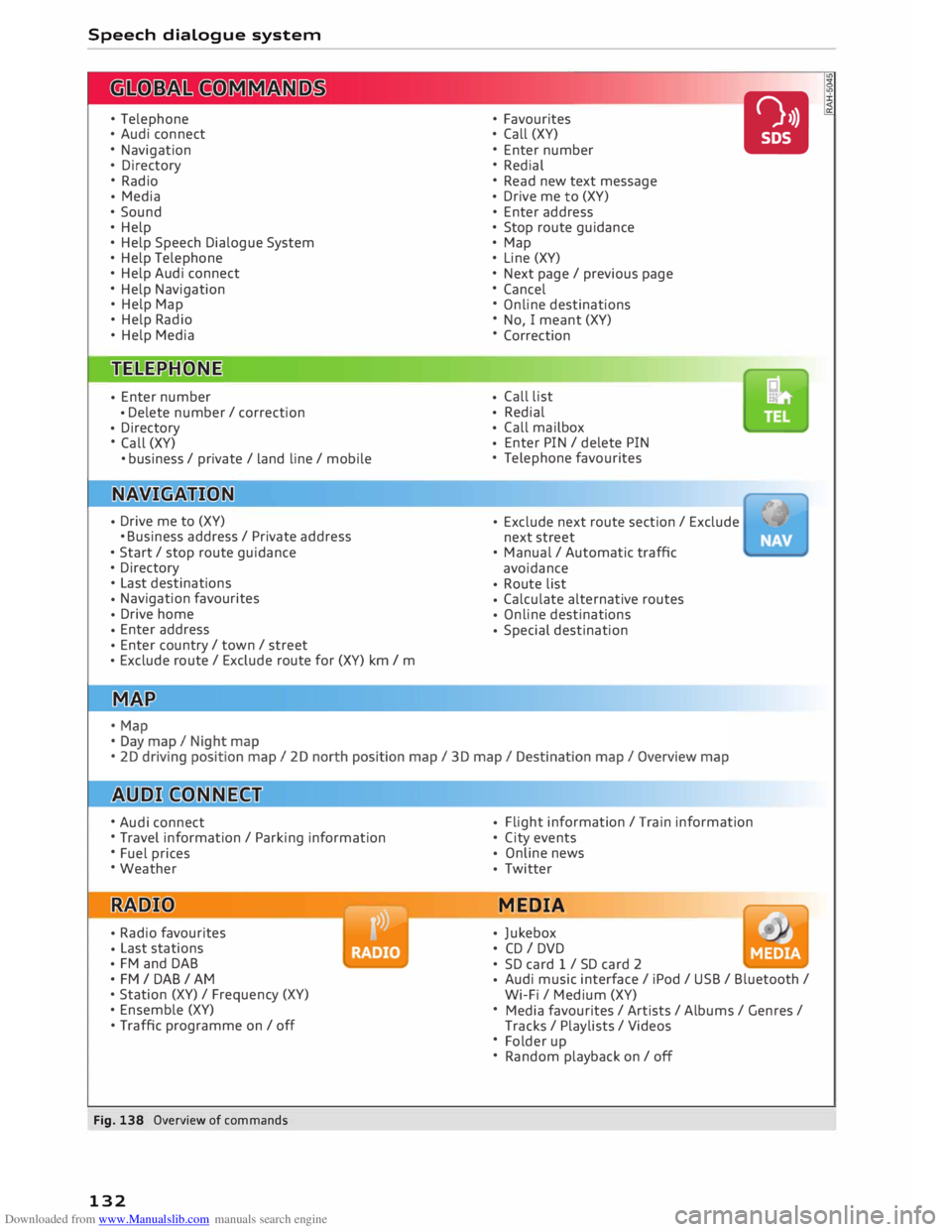
• Telephone
• Audi connect
• Navigation
• Directory
• Radio
• Media
• Sound
• Help
• Help Speech Dialogue System
• Help Telephone
• Help Audi connect
• Help Navigation
• Help Map
• Help Radio
• Help Media
• Enter
number
• Delete
number / correction
• Directory
• Call (XY)
•business/ private/ Land line/ mobile
• Drive
me to (XY)
• Business address/ Private address
• Start/ stop route guidance
• Directory
• Last destinations
• Navigation
favourites
• Drive
home
• Enter
address
• Enter
country/ town/ street
• Exclude
route/ Exclude route for (XY) km/ m
• Audi connect
• Travel information / Parking information
• Fuel prices
• Weather
• Radio
favourites
• Last
stations
• FM
and DAB
•FM/ DAB/ AM
• Station (XY) / Frequency (XY)
• Ensemble (XY)
• Traffic programme on/ off
Fig. 138 Overview of commands
132 •
Favourites
• Call (XY)
• Enter number
• Redial
• Read new text message
• Drive
me to (XY)
• Enter address
• Stop route guidance
• Map
• Line (XY)
• Next page / previous page
• Cancel
• Online destinations
• No, I meant (XY)
• Correction
• Call
list
• Redial
• Call
mailbox
• Enter
PIN / delete PIN
• Telephone favourites
• Exclude
next route section / Exclude
next street
• Manual / Automatic traffic
avoidance
• Route
list
• Calculate
alternative routes
• Online
destinations
• Special
destination •
• Flight
information / Train information
• City events
• Online
news
• Twitter
MEDIA
• Jukebox
• CD I DVD
• SD card 1 / SD card 2
• Audi
music interface / iPod / USB / Bluetooth /
Wi-Fi / Medium (XY)
• Media favourites/ Artists/ Albums/ Genres/
Tracks / Playlists / Videos
• Folder up
• Random playback on / off
Page 135 of 306
Downloaded from www.Manualslib.com manuals search engine 0
N
,.....
N
....
0
,.....
Vl
CX) Speech
dialogue system
How to use the speech
dialogue system
Applies to: vehicles with speech dialogue system
You can operate many infotainment functions
conveniently by voice.
Important: The ignition and the MMI system
must be switched on, you must not be talking on
the phone, and the parking aid must not be ac
tive.
� To switch on: Briefly press the [2!l button @ on
the multi-function steering wheel¢ page 23,
Fig. 10 and give a spoken command after the
beep signal.
� To switch off: Press and hold the [2!l button for
several seconds. Or: Say the command Cancel.
� To pause: Say the command Pause. To end the
pause, press the [2!l button.
� To make a correction: Press the� button once
® ¢page 21, Fig. 8. Or: Say the command Cor
rection.
Input help
The system guides you through the input routine
with cues and messages.
- Input help messages on screen: After the
speech dialogue system is switched on, a selec
tion of possible commands will be shown. The
command display can be switched on/off via
IM ENU I
> Settings > left control button > MMI
settings > Speech dialogue system.
- Spoken input help cues: To have the system
play the commands currently possible, press
the [2!l button on the multi-function steering
wheel and say Help.
How to help the system understand you
Speak clearly in a normal volume. Speak louder if
you are driving fast.
Speak in a normal tone without long pauses.
Avoid speaking when the speech dialogue system
is saying a cue. Speech
dialogue system
Close doors and windows and soft top* to reduce
background noise. Make sure that passengers are
not talking when you say a command.
Keep the air outlets of the air distribution system
pointed away from the microphone, which is fit
ted in the vicinity of the front interior lights in
the headliner/on the driver's seat belt*. For more
information about the seat belt microphone, re
fer to¢ page 157.
The system should only be operated by the driv
er, since the handsfree microphone is directed
towards the driver.
Other settings
Refer to¢ page 218, Speech dialogue system.
&_ WARNING
- Please direct your full attention to the road
at all times! As the driver, you have full re
sponsibility for the safety of the vehicle and
other road users. For this reason, you should
only use the functions in a manner that al
lows you to maintain control of the vehicle
in all situations -accident risk!
- The speech dialogue system must not be
used in cases of emergency, since the voice
changes in stressful situations. This could
result in a failed or delayed telephone con
nection. Always dial emergency numbers
manually!
(@ Note
- The dialogue is paused when an incoming
telephone call is received; you can continue
the dialogue by ignoring the call. If you an
swer the call, the dialogue will be cancelled.
- No navigation cues* or traffic announce
ments* are played when a dialogue is active.
- You can select an entry from a list both via
the speech dialogue system and using the
rotary pushbutton.
- The speech dialogue system does not sup
port commands in Arabic, Norwegian or
Hungarian.
133
Page 136 of 306
Downloaded from www.Manualslib.com manuals search engine Speech
dialogue system
Notes on the overviews
of commands
Applies to: vehicles with speech dialogue system
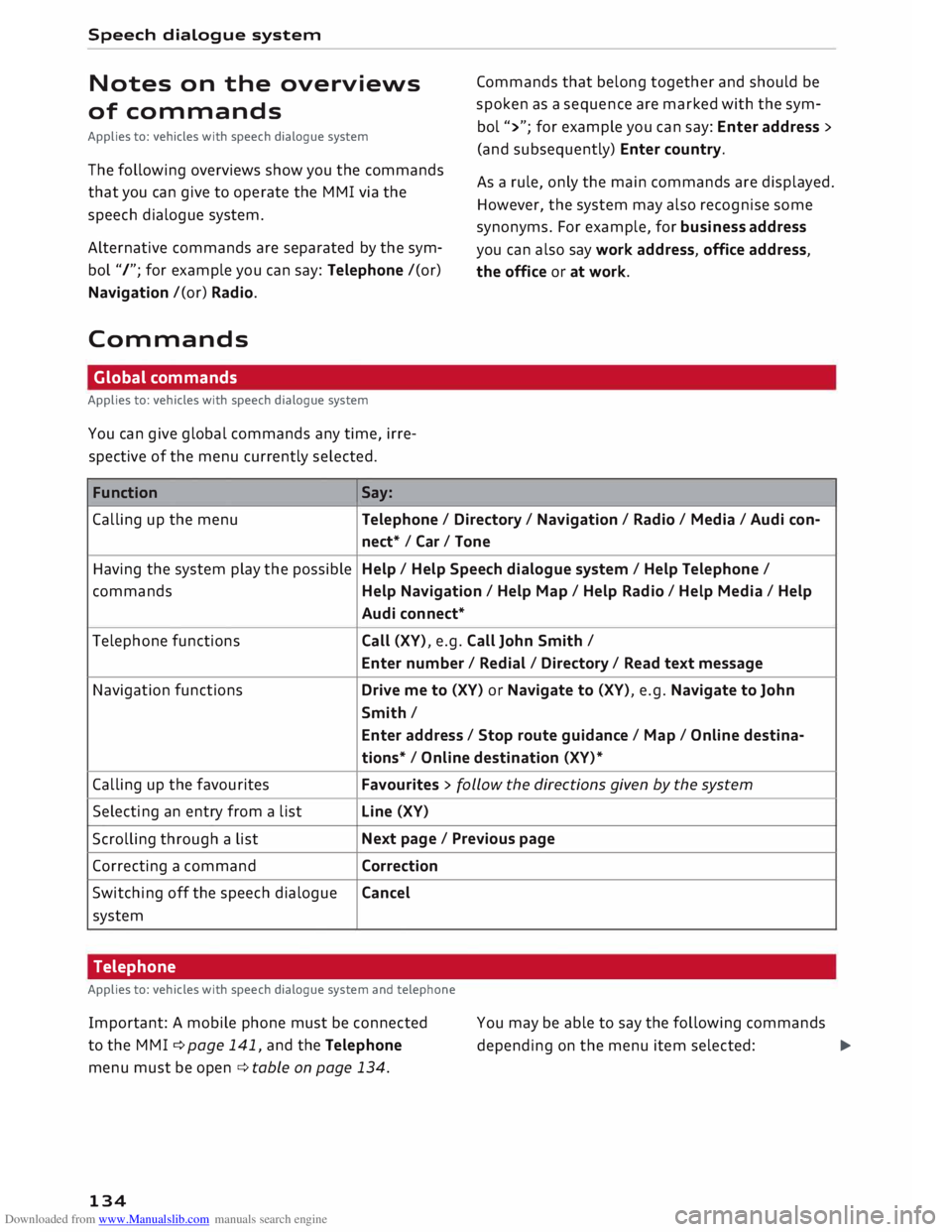
The following overviews show you the commands
that you can give to operate the MMI via the
speech dialogue system.
Alternative commands are separated by the sym
bol "/"; for example you can say: Telephone /(or)
Navigation /(or) Radio.
Commands Global commands
Applies to: vehicles with speech dialogue system
You can give global commands any time, irre
spective of the menu currently selected.
Function Say: Commands
that belong together and should be
spoken as a sequence are marked with the sym
bol ">"; for example you can say: Enter address >
(and subsequently) Enter country.
As a rule, only the main commands are displayed.
However, the system may also recognise some
synonyms. For example, for business address
you can also say work address, office address,
the office or at work.
Calling up the menu Telephone/ Directory/ Navigation / Radio / Media / Audi con-
nect* /Car/ Tone
Having the system play the possible Help
/ Help Speech dialogue system / Help Telephone /
commands Help Navigation / Help Map/ Help Radio/ Help Media / Help
Audi connect*
Telephone functions Call (XV), e.g. Call John Smith /
Enter number/ Redial/ Directory/ Read text message
Navigation functions Drive me to (XV) or Navigate to (XV), e.g. Navigate to John
Smith/ Enter address / Stop route guidance/ Map/ Online destina-
tions* / Online destination (XV)*
Calling up the favourites Favourites
> follow the directions given by the system
Selecting an entry from a list Line
(XV)
Scrolling through a list Next
page / Previous page
Correcting a command Correction
Switching off the speech dialogue Cancel
system
Telephone
Applies to: vehicles with speech dialogue system and telephone
Important: A mobile phone must be connected
to the M MI ¢ page 141, and the Telephone
menu must be open ¢ table on page 134.
134 You
may be able to say the following commands
depending on the menu item selected:
�
Page 138 of 306
Downloaded from www.Manualslib.com manuals search engine Speech
dialogue system
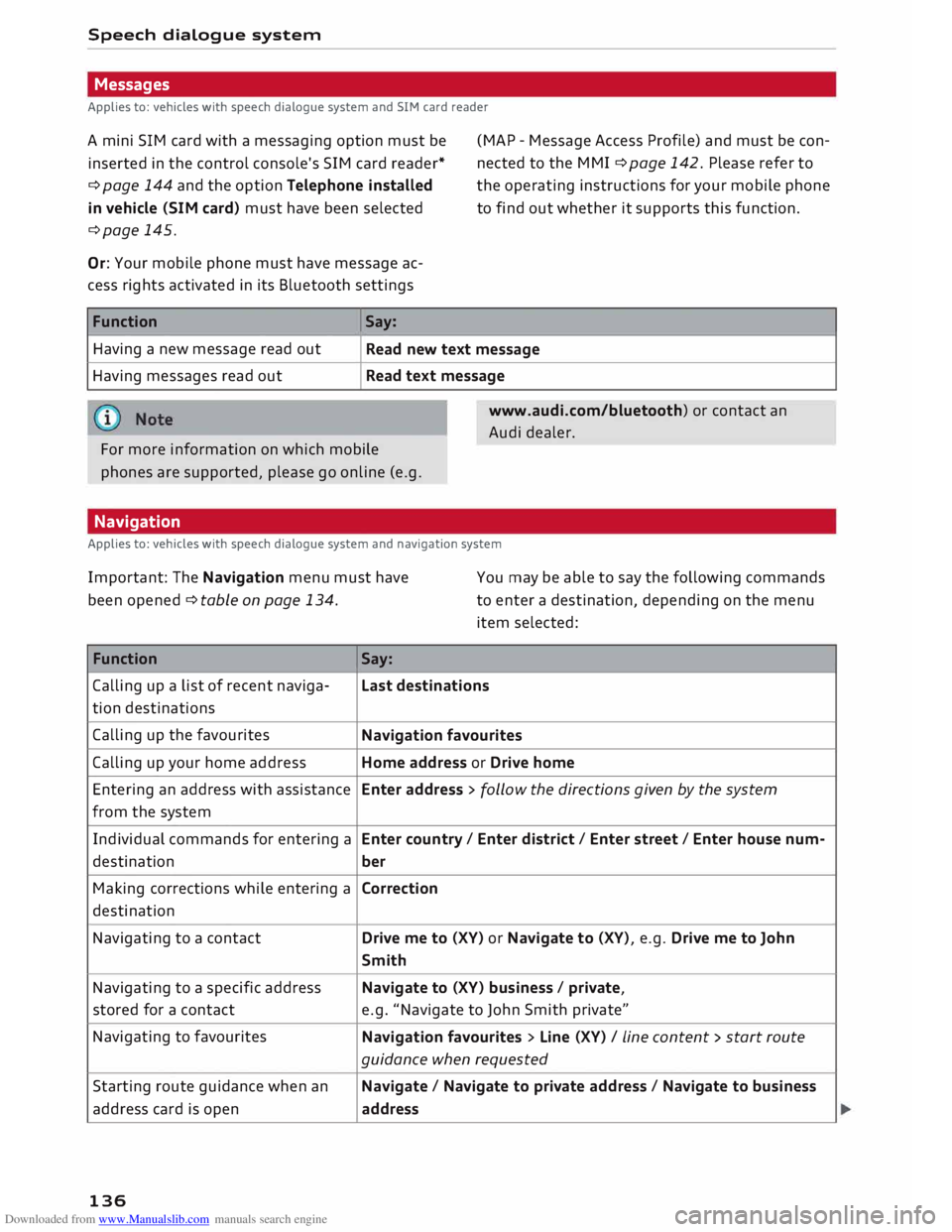
Messages
Applies to: vehicles with speech dialogue system and SIM card reader
A mini SIM card with a messaging option must be
inserted in the control console's SIM card reader*
¢ page 144 and the option Telephone installed
in vehicle (SIM card) must have been selected
¢page 145. (MAP
-Message Access Profile) and must be con
nected to the MM I ¢ page 142. Please refer to
the operating instructions for your mobile phone
to find out whether it supports this function.
Or: Your mobile phone must have message ac
cess rights activated in its Bluetooth settings
Function Having a new message read out
Having messages read out Say:
Read new text message
Read text message
www.audi.com/bluetooth) or contact an
Audi dealer.
For more information on which mobile
phones are supported, please go online (e.g.
Navigation
Applies to: vehicles with speech dialogue system and navigation system
Important: The Navigation menu must have
been opened ¢ table on page 134. You
may be able to say the following commands
to enter a destination, depending on the menu
item selected:
Function Say:
Calling up a list of recent naviga- Last destinations
tion destinations
Calling up the favourites
Navigation favourites
Calling up your home address Home address or Drive home
Entering an address with assistance Enter address > follow the directions given by the system
from the system
Individual commands for entering a Enter country/ Enter district/ Enter street/ Enter house num-
destination ber
Making corrections while entering a
Correction
destination
Navigating to a contact Drive
me to (XV) or Navigate to (XV), e.g. Drive me to John
Smith
Navigating to a specific address Navigate
to (XV) business/ private,
stored for a contact e.g.
"Navigate to John Smith private"
Navigating to favourites
Navigation favourites > Line (XV) / Line content> start route
guidance when requested
Starting route guidance when an Navigate/ Navigate to private address / Navigate to business
address card is open
address
136
Page 139 of 306
Downloaded from www.Manualslib.com manuals search engine 0
N
,.....
N
......
0
,.....
Vl
CX) Speech
dialogue system
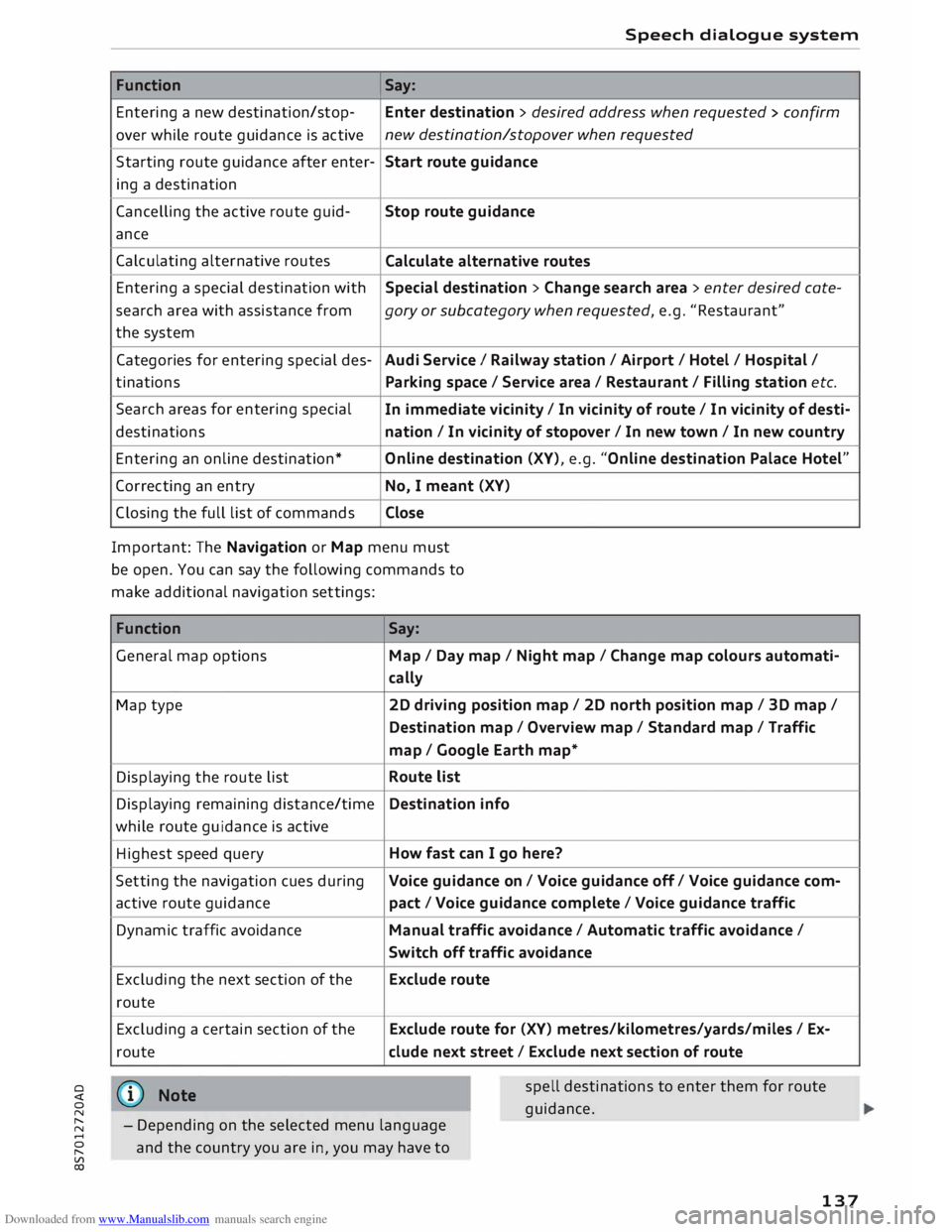
Function Say:
Entering a new destination/stop- Enter destination > desired address when requested > confirm
over while route guidance is active new
destination/stopover when requested
Starting route guidance after enter-
Start route guidance
ing a destination
Cancelling the active route guid-
Stop route guidance
ance
Calculating alternative routes
Calculate alternative routes
Entering a special destination with
Special destination > Change search area > enter desired cote-
se arch area with assistance from
gory or subcategory when requested, e.g. "Restaurant"
the system
Categories for entering special des-
Audi Service I Railway station/ Airport / Hotel / Hospital /
ti nations
Parking space/ Service area / Restaurant/ Filling station etc.
Search areas for entering special
In immediate vicinity/ In vicinity of route / In vicinity of desti-
destinations nation/ In vicinity of stopover / In new town/ In new country
Entering an online destination*
Online destination (XV), e.g. "Online destination Palace Hotel"
Correcting an entry
No, I meant (XV)
Closing the full list of commands Close
Important: The Navigation or Map menu must
be open. You can say the following commands to
make additional navigation settings:
Function
General map options
Map type
Displaying the route list
Displaying remaining distance/time
while route guidance is active
Highest speed query
Setting the navigation cues during
active route guidance
Dynamic traffic avoidance
Excluding the next section of the
route
Excluding a certain section of the
route
@ Note Say:
Map / Day map / Night map/ Change map colours automati-
cally
2D driving position map/ 2D north position map/ 3D map/
Destination map/ Overview map/ Standard map/ Traffic
map/ Google Earth map*
Route list
Destination info
How fast can I go here?
Voice guidance on/ Voice guidance off/ Voice guidance com-
pact / Voice guidance complete/ Voice guidance traffic
Manual traffic avoidance/ Automatic traffic avoidance /
Switch off traffic avoidance
Exclude route
Exclude route for (XV) metres/kilometres/yards/miles/ Ex-
elude next street / Exclude next section of route
spell destinations to enter them for route
guid ance.
- Depending on the selected menu language
and the country you are in, you may have to
137
Page 141 of 306
Downloaded from www.Manualslib.com manuals search engine CD
CAUTION
Please always observe the information ¢(0 in
Wi-Fi hotspot on page 166.
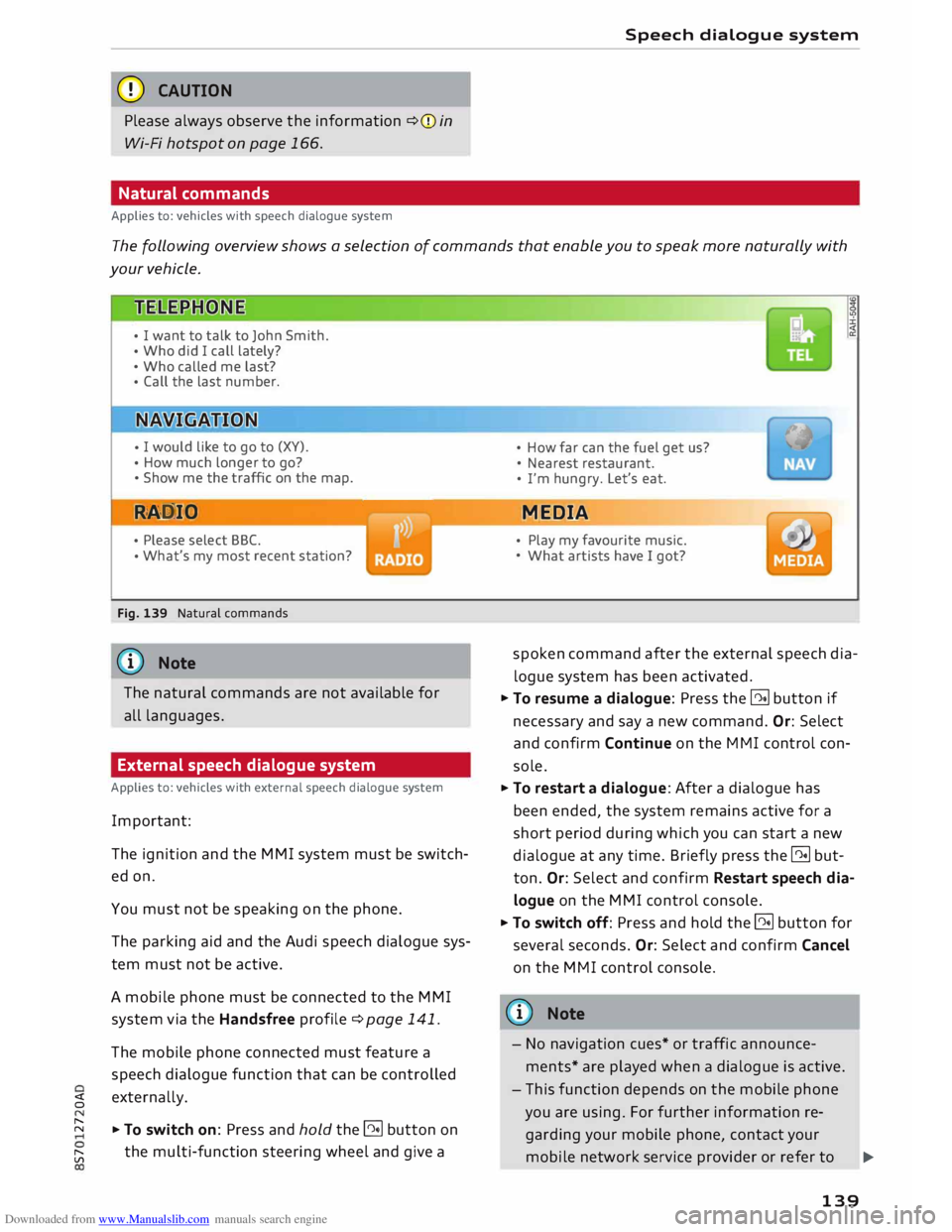
Natural commands
Applies to: vehicles with speech dialogue system Speech
dialogue system
The following overview shows a selection of commands that enable you to speak more naturally with
your vehicle.
• I want to talk to John Smith.
• Who did I call lately?
• Who called me last?
• Call the last number.
• I
would like to go to (XY).
• How much longer to go?
• Show me the traffic on the map.
RAD IO
• Please select BBC.
• What's
my most recent station?
Fig. 139 Natural commands
ijj} Note
The natural commands are not available for
all languages.
External speech dialogue system
Applies to: vehicles with external speech dialogue system
Important: The ignition and the MMI system must be switch
ed on.
You must not be speaking on the phone.
The parking aid and the Audi speech dialogue sys
tem must not be active.
A mobile phone must be connected to the MMI
system via the Handsfree profile¢ page 141.
The mobile phone connected must feature a
speech dialogue function that can be controlled
� externally.
� � To switch on: Press and hold the@!l button on
[;:j the
multi-function steering wheel and give a •
How far can the fuel get us?
• Nearest restaurant.
• I'm hungry. Let's eat.
MEDIA
• Play my favourite music.
• What artists have I got?
spoken command after the external speech dia
logue system has been activated.
� To resume a dialogue: Press the @!l button if
necessary and say a new command. Or: Select
and confirm Continue on the MMI control con
sole.
� To restart a dialogue: After a dialogue has
been ended, the system remains active for a
short period during which you can start a new
dialogue at any time. Briefly press the @!l but
ton. Or: Select and confirm Restart speech dia
logue on the MMI control console.
� To switch off: Press and hold the @!l button for
several seconds. Or: Select and confirm Cancel
on the MMI control console.
@ Note
- No navigation cues* or traffic announce
ments* are played when a dialogue is active.
- This function depends on the mobile phone
you are using. For further information re
garding your mobile phone, contact your
mobile network service provider or refer to
..,_
139
Page 155 of 306
Downloaded from www.Manualslib.com manuals search engine ((1'>
Note
Emergency numbers are not the same for all
countries. Please make sure that you know
the emergency number for the country you
are in.
Directory Calling up the directory
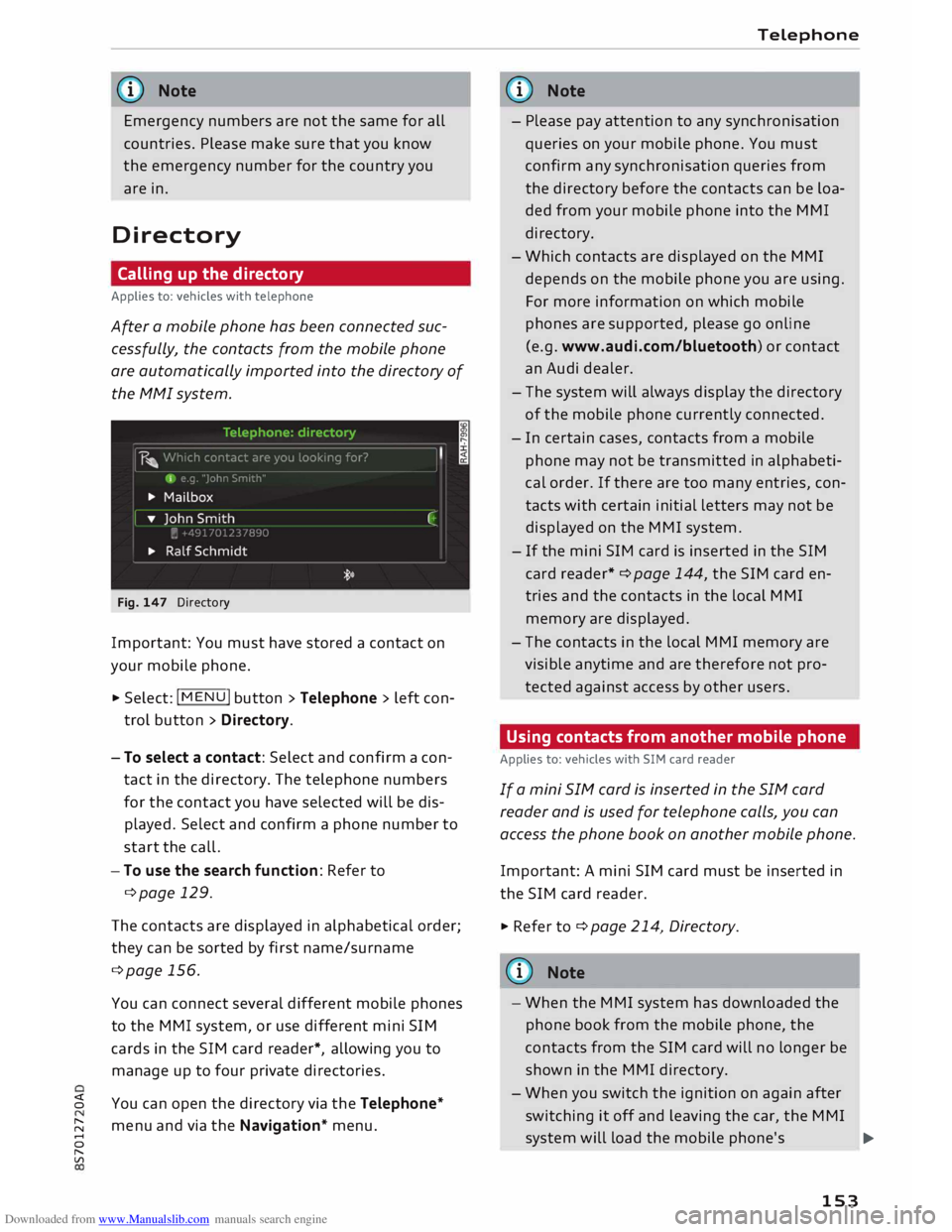
Applies to: vehicles with telephone
After a mobile phone has been connected suc
cessfully, the contacts from the mobile phone
are automatically imported into the directory of
the MMI system.
Fig. 147 Directory
Important: You must have stored a contact on
your mobile phone.
.,. Select: IM EN u I button > Telephone > left con
trol button > Directory.
- To select a contact: Select and confirm a con
tact in the directory. The telephone numbers
for the contact you have selected will be dis
played. Select and confirm a phone number to
start the call.
- To use the search function: Refer to
¢page 129.
The contacts are displayed in alphabetical order;
they can be sorted by first name/surname
¢page 156.
You can connect several different mobile phones
to the MMI system, or use different mini SIM
cards in the SIM card reader*, allowing you to
manage up to four private directories.
� You can open the directory via the Telephone*
� menu
and via the Navigation* menu.
......
0
"
Vl Telephone
G}) Note
- Please pay attention to any synchronisation
queries on your mobile phone. You must
confirm any synchronisation queries from
the directory before the contacts can be loa
ded from your mobile phone into the MMI
directory.
- Which contacts are displayed on the MMI
depends on the mobile phone you are using.
For more information on which mobile
phones are supported, please go online
(e.g. www.audi.com/bluetooth) or contact
an Audi dealer.
- The system will always display the directory
of the mobile phone currently connected.
- In certain cases, contacts from a mobile
phone may not be transmitted in alphabeti
cal order. If there are too many entries, con
tacts with certain initial letters may not be
displayed on the MMI system.
- If the mini SIM card is inserted in the SIM
card reader* ¢ page 144, the SIM card en
tries and the contacts in the local MMI
memory are displayed.
- The contacts in the local MMI memory are
visible anytime and are therefore not pro
tected against access by other users .
Using contacts from another mobile phone
Applies to: vehicles with SIM card reader
If a mini SIM card is inserted in the SIM card
reader and is used for telephone calls, you can
access the phone book on another mobile phone.
Important: A mini SIM card must be inserted in
the SIM card reader.
.,. Refer to¢ page 214, Directory.
@ Note
- When the MMI system has downloaded the
phone book from the mobile phone, the
contacts from the SIM card will no longer be
shown in the MMI directory.
- When you switch the ignition on again after
switching it off and leaving the car, the MMI
system will load the mobile phone's
..,.
153
Page 156 of 306
Downloaded from www.Manualslib.com manuals search engine Telephone
directory if the phone is within range and
Bluetooth is activated both on the phone
and on the MMI system. If this is not the
case, the MMI system will show the con
tacts from the mini SIM card in the SIM card
reader.
Searching for a contact
Applies to: vehicles with telephone �
Selec t: !MENU! button > Telephone > left con
trol button > Directory.
� To limit the search, enter the initials of the con
tact you are looking for individually, separating
them with a space. Enter additional letters if
necessary.
� Select and confirm a contact in the directory.
The telephone numbers for the contact you
have selected will appear.
� Select
and confirm a phone number to start the
call.
Ci) Note
- You can scroll rapidly through long lists by
turning the rotary pushbutton quickly. The
scrolling speed depends on the number of
entries in the list.
- For more information on the search func
tion, please refer to¢ page 129.
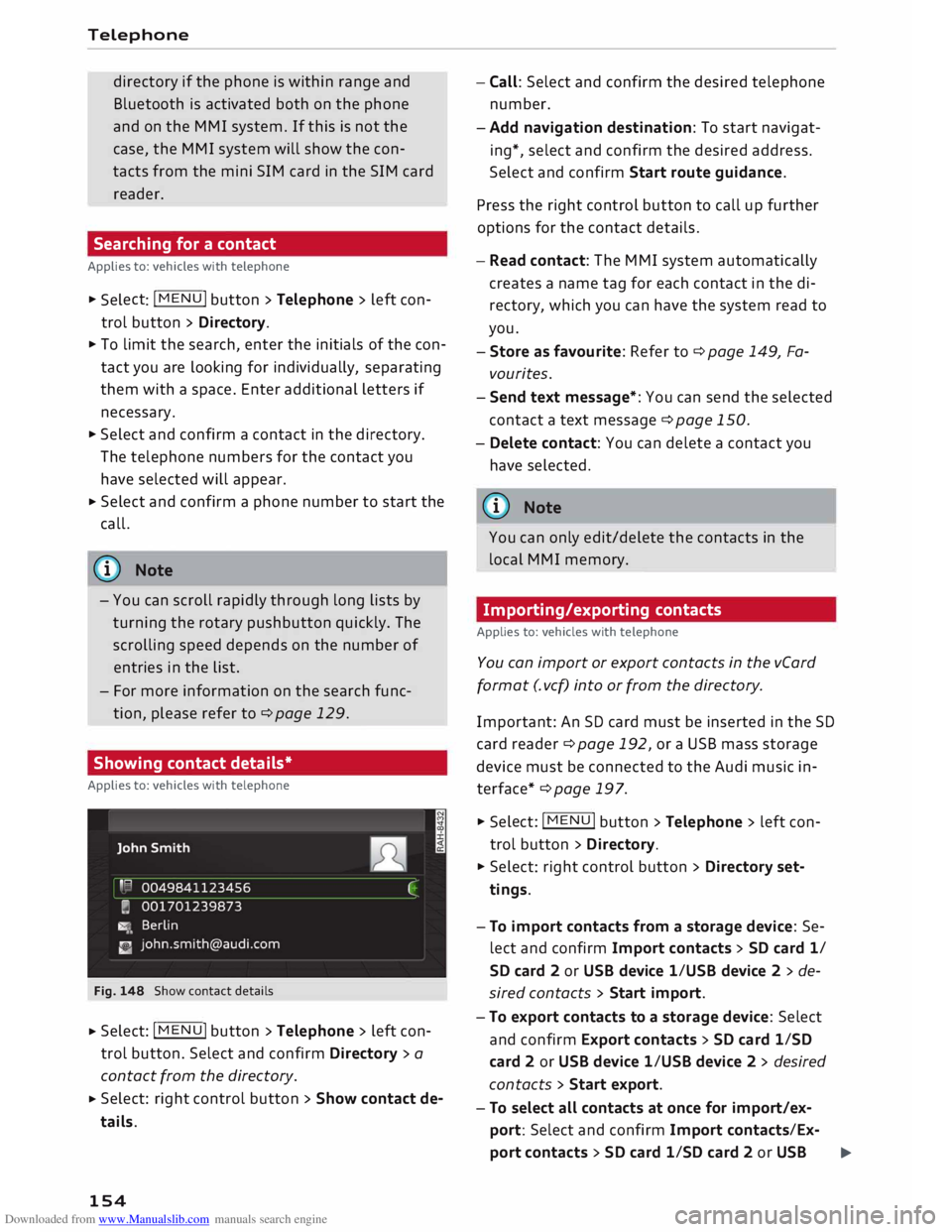
Showing contact details*
Applies to: vehicles with telephone
Fig. 148 Show contact details
� Select: !M
ENU!
button > Telephone > left con
trol button. Select and confirm Directory > a
contact from the directory.
� Select:
right control button > Show contact de
tails.
154 -
Call: Select and confirm the desired telephone
number.
- Add navigation destination: To start navigat
ing*, select and confirm the desired address.
Select and confirm Start route guidance.
Press the right control button to call up further
options for the contact details.
- Read contact: The MMI system automatically
creates a name tag for each contact in the di
rectory, which you can have the system read to
you.
- Store as favourite: Refer to¢ page 149, Fa
vourites.
- Send text message*: You can send the selected
contact a text message ¢page 150.
- Delete contact: You can delete a contact you
have selected.
(!) Note
You can only edit/delete the contacts in the
local MMI memory.
Importing/exporting contacts
Applies to: vehicles with telephone
You can import or export contacts in the vCard
format (. vcf) into or from the directory.
Important: An SD card must be inserted in the SD
card reader ¢ page 192, or a USB mass storage
device must be connected to the Audi music in
terface* ¢ page 197.
�
Sele ct: !MENU! button
> Telephone > Left con
trol button > Directory.
� Select: right control button > Directory set
tings.
- To import contacts from a storage device: Se
lect and confirm Import contacts > SD card 1/
SD card 2 or USB device 1/USB device 2 > de
sired contacts > Start import.
- To export contacts to a storage device: Select
and confirm Export contacts > SD card 1/SD
card 2 or USB device 1/USB device 2 > desired
contacts > Start export.
- To select all contacts at once for import/ex
port: Select and confirm Import contacts/Ex-
port contacts > SD card 1/SD card 2 or USB .,..
Page 165 of 306
Downloaded from www.Manualslib.com manuals search engine Show
on map
You can have selected content displayed on the
map and use it for route guidance.
Read 1
)
You can have the MMI read out some types of
content.
Start route guidance
If an entry contains a location (e.g. in City
events), this can be used as a navigation destina
tion in the MMI.
Refresh
The content of the Audi connect service selected
is updated.
Change search area
The search area selected can be changed at any
time. For more information on search areas,
please refer to ¢ page 172, Entering a special
destination.
Cl osing an Audi connect service
You can close an Audi connect service at any time
and go back to the overview, regardless of which
function you have chosen ¢ Fig. 152.
Parking information
Applies to: vehicles with Audi connect
Information on places to park and parking fees in
the search area selected (e.g. In immediate vi
cinity).
� Select and confirm Parking information.
You can use the right control button to sort the
car parks by distance or by availability.
Travel information
Applies to: vehicles with Audi connect
Information on landmarks in the search area se
lected.
� Select an confirm a landmark to have details
� displayed.
0
N
,.....
N
......
0
,.....
� 1}
Not available in all languages. Audi
connect
Fuel prices
Applies to: vehicles with Audi connect
Information on filling stations with the cheapest
fuel prices for your vehicle in the search area se
lected.
� Select and confirm Fuel prices.
You can use the right control button to sort the
fuel prices by price or by distance.
Weather
Applies to: vehicles with Audi connect
Information on the current weather and weather
forecasts for the search area selected (e.g. In im
mediate vicinity).
� Select and confirm Weather.
Flight information
Applies to: vehicles with Audi connect
Information on flights and current arrival/depar
ture times in the search area selected.
� Select and confirm Flight information.
You can use the right control button to select the
information you require.
City events
Applies to: vehicles with Audi connect
Information on events of different categories in
the search area selected.
� Select and confirm City events > left control
button > a category.
Online news
Applies to: vehicles with Audi connect
With this service, you can call up the latest head
lines from your preferred news providers in the
MMI.
Important: You must have subscribed to news
feeds via your myAudi account and your vehicle
must be connected to myAudi ¢page 162.
..,_
163