service AUDI TT ROADSTER 2016 User Guide
[x] Cancel search | Manufacturer: AUDI, Model Year: 2016, Model line: TT ROADSTER, Model: AUDI TT ROADSTER 2016Pages: 306, PDF Size: 31.82 MB
Page 144 of 306
Downloaded from www.Manualslib.com manuals search engine Telephone
- We recommend using the vehicle's Wi-Fi
hotspot when the car phone is in use so that
your mobile phone's apps retain access to
the Internet.
Setting up
Connecting a mobile phone via Bluetooth
Applies to: vehicles with telephone
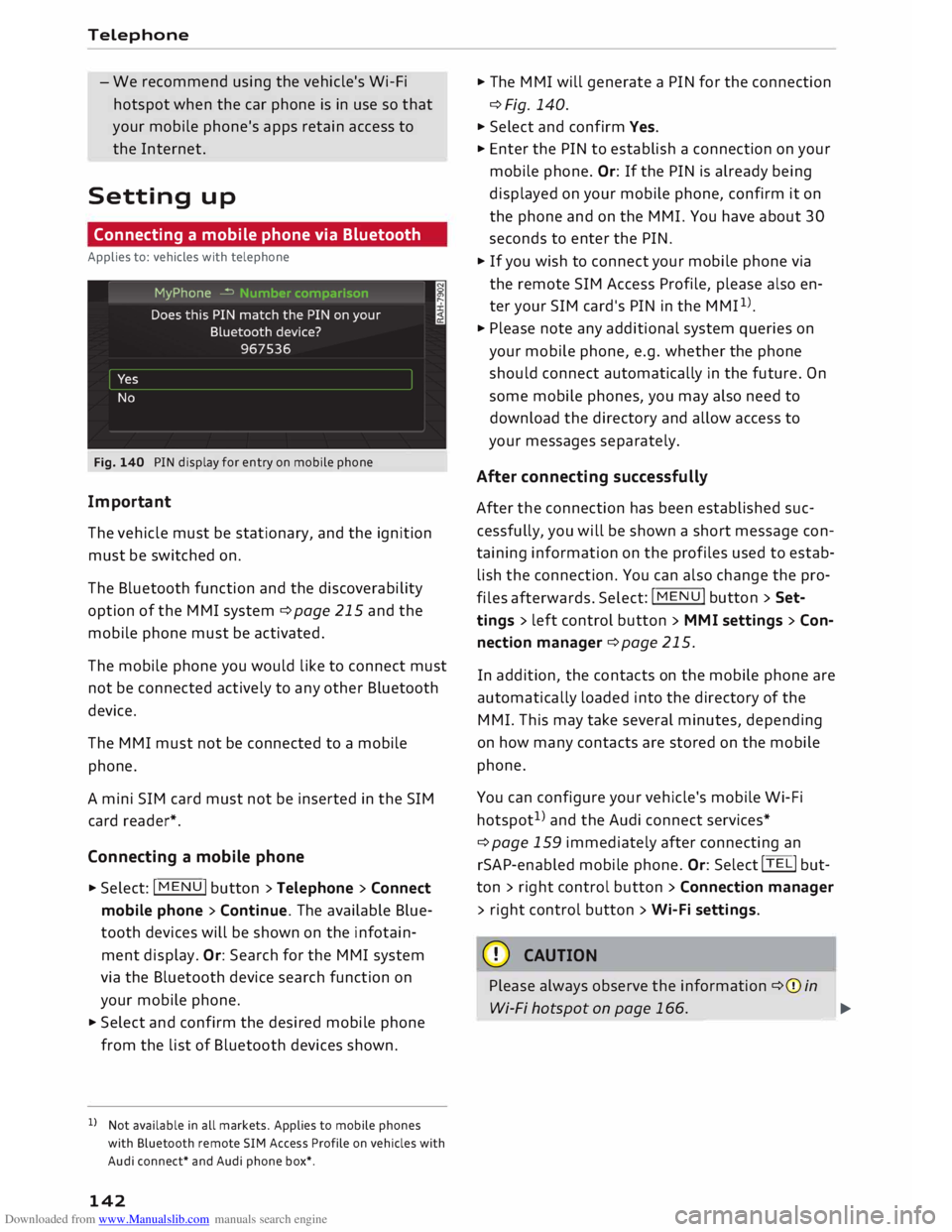
Fig. 140 PIN display for entry on mobile phone
Important
The vehicle must be stationary, and the ignition
must be switched on.
The Bluetooth function and the discoverability
option of the MMI system ¢page 215 and the
mobile phone must be activated.
The mobile phone you would like to connect must
not be connected actively to any other Bluetooth
device.
The MMI must not be connected to a mobile
phone.
A mini SIM card must not be inserted in the SIM
card reader*.
Connecting a mobile phone
... Select: I MENU I button >Telephone > Connect
mobile phone> Continue. The available Blue
tooth devices will be shown on the infotain
ment display. Or: Search for the MMI system
via the Bluetooth device search function on
your mobile phone.
... Select and confirm the desired mobile phone
from the list of Bluetooth devices shown.
l l
Not available in all markets. Applies to mobile phones
with Bluetooth remote SIM Access Profile on vehicles with
Audi connect* and Audi phone box*.
142 ...
The MMI will generate a PIN for the connection
¢Fig. 140.
... Select and confirm Yes.
... Enter the PIN to establish a connection on your
mobile phone. Or: If the PIN is already being
displayed on your mobile phone, confirm it on
the phone and on the M MI. You have about 30
seconds to enter the PIN.
... If you wish to connect your mobile phone via
the remote SIM Access Profile, please also en
ter your SIM card's PIN in the MMI 1
> .
... Please note any additional system queries on
your mobile phone, e.g. whether the phone
should connect automatically in the future. On
some mobile phones, you may also need to
download the directory and allow access to
your messages separately.
After connecting successfully
After the connection has been established suc
cessfully, you will be shown a short message con
taining information on the profiles used to estab
lish the connection. You can also change the pro
files afterwards. Select: !MENU! button
> Set
tings > left control button> MMI settings > Con
nection manager ¢page 215.
In addition, the contacts on the mobile phone are
automatically loaded into the directory of the
MMI. This may take several minutes, depending
on how many contacts are stored on the mobile
phone.
You can configure your vehicle's mobile Wi-Fi
hotspot 1
> and the Audi connect services*
¢page 159 immediately after connecting an
rSAP-enabled mobile phone. Or: Select !TEL! but
ton > right control button> Connection manager
> right control button > Wi-Fi settings.
CD CAUTION
Please always observe the information ¢0 in
Wi-Fi hotspot on page 166. _______ �
Page 145 of 306
Downloaded from www.Manualslib.com manuals search engine 0
N
,.....
N
......
0
,.....
Vl
CX) (D)
Note
- You can adjust further settings for connec
ted mobile phones using the connection
manager ¢page 213.
- You can also search for the MMI system via
the Bluetooth device search function on
your mobile phone.
- Bluetooth devices only have to be bonded
once. Any devices that have already been
bonded to the MMI system are connected
automatically when the Bluetooth function
is switched on, the devices are within range
of the car and the ignition is on. The mobile
phone last connected is given priority.
- You will need to authorise the MMI connec
tion on your mobile phone to enable auto
matic connection.
- Please note any system queries on your mo
bile phone, e.g. whether the phone should
connect automatically in the future. On
some mobile phones, you may also need to
download the directory and allow access to
your text messages separately.
- You receive the SIM PIN code from your mo
bile network service provider together with
the SIM card. If you enter the SIM PIN code
incorrectly three times1
>
in a row, the SIM
card will be be blocked. A PUK (personal un
blocking key) must be entered in order to
reactivate the SIM card.
- The Bluetooth connection between the sys
tem and the mobile phone is automatically
terminated when you leave the car. Depend
ing on the mobile phone, telephone calls
may be transferred automatically from the
MMI to your mobile phone so that you can
continue talking.
- For further information regarding your mo
bile phone, contact your mobile network
service provider or refer to the operating in
structions for your mobile phone. For infor
mation on using a phone in your car, please
l) The number of possible attempts depends on the SIM
card.
2 > Not available in all markets. On vehicles with Audi con
nect* and Audi phone box* Telephone
go online (e.g. www.audi.com/bluetooth)
or ask an Audi dealer.
Operating two phones via the MMI
Applies to: vehicles with Audi phone box
You can connect two mobile phones to the MMI
system using the Audi phone box (e.g. your busi
ness mobile as the primary phone and your per
sonal mobile as an additional phone). You can
then be reached inside the vehicle on both mo
bile phones.
The first mobile phone that you connect is shown
as the primary phone on the MMI system. The
second mobile phone is connected as an addi
tional phone.
The system will always display the phone book on
the primary phone while it is connected. To use
the phone book on the additional phone, you
have to swap the primary phone and additional
phone ¢ page 144.
Connecting a mobile phone as the primary
phone
Connect your mobile phone to the MMI system
via Bluetooth. The first mobile phone that you
connect is shown as the primary phone on the
MMI system.
Refer to ¢ page 142, Connecting a mobile phone
via Bluetooth.
Connecting a mobile phone as an additional
phone
Important: A mobile phone must be connected
to the MMI system as the primary phone. Or:
Your own mini SIM card2
> for making and receiv
ing calls must be inserted in the SIM card read
er*.
Select: I MENU!
button> Telephone > right con
trol button > Connect additional phone.
Refer to ¢ page 142, Connecting a mobile phone
via Bluetooth. llll-
143
Page 147 of 306
Downloaded from www.Manualslib.com manuals search engine 0
N
,.....
N
......
0 If
you make calls using a separate mini SIM
card 1
), you can be reached on the telephone
number of the mini SIM card in the SIM card
reader. Depending on the type of mini SIM card,
this may be the same number as for your current
mobile phone contract (twin/Multi SIM card) or
another number from a different mobile phone
contract.
Important
The vehicle must be stationary, the ignition must
be switched on and the Telephone menu must
have been called up.
Using your own mini SIM card
� The missing corner of the mini SIM card should
be at the front left. Slide the mini SIM card into
the slot in the SIM card reader ¢ Fig. 141 until
you feel it engage.
� If requested, enter the PIN code for your mini
SIM card in the MMI.
� Select and confirm OK.
� To allow the MMI to connect automatically in
the future, select and confirm Yes.
� Select
and confirm either Telephone installed
in vehicle (SIM card) or Personal mobile
phone (Bluetooth).
Telephone installed in vehicle (SIM card): The
external car aerial is used. The SIM card is used
for phone calls and Audi connect*.
Personal mobile phone (Bluetooth): The exter
nal car aerial is only used in conjunction with the
Audi phone box*. The mini SIM card in the card
reader is only used for Audi connect*.
� You can set whether you would also like the
system to establish a data connection for the
Audi connect services* ¢ page 160. Please ob
serve the notes on using Audi connect
¢page 159.
After connecting successfully
After connecting successfully, either one or two
symbols (depending on the connection type) will
appear in the status line of the infotainment dis-
[;:j 1} Not available in all markets.
CX) Telephone
play to indicate the signal strength @/@
¢page 130, Fig. 137.
You can go back and change whether calls are
made using the mini SIM card in the SIM card
reader or your mobile phone via I MENU! > Set
tings > left control button> MMI settings > Con
nection manager ¢page 215.
In addition, the contacts on the mobile phone are
automatically loaded into the directory of the
MMI. This may take several minutes, depending
on how many contacts are stored on the mobile
phone.
Removing a mini SIM card
� Briefly
press the mini SIM card. The card will
then eject from the slot. Remove the mini SIM
card.
CD CAUTION
- To avoid damaging the SIM card reader, on
ly use mini SIM cards (25 mm x 15 mm)
¢ Fig. 141. Please contact your service pro
vider for more information on mini SIM
cards.
- Should you have inserted a different SIM
card size in the SIM card reader, do not un
der any circumstances attempt to remove it
yourself as this may damage the SIM card
reader. Please contact a qualified workshop.
- If you use SIM card adapters, the vibrations
caused by the movement of the vehicle may
cause the SIM card to become detached
from the adapter -risk of damage to the
SIM card reader.
((!) Note
If your mobile phone does not support the re
mote SIM Access Profile (e.g. iPhone), you can
use the contacts from your mobile phone by
connecting the mobile phone to the system
via the Directory/contacts profile
¢ page 214, Directory.
145
Page 150 of 306
Downloaded from www.Manualslib.com manuals search engine Telephone
- Edit number before making call: To edit a tele
phone number before making a call. Select and
confirm OK to use the changes. Or: Press the
left control button to go back without making
the changes.
- Send text message: To send the selected con
tact a text message.
- Delete call list: Select and confirm if you wish
to Delete this entry or Delete all entries.
- Store as favourite: To store the selected con-
tact as a favourite.
Favourites
Important: A telephone number or a contact
must have been added as a favourite
¢page 149.
Select and confirm a favourite in the favourites
list.
Directory
Important: You must have stored a contact on
your mobile phone.
Select and confirm a telephone number in the di
rectory ¢page 153.
Enter number
- To enter a telephone number using numbers:
Enter a telephone number using the speller for
numbers¢ Fig. 145.
- To enter a telephone number using letters: Se
lect and
confirm !ABC!
using the speller for
numbers. Enter a series of letters, e.g. AUDI
SERVICE using the speller for letters.
- To dial a telephone number: Select and con
firm qP_ Or: Push the rotary pushbutton down
wards. Select and confirm OK.
- To delete letters/numbers individually: Select
and confirm�-
- To delete all the numbers/letters you have en
tered at once: With the selection line activated,
turn the rotary pushbutton to� and press and
hold the rotary pushbutton. Or: Select the right
control button> Clear entry field.
You can enter DTMF tones ("touch-tones") using
the speller while you are talking on the phone.
148 Answe
ring/ending a call
Applies to: vehicles with telephone
- To answer a call: Select and confirm Answer.
- To decline a call: Select and confirm Ignore.
- To mute an active call: Select and confirm
Mute.
- To end a call/cancel the dialling process: Se
lect and confirm End call. Or: Press the rotary
pushbutton.
To answer a further call: Refer to ¢ page 148,
During a telephone call.
Caller information: Depending on whether the
caller is stored in the directory and whether the
telephone number is transmitted with the call,
the caller's name, his/her telephone number or
Unknown will appear on the infotainment dis
play. A photo of the caller may also be shown if
one has been assigned to the contact in your mo
bile phone and transmitted to the MMI. You can
find out if your mobile phone supports this func
tion by asking your mobile network provider, con
sulting your mobile phone's operating manual or
visiting www.audi.com/bluetooth.
@ Note
Media playback or the radio is muted auto
matically during a call.
During a telephone call
Applies to: vehicles with telephone
Important: A call must be in progress.
.., Press the right control button.
The following options may be available during a
call depending on the mobile phone being used
and the type of connection:
- To
make a further call: Select Find contact >
Call list/Directory/Favourites > an entry from
the List.
- To answer a further call when you are talking
on the phone and have another call on hold:
Select Replace. The current call will be replaced
by the incoming call.
-To answer a further call: If you are already
talking on the phone when someone else calls,
�
Page 151 of 306
Downloaded from www.Manualslib.com manuals search engine 0
N
,.....
N
......
0
,.....
Vl
CX) select
Answer to place the current call on hold
and to answer the incoming call. If you select
Ignore, the incoming call will be declined.
Other functions are:
Switch microphone off: If you select and confirm
this option, the caller will no longer be able to
hear you; you will still be able to hear the caller.
Hold/Resume: You can put a call on hold and re
trieve it later from the hold queue. Select and
confirm a call to resume it.
Transfer call to mobile phone*: Select and con
firm Transfer call to mobile phone to transfer
your current call from the MMI to your mobile
phone.
Retrieve call*: Important: A call must be in pro
gress. Select and confirm Retrieve call to trans
fer the current call from your mobile phone to
the MMI.
Switch: You can switch between two phone calls
(one of them will be on hold at any given time).
Select End call to end whichever call is active.
The call on hold will remain in the hold queue
and can be continued by pressing the right con
trol button > Resume.
Merge to conference: Up to five callers and one
caller on hold can be added to a conference (de
pending on the network service). To set up a fur
ther call, place all the members of an existing
conference on hold by pressing the right control
button > Hold. Press the left control button. Se
lect and confirm Call list/Directory/Favourites >
an entry from the list. You can add the contact
you have called to the conference using the right
control button > Merge to conference. Select Re
sume if you want to retrieve all participants in an
existing conference from the hold queue.
Connection manager: Refer to ¢ page 213.
Telephone settings: Refer to¢ page 155.
CD) Note
- If you are using the handsfree profile
(Handsfree), the call waiting option must
be activated on your mobile phone for you Telephone
to be made aware of incoming calls during a
conversation.
- For further information, contact your mo
bile network service provider or refer to the
operating instructions for your mobile
phone.
- The Bluetooth connection between the sys
tem and the mobile phone is automatically
terminated when you leave the car. Depend
ing on the mobile phone, telephone calls
may be transferred automatically from the
MMI to your mobile phone so that you can
continue talking.
- The display for the incoming call may re
main visible for several seconds afterwards;
this depends on the type of mobile phone
you are using. Should you use the functions
Replace or Ignore, it is possible that the
current call will be ended.
Favourites
Applies to: vehicles with telephone
In addition to the mailbox number, you can store
up to 50 contacts in the list of favourites, in any
order.
� Select: I MENU
I button >Telephone > left con
trol button.
- To store an existing telephone number as a fa
vourite: Select and confirm Call list/Directory.
Select and confirm a contact/a telephone num
ber from the list. Select: right control button >
Store as favourite. Enter a name for the favour
ite or accept the suggestion. Select and confirm
Store.
- To rename a stored favourite: Select and con
firm Favourites > select a favourite from the
list. Select: right control button> Rename fa
vourite.
- To move a stored favourite: Select and confirm
Favourites > select a favourite from the list.
Select: right control button > Move favourite.
Select and confirm the position of the favourite
selected.
- To delete a stored favourite: Select and con-
firm Favourites > select a favourite from the ..,..
149
Page 152 of 306
Downloaded from www.Manualslib.com manuals search engine Telephone
List. Select: right control button> Delete fa
vourite > Delete this favourite or Delete all fa
vourites.
Messages Text messages
Applies to: vehicles with car telephone function or mobile
phones with Bluetooth Message Access Profile
Depending on your mobile phone and your mo
bile phone contract, you may be able to send and
receive text messages via the MMI.
Important Your own mini SIM card with a messaging option
must be inserted in the control console's SIM
card reader* ¢ page 144, Fig. 141.
Or: A mobile phone with Bluetooth MAP (Mes
sage Access Profile) must be connected to the
MMI ¢page 142. ...
Sele ct: !T
EL! button
> left control button> Text
message (SIM card)* /Text message (my
Phone)/Text message (additional phone)*.
Inbox
All the text messages you have received are dis
played.
Sent text messages
All the text messages you have sent are dis
played.
Outbox
All the text messages to be sent are displayed.
ijJ) Note
- Please note that, depending on your SIM
card (e.g. if you are using a Multi SIM card),
you may need to activate the function for
sending and receiving text messages. For
further information, contact your mobile
network service provider or refer to the op
erating instructions for your mobile phone.
- For more information on which mobile
phones are supported, please go online
(e.g. www.audi.com/bluetooth) or contact
an Audi dealer.
150 -
In order to send text messages via the MMI,
you will require a mobile phone with the
Message Access Profile which also supports
sending messages.
Write text message
Applies to: vehicles with car telephone function or mobile
phones with Bluetooth Message Access Profile
... Select: I MENU I button >Telephone > left con
trol button > Text message (SIM card)* /Text
message (myPhone)/Text message (additional
phone)* > Inbox > right control button.
Write text message
Select and confirm the desired template from
the list. Enter a recipient. Select and confirm
Send.
Reply*
Select and confirm the desired template from
the list. Select and confirm Send .
Message options
Applies to: vehicles with car telephone function or mobile
phones with Bluetooth Message Access Profile
... Select: !MENU! button> Telephone > left con
trol button > Text message (SIM card)* /Text
message (myPhone)/Text message (additional
phone)* > In box/Sent text messages/Outbox
> right control button.
The following options may be available depend
ing on which menu you have selected:
Reply*
You can reply to a text message you have selec
ted in the Inbox.
Forward
You can forward a text message you have selec
ted to another recipient.
Resend*
You can re-send a text message you have selec
ted.
Delete this text message*
You can delete a text message you have selected. �
Page 153 of 306
Downloaded from www.Manualslib.com manuals search engine 0
N
,..... Read
1
)
You can have the MMI read an opened text mes
sage to you.
Text message settings*
Activate Text message notifications to have a no
tification displayed when a new text message is
received. An envelope symbol 121 is displayed in
the status line of the infotainment display if
there are any new text messages.
The number of your mobile network service pro
vider's Text message centre is displayed. If no
number has been stored, you can enter the num
ber of the text message centre. For more infor
mation, contact your service provider.
Conne ction manager
Refer to¢ page 213.
Telephone settings
Refer to ¢page 155.
� Note
Messages deleted using the MMI are also au
tomatically deleted on the mobile phone.
E-mail*
Applies to: mobile phones with Bluetooth Message Access
Profile
Depending on your mobile phone, you may be
able to send and receive e-mails via the MMI.
Important: Your mobile phone must have mes
sage access rights activated in its Bluetooth set
tings (MAP -Message Access Profile) and must be
connected to the MMI ¢ page 142. Please refer
to the operating instructions for your mobile
phone to find out whether it supports this func
tion.
.,. Select: IM E
N u
I button > Telephone > left con
trol button > E-mail (myPhone)/E-mail (addi
tional phone)*.
N
......
0
,.....
� 1}
Not available in all langu ages. Telephone
Write new e-mail
- To
use
a template: Select and confirm the tem-
plate you require from the list.
- Enter one or more recipients.
- Select and confirm Send.
lnbox
All the e-mails you have received are displayed.
Sent
All the e-mails you have sent are displayed.
Outbox
All the e-mails to be sent are displayed.
Drafts
All the e-mails which have been stored but not
yet sent are displayed.
CD CAUT
ION
Please always observe the information ¢(Din
Wi-Fi hotspot on page 166.
((D) Note
- For more information on which mobile
phones are supported, please go online
(e.g. www.audi.com/bluetooth) or contact
an Audi dealer.
- Please connect your mobile phone to the ve
hicle's Wi-Fi hotspot* so that the e-mail app
on your mobile phone retains access to the
Internet. This helps to ensure that e-mails
can be sent and received. If you cannot re
ceive e-mails despite being successfully con
nected, please contact your e-mail service
provider or your mobile network provider.
Message options
Applies to: mobile phones with Bluetooth Message Access
Profile
.,. Select: I M
ENU
I button >Telephone > left con
trol button > E-mail (myPhone)/E-mail (addi
tional phone)* > lnbox/Sent/Outbox > right
control button.
...,
151
Page 154 of 306
Downloaded from www.Manualslib.com manuals search engine Telephone
The
following options may be available depend
ing on which menu you have selected:
Storing an e-mail as a template
There are already ten e-mail templates stored on
the MMI. You can store up to ten additional tem
plates.
- Create an e-mail.
- Select and confirm Store as template.
Continue with last edited e-mail
You can continue with the e-mail you last edited.
Reply*
You can reply to an e-mail you have selected in
the Inbox.
Reply to all*
You can reply to all the recipients of an e-mail
you have selected in the Inbox.
Forward
You can forward an e-mail you have selected to
another recipient.
Delete this message*
You can delete an e-mail you have selected.
Read 1
>
You can have the MMI read an opened e-mail to
you.
E-mail settings*
Activate E-mail notifications to have a notifica
tion displayed when a new e-mail is received. An
envelope symbol� is displayed in the status line
of the infotainment display if there are any new
e-mails.
Connection manager
Refer to¢ page 213.
Telephone settings
Refer to ¢page 155.
l l
Not available in all languages.
152 (I))
Note
Messages deleted using the MMI are also au
tomatically deleted on the mobile phone con
nected.
Listening to voicemail
messages Applies to: vehicles with telephone
... Select: I MENU I button >Telephone > left con
trol button. Select and confirm Call list/Direc
tory/Favourites > Mailbox.
- To enter the mailbox number: Enter the num
ber desired. Select and confirm OK.
- To dial the mailbox number: Select and con
firm Mailbox.
(I)) Note
- This service must be set up and activated by
your mobile network service provider before
you can use it. For more information, con
tact your service provider.
- The mailbox number depends on your serv
ice provider.
Emergency call functions
Applies to: vehicles with telephone
... Select: !MENU! button> Telephone > left con
trol button > Enter number > enter emergency
number (e.g. 112) > OK.
A WARNING
- Since your telephone operates via radio
waves, a connection cannot be guaranteed
under all circumstances. Do not rely solely
on your telephone when a vital communica
tion (e.g. medical emergency) is involved.
- Always follow the directions of the emer
gency operators when making an emergency
call and do not end the call before you are
requested to do so.
Page 157 of 306
Downloaded from www.Manualslib.com manuals search engine 0
N
,.....
N
......
0
,.....
Vl
CX) device
1/USB device 2 >All> Start import/
Start export.
- To import contacts from your myAudi ac
count l
): Select and confirm Import contacts >
myAudi account. Enter your myAudi user data.
You must have a myAudi account before you can
import contacts from the myAudi account. You
only have to enter your myAudi user data/myAudi
PIN once. When you store a vehicle in your myAu
di account, you will receive the myAudi PIN in the
account.
- Please always note the information in the
chapter¢ page 167, Notes on Audi con
nect.
- For more information on the myAudi ac
count, please refer to my.audi.com.
- The imported contacts are stored in the lo
cal memory of the directory you are using.
- You can import up to 1000 contacts. You
can call up the memory capacity of the di
rectory any time¢ page 156.
- Never store important data on SD cards or
USB mass storage devices. Audi shall not ac
cept any liability whatsoever for the loss of
data or media.
- It is not possible to export contacts which
have been downloaded from a mobile
phone.
- There should be no files or directories on
the storage medium other than the contacts
you wish to import.
Settings Telephone settings
Applies to: vehicles with telephone
� Select: I MENU
I button
>Telephone > right con
trol button > Telephone settings.
1} The conditions for using Audi connect services* must be
met and you must have created a myAudi account at
my.audi.com, added a vehicle to the account and stored
contacts. Telephone
Call options*
Call forward: Forwarding of incoming calls to
your mailbox or to another phone number can be
switched on/off. You can use Check status to
check whether this function is activated or deacti
vated.
Call waiting: If this option is activated �, you
will be informed of incoming calls when you are
on the phone. You can use Check status to check
whether this function is activated or deactivated.
Transmit caller ID: Sending your telephone num
ber in outgoing calls can be activated/deactiva
ted. With the Network-dependent option, the
setting agreed in your mobile network service
contract will be used. The settings apply only to
the Telephone menu in the MMI system. When
the Bluetooth connection has been terminated,
the settings of your mobile phone apply. You can
use Check status to check whether this function
is activated or deactivated.
Telephone mode*
On vehicles with a car telephone kit, you can
choose between three different telephone modes
to optimise the network response:
-Automatic: The car telephone automatically
switches between the GSM (2G), UMTS (3G)
and LTE networks. This depends on the net
work, the network reception, and the position
of the vehicle. In this mode, there might be re
strictions when using Google Earth or Wi-Fi.
- Telephony optimised: The car telephone kit
registers with the GSM network (2G). In this
mode, the reception is prioritised for making
and receiving calls. There may be restrictions
when using Google Earth or Wi-Fi.
- Data service optimised: The car telephone reg
isters with the GSM (2G), UMTS (3G) or LTE net
work. This depends on the network, the net
work reception, and the position of the vehicle.
In this mode, the reception is prioritised for the ...,
155
Page 158 of 306
Downloaded from www.Manualslib.com manuals search engine Telephone
use of data services. There may be restrictions
when making and receiving calls.
If you select the telephone mode Automatic or
Telephony optimised, there may be network re
strictions if you try to use Audi connect services*
and make telephone calls at the same time.
Ring tone and volume settings 1
>
You can switch the MMI ring tone on or off using
the Mute telephone function. Ring tones are
played when you select the function Ring tone.
Select an entry from the list and confirm it. For
the settings Ring tone volume/Message volume,
see ¢ page 217. You can adjust the Microphone
input level during an active phone call using the
rotary pushbutton.
Network settings*
Refer to¢ page 215, Network settings*.
Serial number (IMEi)*
The serial number of the telephone module in
stalled in the MMI system is displayed.
Sw itch on telephone/Switch off telephone
Applies to: vehicles with car telephone kit
The car telephone will be turned "on" automati
cally when the ignition is switched on, as long as
it was not switched off separately the last time it
was used.
((!)} Note
- You can bond several mobile phones to the
MMI system; however only two* connec
tions are active at a time.
- All bonded Bluetooth devices can be deleted
by resetting the Bluetooth function to the
factory settings ¢ page 213.
- If you select the telephone mode Automatic
or Telephony optimised, there may be net
work restrictions if you try to use Audi con
nect services* and make telephone calls at
the same time.
l l
Depends on the connected mobile phone
156 Further
options
Applies to: vehicles with telephone
.,. Select: I MENU
I button >Telephone > right con-
trol button.
Connection manager
Refer to¢ page 213.
Bluetooth settings
Refer to¢ page 215.
Online settings*
Refer to¢ page 215.
Wi-Fi settings
Refer to¢ page 165, Wi-Fi hotspot.
Data connection settings*
Refer to ¢ page 166, Configuring the data con
nection.
Directory settings
Applies to: vehicles with telephone
.,. Select: I MENU
I button >Telephone > left con
trol button > Directory > right control button>
Directory settings.
Memory capacity
The Memory capacity of the directory will be dis
played.
You can manage up to 17,000 contacts with the
MMI's directory. Up to 4,000 contacts can be loa
ded from your mobile phone into each directory,
and up to 1,000 contacts can be imported from a
storage device.
Sort order
You can sort the contacts in your directory alpha
betically according to their surname or first
name.
Import contacts
Refer to¢ page 154, Importing/exporting con
tacts.