wheel AUDI TT ROADSTER 2016 Owner's Manual
[x] Cancel search | Manufacturer: AUDI, Model Year: 2016, Model line: TT ROADSTER, Model: AUDI TT ROADSTER 2016Pages: 306, PDF Size: 31.82 MB
Page 86 of 306
Downloaded from www.Manualslib.com manuals search engine Driving
Releasing the selector lever manually (LHD
vehicles)
Applies to: vehicles with automatic gearbox
The selector Lever can be released manually if
the electrical power supply should fail.
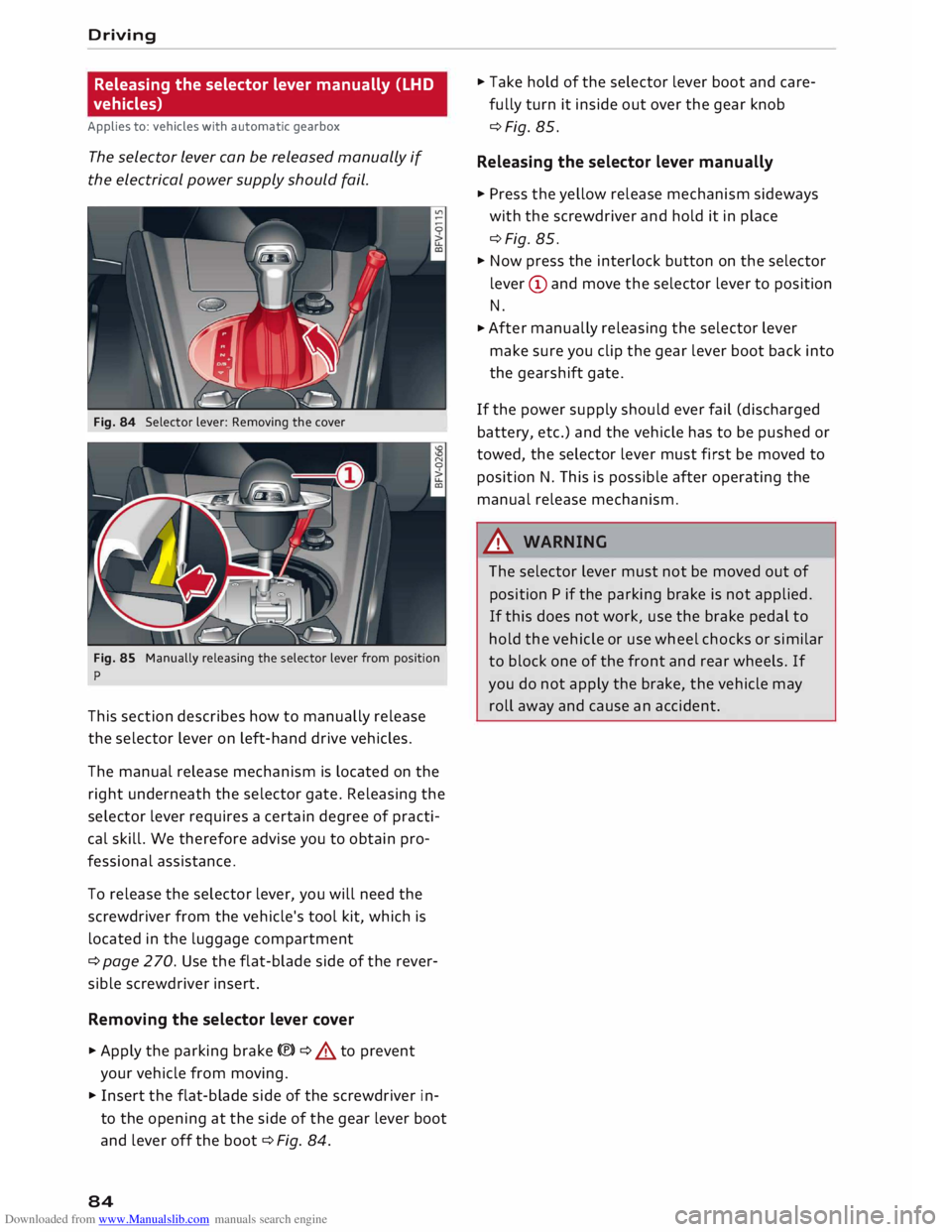
Fig. 84 Selector lever: Removing the cover
Fig. 85 Manually releasing the selector lever from position
p
This section describes how to manually release
the selector lever on left-hand drive vehicles.
The manual release mechanism is located on the
right underneath the selector gate. Releasing the
selector lever requires a certain degree of practi
cal skill. We therefore advise you to obtain pro
fessional assistance.
To release the selector lever, you will need the
screwdriver from the vehicle's tool kit, which is
located in the luggage compartment
¢ page 270. Use the flat-blade side of the rever
sible screwdriver insert.
Removing the selector lever cover
� Apply the parking brake(®)¢ & to prevent
your vehicle from moving.
� Insert the flat-blade side of the screwdriver in
to the opening at the side of the gear lever boot
and lever off the boot ¢Fig. 84.
84 �
Take hold of the selector lever boot and care
fully turn it inside out over the gear knob
¢Fig. 85.
Releasing the selector lever manually
� Press the yellow release mechanism sideways
with the screwdriver and hold it in place
¢Fig. 85.
� Now press the interlock button on the selector
lever (D and move the selector lever to position
N.
� After
manually releasing the selector lever
make sure you clip the gear lever boot back into
the gearshift gate.
If the power supply should ever fail (discharged
battery, etc.) and the vehicle has to be pushed or
towed, the selector lever must first be moved to
position N. This is possible after operating the
manual release mechanism .
.&_ WARNING
The selector lever must not be moved out of
position P if the parking brake is not applied.
If this does not work, use the brake pedal to
hold the vehicle or use wheel chocks or similar
to block one of the front and rear wheels. If
you do not apply the brake, the vehicle may
roll away and cause an accident.
Page 87 of 306
Downloaded from www.Manualslib.com manuals search engine Releasing
the selector lever manually (RHD
vehicles)
Applies to: vehicles with automatic gearbox
The selector Lever can be released manually if
the electrical power supply should fail.
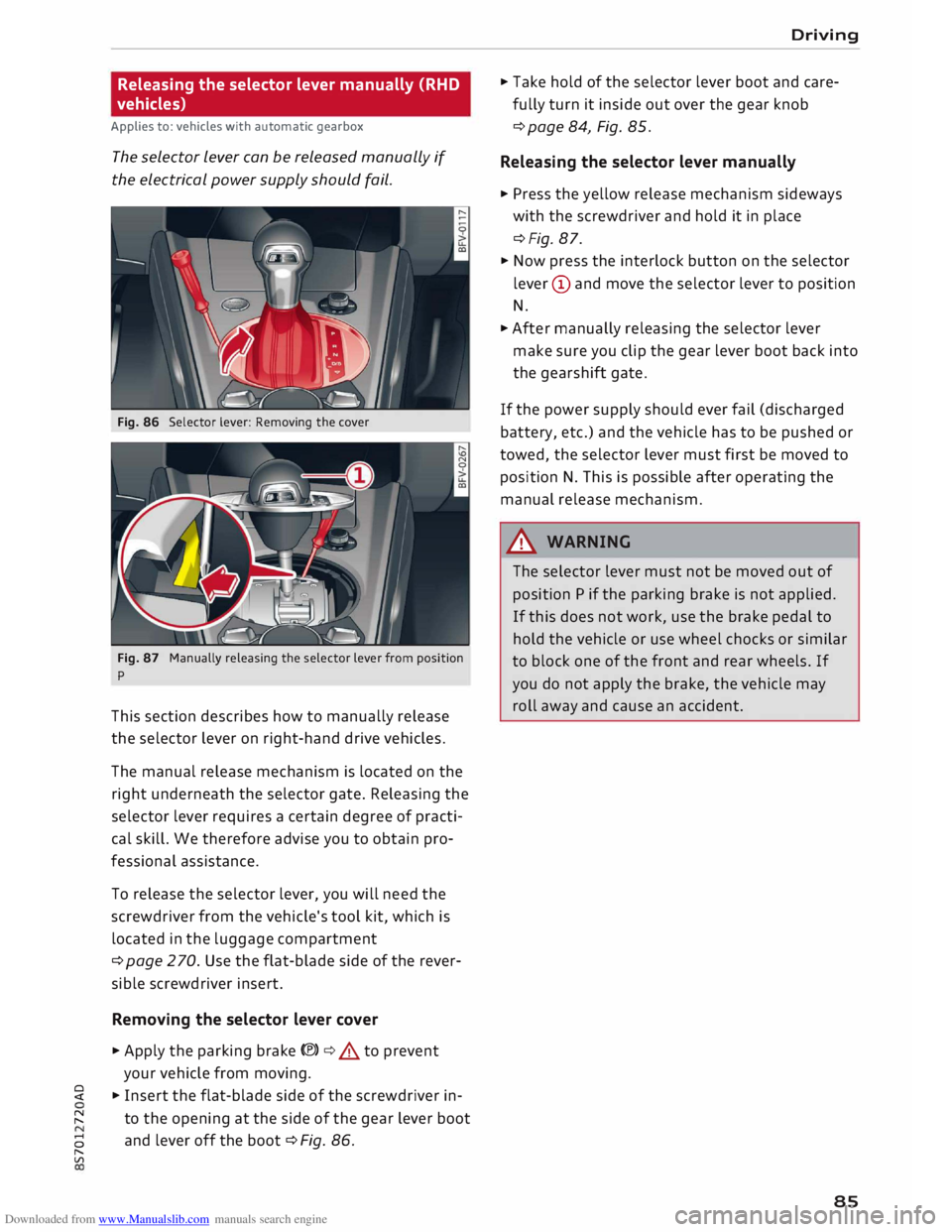
Fig. 86 Selector lever: Removing the cover
Fig. 87 Manually releasing the selector lever from position
p
This section describes how to manually release
the selector lever on right-hand drive vehicles.
The manual release mechanism is located on the
right underneath the selector gate. Releasing the
selector lever requires a certain degree of practi
cal skill. We therefore advise you to obtain pro
fessional assistance.
To release the selector lever, you will need the
screwdriver from the vehicle's tool kit, which is
located in the luggage compartment
¢ page 2 70. Use the flat-blade side of the rever
sible screwdriver insert.
Removing the selector lever cover
� Apply the parking brake(®)¢.&. to prevent
your vehicle from moving.
� � Insert the flat-blade side of the screwdriver in-
� to
the opening at the side of the gear lever boot
8 and
lever off the boot ¢ Fig. 86.
"
Vl Driving
� Take hold of the selector lever boot and care
fully turn it inside out over the gear knob
¢ page 84, Fig. 85.
Releasing the selector lever manually
� Press the yellow release mechanism sideways
with the screwdriver and hold it in place
¢Fig. 87.
� Now press the interlock button on the selector
lever (D and move the selector lever to position
N.
� After manually releasing the selector lever
make sure you clip the gear lever boot back into
the gearshift gate.
If the power supply should ever fail (discharged
battery, etc.) and the vehicle has to be pushed or
towed, the selector lever must first be moved to
position N. This is possible after operating the
manual release mechanism.
&_ WARNING
The selector lever must not be moved out of
position P if the parking brake is not applied.
If this does not work, use the brake pedal to
hold the vehicle or use wheel chocks or similar
to block one of the front and rear wheels. If
you do not apply the brake, the vehicle may
roll away and cause an accident.
85
Page 93 of 306
Downloaded from www.Manualslib.com manuals search engine 0
N
,.....
N
......
0
,.....
Vl
CX) signify
mph or km/h, depending on the
country.
Controls
Applies to: vehicles with camera-based traffic sign recogni
tion
�� ' 1(. � 1
-�� 0 8.9. :oo,m
--
1 ', ·11 l', ,'
;
...
'
/ �-
-
(@) �
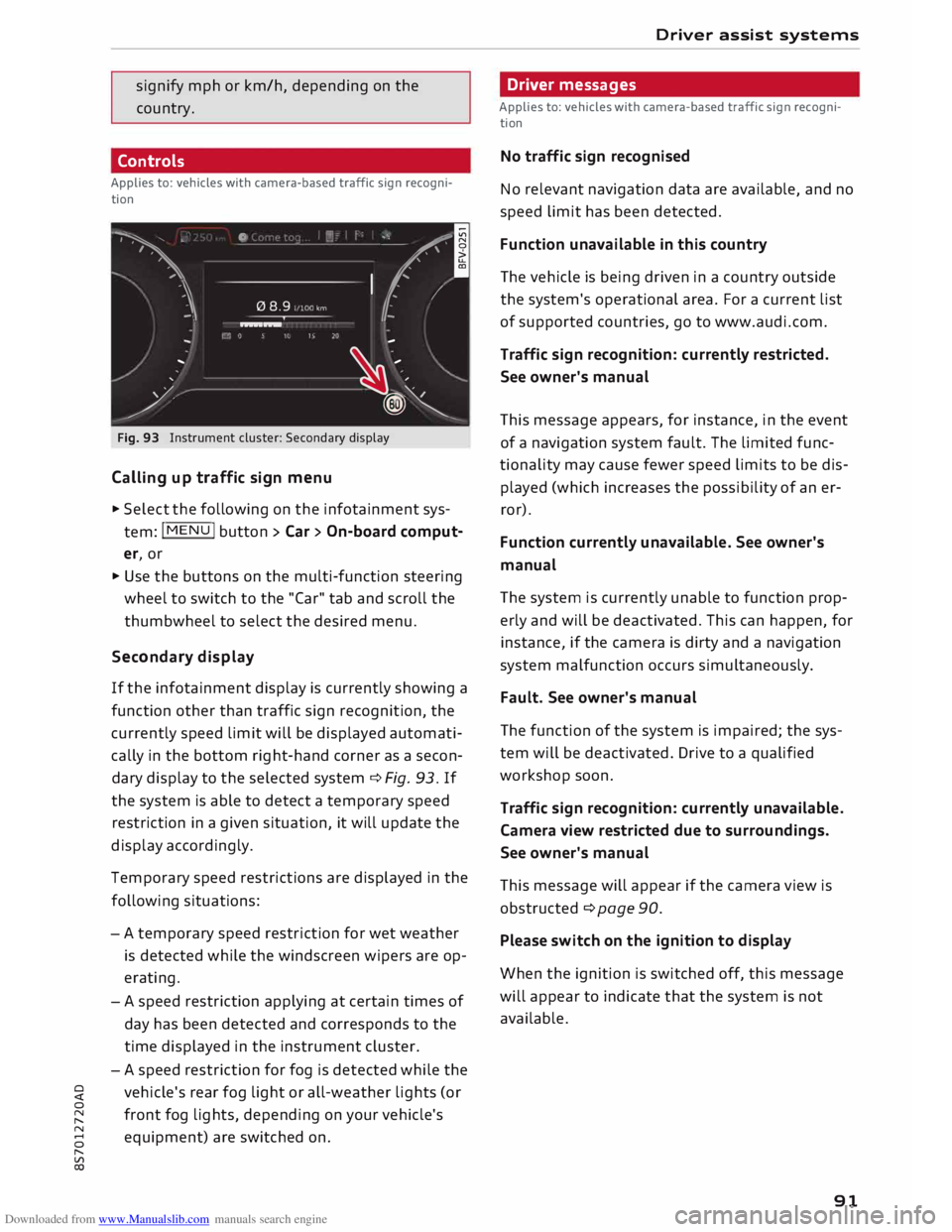
Fig. 93 Instrument cluster: Secondary display
Calling up traffic sign menu
.,. Select the following on the infotainment sys
tem: I MENU
I button > Car> On-board comput
er, or
.,. Use the buttons on the multi-function steering
wheel to switch to the "Car" tab and scroll the
thumbwheel to select the desired menu.
Secondary display
If the infotainment display is currently showing a
function other than traffic sign recognition, the
currently speed limit will be displayed automati
cally in the bottom right-hand corner as a secon
dary display to the selected system ¢ Fig. 93. If
the system is able to detect a temporary speed
restriction in a given situation, it will update the
display accordingly.
Temporary speed restrictions are displayed in the
following situations:
- A temporary speed restriction for wet weather
is detected while the windscreen wipers are op
erating.
- A speed restriction applying at certain times of
day has been detected and corresponds to the
time displayed in the instrument cluster.
- A speed restriction for fog is detected while the
vehicle's rear fog light or all-weather lights (or
front fog lights, depending on your vehicle's
equipment) are switched on . Driver
assist systems
Driver messages
Applies to: vehicles with camera-based traffic sign recogni
tion
No traffic sign recognised
No relevant navigation data are available, and no
speed limit has been detected.
Function unavailable in this country
The vehicle is being driven in a country outside
the system's operational area. For a current list
of supported countries, go to www.audi.com.
Traffic sign recognition: currently restricted.
See owner's manual
This message appears, for instance, in the event
of a navigation system fault. The limited func
tionality may cause fewer speed limits to be dis
played (which increases the possibility of an er
ror).
Function currently unavailable. See owner's
manual
The system is currently unable to function prop
erly and will be deactivated. This can happen, for
instance, if the camera is dirty and a navigation
system malfunction occurs simultaneously.
Fault. See owner's manual
The function of the system is impaired; the sys
tem will be deactivated. Drive to a qualified
workshop soon.
Traffic sign recognition: currently unavailable.
Camera view restricted due to surroundings.
See owner's manual
This message will appear if the camera view is
obstructed ¢ page 90.
Please switch on the ignition to display
When the ignition is switched off, this message
will appear to indicate that the system is not
available.
91
Page 94 of 306
Downloaded from www.Manualslib.com manuals search engine Driver
assist systems
Audi active Lane assist
(Lane departure warning
feature)
Description
Applies to: vehicles with Audi active lane assist
The active lane assist uses a camera in the wind
screen to detect lane markings (subject to gener
al system limitations). If you approach one of the
detected lane markings, the system corrects the
steering to warn you that the vehicle might be
about to cross one of the markings. You can over
ride this steering input at any time. The steering
wheel vibrates slightly if you cross a lane mark
ing. The vibration warning must be activated be
forehand on the infotainment system. The active
lane assist is functional when it detects a demar
cation line on at least one side of the lane in
which you are driving.
As the system is designed for driving on motor
ways and other major roads, it is only active
above a speed of about 65 km/h (may vary in dif
ferent export markets).
Applies to vehicles with side assist*: If you oper
ate the turn signals while the active lane assist
and side assist are active, the steering will be cor
rected just before you cross the lane demarcation
if the side assist detects vehicles approaching
quickly or travelling at about the same speed as
your own vehicle and judges the situation to be
critical. This intervention is intended to keep the
vehicle in the lane.
Applies to vehicles without side assist*: The sys
tem does not warn you if you operate the turn
signal before crossing a lane demarcation. In this
case, it assumes that you intend to change lanes.
A WARNING
- The system initiates a corrective steering in
put to warn the driver that the vehicle is
about to leave the lane. As the driver you
are always responsible for staying in your
own lane.
l l
The steering input function is not available on all export
versions.
92 -
The system can assist you to keep the vehi
cle in the lane, however it is not capable of
driving on its own. Never take your hands
off the steering wheel.
- In certain situations, e.g. during heavy brak
ing, the system may not correct the steer
ing.
- In certain circumstances, not all of the lane
markings may be detected by the camera. A
corrective steering input can only be initi
ated if the system detects a lane marking on
the side in question.
- Variations in the road surface or objects on
the road may be misinterpreted as lane
markings. In this case, the steering may be
corrected unexpectedly or not at all.
- The camera's view might be obstructed, for
example by vehicles travelling in front, rain,
snow, a lot of water on the road, adverse
light or dirt on the windscreen. If this hap
pens, the active lane assist may not detect
the lane markings or may respond incorrect
ly.
- In certain circumstances, for instance if visi
bility is poor, the setting for the steering in
put may be switched
internally
from "early"
to"late" l)_
- In certain driving conditions, such as ruts in
the road surface, adverse cambers or side
winds, the assistance provided by the steer
ing correction may be insufficient to keep
the vehicle in the middle of the lane.
- For safety reasons, the active lane assist
must not be used in poor weather or in diffi
cult or slippery road conditions (such as ice,
fog, loose grit or gravel, heavy rain, snow,
etc.) -risk of accident!
Page 95 of 306
Downloaded from www.Manualslib.com manuals search engine 0
N
,.....
N
....
0
,.....
Vl
CX) Switching
on/off
Applies to: vehicles with Audi active lane assist
Fig. 94 Turn signal lever: Button for active lane assist N
N
u.
a,
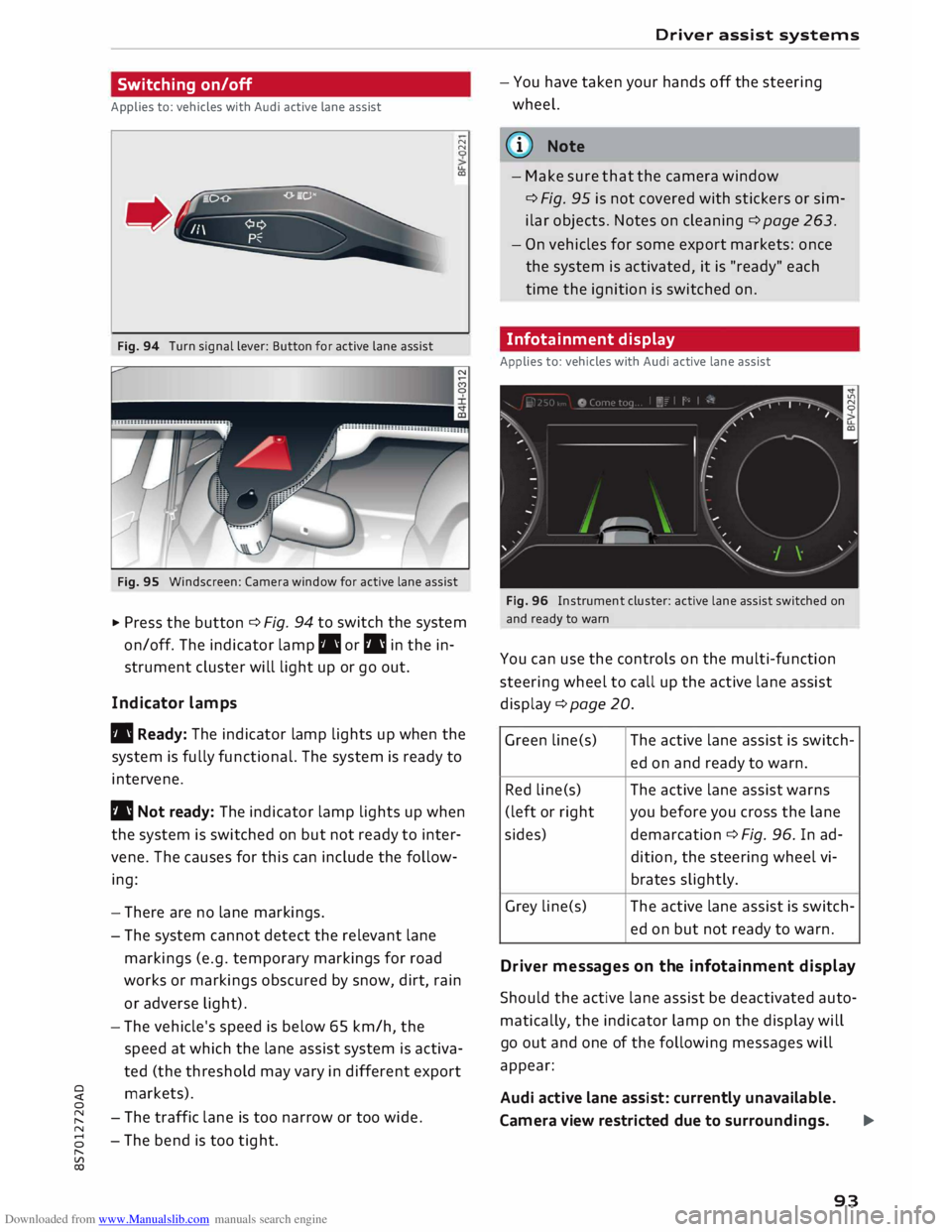
Fig. 95 Windscreen: Camera window for active lane assist
� Press the button ¢ Fi
g.
94 to switch the system
on/off. The indicator lamp. or I'll in the in
strument cluster will light up or go out.
Indicator lamps
• Ready: The indicator lamp lights up when the
system is fully functional. The system is ready to
intervene.
I'll Not ready: The indicator lamp lights up when
the system is switched on but not ready to inter
vene. The causes for this can include the follow
ing:
- There are no lane markings.
- The system cannot detect the relevant lane
markings (e.g. temporary markings for road
works or markings obscured by snow, dirt, rain
or adverse light).
- The vehicle's speed is below 65 km/h, the
speed at which the lane assist system is activa
ted (the threshold may vary in different export
markets).
- The traffic lane is too narrow or too wide.
- The bend is too tight. Driver
assist systems
- You have taken your hands off the steering
wheel.
ij)) Note
- Make sure that the camera window
¢ Fi
g.
95 is not covered with stickers or sim
ilar objects. Notes on cleaning¢ page 263.
- On vehicles for some export markets: once
the system is activated, it is "ready" each
time the ignition is switched on.
Infotainment display
Applies to: vehicles with Audi active lane assist
Fig. 96 Instrument cluster: active lane assist switched on
and ready to warn
You can use the controls on the multi-function
steering wheel to call up the active lane assist
display ¢page 20 .
Green line(s) The
active lane assist is switch-
ed on and ready to warn.
Red line(s) The active lane assist warns
(left or rig ht you before you cross the lane
sides) demarcation ¢ Fi
g.
96. In ad-
dition, the steering wheel vi-
brates slightly.
Grey line(s) The active lane assist is switch-
ed on but not ready to warn.
Driv er messages on the infotainment display
Should the active lane assist be deactivated auto
matically, the indicator lamp on the display will
go out and one of the following messages will
appear:
Audi active lane assist: currently unavailable.
Camera view restricted due to surroundings. ...,
93
Page 96 of 306
Downloaded from www.Manualslib.com manuals search engine Driver
assist systems
This message is displayed when the camera is no
longer functional after the system has continu
ously failed to detect the lane markings. This can
have the following causes:
- The outside of the camera window¢ page 93,
Fig. 95 is dirty or frosted. Remove dirt or ice
from this area of the windscreen.
- The inside of the camera window is misted up.
In this case, wait for the camera window to de
mist before switching on the active lane assist
system again.
- Due to the road conditions, the system has not
been able to detect the lane markings for a
long period. Do not switch the active lane assist
system on again before the lane markings are
discernible.
Audi active lane assist: currently unavailable.
See owner's manual
A temporary fault is preventing the active lane
assist system from being switched on. Try switch
ing on the active lane assist system again later.
Audi active lane assist: fault. See owner's man
ual
Drive to a qualified workshop soon and have the
fault rectified.
Audi active lane assist: please take over steering
This message will appear if you do not steer the
vehicle yourself. In this case, the active lane as
sist will switch to "not ready for warning" but will
not be deactivated completely. The system can
assist you to keep the vehicle in the lane. Howev
er it is your own responsibility to steer and con
trol the vehicle.
A WARNING
Please note that the messages only appear
with a delay or are not displayed at all on
vehicles with additional equipment (such as
steering wheel knobs) fitted on the steering
wheel. Always keep your hands on the steer
ing wheel.
l l
The steering input function is not available on all export
versions.
94 Setting
the steering input time and
vibration warning
Applies to: vehicles with Audi active lane assist
You can change the active Lane assist settings on
the infotainment system to suit your individual
preferences.
Select the following
on the infotainment system:
!MENU! button> Car > left control button> Driv
er assist > Audi active lane assist.
Steering input1
)
early: If this setting is selected, a continuous
steering input assists the driver to keep the vehi
cle in the middle of the lane.
late: If this setting is selected, the steering is not
corrected until just before a wheel touches a de
tected lane marking.
Vibration warning
You can switch the additional steering wheel vi
bration warning on/off.
(Q'j) Note
Your personal settings are stored automati
cally and assigned to the remote control key
which is being used (only applies to some
countries).
Lap timer
Introduction
Applies to: vehicles with lap timer
Lap timer
You can use the lap timer in the display to record
and evaluate lap times. The times are recorded in
minutes, seconds and tenths of a second. The
hour will appear in the display and the tenths of a
second will disappear if the session lasts for over
60 minutes.
Individual lap times stop automatically after
99 hours 59 minutes and 59 seconds. A new lap
will then start automatically.
�
Page 97 of 306
Downloaded from www.Manualslib.com manuals search engine 0
N
,.....
N
......
0
,.....
Vl
CX) The
lap timer stops after a maximum of 30 laps.
You can then evaluate the lap times or start a
new session.
The lap timer is operated using the controls on
the multi-function steering wheel¢ page 95.
A WARNING
Please direct your full attention at all times to
the road! As the driver, you have full responsi
bility for the safety of the vehicle and other
road users. For this reason, you should only
use the lap timer functions in a manner that
allows you to maintain control of the vehicle
in all situations -accident risk!
ijj} Note
You can call up information from the on
board computer while the stopwatch of the
lap timer is running.
Calling up the lap timer and recording lap
times
Applies to: vehicles with lap timer
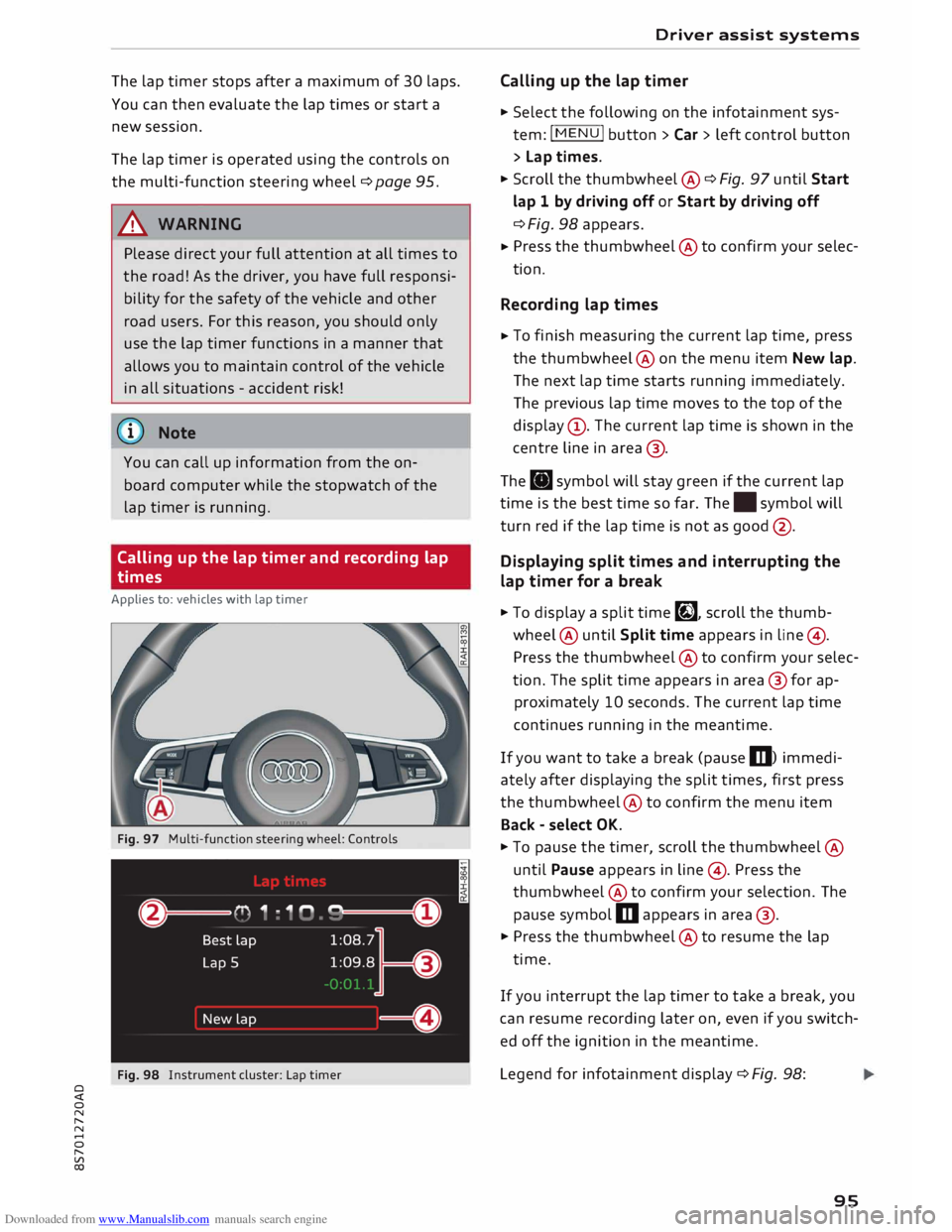
Fig. 97 Multi-function steering wheel: Controls
Fig. 98 Instrument cluster: Lap timer Driver
assist systems
Calling up the lap timer
� Select the following on the infotainment sys
tem: I MENU I button >Car> left control button
> Lap times.
� Scroll the thumbwheel @ ¢ Fig. 97 until Start
lap 1 by driving off or Start by driving off
¢ Fig. 98 appears.
� Press
the thumbwheel @to confirm your selec
tion.
Recording lap times
� To
finish measuring the current lap time, press
the thumbwheel@ on the menu item New lap.
The next lap time starts running immediately.
The previous lap time moves to the top of the
display (!). The current lap time is shown in the
centre line in area @.
The . symbol will stay green if the current lap
time is the best time so far. The. symbol will
turn red if the lap time is not as good @.
Displaying split times and interrupting the
lap timer for a break
� To display a split time�, scroll the thumb
wheel @ until Split time appears in line@) .
Press the thumbwheel @to confirm your selec
tion. The split time appears in area @for ap
proximately 10 seconds. The current lap time
continues running in the meantime.
If you want to take a break (pause m) immedi
ately after displaying the split times, first press
the thumbwheel @to confirm the menu item
Back -select OK.
� To pause the timer, scroll the thumbwheel @
until Pause appears in line @). Press the
thumbwheel @to confirm your selection. The
pause symbol m appears in area @.
� Press the thumbwheel @to resume the lap
time.
If you interrupt the lap timer to take a break, you
can resume recording later on, even if you switch
ed off the ignition in the meantime.
Legend for infotainment display¢ Fig. 98:
95
Page 98 of 306
![AUDI TT ROADSTER 2016 Owners Manual Downloaded from www.Manualslib.com manuals search engine Driver
assist systems
CD Last
recorded lap time
@ Symbols:
-[i]: Start time
-•: Worst lap time
-•: Best lap time
- �: Spl](/img/6/57670/w960_57670-97.png "AUDI TT ROADSTER 2016 Owners Manual Downloaded from www.Manualslib.com manuals search engine Driver
assist systems
CD Last
recorded lap time
@ Symbols:
-[i]: Start time
-•: Worst lap time
-•: Best lap time
- �: Spl")
Downloaded from www.Manualslib.com manuals search engine Driver
assist systems
CD Last
recorded lap time
@ Symbols:
-[i]: Start time
-•: Worst lap time
-•: Best lap time
- �: Split time
-m: Pause
® Current
lap time
@ Menu:
- Start lap 1 by driving off (start lap)
- Start by driving off (start lap)
- New lap (start another lap)
- Split time (lap sector time)
- Pause (interrupt lap timer)
- Cancel lap
- Reset timer (zero all lap times)
Evaluating lap times and resetting the lap
timer
Applies to: vehicles with lap timer
You can use the Lop timer to evaluate the fast
est, slowest and overage lop times.
Fig. 99 Instrument cluster: Lap timer
After you have evaluated the lap times, you can
resume the existing session or start a new ses
sion (i.e. start again with lap 1).
.,. Select the following on the infotainment sys
tem: I MEN
U I button > Car > left control button
> Lap statistics. The fastest lap"+", the slow
est lap"-" and the average time "0" will appear
in the display. To show the individual lap times,
scroll the thumbwheel @ up/down .
.,. Press the thumbwheel @to resume the exist
ing session.
.,. To reset the lap timer and clear the lap times,
press the left control button on the multi-func-
96 tion
steering wheel. Then scroll the thumb
wheel @to select the desired setting with the
cursor (red frame). Press the thumbwheel@ to
confirm your selection.
.,. To restart the lap timer and record new laps,
press the thumbwheel @.
.,. To exit the lap timer, press the I
MEN U
I button.
Explanation of evaluation in c> Fig. 99:
CD Total
number of laps
@ II:
Best lap time
® .:
Worst lap time
@ f§j:
Average lap time
(@ Note
- Recorded lap times cannot be deleted indi
vidually from the overall results.
- The data recorded in the lap timer remain
stored after the ignition is switched off.
Sport displays
Applies to: vehicles with Audi virtual cockpit and sport dis
plays
The sport displays include the G meter, the en
gine data and the tyre pressure display. You can
call up the sport displays in the central area or in
the additional display in the driver information
system.
Calling up the sport displays in the central
area
.,. Call up the first tab (on-board computer) using
the I <1 t>I button on the multi-function steering
wheel.
.,. Select the following on the multi-function
steering wheel: left control button > Sport dis
p lays .
.,. Scroll the left thumbwheel 0 c> page 21 on the
multi-function steering wheel until the desired
sport display appears in the instrument cluster.
Calling up the sport displays in the
additional display
.,. On
the multi-function steering wheel, select
right control button > Additional display .
.,. Select the desired additional display.
..,.
Page 99 of 306
Downloaded from www.Manualslib.com manuals search engine 0
N
,.....
N
......
0
,.....
Vl
CX) G
meter
The G meter shows the Lateral and Longitudinal
forces generated. The maximum values meas
ured are stored and displayed when the vehicle is
stationary.
� To reset the stored values, select the following
on the multi-function steering wheel: right con
trol button > Reset values.
Engine data
The engine data display shows the current power
and torque Levels.
Tyre pressure display
The tyre pressure display shows the current infla
tion pressures and temperature. Also refer to
¢ page 260, Tyre pressure monitoring system.
Audi side assist (Lane
change assist feature)
Description
Applies to: vehicles with Audi side assist
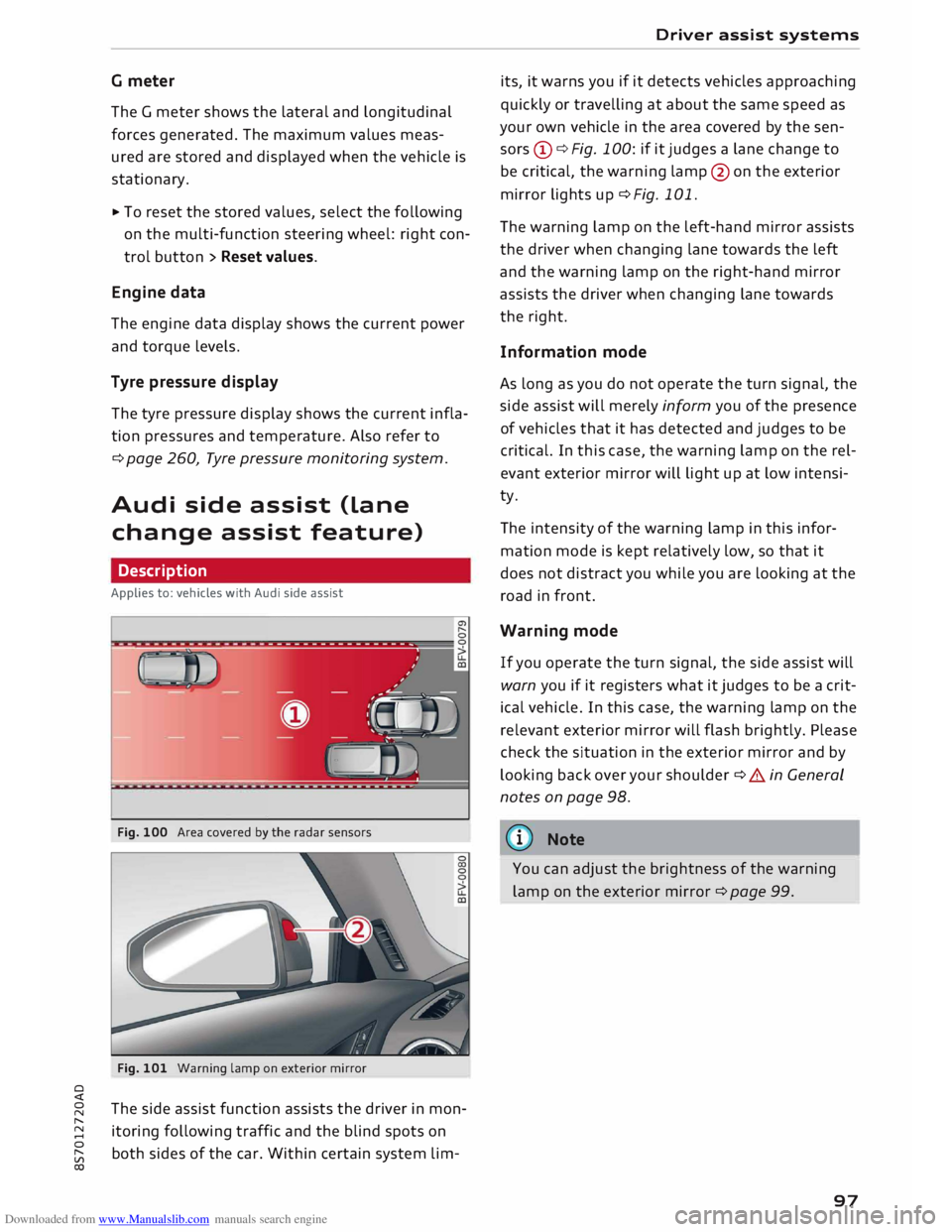
Fig. 100 Area covered by the radar sensors
Fig. 101 Warning lamp on exterior mirror
The side assist function assists the driver in mon
itoring following traffic and the blind spots on
both sides of the car. Within certain system Lim- Driver
assist systems
its, it warns you if it detects vehicles approaching
quickly or travelling at about the same speed as
your own vehicle in the area covered by the sen
sors (!)¢ Fig. 100: if it judges a Lane change to
be critical, the warning Lamp@on the exterior
mirror Lights up¢ Fig. 101.
The warning Lamp on the Left-hand mirror assists
the driver when changing Lane towards the Left
and the warning Lamp on the right-hand mirror
assists the driver when changing Lane towards
the right.
Information mode
As Long as you do not operate the turn signal, the
side assist will merely inform you of the presence
of vehicles that it has detected and judges to be
critical. In this case, the warning Lamp on the rel
evant exterior mirror will Light up at Low intensi
ty.
The intensity of the warning Lamp in this infor
mation mode is kept relatively Low, so that it
does not distract you while you are Looking at the
road in front.
Warning mode
If you operate the turn signal, the side assist will
warn you if it registers what it judges to be a crit
ical vehicle. In this case, the warning Lamp on the
relevant exterior mirror will flash brightly. Please
check the situation in the exterior mirror and by
Looking back over your shoulder¢ A in General
notes on page 98.
((1)) Note
You can adjust the brightness of the warning
Lamp on the exterior mirror¢ page 99.
97
Page 101 of 306
Downloaded from www.Manualslib.com manuals search engine 0
N
,.....
N
......
0
,.....
Vl
CX) -
In certain situations, the system may not
function properly, or the functionality of the
system may be restricted. For example:
- If other vehicles are approaching very
quickly, or if you are overtaking other
vehicles quickly. The warning lamp may
not light up in time.
- In poor weather conditions, such as heavy
rain, snow or road spray.
- If you are travelling in very wide lanes, in
tight bends or over crests. The system
may not detect vehicles in the adjacent
lane because they are outside the area
covered by the sensors.
CD CAUTION
Impacts or damage to the bumper, wheel
arches or underbody can cause misalignment
of the sensors. This can impair the functional
ity of the system. Have the systems checked
by a qualified workshop.
(D} Note
The warning lamps on the exterior mirrors
may not be properly visible if tinted foil is af
fixed to the side windows on the driver's or
passenger's side.
Switching on and off
Applies to: vehicles with Audi side assist
The system can be switched on and off on the in
fotainment system.
"' Select the following on the infotainment sys
tem: I MENU I button >Car> left control button
> Driver assist> Audi side assist.
The warning lamps in the exterior mirrors light
up briefly each time the ignition is switched on to
indicate that the system is activated. Driver
assist systems
Adjusting brightness of warning lamp
Applies to: vehicles with Audi side assist
The brightness of the warning lamp can be ad
justed on the infotainment system.
"' Select the following on the infotainment sys
tem: I MENU I button >Car> left control button
> Driver assist> Audi side assist.
The brightness of the warning lamp in both the
information and warning modes is regulated au
tomatically according to the ambient light level.
If you are in very dark or very light surroundings
when you adjust the brightness of the warning
lamp, the automatic brightness control may al
ready have reached the lowest or the brightest
setting. In such a case it is possible that you
won't notice a difference while you are adjusting
the brightness or that you will only notice it once
the light surroundings have changed.
Please adjust the brightness of the warning lamp
for the information mode so that it does not dis
tract you while you are looking at the road in
front. When you change the brightness, the
warning lamp on the exterior mirror will light up
briefly with the intensity set for the information
mode. The intensity of the lamp in the warning
mode is linked to the intensity in the information
mode and is adjusted automatically.
(CD) Note
- The side assist is not active while the set
tings are being adjusted.
- Your personal settings are stored automati
cally and assigned to the remote control key
which is being used.
Driver messages
Applies to: vehicles with Audi side assist
Should the side assist be deactivated automati
cally, a driver message will appear on the info
tainment display.
@j Audi
side assist: currently unavailable.
Sensor view restricted due to surroundi ngs.
See owner's manual
The radar sensors are blocked. The area in front
of the sensors must not be obstructed by bicycle
..,..
99