buttons AUDI TT ROADSTER 2016 Owners Manual
[x] Cancel search | Manufacturer: AUDI, Model Year: 2016, Model line: TT ROADSTER, Model: AUDI TT ROADSTER 2016Pages: 306, PDF Size: 31.82 MB
Page 8 of 306
Downloaded from www.Manualslib.com manuals search engine FAQs
FAQs
Before you set off
- How do I adjust the seats? ¢ page 54.
- How do I adjust the steering wheel?
¢page 68.
- How does the selector lever for the automatic
gearbox work? ¢ page 77.
- How does the electro-mechanical parking brake
work? ¢page 74.
- How do I adjust the exterior mirrors?
¢page 48.
- How do I refuel my vehicle? ¢ page 242.
- How do
I operate
the windscreen wipers on
vehicles with rain sensor? ¢ page 50.
- Where is the windscreen washer container?
¢page 246.
- How can I store the tyre pressures?
¢page 259 or ¢page 261.
Breakdowns and
emergencies
- How do I jump-start the vehicle? ¢page 277.
- Where can I find the warning triangle?
¢page 269.
- Where can I find the first-aid kit? ¢ page 269.
- Where can I find the recommended tyre pres-
sures? ¢ page 256.
- Which airbags are installed in my vehicle?
¢page 235.
- Where are the towline anchorages on the vehi
cle? ¢page 278.
- How can I release the tank flap manually?
¢page 244.
Useful functions
- How can I use the parking aid?¢ page 103.
- How do I operate the main beam assist for the
headlights? ¢ page 46.
- How can I drive off more easily? ¢ page 76,
Driving off with the hold assist.
- How can I stay in my lane more easily?
6 ¢
page 92, Audi active lane assist (lane de
parture warning feature). -
How can I check the blind spot more easily
when changing lanes? ¢page 97, Audi side
assist (lane change assist feature).
- How can I adjust the brightness of the instru
ment and display lighting? ¢ page 48.
- How can I change the vehicle set-up in different
driving situations depending on my personal
mood and driving style? ¢page 100, Audi
drive select (vehicle set-up functions).
Using the infotainment
system
- How do I switch on the infotainment system
and adjust the volume? ¢ page 121.
- How do
I navigate
through the infotainment
menus? ¢ page 122, How to use the MMI.
- How can I enter letters and numbers by hand
writing? ¢ page 124, MMI touch.
- How do I use the search function on the info
tainment system?¢ page 129, Search func
tion.
- How do I operate the infotainment system by
voice? ¢ page 133.
- Which functions can I control using the buttons
on the steering wheel?¢ page 21, Multi
function steering wheel plus.
- How do I set the date and time? ¢ page 212.
Communication
- How can I connect my mobile phone to the
handsfree telephone system? ¢ page 142.
- How can I charge my mobile phone battery
without a cable? ¢ page 146, Using the Audi
phone box.
- How can I control certain apps on my smart
phone via the infotainment system?
¢ page 210, Audi smartphone interface.
- How can I call up information online?
¢ page 159, Audi connect.
- How can I use the Wi-Fi hotspot?¢ page 165.
Navigation
- What ways are there to enter a navigation des-
tination? ¢ page 170.
�
Page 11 of 306
Downloaded from www.Manualslib.com manuals search engine 0
N
,.....
N
....
0
,.....
Vl
CX) (D
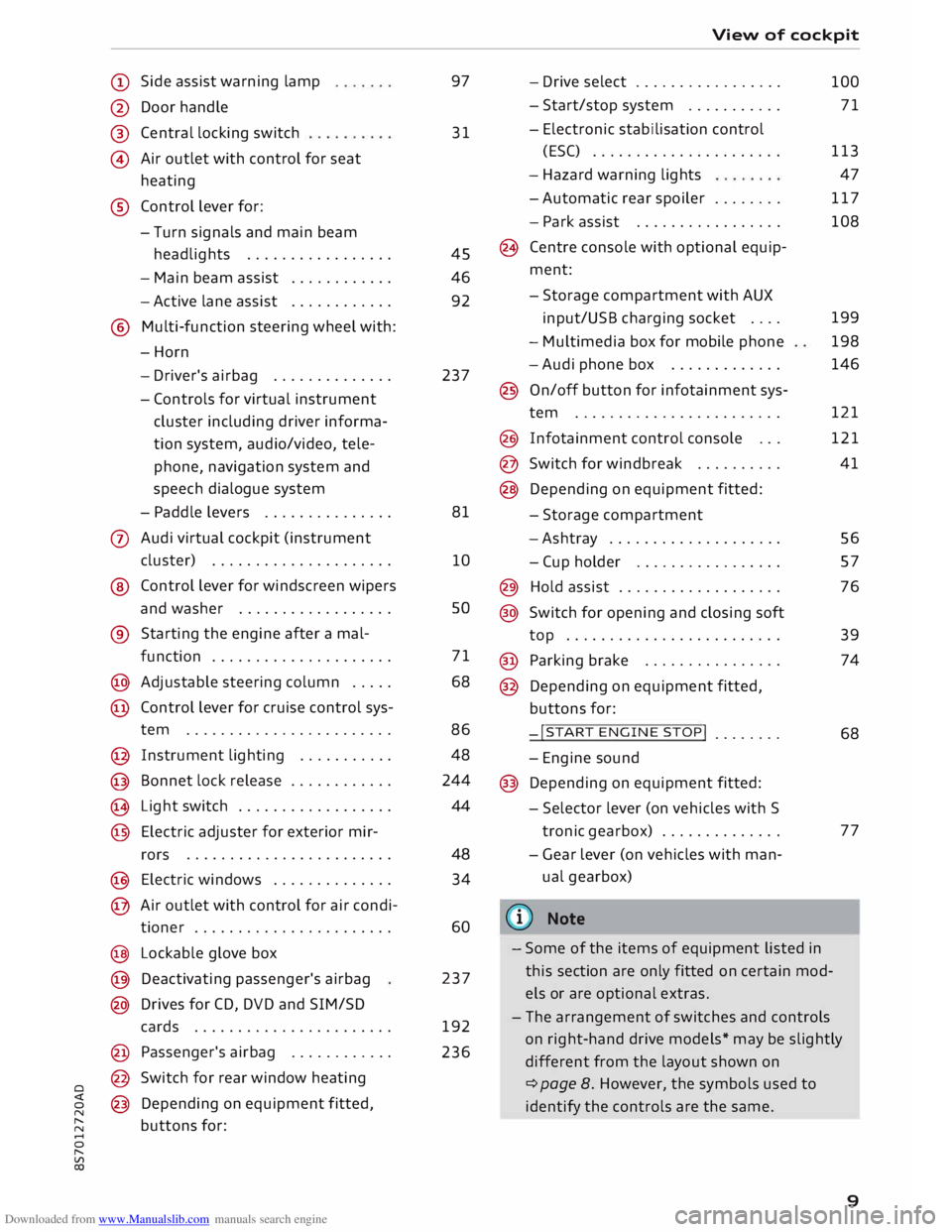
Side assist warning lamp
@ Door handle
®
@ Central
locking switch
Air outlet with control for seat
heating
® Control lever for:
- Turn signals and main beam
headlights ................ .
- Main beam assist ...........
.
- Active lane assist
........... .
@ Multi-function steering wheel with:
-Horn
- Driver's airbag ............. .
- Controls for virtual instrument
cluster including driver informa
tion system, audio/video, tele
phone, navigation system and
speech dialogue system
- Paddle levers .............. .
0 Audi virtual cockpit (instrument
cluster) .................... .
® Control lever for windscreen wipers
and washer ................. .
® Starting the
engine
after a mal-
function .................... .
@ Adjustable steering column .... .
@ Control lever for cruise control sys-
tem ....................... .
@ Instrument lighting .......... .
@ Bonnet lock release ........... .
� Light switch ................. .
@ Electric adjuster for exterior mir-
rors .......................
.
@ Electric windows ............. .
@ Air outlet with control for air condi-
tioner ...................... .
@ Lockable glove box
@ Deactivating passenger's airbag
@ Drives for CD, DVD and SIM/SD
cards ...................... .
@ Passenger's airbag ........... .
@ Switch for rear window heating
@ Depending on equipment fitted,
buttons for: 97
31
45
46
92
237
81
10 so
71
68
86 48
244
44
48 34
60
237
192
236 View
of cockpit
- Drive select ................ .
- Start/stop system .......... .
- Electronic stabilisation control
(ESC) ..................... .
- Hazard warning lights
- Automatic rear spoiler ....... .
- Park assist ................ .
(8 Centre console with optional equip
ment:
- Storage compartment with AUX
input/USB charging socket ....
- Multimedia box for mobile phone
-Audi phone box ............ .
@ On/off button for infotainment sys-
tem ....................... .
@ Infotainment control console .. .
@ Switch for windbreak ......... .
@ Depending on equipment fitted:
- Storage compartment
-Ashtray ................... .
- Cup holder ................ .
@) Hold assist .................. .
@ Switch for opening and closing soft
top ........................ .
@ Parking brake ............... .
@ Depending on equipment fitted,
buttons for:
-!START ENGINE STOP!
....... .
- Engine sound
@ Depending on equipment fitted:
- Selector lever (on vehicles with S
tronic gearbox) ............. .
- Gear lever (on vehicles with man
ual gearbox)
(© Note 100
71
113 47
117
108
199
198
146
121
121
41
56
57
76
39
74
68
77
- Some of the items of equipment listed in
this section are only fitted on certain mod
els or are optional extras.
- The arrangement of switches and controls
on right-hand drive models* may be slightly
different from the layout shown on
¢ page 8. However, the symbols used to
identify the controls are the same.
9
Page 23 of 306
Downloaded from www.Manualslib.com manuals search engine 0
N
,.....
N
......
0
,.....
Vl
CX) -
When the vehicle is stationary or travelling
at very low speeds, the temperature dis
played may be slightly higher than the ac
tual outside temperature as a result of the
heat radiated from the engine.
- At temperatures below +S°
C a snowflake
symbol appears next to the temperature
display¢ 8,.
Multi-function steering
wheel plus
Overview
Applies to vehicles with multi-function steering wheel plus
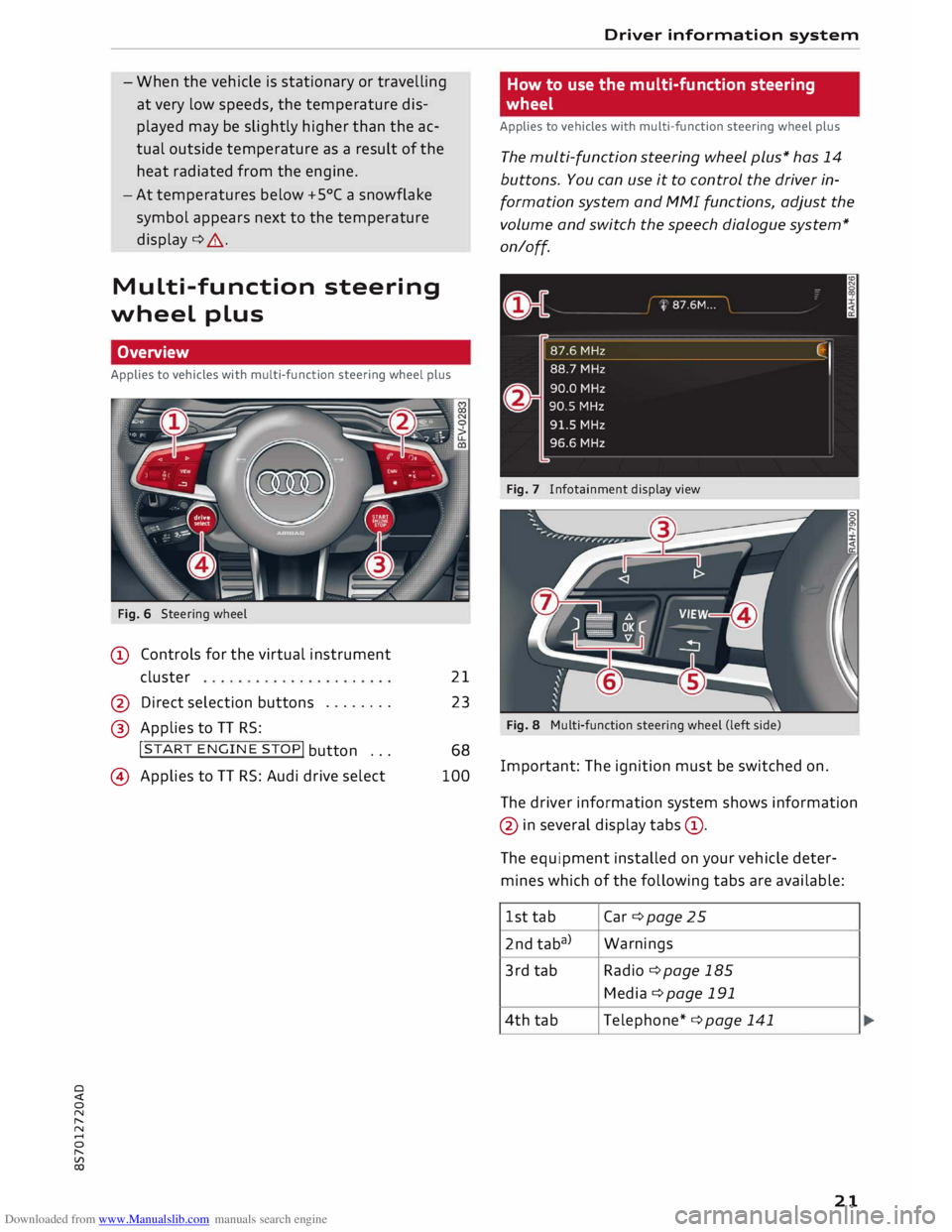
Fig. 6 Steering wheel
(D Controls for the virtual instrument
cluster
@ Direct selection buttons .......
.
@ Applies to TT RS: 21
23
!START ENGINE STOP!
button ...
@) Applies to TT RS: Audi drive select 68
100 Driver
information system
How to use the multi-function steering
wheel
Applies to vehicles with multi-function steering wheel plus
The multi-function steering wheel plus* has 14
buttons. You can use it to control the driver in
formation system and MMI functions, adjust the
volume and switch the speech dialogue system*
on/off.
Fig. 7 Infotainment display view
Fig. 8 Multi-function steering wheel (left side)
Important: The ignition must be switched on.
The driver information system shows information
@ in several display tabs©-
The equipment installed on your vehicle deter
mines which of the following tabs are available:
1st tab Car
¢page 25
2nd taba) Warnings
3rd tab
Radio ¢page 185
Media ¢page 191
4th tab
Telephone* ¢ page 141
21
Page 24 of 306
Downloaded from www.Manualslib.com manuals search engine Driver
information system
5th tab Navigation*
¢ page 169
Map* ¢page 178
6th tabb)
Sound ¢page 212
Audi connect* ¢page 159
Settings ¢page 212
al This tab is only visible if one or more warning/indicator
lamps or driver messages are displayed or if the relevant
system is switched on.
b l
The tab contents depend on which menu you used last.
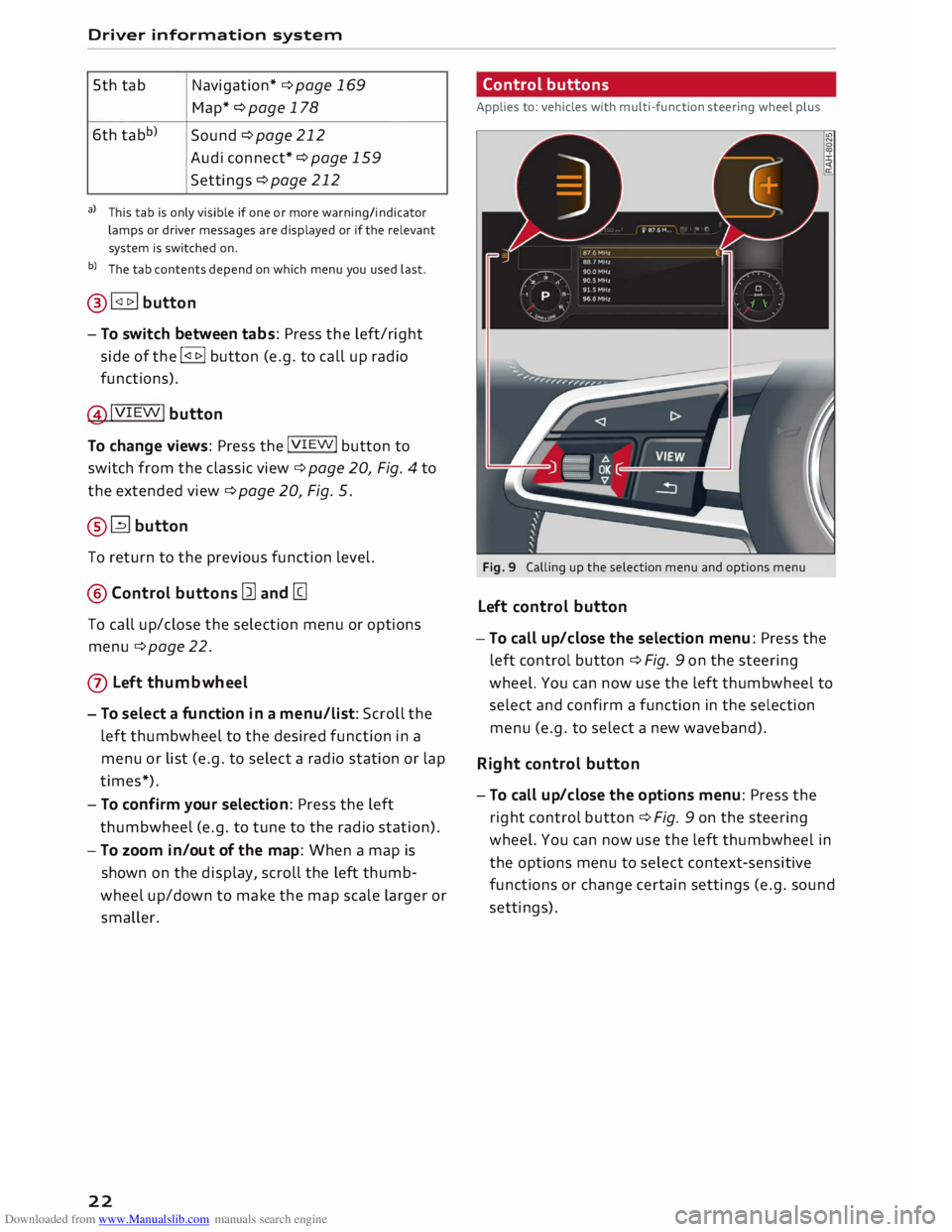
@� button
- To switch between tabs: Press the left/right
side of the !<1 t>I button (e.g. to call up radio
functions).
@!VIEW! button
To change views: Press the !VIEW! button to
switch from the classic view ¢ page 20, Fig. 4 to
the extended view¢ page 20, Fig. 5.
®� button
To return to the previous function level.
@ Control buttons [ll and [g
To call up/close the selection menu or options
menu ¢ page 22.
0 Left thumbwheel
- To select a fun ction in a menu/list: Scroll the
left thumbwheel to the desired function in a
menu or list (e.g. to select a radio station or lap
times*).
- To con firm your selection: Press the left
thumbwheel (e.g. to tune to the radio station).
- To zoom in/out of the map: When a map is
shown on the display, scroll the left thumb
wheel up/down to make the map scale larger or
smaller.
22 Control
buttons
Applies to: vehicles with multi-function steering wheel plus
Fig. 9 Calling up the selection menu and options menu
Left control button
-To call up/close the selection menu: Press the
left control button ¢ Fig. 9 on the steering
wheel. You can now use the left thumbwheel to
select and confirm a function in the selection
menu (e.g. to select a new waveband).
Right control button
- To call up/close the options menu: Press the
right control button ¢ Fig. 9 on the steering
wheel. You can now use the left thumbwheel in
the options menu to select context-sensitive
functions or change certain settings (e.g. sound
settings).
Page 25 of 306
Downloaded from www.Manualslib.com manuals search engine 0
N
,.....
N
....
0
,.....
Vl
CX) Direct
selection buttons
Applies to: vehicles with multi-function steering wheel plus
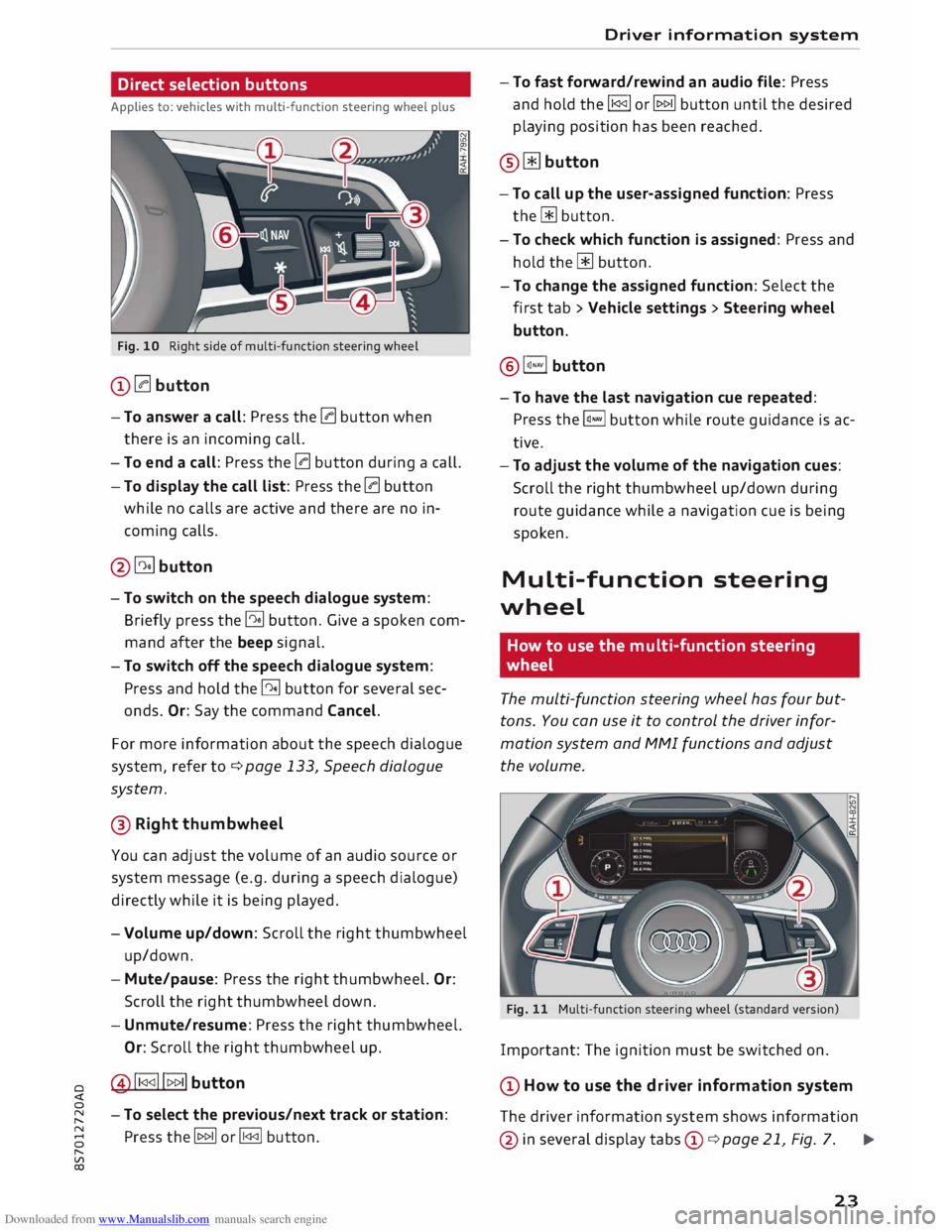
Fig. 10 Right side of multi-function steering wheel
(D 0 button
- To answer a call: Press the 0 button when
there is an incoming call.
- To end a call: Press the 0 button during a call.
- To display the call list: Press the 0 button
while no calls are active and there are no in
coming calls.
@�button
- To switch on the speech dialogue system:
Briefly press the� button. Give a spoken com
mand after the beep signal.
- To switch off the speech dialogue system:
Press and hold the� button for several sec
onds. Or: Say the command Cancel.
For more information about the speech dialogue
system, refer to ¢ page 133, Speech dialogue
system.
® Right thumbwheel
You can adj
ust the volume of an audio source or
system message (e.g. during a speech dialogue)
directly while it is being played.
- Volume up/down: Scroll the right thumbwheel
up/down.
- Mute/pause: Press the right thumbwheel. Or:
Scroll the right thumbwheel down.
- Unmute/resume: Press the right thumbwheel.
Or: Scroll the right thumbwheel up.
@!1 <1<1!!t>t> 1I button
- To select the previous/next track or station:
Press the� or� button. Driver information
system
- To fast forward/rewind an audio file: Press
and hold the !1<1<1!
or� button until the desired
playing position has been reached.
® � button
- To call up the user-assigned function: Press
the� button.
- To check which function is assigned: Press and
hold the� button.
- To change the assigned function: Select the
first tab > Vehicle settings > Steering wheel
button.
@ l�.,vl button
-To have the last navigation cue repeated:
Press the�
button while route guidance is ac
tive.
- To adjust the volume of the navigation cues:
Scroll the right thumbwheel up/down during
route guidance while a navigation cue is being
spoken.
Multi-function steering
wheel
How to use the multi-function steering
wheel
The multi-function steering wheel has four but
tons. You can use it to control the driver infor
mation system and MMI functions and adjust
the volume.
Fig. 11 Multi-function steering wheel (standard version)
Important: The ignition must be switched on.
(D How to use the driver information system
The driver information system shows information
@ in several display tabs©
¢ page 21, Fig. 7. .,..
23
Page 31 of 306
Downloaded from www.Manualslib.com manuals search engine LED
and battery in remote control key
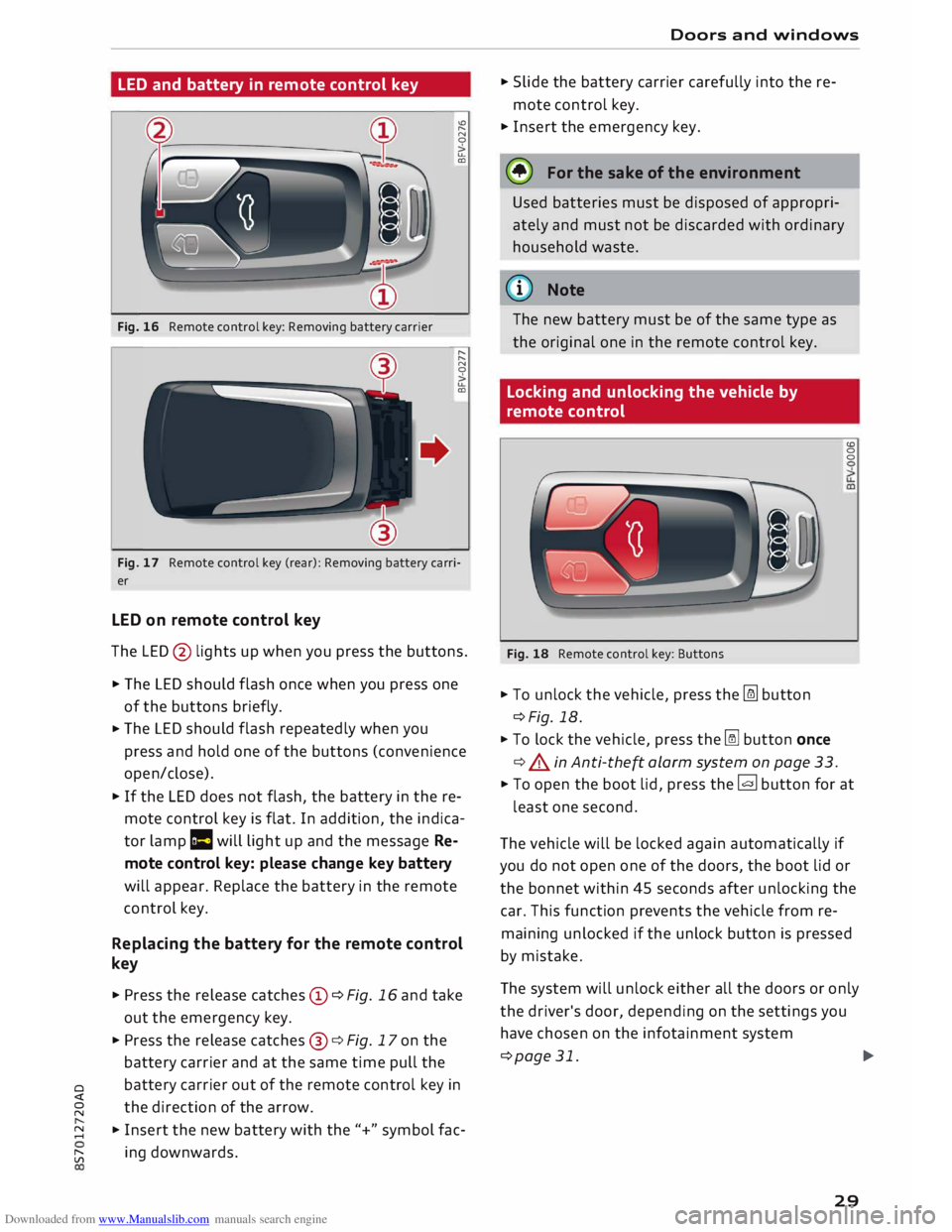
Fig. 16 Remote control key: Removing battery carrier "'
"
N
0
>
u..
CD
"
"
N
0
>
u..
CD
Fig. 17 Remote control key (rear): Removing battery carri
er
LED on remote control key
The LED @ lights up when you press the buttons.
� The LED should flash once when you press one
of the buttons briefly.
� The
LED should flash repeatedly when you
press and hold one of the buttons (convenience
open/close).
� If
the LED does not flash, the battery in the re
mote control key is flat. In addition, the indica
tor lamp la will light up and the message Re
mote control key: please change key battery
will appear. Replace the battery in the remote
control key.
Replacing the battery for the remote control
key
� Press the release catches© ¢Fig. 16 and take
out the emergency key.
� Press the release catches@¢ Fig. 17 on the
battery carrier and at the same time pull the
o battery
carrier out of the remote control key in
direction of the arrow.
� �
Insert the new battery with the"+" symbol fac-
[;:j ing
downwards. Doors
and windows
� Slide the battery carrier carefully into the re
mote control key.
� Insert the emergency key.
@ For the sake of the environment
Used batteries must be disposed of appropri
ately and must not be discarded with ordinary
household waste.
@ Note
The new battery must be of the same type as
the original one in the remote control key.
Locking and unlocking the vehicle by
remote control
Fig. 18 Remote control key: Buttons
� To unlock the vehicle, press the [m button
¢Fig. 18.
� To lock the vehicle, press the� button once
¢ .&. in Anti-the� alarm system on page 33. (0
0
0
� To open the boot lid, press the� button for at
least one second.
The vehicle will be locked again automatically if
you do not open one of the doors, the boot lid or
the bonnet within 45 seconds after unlocking the
car. This function prevents the vehicle from re
maining unlocked if the unlock button is pressed
by mistake.
The system will unlock either all the doors or only
the driver's door, depending on the settings you
have chosen on the infotainment system
¢page 31.
.,..
29
Page 37 of 306
Downloaded from www.Manualslib.com manuals search engine 0
N
,.....
N
....
0
,.....
Vl
CX) as
the windows cannot be opened from the
inside in an emergency.
(©) Note
- The windows can be operated for about ten
minutes after the ignition has been switch
ed off. The window switches are only deacti
vated when the driver's door or the passeng
er's door is opened.
- When the doors are opened, or while the
soft top is being opened or closed, the win
dows are automatically opened about
10mm.
Convenience open/close function
All the windows can be opened or closed at the
same time.
Convenience open function
"" Press and hold the� button on the remote
control key until all the windows have reached
the desired position.
Convenience close function
"" Press and hold the� button on the remote con-
trol key until all windows are closed ¢ ,& , or
Convenience close function with convenience
key*
"" Touch and keep your hand in contact with the
sensor* on the door handle until all the win
dows and the soft top* are closed. Do not rest
your hand on the door handle while this is hap
pening.
Adjusting settings for convenience open
function via infotainment system
"" Select the following on the infotainment sys
tem: I MENU
I button
>Car> left control button
> Vehicle settings.
If you wish to use the convenience open function
for the windows, set Long press to open win
dows to on. Doors
and windows
A WARNING
- Take care when closing the windows and the
soft top*. Careless or uncontrolled use can
cause injuries.
- For safety reasons, you should only use the
remote control key to open and close the
windows and soft top* when you are at least
2 metres away from the vehicle. To avoid in
juries, always keep an eye on the windows
and the soft top* when pressing the I:@ but
ton to close them. The windows and soft top
stop moving as soon as the I:@ button is re
leased.
What to do after a malfunction
You can reactivate the one-touch open and close
function if it fails to operate.
"" Pull and hold the electric window switch until
the window is fully closed.
"" Release the switch and then pull it again for at
least one second.
Garage door opener
(Homelink)
Description
Applies to: vehicles with garage door opener (Homelink)
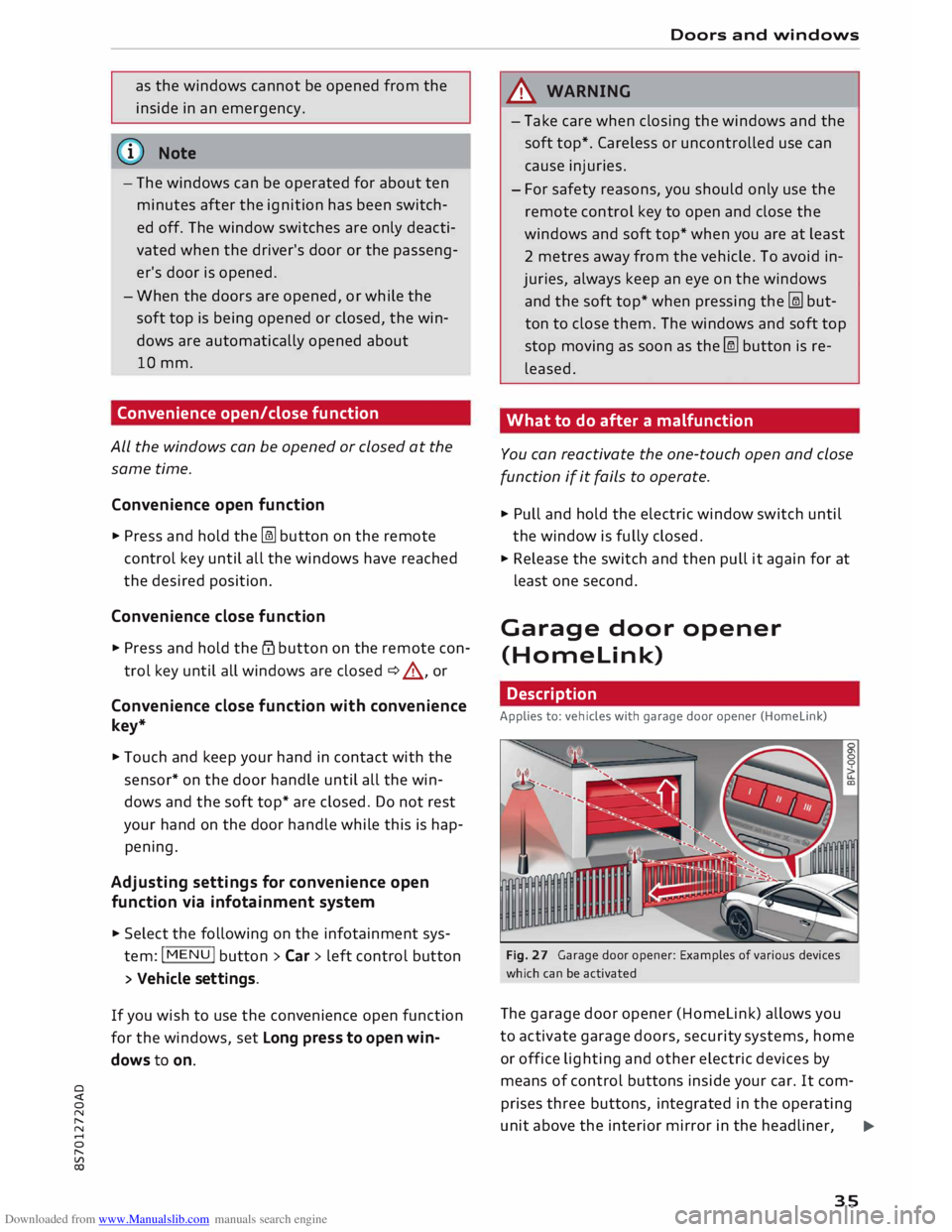
Fig. 27 Garage door opener: Examples of various devices
which can be activated
The garage door opener (Homelink) allows you
to activate garage doors, security systems, home
or office lighting and other electric devices by
means of control buttons inside your car. It com
prises three buttons, integrated in the operating
unit above the interior mirror in the headliner, �
35
Page 38 of 306

Downloaded from www.Manualslib.com manuals search engine Doors
and windows
which perform the functions of up to three hand
held transmitters.
To operate the desired systems with the garage
door opener, you first need to program the but
tons in the operating unit.
A WARNING
When you are operating or programming the
garage door opener, make sure that no per
sons or objects are close to the devices receiv
ing the transmitter signals. Otherwise, per
sons might be injured or other damage
caused by moving parts.
(D Note
- For security reasons we recommend that
you delete the programming of the buttons
prior to selling your vehicle.
- For more information about Homelink,
please see www.homelink.com.
Controls
Applies to: vehicles with garage door opener (Homelink)
Fig. 28 Operating unit above the interior mirror
Important: The button in the operating unit must
be programmed <=> page 36 and the vehicle
must be within range of the garage door or other
system you wish to operate.
.. To open the garage door, press the button. The
green LED CD will light up or flash.
.. To close the garage door, press the button
again.
Note
When opening/closing the garage door, do
not keep the button pressed for more than
36 20
seconds; otherwise the garage door open
er will switch to the programming mode.
Programming the transmitter
Applies to: vehicles with garage door opener (Homelink)
Fig. 29 Distance between radiator grille and hand-held
transmitter
Programming a button: Stage 1 (at the
operating unit)
1. Switch on the ignition.
2. Press
and hold down the two outer buttons
on the operating unit<=> page 36, Fig. 28 until
the yellow LED@ goes out and the green
LED CD flashes. This procedure will delete the
standard factory settings and does not need
to be repeated when programming the other
buttons.
3. Briefly
press the particular button in the op
erating unit that you would like to program.
4. Wait until the yellow LED@flashes . The
programming mode is then activated for 5
minutes.
5. Step in front of your vehicle with the original
hand-held transmitter for the system you
wish to assign to the button in the operating
unit.
Programming a button: Stage 2 (at the
radiator grille)
6. Hold
the hand-held transmitter in front of
your car's radiator grille<=> Fig. 29.
7. Now press and hold the button on the hand
held transmitter until the turn signals on
your vehicle start to flash. This can take up to
30 seconds.
8. If the hazard lights flash three times, the
button has been programmed successfully. If
the hazard lights flash once only, the
�
Page 39 of 306
Downloaded from www.Manualslib.com manuals search engine 0
N
,.....
N
......
0
,.....
Vl
CX) programming
operation has failed or the five
minute programming period has expired. Re
peat the programming procedure starting
with the 3rd step, or try holding the trans
mitter nearer or further away from the radia
tor grille.
9. If the garage door or other system still fails
to be activated using the buttons in the oper
ating unit after programming is completed,
it is possible that the system might be work
ing with a rolling code instead of the normal
fixed security code. If this is the case, a roll
ing code progr amming is required in addi
tion to the steps described above
¢page 37.
Follow the instructions above to program the
other two buttons. Start with the 3rd step.
Erasing the button programming
Programmed buttons can only be erased all at
once; it is not possible to erase them individually.
Reprogram the buttons if necessary.
� Switch on the ignition.
� Press and hold down the two outer buttons on
the operating unit until the yellow LED @
goes
out and the green LED CD
flashes.
Reprogramming the buttons
� Switch on the ignition.
� To reprogram an individual button, press and
hold the desired button until the green LED CD
goes out and the yellow LED @
starts to flash
(after about 20 seconds). Then release the but
ton immediately. The programming mode is
then activated for S minutes.
� Continue with the 5th step.
ij) Note
- The required distance between the hand
held transmitter and the Homelink module
inside the radiator grille¢ Fig. 29 depends
on the system you are programming.
- With some types of systems, you may need
to briefly release the button during pro
gramming and then press it again. When
programming a new device, keep the button
pressed for at least 15 seconds before try- Doors
and windows
ing again with the transmitter in a different
position. Watch out for your vehicle's haz
ard warning lights while doing so.
Rolling code programming
Applies to: vehicles with garage door opener (Homelink)
Some devices require rolling code programming.
Identifying a rolling code
� Press a programmed button in the operating
unit again and hold it down.
� Watch the green LED CD
¢ page 36, Fig. 28. If
the green LED starts flashing rapidly, this indi
cates that the system you wish to operate, such
as a garage door, is equipped with a rolling
code.
� Program the rolling code as follows:
Activating a system's drive unit
� Locate
the programming button on the sys
tem's drive unit. The exact location and colour
of the button may vary depending on the type
of system.
� Press
the programming button on the system's
drive unit (this will normally cause an indicator
lamp on the unit to light up). You now have
about 30 seconds to start and complete pro
gramming of the button in the operating unit.
Programming the button in the operating
unit
� Press the previously programmed button in the
operating unit for 2 seconds.
� Press the button for 2 seconds again to com
plete rolling code programming.
� For some systems, the button may have to be
pressed a third time to complete the program
ming sequence.
After programming, the system should recognise
the signal and respond when the button in the
operating unit is pressed. Now the other control
buttons can be programmed as required.
@ Note
- Having a second person assist you makes
programming of the rolling code easier and
faster. ..,_
37
Page 64 of 306
Downloaded from www.Manualslib.com manuals search engine Heating
and cooling
Controls for automatic air conditioner
Applies to: vehicles with automatic air conditioner
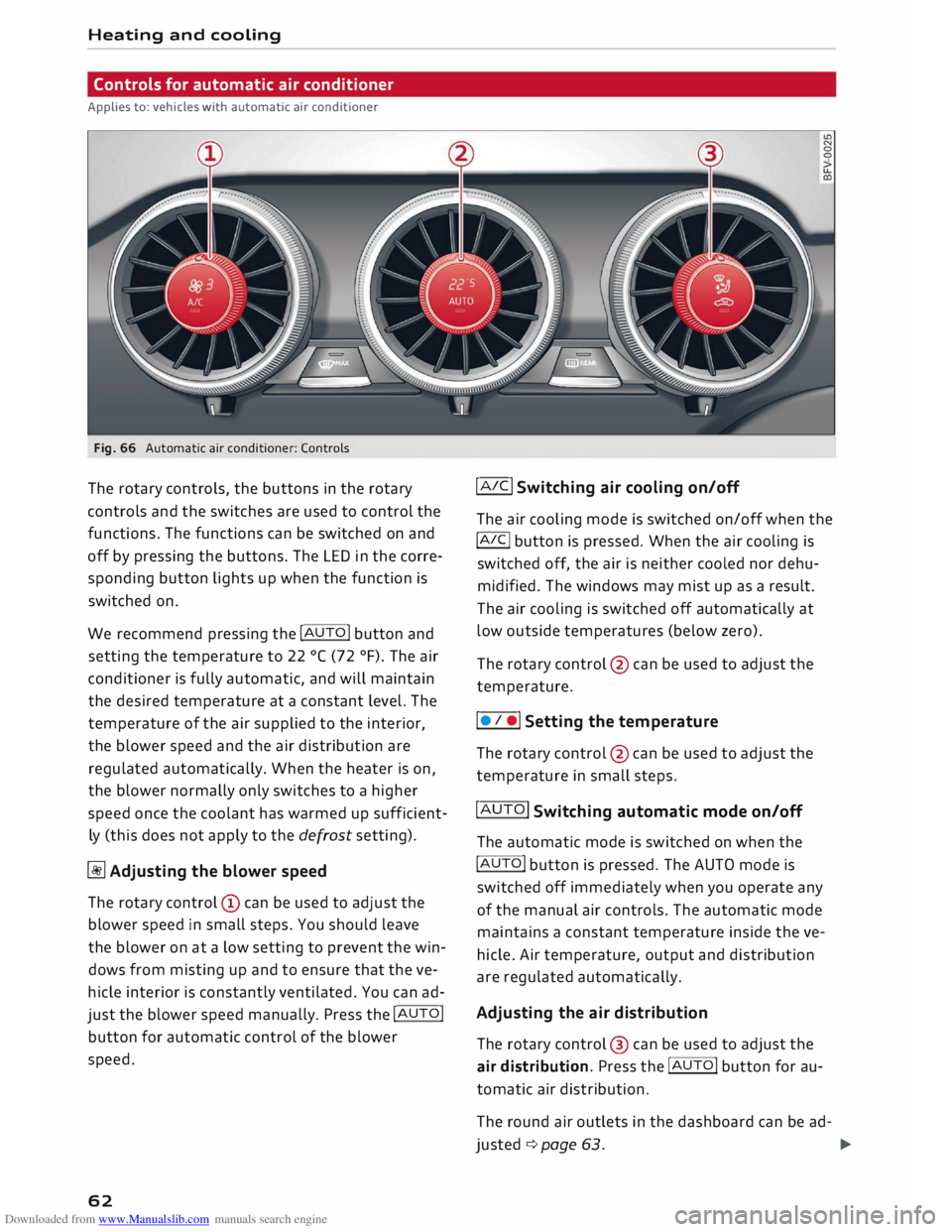
Fig. 66 Automatic air conditioner: Controls
The rotary controls, the buttons in the rotary
controls and the switches are used to control the
functions. The functions can be switched on and
off by pressing the buttons. The LED in the corre
sponding button lights up when the function is
switched on.
We recommend pressing the !AUTO! button and
setting the temperature to 22 °( (72 °F). The air
conditioner is fully automatic, and will maintain
the desired temperature at a constant level. The
temperature of the air supplied to the interior,
the blower speed and the air distribution are
regulated automatically. When the heater is on,
the blower normally only switches to a higher
speed once the coolant has warmed up sufficient
ly (this does not apply to the defrost setting).
� Adjusting the blower speed
The rotary control @ can be used to adjust the
blower speed in small steps. You should leave
the blower on at a low setting to prevent the win
dows from misting up and to ensure that the ve
hicle interior is constantly ventilated. You can ad
just the blower speed manually. Press the !AUTO!
button for automatic control of the blower
speed.
62 !AIC!
Switching air cooling on/off
The air cooling mode is switched on/off when the
!A IC!
button is pressed. When the air cooling is
switched off, the air is neither cooled nor dehu
midified. The windows may mist up as a result.
The air cooling is switched off automatically at
low outside temperatures (below zero).
The rotary control @ can be used to adjust the
temperature.
I • I •I Setting the temperature
The rotary control @ can be used to adjust the
temperature in small steps.
!AUTO! Switching automatic mode on/off
The automatic mode is switched on when the
!AUTO! button is pressed. The AUTO mode is
switched off immediately when you operate any
of the manual air controls. The automatic mode
maintains a constant temperature inside the ve
hicle. Air temperature, output and distribution
are regulated automatically.
Adjusting the air distribution
The rotary control @ can be used to adjust the
air distribution. Press the !AUTO! button for au
tomatic air distribution.
The round air outlets in the dashboard can be ad-
justed ¢ page 63.
�