phone AUDI TT ROADSTER 2018 User Guide
[x] Cancel search | Manufacturer: AUDI, Model Year: 2018, Model line: TT ROADSTER, Model: AUDI TT ROADSTER 2018Pages: 310, PDF Size: 46.95 MB
Page 107 of 310
Cl 00 .-< N r-N .-< 0 r-Vl 00
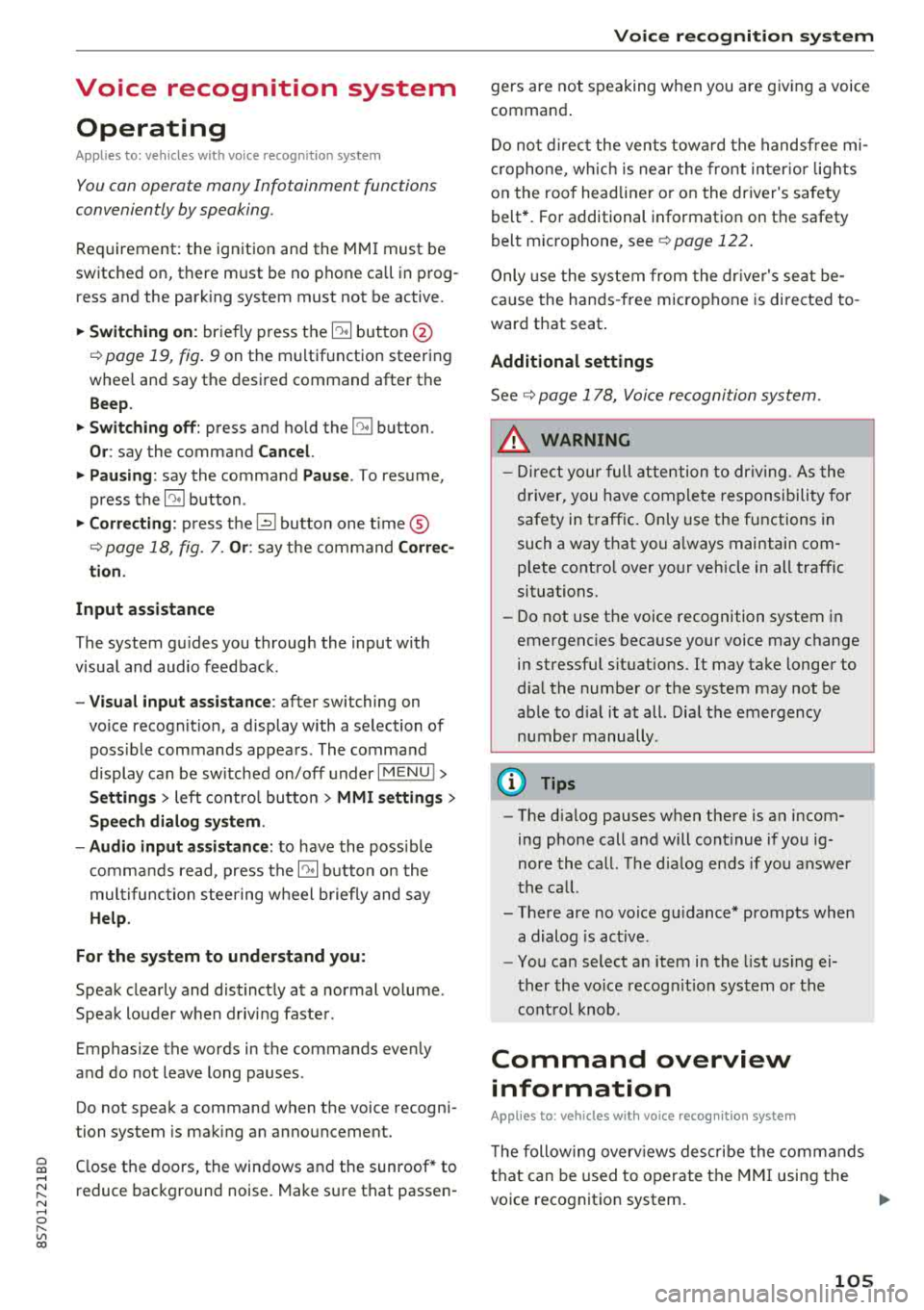
Voice recognition system Operating
Applies to: vehicles with voice recognitio n system
You con operate many Infotainment functions
conveniently by speaking.
Requirement: the ignition and the MM I must be
switched on, there m ust be no phone call in p rog
ress and the park ing system must not be active.
~ Switching on : briefly p ress t h e ~ but ton @
¢page 19, fig . 9 on the multif unction steering
whee l and say th e desi red command after the
Beep .
~ Switching off : press and hold the ~ button .
Or: say the command Cancel.
~ Pausing : say the command Pause . To resume,
press
the~ b utt on .
~ Corr ecting : press t h e ~ button one t ime ®
¢ page 18, fig. 7. Or: say the co mmand Correc
tion .
Input assistance
The system g uides you throug h the input with
v isua l and aud io feedback .
-Visual input assistance : after switching on
vo ice recogn it io n, a display with a se lection of
poss ible commands appears . The command
display can be sw itched on/off under
I M EN U I >
Setting s> left contro l butto n > MMI setting s>
Speech dialog system .
- Audio input assistance:
to have the poss ible
c omma nds read, press t he
10, I bu tton o n the
mul tifunc tion steering w heel b riefly and say
Help.
For the system to understand you:
Speak clearly and dis tinct ly a t a normal vo lume .
Speak lo uder when d riving faste r.
Emphasi ze the words in the commands even ly
a n d do not leave long pauses .
Do not spea k a command when the voice recogni
tion system is m aking an a nno uncement.
C lose the doors, the windows and the sunroof* to
r e duce background noise. Make s ure that passe n-
Voice recognition system
gers are not speaking w hen you are g iv ing a voice
comman d.
D o no t direct the vents towa rd the handsfree mi
c rophone, wh ic h is near the fro nt inter ior lights
on the roof headline r or on the dr iver's safety
belt*. Fo r additional informat io n on th e safety
belt m ic rophone, see
¢ pag e 122 .
Only use the system from the dr ive r's sea t be
ca use the hands -free microphone is di rected to
ward that s eat .
Additional settings
See ¢ page 178, Voice recognition system.
_&. WARNING
- D ir e ct y ou r full a tte ntio n to dr iv in g. A s t he
dr iver, you have com ple te re spon sibility fo r
safety in t raff ic . O nly use the functions in
such a way t hat you a lways maintai n com
p lete contro l over your vehicle in all traffic
situations.
- Do not use t he voice recognition system in
emergencies beca use your voice may change
in st ressfu l s ituations. It may ta ke longe r to
d ia l the number o r th e system may not be
ab le to d ia l it at all. Dia l the emergency
number manually .
(D Tips
-The d ialog pauses w hen the re is a n incom
ing phone call a nd will con tinue if yo u ig
nore the ca ll. The dia log ends if yo u answer
t he ca ll.
- There are no vo ice gu idance* prompts when
a dialog is ac tive .
- Yo u ca n select a n item in the list us ing ei
t her the vo ice recogn ition sys tem o r the
cont ro l knob .
Command overview
information
Applies to: vehicles with voice recognition system
T he following overv iews des crib e the co m man ds
t h at can be used to oper ate the MMI using the
vo ice recognit ion system.
..,.
105
Page 108 of 310
Voice recognition system
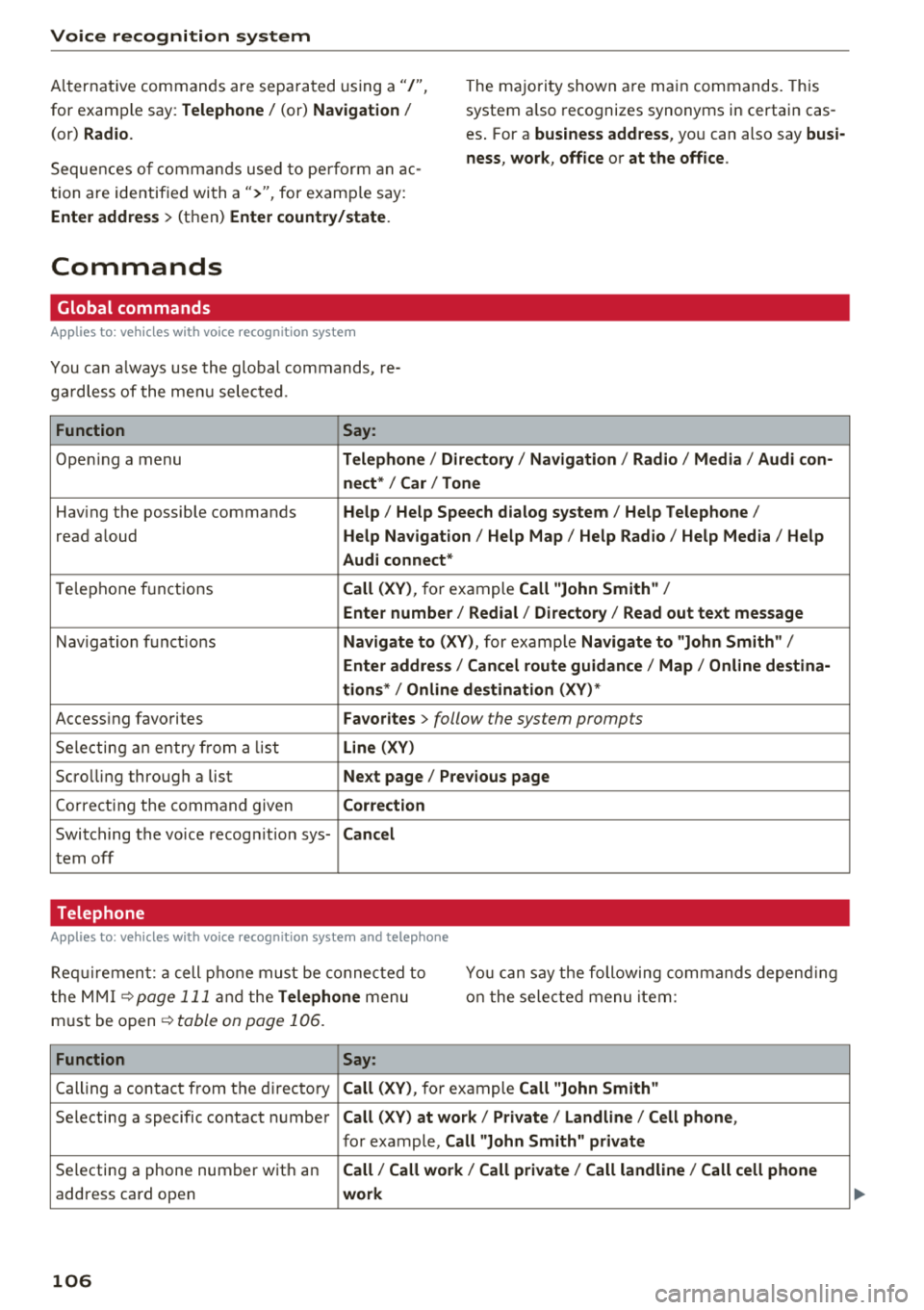
Alternat ive commands are separated using a"/",
for example say: Telephone / (or) Navigation /
(or) Radio.
The majority shown are ma in commands. This
system a lso recognizes synonyms in certain cas
es . For a
business address, you can also say busi·
ness, work , office or at the office .
Sequences of commands used to pe rform an ac
tion are identif ied with
a">", for examp le say:
Enter address > (then) Enter country/state.
Commands
Global commands
Applies to: vehicles wi th voice recognition system
You can a lways use the global commands, re
ga rdless of the menu selected.
Function Say:
Opening a menu Telephone / Directory I Navigation / Radio / Media / Audi con·
nect *
I Car I Tone
Having the possible commands Help / Help Speech dialog system / Help Telephone /
read aloud Help Navigation / Help Map / Help Radio / Help Media / Help
Audi connect *
Telephone f unctions Call (XV), for example Call "John Smith" /
Enter number / Redial / Directory / Read out text message
Navigation functions Navigate to (XV) , for examp le Navigate to "John Smith" /
Enter address / Cancel route guidance / Map / Online destina·
tions*
I Online destination (XV) *
Accessing favorites Favorites > follow the system prompts
Selecting an entry from a list Line (XV)
Scrolling through a list Next page / Previous page
Cor recting the command given Correction
Switching the voice recogn ition sys-Cancel
tern off
Telephone
Applies to: vehicles with voice recognition system and telephone
Requirement: a cell phone must be connected to
t he MMI
¢page 111 and the Telephone menu
must be open
¢ table on page 106.
You can say the following commands depending
on the selected menu item :
Function Say:
Calling a contact from th e directory Call (XV), for example Call "John Smith"
Selecting a specific contact number Call (XV) at work/ Private / Land line / Cell phone ,
for example, Call "John Smith" private
Selecting a phone number with an Call / Call work/ Call private / Call land line / Call cell phone
address card open work
106
Page 109 of 310
Cl 00 .-< N r-N .-< 0 r-Vl 00
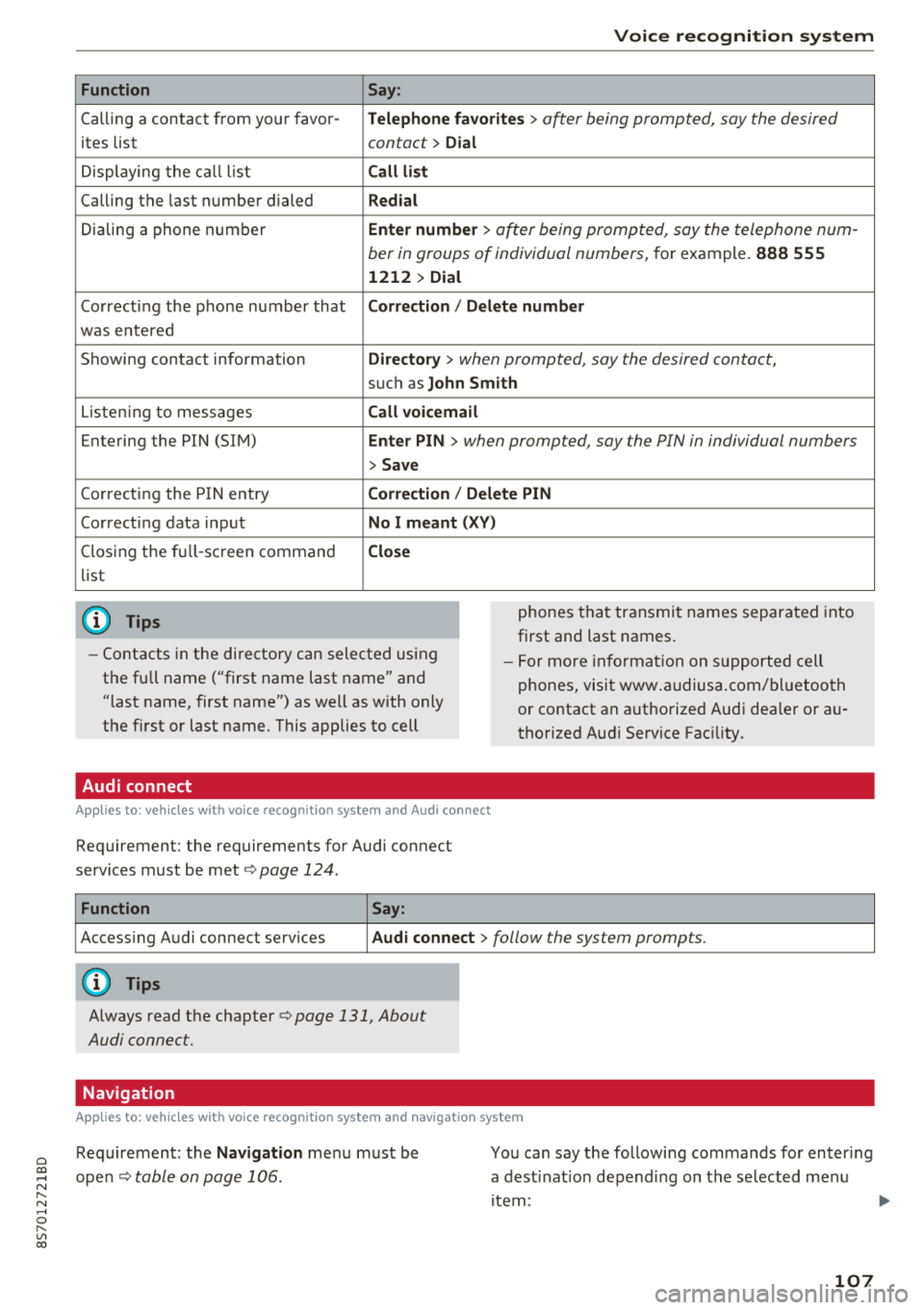
Function
Calling a contact from yo ur favor -
ites list
Displaying the ca ll list
Calling the last number dialed
Dialing a phone num ber
Correcting the p hone number that
was entered
Showing contact information
L iste ning to messages
Entering the PIN (SIM)
C orrecting the P IN entry
Correcting data inp ut
Closing the fu ll- screen command
list
(D Tips
Voice recognition system
Say :
Telephone fa vo rites
> a~er being prompted, say the desired
contact>
D ial
Call li st
Redial
En ter number
> after being prompted, say the telephone num-
ber in groups of individual numbers,
for example. 888 555
1212 > Dial
Correction / Delete number
Directory
> when prompted, say the desired contact,
suc h as John Smith
Call voi cemail
Enter PIN
> · when prompted, say the PIN in individual numbers
> Save
Correction / Delete PIN
No I meant ( XV)
Close
phones tha t transmit names separated into
first and last names.
- Contacts in the directory can selected using
the full name ("first name last name" and
"last name, first name") as well as with only
the first or last name. This applies to cell - F
or more in format ion on s uppo rted cell
phones, visi t www .audiusa.com/ bluetoo th
or contact an a uthorized Audi dea ler or au
thorized Aud i Service Fac ility.
Audi connect
A ppl ies to : ve hicl es w ith vo ice recogni tion sys te m and Audi co nn ect
Requirement: the requirements for Audi connect
services must be met ¢
page 124.
Function Say:
Accessing A udi connect services Aud i connect > follow the system prompts.
(D Tips
Always read the chapte r¢ page 131, About
Audi connect.
Navigation
A pp lies to: ve hicles with vo ice recognition syste m and navigation syste m
Requirement: the Navigation me nu must be
ope n¢
table on page 106 .
You can say the following commands fo r en ter ing
a dest inat ion depending on the se lected me nu
i tem :
107
Page 112 of 310
Voice recognition s ystem
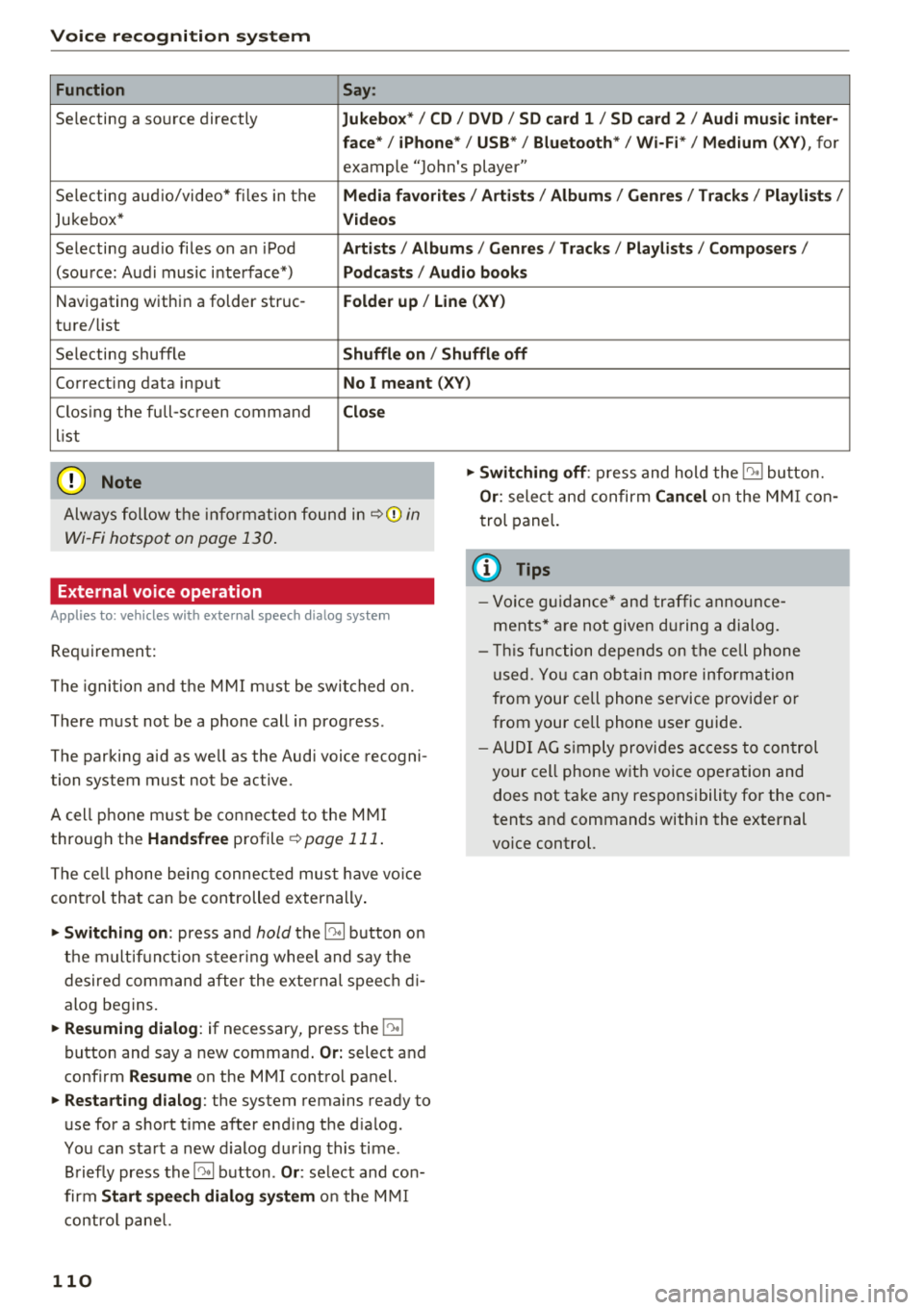
Function Say:
Selecting a so urce directly Jukebo x*/ CD/ DVD/ S D card 1 / SD card 2 / Audi mu sic inter·
face */ iPhone * / USB* / Bluetooth * / Wi -Fi * / Medium
(XV), for
example "Jo hn's player"
Selecting aud io/video* fi les in the
Media fav orites / Arti sts/ Album s/ Genr es I Track s/ Playli st s /
Jukebox* Vid eos
Selecting aud io files on an iPod Artists / Albu m is / Genre s/ Track s/ Playlists /Compo ser s/
(sou rce: Aud i music interface*) Podca sts / Aud io bo oks
Navigating within a folder struc -Folder up / Line (XV)
ture/ list
Selecting shuffle
Shuffl e on / Shuffle off
Correcting data input No I meant (XV)
Clos ing the full-sc reen command Clo se
list
(Ud) Note
Always follow t he info rmat ion found in ~ @ in
Wi -Fi hotspot on page 130 .
External voice operation
Applies to: vehicles with external speech dialog system
Requirement:
The ignition and t he M MI m ust be switched on.
There must not be a phone call in progress .
The parking aid as we ll as the Audi voice recogni
tion system must not be active.
A cell phone must be connected to the M MI
through the
Handsfree profile ~ page 111 .
The ce ll phone being connec ted must have vo ice
con trol that can be controlled externally .
"'Switching on: press and hold the 10° 1 button o n
the m ult if u nct ion steer ing whee l and say the
desired command after the external speech d i
alog begins.
"'Re suming dialog : if necessary, press the l')•I
button and say a new command . Or: select and
confirm
Re sume on the MMI contro l panel.
"'Restart ing dialog : the system remains ready to
use for a short t ime after end ing the d ialog.
You can start a new d ialog during this time.
Briefly press the
5] button . Or: select and con
firm
Start speech dialog sy stem o n the M MI
contro l pane l.
110
"'Swit ching off : press and hold the 5] button.
Or : select and confirm Can cel on the M MI co n
trol panel.
{i) Tips
- Vo ice g uidance* and tra ffic anno un ce
ments* a re not give n during a dialog.
- Thi s function depe nds on the ce ll phone
used. Yo u ca n ob ta in more info rmation
from your cell phone service provider or
from your ce ll phone use r guide .
- AUDI AG s imply provides ac cess to con trol
your cell phone w it h voice operation and
does not take any responsibility for the con
tents and commands within the external
vo ice control.
Page 113 of 310
Cl 00 .-< N r-N .-< 0 r-Vl 00
Telephone Introduction
Applies to: vehicles with telephone
To make phone coils in your vehicle using the
MMI, connect your cell phone to the MMI via
Bluetooth.
Handsfree
After you have connected your ce ll phone to the
MMI via Bluetooth, you can use the handsfree
system and operate telephone functions through
your MMI. You can make calls using the antenna
on your cell phone.
A WARNING
-Medical experts warn that cell phones can
interfere w ith the funct ion of pacemakers .
Always ma inta in a m inimum distance of
about 8 inches (20 cm) between the cell
phone antenna and the pacemake r.
-Do not carry the cell phone in a pocket di
rectly over the pacemaker when the phone
is switched on.
-Sw itch the cell phone off immediately if
you suspect it may be interfering w ith the
pacemaker.
-Do not use the voice recognition system*
¢
page 105 in emergencies because your
voice may change in stressful situations. It
may take longer to dial the number or the
system may not be able to dial it at all. Dial
the emergency number manually.
-Switch your cell phone off in areas where
there is a risk of an exp losion. These loca
t ions are not always clearly marked. This
may include gas stations, fuel and chemical
storage facilities or transport vehicles, or lo
cations where fue l vapors (such as propane
or gasoline vapor in vehicles or bui ldings),
chem icals or large quantities of dust parti
cles (such as flour, sawdust or metal) may
be present in the air. Th is also applies to all
ot her locations where you would normally
turn your vehicle engine off.
-The demands of traffic require your full at
tention. Always read the chapter ¢
page 93,
Traffic safety information .
-
Telephone
@ Note
Always fo llow the information found in Q@ in
Wi -Fi hotspot on page 130.
(D Tips
-To learn which Bluetooth connections and
which of the functions in your cell phone are supported, check with your cell phone serv
ice provider or the database for mobile devi
ces at www.aud iusa.com/bluetooth.
-The Bluetooth connection range is limited
to inside the vehicle. It can also be affected
by local condit ions and interference with
other devices .
Setup
Connecting a cell phone using Bluetooth
Applies to: vehicles with telephone
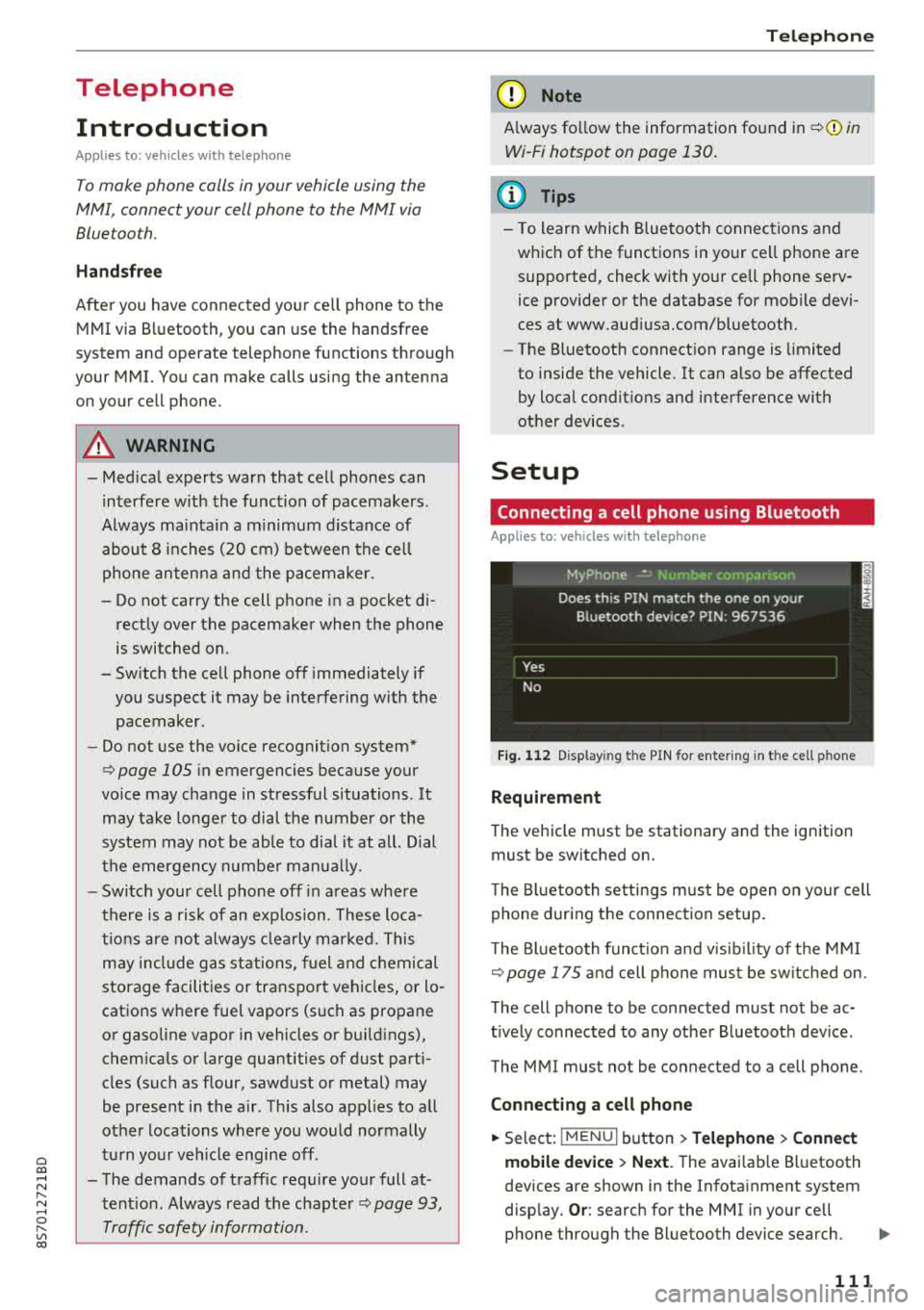
Fig. 112 Display ing t he PIN for enter ing in t he cell p hone
Requirement
T he vehicle must be stationary and the ignition
must be switched on.
T he Bl uetoo th settings must be open on your cell
phone during the connection setup .
T he Bluetooth funct io n and v is ibilit y of the MMI
Q page 175 and cell phone must be switched on.
The cell phone to be connected must not be ac
t ively connected to any other B luetooth dev ice .
The MMI must not be connected to a cell phone.
Connecting a cell phone
.,. Select: IMENU I button> Telephone> Connect
mobile device > Next .
The avai lab le Bluetooth
devices are shown in the Infotainment system
disp lay.
Or : search for the MMI in your cell
phone through the Bluetooth device search.
..,..
111
Page 114 of 310
Tele phone
~ Se lect and confirm the desired ce ll phone from
the list of disp layed Bluetooth devices.
~ The MMI generates a PIN for the connect ion
setup
¢ fig. 112 .
~ Select and confirm Y es.
~ Enter the PIN for connecting on your cell
phone .
Or: when the PIN is d isplayed on your
ce ll phone, co nfirm the P IN on your ce ll phone
and in t he M MI. The time a llowed for ente ring
the P IN is lim ited to app rox ima tely 30 seconds.
~ Pay attention to any additiona l system prompts
displayed on your cell phone, for example i f the
system s hou ld connect automatically in the fu
ture . Depending on the ce ll phone, you may
have to confirm downloading the directory sep
arately .
After conn ect ing succ essfully
After connecting successfully, a short message
with information about the connected profi les
will appear. You can also change profiles later.
Select:
! MENU ! button> Setting s> left control
button
> MMI se ttings > Conn ection manag er
¢page 175.
In addition, the cell phone contacts are automat ically loaded in the MMI directory. Th is process
can take several minutes, depend ing o n the num
ber of contacts .
@ Note
Always follow the information found in c:::;,il]) in
Wi-Fi hotspot on page 130.
(D Tips
- Making phone calls throug h the MMI is only
possib le using the
Handsfree Bluetooth pro
file.
- You can apply additional settings to con
nected mobile devices using the co nnect ion
manager
¢ page 174.
- You can also search for the MMI in your cell
phone us ing the Bluetooth device search.
- You only have to pair your device one t ime.
B luetooth dev ices that are already pa ired
automat ically connect to the MMI when the
Bluetooth function is sw itched on, they are
within range and t he ign it io n is switched on.
112
Th e last connected cell p hone is given first
priority .
- Au thoriz ing the M MI connec tion in your cell
phone wi ll make automatic connection pos
sible.
- Pay attention to any system prompts dis
played on your ce ll phone, for example if
the system should connect automatically in
the future. Depend ing on the ce ll phone,
you may also need to download the directo ry and confirm access to your text messages
separately .
- Whe n leaving the vehicle, the Bluetooth
connect io n to the cell phone will automati
cally d isconnect. Dependi ng on you r cell
phone, phone calls in prog ress may be auto
matically red irected from the MM I to you r
cell p ho ne a nd you can con tinue the c all on
your phone.
- Yo u can ob tain more i nfo rmat ion fro m you r
cell p ho ne serv ice p rovider or from yo ur cell
phone user guide . For in formation on using
the te lephone, visit www.audi usa .com/
bluetooth or contact an authorized Audi
dea ler or author ized Audi Service Facility.
- Applies to : vehicles without secondary
phone: Several cell phones can be paired to
the MMI, but only one cell phone can be ac
t ively connected to the M Ml.
- Applies to: vehicles without secondary
phone: If a Bluetooth device is a lready con
nected to the MMI, it will be d isconnected
w hen another device connects to the MMI.
Operating two telephones through the
MMI
You can connect two cell phones to the MMI, for
example your business cell phone as the primary
phone and your private cell phone as the secon dary phone. You can be reached in your vehicle
through both cell phones .
The first connected ce ll phone is d isplayed as the
pr imary phone in the MM I. The secon d cell phone
is connected as the secondary phone .
The directory from the connected pr ima ry phone
will a lways be d isplayed . If yo u wo uld like to use
t h e d irec to ry from the secondary phone, you
..,.
Page 115 of 310
Cl co .... N ,....
N .... 0 ,....
Vl co
must switch the primary and secondary phone
opage 113.
Connecting a cell phone as the primary
phone
Connect your cell phone to the MMI via Blue
tooth . The first connected cell phone is displayed
as the
Primary phone in the MMI.
See
o page 111, Connecting a cell phone using
Bluetooth.
Connecting a cell phone as the secondary
phone
Requirement : a cell phone must be connected to
the MMI as the primary phone.
Select:
IME NU! button> Telephone > right con
trol button
> Connect secondary telephone.
See o page 111, Connecting a cell phone using
Bluetooth.
Example: you have connected your business cell
phone to the MMI as the primary phone and your
private cell phone as the secondary phone . To be
ab le to call contacts from your private cell phone
d irectory, you must switch the primary and sec
ondary phone, s ince the directory from the pri
mary phone is always displayed.
Switching the primary and secondary phone
Requirement: a primary phone and a secondary
phone must be connected.
Switch primary and second. phone: select:
I MENU I button > Telephone > right control but
ton >
Switch primary and second. phone.
(D Tips
-Please note that only the directory from the
primary phone is always displayed.
- To view if your cell phone is connected as
the primary or secondary phone, go to the Connection manager
c:> page 174. Or : the
device name of the connected pr imary
phone is shown in the
Telephone menu
(such as myPhone).
-If the primary phone does not connect auto
ma tically to the MMI when the ign ition is
switched on, for example because it is out
Telephone
of the vehicle range or the Bluetooth func
tion is switched off, then a previously paired
secondary phone is automatically connected
as the primary phone.
- You can send and receive messages on your
primary phone as well as on your secondary
phone
c>page 113, fig. 113. You do not
need to switch your primary phone and sec
ondary phone for th is.
- You can also make your connected cell
phone the default phone by selecting
Set as
default telephone
i n the Connection man
ager
o page 175 .
Using the telephone
Opening the telephone
Applies to: vehicles wi th telepho ne
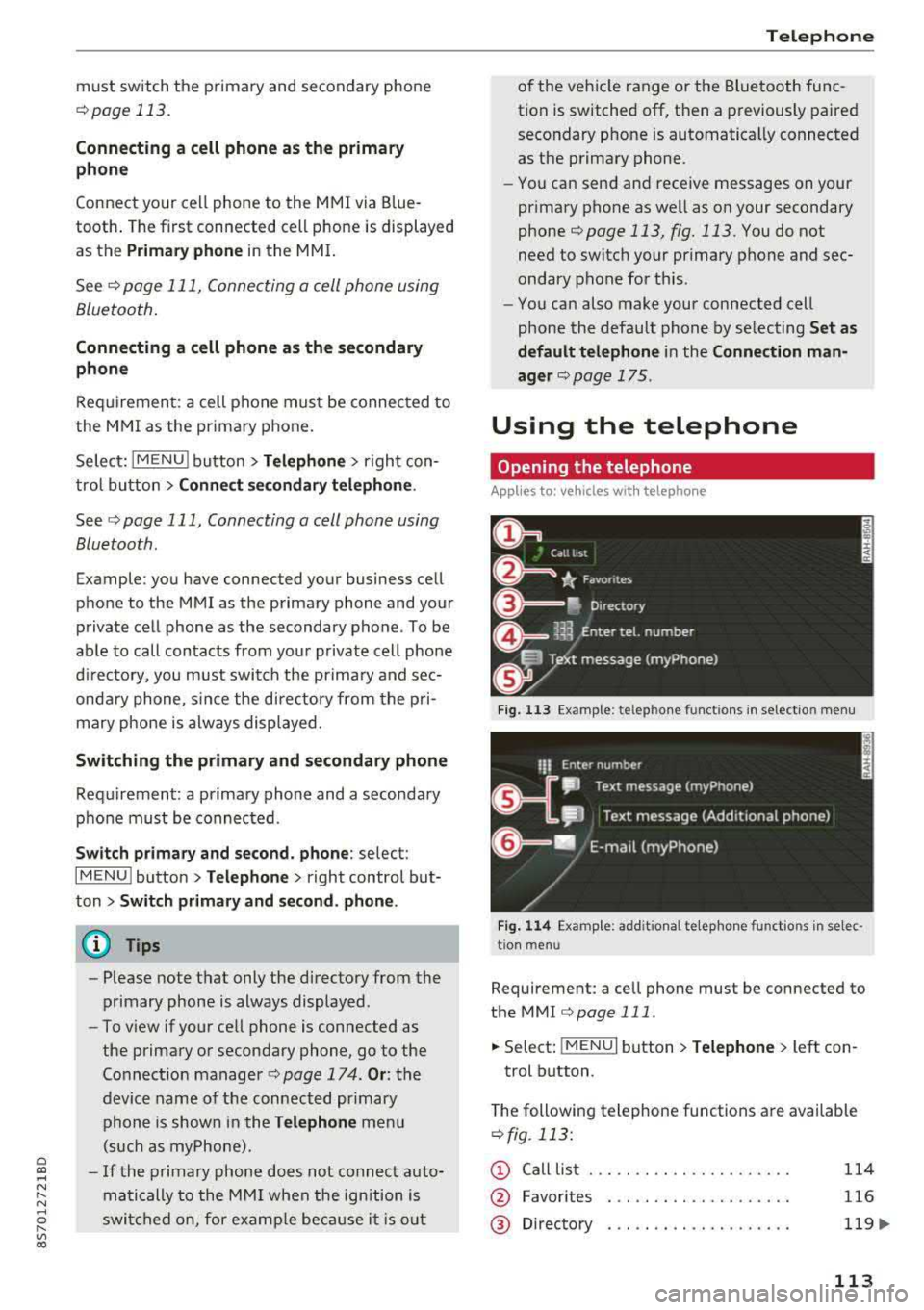
Fig. 113 Example : telepho ne functions in select io n menu
Fig. 114 Examp le: add it iona l te lephone functions in selec
tio n menu
Requirement: a cell phone must be connected to
the MMI
c>page 111.
.,. Select: ! MENUI button> Telephone> left con
trol button.
The following telephone functions are available
o fig. 113 :
(D Call list
@
®
Favorites
Directory
114
116
119.,.
113
Page 116 of 310
Telephone
© En ter number
® Text message (myP hone)* /Te xt
m essage (seco ndary phon e)* ....
@ E-m ail (my Phon e)* /E -mail ( sec on-
dary phone) * ... .... ....... .. .
11 4
116
1 17
The d evi ce nam e for your c ell p ho ne is disp lay ed
in the
Telephone m enu , for e xample text me s
s ag e (myP hone)
¢fig. 1 13 .
Dialing a phone number
App lies to: ve hicles w ith telep hone
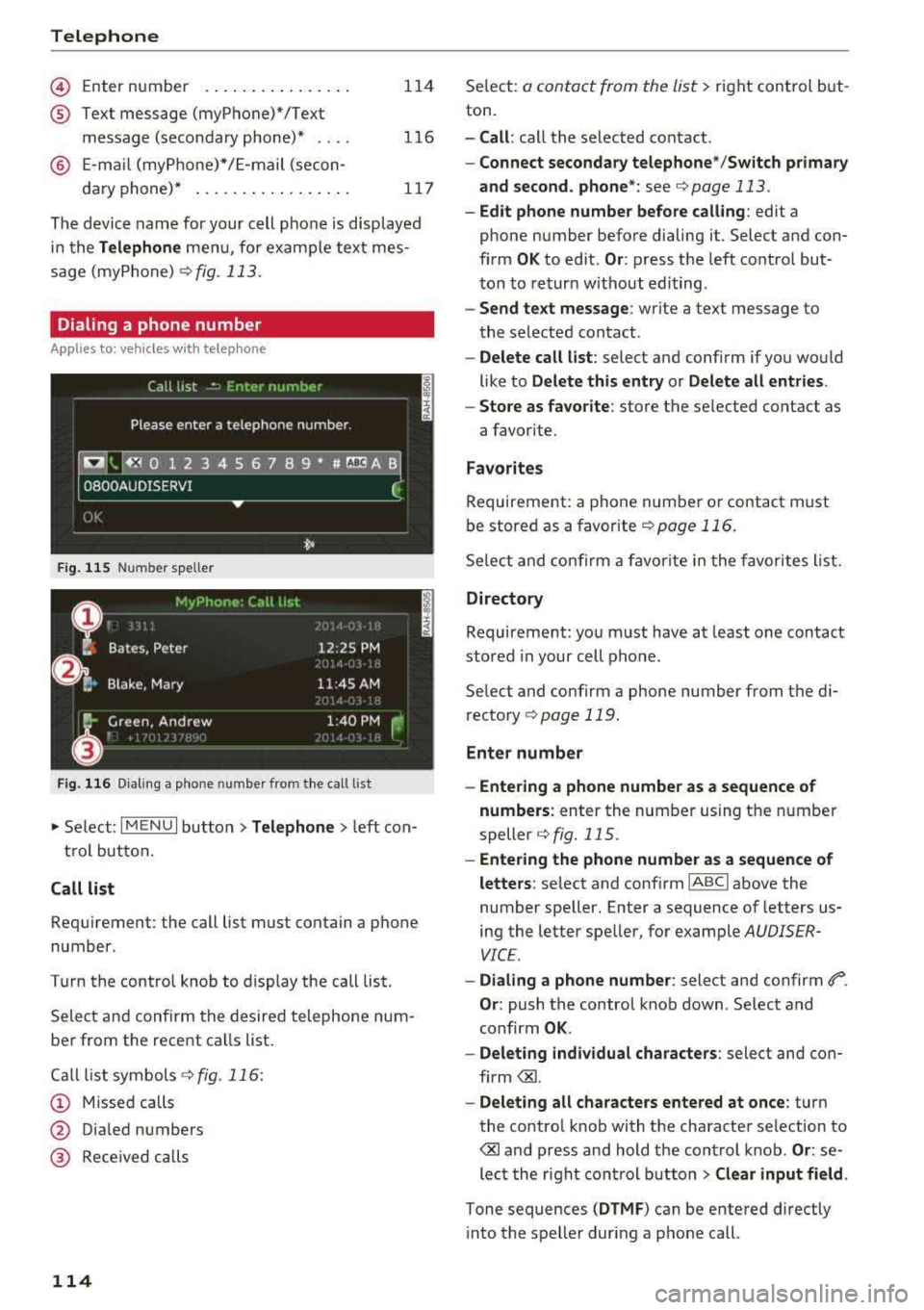
Fig. 115 Number spe ller
Fig . 116 Diali ng a p hone numbe r from th e call list
.,. S el ect: I M ENU I but ton> Telephone > left con-
t rol bu tton.
Call list
Req uirement: the call list must contain a p hone
number.
T ur n the contro l knob to dis play the call list.
Sele ct an d confirm the desire d telephone num
be r from the recent ca lls list .
Ca ll li st symbol s
¢ fig. 116:
(D Mi ssed ca lls
@ Dia led numbers
@ R ece ived c alls
114
Se lec t: a contact f rom the list> ri gh t cont rol b ut
ton.
-Call : call the se lected contact.
-Connect secondary telephone */Switch primary
and second . phone *:
see¢ page 113.
-Edit phone number before calling : edit a
phone number befo re dialing it. Select and con
firm
OK to edit. Or : press t he left co ntro l but
ton to return w ithout edi ting.
-Send text message : write a text message to
the se lecte d contact .
-Delete call list: select and confirm if yo u wou ld
like to
Delete this entry or Delete all entries .
-Store as favorite: store the selected contact as
a favor ite.
Favorites
Requirement: a phone n umber o r contact must
b e stored as a favorite
¢ page 116 .
Selec t and confi rm a fa vorite i n the f avorites li st.
Directory
Requireme nt: yo u m ust have at least o ne contact
stored in your c ell phone .
Se lect and confirm a phone number f rom t he d i
recto ry
¢ page 119.
Enter number
-Entering a phone number as a sequence of
numbers :
enter the number using t he nu mber
speller
¢ fig . 115.
-Entering the phone number as a sequence of
letters :
select and conf irm IABC I above the
number speller. Enter a sequence of letters us
ing the letter spe ller, for example
A UDISER
VICE.
-Dialing a phone number : select and confirm r'.
Or: push the control knob down . Select and
confirm
OK .
-Deleting individual characters : select and con
f irm
the contro l knob with t he characte r selection to
Clear input field .
Tone sequences (DTMF ) can be ent ered directly
i n to the s peller dur ing a p hone call.
Page 117 of 310
Accepting/ending a call
Applies to: vehicles with telephone
-Ac cepting a call : sele ct and confirm A ccept
call .
- Declining a call :
select and confirm Decline .
- Muting th e active call:
select and confirm
Mute .
- Ending a phone call /cancel dialing:
select a nd
confirm
End call . Or : press the cont rol knob .
Accepting another call : see ¢ page 115, During
a phone call.
Caller information: the name, phone number or
Unknown appears in t he Infotainment system
d isp lay depending on if the caller has bee n sto red
i n the directory and if the phone number has
been transm itted . A p icture may also be dis
p layed, depend ing on whether yo u have ass igned
a pict ure to a contac t in you r d irec to ry and if it
was tr ansfer red to your M MI. Yo u can find ou t if
your cell phone supports this fu n cti on from yo ur
cell phone network prov ide r, yo ur cell ph one
owner 's manual o r at www .a ud iusa .com/
b luetoot h.
(D Tips
The radio o r me dia pla yba ck is mu ted during a
p hone ca ll.
During a phone call
Applies to: vehicles with telephone
Re qu irement: the re must be a call in pro gress .
.,. Press t he righ t contro l bu tton.
The fo llow ing opt ions are possib le dur ing a call
d epend ing on the ce ll phone bei ng use d an d t he
t ype o f con necti on:
- Making an additional call : selec t: Find contact
> Call li st / Directory /Favorites > an entry from
the lis t.
- Accepting an incoming call when there is an
active call and a call on hold :
select Replace .
The acti ve call i s repl aced with the inc oming
~ call. .-<
~ - Answering an additional call : if the re is a n in -N
8 coming ca ll w hile an othe r call is active, yo u ca n r--Vl 00
Telephone
select Accept call to put the ex isting call on
hold and answe r th e incoming ca ll. If you select
Decline , the incom ing call will be decl ined.
Addi tiona l functi ons include:
Mute : if you select and confi rm this f unction, the
othe r person on the p ho ne can not hear you . Y ou
ca n hear the other pers on .
Hold call /Resume : you can place the ex isting call
o n hold and res ume it aga in . To res ume the call,
select and co nfir m the call you would like to re
s u me .
Transfer call to mobile device *: select and con
firm
Transfer call to mobile device to transfer
t h e e xis ti ng c all fro m the M MI to yo ur cell phone .
Switch to hands-free mode *: Req uirement: you
mus t have a p ho ne call in p rogress on you r ce ll
phone . Se lect and confirm
Switch to hands-free
mode
t o t ransfe r th e ca ll from your cell p ho ne to
t h e MM I.
Swap call : alte rn ate be tween two phone calls
wh ile one of the calls is o n hold . Se lecting
End
call will e nd th e ac tive phone ca ll. A ph one call on
ho ld ca n be resumed using the righ t con trol bu t
t on
> Resume .
Add to conference :
a party on hol d and up to five
a ctive pa rties ( depend ing on the ne twor k) ca n b e
adde d to a c onferen ce call . T o m ake an ad ditio nal
c all , put al l p articip ants in t he cur rent con feren ce
ca ll on hold using the right cont ro l but ton
> Hold
conference.
Press the left cont rol button. Se lect
and confirm
Call list /Directory /Favorites > an
entry from the list .
You can add called contacts
to the confe rence using the right contro l butto n
> Add to conference . Resume takes all pa rt ies off
hold .
Multi-party calling : select the right cont rol b ut
ton
> Telephone settings > Call options . When
t h e function is switc hed
o n~ you can accept a n
additional ca ll us ing
Accept call or decline a ca ll
u sing
Decline . When the function is sw itched off,
yo u can Replace th e c all or Decline .
Connection manager:
see ¢ page 174 .
Telephone settings : see ¢page 121 .
115
Page 118 of 310
Tele phone
(D Tips
- To be notified of an incoming call during a
phone ca ll, the call waiting function in your
cell phone must be switched on when us ing
the hands-free profile
( Ha ndsfr ee).
- You can obtain more information from your
cell phone service prov ider or from your cell
phone user guide.
- When leaving the vehicle, the Bluetooth connection to the cell phone will automat i
cally disconnect. Depending on your cell
phone, phone calls in progress may be auto
matically redirected from the MMI to your
ce ll phone and yo u can cont in u e t he call on
you r phone.
- The display of an incom ing phone ca ll in the
Infotainment system d isp lay may still be
v is ible fo r a few seconds depending on the
ce ll phone in use . Using the
Replace or De
cline
functions may then end the active
phone ca ll.
Favorites
Applies to: vehicles with telephone
Up to 50 contacts, in addition to the voicemail
number, can be stored in any order in the favor
ites list.
~ Se lect: IMENUI button> Telephone > left con
trol button.
- Storing an e xist ing ph one number a s a fav or
ite :
select and confirm Recent calls/Directo ry.
Select and confirm a contact or phone number
from the list. Select: right control button>
S tor e as fav orit e . Enter a name for the favorite
or select a suggestion. Select and confirm
Save .
- Ren aming a stored f avorite :
select and confirm
Favorit es > a favorite from the list . Select the
right control button>
Rename fa vorite .
- Mo ving a sto red fa vo rite :
select and confirm
Favorit es > a favorite from the list . Select the
right control button>
Mo ve fa vor ite . Select
and confirm the location of the selected favor
i te.
- Delet ing a stor ed fav orit e: select and conf irm
Favorit es > a favorite from the list. Select the
116
right control button > Delete fa vo rite > Delete
thi s fav orite or Delete all fa vorite s.
Messages
Text messages
Applies to: cell phones with Bluetooth Message Access Profile
(MAP)
Depending on the cell phone being used and the
cell phone network contract, you can receive and
send text messages using the MMI.
Requirement
A cell phone must be connected to the MM I via
B luetoot h MAP ( Message Access Profi le)
¢ page 111 .
~ Select: !MENUI button> T ele phon e> left con
trol button >
t ex t me ssag e ( myPh one )/te xt
me ssage (second ary ph one )*.
Inbox
All rece ived text messages are displayed.
Sent te xt me ss a ges
A ll sent text messages are displayed .
Outbox
All t ext messages to be sent a re displayed.
© Tips
- Please note that you may have to activate
the receivi ng a nd se nding of text messages
in yo ur cel l phone depending on t he S IM
card be ing used (fo r example, when using a
Multi -S IM). Yo u can obtain more informa
tion from your ce ll phone service provider or
from your cell phone user guide .
- For more information on s upported cell
phones, visit www .a udiusa.com/b luetooth
or contact an a uthorized Audi dea ler or au
thorized Aud i Service Facility.
- You need a cell phone with Message Access
Prof ile that a lso supports the send ing func
t ion to be able to send text messages
through the MMI.