CD player AUDI TT ROADSTER 2018 Owners Manual
[x] Cancel search | Manufacturer: AUDI, Model Year: 2018, Model line: TT ROADSTER, Model: AUDI TT ROADSTER 2018Pages: 310, PDF Size: 46.95 MB
Page 5 of 310
Free text search . . . . . . . . . . . . . . . . . . . . . 10 1
M enus and Symbols . . . . . . . . . . . . . . . . . . 102
Voice recognition system . . . . . . . . 105
Operating . . . . . . . . . . . . . . . . . . . . . . . . . . 104
Command overview information . . . . . . . . 105
Commands . . . . . . . . . . . . . . . . . . . . . . . . . 106
Telephone . . . . . . . . . . . . . . . . . . . . . . . . 111
Introduction . . . . . . . . . . . . . . . . . . . . . . . . 111
Setup . . . . . . . . . . . . . . . . . . . . . . . . . . . . . 111
Using the te lephone . . . . . . . . . . . . . . . . . 113
Favorites ... .. ................ ... .. . 116
Messages . . . . . . . . . . . . . . . . . . . . . . . . . . 116
Listening to voicema il . . . . . . . . . . . . . . . . 118
E me rgency call f unctions . . . . . . . . . . . . . 119
Dir ectory. .. .. ............. .. .. .. .. . 119
Sett ings . . . . . . . . . . . . . . . . . . . . . . . . . . . 12 1
Safety belt microphone . . . . . . . . . . . . . . . 122
Troubleshooting . . . . . . . . . . . . . . . . . . . . . 122
Audi connect . . . . . . . . . . . . . . . . . . . . . 124
Introduction . . . . . . . . . . . . . . . . . . . . . . . . 124
Setup . . . . . . . . . . . . . . . . . . . . . . . . . . . . . 124
Configuration through myAudi . . . . . . . . . 125
Aud i connect services . . . . . . . . . . . . . . . . . 126
W i- F i hotspot . . . . . . . . . . . . . . . . . . . . . . . 129
Configur ing the data connect ion . . . . . . . . 130
About Audi connect . . . . . . . . . . . . . . . . . . 131
T roubleshoot ing . . . . . . . . . . . . . . . . . . . . . 133
Navigation . . . . . . . . . . . . . . . . . . . . . . . . 134
Opening nav igat io n . . . . . . . . . . . . . . . . . . 134
E nter ing a dest inat io n . . . . . . . . . . . . . . . . 135
H ome add ress . . . . . . . . . . . . . . . . . . . . . . 140
F avorites . . . . . . . . . . . . . . . . . . . . . . . . . . . 140
Directory contacts . . . . . . . . . . . . . . . . . . . 140
Addit ional settings . . . . . . . . . . . . . . . . . . 140
Map. .. .. .. .. ............... .. .. .. . 142
Sa tellite map . . . . . . . . . . . . . . . . . . . . . . . 145
Accessing traff ic i nformation . . . . . . . . . . 145
T roubleshoot ing . . . . . . . . . . . . . . . . . . . . . 148
Radio ... .. .. ................ ... .. . 149
Opening the rad io . . . . . . . . . . . . . . . . . . . 149
~ Rad io fu nctions . . . . . . . . . . . . . . . . . . . . . 150 .-<
~ Rad io menu . . . . . . . . . . . . . . . . . . . . . . . . 151
N 8 Prese ts . . . . . . . . . . . . . . . . . . . . . . . . . . . . 151
r--Vl 00
Table of content s
Additional settings . . . . . . . . . . . . . . . . . . 152
T roub leshooting .... ... .. ..... ... .. .. 153
Media . . . . . . . . . . . . . . . . . . . . . . . . . . . . . 154
Introd uction ..... .. ... .. ..... ... .. .. 154
Notes . . . . . . . . . . . . . . . . . . . . . . . . . . . . . 154
Media drives . . . . . . . . . . . . . . . . . . . . . . . . 155
B luetooth aud io player . . . . . . . . . . . . . . . 157
Wi-Fi audio player . . . . . . . . . . . . . . . . . . . 158
Online media and Internet radio ........ 159
Mult imed ia connections . . . . . . . . . . . . . . 160
Play ing med ia . . . . . . . . . . . . . . . . . . . . . . . 162
Additional settings . . . . . . . . . . . . . . . . . . 165
S uppo rted med ia a nd fi le formats . . . . . . 168
T roub leshooting . . . . . . . . . . . . . . . . . . . . . 169
Audi smartphone interface . . . . . . 171
Setup . . . . . . . . . . . . . . . . . . . . . . . . . . . . . 171
Operating . . . . . . . . . . . . . . . . . . . . . . . . . . 172
T roub les hooting . . . . . . . . . . . . . . . . . . . . . 172
System settings . . . . . . . . . . . . . . . . . . 173
Setting the date and time . . . . . . . . . . . . . 173
MMI settings . . . . . . . . . . . . . . . . . . . . . . . 173
Connection manager . . . . . . . . . . . . . . . . . 17 4
System update . . . . . . . . . . . . . . . . . . . . . . 176
Sound settings . . . . . . . . . . . . . . . . . . . . . . 177
Volume settings . . . . . . . . . . . . . . . . . . . . . 177
Resta rting the MM I (Reset) . . . . . . . . . . . . 178
Software license informat ion 178
Safety first . . . . . . . . . . . . . . . . . . . . . . . 179
Safe driving . . . . . . . . . . . . . . . . . . . . . . 179
B as ics . . . . . . . . . . . . . . . . . . . . . . . . . . . . . 179
C orrect passenger seat ing pos itions . . . . . 180
Driver and passenger side foo twe ll . . . . . . 182
Pedal area . . . . . . . . . . . . . . . . . . . . . . . . . . 182
Stow ing luggage . . . . . . . . . . . . . . . . . . . . 183
Reporting Safety Defects . . . . . . . . . . . . . . 185
Safety belts . . . . . . . . . . . . . . . . . . . . . . 187
Genera l notes . . . . . . . . . . . . . . . . . . . . . . . 187
Why safety belts? . . . . . . . . . . . . . . . . . . . 188
Safety belts . . . . . . . . . . . . . . . . . . . . . . . . 190
Safety belt tens ioner . . . . . . . . . . . . . . . . . 192
3
Page 112 of 310
Voice recognition s ystem
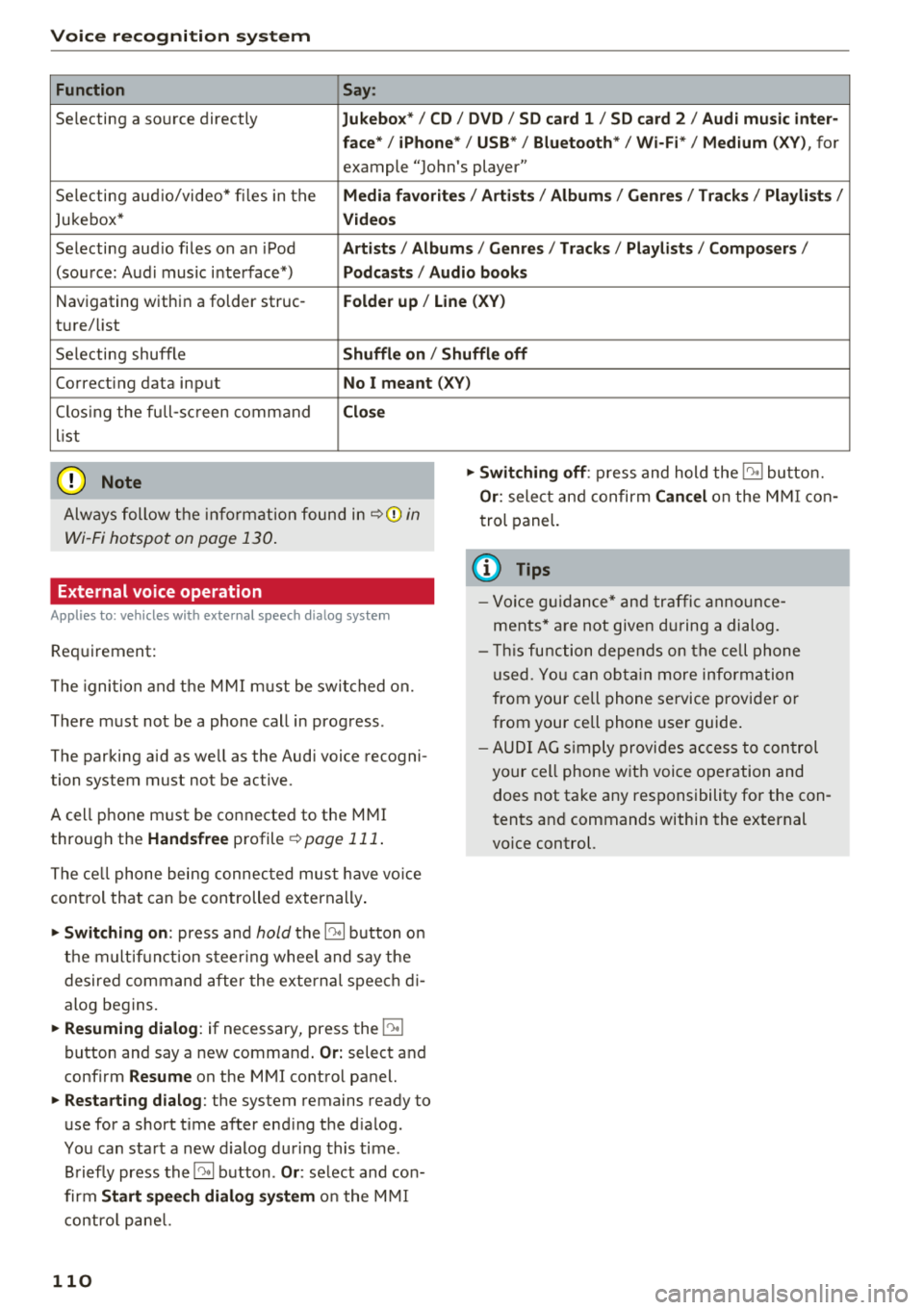
Function Say:
Selecting a so urce directly Jukebo x*/ CD/ DVD/ S D card 1 / SD card 2 / Audi mu sic inter·
face */ iPhone * / USB* / Bluetooth * / Wi -Fi * / Medium
(XV), for
example "Jo hn's player"
Selecting aud io/video* fi les in the
Media fav orites / Arti sts/ Album s/ Genr es I Track s/ Playli st s /
Jukebox* Vid eos
Selecting aud io files on an iPod Artists / Albu m is / Genre s/ Track s/ Playlists /Compo ser s/
(sou rce: Aud i music interface*) Podca sts / Aud io bo oks
Navigating within a folder struc -Folder up / Line (XV)
ture/ list
Selecting shuffle
Shuffl e on / Shuffle off
Correcting data input No I meant (XV)
Clos ing the full-sc reen command Clo se
list
(Ud) Note
Always follow t he info rmat ion found in ~ @ in
Wi -Fi hotspot on page 130 .
External voice operation
Applies to: vehicles with external speech dialog system
Requirement:
The ignition and t he M MI m ust be switched on.
There must not be a phone call in progress .
The parking aid as we ll as the Audi voice recogni
tion system must not be active.
A cell phone must be connected to the M MI
through the
Handsfree profile ~ page 111 .
The ce ll phone being connec ted must have vo ice
con trol that can be controlled externally .
"'Switching on: press and hold the 10° 1 button o n
the m ult if u nct ion steer ing whee l and say the
desired command after the external speech d i
alog begins.
"'Re suming dialog : if necessary, press the l')•I
button and say a new command . Or: select and
confirm
Re sume on the MMI contro l panel.
"'Restart ing dialog : the system remains ready to
use for a short t ime after end ing the d ialog.
You can start a new d ialog during this time.
Briefly press the
5] button . Or: select and con
firm
Start speech dialog sy stem o n the M MI
contro l pane l.
110
"'Swit ching off : press and hold the 5] button.
Or : select and confirm Can cel on the M MI co n
trol panel.
{i) Tips
- Vo ice g uidance* and tra ffic anno un ce
ments* a re not give n during a dialog.
- Thi s function depe nds on the ce ll phone
used. Yo u ca n ob ta in more info rmation
from your cell phone service provider or
from your ce ll phone use r guide .
- AUDI AG s imply provides ac cess to con trol
your cell phone w it h voice operation and
does not take any responsibility for the con
tents and commands within the external
vo ice control.
Page 130 of 310
Audi conn ect
The Audi MMI con nect app must be installed and
open on your mobile device.
You must be logged into yo ur myAud i acco unt in
t he
Audi MMI connect app and you must have se
lected you r vehicle .
The Wi-Fi funct ion on you r mobile device and on
the MMI must be sw itched on.
The MMI must be connected to the network .
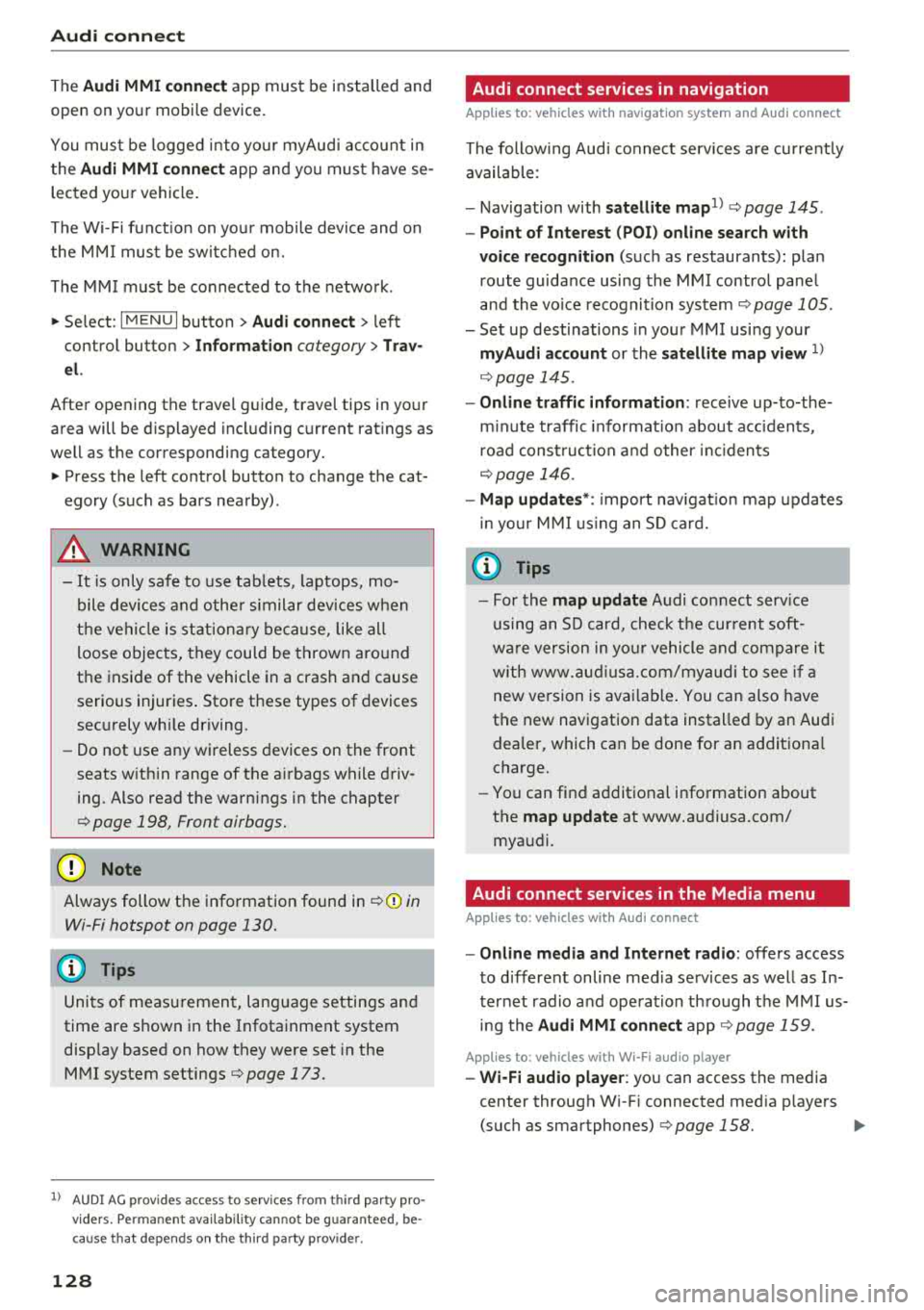
~ Select : I MENU I button > Aud i conn ect> left
cont ro l button
> In formation category> Tra v
el.
After opening th e travel guide , travel tips in your
area will be d isplayed including current rat ings as
well as the corresponding ca tegory.
~ Press the left control button to change the cat
egory (such as bars nearby) .
A WARNING
-It is only safe to use tab lets, laptops, mo
bile devices and othe r similar devices w hen
the vehicle is st ationa ry be cause, like all
loose objects, they could be thrown aro und
the inside of the vehicle in a crash and cause serious injuries . Store t hese types of devices
securely whi le driving.
- Do not use any wireless devices on the front
seats w ith in range of the a irbags while driv
ing. Also read the warnings in the chapter
Q page 198, Front airbags.
@ Note
Always follow the information found in Q i© in
Wi-Fi hotspot on page 130.
@ Tips
Units of meas urement, language settings and
time are shown in the Infotainment system
disp lay based on how they were set in the
MMI system settings
<=) page 173 .
-
ll AUDI AG pr ovide s access to services fro m third party pro
v ider s. Pe rma ne nt ava ilabil ity c anno t be guara nteed , be
c a use that depen ds on th e th ird party provid er.
128 Audi connect services in navigation
App
lies to : vehicles wit h naviga tion sys te m and A udi connect
The following Aud i connect services a re current ly
available :
- Navigation with
satellite map1> Q page 145 .
-Point of Interest (POI ) on line sear ch wi th
v oi ce recognit ion
(such as restaurants) : plan
route guidance using the MMI control panel
and the vo ice recognit ion system
<=) page 105 .
- Set up destinations in your MMI using your
m yA udi account or the sat ellite map view l )
r=;, page 145 .
-Online traffic information : receive up-to-the
m inute traffic informat ion about acc idents,
road const ruct ion and other inc idents
r=;, page 146 .
-Map updates *: import navigat ion map updates
in yo ur MMI using an S D card.
(D Tips
-For the map update Audi connect serv ice
using an SD card, check t he current soft
w ar e version in yo ur vehicle and compare it
w ith www.aud iusa.com/myaudi to see if a
new ve rsion is avai lab le . You can a lso have
the new navigation data installed by an Audi dea ler, which can be done for an addit iona l
charge.
- You can find additional information about
the
map update at www.a udiusa.com/
myaudi.
Audi connect services in the Media menu
App lies to: vehicles wit h Audi conne ct
- Online media and Internet radio : offers access
to d ifferent online med ia services as well as In
ternet radio and ope ration through the
MMI us
ing the
A udi MMI connect app Q page 159.
App lies to: vehicles wi th Wi-Fi au dio player
- Wi-Fi audio playe r: you can access the media
center through W i-F i connected med ia p layers
(such as smartphones)
Q page 158. Ill-
Page 132 of 310
Audi conn ect
- Do not use any Wi-Fi devices within range of
the a irbags while driving. Also read the
warnings in the chapter
<=>page 194.
(LlJ Note
- Under some conditions, certain mobi le devi
ces and operating systems may automati
cally switch from your vehicle's Wi-Fi hot
spot to the device's mobile data connection. In that event, standard text and data usage
rates would apply while the dev ice's mob ile
data connection is in use . P lease refer to
documentat ion p rovided by yo ur mobi le de
v ice's man ufact ure and yo ur data ca rr ie r for
d etai ls, re lated terms and privacy state
ment.
- You are responsible fo r all p re caut io ns tak
en fo r data p rotection, an ti- v irus pro tect ion
and protection against loss of data on mo
bile devices that are used to access the In
ternet through the W i-F i hotspot.
- In certain situations, Internet -based apps
and se rvices t hat use t he MMI W i-Fi hotspot
may use the SIM card in your W i-F i dev ice
for the data connect ion, depending on the
configuration of the Wi-Fi device that you
are us ing (see the user gu ide for you r W i-F i
device fo r more information) . T h is cou ld re
su lt in addit ional costs, depending on yo ur
ce ll phone serv ice prov ider and especially
when using in other co un tries. A flat ra te
data p lan is strongly recommended . You can
obtain more information from your cell phone service provider. A few examples are:
- if a SIM card that does not support a data
connect io n is in t he S IM ca rd reader *
- if there is an invalid/faulty SIM card in the
SIM card reade r*
- if the ne twork changes automatically
when there is low signal strength/a data
rate for the Wi-Fi hotspot o r fo r the SI M
c ard in the S IM card reader*
- if the connection to the W i-F i h otspot
ends
130
(D Tips
- In ve hicles without A udi connect*, the use
o f the W i-Fi hotspot is on ly poss ible fo r th e
Wi -Fi audio player*. A data connect ion to
the Internet can not be established.
- For add itiona l information, v is it
www.aud iusa.com.
Configuring the data
connection
App lies to: vehicles with A udi connect
To use Audi connect services, a data connection
must be configured.
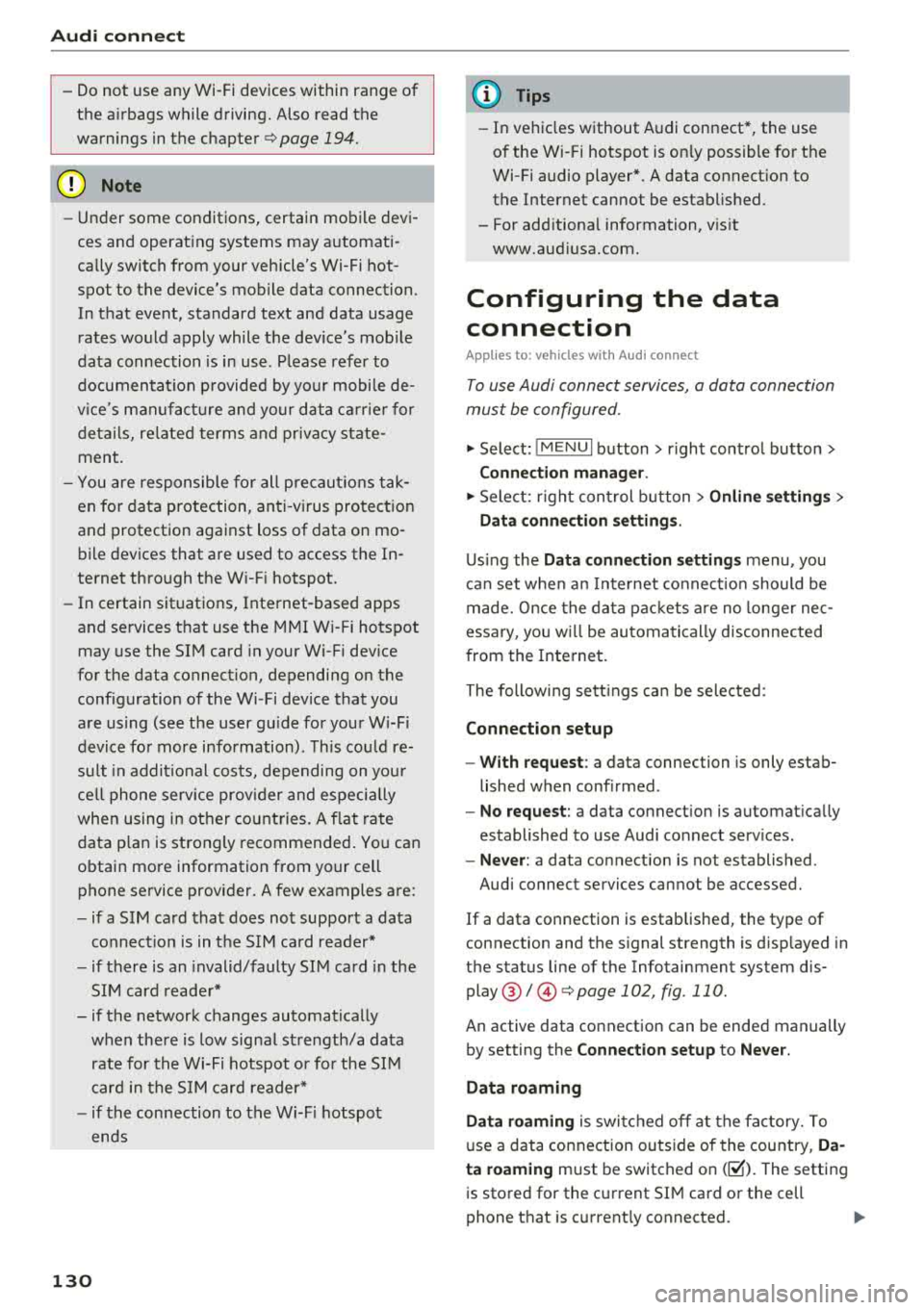
~ Select: ! ME NUI button> right control button>
Connection manag er.
~ Sele ct: r ight con trol b utton> Online settings >
Data conne ction setting s.
Using the Data connection settings menu, you
can set whe n an I nternet co nnect io n should be
made. Once the data packets a re no longe r nec
essary, yo u will be au tomatically disconnected
from the Internet.
The following se tt ings ca n be selected:
Connection setup
- With request :
a data connection is only estab
lished when conf irmed .
-No request : a data connect ion is automat ica lly
established to use Audi connect serv ices.
- Never : a data connection is not established.
Audi connect services cannot be accessed.
If a data connection is established, the type of
connection and the s ignal strength is d isp layed in
the status line of the Infotainment system dis
play @/@ <=> page 102, fig. 110.
An active data connection can be ended manually
by setting the
Connection setup to Never .
Data roaming
Data roaming is swi tc h ed off at the factory. To
u se a data connection outs ide of the cou ntry,
Da
ta roaming
must be switched on( ~). The setting
is stored for the current SI M card or the cell
phone that is current ly connected.
Page 159 of 310
Cl 00 .-< N r--N .-< 0 r--Vl 00
When importing, the audio files are automatical
l y sorted into the media center categories based
on the stored addit ional information
¢ page 163. The copied video files are stored in
the media center under the
Videos category.
Playing the Ju kebo x
Requirement: the Jukebox must contain audio/
video fi les
¢ page 156, Adding files to the Juke
box.
The Jukebox is accessed and operated t hrough
the M MI
(D ¢ page 162, fig . 141.
Di splaying Jukebox memory capacity
Select : right control button > Juk ebox m emor y
ca pa city .
Info rmation about the Ju kebox memory
capacity and the numbe r of sto red t racks is dis
p layed .
Deleting tracks from the Jukebox1
)
Requirement: the Jukebox must contain audio/
v ideo fi les.
- Dele ting an en tr y: selec t an entry from the
Jukebox media center . Select: right control but
ton
> D elete from ju kebo x> This entr y or En
tire list .
-The status of the deleting process is shown in
the MMI. Jukebox playback stops during the de let ing p rocess a nd starts again automatically
once the deletion is comp lete .
0 Note
Do not import aud io/video files when the en
g in e is t urned off because this will d rain the
ve hicl e battery.
0) Tips
-Tracks from aud io CDs cannot be impo rted
to the Jukebox for legal reasons.
- Files that have al ready been imported are
automat ica lly recogn ized and cannot be
cop ied to the J ukebox again.
- It is not possib le to play audio/v ideo* files
i n the CD/DVD* dr ive while import ing them.
ll Not in the Playback view .
Media
- T he Jukebox does not provide an expo rt
function due to legal reasons .
- Files or tracks w ithout additional stored in
formation are listed as
Unknown . Audi rec
ommends adding additional information
(such as 103 tags) to audio f iles.
- Reset the Jukebox to the factory default set
tings when selling your
vehicle ¢ page 174 .
Bluetooth audio player
Applies to: vehicles with Bluetooth audio player
With the Bluetooth audio player, you can play
music wirelessly from your Bluetooth-capable
device (such as a cell phone) through the
MMI.
Requirement: the vehicle must be stationary and
the ignit ion must be switched on. The B luetooth
settings w ill open on your mobile device during
the connection setup . The Bluetooth function
and visibility of the MMI
¢ page 175 and mob ile
device must be sw itched on . Th e
Bluetooth audio
playe r¢ page 175 must be sw itched on in the
MM I.
-Conn ect ing a Bluetooth de vice : press the
!M EDIAi button. Press the left control button
until t he sources overv iew is d isp layed. Select
and confirm
Blu etooth audio pla yer®
¢ page 162, fig . 142 .
- If ne cessa ry, select and co nfirm , Not c onn ected
> Conn ect Blu etooth audio pla yer. Th e Blue
tooth device search starts. Fo llow the inst ruc
tions in the MMI.
- Select and confirm the desired Bluetooth de
vice from the list . The MMI generates a PIN for
the connection .
- Select and confirm
Yes.
- Enter the PIN for connect ing on your Bl uetooth
device .
Or: if the PIN is already displayed on
your Bluetooth device, confirm it in the Blue
tooth device and in the MMI. The time a llowed
for entering the PIN is limited to approximately 30 seconds .
The media is started and operated through the mobile device or t he MMI, depending on the de -
vice being used .
.,.
157
Page 160 of 310
Media
(D Tips
-Check for any connection requests on your
Bluetooth device.
- Multiple Bluetooth audio players can be
connected to the MMI, but only one mobile
device can be active.
- Bluetooth protocols AVRCP (1.0/1.3/1.4)
and A2DP are supported.
- Note the volume setting on your Bluetooth
device. Audi recommends setting your mo
bile device to the maximum volume when
using it as a Bluetooth audio player.
- The supported media functions (such as
shuffle) depend on the Bluetooth device be ing used.
- For more information on the supported de
vices, visit www.audiusa.com/bluetooth or
contact an authorized Audi dealer or author
ized Audi Service Facility.
Wi-Fi audio player
App lies to: ve hicles w ith Wi-F i audio playe r
Using the Wi-Fi audio player media source on the
MMI, you can connect and operate your Wi-Fi-ca
pable media player (such as a smartphone) to wirelessly play music from your media player
li
brary. The media player is connected through the
vehicle's Wi-Fi hotspot. A UPnP Server opp or an
integrated UPnPIDLNA server on your media
player is required to access your media player
li
brary.
Requirement: the Wi-Fi function on your media
player must be switched on. The
Audi MMI con
nect
app or a UPnP server app must be installed
on your media player .
Or: you must be using a
media player with an integrated UPnP/DLNA
server .
-Connecting a media player: press the I MEDIA !
button. Press the left control button until the
sources overview
¢ page 162 is displayed . Se
lect and confirm
Wi-Fi audio player 0
¢ page 162, fig . 142.
- If necessary, select and confirm Wi-Fi turned
off> Turn on Wi-Fi
to activate Wi-Fi in the
MMI. Select
Wi-Fi settings, if necessary . Select
158
the same settings on the wireless media player
that are used for the Wi-Fi hotspot.
- Starting the Wi-Fi audio player: start the Audi
MMI connect
app or a UPnP server app. Or: al
low media sharing on your media player.
Operating the media player: the media player is
operated through the MMI.
- Press the left control button repeatedly until
the
Folders menu item appears. Select and con
firm
Folders .
- Playing music from the media player:
select
and confirm
Media center .
Web radio:
see ¢ page 159.
A WARNING
- As the driver, do not allow usage of the Wi
Fi hotspot to distract you from driving, as
this could increase the risk of an accident.
- It is only safe to use tablets, laptops, mo
bile devices and other similar devices when
the vehicle is stationary because, like all
loose objects, they could be thrown around
the inside of the vehicle in a crash and cause
serious injuries. Store these types of devices
securely while driving.
- Do not use any Wi-Fi devices within range of
the airbags while driving . Also read the
warnings in the
chapter¢ page 194.
((D} Note
Always follow the information found in ¢(l} in
Wi-Fi hotspot on page 130.
(D Tips
- The Wi-Fi connection is reconfigured when
inserting or removing the mini SIM card in
the SIM card reader*. There may be a tem
porary interruption in audio playback, de
pending on the media player.
- Always read the chapter¢
page 131, About
Audi connect.
- Please note that a Wi-Fi connection does
not automatically make it possible to use
the Internet. For additional information,
see ¢
page 124.
Page 161 of 310
Cl 00 .-< N r-N .-< 0 r-Vl 00
- To avoid interruptions during playback, de
activate the power saving function on the media playe r or connect it to a charger.
- The loading times for the a udio data depend
on the media p layer used and the number of
files that it contains.
- A maximum of 2,000 entries per directory
are displayed in the MMI.
- Songs down loaded for offline use using mu
sic streaming services are stored on your mobile device (such as a smartphone) and
may be ORM protected. The Wi-Fi audio
player w ill not play ORM protected files.
- Contact an a uthorized Audi dea ler or au
thorized Audi Service Facility for additional i nformat ion on the Wi-Fi audio p layer .
Online media and
Internet radio
Applies to: vehicles with Audi connect
You can playback and operate various online me
dia services and Internet radio using the MMI.
,. Press t he IM EDIA I button. P ress the left control
button until the so urces ove rview
Q page 162,
fig. 142
is d isplayed.
Applies to: using online media and Internet radio
Requirement:
- The
Audi MMI conn ect app must be installed
and open on your mob ile dev ice.
- You must be logged into your my Audi account
i n the
Audi MMI conn ect app and you must
have selected your veh icle .
- The Wi-Fi function on the mobile device and on
the MMI must be switched on .
- If necessary, check in the connection manager
Q page 174 if the mob ile device you connected
is selected under the
MMI connect app (~) .
-The MMI must be connected to the network.
- The symbo l for the
O nline media * source®
Qpage 162, fig . 142 is shown in the MMI.
Applies to: using online media
Addit ional requirement:
- A supported o n line media serv ice m ust be avail
able in your country.
- You must have an account with a supported on
l ine med ia serv ice .
Media
-Depending on t he online media service, you
must install and open an app on your mobile
dev ice .
St arting Onlin e media
- Press the I MEDIA i button. Press the left control
button until the sources overv iew
Q page 162
is displayed .
- Select and confirm an online media serv ice.
Starting Inte rnet radio
- Press the I MEDIA i button. Press the left control
button until the sources overv iew
Q page 162
is displayed .
- Select and confirm
Int ernet r adio . The Internet
radio b rowser or the last stat io n that was play
ing is shown .
-Sel ecting the station : if necessary, select and
confirm a category in the Inte rnet rad io
Bro ws
er >
a station.
Online m edia and Internet radio :: additional op
tion s
-Press the r ight cont rol b utt on.
The following opt ions may be ava ilable, depend
i ng on the information shown (such as the sta
tio n/t rack that is cur re ntly playing):
- Sound setting s: see Q page 177.
-Wi-Fi settings : see Q page 129, Wi-Fi hotspot .
-Conne ction manager : see Qpage 174.
-Add it io na l opt ions may be ava ilable, depend ing
on the active online med ia service or In ter net
radio .
_&. WARNING
= -
-It is only safe to use tablets, laptops, mo
bi le devices and other simi lar devices when
the vehicle is stationary because, like all loose objects, they could be thrown around
the inside of the vehicle in a crash and cause
serio us injuries . Store these types of devices
securely while d riving .
- Do not use any Wi-Fi devices within range of
the airbags while dr iv ing . Also read the
warn ings in the chapter
Q page 194 . ..,.
159
Page 162 of 310
Media
CD Note
Always follow the information found in ~CD in
Wi-Fi hotspot on page 130.
@ Tips
- Depending on the Internet connection and
network traffic, a connection loss can occur
d uring p layback of on line media services.
- Onli ne med ia and Inte rn et r adi o usage de
pends on the service availability of the third
party provider .
- Audi AG simply makes the access to online
media services possible through the MMI
and does not take any respons ibility for the
contents of the online media services.
- Always read the chapter ¢
page 131, About
Audi connect .
-Depending on the mobile device used, there
may be interruptions during media playback
and when using the
Au di MM I connect app.
To avoid interruptions when using a mobile
device, do not lock the screen on your mo
bile device and keep the
A udi MMI c onn ect
app in the foreground.
- Contact an authorized Audi dea ler or au
thorized Audi Service Facility for additional
i nformat io n about on line media.
160
Multimedia connections
USB adapter for Audi music interface or
USB charging port
Depending on the vehicle equipment, you can
connect your mobile devices (such as a smart
phone or MP3 player) to the Audi music interface
or a USB charging port using a special USB
adapter.
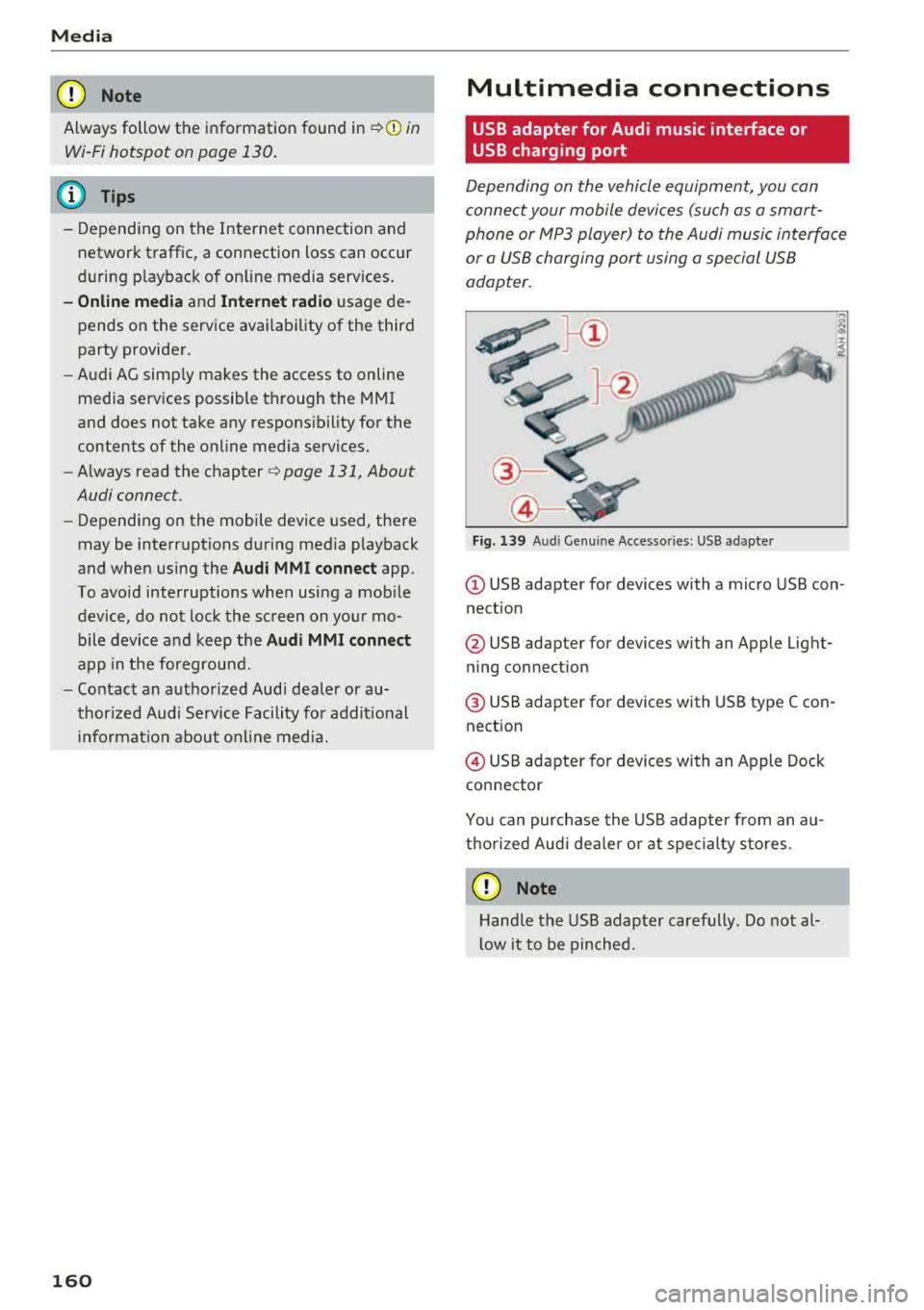
"'
I
Fig. 139 A ud i Ge nuin e Acce sso ries : USB a dapter
@ USB adapter for devices with a micro USB con
nect ion
@ USB adapter for devices with an Apple Light
ning connection
@ USB adapter for dev ices with USB type C con
nection
@ USB adapter for devices with an Apple Dock
connector
You can purchase the USB adapter from an au
thorized Audi dea ler or at specialty sto res.
CD Note
Hand le the USB adapter carefully . Do not al
l ow it to be pinched.
Page 163 of 310
Cl co ..... N ,....
N ..... 0 ,....
Vl co
Audi music interface
Applies to: ve hicles with Audi m usic in terface
Connect your mobile devices to the Audi music
interface in order to operate them through the
MMI and charge the battery.
'" •.I 'I'
1 .
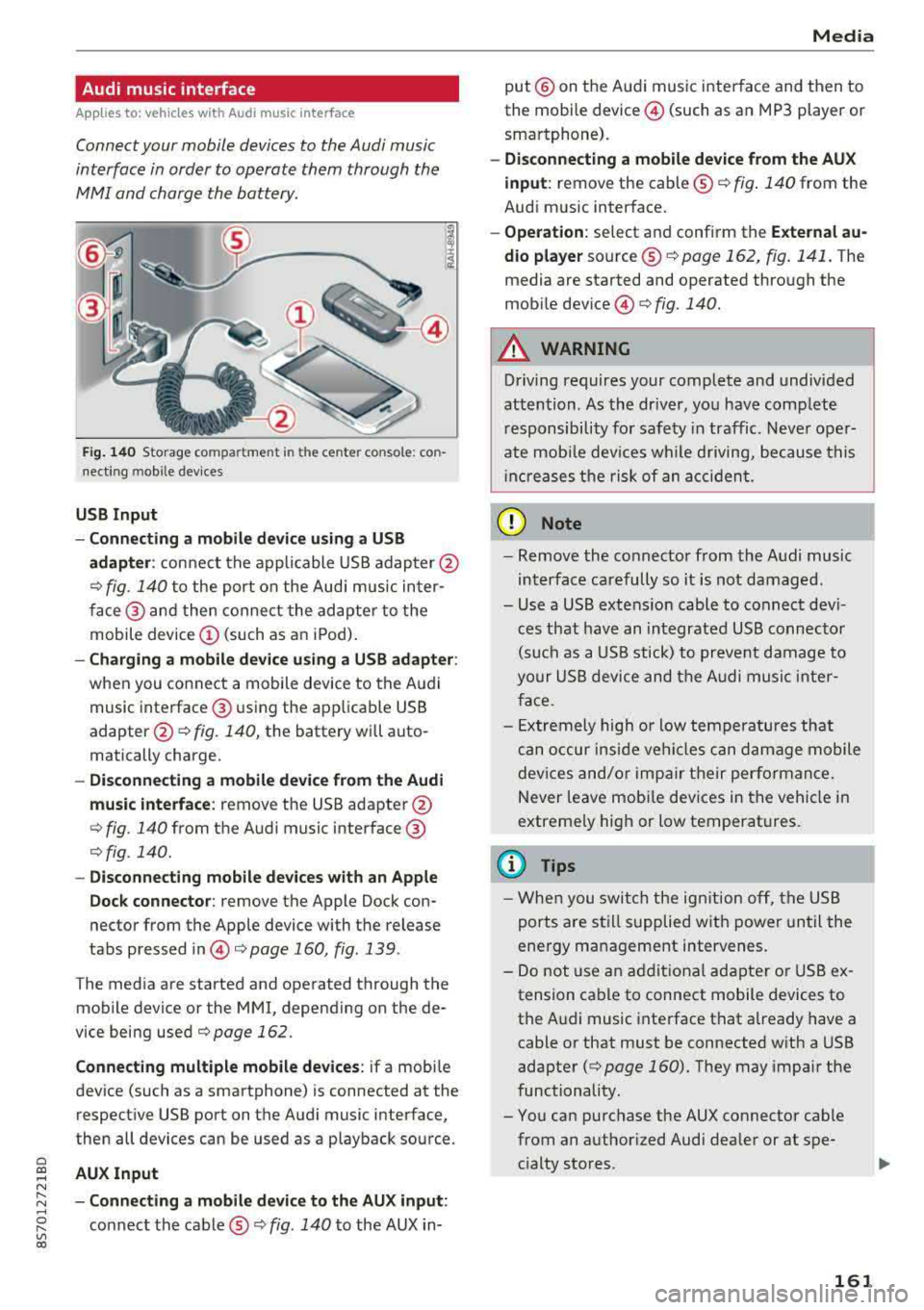
Fig. 140 S torage co mpa rtment in the ce nte r conso le: co n
nect ing m ob ile dev ices
USB Input
- Connecting a mobile device using a
USB
adapter : connect the applicable USB adap ter @
¢ fig. 140 to the port on the Audi music inter
face @ and then connect the adapter to the
mobile device
(D (such as an iPod).
-Charging a mobile device using a USB adapter :
when you connect a mobile device to the Audi
music interface @ using the app licab le USB
adapter @¢ fig. 140, the battery will auto
matically charge .
-Disconnecting a mobile device from the Audi
music interface :
remove the USB adapter @
¢ fig. 140 from the Audi music interface @
¢fig . 140.
-Disconnecting mobile devices with an Apple
Dock connector:
remove the Apple Dock con
nector from the Apple device with the release
tabs pressed
in @ ¢page 160, fig .139 .
The media are started and operated through the
mobile device or the MMI , depending on the de
vice being used
¢page 162 .
Connecting multiple mobile devices: if a mobile
device (such as a smartphone) is connected at the respect ive USB port on the Audi music interface,
then all devices can be used as a playback source .
AUX Input
-Connecting a mobile device to the AUX input:
connect the cable®¢ fig. 140 to the AUX in-
Media
put @ on the Audi music interface and then to
the mobile
device @ (such as an MP3 player or
smartphone).
- Disconnecting a mobile device from the AUX
input :
remove the cable ®¢ fig. 140 from the
Audi music interface.
- Operation : select and confirm the External au
dio player
source ®¢ page 162, fig . 141. The
media are started and operated through the
mob ile
device @) ¢fig. 140.
A WARNING
-
Driving requires your complete and undivided
attention . As the driver, you have complete
responsibility for safety in traffic. Never oper
ate mobile devices wh ile d riving, because this
i nc reases the risk of an accident.
(D Note
-Remove the connector from the Audi music
interface carefully so it is not damaged.
- Use a USB extens ion cable to connect devi
ces that have an integrated USB connector
(such as a USB stick) to prevent damage to
your USB device and the Audi music inter
face .
- E xtremely high or low temperatures that
can occur inside vehi cles can damage mobile
devices and/or impair their performance.
Never leave mobi le dev ices in the vehicle in
extreme ly high or low temperat ures.
@ Tips
- When you switch the ignitio n off, the USB
ports are still supplied with power until the
energy management intervenes.
- Do not u se an additional adapter or USB ex
tension cable to connect mobile devices to
the Audi music interface that already have a
cable or that must be connected with a USB
adapter
( ¢ page 160). They may impair the
functionality.
- You can purchase the AUX connector cable from an authorized Audi dealer or at spe
cialty stores .
161
Page 164 of 310
Media
-Audi recommends setting the volume of a
mobil e device connected to the AUX input to
approximately 70% of the maximum vol
ume .
- Functionality is not guaranteed for mobile
devices that do not conform to the USB 2.0
spec ification.
- USB hubs are not supported .
- Some ve rsions of the iPod such as the iPod
shuffle cannot be connected to the USB
adapter for devices w ith App le Dock connec
tor. Connect these dev ices using a AUX con
nector cable .
- Video p layback through the Audi music in
terface is only supported if the connected
device is recognized as a USB storage device
(for example a USB stick) . Apple devices and
MT P devices (such as smartphones) a re not
r ecogni zed as USB storage devices .
- i Pod/iPhone malfunct ions also affect the
operation of the MMI. Reset your iPod/
i Phone if this happens.
- For important information on operating
your iPod/iPhone, refer to the user guide for
the dev ice. Audi recomme nds updat ing the
i Pod/iPhone so ftwa re to the latest ve rsion.
- Fo r more information about the Audi music
i nte rface and supporte d devices, check the
A udi databa se fo r mobile devices at
www.audiusa.com/mp3 or contact an au
thorized Audi dealer or authorized Audi
Service Fac ility.
162
Playing media
Accessing media
You can start and operate various media
through the
MMI control panel .
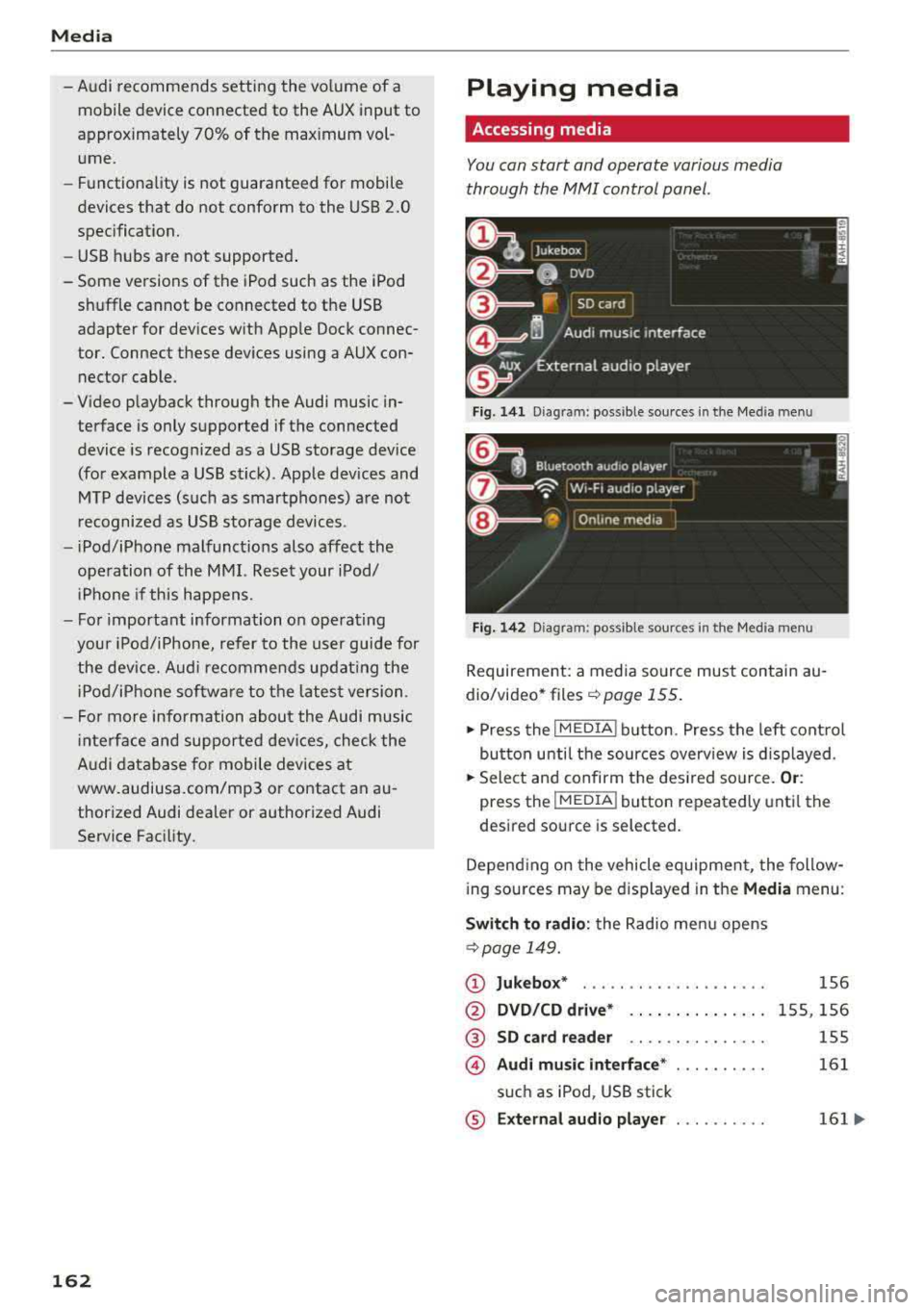
Fig. 1 41 Diagram: possible source s in t he Me dia menu
F ig . 142 Dia gr am: pos sible sour ces in the Med ia m enu
Requireme nt: a media so urce mus t contain au
dio/video* files
c:> page 155.
.,. Press the I M EDIA i button . Press the left cont rol
button unti l the sources overv iew is d isplayed .
.,. Select and confirm the des ired so urce. Or :
press the !MEDIA ! button repeatedly unti l th e
d esired sourc e is s elected.
Depend ing o n the vehicle equipmen t, the follow
i ng sou rces may be d isplayed in the
Media menu :
Switch to radio : the Radio menu opens
c:> page 149.
CD Jukebox* ....................
@ DVD /CD dri ve* .. .. .... . ..... .
® SD ca rd re ader .. .. ... ... ... ..
© Audi mu sic interface * ..........
s u ch as iPod , USB stick
® E xternal audio player . . . . . . . . . .
1S6
1 5S, 156
155
161
161 ...