ad blue AUDI TT ROADSTER 2018 Owners Manual
[x] Cancel search | Manufacturer: AUDI, Model Year: 2018, Model line: TT ROADSTER, Model: AUDI TT ROADSTER 2018Pages: 310, PDF Size: 46.95 MB
Page 86 of 310
Parking systems
Switching off
~ Drive faster than 6 mph (10 km/h), or
~ Press the P"'il button, or
~ Switch the ignition off .
(D Tips
-The visual display in the left part of the dis
play should help you detect the critical vehi
cle areas .
- You can change the volume of the signals
and the display
¢page 84.
Perpendicular parking
Applies to: vehicles with rearview camera
This view may be used when parking in a garage
or in a parking space.
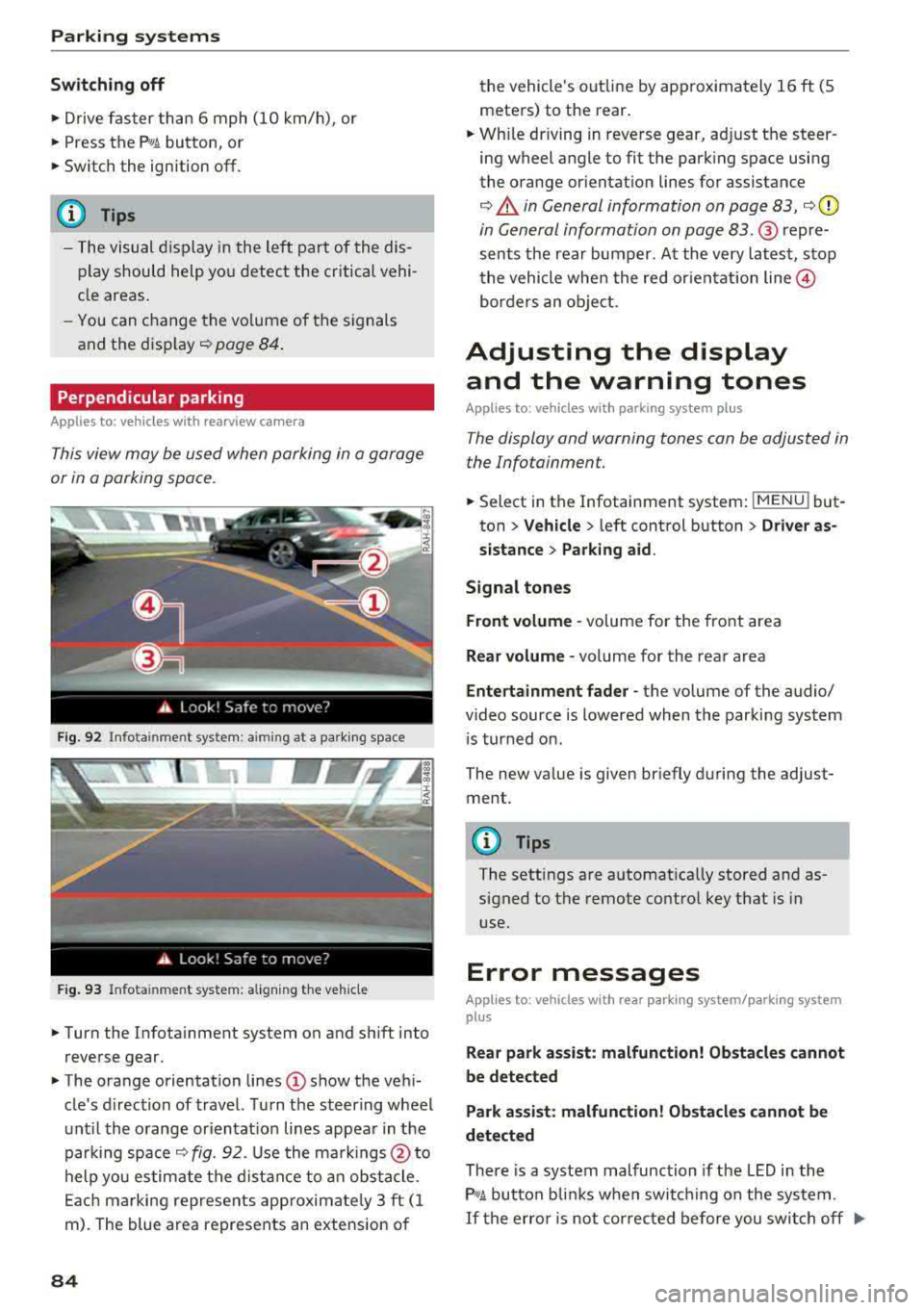
F ig. 92 Info ta in ment system: a im ing at a park ing space
Fig. 93 Infota inme nt system: aligning the vehicle
~ Turn the Infota inment system on and shift into
reverse gear.
~ The orange orientation lines (D show the vehi
cle's d irection of travel. Turn the steering wheel
until the orange or ientat ion lines appear in the
parking space
¢ fig. 92. Use the markings @to
help you estimate the distance to an obstacle.
Each marking represents app roximate ly 3 ft (1
m). The blue area represents an extension of
84
the vehicle 's out line by approximately 16 ft (5
meters) to the rear.
~ Wh ile driving in reverse gear, adjust the steer
ing wheel angle to fit the parking space using
the orange orientation lines for assistance
¢ .&. in General information on page 83, ¢(D
in General information on page 83. ® repre
sents the rear bumper. At the very latest, stop
the vehicle when the red or ientat ion
line @
borders an object.
Adjusting the display
and the warning tones
Applies to: vehicles with parking system plus
The display and warning tones can be adjusted in
the Infotainment.
~ Select in the Infotainment system : IMENU! but
ton
> Vehicle > left control button > Driver as
sistance> Parking aid.
Signal tones
Front volume -
volume for the front area
Rear volume -volume for the rear area
Entertainment fader -the volume of the audio/
video source is lowered when the parking system
i s turned on.
The new value is given briefly during the adjust ment.
{!) Tips
The settings are automat ically stored and as
signed to the remote control key that is in
use.
Error messages
App lies to: vehicles with rear park ing system/parking system
plus
Rear park assist: malfunction! Obstacles cannot
be detected
Park assist: malfunction! Obstacles cannot be
detected
There is a system malfunction if the LED in the
P'1
1 .ll button blin ks when switc hing on the system .
If the error is not corrected before you switch off Ill-
Page 104 of 310
Multi Media Interfac e
Menus and Symbols
@
14
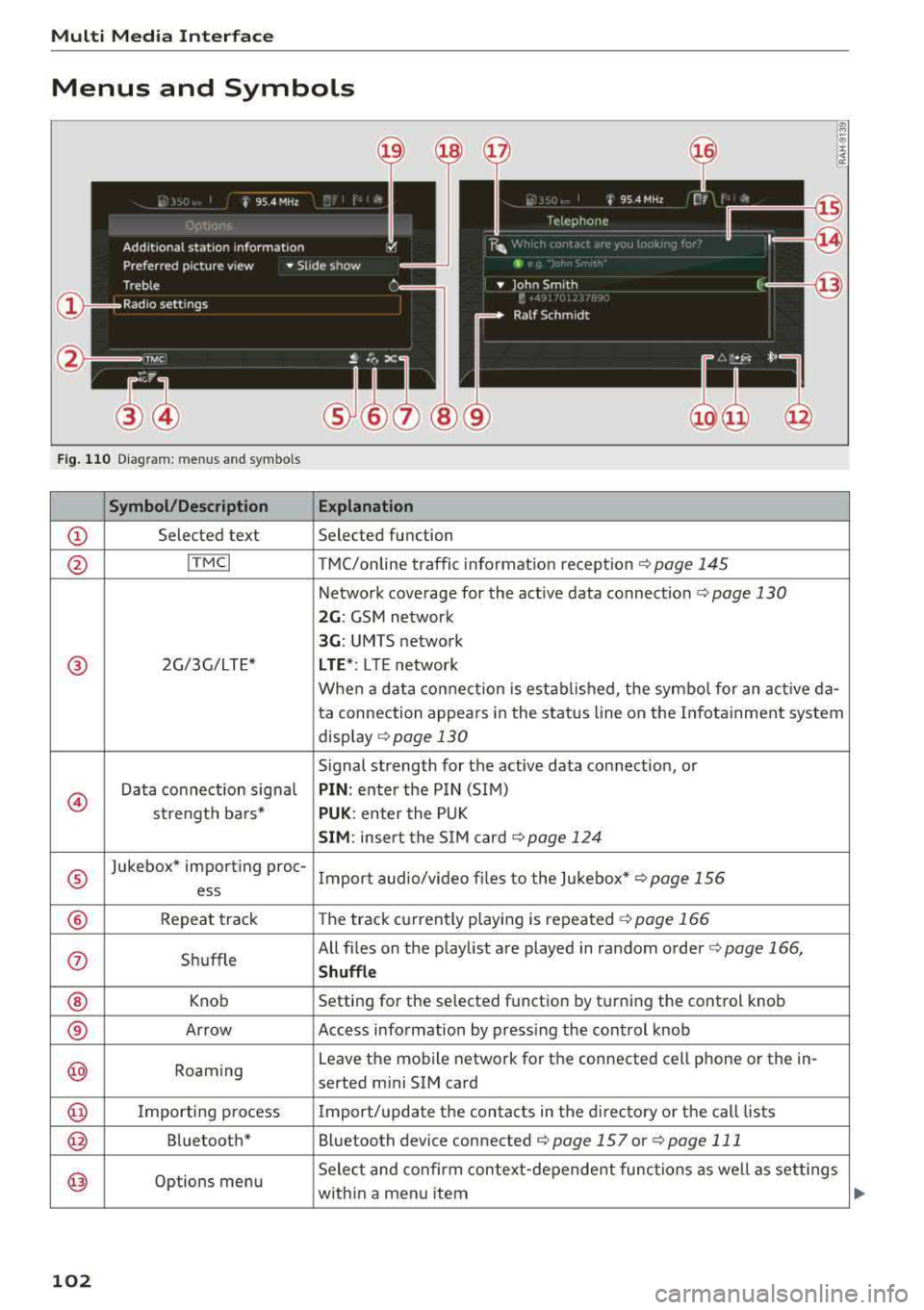
Fig. 110 Diagram: menus and symbols
Symbol /Description E xplanation
CD Selected text Selected function
@ ITMCI T MC/online traffic information reception c> page 145
Network coverage for the active data connection c> page 130
2 G : GSM network
3G : UMTS network
® 2G/3G/LTE* LTE *: L T E network
When a data connection is established, the symbo l for an act ive da-
ta connection appears in the status line on the Infota inment system
disp lay
c> page 130
Signal strength for the active data connection, or
@
Data connect ion signa l PIN : enter the PIN (SIM)
strength bars*
PUK: enter the PUK
SIM : insert the S IM card <=>page 124
®
Jukebox* importing proc-
Import audio/v ideo fi les to the Jukebox*
c> page 156
ess
® Repeat track The track currently playing is repeated c> page 166
(i) Shuffle All files on
the playlist are played in random order
c> page 166,
Shuffle
® Knob Setting
for the selected function by turning the control knob
® Arrow Access information by pressing the control knob
@ Roaming Leave
the mobile network for the connected cell phone or the in-
serted mini SIM card
@ Importing process Import/update the conta cts in the d irectory or the call lists
@ Bluetooth* Bluetooth device connected c> page 157 or c> page 111
@ Options menu Select and confirm context
-depende nt functions as well as set tings
with in a menu item
102
Page 106 of 310
Voice recognition system
• Telephone
• Audi connect
• Navigation
• Directory
• Radio
• Media
• Sound
• Help
• Help Speech dialog system
• Help Telephone
• Help Audi connect
• Help Navigation
• Help
Map
• Help Radio
• Help Media
TE ~EPflON ~
• Enter number
• Delete number/ correction
• Directory
• Call (XV)
• business
I private/ land tine I mobile
N~~It ~JION
• Nav igate to (XY)
•Business address
I Private address
• Start/ cancel route guidance
• Directory
• Last destinations
• Nav igation favorites
, Drive home
• Enter address
• Enter country/ town
I street I state
• Exclude route
I Exclude route for (XY) km/ m
r~I?
• Map
• Day map/ Night map •
Favorites
• Call (XV)
• Enter number
• Redial
• Read new text message
• Navigate to (XY)
• Enter address/destination
• Online destinations
• Cancel route guidance
• Map
• Line (XY)
• Next page/ previous page
• Cancel
• No. I meant (XV)
• Correction
• Call list
• Redial
• Call mailbox
• Enter PIN
I delete PIN
• Telephone favorites
• Exclude next route section/ Exclude
next street
• Route list
• Calculate alternative routes
• Online destinations
• Special destination
• 2D driving position map/ 2D north position map/ 3D map
I Destination map I Overview map
Al!IDI Q ONNE GiT
• Audi connect
• Travel information
I Parking Information
• Fuel prices
• Weather
RADIO
• Radio presets
• Last stations
• FM
• FM / AM / SIRIUS XM
• Station (XV) / Frequency (XV)
• Traffic announcement on/ off
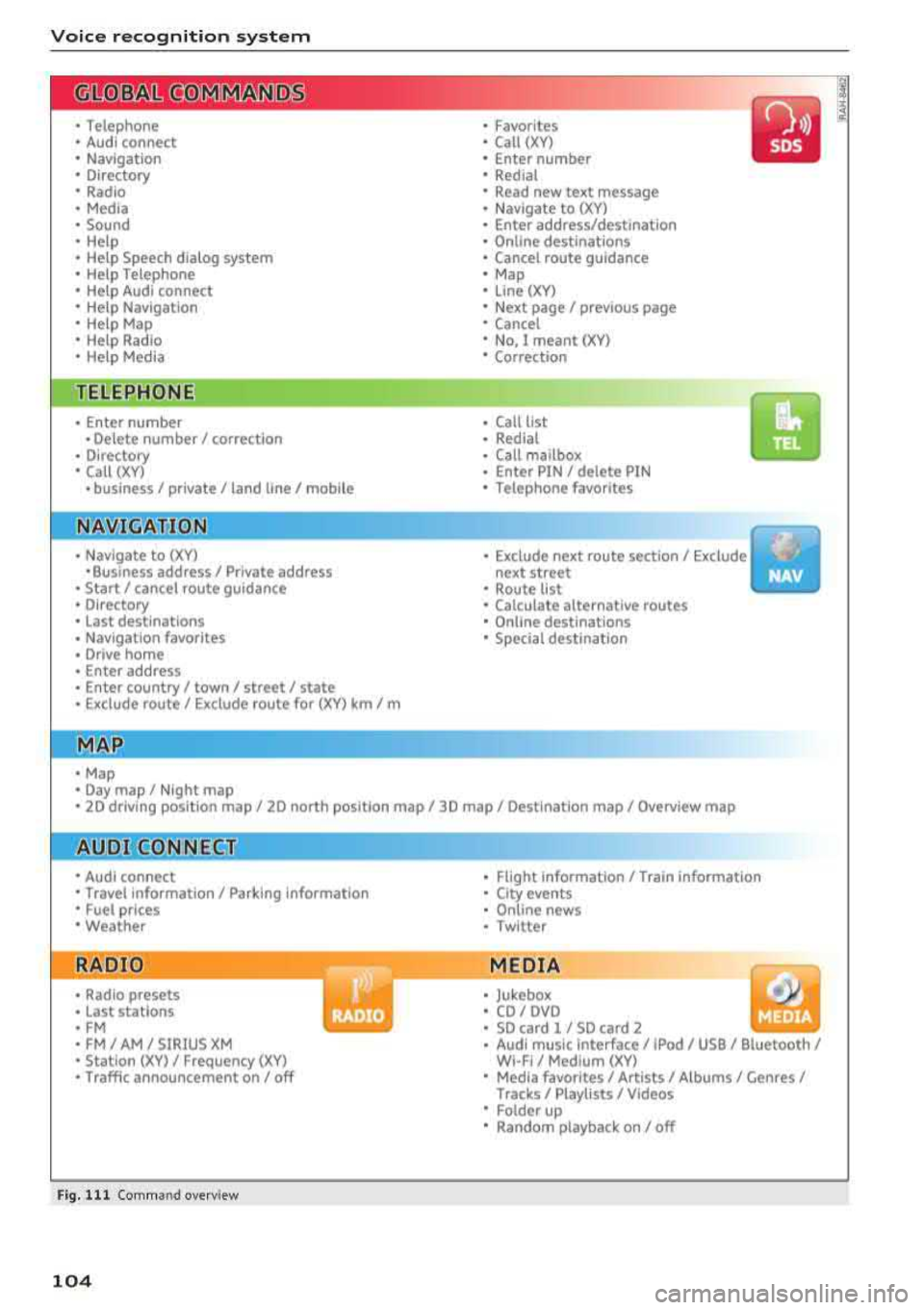
Fig. 111 Comm and overv iew
104
•
• Flight Information/ Train Information
• City events
• Online news
• Twitter
MEDIA
• Jukebox
• CD
I OVO
• SD card 1 / SD card 2
• Audi music Interface/ !Pod / USB / Bluetooth /
WI -Fl/ Medium (XV)
• Media favorites
I Artists/ Albums/ Genres/
Tracks/ Playllsts / Videos
• Folder up
• Random playback on / off
Page 109 of 310
Cl 00 .-< N r-N .-< 0 r-Vl 00
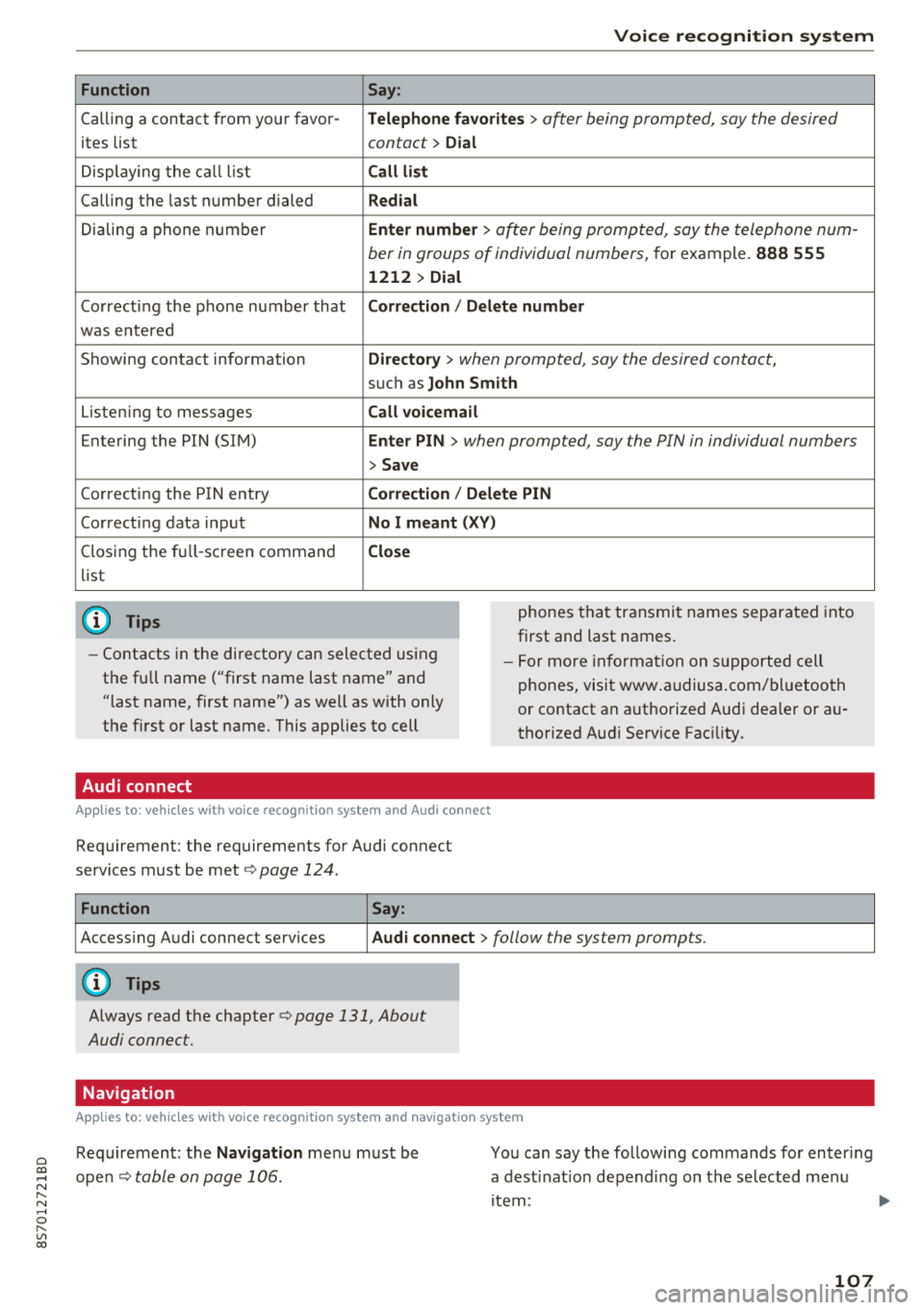
Function
Calling a contact from yo ur favor -
ites list
Displaying the ca ll list
Calling the last number dialed
Dialing a phone num ber
Correcting the p hone number that
was entered
Showing contact information
L iste ning to messages
Entering the PIN (SIM)
C orrecting the P IN entry
Correcting data inp ut
Closing the fu ll- screen command
list
(D Tips
Voice recognition system
Say :
Telephone fa vo rites
> a~er being prompted, say the desired
contact>
D ial
Call li st
Redial
En ter number
> after being prompted, say the telephone num-
ber in groups of individual numbers,
for example. 888 555
1212 > Dial
Correction / Delete number
Directory
> when prompted, say the desired contact,
suc h as John Smith
Call voi cemail
Enter PIN
> · when prompted, say the PIN in individual numbers
> Save
Correction / Delete PIN
No I meant ( XV)
Close
phones tha t transmit names separated into
first and last names.
- Contacts in the directory can selected using
the full name ("first name last name" and
"last name, first name") as well as with only
the first or last name. This applies to cell - F
or more in format ion on s uppo rted cell
phones, visi t www .audiusa.com/ bluetoo th
or contact an a uthorized Audi dea ler or au
thorized Aud i Service Fac ility.
Audi connect
A ppl ies to : ve hicl es w ith vo ice recogni tion sys te m and Audi co nn ect
Requirement: the requirements for Audi connect
services must be met ¢
page 124.
Function Say:
Accessing A udi connect services Aud i connect > follow the system prompts.
(D Tips
Always read the chapte r¢ page 131, About
Audi connect.
Navigation
A pp lies to: ve hicles with vo ice recognition syste m and navigation syste m
Requirement: the Navigation me nu must be
ope n¢
table on page 106 .
You can say the following commands fo r en ter ing
a dest inat ion depending on the se lected me nu
i tem :
107
Page 112 of 310
Voice recognition s ystem
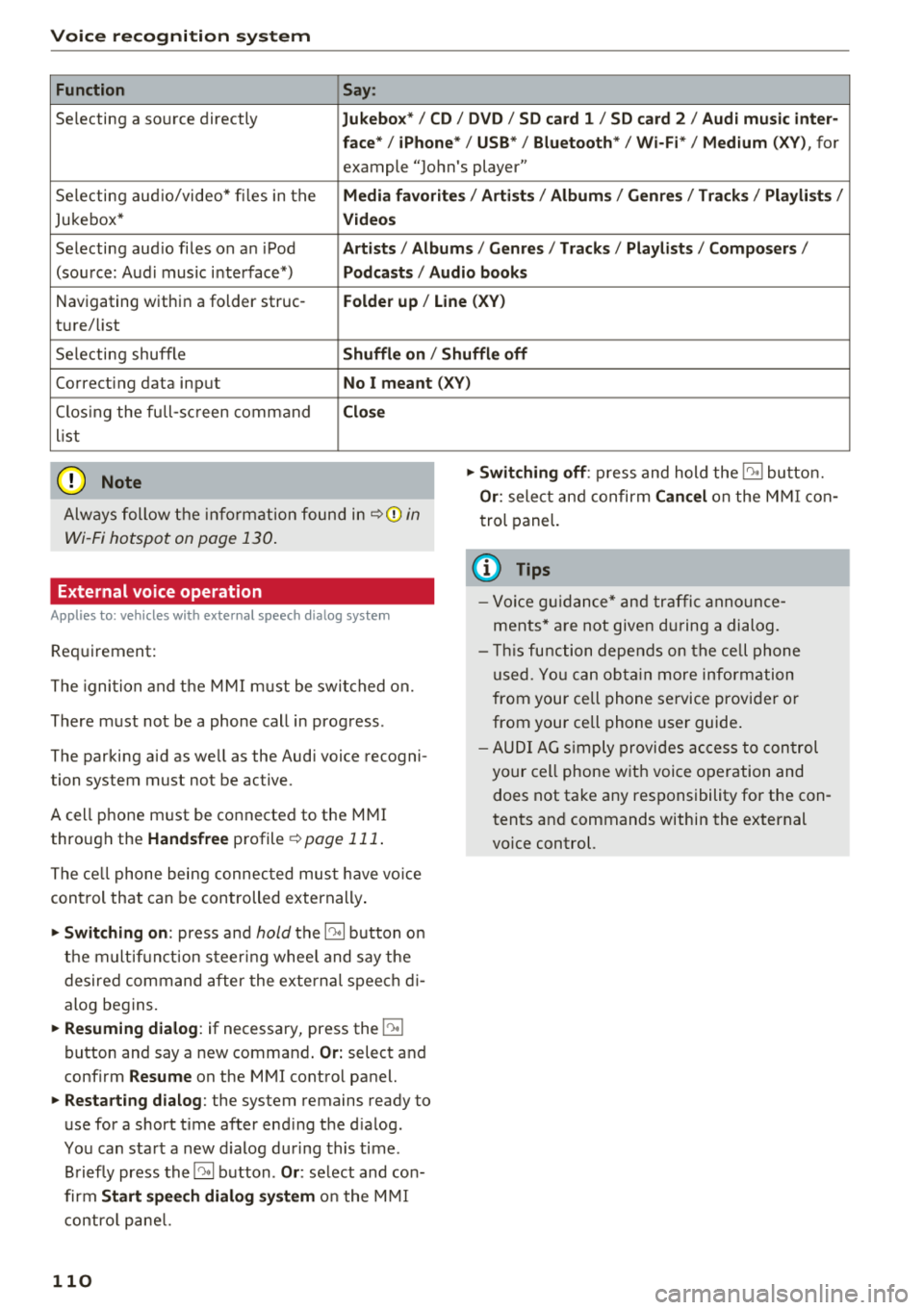
Function Say:
Selecting a so urce directly Jukebo x*/ CD/ DVD/ S D card 1 / SD card 2 / Audi mu sic inter·
face */ iPhone * / USB* / Bluetooth * / Wi -Fi * / Medium
(XV), for
example "Jo hn's player"
Selecting aud io/video* fi les in the
Media fav orites / Arti sts/ Album s/ Genr es I Track s/ Playli st s /
Jukebox* Vid eos
Selecting aud io files on an iPod Artists / Albu m is / Genre s/ Track s/ Playlists /Compo ser s/
(sou rce: Aud i music interface*) Podca sts / Aud io bo oks
Navigating within a folder struc -Folder up / Line (XV)
ture/ list
Selecting shuffle
Shuffl e on / Shuffle off
Correcting data input No I meant (XV)
Clos ing the full-sc reen command Clo se
list
(Ud) Note
Always follow t he info rmat ion found in ~ @ in
Wi -Fi hotspot on page 130 .
External voice operation
Applies to: vehicles with external speech dialog system
Requirement:
The ignition and t he M MI m ust be switched on.
There must not be a phone call in progress .
The parking aid as we ll as the Audi voice recogni
tion system must not be active.
A cell phone must be connected to the M MI
through the
Handsfree profile ~ page 111 .
The ce ll phone being connec ted must have vo ice
con trol that can be controlled externally .
"'Switching on: press and hold the 10° 1 button o n
the m ult if u nct ion steer ing whee l and say the
desired command after the external speech d i
alog begins.
"'Re suming dialog : if necessary, press the l')•I
button and say a new command . Or: select and
confirm
Re sume on the MMI contro l panel.
"'Restart ing dialog : the system remains ready to
use for a short t ime after end ing the d ialog.
You can start a new d ialog during this time.
Briefly press the
5] button . Or: select and con
firm
Start speech dialog sy stem o n the M MI
contro l pane l.
110
"'Swit ching off : press and hold the 5] button.
Or : select and confirm Can cel on the M MI co n
trol panel.
{i) Tips
- Vo ice g uidance* and tra ffic anno un ce
ments* a re not give n during a dialog.
- Thi s function depe nds on the ce ll phone
used. Yo u ca n ob ta in more info rmation
from your cell phone service provider or
from your ce ll phone use r guide .
- AUDI AG s imply provides ac cess to con trol
your cell phone w it h voice operation and
does not take any responsibility for the con
tents and commands within the external
vo ice control.
Page 113 of 310
Cl 00 .-< N r-N .-< 0 r-Vl 00
Telephone Introduction
Applies to: vehicles with telephone
To make phone coils in your vehicle using the
MMI, connect your cell phone to the MMI via
Bluetooth.
Handsfree
After you have connected your ce ll phone to the
MMI via Bluetooth, you can use the handsfree
system and operate telephone functions through
your MMI. You can make calls using the antenna
on your cell phone.
A WARNING
-Medical experts warn that cell phones can
interfere w ith the funct ion of pacemakers .
Always ma inta in a m inimum distance of
about 8 inches (20 cm) between the cell
phone antenna and the pacemake r.
-Do not carry the cell phone in a pocket di
rectly over the pacemaker when the phone
is switched on.
-Sw itch the cell phone off immediately if
you suspect it may be interfering w ith the
pacemaker.
-Do not use the voice recognition system*
¢
page 105 in emergencies because your
voice may change in stressful situations. It
may take longer to dial the number or the
system may not be able to dial it at all. Dial
the emergency number manually.
-Switch your cell phone off in areas where
there is a risk of an exp losion. These loca
t ions are not always clearly marked. This
may include gas stations, fuel and chemical
storage facilities or transport vehicles, or lo
cations where fue l vapors (such as propane
or gasoline vapor in vehicles or bui ldings),
chem icals or large quantities of dust parti
cles (such as flour, sawdust or metal) may
be present in the air. Th is also applies to all
ot her locations where you would normally
turn your vehicle engine off.
-The demands of traffic require your full at
tention. Always read the chapter ¢
page 93,
Traffic safety information .
-
Telephone
@ Note
Always fo llow the information found in Q@ in
Wi -Fi hotspot on page 130.
(D Tips
-To learn which Bluetooth connections and
which of the functions in your cell phone are supported, check with your cell phone serv
ice provider or the database for mobile devi
ces at www.aud iusa.com/bluetooth.
-The Bluetooth connection range is limited
to inside the vehicle. It can also be affected
by local condit ions and interference with
other devices .
Setup
Connecting a cell phone using Bluetooth
Applies to: vehicles with telephone
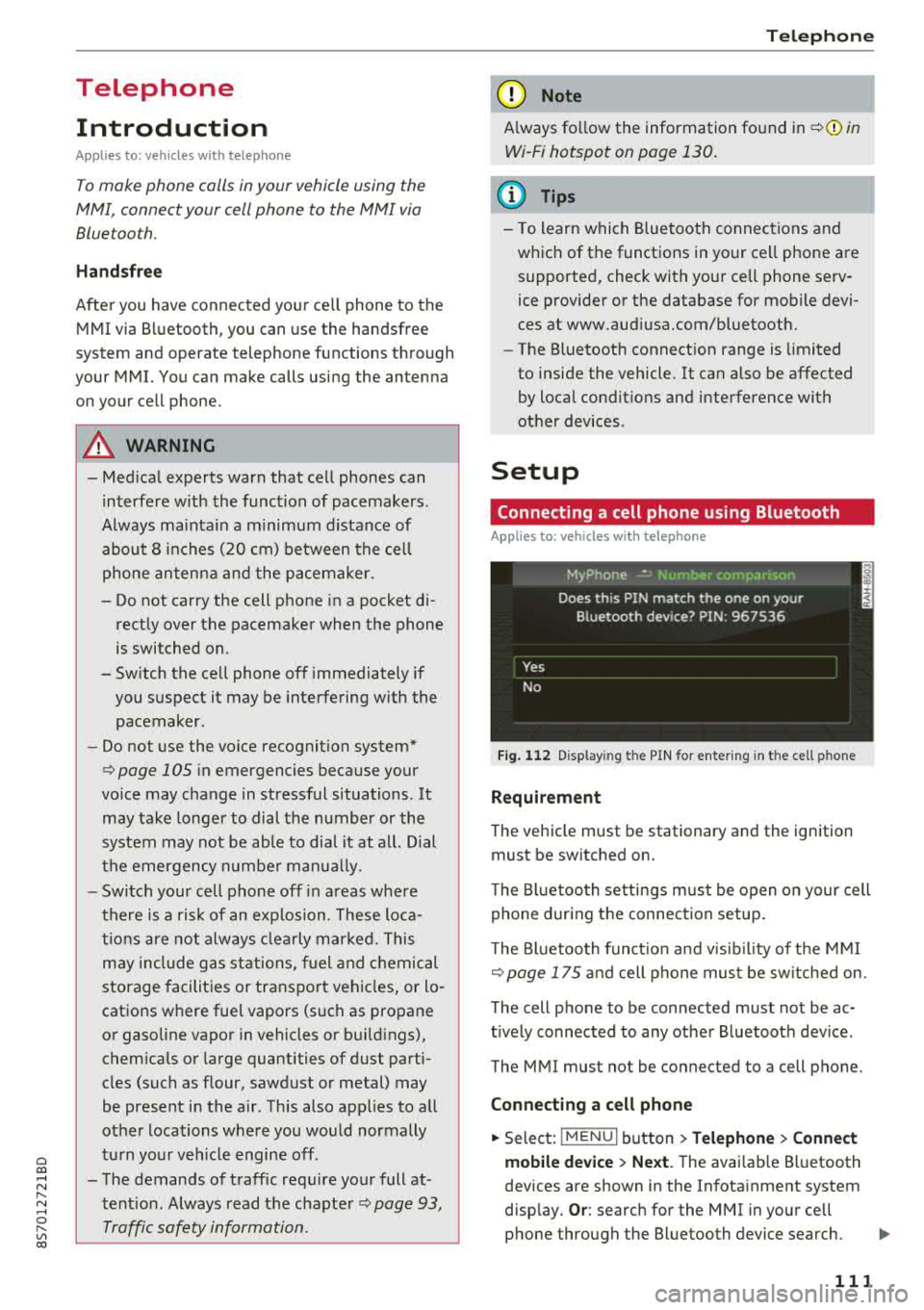
Fig. 112 Display ing t he PIN for enter ing in t he cell p hone
Requirement
T he vehicle must be stationary and the ignition
must be switched on.
T he Bl uetoo th settings must be open on your cell
phone during the connection setup .
T he Bluetooth funct io n and v is ibilit y of the MMI
Q page 175 and cell phone must be switched on.
The cell phone to be connected must not be ac
t ively connected to any other B luetooth dev ice .
The MMI must not be connected to a cell phone.
Connecting a cell phone
.,. Select: IMENU I button> Telephone> Connect
mobile device > Next .
The avai lab le Bluetooth
devices are shown in the Infotainment system
disp lay.
Or : search for the MMI in your cell
phone through the Bluetooth device search.
..,..
111
Page 114 of 310
Tele phone
~ Se lect and confirm the desired ce ll phone from
the list of disp layed Bluetooth devices.
~ The MMI generates a PIN for the connect ion
setup
¢ fig. 112 .
~ Select and confirm Y es.
~ Enter the PIN for connecting on your cell
phone .
Or: when the PIN is d isplayed on your
ce ll phone, co nfirm the P IN on your ce ll phone
and in t he M MI. The time a llowed for ente ring
the P IN is lim ited to app rox ima tely 30 seconds.
~ Pay attention to any additiona l system prompts
displayed on your cell phone, for example i f the
system s hou ld connect automatically in the fu
ture . Depending on the ce ll phone, you may
have to confirm downloading the directory sep
arately .
After conn ect ing succ essfully
After connecting successfully, a short message
with information about the connected profi les
will appear. You can also change profiles later.
Select:
! MENU ! button> Setting s> left control
button
> MMI se ttings > Conn ection manag er
¢page 175.
In addition, the cell phone contacts are automat ically loaded in the MMI directory. Th is process
can take several minutes, depend ing o n the num
ber of contacts .
@ Note
Always follow the information found in c:::;,il]) in
Wi-Fi hotspot on page 130.
(D Tips
- Making phone calls throug h the MMI is only
possib le using the
Handsfree Bluetooth pro
file.
- You can apply additional settings to con
nected mobile devices using the co nnect ion
manager
¢ page 174.
- You can also search for the MMI in your cell
phone us ing the Bluetooth device search.
- You only have to pair your device one t ime.
B luetooth dev ices that are already pa ired
automat ically connect to the MMI when the
Bluetooth function is sw itched on, they are
within range and t he ign it io n is switched on.
112
Th e last connected cell p hone is given first
priority .
- Au thoriz ing the M MI connec tion in your cell
phone wi ll make automatic connection pos
sible.
- Pay attention to any system prompts dis
played on your ce ll phone, for example if
the system should connect automatically in
the future. Depend ing on the ce ll phone,
you may also need to download the directo ry and confirm access to your text messages
separately .
- Whe n leaving the vehicle, the Bluetooth
connect io n to the cell phone will automati
cally d isconnect. Dependi ng on you r cell
phone, phone calls in prog ress may be auto
matically red irected from the MM I to you r
cell p ho ne a nd you can con tinue the c all on
your phone.
- Yo u can ob tain more i nfo rmat ion fro m you r
cell p ho ne serv ice p rovider or from yo ur cell
phone user guide . For in formation on using
the te lephone, visit www.audi usa .com/
bluetooth or contact an authorized Audi
dea ler or author ized Audi Service Facility.
- Applies to : vehicles without secondary
phone: Several cell phones can be paired to
the MMI, but only one cell phone can be ac
t ively connected to the M Ml.
- Applies to: vehicles without secondary
phone: If a Bluetooth device is a lready con
nected to the MMI, it will be d isconnected
w hen another device connects to the MMI.
Operating two telephones through the
MMI
You can connect two cell phones to the MMI, for
example your business cell phone as the primary
phone and your private cell phone as the secon dary phone. You can be reached in your vehicle
through both cell phones .
The first connected ce ll phone is d isplayed as the
pr imary phone in the MM I. The secon d cell phone
is connected as the secondary phone .
The directory from the connected pr ima ry phone
will a lways be d isplayed . If yo u wo uld like to use
t h e d irec to ry from the secondary phone, you
..,.
Page 115 of 310
Cl co .... N ,....
N .... 0 ,....
Vl co
must switch the primary and secondary phone
opage 113.
Connecting a cell phone as the primary
phone
Connect your cell phone to the MMI via Blue
tooth . The first connected cell phone is displayed
as the
Primary phone in the MMI.
See
o page 111, Connecting a cell phone using
Bluetooth.
Connecting a cell phone as the secondary
phone
Requirement : a cell phone must be connected to
the MMI as the primary phone.
Select:
IME NU! button> Telephone > right con
trol button
> Connect secondary telephone.
See o page 111, Connecting a cell phone using
Bluetooth.
Example: you have connected your business cell
phone to the MMI as the primary phone and your
private cell phone as the secondary phone . To be
ab le to call contacts from your private cell phone
d irectory, you must switch the primary and sec
ondary phone, s ince the directory from the pri
mary phone is always displayed.
Switching the primary and secondary phone
Requirement: a primary phone and a secondary
phone must be connected.
Switch primary and second. phone: select:
I MENU I button > Telephone > right control but
ton >
Switch primary and second. phone.
(D Tips
-Please note that only the directory from the
primary phone is always displayed.
- To view if your cell phone is connected as
the primary or secondary phone, go to the Connection manager
c:> page 174. Or : the
device name of the connected pr imary
phone is shown in the
Telephone menu
(such as myPhone).
-If the primary phone does not connect auto
ma tically to the MMI when the ign ition is
switched on, for example because it is out
Telephone
of the vehicle range or the Bluetooth func
tion is switched off, then a previously paired
secondary phone is automatically connected
as the primary phone.
- You can send and receive messages on your
primary phone as well as on your secondary
phone
c>page 113, fig. 113. You do not
need to switch your primary phone and sec
ondary phone for th is.
- You can also make your connected cell
phone the default phone by selecting
Set as
default telephone
i n the Connection man
ager
o page 175 .
Using the telephone
Opening the telephone
Applies to: vehicles wi th telepho ne
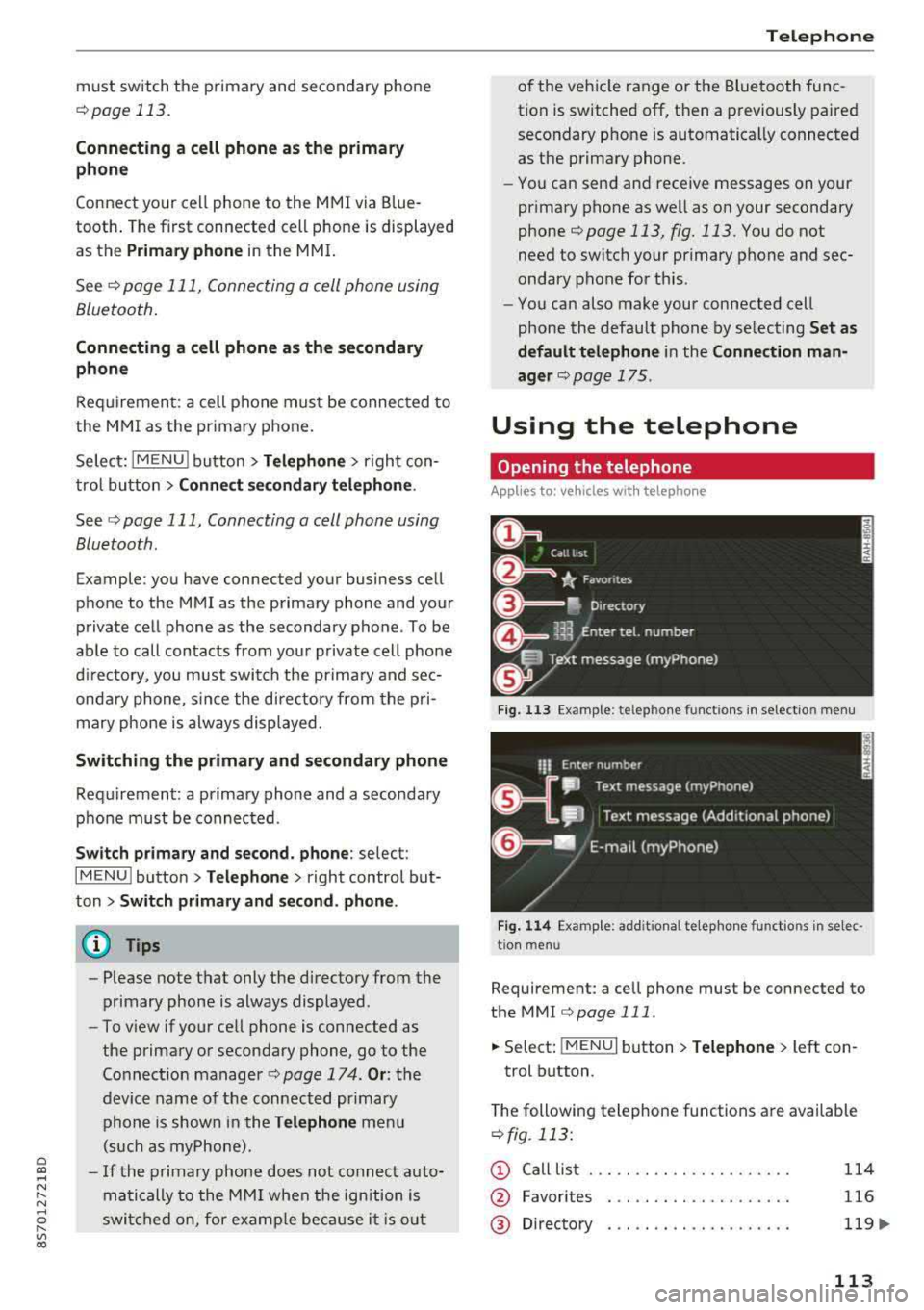
Fig. 113 Example : telepho ne functions in select io n menu
Fig. 114 Examp le: add it iona l te lephone functions in selec
tio n menu
Requirement: a cell phone must be connected to
the MMI
c>page 111.
.,. Select: ! MENUI button> Telephone> left con
trol button.
The following telephone functions are available
o fig. 113 :
(D Call list
@
®
Favorites
Directory
114
116
119.,.
113
Page 118 of 310
Tele phone
(D Tips
- To be notified of an incoming call during a
phone ca ll, the call waiting function in your
cell phone must be switched on when us ing
the hands-free profile
( Ha ndsfr ee).
- You can obtain more information from your
cell phone service prov ider or from your cell
phone user guide.
- When leaving the vehicle, the Bluetooth connection to the cell phone will automat i
cally disconnect. Depending on your cell
phone, phone calls in progress may be auto
matically redirected from the MMI to your
ce ll phone and yo u can cont in u e t he call on
you r phone.
- The display of an incom ing phone ca ll in the
Infotainment system d isp lay may still be
v is ible fo r a few seconds depending on the
ce ll phone in use . Using the
Replace or De
cline
functions may then end the active
phone ca ll.
Favorites
Applies to: vehicles with telephone
Up to 50 contacts, in addition to the voicemail
number, can be stored in any order in the favor
ites list.
~ Se lect: IMENUI button> Telephone > left con
trol button.
- Storing an e xist ing ph one number a s a fav or
ite :
select and confirm Recent calls/Directo ry.
Select and confirm a contact or phone number
from the list. Select: right control button>
S tor e as fav orit e . Enter a name for the favorite
or select a suggestion. Select and confirm
Save .
- Ren aming a stored f avorite :
select and confirm
Favorit es > a favorite from the list . Select the
right control button>
Rename fa vorite .
- Mo ving a sto red fa vo rite :
select and confirm
Favorit es > a favorite from the list . Select the
right control button>
Mo ve fa vor ite . Select
and confirm the location of the selected favor
i te.
- Delet ing a stor ed fav orit e: select and conf irm
Favorit es > a favorite from the list. Select the
116
right control button > Delete fa vo rite > Delete
thi s fav orite or Delete all fa vorite s.
Messages
Text messages
Applies to: cell phones with Bluetooth Message Access Profile
(MAP)
Depending on the cell phone being used and the
cell phone network contract, you can receive and
send text messages using the MMI.
Requirement
A cell phone must be connected to the MM I via
B luetoot h MAP ( Message Access Profi le)
¢ page 111 .
~ Select: !MENUI button> T ele phon e> left con
trol button >
t ex t me ssag e ( myPh one )/te xt
me ssage (second ary ph one )*.
Inbox
All rece ived text messages are displayed.
Sent te xt me ss a ges
A ll sent text messages are displayed .
Outbox
All t ext messages to be sent a re displayed.
© Tips
- Please note that you may have to activate
the receivi ng a nd se nding of text messages
in yo ur cel l phone depending on t he S IM
card be ing used (fo r example, when using a
Multi -S IM). Yo u can obtain more informa
tion from your ce ll phone service provider or
from your cell phone user guide .
- For more information on s upported cell
phones, visit www .a udiusa.com/b luetooth
or contact an a uthorized Audi dea ler or au
thorized Aud i Service Facility.
- You need a cell phone with Message Access
Prof ile that a lso supports the send ing func
t ion to be able to send text messages
through the MMI.
Page 119 of 310
Cl 00 .-< N r-N .-< 0 r-Vl 00
Write text message
Applies to: cell phones with Blue toot h Message Access Profile
(MAP)
"' Select: I MENU I button >Telephone > left con
trol button >
text message (myPhone) /text
message (secondary phone)*> Inbox
> right
control button.
Write text message
Select and confirm the desired template from
the list. Enter a recipient. Select and confirm
Send .
Reply*
Select and confirm the desired template from
the list. Select and confirm
Send.
Message options
Applies to: cell phones with Bluetooth Message Access Profile
(MAP)
"' Se lect: I MENU I button >Telephone> left con
trol button >
text message (myPhone)/text
message (secondary phone)*> Inbox /Sent /
Outbox
> right contro l button.
The fo llowing options may be avai lab le depend
ing on the se lected menu.
Reply*
A reply can be sent for the selected message in
the
Inbox .
Forward
The selected text message can be forwarded to a
different recipient.
Send again*
The selected text message can be resent.
Delete this text message*
The selected text message can be deleted.
Read out1
)
You can have the MMI read an open text mes
sage.
ll Not availab le in all languages .
Telephone
Text messaging settings*
To display when a new text message is received,
enab le the
Text message notifications. New text
messages are indicated with an
envelope~ in
the Infotainment system disp lay status line.
Connection manager
See c>p age 174.
Telephone settings
See c>page 121.
(D Tips
Messages that are deleted in the MMI are also
deleted in the cell phone automatically.
E-mail*
Applies to: cell phones with Bluetooth Message Access Profile
(MAP)
Depending on the type of cell phone used, you
can receive and send e-mails through the MMI .
Requirement: the Message Access Profile (MAP)
must be activated in the Bluetooth settings on
your ce ll phone and your cell phone must be con
nected to the MMI
c>page 111. You can find out
in your cell phone owner's manual if your cell
phone supports this function.
"' Select: !MENUI button> Telephone > left con
trol button >
e-mail (myPhone)/e-mail (secon
dary phone)*.
Write new e-mail
- Using a template :
select and confirm the de-
sired template from the list.
- Enter one or more recipients.
- Select and confirm
Send.
lnbox
All received e-mails are displayed.
Sent
All sen t e-m ails are displayed.
117