battery AUDI TT ROADSTER 2019 User Guide
[x] Cancel search | Manufacturer: AUDI, Model Year: 2019, Model line: TT ROADSTER, Model: AUDI TT ROADSTER 2019Pages: 304, PDF Size: 80.77 MB
Page 56 of 304
Warm and cold
— Switching manual recirculation mode on and
off: Press the > button.
— Automatic* recirculation mode: auto recircula-
tion needs to be activated in the Infotainment
system. Select in the Infotainment system:
[MENU] button > Vehicle > left control button >
Vehicle settings > Air conditioning > Auto re-
circulation. The air quality sensor that is de-
signed for diesel and gasoline exhaust auto-
matically switches the recirculation mode on or
off depending on the level of pollutants in the
outside air.
In recirculation mode, the air inside the vehicle is
circulated and filtered. This prevents the unfil-
tered air outside the vehicle from entering the
vehicle interior. Switching recirculation mode on
when driving through a tunnel or when sitting in
traffic is recommended > A.
Pressing the <> button, AUTO or the & button
switches recirculation mode off.
® Defrosting
The windshield and side windows are defrosted
or cleared of condensation as quickly as possible.
The optimum amount of air flows mainly out of
the vents under the windshield. Recirculation
mode switches off. The temperature is controlled
automatically.
The AUTO button switches the defroster off.
{ Rear window defogger
If the rear window defogger is activated when
the ignition is switched on, the battery manage-
ment determines based on the battery charge if
it is possible to turn on. Otherwise, the rear win-
dow defogger functions with the engine running
and switches off automatically after approxi-
mately 10 - 20 minutes, depending on the out-
side temperature.
To prevent the rear window defogger from
switching off automatically, press and hold the
® button for more than two seconds. This re-
mains stored up to approximately 15 minutes af-
ter turning off the ignition.
54
Z\ WARNING
You should not use the recirculation mode for
an extended period since no fresh air is drawn
in. With the air-conditioning switched off, the
windows can fog up, which increases the risk
of an accident.
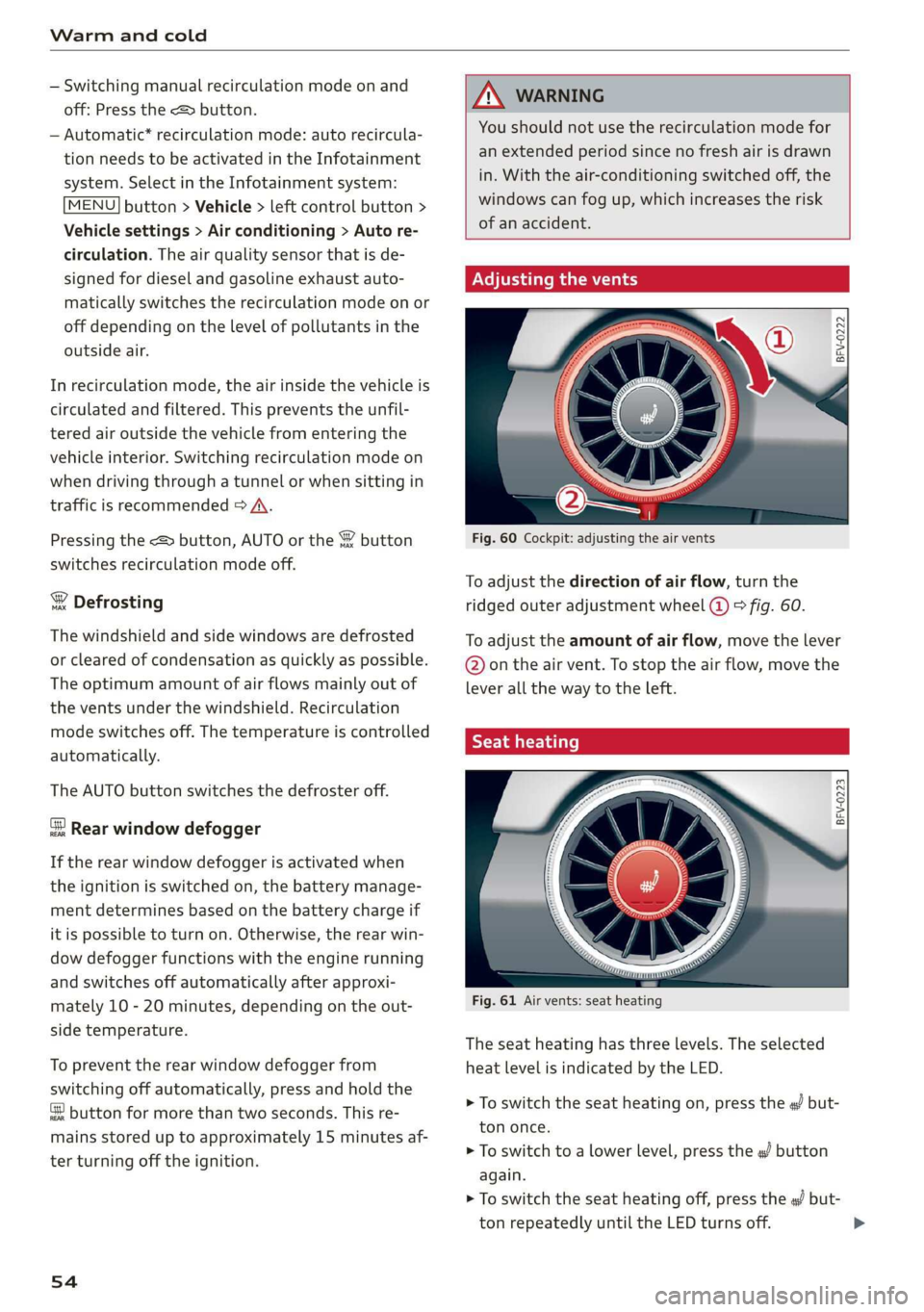
Adjusting the vents
BFV-0222
Fig. 60 Cockpit: adjusting the air vents
To adjust the direction of air flow, turn the
ridged outer adjustment wheel (@) fig. 60.
To adjust the amount of air flow, move the lever
@ on the air vent. To stop the air flow, move the
lever all the way to the left.
Syl)
Fig. 61 Air vents: seat heating
The seat heating has three levels. The selected
heat level is indicated by the LED.
> To switch the seat heating on, press the «/ but-
ton once.
> To switch to a lower level, press the «/ button
again.
> To switch the seat heating off, press the a but-
ton repeatedly until the LED turns off.
Page 57 of 304
8S58012721BA
Warm and cold
The seat heating switches automatically from
setting 3 to setting 2 after 10 minutes.
When seat heating should not be switched
on
Do not turn the seat heating on under the follow-
ing circumstances:
— The seat is unoccupied.
— The seat is covered with a seat cover.
— The seat is covered with a child seat.
— The seat is damp or wet.
Z\ WARNING
Individuals with reduced sensitivity to pain or
temperature could develop burns when using
the seat heating function. To reduce the risk
of injury, these individuals should not use seat
heating.
©) Note
To reduce the risk of damage to the seat heat-
ing elements, do not kneel on the seats or
place heavy pressure on one area of the seat.
@) Tips
—The setting for the seat heating on the driv-
er's side is assigned to the key that is in use.
— If the front passenger's seat heating is
turned on, it will not turn on again automat-
ically if more than 10 minutes have passed
between switching the ignition off and
switching it on again.
re aati}
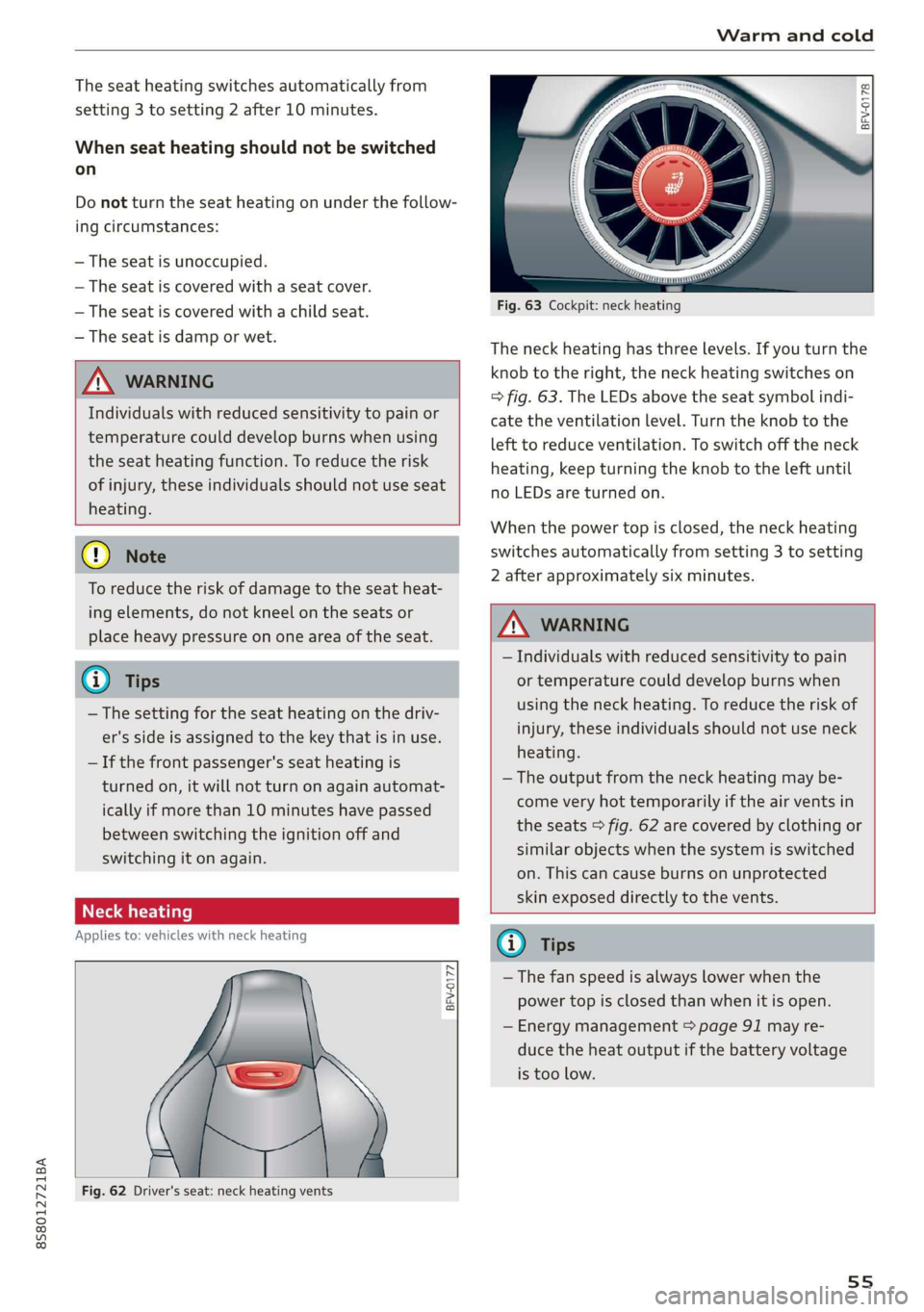
Applies to: vehicles with neck heating
BFV-0177
Fig. 62 Driver's seat: neck heating vents
© Rg
g >
im o
Fig. 63 Cockpit: neck heating
The neck heating has three levels. If you turn the
knob to the right, the neck heating switches on
=> fig. 63. The LEDs above the seat symbol indi-
cate the ventilation level. Turn the knob to the
left to reduce ventilation. To switch off the neck
heating, keep turning the knob to the left until
no LEDs are turned on.
When the power top is closed, the neck heating
switches automatically from setting 3 to setting
2 after approximately six minutes.
Z\ WARNING
— Individuals with reduced sensitivity to pain
or temperature could develop burns when
using the neck heating. To reduce the risk of
injury, these individuals should not use neck
heating.
— The output from the neck heating may be-
come very hot temporarily if the air vents in
the seats > fig. 62 are covered by clothing or
similar objects when the system is switched
on. This can cause burns on unprotected
skin exposed directly to the vents.
@) Tips
— The fan speed is always lower when the
power top is closed than when it is open.
— Energy management > page 91 may re-
duce the heat output if the battery voltage
is too low.
55
Page 61 of 304
8S58012721BA
Driving
authorized Audi Service Facility immediately to
have the malfunction corrected. To start the en-
gine, press and hold the [START ENGINE STOP
button.
Remote control key: hold back of key
against the designated area. See owner's man-
ual
This message appears if there is no convenience
key inside the vehicle or if the system does not
recognize the key. The convenience key may not
be recognized, for example, if it is covered by an
object that disrupts the signal (such as a brief-
case), or if the key battery is weak. Electronic de-
vices such as cell phones can also interfere with
the signal.
To still be able to start or stop the engine, see
= page 59, Starting the engine when there is a
malfunction.
B Remote control key: key not detected. Is the
key still in the vehicle?
The BSB indicator light turns on and this message
appears if the convenience key was removed from
the vehicle when the engine was running. If the
convenience key is no longer in the vehicle, you
cannot switch the ignition on or start the engine
once you stop it. You also cannot lock the vehicle
from the outside.
Please press the brake pedal
This message appears if you do not press the
brake pedal when starting the engine.
Please select N or P
This message appears when starting or stopping
the engine if the selector lever is not in the "N" or
"P" position. The engine will not start/stop.
Starting the engine when there is a
Tare iira dea)
It may not be possible to start the engine under
certain circumstances, for example, if the bat-
tery
in the vehicle key is drained, if interference is
affecting the key or if there is a system malfunc-
tion.
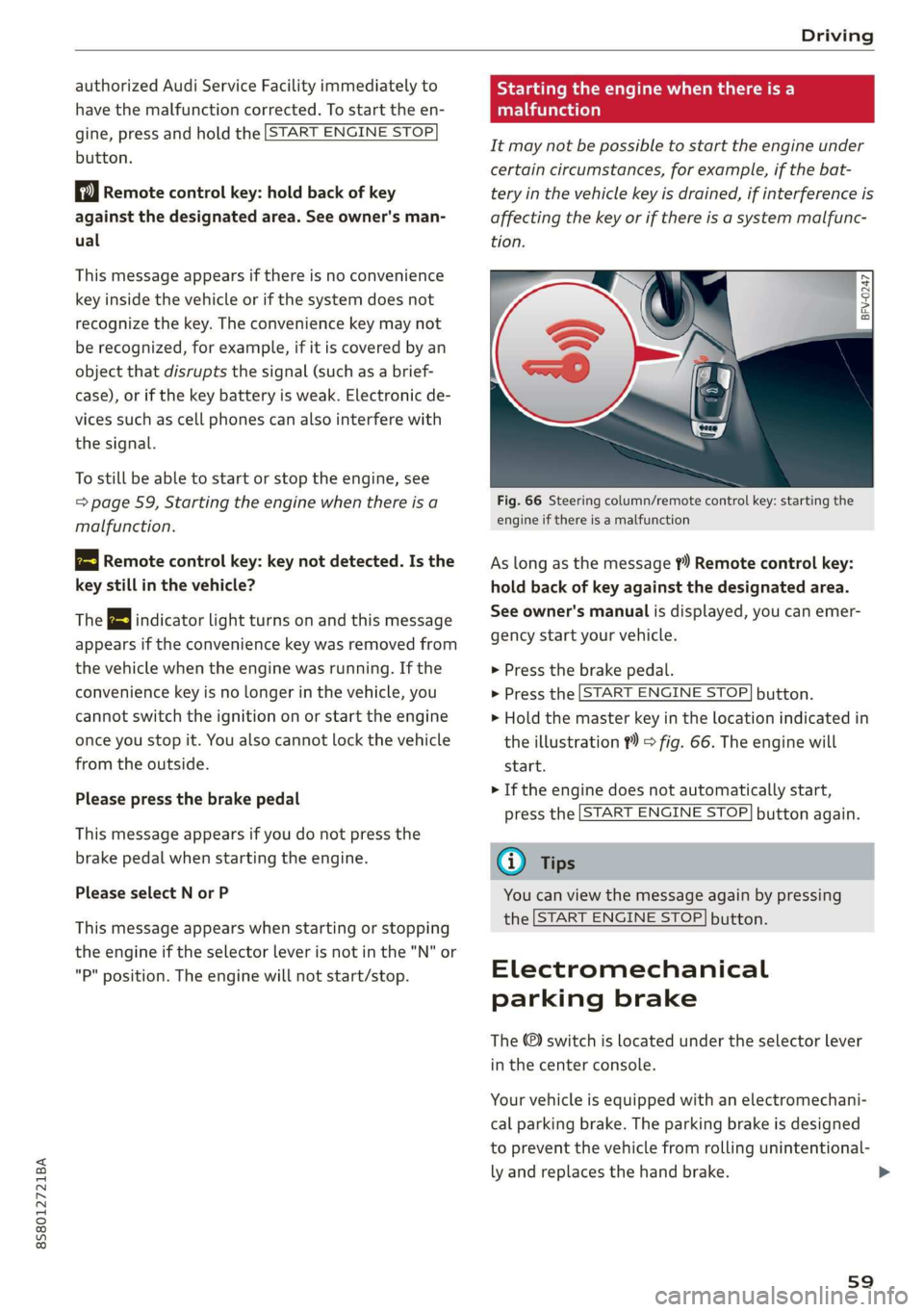
Fig. 66 Steering column/remote control key: starting the
engine if there is a malfunction
As long as the message ?) Remote control key:
hold back of key against the designated area.
See owner's manual is displayed, you can emer-
gency start your vehicle.
> Press the brake pedal.
> Press the [START ENGINE STOP] button.
> Hold the master key in the location indicated in
the illustration ?) © fig. 66. The engine will
start.
> If the engine does not automatically start,
press the [START ENGINE STOP] button again.
(i) Tips
You can view the message again by pressing
the [START ENGINE STOP] button.
Electromechanical
parking brake
The ©) switch is located under the selector lever
in the center console.
Your vehicle is equipped with an electromechani-
cal parking brake. The parking brake is designed
to prevent the vehicle from rolling unintentional-
ly and replaces the hand brake.
59
Page 79 of 304

8S8012721BA
Assist systems
If the system is activated, the displays in the ex-
terior mirrors will turn on briefly when the igni-
tion is switched on.
Adjusting the display brightness
Applies to: vehicles with Audi side assist
The display brightness can be adjusted in the In-
fotainment system.
> Select in the Infotainment system: [MENU] but-
ton > Vehicle > left control button >Driver as-
sistance > Audi side assist
The display brightness adjusts automatically to
the brightness of the surroundings, both in the
information and in the warning stage. In very
dark or very bright surroundings, the automatic
adjustment will set the display to the minimum
or maximum level. In such cases, you may notice
no change when adjusting the brightness, or the
change may only be noticeable once the sur-
roundings change.
Adjust the brightness to a level where the display
in the information stage will not disrupt your
view ahead. If you change the brightness, the dis-
play in the exterior mirror will briefly show the
brightness level in the information stage. The
brightness of the warning stage is linked to the
brightness in the information stage and is adjust-
ed along with the information stage.
G@) Tips
— Side assist is not active while you are mak-
ing the adjustment.
— Your settings are automatically stored and
assigned to the remote control key being
used.
Messages
Applies to: vehicles with Audi side assist
If the side assist switches off automatically, a
message appears in the Infotainment system dis-
play.
Audi side assist: currently unavailable.
Sensor vision restricted due to surroundings.
See owner's manual
The radar sensor vision is impaired. Do not cover
the area in front of the sensors with bike wheels,
stickers, dirt or other objects. Clean the area cov-
ering the sensors, if necessary > page 75, fig. 81.
Audi side assist: currently unavailable.
See owner's manual
Side assist cannot be switched on at this time be-
cause there is a malfunction (for example, the
battery charge level may be too low).
Audi side assist: malfunction! Please
contact Service
The system cannot guarantee that it will detect
vehicles correctly and it has switched off. The
sensors have been moved or are faulty. Have the
system checked by an authorized Audi dealer or
authorized Audi Service Facility soon.
Audi drive select (drive
settings)
Introduction
Applies to: vehicles with Audi drive select
Drive select makes it possible to experience dif-
ferent types of vehicle characteristics in one vehi-
cle. The driver can select from three modes,
Comfort,
Auto, and Dynamic, using the sist but-
ton in the center console or by using the Infotain-
ment system. This allows you to switch between
a sporty and a comfortable driving mode, for ex-
ample. In the Individual mode, the settings can
be adjusted to your personal preferences. This
makes it possible to combine settings such as a
sporty engine setting with light steering.
Z\ WARNING
Using Audi drive select incorrectly can lead to
collisions, other accidents and serious inju-
ries.
77
Page 93 of 304
8S8012721BA
Intelligent Technology
ZA\ WARNING
Improper operation of the rear spoiler can
cause crushing injuries.
— Always make sure that nobody, especially
children, is in the way when the rear spoiler
is deployed or retracted.
() Note
— Never push on the vehicle on the rear spoil-
er. This could cause damage.
— To prevent damage to the rear spoiler do
not lean or place anything on it.
— Only operate the rear spoiler manually when
the luggage compartment lid is close and
the rear spoiler moving parts are not
blocked. Otherwise, damage could occur.
@ Tips
Clean the rear spoiler compartment every 2 to
3 months. To function correctly, the rear
spoiler must be free of ice, snow and leaves.
Energy management
Your vehicle is equipped with an intelligent ener-
gy management system for distributing electrici-
ty. This significantly improves the starting ability
and increases the vehicle battery life.
@ Tips
— If you drive short distances frequently, the
vehicle battery may not charge enough
while driving. As a result, convenience func-
tions for electrical equipment may be tem-
porarily unavailable.
— The vehicle battery will gradually drain if
the vehicle is not driven for long periods of
time, or if electrical equipment is used
when the engine is not running. To ensure
that the vehicle can still be started, the
electrical equipment will be limited or
switched off.
Information about data
recorded by vehicle
control modules
Your vehicle is not equipped with a crash data re-
corder. This device is installed by some vehicle
manufacturers to record data about crashes so
that it can be analyzed later. Crash data recorders
are also called “Event Data Recorders (EDR)”.
In some legal jurisdictions, it is not permitted to
access or download data recorded by pre-instal-
led crash data recorders in order to evaluate a
crash without clear consent of the vehicle owner.
Your vehicle is not equipped with a crash data re-
corder. However it does contain a variety of elec-
tronic control modules for various vehicle sys-
tems such as engine function, exhaust treatment
or airbags and safety belts.
These electronic control modules record vehicle
data during normal driving for diagnosis and re-
pair purposes. The recording capability of the
electronic control modules is limited to data only
- no sound is recorded. If the control module de-
tects a system malfunction or other change in
status, a very limited amount of data is recorded
for an extremely small period of time. Data that
is recorded in such a case may include vehicle
speed, driving direction, the load on the brakes
and head restraints and performance in the event
of an accident or other change in status. The stor-
ed data can only be read or downloaded with spe-
cial devices.
91
Page 95 of 304
8S8012721BA
Multi Media Interface
police and fire sirens, can be heard easily at all Covey emma Anata)
times.
©J Vehicle
@® Tips
The MMI switches off automatically if the en-
gine is not running and the vehicle battery is
low.
MMI operation
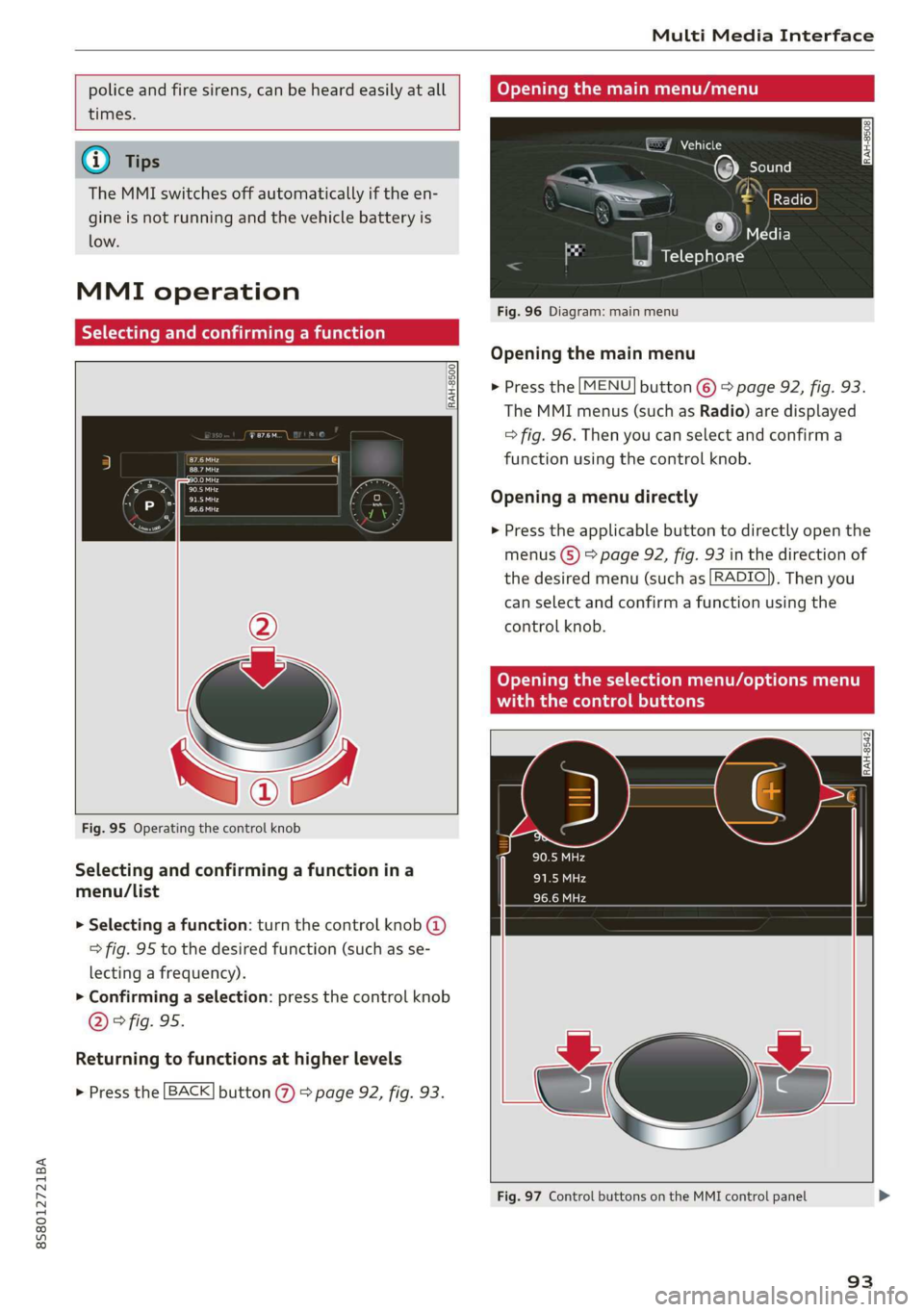
Selecting and confirming a function
Fig. 96 Diagram: main menu
Opening the main menu
> Press the [MENU] button © > page 92, fig. 93.
RAH-8500.
The MMI menus (such as Radio) are displayed
=> fig. 96. Then you can select and confirm a
Sa function using the control knob. a
Opening a menu directly Pe
> Press the applicable button to directly open the
menus (5) > page 92, fig. 93 in the direction of
the desired menu (such as [RADIO]). Then you
can select and confirm a function using the
control knob.
Opening the selection menu/options menu
with the control buttons
RAH-8542
Fig. 95 Operating the control knob
Selecting and confirming a function ina
menu/list
> Selecting a function: turn the control knob @)
=> fig. 95 to the desired function (such as se-
lecting a frequency).
> Confirming a selection: press the control knob
@ © fig. 95.
Returning to functions at higher levels
> Press the [BACK] button @ > page 92, fig. 93.
Fig. 97 Control buttons on the MMI control panel
93
Page 115 of 304
8S58012721BA
Telephone
Using the Audi phone
box
Applies to: vehicles with Audi phone box
You can charge your mobile device battery using
the Audi phone box. You can make calls through
the exterior antenna* on the vehicle. Using the
external antenna* helps when there is a low sig-
nal and also provides better reception quality.
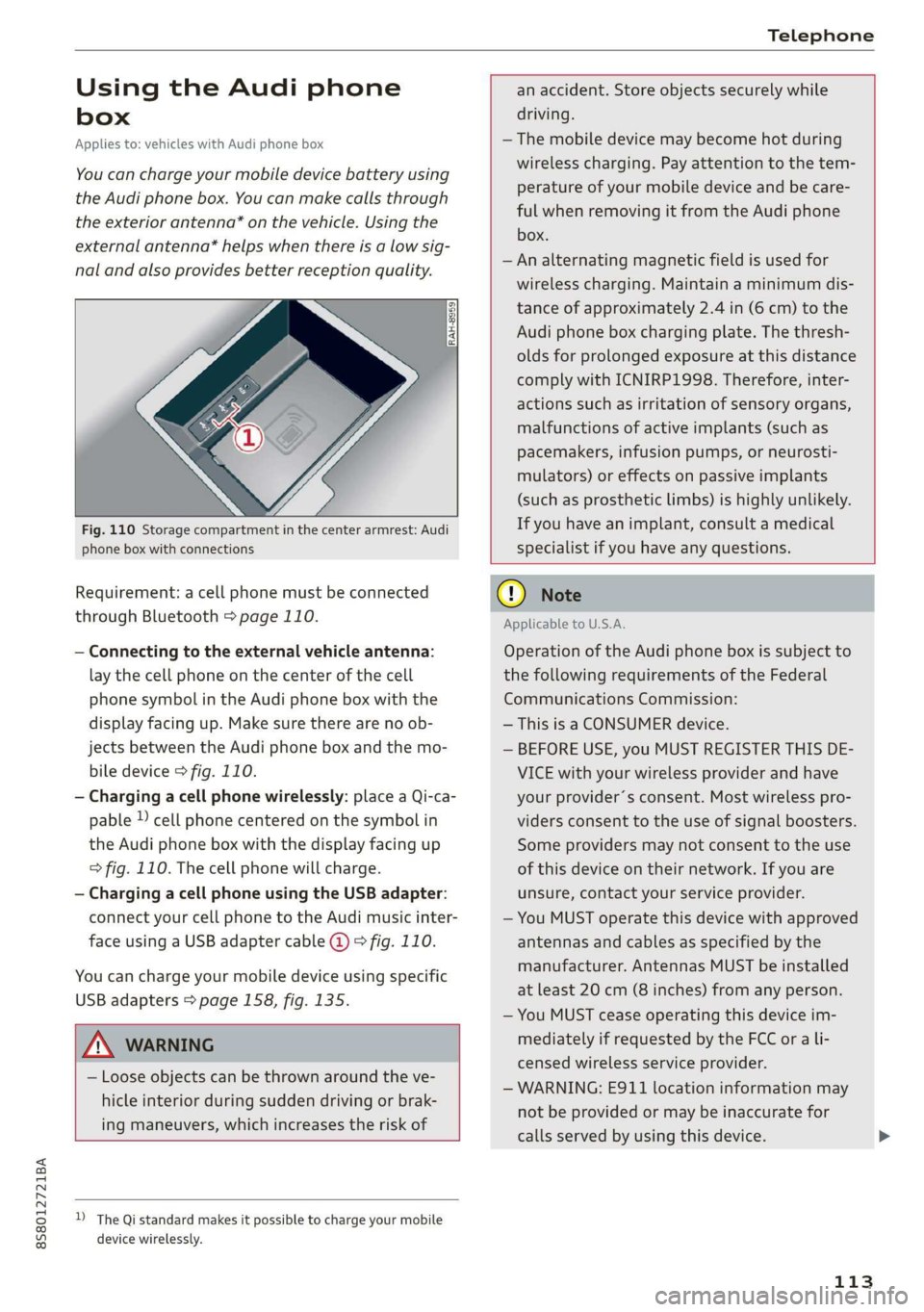
Fig. 110 Storage compartment in the center armrest: Audi
phone box with connections
Requirement: a cell phone must be connected
through Bluetooth > page 110.
— Connecting to the external vehicle antenna:
lay the cell phone on the center of the cell
phone symbol in the Audi phone box with the
display facing up. Make sure there are no ob-
jects between the Audi phone box and the mo-
bile device > fig. 110.
— Charging a cell phone wirelessly: place a Qi-ca-
pable ) cell phone centered on the symbol in
the Audi phone box with the display facing up
> fig. 110. The cell phone will charge.
— Charging a cell phone using the USB adapter:
connect your cell phone to the Audi music inter-
face using a USB adapter cable @) © fig. 110.
You can charge your mobile device using specific
USB adapters > page 158, fig. 135.
an accident. Store objects securely while
driving.
—The mobile device may become hot during
wireless charging. Pay attention to the tem-
perature of your mobile device and be care-
ful when removing it from the Audi phone
box.
— An alternating magnetic field is used for
wireless charging. Maintain a minimum dis-
tance of approximately 2.4 in (6 cm) to the
Audi phone box charging plate. The thresh-
olds for prolonged exposure at this distance
comply with ICNIRP1998. Therefore, inter-
actions such as irritation of sensory organs,
malfunctions of active implants (such as
pacemakers, infusion pumps, or neurosti-
mulators) or effects on passive implants
(such as prosthetic limbs) is highly unlikely.
If you have an implant, consult a medical
specialist if you have any questions.
ZA WARNING
— Loose objects can be thrown around the ve-
hicle interior during sudden driving or brak-
ing maneuvers, which increases the risk of
D_ The Qi standard makes it possible to charge your mobile
device wirelessly.
oO Note
Applicable to U.S.A.
Operation of the Audi phone box is subject to
the following requirements of the Federal
Communications Commission:
— This is a CONSUMER device.
— BEFORE USE, you MUST REGISTER THIS DE-
VICE with your wireless provider and have
your
provider’s consent. Most wireless pro-
viders consent to the use of signal boosters.
Some providers may not consent to the use
of this device on their network. If you are
unsure, contact your service provider.
— You MUST operate this device with approved
antennas
and cables as specified by the
manufacturer. Antennas MUST be installed
at least 20 cm (8 inches) from any person.
— You MUST cease operating this device im-
mediately if requested by the FCC or a li-
censed wireless service provider.
— WARNING: E911 location information may
not be provided or may be inaccurate for
calls served by using this device.
113
Page 157 of 304
8S8012721BA
Media
When importing, the audio files are automatical-
ly sorted into the media center categories based
on the stored additional information > page 161.
The copied video files are stored in the media
center under the Videos category.
Playing the Jukebox
Requirement: the Jukebox must contain audio/
video files > page 154, Adding files to the Juke-
box.
The Jukebox is accessed and operated through
the MMI @) & page 160, fig. 137.
Displaying Jukebox memory capacity
Select: right control button > Jukebox memory
capacity. Information about the Jukebox memory
capacity and the number of stored tracks is dis-
played.
Deleting tracks from the Jukebox!)
Requirement: the Jukebox must contain audio/
video files.
— Deleting an entry: select an entry from the
Jukebox media center. Select: right control but-
ton > Delete from jukebox > This entry or En-
tire list.
— The status of the deleting process is shown in
the MMI. Jukebox playback stops during the de-
leting process and starts again automatically
once the deletion is complete.
©) Note
Do not import audio/video files when the en-
gine is turned off because this will drain the
vehicle battery.
G) Tips
— Tracks from audio CDs cannot be imported
to the Jukebox for legal reasons.
— Files that have already been imported are
automatically recognized and cannot be
copied to the Jukebox again.
— It is not possible to play audio/video* files
in the CD/DVD* drive while importing them.
)) Not in the Playback view.
— The Jukebox does not provide an export
function due to legal reasons.
— Files or tracks without additional stored in-
formation are listed as Unknown. Audi rec-
ommends adding additional information
(such as ID3 tags) to audio files.
— Reset the Jukebox to the factory default set-
tings when selling your vehicle > page 172.
Bluetooth audio player
Applies to: vehicles with Bluetooth audio player
With the Bluetooth audio player, you can play
music wirelessly from your Bluetooth-capable
device (such as a cell phone) through the MMI.
Requirement: the vehicle must be stationary and
the ignition must be switched on. The Bluetooth
settings will open on your mobile device during
the connection setup. The Bluetooth function and
visibility of the MMI > page 174 and mobile de-
vice must be switched on. The Bluetooth audio
player > page 174 must be switched on in the
MMI.
— Connecting a Bluetooth device: press the
MEDIA] button. Press the left control button
until the sources overview is displayed. Select
and confirm Bluetooth audio player ©)
=> page 160, fig. 138.
—If necessary, select and confirm, Not connected
> Connect Bluetooth audio player. The Blue-
tooth device search starts. Follow the instruc-
tions in the MMI.
— Select and confirm the desired Bluetooth device
from the list. The MMI generates a PIN for the
connection.
— Select and confirm Yes.
— Enter the PIN for connecting on your Bluetooth
device. Or: if the PIN is already displayed on
your Bluetooth device, confirm it in the Blue-
tooth device and in the MMI. The time allowed
for entering the PIN is limited to approximately
30 seconds.
The media is started and operated through the
mobile device or the MMI, depending on the de-
vice being used.
155
>
Page 161 of 304
8S58012721BA
Media
ONT ale)
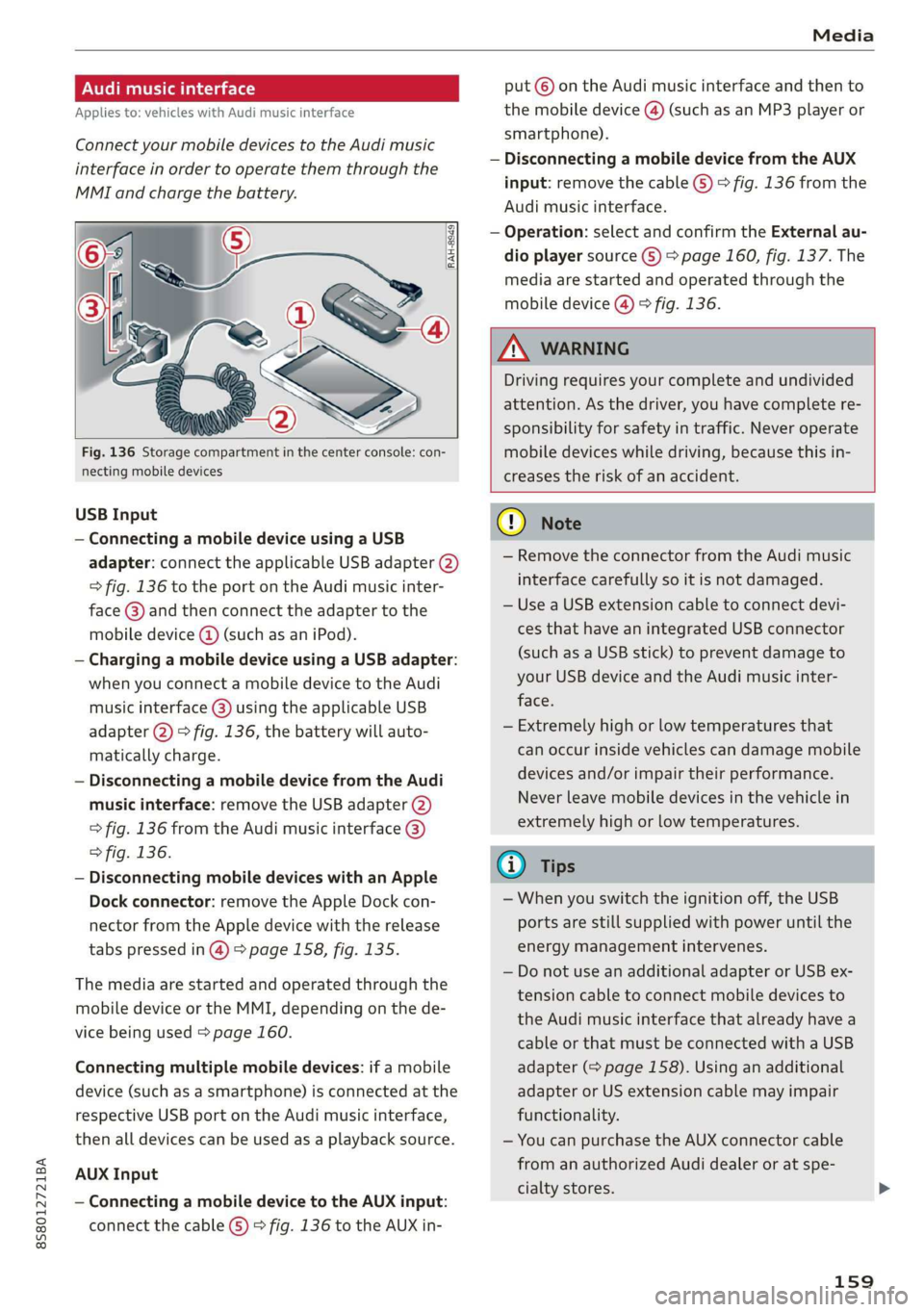
Applies to: vehicles with Audi music interface
Connect your mobile devices to the Audi music
interface in order to operate them through the
MMI and charge the battery.
put © on the Audi music interface and then to
the mobile device @) (such as an MP3 player or
smartphone).
— Disconnecting a mobile device from the AUX
input: remove the cable G) > fig. 136 from the
Audi music interface.
— Operation: select and confirm the External au-
dio player source G) > page 160, fig. 137. The
media are started and operated through the
mobile device @) fig. 136.
Fig. 136 Storage compartment in the center console: con-
necting mobile devices
USB Input
— Connecting a mobile device using a USB
adapter: connect the applicable USB adapter (2)
=> fig. 136 to the port on the Audi music inter-
face @) and then connect the adapter to the
mobile device @ (such as an iPod).
— Charging a mobile device using a USB adapter:
when you connect a mobile device to the Audi
music interface @) using the applicable USB
adapter @) > fig. 136, the battery will auto-
matically charge.
— Disconnecting a mobile device from the Audi
music interface: remove the USB adapter (2)
> fig. 136 from the Audi music interface @)
> fig. 136.
— Disconnecting mobile devices with an Apple
Dock connector: remove the Apple Dock con-
nector from the Apple device with the release
tabs pressed in @) > page 158, fig. 135.
The media are started and operated through the
mobile device or the MMI, depending on the de-
vice being used > page 160.
Connecting multiple mobile devices: if a mobile
device (such as a smartphone) is connected at the
respective USB port on the Audi music interface,
then all devices can be used as a playback source.
AUX Input
— Connecting a mobile device to the AUX input:
connect the cable (G) > fig. 136 to the AUX in-
Z\ WARNING
Driving requires your complete and undivided
attention. As the driver, you have complete re-
sponsibility for safety in traffic. Never operate
mobile devices while driving, because this in-
creases the risk of an accident.
G) Note
— Remove the connector from the Audi music
interface carefully so it is not damaged.
— Use a USB extension cable to connect devi-
ces that have an integrated USB connector
(such as a USB stick) to prevent damage to
your USB device and the Audi music inter-
face.
— Extremely high or low temperatures that
can occur inside vehicles can damage mobile
devices and/or impair their performance.
Never leave mobile devices in the vehicle in
extremely high or low temperatures.
@ Tips
—When you switch the ignition off, the USB
ports are still supplied with power until the
energy management intervenes.
— Do not use an additional adapter or USB ex-
tension cable to connect mobile devices to
the Audi music interface that already have a
cable or that must be connected with a USB
adapter (> page 158). Using an additional
adapter or US extension cable may impair
functionality.
— You can purchase the AUX connector cable
from an authorized Audi dealer or at spe-
cialty stores.
159
Page 170 of 304
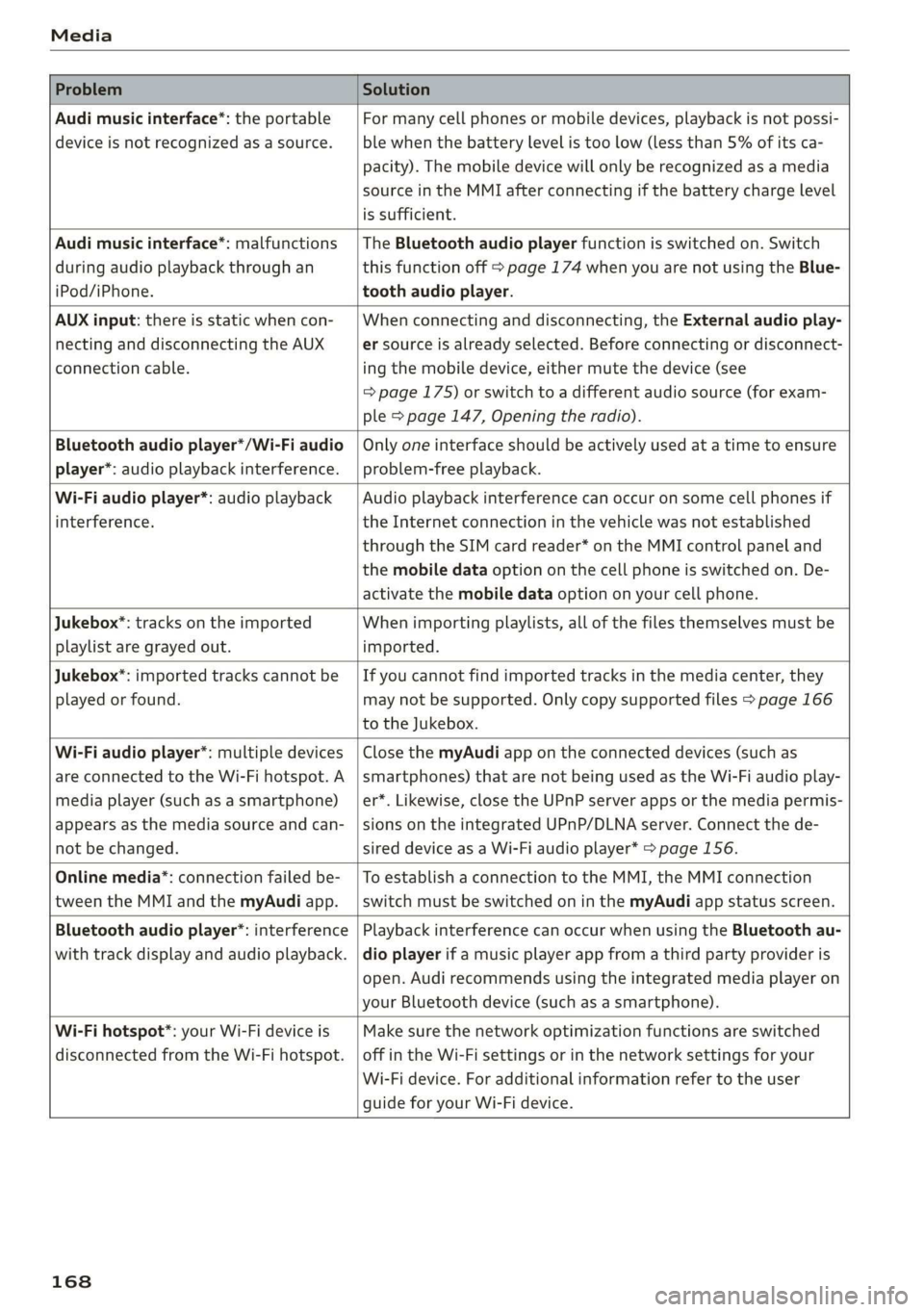
Media
Problem Solution
Audi music interface*: the portable
device is not recognized as a source.
For many cell phones or mobile devices, playback is not possi-
ble when the battery level is too low (less than 5% of its ca-
pacity). The mobile device will only be recognized as a media
source in the MMI after connecting if the battery charge level
is sufficient.
Audi music interface*: malfunctions
during audio playback through an
iPod/iPhone.
The Bluetooth audio player function is switched on. Switch
this function off > page 174 when you are not using the Blue-
tooth audio player.
AUX input: there is static when con-
necting and disconnecting the AUX
connection cable.
When connecting and disconnecting, the External audio play-
er source is already selected. Before connecting or disconnect-
ing the mobile device, either mute the device (see
=> page 175) or switch to a different audio source (for exam-
ple > page 147, Opening the radio).
Bluetooth audio player*/Wi-Fi audio
player*: audio playback interference.
Only one interface should be actively used at a time to ensure
problem-free playback.
Wi-Fi audio player*: audio playback
interference.
Audio playback interference can occur on some cell phones if
the Internet connection in the vehicle was not established
through the SIM card reader* on the MMI control panel and
the mobile data option on the cell phone is switched on. De-
activate the mobile data option on your cell phone.
Jukebox®*: tracks on the imported
playlist are grayed out.
When importing playlists, all of the files themselves must be
imported.
Jukebox*: imported tracks cannot be
played or found.
If you cannot find imported tracks in the media center, they
may not be supported. Only copy supported files > page 166
to the Jukebox.
Wi-Fi audio player*: multiple devices
are connected to the Wi-Fi hotspot. A
media player (such as a smartphone)
appears as the media source and can-
not be changed.
Close the myAudi app on the connected devices (such as
smartphones) that are not being used as the Wi-Fi audio play-
er*. Likewise, close the UPnP server apps or the media permis-
sions on the integrated UPnP/DLNA server. Connect the de-
sired device as a Wi-Fi audio player* > page 156.
Online media*: connection failed be-
tween the MMI and the myAudi app.
To establish a connection to the MMI, the MMI connection
switch must be switched on in the myAudi app status screen.
Bluetooth audio player": interference
with track display and audio playback.
Playback interference can occur when using the Bluetooth au-
dio player if a music player app from a third party provider is
open. Audi recommends using the integrated media player on
your Bluetooth device (such as a smartphone).
Wi-Fi hotspot*: your Wi-Fi device is
disconnected from the Wi-Fi hotspot.
Make sure the network optimization functions are switched
off in the Wi-Fi settings or in the network settings for your
Wi-Fi device. For additional information refer to the user
guide for your Wi-Fi device.
168