lock AUDI TT ROADSTER 2019 Owner's Guide
[x] Cancel search | Manufacturer: AUDI, Model Year: 2019, Model line: TT ROADSTER, Model: AUDI TT ROADSTER 2019Pages: 304, PDF Size: 80.77 MB
Page 66 of 304
Driving
— If the vehicle does not move in the desired
direction, the system may not have engaged
the drive position correctly. Press the brake
pedal and select the drive position again.
— If the vehicle still does not move in the de-
sired direction, there is a system malfunc-
tion. See an authorized Audi dealer or au-
thorized Audi Service Facility for assistance
to have the system checked.
The transmission shifts up and down automati-
cally when in the driving gears.
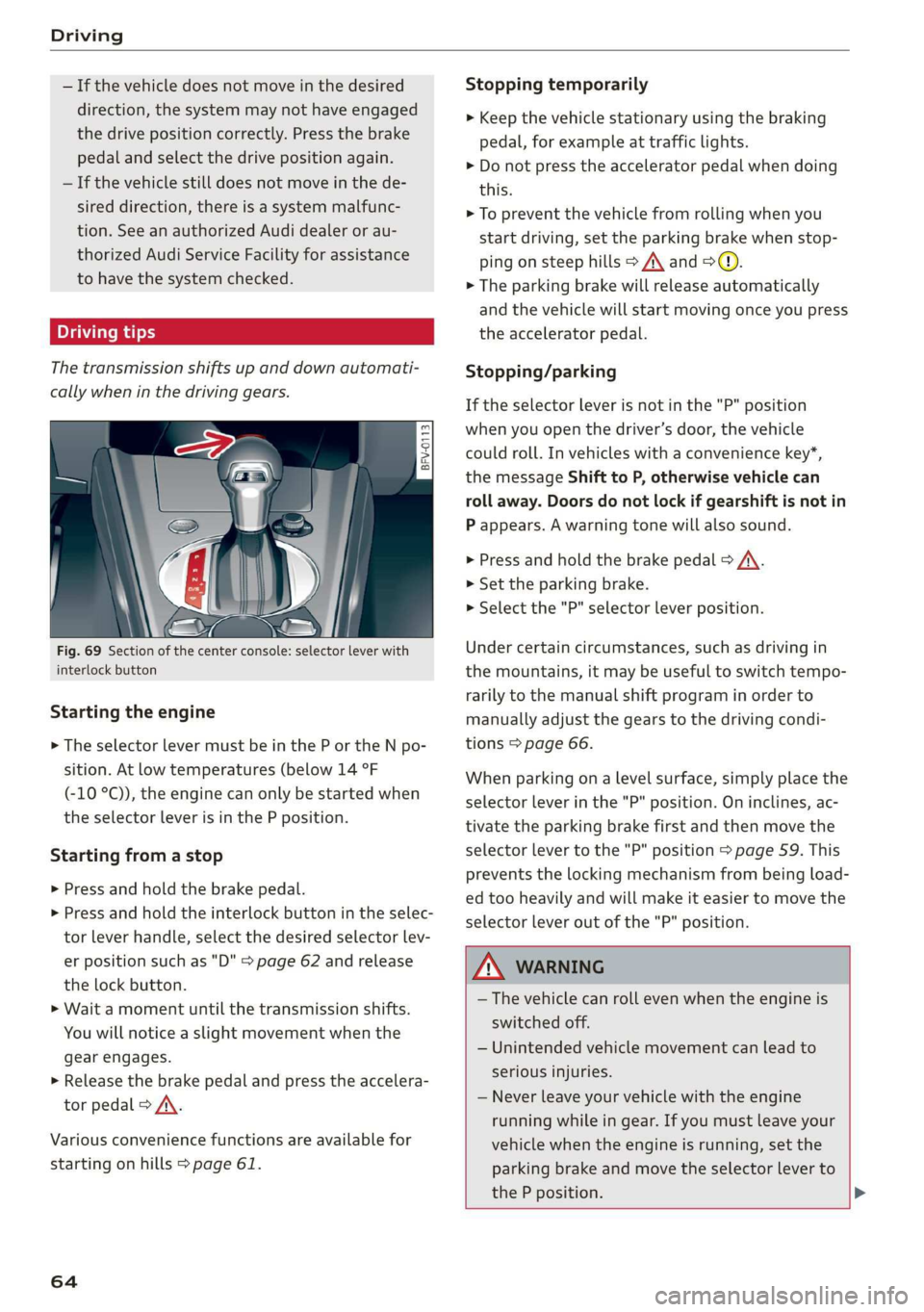
Fig. 69 Section of the center console: selector lever with
interlock button
Starting the engine
> The selector lever must be in the P or the N po-
sition. At low temperatures (below 14 °F
(-10 °C)), the engine can only be started when
the selector lever is in the P position.
Starting from a stop
> Press and hold the brake pedal.
> Press and hold the interlock button in the selec-
tor lever handle, select the desired selector lev-
er position such as "D" > page 62 and release
the lock button.
> Wait a moment until the transmission shifts.
You will notice a slight movement when the
gear engages.
> Release the brake pedal and press the accelera-
tor pedal > A\.
Various convenience functions are available for
starting on hills > page 61.
64
Stopping temporarily
> Keep the vehicle stationary using the braking
pedal, for example at traffic lights.
> Do not press the accelerator pedal when doing
this.
> To prevent the vehicle from rolling when you
start driving, set the parking brake when stop-
ping on steep hills > A\ and >@.
> The parking brake will release automatically
and the vehicle will start moving once you press
the accelerator pedal.
Stopping/parking
If the selector lever is not in the "P" position
when you open the driver’s door, the vehicle
could roll. In vehicles with a convenience key*,
the message Shift to P, otherwise vehicle can
roll away. Doors do not lock if gearshift is not in
P appears. A warning tone will also sound.
> Press and hold the brake pedal > A\.
>» Set the parking brake.
> Select the "P" selector lever position.
Under certain circumstances, such as driving in
the mountains, it may be useful to switch tempo-
rarily to the manual shift program in order to
manually adjust the gears to the driving condi-
tions > page 66.
When parking ona level surface, simply place the
selector lever in the "P" position. On inclines, ac-
tivate the parking brake first and then move the
selector lever to the "P" position > page 59. This
prevents the locking mechanism from being load-
ed too heavily and will make it easier to move the
selector lever out of the "P" position.
ZA WARNING
— The vehicle can roll even when the engine is
switched off.
— Unintended vehicle movement can lead to
serious injuries.
— Never leave your vehicle with the engine
running while in gear. If you must leave your
vehicle when the engine is running, set the
parking brake and move the selector lever to
the P position. >
Page 67 of 304
8S8012721BA
Driving
— Power is still transferred to the wheels when
the engine is running at idle. To prevent the
vehicle from “creeping”, you must keep your
foot on the brake when the engine is run-
ning and the selector lever is in the "D", "S"
or "R" position or “tiptronic” mode is select-
ed.
— Do not inadvertently press the accelerator
pedal when the vehicle is stationary. Other-
wise the vehicle will start to move immedi-
ately, even if the parking brake is set. This
could result in a crash.
— Do not press the accelerator pedal when
changing the selector lever position while
the vehicle is stationary and the engine is
running.
— Never engage the R or P selector level posi-
tions while driving. It could cause a crash.
— Before driving down a steep slope, reduce
your speed and shift into a lower gear with
“tiptronic”.
— Do not ride the brakes or press the brake
pedal
too often or too long when driving
downhill. Constant braking causes the
brakes to overheat and can substantially re-
duce braking performance, increase braking
distance, or cause complete failure of the
brake system.
— If you must stop on an incline, always hold
the vehicle in place with the foot brake or
parking brake to prevent it from rolling
back.
— Never hold the vehicle on an incline with a
slipping clutch. The clutch opens automati-
cally when it becomes too hot from the over-
load. The | indicator light turns on and a
message appears > page 67 when the
clutch is overloaded.
— If the engine must run while you are work-
ing in the engine compartment with the
hood open, make sure a gear is not engaged.
The selector lever must be firmly in the
P position and locked in place and the park-
ing brake must be set > page 227. Other-
wise, the vehicle could begin moving when
increasing the engine speed, even with the
parking brake set.
CG) Note
— When stopping on an incline, do not try to
hold the vehicle in place by pressing the ac-
celerator pedal while a driving gear is se-
lected. This can cause the automatic trans-
mission to overheat and can damage it. Set
the parking brake or press the brake pedal
to prevent the vehicle from rolling.
— Allowing the vehicle to roll when the engine
is stopped and the selector lever is in the N
position will damage the automatic trans-
mission because it is not lubricated under
those circumstances.
— The transmission can overheat and be dam-
aged under certain driving and traffic condi-
tions such as frequent starts, creeping for a
long time, or stop-and-go traffic. When the
fs} or & indicator light turns on, stop the
vehicle at the next opportunity and let the
transmission cool > page 67.
— Allowing the vehicle to roll when the engine
is stopped will damage the S tronic trans-
mission because it is not lubricated
=> page 274, Towing.
@) Tips
For safety reasons, the parking brake is re-
leased automatically only when the driver's
safety belt is fastened.
Hill descent control
The hill descent control system assists the driver
when driving down hills.
Hill descent control is activated when the selec-
tor lever is in the "D" or "S" position and you
press the brake pedal. The transmission automat-
ically selects a gear that is suitable for the hill.
Hill descent control tries to maintain the speed
that was selected at the time of braking, within
physical and technical limitations. If may still be
necessary to adjust the speed with the brakes.
Because hill descent control cannot shift down
farther than 3rd gear, it may be necessary to shift
into tiptronic mode in very steep areas. In this
65
>
Page 71 of 304
8S58012721BA
Driving
ZA WARNING
— The parking lock may only be released using
the emergency release if the parking brake
is set. If it is not working, secure the vehicle
from rolling using the brake pedal or other
suitable means, such as blocking a front and
a rear wheel. An unsecured vehicle may roll
away, which increases the risk of an acci-
dent.
— Only activate the emergency release while
ona level surface or a slight slope.
—To reduce the risk of an accident, you must
not drive when the emergency release is ac-
tivated.
Trailer towing
General information
Your Audi is not designed to tow a trailer.
Towing a trailer with your Audi is not recom-
mended and can cause damage to the car. Dam-
aged caused by towing a trailer is not covered by
your Audi Warranty.
69
Page 73 of 304
![AUDI TT ROADSTER 2019 Owners Guide 8S58012721BA
Assist systems
> To switch the system on, pull the lever toward
you to position @).
The Gig or (§] indicator light and the corre-
sponding message will appear in the instrument](/img/6/57667/w960_57667-72.png "AUDI TT ROADSTER 2019 Owners Guide 8S58012721BA
Assist systems
> To switch the system on, pull the lever toward
you to position @).
The Gig or (§] indicator light and the corre-
sponding message will appear in the instrument")
8S58012721BA
Assist systems
> To switch the system on, pull the lever toward
you to position @).
The Gig or (§] indicator light and the corre-
sponding message will appear in the instrument
cluster.
Z\ WARNING
If the brakes are malfunctioning (for example,
overheating) while the cruise control system
is switched on, it may shut off automatically.
Preselecting or activating a cruise control
ry ey-t-fe)
Applies to: vehicles with cruise control system
When the vehicle is stationary, you can preselect
the cruise control speed or activate the speed
while driving.
Requirement: the system must be switched on.
> To preselect a cruise control speed when the ve-
hicle is stationary, tap the lever toward @)/G)
=> page 70, fig. 74.
> To activate the cruise control speed, pull the
lever toward position @ while driving, or
> To set the current driving speed as the cruise
control speed, press the button () on the lever.
The active cruise control speed is indicated with
the ICRUISE| or BS indicator light in the instrument
cluster.
Changing the cruise control speed
Applies to: vehicles with cruise control system
> To increase or decrease the cruise control speed
in small increments, tap the lever up to the
first level toward @/@) > page 70, fig. 74.
> To increase or decrease the cruise control speed
in larger increments, tap the lever up to the
second level toward @)/G).
> To increase or decrease the cruise control speed
continuously, tap and hold the lever at the first
or second level toward (#)/G).
Overriding or deactivating the cruise
control speed
Applies to: vehicles with cruise control system
You can override or deactivate the cruise control
system. When you deactivate the system, your
cruise control speed will be stored and you can
resume that speed.
Requirement: the system must be switched on
and activated.
Overriding
> To temporarily override the cruise control
speed, press the accelerator pedal.
> Once you release the accelerator pedal, the sys-
tem will adjust back to the stored cruise control
speed.
If you override the cruise control system for a
long period of time, the cruise control system
will be deactivated. The system indicator light
will turn off and the cruise control speed will be
stored.
Deactivating
> To deactivate the cruise control speed, press
the lever toward (2) (not locked into place)
=> page 70, fig. 74.
> Press the brake pedal.
Z\ WARNING
Resting your foot on the accelerator pedal
could override the cruise control. This will pre-
vent braking interventions by the system.
Siem eel
Applies to: vehicles with cruise control system
When you switch the system off completely, the
cruise control speed will be deleted.
Requirement: the system must be switched on.
> To switch the system off, press the lever toward
@ (locked into place) > page 70, fig. 74, or
> Switch the ignition off.
71
Page 85 of 304
8S8012721BA
Parking aid
General information
Applies to: vehicles with rearview camera
oO m q
2 > z
oO
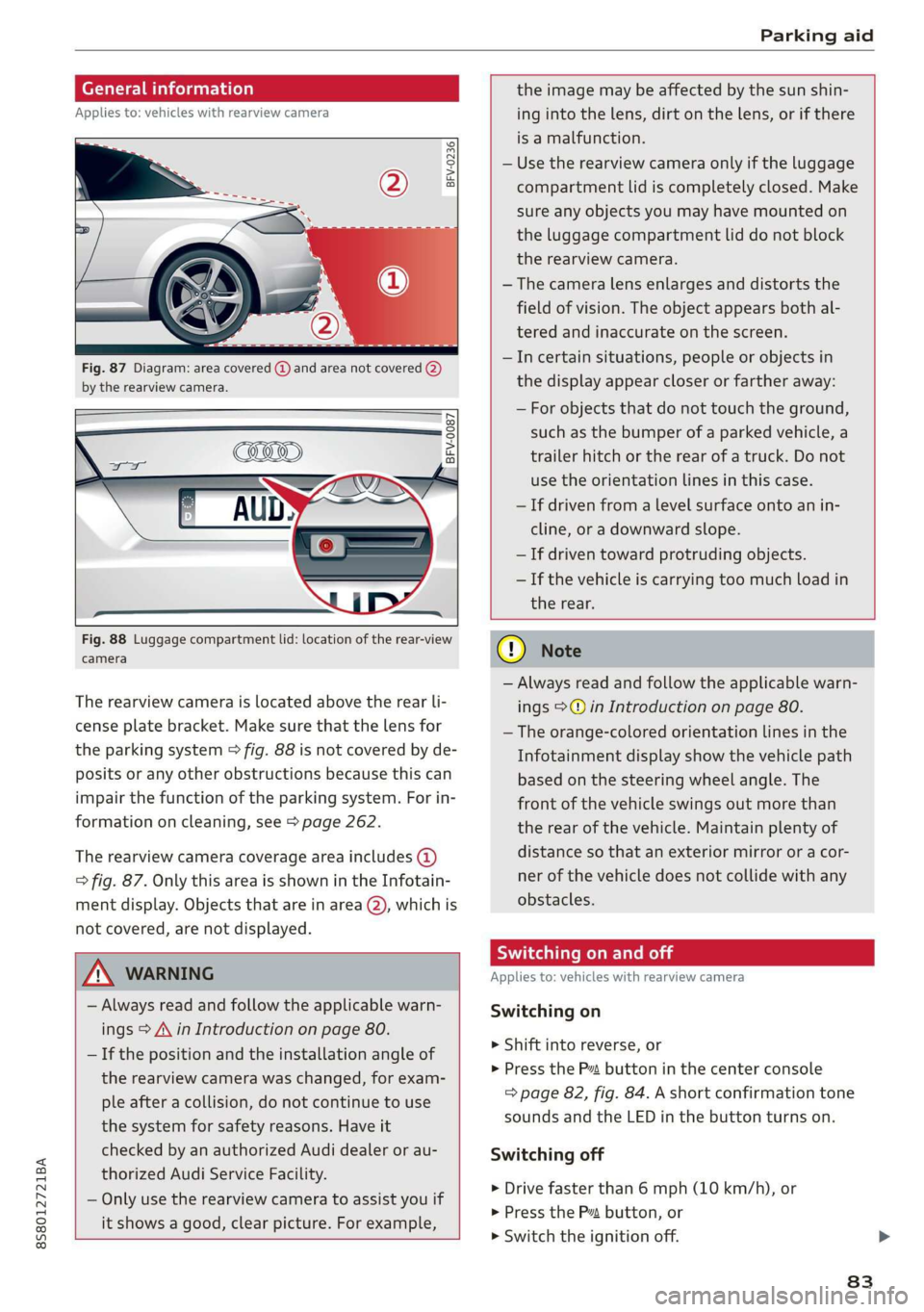
Fig. 87 Diagram: area covered @) and area not covered (2)
by the rearview camera.
BFV-0087
the image may be affected by the sun shin-
ing into the lens, dirt on the lens, or if there
is a malfunction.
— Use the rearview camera only if the luggage
compartment lid is completely closed. Make
sure any objects you may have mounted on
the luggage compartment lid do not block
the rearview camera.
— The camera lens enlarges and distorts the
field of vision. The object appears both al-
tered and inaccurate on the screen.
—Incertain situations, people or objects in
the display appear closer or farther away:
— For objects that do not touch the ground,
such as the bumper of a parked vehicle, a
trailer hitch or the rear of a truck. Do not
use the
orientation lines in this case.
—If driven from a level surface onto an in-
cline, or a downward slope.
— If driven toward protruding objects.
— If the vehicle is carrying too much load in
Fig. 88 Luggage compartment lid: location of the rear-view
camera
The rearview camera is located above the rear li-
cense plate bracket. Make sure that the lens for
the parking system > fig. 88 is not covered by de-
posits or any other obstructions because this can
impair the function of the parking system. For in-
formation on cleaning, see > page 262.
The rearview camera coverage area includes (4)
=> fig. 87. Only this area is shown in the Infotain-
ment display. Objects that are in area (2), which is
not covered, are not displayed.
ZA\ WARNING
— Always read and follow the applicable warn-
ings > A\ in Introduction on page 80.
— If the position and the installation angle of
the rearview camera was changed, for exam-
ple after a collision, do not continue to use
the system for safety reasons. Have it
checked by an authorized Audi dealer or au-
thorized Audi Service Facility.
— Only use the rearview camera to assist you if
it shows a good, clear picture. For example,
the rear.
CG) Note
— Always read and follow the applicable warn-
ings >@ in Introduction on page 80.
— The orange-colored orientation lines in the
Infotainment display show the vehicle path
based on the steering wheel angle. The
front
of the vehicle swings out more than
the rear of the vehicle. Maintain plenty of
distance so that an exterior mirror or a cor-
ner of the vehicle does not collide with any
obstacles.
Scale Le molal
Applies to: vehicles with rearview camera
Switching on
> Shift into reverse, or
> Press the P™ button in the center console
=> page 82, fig. 84. A short confirmation tone
sounds and the LED in the button turns on.
Switching off
>» Drive faster than 6 mph (10 km/h), or
> Press the Pv button, or
>» Switch the ignition off.
83
Page 88 of 304
Intelligent Technology
Intelligent Technology
Electronic stabilization
control (ESC)
Electronic Stabilization Control (ESC) supports
driver safety. It reduces the risk of slipping and
improves driving stability. ESC detects critical sit-
uations such as the vehicle oversteering and un-
dersteering or the wheels are spinning. The
brakes are applied or the engine torque is re-
duced in order to stabilize the vehicle. When the
ESC engages, the B indicator light blinks in the
instrument cluster.
The following systems are integrated in the ESC:
Anti-lock braking system (ABS)
ABS prevents the wheels from locking when brak-
ing. The vehicle can still be steered even during
hard braking. Apply steady pressure to the brake
pedal. Do not pump the pedal. A pulsing in the
brake pedal indicates that the system is acting to
stabilize the vehicle.
Brake assist system
The brake assist system can decrease braking dis-
tance. It increases braking power when the driver
presses the brake pedal quickly in emergency sit-
uations. You must press and hold the brake pedal
until the dangerous situation is over.
Anti-Slip Regulation (ASR)
ASR reduces drive power when the drive wheels
begin spinning and adapts the power to the road
conditions. This makes it easier to start, acceler-
ate and drive up hills.
Electronic Differential Lock (EDL)
The EDL applies the brakes to wheels that are
slipping and transfers the drive power to the oth-
er wheels. This function is not available at higher
speeds.
In extreme cases, EDL automatically switches off
to keep the brake on the braked wheel from over-
heating. The vehicle is still functioning correctly.
86
EDL will switch on again automatically when con-
ditions have returned to normal.
Power steering
The ESC can also support vehicle stability
through steering.
Selective wheel torque control
Selective wheel torque control is used when driv-
ing on curves. Braking is targeted toward the
wheels on the inside of the curve as needed. This
allows more precise driving in curves.
Automatic post-collision braking system
The automatic post-collision braking system can
help to reduce the risk of sliding and of addition-
al collisions after an accident. If the airbag con-
trol module detects a collision above a certain ve-
hicle speed, the vehicle is braked by the ESC.
The vehicle does not brake automatically if one of
the following occurs:
— The driver presses the accelerator pedal
—The braking force generated by the pressed
brake pedal is greater than the braking force
that would be initiated by the system
— The ESC, the brake system, or the vehicle elec-
trical system is not functioning
ZA WARNING
— The ESC and its integrated systems cannot
overcome the limits imposed by natural
physical laws. This is especially important on
slippery or wet roads. If the systems begin
acting to stabilize your vehicle, you should
immediately alter your speed to match the
road and traffic conditions. Do not let the in-
creased safety provided tempt you into tak-
ing risks. This could increase your risk of a
collision.
— Please note the risk of a collision increases
when driving fast, especially through curves
and on slippery or wet roads, and when driv-
ing too close to objects ahead. The ESC and
its integrated systems cannot always pre-
vent collisions - there is still a risk of acci-
dents!
Page 93 of 304
8S8012721BA
Intelligent Technology
ZA\ WARNING
Improper operation of the rear spoiler can
cause crushing injuries.
— Always make sure that nobody, especially
children, is in the way when the rear spoiler
is deployed or retracted.
() Note
— Never push on the vehicle on the rear spoil-
er. This could cause damage.
— To prevent damage to the rear spoiler do
not lean or place anything on it.
— Only operate the rear spoiler manually when
the luggage compartment lid is close and
the rear spoiler moving parts are not
blocked. Otherwise, damage could occur.
@ Tips
Clean the rear spoiler compartment every 2 to
3 months. To function correctly, the rear
spoiler must be free of ice, snow and leaves.
Energy management
Your vehicle is equipped with an intelligent ener-
gy management system for distributing electrici-
ty. This significantly improves the starting ability
and increases the vehicle battery life.
@ Tips
— If you drive short distances frequently, the
vehicle battery may not charge enough
while driving. As a result, convenience func-
tions for electrical equipment may be tem-
porarily unavailable.
— The vehicle battery will gradually drain if
the vehicle is not driven for long periods of
time, or if electrical equipment is used
when the engine is not running. To ensure
that the vehicle can still be started, the
electrical equipment will be limited or
switched off.
Information about data
recorded by vehicle
control modules
Your vehicle is not equipped with a crash data re-
corder. This device is installed by some vehicle
manufacturers to record data about crashes so
that it can be analyzed later. Crash data recorders
are also called “Event Data Recorders (EDR)”.
In some legal jurisdictions, it is not permitted to
access or download data recorded by pre-instal-
led crash data recorders in order to evaluate a
crash without clear consent of the vehicle owner.
Your vehicle is not equipped with a crash data re-
corder. However it does contain a variety of elec-
tronic control modules for various vehicle sys-
tems such as engine function, exhaust treatment
or airbags and safety belts.
These electronic control modules record vehicle
data during normal driving for diagnosis and re-
pair purposes. The recording capability of the
electronic control modules is limited to data only
- no sound is recorded. If the control module de-
tects a system malfunction or other change in
status, a very limited amount of data is recorded
for an extremely small period of time. Data that
is recorded in such a case may include vehicle
speed, driving direction, the load on the brakes
and head restraints and performance in the event
of an accident or other change in status. The stor-
ed data can only be read or downloaded with spe-
cial devices.
91
Page 110 of 304
Voice recognition system
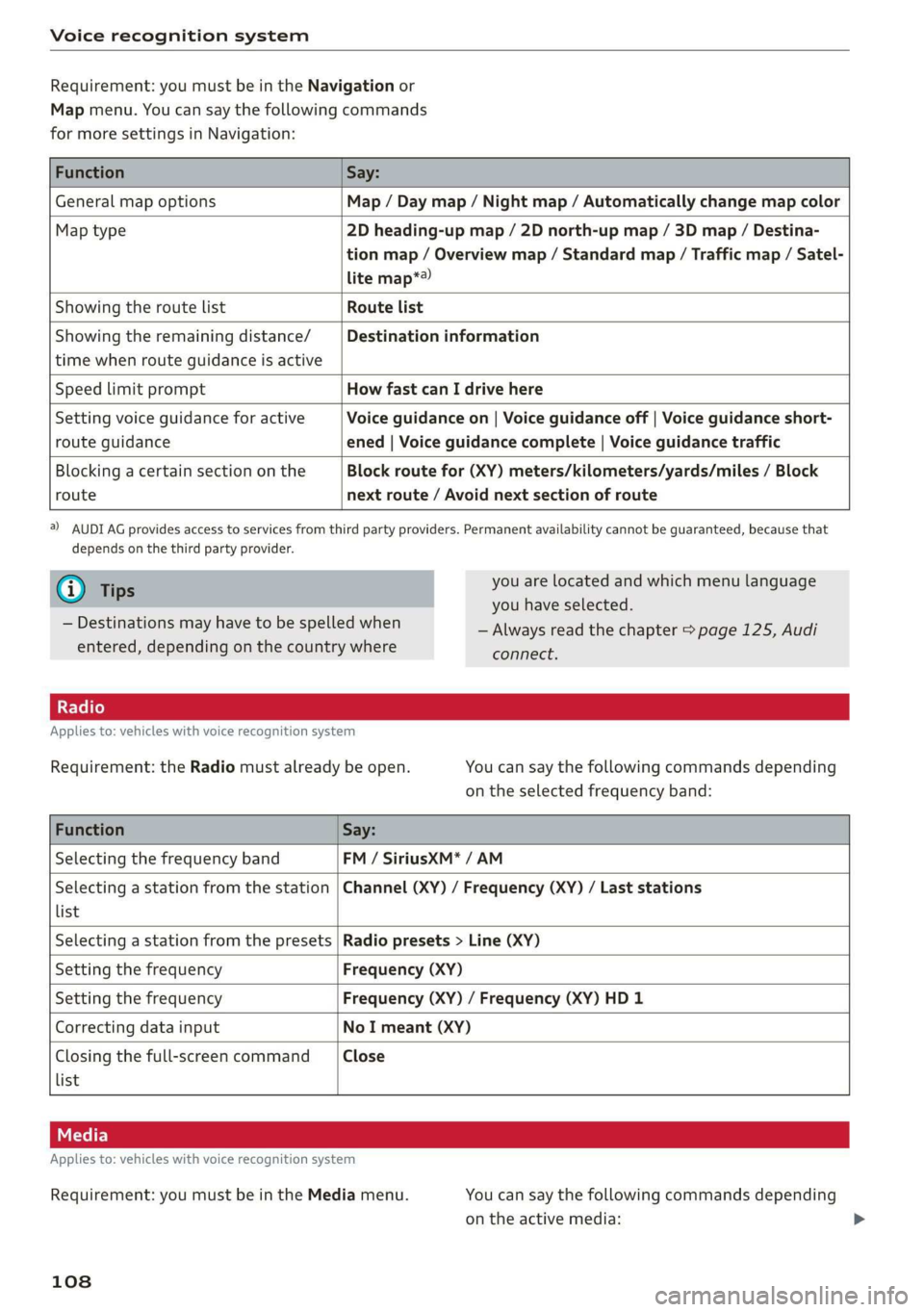
Requirement: you must be in the Navigation or
Map menu. You can say the following commands
for more settings in Navigation:
Function Say:
General map options Map / Day map / Night map / Automatically change map color
Map type 2D heading-up map / 2D north-up map / 3D map / Destina-
tion map / Overview map / Standard map / Traffic map / Satel-
lite map*?
Showing the route list Route list
Showing the remaining distance/ Destination information
time when route guidance is active
Speed limit prompt How fast can I drive here
Setting voice guidance for active Voice guidance on | Voice guidance off | Voice guidance short-
route guidance ened | Voice guidance complete | Voice guidance traffic
Blocking a certain section on the Block route for (XY) meters/kilometers/yards/miles / Block
route next route / Avoid next section of route
a) AUDI AG provides access to services from third party providers. Permanent availability cannot be guaranteed, because that
depends on the third party provider.
@) Tips you are located and which menu language
= you have selected.
— Always read the chapter > page 125, Audi
connect.
— Destinations may have to be spelled when
entered, depending on the country where
Applies to: vehicles with voice recognition system
Requirement: the Radio must already be open. You can say the following commands depending
on the selected frequency band:
Function Say:
Selecting the frequency band FM / SiriusXM* / AM
Selecting a station from the station | Channel (XY) / Frequency (XY) / Last stations
list
Selecting a station from the presets | Radio presets > Line (XY)
Setting the frequency Frequency (XY)
Setting the frequency Frequency (XY) / Frequency (XY) HD 1
Correcting data input No I meant (XY)
Closing the full-screen command Close
list
Applies to: vehicles with voice recognition system
Requirement: you must be in the Media menu. You can say the following commands depending
on the active media:
108
Page 160 of 304
Always follow the information found in >@ in
General information on page 125.
@ Tips
— Depending on the Internet connection and
network traffic, the connection may discon-
nected when online media sources are play-
ing.
— Online media and Internet radio usage de-
pends on the service availability of the third
party provider.
— Audi AG simply makes the access to online
media services possible through the MMI
and does not take any responsibility for the
contents of the online media services.
— Always read the chapter > page 125, Audi
connect.
— Depending on the mobile device being used,
there may be interruptions during media
playback and when using the myAudi app.
To prevent interruptions when using a mo-
bile device, do not lock the screen on your
mobile device and keep the myAudi app in
the foreground.
— Contact an authorized Audi dealer or au-
thorized Audi Service Facility for additional
information about online media.
158
Multimedia connections
USB adapter for Audi music interface or
USB charging port
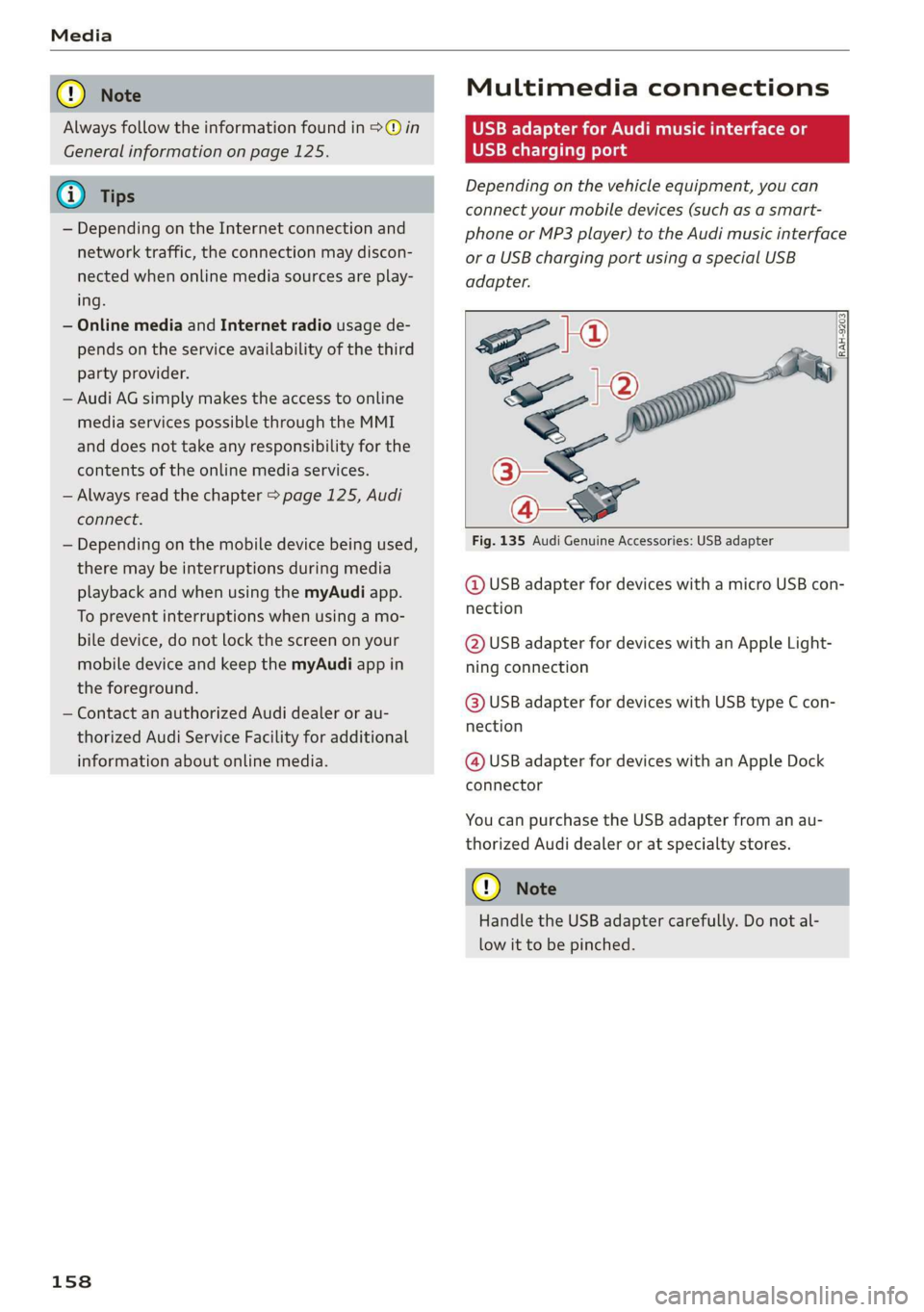
Depending on the vehicle equipment, you can
connect your mobile devices (such as a smart-
phone or MP3 player) to the Audi music interface
or a USB charging port using a special USB
adapter.
[RAH-9203]
Fig. 135 Audi Genuine Accessories: USB adapter
@ USB adapter for devices with a micro USB con-
nection
@ USB adapter for devices with an Apple Light-
ning connection
@ USB adapter for devices with USB type C con-
nection
@ USB adapter for devices with an Apple Dock
connector
You can purchase the USB adapter from an au-
thorized Audi dealer or at specialty stores.
C) Note
Handle the USB adapter carefully. Do not al-
low it to be pinched.
Page 167 of 304
8S58012721BA
Media
Audio track!)
You can manually set the audio track (language
and audio format). The language and audio for-
mat options depend on the video DVD.
Subtitles!)
You can manually select subtitles for playback.
The languages available depend on the DVD.
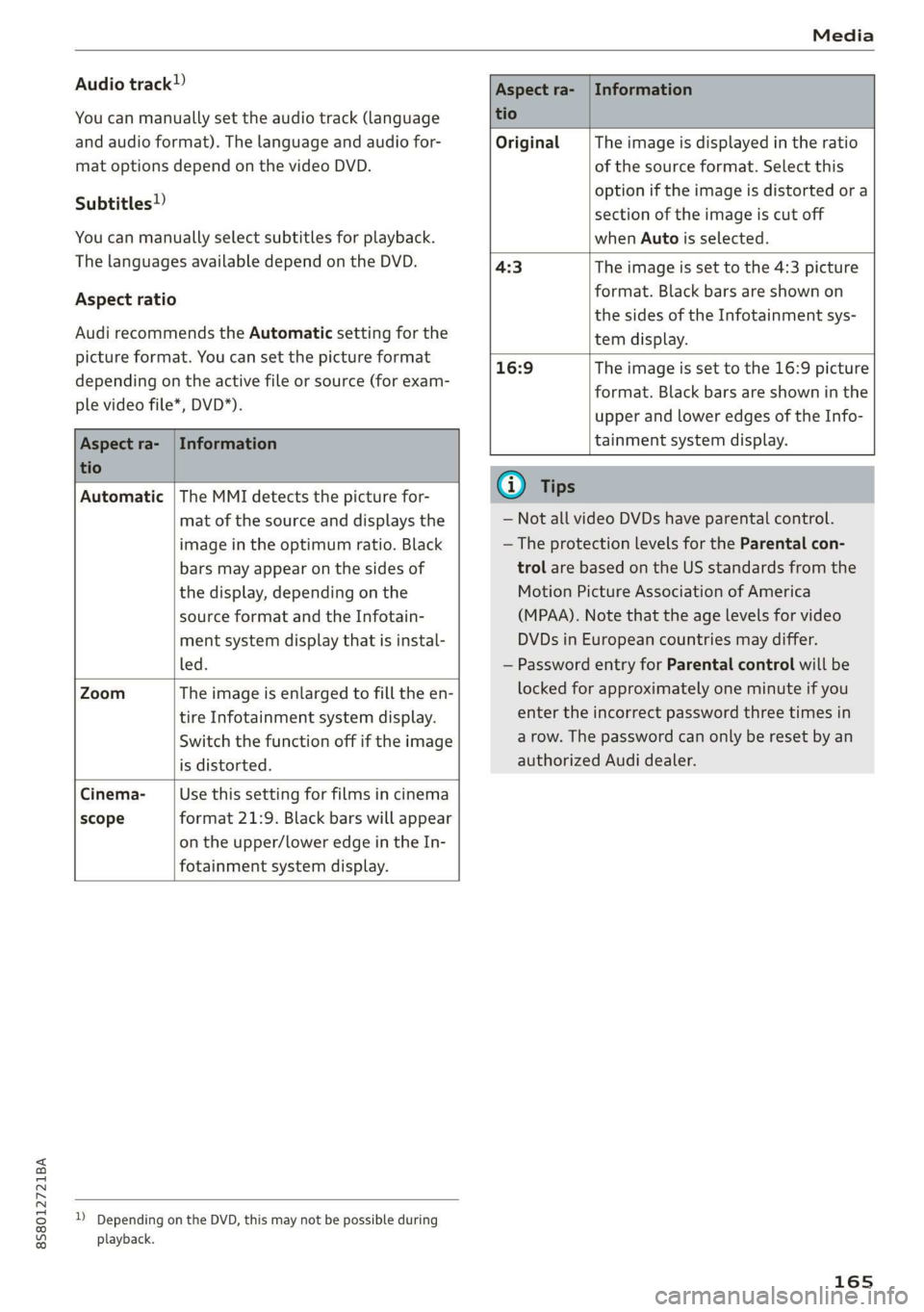
Aspect ratio
Audi recommends the Automatic setting for the
picture format. You can set the picture format
depending on the active file or source (for exam-
ple video file*, DVD*).
Aspect ra- | Information
tio
Original The image is displayed in the ratio
of the source format. Select this
option if the image is distorted ora
section of the image is cut off
when Auto is selected.
4:3 The image is set to the 4:3 picture
format. Black bars are shown on
the sides of the Infotainment sys-
tem display.
Aspect ra- | Information
tio
16:9 The image is set to the 16:9 picture
format. Black bars are shown in the
upper and lower edges of the Info-
tainment system display.
Automatic |The MMI detects the picture for-
mat of the source and displays the
image in the optimum ratio. Black
bars may appear on the sides of
the display, depending on the
source format and the Infotain-
ment system display that is instal-
led.
Zoom The image is enlarged to fill the en-
tire Infotainment system display.
Switch the function off if the image
is distorted.
Cinema- Use this setting for films in cinema
scope format 21:9. Black bars will appear
on the upper/lower edge in the In-
fotainment system display.
D Depending on the DVD, this may not be possible during
playback.
@ Tips
— Not all video DVDs have parental control.
— The protection levels for the Parental con-
trol are based on the US standards from the
Motion Picture Association of America
(MPAA). Note that the age levels for video
DVDs in European countries may differ.
— Password entry for Parental control will be
locked for approximately one minute if you
enter the incorrect password three times in
a row. The password can only be reset by an
authorized Audi dealer.
165