bluetooth AUDI TT ROADSTER 2019 Owners Manual
[x] Cancel search | Manufacturer: AUDI, Model Year: 2019, Model line: TT ROADSTER, Model: AUDI TT ROADSTER 2019Pages: 304, PDF Size: 80.77 MB
Page 5 of 304
8S58012721BA
Table of contents
Free text search...........-00e eee ee 100
Menus and Symbols...............005 101
Voice recognition system........ 104
Operating..................0..0.00. 103
Command overview information........ 105
Gommans « seis so wee se ew ve we ve 105
Telephone............... cee eee 110
Introduction ; « sees + ¢ sages ¢ ¢ ees ve gees 110
SOtUP ccicors © saorege wo amen a a pera © are © 110
Using the Audi phone box............. 113
Using the telephone.................. 114
FAVORS wins 6 6 avai © 6 sees & 6 aaron © aymes L117
Messages ...........0 000s eee eee eee 117
Listening to voicemail................ 120
Emergency call functions.............. 120
Directory... 2.0... eee 120
SGttinGSincn s « ews 2 e ces 2 eee ¢ aeEE y 122
Safety belt microphone............... 123
Troubleshooting...............000e0e 124
AUR COMMECE wise. 5 5 scsi oc ete se new Ea5
General information..............4.. 125
Audi connect Infotainment............ 125
Audi connect Infotainment services..... 127
SOCEIMGSccc so amwsns =n inwenn © omens o sueneas @ 129
Data Privacy. .... 0.0... cee eee ee eee 130
Troubleshooting sass ¢ ¢ cee « + eeny & + eee 131
Navigation.....................44. T32
Opening navigation...............05. 132
Entering a destination................ 133
Home address.............00.00 2005 138
PAVOTIteS ocx « x nous o 5 nese y 5 eee 2 eee 138
Directory contactsiv. ¢ sss ¢ sees 9 6 save 138
Additional settings ...............00. 138
Ma Bisse » = sues ¢ 2 satus x sae: 5 2 es x 140
Satellitemap's « 6 cess 2s wows 2 eawn oo wrens 143
Accessing traffic information.......... 143
Troubleshooting sass ss eee ss ees ss ees 146
FRG a cexcces 5 crsncnere anenams @ © cnwees «anim 147
Opening the radio................... 147
Radio functions. =. cces s seve: ween s 148
Radio menu... .... eee eee eee 149
Presets .... 0.0... cece cece eee eee 149
Additional settings................0. 150
Troubleshooting. ..............0e0 eee 151
PRS wise as woven ae asa a & einem © & ssn 152
Introduction...................0000. 152
NGS = siuen « # sane 5} aun 3 7 cere Fs ee 152
Mediadrivesis « scsi 2 2 ssc ss ween se aioe 153
Bluetooth audio player............... 155
Wi-Fi audio player 156
Online media and Internet radio........ 157
Multimedia connections.............. 158
Playing media..............2..2.002. 160
Additional settings...............005 163
Supported media and file formats...... 166
Troubleshooting............0.-.0e eee 167
Audi smartphone interface...... 169
Setup... eee cece eee eee 169
OPGKAtIG’s « x meen + wows us eee 5 Roem 170
Troubleshooting sie xs sisson v samen + 0 cous 170
System settings.................. TFL
Setting the date andtime............. 171
MMT SCECIA GSS. « rsiens + ccareiee © ¥ suisiene ©» ones L71
Connection manager................. 172
SYStEM/UPAALG aca « + wowa s & mesa x e EEE s 174
Sound settings..............-..0005- 175
Volume settings ...........-.0000eeee 175
Restarting the MMI (reset)............ 176
Software license information.......... 176 L77 177 177
Correct passenger seating positions..... 178
Driver and passenger side footwell...... 180
Pedalarea........ 2. cece eee 180
Safety: Belts « seccis ss sews s ween as aes 182
General MOtES:. « versa + «senate © 0 avr 6 6 wears 182
Why safety belts?................000. 183
Safety belts: eacu ss ween ss wees vo ween a 185
Safety belt tensioner................. 187
Airbag system..............00006- 189
Important information............... 189
Front airbags............-...0--000. 193
Monitoring the Advanced Airbag System. 200
Page 103 of 304
8S8012721BA
Multi Media Interface
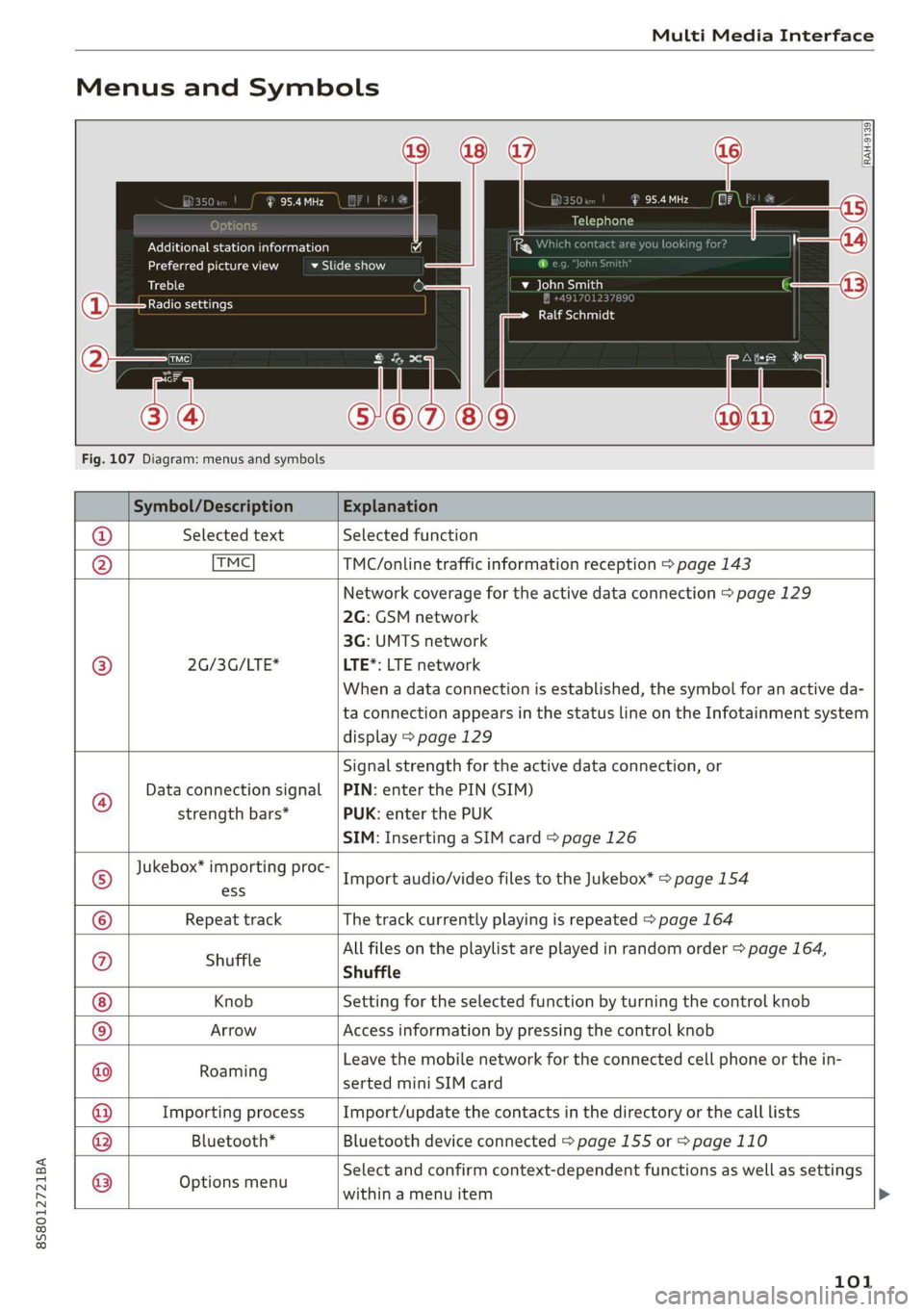
Menus and Symbols
eis
Additional station information
Preferred picture view
Treble
Radio settings
v Slide show
RAH-9139)
ee ard
Telephone
ba oad sa
Ralf Schmidt
Fig. 107 Diagram: menus and symbols
Symbol/Description Explanation
@ Selected text Selected function
@ TMC TMC/online traffic information reception > page 143
Network coverage for the active data connection > page 129
2G: GSM network
3G: UMTS network
® 2G/3G/LTE* LTE*: LTE network
When a data connection is established, the symbol for an active da-
ta connection appears in the status line on the Infotainment system
display > page 129
®
Data connection signal
strength bars*
Signal strength for the active data connection, or
PIN: enter the PIN (SIM)
PUK: enter the PUK
SIM: Inserting a SIM card > page 126
Jukebox* importing proc-
® a Import audio/video files to the Jukebox” > page 154
© Repeat track The track currently playing is repeated > page 164
All files on the playlist are played in random order > page 164,
@ shuffle Shuffle
Knob Setting for the selected function by turning the control knob
© Arrow Access information by pressing the control knob
Rearing Leave the mobile network for the connected cell phone or the in-
serted mini SIM card
Importing process Import/update the contacts in the directory or the call lists
Bluetooth* Bluetooth device connected > page 155 or > page 110
®
|O|©
Options menu
Select and confirm context-dependent functions as well as settings
within a menu item
101
Page 105 of 304
8S58012721BA
Voice recognition system
BAR COMMANDS
RAH-8462|
* Telephone + Favorites a)
+ Audi connect * Call (XY) SDS
* Navigation + Enter number
* Directory * Redial
* Radio * Read new text message
+ Media + Navigate to (XY)
* Sound + Enter address/destination
* Help + Online destinations
+ Help Speech dialog system * Cancel route guidance
* Help Telephone * Map
* Help Audi connect + Line (XY)
* Help Navigation * Next page / previous page
* Help Map * Cancel
* Help Radio * No, I meant (XY)
* Help Media * Correction
TELEPHONE: a
+ Enter number Call list a.
+ Delete number / correction Redial sie
+ Directory Call mailbox
* Call (XY) Enter PIN / delete PIN
* business / private / land line / mobile Telephone favorites
NAVIGATION i
+ Navigate to (XY) + Exclude next route section / Exclude
«Business address / Private address next street
+ Start / cancel route guidance * Route list
+ Directory * Calculate alternative routes
+ Last destinations * Online destinations
+ Navigation favorites * Special destination
+ Drive home
- Enter address
+ Enter country / town / street / state
+ Exclude route / Exclude route for (XY) km /m
MAP.
* Map
* Day map / Night map
* 2D driving position map / 2D north position map / 3D map / Destination map / Overview map
AUDI CONNECT
* Audi connect * Flight information / Train information
* Travel information / Parking information + City events
* Fuel prices * Online news
* Weather + Twitter
+ Radio presets « Jukebox rs}
+ Last stations * CD/DVD MEDIA
*FM + SDcard1/SDcard2
*FM/AM/ SIRIUS XM « Audi music interface / iPod / USB / Bluetooth /
+ Station (XY) / Frequency (XY) Wi-Fi / Medium (XY)
* Traffic announcement on / off * Media favorites / Artists / Albums / Genres /
Tracks / Playlists / Videos
* Folder up
* Random playback on / off
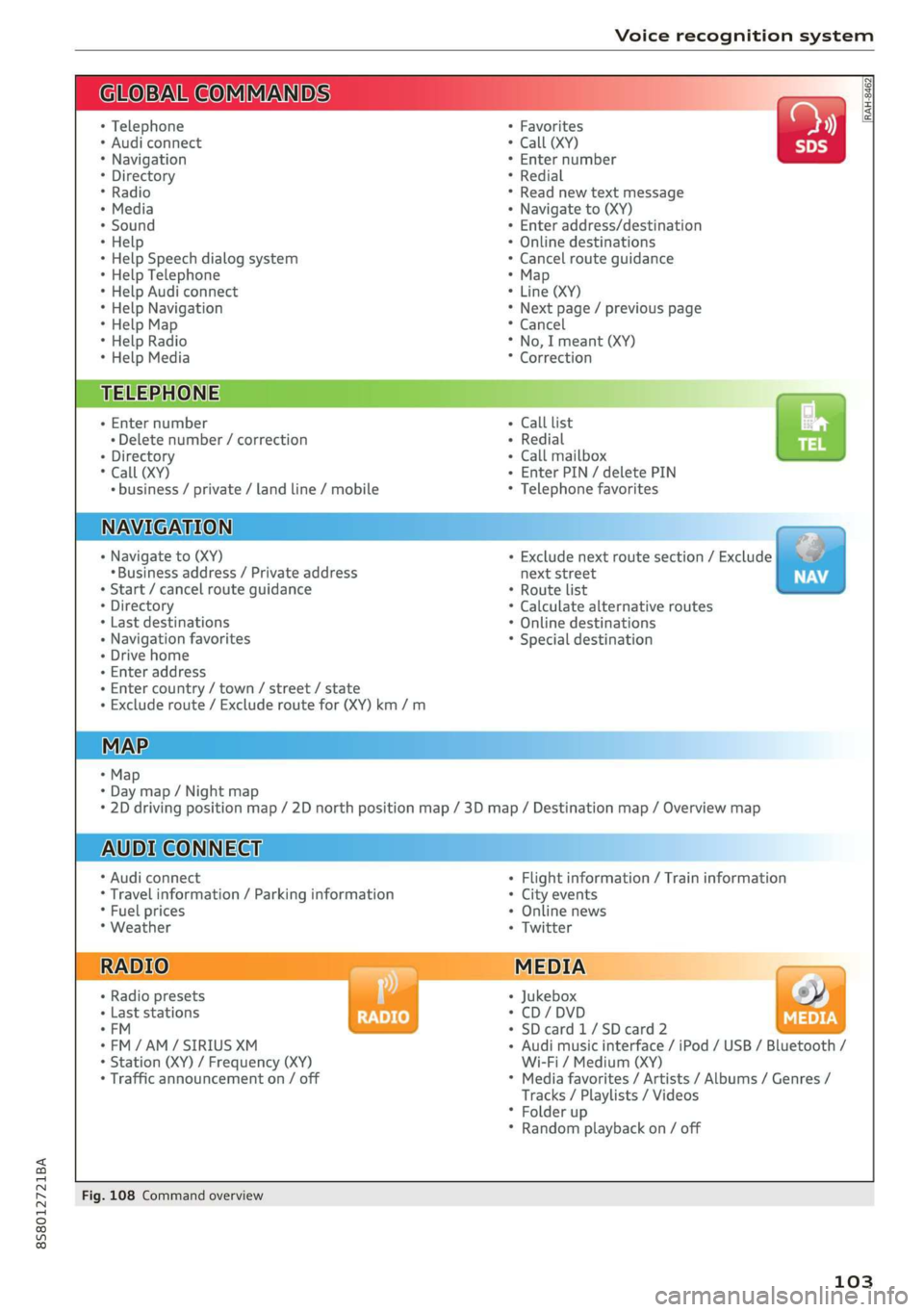
Fig. 108 Command overview
103
Page 108 of 304
Voice recognition system
Function Say:
Call contact in directory Call (XY), for example Call "John Smith"
Selecting a specific contact number Call (XY) business / Private / Landline / Cell phone,
for example, Call "John Smith" private
Selecting a phone number with an
address card open
Call / Call work / Call private / Call landline / Call cell phone
work
Calling a contact from your favor-
ites list
Telephone favorites > after being prompted, say the desired
contact > Dial
Displaying the call list Call list
Calling the last number dialed Redial
Dialing a phone number Enter number > when prompted, say the telephone number in
groups of individual numbers, for example. 888 555 1212 > Di-
al
Correcting the phone number that
was entered
Correction / Delete number
Showing contact information Directory > when prompted, say the desired contact,
such as John Smith
Listening to messages Call voicemail
Entering the PIN (SIM) Enter PIN > when prompted, say the PIN in individual numbers
> Save
Correcting the PIN entry Correction / Delete PIN
Correcting data input No I meant (XY)
Closing the full-screen command
list
Close
G) Tips
— Contacts in the directory can selected using
the full name (“first name last name” and
“last name, first name”) as well as with only
the first or last name. This applies to cell
phones that transmit names separated into
first and last names.
— For more information on supported mobile
devices, visit www.audiusa.com/bluetooth
or contact an authorized Audi dealer or au-
thorized Audi Service Facility.
Applies to: vehicles with voice recognition system and Audi connect
Requirement: the requirements for Audi connect
services must be met > page 125.
Function Say:
Accessing Audi connect services
Audi connect > follow the system prompts.
@) Tips
Always read the chapter > page 125, Audi
connect.
106
Page 111 of 304
8S8012721BA
Voice recognition system
Function Say:
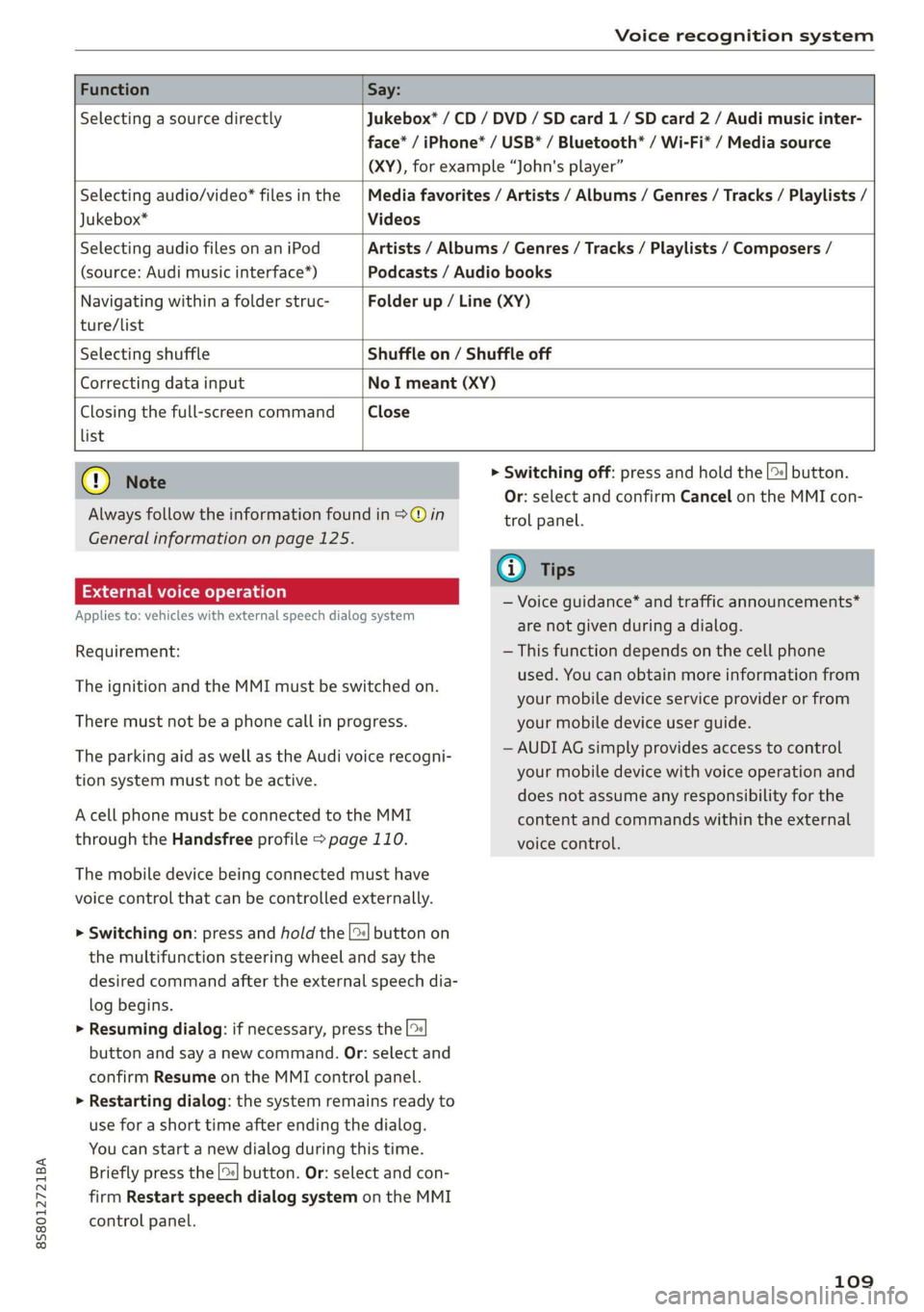
Selecting a source directly Jukebox* / CD / DVD / SD card 1/ SD card 2 / Audi music inter-
face* / iPhone* / USB* / Bluetooth* / Wi-Fi* / Media source
(XY), for example “John's player”
Selecting audio/video* files in the
Jukebox*
Media favorites / Artists / Albums / Genres / Tracks / Playlists /
Videos
Selecting audio files on an iPod
(source: Audi music interface*)
Artists / Albums / Genres / Tracks / Playlists / Composers /
Podcasts / Audio books
Navigating within a folder struc- Folder up / Line (XY)
ture/list
Selecting shuffle Shuffle on / Shuffle off
Correcting data input No I meant (XY)
Closing the full-screen command Close
list
@) Note
Always follow the information found in >@ in
General information on page 125.
External voice operation
Applies to: vehicles with external speech dialog system
Requirement:
The ignition and the MMI must be switched on.
There must not be a phone call in progress.
The parking aid as well as the Audi voice recogni-
tion system must not be active.
A cell phone must be connected to the MMI
through the Handsfree profile > page 110.
The mobile device being connected must have
voice control that can be controlled externally.
> Switching on: press and hold the [>| button on
the multifunction steering wheel and say the
desired command after the external speech dia-
log begins.
> Resuming dialog: if necessary, press the |%
button and say a new command. Or: select and
confirm Resume on the MMI control panel.
> Restarting dialog: the system remains ready to
use for a short time after ending the dialog.
You can start a new dialog during this time.
Briefly press the [2] button. Or: select and con-
firm
Restart speech dialog system on the MMI
control panel.
> Switching off: press and hold the |%] button.
Or: select and confirm Cancel on the MMI con-
trol panel.
G) Tips
— Voice guidance* and traffic announcements*
are not given during a dialog.
— This function depends on the cell phone
used. You can obtain more information from
your mobile device service provider or from
your mobile device user guide.
— AUDI AG simply provides access to control
your mobile device with voice operation and
does not assume any responsibility for the
content and commands within the external
voice control.
109
Page 112 of 304
Telephone
Telephone
Introduction
Applies to: vehicles with telephone
To make phone calls in your vehicle using the
MMI, connect your cell phone to the MMI via
Bluetooth.
Handsfree
After you have connected your mobile device to
the MMI via Bluetooth, you can use the handsfree
system and operate telephone functions through
your MMI. You can make calls using the antenna
on your mobile device.
Z\ WARNING
— Medical experts warn that mobile devices
can interfere with the function of pacemak-
ers. Always maintain a minimum distance of
about 8 inches (20 cm) between the cell
phone antenna and the pacemaker.
— Do not carry the mobile device in a pocket
directly over the pacemaker when the
phone is switched on.
— Switch the mobile device off immediately
if you suspect it may be interfering with
the pacemaker.
— Do not use the voice recognition system*
= page 104 in emergencies because your
voice may change in stressful situations. The
system may take longer to dial the number
or may not be able to dial it at all. Dial the
emergency number manually.
— Switch your mobile device off in areas where
there is a risk of an explosion. These loca-
tions are not always clearly marked. This
may include gas stations, fuel and chemical
storage facilities or transport vehicles, or lo-
cations where fuel vapors (such as propane
or gasoline vapor in vehicles or buildings),
chemicals or large quantities of dust parti-
cles (such as flour, sawdust or metal) may
be present in the air. This also applies to all
other locations where you would normally
turn your vehicle engine off.
— The demands of traffic require your full at-
tention. Always read the chapter > page 92,
Traffic safety information.
110
@) Note
Always follow the information found in >@ in
General information on page 125.
G) Tips
—To learn which Bluetooth connections and
which of the functions in your mobile device
are supported, check with your mobile de-
vice service provider or the database for mo-
bile devices at www.audiusa.com/
bluetooth.
— The Bluetooth connection range is limited
to inside the vehicle. It can also be affected
by local conditions and interference with
other devices.
Setup
Connecting a cell phone using Bluetooth
Applies to: vehicles with telephone
MyPhone
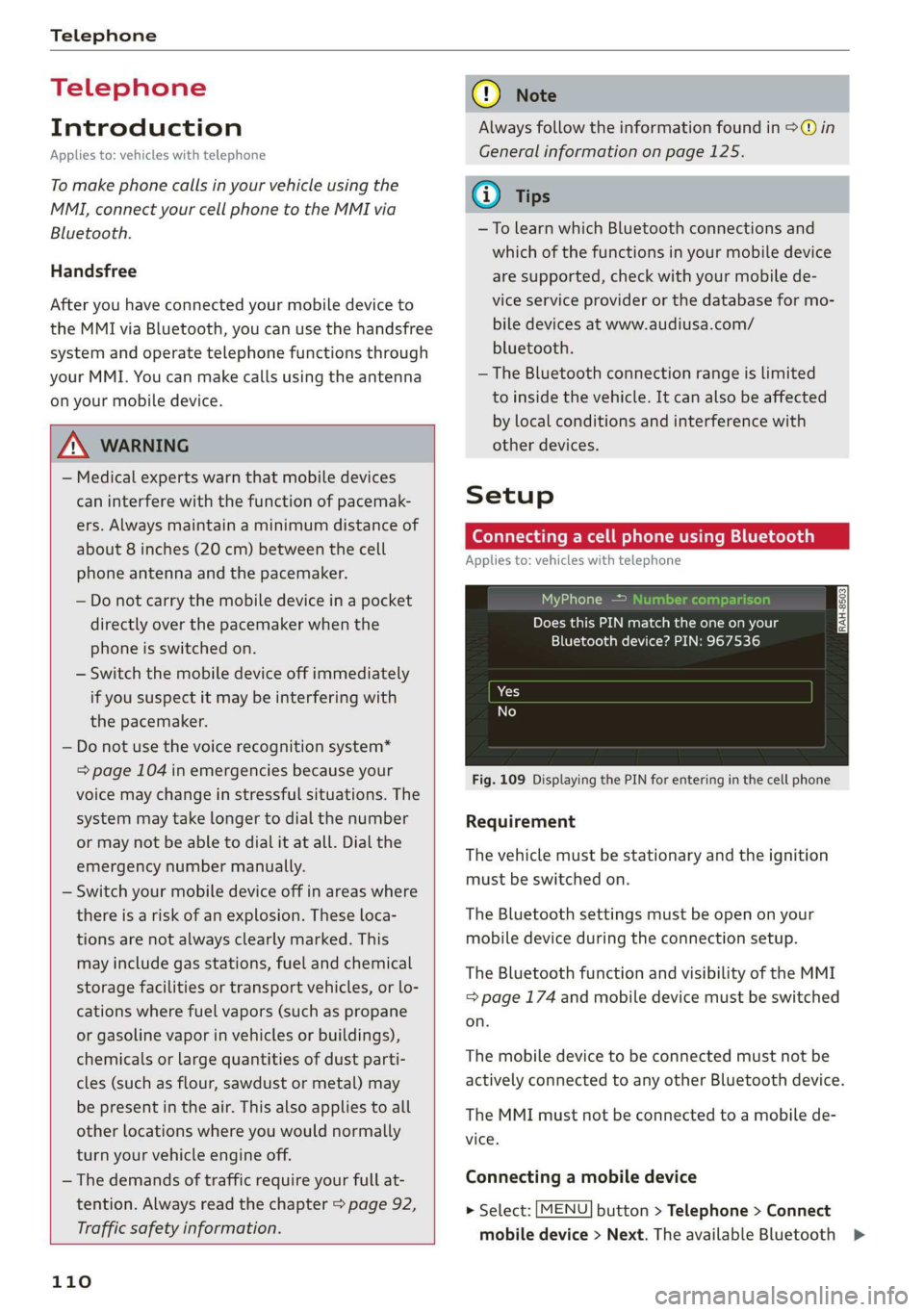
Does this PIN match the one on your
Bluetooth device? PIN: 967536
Fig. 109 Displaying the PIN for entering in the cell phone
Requirement
The vehicle must be stationary and the ignition
must be switched on.
The Bluetooth settings must be open on your
mobile device during the connection setup.
The Bluetooth function and visibility of the MMI
= page 174 and mobile device must be switched
on.
The mobile device to be connected must not be
actively connected to any other Bluetooth device.
The MMI must not be connected to a mobile de-
vice.
Connecting a mobile device
> Select: [MENU] button > Telephone > Connect
mobile device > Next. The available Bluetooth >
Page 113 of 304
8S8012721BA
Telephone
devices are shown in the Infotainment system
display. Or: search for the MMI in your cell
phone through the Bluetooth device search.
> Select and confirm the desired cell phone from
the list of displayed Bluetooth devices.
> The MMI generates a PIN for the connection
setup > fig. 109.
> Select and confirm Yes.
>» Enter the PIN for connecting on your cell
phone. Or: when the PIN is displayed on your
cell phone, confirm the PIN on your cell phone
and in the MMI. The time allowed for entering
the PIN is limited to approximately 30 seconds.
> Pay attention to any additional system prompts
displayed on your cell phone, for example if the
system should connect automatically in the fu-
ture. Depending on the cell phone, you may
have to confirm downloading the directory sep-
arately.
After connecting successfully
After connecting successfully, a short message
with information about the connected profiles
will appear. You can also change profiles later.
Select: [MENU] button > Settings > left control
button > MMI settings > Connection manager
=> page 174.
In addition, the cell phone contacts are automat-
ically loaded in the MMI directory. This process
can take several minutes, depending on the num-
ber of contacts.
@) Note
Always follow the information found in >@ in
General information on page 125.
@) Tips
— Making phone calls through the MMI is only
possible using the Handsfree Bluetooth pro-
file.
— You can apply additional settings to con-
nected mobile devices using the connection
manager = page 172.
— You can also search for the MMI on your mo-
bile device using the Bluetooth device
search.
— You only have to pair your device one time.
Bluetooth devices that are already paired
automatically connect to the MMI when the
Bluetooth function is switched on, when
they are within range, and when the ignition
is switched on. The last connected mobile
device is given first priority.
— Authorizing the MMI connection on your
mobile device will make it possible to con-
nect automatically.
— Pay attention to any system prompts dis-
played on your cell phone, for example if
the system should connect automatically in
the future. Depending on the cell phone,
you may also need to download the directo-
ry and confirm access to your text messages
separately.
— When leaving the vehicle, the Bluetooth
connection to the mobile device will auto-
matically disconnect. Depending on your
mobile device, phone calls in progress may
be automatically redirected from the MMI
to your mobile device so that you can con-
tinue the call on your phone.
— You can obtain more information from your
mobile device service provider or from your
mobile device user guide. For information
on using the telephone, visit www.audiusa.
com/bluetooth or contact an authorized Au-
di dealer or authorized Audi Service Facility.
— Applies to: vehicles without secondary
phone: Several cell phones can be paired to
the MMI, but only one cell phone can be ac-
tively connected to the MMI.
— Applies to: vehicles without secondary
phone: If a Bluetooth device is already con-
nected to the MMI, it will be disconnected
when another device connects to the MMI.
111
Page 114 of 304
Telephone
Operating two mobile devices through the
i
You can connect two cell phones to the MMI, for
example your business cell phone as the primary
phone and your private cell phone as the secon-
dary phone. You can be reached in your vehicle
through both cell phones.
The first connected cell phone is displayed as the
primary phone in the MMI. The second cell phone
is connected as the secondary phone.
The directory from the connected primary phone
will always be displayed. If you would like to use
the directory from the secondary phone, you
must switch the primary and secondary phone
=> page 112.
Connecting a cell phone as the primary
phone
Connect your cell phone to the MMI via Blue-
tooth. The first connected cell phone is displayed
as the Primary phone in the MMI.
See > page 110, Connecting a cell phone using
Bluetooth.
Connecting a cell phone as the secondary
phone
Requirement: a cell phone must be connected to
the MMI as the primary phone.
Select: [MENU] button > Telephone > right con-
trol button > Connect secondary telephone.
See > page 110, Connecting a cell phone using
Bluetooth.
Example: you have connected your business cell
phone to the MMI as the primary phone and your
private cell phone as the secondary phone. To be
able to call contacts from your private cell phone
directory, you must switch the primary and sec-
ondary phone, since the directory from the pri-
mary phone is always displayed.
Switching the primary and secondary phone
Requirement: a primary phone and a secondary
phone must
be connected.
112
Switch primary and second. phone: select:
MENU} button > Telephone > right control but-
ton > Switch primary and second. phone.
G) Tips
— Please note that only the directory from the
primary phone is always displayed.
— To view if your cell phone is connected as
the primary or secondary phone, go to the
Connection manager > page 172. Or: the
device name of the connected primary
phone is shown in the Telephone menu
(such as myPhone).
— If the primary phone does not connect auto-
matically to the MMI when the ignition is
switched on, for example because it is out
of the vehicle range or the Bluetooth func-
tion is switched off, then a previously paired
secondary phone is automatically connected
as the primary phone.
— You can send and receive messages on your
primary phone as well as on your secondary
phone > page 114, fig. 111. You do not
need to switch your primary phone and sec-
ondary phone for this.
— You can also make your connected cell
phone the default phone by selecting Set as
default telephone in the Connection man-
ager > page 174.
Page 115 of 304
8S58012721BA
Telephone
Using the Audi phone
box
Applies to: vehicles with Audi phone box
You can charge your mobile device battery using
the Audi phone box. You can make calls through
the exterior antenna* on the vehicle. Using the
external antenna* helps when there is a low sig-
nal and also provides better reception quality.
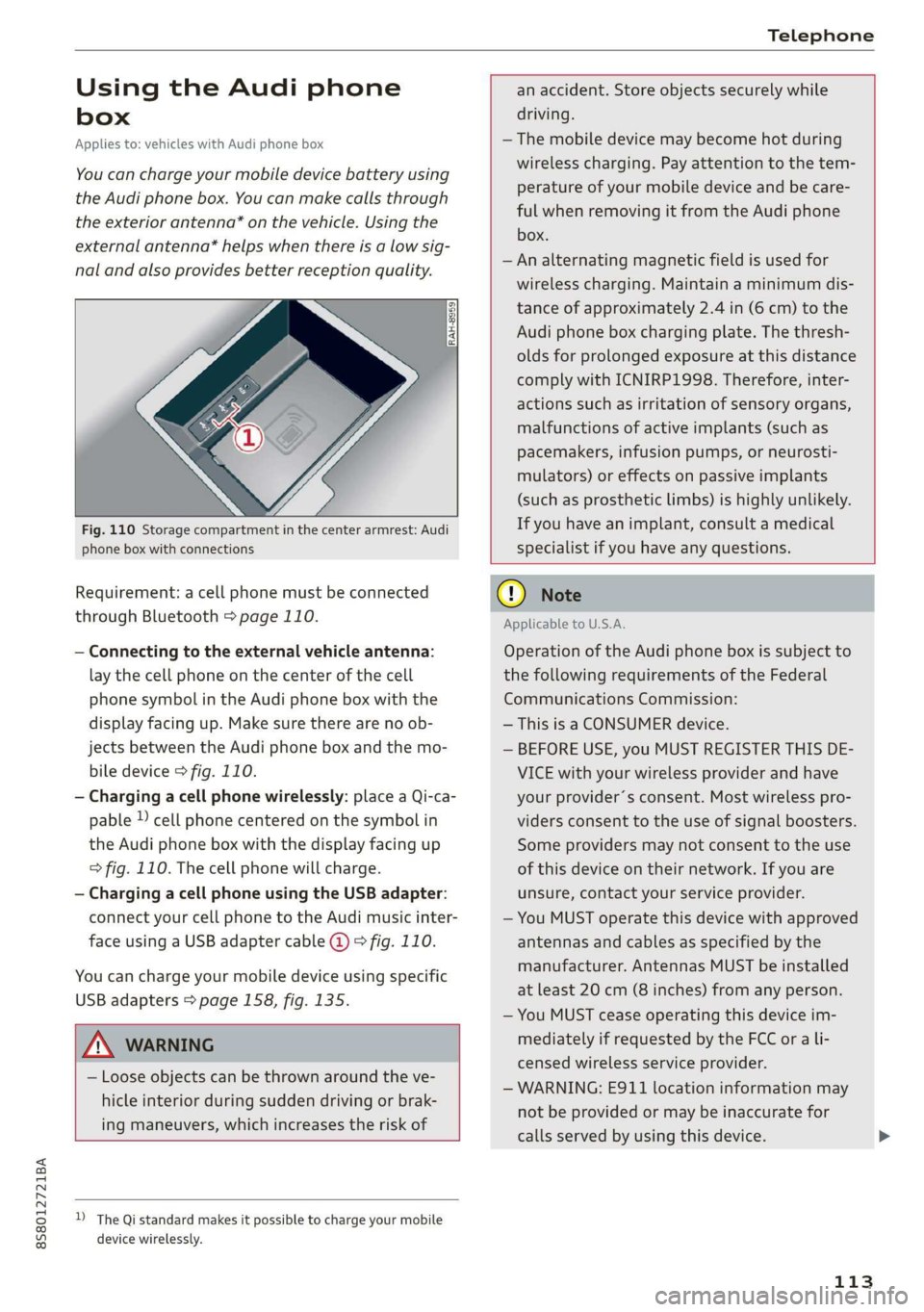
Fig. 110 Storage compartment in the center armrest: Audi
phone box with connections
Requirement: a cell phone must be connected
through Bluetooth > page 110.
— Connecting to the external vehicle antenna:
lay the cell phone on the center of the cell
phone symbol in the Audi phone box with the
display facing up. Make sure there are no ob-
jects between the Audi phone box and the mo-
bile device > fig. 110.
— Charging a cell phone wirelessly: place a Qi-ca-
pable ) cell phone centered on the symbol in
the Audi phone box with the display facing up
> fig. 110. The cell phone will charge.
— Charging a cell phone using the USB adapter:
connect your cell phone to the Audi music inter-
face using a USB adapter cable @) © fig. 110.
You can charge your mobile device using specific
USB adapters > page 158, fig. 135.
an accident. Store objects securely while
driving.
—The mobile device may become hot during
wireless charging. Pay attention to the tem-
perature of your mobile device and be care-
ful when removing it from the Audi phone
box.
— An alternating magnetic field is used for
wireless charging. Maintain a minimum dis-
tance of approximately 2.4 in (6 cm) to the
Audi phone box charging plate. The thresh-
olds for prolonged exposure at this distance
comply with ICNIRP1998. Therefore, inter-
actions such as irritation of sensory organs,
malfunctions of active implants (such as
pacemakers, infusion pumps, or neurosti-
mulators) or effects on passive implants
(such as prosthetic limbs) is highly unlikely.
If you have an implant, consult a medical
specialist if you have any questions.
ZA WARNING
— Loose objects can be thrown around the ve-
hicle interior during sudden driving or brak-
ing maneuvers, which increases the risk of
D_ The Qi standard makes it possible to charge your mobile
device wirelessly.
oO Note
Applicable to U.S.A.
Operation of the Audi phone box is subject to
the following requirements of the Federal
Communications Commission:
— This is a CONSUMER device.
— BEFORE USE, you MUST REGISTER THIS DE-
VICE with your wireless provider and have
your
provider’s consent. Most wireless pro-
viders consent to the use of signal boosters.
Some providers may not consent to the use
of this device on their network. If you are
unsure, contact your service provider.
— You MUST operate this device with approved
antennas
and cables as specified by the
manufacturer. Antennas MUST be installed
at least 20 cm (8 inches) from any person.
— You MUST cease operating this device im-
mediately if requested by the FCC or a li-
censed wireless service provider.
— WARNING: E911 location information may
not be provided or may be inaccurate for
calls served by using this device.
113
Page 117 of 304
8S8012721BA
Telephone
The device name for your cell phone is displayed
in the Telephone menu, for example text mes-
sage (myPhone) © fig. 111.
Dialing a phone number
Applies to: vehicles with telephone
(eT UME)
Please enter a telephone number.
BA) |e4
O800AUDISERVI
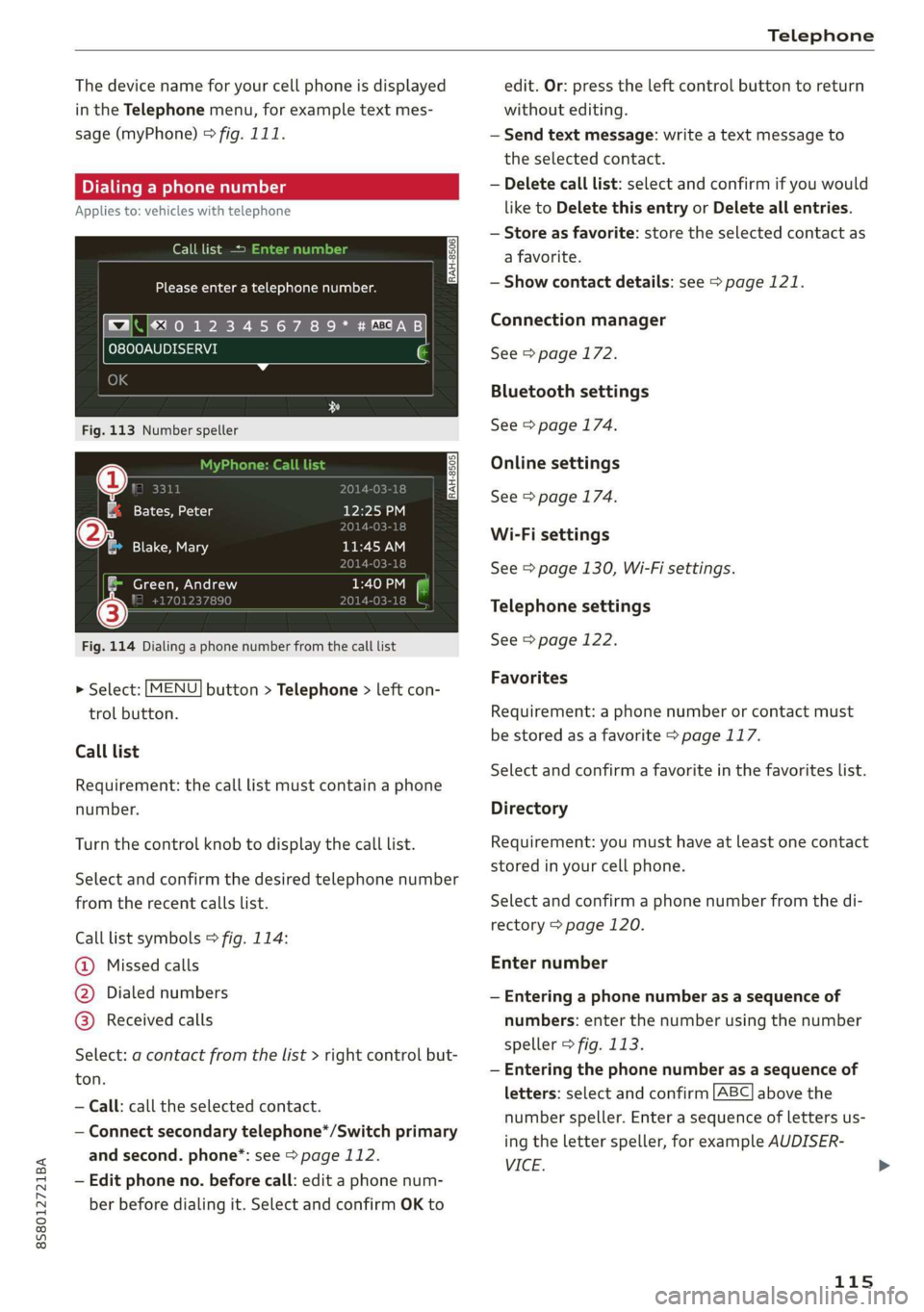
Fig. 113 Number speller
gz eat a lg 12:25 P
01 18
®@ Blake, Mary ne WN
ar)
: Green, Andrew pee Ten |
i! 170123789 2014-03-18
Fig. 114 Dialing a phone number from the call list
> Select: [MENU] button > Telephone > left con-
trol button.
Call list
Requirement: the call list must contain a phone
number.
Turn the control knob to display the call list.
Select and confirm the desired telephone number
from the recent calls list.
Call list symbols > fig. 114:
@ Missed calls
@ Dialed numbers
@ Received calls
Select: a contact from the list > right control but-
ton.
— Call: call the selected contact.
— Connect secondary telephone*/Switch primary
and second. phone”: see > page 112.
— Edit phone no. before call: edit a phone num-
ber before dialing it. Select and confirm OK to
edit. Or: press the left control button to return
without editing.
— Send text message: write a text message to
the selected contact.
— Delete call list: select and confirm if you would
like to Delete this entry or Delete all entries.
— Store as favorite: store the selected contact as
a favorite.
— Show contact details: see > page 121.
Connection manager
See > page 172.
Bluetooth settings
See > page 174.
Online settings
See > page 174.
Wi-Fi settings
See > page 130, Wi-Fi settings.
Telephone settings
See > page 122.
Favorites
Requirement: a phone number or contact must
be stored as a favorite > page 117.
Select and confirm a favorite in the favorites list.
Directory
Requirement: you must have at least one contact
stored in your cell phone.
Select and confirm a phone number from the di-
rectory > page 120.
Enter number
— Entering a phone number as a sequence of
numbers: enter the number using the number
speller > fig. 113.
— Entering the phone number as a sequence of
letters: select and confirm
ABC above the
number speller. Enter a sequence of letters us-
ing
the letter speller, for example AUDISER-
VICE.
115