display BMW 1 SERIES 2013 E82 Workshop Manual
[x] Cancel search | Manufacturer: BMW, Model Year: 2013, Model line: 1 SERIES, Model: BMW 1 SERIES 2013 E82Pages: 288, PDF Size: 6.73 MB
Page 109 of 288
104
ControlsLamps
The parking lamps or low beams must
be switched on for the fog lamps to
operate. The green indicator lamp in
the instrument cluster lights up whenever the
fog lamps are on.
The fog lamps are switched off while you acti-
vate the headlamp flasher or switch on the high
beams.
If the automatic headla mp control is acti-
vated, the low beams will come on auto-
matically when you swit ch on the fog lamps.<
Instrument lighting
You can adjust the brightness of the instrument
lighting only when the parking lamps or the low
beams are switched on.
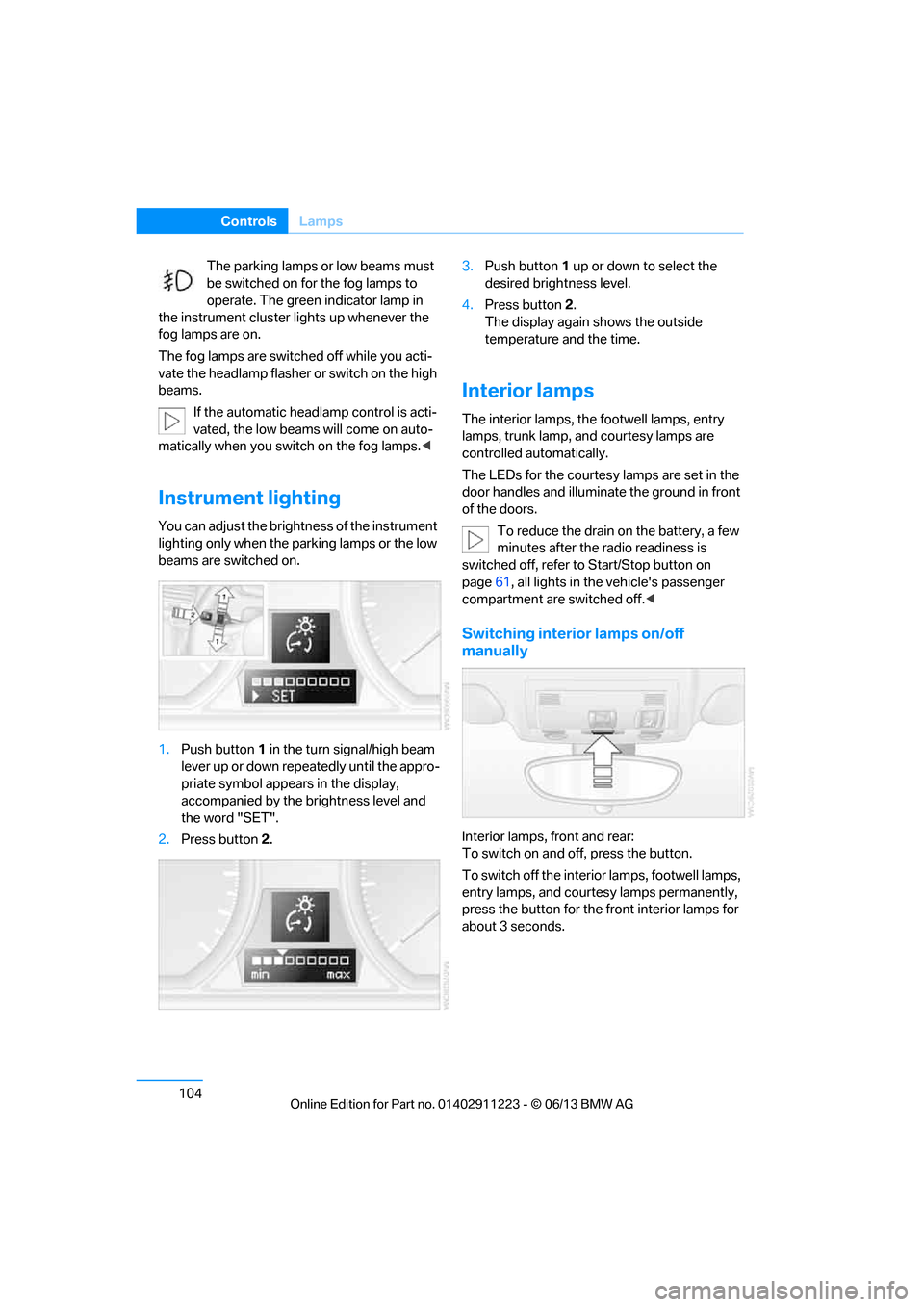
1.Push button 1 in the turn signal/high beam
lever up or down repe atedly until the appro-
priate symbol appear s in the display,
accompanied by the brightness level and
the word "SET".
2. Press button 2. 3.
Push button 1 up or down to select the
desired brightness level.
4. Press button 2.
The display again shows the outside
temperature and the time.
Interior lamps
The interior lamps, the footwell lamps, entry
lamps, trunk lamp, and courtesy lamps are
controlled automatically.
The LEDs for the courtesy lamps are set in the
door handles and illuminate the ground in front
of the doors.
To reduce the drain on the battery, a few
minutes after the radio readiness is
switched off, refer to Start/Stop button on
page 61, all lights in the vehicle's passenger
compartment are switched off. <
Switching interior lamps on/off
manually
Interior lamps, front and rear:
To switch on and off, press the button.
To switch off the interior lamps, footwell lamps,
entry lamps, and courtesy lamps permanently,
press the button for the front interior lamps for
about 3 seconds.
00320051004F004C00510048000300280047004C0057004C005200510003
Page 112 of 288
107
Climate
Controls
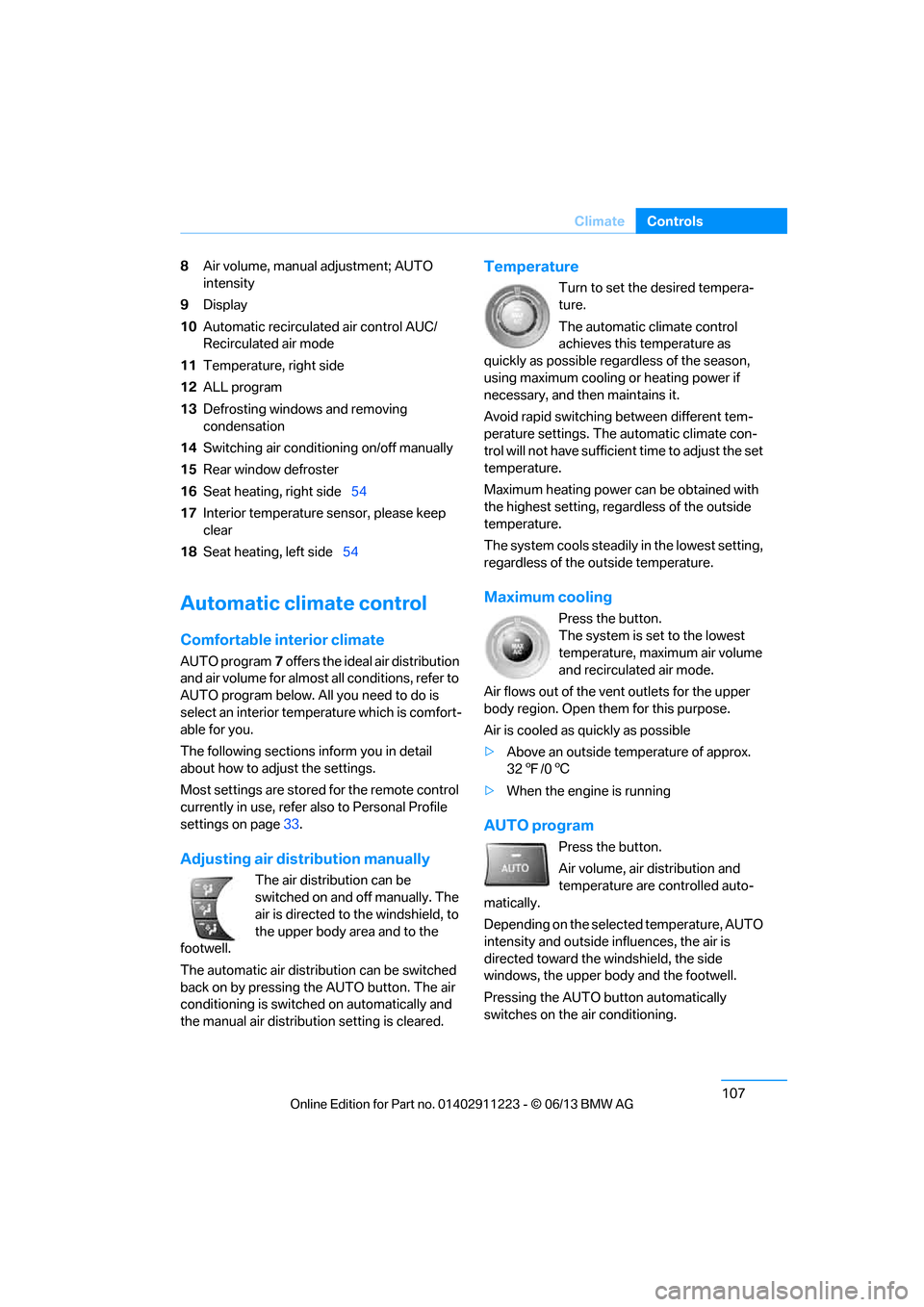
8
Air volume, manual adjustment; AUTO
intensity
9 Display
10 Automatic recirculated air control AUC/
Recirculated air mode
11 Temperature, right side
12 ALL program
13 Defrosting windows and removing
condensation
14 Switching air conditioning on/off manually
15 Rear window defroster
16 Seat heating, right side 54
17 Interior temperature sensor, please keep
clear
18 Seat heating, left side 54
Automatic climate control
Comfortable interior climate
AUTO program7 offers the ideal air distribution
and air volume for almost all conditions, refer to
AUTO program below. All you need to do is
select an interior temperature which is comfort-
able for you.
The following sections inform you in detail
about how to adjust the settings.
Most settings are stored for the remote control
currently in use, refer also to Personal Profile
settings on page 33.
Adjusting air distribution manually
The air distribution can be
switched on and off manually. The
air is directed to the windshield, to
the upper body area and to the
footwell.
The automatic air distribution can be switched
back on by pressing the AUTO button. The air
conditioning is switched on automatically and
the manual air distribution setting is cleared.
Temperature
Turn to set the desired tempera-
ture.
The automatic climate control
achieves this temperature as
quickly as possible regardless of the season,
using maximum cooling or heating power if
necessary, and then maintains it.
Avoid rapid switching between different tem-
perature settings. The automatic climate con-
trol will not have sufficient time to adjust the set
temperature.
Maximum heating power can be obtained with
the highest setting, regardless of the outside
temperature.
The system cools steadily in the lowest setting,
regardless of the outside temperature.
Maximum cooling
Press the button.
The system is set to the lowest
temperature, maximum air volume
and recirculated air mode.
Air flows out of the vent outlets for the upper
body region. Open them for this purpose.
Air is cooled as quickly as possible
> Above an outside temperature of approx.
327/06
> When the engine is running
AUTO program
Press the button.
Air volume, air distribution and
temperature are controlled auto-
matically.
Depending on the selected temperature, AUTO
intensity and outside in fluences, the air is
directed toward the windshield, the side
windows, the upper body and the footwell.
Pressing the AUTO button automatically
switches on the air conditioning.
00320051004F004C00510048000300280047004C0057004C005200510003
Page 113 of 288
108
ControlsClimate
At the same time, a condensation sensor
controls the program so as to prevent window
condensation as much as possible.
The program is switched off when the air distri-
bution is set manually or the button is pressed
again.
Intensity of the AUTO program
With the AUTO progra m switched on, auto-
matic control of the air volume and air
distribution can be adjusted:
Press the left side of the button to
reduce the intensity. Press the
right side of the button to
increase it.
The selected intensity is shown on the display
of the automatic climate control.
Convertible Program
The Convertible Program is active when the
convertible top is open and the AUTO program
is switched on. During the Convertible Program,
the automatic climate co ntrol is optimized for
driving with the soft top down. In addition, the
air volume is increa sed as vehicle speed
increases.
The effectiveness of the Convertible
Program can be enhanced considerably
by installing the wind deflector. <
Adjusting air volume manually
To be able to manually adjust the air volume,
switch off the AUTO program first.
Press the left side of the button to
reduce the air volume. Press the
right side of the button to
increase it.
The air flow rate is lowered or switched off
entirely to reduce the drain on the battery. The
display remains the same.
Automatic recirculated air control
AUC/Recirculated air mode
You can respond to unpleasant odors or pollut-
ants in the immediate environment by tempo-
rarily suspending the supply of outside air. The
system then recirculates the air currently within
the vehicle.
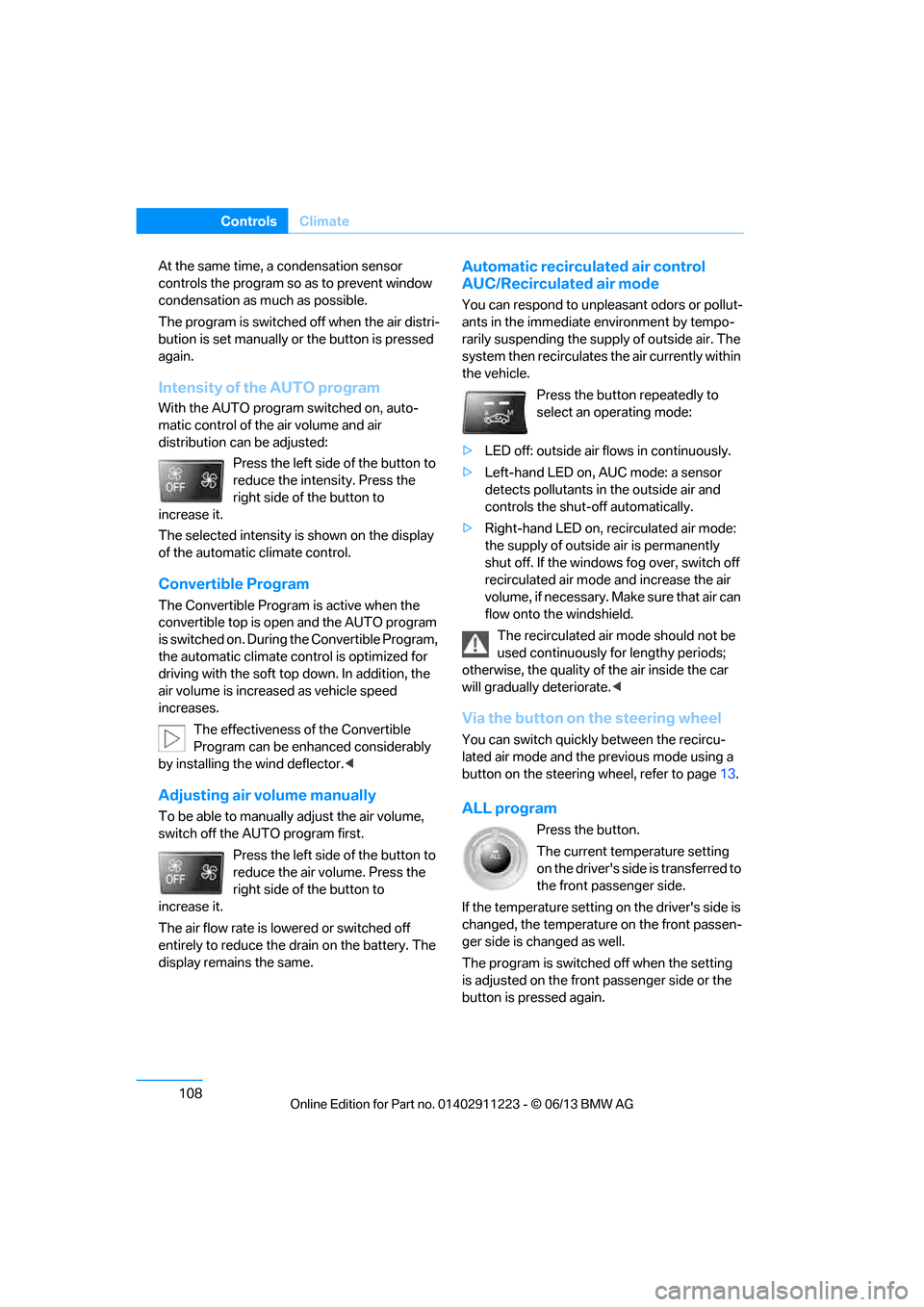
Press the button repeatedly to
select an operating mode:
> LED off: outside air fl ows in continuously.
> Left-hand LED on, AUC mode: a sensor
detects pollutants in the outside air and
controls the shut-off automatically.
> Right-hand LED on, recirculated air mode:
the supply of outside air is permanently
shut off. If the windows fog over, switch off
recirculated air mode and increase the air
volume, if necessary. Ma ke sure that air can
flow onto the windshield.
The recirculated air mode should not be
used continuously fo r lengthy periods;
otherwise, the quality of the air inside the car
will gradually deteriorate. <
Via the button on the steering wheel
You can switch quickly between the recircu-
lated air mode and the previous mode using a
button on the steering wheel, refer to page 13.
ALL program
Press the button.
The current temperature setting
on the driver's side is transferred to
the front passenger side.
If the temperature setting on the driver's side is
changed, the temperature on the front passen-
ger side is changed as well.
The program is switched off when the setting
is adjusted on the front passenger side or the
button is pressed again.
00320051004F004C00510048000300280047004C0057004C005200510003
Page 114 of 288
109
Climate
Controls
Defrosting windows and removing
condensation
Press the button.
Quickly removes ice and conden-
sation from the windshield and
front side windows.
For this purpose, also switch on the air
conditioning.
Switching air conditioning on/off
The passenger compartment can only be
cooled while the engine is running.
Press the button.
The air is cooled and dehumidified
and – depending on the tempera-
ture setting – warmed again.
Depending on the weathe r, the windshield may
fog up briefly when the engine is started.
Pressing the AUTO button automatically
switches on the air conditioning.
Rear window defroster
Press the button.
The defroster is switched off auto-
matically after a certain time.
Depending on your vehicle's equipment, the
upper wires serve as an antenna and are not
part of the rear window defroster.
Switching the system on/off
Switching off
Press and hold the left button or
press the left button at the lowest
level.
All displays are cleared except for the rear
window defroster if it is switched on.
The outside air supply is blocked when
the automatic climate control is switched
off. If the air quality de teriorates or the window
fogs over, switch the system back on and
increase the air volume. <
Switching on
Press any button, except the buttons for the
ALL program or the rear window defroster.
Ventilation
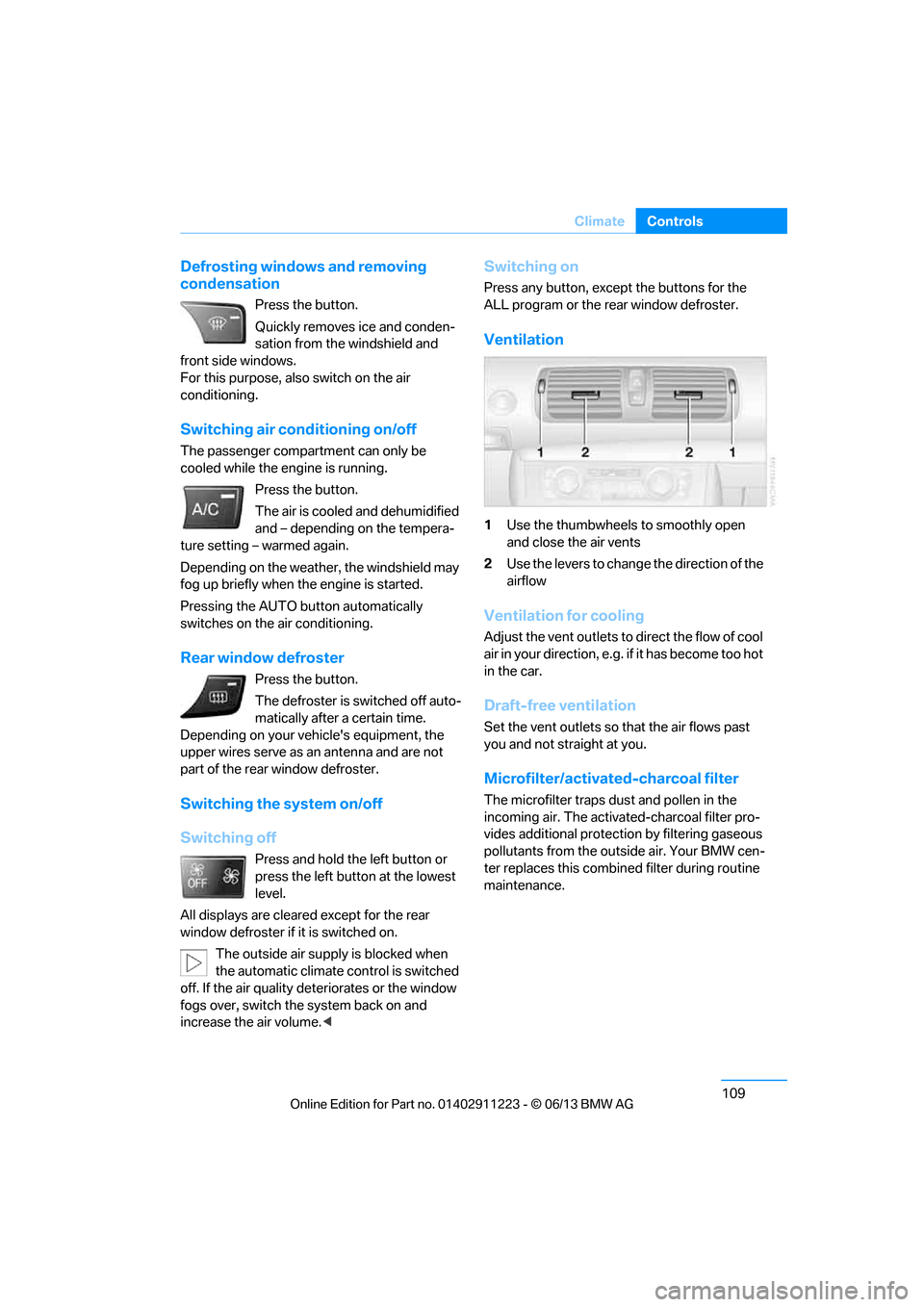
1 Use the thumbwheels to smoothly open
and close the air vents
2 Use the levers to change the direction of the
airflow
Ventilation for cooling
Adjust the vent outlets to direct the flow of cool
air in your direction, e.g. if it has become too hot
in the car.
Draft-free ventilation
Set the vent outlets so that the air flows past
you and not straight at you.
Microfilter/activated-charcoal filter
The microfilter traps dust and pollen in the
incoming air. The activated-charcoal filter pro-
vides additional protection by filtering gaseous
pollutants from the outs ide air. Your BMW cen-
ter replaces this combined filter during routine
maintenance.
00320051004F004C00510048000300280047004C0057004C005200510003
Page 115 of 288
110
ControlsClimate
Parked car ventilation
The concept
The parked car ventilation provides ventilation
to the passenger compartment and lowers its
temperature, if necessary.
For any outside temperature, the system can be
switched on or off directly or via a preset
switch-on time. It will re main on for 30 minutes.
Due to its high power consumption, the parked
car ventilation system should not be switched
on twice in a row withou t driving in between to
allow the battery to recharge.
Open the vents so that air can flow out.
They can be operated via iDrive.
Switching on and off directly
1. "Settings"
2. "Climate"
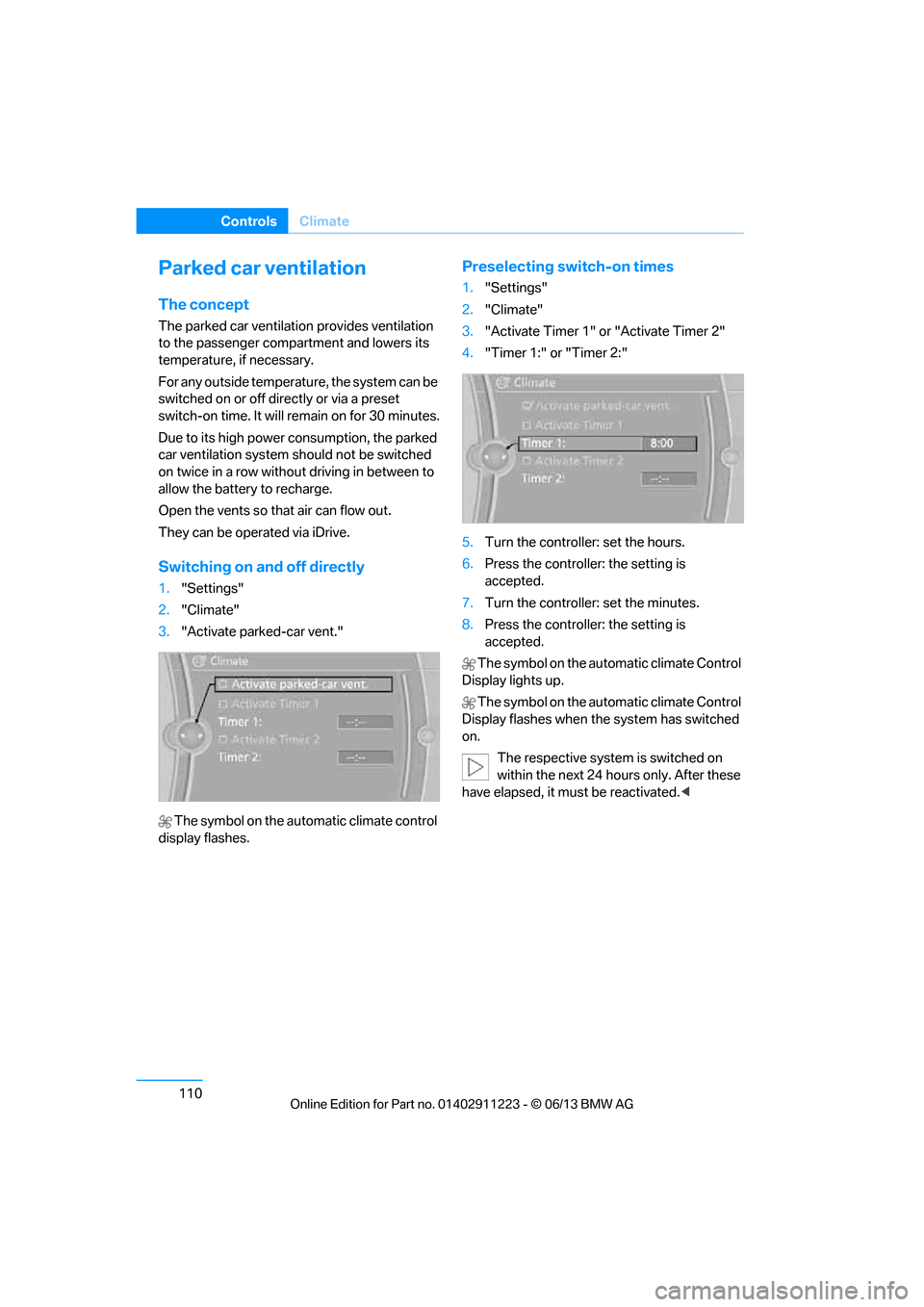
3. "Activate parked-car vent."
The symbol on the automatic climate control
display flashes.
Preselecting switch-on times
1. "Settings"
2. "Climate"
3. "Activate Timer 1" or "Activate Timer 2"
4. "Timer 1:" or "Timer 2:"
5. Turn the controller: set the hours.
6. Press the controller: the setting is
accepted.
7. Turn the controller: set the minutes.
8. Press the controller: the setting is
accepted.
The symbol on the automatic climate Control
Display lights up.
The symbol on the automatic climate Control
Display flashes when the system has switched
on.
The respective system is switched on
within the next 24 hours only. After these
have elapsed, it must be reactivated. <
00320051004F004C00510048000300280047004C0057004C005200510003
Page 118 of 288
113
Practical interior accessories
Controls
Canada: if the LED does not flash rapidly
after approx. 60 seconds, alter the distance
and repeat this step or, if the programming
by means of the hand-held transmitter was
interrupted, hold down the button on the
inside mirror and then press and release the
button on the hand-held transmitter several
times, holding it down for 2 seconds each
time.
Operation
To prevent possible
damage or injury,
before programming or using the inte-
grated universal remote control to operate a
device, always inspect the immediate area to
make certain that no people, animals or objects
are within the pivoting or travel range of the
device being operated.
Also follow the safety in structions supplied with
the hand-held transmitter. <
The button on the inside mirror can be used to
operate the device, for example the garage
door, if the engine is running or the ignition is
switched on. To do so , within the reception
range of the device, pr ess the button of the
device until the function is triggered. The LED
on the inside mirror remains lit during transmis-
sion of the radio signal.
Deleting stored functions
Simultaneously hold down the right and left
buttons on the inside mirror for approx. 20 sec-
onds until the LED on the inside mirror flashes
rapidly. All stored functions are deleted. The
functions cannot be de leted individually.
Digital compass
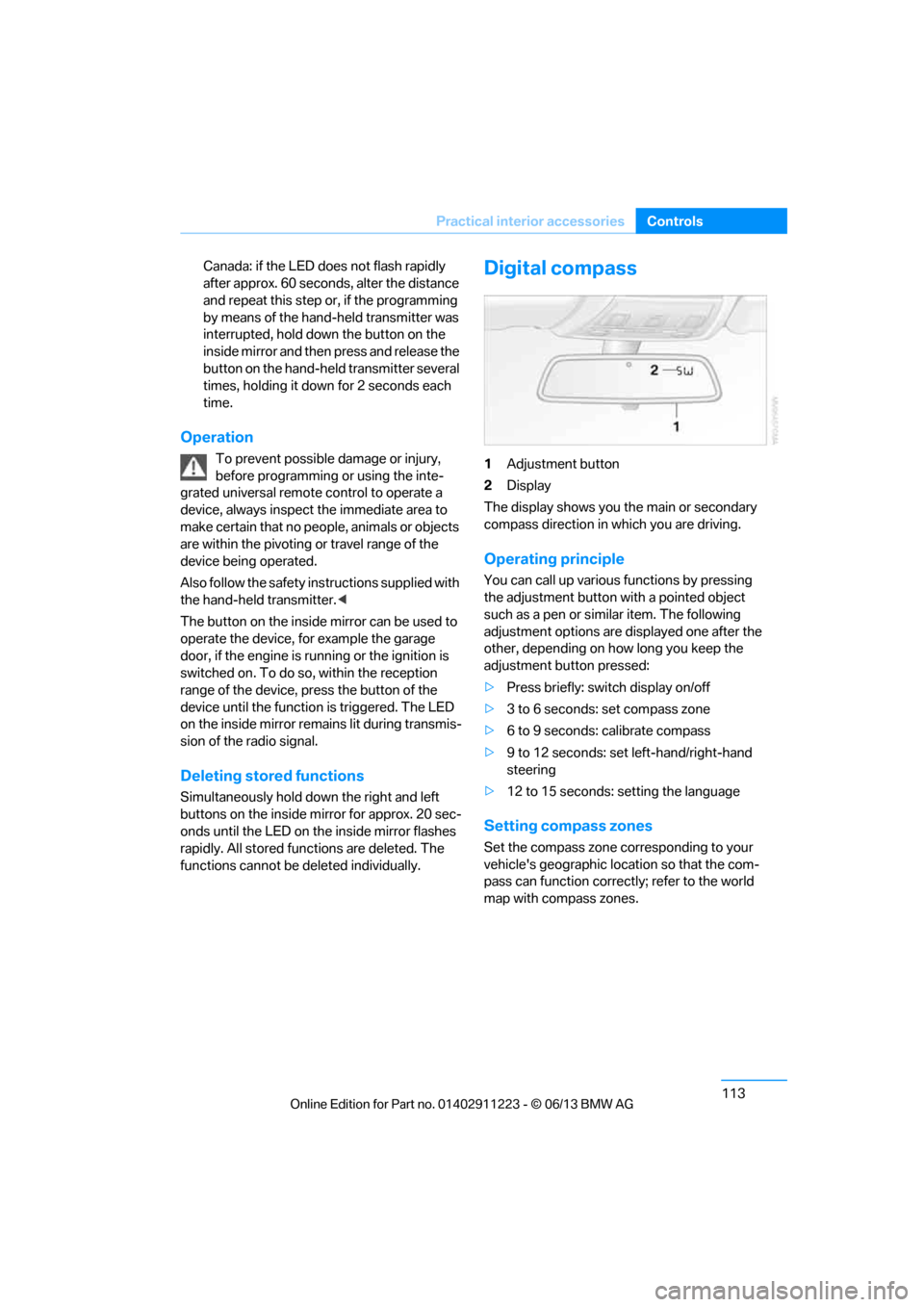
1Adjustment button
2 Display
The display shows you the main or secondary
compass direction in which you are driving.
Operating principle
You can call up various functions by pressing
the adjustment button wi th a pointed object
such as a pen or similar item. The following
adjustment options are displayed one after the
other, depending on how long you keep the
adjustment button pressed:
> Press briefly: switch display on/off
> 3 to 6 seconds: set compass zone
> 6 to 9 seconds: calibrate compass
> 9 to 12 seconds: set left-hand/right-hand
steering
> 12 to 15 seconds: setting the language
Setting compass zones
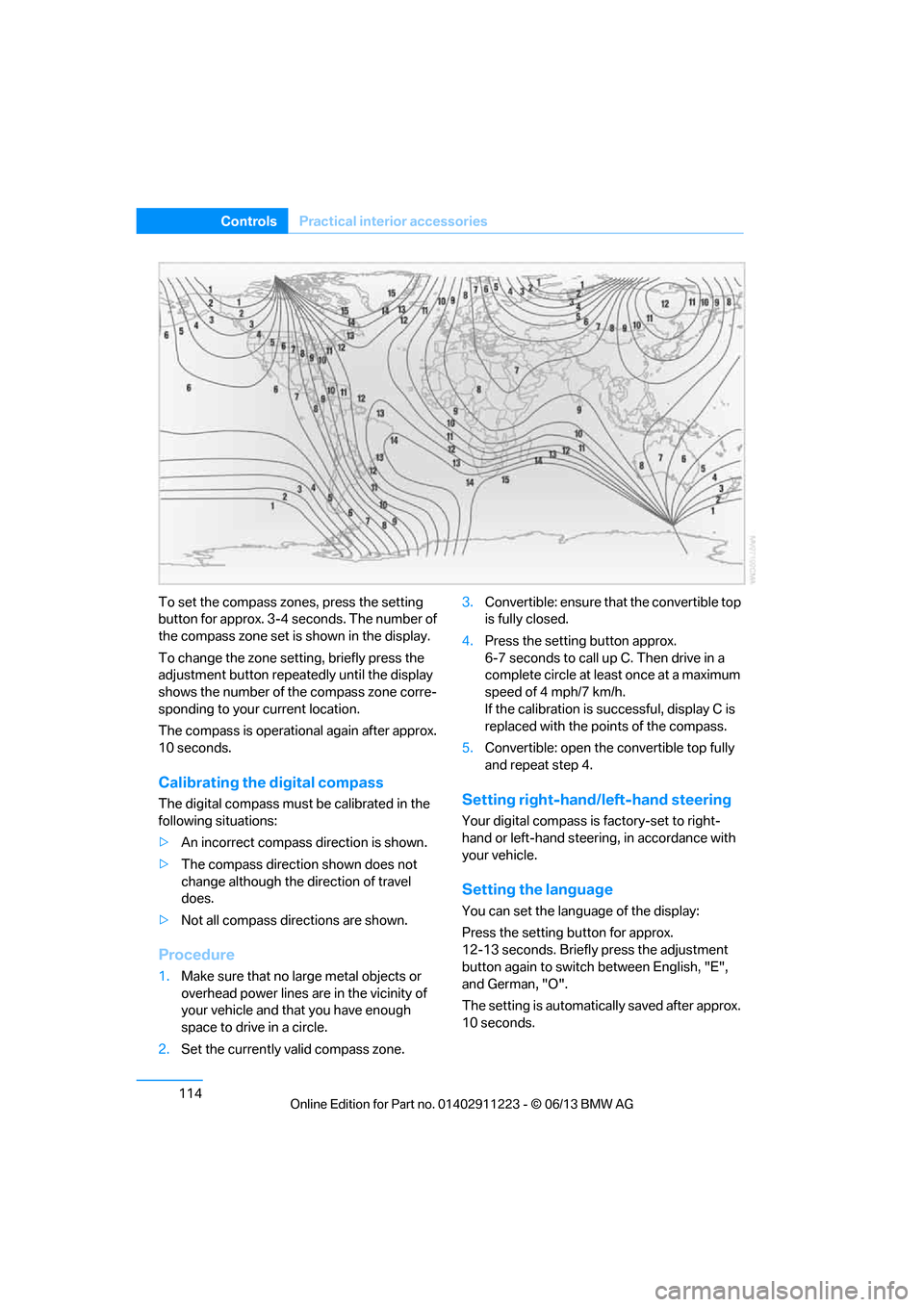
Set the compass zone co rresponding to your
vehicle's geographic location so that the com-
pass can function correct ly; refer to the world
map with compass zones.
00320051004F004C00510048000300280047004C0057004C005200510003
Page 119 of 288
114
ControlsPractical interior accessories
To set the compass zones, press the setting
button for approx. 3-4 seconds. The number of
the compass zone set is shown in the display.
To change the zone setting, briefly press the
adjustment button repeat edly until the display
shows the number of th e compass zone corre-
sponding to your current location.
The compass is operatio nal again after approx.
10 seconds.
Calibrating the digital compass
The digital compass must be calibrated in the
following situations:
> An incorrect compass direction is shown.
> The compass direction shown does not
change although the direction of travel
does.
> Not all compass directions are shown.
Procedure
1.Make sure that no large metal objects or
overhead power lines are in the vicinity of
your vehicle and that you have enough
space to drive in a circle.
2. Set the currently valid compass zone. 3.
Convertible: ensure that the convertible top
is fully closed.
4. Press the setting button approx.
6-7 seconds to call up C. Then drive in a
complete circle at least once at a maximum
speed of 4 mph/7 km/h.
If the calibration is su ccessful, display C is
replaced with the points of the compass.
5. Convertible: open the convertible top fully
and repeat step 4.
Setting right-hand/left-hand steering
Your digital compass is factory-set to right-
hand or left-hand steering, in accordance with
your vehicle.
Setting the language
You can set the langua ge of the display:
Press the setting button for approx.
12-13 seconds. Briefly press the adjustment
button again to switch between English, "E",
and German, "O".
The setting is automatically saved after approx.
10 seconds.
00320051004F004C00510048000300280047004C0057004C005200510003
Page 137 of 288
132
NavigationNavigation system
Navigation system
Vehicle equipment
In this chapter, all pr oduction, country, and
optional equipment that is offered in the model
range is described. Equipment is also described
that is not available because of, for example,
selected options or country version. This also
applies to safety related functions and systems.
General information
The navigation system can determine the pre-
cise position of the vehicle, with the aid of satel-
lites and vehicle sensors, and can reliably guide
you to every entered destination.
Enter data only with the vehicle station-
ary, and always give priority to the appli-
cable traffic regulations in the event of any con-
tradiction between traffi c and road conditions
and the instructions issu ed by the navigation
system. Failure to take to this precaution can
place you in violation of the law and put vehicle
occupants and other road users in danger. <
Accessing navigation system
1.Press the button.
2. "Navigation"
The navigation syst em can also be
accessed directly with the button on the
controller.
Navigation data
General information
Navigation data and au thorization codes are
available from your BMW center. Navigation
data are stored in the vehicle and can be
updated.
> Depending on the data volume, a data
update may take several hours.
> Update data while dr iving to reduce the
drain on the battery.
> Only the main functions of the navigation
system are available during updating.
The update is resumed automatically when a
trip is continued after an interruption.
> You can inquire as to the status of the
update.
> The data are stored in the vehicle.
> After the update, the system restarts.
> The medium that holds the navigation
data can be removed after the update is
completed.
Information about navigation data
1."Navigation"
2. Open "Options".
3. "Navigation system version":
Information about the data version is
displayed.
Updating the navigation data
Inserting navigation DVD
1.Insert the navigation DVD into the DVD
player with the labe led side facing up.
2. Follow the instructions on the Control
Display.
3. Enter the authorization code of the naviga-
tion DVD and change the DVD if needed.
00320051004F004C00510048000300280047004C0057004C005200510003
Page 139 of 288
134
NavigationDestination entry
Destination entry
Vehicle equipment
In this chapter, all pr oduction, country, and
optional equipment that is offered in the model
range is described. Equipment is also described
that is not available because of, for example,
selected options or country version. This also
applies to safety related functions and systems.
General information
In entering your destination you can select from
the following options:
> Entering a destination manually, see below
> Selecting destination from address book,
refer to page 136
> Last destinations, refer to page 137
> Special destinations, refer to page 137
> Entering a destination on the map, refer to
page 139
> Selecting home addr ess, refer to page137
> Destination entry via voice, refer to
page 140
> Destination entry via BMW Assist, refer to
page 139
You can also store a navigation destination on
the programmable memo ry keys, refer to
page 25.
Entering a destination
manually
To make it easier to enter town/city names and
street names, the system assists you with auto-
matic name completion and entry comparison,
refer to page 143. This makes it possible to
enter different spellings and completes your
entry automatically so that stored town/city
names and street names can be accessed
quickly. 1.
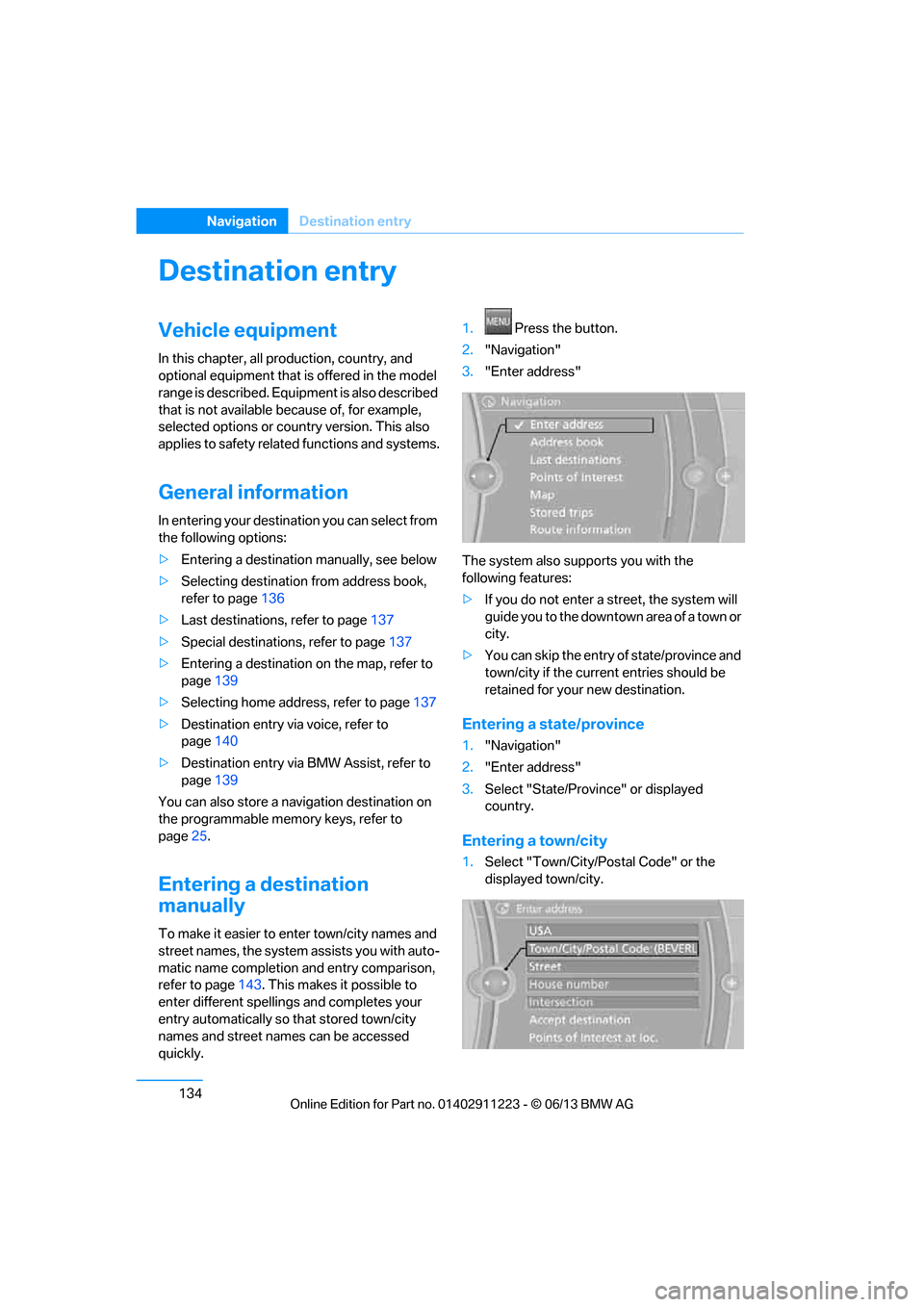
Press the button.
2. "Navigation"
3. "Enter address"
The system also supports you with the
following features:
> If you do not enter a street, the system will
guide you to the downtown area of a town or
city.
> You can skip the entry of state/province and
town/city if the curren t entries should be
retained for your new destination.
Entering a state/province
1. "Navigation"
2. "Enter address"
3. Select "State/Provi nce" or displayed
country.
Entering a town/city
1. Select "Town/City/Postal Code" or the
displayed town/city.
00320051004F004C00510048000300280047004C0057004C005200510003
Page 140 of 288
135
Destination entry
Navigation
2.
Select letters, if necessary.
The list is reduced in steps with each entry.
To delete letters:
> To delete individual letters:
Turn the controller to select , and
then press the controller.
> To delete all letters:
Turn the controller to select , and
then press the controller for an extended
period.
To enter spaces:
> Select the symbol.
The list gradually grow s smaller each time
you enter a new letter.
3. Move the controller to the right.
4. Select the name of the town/city from the
list.
If there are several town s/cities with the same
name:
1. Change to the list of town/city names.
2. Highlight the town/city.
3. Select the town/city.
Entering the postal code
1.Select "Town/City/Postal Code" or the
displayed town/city.
2. Select the symbol.
3. Select the digits.
4. Change to the list of postal codes and
towns/cities.
5. Highlight the entry.
6. Select an entry.
Entering street and intersection
1.Select "Street" or displayed street.
2. Enter the street and cross-street the same
way you entered the town/city.
After you enter the street, you can also enter
the cross street or the house number. If there are several streets with the same name:
1.
Change to the list of street names.
2. Highlight street.
3. Select the street.
Alternative: entering street and house
number
1.Select "Street" or displayed street.
2. Enter the street the same way you entered
the town/city.
3. "House number"
4. Select the digits.
5. Change to the list of house numbers.
6. Select a house number or range of house
numbers.
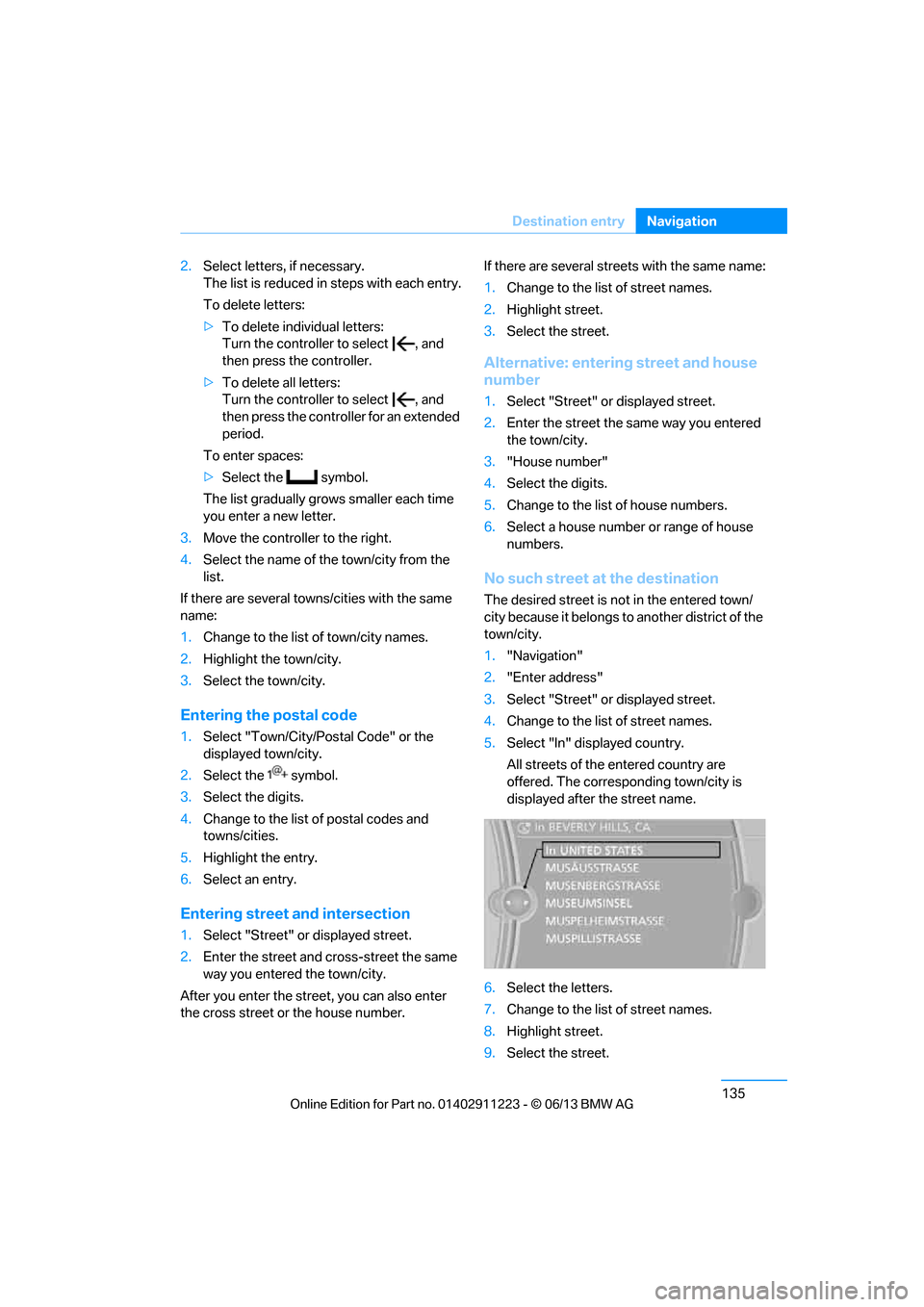
No such street at the destination
The desired street is not in the entered town/
city because it belongs to another district of the
town/city.
1."Navigation"
2. "Enter address"
3. Select "Street" or displayed street.
4. Change to the list of street names.
5. Select "In" displayed country.
All streets of the entered country are
offered. The corresponding town/city is
displayed after the street name.
6. Select the letters.
7. Change to the list of street names.
8. Highlight street.
9. Select the street.
00320051004F004C00510048000300280047004C0057004C005200510003